 Try ShortPoint now
If you want to try ShortPoint on your Microsoft 365 (SharePoint Online) environment, follow closely the guide below.
NOTEThe installation process is the same for all license options (Lite, Pro, or Enterprise). However, if you have the Lite license, you're required to assign a single SharePoint site to use. For more information, check out our Licensing Options.
TABLE OF CONTENTS
Before we begin
- This article is for the manual installation of ShortPoint SPFx to your Microsoft 365 (SharePoint Online) environment.
- Make sure you have the URL of your SharePoint tenant ready. This is needed to accomplish the trial request form.
Step-by-Step Tutorial
1. Go to the Download page. The download should start automatically. If it doesn't, select here.
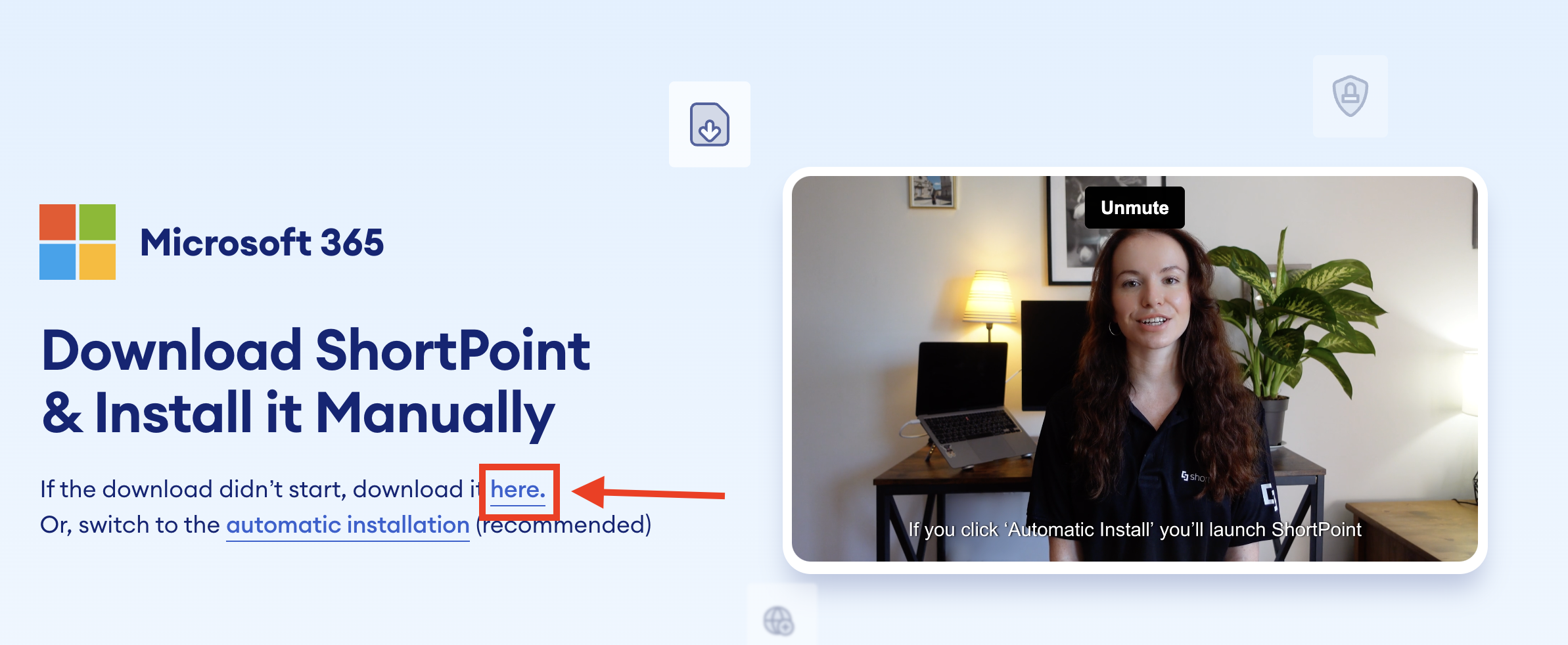
2. You will now have ShortPoint_SPFX.zip in your downloads. You may now proceed to Installation Prerequisite 2: Download and Extract the ShortPoint Installation File.

Related articles:
- ShortPoint SPFx Installation for Microsoft 365 (First Time)
- Manual Installation Prerequisite 1: Go to the Download Page
- Manual Installation Prerequisite 2: Download and Extract the ShortPoint Installation File
- Manual Installation Step 1: Upload ShortPoint SPFx to Tenant App Catalog in Microsoft 365
- Manual Installation Step 2: Add ShortPoint SPFx to SharePoint Site in Microsoft 365
- Manual Installation Step 3: Run ShortPoint Installation from Dashboard in Microsoft 365
