Try ShortPoint now
TL;DR: The Action Toolbar is the bar at the bottom of your page while you edit in ShortPoint Page Builder. It gives you one-click access to tools you use often. You can open the AI Designer, switch to Wireframe Mode, undo changes in History, or copy a web part from another page. You can also get help, clear the web part you’re editing, or preview the page. To see more of your page, collapse the toolbar into a single button.
ShortPoint Page Builder has a revamped user interface, focusing on the accessibility of key functionalities. In this article, we will introduce you to the Action Toolbar.
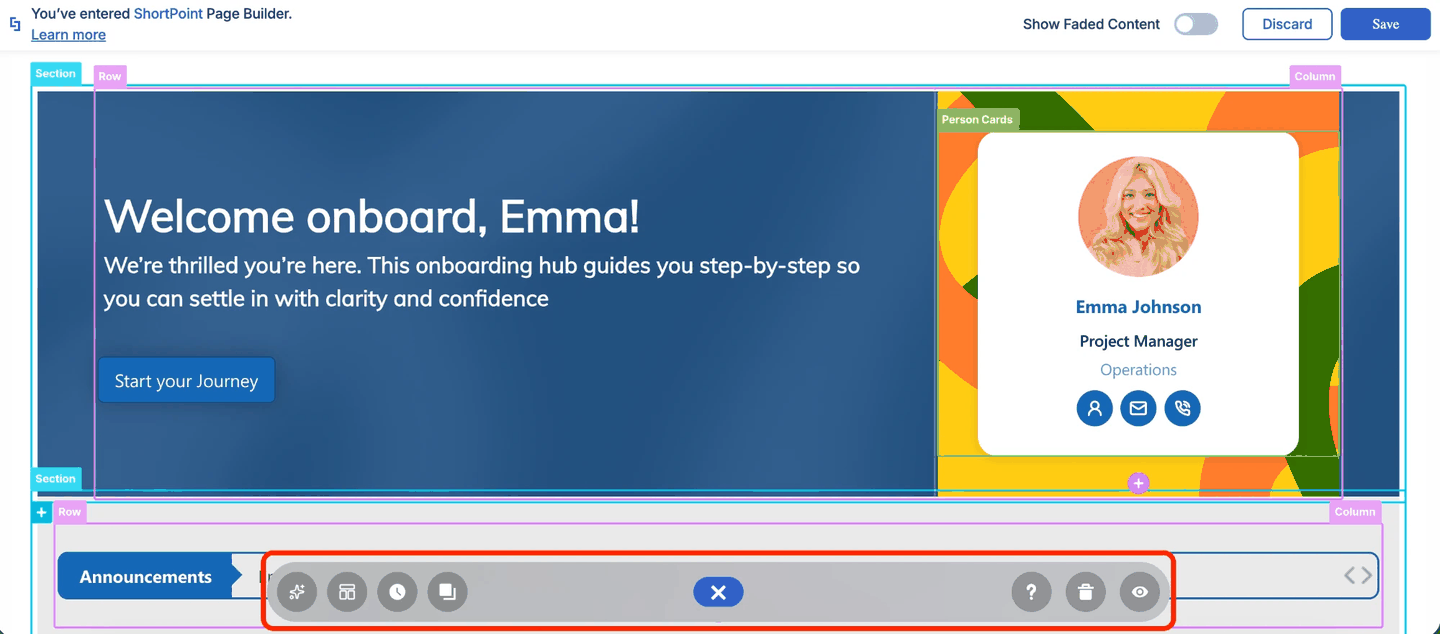
TABLE OF CONTENTS
- Prerequisites
- What is the Action Toolbar?
- Interactive Experience
- Action Toolbar Features
- Frequently Asked Questions
- Is the Action Toolbar always visible?
- How do I collapse or expand the Action Toolbar?
- Where are the Discard and Save buttons?
- How do I undo a design change?
- Will the Trash icon delete other web parts on my page?
- How can I see what my page looks like while I'm editing?
- Can I reuse a web part from another SharePoint page?
Prerequisites
- You must have the latest version of ShortPoint SPFx installed on your SharePoint environment.
- You are a ShortPoint Designer with an active license.
What is the Action Toolbar?
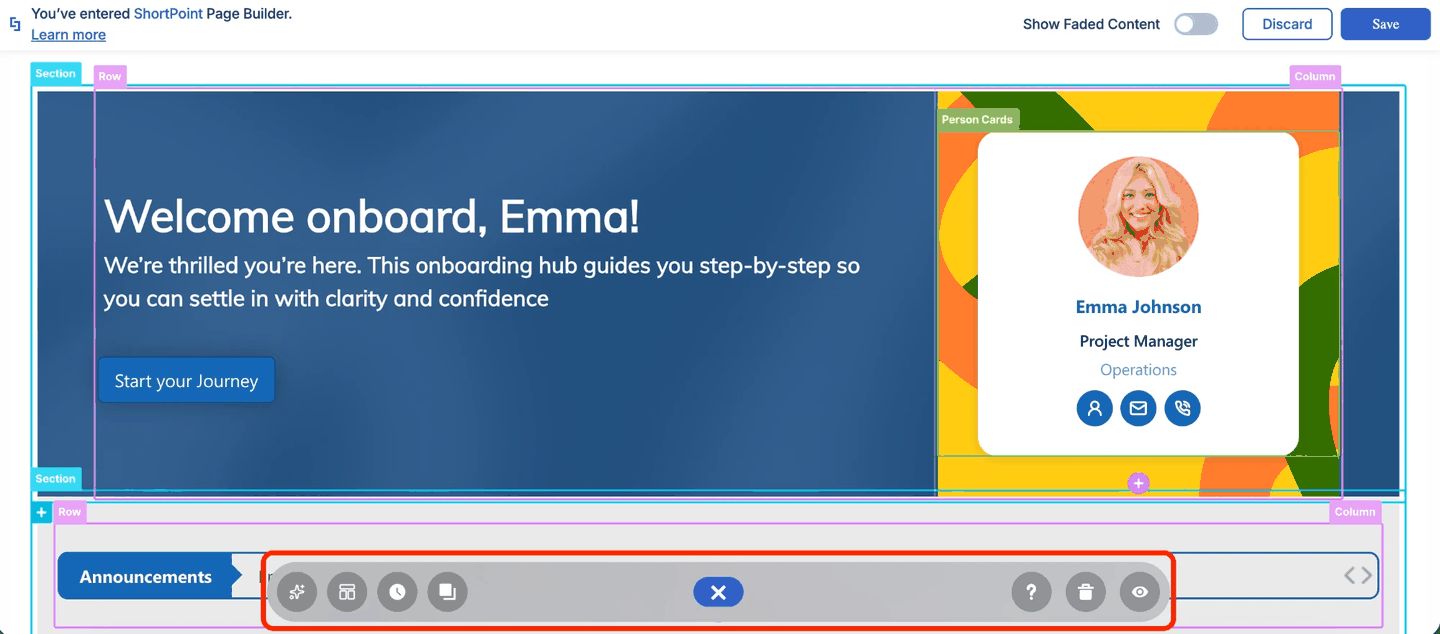
The Action Toolbar is a semi-transparent bar at the bottom of your page. It contains ready-to-access icons that open or trigger features you use regularly while editing your SharePoint pages. It is always present while you are in edit mode and can be collapsed into one button so you have a better view of your page.
Interactive Experience
Try the Action Toolbar for yourself and learn more about it in the interactive experience below:
Action Toolbar Features
The following features are available from the Action Toolbar, from left to right:
 | AI Designer icon | opens the AI Designer prompt panel, where you can describe the page you need. Select the icon again to close it. |
 | Wireframe icon | turns on Wireframe Mode, a new editing mode that maintains the features of Grid Mode while allowing you to edit your page in real time. For more information, go to What is Wireframe Mode. |
 | Clock icon | opens the History window, where you can view and revert your design edits and actions. To close it, click the close icon. For more details, see the ShortPoint Page Builder Live Mode History feature. |
 | Copy Web Part icon | allows you to copy and paste a full ShortPoint web part from an existing SharePoint page. For more details, see the Live Mode Copy and Paste feature. |
 | X icon | collapses the Action Toolbar into a single button so you can see a full view of your intranet page with fewer distractions. |
 | Equals icon | appears when the Action Toolbar is collapsed. Click it to expand the toolbar again. |
 | Question mark icon | provides links to resources you may need as you design your SharePoint pages. |
 | Trash icon | removes existing content from a ShortPoint web part. This will not affect other ShortPoint web parts on the page, just the one you are currently editing. |
 | Eye icon | shows how your page will look outside of Isolate Mode. Click it again to resume editing. To learn more about Isolate Mode, check out What is Isolate Mode. |
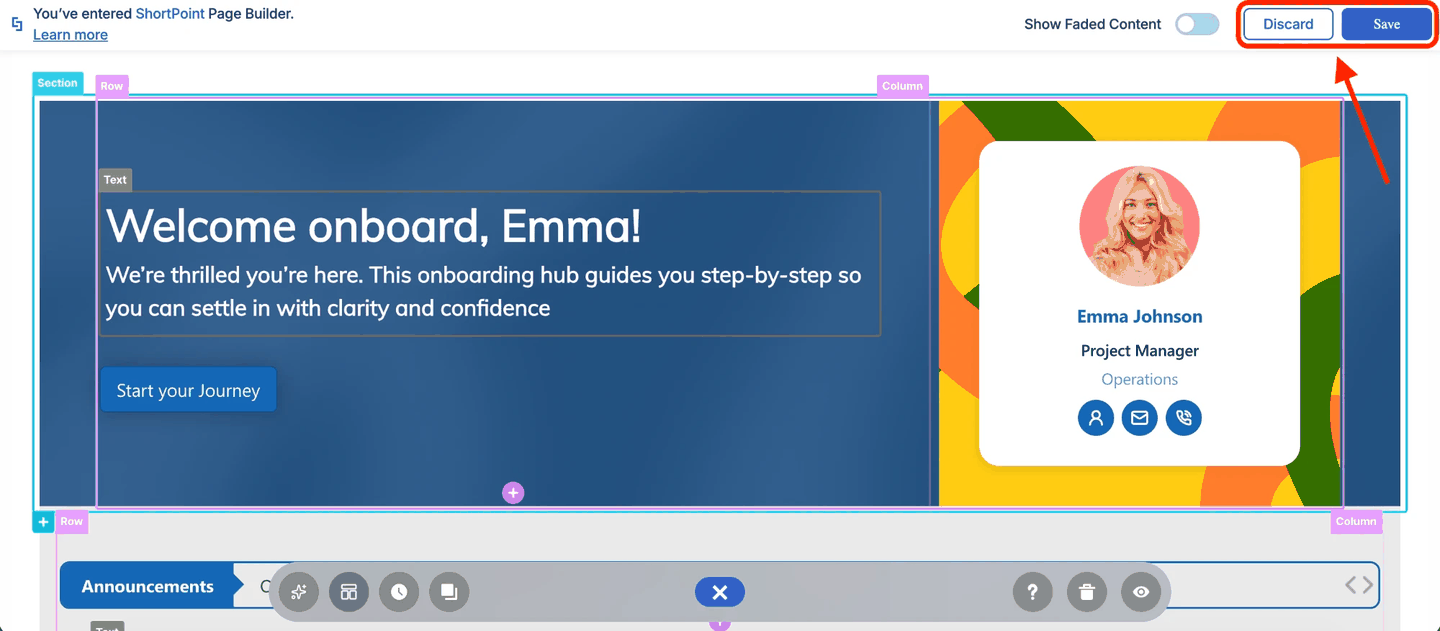
NOTEThe Discard and Save buttons are no longer on the Action Toolbar. You can now find them in the top bar of the page, next to the Show Faded Content toggle.
Frequently Asked Questions
Is the Action Toolbar always visible?
Yes. The Action Toolbar is always present at the bottom of your page while you are in edit mode in ShortPoint Page Builder Live Mode. If it gets in the way, you can collapse it into a single button.
How do I collapse or expand the Action Toolbar?
Click the X icon in the middle of the toolbar to collapse it into a single button. To expand it again, click the Equals icon.
Where are the Discard and Save buttons?
The Discard and Save buttons are no longer on the Action Toolbar. You can find them in the top bar of the page, next to the Show Faded Content toggle.
How do I undo a design change?
Click the Clock icon to open the History window. From there, you can view your recent design edits and actions and revert to an earlier state.
Will the Trash icon delete other web parts on my page?
No. The Trash icon only removes content from the ShortPoint web part you are currently editing. Other ShortPoint web parts on the page are not affected.
How can I see what my page looks like while I'm editing?
Click the Eye icon to see how your page will look outside of Isolate Mode. Click it again to go back to editing.
Can I reuse a web part from another SharePoint page?
Yes. Click the Copy Web Part icon to copy and paste a full ShortPoint web part from an existing SharePoint page.
Related Articles: