 Try ShortPoint now
Do you have a shared mailbox filled to the brim with important Outlook calendar events? If you do, you shouldn't miss out on this important connection: ShortPoint Shared Events (Outlook)! With it, you can display your events directly on your SharePoint sites. To start connecting, simply follow the steps in this article.
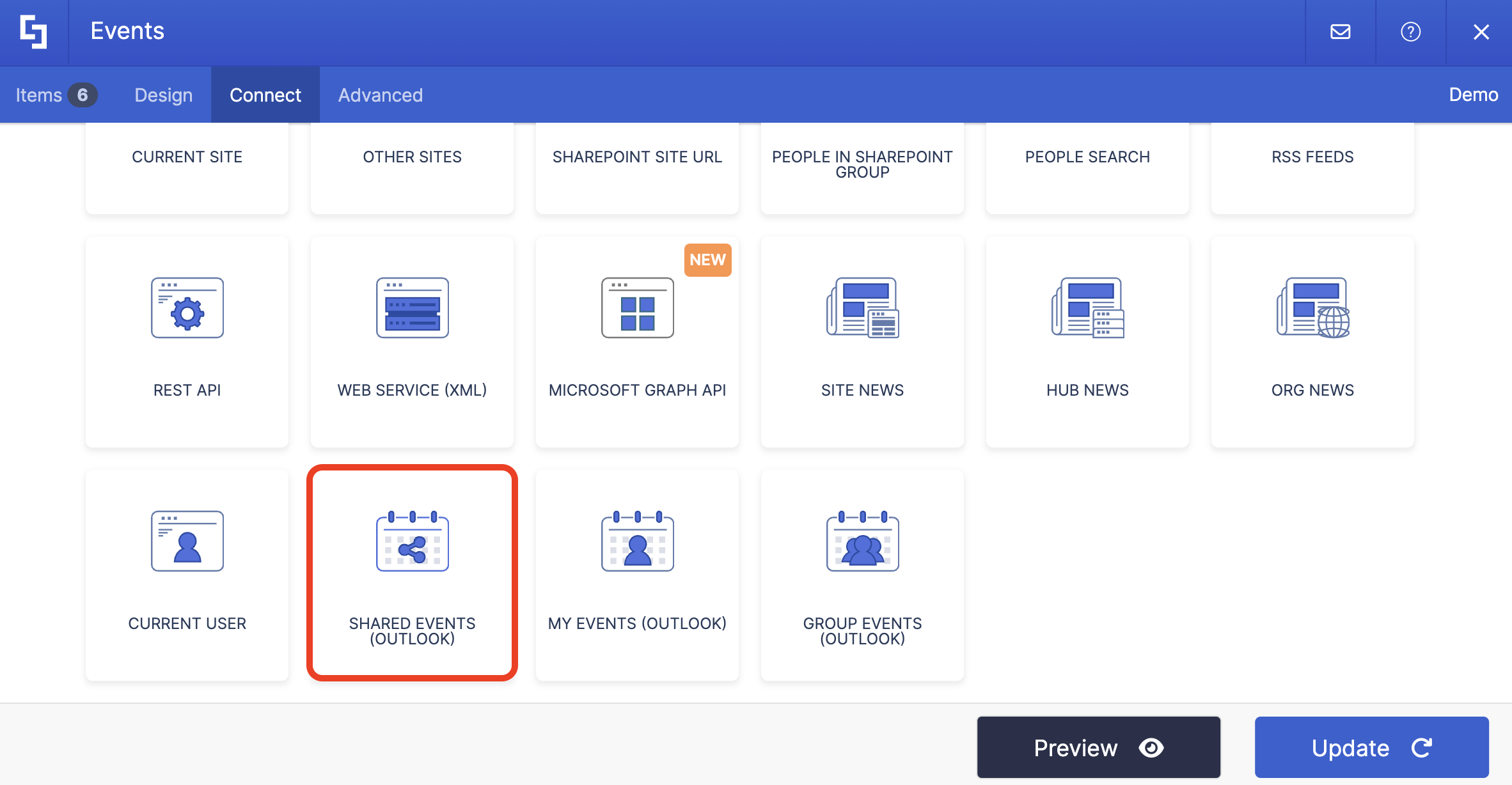
TABLE OF CONTENTS
- Prerequisites
- What is the Shared Events (Outlook) Connection Type?
- Interactive Tutorial
- Shared Events (Outlook) Features
- Practical Use Cases: Where Shared Events Shines
- Create Dynamic Events with the Shared Events (Outlook) Connection
- Frequently Asked Questions
- Can I connect to any email address, or does it have to be a shared mailbox?
- Will everyone who views my SharePoint page see the same events?
- What information from the calendar events can I display?
- Can I filter events to show only upcoming ones or limit the time range?
- Do I need special permissions to set this up?
- What happens if the Outlook calendar gets updated?
- Can I customize how the events look on my page?
- I'm getting a warning about permissions when I try to connect. What should I do?
- Is there a limit to how many shared calendars I can connect to?
- Can I use this with SharePoint on-premises?
- What if I don't have a shared mailbox yet?
Prerequisites
- You must have the latest version of ShortPoint SPFx installed on your SharePoint environment.
- You must be a ShortPoint Designer with either a Pro or Enterprise license. For more information on licensing, check out Licensing Options.
- You must have an existing Design Element you want to use to connect.
- You must have a shared mailbox with an Outlook calendar containing events. For more information on how to create one, check out How to Create a Shared Mailbox.
- You must grant ShortPoint permission to read Outlook Events details. For more information on how to grant permissions, go to Setting up Microsoft Graph Integration for SharePoint Online.
What is the Shared Events (Outlook) Connection Type?
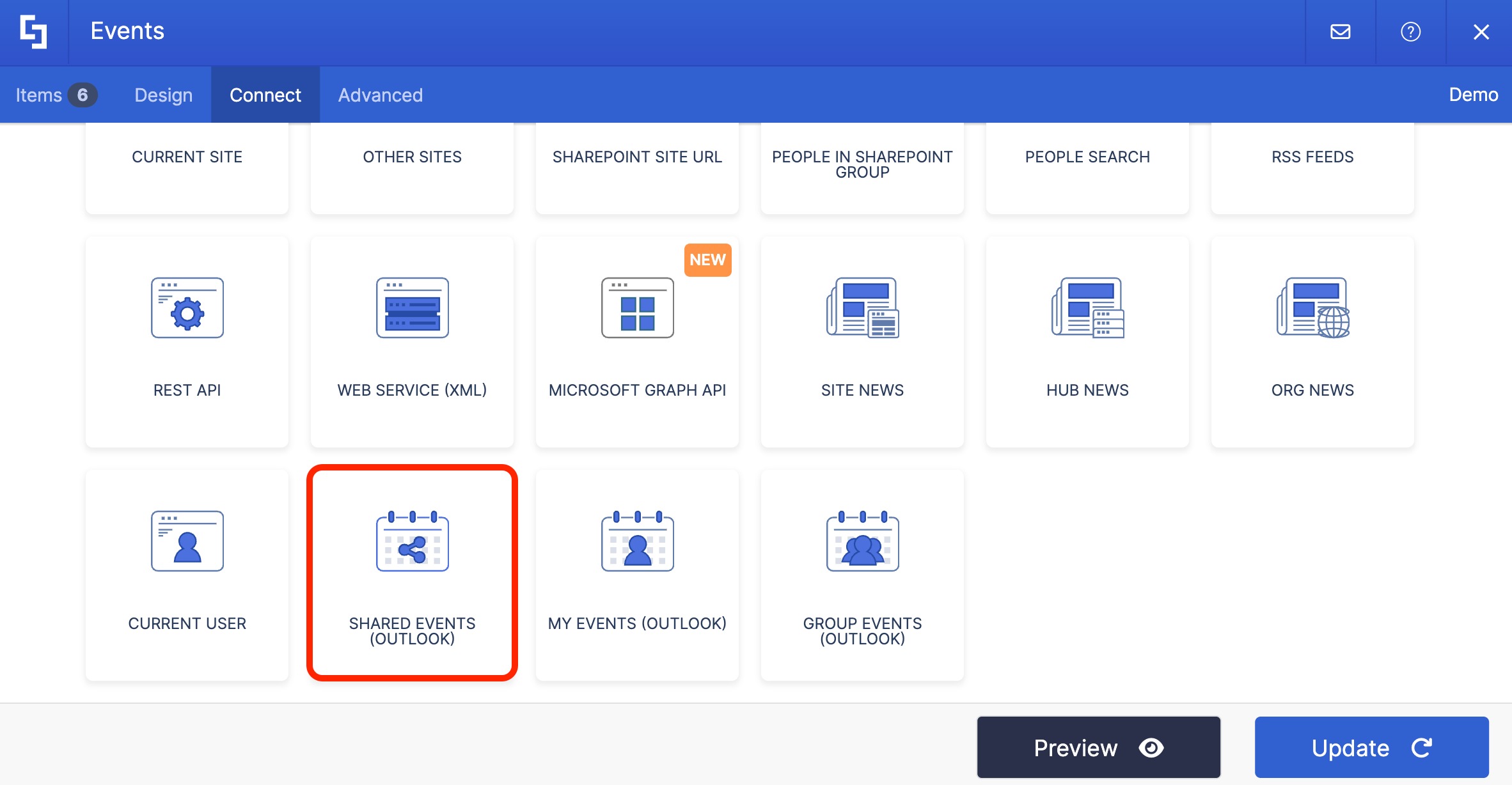
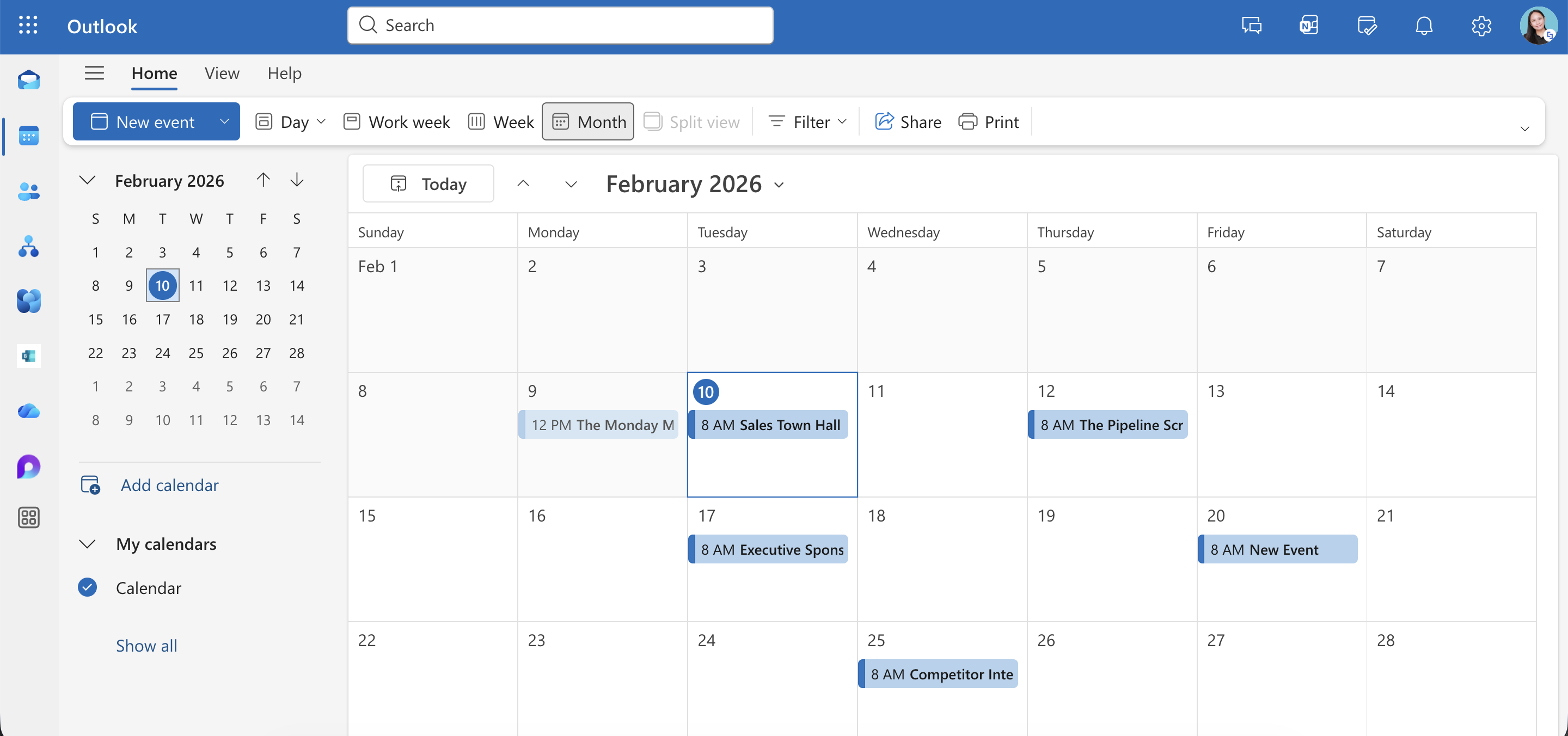
The Shared Events (Outlook) connection type is one of ShortPoint's powerful Microsoft 365 integration features that allows you to pull calendar events from a shared mailbox in Microsoft Outlook and display them on your SharePoint pages.
Unlike the "My Events" connection (which displays your personal calendar linked to your Microsoft account) or "Group Events" (which shows group calendar items), Shared Events specifically targets shared mailboxes. These are the communal email accounts that multiple group members can access, like conference-room@company.com or executiveassistant@company.com.
NOTEDon't have a shared mailbox yet? Learn all about it in How to Create a Shared Mailbox.
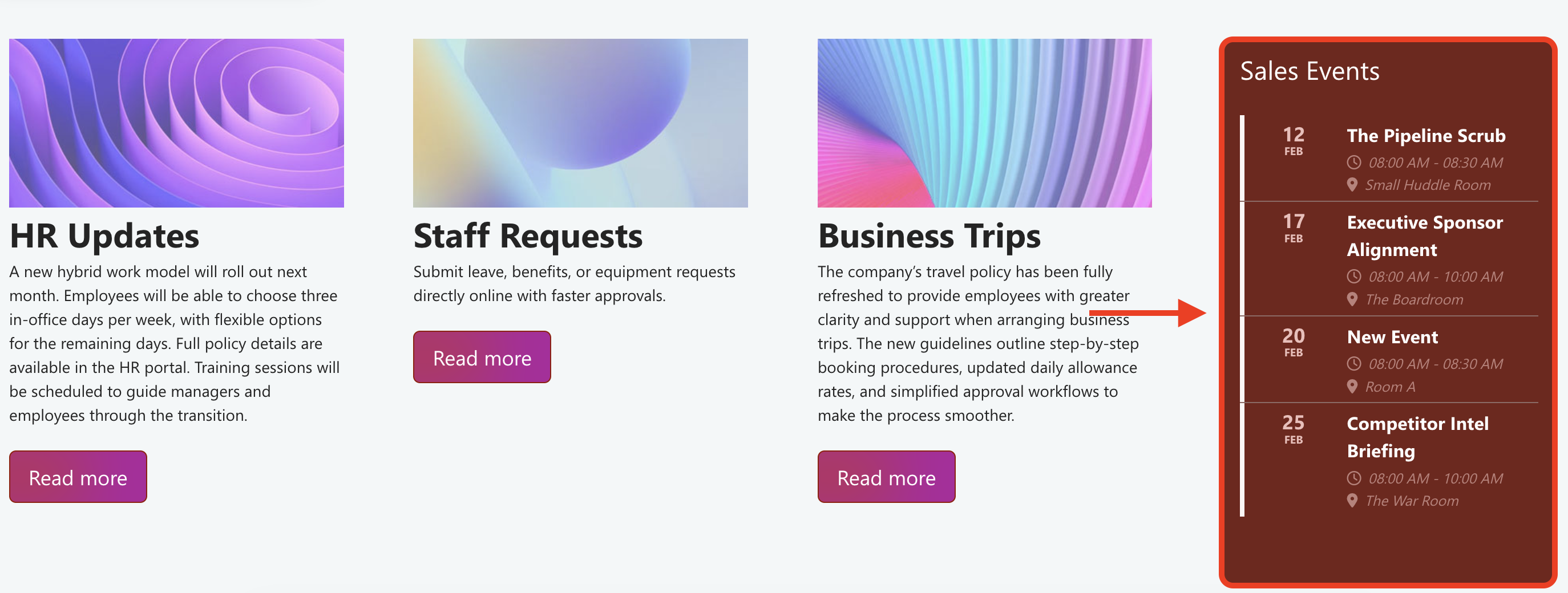
Here's what makes it special: you can connect any ShortPoint Design Element to the Outlook calendar of any shared mailbox and customize exactly how you want the event information to appear. The data syncs dynamically, meaning when events are added, updated, or removed from the Outlook calendar, your SharePoint page reflects those changes automatically, keeping your events list always up to date.
Interactive Tutorial
Ready to connect your shared mailbox Outlook events? Here's what you need to do to connect to your shared Outlook calendar in SharePoint:
NOTETo learn more about the settings you can modify, check out Shared Events (Outlook) Features.
Step 1: Edit the ShortPoint Web Part
NOTEMake sure you already have events in your shared mailbox Outlook calendar.
- Go to the SharePoint page you want to use and click Edit:

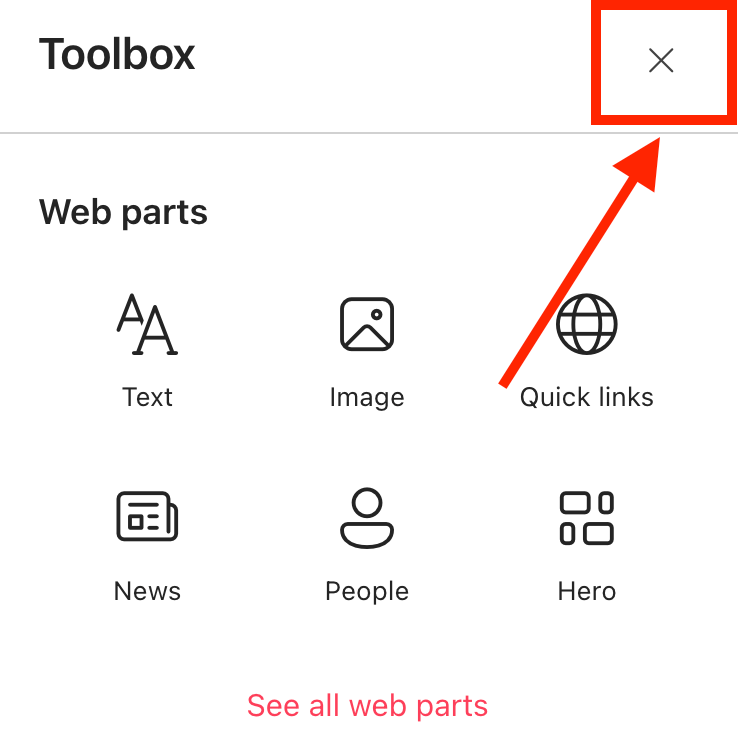
- Close the Toolbox:
- Click the Edit Properties icon:

Step 2: Edit the Design Element
NOTEMake sure you already have an existing Design Element you want to use to connect. For this guide, we'll use Events.
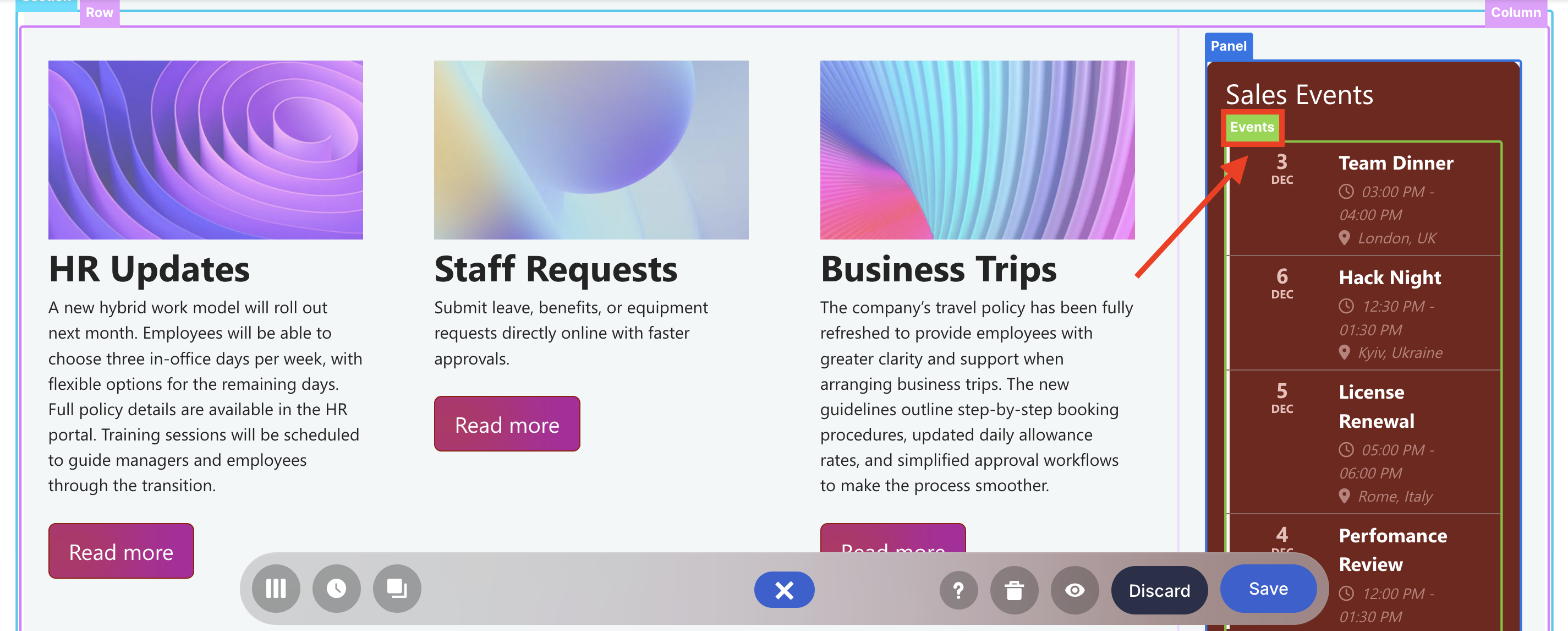
- Click the EasyPass tag of the Design Element:
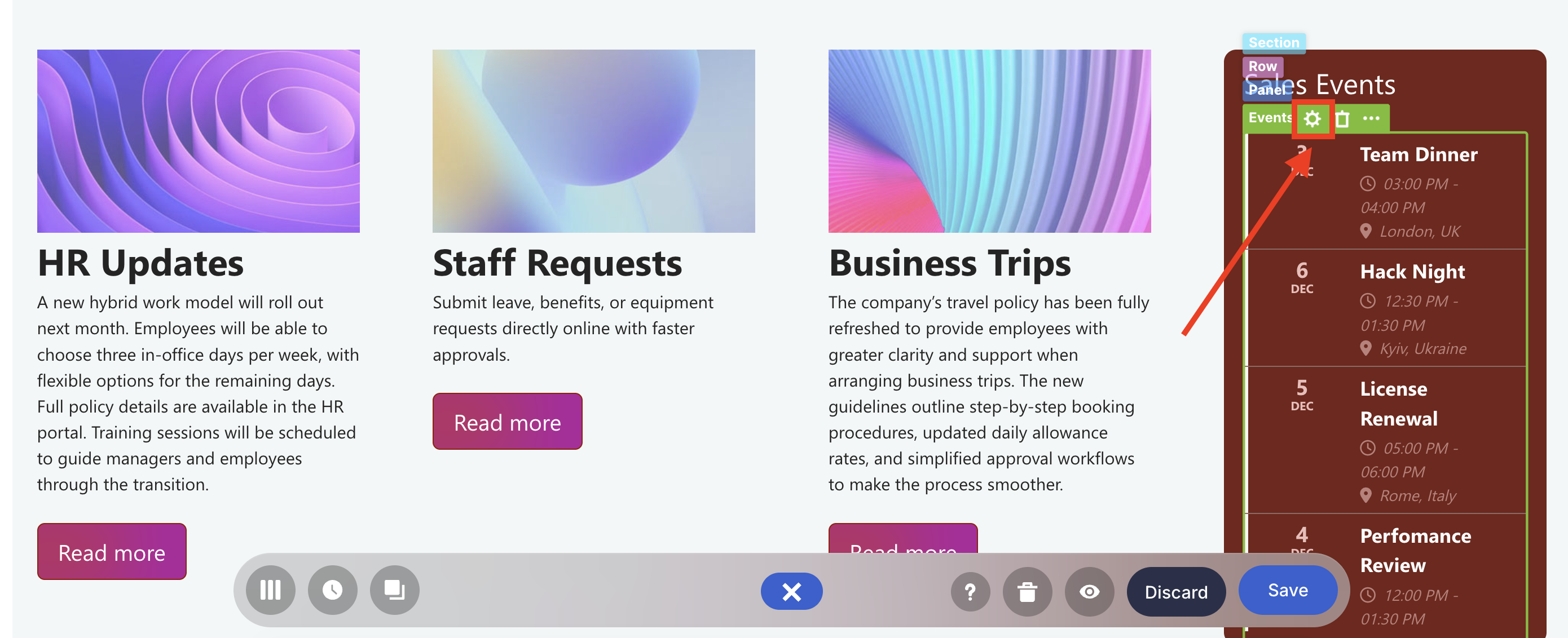
- Select the cogwheel icon:
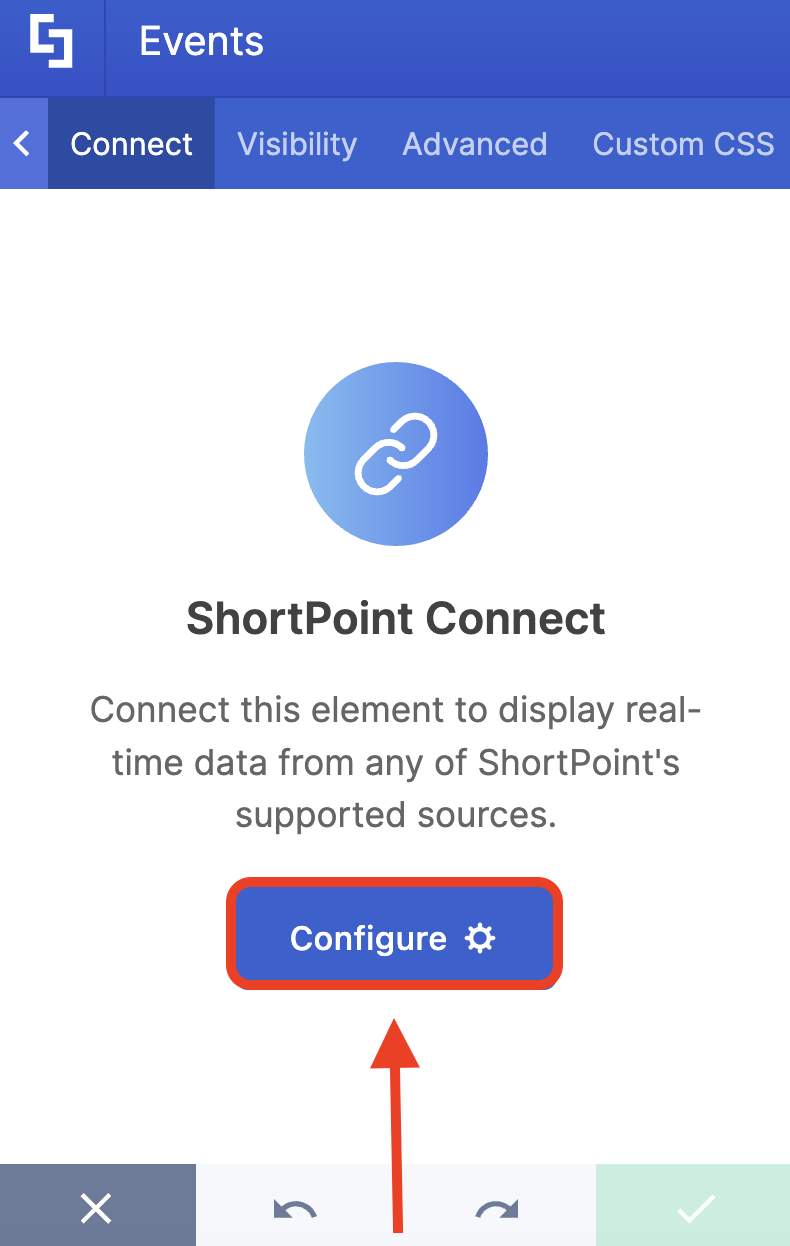
- Go to the Connect tab.
- Click Configure:
Step 3: Establish Connection
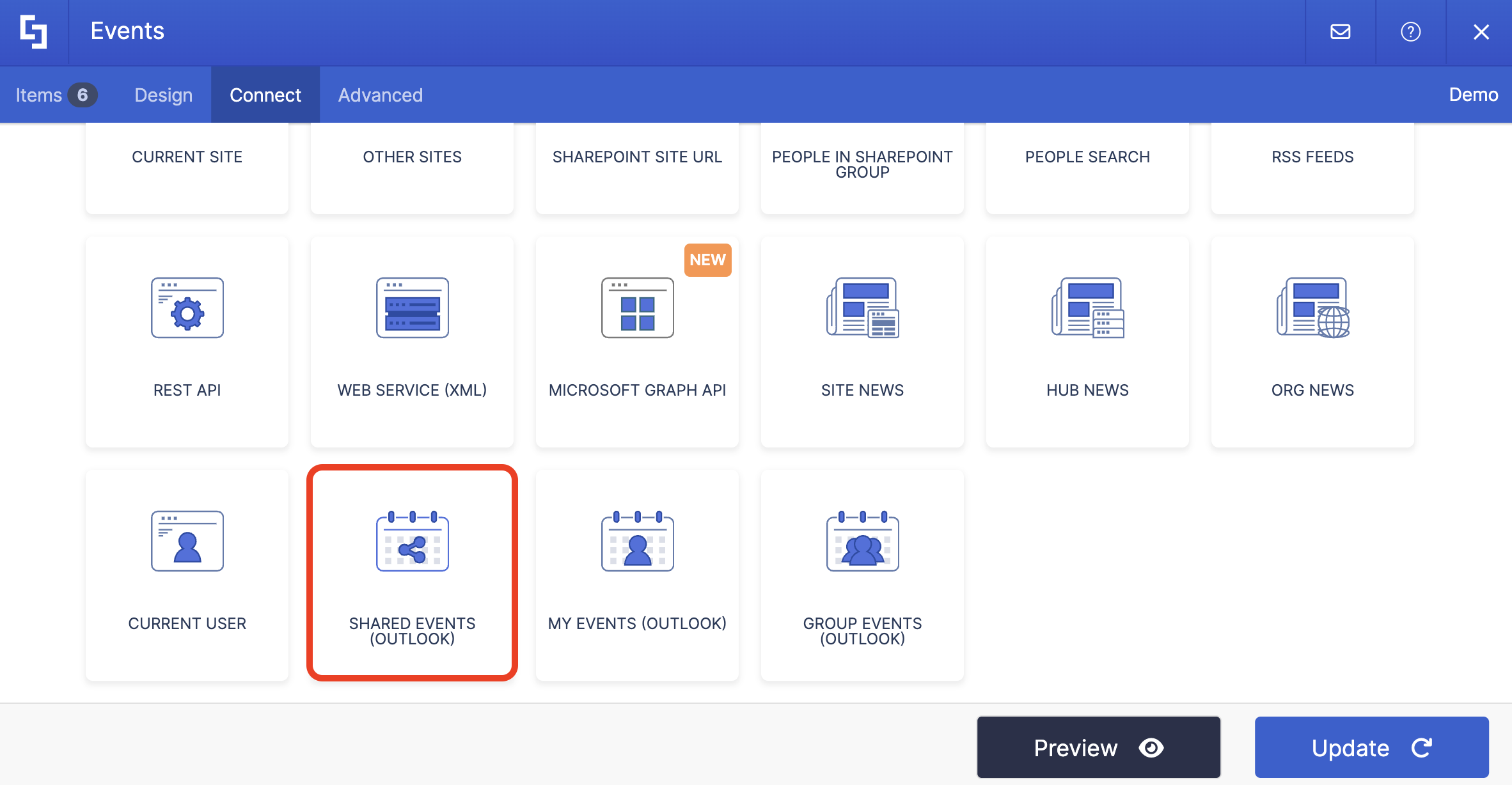
- Select Shared Events (Outlook):
- Write the [1] email address of your shared mailbox and [2] agree that the events in the calendar will be shown to all page viewers.
NOTEDon't have a shared mailbox yet? Learn all about it in How to Create a Shared Mailbox.

- Then, configure the settings to your liking.
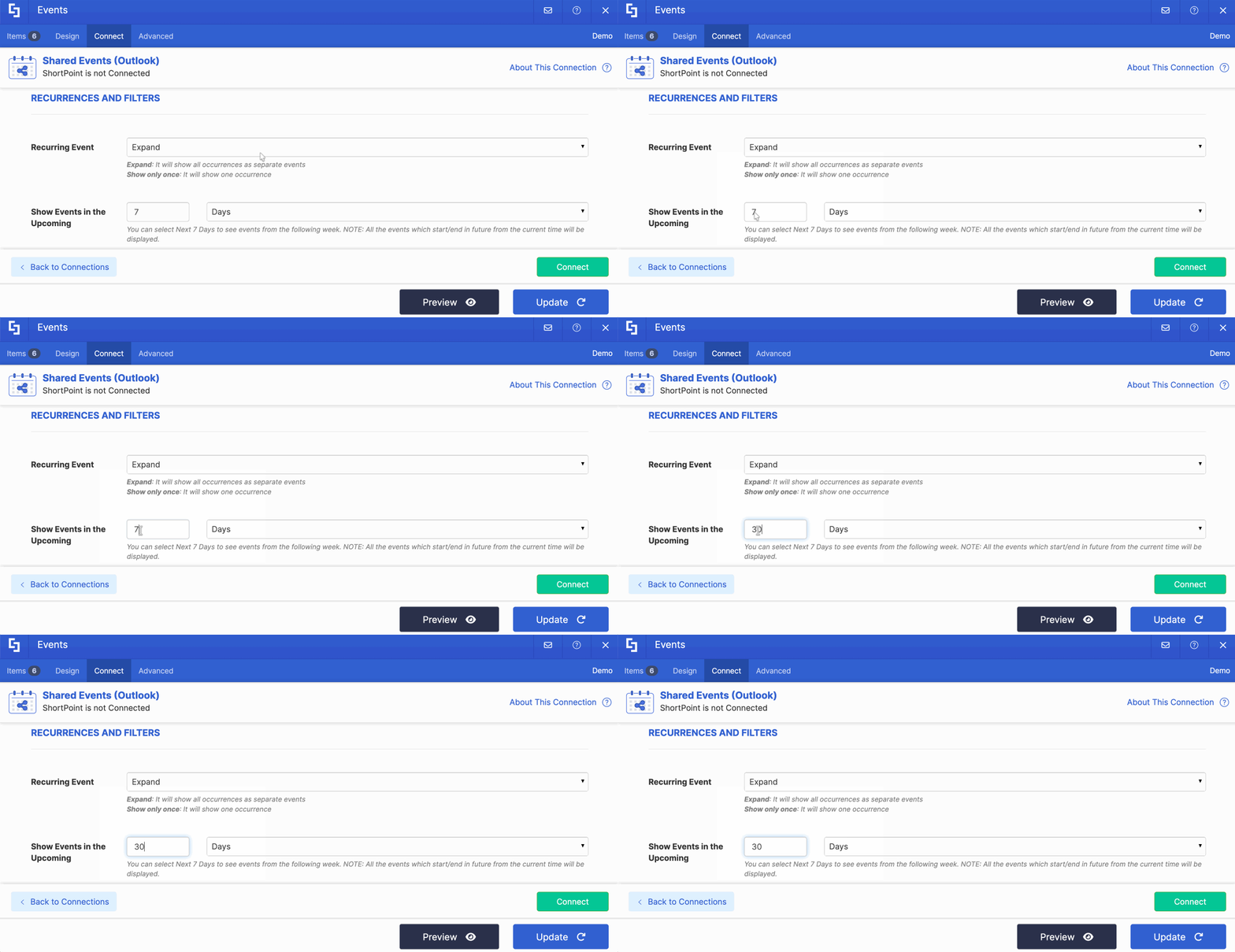
NOTETo learn more about the settings you can modify, check out Shared Events (Outlook) Features.
- Click Connect.
Step 4: Map Items
- Go to the Items tab.
- Delete default content:
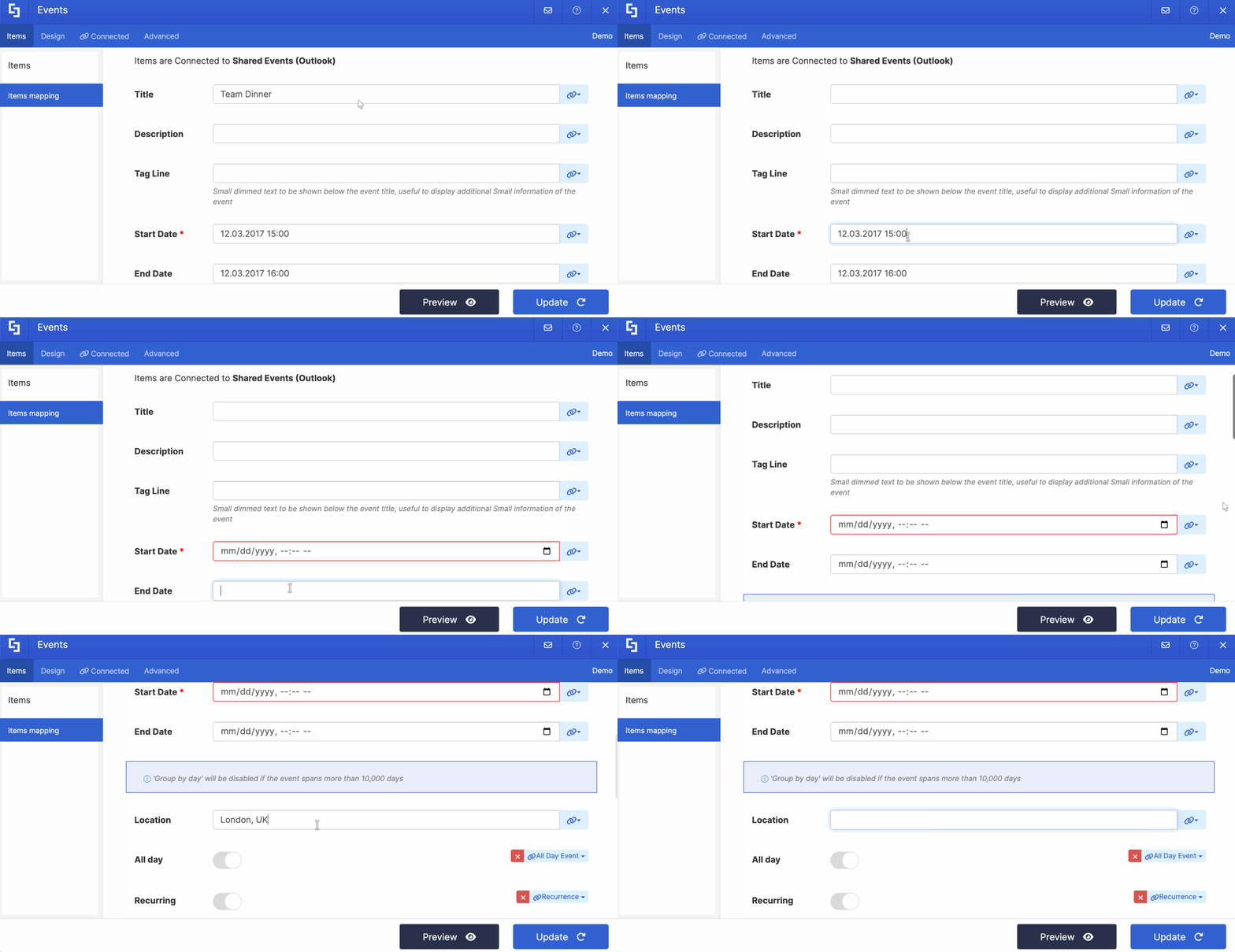
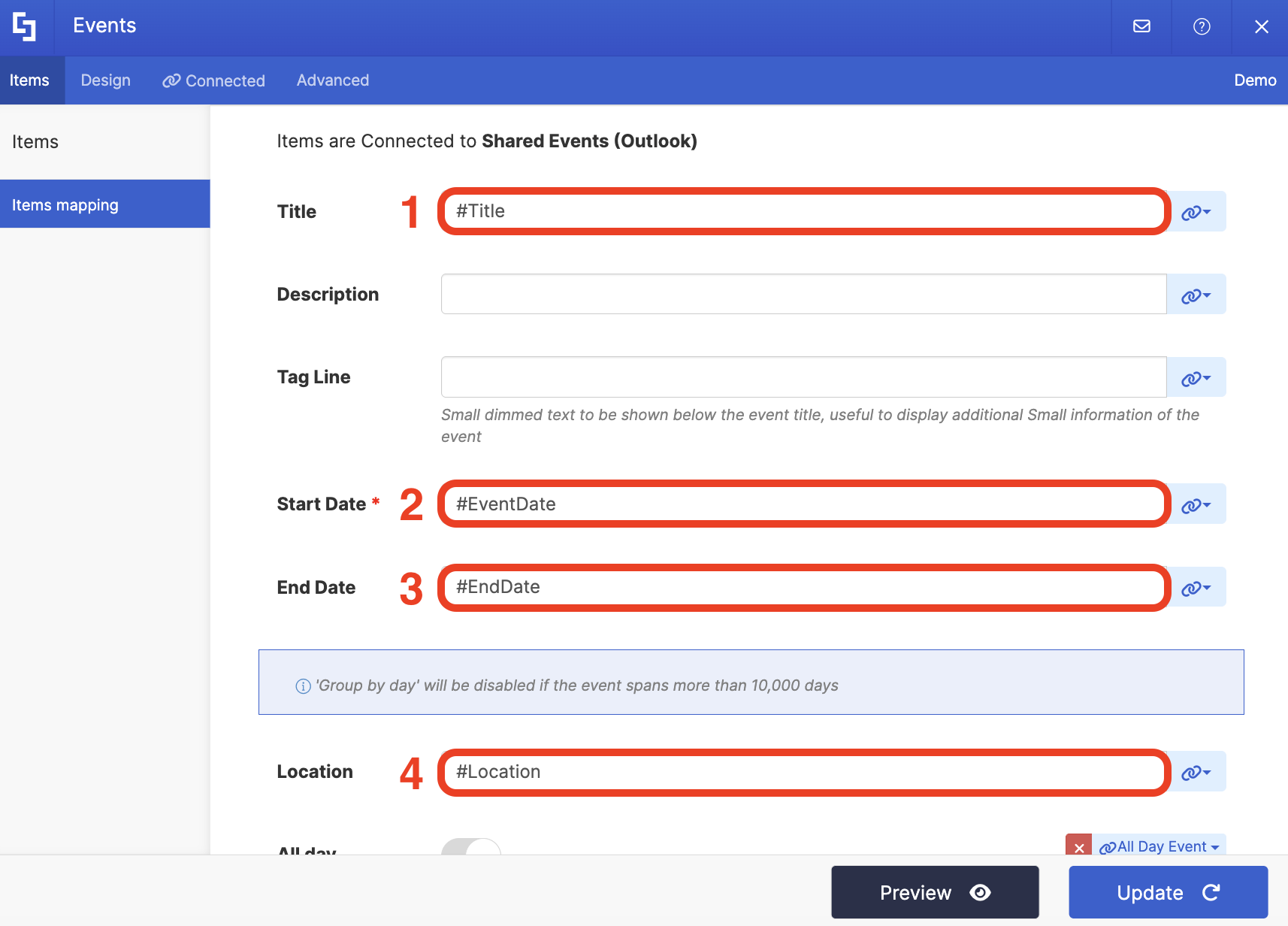
- Use the link icon to map the properties you want to display:
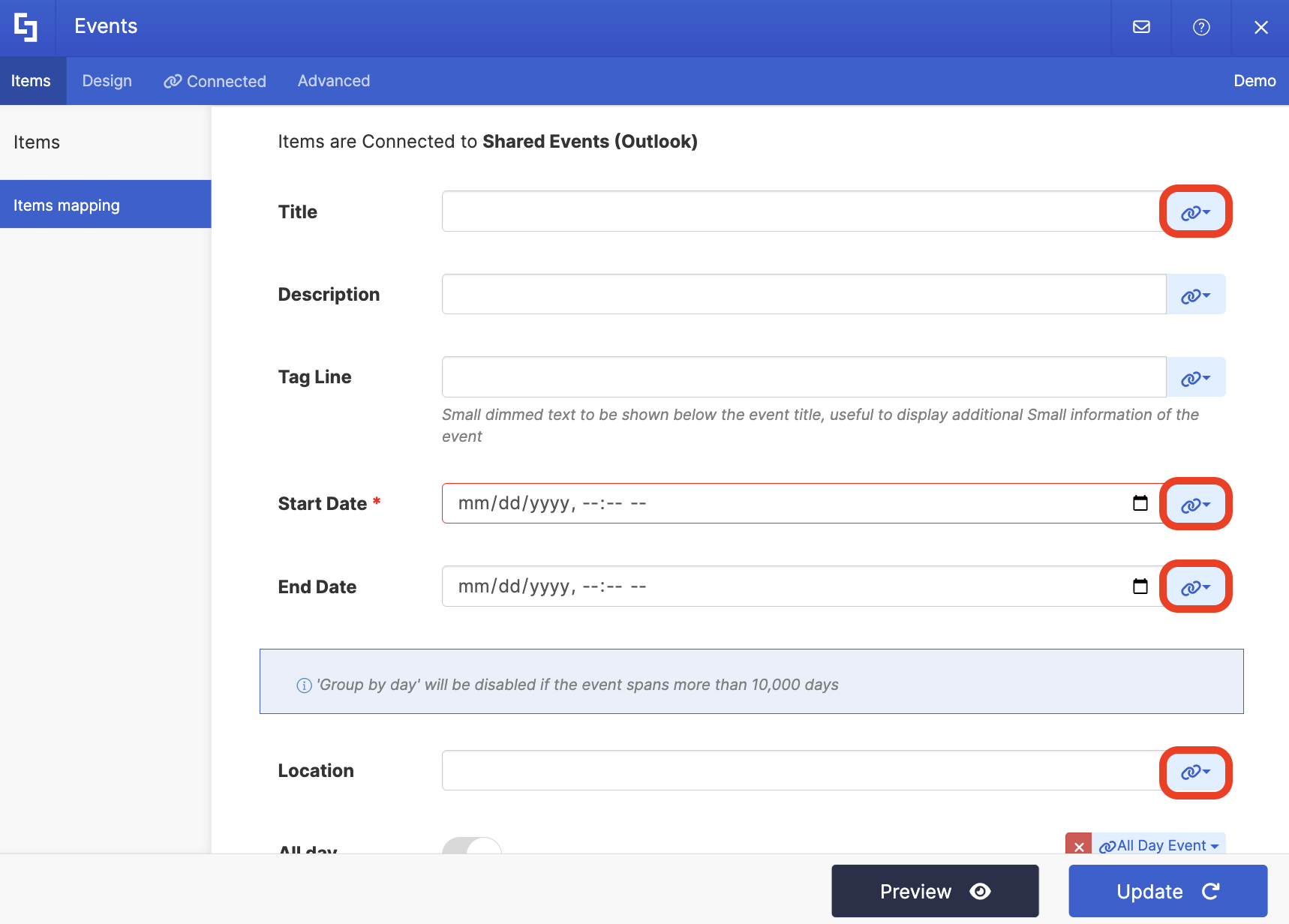
- Below are the properties we mapped. You can choose to map the same items or choose your own.
- #Title - shows the title of the event
- #EventDate - shows when and what time the event will start
- #EndDate - shows when and what time the event will end
- #Location - shows where the event will take place
Step 5: Save
- To see how the Design Element looks, click Preview.
- Once satisfied, click Update.
- Click the green check mark:
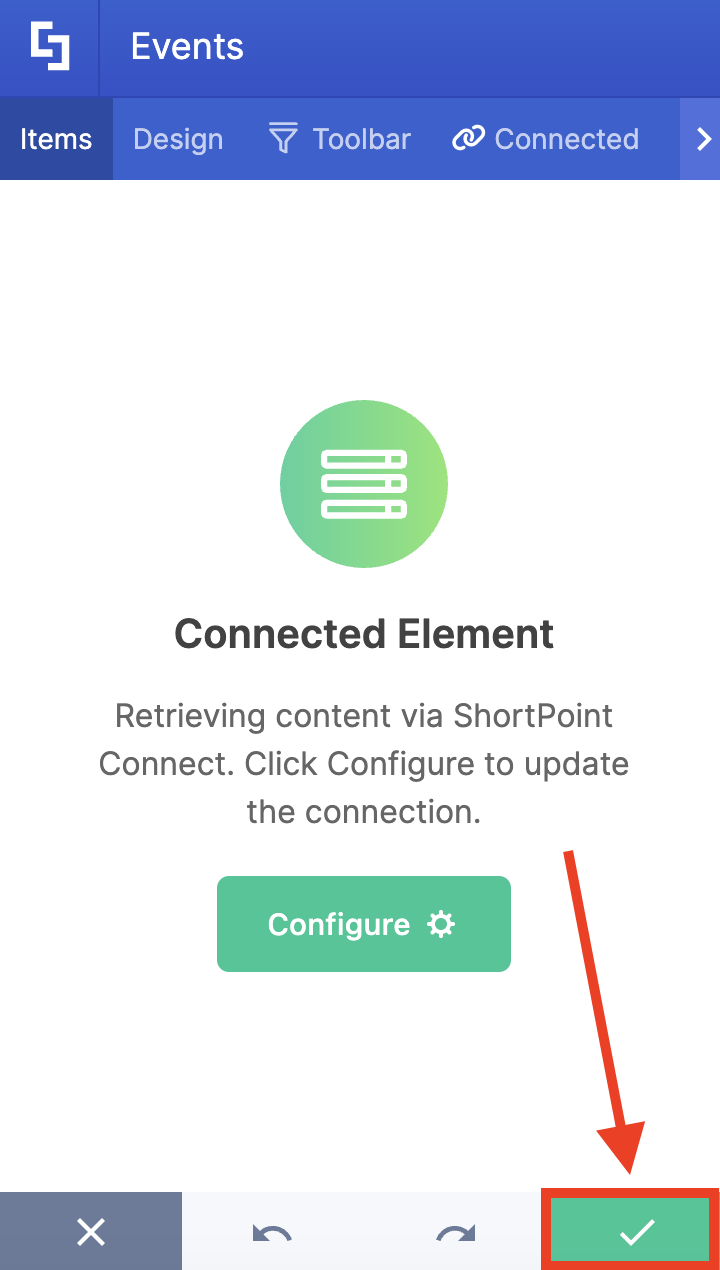
- Save your changes:

Congratulations! It's super easy to have a dynamic event display that keeps everyone informed and engaged. This feature makes your shared calendar events more interactive and accessible to every person in your organization.
Shared Events (Outlook) Features
Here are the features you can modify inside the Shared Events (Outlook) connection to keep your organization's team members informed and more organized:
 | Shared account | allows you to [1] write the email address of the shared mailbox. Under it, you'll need to [2] agree that all events in the shared mailbox will be shown to your SharePoint site viewers. |
RECURRENCES AND FILTERS
 | Recurring Event | allows you to modify how recurring events will appear on your page. You can choose to Expand (show all occurrences of an event) or Show only once (show only one occurrence of an event) |
 | Show Events in the Upcoming | allows you to customize the number of Days, Months, or Years you want to show for upcoming events |
 | Show Events in the Past | allows you to customize the number of Days, Months, or Years you want to show for past events |
 | Items Limit | allows you to modify the maximum number of events shown |
 | Convert HTML to plain text | when enabled, this option will convert all HTML data to plain text. |
DATE FORMAT
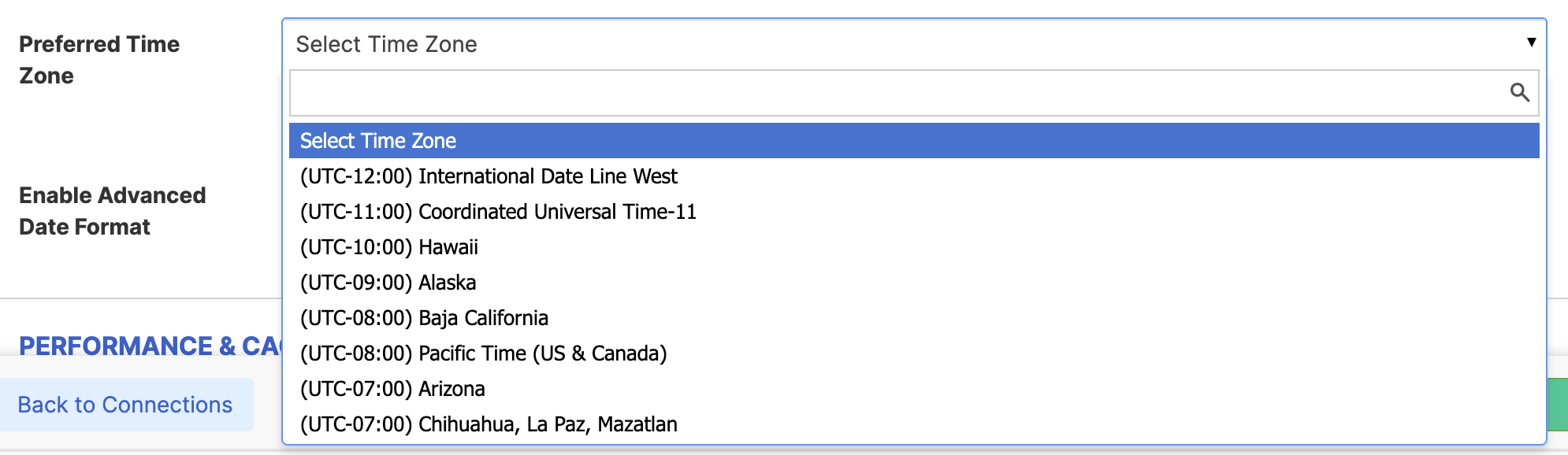 | Preferred Time Zone | allows you to select the Time zone of your events |
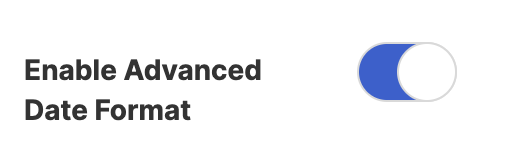 | Enable Advanced Date Format | when enabled, an additional date setting will be shown. |
 | Date/Time Format | allows you to specify your preferred date format. |
PERFORMANCE AND CACHING
 | Enable Partial Loading | This feature comes enabled by default. It allows partial loading to activate automatically when the connection returns more than 20 results. Additional results will load as the user scrolls. Learn more about the Partial Loading function. |
 | Cache Options | allows you to choose from 3 caching options. Learn more about these caching optionsand how to improve ShortPoint performanceon your SharePoint sites.
|
Practical Use Cases: Where Shared Events Shines
Let's talk about real-world scenarios where this connection type becomes genuinely useful. You'll be surprised how versatile it can be.
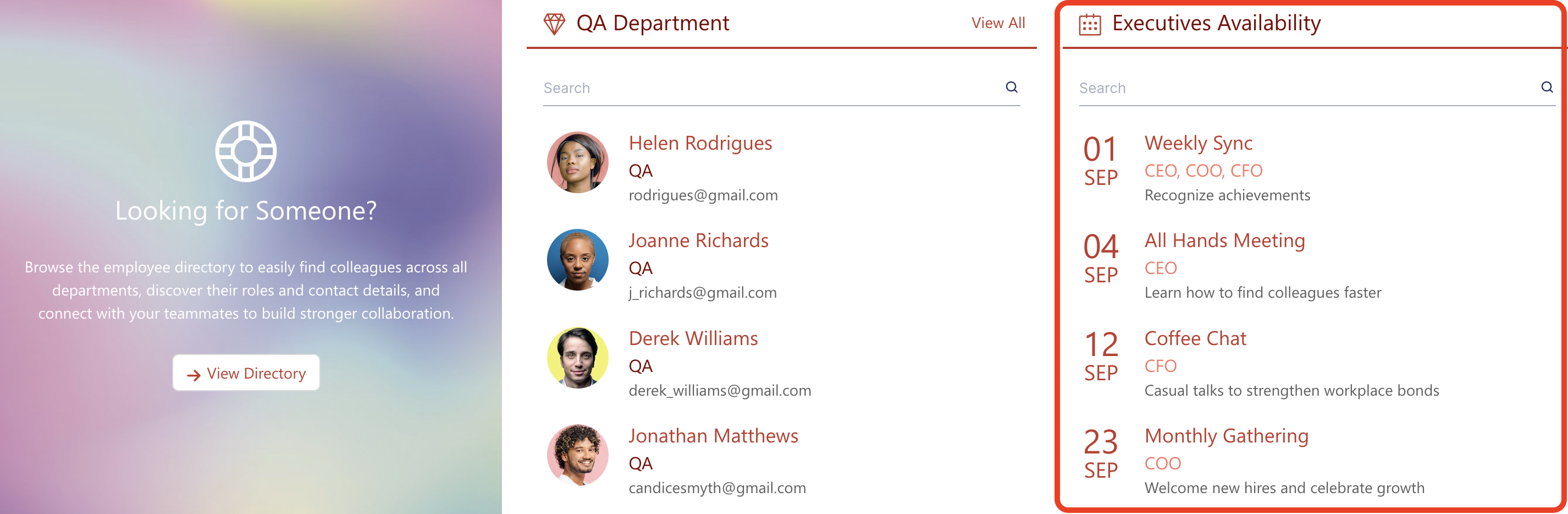
Executive Availability Tracking
Picture this: your leadership team's calendars are always packed, and employees constantly wonder whether the CEO or department heads are available for questions. By connecting to the executives' shared mailbox calendar, you can create an "Executive Availability" section on your intranet homepage. Employees can quickly glance at upcoming meetings and availability windows without sending "Are you free?" emails.
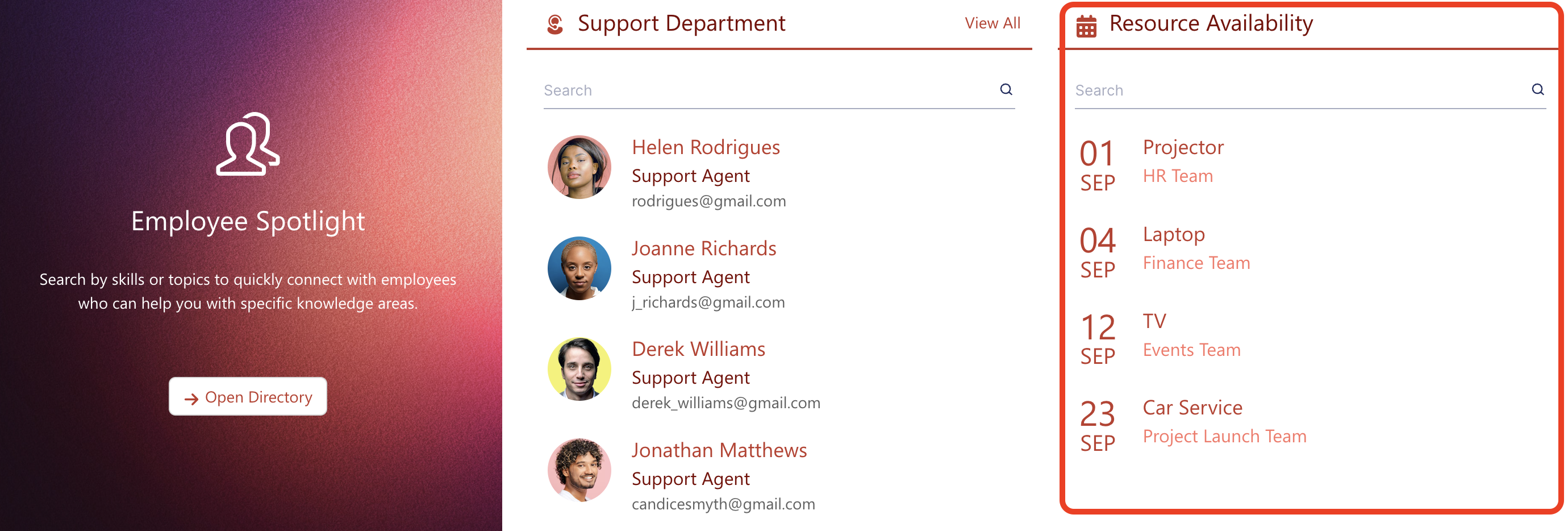
Conference Room and Resource Management
If your company uses shared mailboxes for conference rooms, equipment, or other bookable resources, you can display their schedules directly on a booking page or facilities page. This lets people see at a glance when the large presentation room is free or when the company van is available, reducing double-bookings and scheduling conflicts.
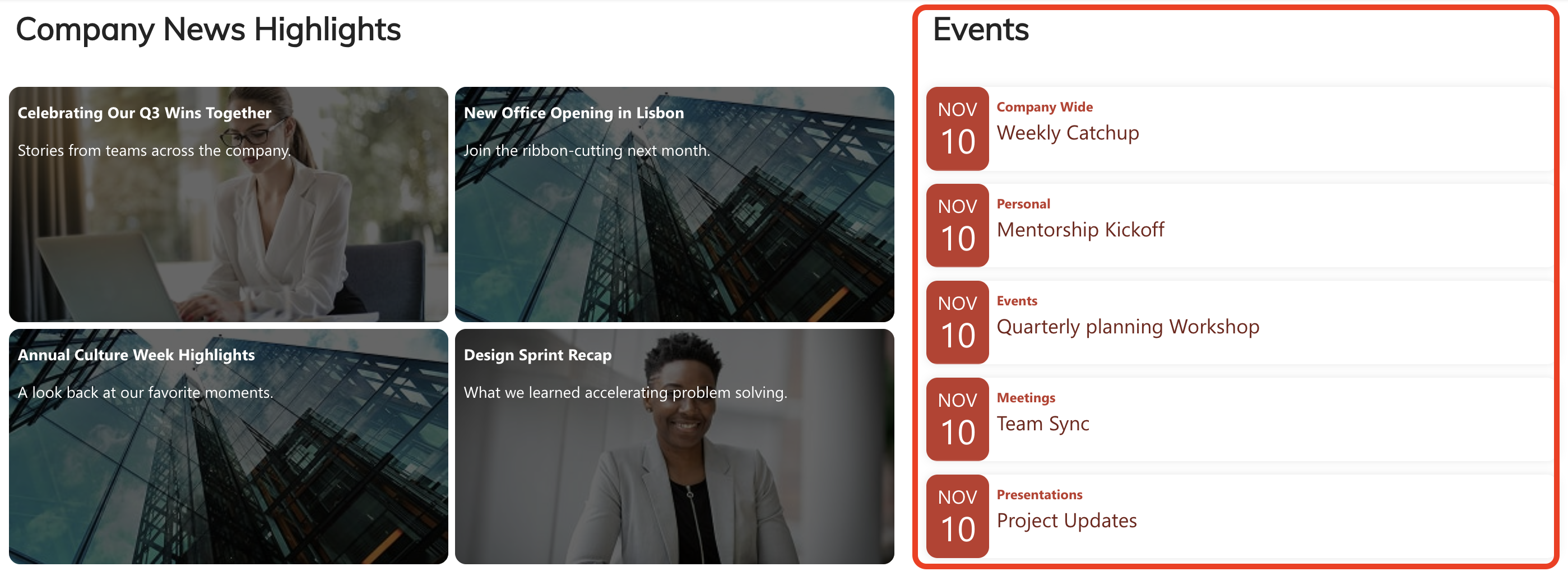
Event Coordination and Planning
For event planners or office managers who maintain a shared mailbox calendar of company events, workshops, or training sessions, the Shared Events connection makes it easy to showcase upcoming activities on an events page. Employees don't need to dig through their Outlook—they can simply visit the SharePoint page to see what's coming up.
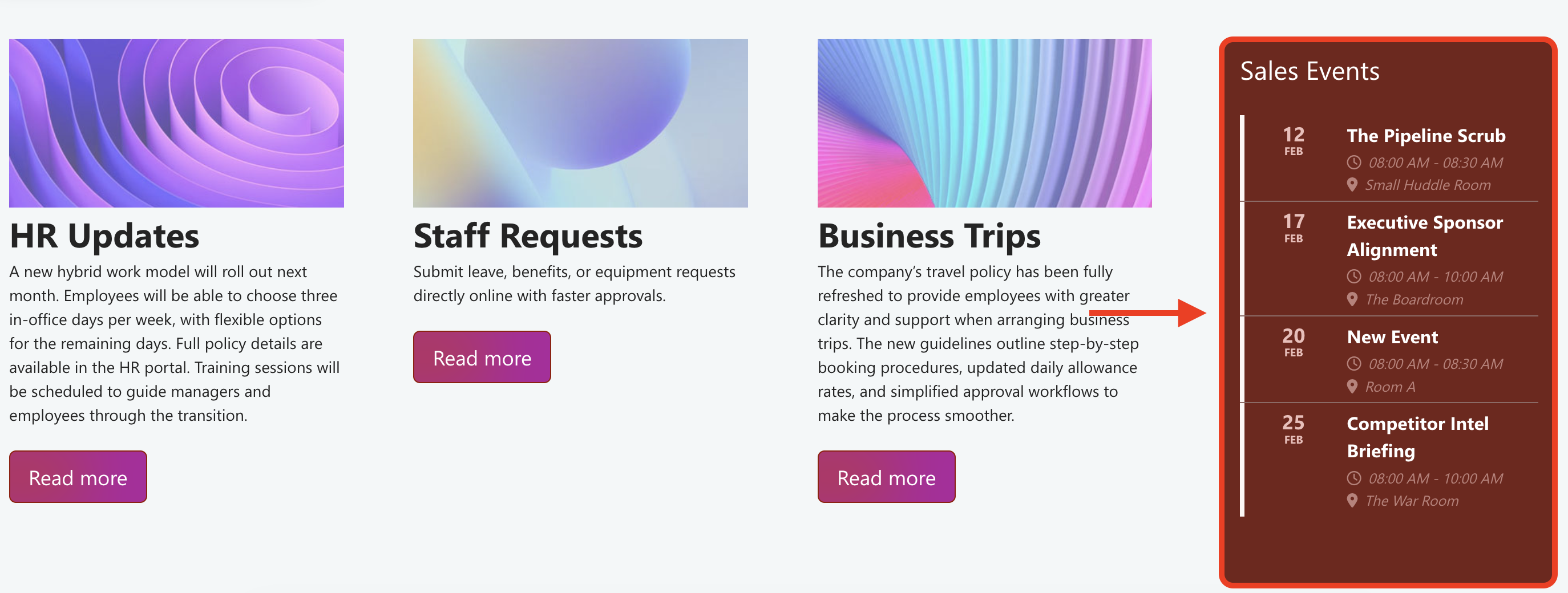
Client-Facing Schedules
If your organization works with external clients who need to see your availability or scheduled deliverables, you can create a SharePoint page (with appropriate permissions) that displays relevant calendar information from a shared mailbox. This transparency can improve client relationships and reduce back-and-forth scheduling emails.
Create Dynamic Events with the Shared Events (Outlook) Connection
The ShortPoint Shared Events (Outlook) connection type is a powerful tool for bringing Outlook calendar data into your SharePoint environment in a meaningful, visual way. Whether you're managing executive schedules, coordinating resources, or keeping teams informed about upcoming shared events, this feature helps you create a more connected and transparent workplace—without anyone having to leave SharePoint to check a shared calendar.
Excited to test out this connection? Current ShortPoint Designer users can jump right in by following our interactive tutorial. First time here? We'd be happy to set you up with a FREE 15-day trial so you can explore everything ShortPoint has to offer—no credit card needed. And if you'd prefer a guided tour, our experts are available for personalized demos where they'll walk you through the Shared Events (Outlook) connection and answer any questions you have.
Frequently Asked Questions
Can I connect to any email address, or does it have to be a shared mailbox?
The Shared Events connection is specifically designed for shared mailboxes. While you technically can enter any email address in the configuration, it should be associated with a shared mailbox that has an Outlook calendar. For personal calendars, it's best to use the "My Events" connection instead.
Will everyone who views my SharePoint page see the same events?
Yes! Unlike "My Events" which shows different calendars based on who's logged in, Shared Events displays the same calendar information to all visitors of the page. Just remember that when you're displaying someone's calendar events, all site visitors will be able to see them, so make sure you're comfortable with that level of transparency.
What information from the calendar events can I display?
You have quite a bit of flexibility here. Through ShortPoint's item mapping feature, you can choose to display properties like event title, description, location, start and end times, duration, and many more. You decide which fields matter most for your use case and display only those.
Can I filter events to show only upcoming ones or limit the time range?
Absolutely. When you set up the connection, you can specify the time frame you want to display—for example, events in the upcoming week, month, or year. This helps keep your page focused on relevant, current information rather than showing every event in the calendar's history.
Do I need special permissions to set this up?
You'll need a couple of things on the permission front. First, you need to be a ShortPoint Designer with either a Pro or Enterprise license. Second, ShortPoint needs permission to access Outlook Events data through Microsoft Graph integration. This is typically set up by your SharePoint administrator and involves granting the necessary API permissions in your Microsoft 365 admin center. For more information, go to Setting up Microsoft Graph Integration for SharePoint Online.
What happens if the Outlook calendar gets updated?
The beauty of this connection is that it's dynamic. When someone adds, modifies, or deletes an event in the connected Outlook calendar, those changes will be reflected on your SharePoint page. There might be a small delay for caching purposes, but you won't need to manually update anything.
Can I customize how the events look on my page?
Yes, and this is where ShortPoint really shines. You can use any ShortPoint Design Element to display your events. Each Design Element gives you full control over the styling, colors, and layout to match your brand and page design.
I'm getting a warning about permissions when I try to connect. What should I do?
This usually means Microsoft Graph integration hasn't been properly set up for your SharePoint environment. You'll need to enable the Microsoft Graph API connection and grant the necessary permissions (specifically, permissions to read calendar events). ShortPoint's support documentation has a detailed guide on setting up Microsoft Graph integration—follow those steps, and you should be good to go.
Is there a limit to how many shared calendars I can connect to?
There's no specific limit, but you can only connect to one shared calendar per Design Element. If you need to display multiple calendars on the same page, you could add multiple Design Elements, each connected to a different shared mailbox.
Can I use this with SharePoint on-premises?
The Shared Events (Outlook) connection requires Microsoft Graph integration, which is primarily available for SharePoint Online (Microsoft 365). If you're using an on-premises SharePoint environment, you may have limitations or might need to explore alternative connection methods.
What if I don't have a shared mailbox yet?
No problem! Creating a shared mailbox is straightforward in Microsoft 365. Your Microsoft 365 administrator can create one through the Microsoft 365 admin center. Once created, it automatically comes with a calendar that you can use with the Shared Events connection. For more information, go to How to Create a Shared Mailbox.
Related articles:
