 Try ShortPoint now
If you've ever needed to showcase your team members on a SharePoint site, you know the struggle. Manually creating lists, updating employee information, keeping everything current—it's time-consuming and frankly, a bit tedious. That's where the ShortPoint People in SharePoint Group connection type comes to the rescue.
This powerful feature lets you pull member information directly from your SharePoint groups and display it beautifully on your pages. No manual data entry required. No constant updates. Just dynamic, always-current team information that looks professional and engaging.
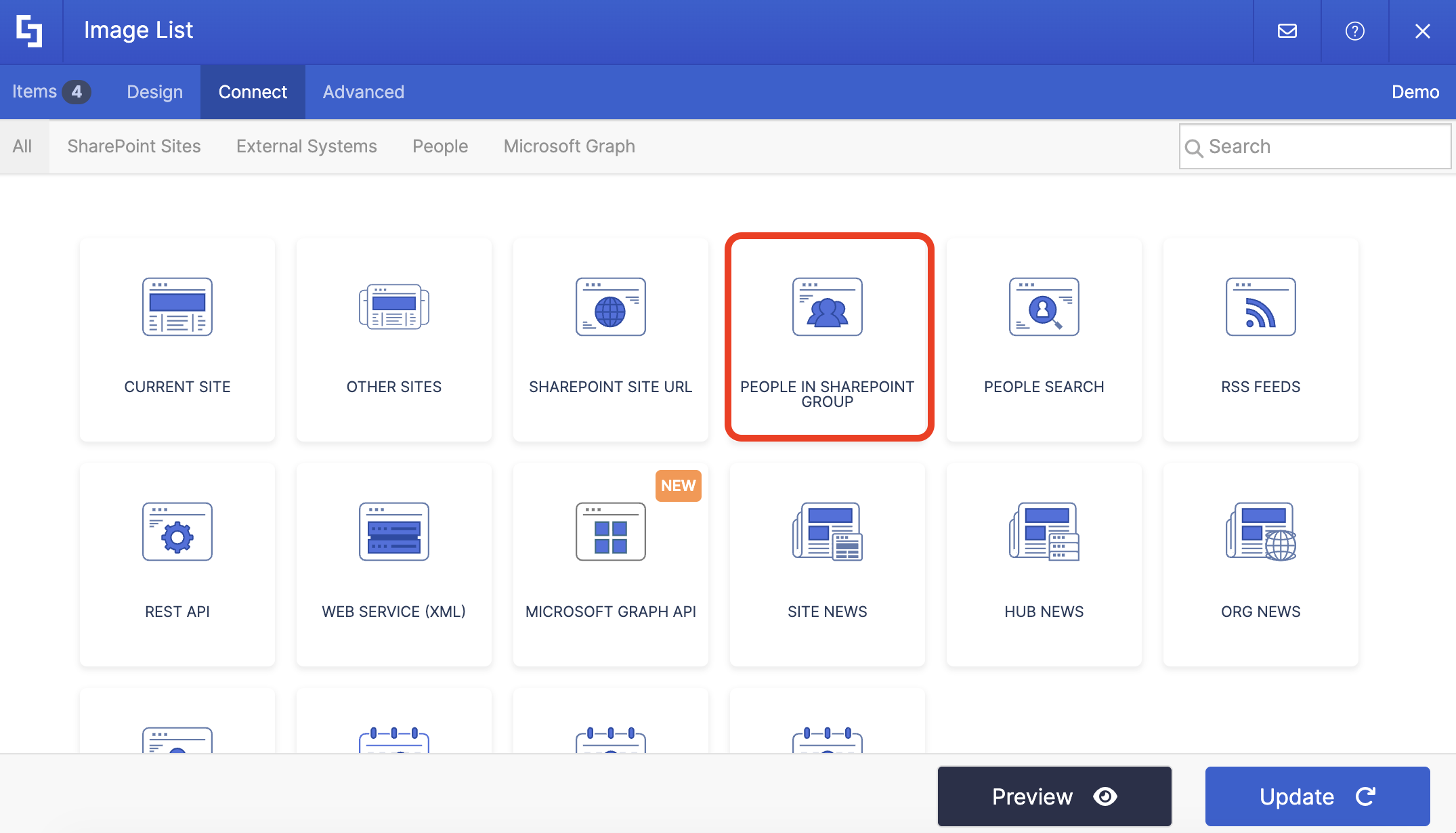
TABLE OF CONTENTS
- Prerequisites
- What Is the People in SharePoint Group Connection Type?
- Interactive Tutorial
- Step-by-step Tutorial
- People in SharePoint Group Connection Features
- Practical Use Cases
- Start Connecting Using the People in SharePoint Group Connection
- Frequently Asked Questions
- Do I need special permissions to use this feature?
- Can I display members from multiple SharePoint groups on one page?
- What information can I display about team members?
- How do I limit the number of people displayed?
- Will the page update automatically when group membership changes?
- What design elements work best with this connection?
- What's the difference between this and the People Search connection type?
- Do users need to have complete profiles for this to work?
- Can I customize the appearance of the displayed information?
Prerequisites
- You have the latest version of ShortPoint SPFx installed (version 8.7.2.0 and up) on your SharePoint environment.
- You are a ShortPoint Designer with an active license.
- You must have the ShortPoint Design Element you want to use to connect on your SharePoint page.
- You must have a SharePoint Group. To learn how to create one, check out Understanding SharePoint Group: What It Is and How to Create One.
What Is the People in SharePoint Group Connection Type?
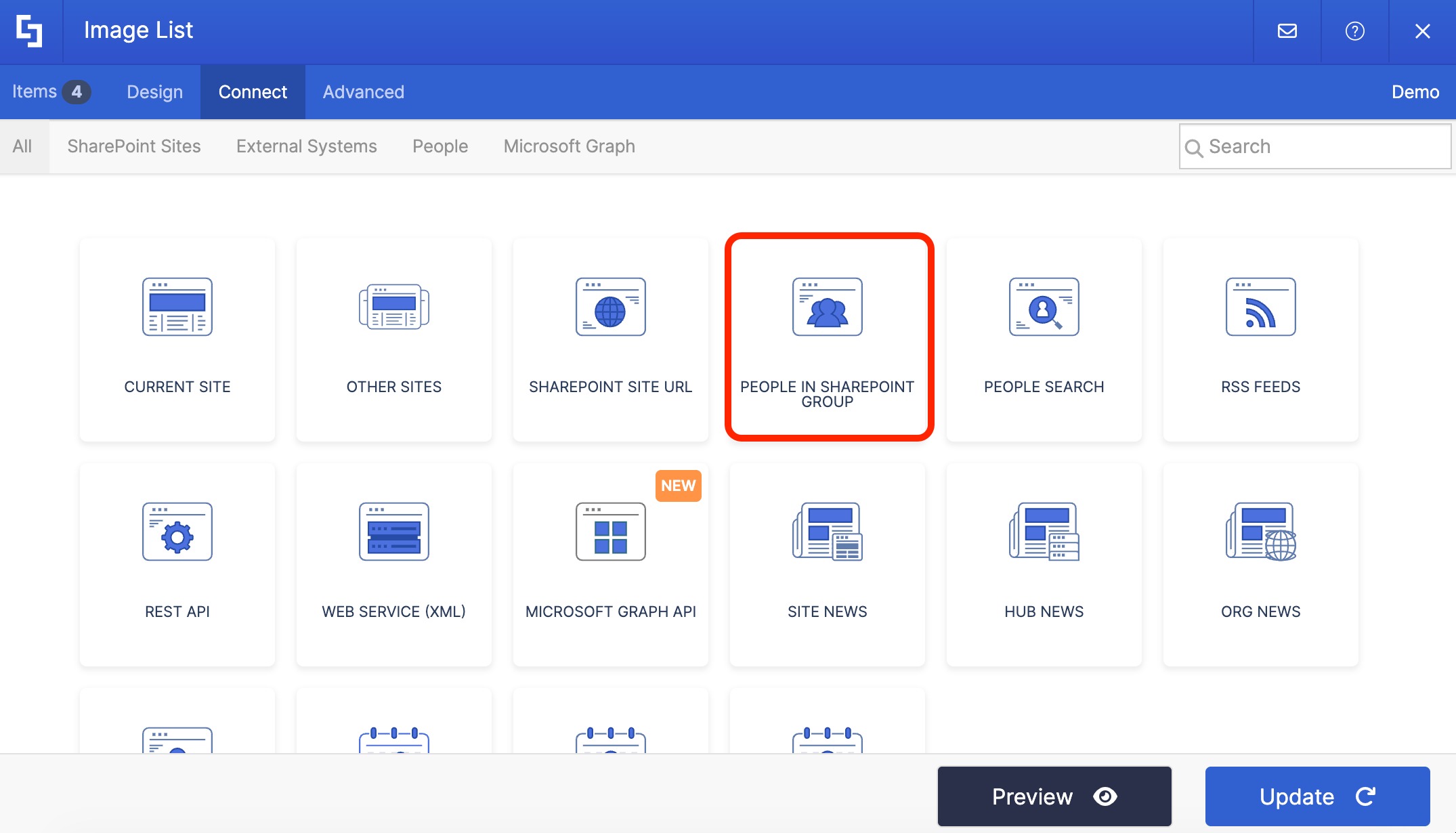
The People in SharePoint Group connection type is a ShortPoint Connect feature that automatically displays information about members from your SharePoint groups.
Here's what makes it special: When someone joins or leaves a SharePoint group, your page updates automatically. No manual intervention needed.
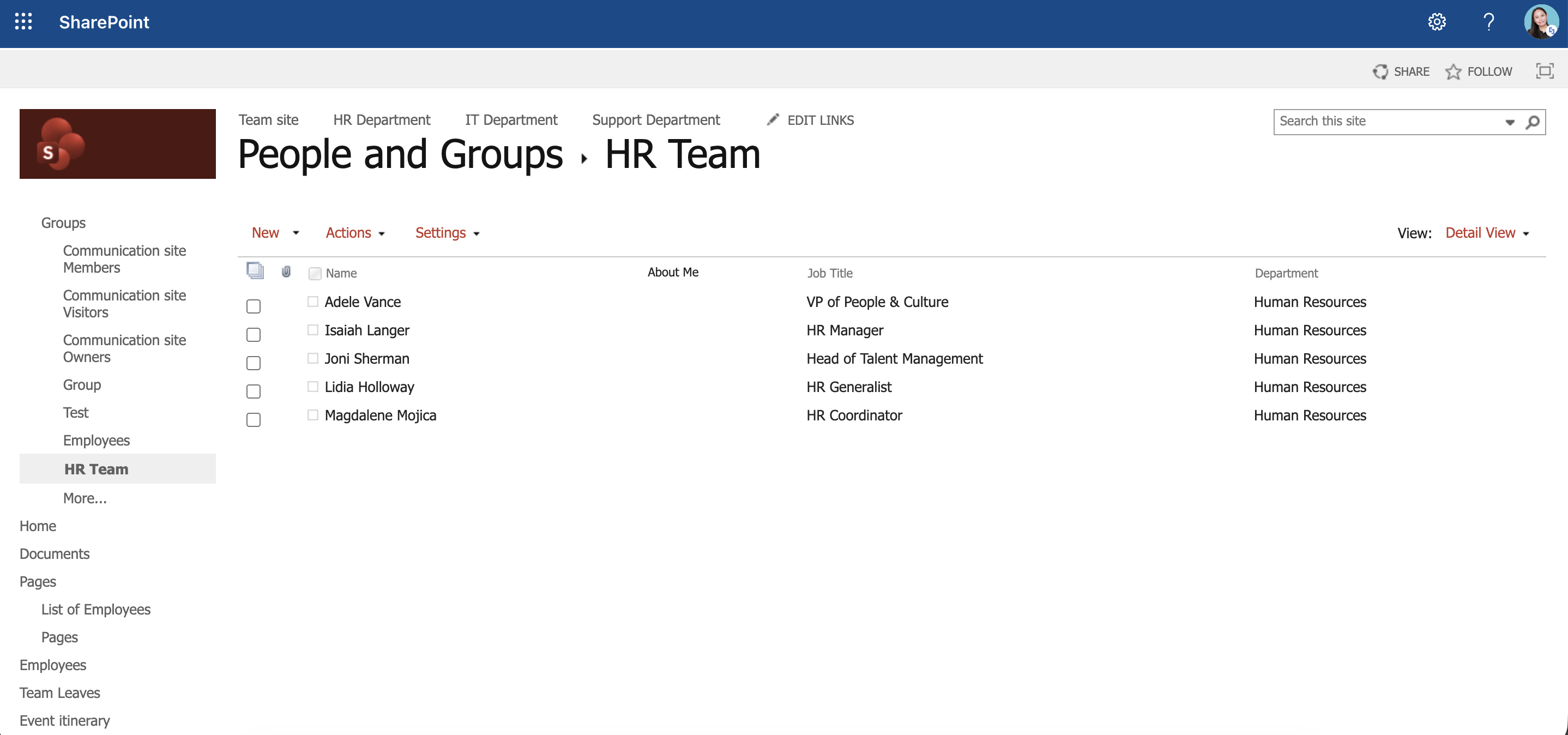
NOTEDon't have a SharePoint group yet? Learn how to create one in Understanding SharePoint Groups: What It Is and How to Create One.
To top it off, you can display your team members using any ShortPoint Design Element—whether that's image lists or simple text lists. The choice is yours.

Interactive Tutorial
Click Get Started to learn how to use the People in SharePoint Group connection type and start showcasing your site members and teams dynamically.
NOTETo learn more about the options you can modify, go to People in SharePoint Group Connection Features.
Step-by-step Tutorial
Learn how to use the People in SharePoint Group connection type in this step-by-step guide:
Step 1: Edit the ShortPoint web part
- Go to the SharePoint page you want to use and click Edit:

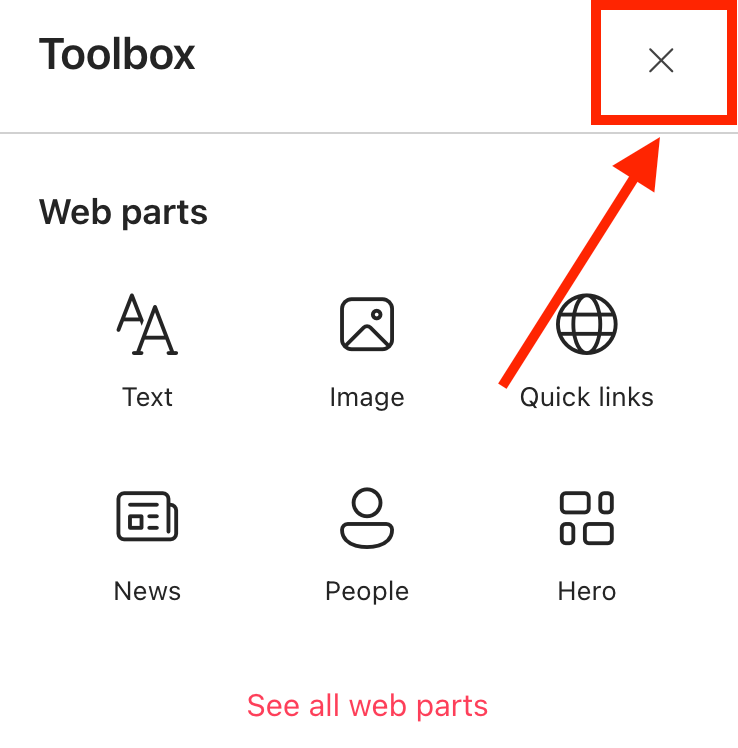
- Close the Toolbox:
- Edit the ShortPoint web part:

Step 2: Edit the Design Element
NOTEBefore proceeding, you must already have the Design Element you want to use to connect on your SharePoint page. You can use any Design Element you prefer, but we recommend using Design Elements that allow listing of multiple items, including Simple List, Image List, Icon List, and so much more. For this guide, we'll use Image List.
- Click the EasyPass tag of the Design Element you want to use to connect:
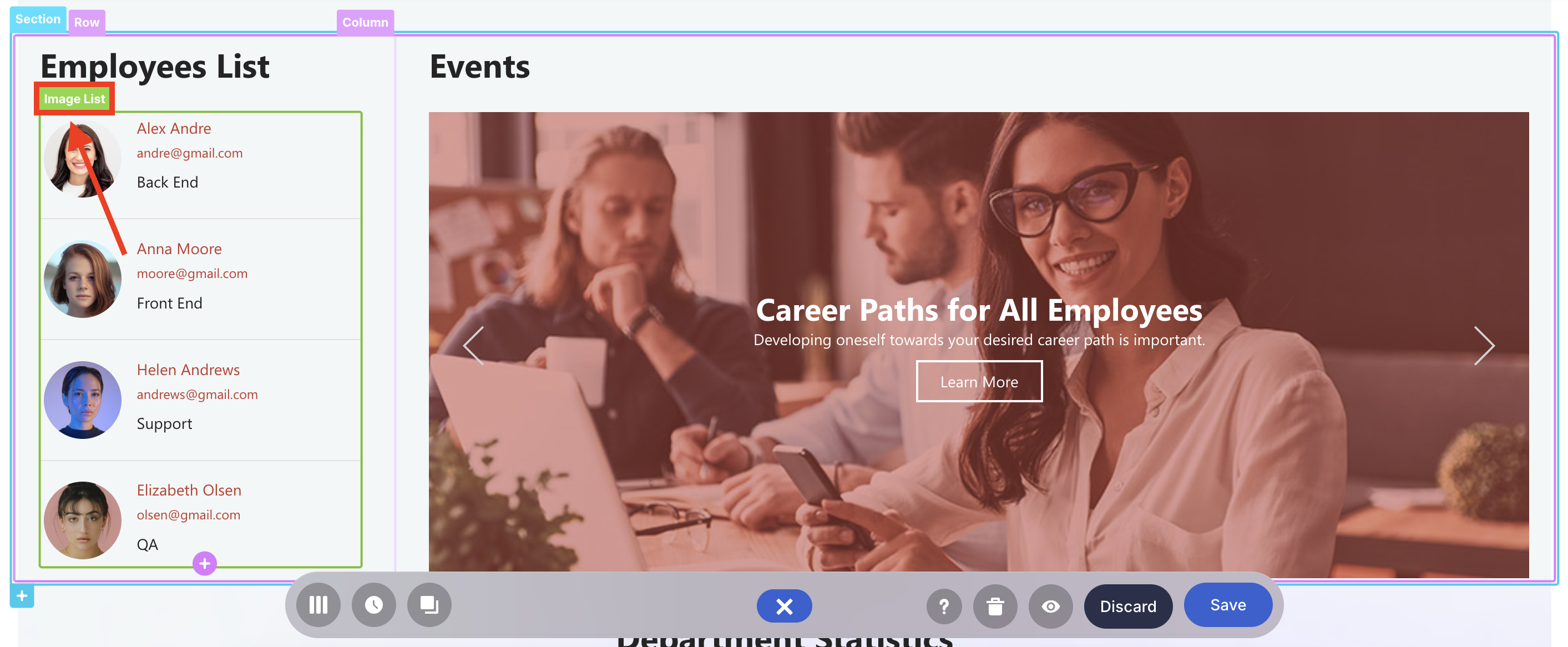
- Select the cogwheel icon:
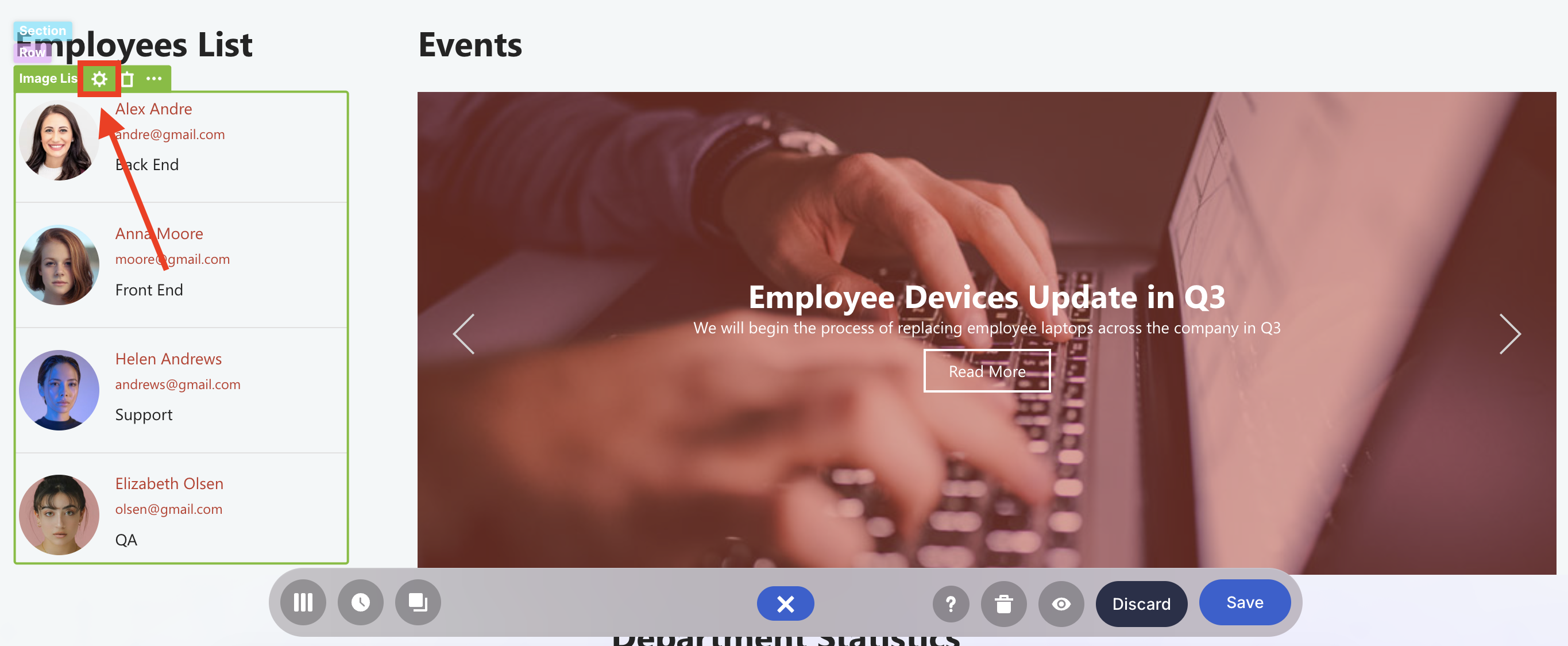
Step 3: Connect using the People in SharePoint Group connection type
- Go to the Connect tab.
- Click Configure:
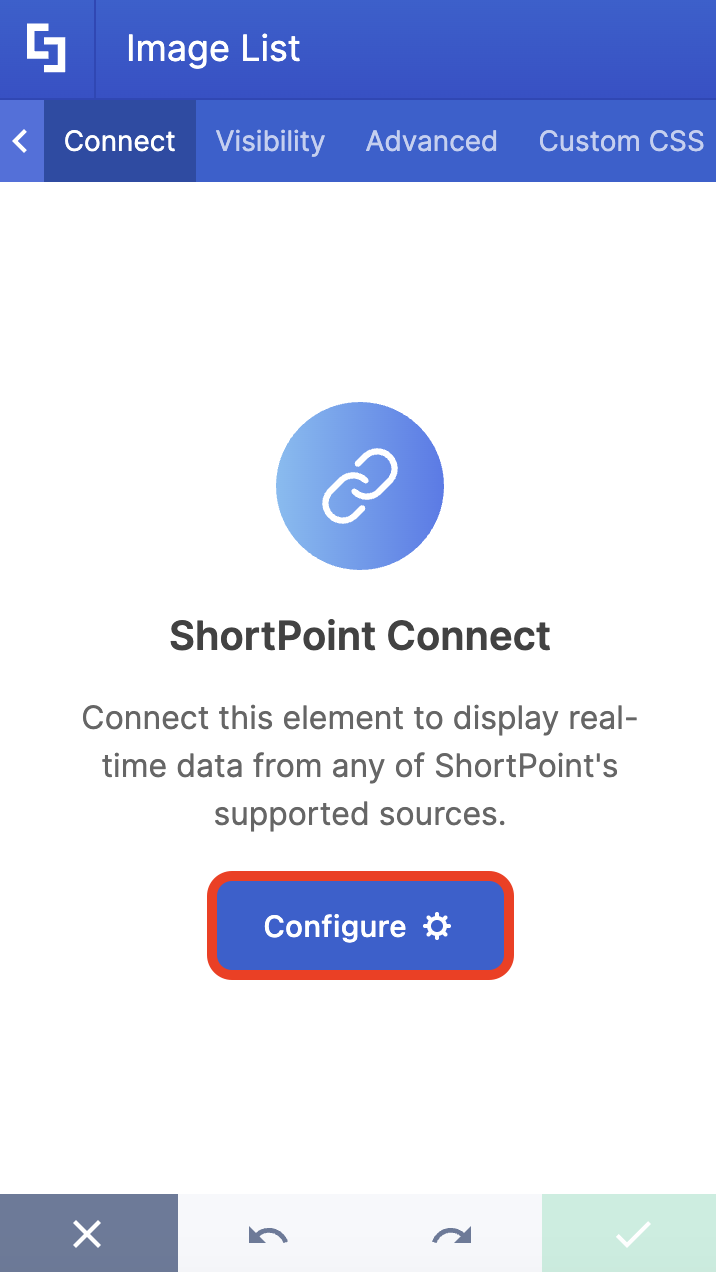
- Select People in SharePoint Group:
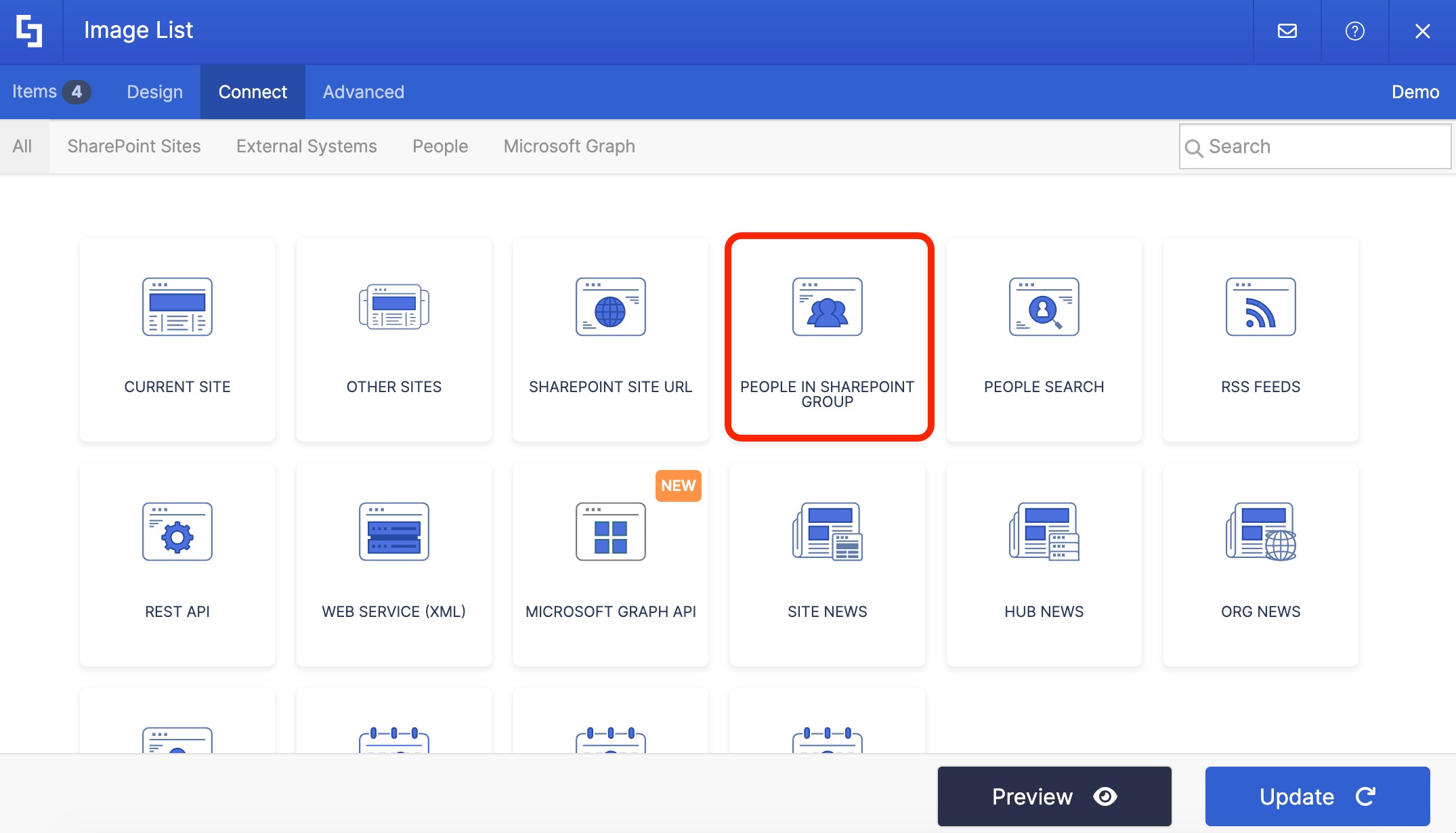
- Choose the SharePoint groups you want to use to connect. You can leave it blank to load all SharePoint groups or select multiple groups.
- Then, click Connect to establish the connection.
NOTETo learn more about the options you can modify, go to People in SharePoint Group Connection Features.
Step 4: Map Items to display
- Go to the Items tab.
- Delete all default content:
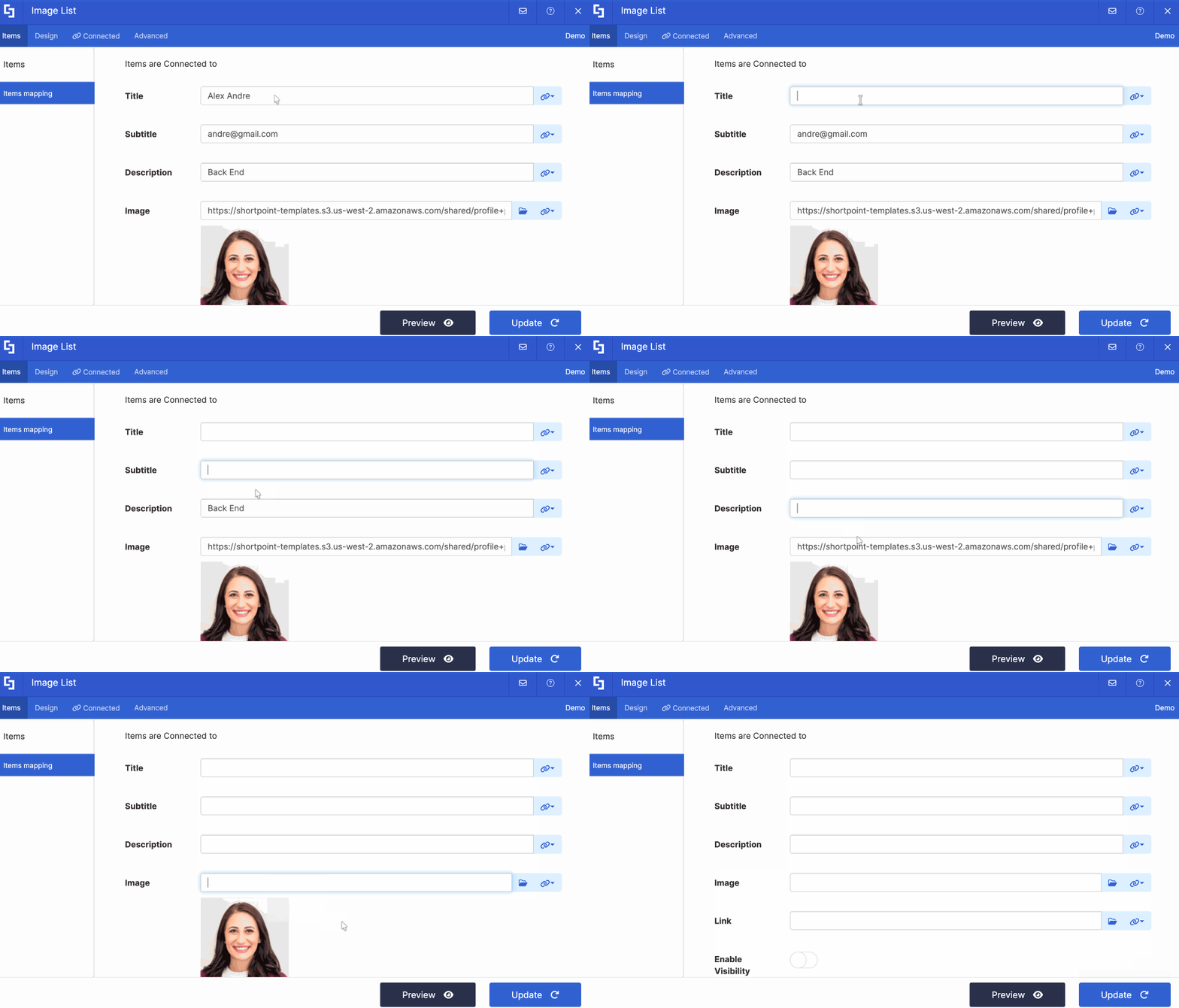
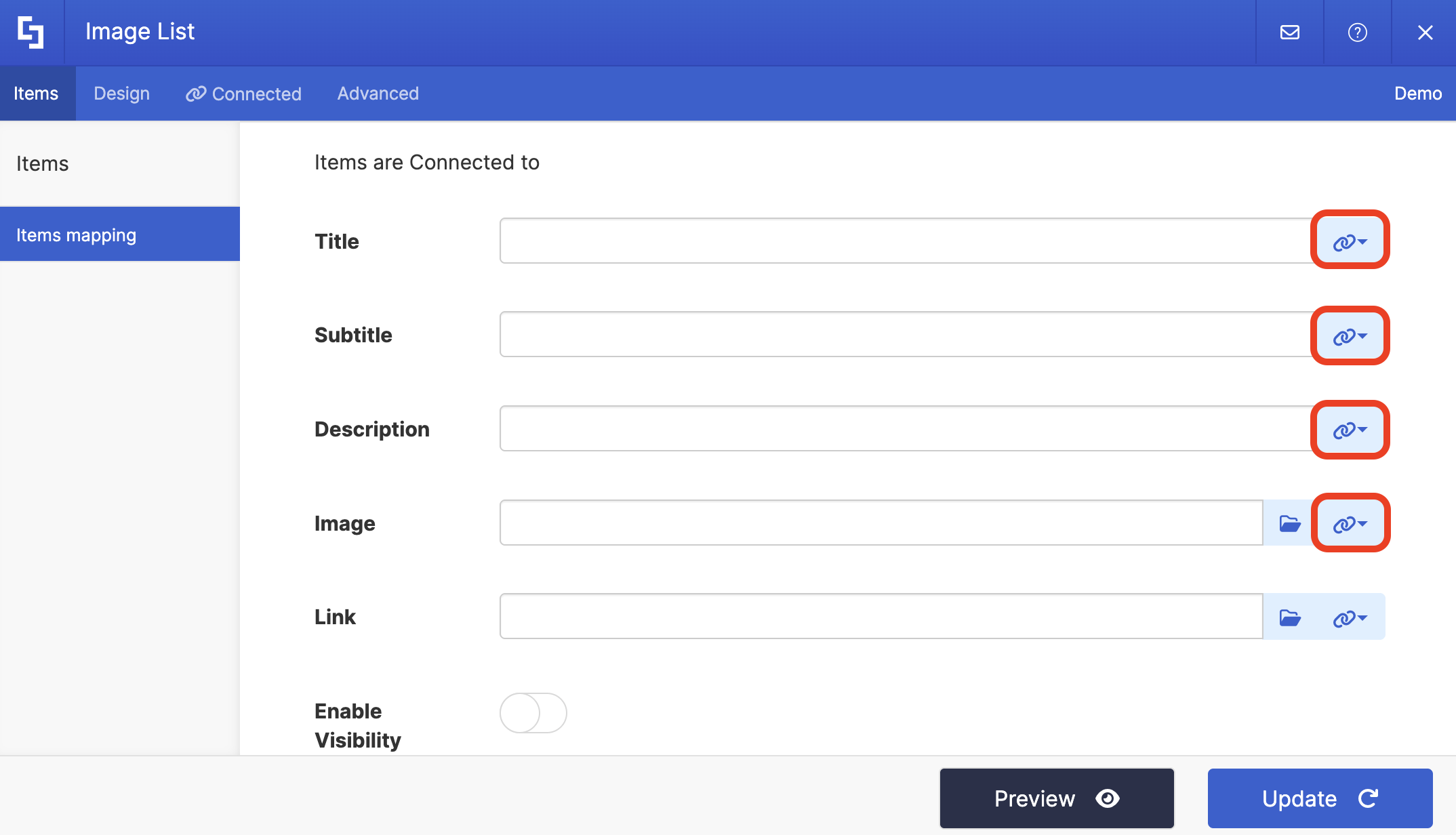
- Click the link icon to choose the properties you want to display. You can map any property you prefer. Just take note that the properties you can map depend on the information you have on your SharePoint user profiles.
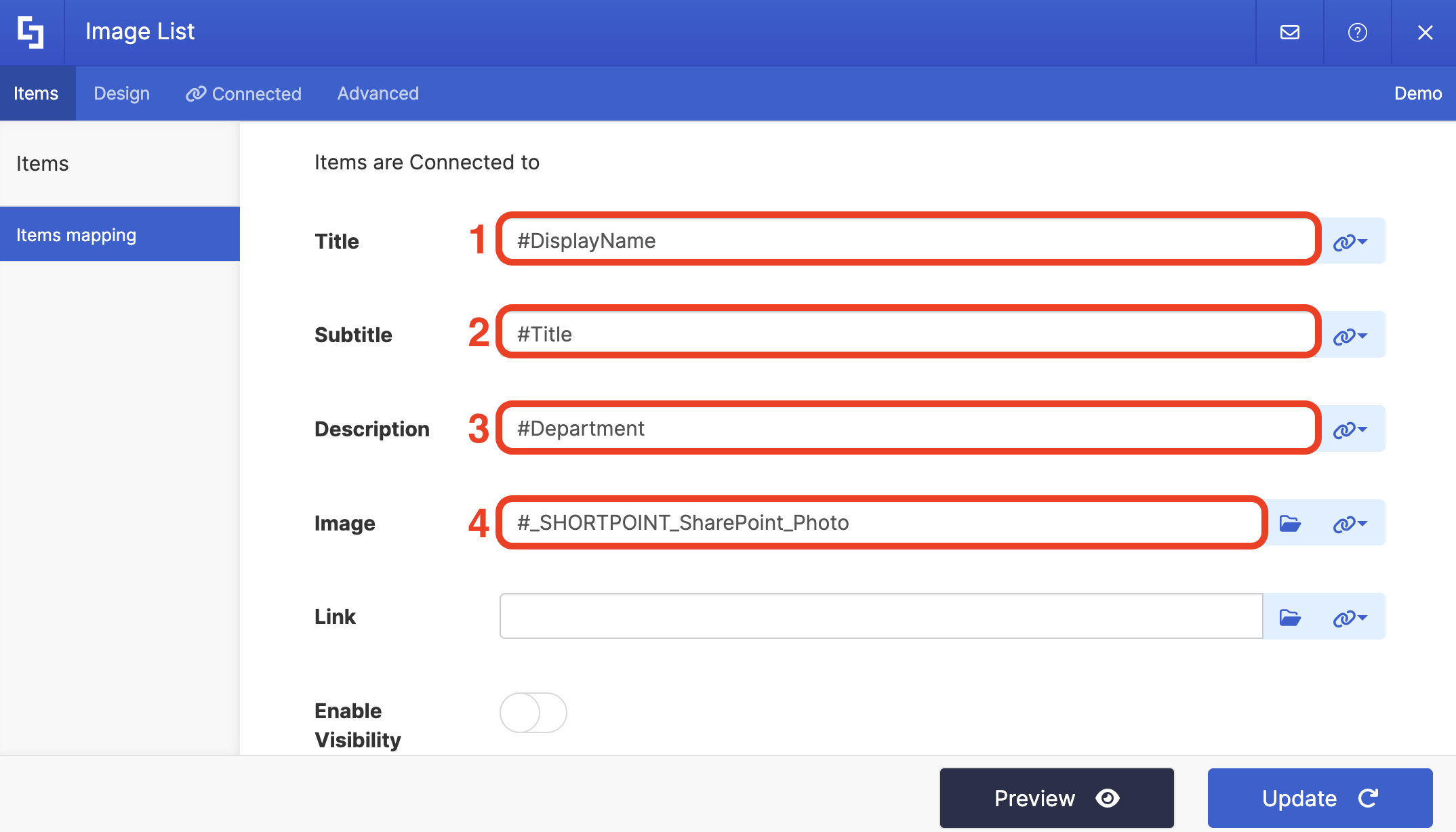
- Here’s an example of our mapped properties:
- #DisplayName - shows the name of the user.
- #Title - shows the work title of the user
- #Department - shows the department of the user.
- #_SHORTPOINT_SharePoint_Photo - shows the profile image of the user.
NOTETo learn more about the Connect Feature and Items Mapping, check out Basic Tutorial: How to Establish Seamless SharePoint Connection with ShortPoint Connect.
Step 5: Update and Save
- Click Preview to see how the Design Element will look on your page.
- Once satisfied, click Update.
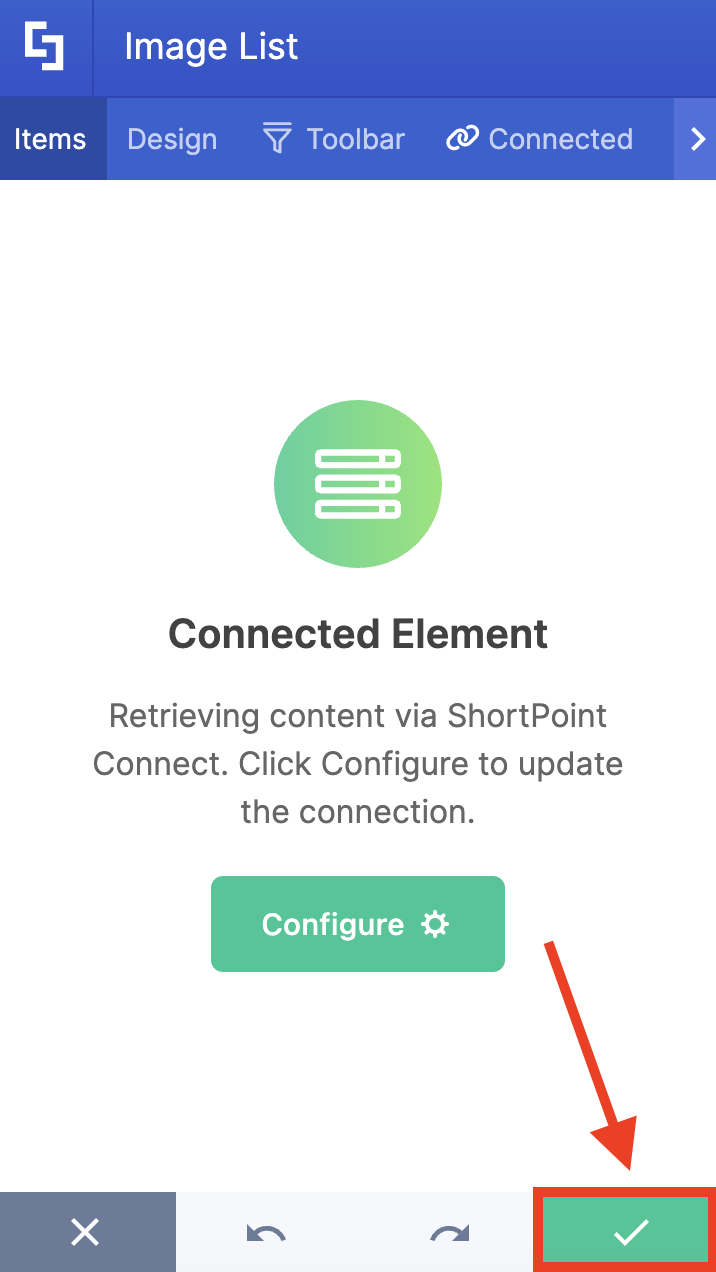
- Select the green checkmark:
- Save your changes:

That's it! Once set up, your page will automatically reflect any changes to group membership or user profile information, making access management seamless and efficient.
People in SharePoint Group Connection Features
Let’s tackle all the features you can modify using the People in SharePoint Group connection in edit mode
 | Select Groups | allows you to choose the specific SharePoint Groups you want to use. You can leave it empty to load all users from all SharePoint groups or select multiple groups. |
 | Items Limit | allows you to adjust the maximum number of team members shown. |
ADVANCED SETTINGS
 | Enable Advanced Settings | when. enabled, additional settings will appear. |
 | Map Results | If your API doesn't return an array of result items (which ShortPoint expects), you can use this function to transform the data into the proper format for ShortPoint. Learn more about the Map Results function. |
PERFORMANCE AND CACHING
 | Enable Partial Loading | This feature comes enabled by default. It allows partial loading to activate automatically when the connection returns more than 20 results. Additional results will load as the user scrolls. Learn more about the Partial Loading function. |
 | Cache Options | allows you to choose from 3 caching options. Learn more about these caching options and how to improve ShortPoint performance on your SharePoint sites.
|
Practical Use Cases
Let's talk about real-world applications. The People in SharePoint Group connection isn't just a nice-to-have feature—it solves actual business needs. Here are some scenarios where organizations are putting this solution to work:
Department Team Pages
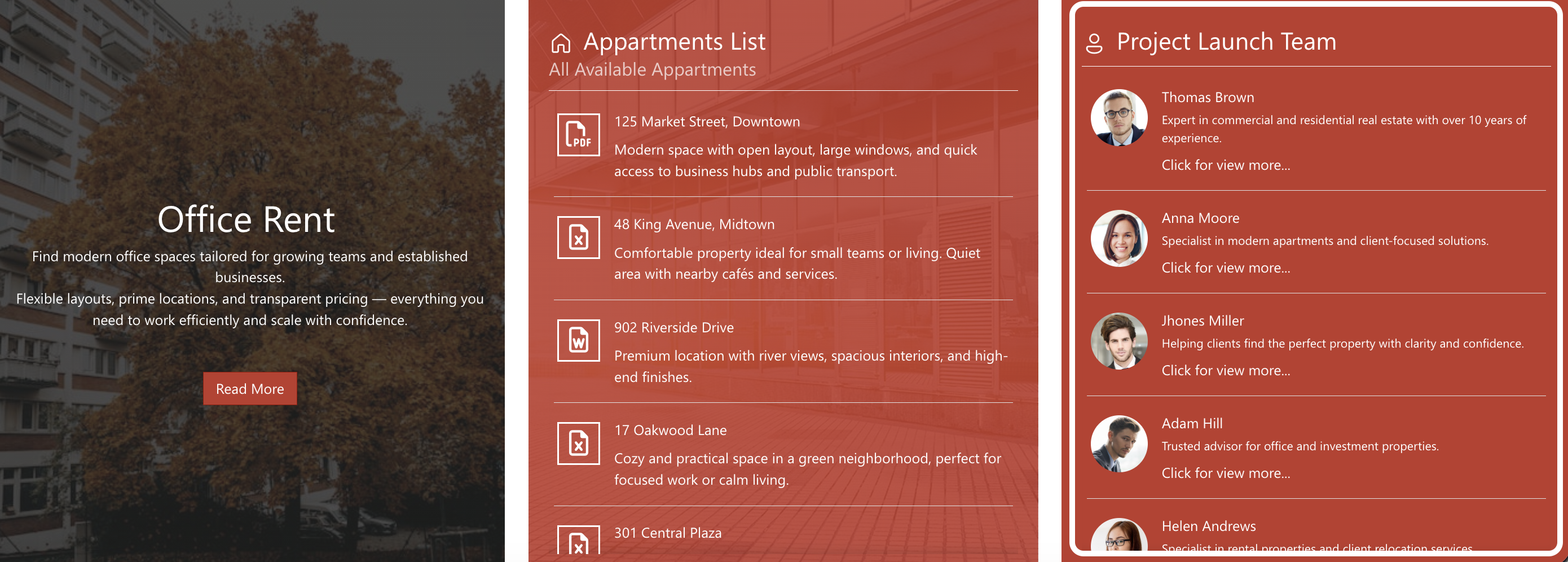
Create dedicated pages for each department that automatically display site members. HR, Marketing, IT, Finance—each department can have its own page showing current team members with their roles, contact information, and photos. When someone joins or transfers departments, the page updates automatically without any manual work from your site owner or SharePoint administrator.

Project Team Directories
For project-based organizations, create dynamic project pages that show who's on each project team. Add team members to a SharePoint group for the project, and your project page automatically reflects the current roster. This is especially valuable for cross-functional teams where membership changes frequently, improving collaboration and access management.
Leadership and Management Visibility
Make it easy for employees to find and contact leadership. Create an executive team page or management directory that pulls from your leadership user groups. Include photos, titles, email addresses, and departments so everyone knows who to reach out to for specific needs.

Office Location Directories
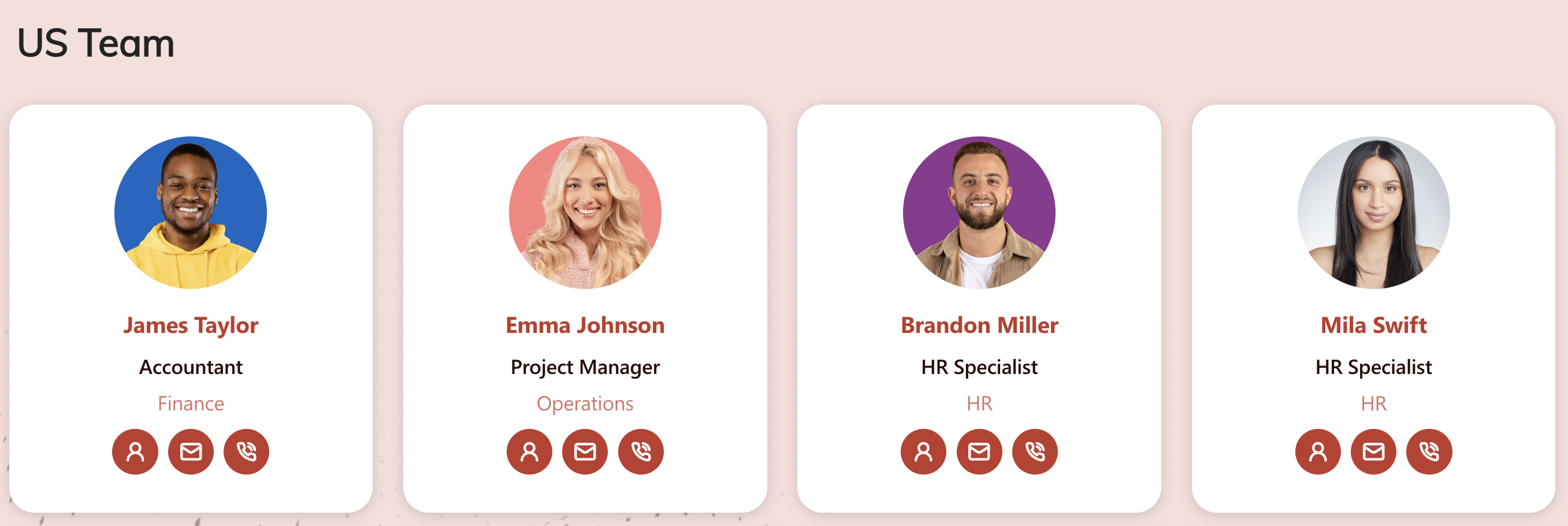
For organizations with multiple offices, create location-specific pages showing who works where. Pull from location-based SharePoint groups to display team members in each office, making it easier for employees to know who they might run into or collaborate with at different locations.
Start Connecting Using the People in SharePoint Group Connection
The ShortPoint People in SharePoint Group connection type transforms how you showcase teams and groups on your SharePoint Online pages. It's dynamic, automated, and most importantly, it saves you countless hours of manual updates.
Whether you're building department pages, project directories, or leadership rosters, this feature gives you the tools to create professional, always-current team displays that actually work for your organization. The best part? Once you set it up, it pretty much runs itself.
Ready to dive in? Current ShortPoint Designer users can jump right in by following our interactive tutorial. First time here? We'd be happy to set you up with a FREE 15-day trial so you can explore everything ShortPoint has to offer—no credit card needed. And if you'd prefer a guided tour, our experts are available for personalized demos where they'll walk you through the People in SharePoint Group connection and answer any questions you have.
Frequently Asked Questions
Do I need special permissions to use this feature?
You'll need to be a ShortPoint Designer with an active license, and you must have the appropriate version of ShortPoint SPFx installed on your SharePoint environment. Additionally, you need to have SharePoint groups already created with members added to them.
Can I display members from multiple SharePoint groups on one page?
Absolutely! You can select multiple SharePoint groups from the dropdown when setting up your connection. This is perfect for situations where you want to show a combined team, like all regional managers or all project coordinators across different groups.
What information can I display about team members?
You can display any information stored in user profiles, including preferred name, work email, job title, department, office location, phone numbers, and profile pictures. When mapping fields, you'll see all available properties from the user profiles and can choose which ones to display.
How do I limit the number of people displayed?
There's an 'Items Limit' field when setting up your connection. By default, it's set to 0, which shows all members. Simply enter the number of people you want to display if you need to limit it. This is useful when you want to highlight a specific number of team members or when space is limited on your page.
Will the page update automatically when group membership changes?
Yes! That's one of the best features of this connection type. When someone is added to or removed from the SharePoint group, your page will automatically reflect those changes. You don't need to edit the page or update anything manually.
What design elements work best with this connection?
You can use any ShortPoint Design Element, but elements that allow for multiple items work particularly well. Image Lists, Icon Lists, and Simple Lists are popular choices because they're designed to showcase multiple people effectively. That said, the choice ultimately depends on your design preferences and the overall look you're going for.
What's the difference between this and the People Search connection type?
Great question! The People in SharePoint Group connection displays members of specific SharePoint groups that you select. The People Search connection, on the other hand, searches through all user profiles in your organization based on filters and criteria you set. Use People in SharePoint Group when you want to show a defined group of people, and use People Search when you want to dynamically filter and display people based on properties like department, location, or job title.
Do users need to have complete profiles for this to work?
The connection will work with whatever profile information is available. However, for the best results, it's a good idea to encourage users to complete their SharePoint profiles. If someone's profile picture is missing, for example, that field will simply be empty or show a placeholder. The more complete the profiles, the richer and more useful your people directory will be.
Can I customize the appearance of the displayed information?
Yes! ShortPoint offers extensive customization options through its Design tab. You can adjust colors, fonts, layouts, spacing, and much more to match your organization's branding and design standards. The Advanced tab and Custom CSS options provide even more control for those who want to fine-tune every detail.
Related articles:
