 Try ShortPoint now
Looking to track upcoming birthdays on your SharePoint site? There’s no better Design Element to use other than the Date List Design Element. It gives you the exact birthdate of the birthday celebrant and even allows you to add more details to fit the needs of your organization.
This article will show you how to use the Date List Design Element to feature upcoming birthdays. Let’s get started!
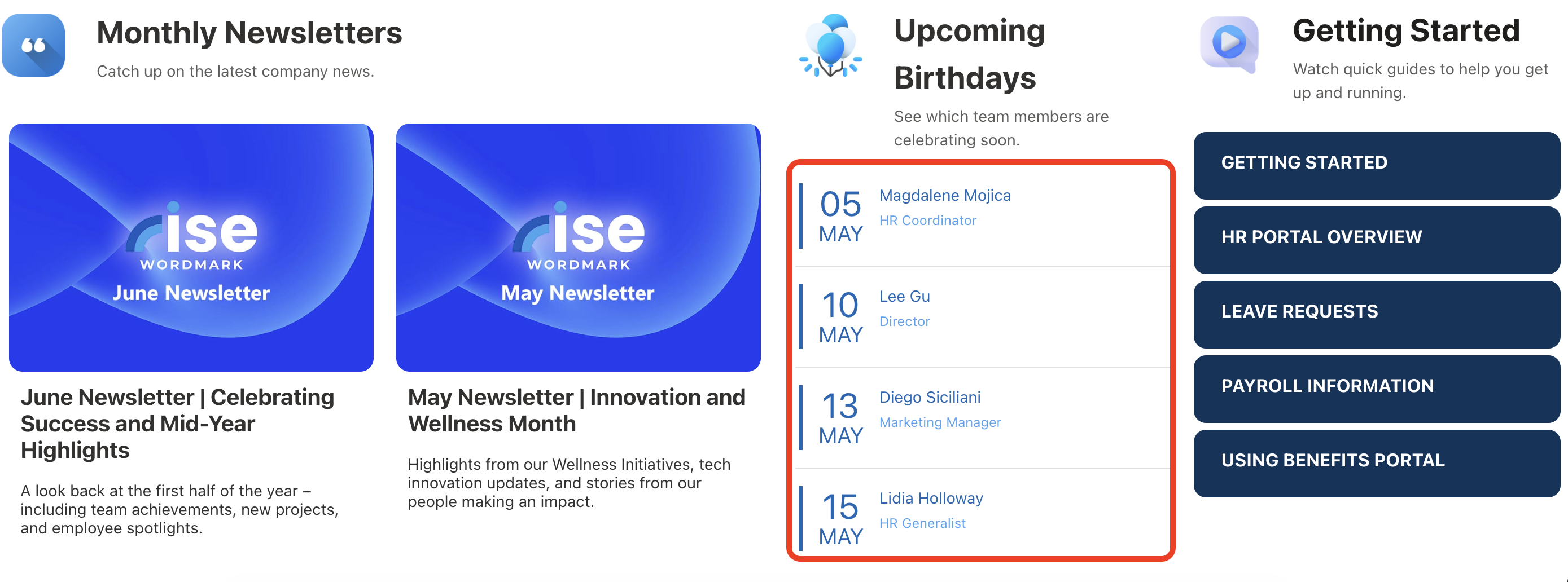
TABLE OF CONTENTS
- Prerequisites
- What Is the ShortPoint Date List Design Element?
- How to Display Upcoming Birthdays in Date Lists
Prerequisites
- You must have the latest ShortPoint SPFx version installed.
- You must be a ShortPoint Designer with an active license.
- You must already have the Date List Design Element on your page.
What Is the ShortPoint Date List Design Element?
Before we start connecting, let’s get you caught up on the Design Element we’ll use for the connection: the Date List Design Element.
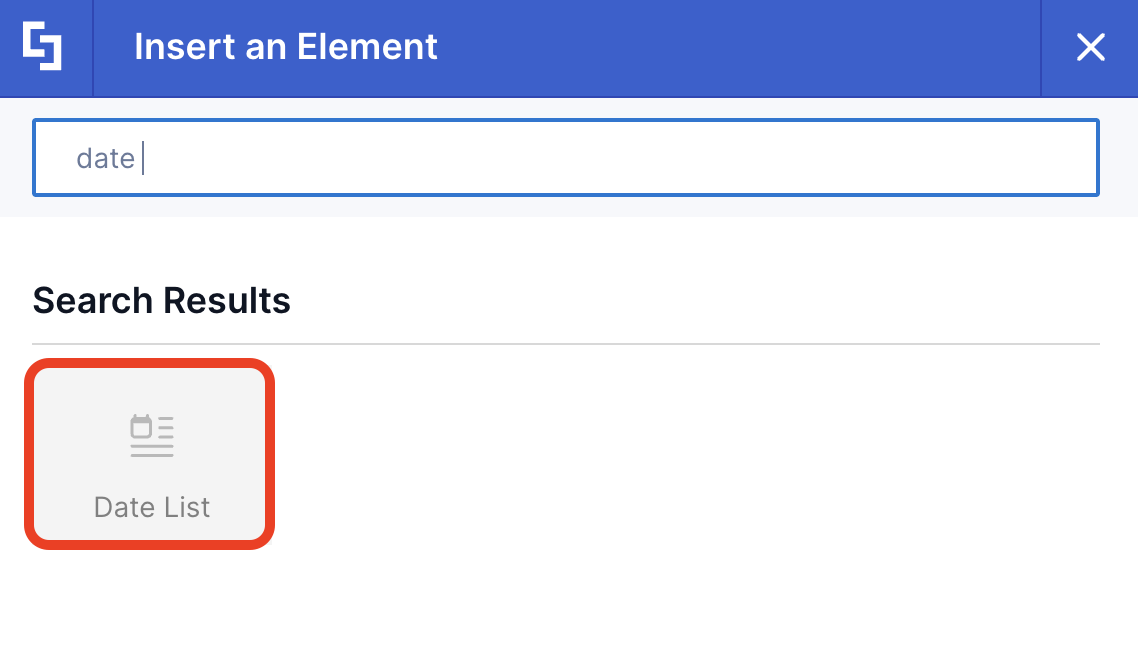
Date List is a ShortPoint Design Element commonly used to display important events, meetings, announcements, and, most importantly, birthdays on your SharePoint site. This way, your page viewers never miss any special events or updates.
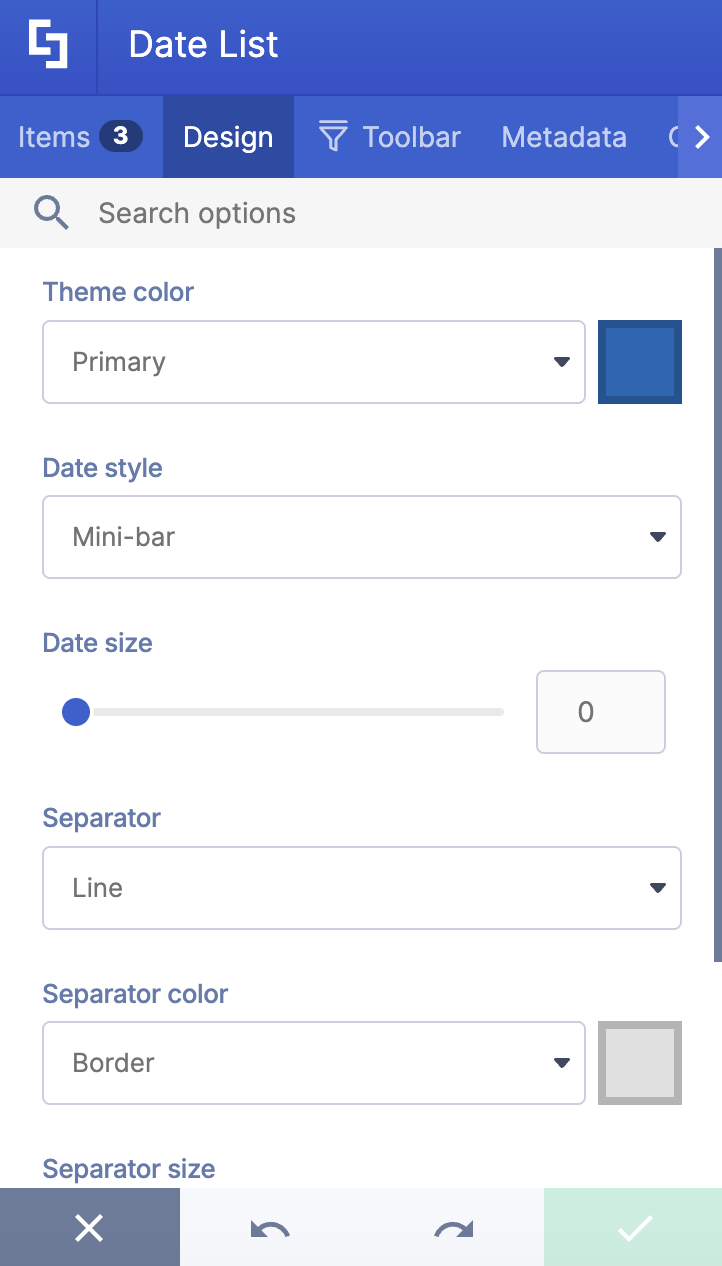
It offers flexible design styles and customizations to fit the branding of your organization. For more information on the features you can modify inside the Date List settings, check out How to Customize the Date List Design Element.
How to Display Upcoming Birthdays in Date Lists
Showcasing upcoming birthdays on your SharePoint pages is super simple and easy. Follow the detailed step-by-step guide to accomplish the connection:
Part 1: Add Employee Birthdays
This section will show you how to add birthdays to user profiles in SharePoint. Accomplishing these steps is essential. If none of your user profiles have an entry in the SPS-Birthday field, the crawled property won't appear in the search schema at all, which you will need in the next part. So, before you proceed, make sure to accomplish Part 1 first.
Step 1: Open User Profiles
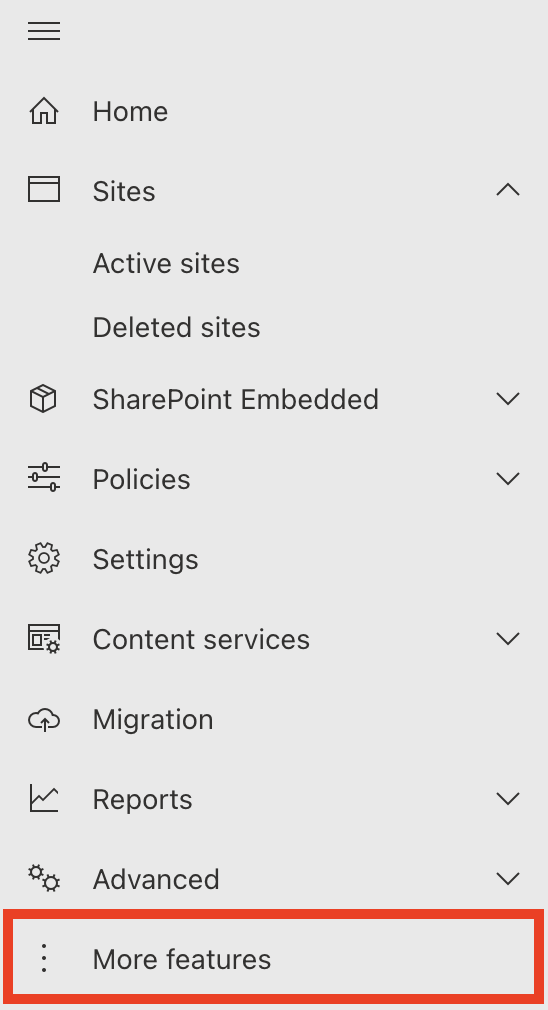
- Go to the SharePoint Admin Center and select More Features:
- Look for User Profiles and select Open.
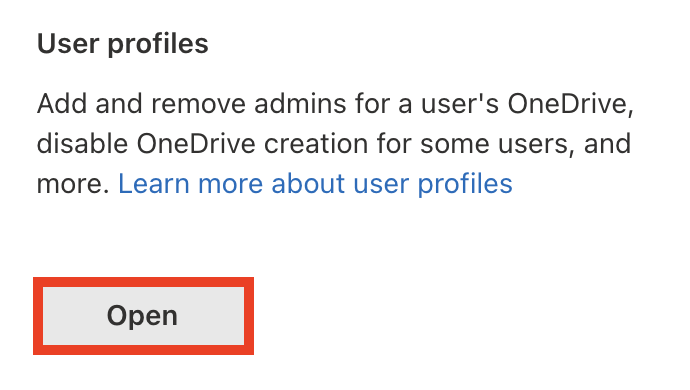
- Click Manage User Profiles

Step 2: Add Birthdates
- Find the user whose birthday you want to configure.

- Then, select Edit My Profile.
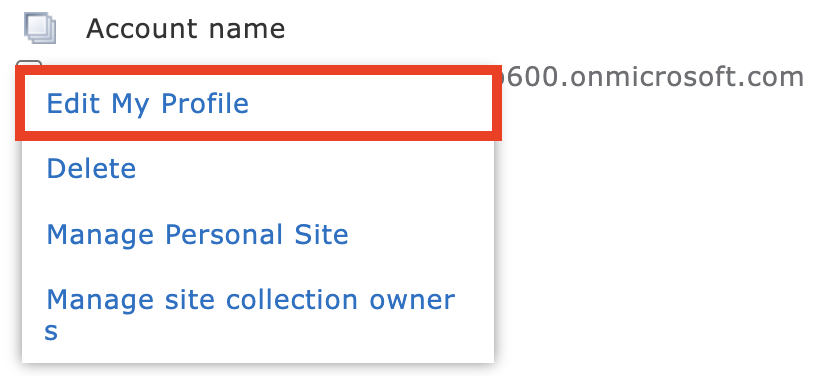
- Scroll down until you see the Birthday field. Write down the selected employee's birthday. It should follow the Month and Day format, and it should be shown to Everyone.

- Click Save and close.

- Repeat the same steps for every employee whose birthdates you want to set.
Great work! You've successfully added birthdates to SharePoint user profiles. You may now proceed to Part 2.
Part 2: Map Birthday Property
This section shows you how to query managed properties in SharePoint's search schema. Follow the steps below to get started:
Step 1: Open Crawled Properties
- Go back to the SharePoint Admin Center and click the Open button under Search.
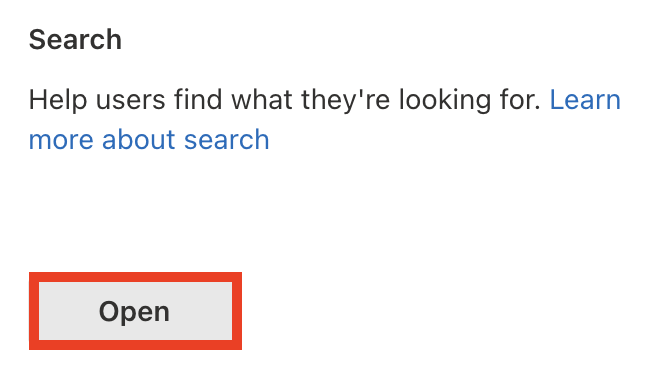
- Select Manage Search Schema:
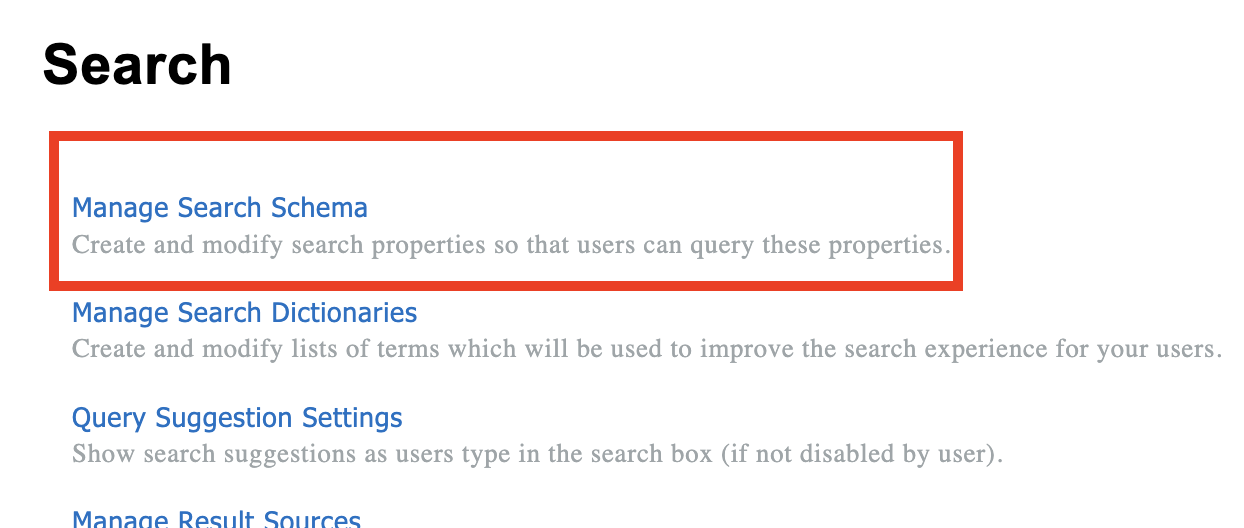
- Go to the Crawled Properties tab:

Step 2: Configure the SPS-HireDate Property
- In the list of properties, locate the People:SPS-Birthday and click it to open the menu:

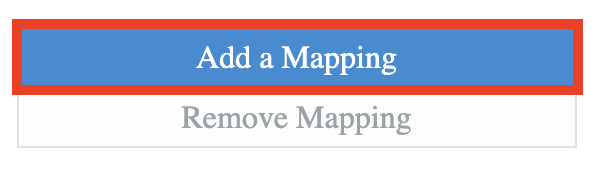
- Click Add a Mapping:
- Search for [1] RefinableDate18 property. Select it and click [2] OK:
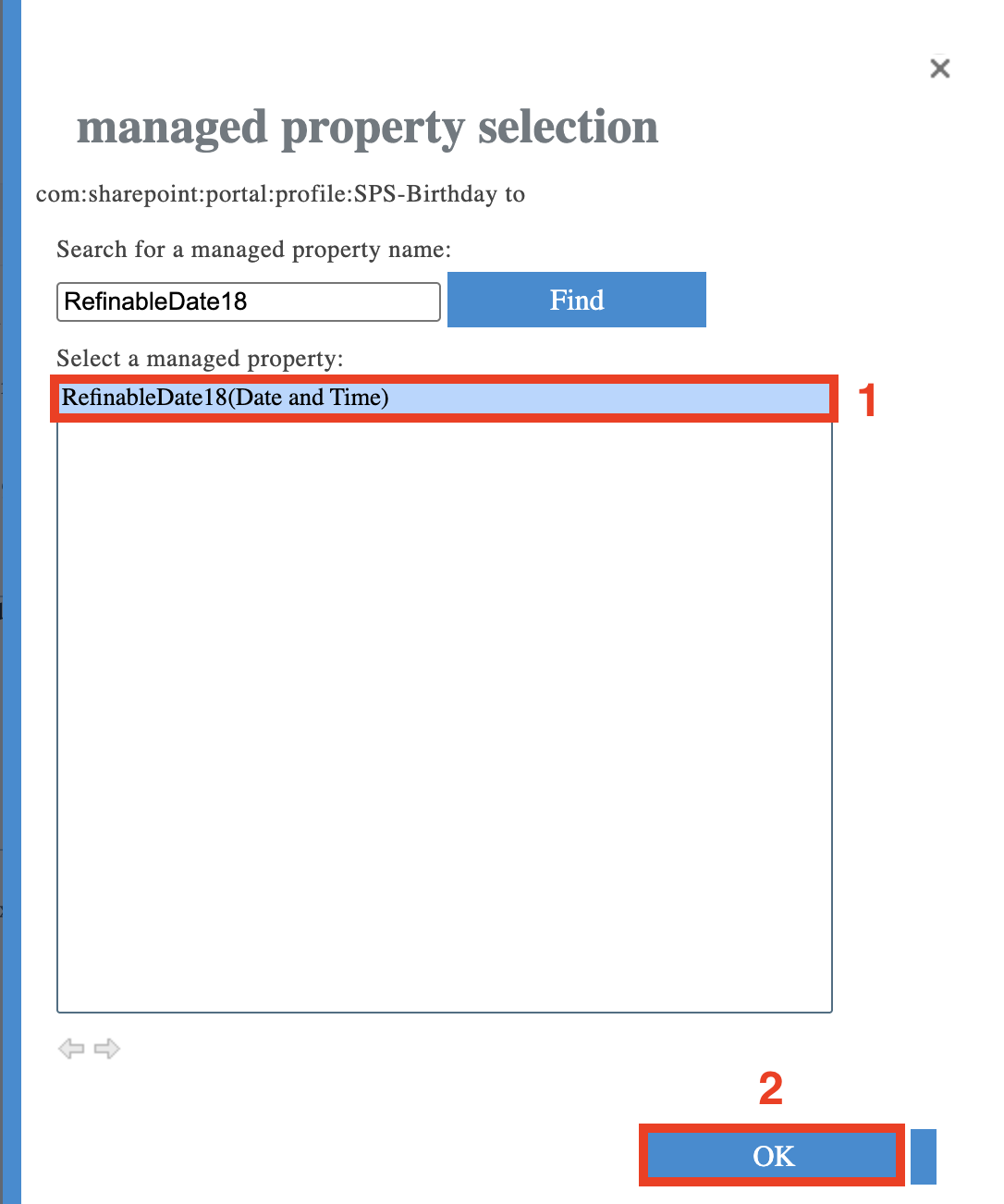
NOTEYou can choose any RefinableDate property. In this article, we are using RefinableDate18 because this is the default selection when you configure the Upcoming Birthdays filter in People Search.
- Scroll to the bottom of the page and click OK to save the settings.

Step 3. Check the RefinableDate property settings
- Switch to the Managed Properties tab:

- Find the RefinableDate property that you have mapped earlier.
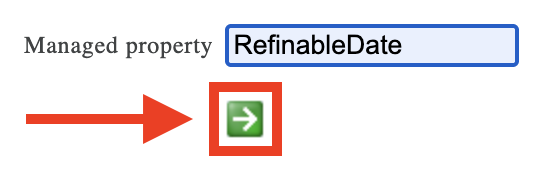
- Click the property name to open the settings:

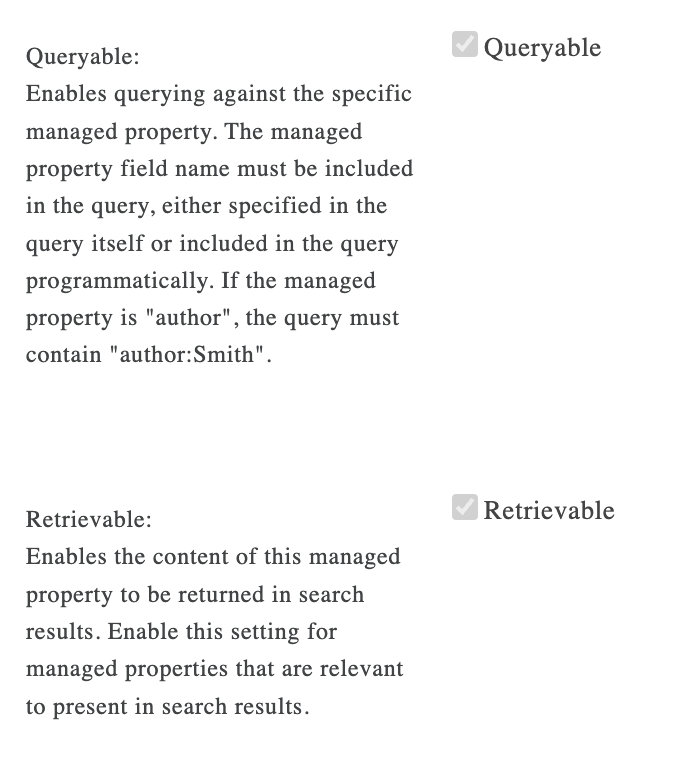
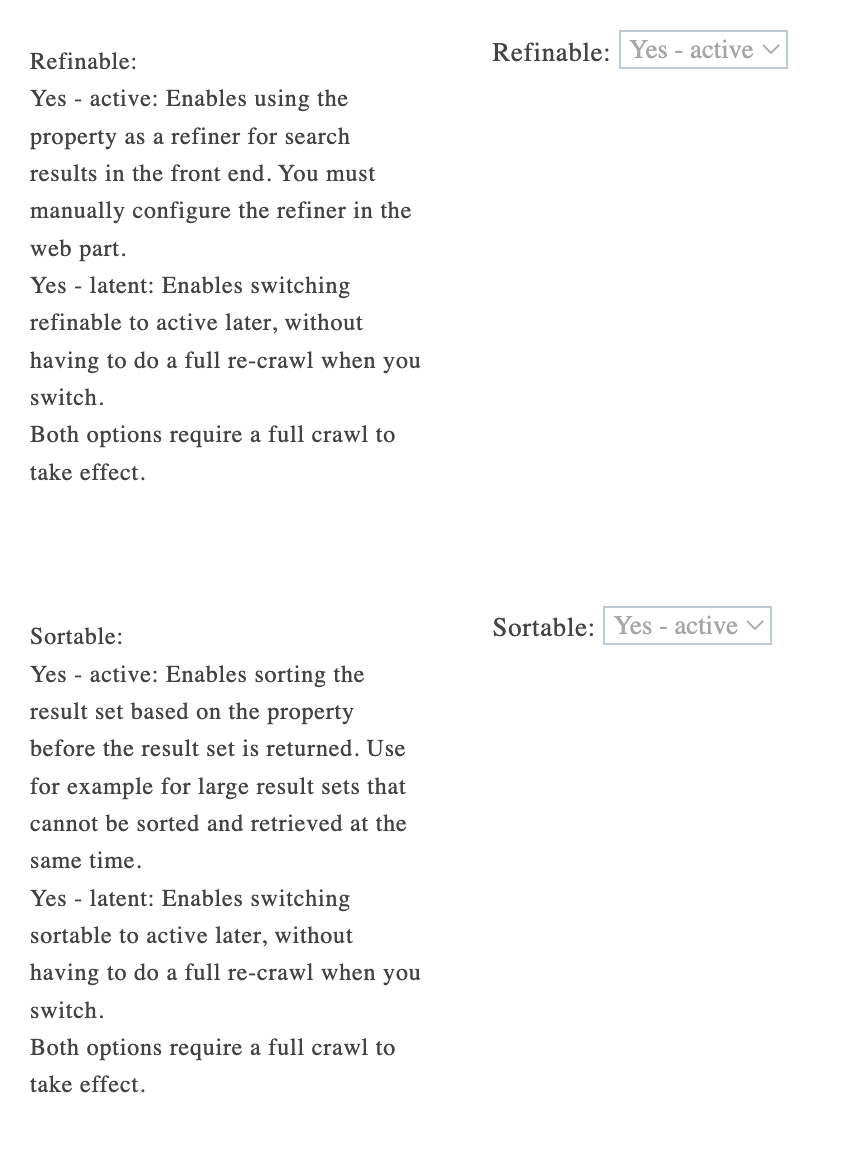
- In the opened settings, make sure the following options are checked or active:
- queryable;
- retrievable;
- refinable;
- sortable.
 |  |
- Click OK to save the changes if you made any.

Amazing! You've successfully configured the SPS-Birthday property. You can now start connecting.
Part 3: Connect
This section tackles the actual connection using the ShortPoint People Search connection type.
Step 1: Open the ShortPoint Web Part
- Go to the SharePoint page you want to use and click Edit.
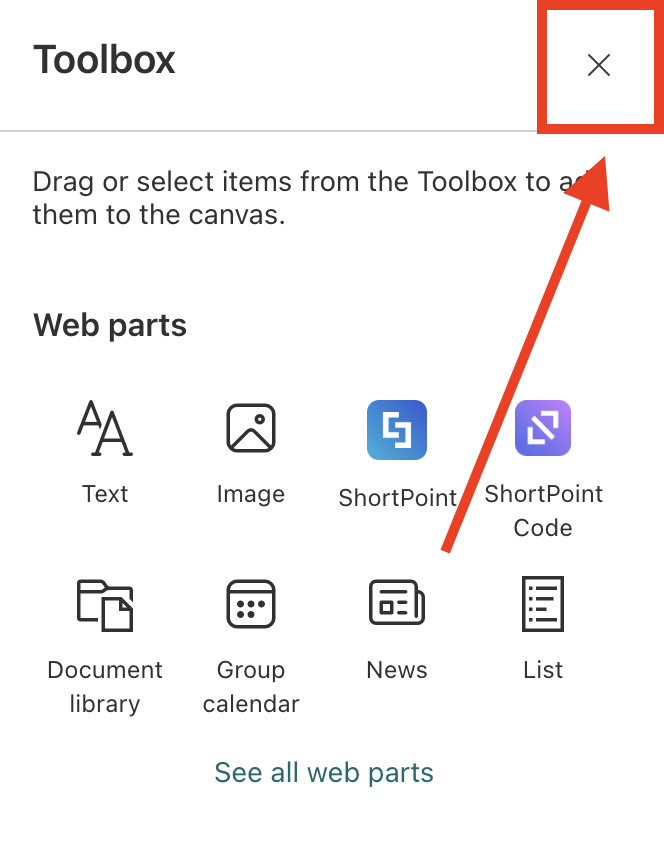
- Close the Toolbox:
- Edit the ShortPoint Web Part:

Step 2: Edit the Design Element
NOTEBefore proceeding, make sure you already have the Date List Design Element on your SharePoint page.
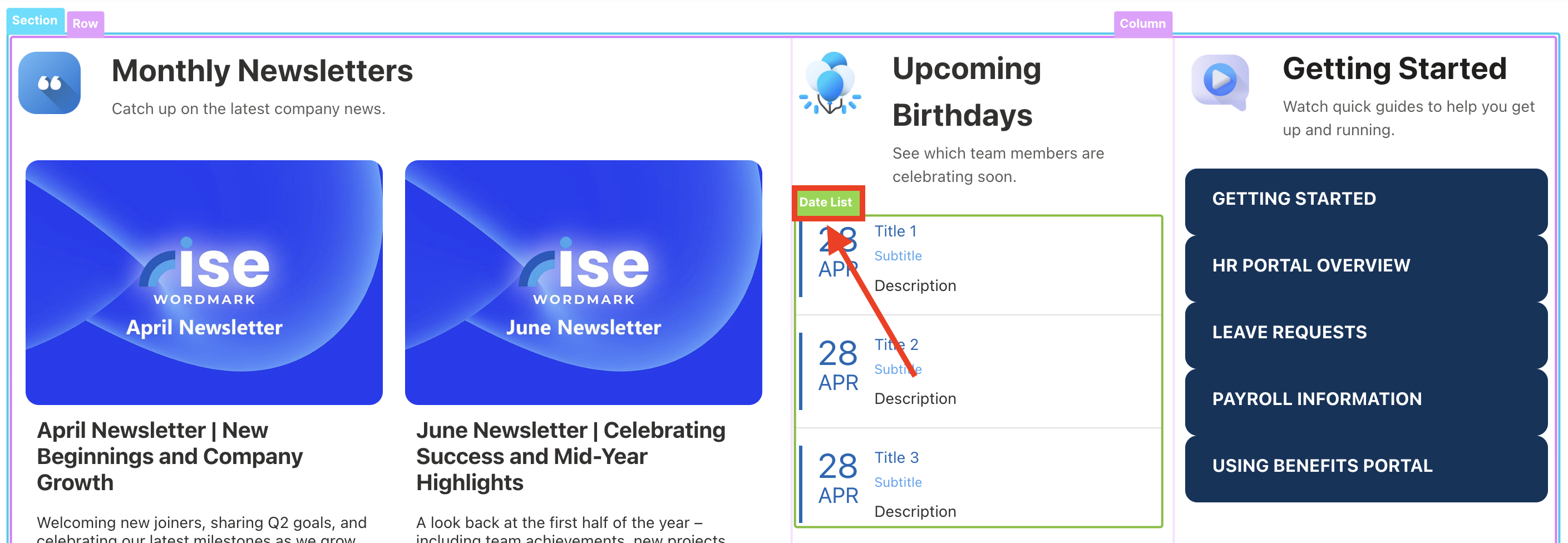
- Select the EasyPass tag of the Date List Design Element:
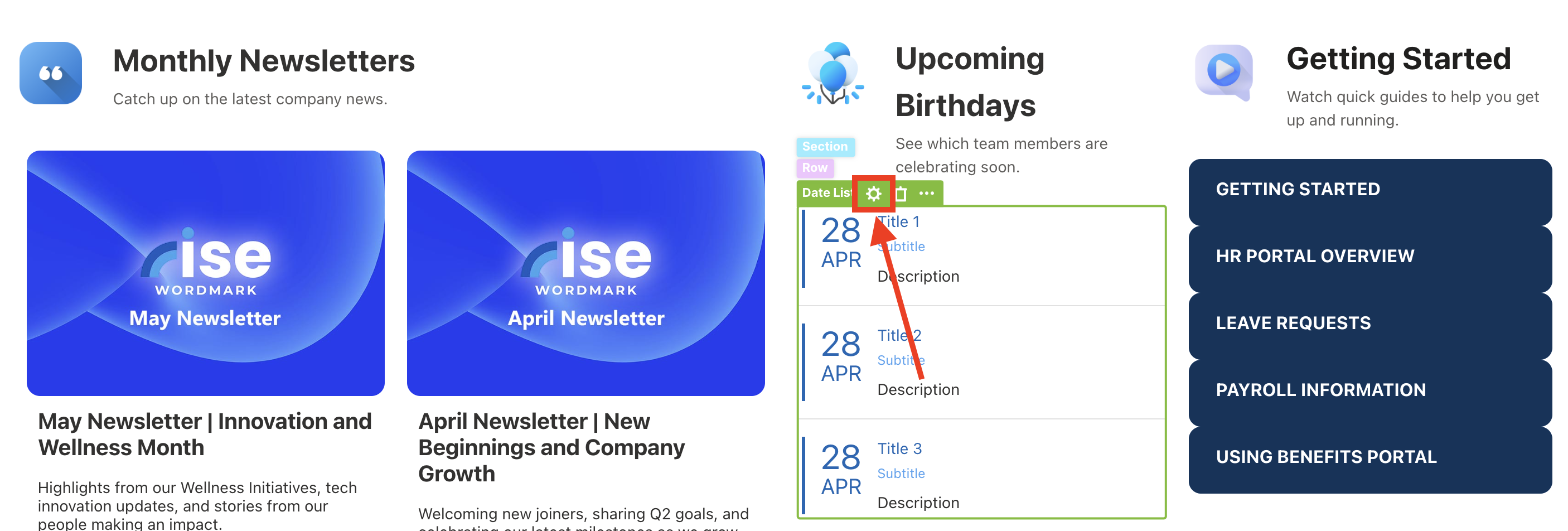
- Click the cogwheel icon to open its settings:
Step 3: Choose People Search
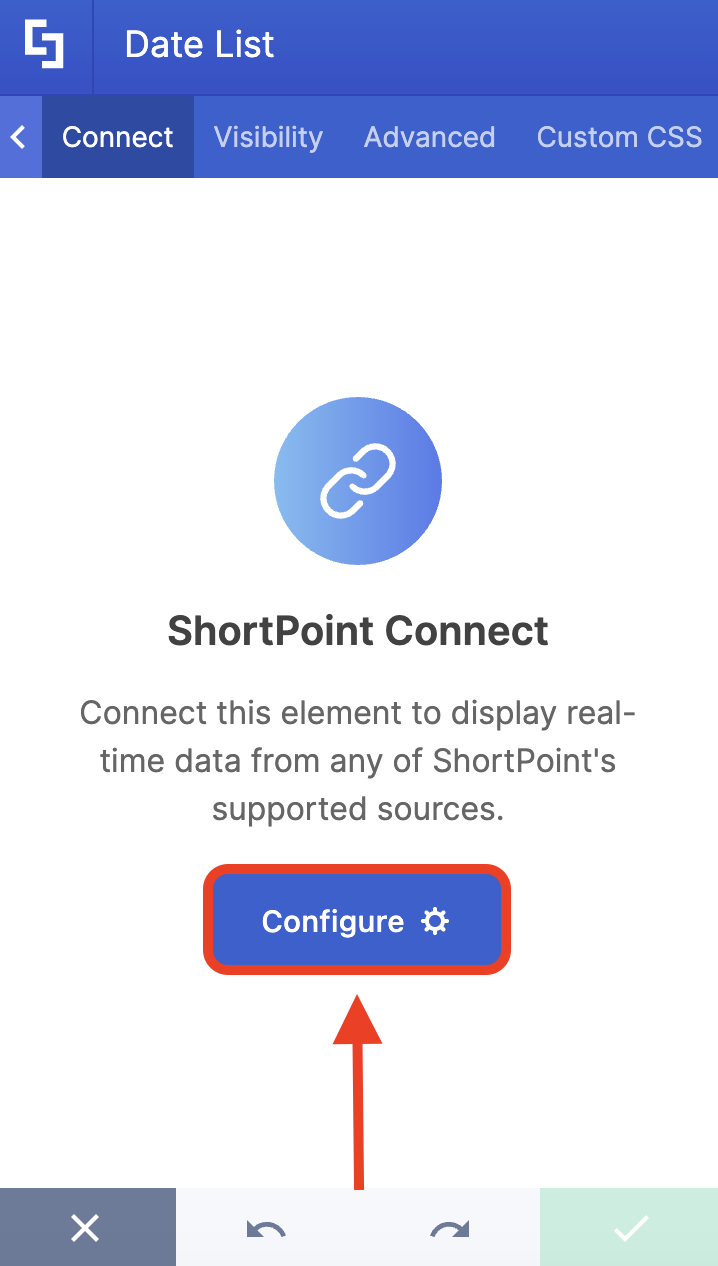
- Go to the Connect tab.
- Click Configure:
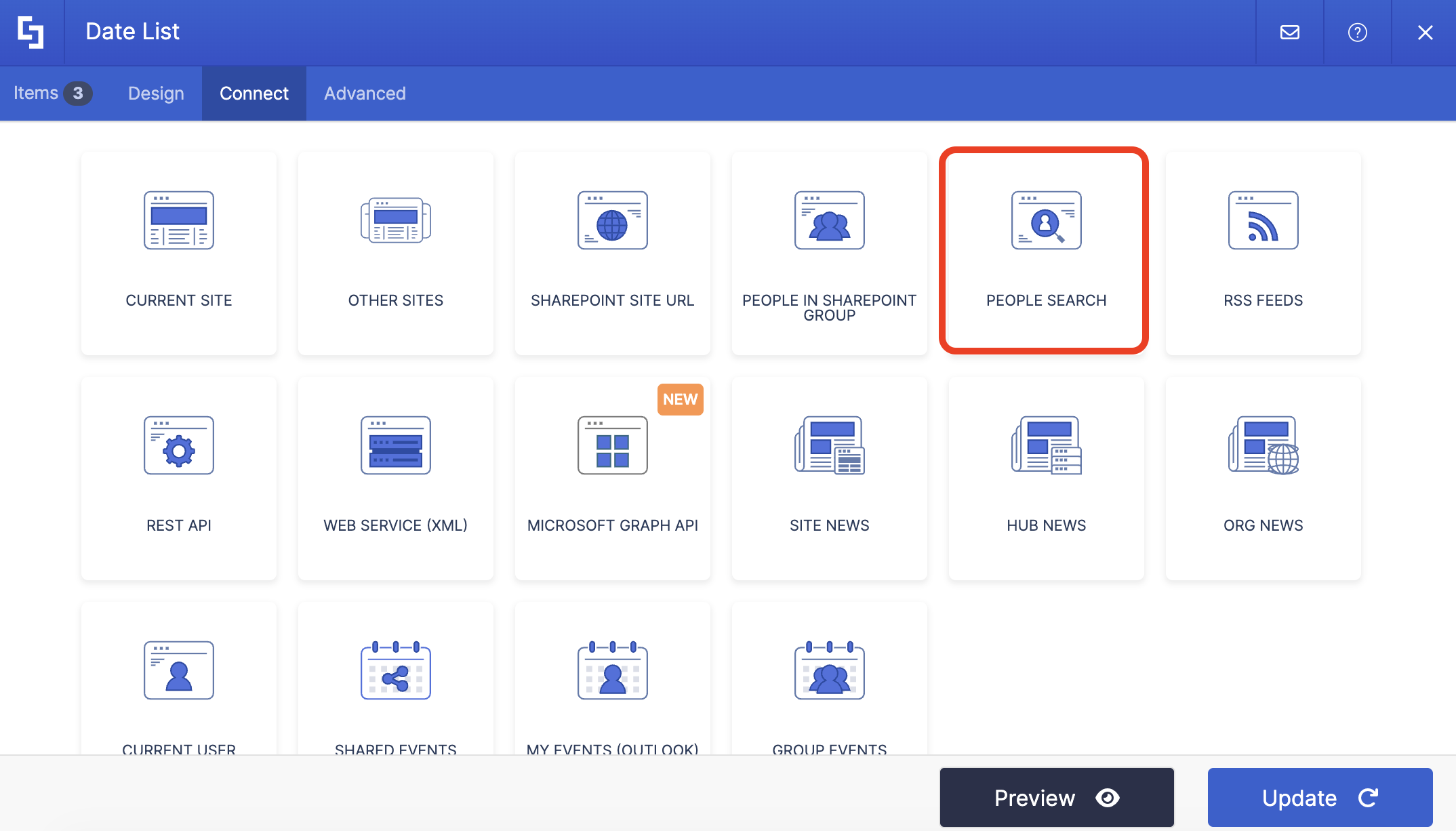
- Select People Search:
Step 4: Connect
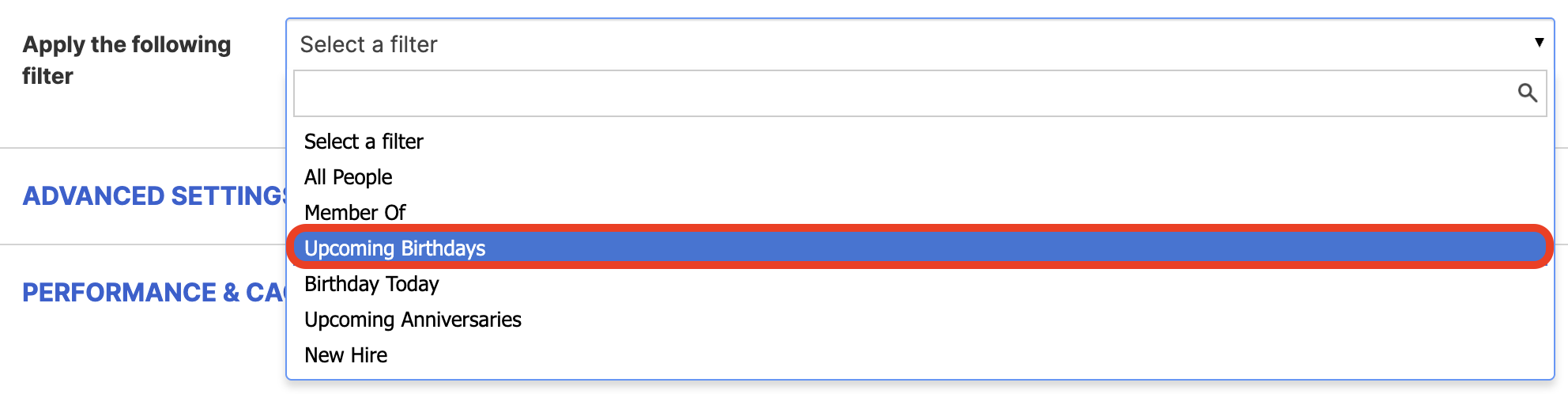
- Choose the Upcoming Birthdays filter from the drop-down:
- Make sure that the mapped property for Upcoming Birthdays is selected correctly. In our case, it's RefinableDate18:

- Next, choose how many days ahead to display upcoming birthdays. Entering 30, for example, will show all users with birthdays in the next 30 days.

- Once done, click Connect.
Step 5: Map Items
- Go to the Items tab.
- Delete all default content.
- Use the link icon to map the properties you want shown.
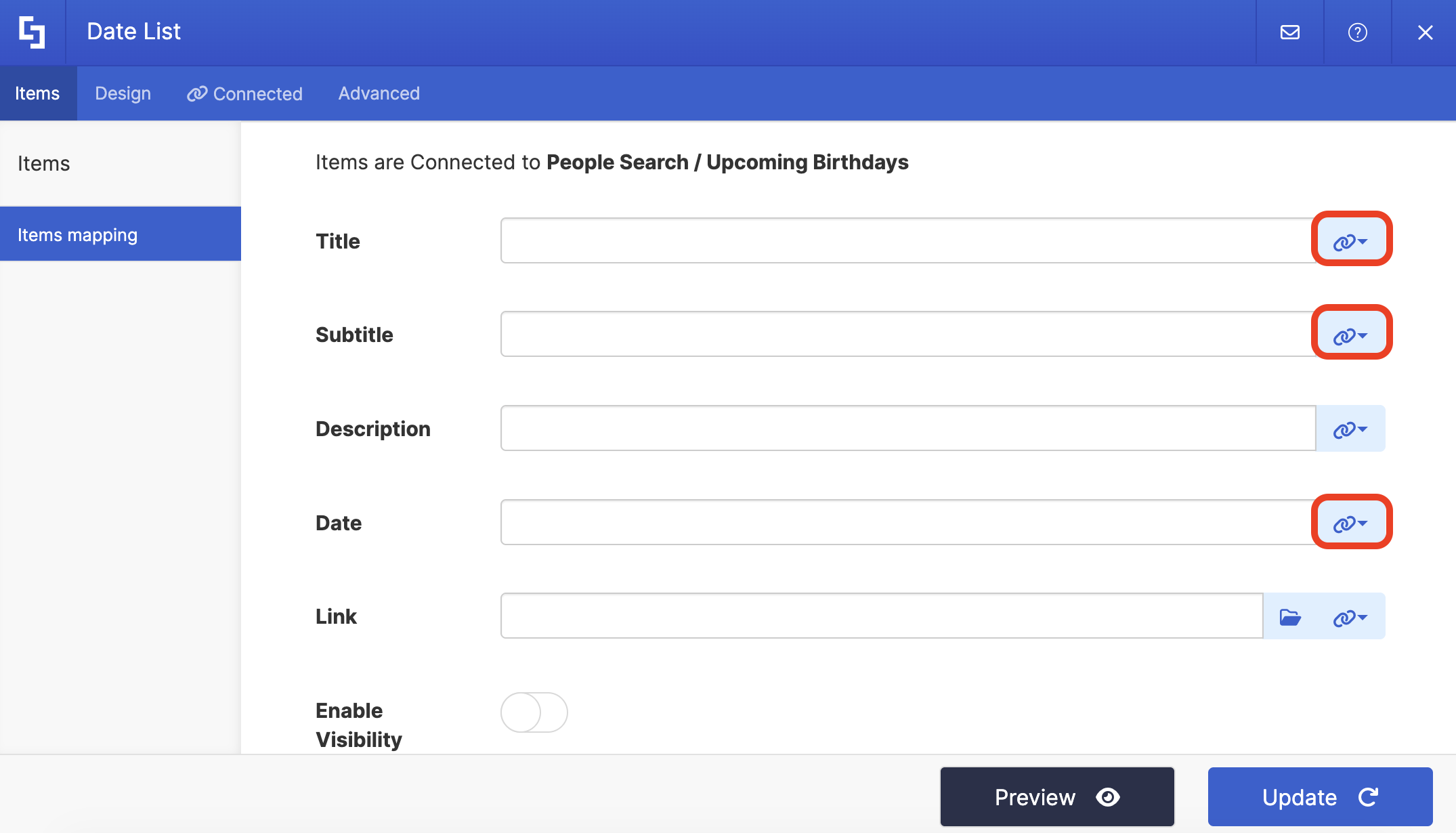
- For reference, below are the properties we mapped:
- #PreferredName - shows the name of the employee as the title.
- #JobTitle - shows the work title of the employee as the subtitle.
- #_SHORTPOINT_Birthday - shows the birthday of the employee as the featured date.
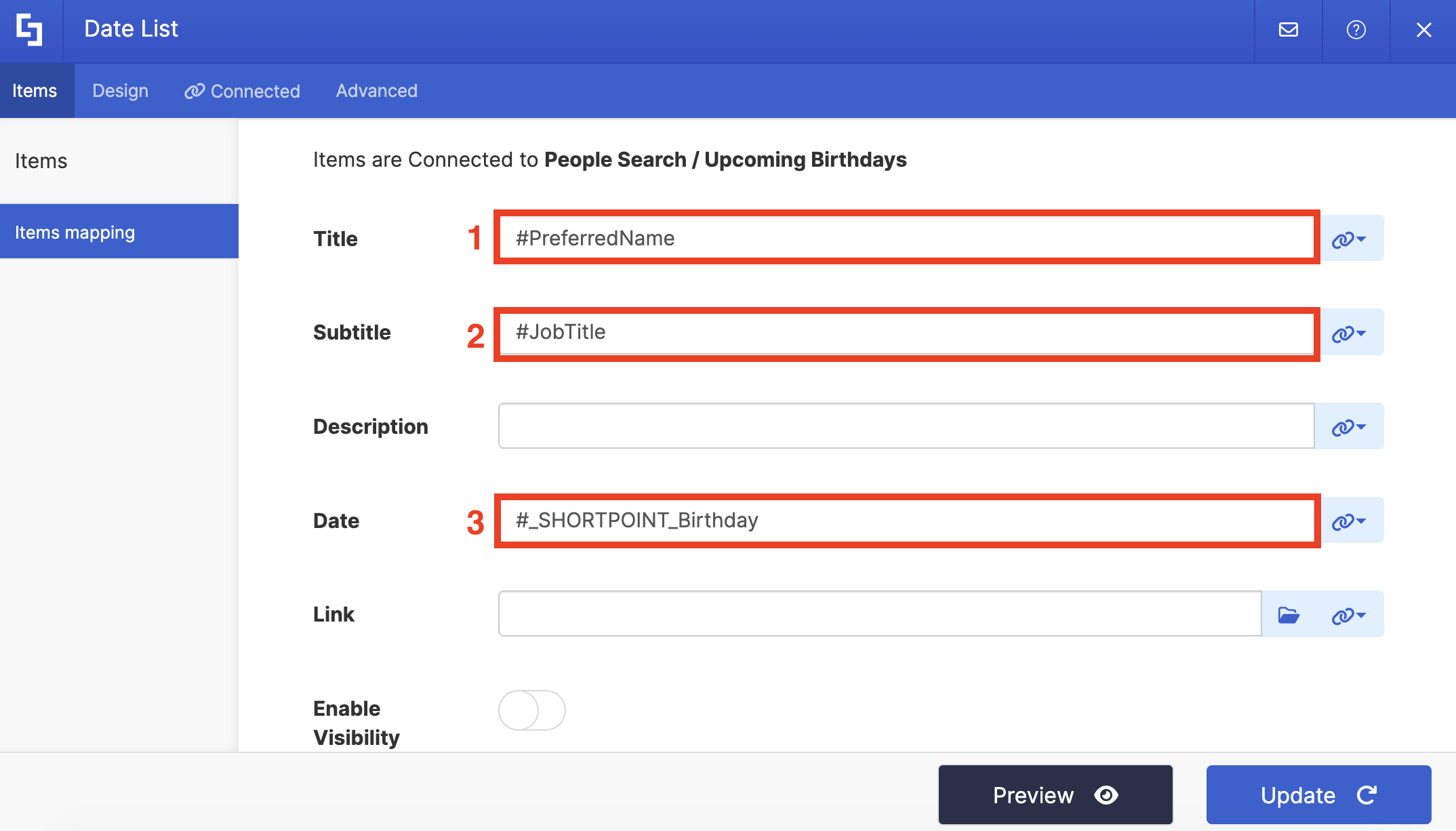
NOTEFor more information on Items Mapping, check out ShortPoint Connect: How Items Mapping Works.
Step 6: Save and Publish
- Click Preview to see how the Design Element looks.
- Once satisfied, click Update.
- Select the green check mark.
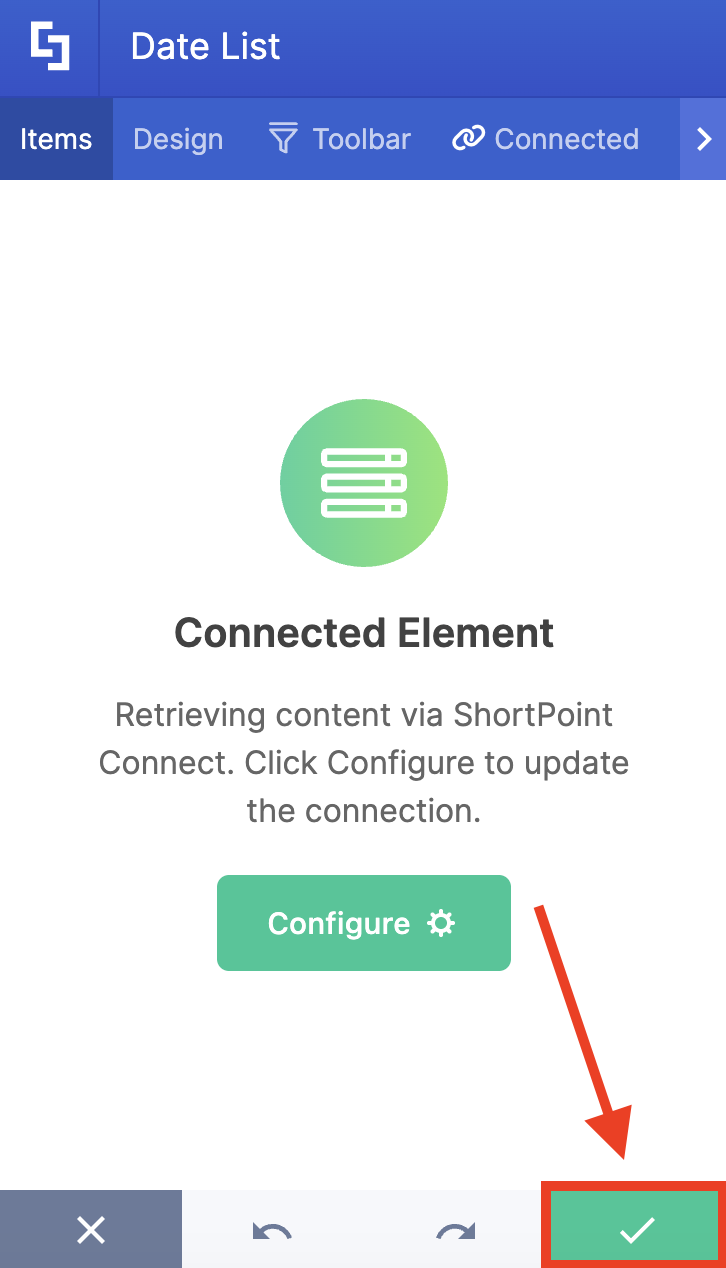
- Save your changes:

- And Publish your page:

Congratulations! You can now display upcoming birthdays using the Date List Design Element.
Related articles:
