Try ShortPoint now
TL;DR: ShortPoint lets you add a branded footer to your SharePoint sites without writing code. First, build the footer in ShortPoint Generator. Next, use ShortPoint Theme Builder to apply it across your site. You can also use Theme Builder to change how the footer looks. If you no longer need it, you can remove it from Generator.
SharePoint intranets are essential for internal communication, document management, and team collaboration. However, default SharePoint sites often lack a structured, branded footer. ShortPoint Custom Footers solve this issue by allowing organizations to design, customize, and deploy site-wide footers without writing a single line of code.
Listed below are the resources you’ll need to build, deploy, and customize your custom footers.
TABLE OF CONTENTS
- Creating Custom Footers
- Adding Custom Footers to SharePoint Sites
- Other Customizations for Custom Footers
- Removing Custom Footers
Creating Custom Footers
It’s super easy to create custom footers using ShortPoint Generator, a powerful ShortPoint feature that allows you to build, save, and reuse custom design components, including footers and Design Elements.
To learn more, check out How to Create Custom SharePoint Footers Using ShortPoint Generator.
Adding Custom Footers to SharePoint Sites
Easily deploy custom footers site-wide using ShortPoint Theme Builder. Learn exactly how in How to Add Custom Footers in SharePoint Sites.
Other Customizations for Custom Footers
ShortPoint Theme Builder gives you additional customizations that you can apply to your custom footers, allowing you to create designs that truly represent your unique culture. For more information, check out How to Customize Custom Footers Using ShortPoint Theme Builder.
Removing Custom Footers
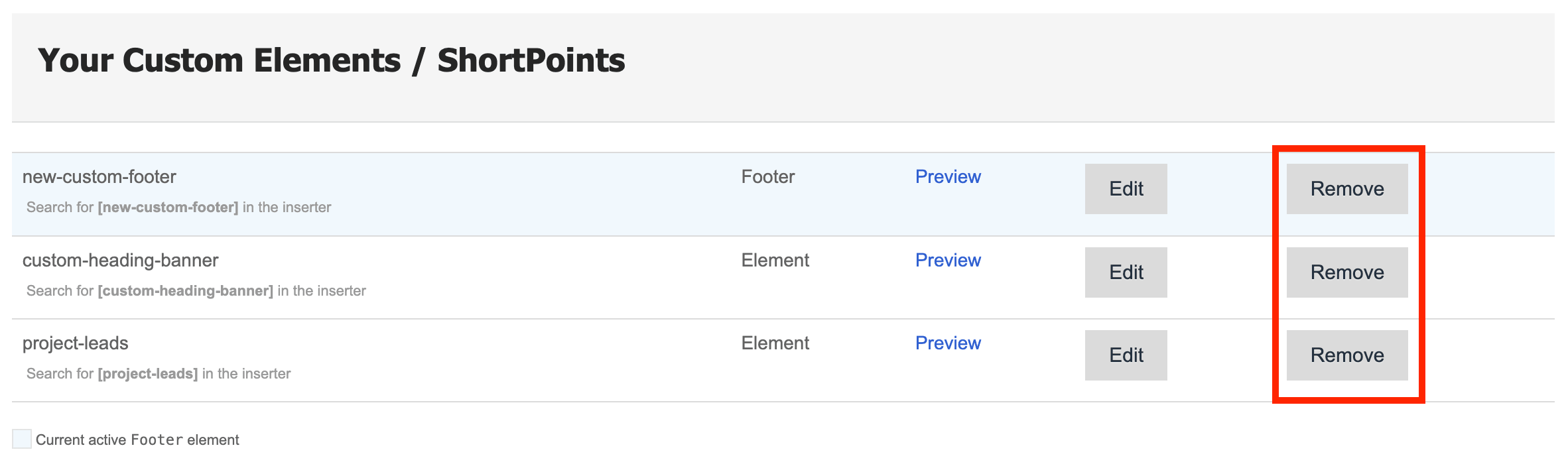
Don’t need the custom footer anymore? No worries! You can easily remove custom footers from your SharePoint sites. Check out ShortPoint Generator: How to Remove Custom Design Elements or Footers to learn more:
Related articles: