Try ShortPoint now
TL;DR: ShortPoint lets you take a custom element or footer off your site, or delete it for good. To remove a custom element from one page, edit the page, select the element, and click the trash icon. To remove a custom footer, open Theme Builder, go to the footer’s General Layout, and clear the selected footer. To delete either one permanently, open Generator, click Remove next to it, and confirm. A footer must be removed from every site before you can delete it.
Have a Custom Design Element you no longer need? It’s super easy to remove custom elements and footers from your SharePoint page. You also have the option to permanently remove them in the Generator page. Follow the guide below to learn how.
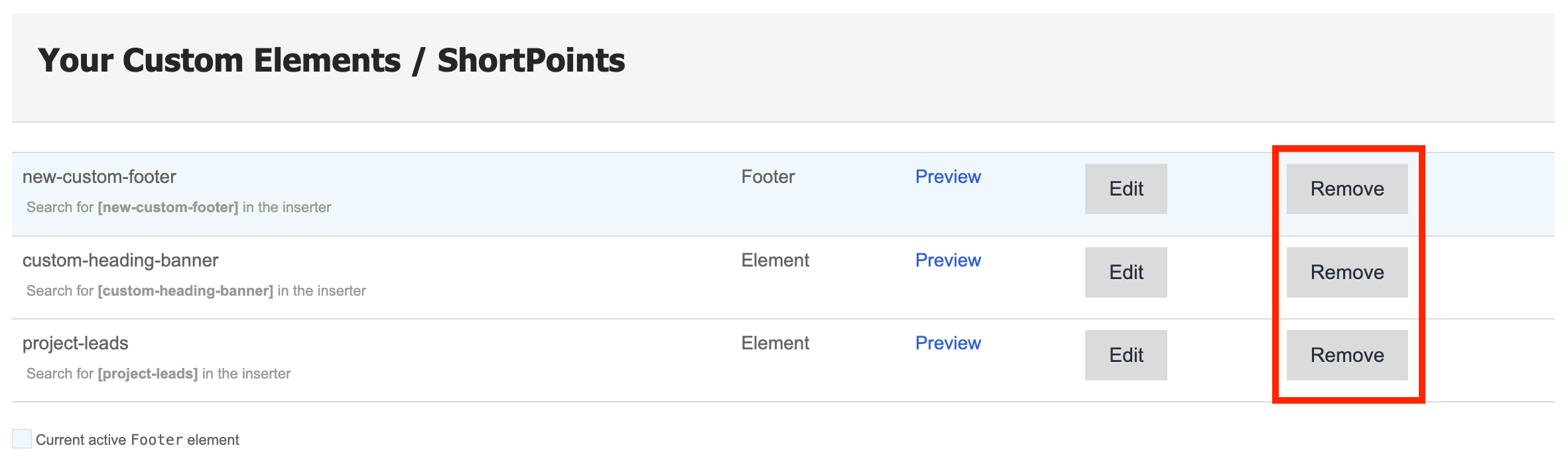
TABLE OF CONTENTS
- Prerequisites
- What is the Remove Button in the Generator Page?
- Removing Custom Design Elements or Footer from a SharePoint Page
- Permanently Removing Custom Design Elements or Footer
- Frequently Asked Questions
- How do I remove a Custom Design Element from a SharePoint page?
- How can I delete a Custom Footer from a SharePoint site?
- Can I permanently delete Custom Design Elements or Footers?
- What should I do if a Custom Footer is still active on a SharePoint site when trying to delete it?
- Do I need any specific license or version to remove Custom Design Elements or Footers?
Prerequisites
- You must have the latest version of ShortPoint SPFx installed.
- You must be a ShortPoint Designer with either a Pro or Enterprise license. For more information, check out Licensing Options.
What is the Remove Button in the Generator Page?
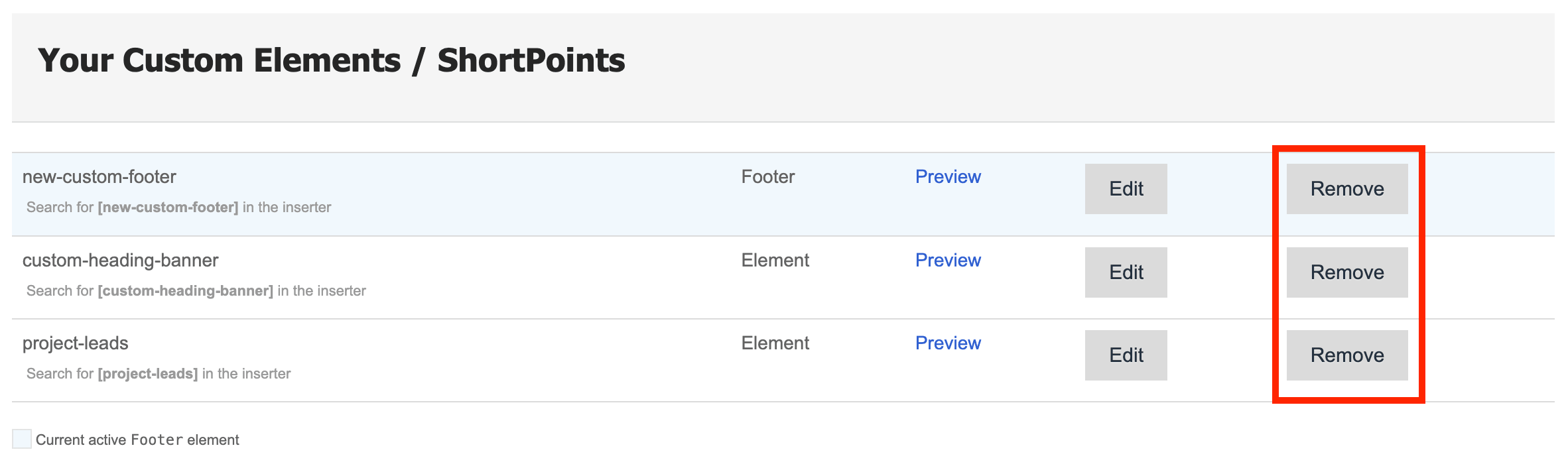
The Remove button in ShortPoint Generator makes it easy to permanently delete any Custom Design Element or Footer you don’t need anymore. This function was added to help you keep the Generator page clean and organized.
Removing Custom Design Elements or Footer from a SharePoint Page
Start the interactive tutorial to learn how to delete a Custom Design Element or Footer from a SharePoint page. Take note that this will only remove them from your SharePoint page. You’ll still be able to access them in the Generator page and add them to a page again if needed.
Removing Custom Element
This will show you how to delete a Custom Design Element from a SharePoint page:
Step 1: Edit the ShortPoint Web Part
- Go to a SharePoint page where your Custom Design Element is located and click Edit:

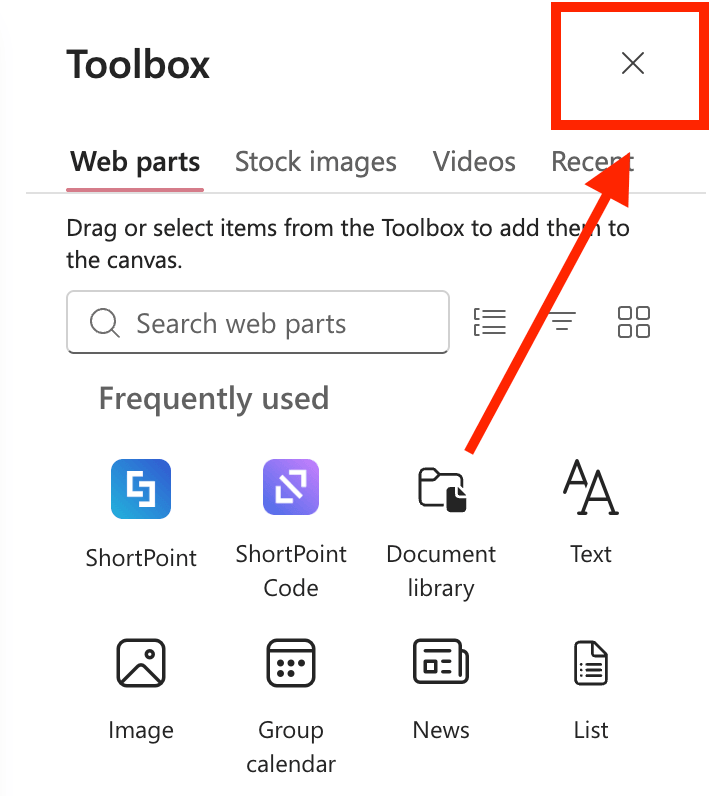
- Close the Toolbox:
- Click the Edit properties icon:

Step 2: Delete Custom Design Element
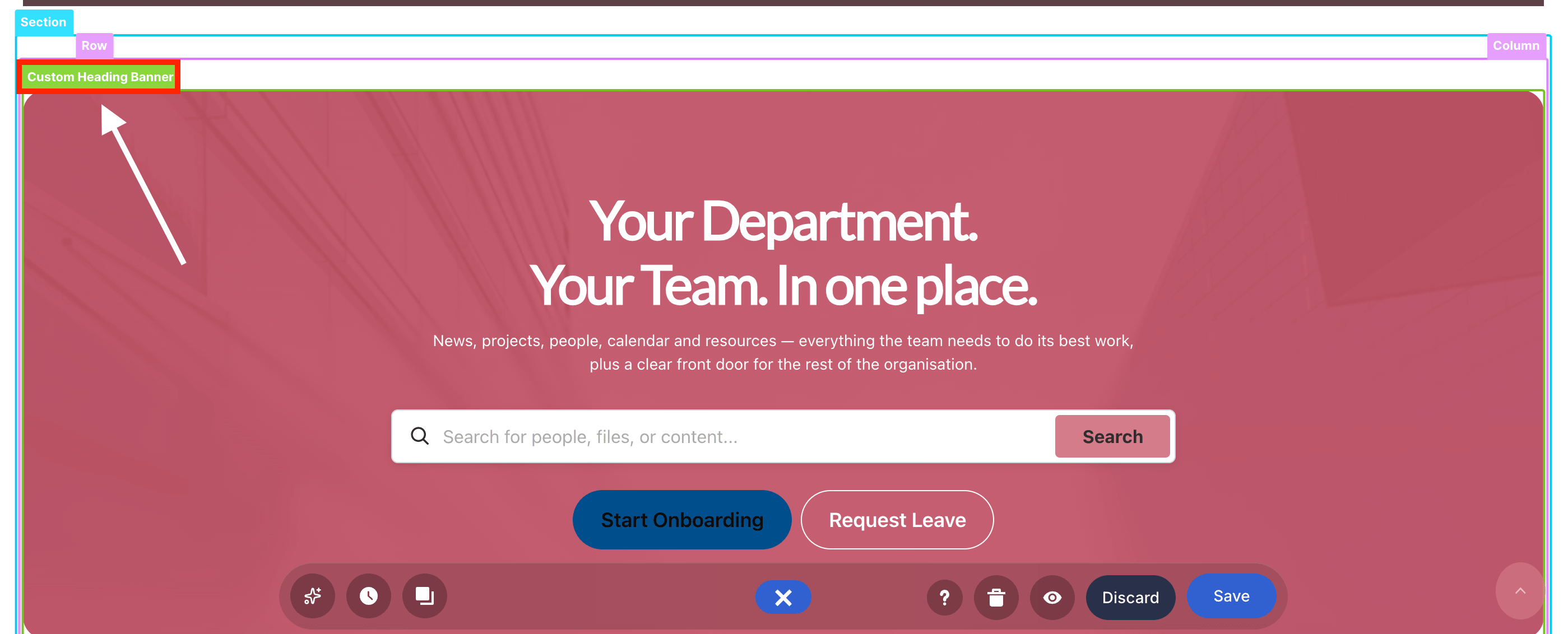
- Look for the Custom Design Element and select its EasyPass tag:
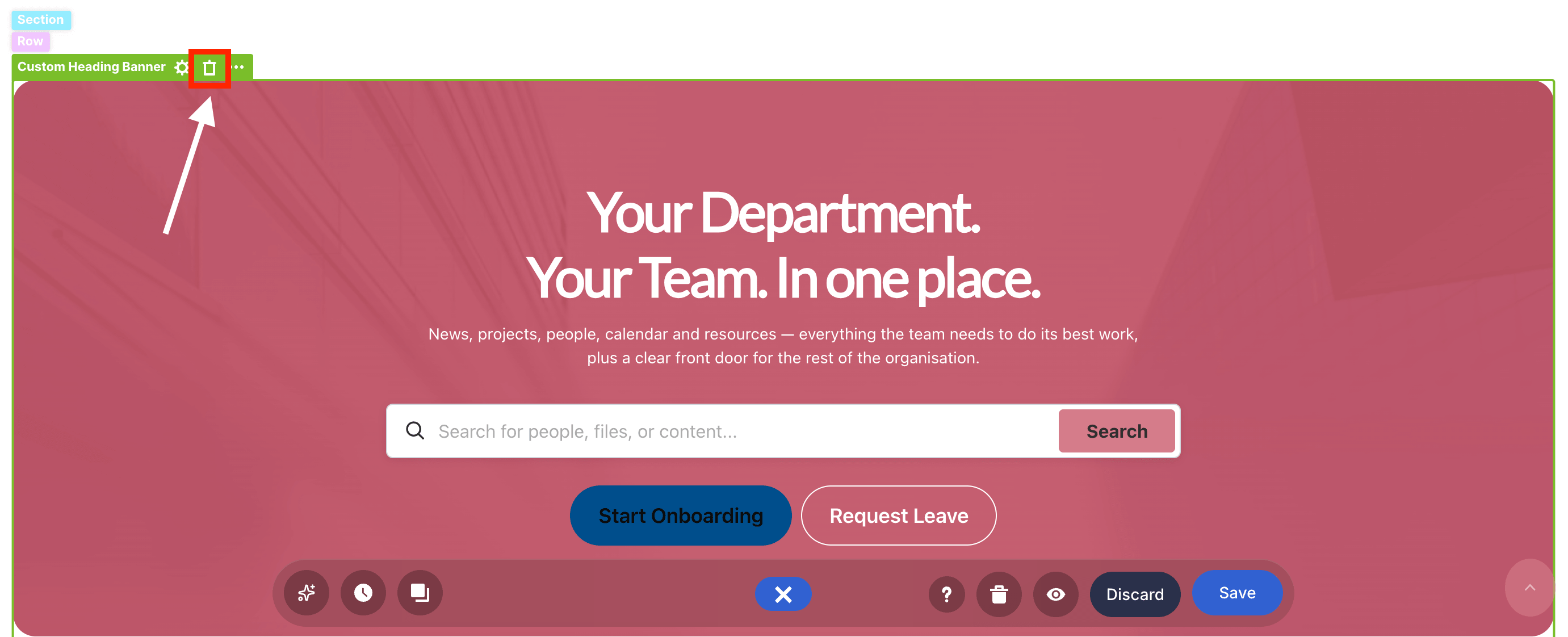
- Click the Trash icon:
Step 3: Save
- Click Save:

- Publish your page:

That’s it! You’ve successfully removed the Custom Design Element.
Removing Custom Footer
This will show you how to delete a Custom Footer from a SharePoint page:
Step 1: Launch Theme Builder
- Go to the SharePoint Site with the Custom Footer and click the ShortPoint shortcut:

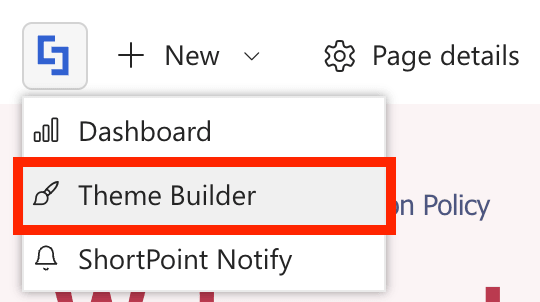
- Click Theme Builder:
Step 2: Open Footer General layout
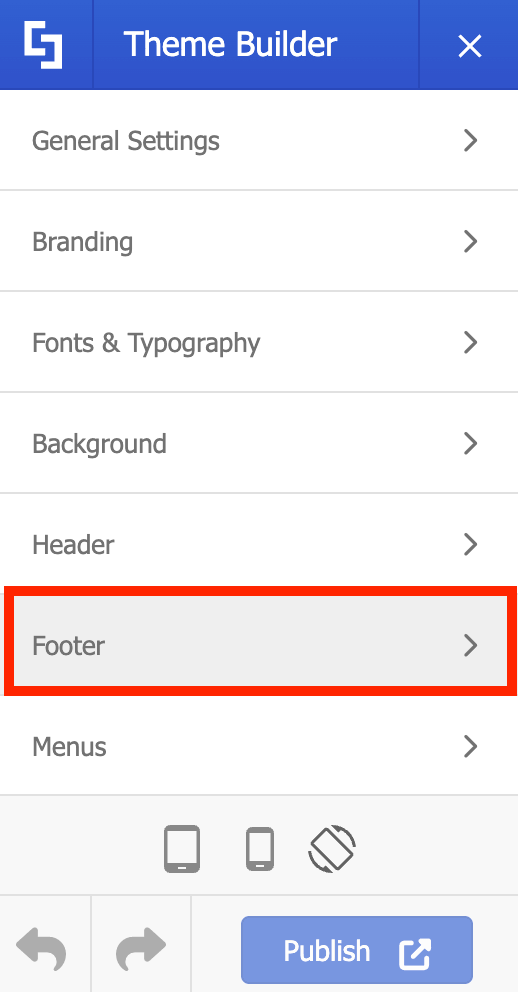
- Choose Footer:
- Click General Layout:
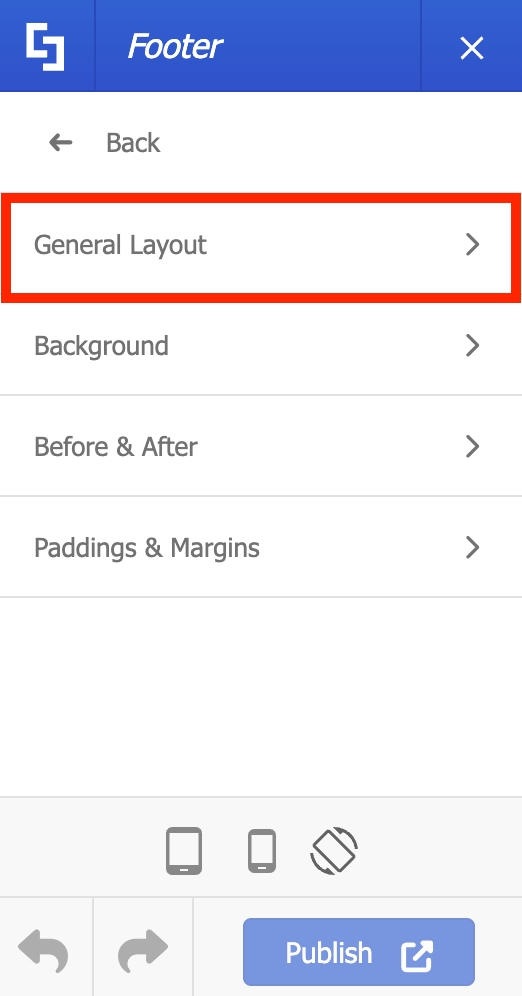
Step 3: Remove Footer
- Look for the Select Footer field and click the cross icon:
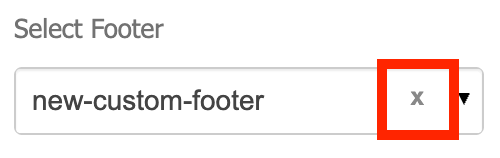
Step 4: Publish
- To keep your changes, click Publish:

Great work! You’ve successfully removed the footer.
Permanently Removing Custom Design Elements or Footer
Start the interactive tutorial to learn how to permanently delete your Custom Design Element or Footer:
Step 1: Open Generator Page
- Go to a SharePoint page and click the ShortPoint shortcut:

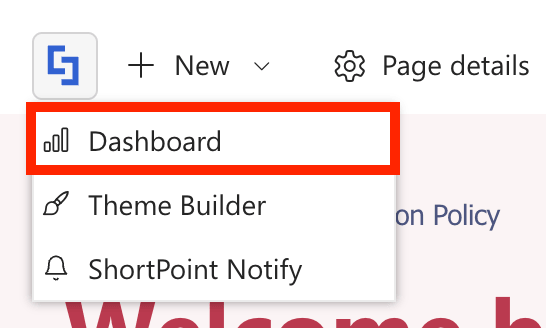
- Click Dashboard:
- Select Generator:
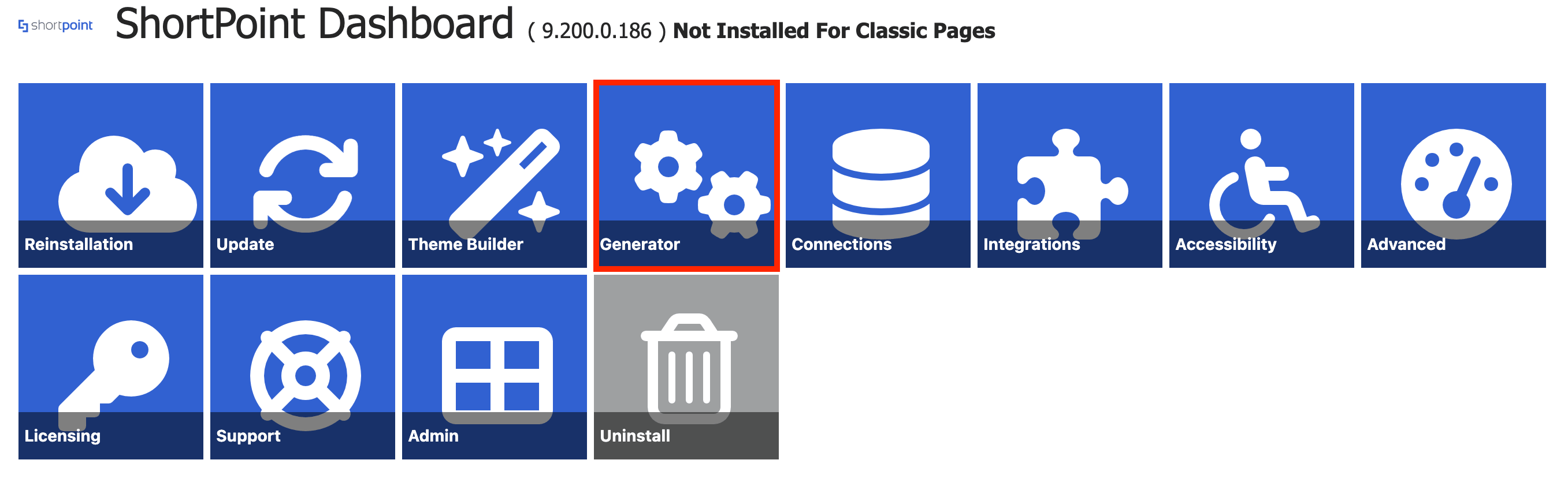
Step 2: Remove a Custom Design Element/Footer
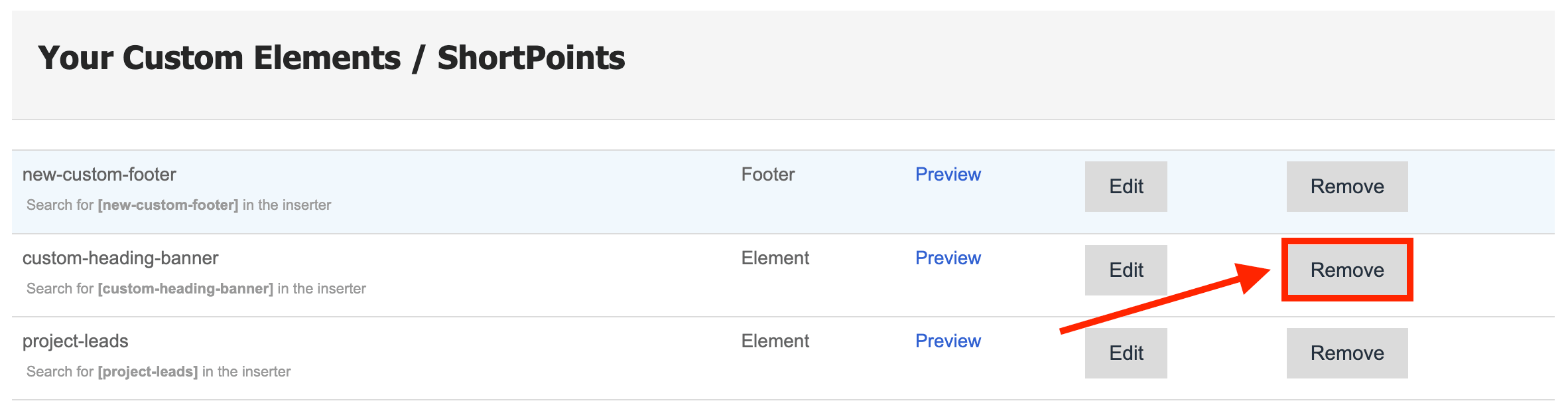
- Look for the Custom Design Element/Footer you want to permanently delete and click Remove:
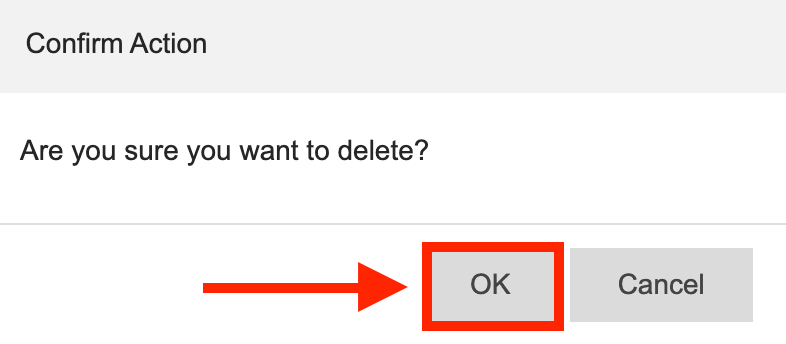
- A pop-up will appear. Click OK to confirm the action:
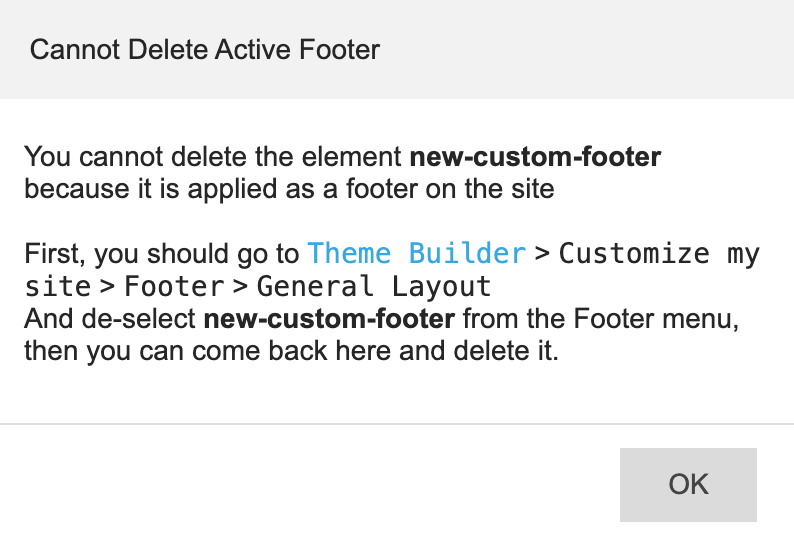
NOTEWhen removing Customer Footers, make sure that they’re not active in any SharePoint site. Otherwise, the pop-up notification below will appear.
Amazing! You’ve permanently deleted
Frequently Asked Questions
How do I remove a Custom Design Element from a SharePoint page?
To remove a Custom Design Element, edit the ShortPoint web part on your SharePoint page, close the Toolbox, click the Edit properties icon, select the Custom Design Element by its EasyPass tag, click the Trash icon, then save and publish your page.
How can I delete a Custom Footer from a SharePoint site?
Go to the SharePoint site, click the ShortPoint shortcut, open Theme Builder, select Footer, click General Layout, remove the selected footer by clicking the cross icon, and publish your changes.
Can I permanently delete Custom Design Elements or Footers?
Yes, you can permanently delete them from the Generator page. Access the Generator via the ShortPoint shortcut and Dashboard, find the element or footer you want to remove, click Remove, and confirm the action.
What should I do if a Custom Footer is still active on a SharePoint site when trying to delete it?
Make sure the Custom Footer is not active on any SharePoint site before deleting it. Otherwise, a notification will appear preventing removal.
Do I need any specific license or version to remove Custom Design Elements or Footers?
Yes, you must have the latest version of ShortPoint SPFx installed and be a ShortPoint Designer with either a Pro or Enterprise license.
Related articles:
- ShortPoint Generator: How to Update Custom Design Elements or Footers
- ShortPoint Generator: How to Add Custom Design Elements to a SharePoint Page
- How to Add Custom Footers to SharePoint Sites Using ShortPoint Theme Builder