 Try ShortPoint now
Great AI tools are only as powerful as the governance behind them, and that's something we've thought about carefully. That's why ShortPoint AI Designer comes hand-in-hand with a dedicated control hub: the ShortPoint Admin page.
Let’s dive into what it is, what functions are available, and how to access it.
TABLE OF CONTENTS
- What are the Prerequisites?
- What Is the ShortPoint Admin Page?
- ShortPoint Admin Page Walk-Through
- Frequently Asked Questions
- Who can access ShortPoint Admin?
- How do I access the ShortPoint Admin page?
- What can I configure in the ShortPoint Admin page?
- How does the credit system work in the ShortPoint Admin page?
- Can I see how AI credits are being used?
- Is it possible to restrict dashboard access for some users?
- Where can I find my purchase history for AI credits?
What are the Prerequisites?
- You must have the latest version of ShortPoint SPFx installed.
- You must be assigned the ShortPoint Admin role to access the Admin page. For more information about the admin role, check out Who is the Short Admin.
- You must have a Pro or Enterprise License to access all the admin page’s features.
What Is the ShortPoint Admin Page?
The ShortPoint Admin page gives ShortPoint Admins full visibility and control over every aspect of the AI experience across their organization. From enabling features, buying AI credits, and editing configurations, everything they need is in one centralized, easy-to-navigate place.
We understand that for many organizations, this level of oversight isn't just a nice-to-have; it's essential. The Admin page makes it straightforward to embrace the benefits of AI innovation while maintaining the security, compliance, and guardrails that your IT and compliance teams depend on.
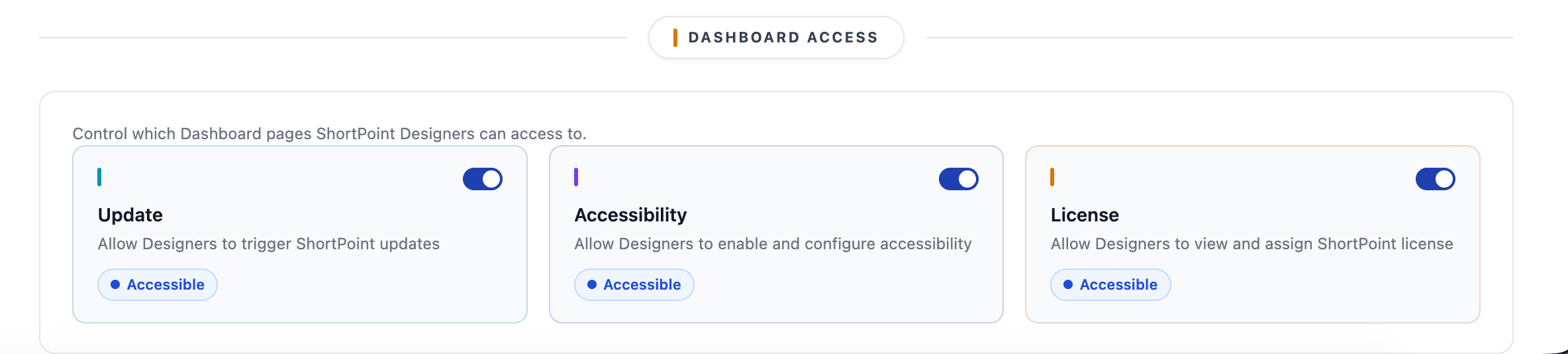
The best part? The Admin page gives you additional controls for other prominent ShortPoint Dashboard features, including Update, Accessibility, and License.
ShortPoint Admin Page Walk-Through
Here’s an easy-to-follow guide on how to access and use the ShortPoint Admin page:
IMPORTANTAccess to ShortPoint AI Designer features is only available for ShortPoint Admins with a Pro or Enterprise License.
How to Access ShortPoint Admin Page
- Go to the SharePoint page you want to use and click the ShortPoint Icon:

- Select ShortPoint Dashboard:

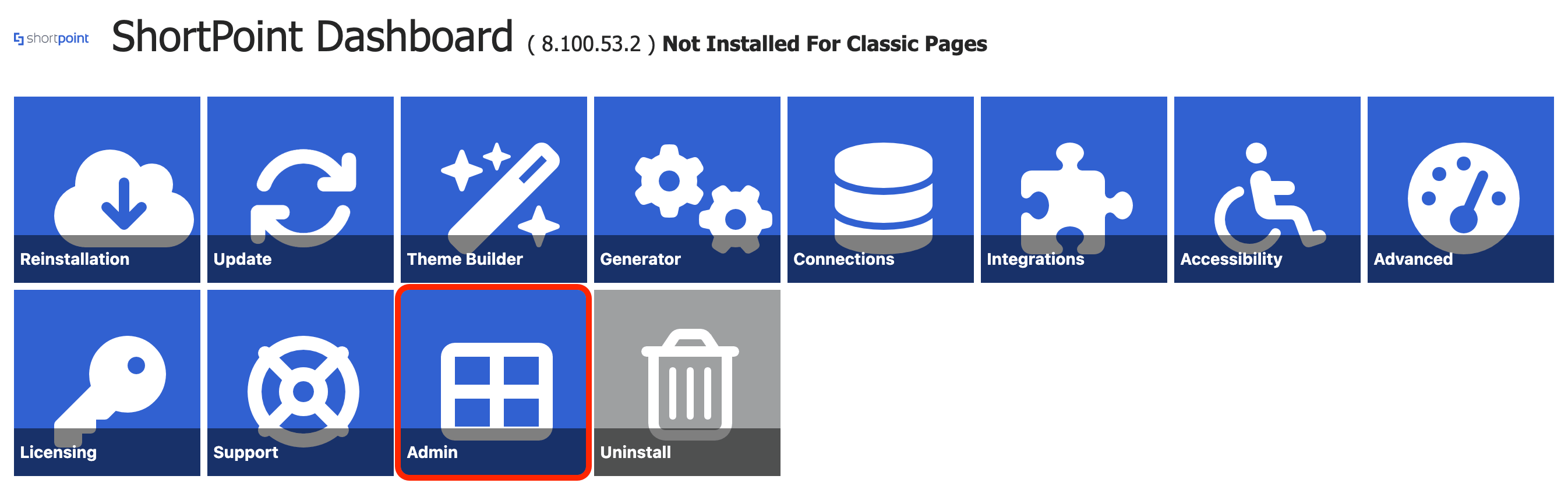
- Click Admin:
Manage AI Designer Access, Credits, and Usage
IMPORTANTAccess to ShortPoint AI Designer features is only available for ShortPoint Admins with a Pro or Enterprise License.
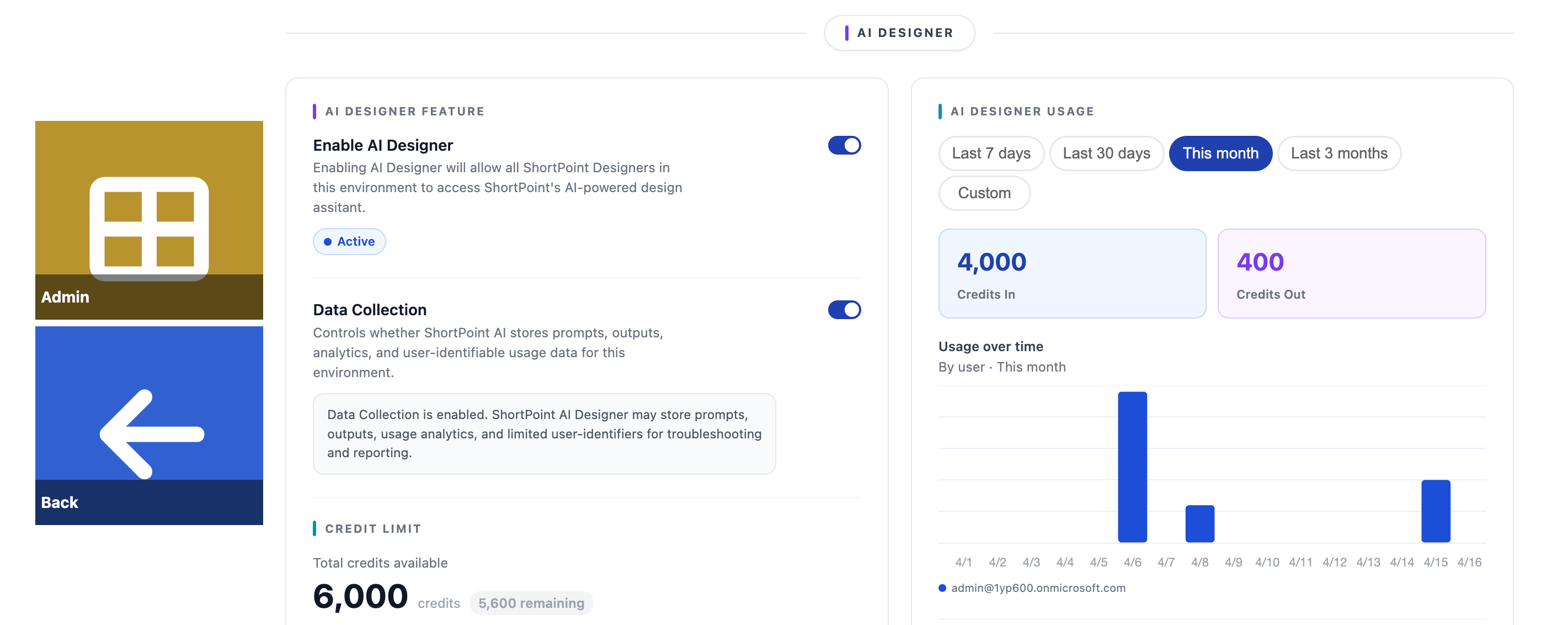
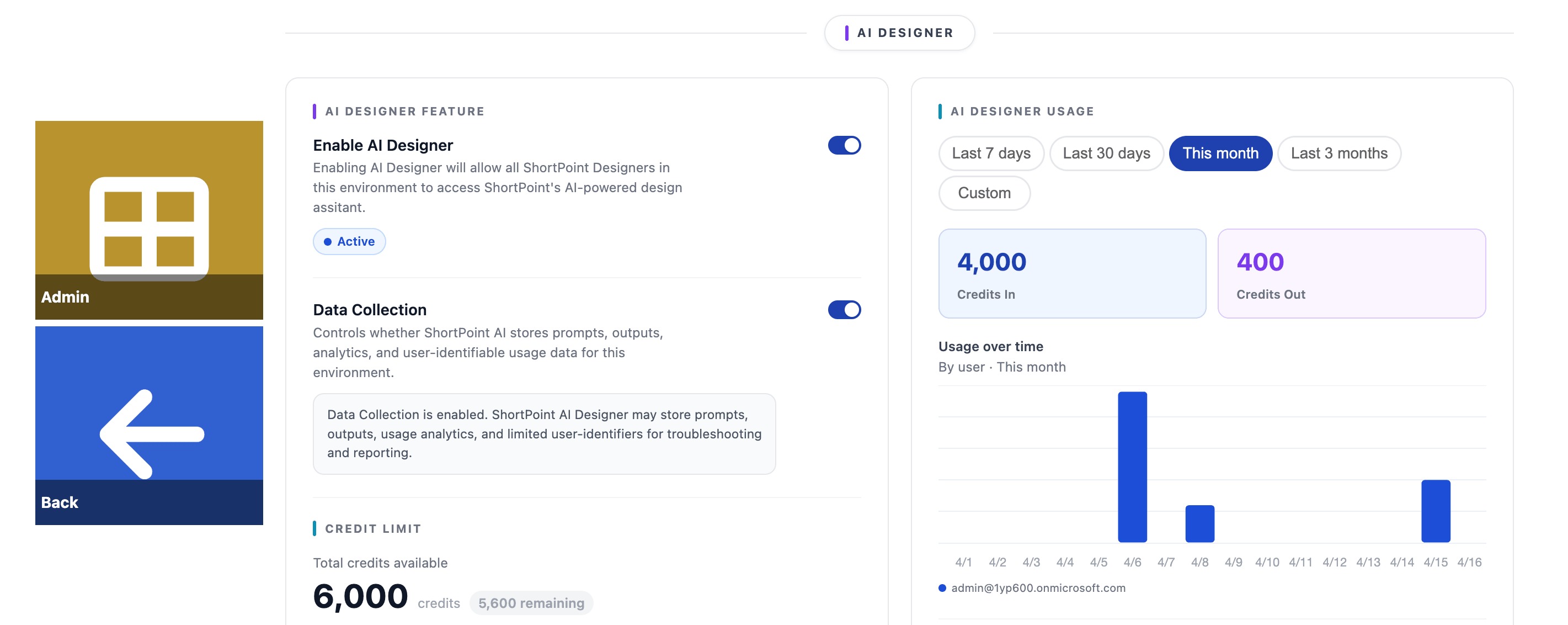
The ShortPoint Admin page lets you modify AI Designer settings. Here are the features you can customize:
AI DESIGNER FEATURE
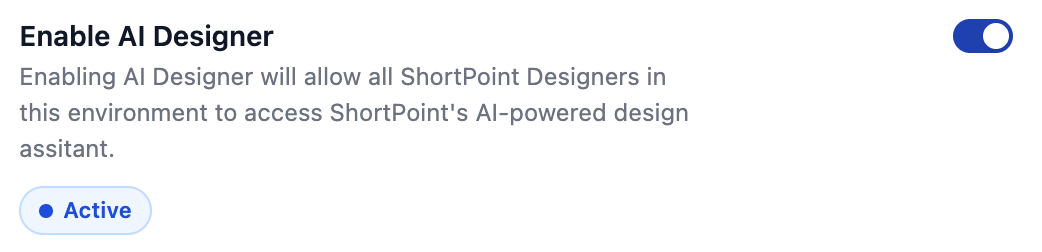 | Enable AI Designer | when enabled, this will allow AI-powered design assistance for all ShortPoint Designers in your environment. For more information, check out How to Enable/Disable the ShortPoint AI Designer. |
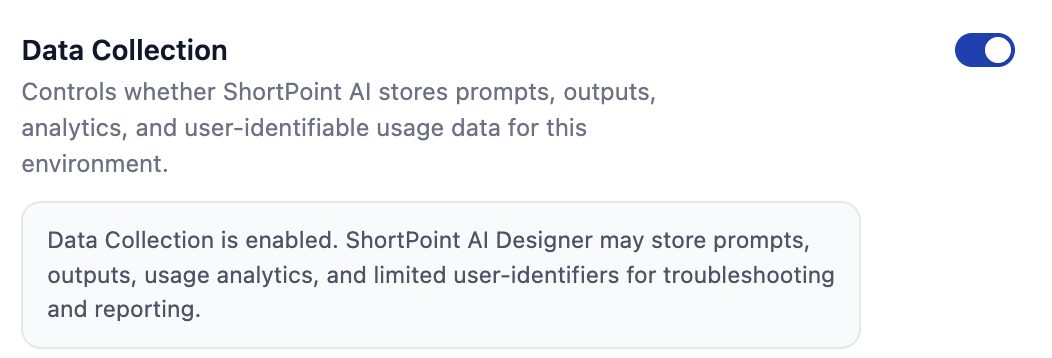 | Data Collection | when enabled, ShortPoint AI Designer may store prompts, outputs, usage analytics, and limited user-identifiers for troubleshooting and reporting. |
NOTEWhen Data Collection is disabled, design generation will still work as intended, but history and reporting may be limited.
CREDIT LIMIT
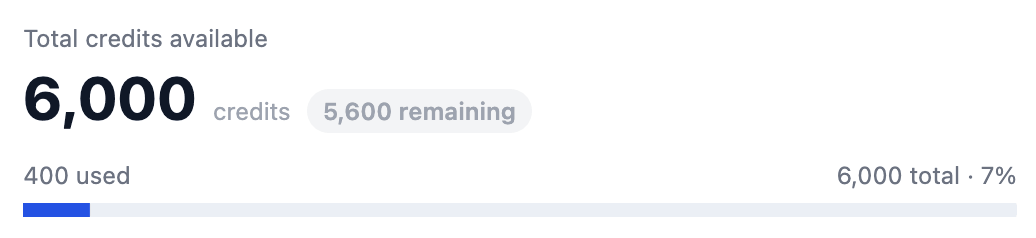 | Total Credits Available | shows the remaining AI credits for AI usage. It is automatically set to 2,000 credits per tenant upon activation. |
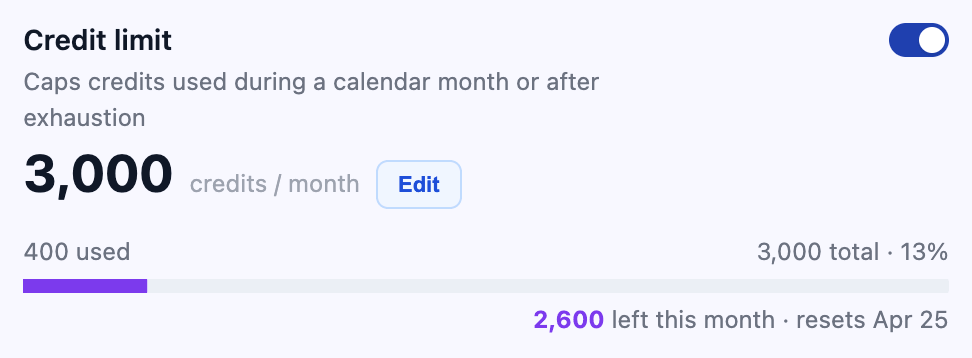 | Credit Limit | when enabled, you will have the option to set the total credit limit per month. For more information, go to How to Adjust AI Credit Limit. |
AI DESIGNER USAGE
NOTETo learn more about AI usage, check out How to Track AI Credits Usage.
 | Date Filter | allows you to preview the AI usage within the last 7 days, last 30 days, this month, last 3 months, or within a custom value. |
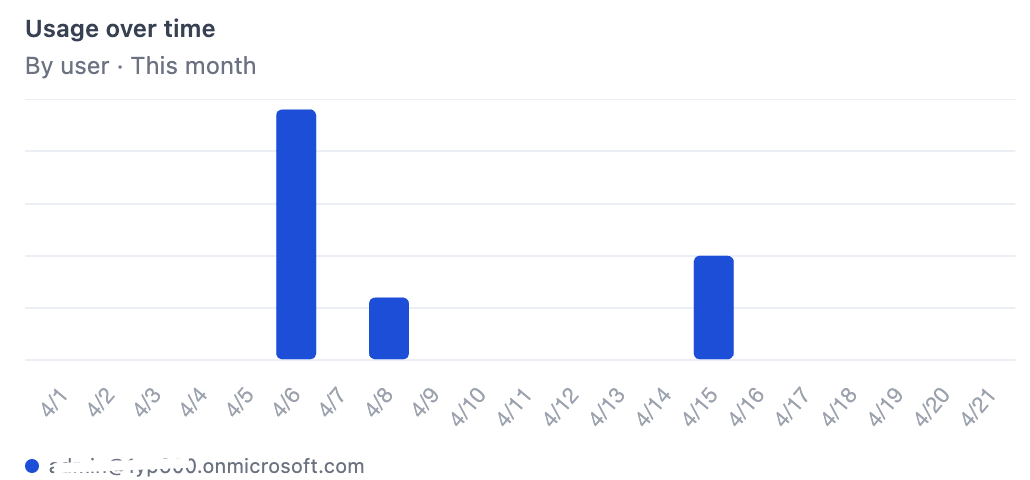 | Usage over time | shows the AI usage of every user. |
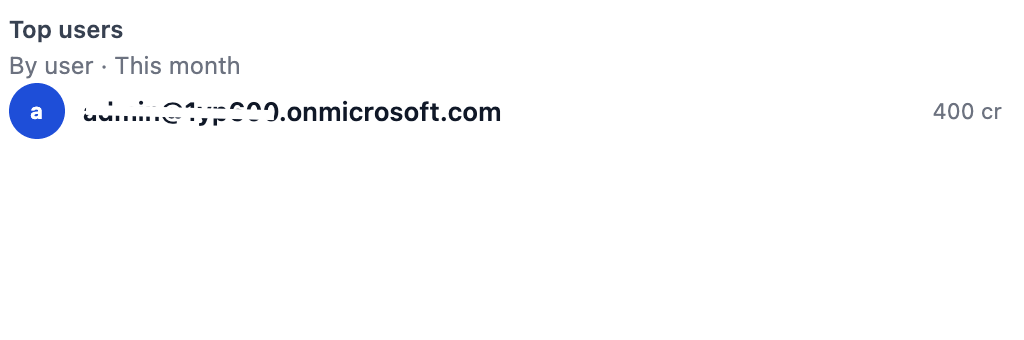 | Top Users | shows the top AI users. |
Purchase AI Credits
Aside from managing AI usage, you can also buy AI credits from the ShortPoint Admin page. Here are the options available:
NOTEFor more information on AI credits, check out AI Credits: What They Are and How to Purchase Them
BUY CREDITS
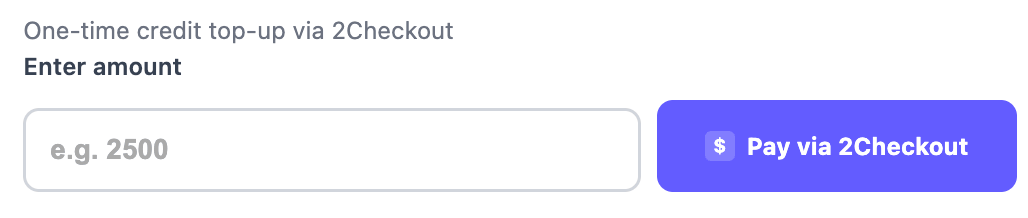 | Buy Credits | allows you to buy AI credits via 2Checkout. |
AUTOMATIC RECHARGE
 | Enable auto-recharge | when enabled, this option allows you to automatically purchase additional credits as needed. |
 | Recharge Trigger | allows you to choose whether the auto-recharge will take place monthly or when credits run out. |
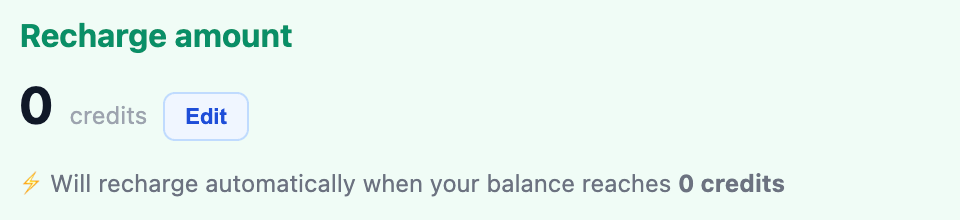 | Recharge Amount | allows you to set the number of credits to be automatically charged. |
INVOICE HISTORY
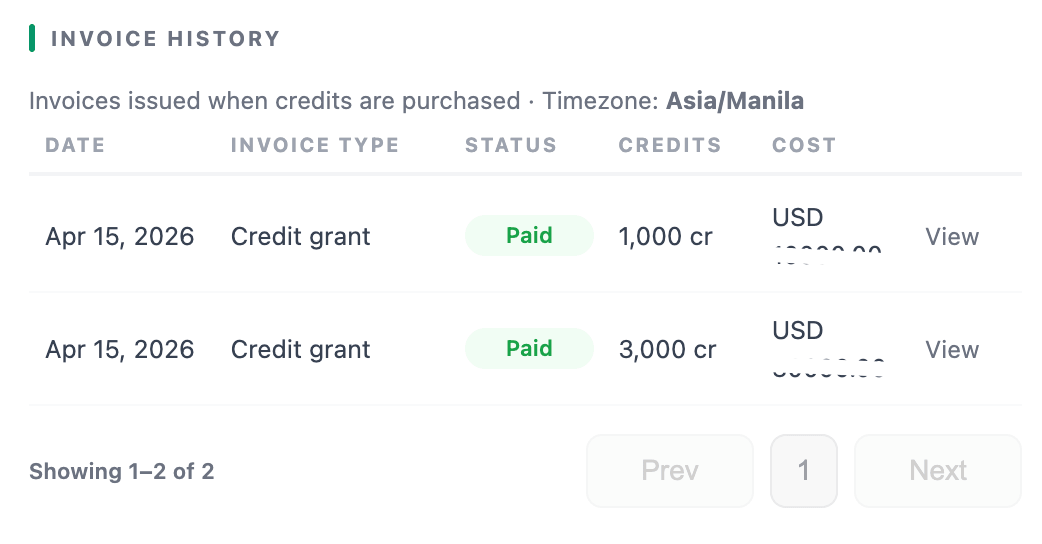 | Invoice History | shows a table of all credit purchases. It lists the date, invoice type, status, and cost. |
Manage ShortPoint Dashboard Access
Aside from managing the AI Designer, the ShortPoint Admin page also allows you to enable/disable dashboard page access for ShortPoint Designers. Below are the options you have:
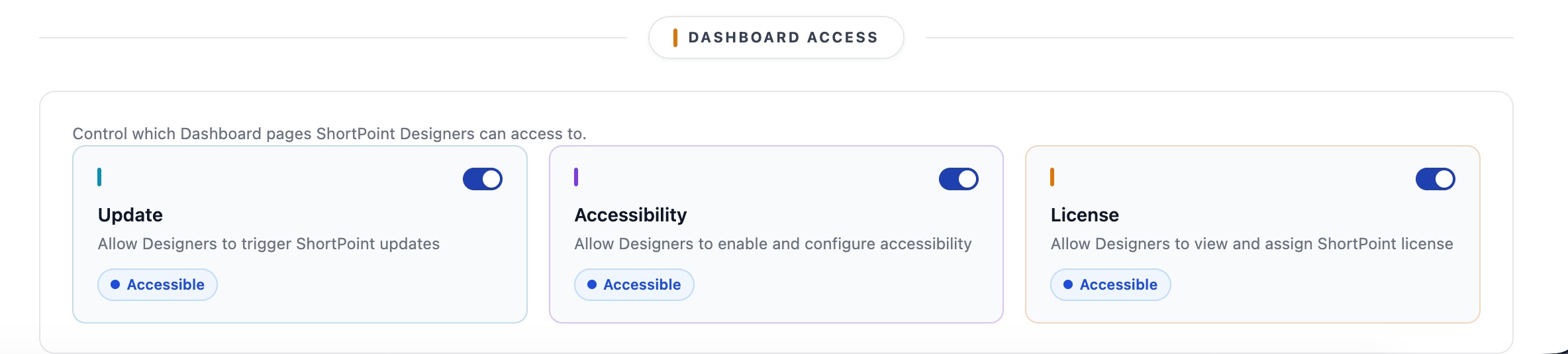
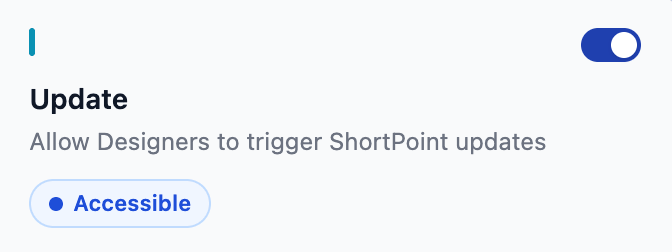 | Update | when enabled, ShortPoint Designers will be able to trigger ShortPoint updates. |
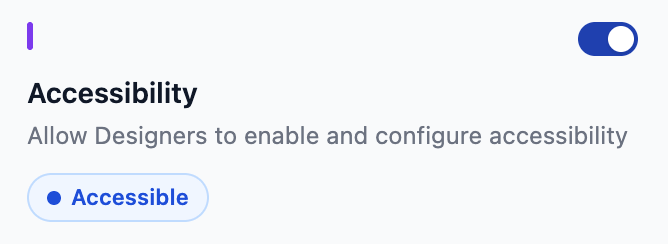 | Accessibility | when enabled, ShortPoint Designers will be able to enable and configure accessibility. |
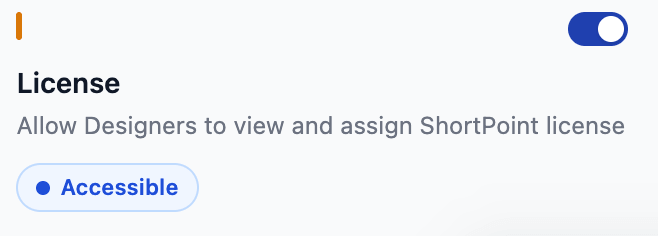 | License | when enabled, ShortPoint Designers will be able to view and assign ShortPoint licenses. |
Frequently Asked Questions
Who can access ShortPoint Admin?
To access the ShortPoint Admin page, you must be assigned the ShortPoint Admin role. To learn how, check out Who is the ShortPoint Admin.
How do I access the ShortPoint Admin page?
Simply go to the SharePoint page, click the ShortPoint Icon, select ShortPoint Dashboard, and then click Admin.
What can I configure in the ShortPoint Admin page?
You can enable or disable AI Designer features, set credit limits, view AI usage statistics, purchase AI credits, enable automatic credit recharge, and manage access to other dashboard features like Update, Accessibility, and License.
How does the credit system work in the ShortPoint Admin page?
For ShortPoint Designers with a Pro License, the system automatically provides 2,000 AI credits per tenant. For ShortPoint Designers with an Enterprise License, they will be given 10,000 AI credits per tenant. To get additional credits, you can purchase via 2Checkout or set up automatic recharge options based on your preferences.
Can I see how AI credits are being used?
Yes, the ShortPoint Admin page provides detailed usage data, including AI usage over time and top users within your organization.
Is it possible to restrict dashboard access for some users?
Yes, you can enable or disable dashboard page access for ShortPoint Designers as needed.
Where can I find my purchase history for AI credits?
The Invoice History section in ShortPoint Admin shows all credit purchases with details like date, invoice type, status, and cost.
Related articles:
- How to Enable/Disable the ShortPoint AI Designer
- AI Credits for ShortPoint AI Designer: What Are They and How to Buy Them
