 Try ShortPoint now
If you've ever wanted to showcase your users’ personal Outlook events directly on their SharePoint intranet page, you're in the right place. The ShortPoint My Events (Outlook) connection type makes it incredibly easy to pull your page viewers' calendar entries and display them beautifully on your site—no coding required.
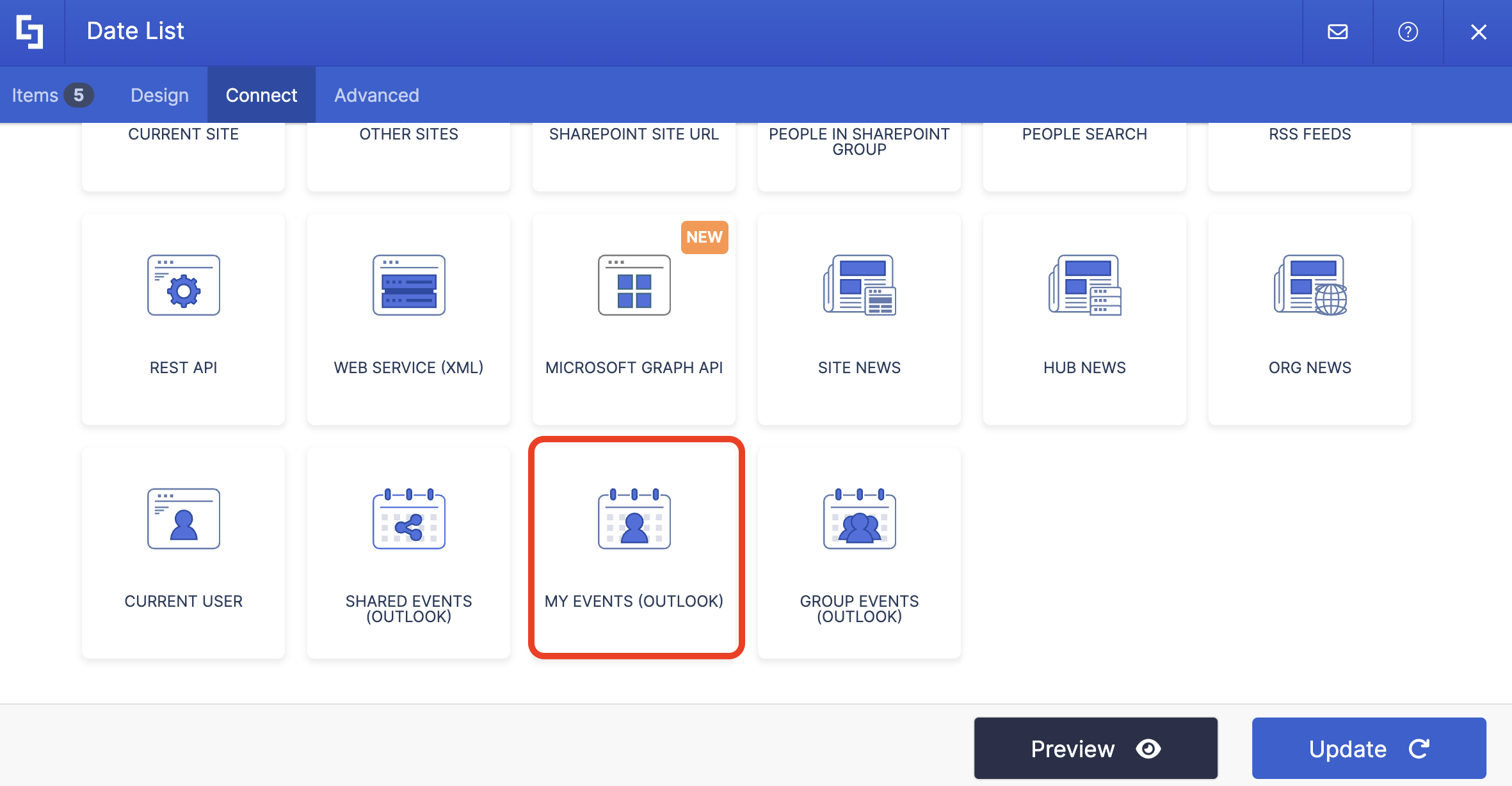
TABLE OF CONTENTS
- Prerequisites
- What is the My Events (Outlook) Connection Type?
- Interactive Tutorial
- My Events (Outlook) Features
- Practical Use Cases: Where My Events (Outlook) Shines
- Create Dynamic Events with the My Events (Outlook) Connection
- Frequently Asked Questions
- Do I need special permissions to use the My Events connection?
- What's the difference between My Events, Shared Events, and Group Events?
- Can I display events from multiple Outlook calendars on the same page?
- Will my events update in real-time?
- Can I control which event details are displayed?
- Can I filter which events appear on my page?
- Do I need to be a ShortPoint Designer to set this up?
- What if I need to show events that are further back or forward than the default options?
- Can I customize how dates and times are formatted?
- Is this feature available for on-premises SharePoint?
Prerequisites
- You must have the latest version of ShortPoint SPFx installed on your SharePoint environment.
- You must be a ShortPoint Designer with either a Pro or Enterprise license. For more information on licensing, check out Licensing Options.
- You must have an existing Design Element you want to use to connect.
- You must have an Outlook calendar with scheduled events.
- You must grant ShortPoint permission to read Outlook Events details. For more information on how to grant permissions, go to Setting up Microsoft Graph Integration for SharePoint Online.
What is the My Events (Outlook) Connection Type?
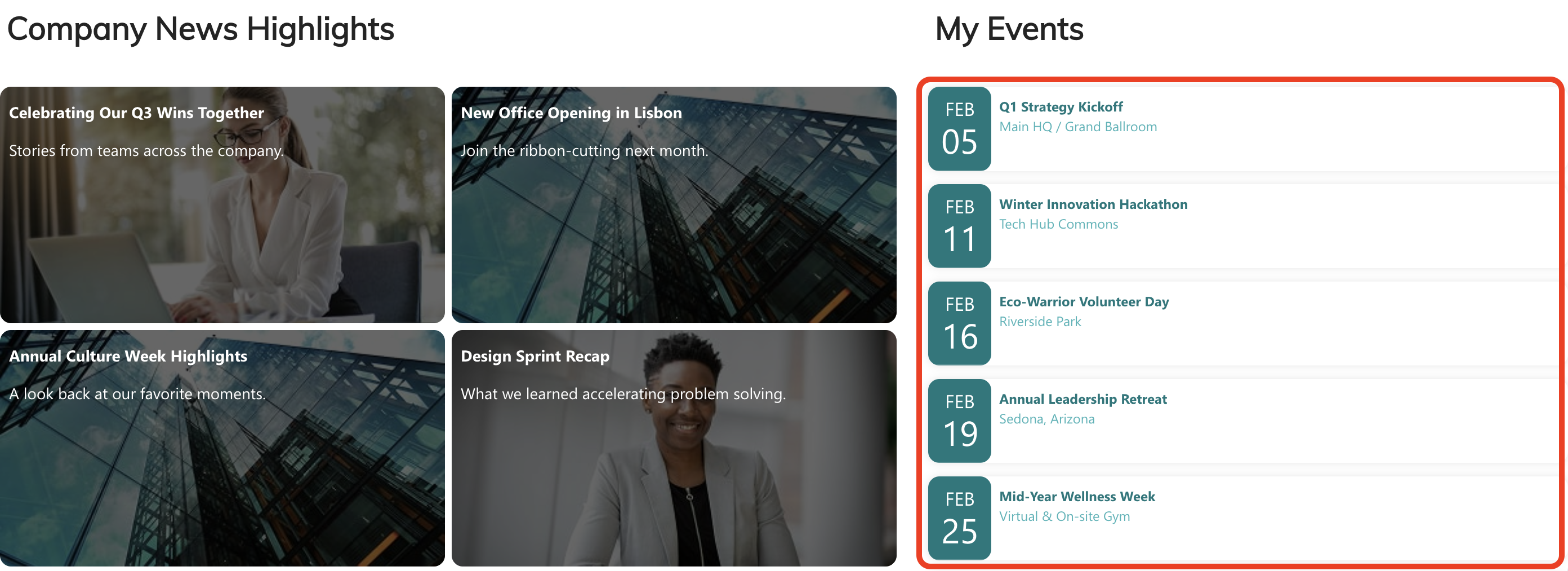
The My Events (Outlook) connection is one of ShortPoint's many connection types that bridges the gap between your users’ Microsoft Outlook calendars and their SharePoint pages. It automatically pulls their personal Outlook events and displays them through any ShortPoint Design Element you choose.
Here's what makes it special: this connection is specifically designed for personal Outlook events. Whether your team members are tracking project deadlines, client meetings, team workshops, or important company milestones, this feature ensures their personal calendar stays front and center.
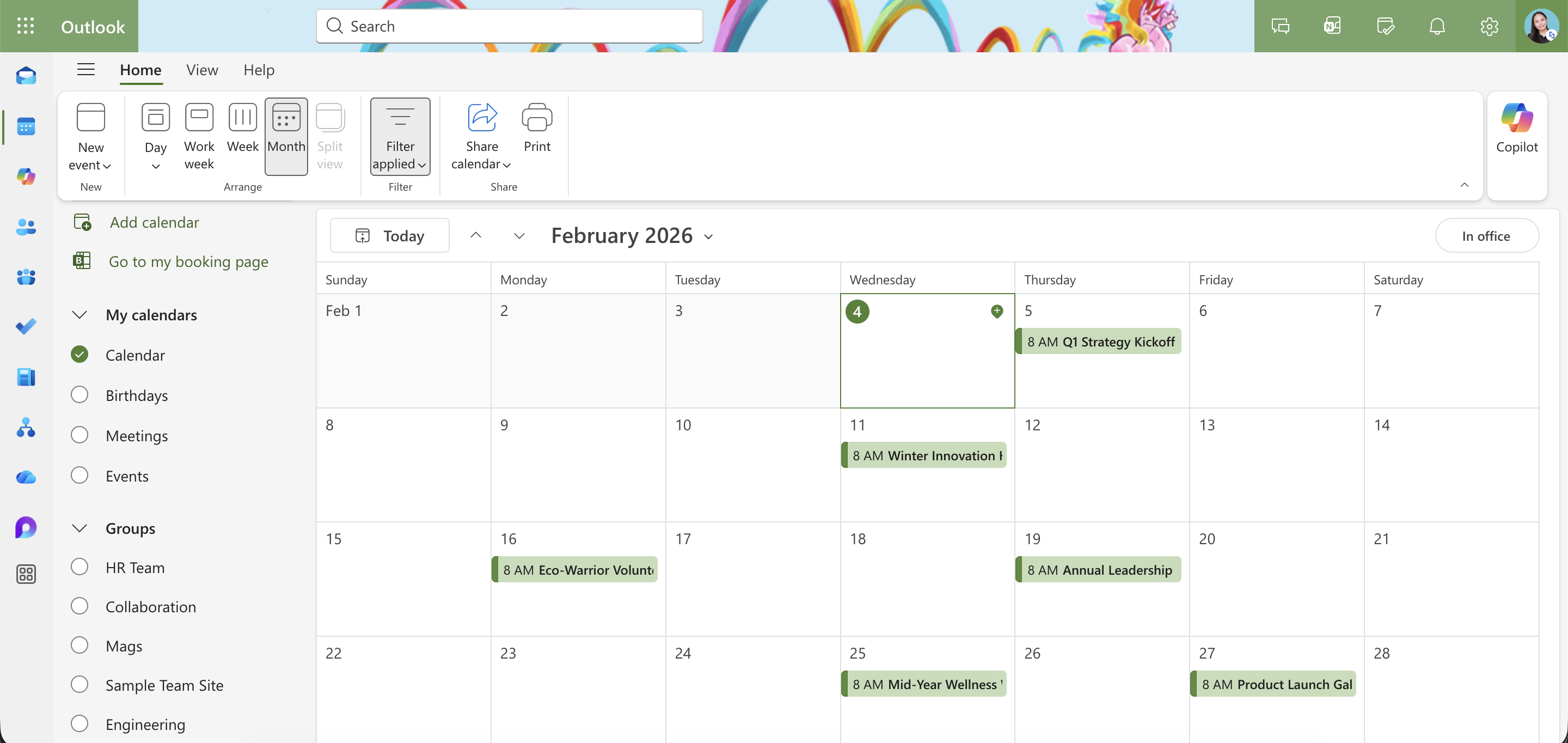
It securely accesses your users’ Outlook data with proper permissions in place. Once you've set it up, their events update automatically. So, when they add a new meeting to their personal Outlook calendar, it appears on their SharePoint page without any manual updating on their part.
Interactive Tutorial
Ready to connect your Outlook events? Here's what you need to do:
NOTETo learn more about the settings you can modify, check out My Events (Outlook) Features.
Step 1: Edit the ShortPoint Web Part
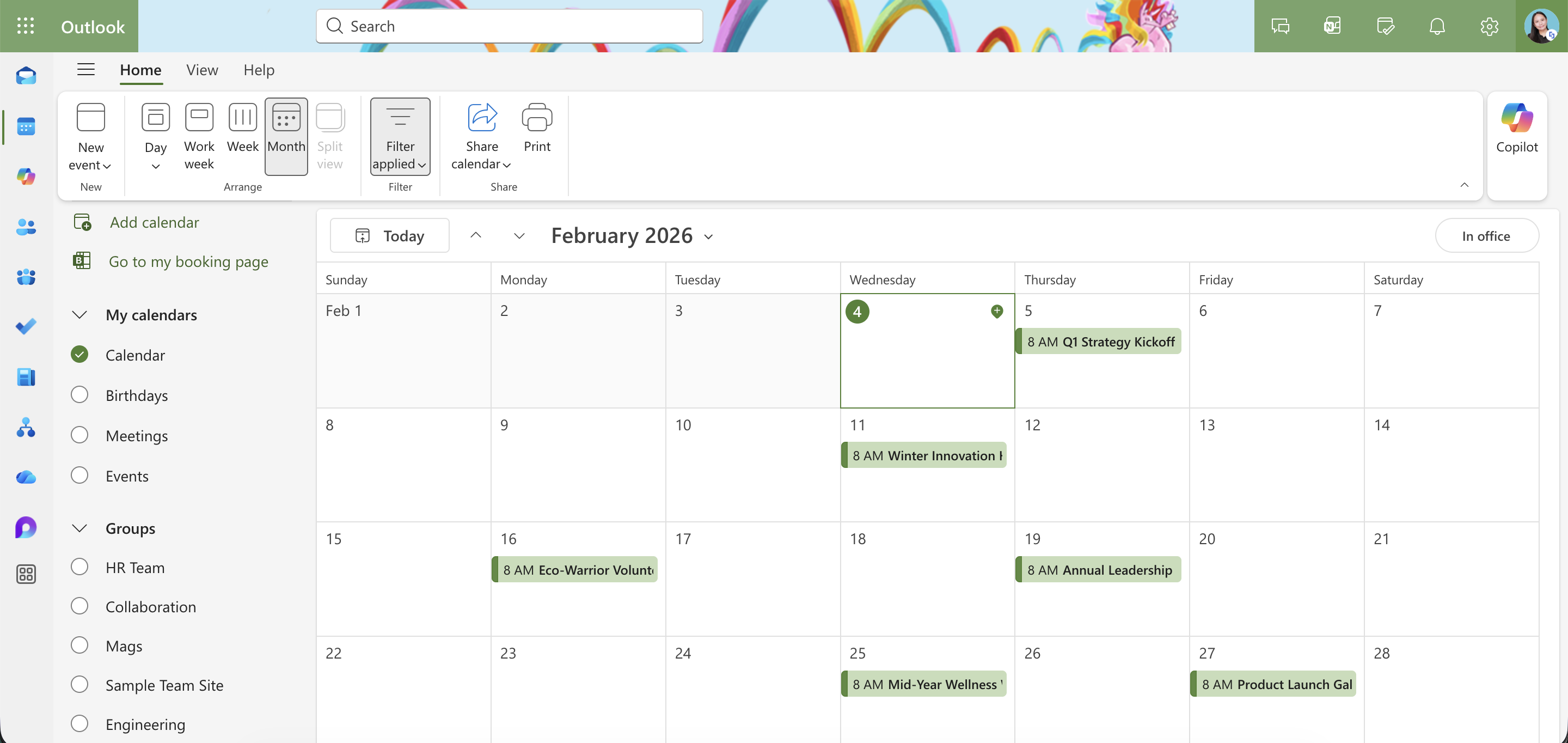
NOTEMake sure you already have events in your Outlook calendar.
- Go to the SharePoint page you want to use and click Edit:

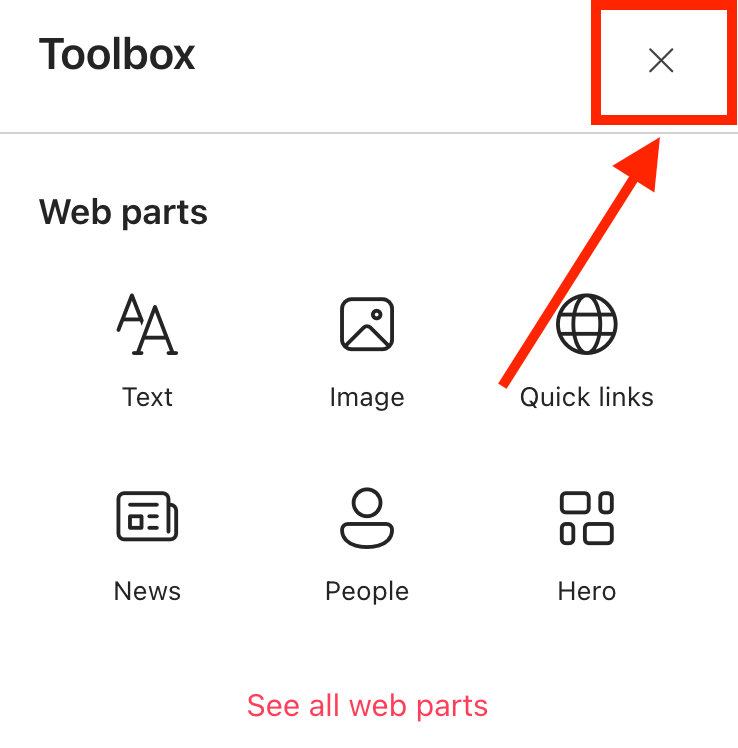
- Close the Toolbox:
- Click the Edit Properties icon:

Step 2: Edit the Design Element
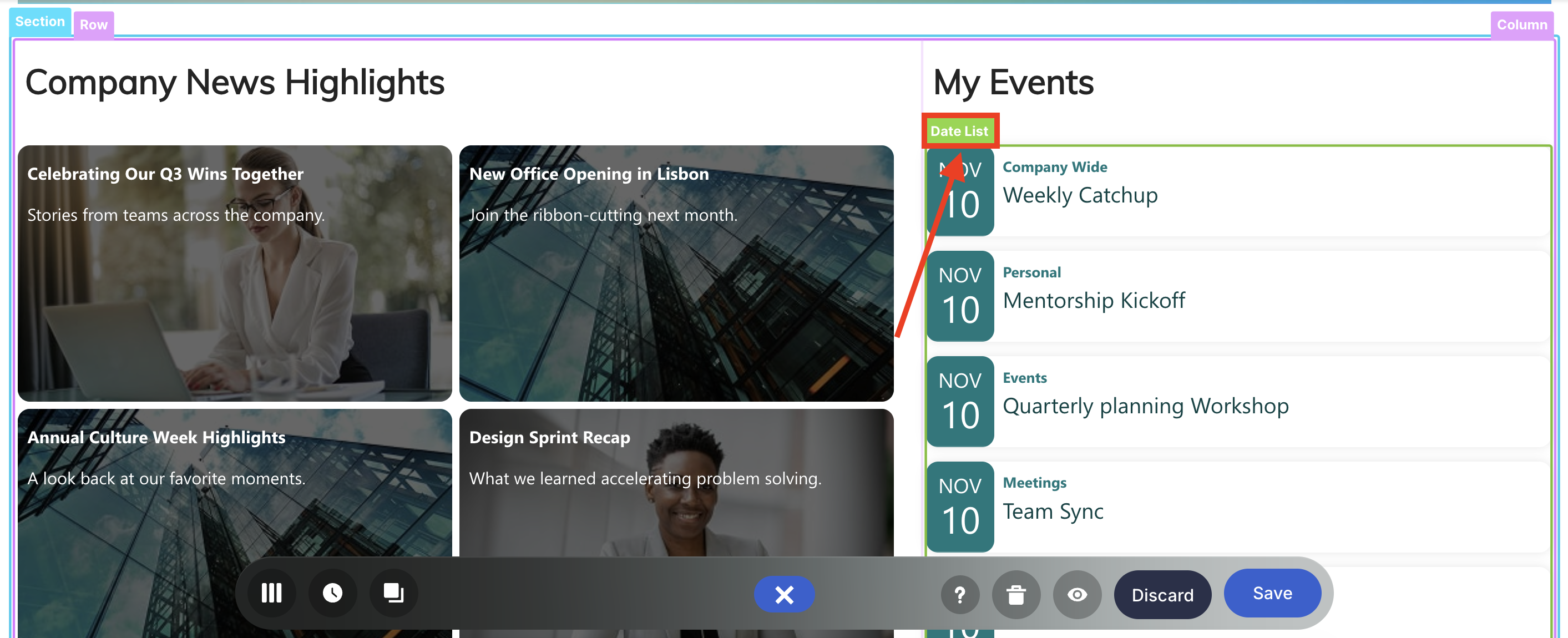
NOTEMake sure you already have an existing Design Element you want to use to connect. For this guide, we'll use Date List.
- Click the EasyPass tag of the Design Element:
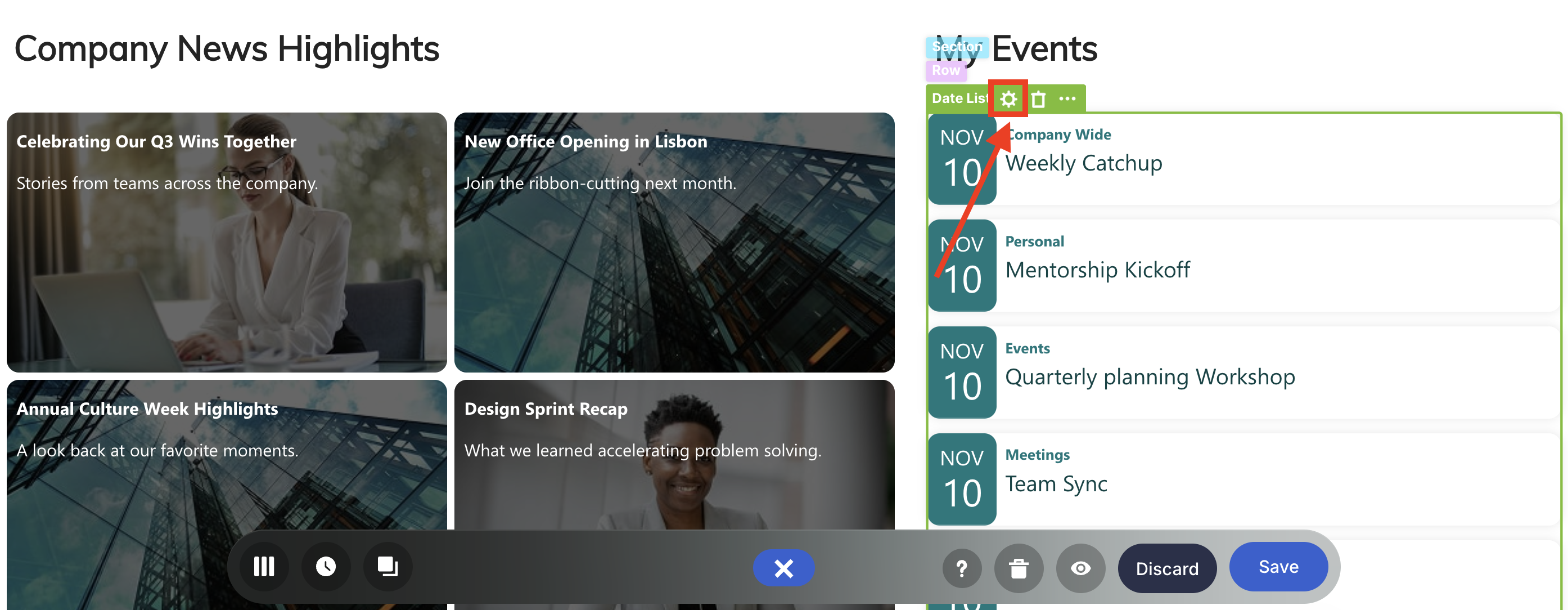
- Select the cogwheel icon:
- Go to the Connect tab.
- Click Configure:
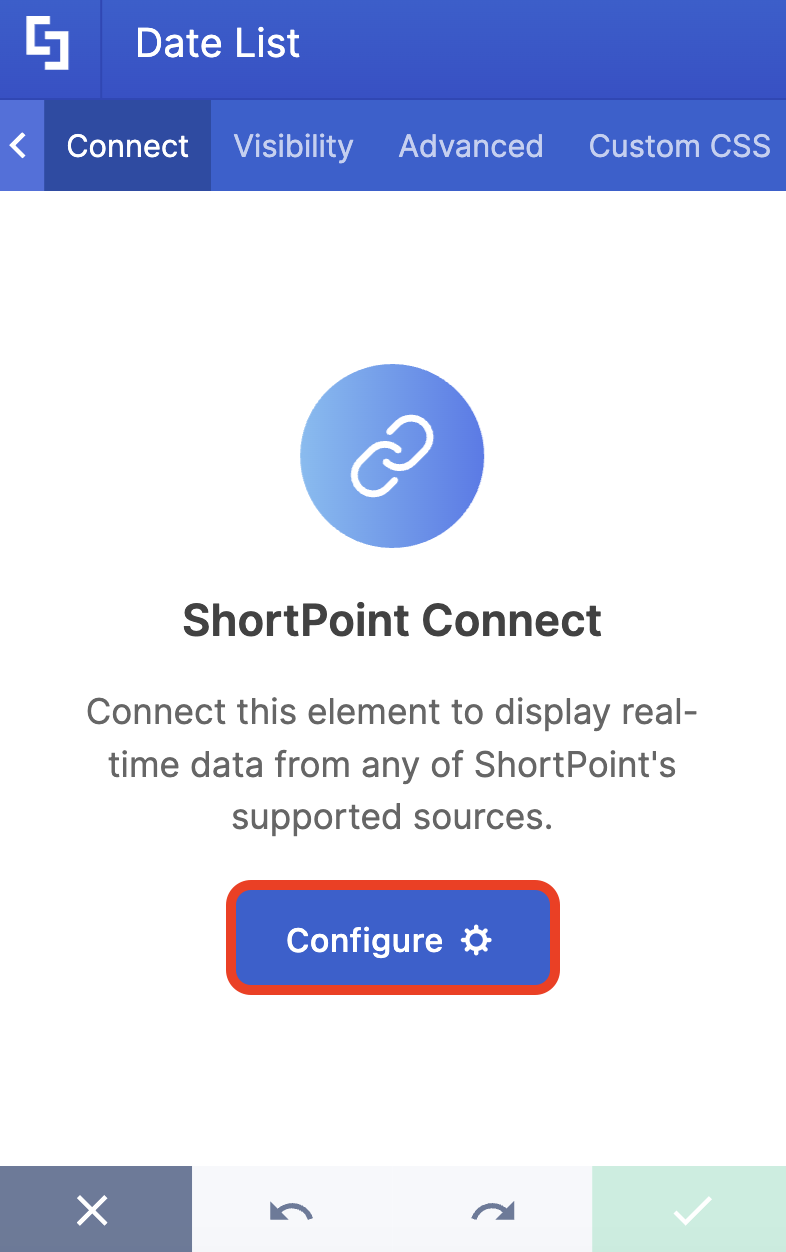
Step 3: Establish Connection
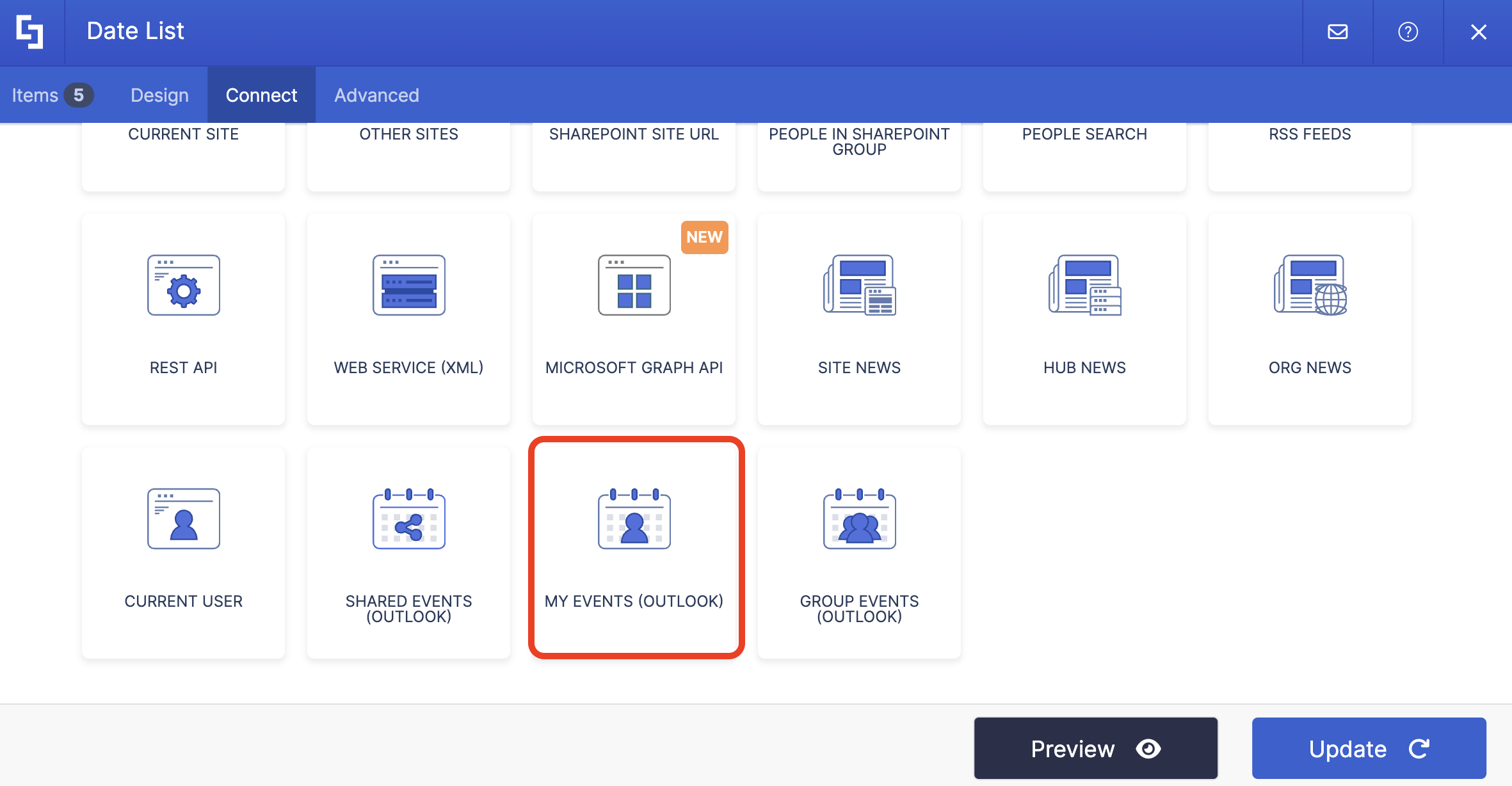
- Select My Events (Outlook):
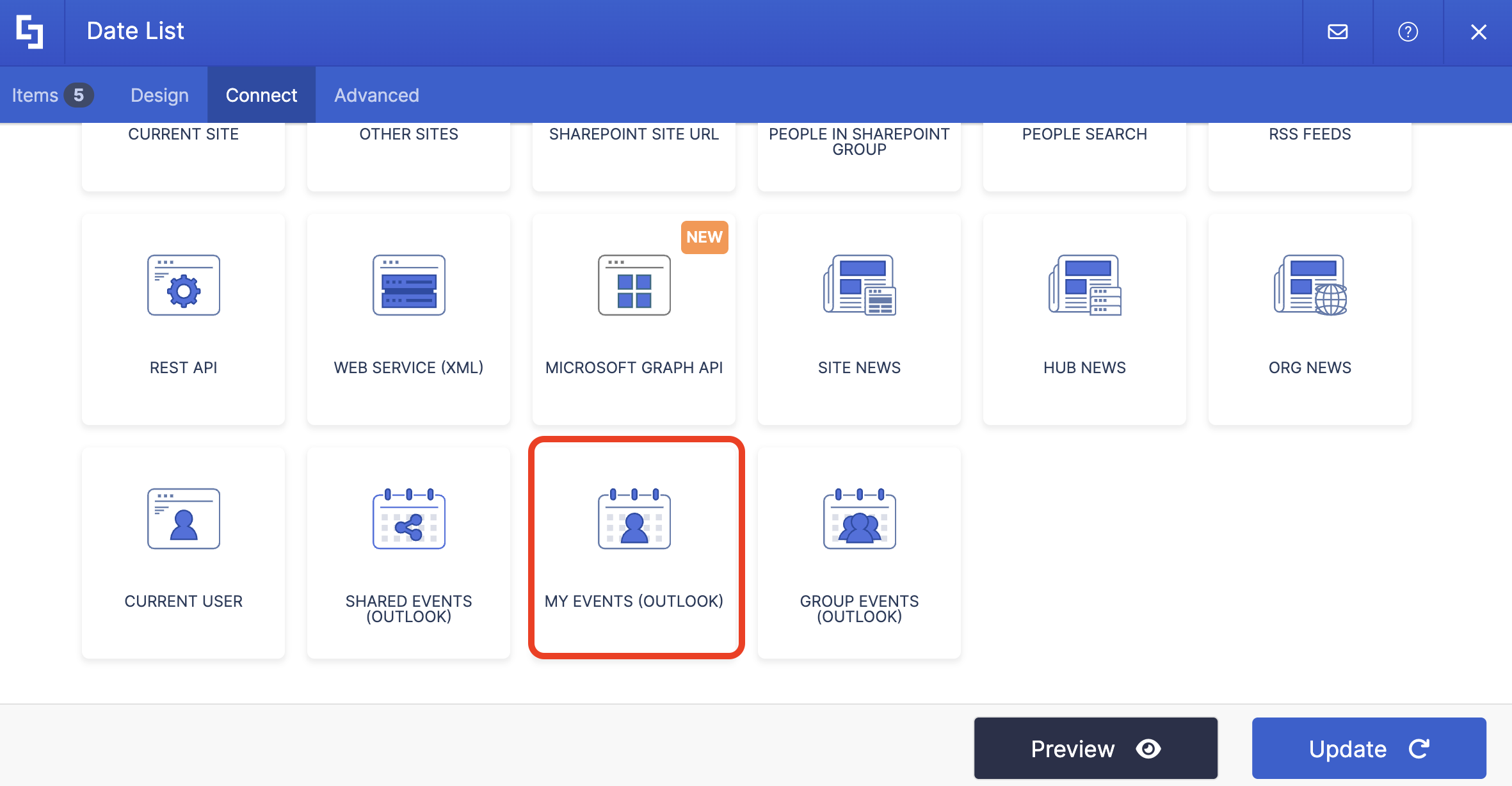
- Then, configure the settings to your liking:
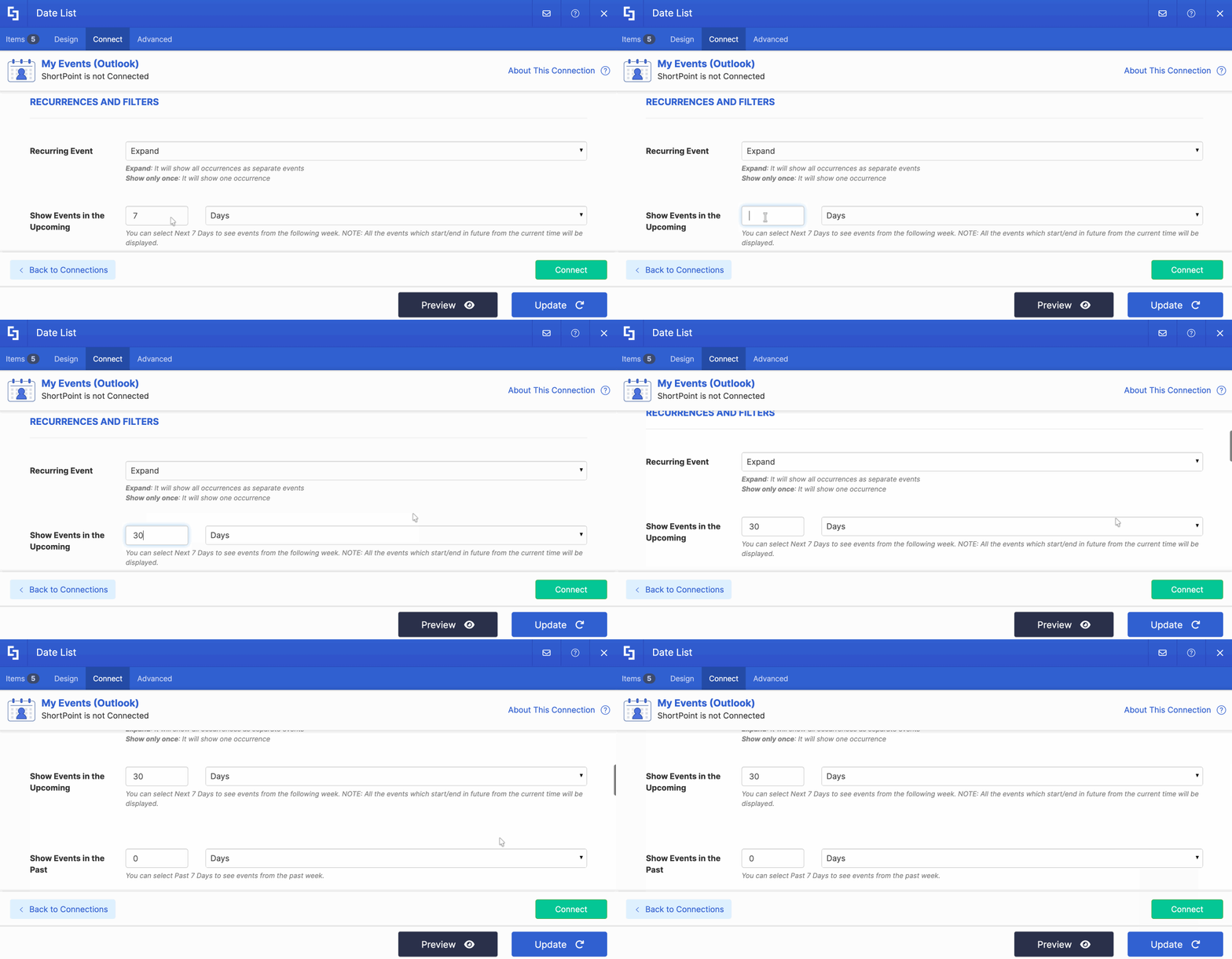
NOTETo learn more about the settings you can modify, check out My Events (Outlook) Features.
- Click Connect.
Step 4: Map Items
- Go to the Items tab.
- Delete default content:
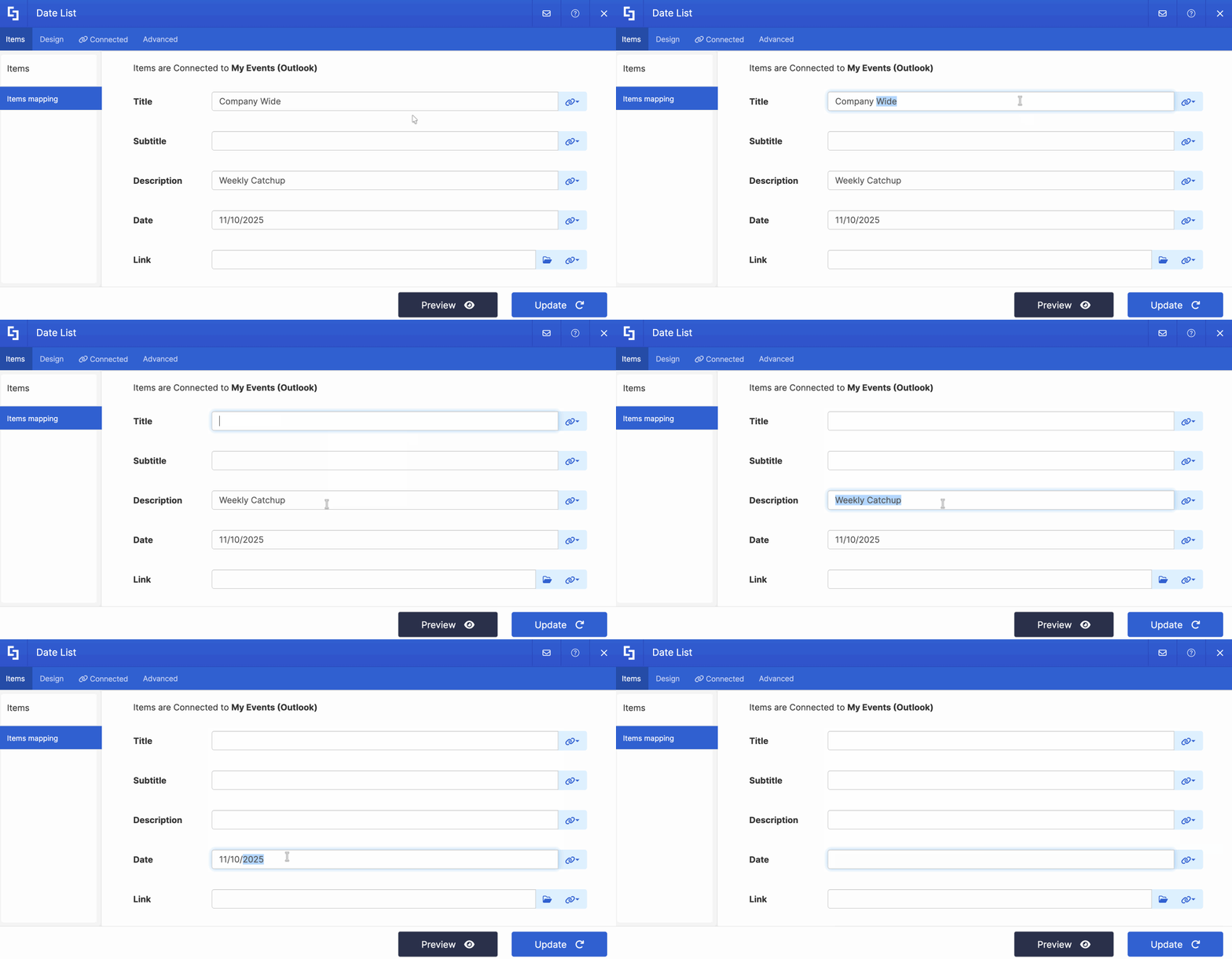
- Use the link icon to map the properties you want to display:
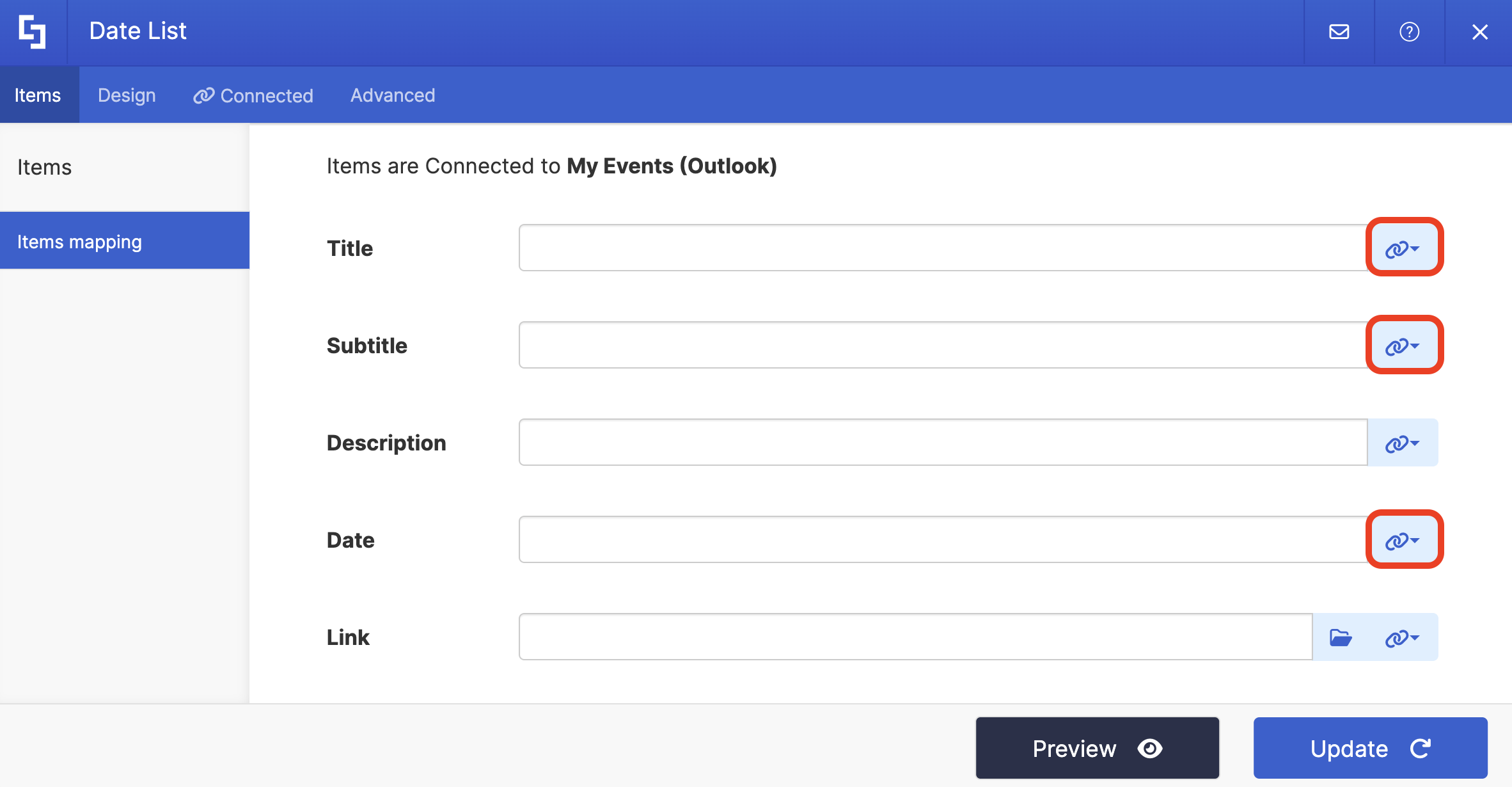
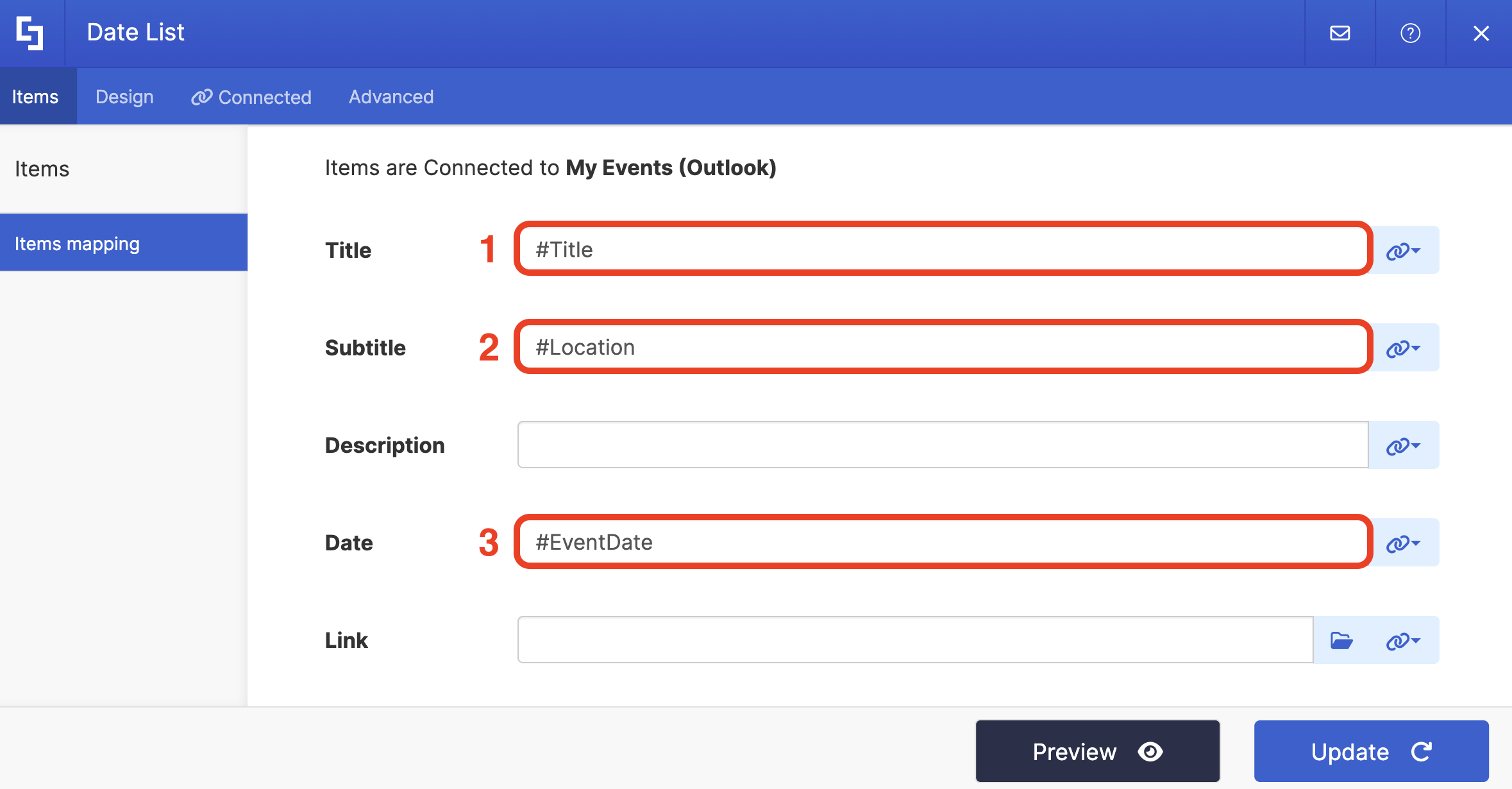
- Below are the properties we mapped. You can choose to map the same items or choose your own.
- #Title - shows the title of the event
- #Location - shows the location of the event
- #EventDate - shows the date of the event
Step 5: Save
- To see how the Design Element looks, click Preview.
- Once satisfied, click Update.
- Click the green checkmark:
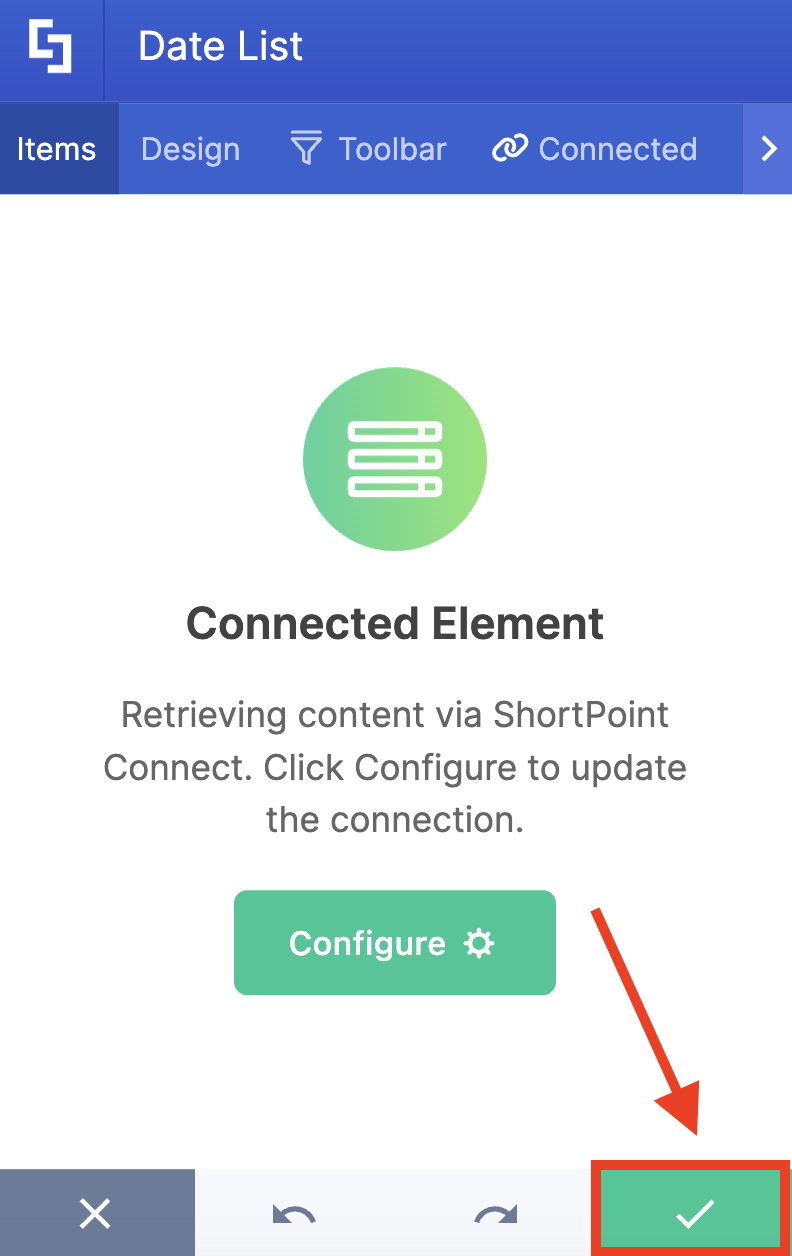
- Save your changes:

That's it! The entire process takes just a few minutes, and you'll have a dynamic, automatically-updating event display that keeps everyone informed and engaged.
My Events (Outlook) Features
Here are the features you can modify inside the My Events (Outlook) connection:
RECURRENCES AND FILTERS
 | Recurring Event | allows you to modify how recurring events will appear on your page. You can choose to Expand (show all occurrences of an event) or Show only once (show only one occurrence of an event). |
 | Show Events in the Upcoming | allows you to customize the number of Days, Months, or Years you want to show for upcoming events. |
 | Show Events in the Past | allows you to customize the number of Days, Months, or Years you want to show for past events. |
 | Items Limit | allows you to modify the maximum number of events shown. |
 | Convert HTML to plain text | when enabled, this option will convert all HTML data to plain text. |
DATE FORMAT
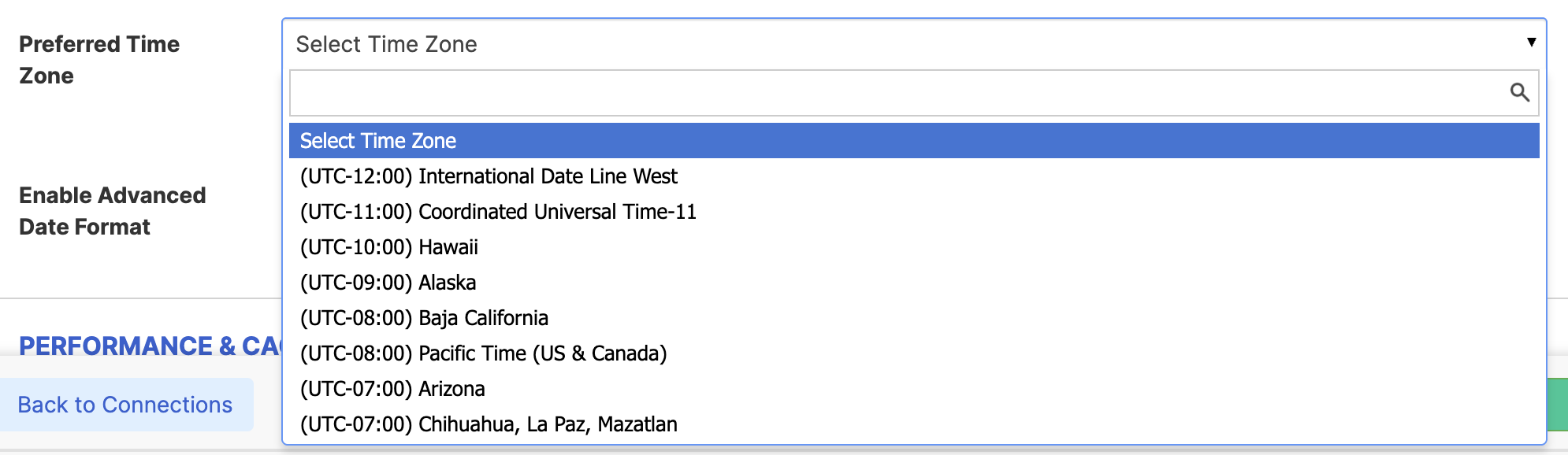 | Preferred Time Zone | allows you to select the Time zone of your events. |
 | Enable Advanced Date Format | when enabled, an additional date setting will be shown. |
 | Date/Time Format | allows you to specify your preferred date format. |
PERFORMANCE AND CACHING
 | Enable Partial Loading | This feature is enabled by default. It allows partial loading to activate automatically when the connection returns more than 20 results. Additional results will load as the user scrolls. Learn more about the Partial Loading function. |
 | Cache Options | allows you to choose from 3 caching options. Learn more about these caching options and how to improve ShortPoint performanceon your SharePoint sites.
|
Practical Use Cases: Where My Events (Outlook) Shines
Let's talk about real-world scenarios where this Outlook events connection type can make your work life easier.
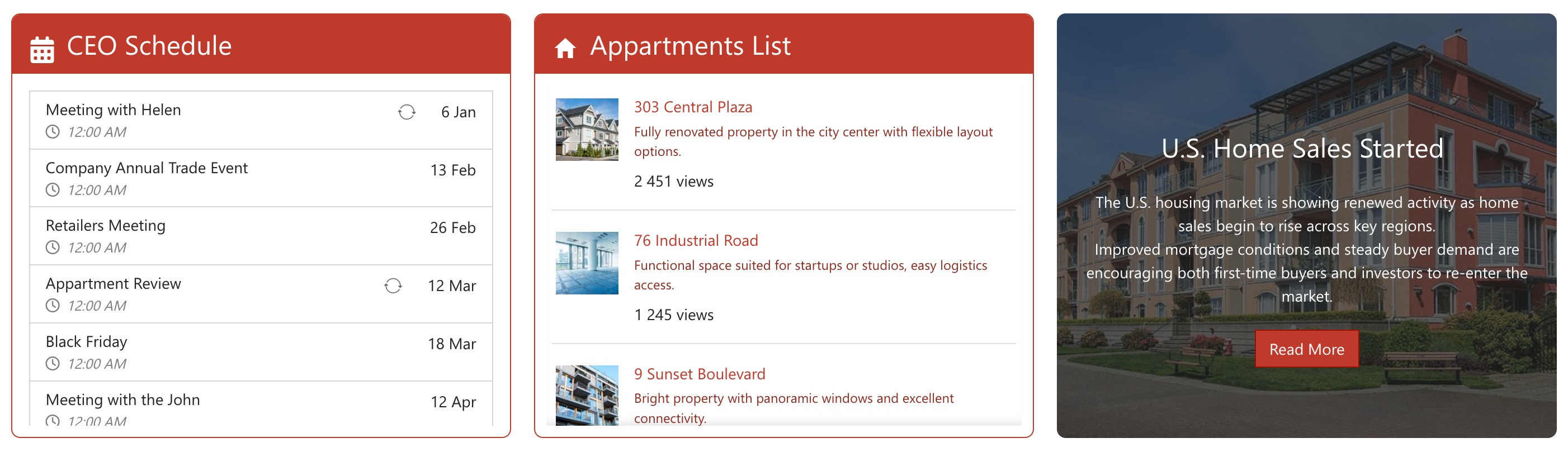
Personal Dashboard for Executives
Imagine you're an executive assistant creating a personalized dashboard for your CEO. Using the My Events (Outlook) connection, you can pull their personal Outlook calendar directly onto their homepage. They open SharePoint in the morning and immediately see their day's meetings, deadlines, and appointments—all styled to match your company's branding. No more switching between tabs or apps.
Project Manager's Command Center
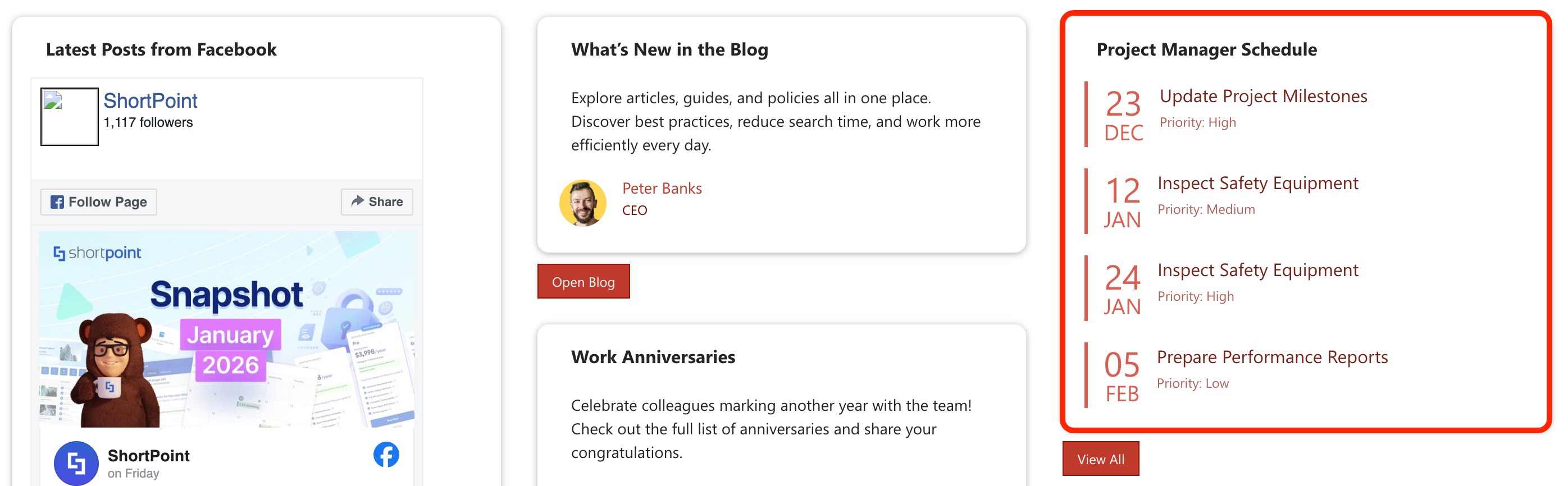
Project managers juggle multiple deadlines, client meetings, and team check-ins. By connecting their Outlook calendar to a dedicated project page, they create a visual timeline of all project-related events. Team members visiting the page can see upcoming milestones at a glance, improving transparency and alignment across multiple calendars.
Training and Development Pages
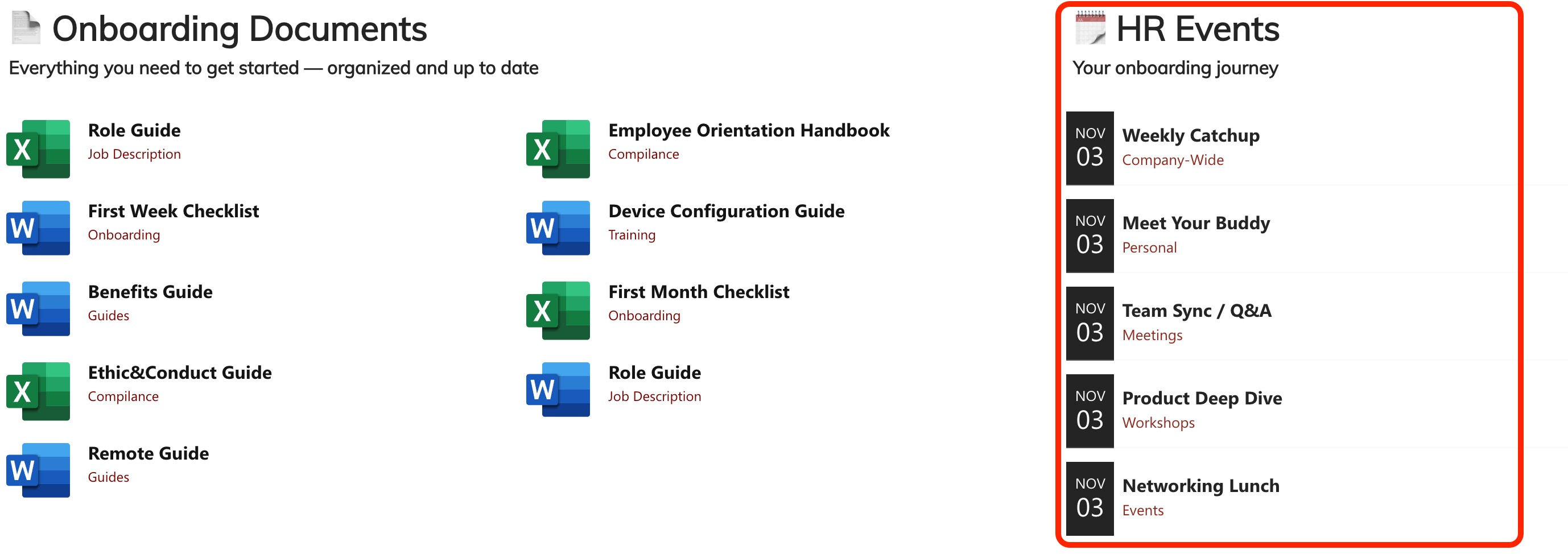
HR departments often manage employee training schedules through Outlook. By connecting new hires’ personal onboarding calendars to a Learning & Development page, employees can easily see their upcoming training sessions, workshops, and certification deadlines. Add some attractive card designs, and you've got an engaging training hub.
Create Dynamic Events with the My Events (Outlook) Connection
The My Events (Outlook) connection type is all about making life easier for you. It eliminates the need to keep opening your Outlook calendar just to see your latest schedule. Whether you're building a personal dashboard, creating team visibility, or enhancing your department's intranet presence, the My Events (Outlook) connection gives you the tools to make it happen—beautifully and effortlessly.
Ready to give this powerful connection a spin? If you're already a ShortPoint Designer, just follow the steps in our interactive tutorial, and you'll be up and running in no time. New to ShortPoint? No worries—we'd love to have you try out all the features with a FREE 15-day trial. Zero commitment required! You can also book a one-on-one demo with our team to see the My Events (Outlook) connection in action, plus everything else ShortPoint can do.
Frequently Asked Questions
Do I need special permissions to use the My Events connection?
Yes, you'll need to grant ShortPoint permission to access your Outlook events through Microsoft Graph Integration using your Microsoft account. This is a one-time setup process, and your IT admin may need to approve these API permissions. This way, ShortPoint can retrieve content for you and display it on your page. For more information, check out Setting up Microsoft Graph Integration for SharePoint Online.
What's the difference between My Events, Shared Events, and Group Events?
Great question! My Events connects to your user’s personal Outlook calendar. Shared Events connects to calendars that have been specifically shared with you by other users. Group Events connects to calendars associated with Microsoft 365 Groups or shared mailboxes. Choose the one that matches where your events live.
Can I display events from multiple Outlook calendars on the same page?
Not within a single design element connection. However, you can add multiple design elements to your page, each connected to a different calendar source. This gives you flexibility to show, say, your personal events in one section and shared team events in another.
Will my events update in real-time?
Events update automatically, though there might be a slight caching delay for performance reasons. ShortPoint uses smart caching to balance fresh data with fast page loading. In most cases, updates appear within minutes. You can also configure cache settings to control how frequently data refreshes. For more information on caching, check out Enable Caching on Connected ShortPoint Design Elements.
Can I control which event details are displayed?
Absolutely! During the setup process, you map which Outlook event properties (title, start time, end time, location, description, etc.) correspond to fields in your ShortPoint design element. You have complete control over what information shows up and what stays hidden.
Can I filter which events appear on my page?
While the connection doesn't offer category-based filtering, you can use the time window settings to control which events display (for example, only the next 30 days). You can also set item limits to show just your next 5 or 10 events. For more advanced filtering, consider using separate calendars in Outlook for different types of events.
Do I need to be a ShortPoint Designer to set this up?
Yes, you'll need to have either a Pro or Enterprise ShortPoint Designer license to create and configure this connection type. Regular SharePoint users can view the connected events on published pages, but only ShortPoint Designers can set up and modify the connections.
What if I need to show events that are further back or forward than the default options?
The "Show Events in the Upcoming" and "Show Events in the Past" settings let you customize the time range in days, months, or years. You can extend these windows as far as you need, though showing too many events might impact page performance.
Can I customize how dates and times are formatted?
Yes! The "Enable Advanced Date Format" option lets you specify exactly how you want dates and times to appear. Whether you prefer "February 4, 2026 at 2:30 PM" or "04-Feb-26 14:30," you can make it happen.
Is this feature available for on-premises SharePoint?
The My Events (Outlook) connection requires Microsoft Graph integration, which is only available for SharePoint Online (Microsoft 365). If you're using SharePoint 2019, 2016, or 2013 on-premises, this specific connection type won't be available, though other ShortPoint features will still work.
Related articles:
