 Try ShortPoint now
In order to automatically pull data from Outlook or Teams, and display it on your ShortPoint Online pages using any of the Outlook Connections (My Events, Shared Events, Group Events) or the Teams Design Element, ShortPoint will require appropriate permissions. These can be granted by connecting ShortPoint to Microsoft Graph. In this article, you will learn how to set up this integration.
Note: This article is to establish a Microsoft Graph connection to use any of the Outlook connection types and the Teams Design Element. If you are looking to enable the Microsoft Graph API connection, please check out our article on How to Enable Microsoft Graph Integration for MS Graph API Connections.
TABLE OF CONTENTS
- Prerequisites
- How to Set Up Microsoft Graph Integration via ShortPoint Dashboard
- How to Access Microsoft Integrations via Integrations Link
Prerequisites
- ShortPoint is already installed in your SharePoint Online (Office 365) environment.
- Your ShortPoint version is upgraded to 6.7.x.x or greater.
- ShortPoint User Account: Make sure you are logged in with your ShortPoint User Account.
- You have Azure Active Directory Administrator access (Global Administrator or Privileged Role Administrator)
- Activate any new license available. Go to ShortPoint Dashboard -> Licensing and click Activate if a new license is available
How to Set Up Microsoft Graph Integration via ShortPoint Dashboard
Follow these easy steps to establish Microsoft Graph integration through the ShortPoint Dashboard:
Step 1: Navigate to ShortPoint Dashboard and select Integrations
Click the ShortPoint Shortcut icon on any SharePoint page where ShortPoint is installed and select Dashboard.
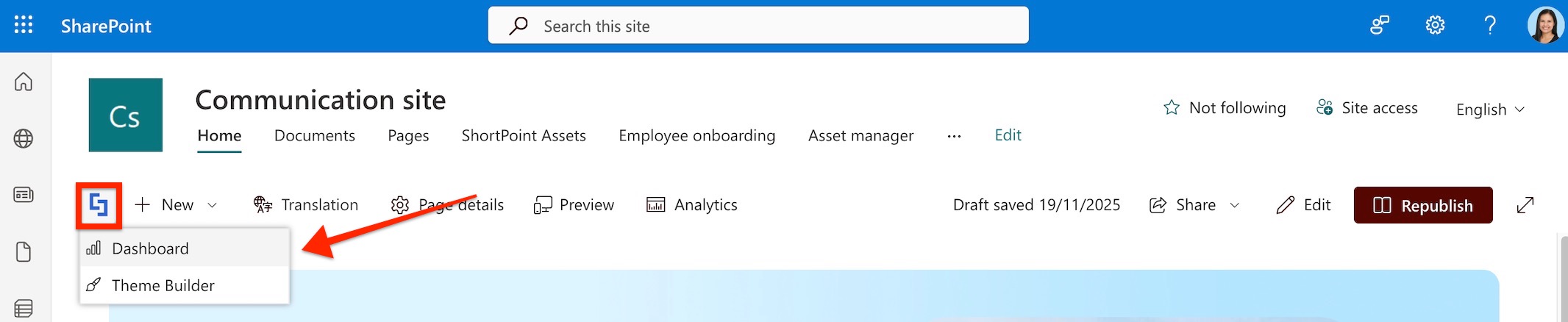
Alternatively, you can also go to SharePoint Settings, hit Site Contents, and select ShortPoint Dashboard.
This will launch the ShortPoint Dashboard. From the options, press the Integrations tile.

Step 2: Connect and grant Microsoft Graph permissions
Under Microsoft Graph, hit the Connect button.

You will be asked to pick an account you will use to establish the connection. Once selected, you will be presented with a list of permissions requested by this connection. Press the Accept button to proceed.
Note:
Our article on ShortPoint Microsoft Graph Integration provides you an overview about the integration and gives you further information about the required permissions.

Your integration has been completed once you see a Reconnect button under Microsoft Graph instead of Connect.

You can now proceed to insert any Microsoft Graph-related Design Element on your SharePoint page.
How to Access Microsoft Integrations via Integrations Link
You may also need to access the Integrations page while you are working with any Design Element that requires a connection to Microsoft Graph. You will find information or a warning in the Design Element Settings Tab regarding this requirement. In our example, we are using the Teams Design Element which requires a Microsoft Graph integration.
In order to fix it, you will need to navigate to the ShortPoint Integrations Page and Connect Microsoft Graph. In case you already connected Microsoft Graph, just click Reconnect and Accept the new list of permissions granted for the ShortPoint App.
To navigate to the Integrations page, click the Integrations link from the warning that will be displayed on the Teams Design Element Settings Tab.
After connecting to Microsoft Graph, refresh the page and add the Design Element again to your page.

That’s it! You can now easily connect Outlook and Teams content to your SharePoint Online pages.
Related articles:
