 Try ShortPoint now
One of the most obvious gaps in many SharePoint intranet designs is a generic or non-existent footer. Without a footer, pages just feel half-finished, and to be fair, it's hard to expect employees to be impressed by a lack of quick access to important links, key contact details, or even a bit of company branding.
The good news is that ShortPoint makes building a custom footer easy by offering a whole library of footer templates that you can drop in and customise in no time. So whether you're after a simple footer with just a copyright notice or a more elaborate multi-column layout that includes your logo, office locations, and all the key navigation links, there's a template out there that'll do the job.
Here we'll run through the complete process - from inserting a footer template onto just one page to tweaking it to fit your brand, all the way through to deploying it across the whole site so it always shows up at the bottom of every page on your SharePoint site collection.
TABLE OF CONTENTS
- Prerequisites
- Step-by-step Tutorial
Prerequisites
- Make sure that you have the latest version of ShortPoint installed in your environment.
- You must be a ShortPoint Designer with an active license. You will need a Pro or Enterprise License to use ShortPoint Generator.
- ShortPoint Generator is available in ShortPoint versions 5.3.3.22 and above.
Step-by-step Tutorial
This process has two parts. In Part 1, choose a footer template from the ShortPoint Templates Library and customize it to match your brand. If you only need the footer on select pages, you can stop here. In Part 2, copy your finished design, paste it into the ShortPoint Generator, and activate it sitewide using the ShortPoint Theme Builder so it appears consistently at the bottom of every page across your site collection.
Part 1: Design Your Footer Using a Template
You can apply the footer on a single page or start on a draft page so you have a sandbox to finalize the design before it goes live to the rest of your organization.
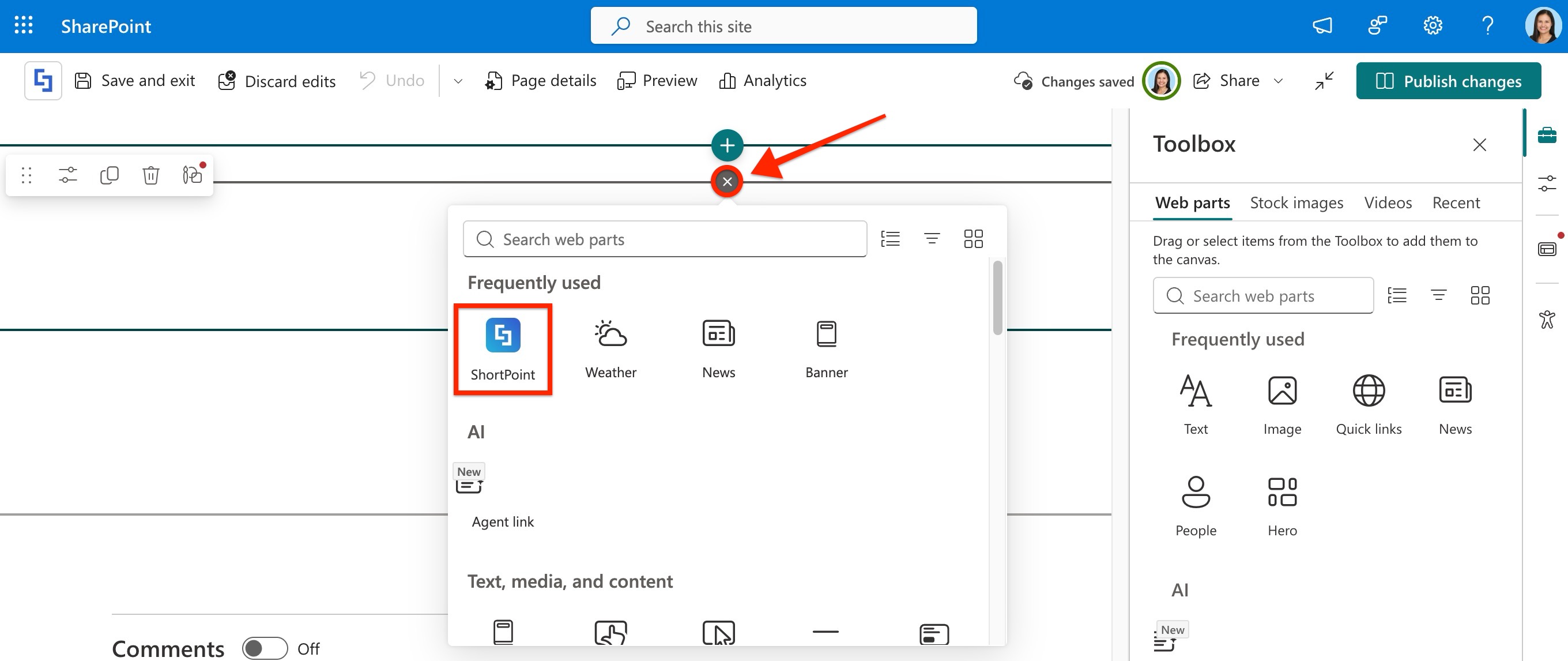
Step 1: Insert a ShortPoint Web Part
- Create a New Page or Edit an existing one within your site collection.

- Insert a ShortPoint Web Part. This will open the Page Builder.
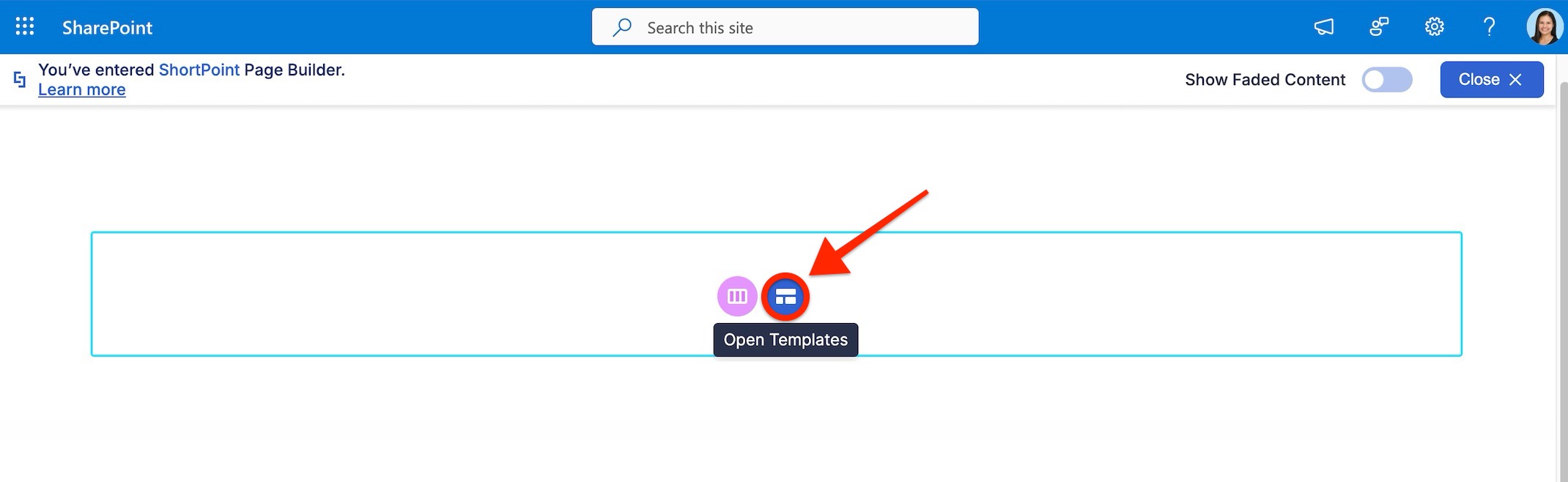
Step 2: Launch the ShortPoint Templates Library
- Press the Templates Library Icon.
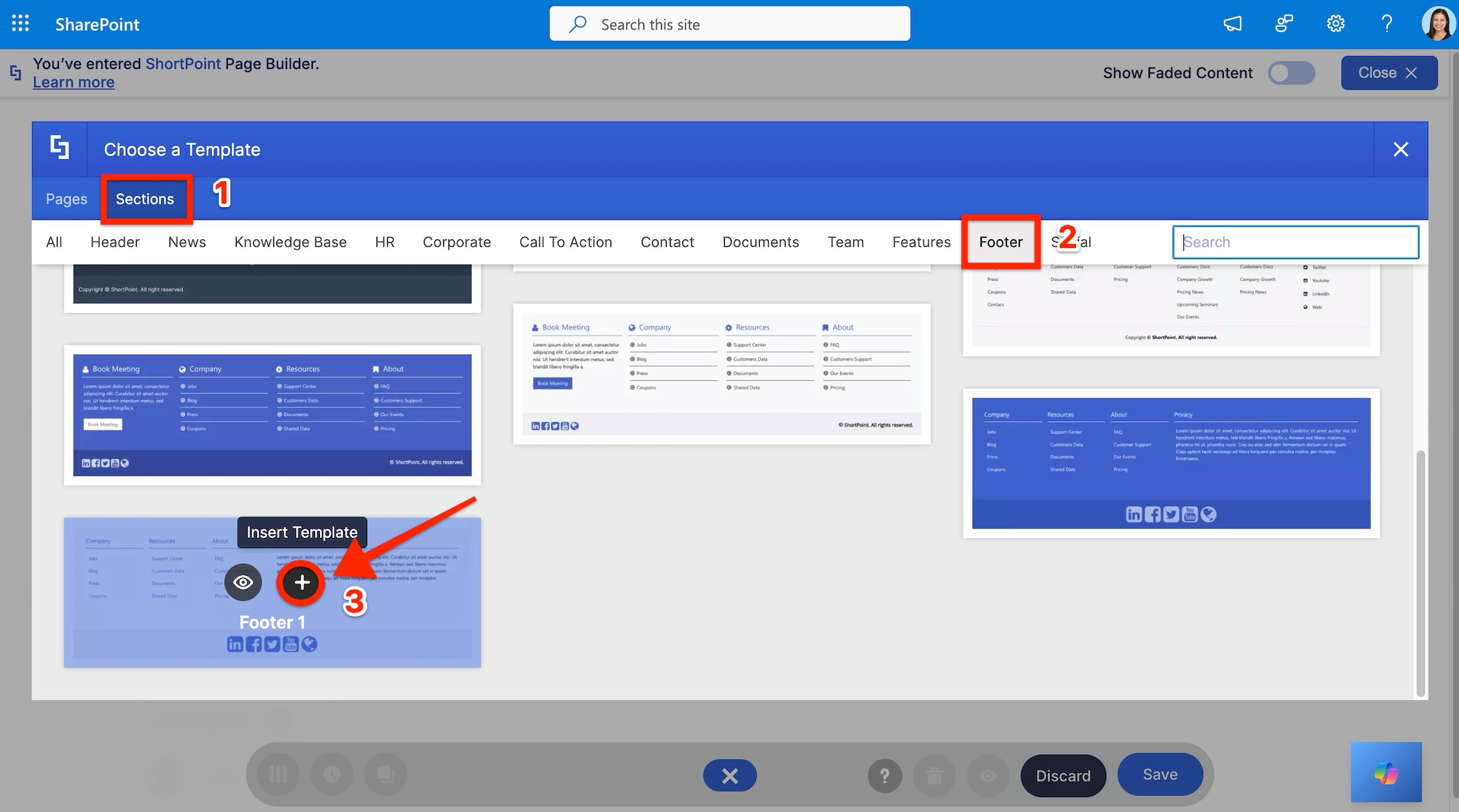
Step 3: Choose a Footer Template
- Navigate to the [1] Section templates and switch to the [2] Footer tab.
- Select the footer design that fits your needs and click [3] Insert.
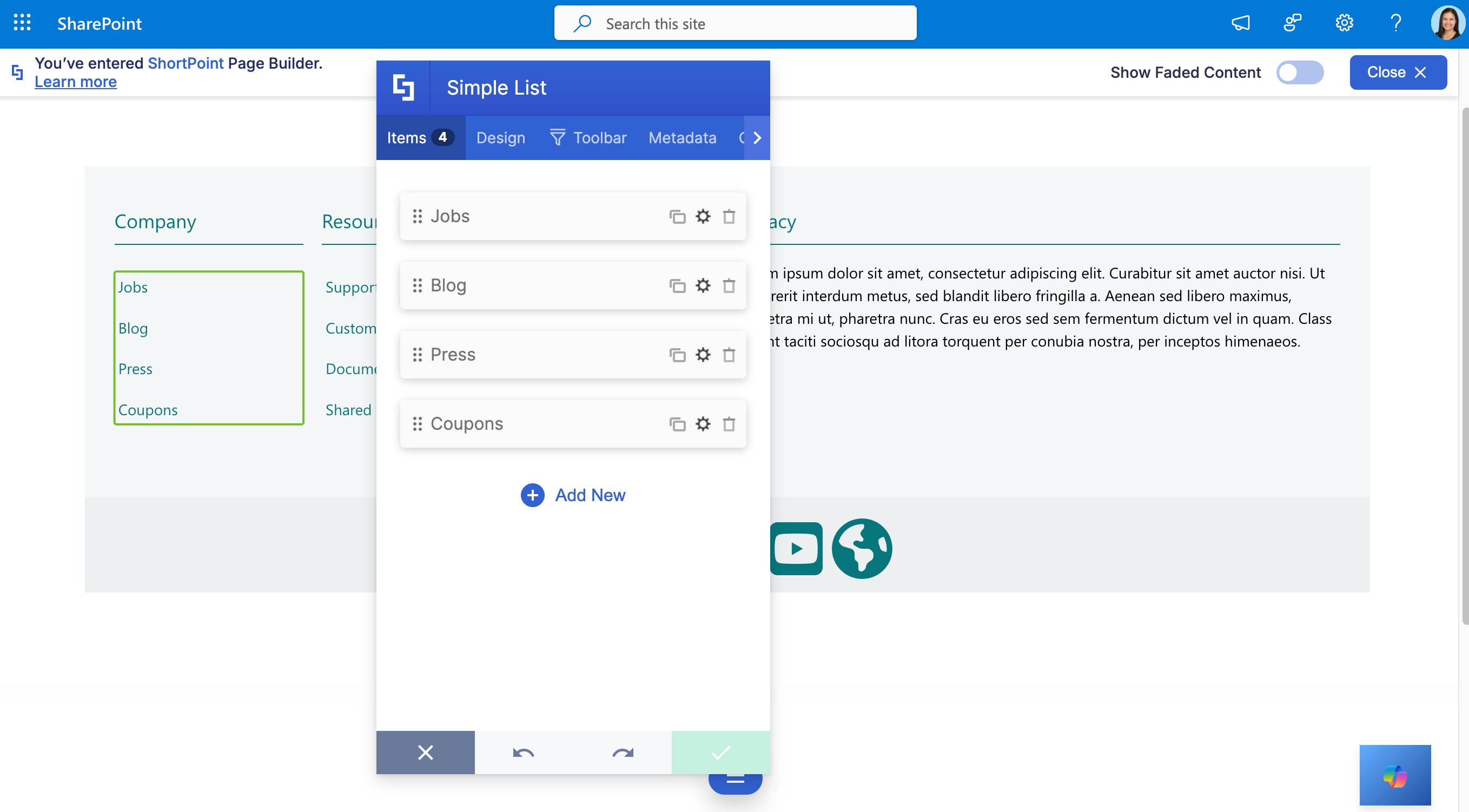
Step 4: Customize the Footer
- Once the footer template is inserted into your page, you can begin editing its contents and modifying the design according to your requirements.
If you only need the footer on this page, save and publish your changes, and you're done. To deploy it across your entire site collection, continue to Part 2.
Part 2: Deploy the Footer Sitewide
With your footer design ready, here is how to deploy it across your entire site collection using the ShortPoint Generator and Theme Builder:
Step 1: Copy the Footer
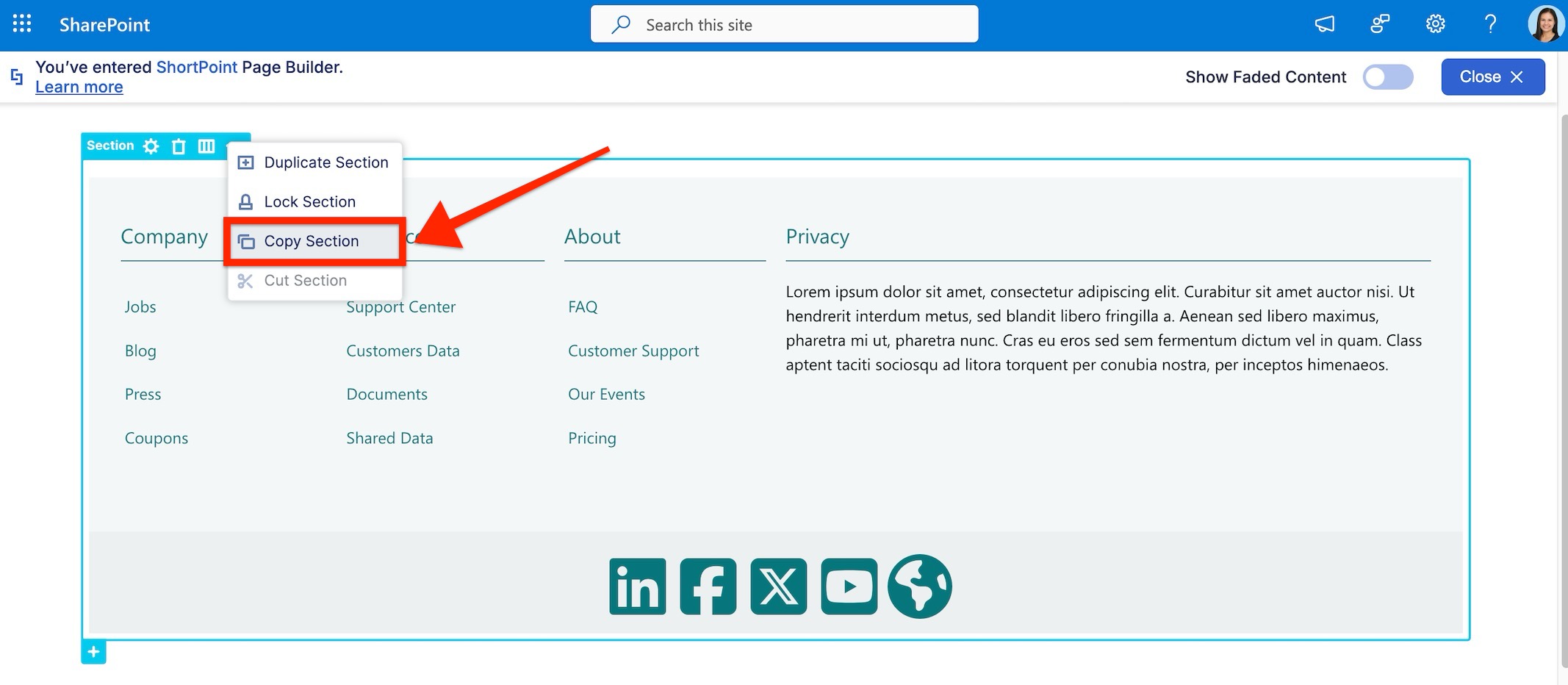
- Select the Section EasyPass Tag and click the Other Actions button.
- Click Copy Section.
Step 2: Launch ShortPoint Generator
- Open a page on your site.
- Press the ShortPoint Shortcuts icon and choose Dashboard.
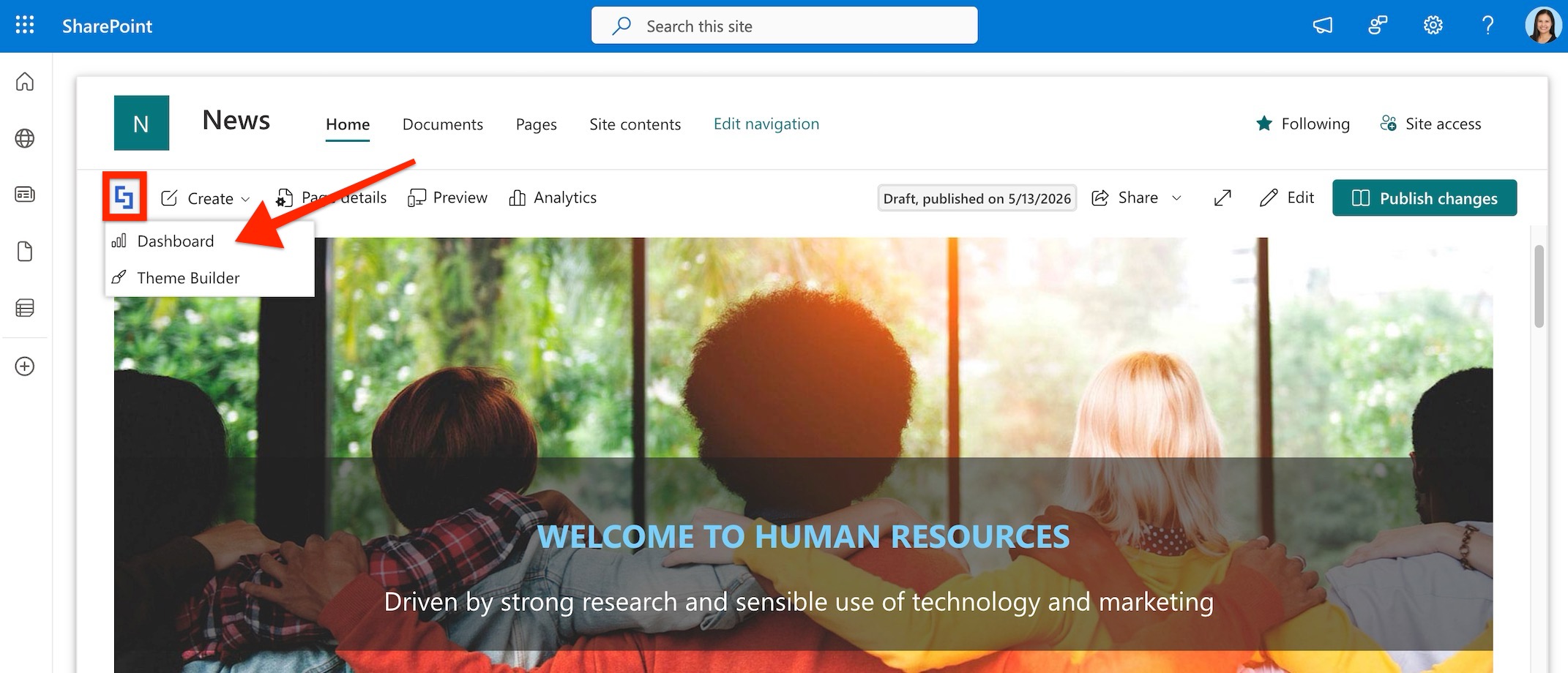
- Select Generator.

Step 3: Paste the copied footer template into ShortPoint Generator
- Give a name to your footer element [1] and select Footer [2] as its type.

- Then, scroll down to the content area, right-click using your mouse, and click Paste Section Before Section.

- Then click Save Changes.

Your newly created footer will be listed under Your Custom Elements / ShortPoints.

Step 4: Add your footer using ShortPoint Theme Builder
- Go back to the ShortPoint Dashboard and select Theme Builder.

- Then, click Customize my site.

- In the Theme Builder navigation, select Footer.

- Then, select General Layout.

- In the Select Footer drop-down, you can select the footer you created in Generator.

Step 5: Remove default settings
We have default settings for the background and paddings in case you create your footer on a transparent background. Remove these settings so you can customize the footer according to your preference.

Step 6: Customize your footer
You can check out Part 3: Customizing Your Footer for more details about the customizing options.
For this guide, let's add a divider before your footer.

Step 7: Publish your changes
- When you finish, click the Publish button in Theme Builder.

That's it! You now know how to make the most of the footer templates in the demos library.

Related articles:
