 Try ShortPoint now
Do you have a SharePoint Online site you'd like to share with all your internal users without giving access to people outside your organization? "Everyone except external users" (known as EEEU) is your best bet.
Let’s break down what EEEU actually is, why it’s so useful, and how to set it up.
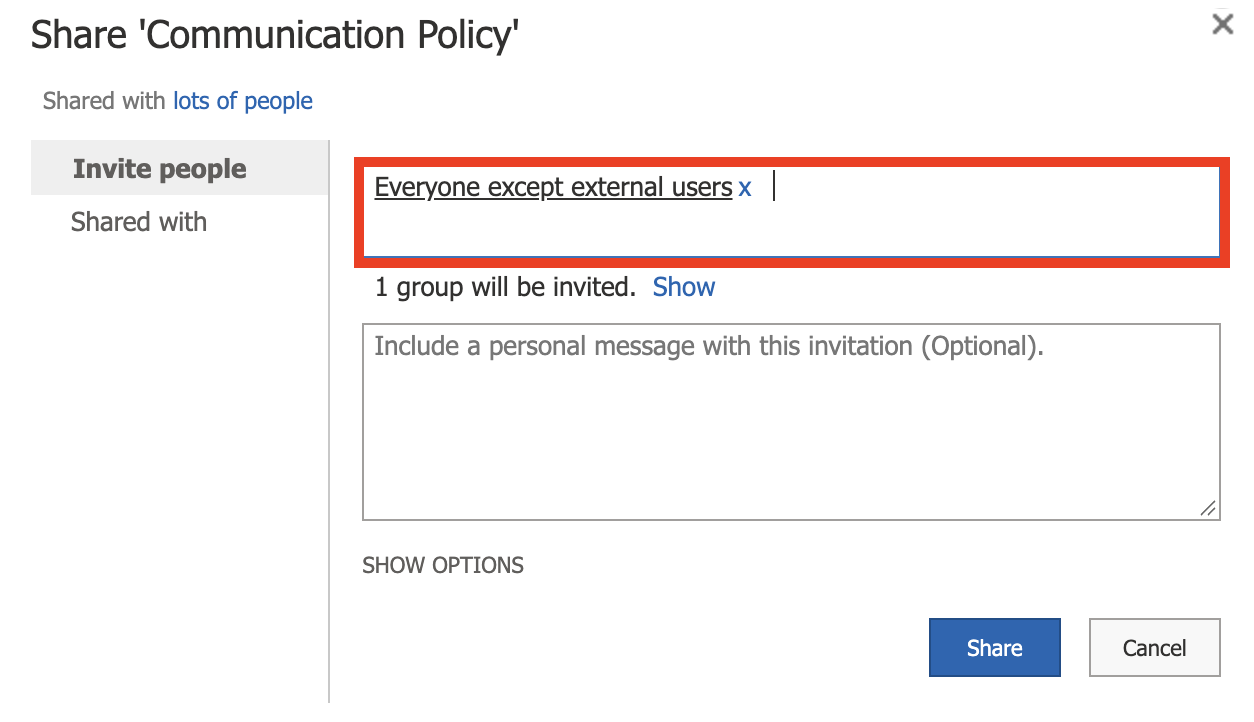
TABLE OF CONTENTS
- What Is Everyone Except External Users?
- Why Is EEEU So Useful?
- Setting Up EEEU
- A Quick Word of Caution: Use with Intention
- Frequently Asked Questions
What Is Everyone Except External Users?
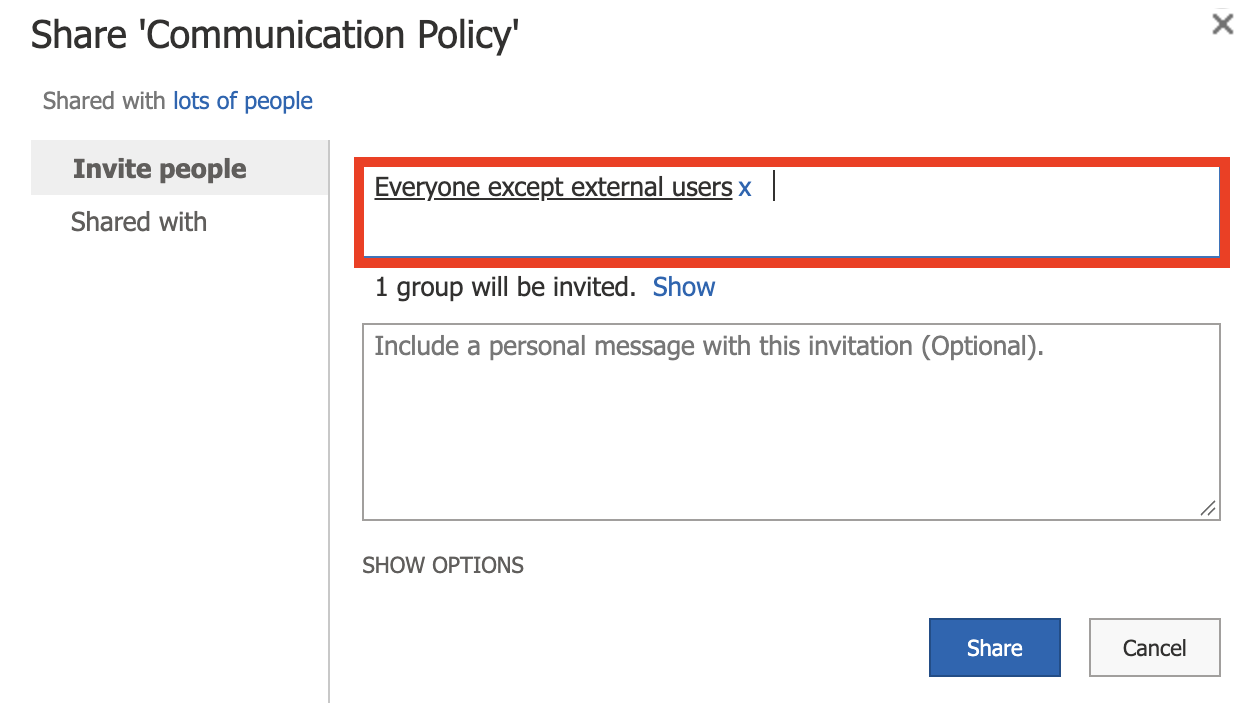
EEEU is a built-in Microsoft group that automatically includes every internal employee and team member in your organization, while keeping guests and external users group out. Anyone with an official company email address (like @yourcompany.com) gets automatic access. Guest accounts, vendor partners, clients, or anyone invited from an outside email domain are left off the list.
Here's what makes it great: Unlike other groups that you've manually set up, you don't have to maintain it. As new employees join your organization and get their Microsoft 365 accounts, they are automatically added to the group. When someone leaves the company and their account is deactivated, they lose access instantly.
Why Is EEEU So Useful?
Managing permissions for an entire company can quickly become a headache. Adding 50, 500, or 5,000 people individually so they can access a specific SharePoint site isn't practical.
Here is why EEEU is such a helpful feature:
Effortless Company-Wide Sharing
Instead of creating custom email distribution lists or manually updating permission groups every time someone joins or leaves, EEEU gives you a one-click way to share resources across the entire organization.
Built-In Security Boundary
It automatically filters out guest accounts. If your team frequently collaborates with outside vendors or consultants in Microsoft 365, you don't have to worry about those external guests stumbling across internal resources assigned to EEEU.
Great for Organization-Wide Hubs
EEEU is ideal for broad, all-hands resources where transparency and broad access are the goal.
Setting Up EEEU
Now, let's teach you how to set it up. Start the interactive tutorial to learn how:
Step 1: Open Advanced Site Permission Settings
- Go to the SharePoint site you want to share and click the cogwheel icon:

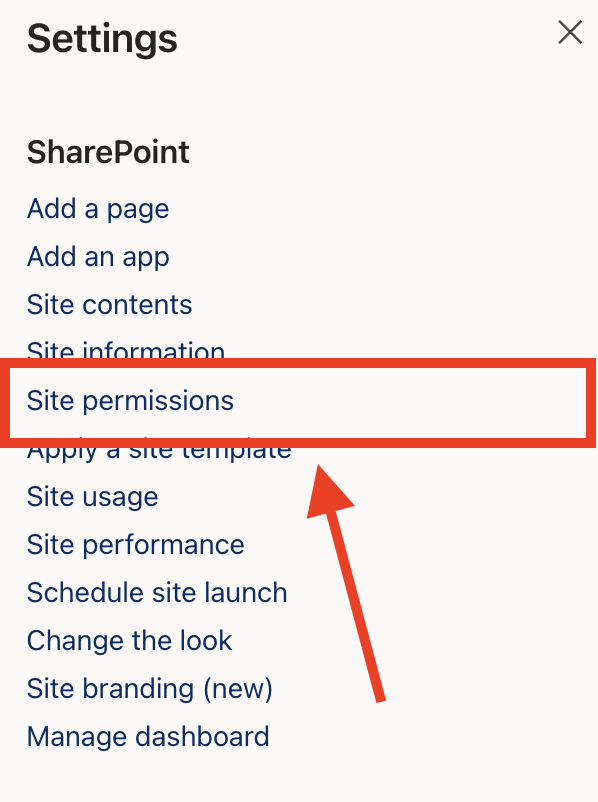
- Select Site Permissions:
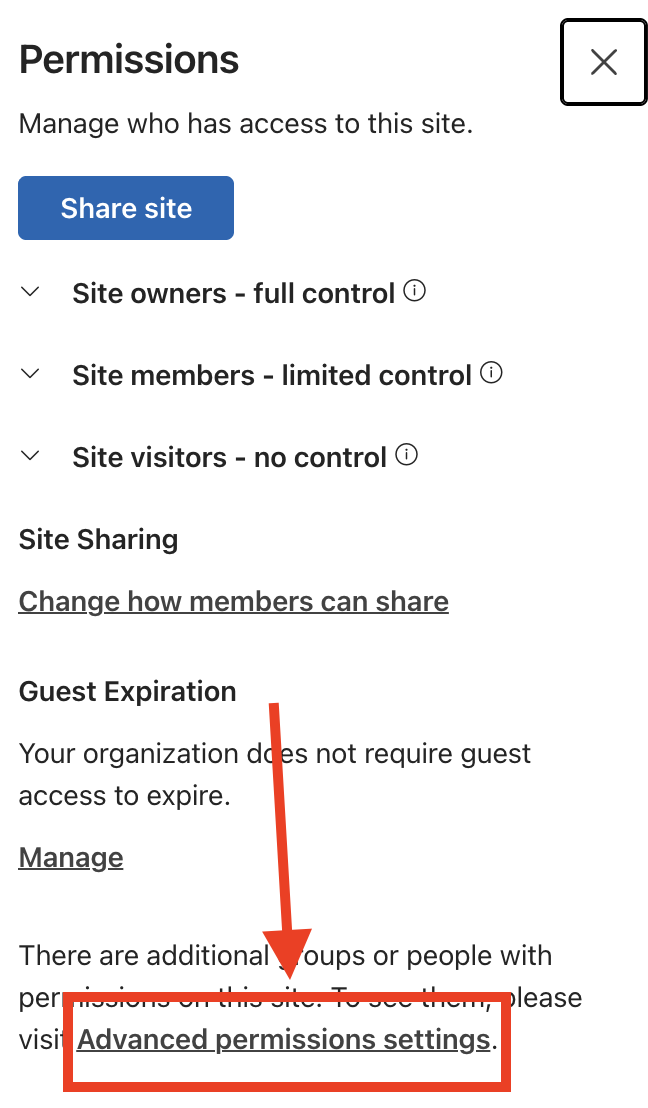
- Choose Advanced Permission Settings
Step 2: Share to Everyone Except External Users
- Click Share:

- Type and select Everyone Except External Users:
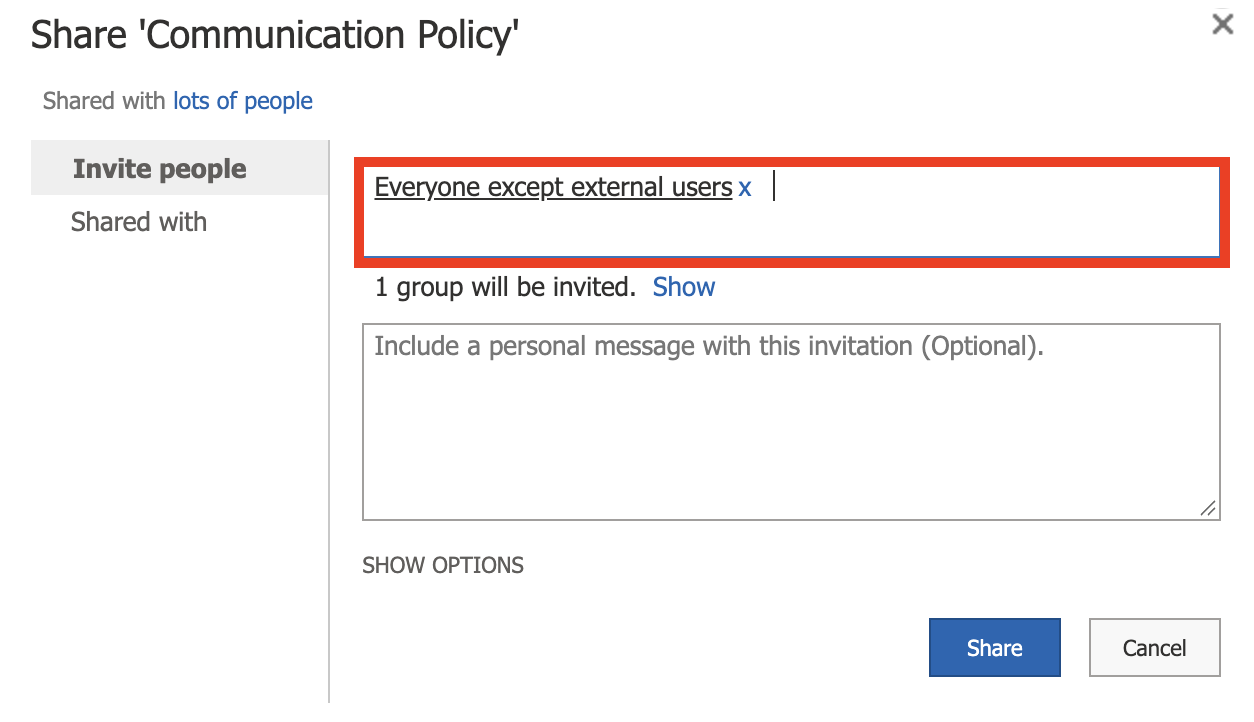
- Click Share again:
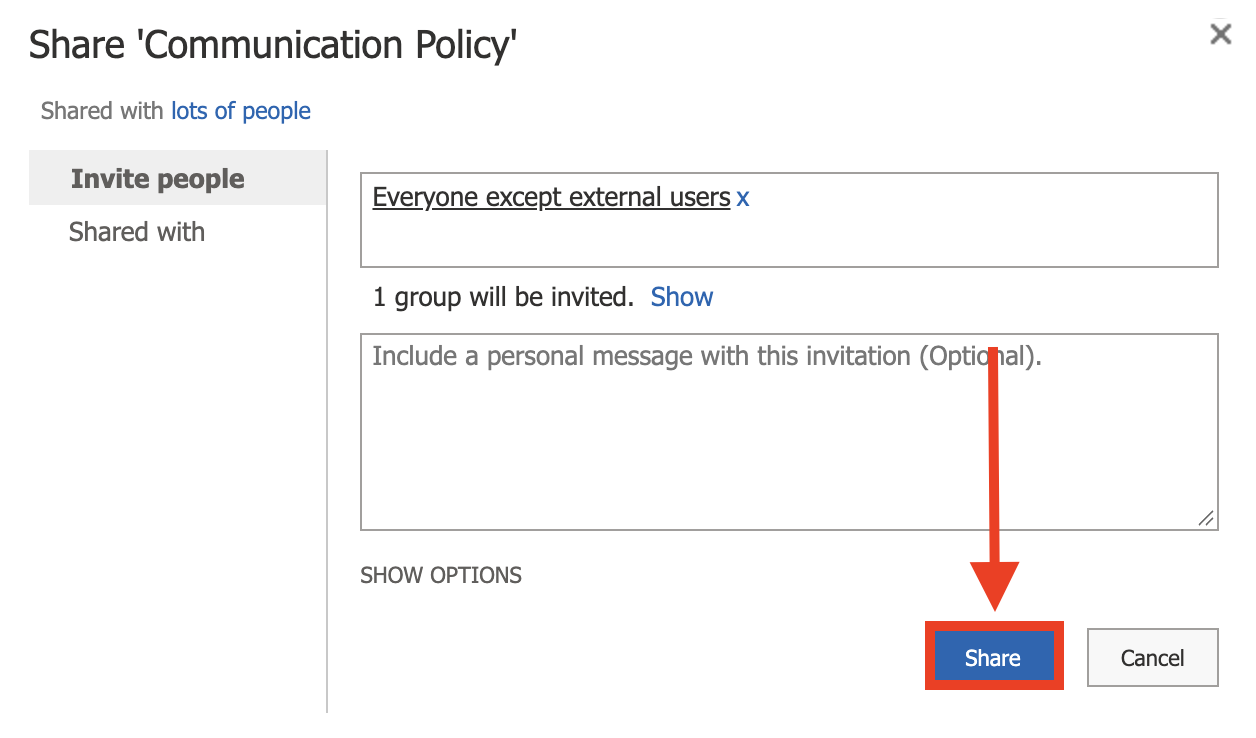
Great work! You've successfully shared the SharePoint site with all your internal users.
A Quick Word of Caution: Use with Intention
Because EEEU makes content accessible to literally every internal employee, it's important to use it thoughtfully.
- Search Discoverability: Content shared with EEEU becomes searchable across Microsoft 365 (via SharePoint search, Delve, and Microsoft Search).
- AI & Copilot Exposure: If your company uses AI tools like Microsoft 365 Copilot, the AI draws answers from files the user has permission to see. If a sensitive document (like compensation bands or unannounced restructuring plans) is tagged with EEEU, Copilot could surface that information to any employee who asks.
Frequently Asked Questions
What is the "Everyone except external users" (EEEU) group?
The EEEU group is a default Microsoft 365 group that includes all internal users in your organization, excluding guest and external users. It is automatically updated with new employees via active directory and is commonly used to share content without granting access to external collaborators.
How do I share a SharePoint site with everyone except external users?
To share a SharePoint site with all authenticated users except external users, go to the site’s gear icon, select Site Permissions, then Advanced Permission Settings. Click the Share site button, enter "Everyone except external users," and assign the appropriate permission level such as Read or Edit before clicking Save.
What happens when a new employee joins the organization?
New employees are automatically added to the EEEU group through Active Directory and Microsoft Entra, granting them access to all SharePoint sites shared with the EEEU group.
Related articles:
