 Try ShortPoint now
Spent a lot of time fine-tuning your SharePoint Online page layout? We know the struggle! Reorganizing content typically means relying on cut-and-paste; a process that works, but could slow down your flow.
We're excited to announce that those days are gone! Introducing Drag and Drop for ShortPoint Live Mode: a new feature that makes rearranging your site content as intuitive as clicking, dragging, and releasing.
Here is everything you need to know about what’s new, why it matters, and how it works on your own sites.
TABLE OF CONTENTS
- What Is the New Drag and Drop Feature?
- Why Is It Useful?
- How Drag and Drop in SharePoint Works
- Ready to fine-tune your sites with Drag and Drop?
- Frequently Asked Questions
What Is the New Drag and Drop Feature?
Starting with ShortPoint SPFx version 9.4.0.0, the Drag and Drop feature allows ShortPoint Designers editing in Live Mode to move elements directly across Sections, Rows, Columns, and containers (Panels, Background, etc.) without using multi-step cut-and-paste commands. This ability enhances the functionality of the modern experience in SharePoint, providing a more intuitive way to fine-tune your site's content.
Before, to reorganize content, you'd have to open the element’s menu, select cut, then paste to your desired location. So many extra steps!
With drag and drop, you can simply grab an element with your cursor, drag it to its new location, and drop it in place. The layout automatically updates in real time, giving you instant visual feedback on how your design looks.
Why Is It Useful?
Whether you are making minor tweaks or doing a complete page overhaul, Drag and Drop is designed to make your editing experience smoother and faster:
- Faster Page Reorganization: Eliminate extra clicks. Moving elements around templates or complex layouts takes a fraction of the time.
- Seamless Live Editing: Because it works directly inside Live Mode, you get immediate visual feedback without interrupting your creative momentum.
- Automatic Page Scrolling: Want to move an element at the bottom of your page right to the top? No problem! The page automatically scrolls up or down as you drag an element to the desired location.
- Easily Rearrange Element Order: Added Design Elements in the wrong order? You can easily rearrange them with a simple drag-and-drop.
- Smart Container Navigation: Reorganizing content inside long or scrollable content-holder elements (Panel, Background, etc.) is entirely hassle-free. As you drag an element near the top or bottom edge of a scrollable container, the area automatically scrolls up or down. This lets you place items precisely where you want them.
How Drag and Drop in SharePoint Works
Start the interactive tutorial to learn how to drag and drop elements:
Step 1: Edit the ShortPoint web part
- Go to a SharePoint page and click Edit:

- Close the Toolbox:
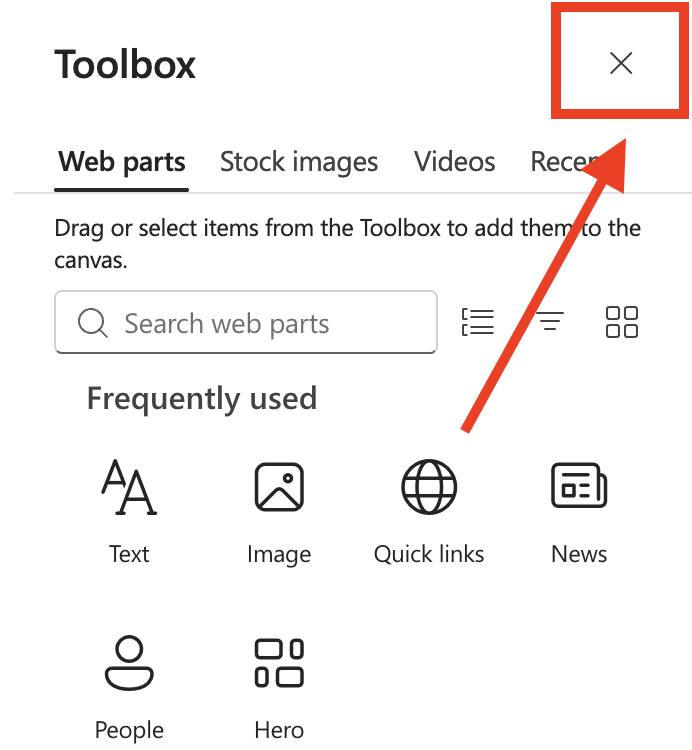
- Click the Edit Properties icon:

Step 2: Drag and Drop
- Select the Design Element you want to move, drag it to the desired location, and drop it.
- Repeat the same process for any other Design Element you want to move.
Step 3: Save
- Once you're satisfied with how your page looks, click Save:

- Publish your page:

Awesome! Rearranging your SharePoint pages' layout just got easier with drag and drop.
Ready to fine-tune your sites with Drag and Drop?
If you're already a ShortPoint Designer, simply update to ShortPoint SPFx version 9.4.0.0, and you're good to go. You can now give Drag and Drop a try on your next page design.
Not yet a ShortPoint Designer? No worries! You can get a FREE 15-day trial with us. You can also schedule a demo with our experts. They can show you everything ShortPoint has to offer.
Frequently Asked Questions
What is the drag and drop feature?
Drag and drop allows users to move elements within the SharePoint page by clicking, dragging, and releasing.
What are the prerequisites to use drag and drop?
You must be a ShortPoint Designer with ShortPoint SPFx version 9.4.0.0 or later installed. You must also use a Modern SharePoint page.
Is drag and drop available in both classic and modern SharePoint pages?
No, Drag and drop functionality is only available for ShortPoint Designers using modern SharePoint pages.
How does drag and drop benefit SharePoint users?
Drag and drop speeds up page reorganization, allows seamless live editing with immediate visual feedback, and makes rearranging elements easier, improving collaboration and reducing administrative effort.
How can I start using drag and drop with ShortPoint in SharePoint?
By updating to ShortPoint SPFx version 9.4.0.0 or later, users can drag and drop elements directly in Live Mode.
Related articles:
