 Try ShortPoint now
Ever had to go through hundreds of SharePoint sites just to find the right one you're looking for? We've all been there! Finding the right link in an already cluttered SharePoint site can be time-consuming.
Enter personalized quick links: a simple yet transformative feature that clears the digital clutter and puts your most-used resources exactly where you need them. This allows you to add links tailored to your workflow and display them on your SharePoint page.
TABLE OF CONTENTS
- Prerequisites
- What Are Personalized Quick Links?
- How to Set Up Personalized Links Using the ShortPoint Quick Links
- Why SharePoint Sites Benefit from Personalized Quick Links
- Best Practices for Setting Up Your Quick Links
- Frequently Asked Questions
- What are personalized quick links in SharePoint?
- How do I create my own personalized quick links?
- Can other users see my personalized quick links?
- Is there a limit to how many personalized links I can add?
- What happens if a link changes or becomes outdated?
- How do personalized quick links benefit SharePoint users?
Prerequisites
- You must have the latest version of ShortPoint SPFx installed.
- You must be a ShortPoint Designer with an active license.
What Are Personalized Quick Links?
Personalized quick links are a dynamic navigation feature that allows individual users to curate, organize, and access their own specific set of individual links within your SharePoint site.
Unlike global navigation bars (which look identical for everyone), personalized quick links adapt to you. Whether you need daily access to a specific tracking spreadsheet, an external vendor portal, or your Microsoft Teams channel, these personalized links act as your digital dashboard's custom speed-dial.
And the best part? You can configure your very own personalized quick links using ShortPoint. Here's an example of what you can expect. See how the Quick Links changed when we switched accounts? Your team will surely find this setup extremely helpful.
In the next section, we'll show you how to accomplish this intuitive connection yourself.
How to Set Up Personalized Links Using the ShortPoint Quick Links
For clarity, the steps have been divided into four parts. Follow the steps closely to get your personalized quick links up and running in no time.
Part 1: Create a Personal Quick Links SharePoint List
This section will show you how to create a dedicated SharePoint List for all the personalized quick link URLs. This SharePoint List is where your team will add and organize their quick links.
Step 1: Create the SharePoint List
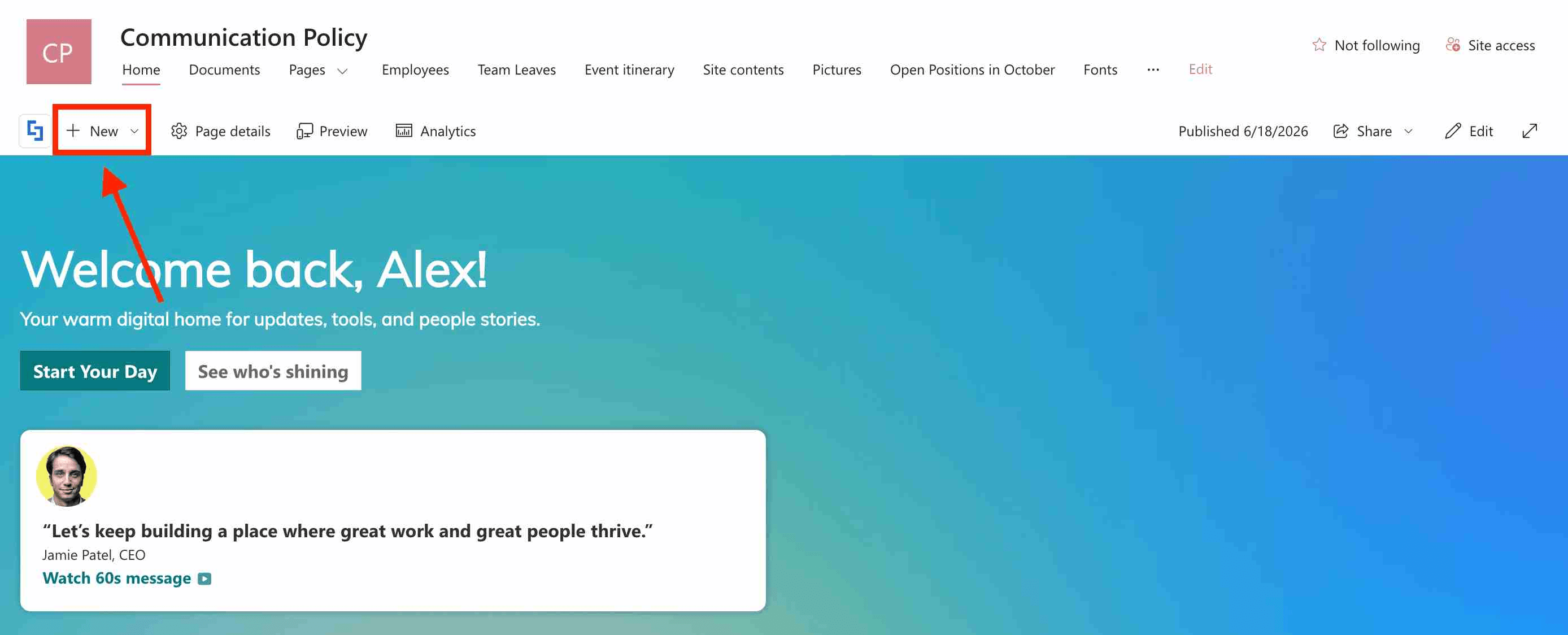
Go to the SharePoint site where you want to have the Quick Links and click New:
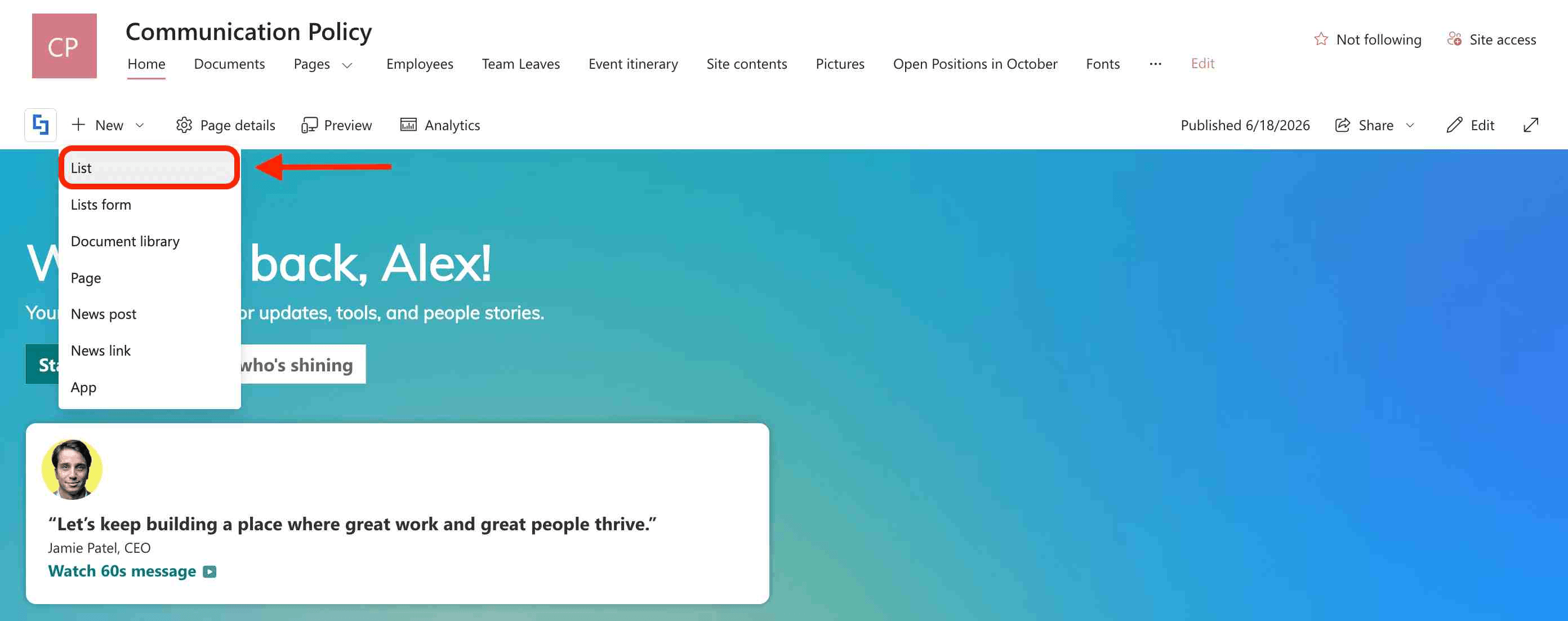
Select List from the dropdown:
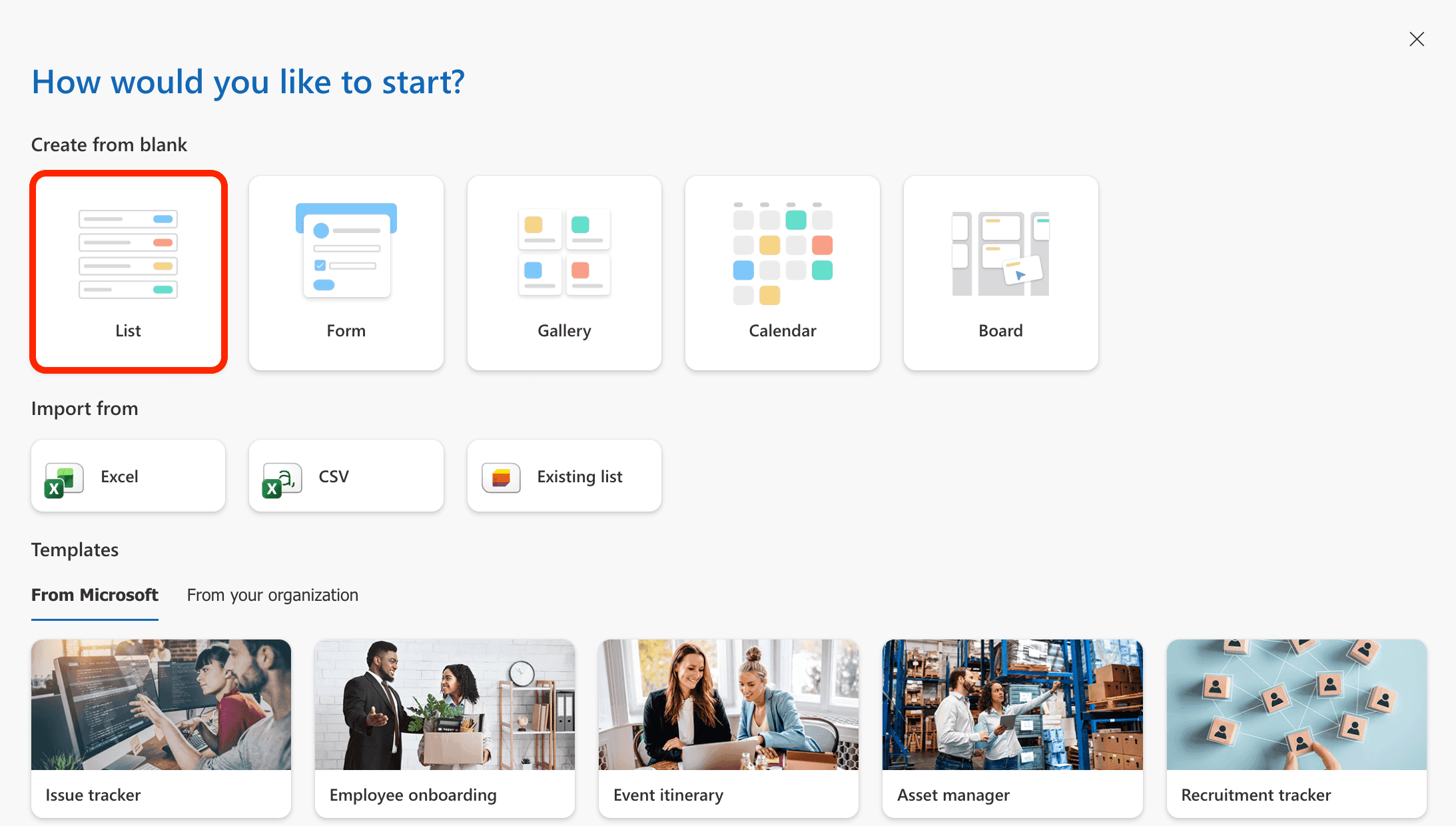
Click List from the choices:
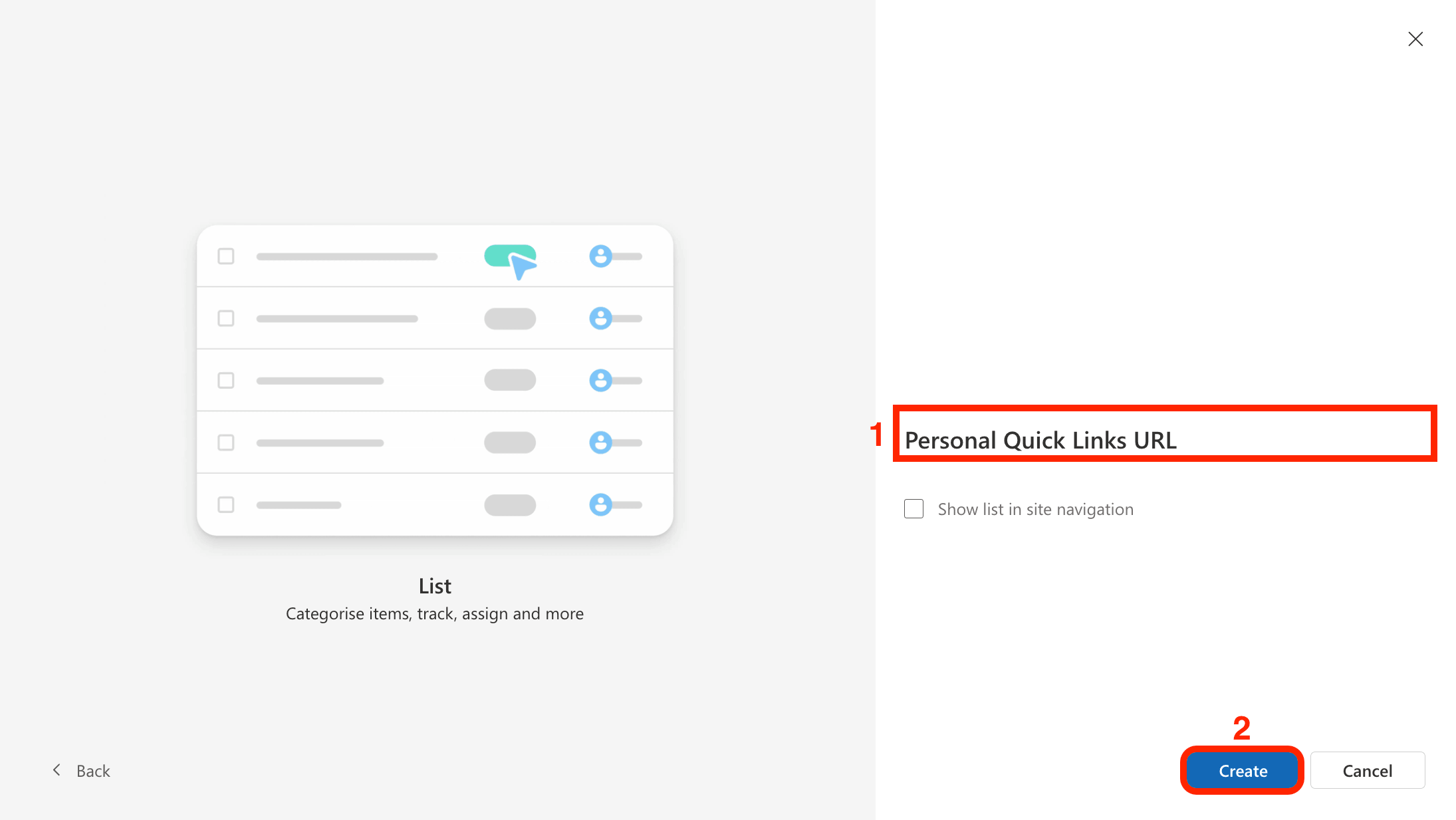
[1]Name your SharePoint List and click [2] Create:
Step 2: Add the Necessary Columns
To make sure your personalized Quick Links display perfectly and take you to the right place, you'll just need to set up three simple columns: Title, Link URL, and Created by.
The Title column is where you'll type the friendly name you want to see on your page, the Link URL column will hold the actual web address, and the Created by column will have the name of the user who added the link. Together, they make finding your favorite resources a breeze!
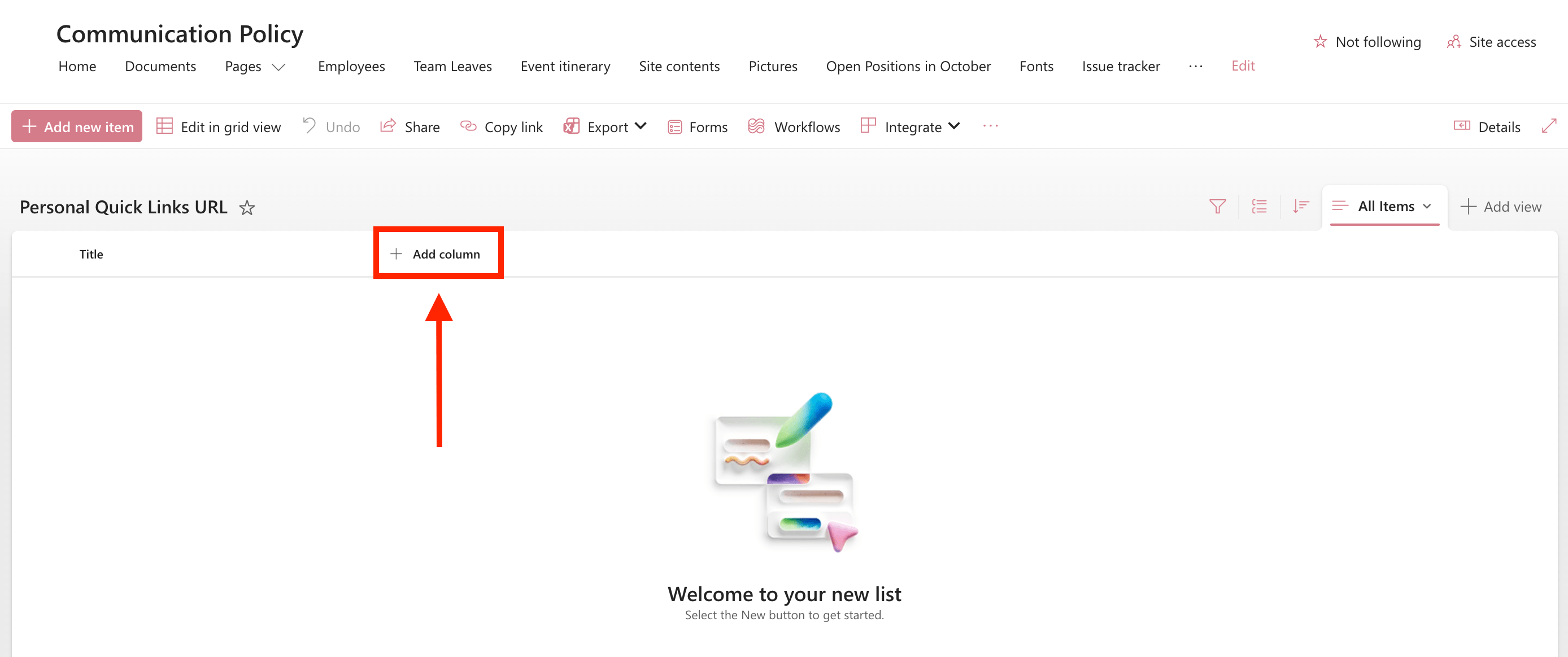
Since we already have the Title column, we can leave it as is. To add the Link URL column, click Add column:
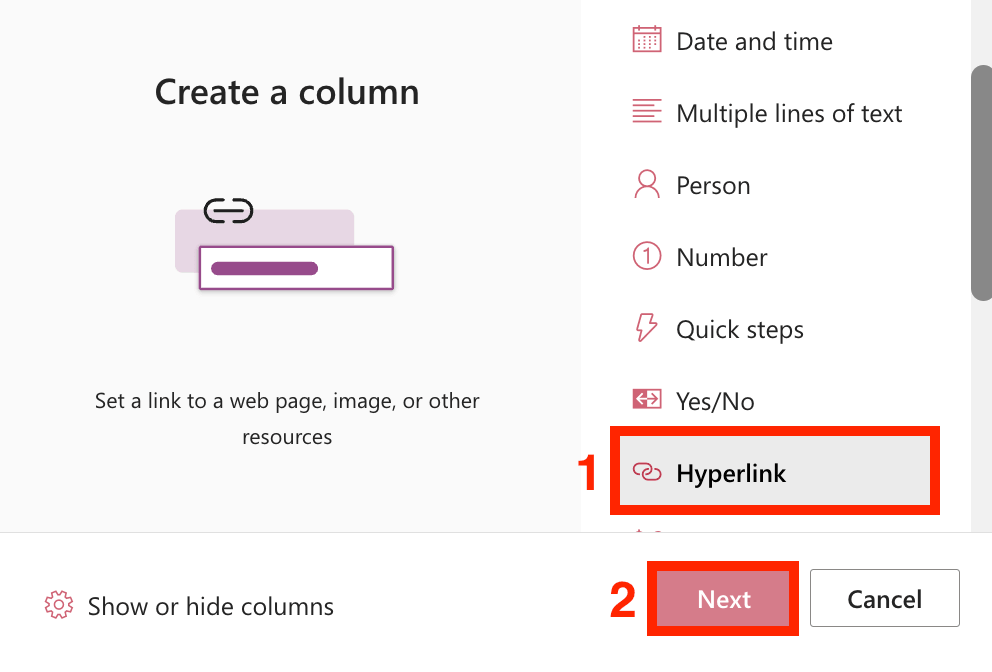
Then choose [1] Hyperlink and click [2] Next:
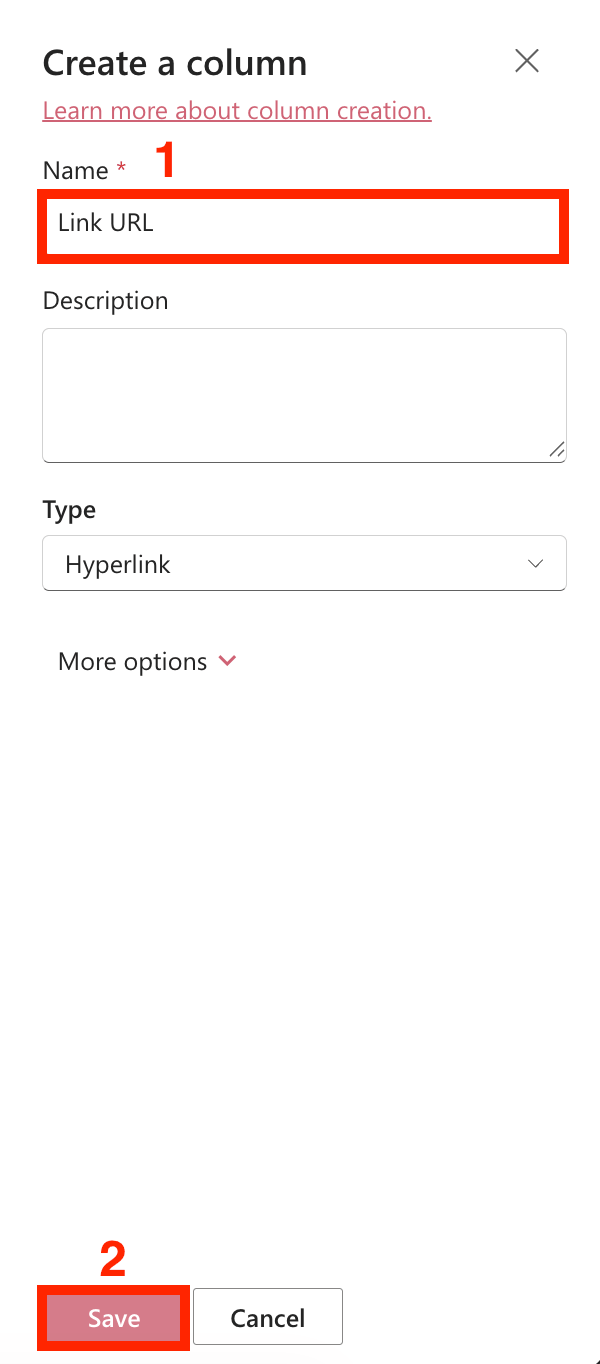
[1] Name the column ‘Link URL’ and click [2] Save:
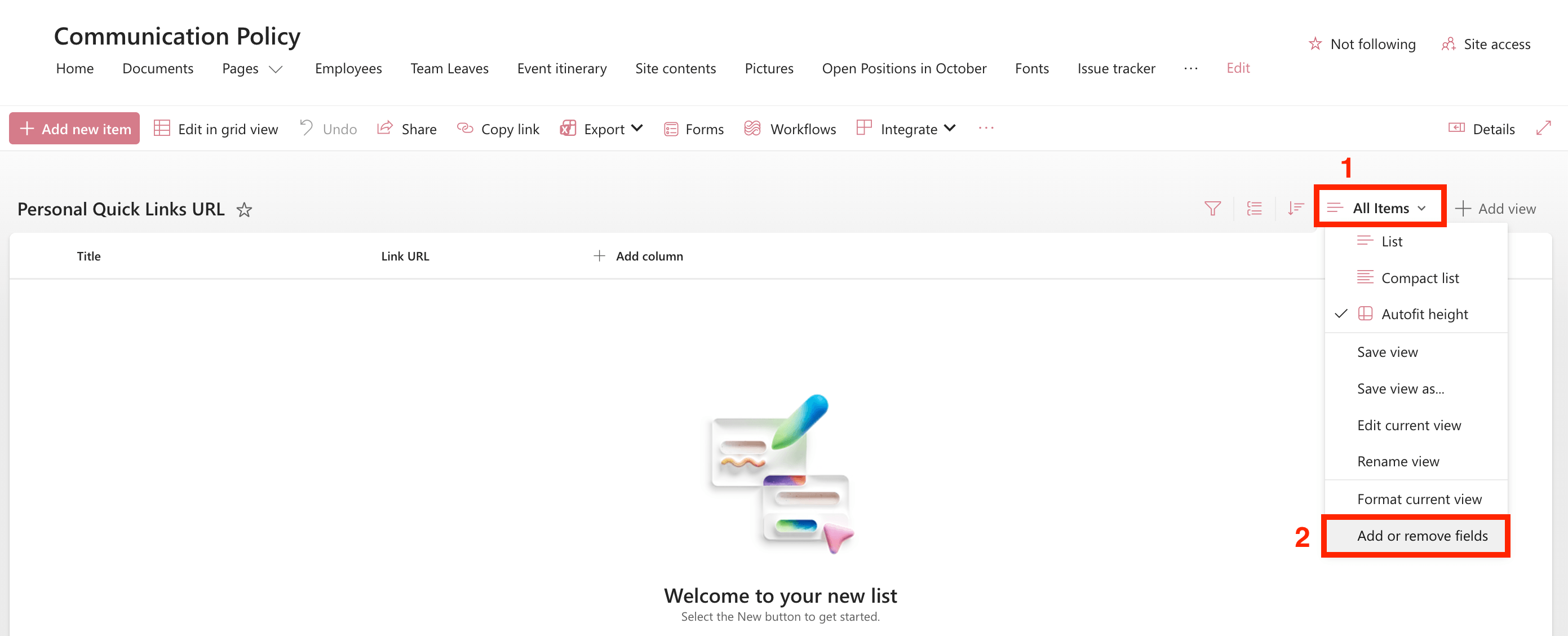
The Created by field is already an existing field. You just need to unhide it. To do that, click [1] All Items and choose [2] Add or remove fields:
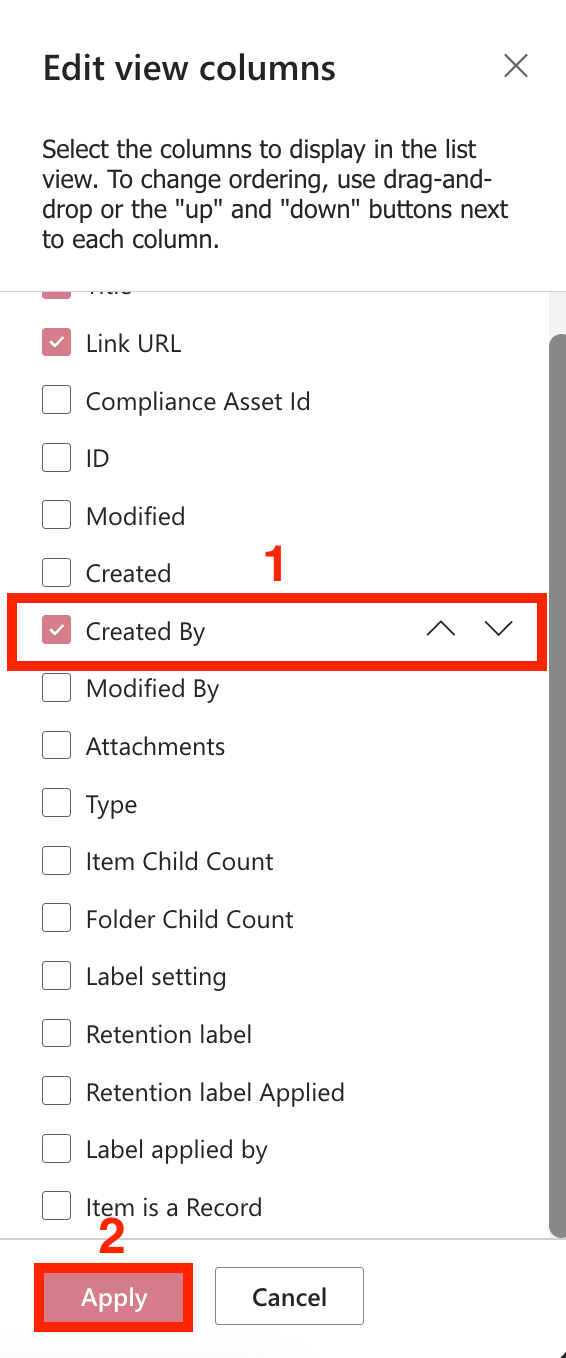
Look for [1] Created by and select it. Then, click [2] Apply:
Step 3: Fill in the columns
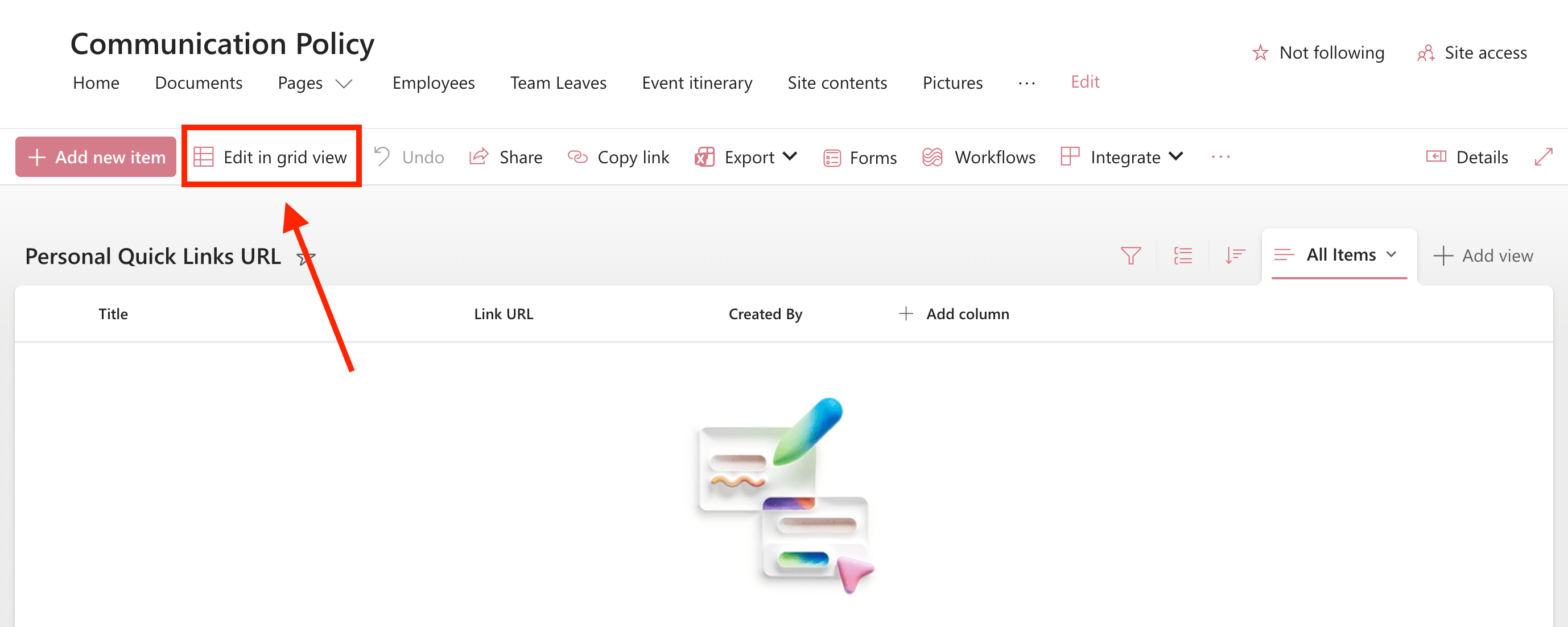
Click Edit in grid view:
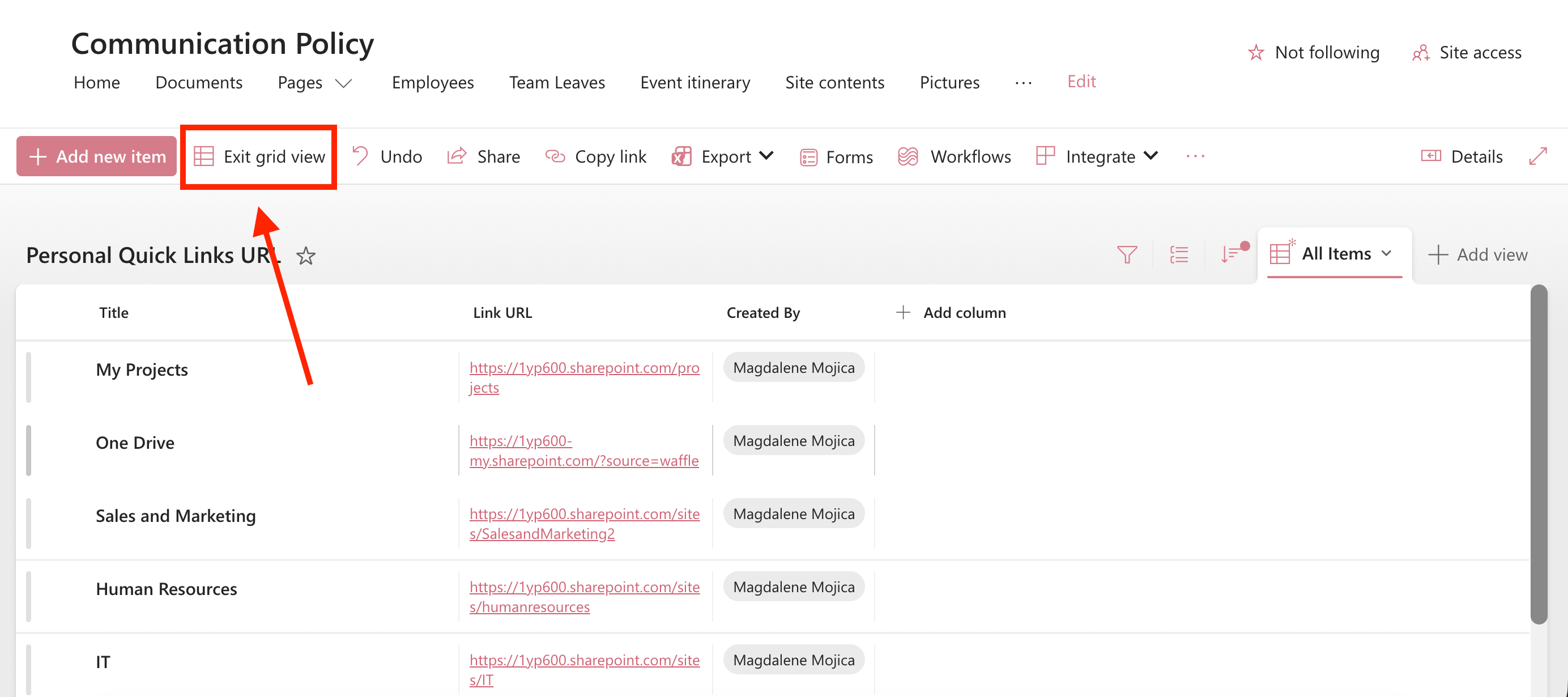
Add in the quick links you want to display:

Once done, click Exit grid view:
That’s it! You now have your SharePoint List. You can proceed to the next part, where you’ll learn how to modify how the list can be accessed by the rest of your team.
Part 2: Edit SharePoint List Access
To keep everyone’s workspace tidy and private, you need to adjust the SharePoint List’s settings so team members only see their own personalized quick links. In this section, we’ll walk you through how to modify the read access permissions to ensure everyone enjoys a completely custom experience.
Step 1: Open Advanced List Settings
Click the cogwheel icon:

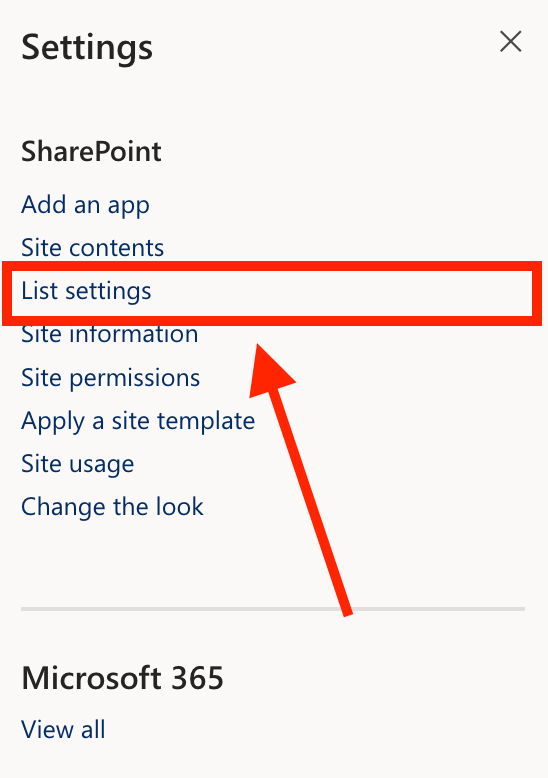
Select List settings:
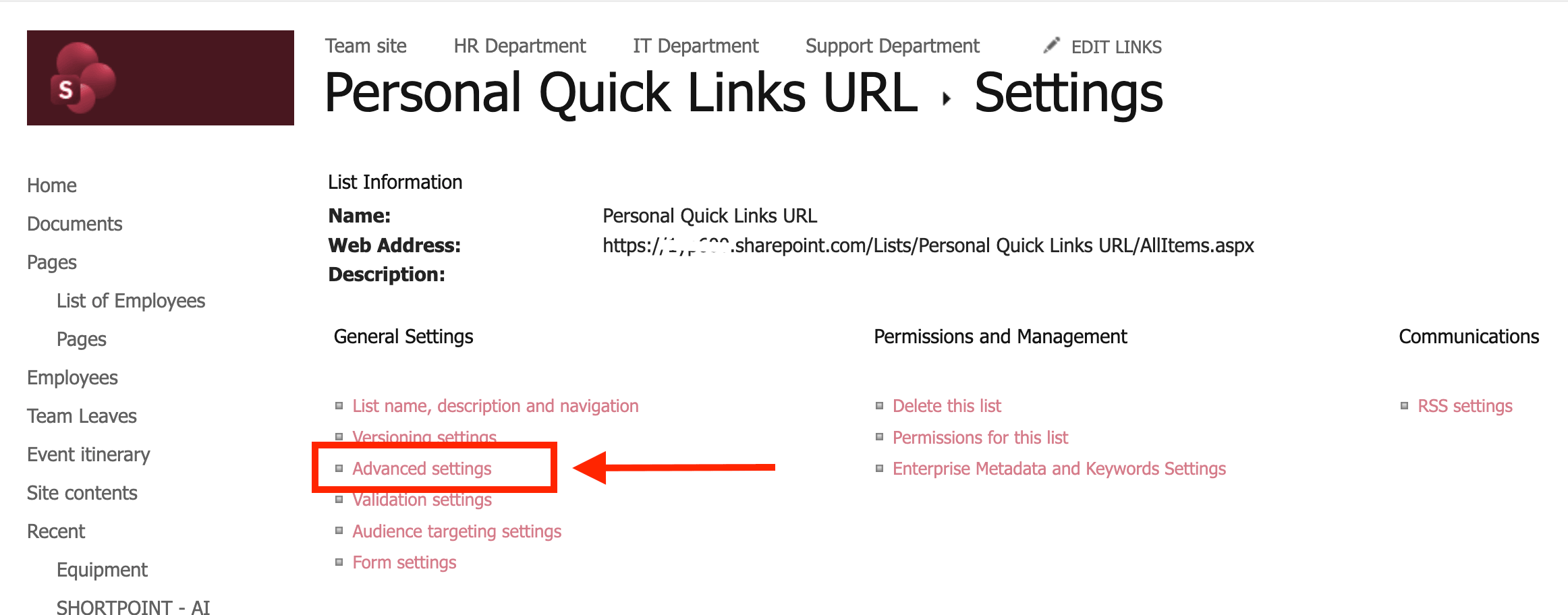
Open Advanced settings:
Step 2: Modify Read Access
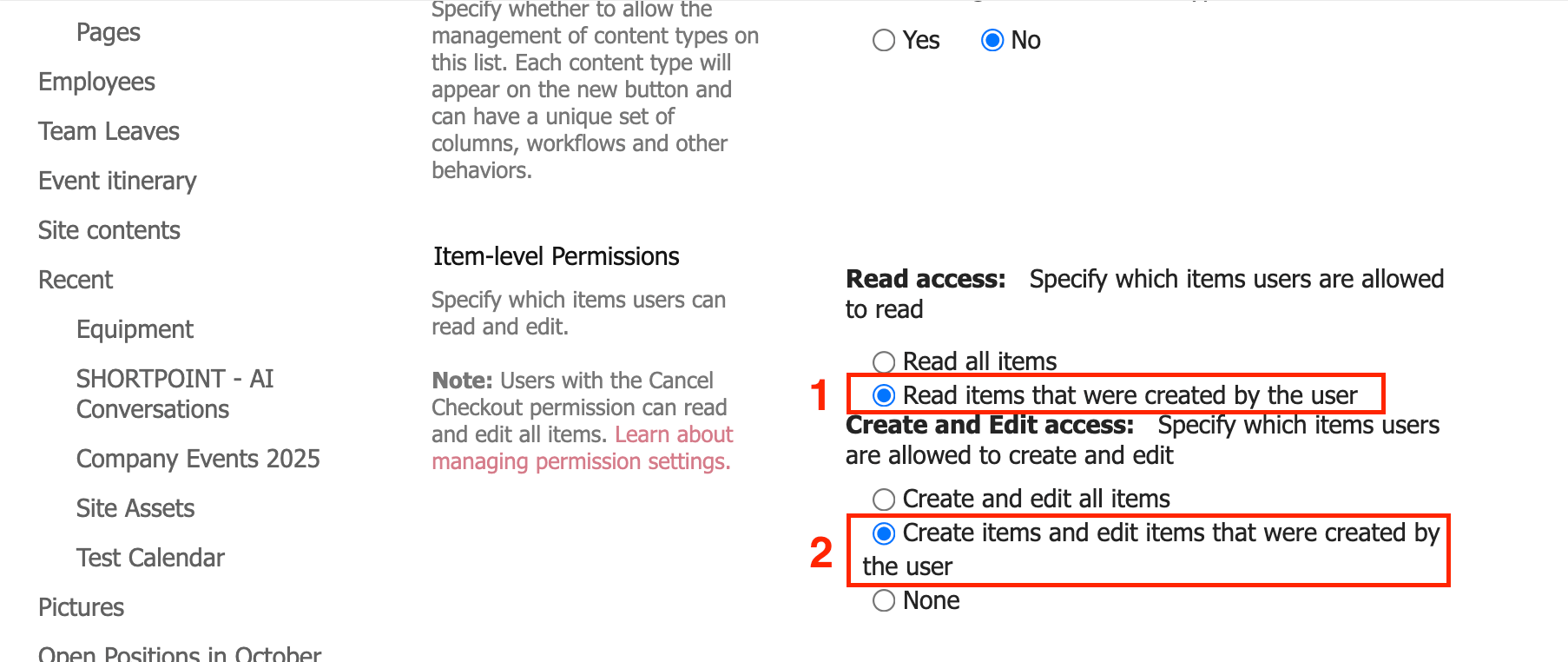
Change the Read and edit access to the following:
- Read items that were created by user - you will only be able to read the quick links you add
- Create items and edit items that were created by the user - you will only be able to edit items created by you.
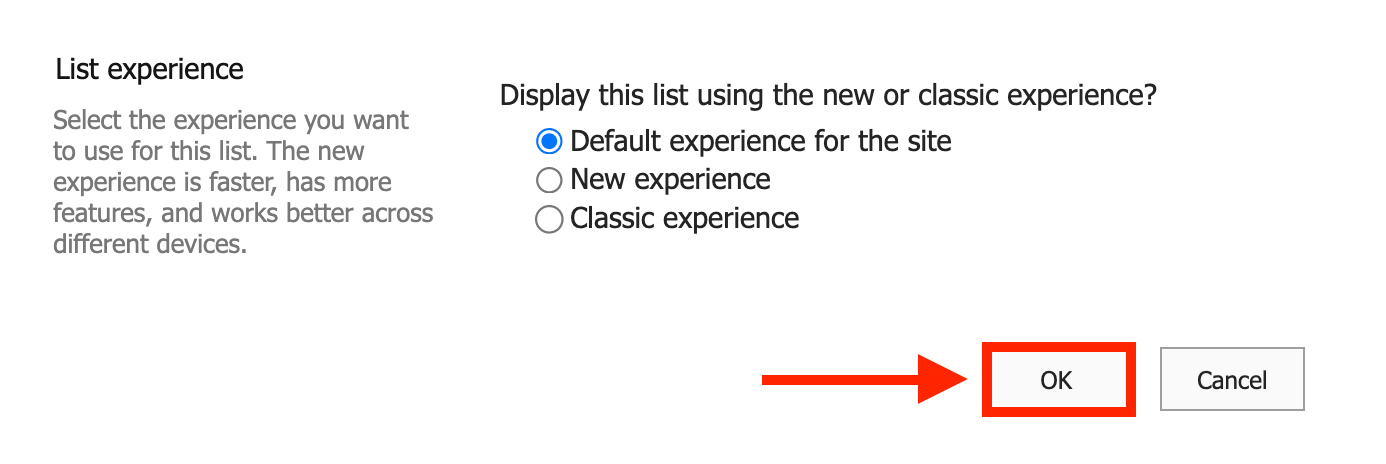
Then, click OK:
Step 3: Copy the SharePoint List URL
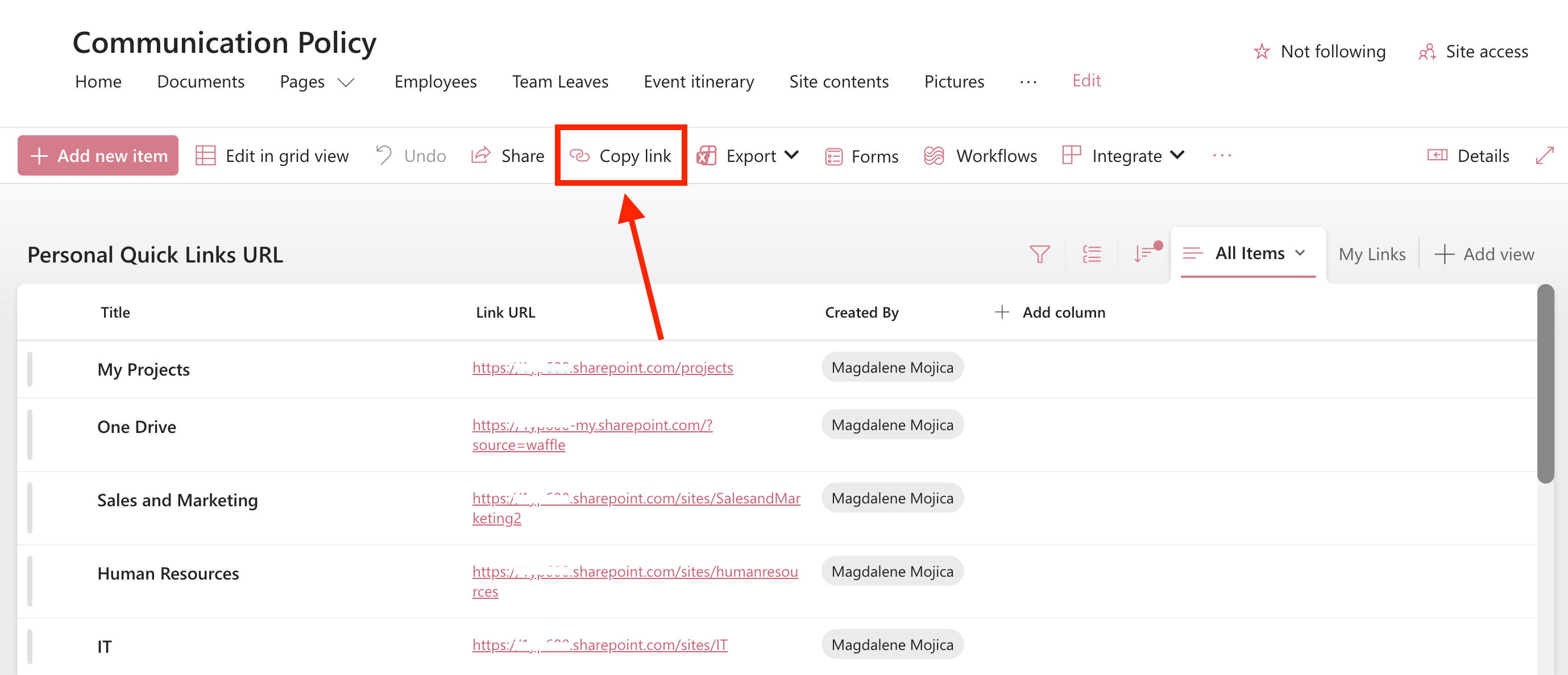
Now, you can share the SharePoint List with other people in your team. You’ll also need this link to accomplish a step in Part 4.
To do that, click Copy Link:
Great work! You’ve successfully modified the read access of the SharePoint List. You can now proceed to Part 3.
Part 3: Create a My Links View
To seamlessly display just the links that belong to each team member, you need to create a "My Links" View. This handy view automatically filters the list so that whenever a teammate visits, they’ll only see the personal quick links they've added. Let's look at how to get that set up!
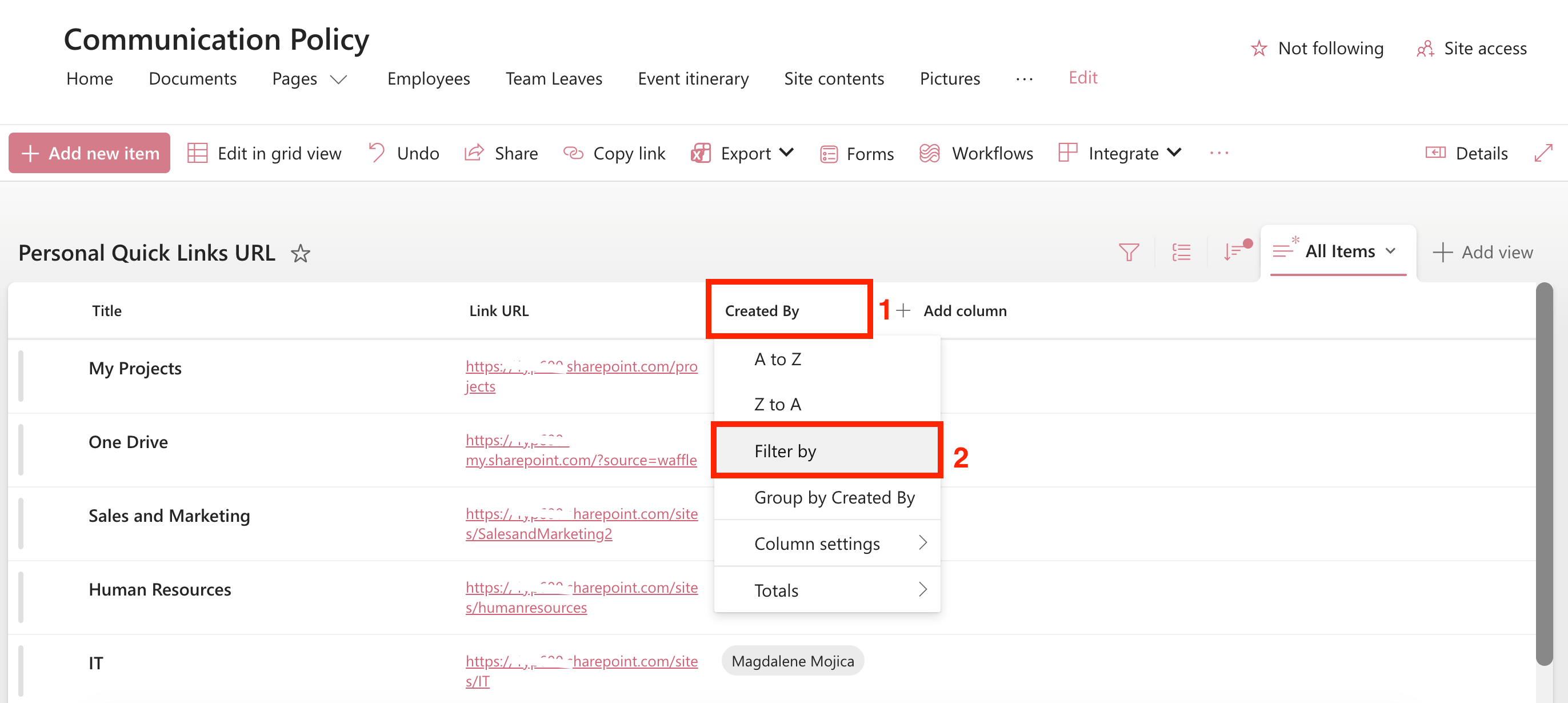
Step 1: Filter List
Select the [1] Created by column and choose [2] Filter by:
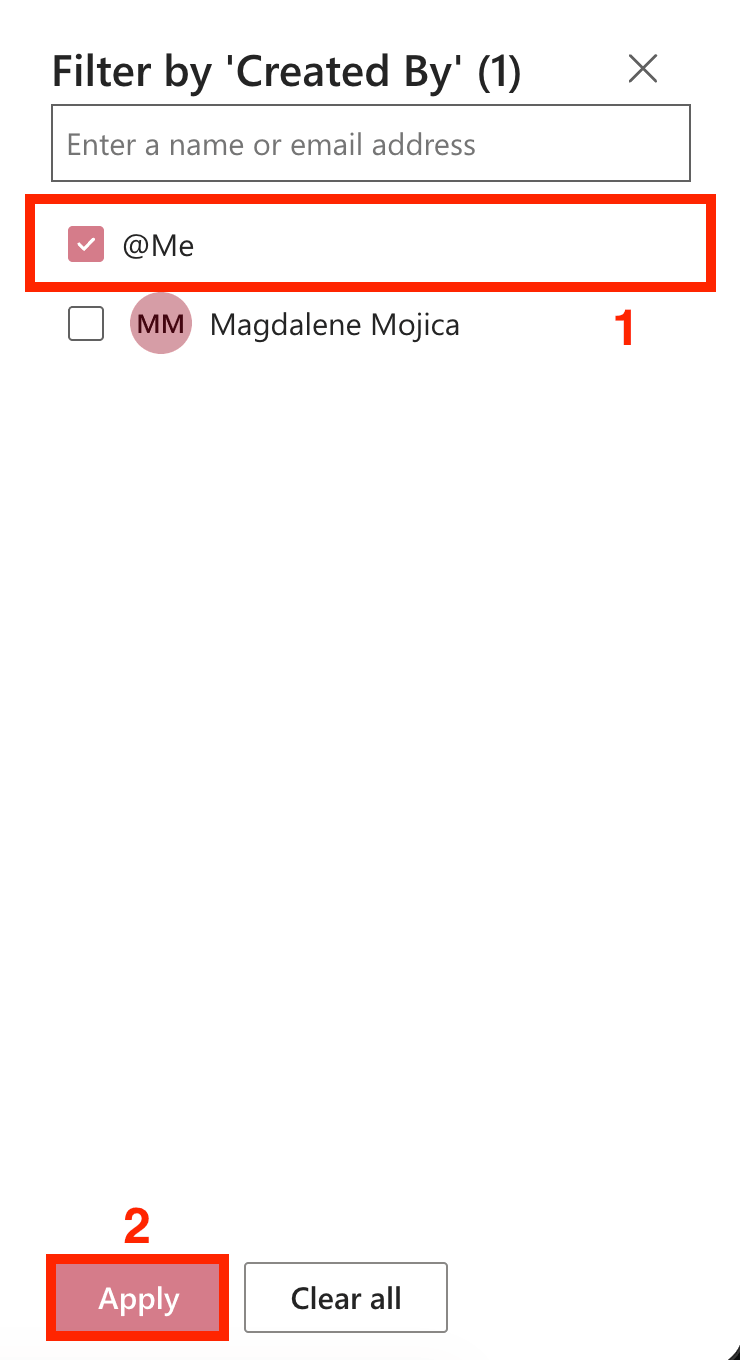
Click [1] @Me and select [2] Apply:
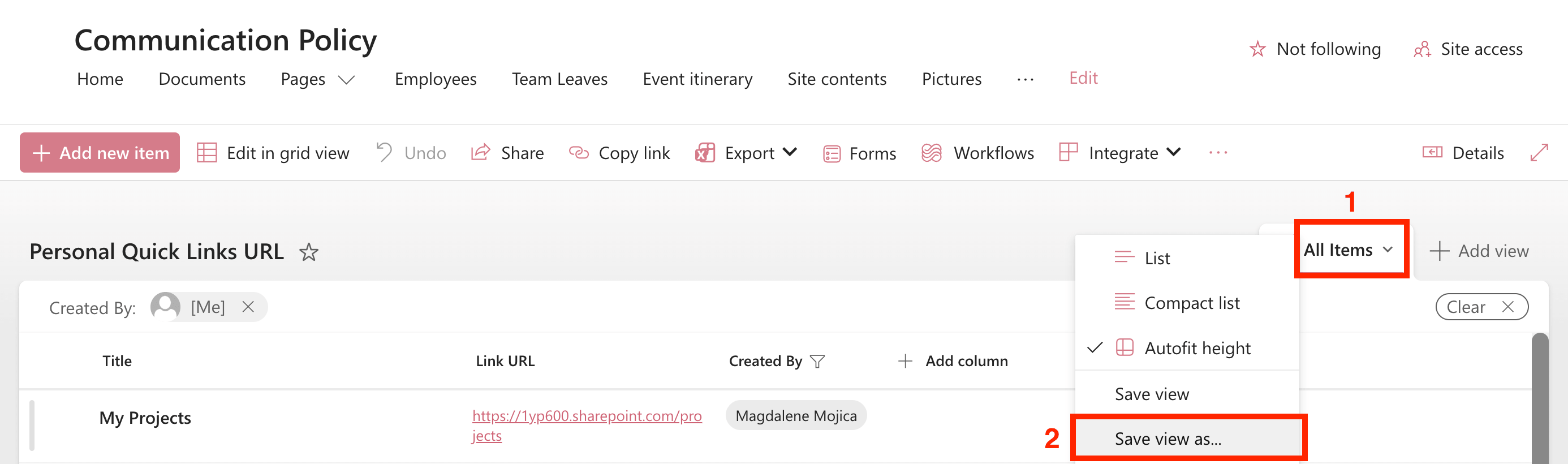
Step 2: Create the View
Click [1] All Items view and choose [2] Save view as:
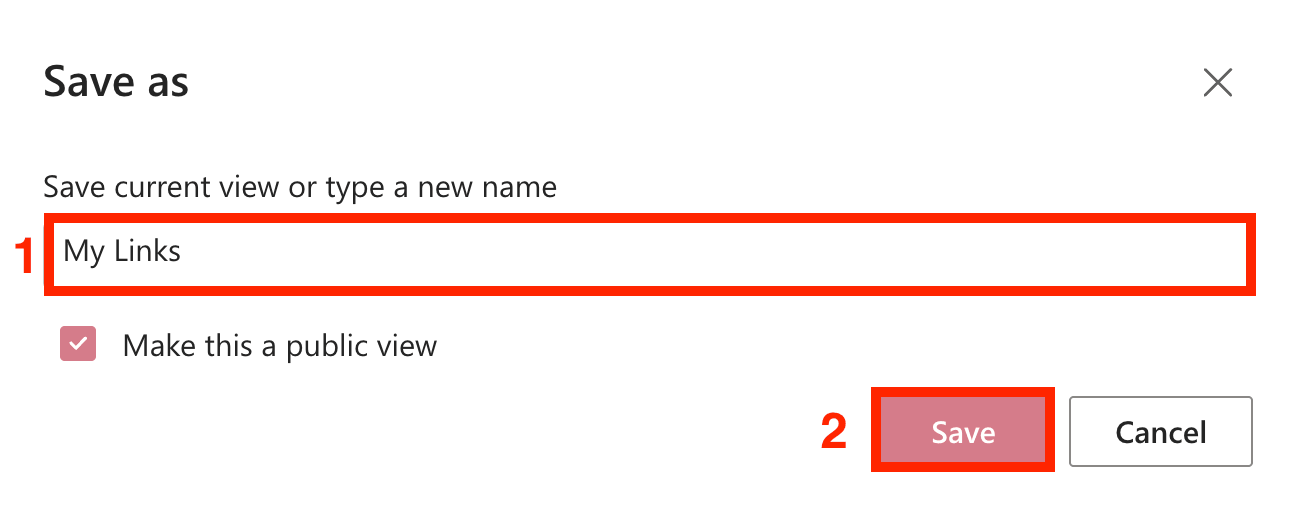
Name the view as [1] ‘My Links’ and click [2] Save:
Awesome! You now have a My Links view. You can now connect this view to the Quick Links Design Element.
Part 4: Connect the My Links View to the Quick Links Design Element
It’s time to bring it all together! In this section, we’ll walk you through how to seamlessly connect the personalized links from your SharePoint List straight into your ShortPoint Quick Links Design Element. Let’s get started!
Step 1: Edit the ShortPoint Web Part
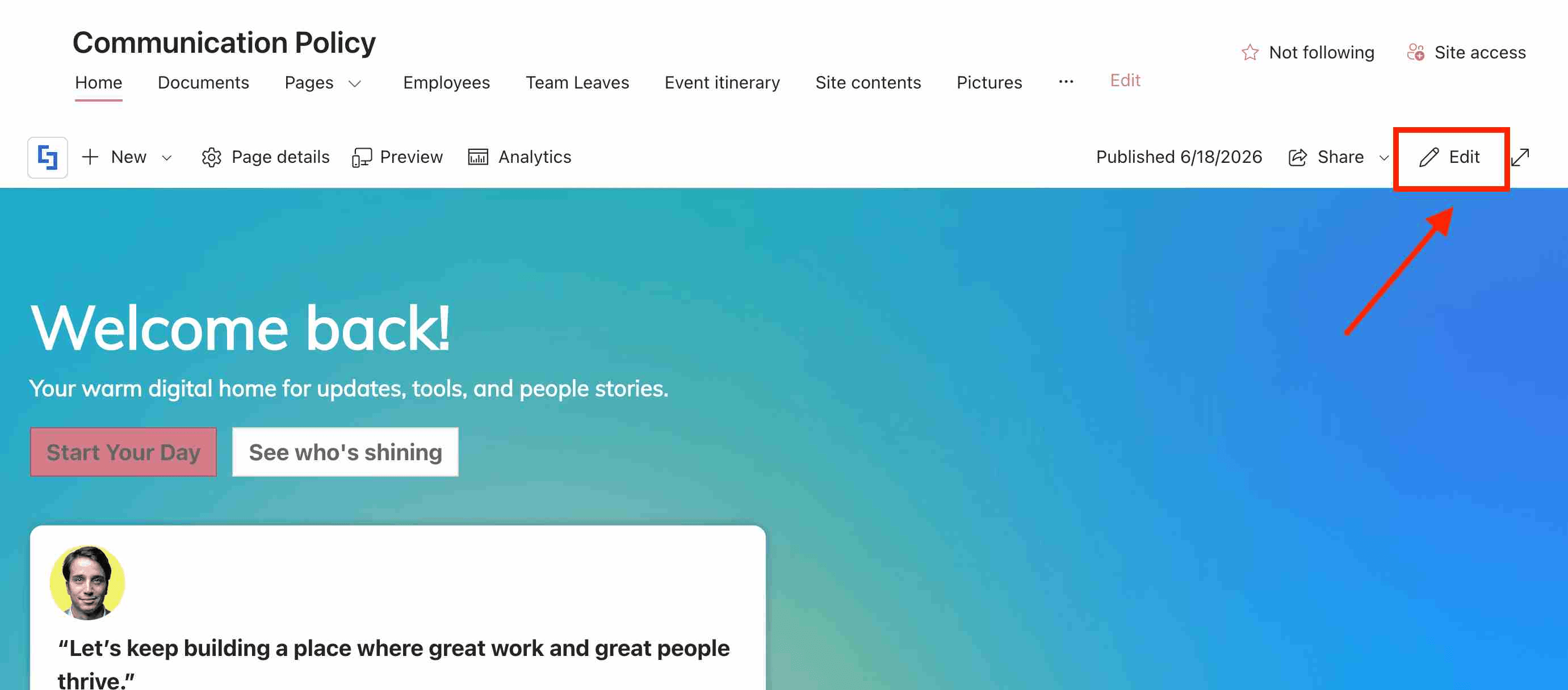
Go to the SharePoint page and click Edit:
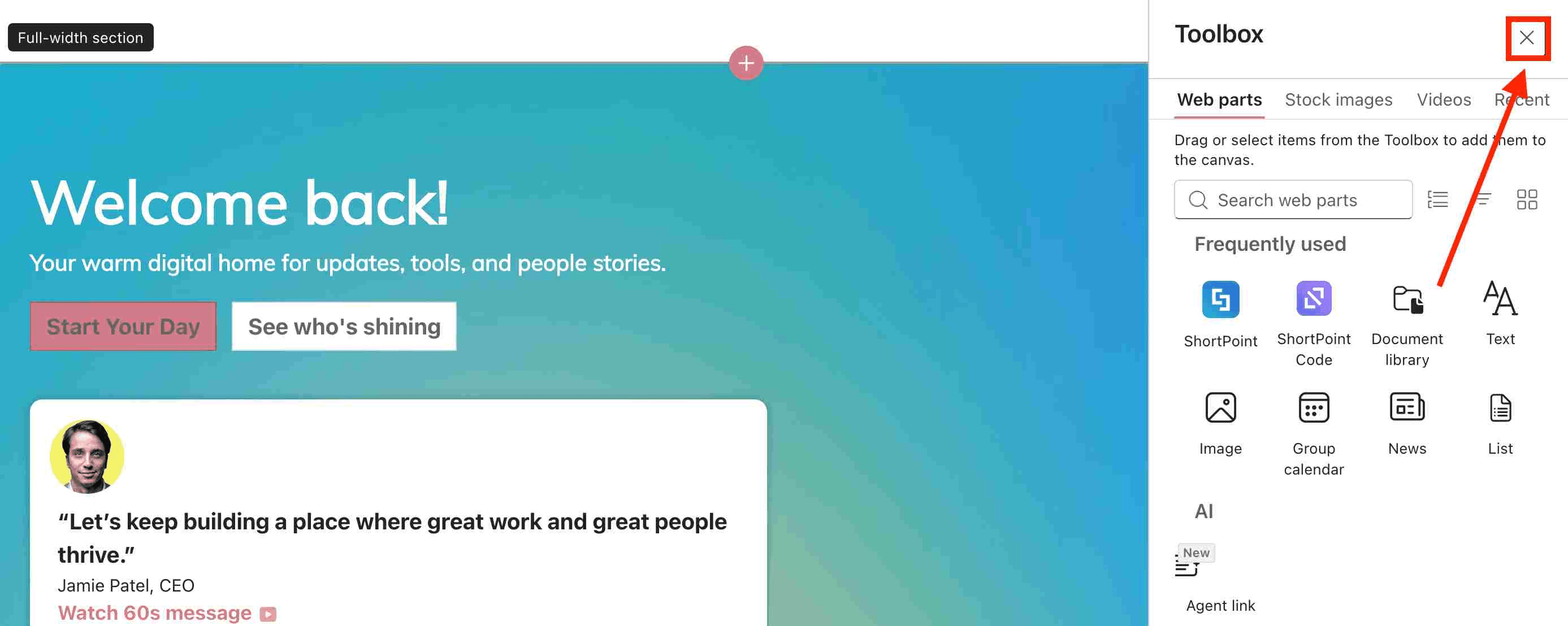
Close the Toolbox:
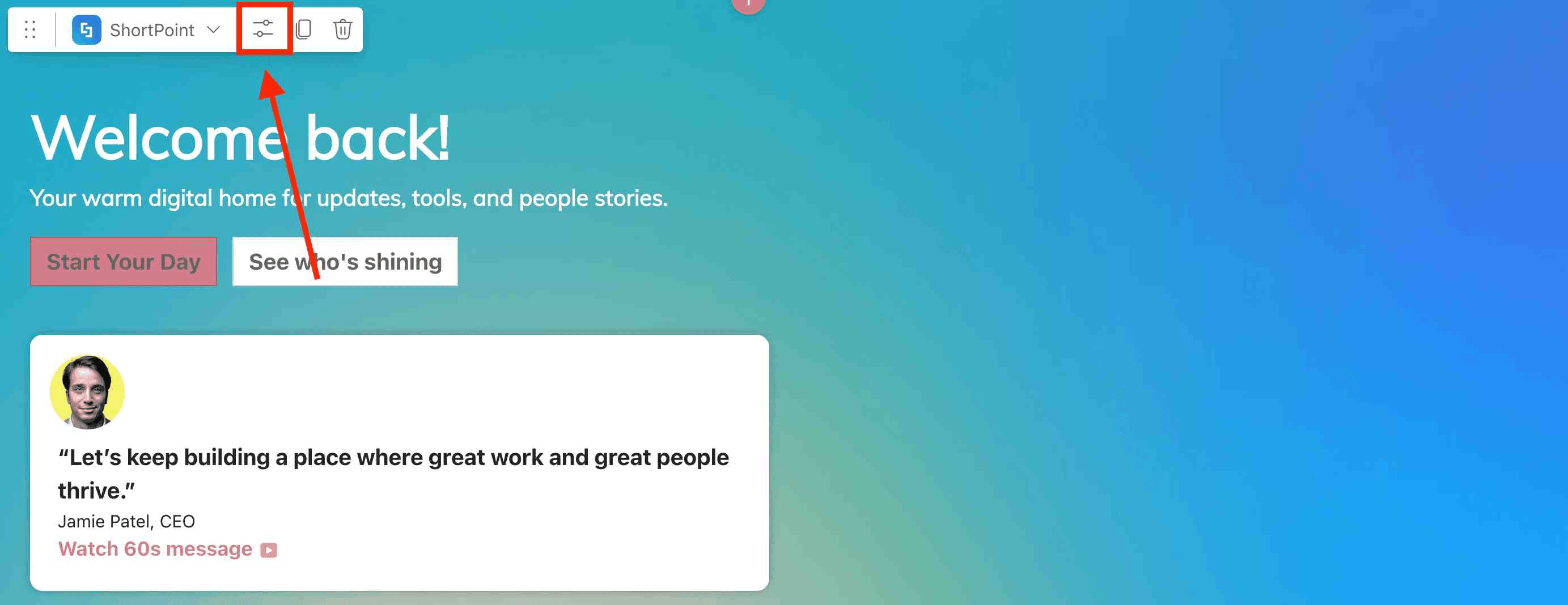
Edit the ShortPoint web part:
Step 2: Copy the Quick Links code
To help you set up the Quick links section quickly, we’ve prepared a template for you. Copy the code below:
[section padding-top="0px" padding-bottom="8px" margin-top="0px" margin-bottom="26px" applyBackground="true" image-horizontal-position="" image-vertical-position="" image=""][section-item applyBackground="true"][row padding-top="25px" padding-bottom="25px" margin-top="0px" margin-bottom="10px" applyBackground="true"][column 4/][column 4 applyBackground="true"/][column 4 applyBackground="true" image-horizontal-position="" image-vertical-position="" padding-top="38px" padding-left="313px" padding-bottom="0px"][button title="Edit%20Links" xsmall border-radius="18px"/][/column][/row][row padding-top="0px" padding-bottom="0px" margin-top="0px" margin-bottom="0px" applyBackground="true" image-horizontal-position="" image-vertical-position=""][column 12 padding-bottom="0px" padding-top="0px"][quick-links apply-random-colors="true" color-mode="light" quick-links-responsive="true" color="primary" styles="large-circle-icon" size="x1"][quick-link icon="flo-link-multiple" title="Projects"/][quick-link icon="flo-link-multiple" title="HelpDesk"/][quick-link title="Directory" icon="flo-link-multiple"/][quick-link title="Drive" icon="flo-link-multiple"/][quick-link title="Expenses" icon="flo-link-multiple"/][quick-link title="CRM" icon="flf-link-multiple"/][quick-link title="NEWS" icon="flf-link-multiple"/][/quick-links][/column][/row][/section-item][/section]
Step 3: Paste the code
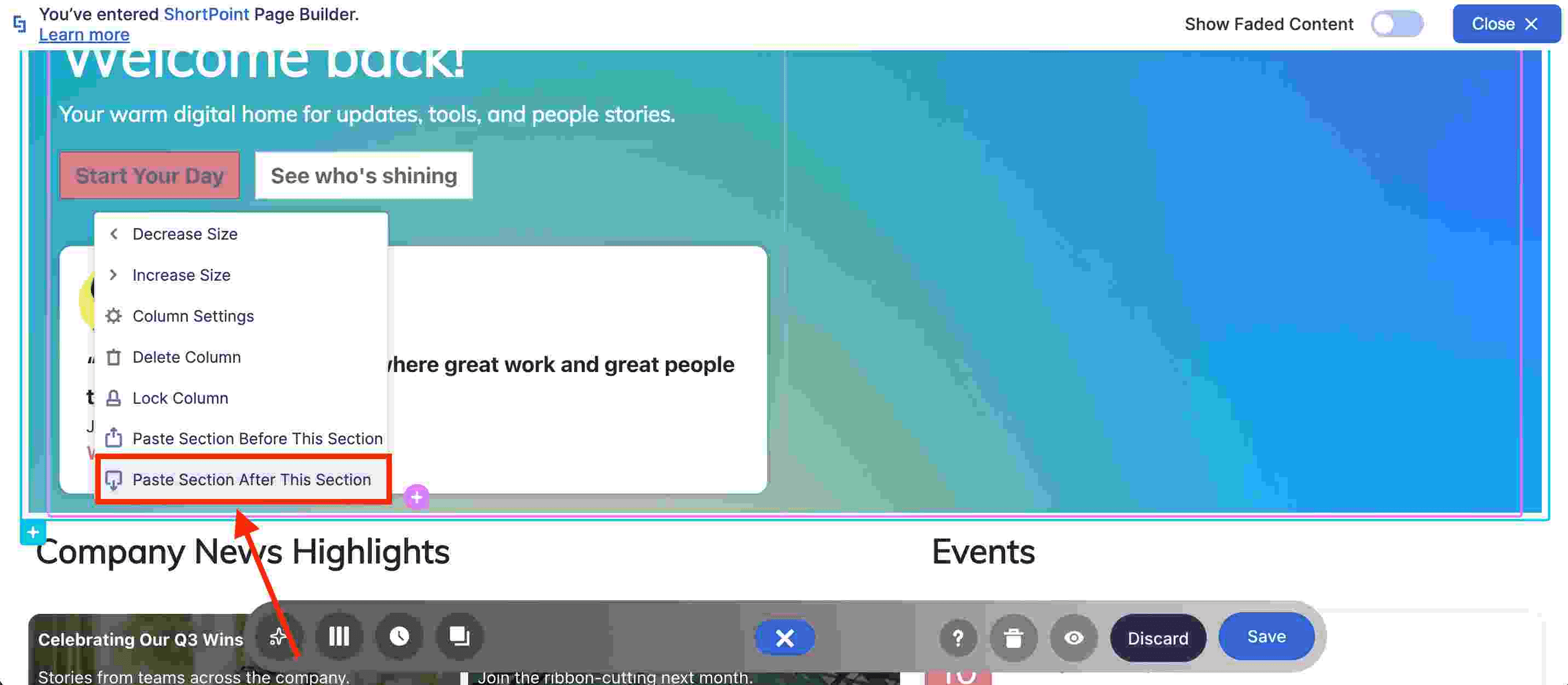
Right-click anywhere on your SharePoint page and click Paste:
Step 4: Edit the Quick Links Design Element
Click the EasyPass tag of the Quick Links Design Element:
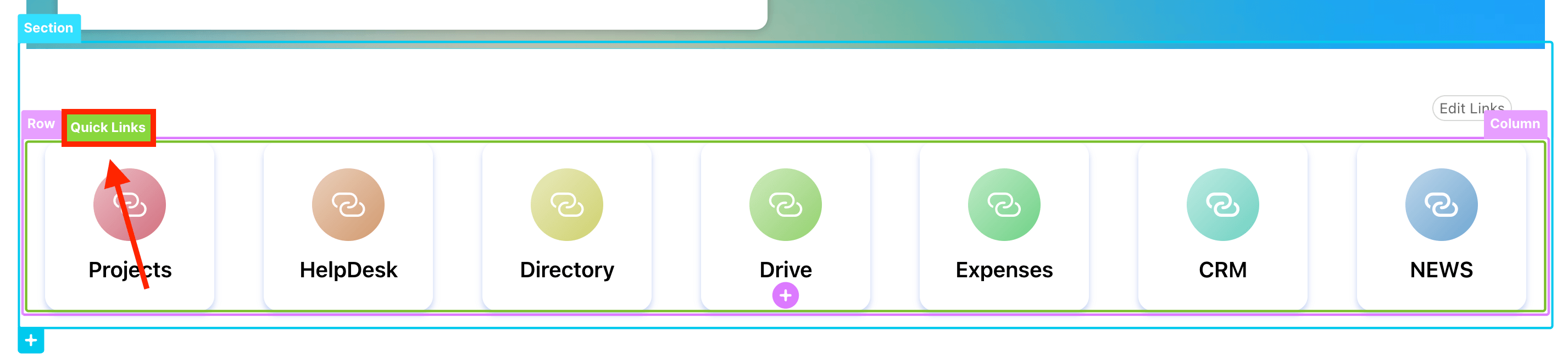
Select the cogwheel icon:

Step 5: Connect
Go to the Connect tab:
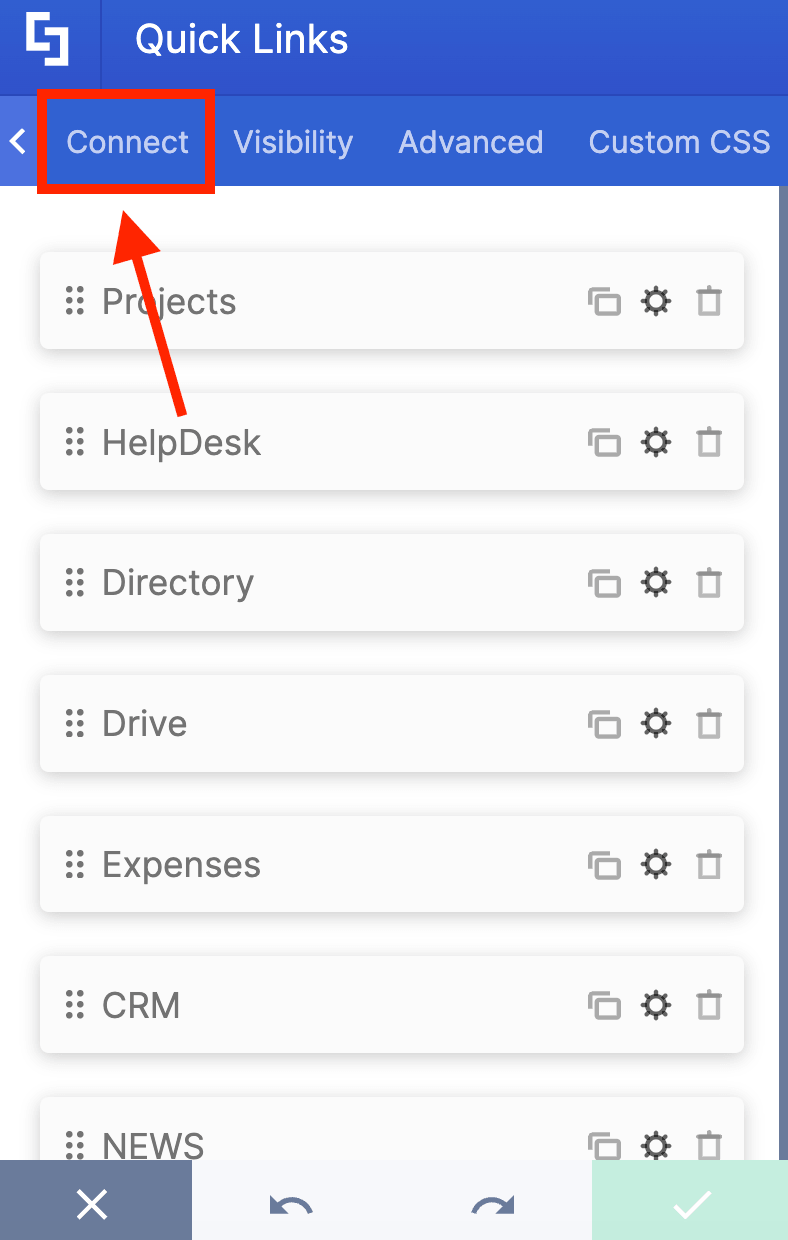
Click Configure:
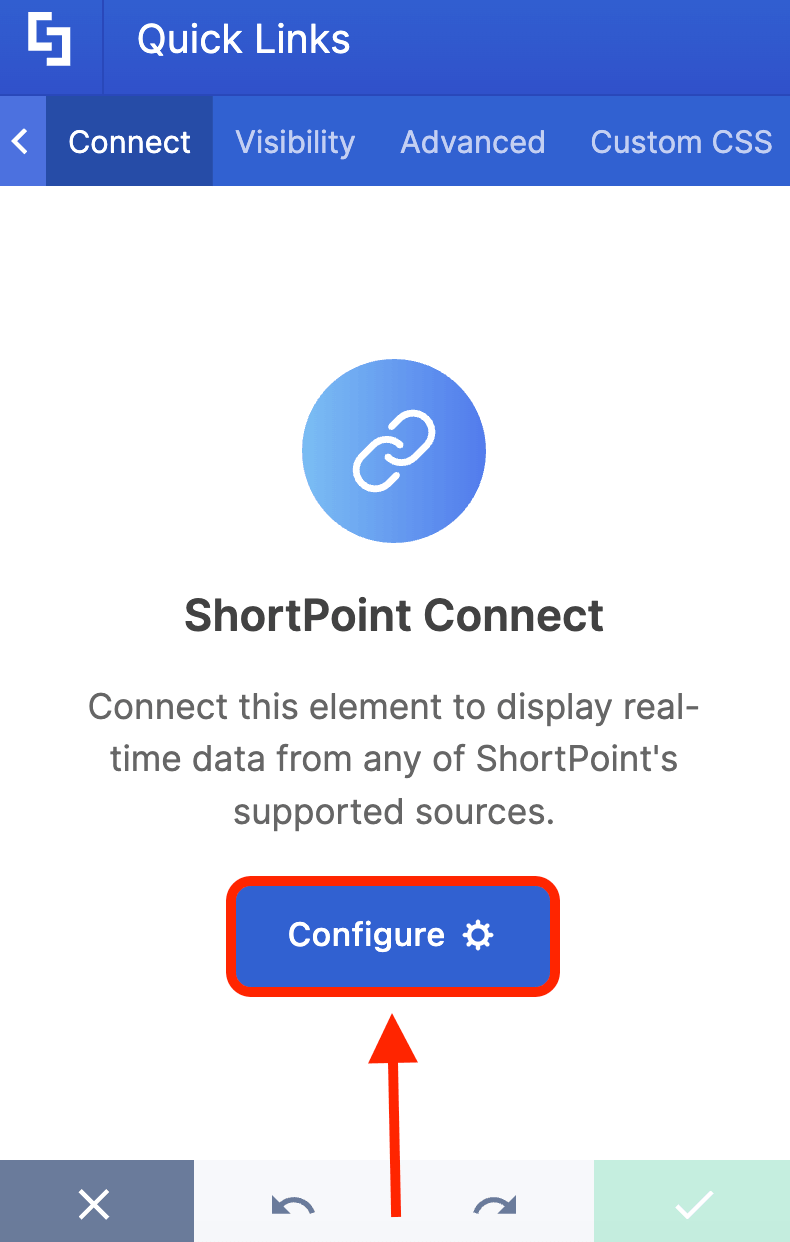
Choose the Current Site connection:
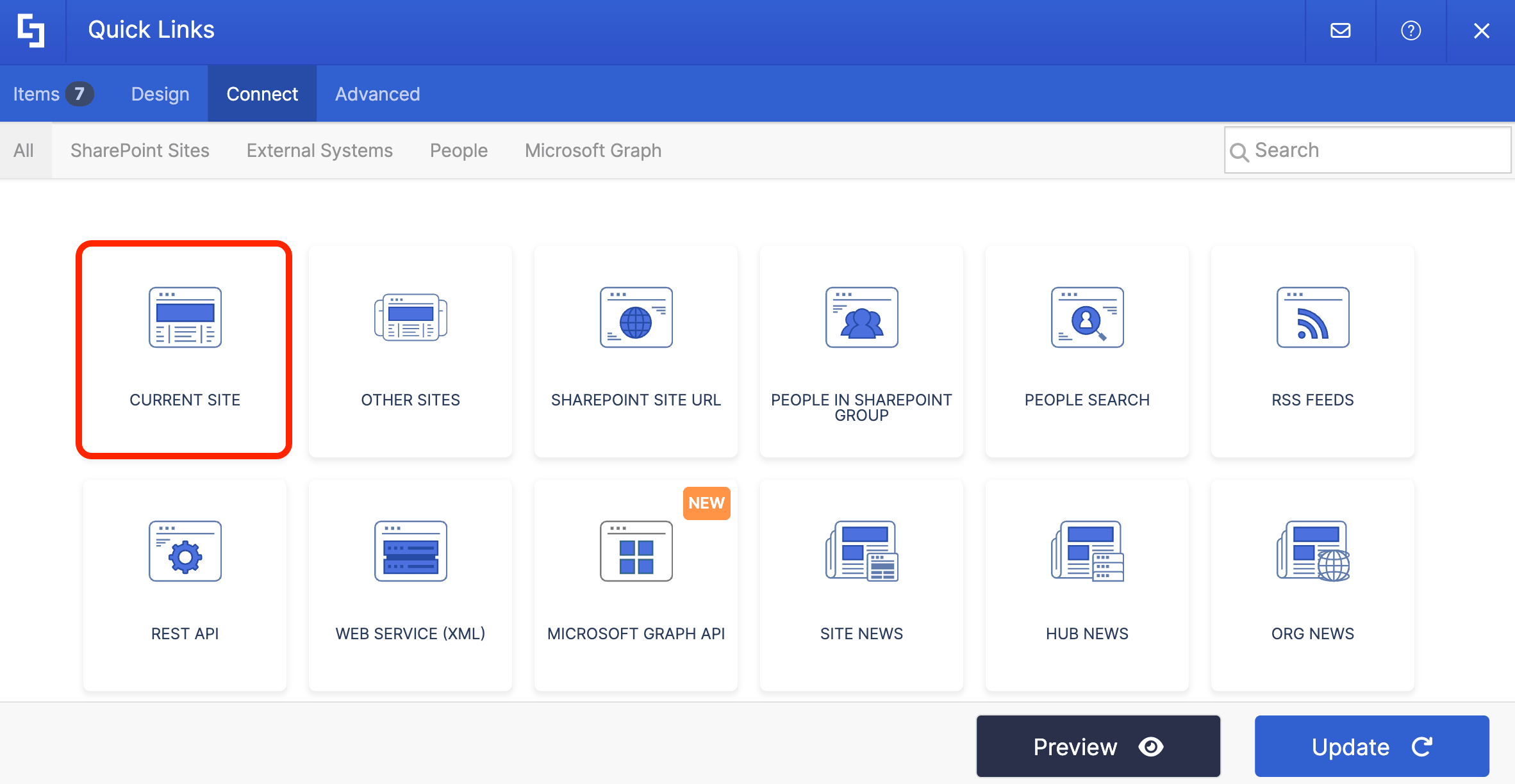
Under List / Library, look for the [1] name of your SharePoint List. Under View, look for the [2] My Links view you created in Part 3.
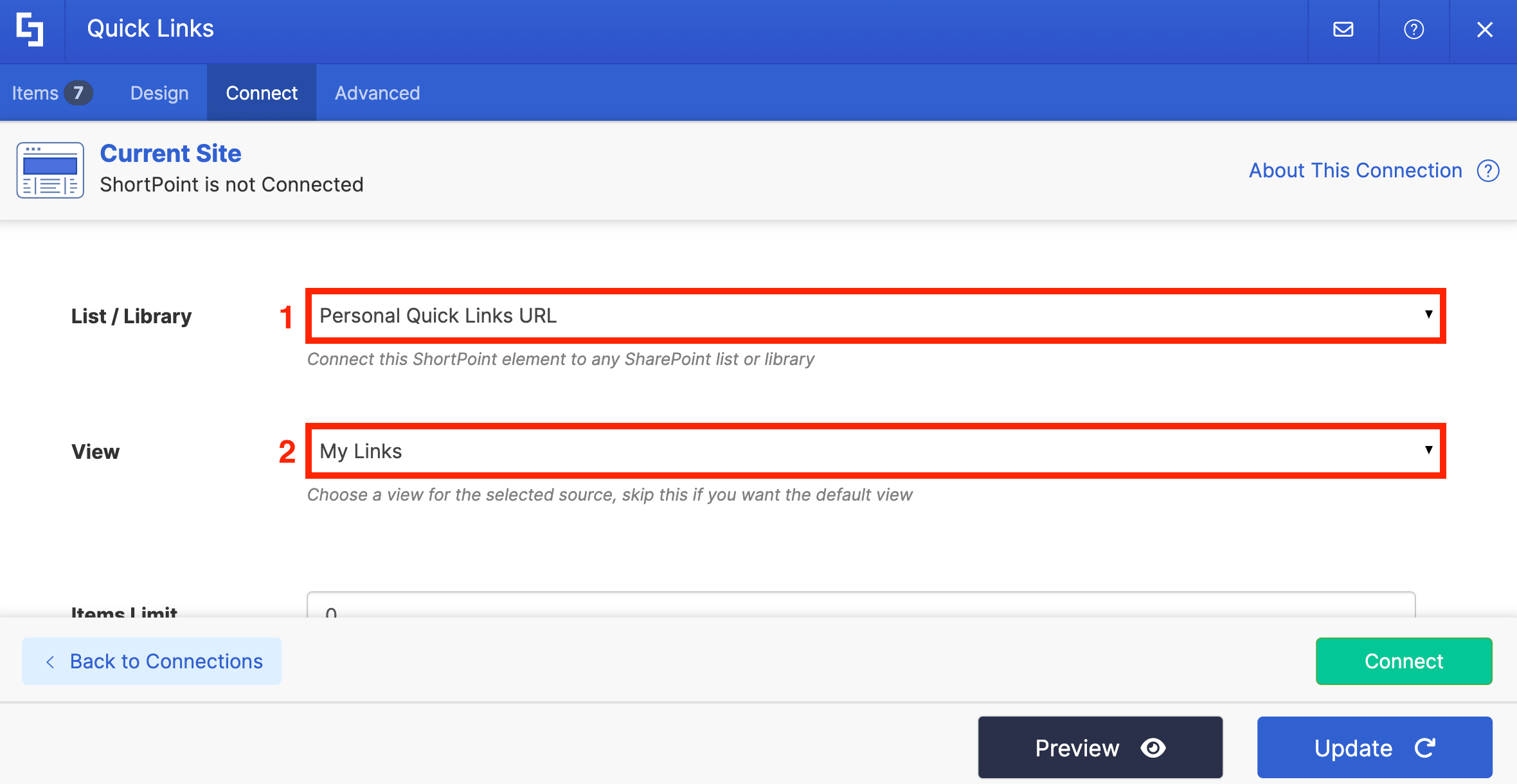
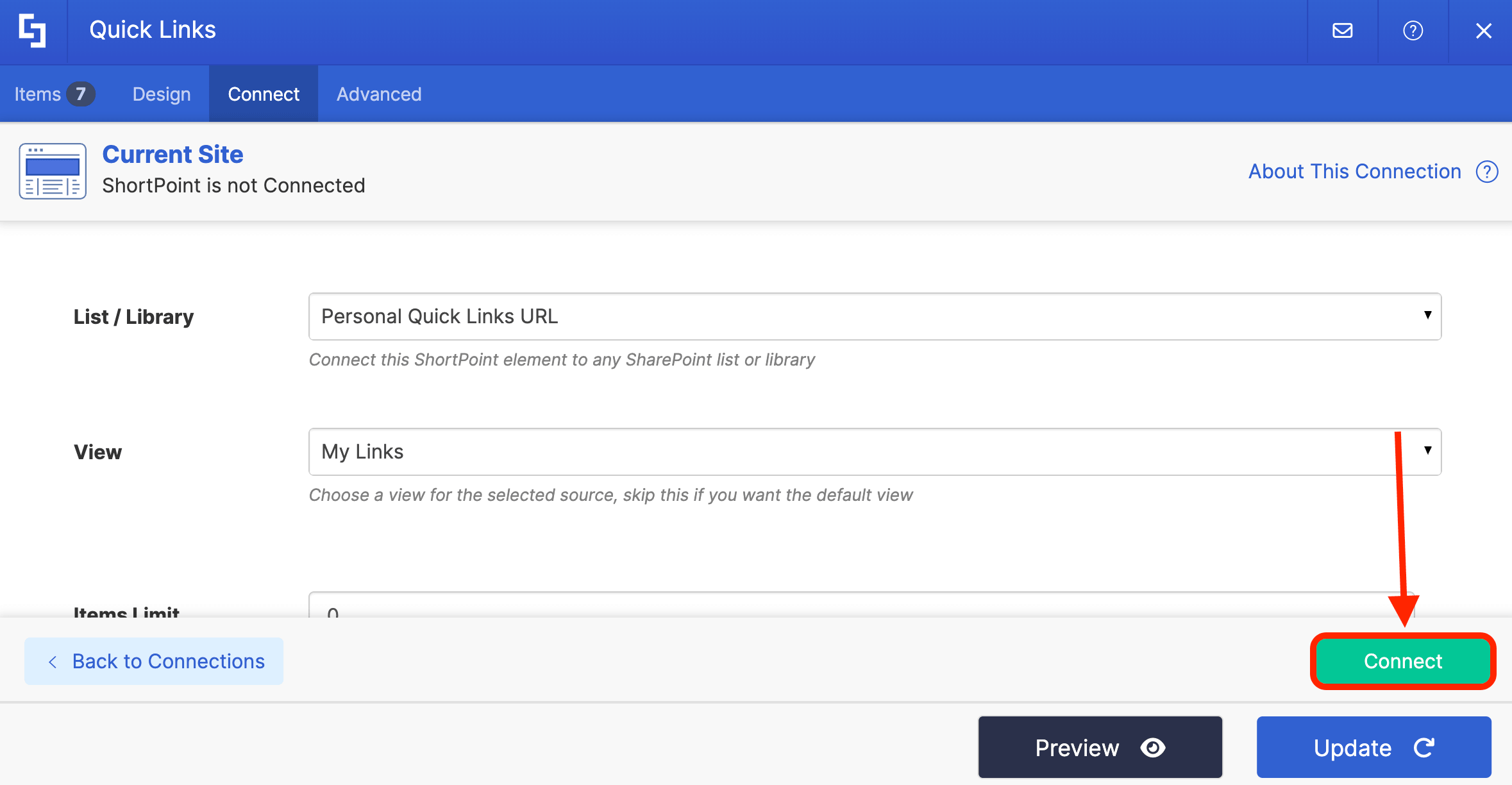
Click Connect:
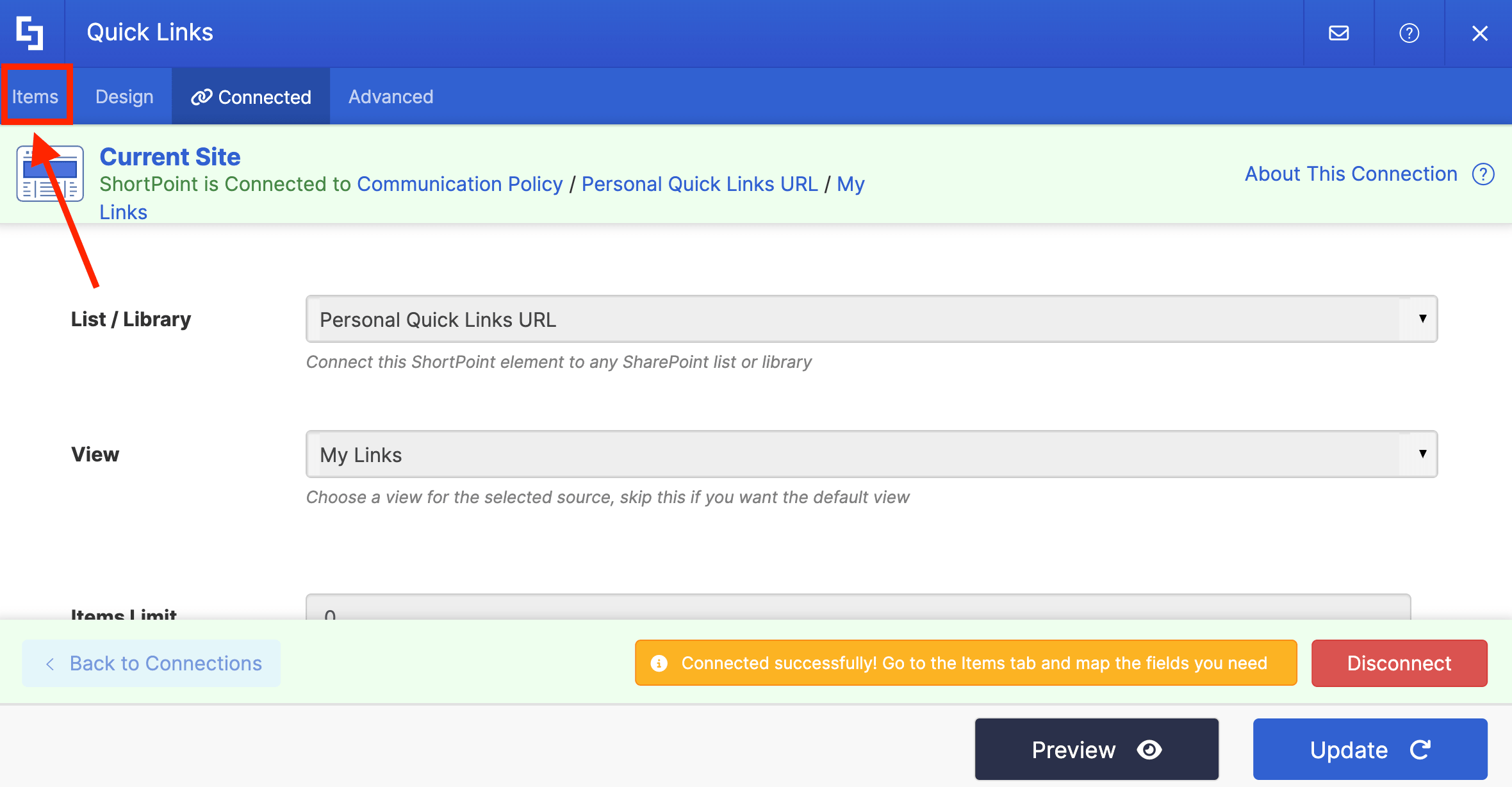
Step 6: Map Items
Go to the Items tab:
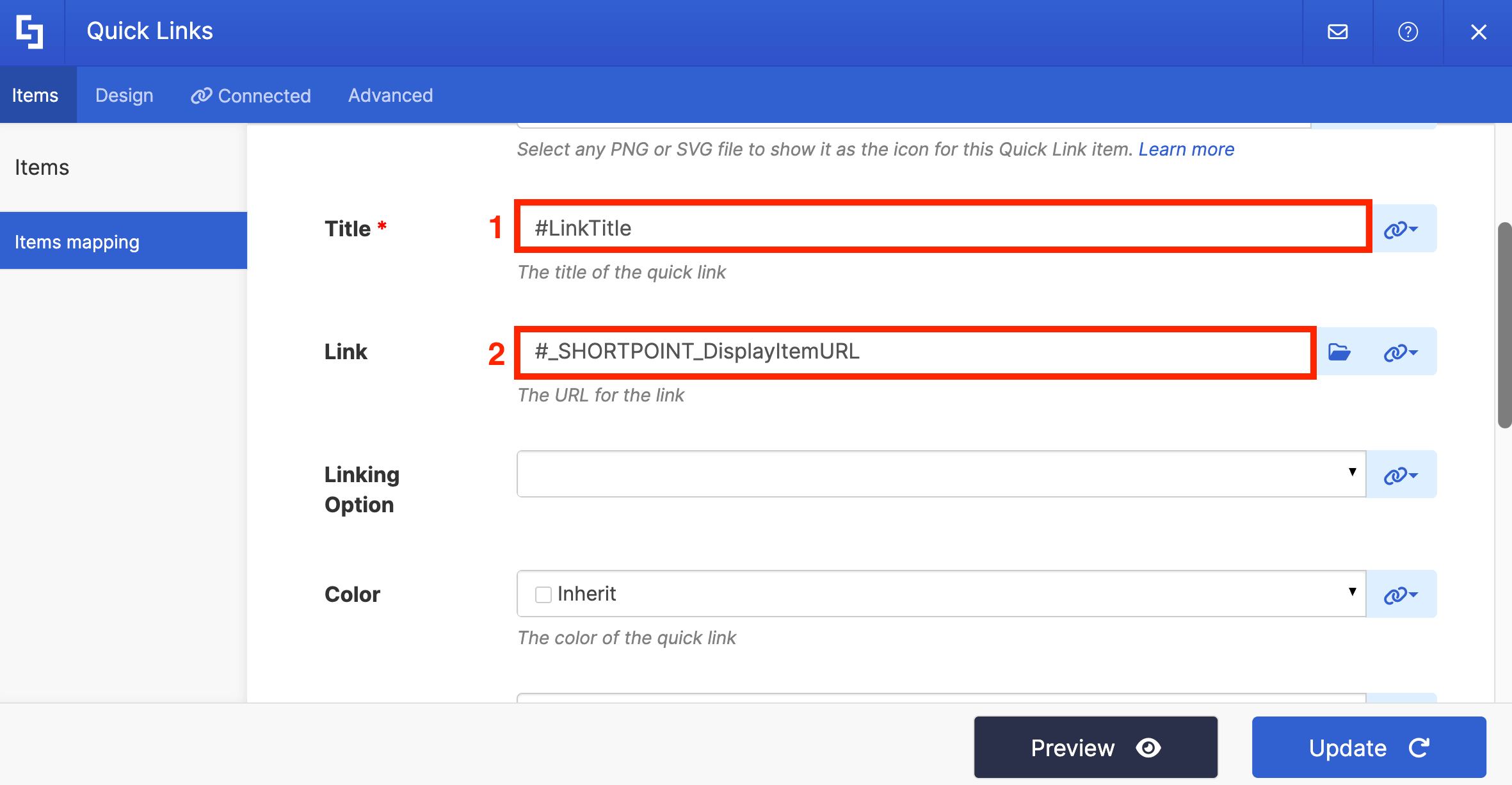
Click the link icon to map the properties you want to show:
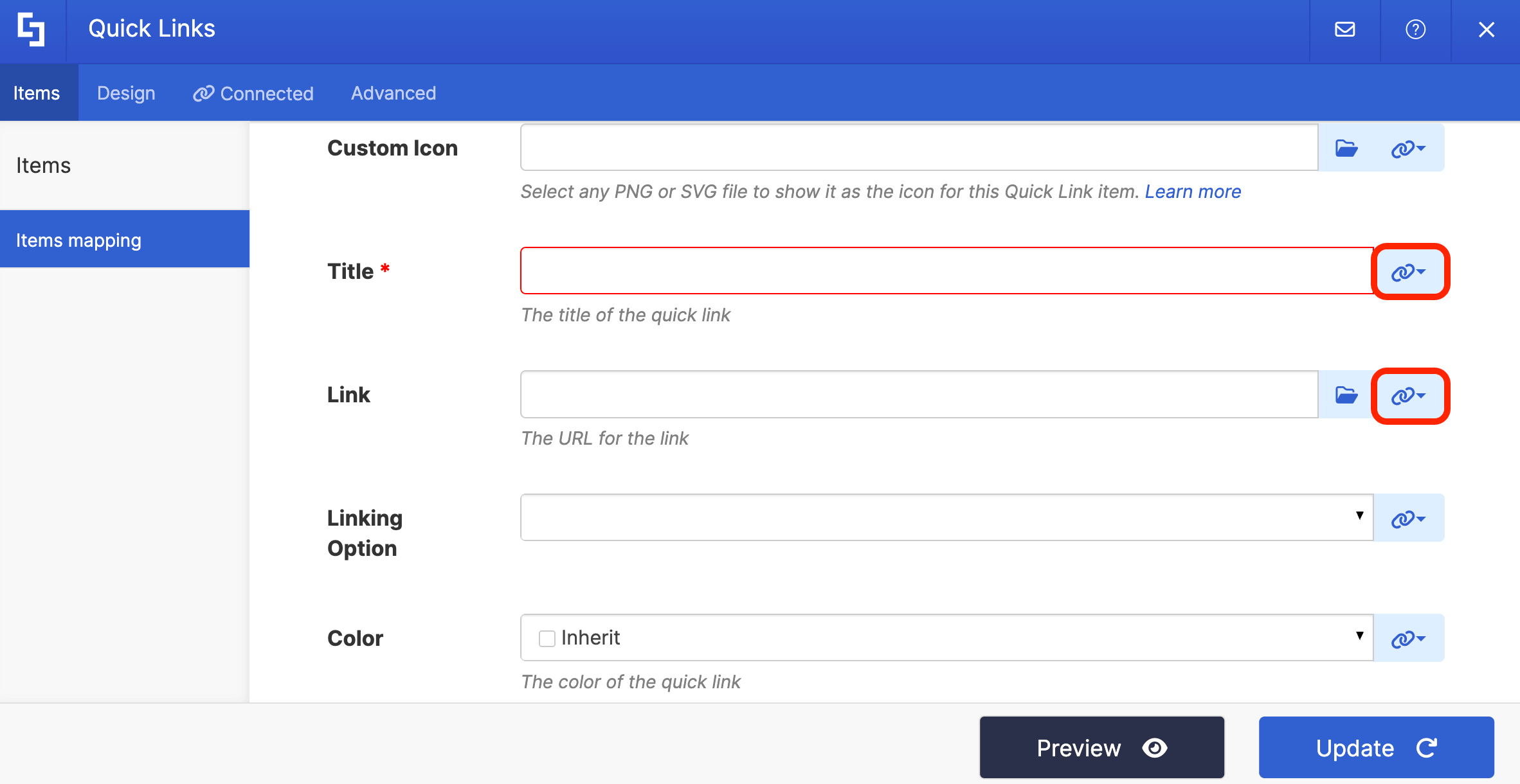
You can use the same mapped properties or add your own:
- #LinkTitle - shows the quick link title.
- #_SHORTPOINT_DisplayItemURL - redirects users to the actual link.
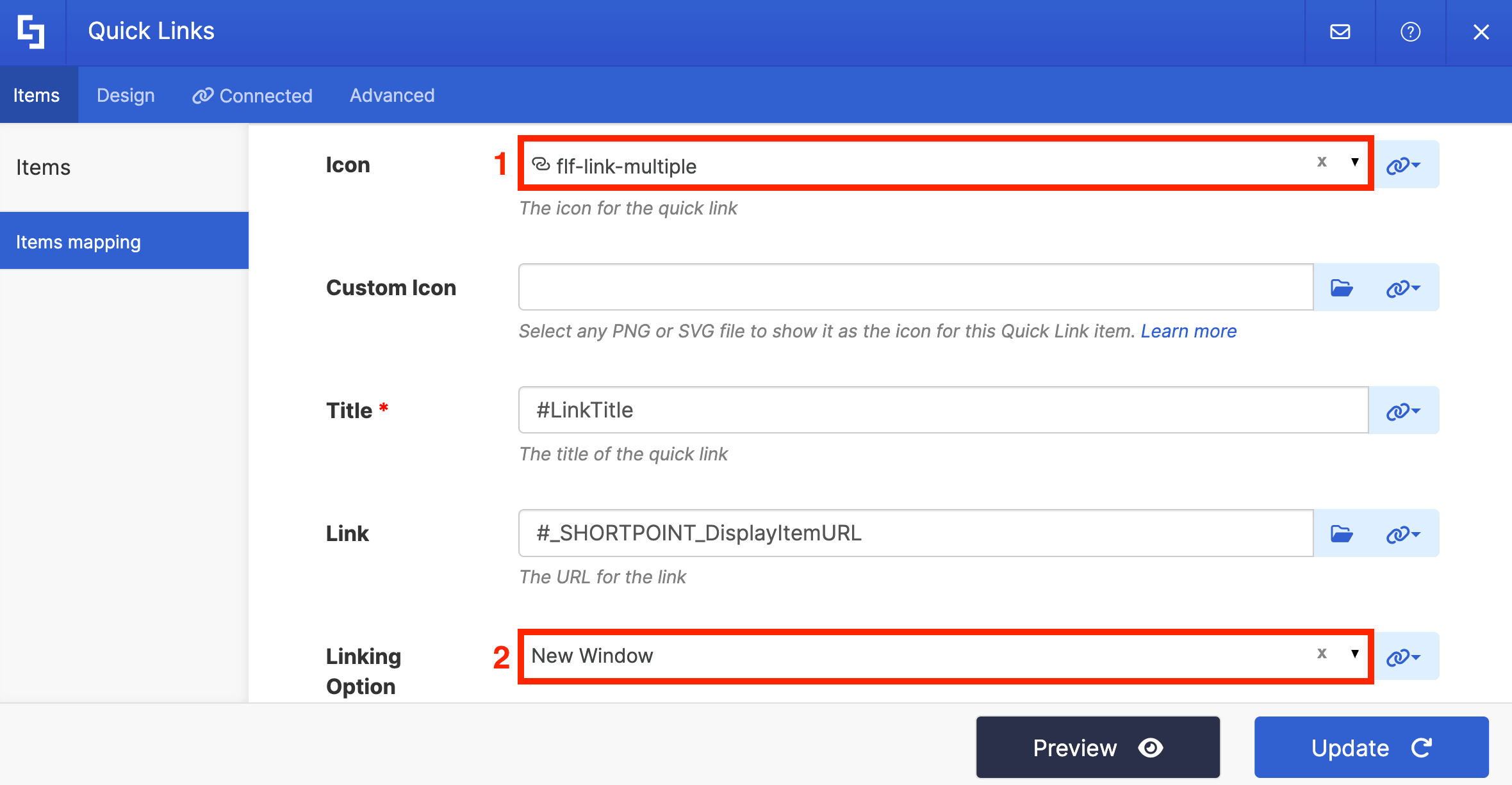
(Optional) Choose an [1] Icon and select the [2] linking option (where you want the link to open):
Step 7: Update
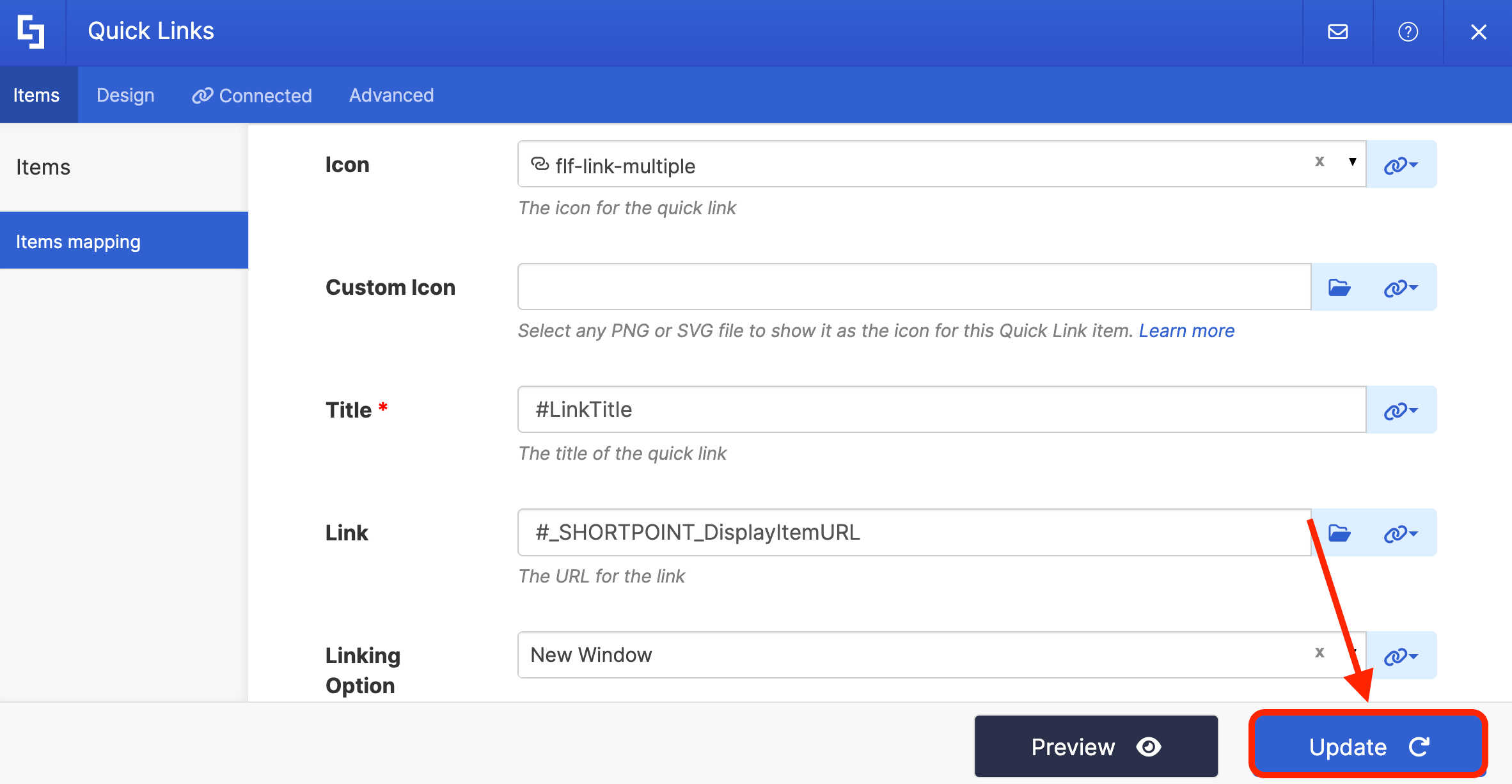
Click Update:
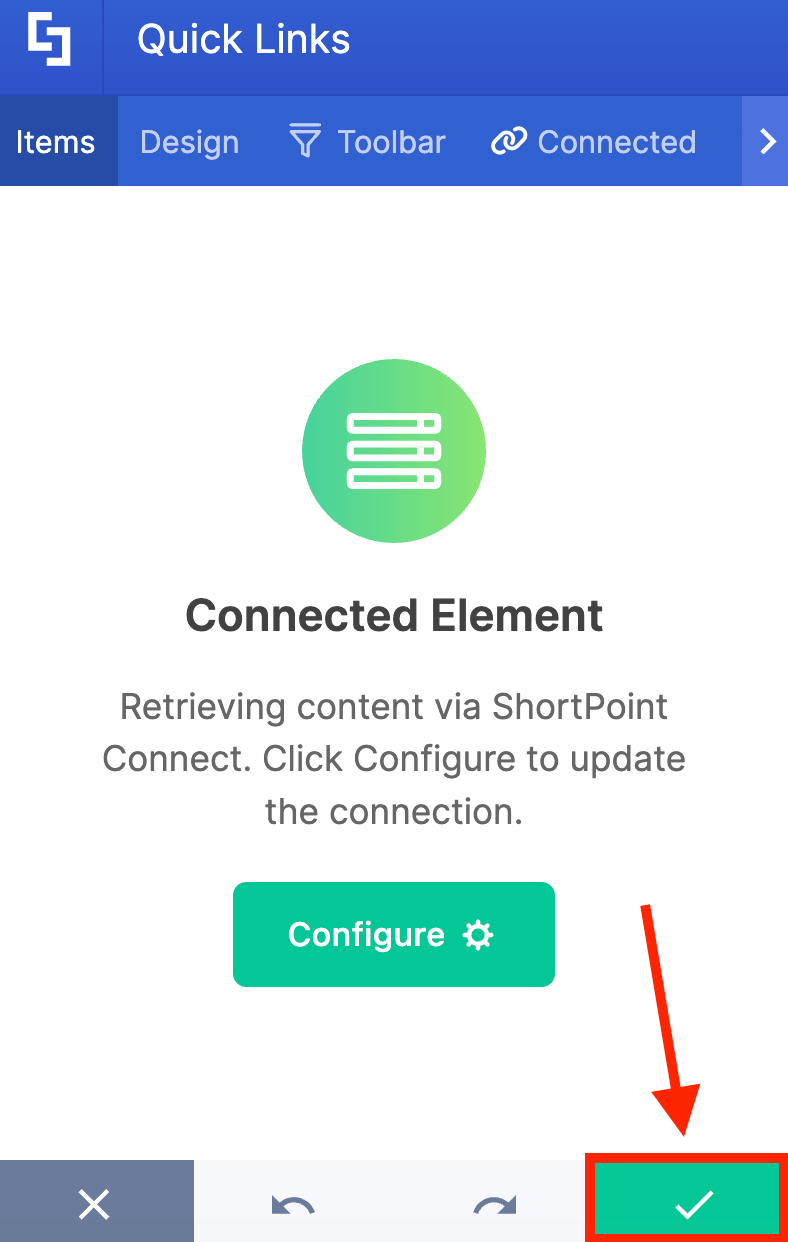
Select the green checkmark to apply the changes:
Step 8: Add the SharePoint List URL
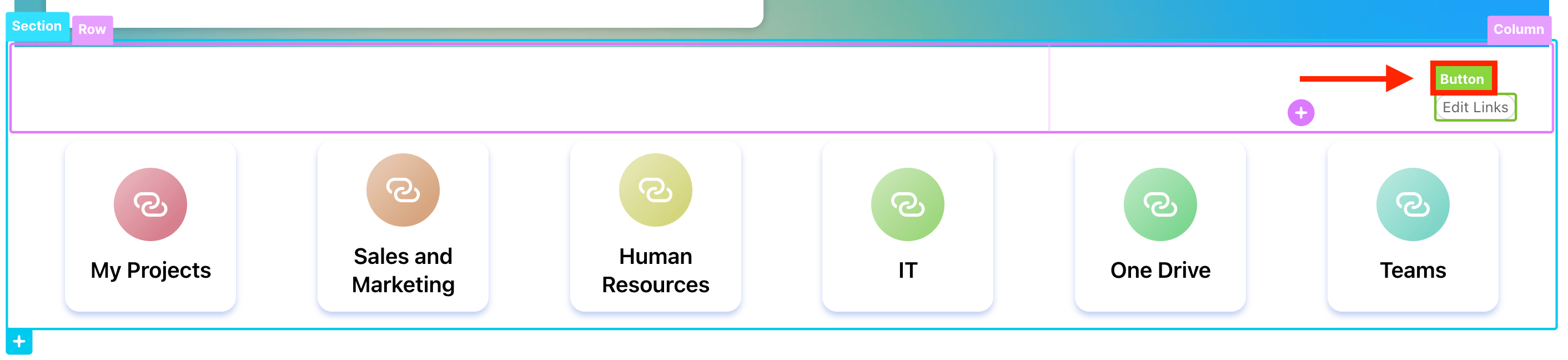
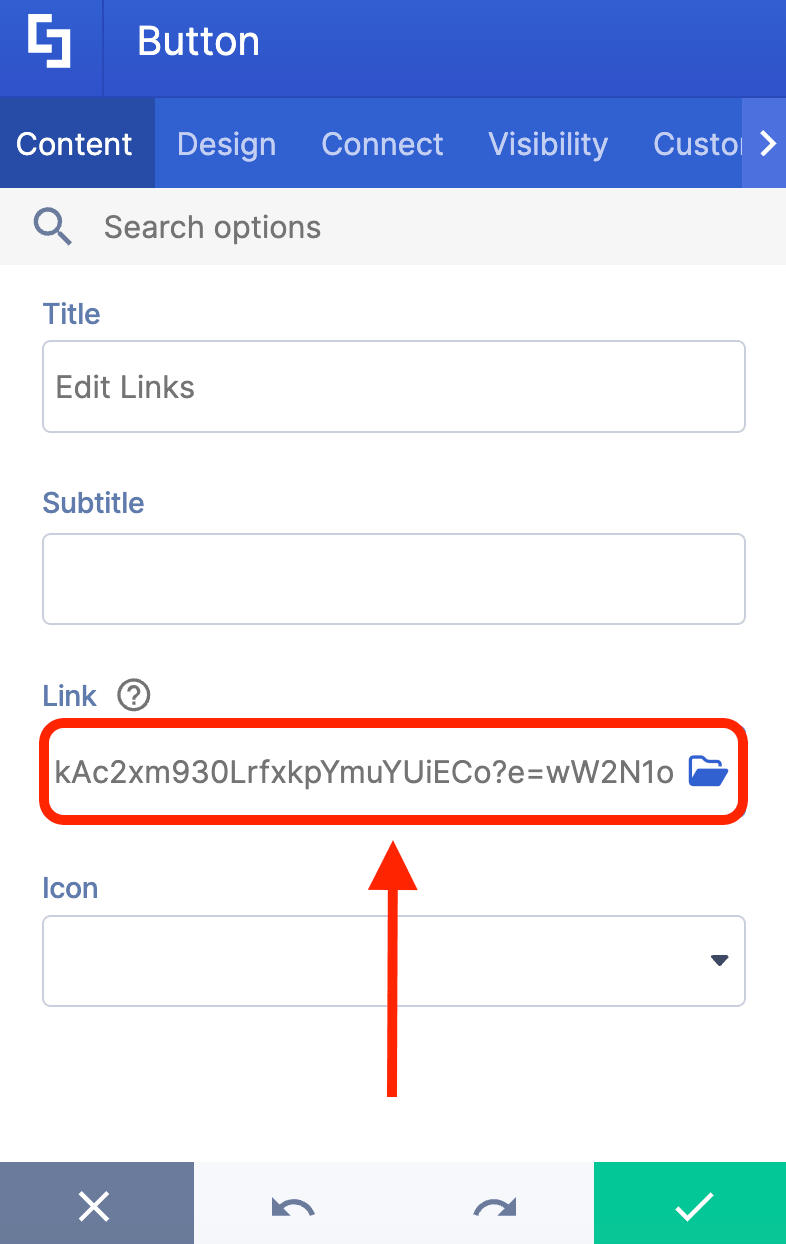
Remember the SharePoint List URL you copied in Part 2? You can also add that same link to the SharePoint page. This gives your team members easy access to the List whenever they need to modify their personalized links.
To do that, click the EasyPass tag of the Button Design Element:
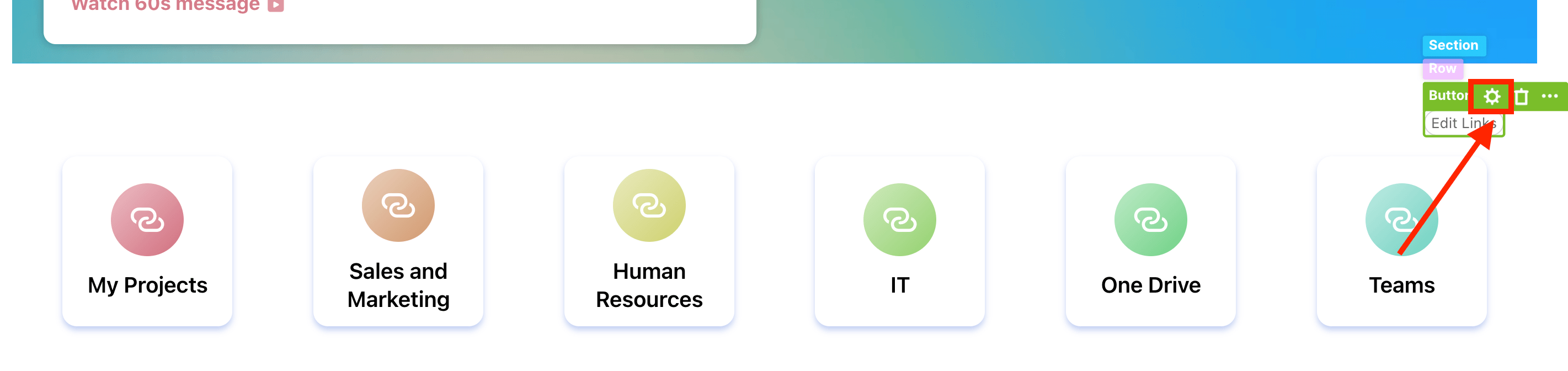
Select the cogwheel icon:
Look for the Link field and paste the SharePoint List URL.
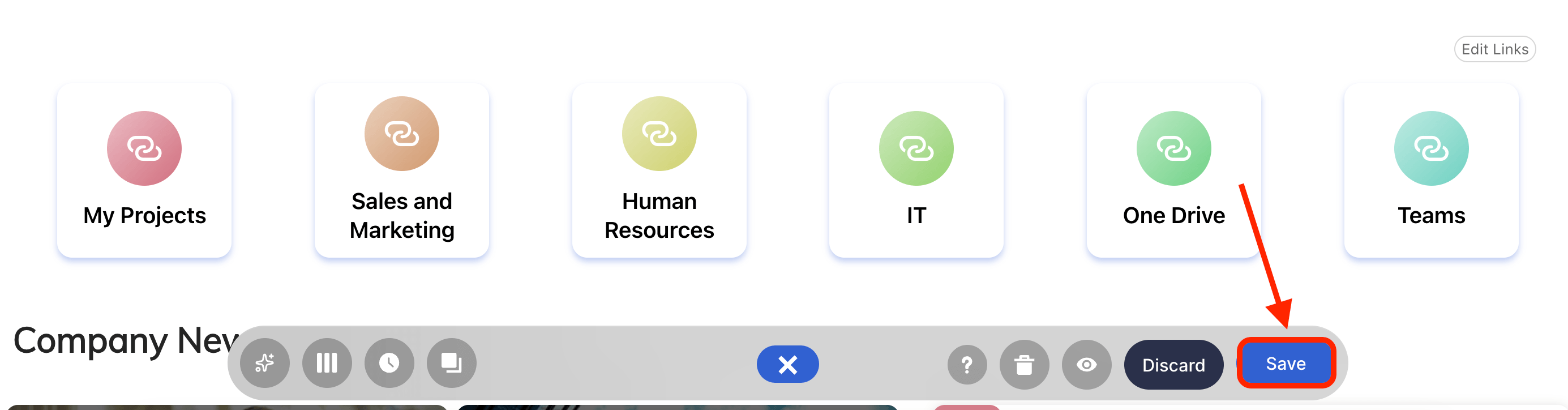
Step 9: Save
Once satisfied, click Save:
Publish your page:
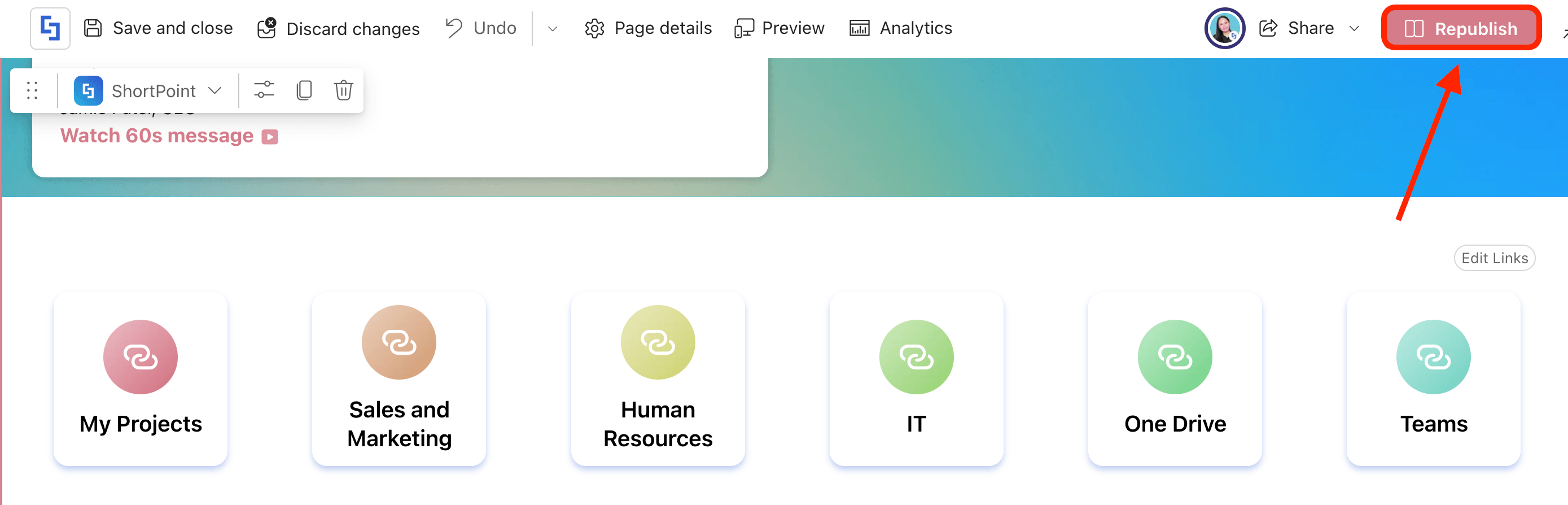
Congratulations! You now have a personalized quick links section on your SharePoint page.
Why SharePoint Sites Benefit from Personalized Quick Links
SharePoint sites host vast amounts of data; finding specific files can sometimes feel like a treasure hunt. Integrating personalized quick links into your SharePoint communication or team sites changes the game entirely.
Tailored Relevance for Every Role
A standard SharePoint homepage might feature links to corporate HR policies and the company calendar. While important, a graphic designer needs daily access to Adobe Creative Cloud, while a financial analyst needs quick access to tax compliance software. Personalized quick links allow both users to share the same SharePoint homepage while maintaining a tailored layout of their own essential tools.
Reduced Search Fatigue and High Productivity
Every click and search query takes time. By allowing users to pin their most frequent destinations directly on the SharePoint site, you eliminate the "where was that link again?" frustration. Fewer clicks mean a seamless workflow and more time spent on high-value tasks. This functionality helps users customize their browser experience and save valuable time.
Reduced Burden on IT Administrators
In traditional intranets, if a specific department wants a new link added to the homepage, they have to submit a ticket to IT. Personalized quick links empower employees to manage their own digital workspace. Users can add links of their own, upload or edit them in seconds without needing administrative permissions.
Seamless Adoption of Corporate Resources
When users know that a SharePoint site acts as a launchpad for their specific daily workflow, they are much more likely to visit the site daily. This drives overall engagement with your organization's intranet and increases satisfaction.
Best Practices for Setting Up Your Quick Links
To help your team set up their quick links, here are some quick tips they can keep in mind:
- Keep it Clean: Only pin links you use at least two to three times a week. If everything is a favorite, nothing is.
- Name Them Intuitively: Instead of using long URLs or vague titles like "Dashboard," use clear names like "Q3 Budget Tracker."
Frequently Asked Questions
What are personalized quick links in SharePoint?
Personalized quick links are dynamic navigation features that allow individual users to curate and access their own specific set of personalized links within a SharePoint site. They provide a tailored experience by displaying only the links relevant to each person.
How do I create my own personalized quick links?
You can create personalized quick links by setting up a dedicated SharePoint List where you add your own links. Then, configure the list access so you only see your own links, create a "My Links" view, and connect this view to the ShortPoint Quick Links Design Element on your SharePoint page.
Can other users see my personalized quick links?
No, personalized quick links are tied directly to your user account. While the Quick Links Design Element is visible to all, each user sees only their own personalized links.
Is there a limit to how many personalized links I can add?
There is no strict limit, but it is recommended to keep your list under 10 items to ensure easy access and avoid clutter.
What happens if a link changes or becomes outdated?
You will need to manually update or delete the link in your SharePoint List. Regularly auditing your personalized links helps keep your workspace organized and relevant.
How do personalized quick links benefit SharePoint users?
They reduce search fatigue by putting frequently used links at your fingertips, increase productivity by saving time, reduce IT burden by allowing users to manage their own links, and improve adoption by making SharePoint sites more relevant to individual workflows.
Related articles:
