 Try ShortPoint now
Tired of answering the same questions every day? We get you! Constantly responding to the same inquiries day in and out can be overwhelming.
This is where Frequently Asked Questions (FAQ) come in handy! Instead of flooding the HR, IT, or payroll departments with repeated inquiries, a well-structured SharePoint FAQ empowers employees to find answers independently in seconds.
If you are looking to build or optimize an FAQ section on your SharePoint Online site, we'll walk you through everything you need to know about how to do it right. And here's the best part: it's dynamic! So, you won't have to manually update your SharePoint pages each time a question is added. Let's get started.
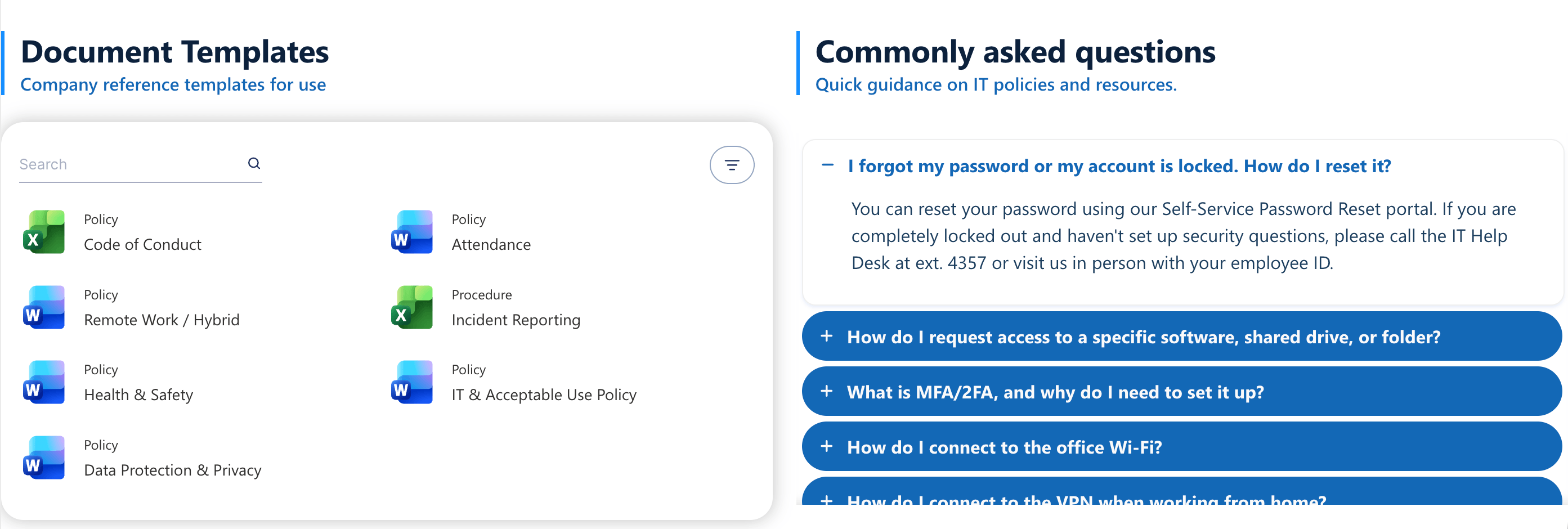
TABLE OF CONTENTS
- Prerequisites
- What is an FAQ? (And Why Does It Matter?)
- How to Build a Dynamic FAQ on a SharePoint Site
- Pro-Tips for Writing Your FAQs
- Frequently Asked Questions
Prerequisites
- You must have the latest version of ShortPoint SPFx installed.
- You must be a ShortPoint Designer with an active license.
What is an FAQ? (And Why Does It Matter?)
Before getting to the how, let's get you acquainted with the what and the why first.
An FAQ section is a curated collection of information focused on common queries that users, customers, or employees often ask. It breaks knowledge down into a direct, conversational Q&A format. It anticipates what your team needs to know (for example: "How do I connect to the office printer?" or "How do I file a Holiday Leave?") and provides the answers upfront.
And to take your FAQs to the next level, ShortPoint created beautiful FAQ sections you can add to your SharePoint pages in just one click.
To make things even better, you can create dynamic FAQ sections. By building a dynamic FAQ, your content owners can seamlessly update questions and answers behind the scenes without ever having to edit the actual SharePoint page.
This is where ShortPoint Connect comes to play. It allows you to effortlessly pull data from any existing FAQ SharePoint List across your organization and display it beautifully on your pages using ShortPoint Design Elements. To top it off, whenever someone updates the SharePoint List, your FAQ page updates automatically. It’s efficient, elegant, and keeps your content fresh with zero extra effort!
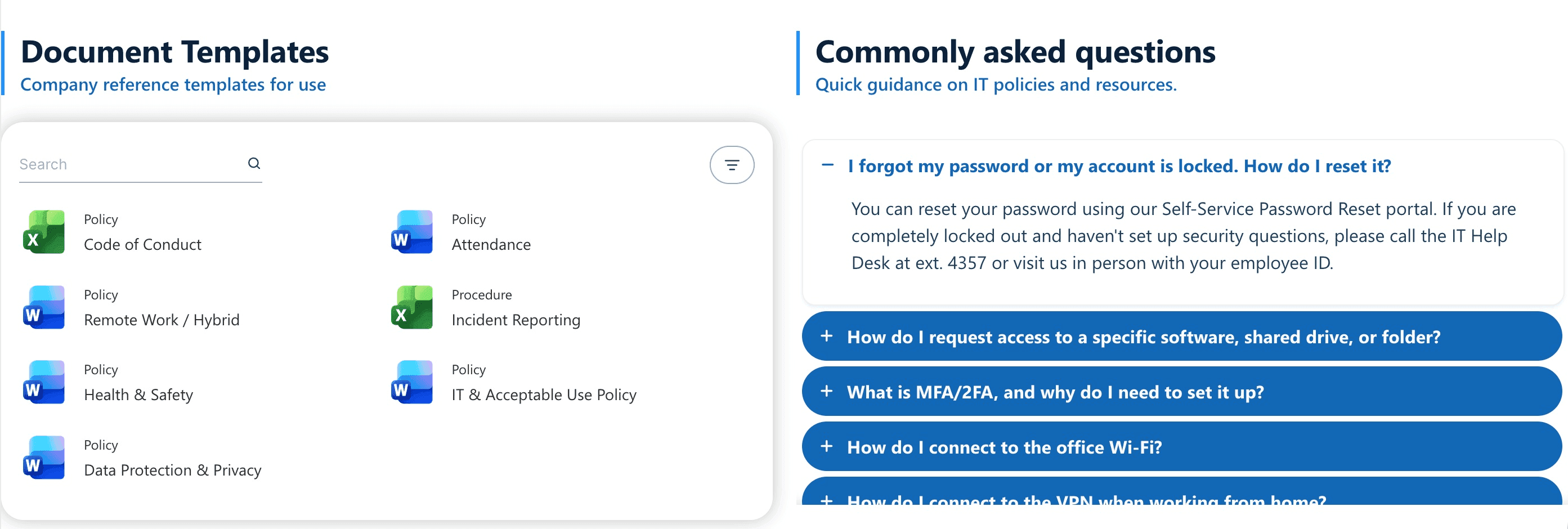
Here's a preview of a dynamic FAQ section. You'll learn how to build this same FAQ in the how-to section.
Why Have an FAQ Section on Your SharePoint Intranet?
Having an FAQ section directly in your SharePoint site isn't just a design choice; it’s a strategic tool for workplace efficiency.
- Reduces Help Desk Fatigue: It intercepts common questions before they become IT tickets or HR emails, freeing up your support teams for deeper work.
- Improves Onboarding: New hires can quickly get up to speed on company policies, software setups, and office protocols without feeling overwhelmed.
- Centralizes Knowledge: It prevents institutional knowledge from being locked away in individual brains, sticky notes, or siloed chat threads.
How to Build a Dynamic FAQ on a SharePoint Site
It's super easy to create a dynamic FAQ section using ShortPoint. Simply follow the steps in this tutorial, and you'll have your FAQs up and running in no time.
Part 1: Create an FAQ SharePoint List
This section will show you how to create an FAQ SharePoint List.
Step 1: Create a Blank SharePoint List
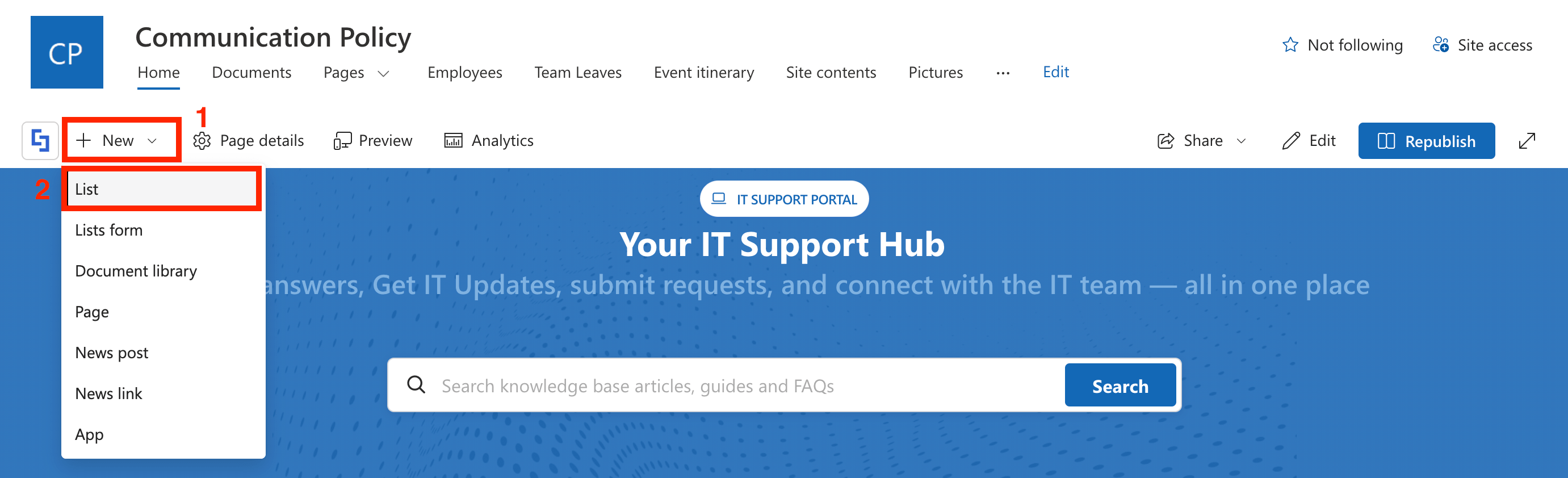
- Go to the SharePoint page you want to use, click [1] New, and select [2] List:
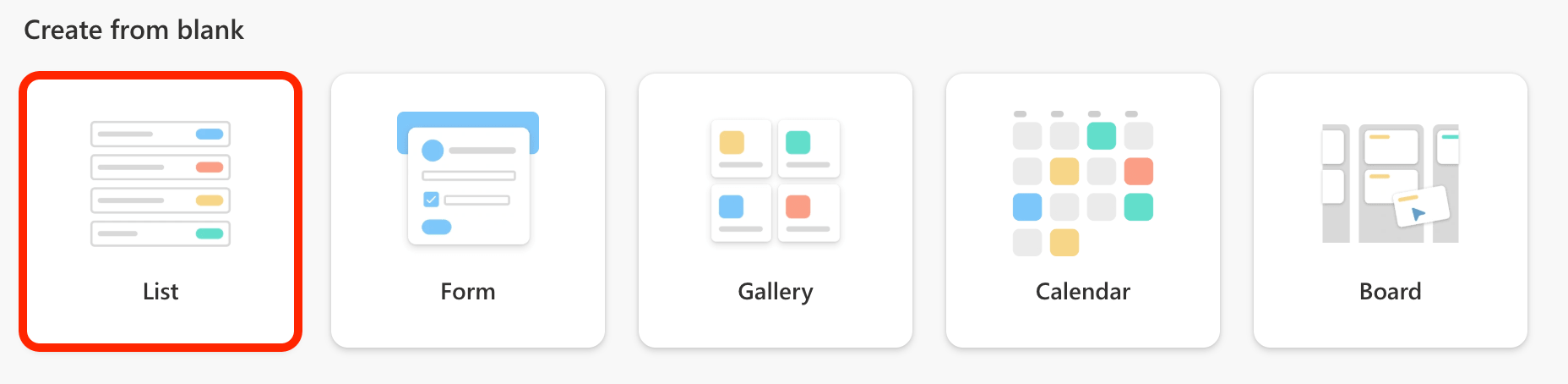
- From the choices, choose List:
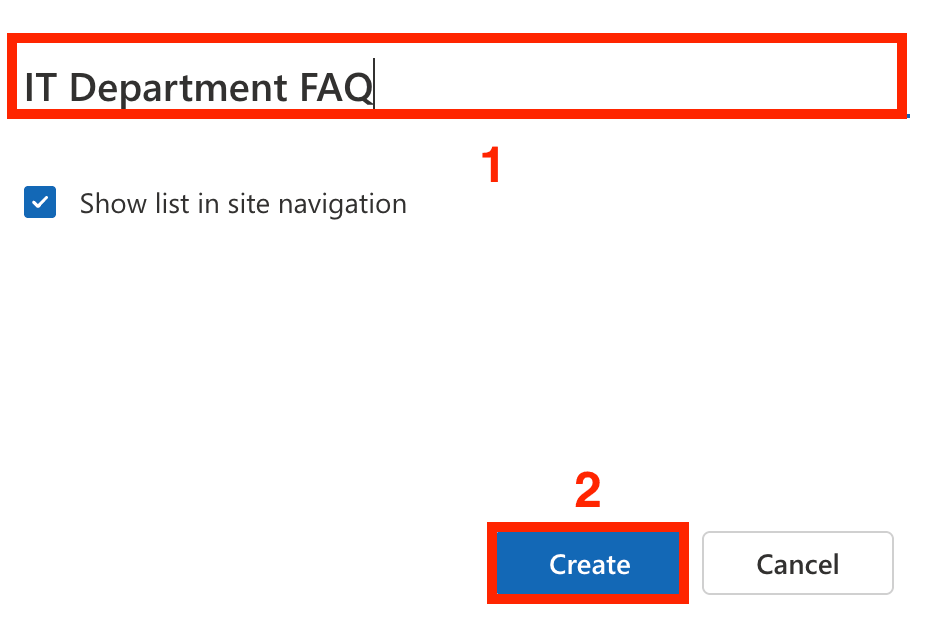
- [1] Name your FAQ as you see fit and click [2] Create:
Step 2: Add a Question and an Answer Column
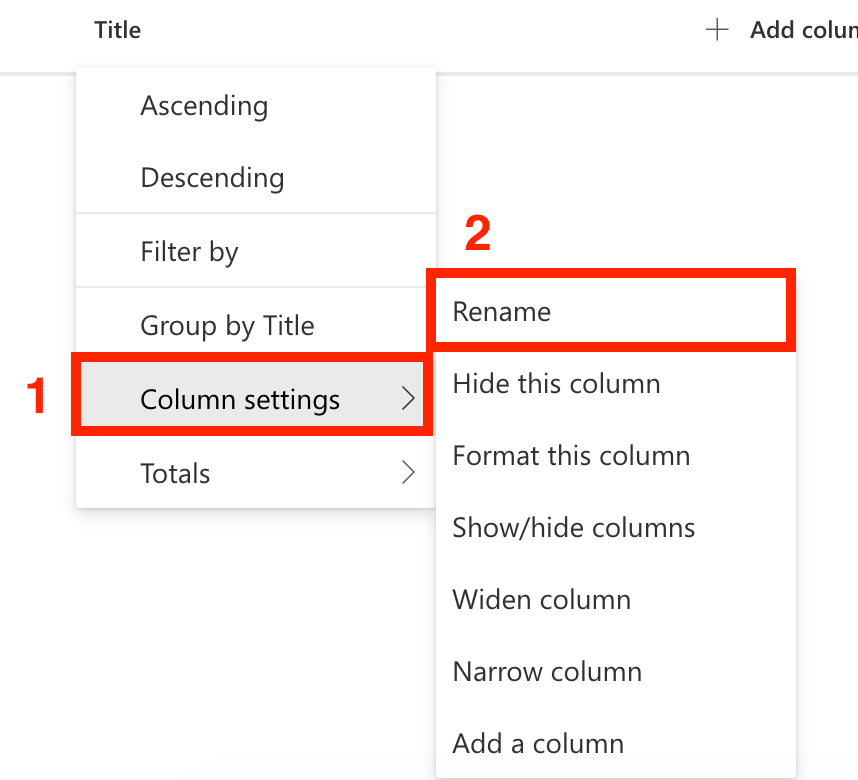
- Click the default Title column.
- Select Column Settings and click Rename:
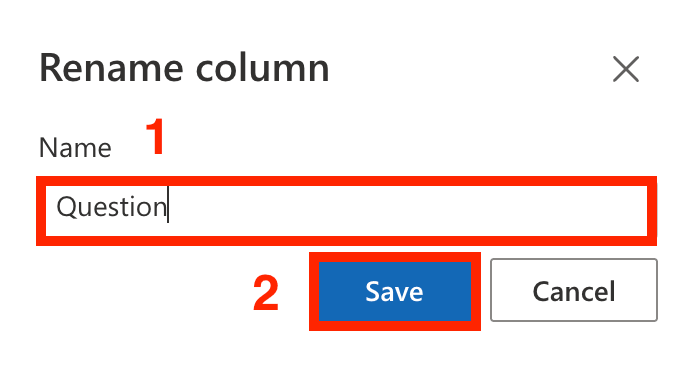
- Rename the column as [1] "Question" and click [2] Save:
- Click Add Column:

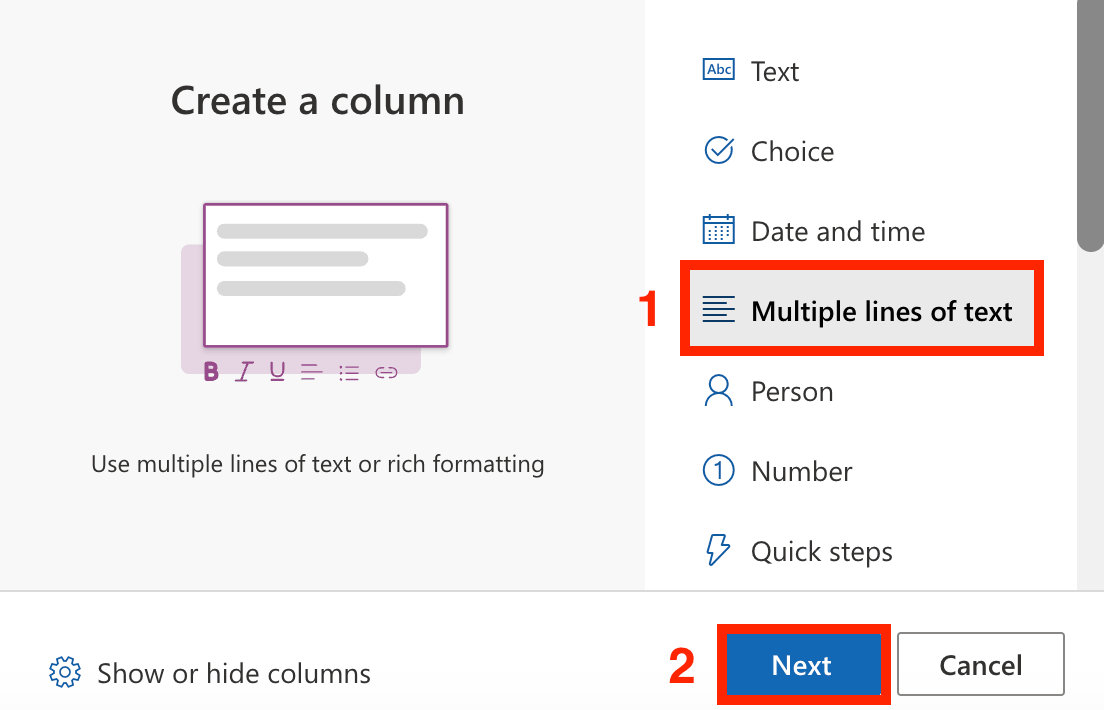
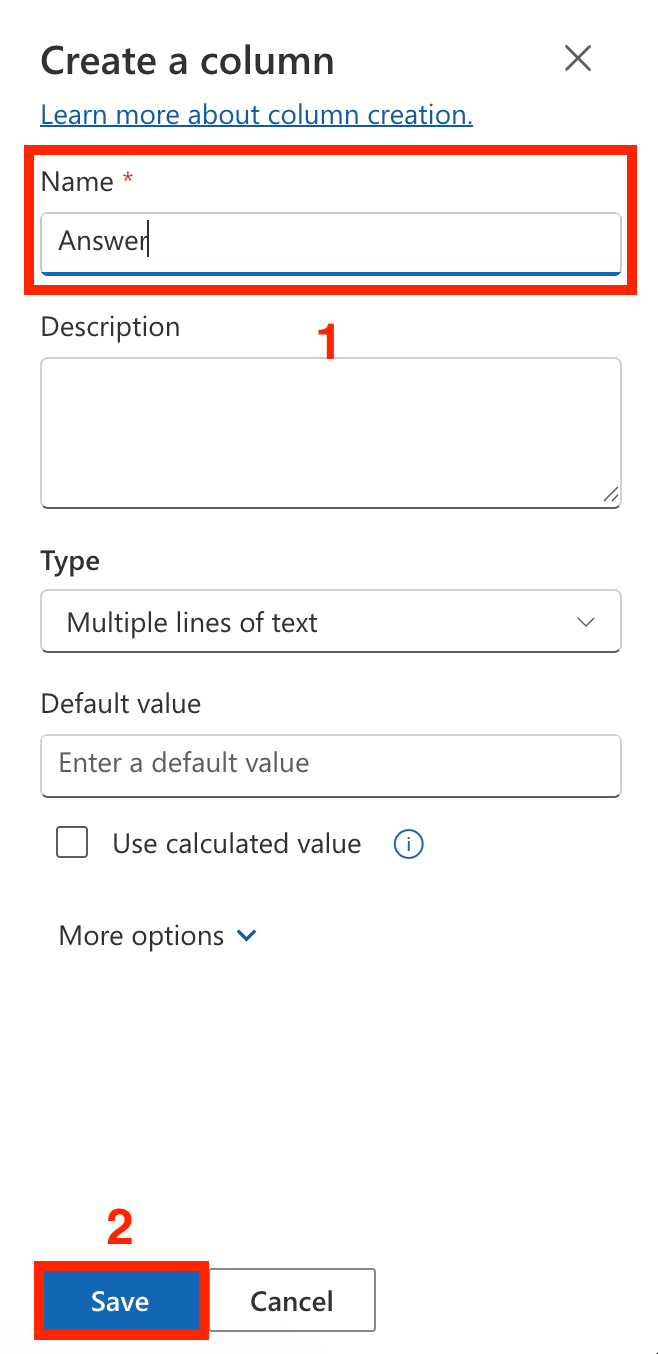
- Since FAQ answers are typically long, select [1] Multiple lines of text and click [2] Next:
- Rename your column as [1] "Answer" and click [2] Save:
Step 3: Fill in the FAQ list
- Click Edit in grid view:

- Add all the questions manually to the list:
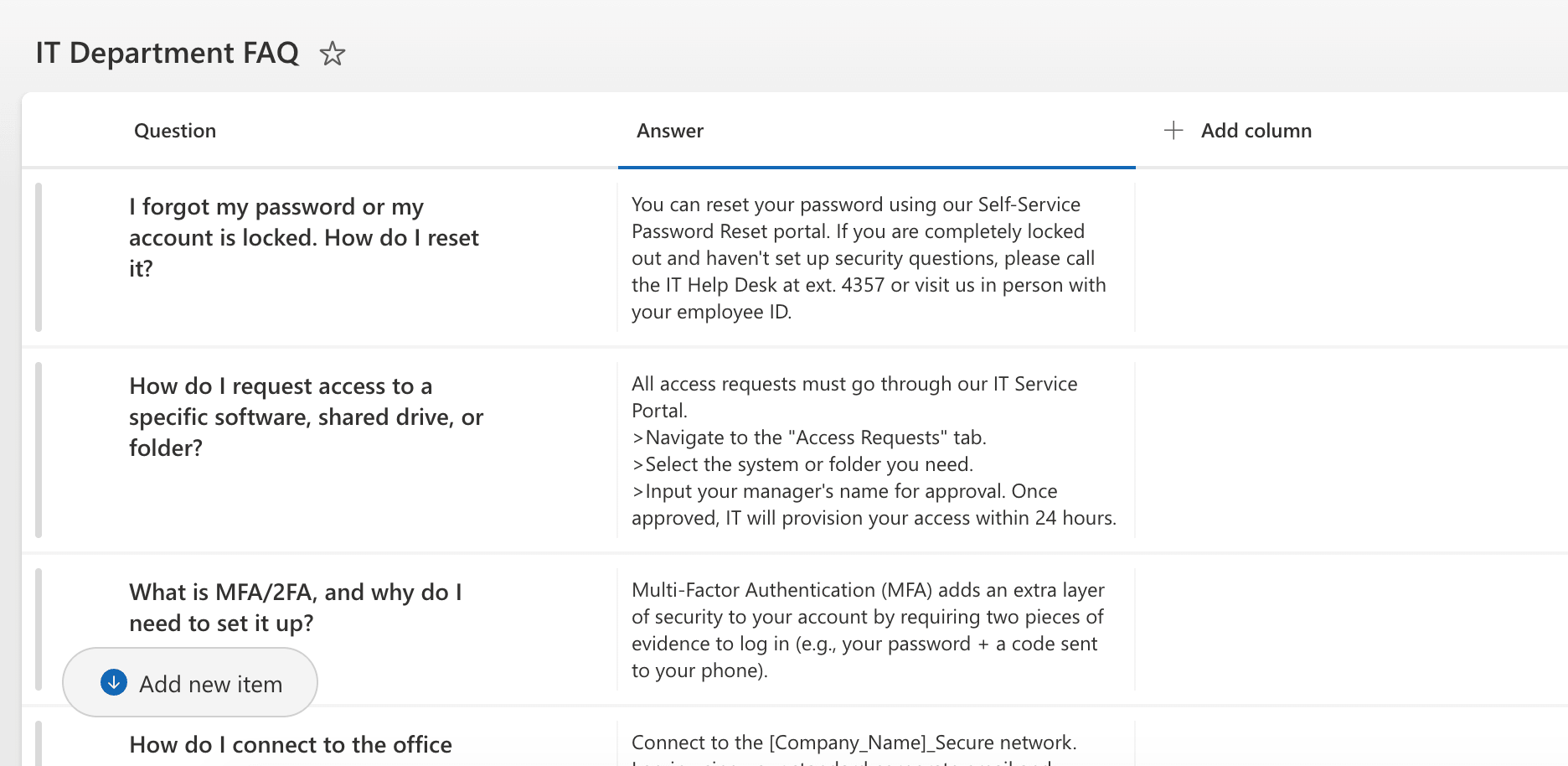
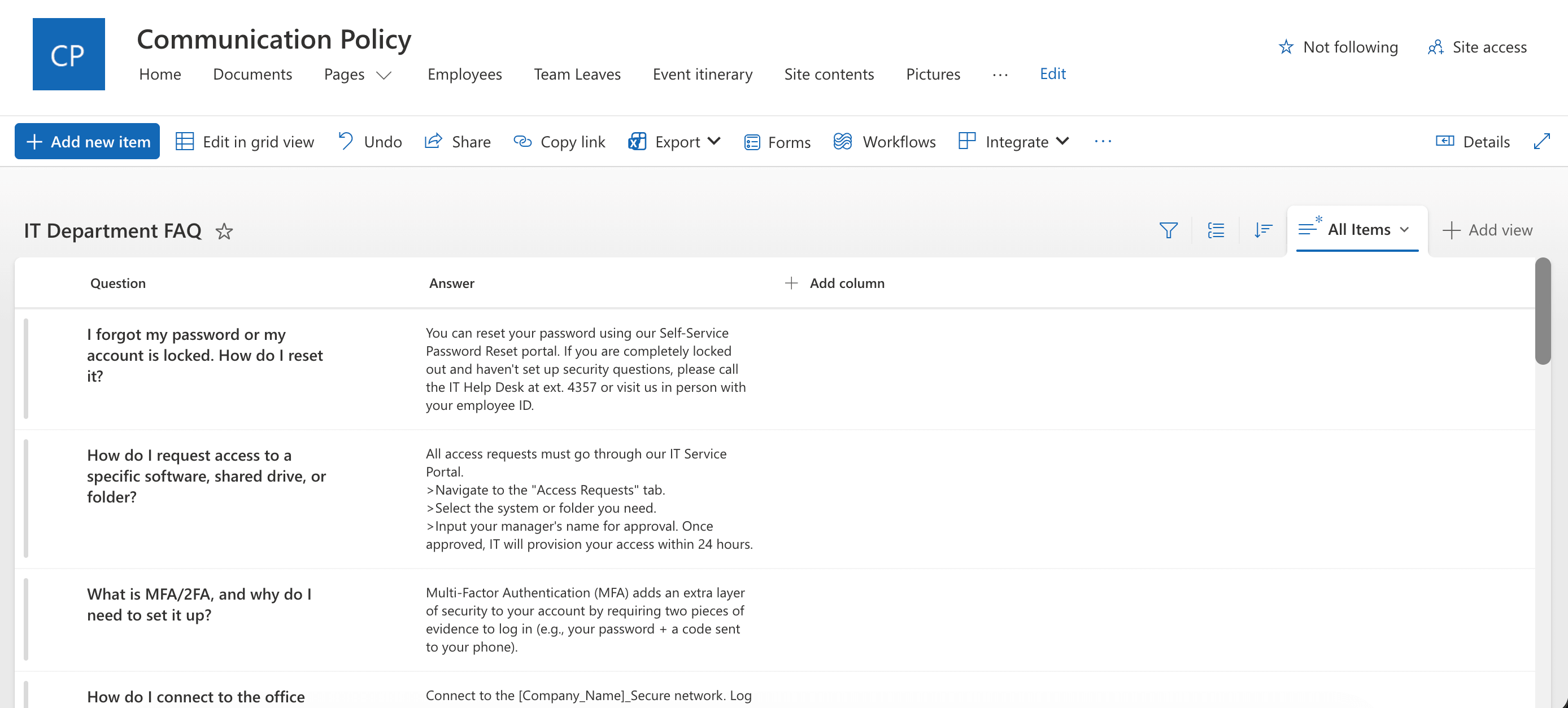
- Once done, click Exit grid view:

Great work! You now have an FAQ SharePoint List. You can now proceed to Part 2, where you will connect this list to a ShortPoint Design Element.
Part 2: Connect the FAQ SharePoint List
This section will cover the connection aspect of the tutorial. Follow the steps closely to get started.
Step 1: Edit the ShortPoint Web Part
- Go back to your SharePoint page and click Edit:

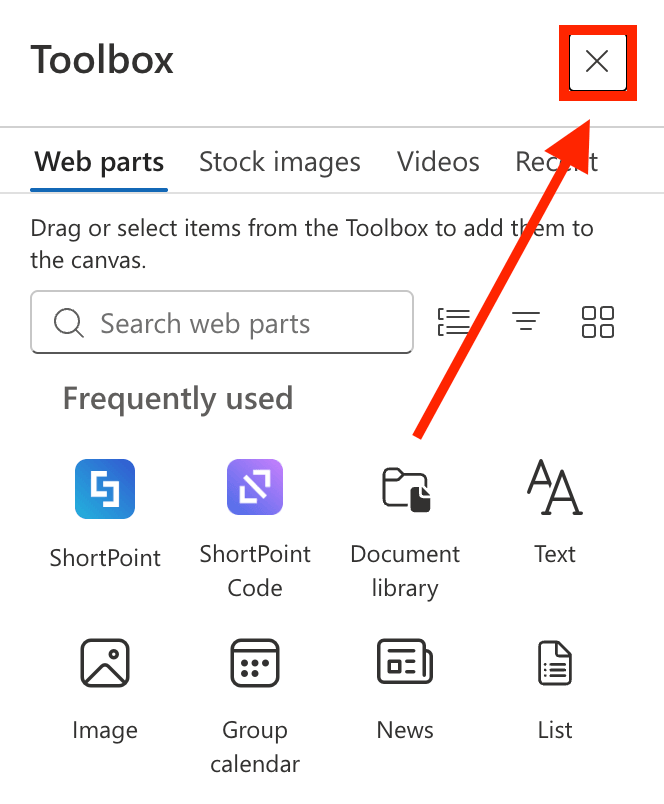
- Close the Toolbox:
- Click the Edit properties icon:

Step 2: Add an FAQ Template
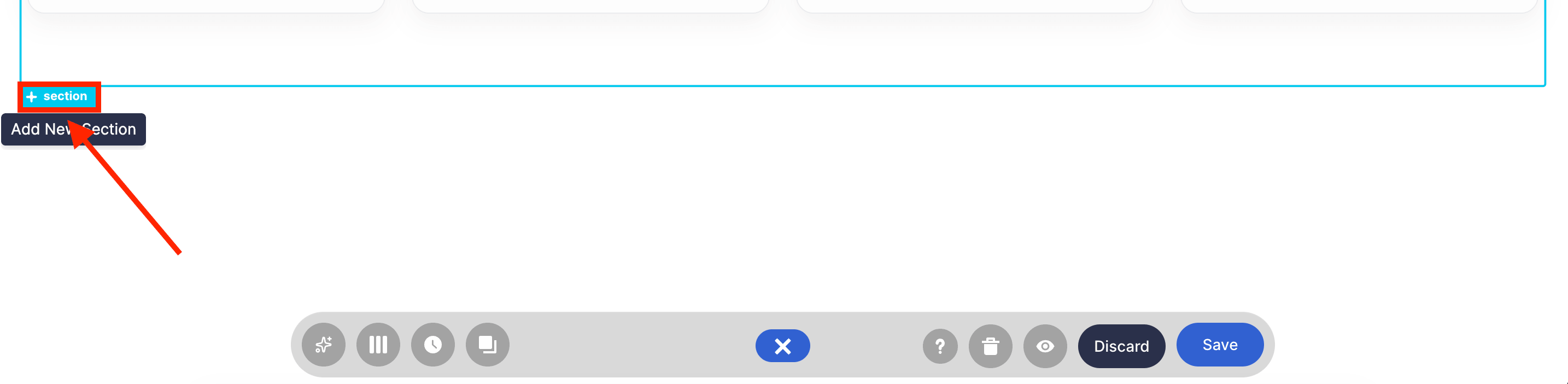
- Determine where you want to add the FAQ and click the blue plus icon to add a Section:
- Choose the Open Templates icon:

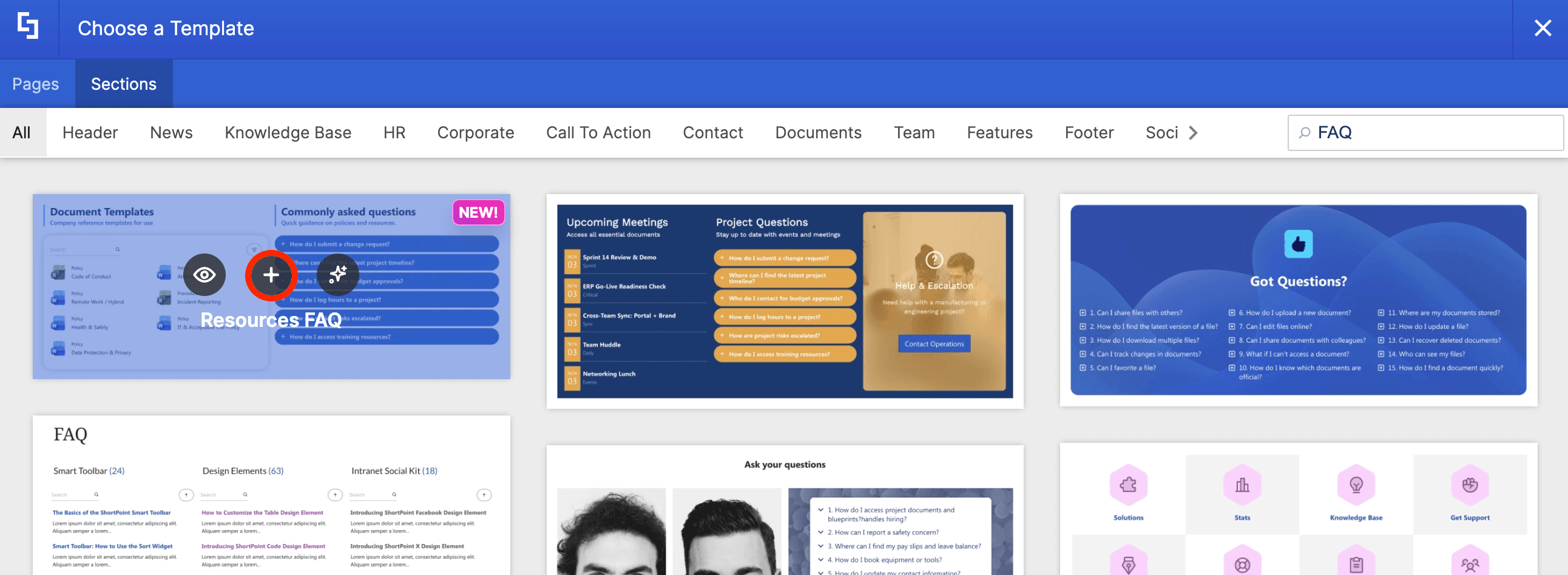
- Go to the Sections tab:

- Use the search bar to look for 'FAQ'.
- Hover over the FAQ template you want to use and click the plus icon:
Step 3: Edit the Design Element
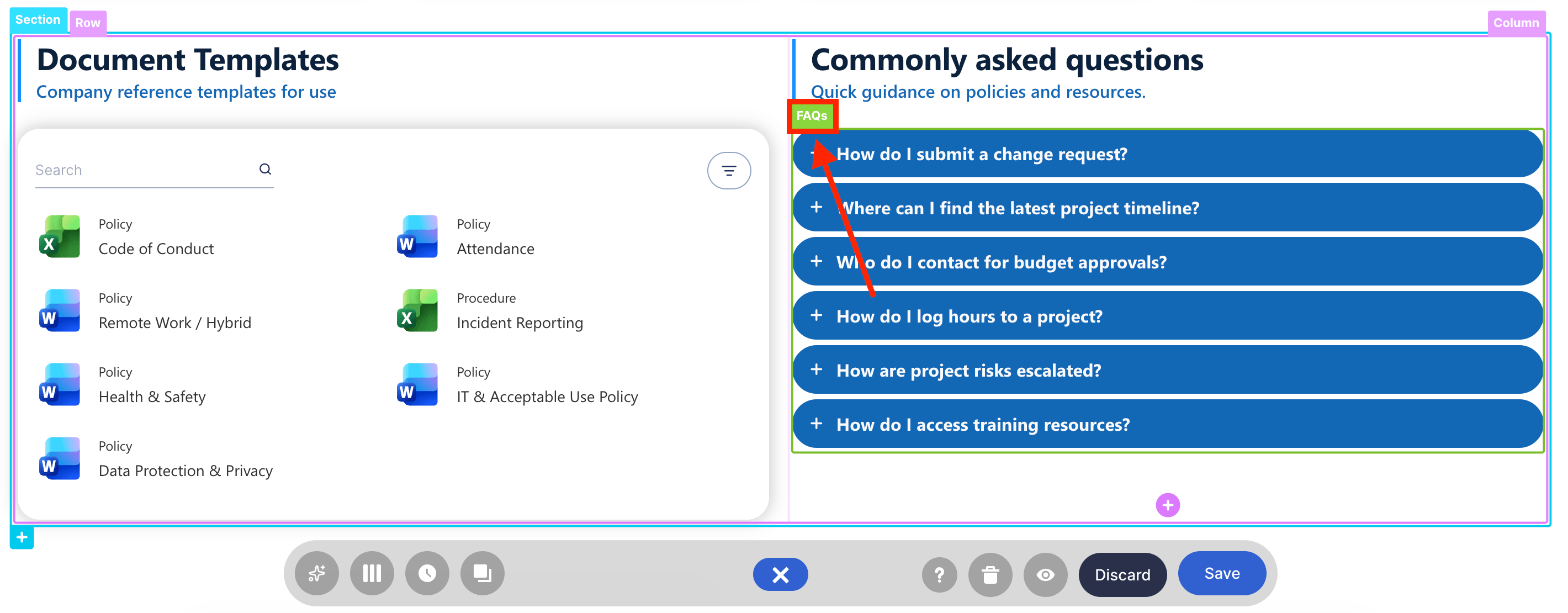
- Click the EasyPass tag of the Design Element that has the FAQ. In this case, it's the FAQ Design Element:
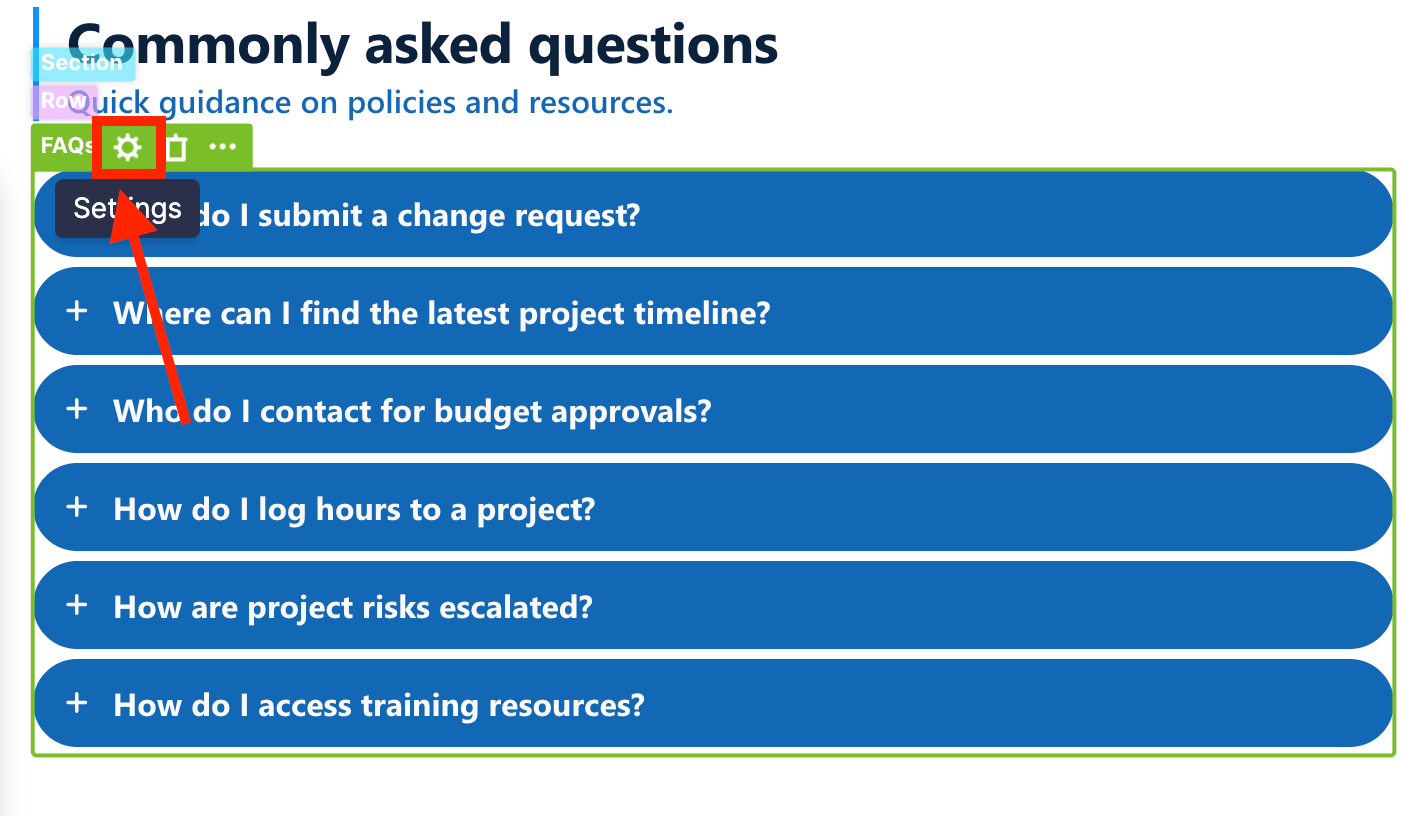
- Select the cogwheel icon:
Step 4: Choose Connection Type
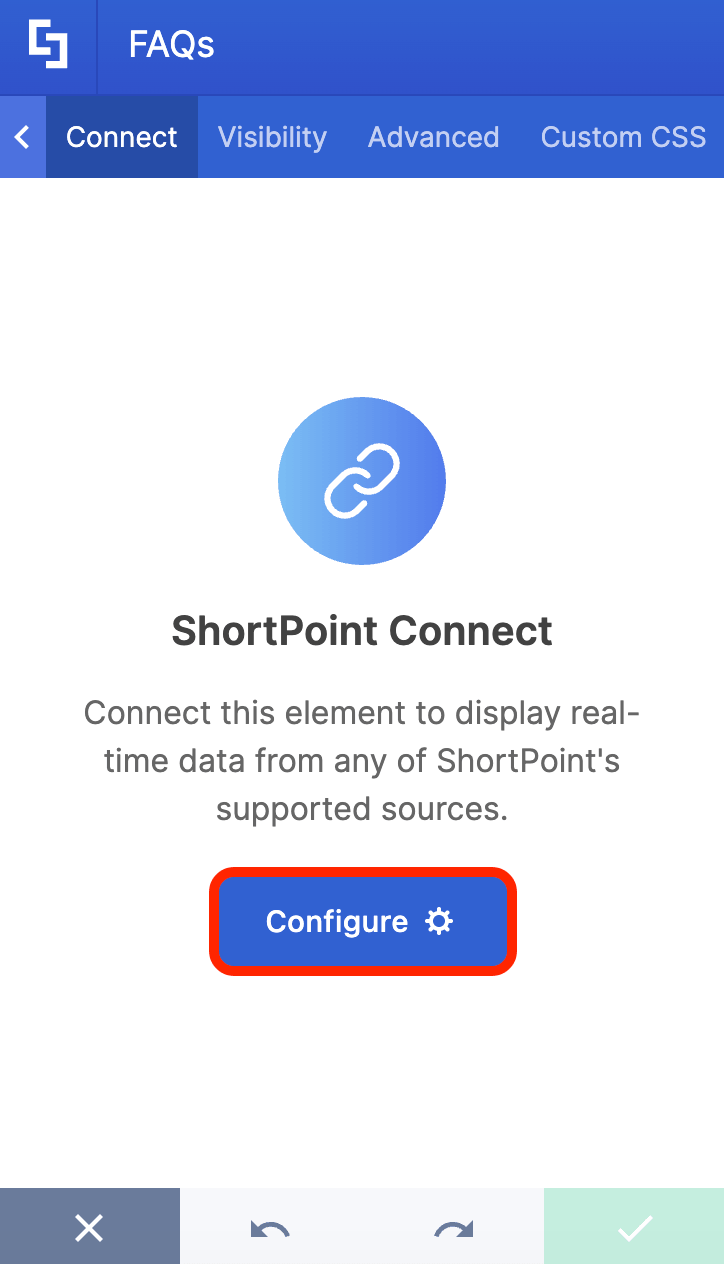
- Go to the Connect tab.
- Click Configure:
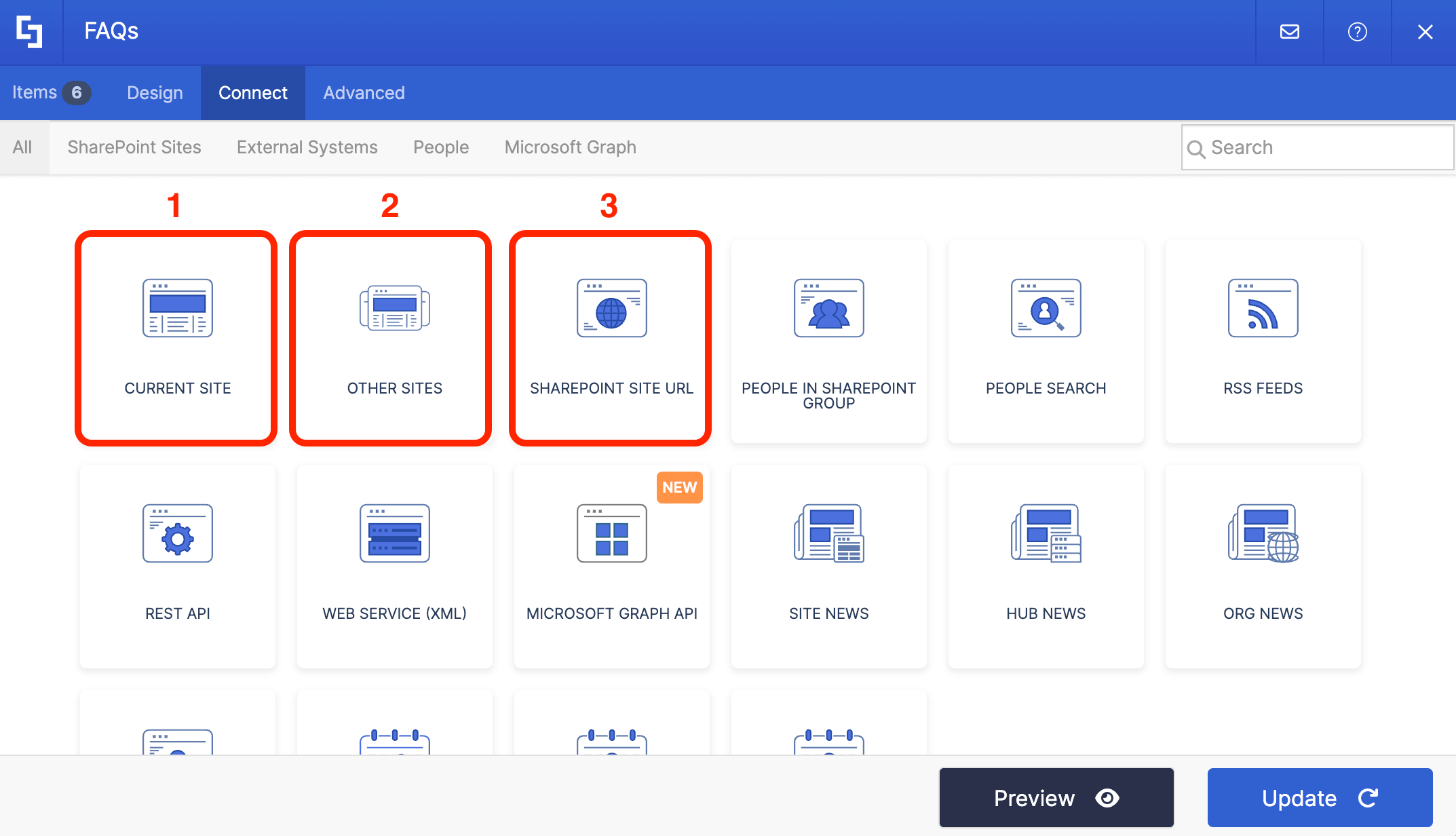
- Choose the connection type you want to use. You can choose from:
- Current Site: choose this option if the SharePoint List you created in Part 1 is in the site you're using.
- Other Sites: choose this option if the SharePoint List you created in Part 1 is in another site.
- SharePoint Site URL: choose this option if you know the SharePoint URL of the site where your SharePoint List is located.
Step 5: Connect
NOTEDepending on the connection type you chose, the fields you need to fill in will differ. As an example, we'll use the Current Site connection.
- Find the name of your FAQ SharePoint List from the drop-down:

- Choose the View you want to use.

- Once done, click Connect.
Step 6: Map Properties
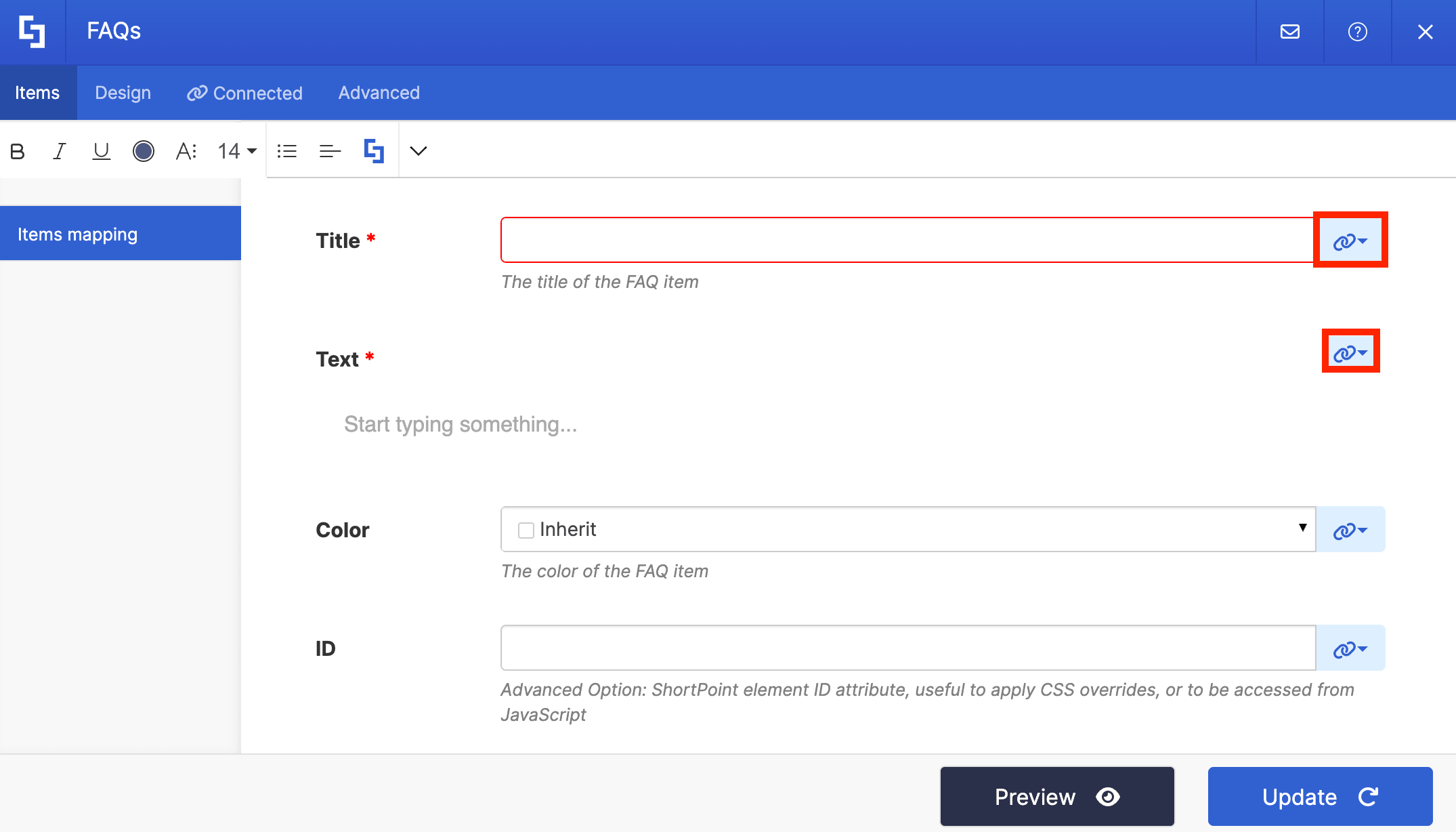
- Go to the Items tab:
- Delete all default content.
- Use the link icon to map the properties you want to showcase:
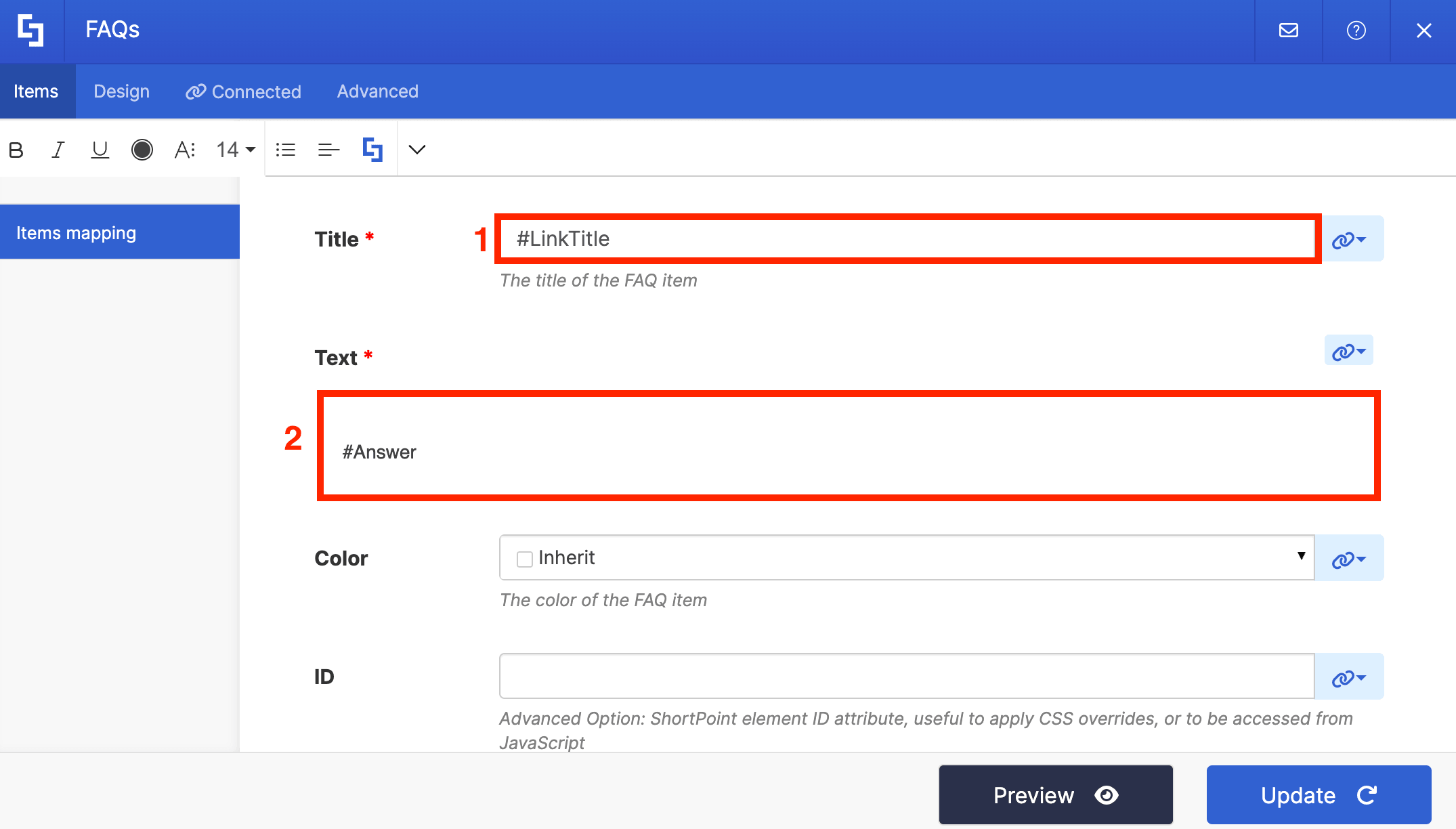
- We recommend using the mapped properties below. However, if you have any other requirements, you can map properties as you see fit:
- #LinkTitle - showcase the content inside the Question column.
- #Answer - showcase the content inside the Answer column.
NOTEFor more information on Items Mapping, check out ShortPoint Connect: How Items Mapping Works.
- Click Update.
Step 7 (Optional): Modify Design
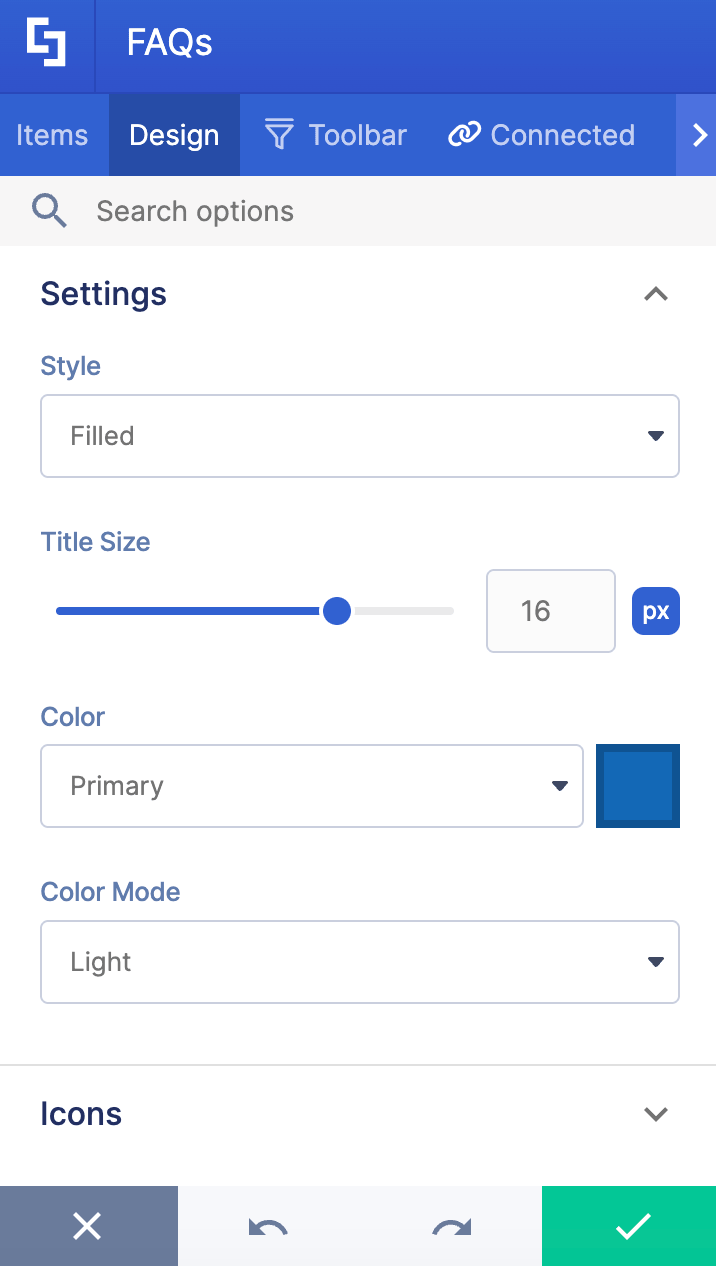
- Go to the Design tab.
- Customize the look of the Design Element to your liking:
- Apply your changes:

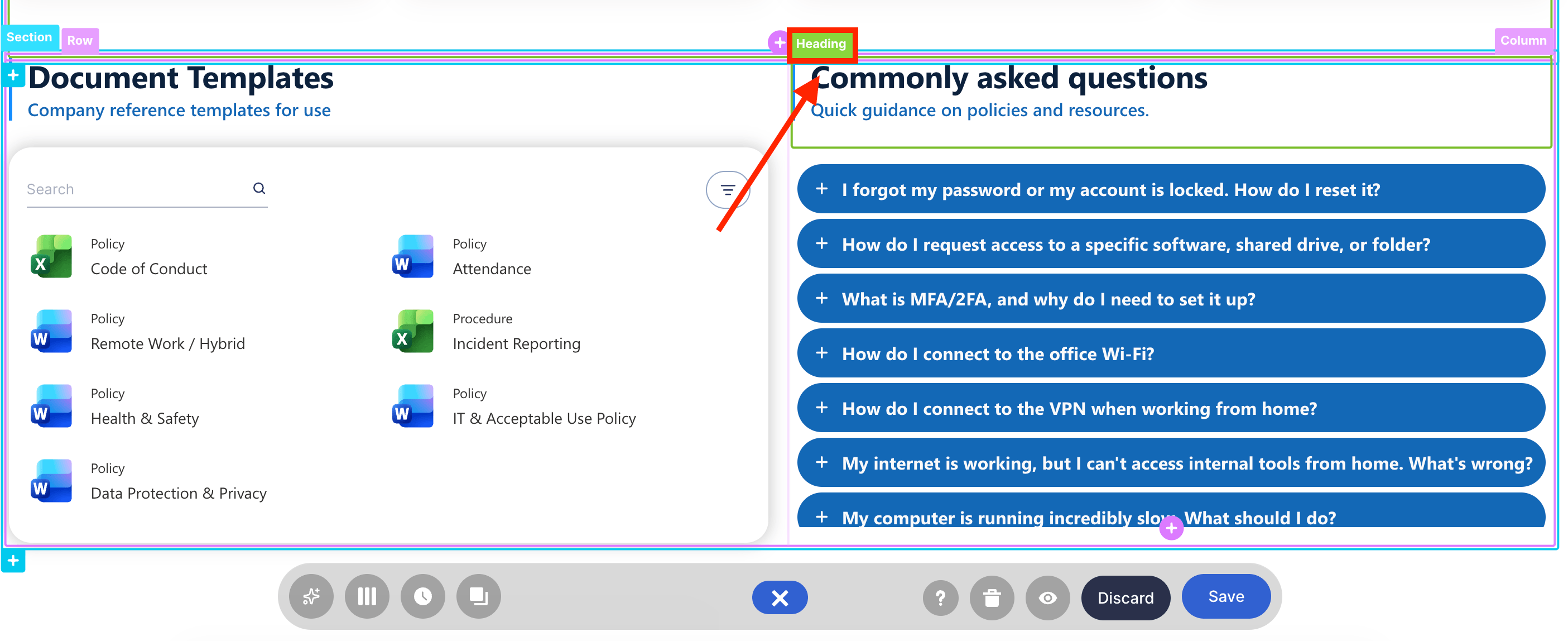
Step 8 (Optional): Change other Template Elements
- You can also modify the other Design Elements found in the FAQ template. Simply click the EasyPass tag of the Design Element:
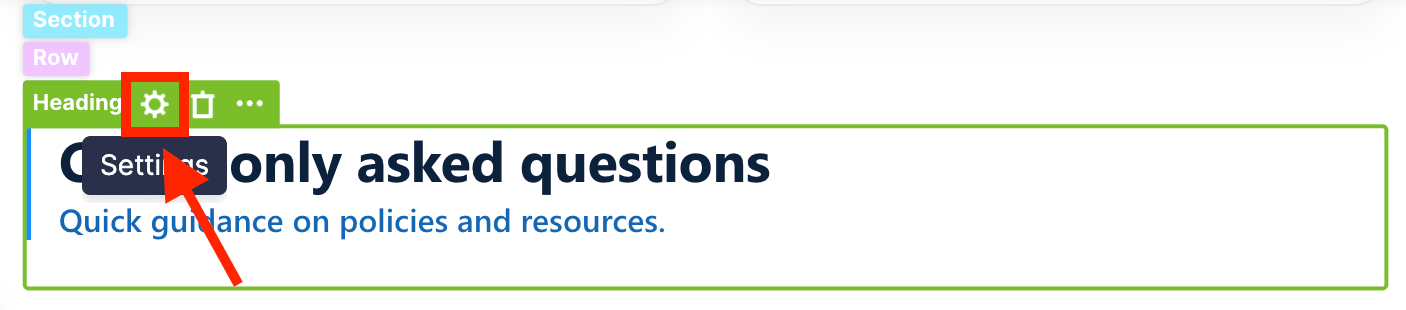
- Select the cogwheel icon:
- And customize the content as you like:
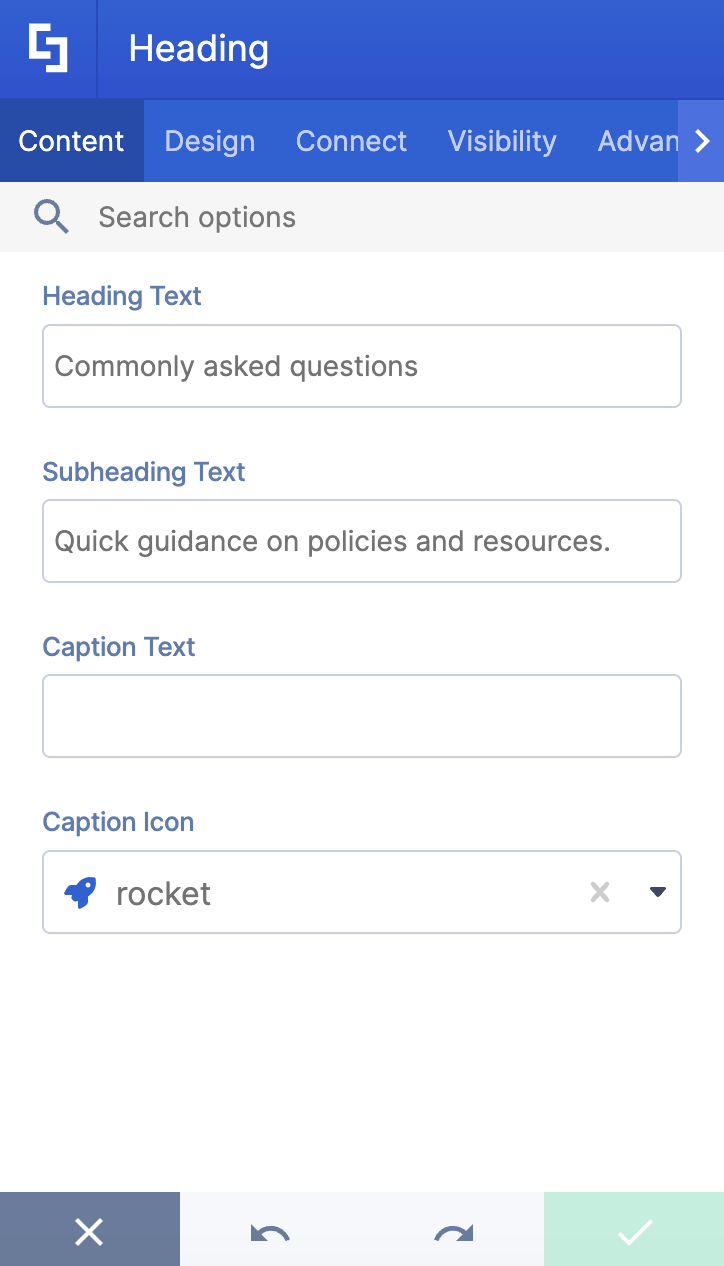
- Click the green check mark to apply changes:

Step 9: Save
- Save your changes:
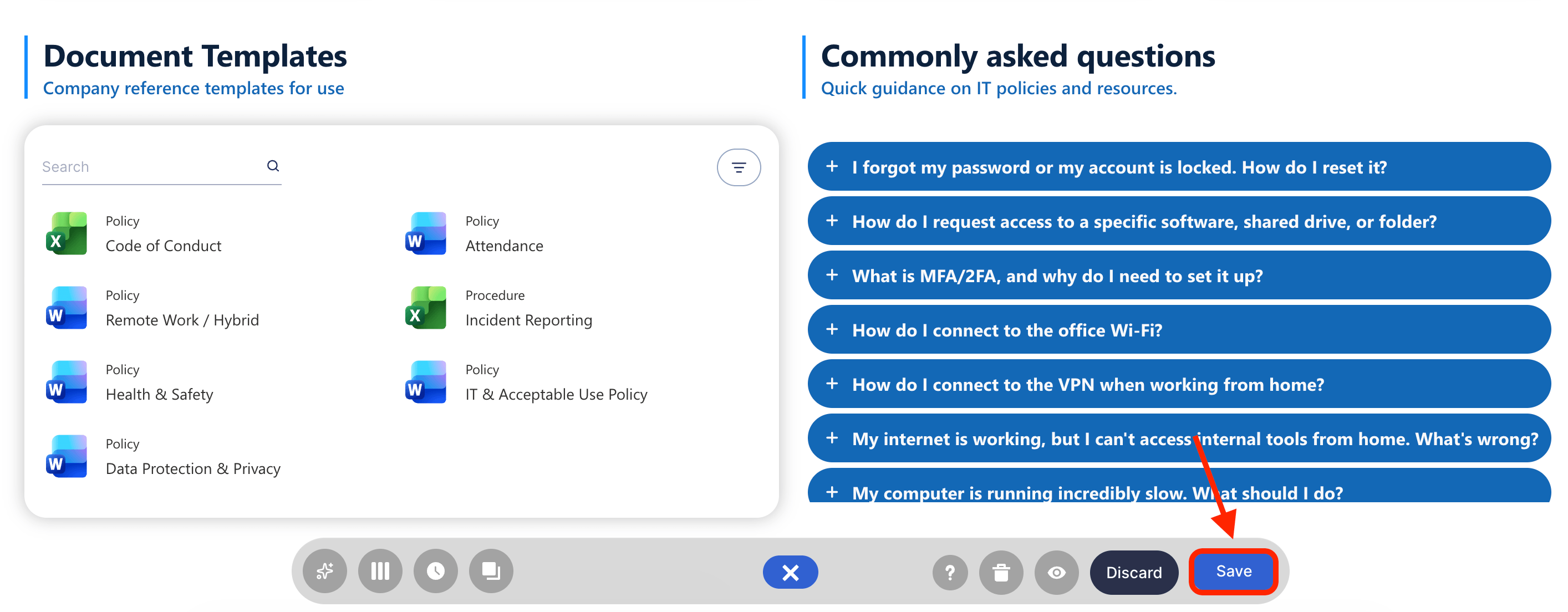
- Publish your page:

Congratulations! You now have a dynamic FAQ section on your SharePoint web page that updates automatically whenever changes are made to the SharePoint List. This ensures that your site visitors get the latest information without manual updates. Your SharePoint FAQ is now a powerful tool for improving employee engagement and reducing repetitive inquiries across your Microsoft 365 environment.
Pro-Tips for Writing Your FAQs
To make your FAQ section as user-friendly as possible, keep these best practices in mind:
- Write from the user’s perspective: Phrase the questions exactly how an employee would say them (e.g., "How do I book a meeting room?" instead of "Protocol for Corporate Space Reservation").
- Keep answers concise: Direct the user to the point quickly. If an answer requires a 10-step process, provide a brief summary and link to a dedicated document for the full details.
Frequently Asked Questions
How can I create a dynamic FAQ on my SharePoint site?
You can build a dynamic FAQ by creating a SharePoint List with Question and Answer columns, then connecting it to a ShortPoint Design Element on your SharePoint page. This setup ensures your FAQ updates automatically whenever the list is modified, eliminating the need to manually update the entire site.
Who should update the FAQ content?
Content Owners who are subject matter experts in their departments should manage FAQ updates. SharePoint’s permission settings enable assigning editing rights to specific users, ensuring accurate and up-to-date information.
Should I have one large FAQ page or multiple smaller ones?
A hybrid approach is recommended. Maintain a centralized FAQ directory on your home site for company-wide topics and separate FAQs on individual team sites for department-specific questions, improving accessibility and relevance.
How often should FAQs be reviewed?
FAQs should be audited at least quarterly or biannually to keep information accurate and maintain trust in your SharePoint intranet.
Can I customize the design of my FAQ section?
Yes, you can modify ShortPoint's FAQ templates as you see fit. Each design element have their unique layouts, color, and style options to create visually appealing and user-friendly FAQ sections that fit your organization's branding.
What are some best practices for writing effective FAQs?
Write questions from the user’s perspective, keep answers concise, and link to detailed documents when necessary to enhance user experience and reduce repetitive inquiries.
Related articles:
