 Try ShortPoint now
Have you ever used the Person Cards Design Element on your SharePoint sites? If so, you’ve probably noticed those handy little profile icons next to your colleagues' names.
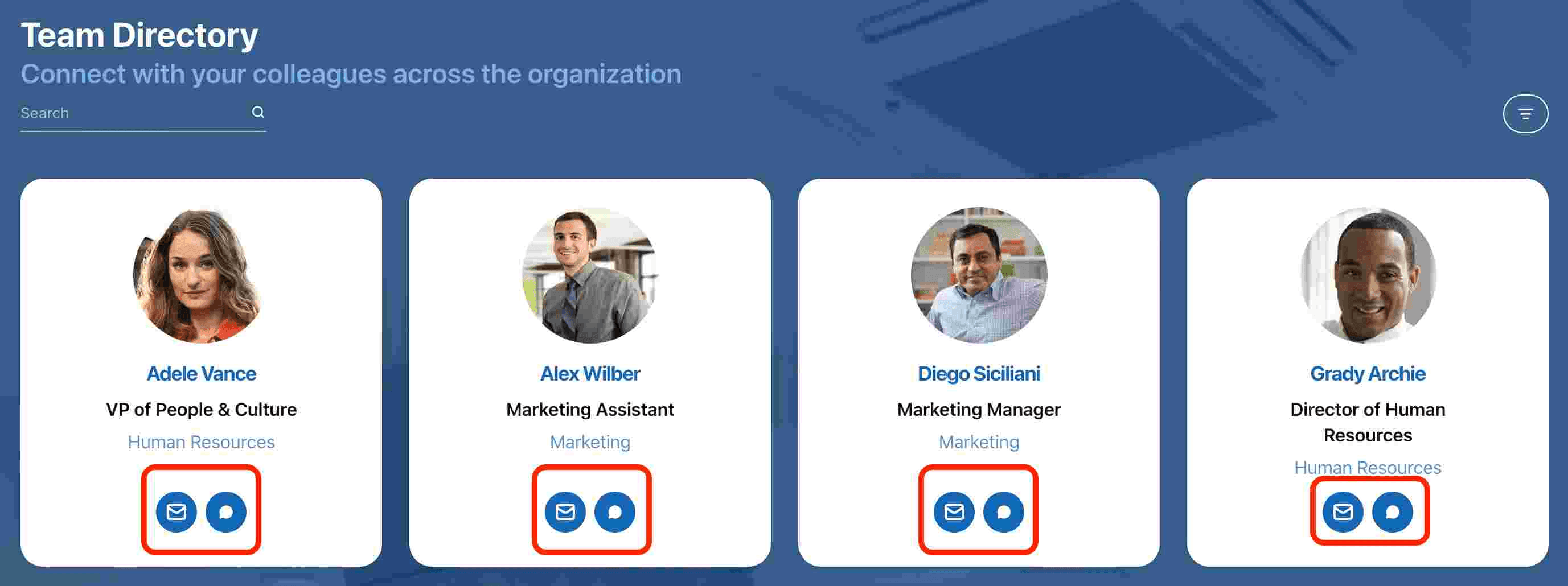
While they certainly look great and add a nice visual touch to your pages, they are actually much more than just eye candy! They are fantastic, hidden shortcuts to instantly start a one-on-one chat with your teammates on Microsoft Teams.
In this quick guide, we’ll show you exactly how to link MS Teams chat directly to those Person Cards profile icons to help your team connect faster, collaborate better, and access chat history swiftly.
TABLE OF CONTENTS
- Prerequisites
- Why Link MS Teams Chat to Profile Icons
- How to Connect Person Cards Profile Icons to MS Teams Chat
- Frequently Asked Questions
Prerequisites
- You must have the latest version of ShortPoint SPFx installed.
- You must be a ShortPoint Designer with either a Pro or Enterprise License.
- You must already have the Person Cards Design Element on your page.
- You must have the ShortPoint Microsoft Graph API enabled. Learn how in Enabling Microsoft Graph API Integration.
Why Link MS Teams Chat to Profile Icons
Wondering how this handy tip will help your team? Here are only some of the reasons why you should give it a try:
- Saves Time: No need to constantly switch apps and search for a colleague's name in Microsoft Teams.
- Streamlines Workflow: Connect with authors, project leads, or team members right from the page you are reading, enhancing access to chat responses and shared content.
- Enhances Collaboration: Makes your SharePoint site an active starting point for conversations, video calls, and meetings within your team.
How to Connect Person Cards Profile Icons to MS Teams Chat
Let's walk you through the connection process. Simply follow the steps below to get started.
Step 1: Edit the ShortPoint Web Part
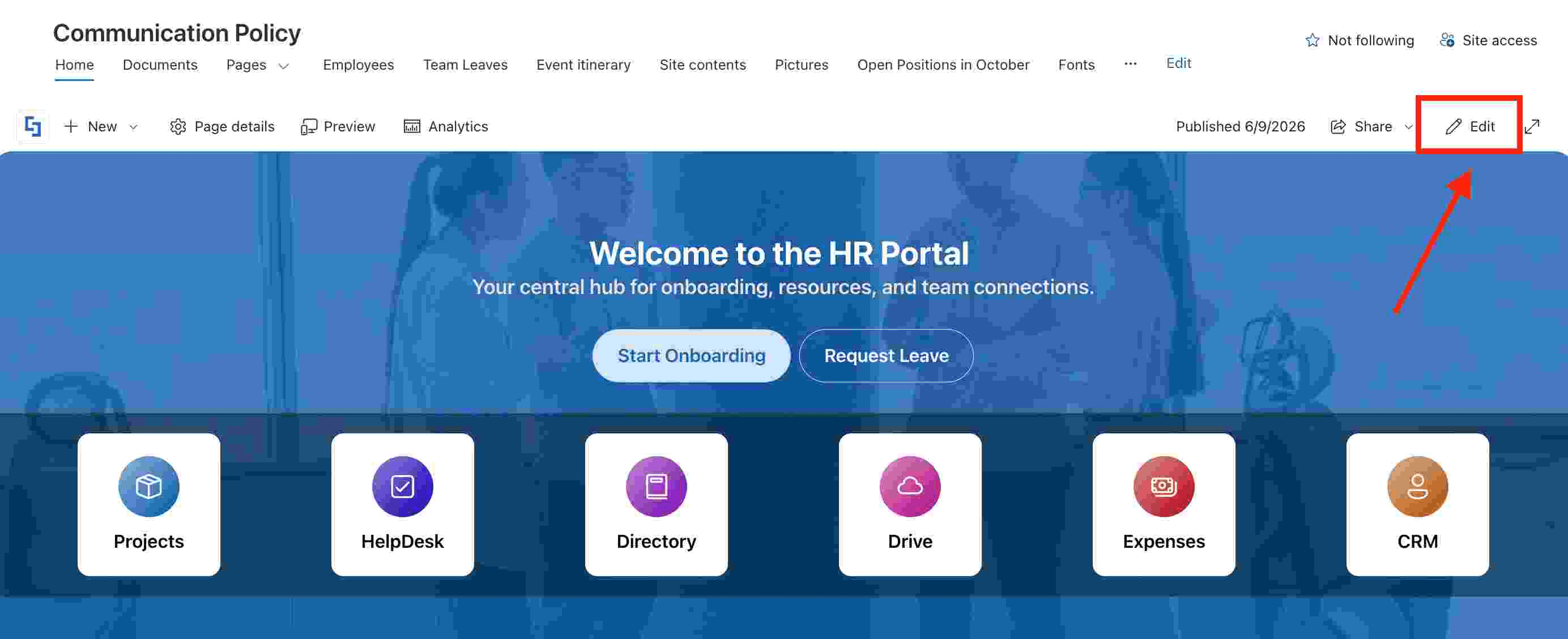
Go to the SharePoint page you want to use and click Edit:
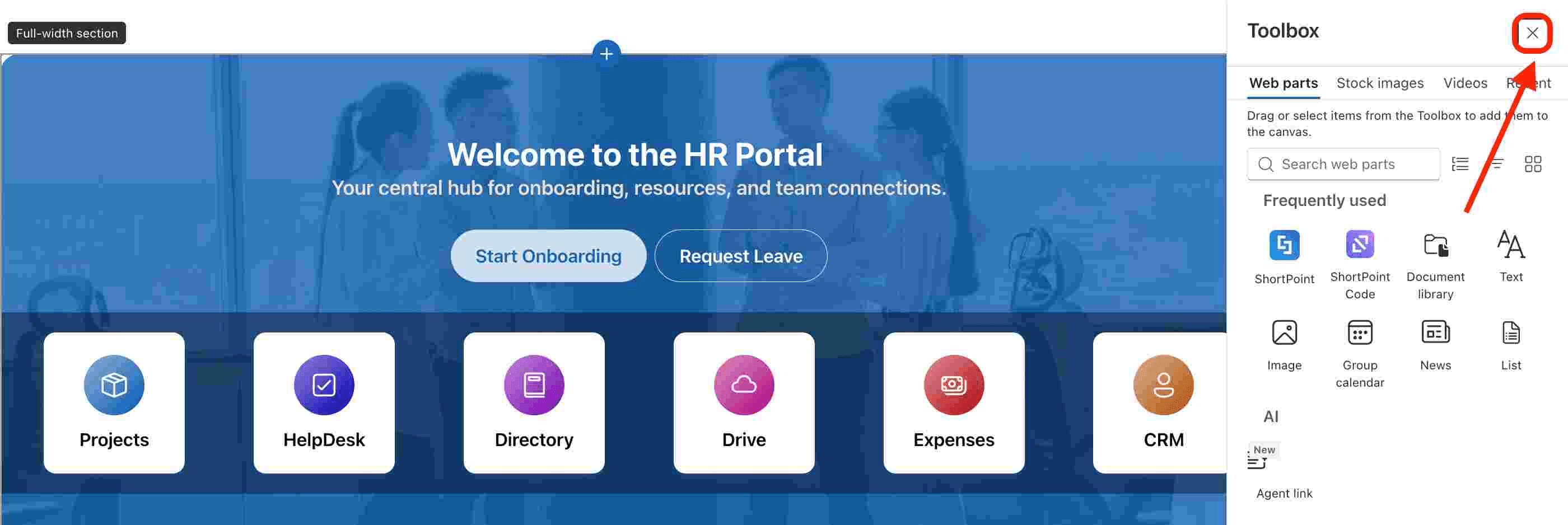
Close the SharePoint Toolbox:
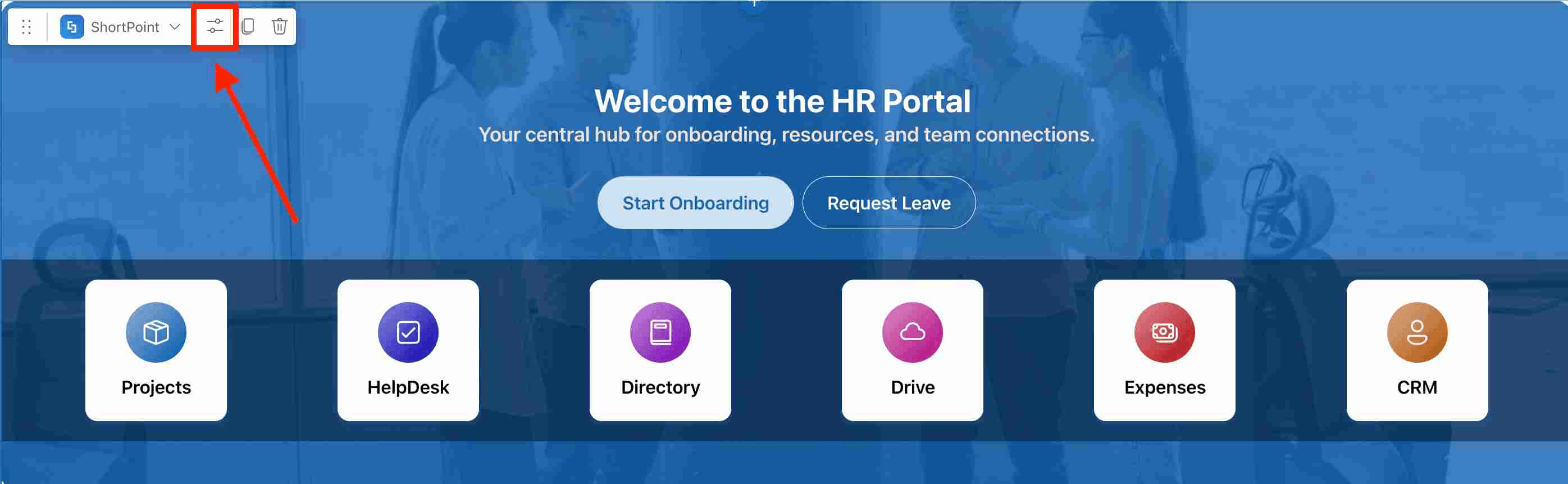
Click the Edit Properties icon:
Step 2: Edit the Person Cards Design Element
NOTEBefore proceeding, you must already have the Person Cards Design Element on your SharePoint page. For more information, check out How to Customize the Person Cards Design Element.
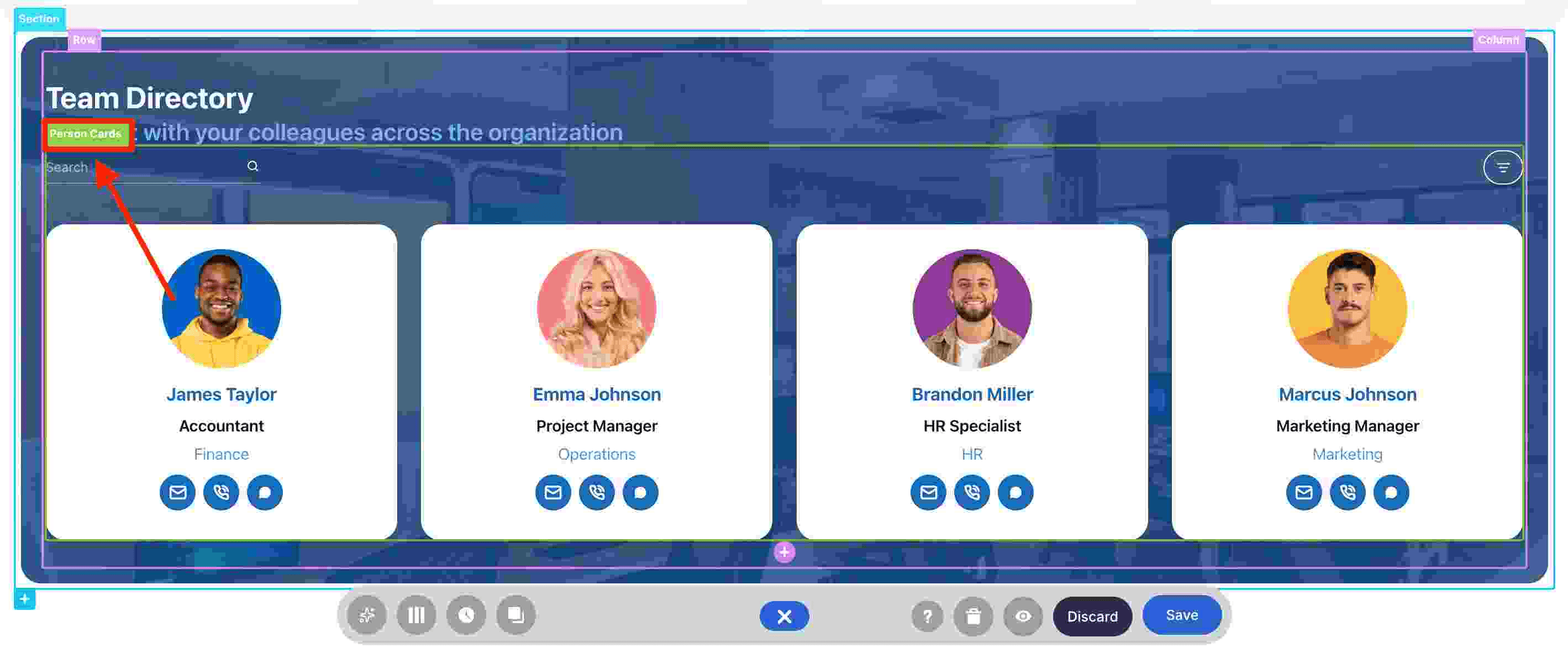
Click the EasyPass tag of the Design Element:
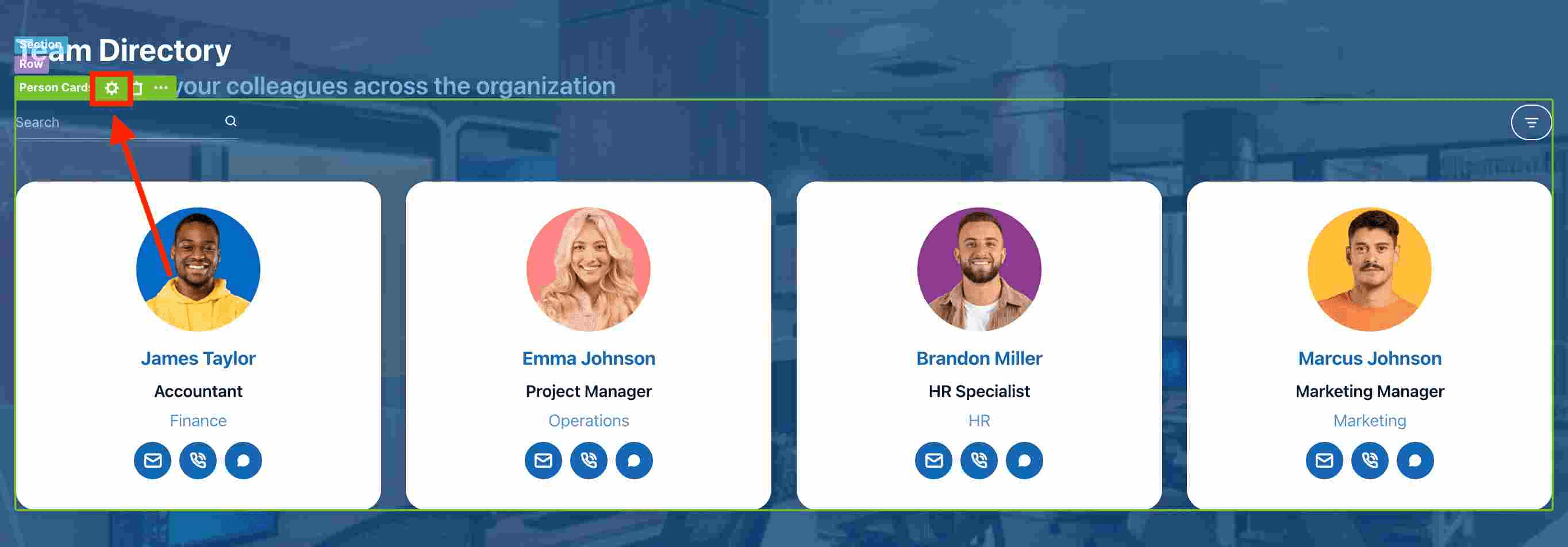
Select the cogwheel icon to open the settings window:
Step 3: Use Microsoft Graph API
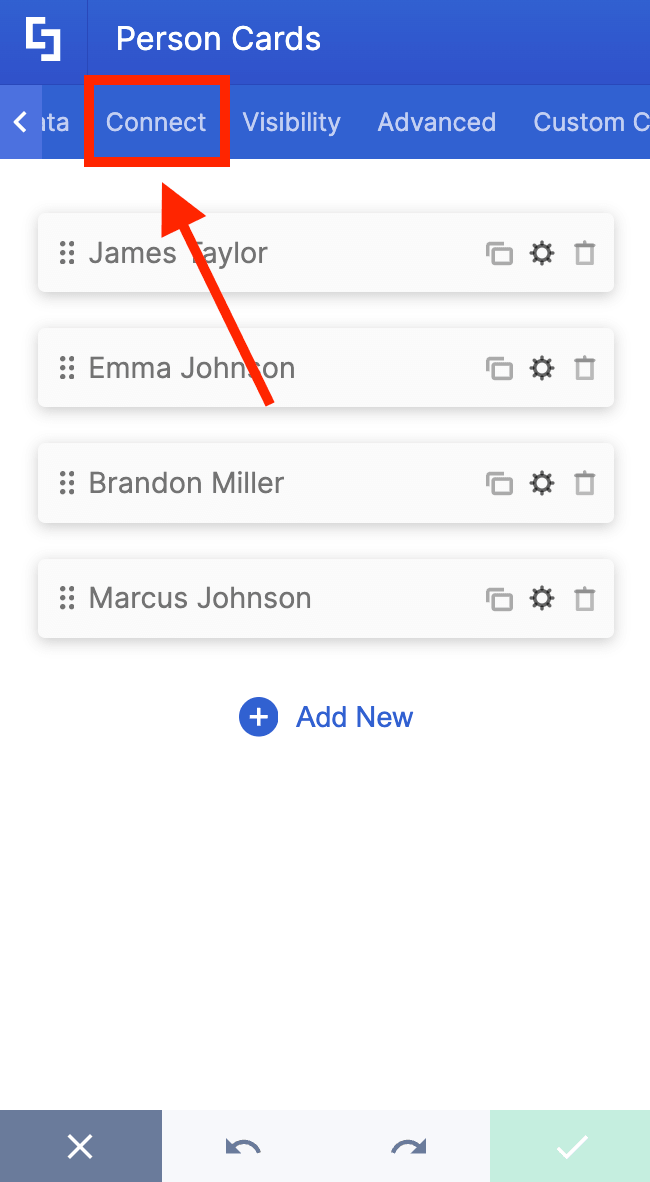
Go to the Connect tab:
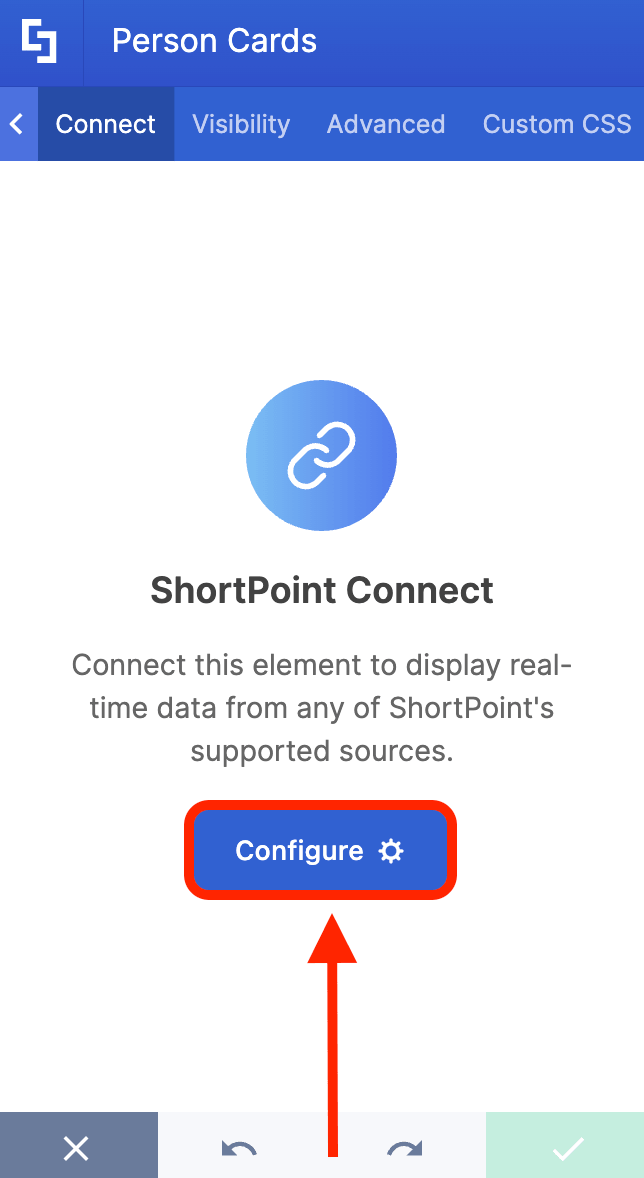
Select Configure:
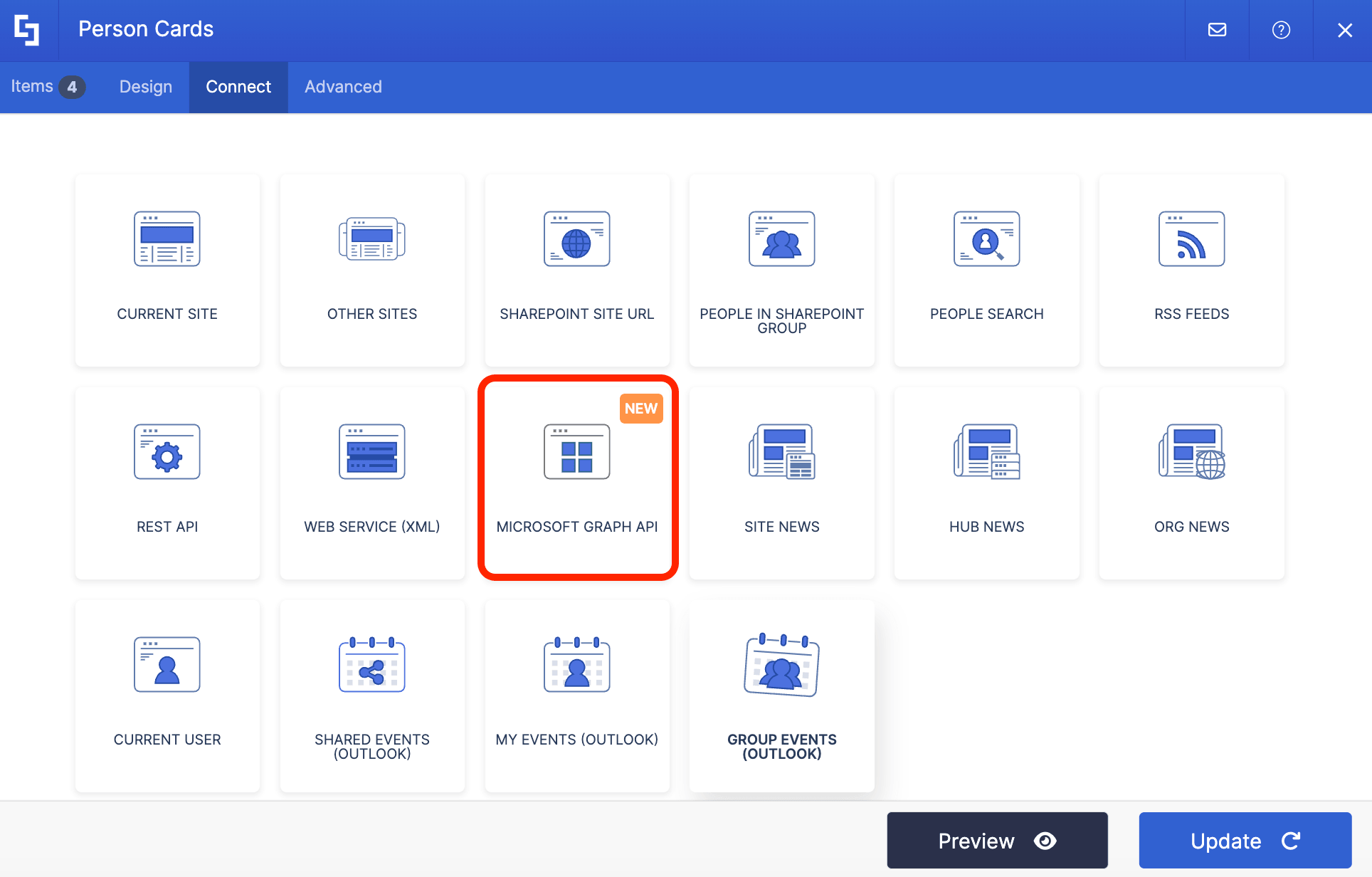
Choose Microsoft Graph API:
NOTETo use the Microsoft Graph API connection, you must enable it first. To learn how, go to How to Enable the MS Graph API integration.
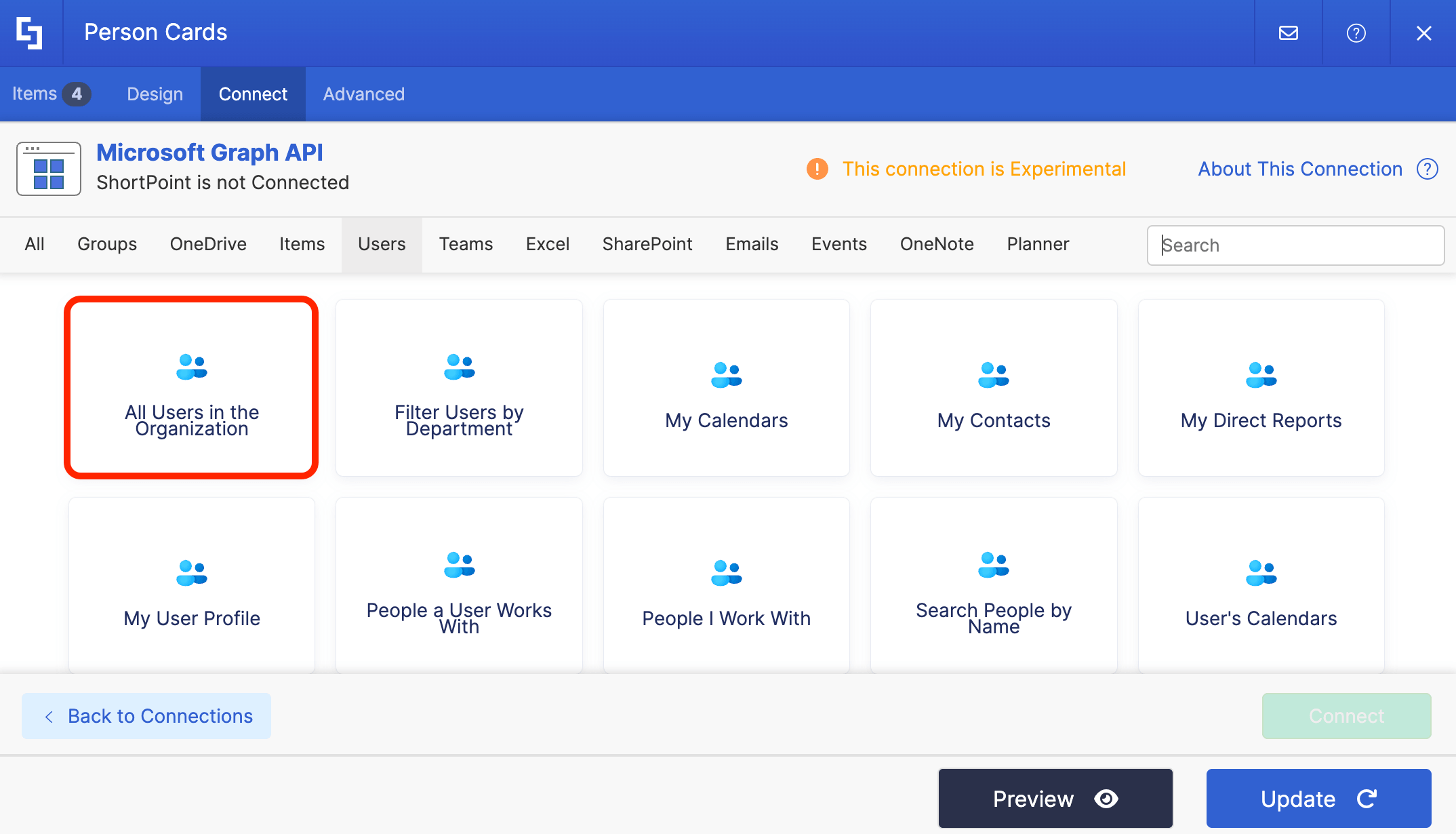
Then, select a use case that pulls users’ data. For this guide, we’ll use the All Users in the Organization use case:
Step 4: Connect
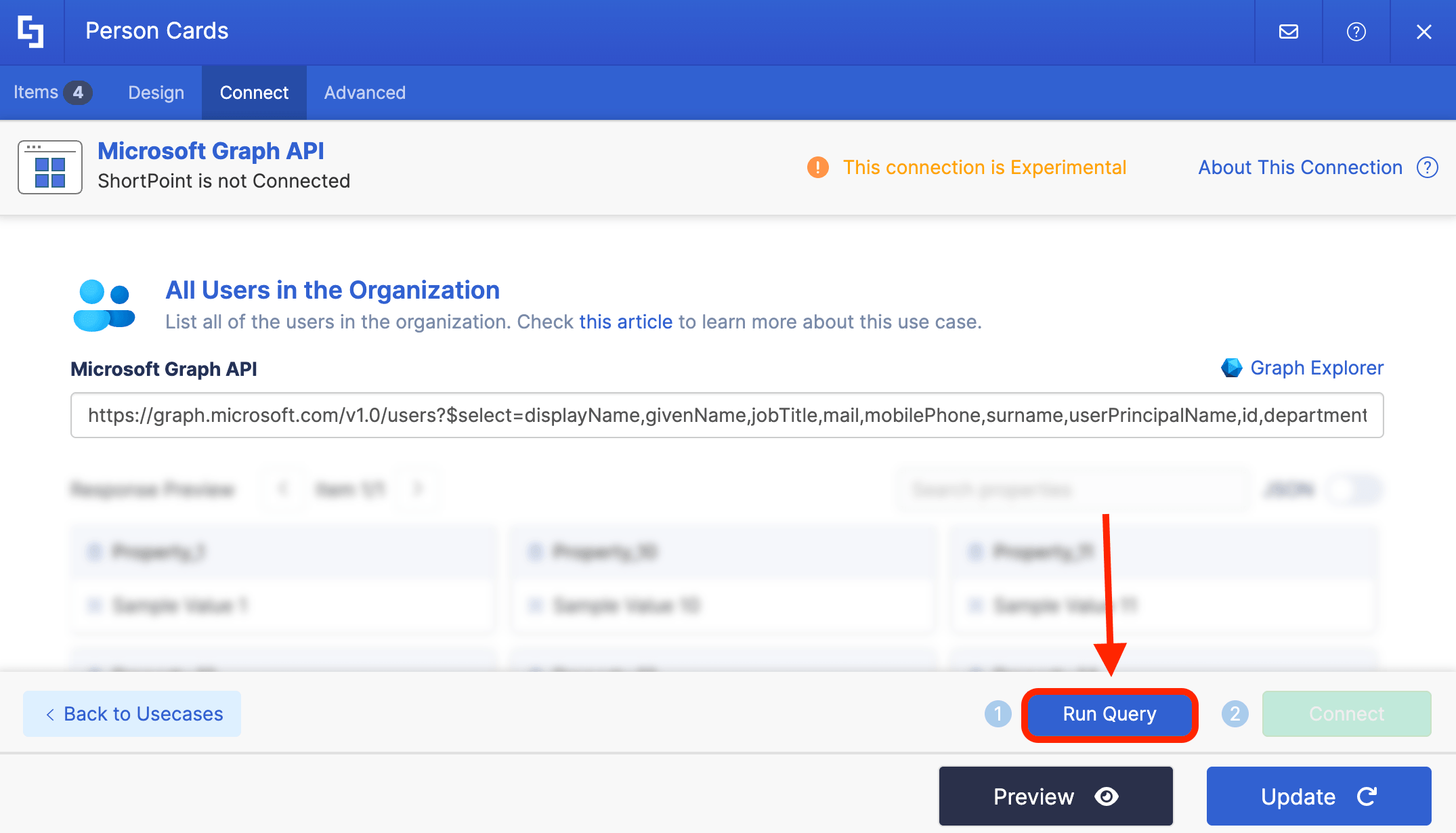
Click Run Query:
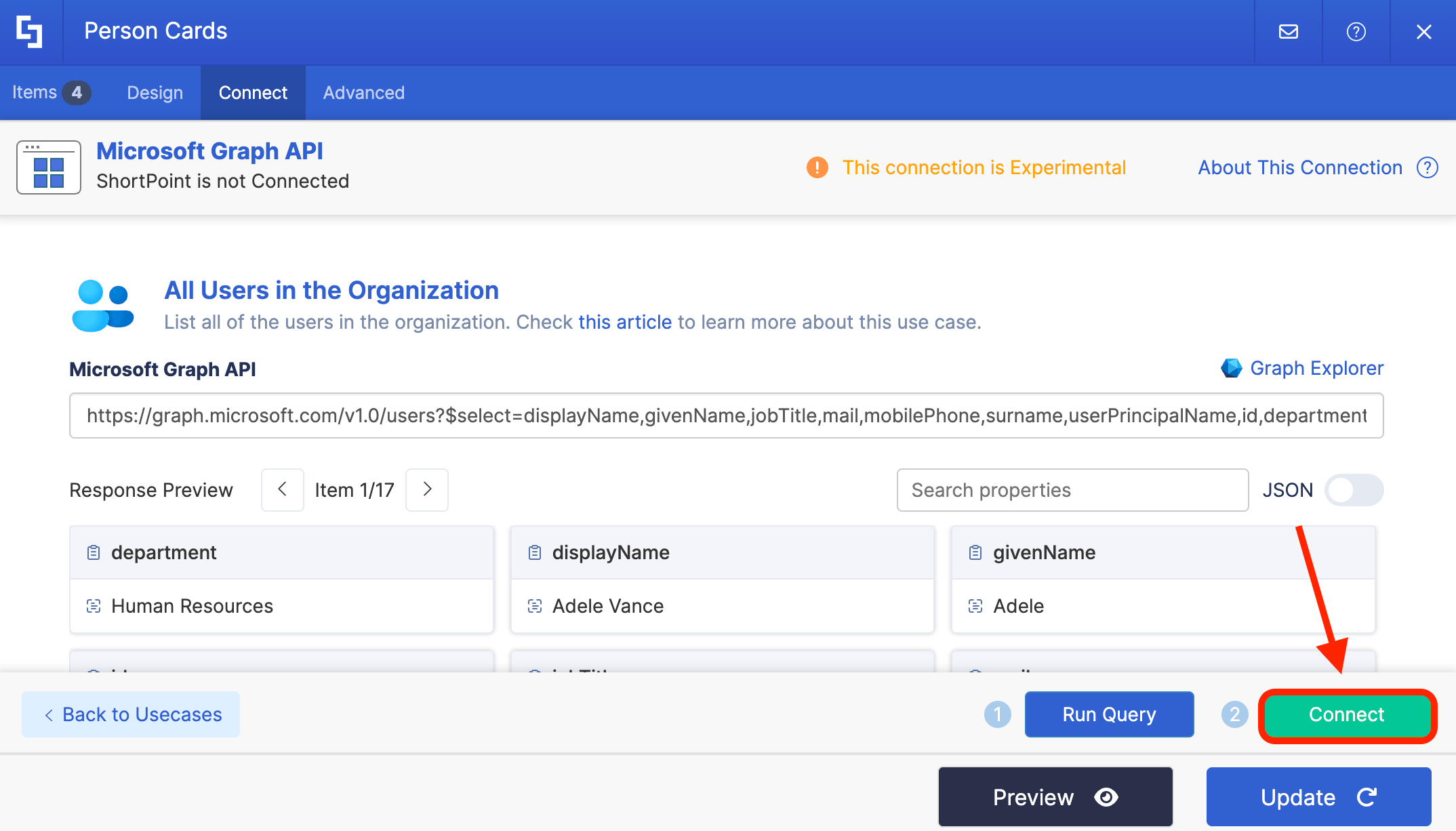
Select Connect:
Step 5: Map Properties
Go to the Items tab:
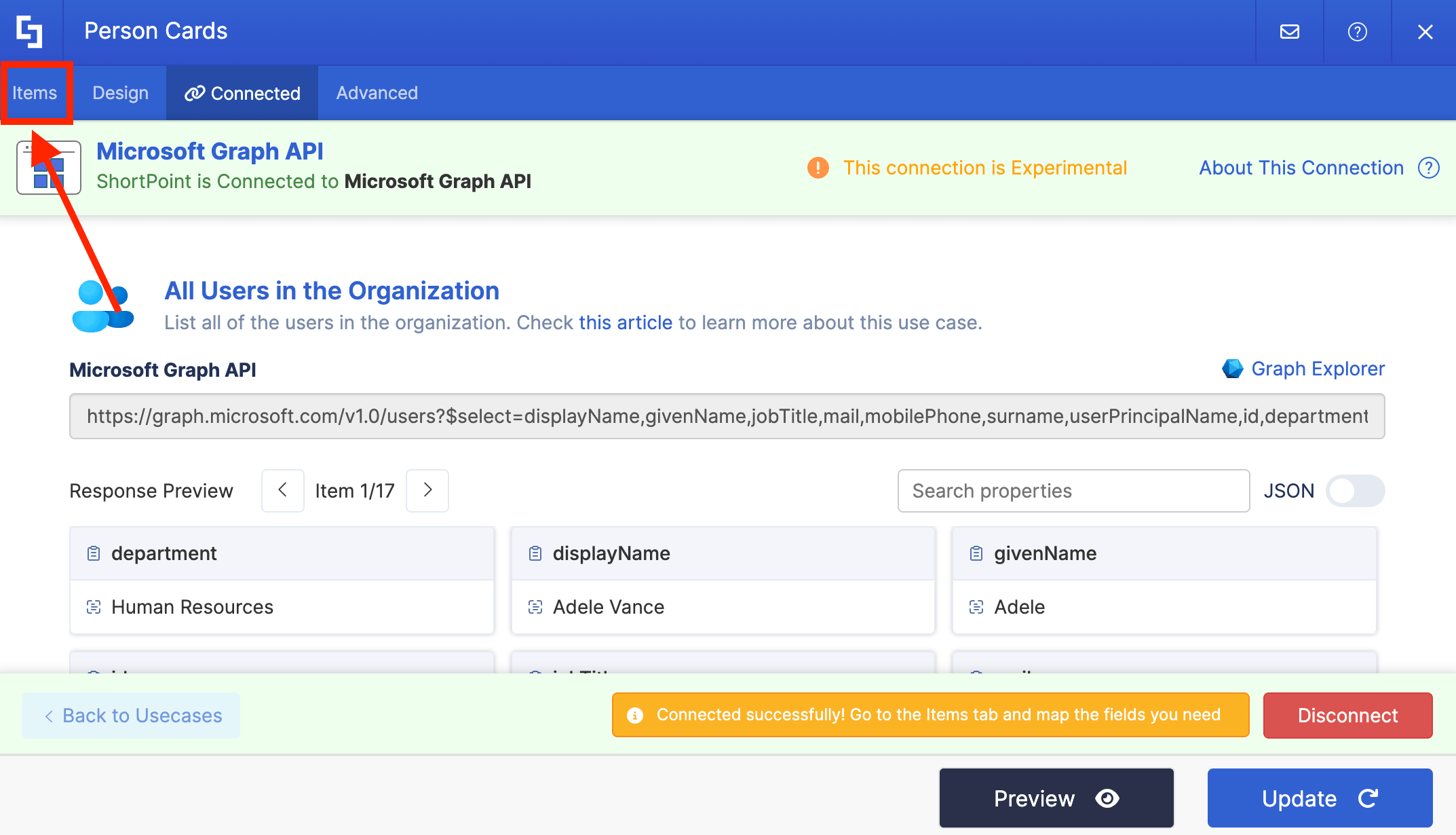
Delete all default content:
Use the link icon to map the properties you want shown:
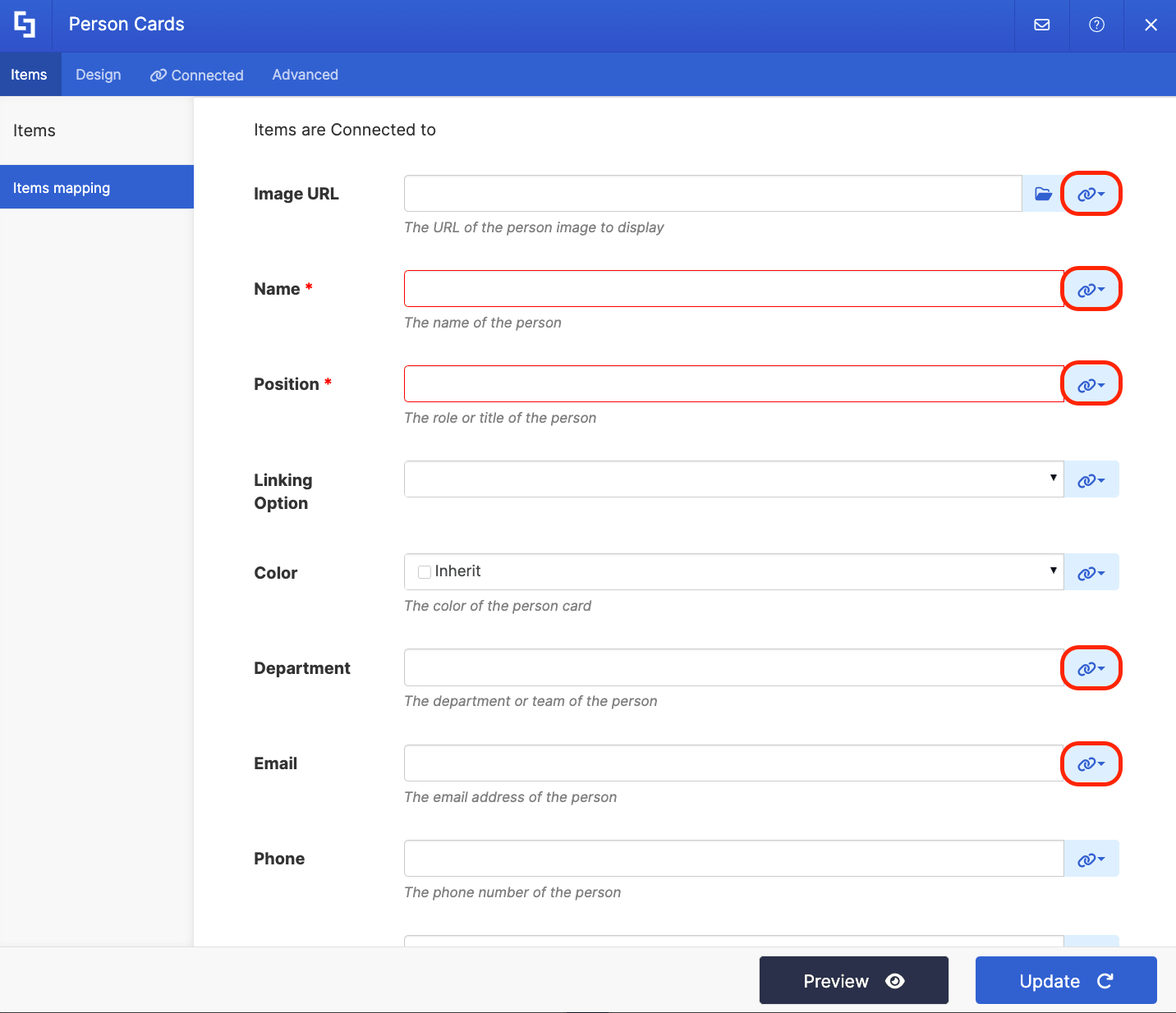
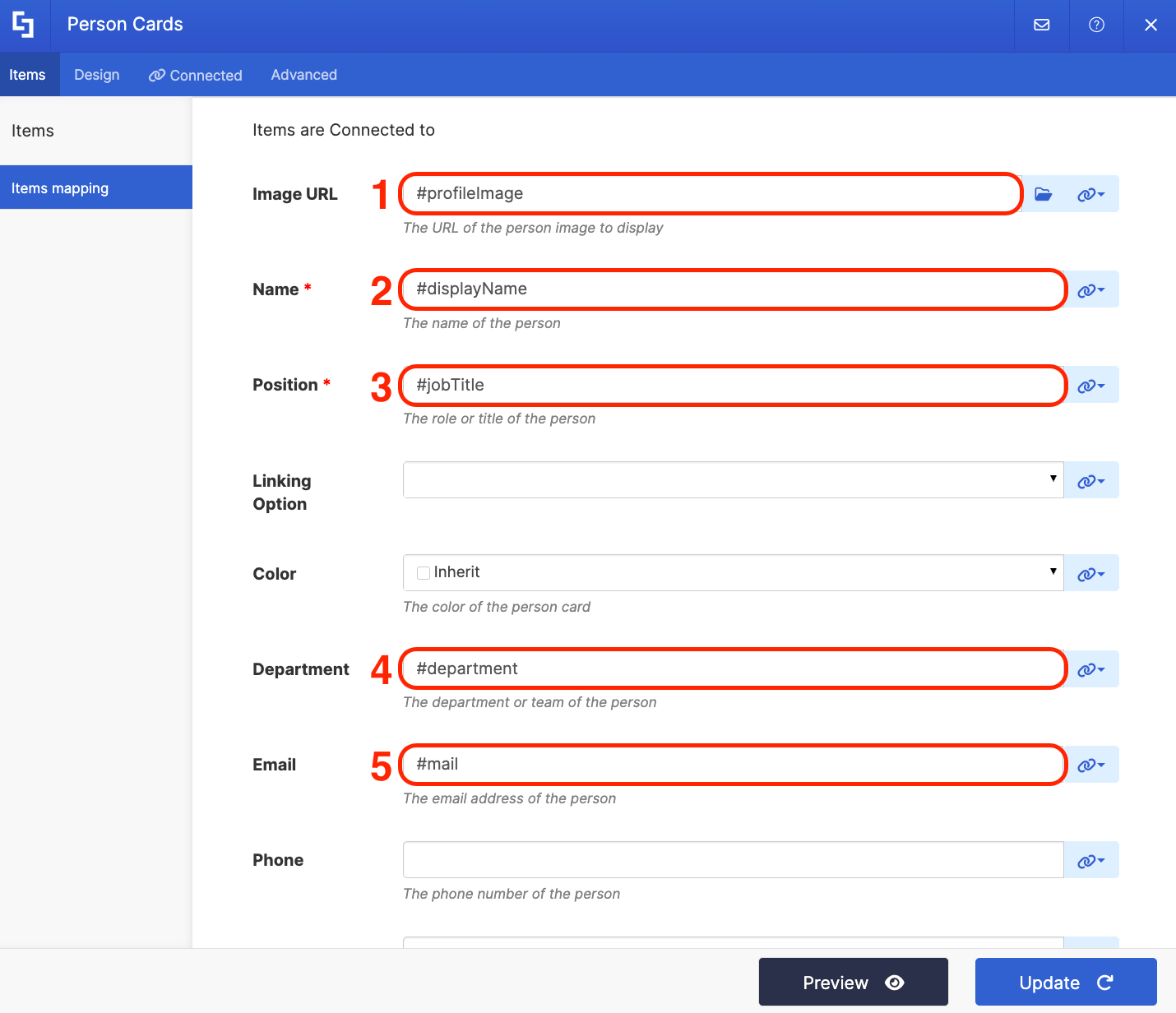
You can map the same properties shown below or map your own:
- #profileImage - shows the photo of the employee.
- #displayName - shows the full name of the employee.
- #jobTitle - shows the work title of the employee.
- #department - shows the employee’s department.
- #mail - shows the employee’s email address.
Copy the link below:
https://teams.microsoft.com/l/chat/0/0?users=
Paste it in any link field. You can paste it in the Profile field:
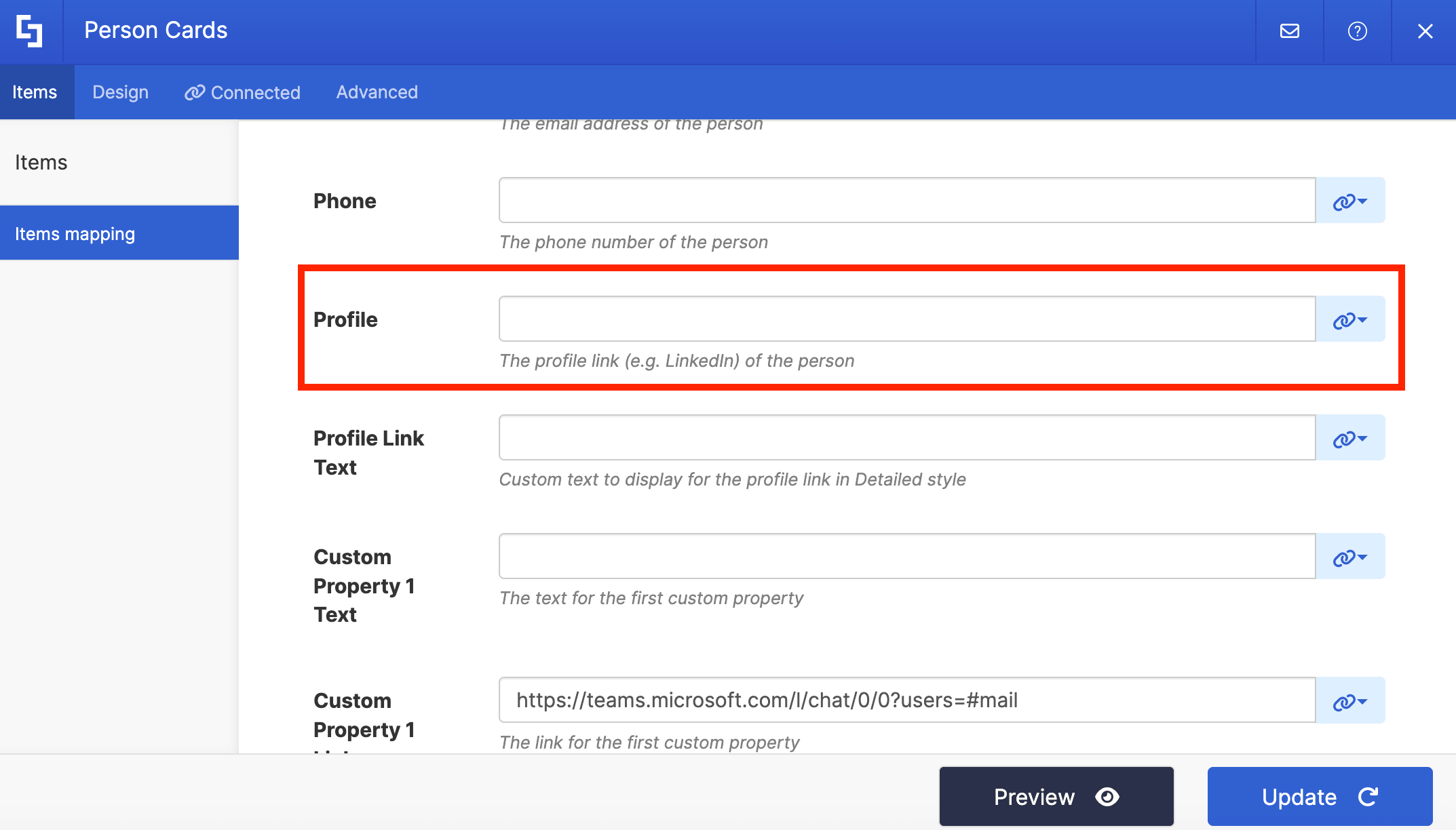
Or you can create a custom property, like in our example below. To learn how, check out How to Create Custom Properties for the Person Cards Design Element:
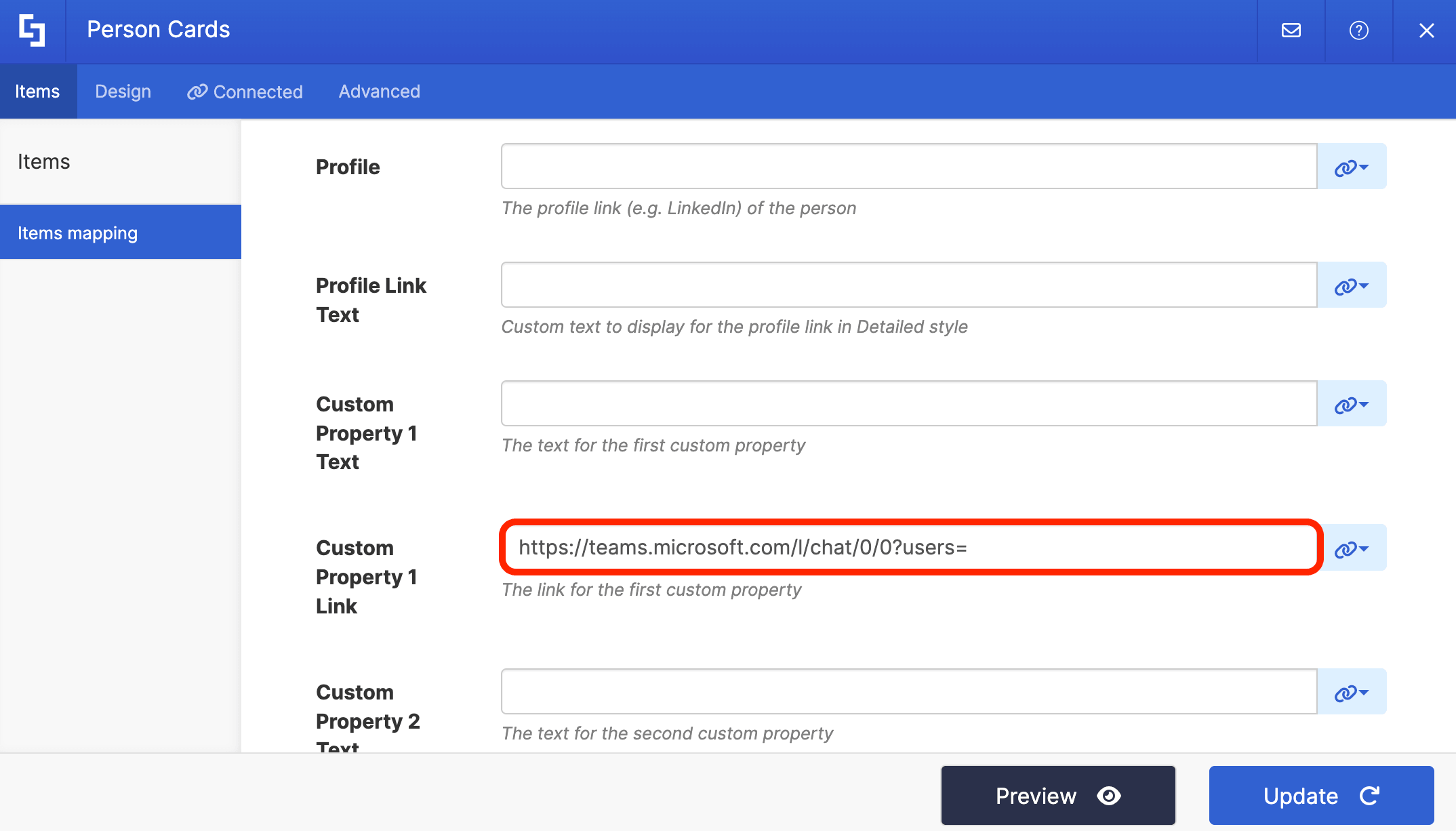
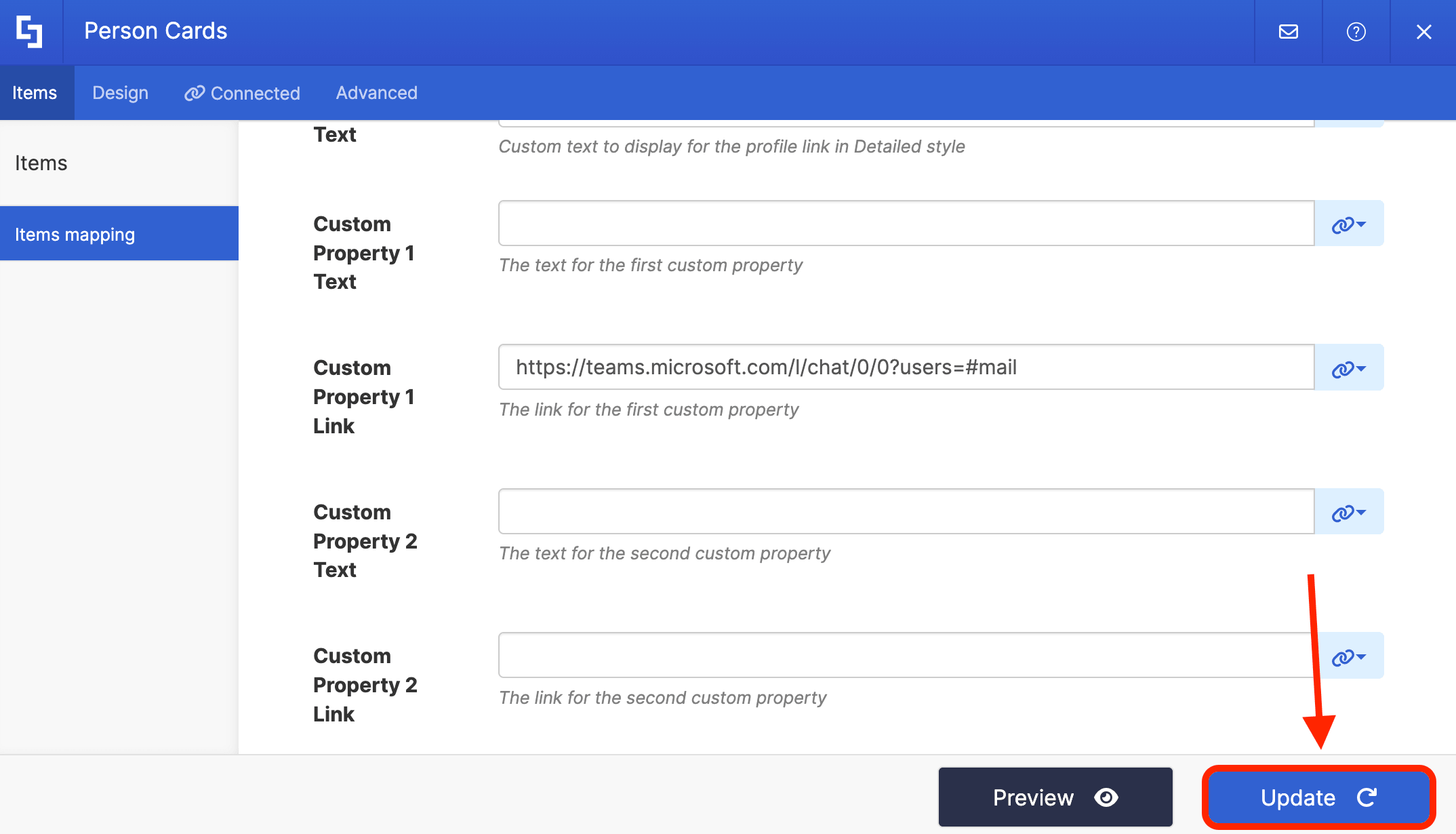
Then, use the link icon and map the #mail property. Make sure there isn’t any space between users= and #mail. Otherwise, it may not work as expected.
Step 6: Save
Once done, click Update:
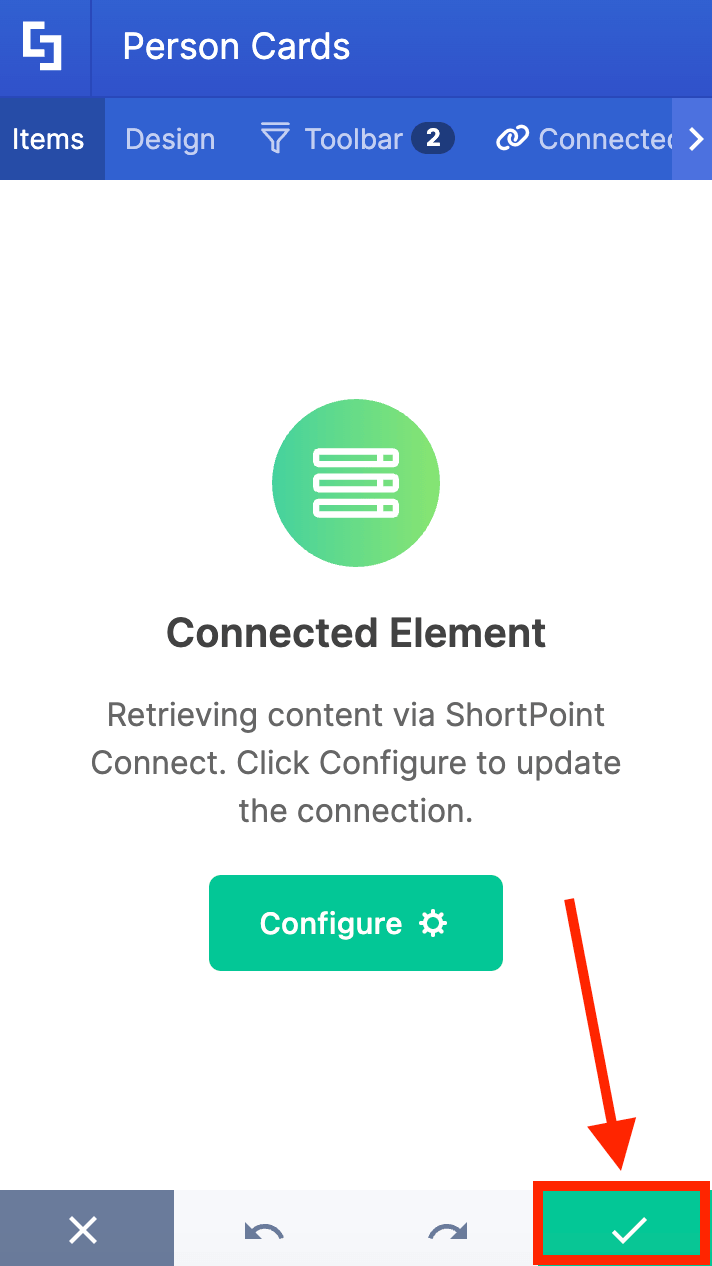
Click the green checkmark:
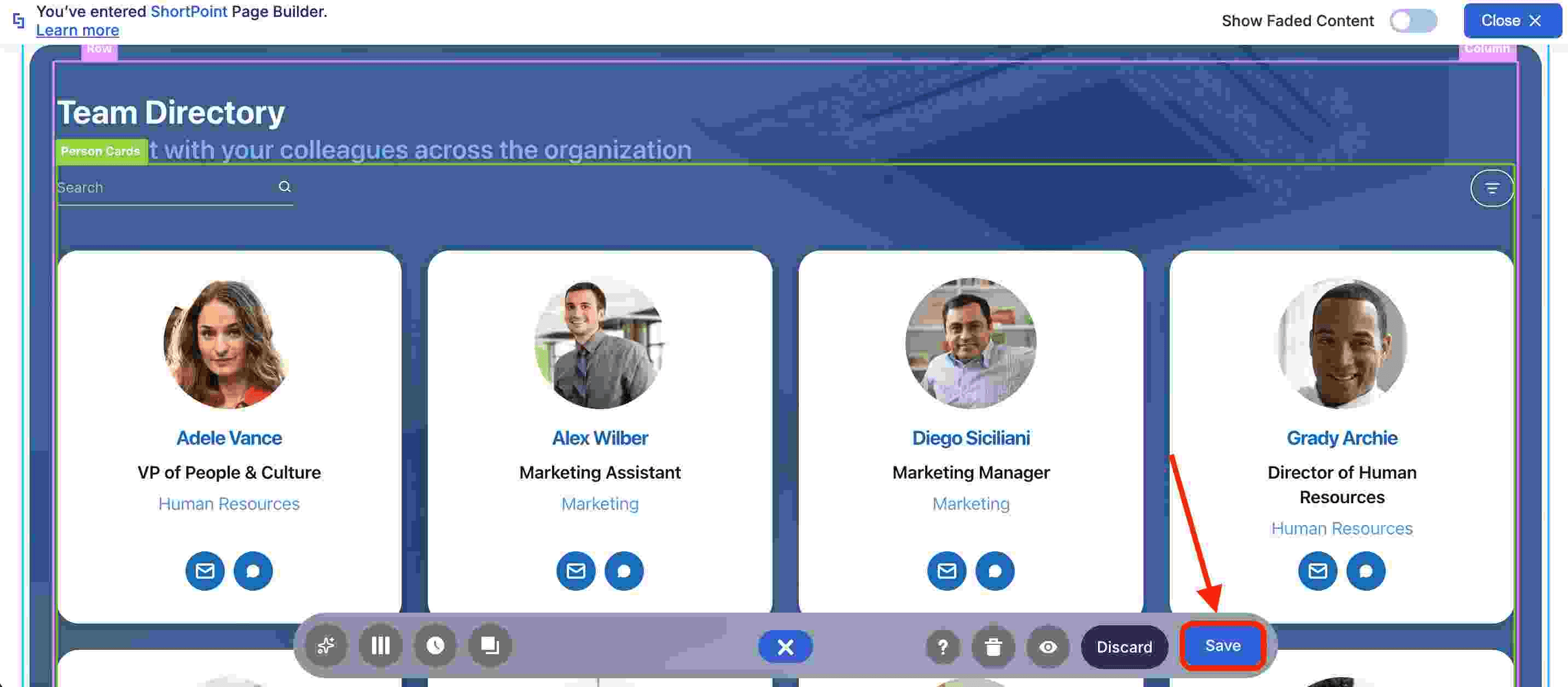
Save your changes:
Publish your page:
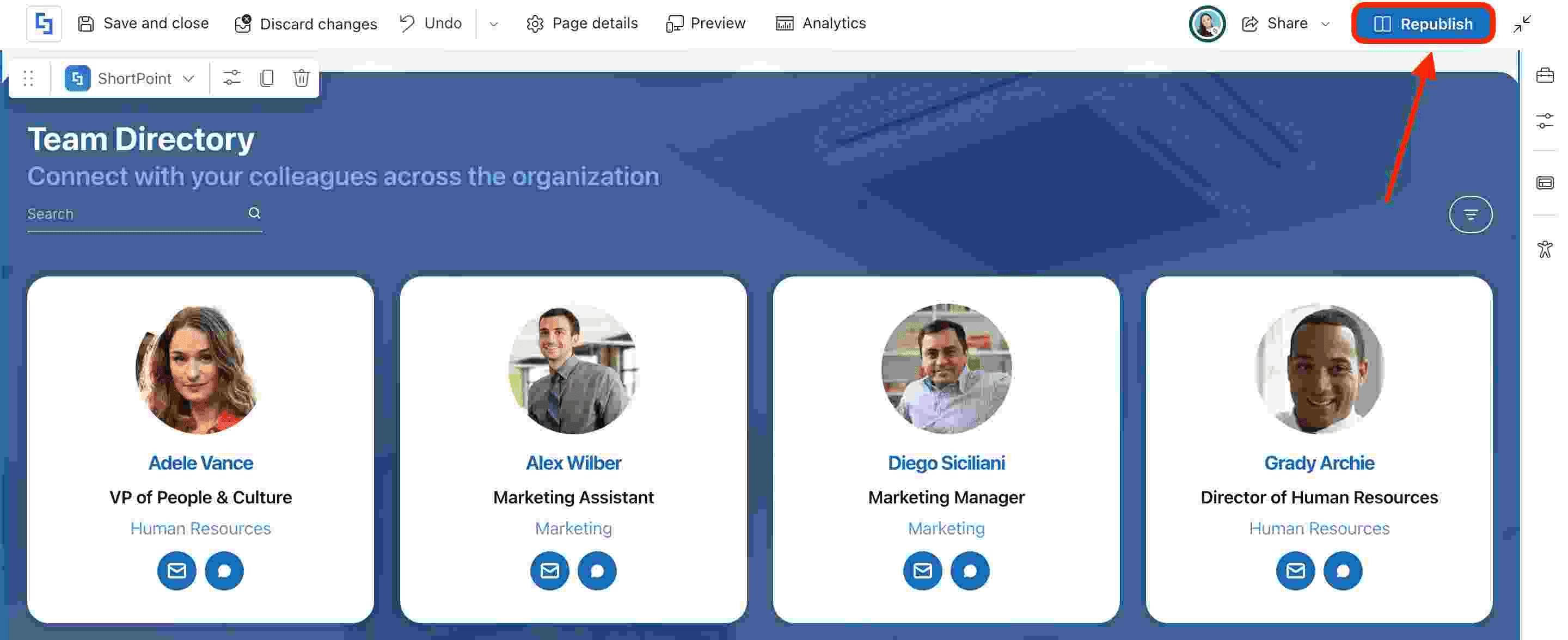
Great work! Your Person Cards profile icons are now linked to Microsoft Teams chat, allowing your team members to conveniently start one-on-one chats from your SharePoint sites. Leveraging this connection with your Microsoft 365 environment ensures a streamlined workflow and better communication across your team.
Frequently Asked Questions
How do I start a one-on-one chat from a Person Cards profile icon?
You can start a one-on-one chat directly by linking the Person Cards profile icons to Microsoft Teams chat using the Microsoft Graph API. When you click a profile icon, it launches the Microsoft Teams app and opens a chat with that person, streamlining communication within your Microsoft 365 environment.
What are the benefits of linking MS Teams chat to Person Cards profile icons?
Linking these chats saves time, streamlines workflow, and enhances collaboration by providing quick access to chat history and enabling instant messaging directly from SharePoint pages.
Do I need a Microsoft account to use this integration?
Yes, a Microsoft account is required to access Microsoft Teams and use the chat linking features integrated with Person Cards.
Can I customize the properties shown on Person Cards?
Yes, you can map custom properties such as profile images, display names, job titles, departments, and email addresses using the Microsoft Graph API to enhance the information shown on Person Cards.
What devices support this chat linking feature?
This integration works across desktop, browser, and mobile devices where Microsoft Teams is accessible, ensuring seamless communication regardless of your device.
Related articles:
