 Try ShortPoint now
Do you have lots of channels in your Microsoft Teams account? If you do, here's something you must know: each channel has a unique identifier, called Channel ID.
Now, what does that have to do with you? Well, Channel IDs are extremely useful when you want to easily find and navigate your channels, automate daily tasks, or display your Teams channels right on your SharePoint sites. Let’s dive into what they are, how to find them, and how you can put them to work.
TABLE OF CONTENTS
- What is a Microsoft Teams Channel ID?
- Finding the Channel ID
- Practical Use Cases
- Frequently Asked Questions
What is a Microsoft Teams Channel ID?
A Channel ID is a unique string of alphanumeric characters assigned by Microsoft to every single channel created within MS Teams.
While two channels in your organization might share the exact same channel name (like "#General"), no two channels will ever share the same Channel ID. It usually looks something like this:
19:abcd1234efgh5678ijkl9012mnop3456@thread.tacv2
This backend identifier ensures that Microsoft 365 knows exactly where to route messages, files, and notifications without getting confused by human naming conventions.
Finding the Channel ID
How do you find the channel ID? Just follow the steps below to successfully get your channel's ID:
Option 1: Using the ShortPoint Microsoft Graph API connection
NOTEYou must be a ShortPoint Designer with a Pro or Enterprise license to use this option.
Step 1: Edit a Design Element
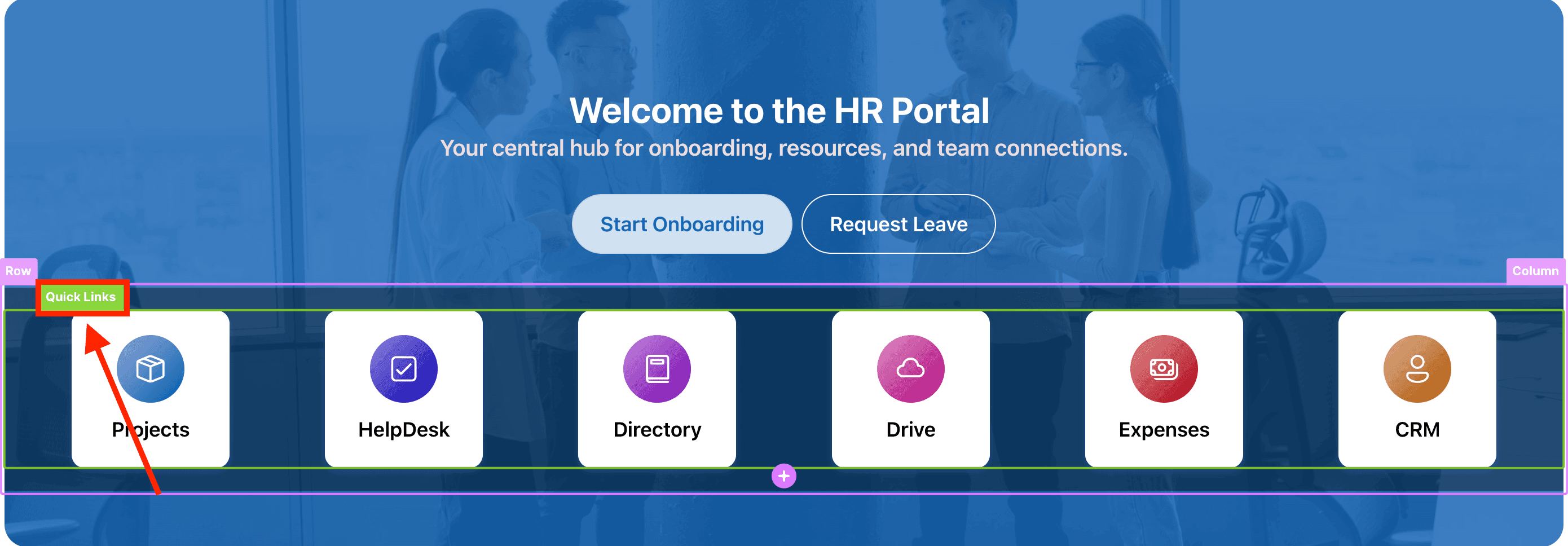
While in edit mode, click the EasyPass tag of any Design Element on your page. For this guide, we’ll use Quick Links:
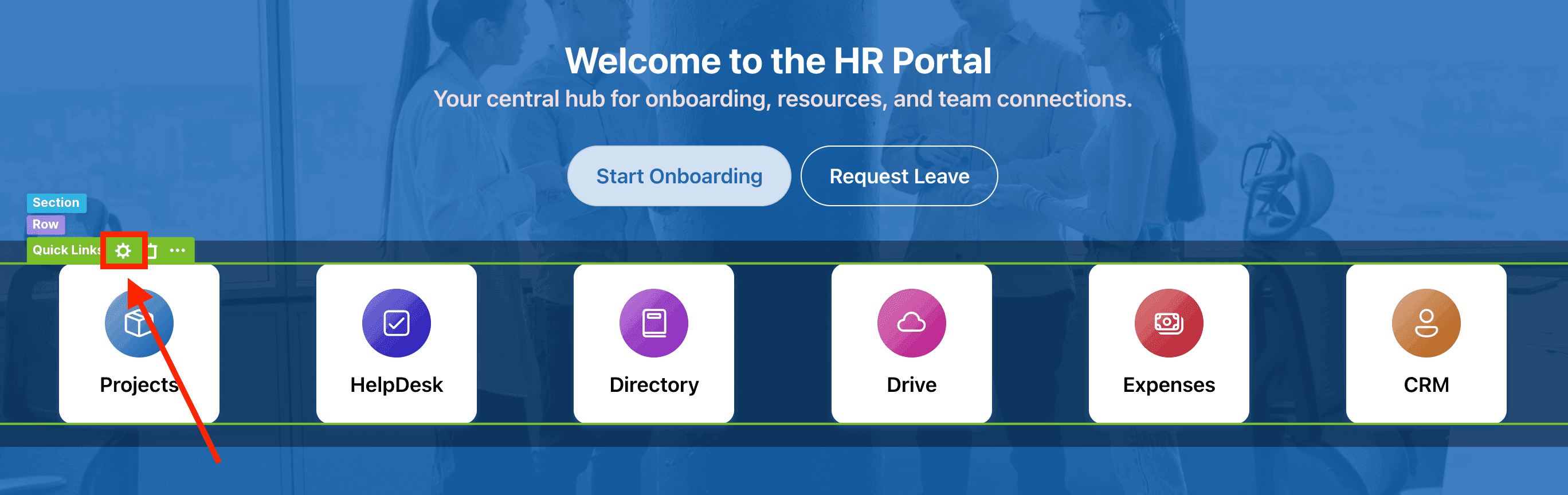
Then, click the cogwheel icon:
Step 2: Run the Channels of a Team Use Case
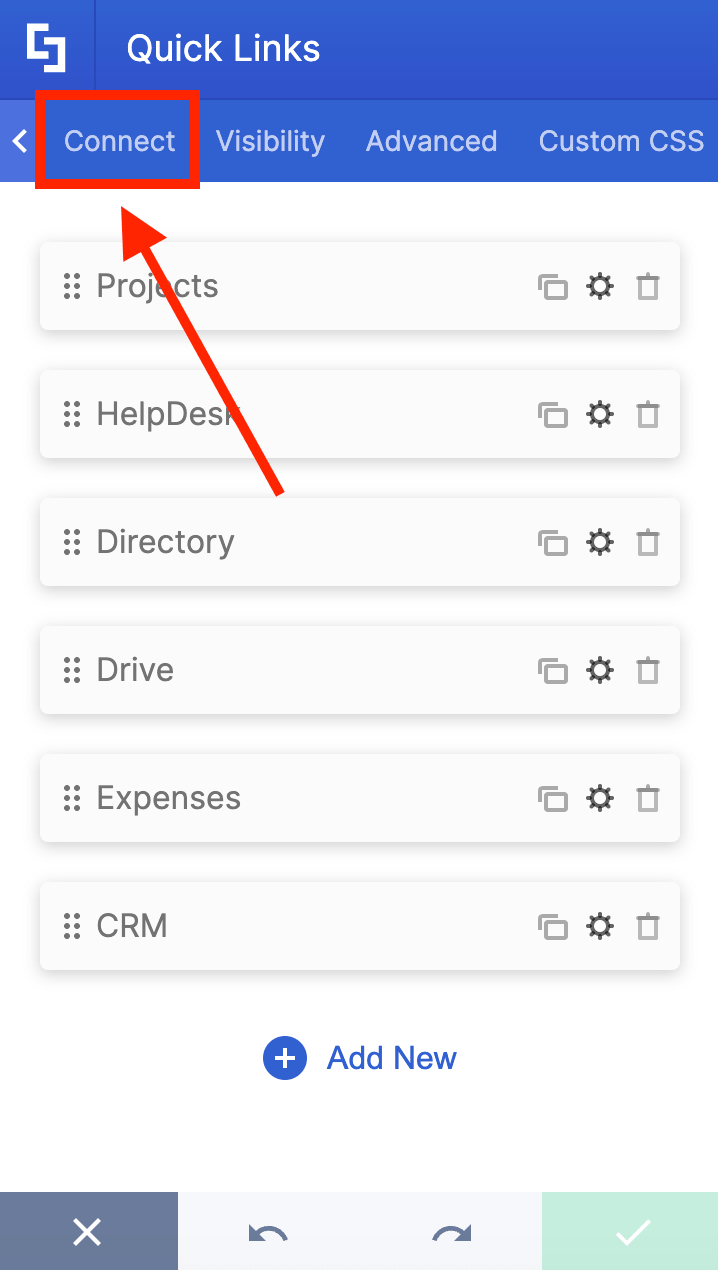
Go to the Connect tab:
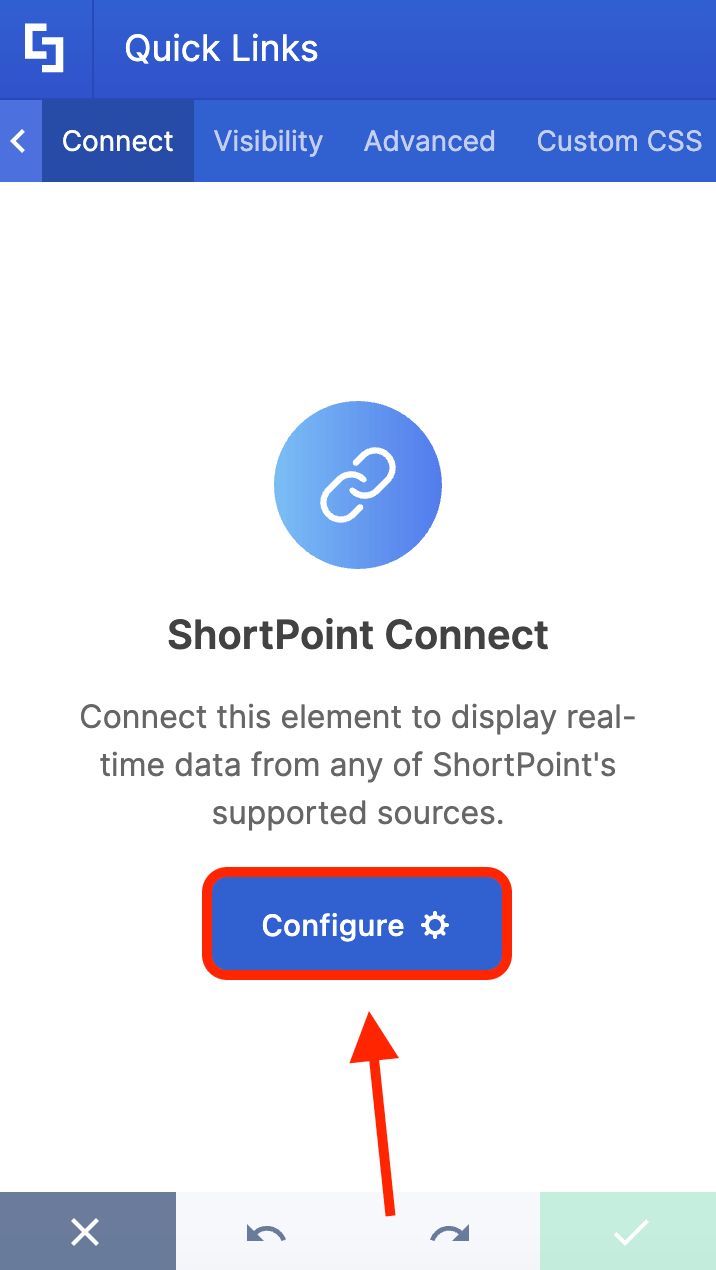
Click Configure:
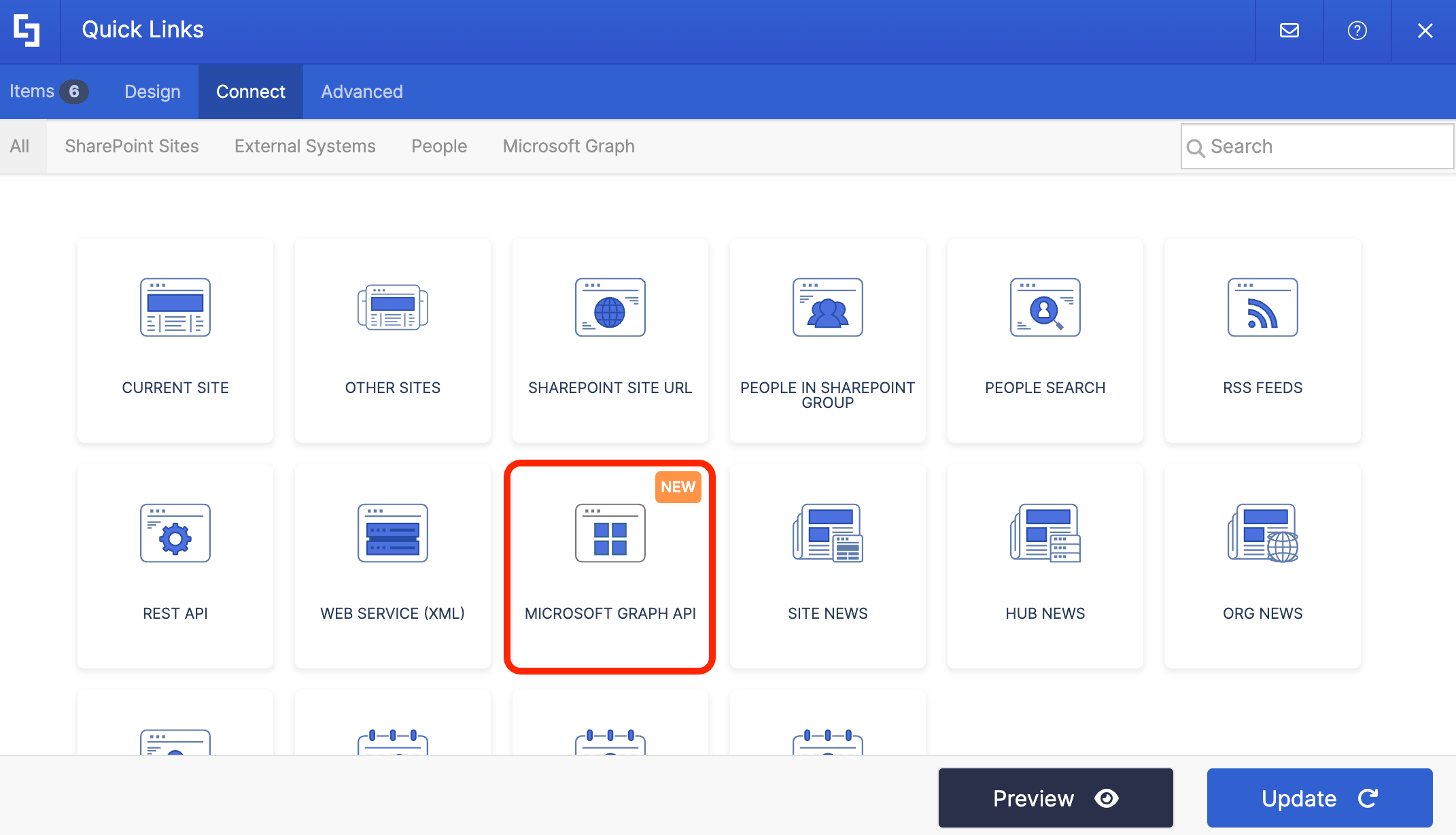
Select Microsoft Graph API:
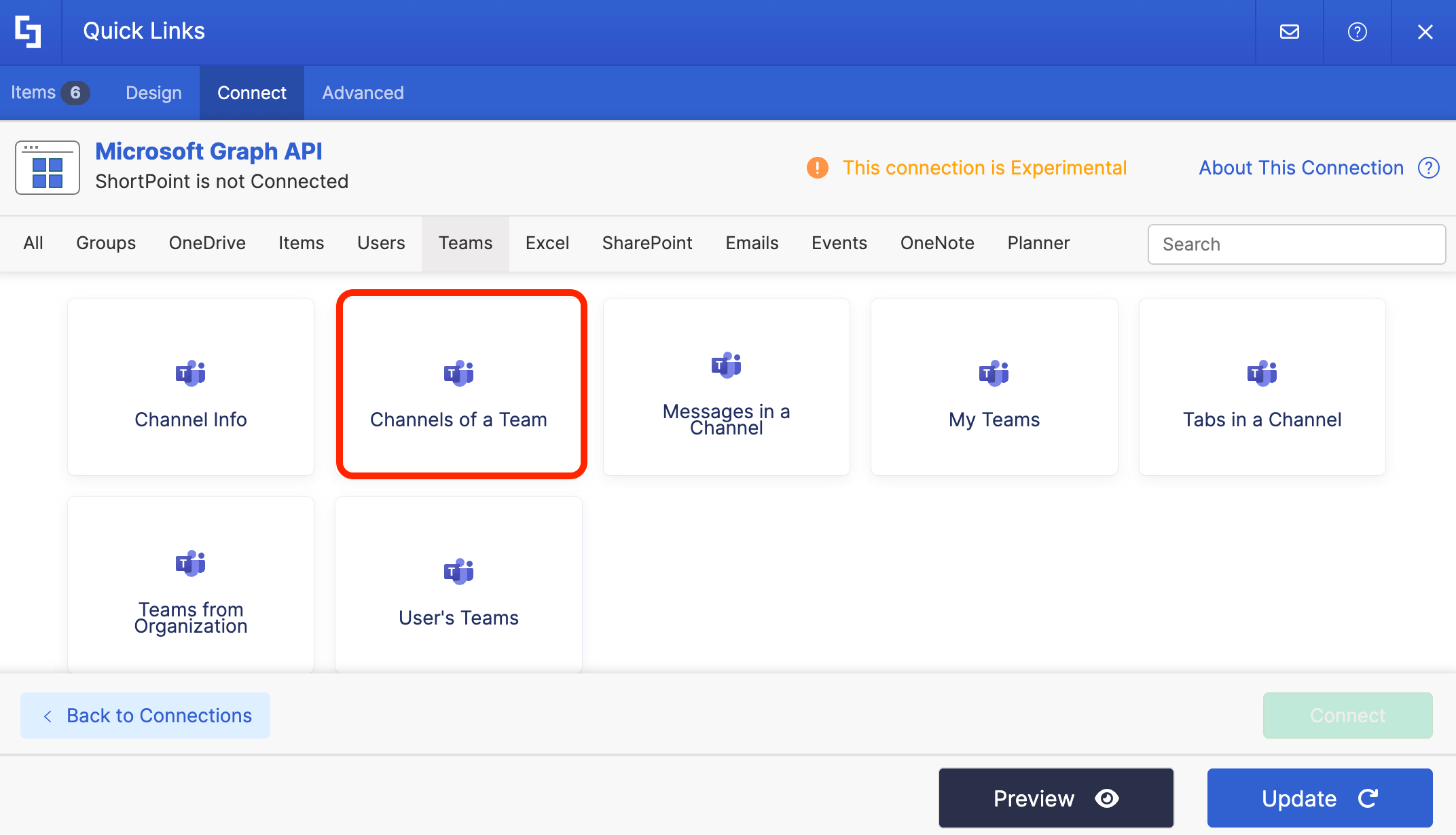
Under the Use Cases section, look for Channels of a Team and select it:
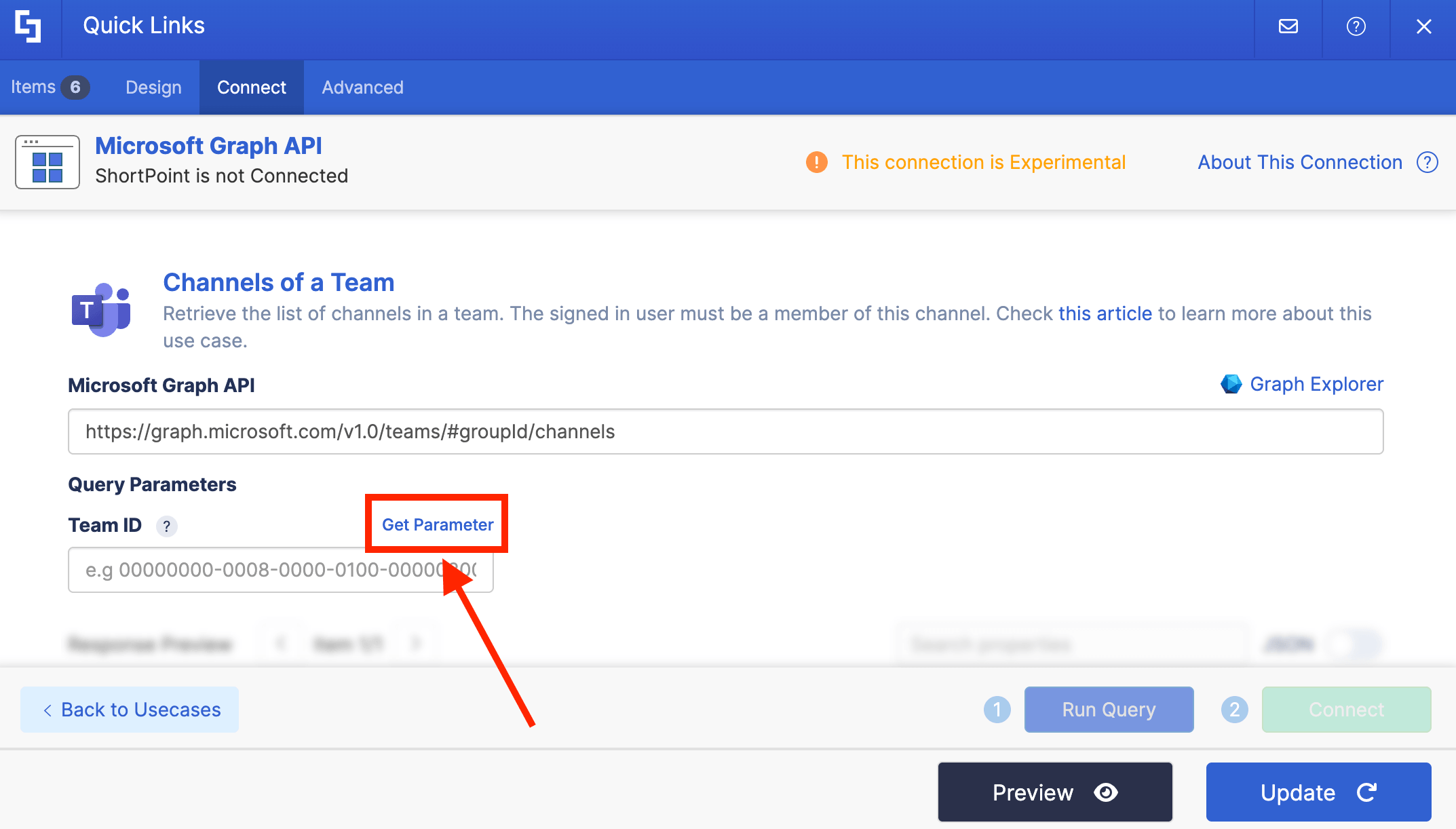
Click Get Parameter:
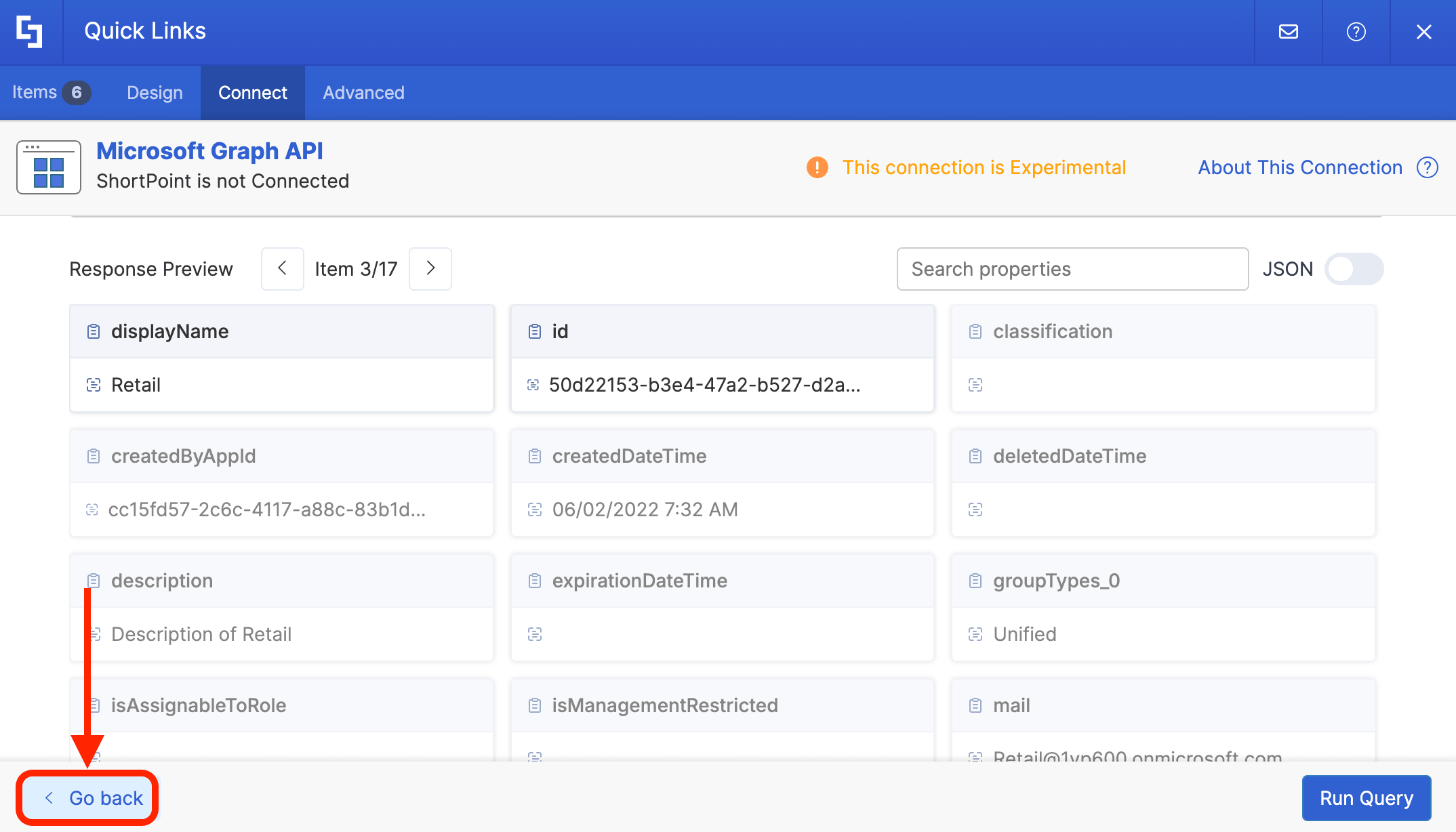
Find the Team you want to use and copy its ID:
Click Go Back:
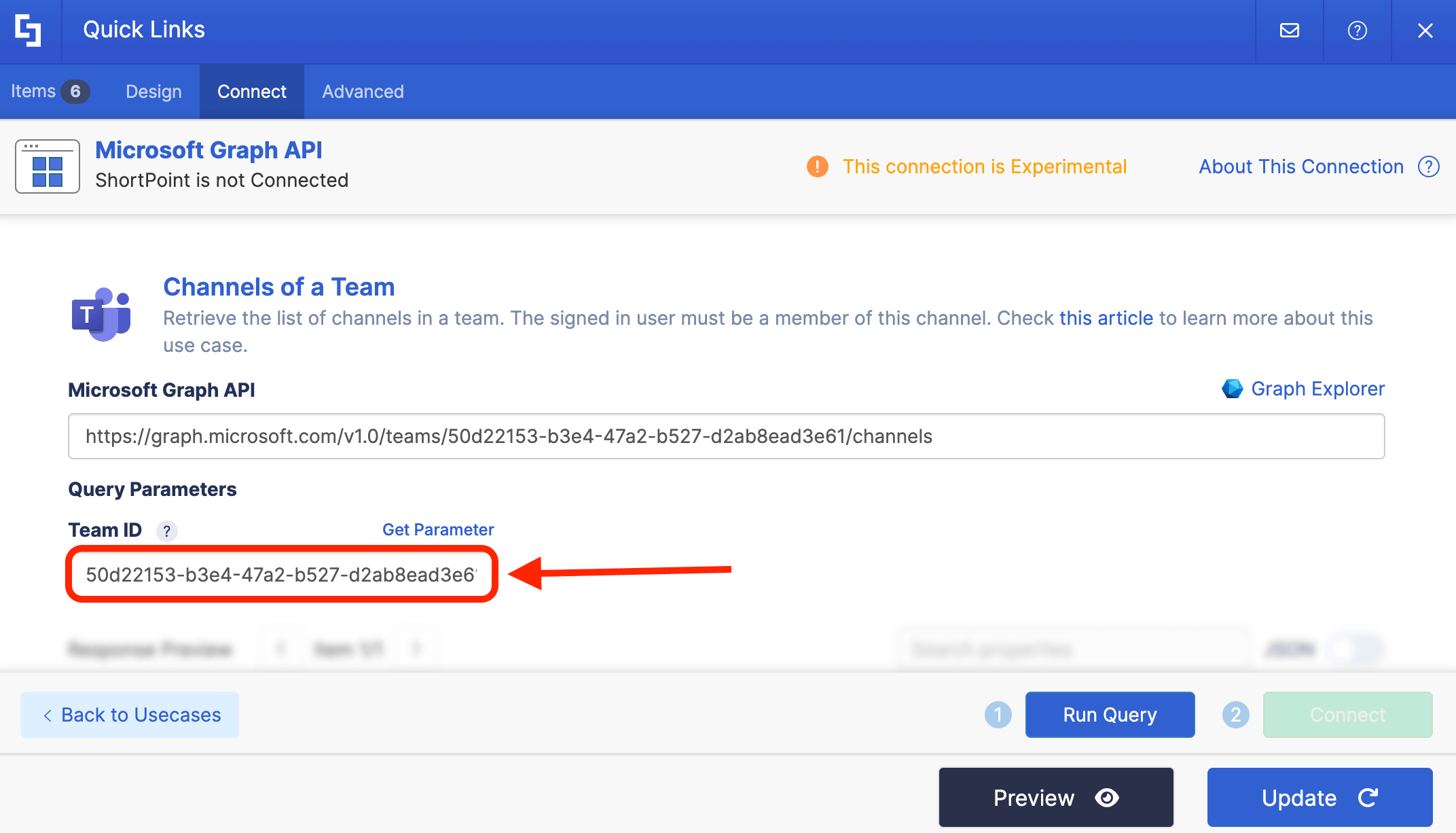
Paste the copied Team ID in the field provided:
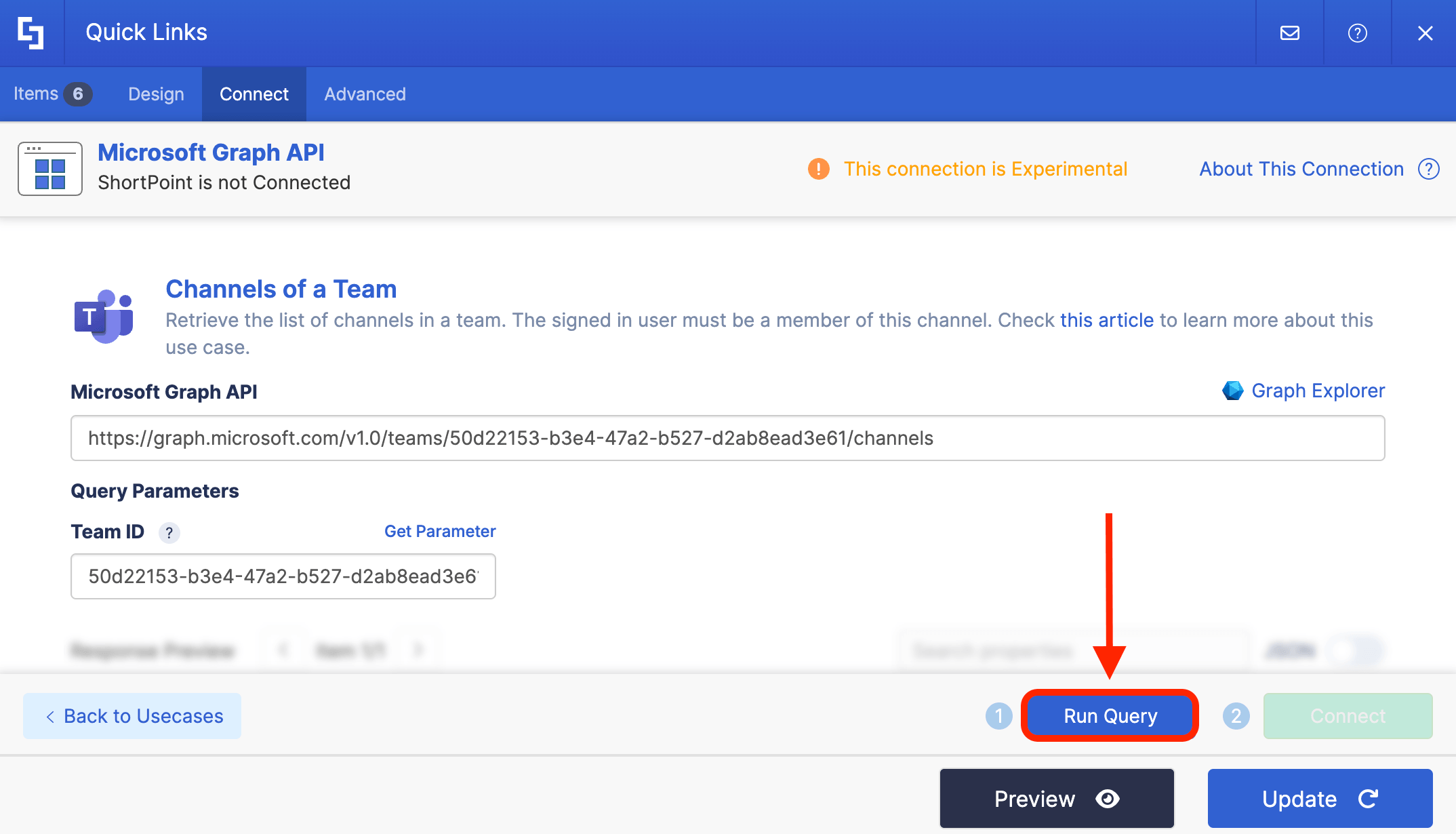
Click Run Query:
Step 3: Copy Channel ID
Under the Response Preview, look for the display name of your channel and copy its ID. In our case, our Channel name is Monthly Retail Report.
That's it! You've successfully copied the Channel ID.
Option 2: Using Microsoft Teams
Step 1: Open Microsoft Teams
Go to Microsoft Teams:
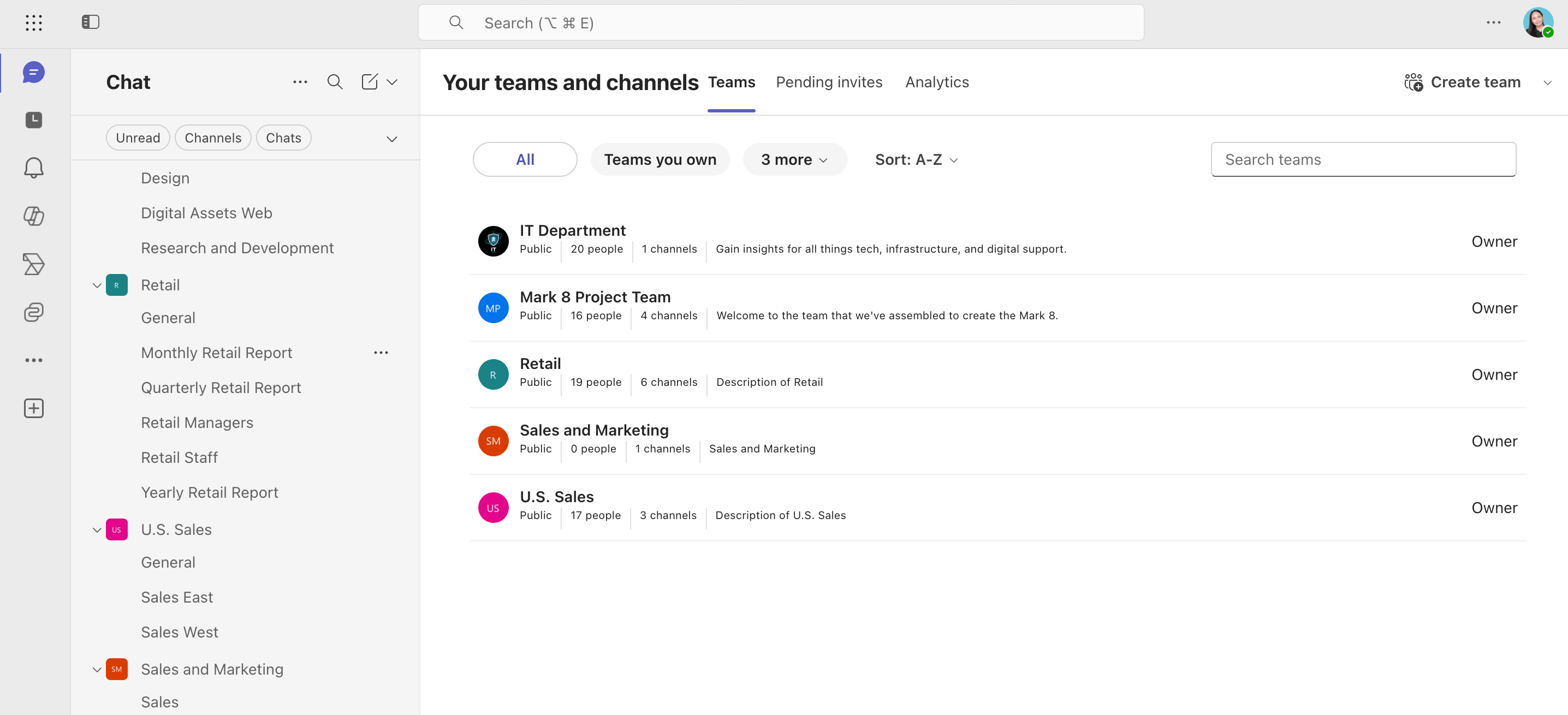
Step 2: Copy Team ID
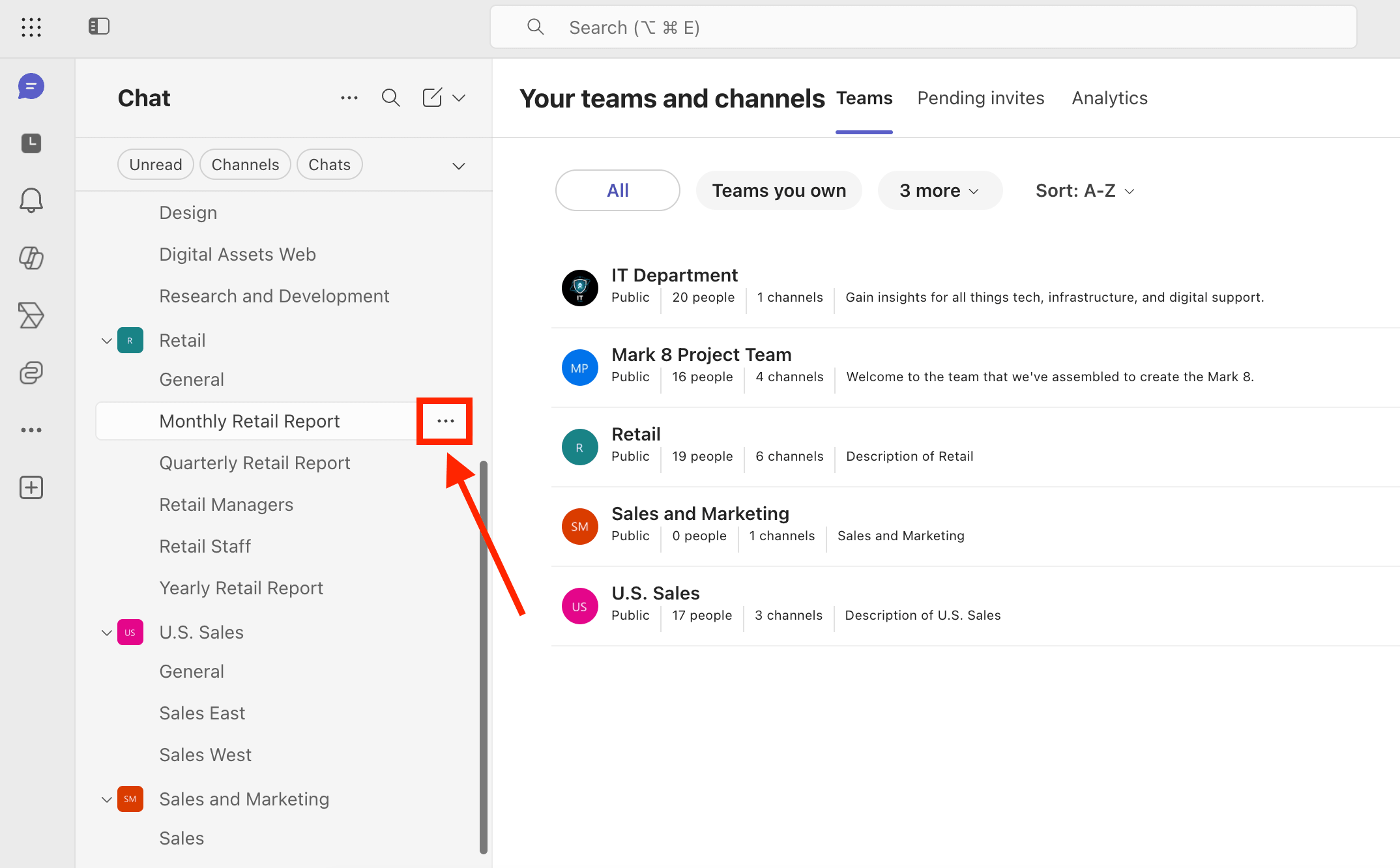
Look for the channel you want to get the Channel ID for and click the ellipsis icon:
Click Copy Link:
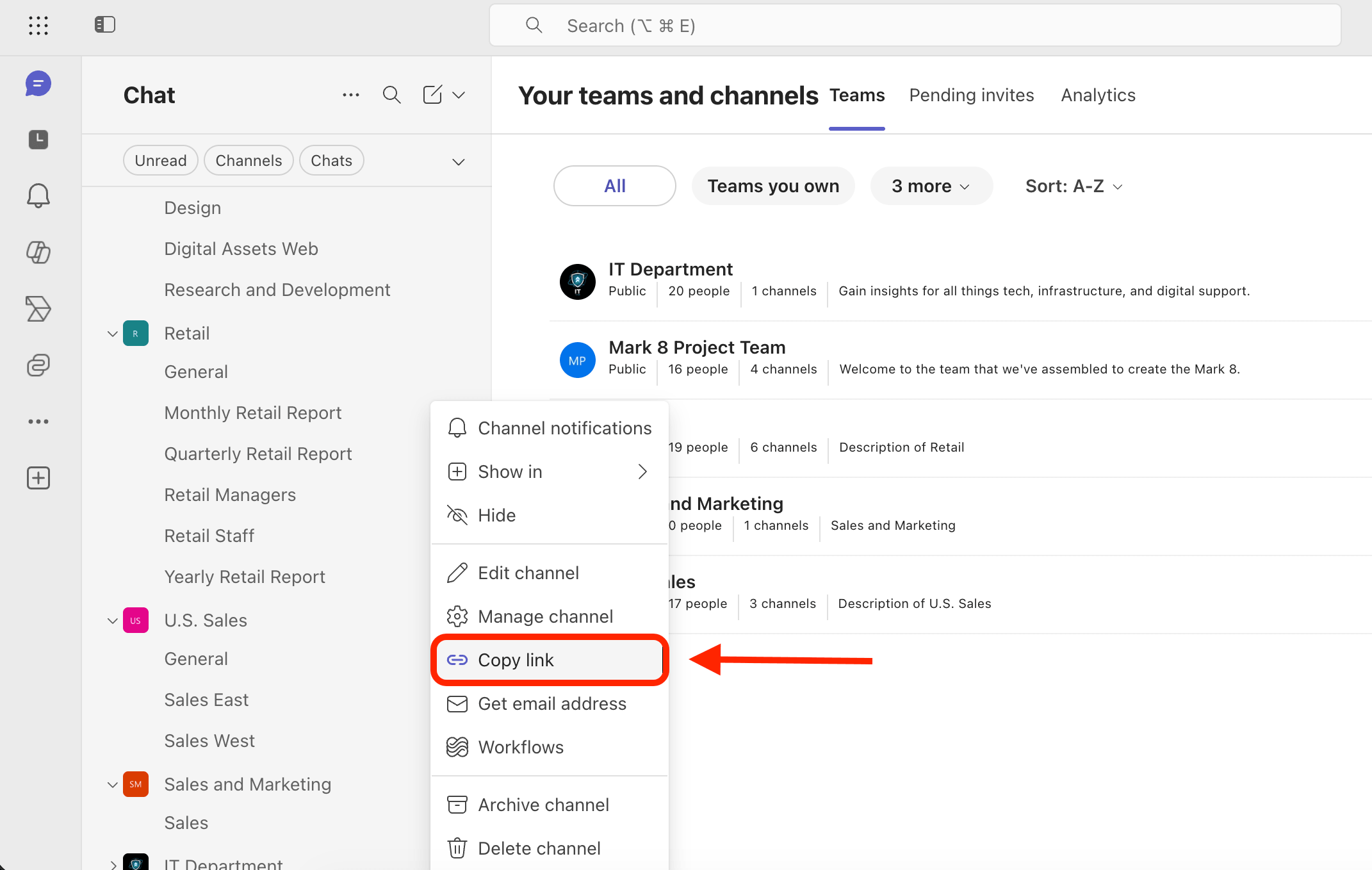
Paste the copied link in the address bar: Your Channel ID is the long string of characters between /channel/ and the next forward slash (/).

NOTEIn the URL, you might see %3a (which stands for a colon :) and %40 (which stands for the @ symbol). Simply replace those codes to make it look like this: 19:3A78a7c47dbe124aec8da86353d3fb4a64@thread.tacv2.
Congratulations! You now have your Channel ID.
Option 3: Using Graph Explorer
Step 1: Open Graph Explorer
Go to Graph Explorer:
NOTEBefore proceeding, make sure you are logged in to Graph Dev Center. You must also have the necessary permissions to access Graph Explorer.
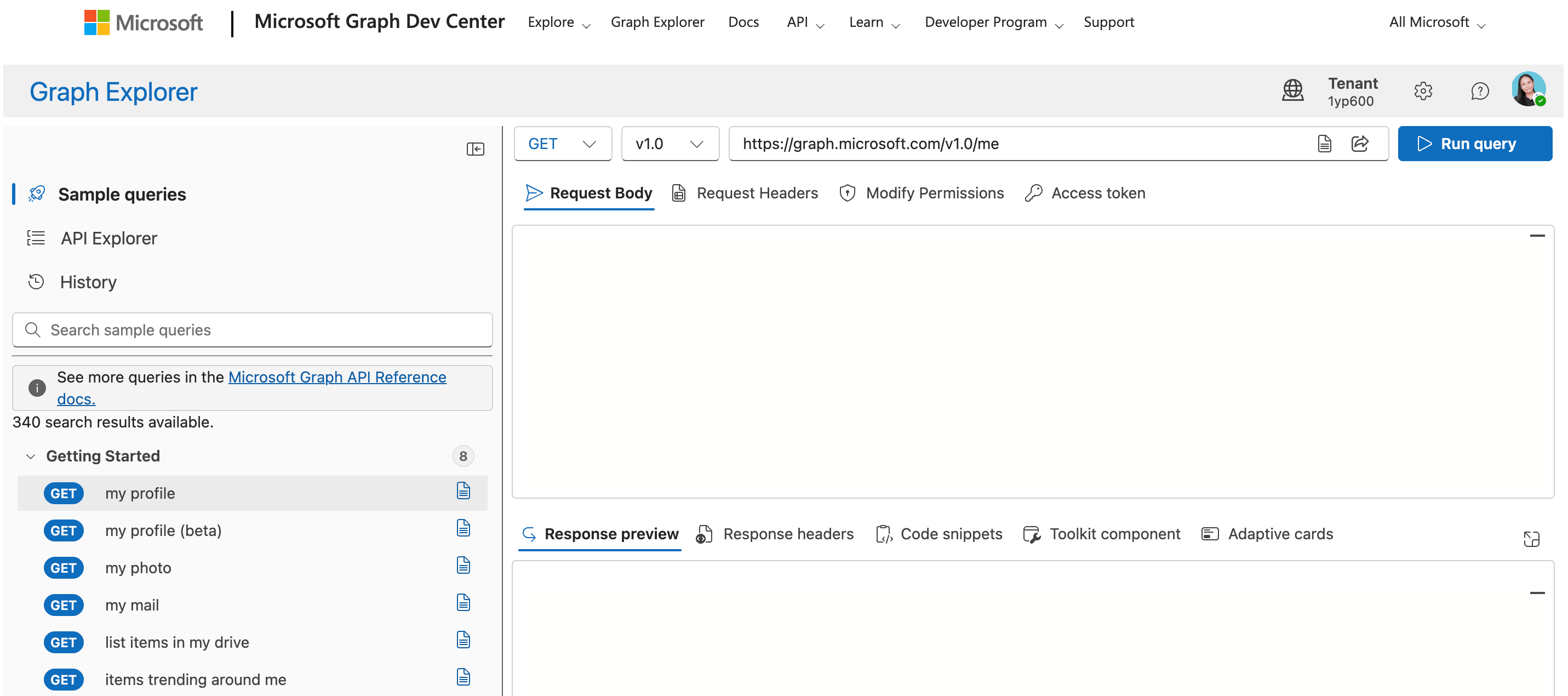
Step 2: Find Team ID
To get the Team ID, check out How to Find the Microsoft Teams ID and look for the steps under Option 3: Using Graph Explorer.
Step 3: Copy and modify the GET Query
Copy the GET query below:
https://graph.microsoft.com/v1.0/teams/{team-id}/channelsReplace {team-id} with the Team ID you copied in Step 2. The GET query will now look like this:
https://graph.microsoft.com/v1.0/teams/50d22153-b3e4-47a2-b527-d2ab8ead3e61/channels
Step 4: Paste GET Query
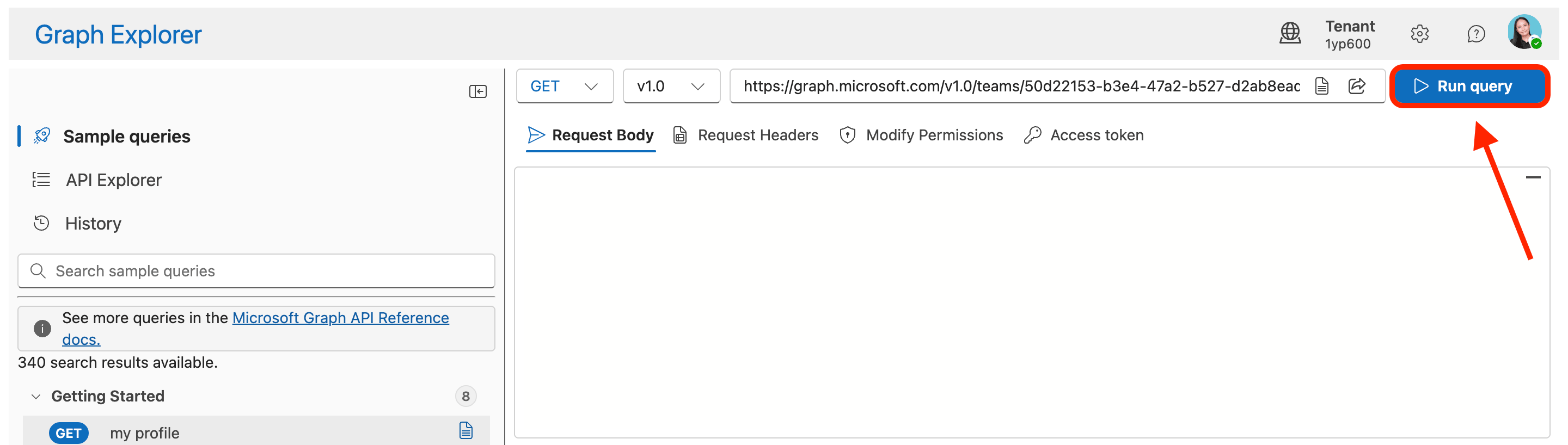
Go back to Graph Explorer and make sure that it is set to GET:
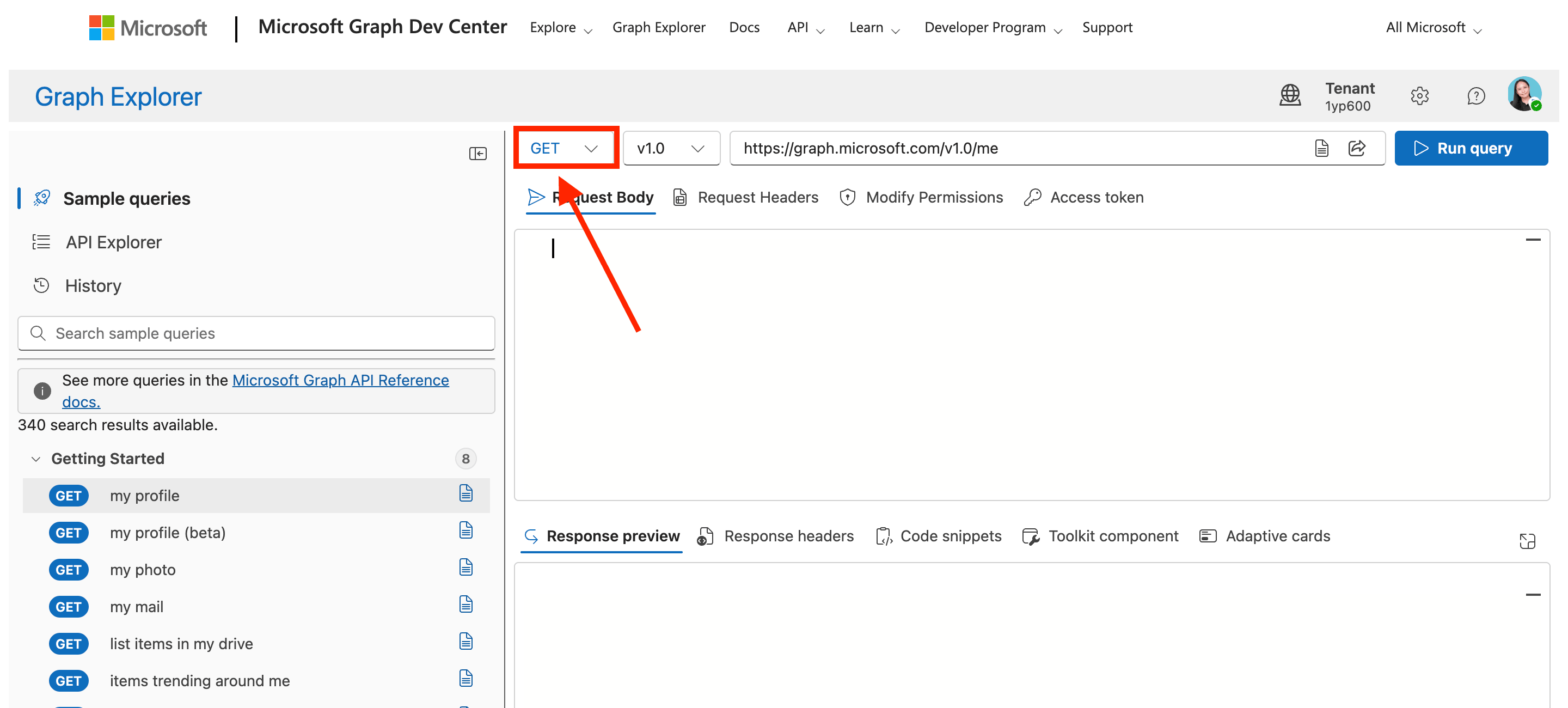
Paste the GET query you set up in Step 3 in the field provided:
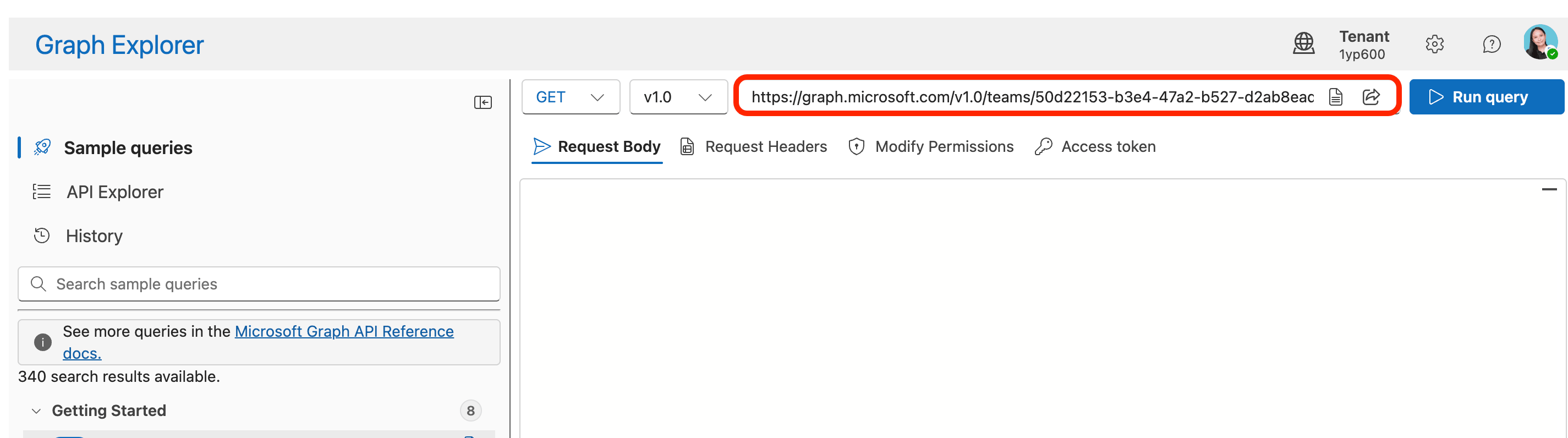
Click Run Query:
Step 5: Copy Channel ID
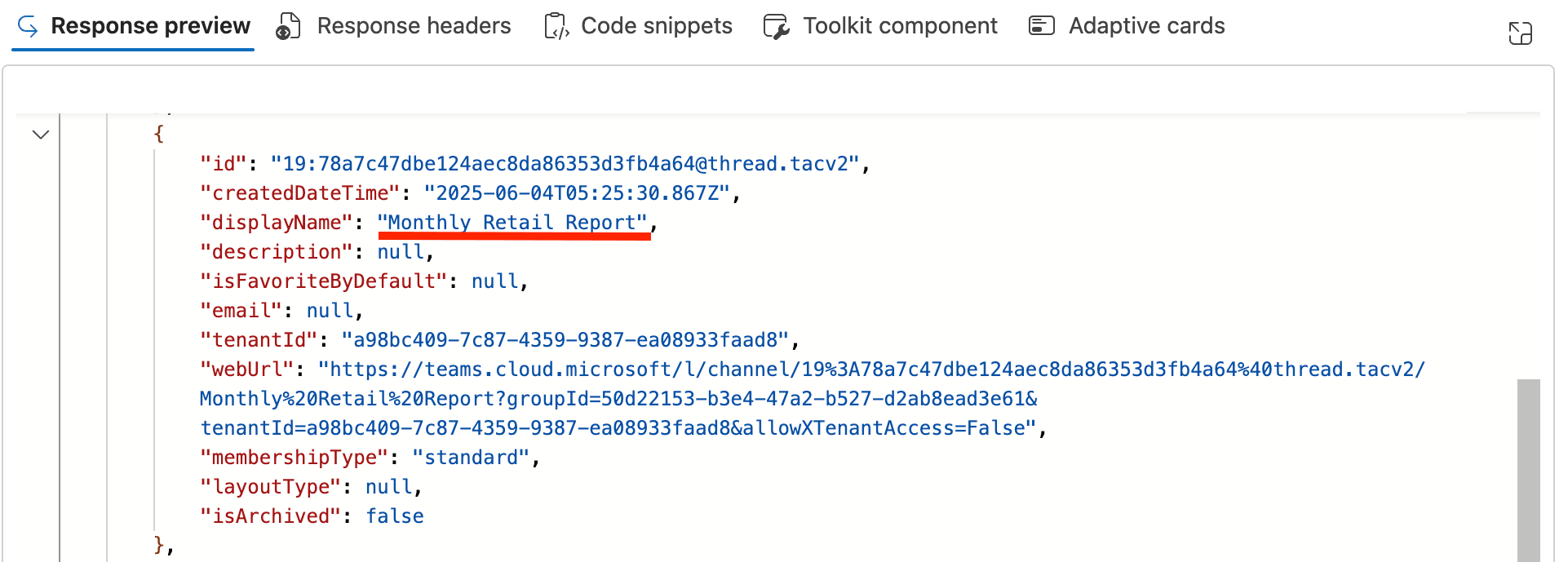
In the Response preview section, look for the name of your channel. In our case, it’s Monthly Retail Report:
Copy the ID:
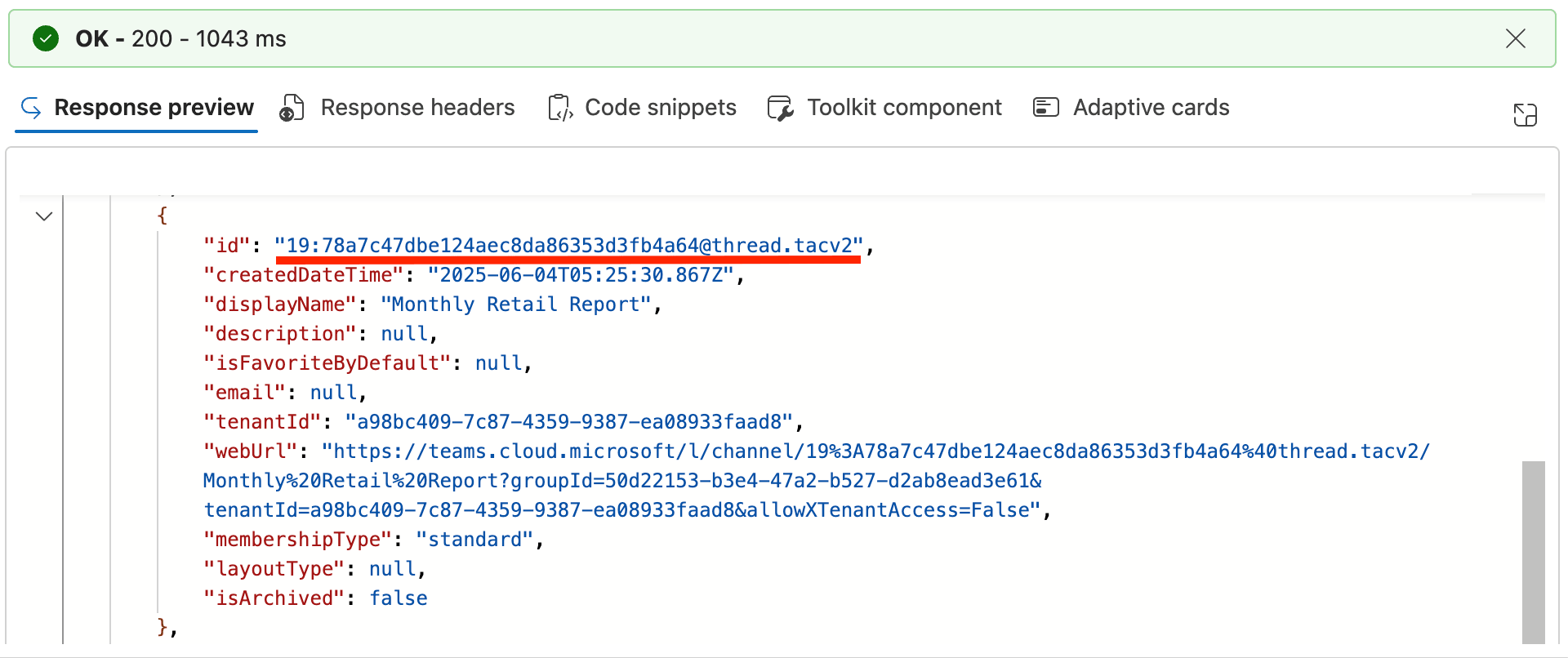
Congratulations! You have successfully retrieved your Channel ID.
Practical Use Cases
How does this translate to real-world benefits? Here are a few practical ways professionals use Channel IDs to make their work lives easier:
Power Automate Workflows
With Channel ID, you can easily automate daily workflows. For example, you can send an automated alert to a channel whenever a high-priority ticket is submitted in Jira or Zendesk. By plugging the Channel ID into Microsoft Power Automate, you can establish a flawless, instant pipeline that drops those alerts into the exact right bucket every single time.
Microsoft Graph API
You can use Channel ID to showcase data from your Teams channel to your SharePoint sites. How? With Microsoft Graph API and ShortPoint Connect! Graph API connects SharePoint data to other Microsoft 365 services (whether that's the SharePoint, Outlook, or Teams API). ShortPoint Connect, through the Microsoft Graph API connection, helps showcase that data beautifully on your SharePoint pages.
You also get a say on what your page viewers can see. This way, only the information that matters most to your team will be shown.
Ready to start using your Channel ID? Here are some practical ways you can make use of it:
- Channel Info - enables you to show Teams Channel details in SharePoint.
- Messages in a Channel - allows you to display the messages of a specific Teams channel.
- Tabs in a Channel - shows all the tabs of a Teams channel.
Excited to connect the Microsoft Graph API to your SharePoint sites? We’ve made getting started incredibly simple!
If you’re already a ShortPoint Designer with a Pro or Enterprise plan, just make sure you've upgraded to version 8.6.0.0 or later. From there, head over to our step-by-step guide on How to Enable Microsoft Graph Integration to activate your connection.
If you’re new to ShortPoint, welcome! We would love to help you get started. Feel free to reach out to our expert team for a helping hand, and don't forget to sign up for our free 15-day trial to experience everything ShortPoint can do for you.
Frequently Asked Questions
Do private channels have different IDs than public channels?
Yes. Every channel (whether public, private, or shared) is treated as a distinct entity by Microsoft and is assigned its own unique ID. In fact, private channel IDs often look slightly different structurally because they manage separate underlying SharePoint site collections.
What is a Teams Channel ID and why is it important?
A Teams Channel ID is a unique alphanumeric string assigned to every channel in Microsoft Teams. It helps administrators, users, and apps identify and manage channels precisely, especially when automating workflows or integrating with Microsoft Graph API and SharePoint.
Does renaming a channel change its Channel ID?
No. The Channel ID remains constant even if you rename the channel, change its description, or reorder it. This ensures continuity for any automated actions or applications relying on the Channel ID.
Can I use Channel IDs to automate workflows in Microsoft Power Automate?
Yes. Using the Channel ID, you can set up automated workflows in Power Automate.
How can I use Channel IDs with Microsoft Graph API?
By using Channel IDs with Microsoft Graph API, you can display Teams channel data, messages, and tabs directly on SharePoint sites, enabling better community engagement and centralized communication within your tenant.
Related articles:
- Connection Type: Microsoft Graph API
- Getting Started With Microsoft Graph API Use Cases
- How To Use Placeholders In ShortPoint Connections
- Microsoft Graph API: Supported and Non-Supported Endpoints
