 Try ShortPoint now
SharePoint gives its users a great way to store their files. However, when it comes to images, the standard Document Library can come up short.
That's why SharePoint created a modern Picture Library template to better display images and manage an image gallery web experience. This article will show you how to build a dedicated SharePoint Picture Library that actually works for your team and integrates seamlessly with your SharePoint page.
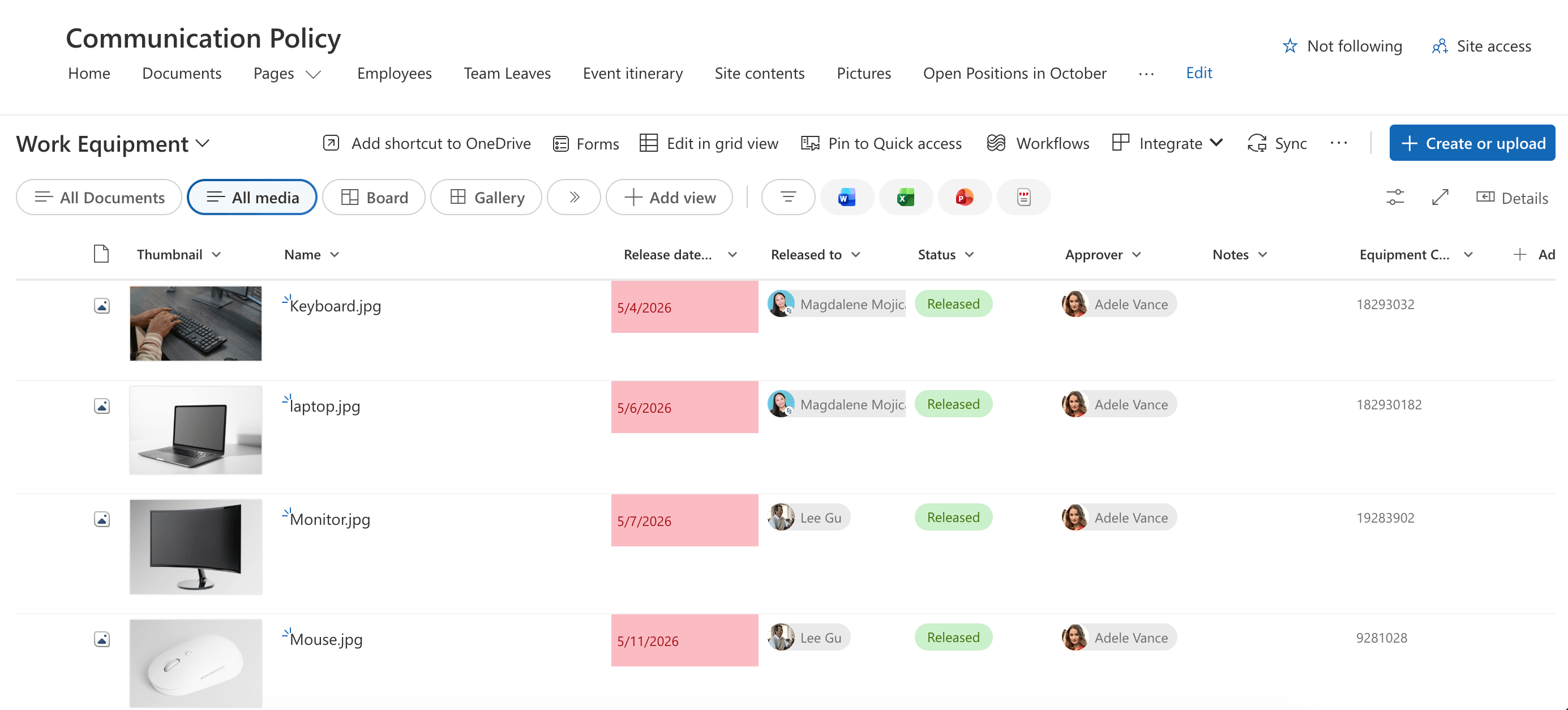
TABLE OF CONTENTS
- What Exactly is a SharePoint Picture Library?
- How to Create a Modern Picture Library
- Practical Use Cases
- Frequently Asked Questions
- What is a SharePoint Picture Library used for?
- How do I upload images to a Picture Library?
- How can I display images from the Picture Library on my SharePoint page?
- Is it possible to share the Picture Library with others?
- Can I edit images directly within SharePoint?
- Is there a limit to how many images I can store?
- Why use an Image Library instead of a regular folder?
What Exactly is a SharePoint Picture Library?
The Picture Library or Media Library is a specialized asset library template created by SharePoint for images. While a regular SharePoint Document library is great for spreadsheets and docs, the Picture Library is tuned for visual browsing.
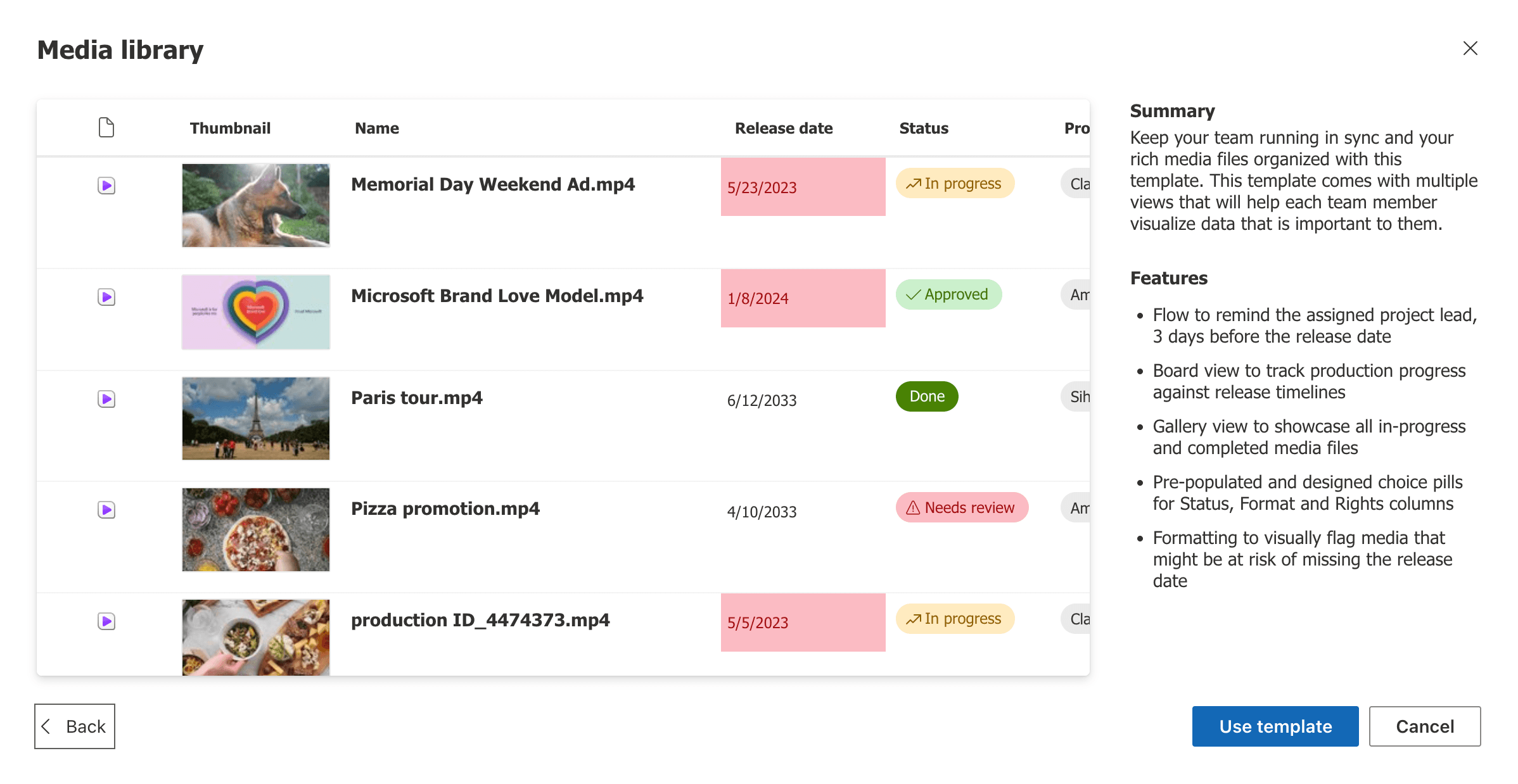
It automatically generates small thumbnails and provides multiple views that handle attributes and metadata.
How to Create a Modern Picture Library
Start the interactive tutorial to learn how to create a Picture Library:
Step 1: Create a New Picture Library
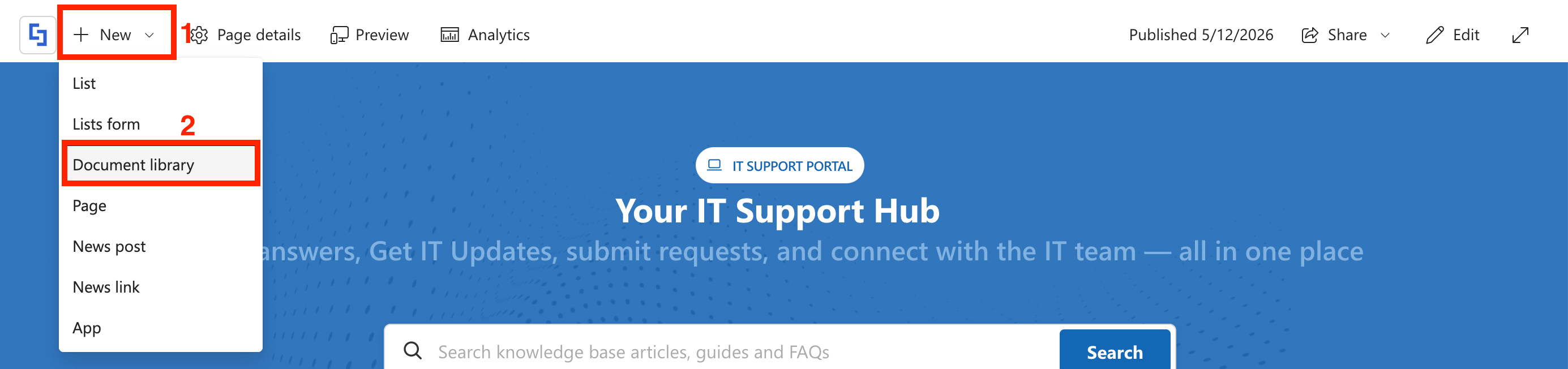
- Go to the SharePoint Page you want to use, click [1] New, and select [2] Document Library:
- Choose Media Library template:

- Click Use Template.
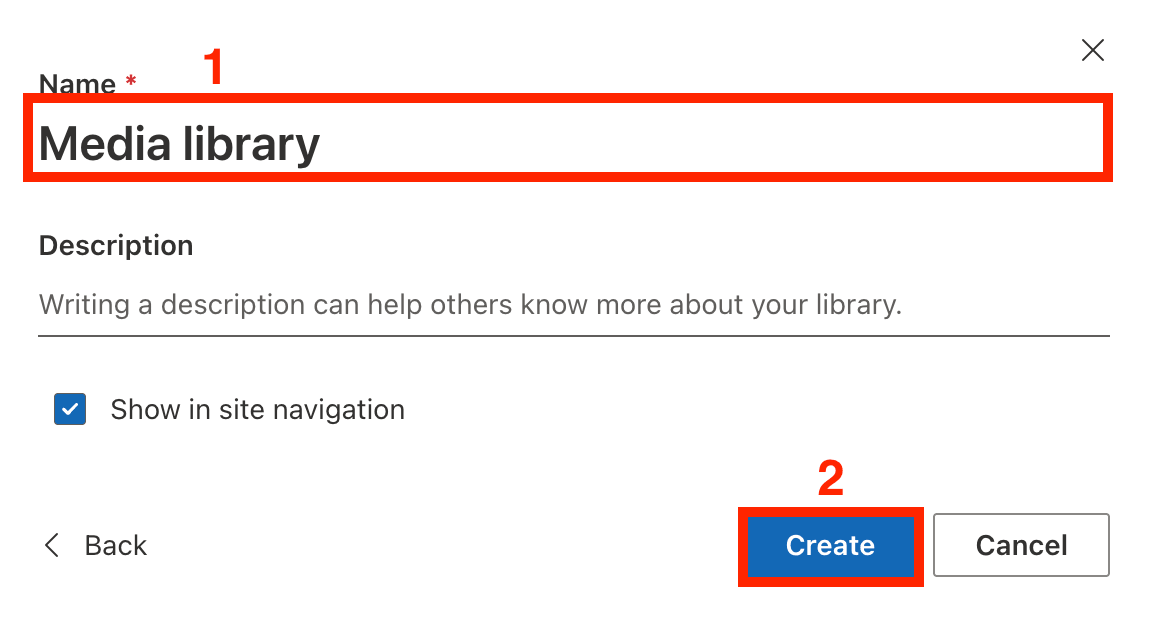
- [1] Name the Modern Picture Library and select [2] Create:
Step 2: Add Images
- Select Create or Upload:

- Choose Files Upload.
- Select the images you want to add. It will be uploaded to the Picture Library.
Step 3: Customize the Columns of the Picture Library
- Modify the columns of the Picture Library to your preference. To do this, select the column, choose Column settings, click Edit, and make your changes:
- (Optional) You can also delete columns. To do this, select the column, choose Column settings, click Edit, and select Delete:
- (Optional) You can also Add a new column. To do this, click Add Column, choose the response type you want to use, click Next, name your new column, and save it:
Step 4: Add Column Details
- Click Edit in Grid View.

- Fill in the details.
- Once done, click Exit Grid View.

Congratulations! You now have a Modern Picture Library. You can also switch to different default views (All Media, Board, Gallery) to better access your image library.
Practical Use Cases
Not sure if you need a dedicated space for photos? Here are a few ways teams are using them right now:
Marketing Asset Management and Product Catalogs
Store branded logos, approved headshots, and campaign photography so the whole company stays on-brand. You can also keep high-quality renders of your products in one place for sales teams to quickly grab for presentations.
Project Documentation
Using a Picture library to see the visual progress of projects over time is extremely useful to keep everything on track.
Create Dynamic Image Galleries on your SharePoint Online Page
Your SharePoint Picture Library can do much more than just store your files; it can actually bring your site to life! By using ShortPoint Connect, you can showcase your images beautifully and keep your content fresh.
Instead of manually updating images, ShortPoint Connect allows you to transform standard Design Elements, like Image Lists, Person Cards, and Image Boxes, into dynamic, data-driven galleries. This means your site stays visually engaging and automatically stays in sync with your library.

If you're already a ShortPoint Designer with an active license, you can simply go to How to Connect a SharePoint Image Library to a ShortPoint Design Element and follow the steps to start showcasing your Picture Libraries on your SharePoint site.
Not yet a ShortPoint Designer? No worries! You can get a FREE 15-day trial from ShortPoint to try ShortPoint Connect yourself. You can also schedule a one-on-one with our experts to help you get started with ShortPoint.
Frequently Asked Questions
What is a SharePoint Picture Library used for?
A SharePoint Picture Library is a specialized asset library designed to store, organize, and display images efficiently. It provides features like thumbnails and multiple views to help users quickly navigate and find images.
How do I upload images to a Picture Library?
You can upload images easily by dragging and dropping files directly into the Picture Library or using the Upload button.
How can I display images from the Picture Library on my SharePoint page?
You can utilize the Image Gallery Web Part or integrate tools like ShortPoint Connect to create dynamic, visually appealing galleries. This solution allows your images to appear seamlessly on your SharePoint page, enhancing user engagement without manual updates.
Is it possible to share the Picture Library with others?
Yes, with the correct permissions configured, you can share your Picture Library across your organization or with external partners. Setting proper permissions ensures secure access and helps maintain brand consistency across communities.
Can I edit images directly within SharePoint?
SharePoint Picture Libraries do not provide advanced image editing tools. However, you can open images using external editors from the library and save changes back to SharePoint, integrating seamlessly with your workflow.
Is there a limit to how many images I can store?
SharePoint libraries can hold up to 30 million items. However, for browser performance, we recommend using folders once you cross the 5,000-item mark to keep things snappy.
Why use an Image Library instead of a regular folder?
The short answer is Metadata and Previews. In a regular Document Library, you often see generic icons. In a Picture Library, the visual-first interface makes it much faster to find the specific image you’re looking for without opening 20 different files.
Related articles:
