 Try ShortPoint now
There’s something great about logging in and seeing a "Happy Birthday!" message displayed on your SharePoint page from your team. It goes a long way in making a digital workspace feel a bit more human. Of course, as a team grows, trying to keep track of everyone's special day can quickly start to feel like a full-time job.
That’s exactly where ShortPoint’s People Search connection comes in. It gives you a simple, stylish way to display employee birthdays automatically, so no one gets left out. Ready to set it up? Follow our step-by-step guide below, and let’s get those celebrations started!
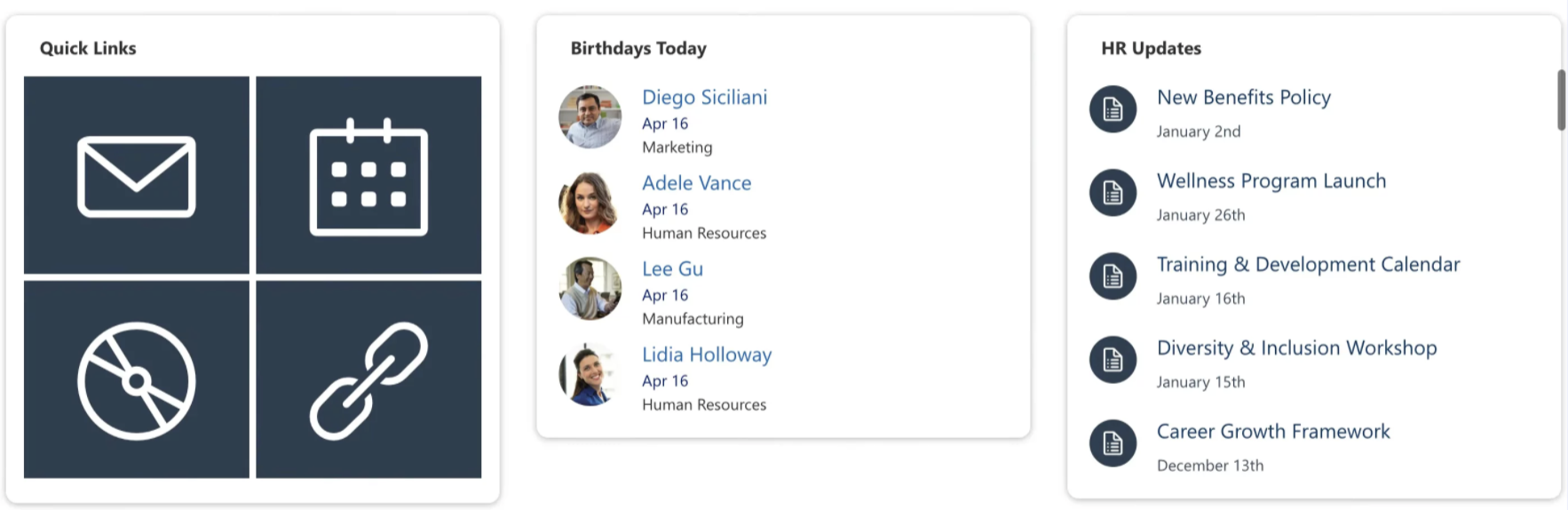
TABLE OF CONTENTS
- Prerequisites
- What Is the ShortPoint People Search Connection?
- How to Showcase Upcoming Birthdays in SharePoint
- Practical Use Cases
- Brighten Up Your Intranet with Upcoming Birthdays
- Frequently Asked Questions
Prerequisites
- You must have the latest ShortPoint SPFx version installed.
- You must be a ShortPoint Designer with an active license.
- You must already have the Design Element you’ll use for the connection on your page.
What Is the ShortPoint People Search Connection?
The People Search connection is a ShortPoint tool that taps into the Microsoft 365 search index. It pulls data from Microsoft Entra ID (which you might know as Azure AD) and your user profiles. But instead of just spitting out a boring list of data points, ShortPoint lets you turn that information into something visual and engaging on your intranet landing page.
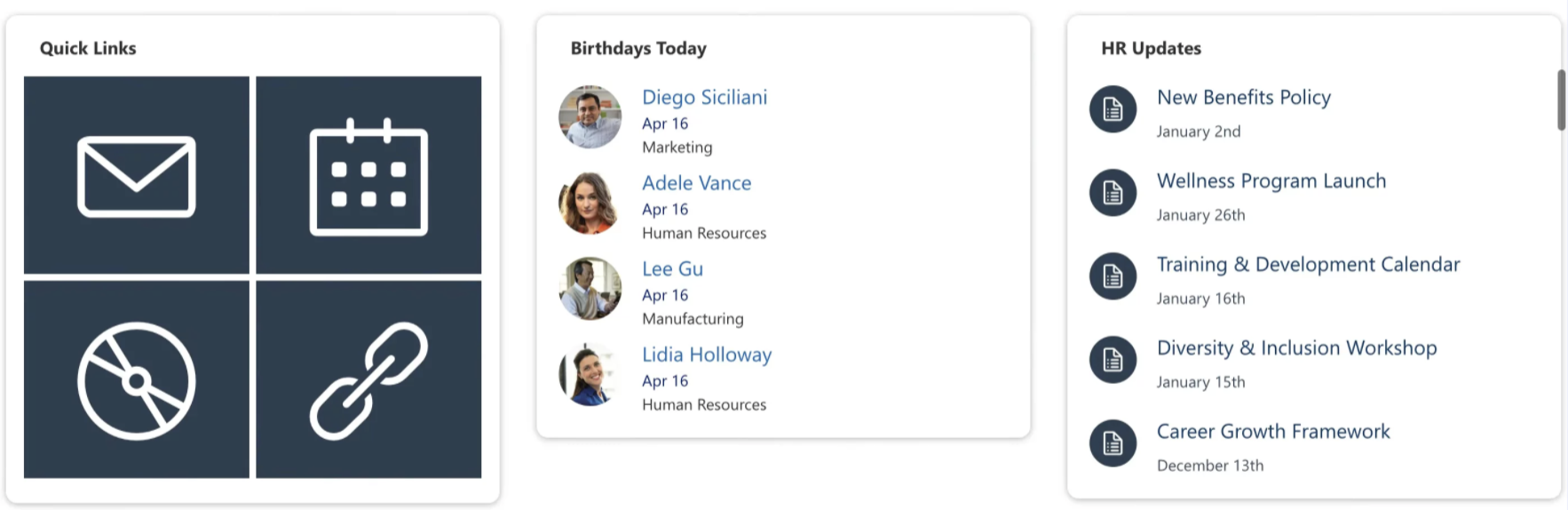
So, how does this help with birthdays? The real magic is in the built-in filtering. Instead of showing every single person in your company directory at once, the connection "scans" the list and only displays people whose birth date falls within the day (today).
It’s an automated way to make sure the right people get their moment in the spotlight at exactly the right time, enhancing employee engagement and making your SharePoint birthday reminder experience seamless and efficient.
How to Showcase Upcoming Birthdays in SharePoint
Bringing interactive birthday sections into your SharePoint pages is super simple and easy. Follow the detailed step-by-step guide we prepared for you. And, to ensure a successful connection, make sure to accomplish each part.
NOTEWhen there are no birthday celebrants on that day, the Design Element will show as empty.
Part 1: Add Employee Birthdays
This section will show you how to add birthdays to user profiles in SharePoint. Accomplishing these steps is essential. If none of your user profiles have an entry in the SPS-Birthday field, the crawled property won't appear in the search schema at all, which you will need in the next part. So, before you proceed, make sure to accomplish Part 1 first.
Step 1: Open User Profiles
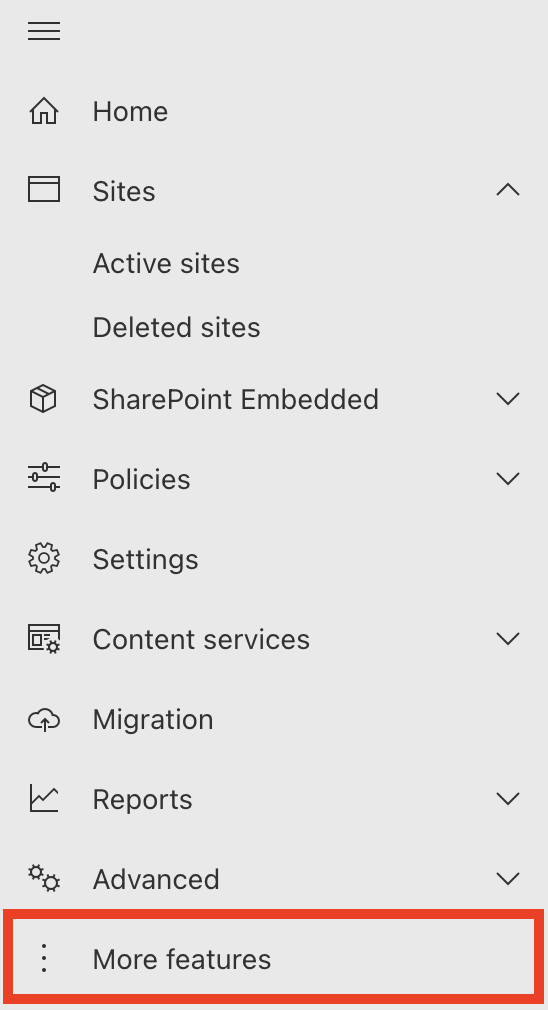
- Go to the SharePoint Admin Center and select More Features:
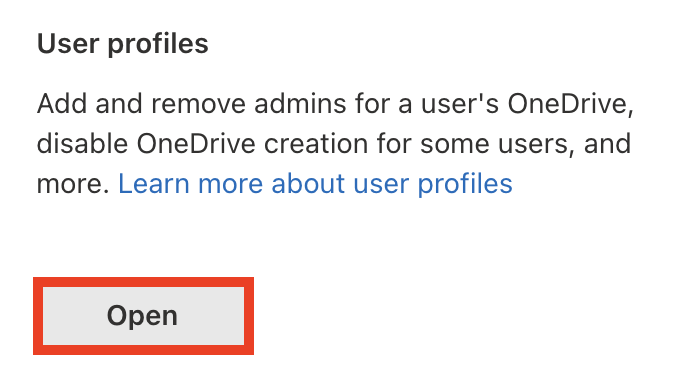
- Look for User Profiles and select Open.
- Click Manage User Profiles

Step 2: Add Birthdates
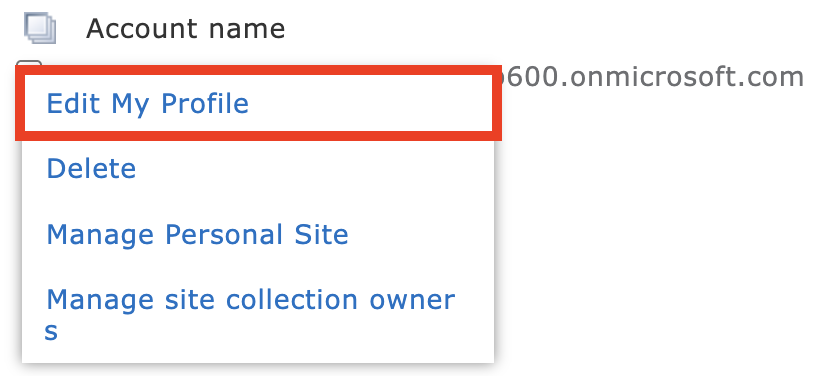
- Find the user whose birthday you want to configure.

- Then, select Edit My Profile.
- Scroll down until you see the Birthday field. Write down the selected employee's birthday. It should follow the Month and Day format, and it should be shown to Everyone.

- Click Save and close.

- Repeat the same steps for every employee whose birthdates you want to set.
Great work! You've successfully added birthdates to SharePoint user profiles. You may now proceed to Part 2.
Part 2: Map Birthday Property
This section shows you how to query managed properties in SharePoint's search schema. Follow the steps below to get started:
Step 1: Open Crawled Properties
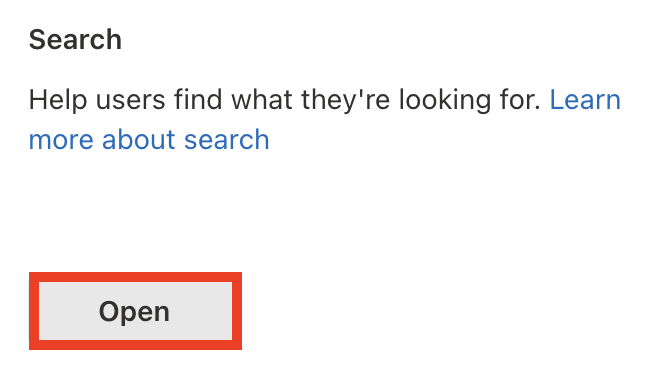
- Go back to the SharePoint Admin Center and click the Open button under Search.
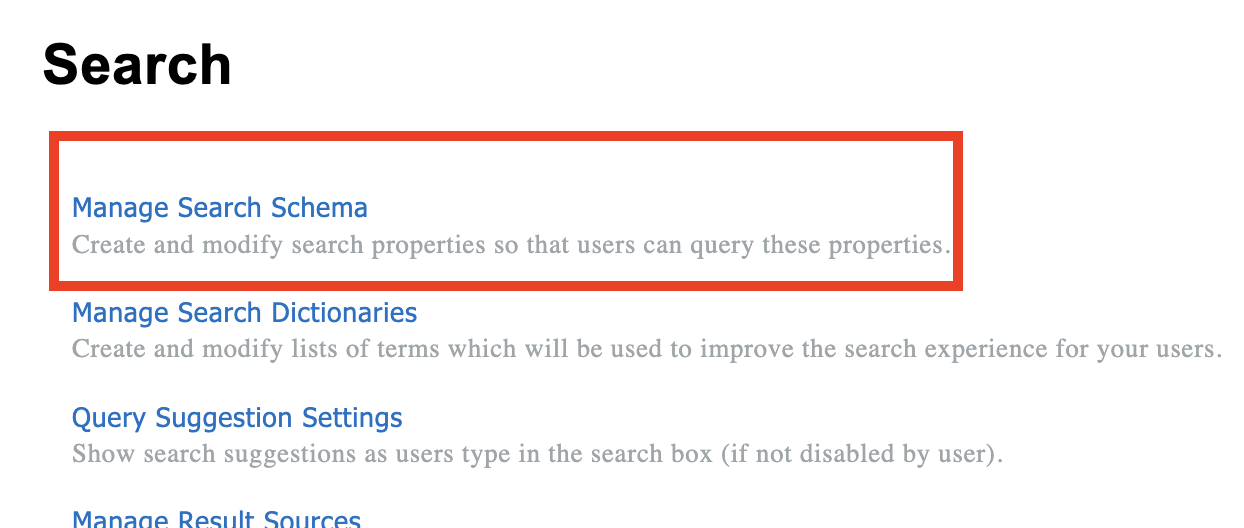
- Select Manage Search Schema:
- Go to the Crawled Properties tab:

Step 2: Configure the SPS-HireDate Property
- In the list of properties, locate the People:SPS-Birthday and click it to open the menu:

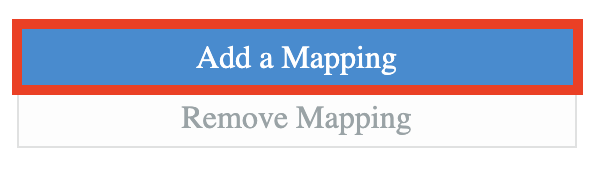
- Click Add a Mapping:
- Search for [1] RefinableDate18 property. Select it and click [2] OK:
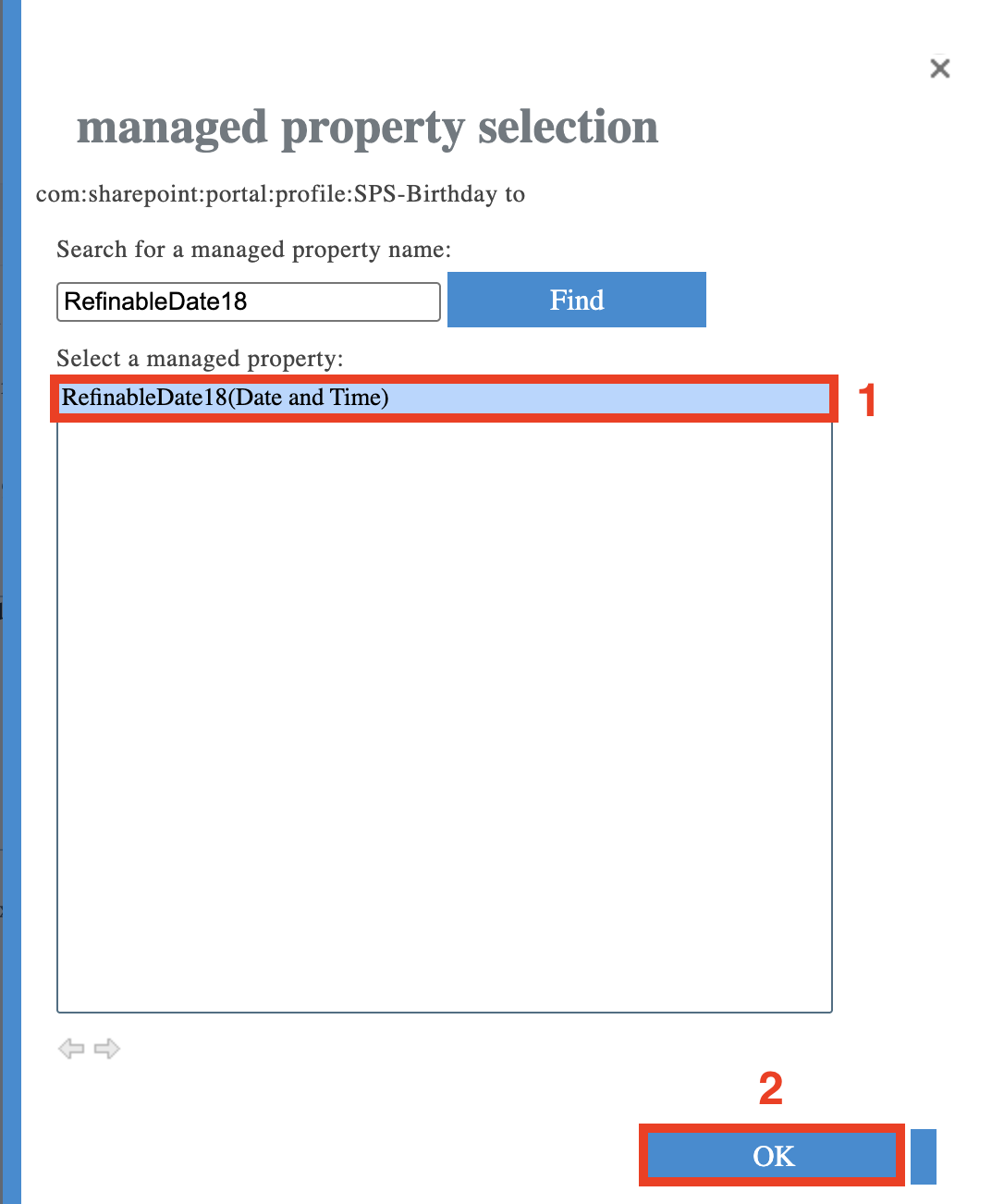
NOTEYou can choose any RefinableDate property. In this article, we are using RefinableDate18 because this is the default selection when you configure the Birthday Today filter in People Search.- Scroll to the bottom of the page and click OK to save the settings.

Step 3. Check the RefinableDate property settings
- Switch to the Managed Properties tab:

- Find the RefinableDate property that you have mapped earlier.
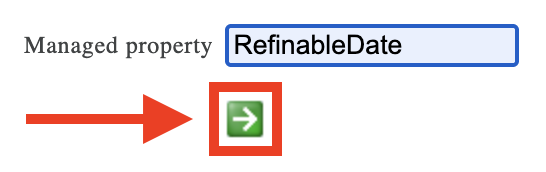
- Click the property name to open the settings:

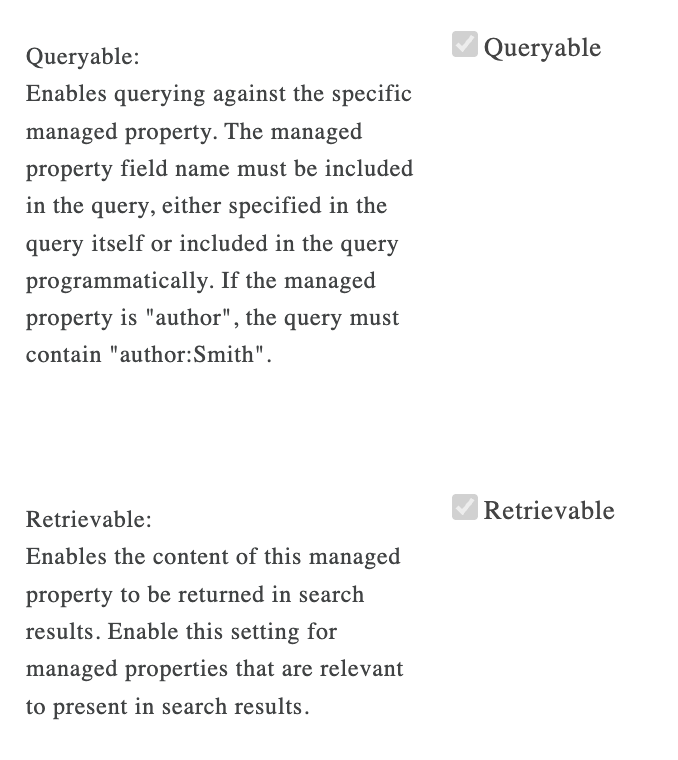
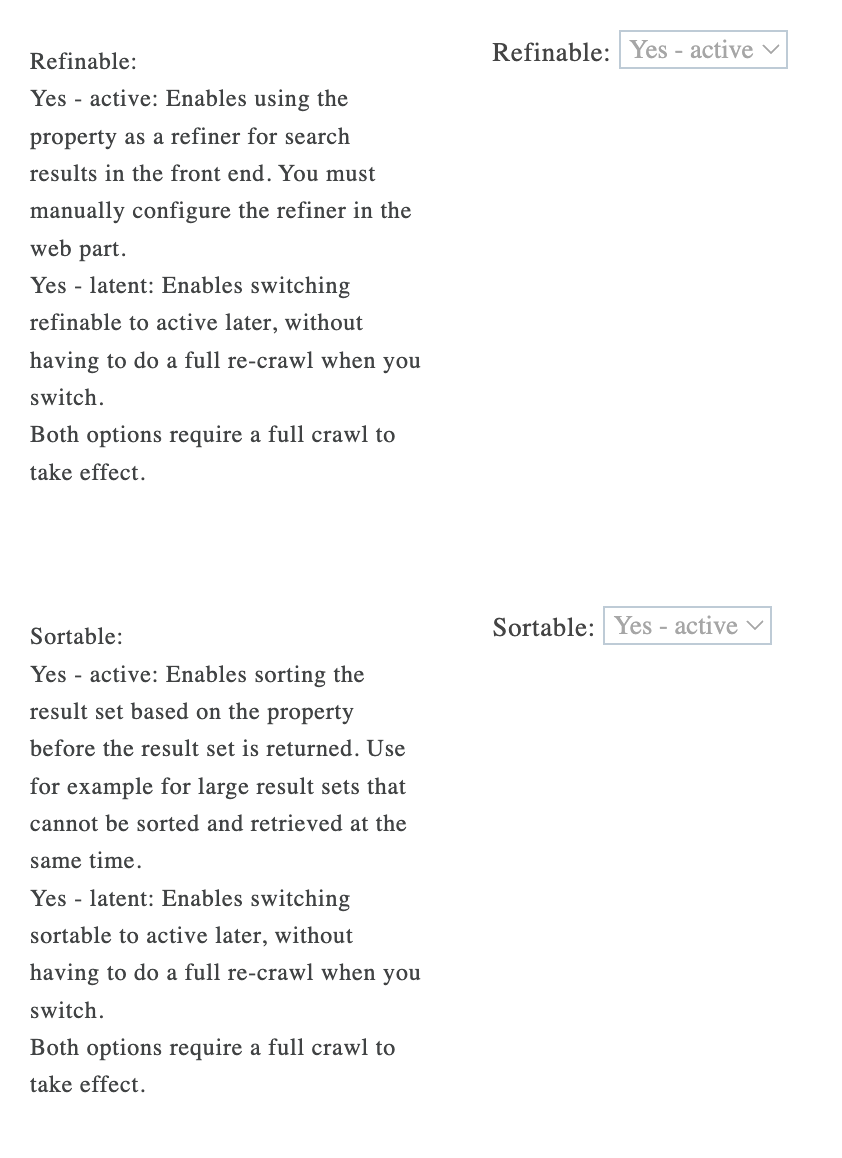
- In the opened settings, make sure the following options are checked or active:
- queryable;
- retrievable;
- refinable;
- sortable.
 |  |
- Click OK to save the changes if you made any.

Amazing! You've successfully configured the SPS-Birthday property. You can now start connecting.
Part 3: Connect
This section tackles the actual connection using the ShortPoint People Search connection type.
Step 1: Open the ShortPoint Web Part
- Go to the SharePoint page you want to use and click Edit.
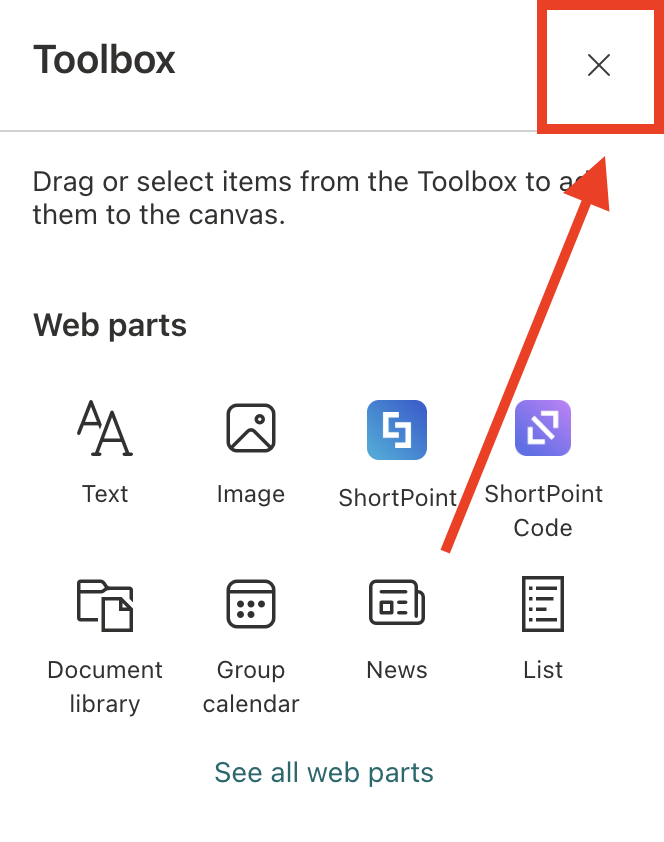
- Close the Toolbox:
- Edit the ShortPoint Web Part:

Step 2: Edit the Design Element
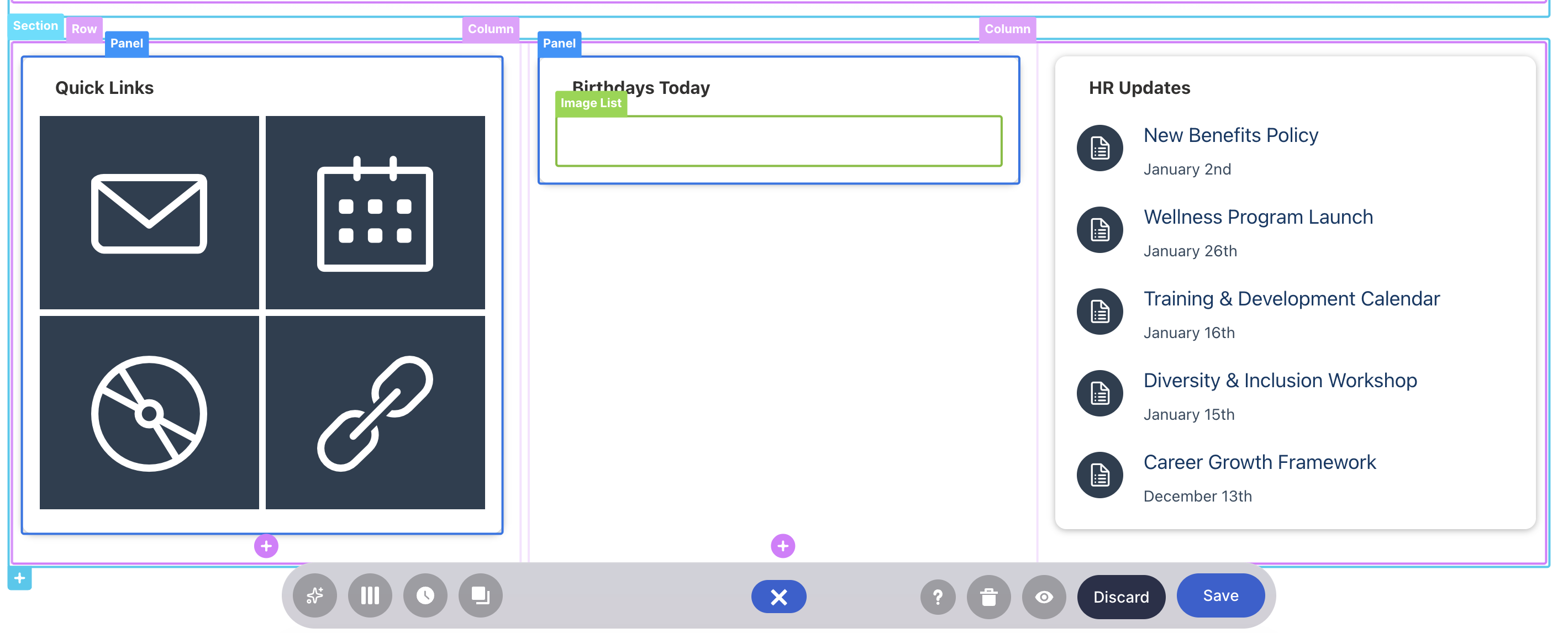
NOTEBefore proceeding, make sure you already have the Design Element you want to use to connect on your SharePoint page. For this guide, we'll use Image List.
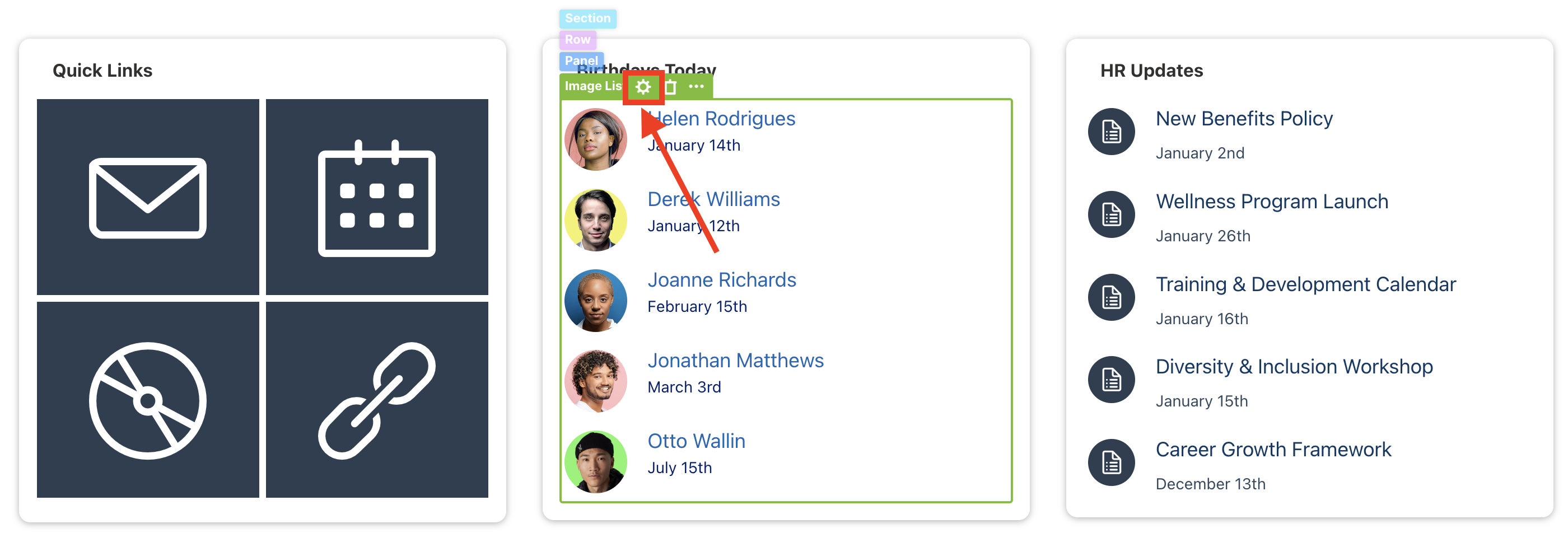
- Select the EasyPass tag of the Design Element:
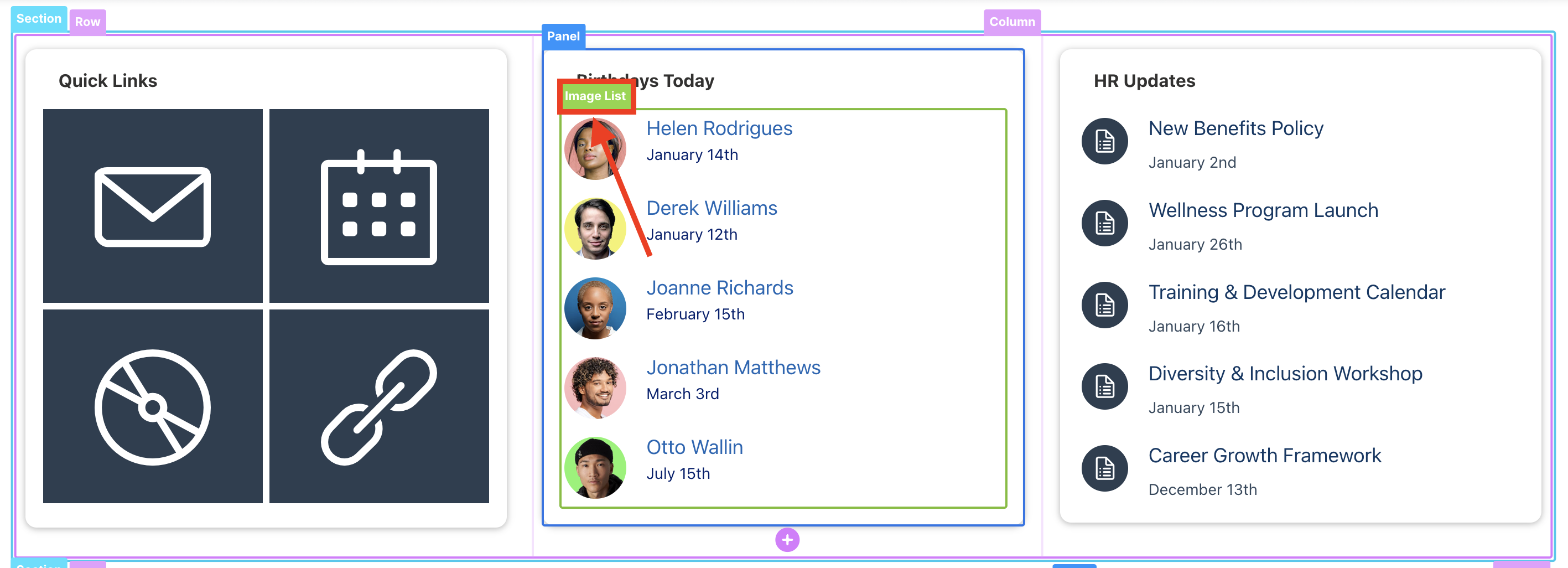
- Click the cogwheel icon to open its settings:
Step 3: Choose People Search
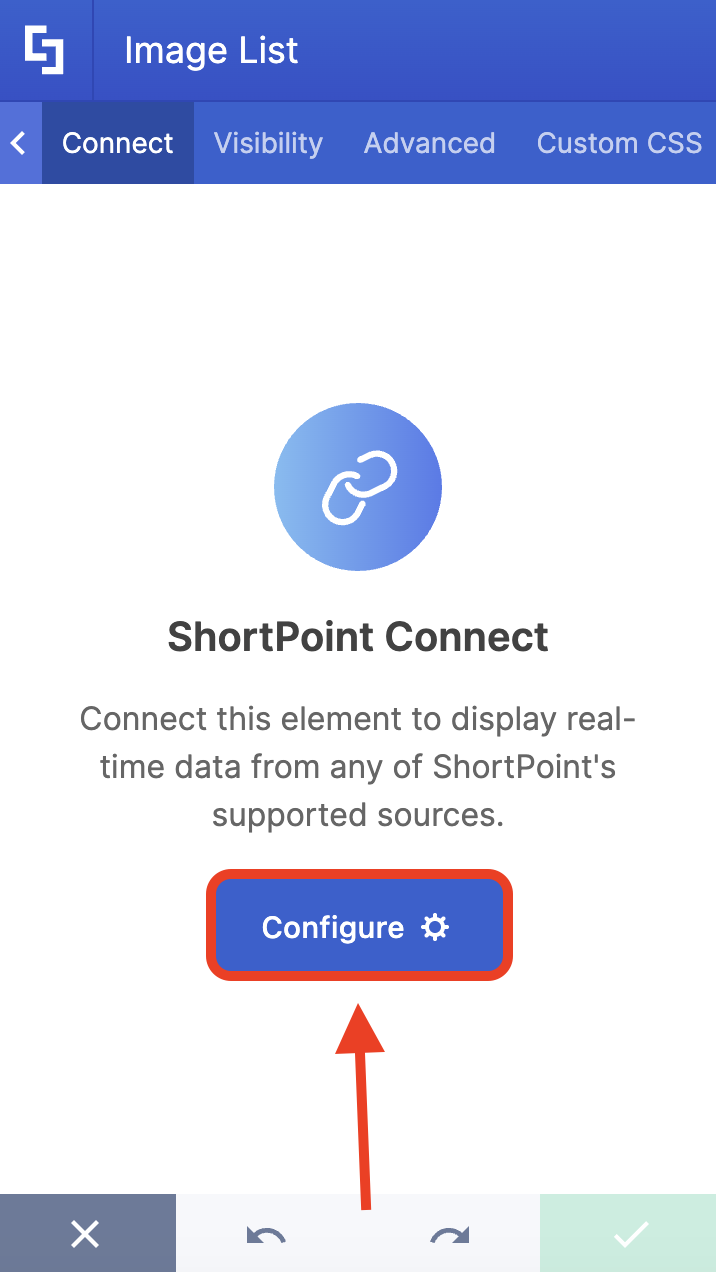
- Go to the Connect tab.
- Click Configure:
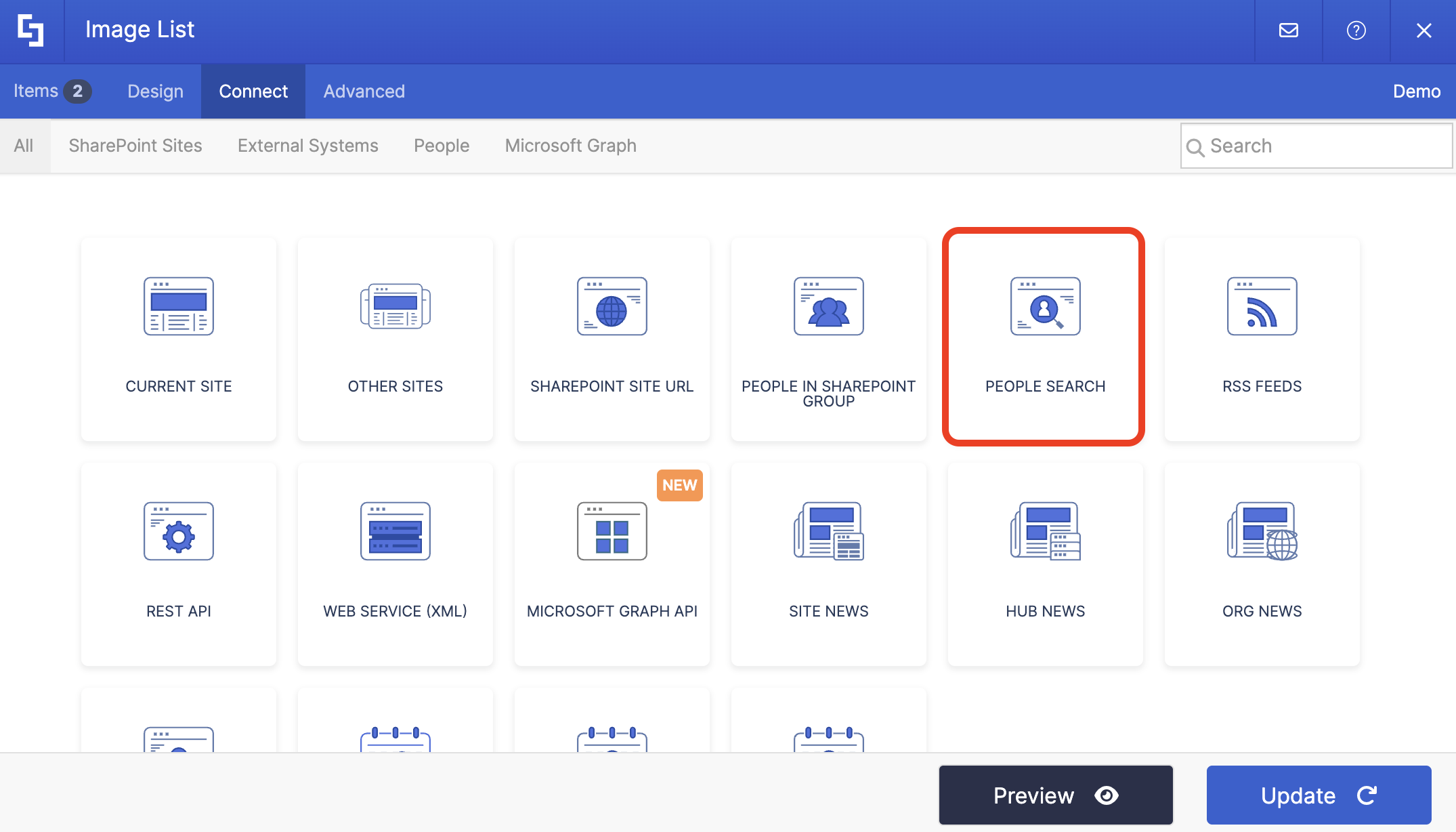
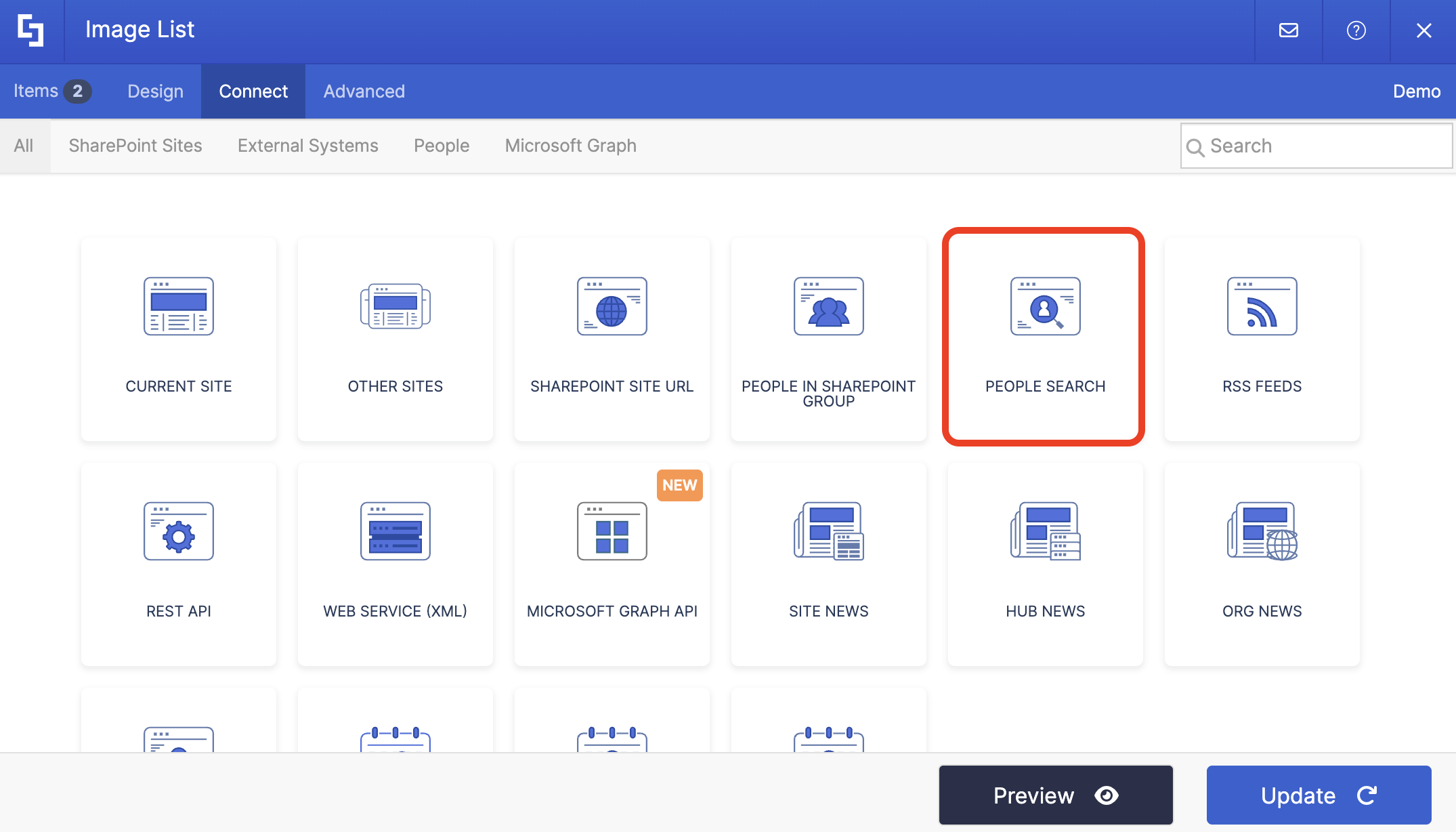
- Select People Search:
Step 4: Connect
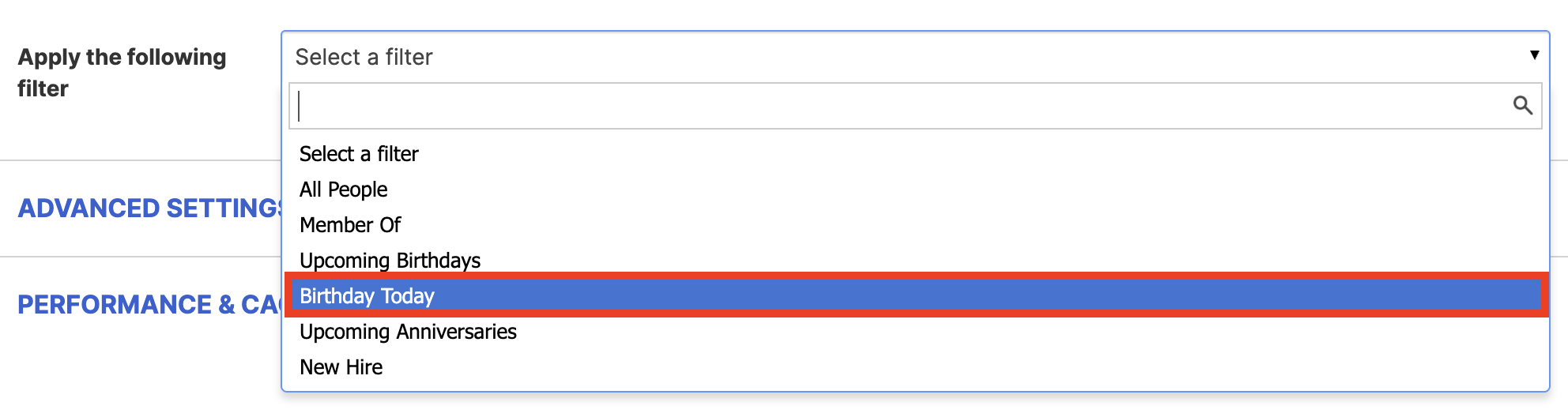
- Choose the Birthday Today filter from the drop-down:
- Make sure that the mapped property for Birthday Today is selected correctly. In our case, it's RefinableDate18:

- Once done, click Connect.
Step 5: Map Items
- Go to the Items tab.
- Delete all default content.
- Use the link icon to map the properties you want shown.
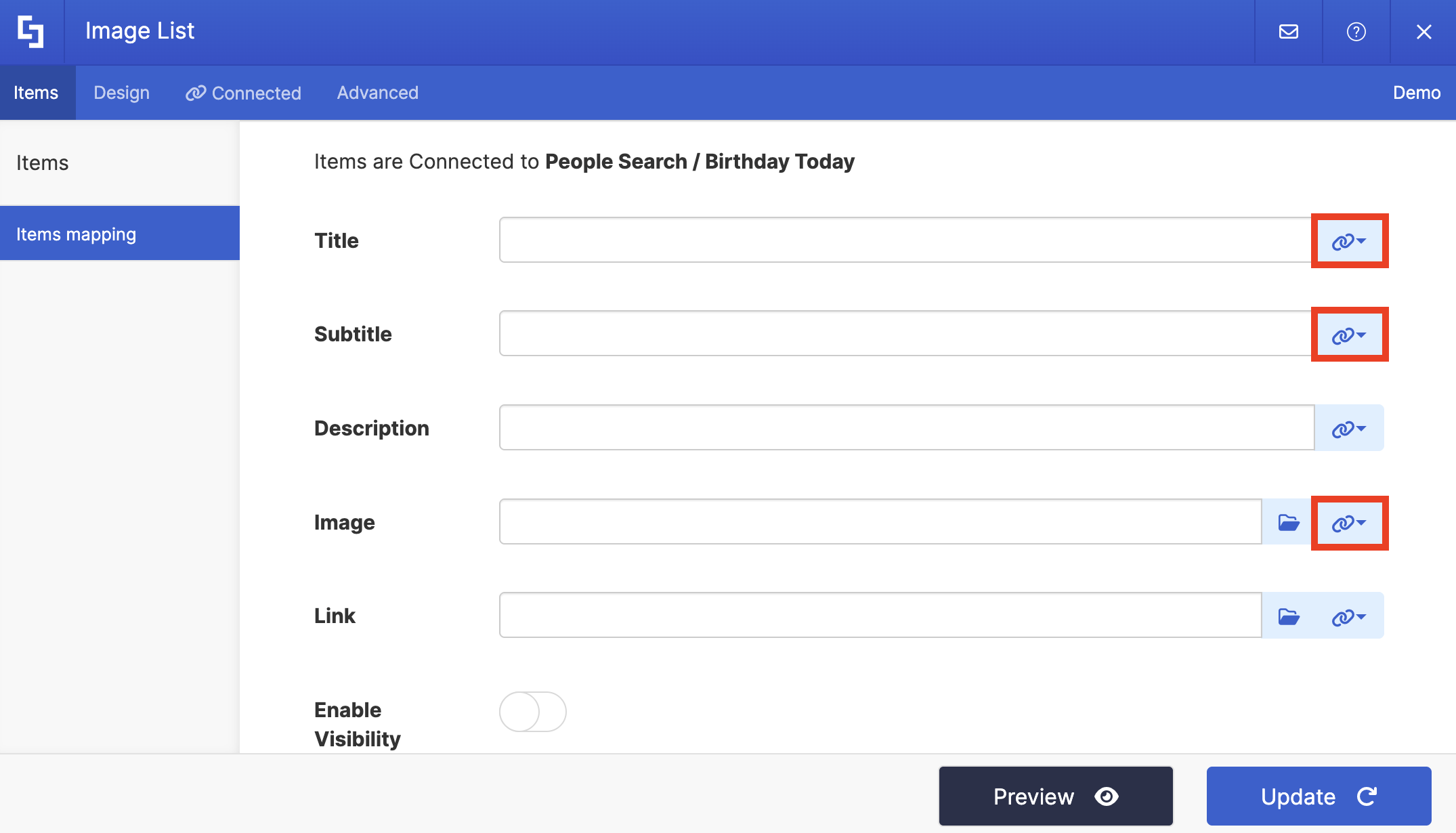
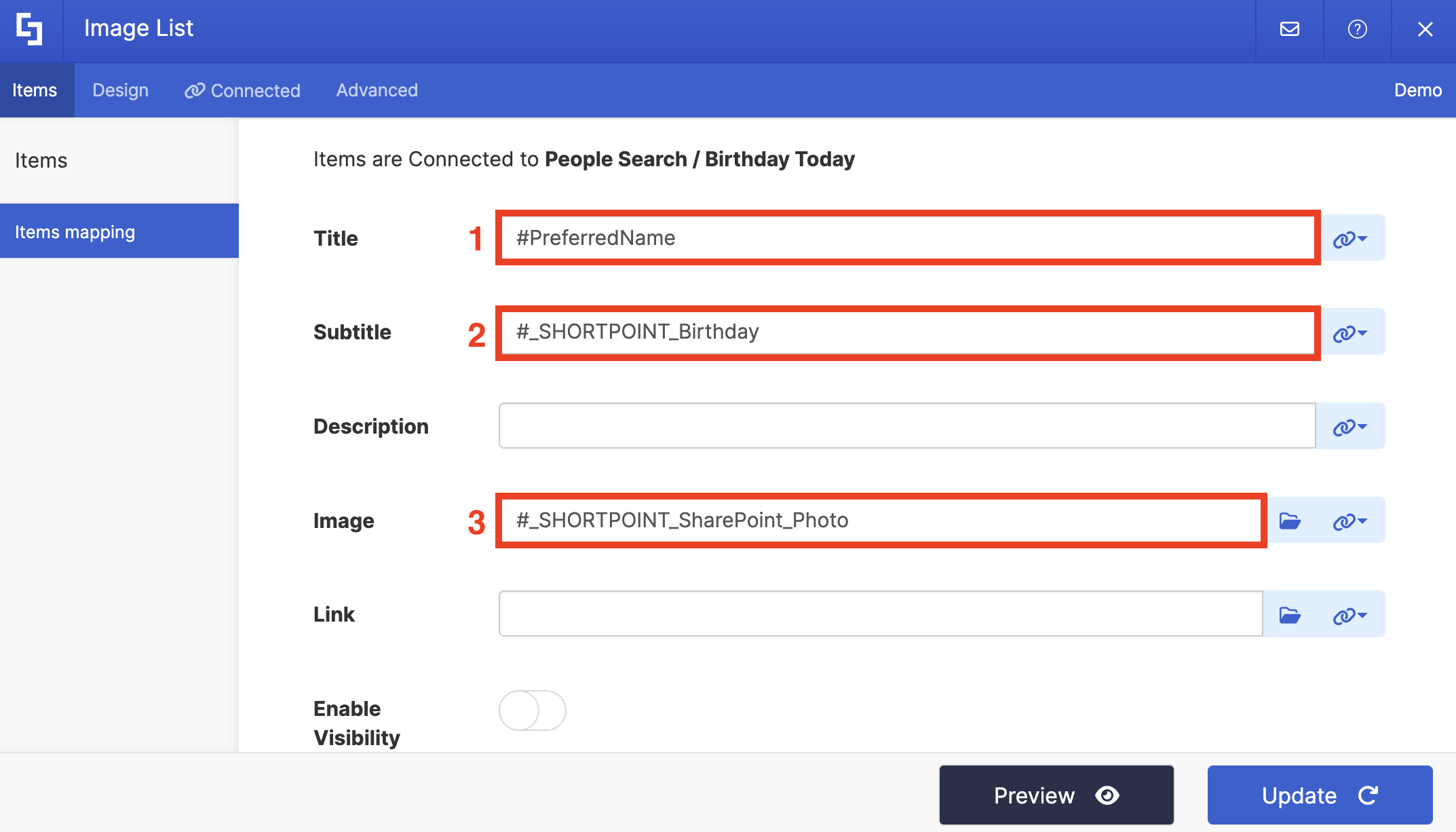
- For reference, below are the properties we mapped:
- #PreferredName - shows the name of the employee as the title.
- #_SHORTPOINT_Birthday - shows the birthday of the employee.
- #_SHORTPOINT_SharePoint_Photo - shows a photo of the employee.
Step 6: Save and Publish
- Click Preview to see how the Design Element looks:
- Once satisfied, click Update.
- Select the green check mark.
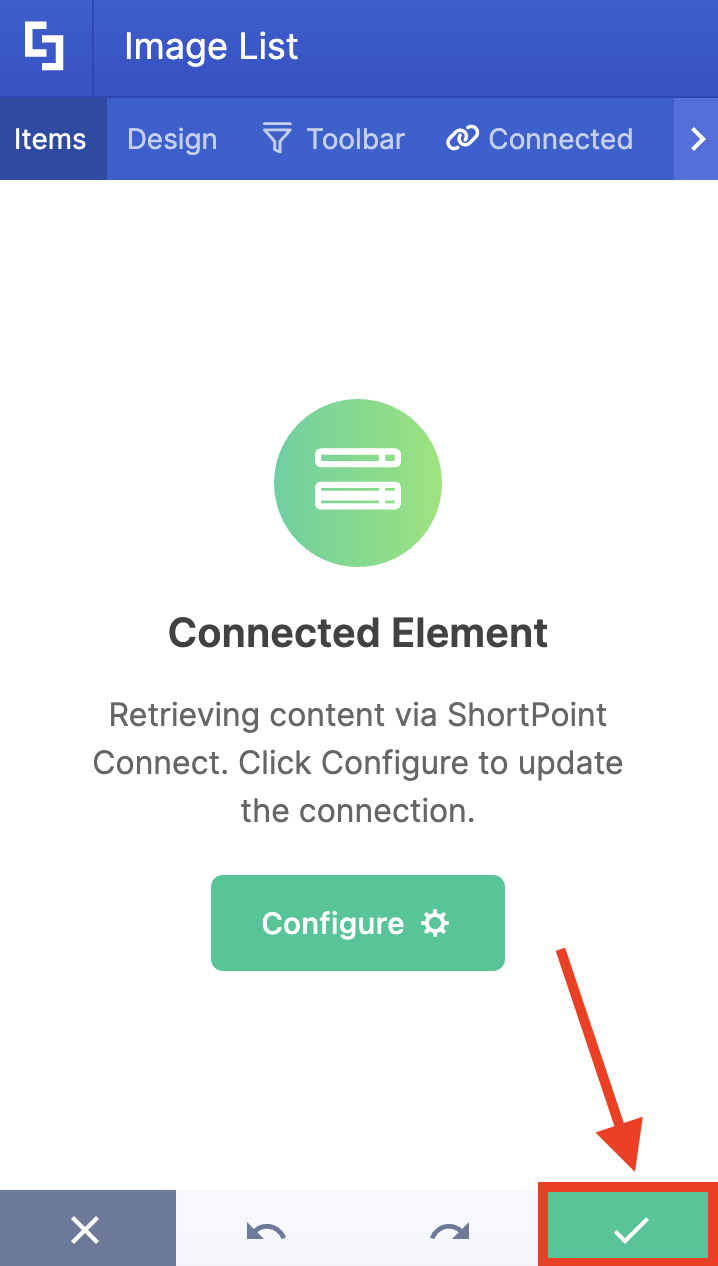
- Save your changes:

- And Publish your page:

Congratulations! You can now display today's birthday celebrants on your SharePoint page. This setup allows you to easily navigate and access employee birthdays, enhancing your intranet's engagement.
Practical Use Cases
Here are three practical ways you can use it to build a more connected workplace:
Give New Hires a Warm Welcome
First impressions matter. By setting your filter to highlight anyone who joined in the last 30 days, you can create an automatic "New Faces" gallery. It’s a low-effort way to make sure newcomers feel seen and helps the rest of the team know who to say "hi" to in the breakroom (or on Teams).
Celebrate Major Milestones
Not all anniversaries are created equal. While every year is worth a nod, a decade of service is a huge deal. You can set up specific filters to trigger for major milestones—like 5, 10, or 25 years. It’s a fantastic way to automate your long-service awards and ensure those loyal team members get a high-visibility shout-out without HR having to manually track the calendar.
Brighten Up Your Intranet with Upcoming Birthdays
At the end of the day, a modern intranet should be more than just a place to store files. By adding small, thoughtful touches like an automated SharePoint birthday reminder, you’re doing more than just displaying dates; you’re building a sense of community. It’s an easy way to make your workspace feel a little more human.
If you’re already using ShortPoint, you can dive right in and set up the connection today. It only takes a few minutes to transform your landing page.
New to the ShortPoint family? We’d love to show you how it works. You can start a free 15-day trial to explore the features at your own pace, or schedule a one-on-one demo with our experts to see what’s possible for your team.
Frequently Asked Questions
Do employees have to share their full birth year?
Not at all. While the system technically needs the full date to function, you have total control over what actually appears on the page. Most users choose to display only the month and day (e.g., “Birthday: April 21”). This keeps the celebration fun without sharing anyone’s age.
What happens if an employee’s profile is missing a birthday?
If the field is empty, the system simply skips over them. They won’t appear in the birthday list. If you want to ensure everyone is included, it’s usually a good idea to run a quick internal campaign asking staff to update their profiles.
Can we show "Today’s Birthdays" and "Upcoming Birthdays" separately?
Yes! You can actually create two different design elements on your page. One can be filtered specifically for "Today," while the other can act as a "Coming Up Soon" list for the rest of the week. It’s a great way to make sure today’s stars get the most attention.
Can we use this same setup for work anniversaries?
You bet. The logic is exactly the same. You’re just pointing the connection toward the "Hire Date" instead of the "Birth Date." If you’re interested in celebrating company tenure, you can check out our full guide on Upcoming Work Anniversaries.
Related articles:
