 Try ShortPoint now
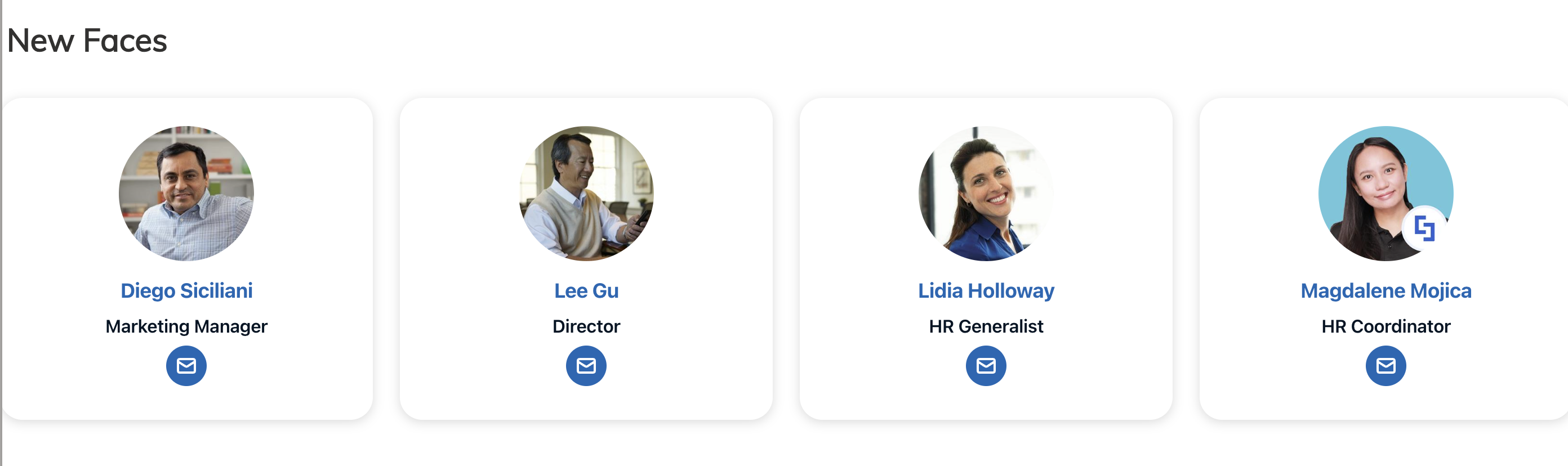
You may think giving new hires a warm welcome is a simple gesture, but it truly resonates. When new employees feel seen and appreciated from day one, it builds a real sense of belonging and boosts morale across the board. Your SharePoint page is the ideal spot to keep these important dates front and center, and the best part is, you can automate the whole process.
In this guide, we’ll show you exactly how to get your new hire display up and running to enhance the onboarding experience. Let's get started!
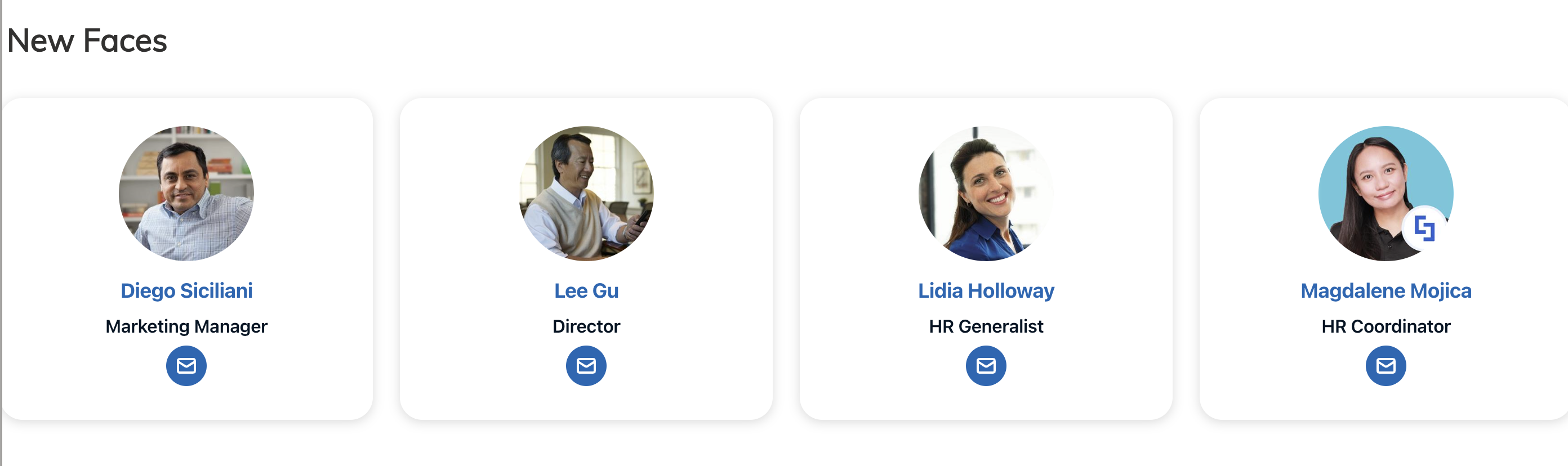
TABLE OF CONTENTS
- Prerequisites
- What Is the ShortPoint People Search Connection?
- How to Showcase New Hires in SharePoint
- Practical Use Cases
- Start Displaying New Hires
- Frequently Asked Questions
- Do I need to create the SPS-HireDate property from scratch?
- Why isn't the SPS-HireDate crawled property showing up in the Search Schema?
- Which managed property should I map SPS-HireDate to?
- What settings need to be enabled on the managed property?
- Does every user need their hire date filled in for this to work?
- Will this work on both SharePoint Online and SharePoint 2019?
Prerequisites
- You must have the latest ShortPoint SPFx version installed.
- You must be a ShortPoint Designer with an active license.
- You must already have the Design Element you’ll use for the connection on your page.
What Is the ShortPoint People Search Connection?
Before we dive into the how-to, let’s take a quick look at the connection behind this powerful new hire SharePoint setup.
The People Search connection bridges ShortPoint Design Elements to your SharePoint People Search index. This is the same engine that handles your company directory and profile lookups, but ShortPoint gives it a much-needed makeover.
Instead of a basic list of names, this connection pulls user profile data (like photos, job titles, departments, and hire dates) and lets you present it in a way that actually looks good on your page, enhancing the overall employee experience and supporting a successful onboarding.
The real magic lies in its smart filtering. You aren’t just dumping the whole directory onto the page; you’re telling the system exactly who to highlight. You can set it up to automatically feature your new hires, creating a welcoming environment for new people in your team and making sure they get a great experience during the onboarding process.
How to Showcase New Hires in SharePoint
Ready to welcome new hires right on your intranets? We've prepared a detailed step-by-step guide for you. Make sure to follow each part to ensure a successful connection.
Part 1: Add Employee Hire Dates
This section will show you how to add hire dates to your user profiles in SharePoint. Accomplishing these steps is essential. If none of your user profiles have an entry in the SPS-HireDate field, the crawled property won't appear in the search schema at all, which you will need in the next part. So, before you proceed, make sure to accomplish Part 1 first.
Step 1: Open User Profiles
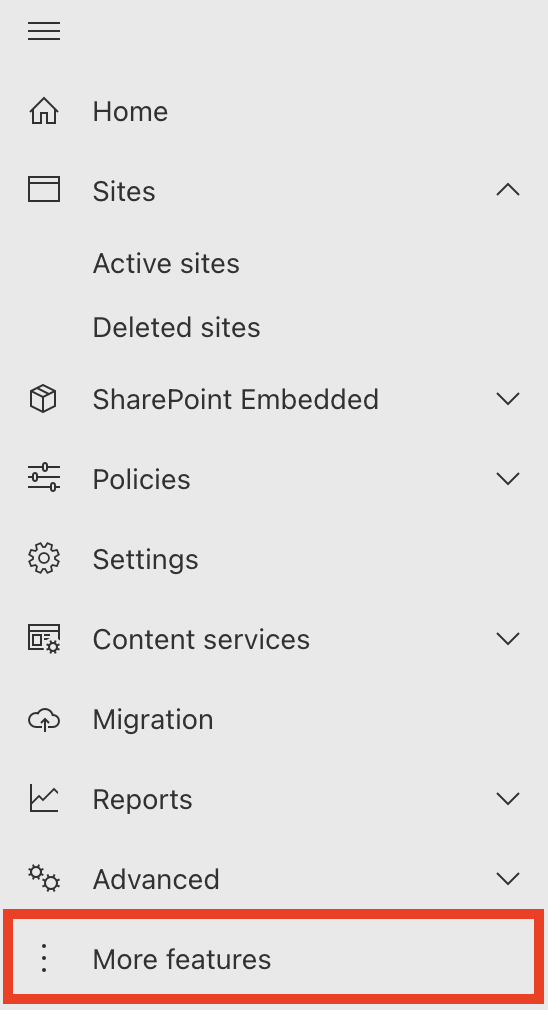
- Go to the SharePoint Admin Center and select More Features:
- Look for User Profiles and select Open.
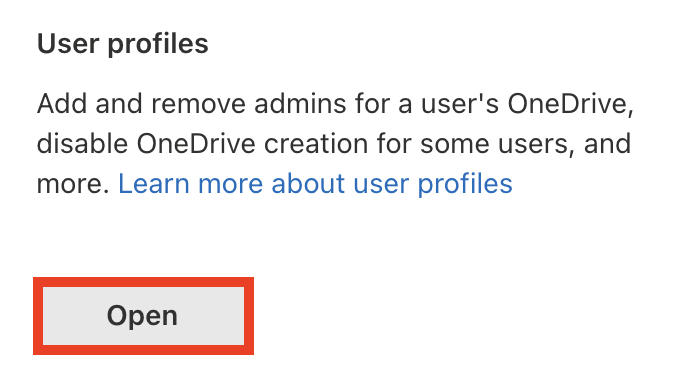
- Click Manage User Profiles

Step 2: Add Hire Dates
- Find the user whose hire date you want to configure.

- Then, select Edit My Profile.
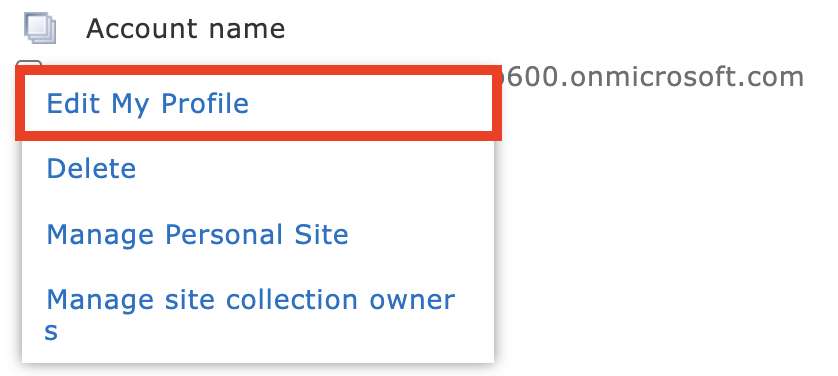
- Scroll down until you see the Hire Date field. Write down the selected employee's hire date. It should follow the mm/dd/yyyy format, and it should be shown to Everyone.

- Click Save and close.

- Repeat the same steps for every employee whose hire date you want to set.
Great work! You've successfully added hire dates to SharePoint user profiles. You may now proceed to Part 2.
Part 2: Map Hire Date Property
This section shows you how to query managed properties in SharePoint's search schema. Follow the steps below to get started:
Step 1: Open Crawled Properties
- Go back to the SharePoint Admin Center and click the Open button under Search.
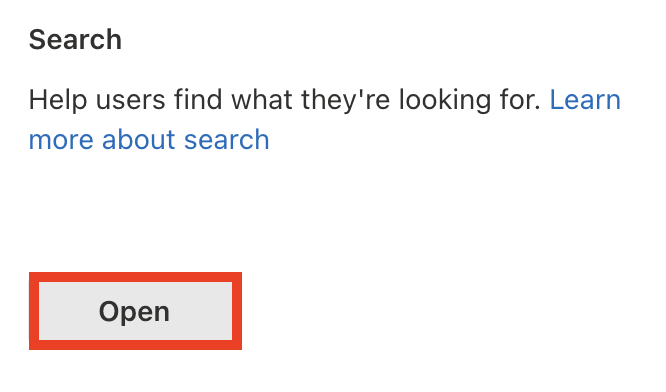
- Select Manage Search Schema:
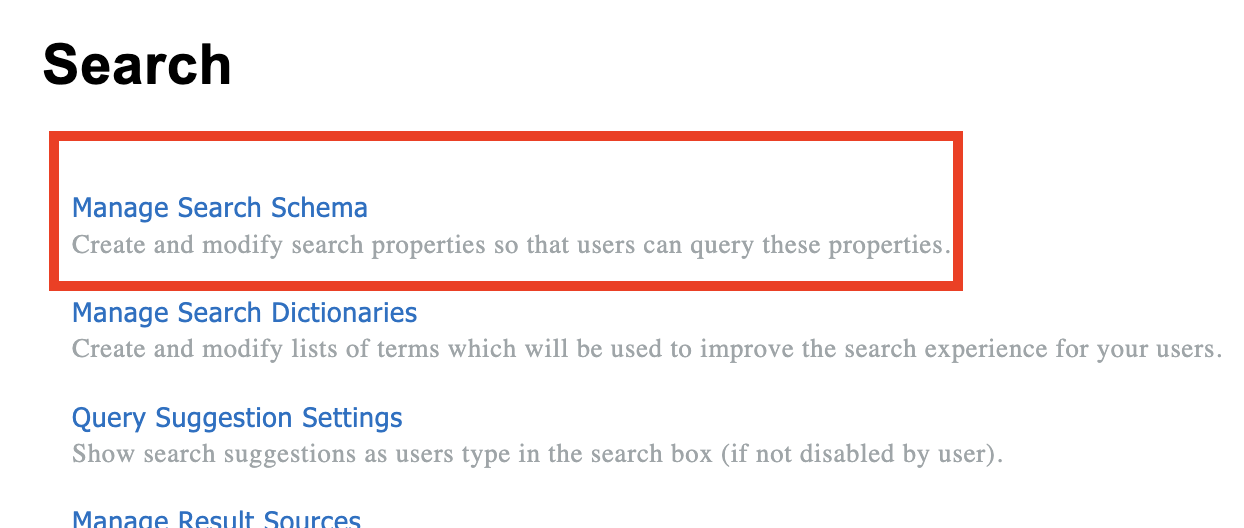
- Go to the Crawled Properties tab:

Step 2: Configure the SPS-HireDate Property
- In the list of properties, locate the People:SPS-HireDate and click it to open the menu:

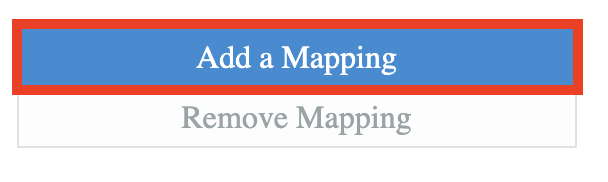
- Click Add a Mapping:
- Search for [1] RefinableDate19 property. Select it and click [2] OK:
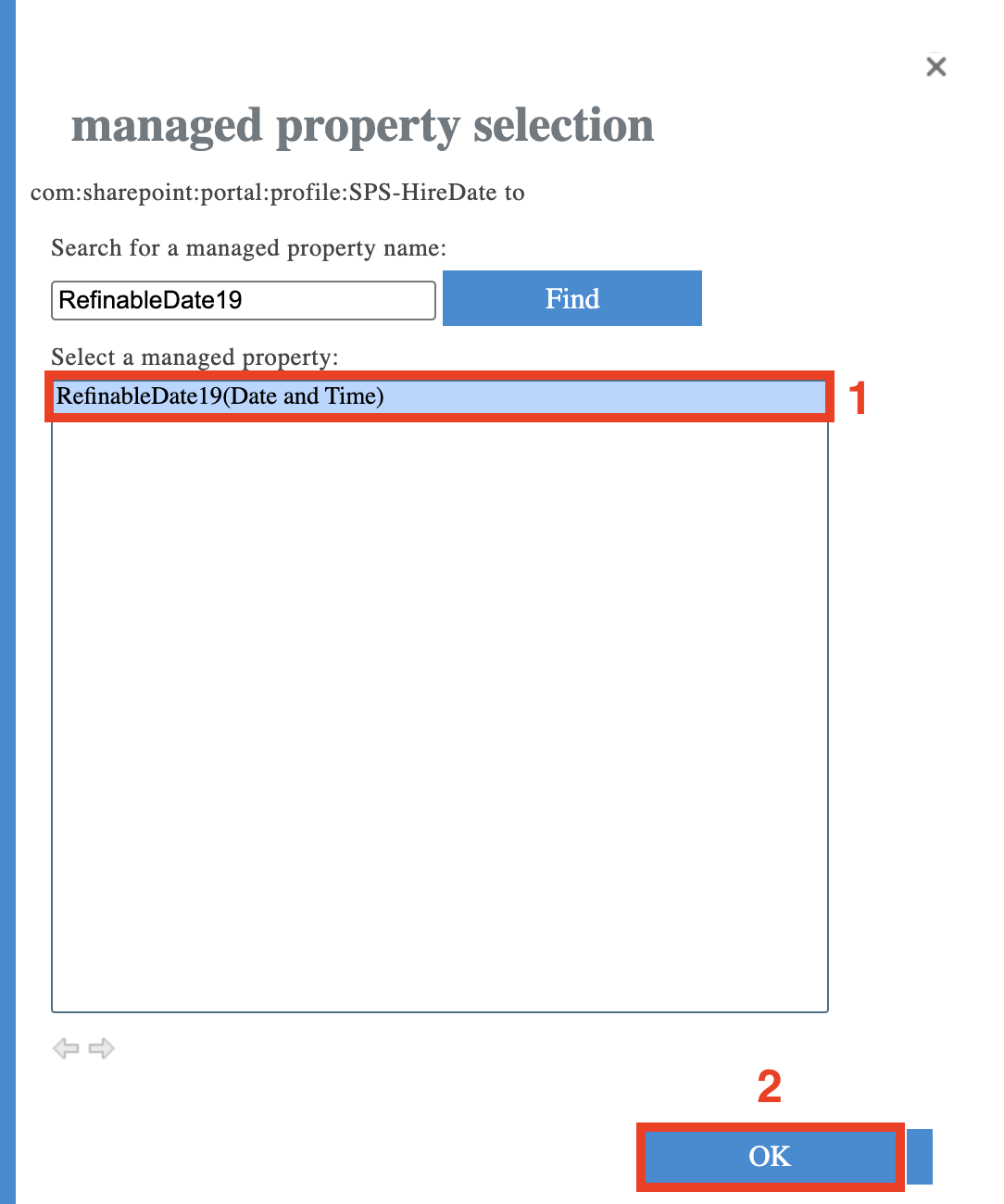
NOTEYou can choose any RefinableDate property. In this article, we are using RefinableDate19 because this is the default selection when you configure the New Hire filter in People Search.
- Scroll to the bottom of the page and click OK to save the settings.
Step 3. Check the RefinableDate property settings
- Switch to the Managed Properties tab:

- Find the RefinableDate property that you have mapped earlier.
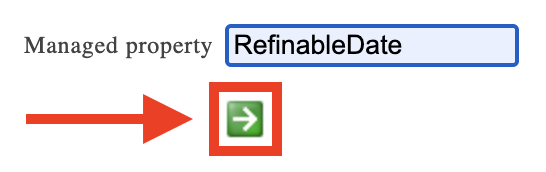
- Click the property name to open the settings:

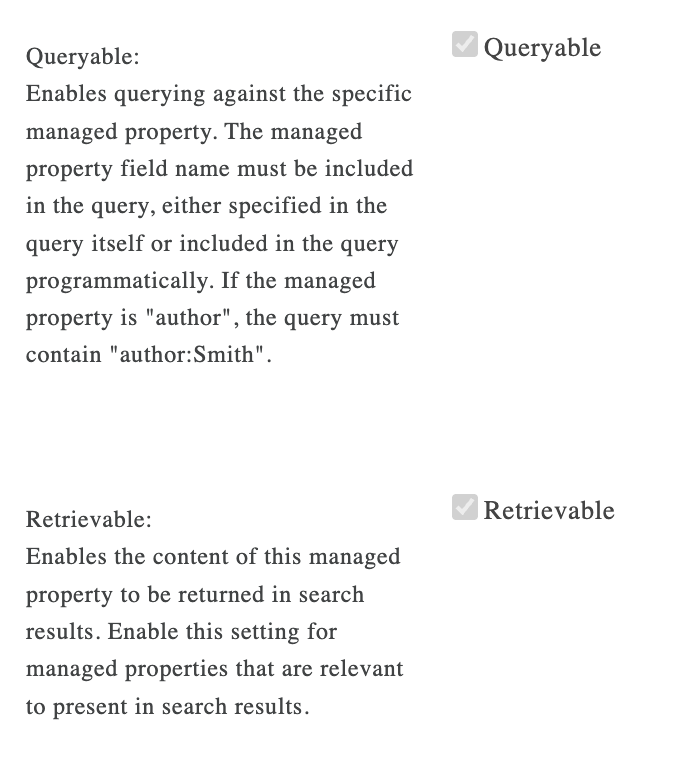
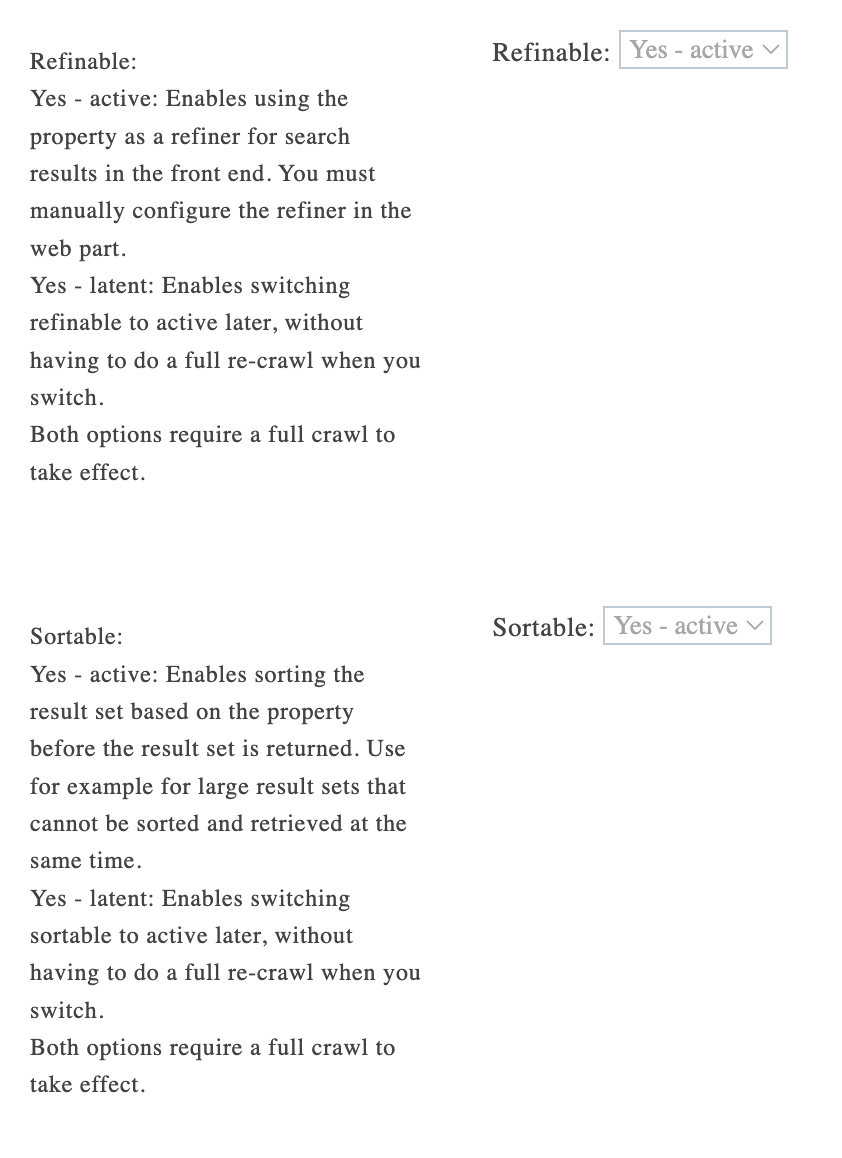
- In the opened settings, make sure the following options are checked or active:
- queryable;
- retrievable;
- refinable;
- sortable.
 |  |
- Click OK to save the changes if you made any.
Amazing! You've successfully configured the SPS-HireDate property. You can now start connecting.
Part 3: Connect
This section tackles the actual connection using the ShortPoint People Search connection type.
Step 1: Open the ShortPoint Web Part
- Go to the SharePoint page you want to use and click Edit.
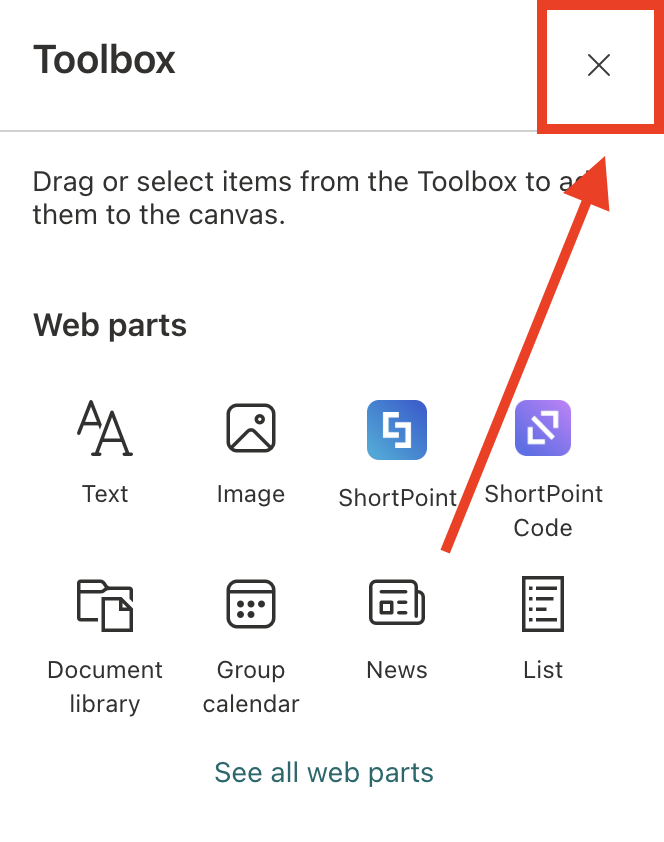
- Close the Toolbox:
- Edit the ShortPoint Web Part:

Step 2: Edit the Design Element
NOTEBefore proceeding, make sure you already have the Design Element you want to use to connect on your SharePoint page. For this guide, we'll use Person Cards.
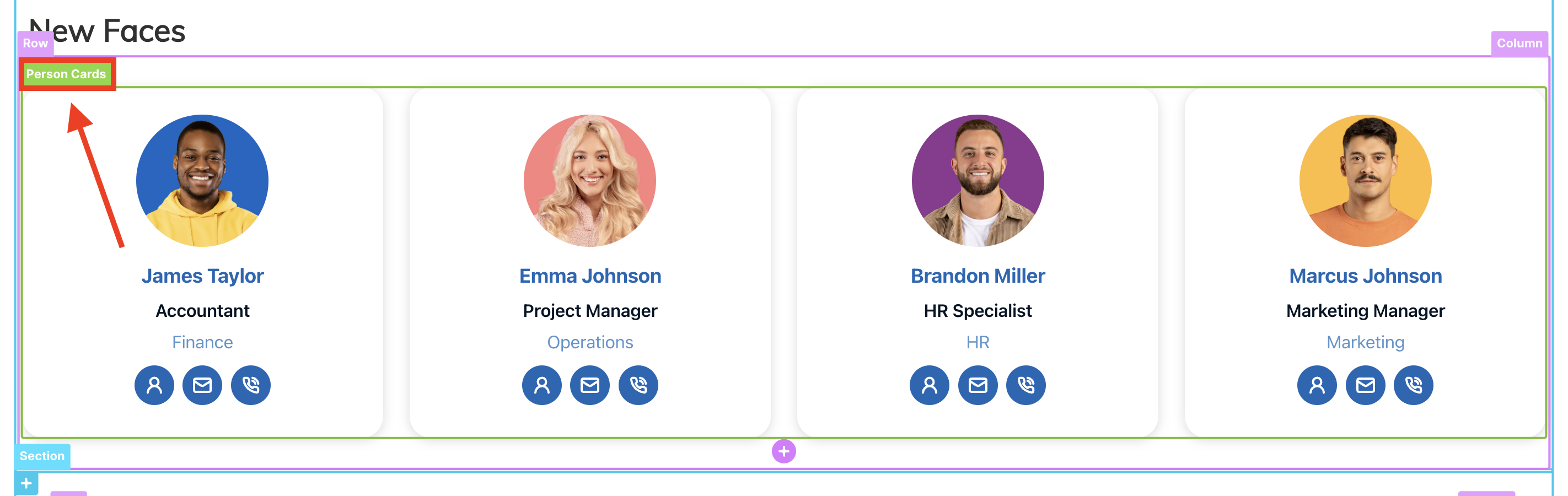
- Select the EasyPass tag of the Design Element:
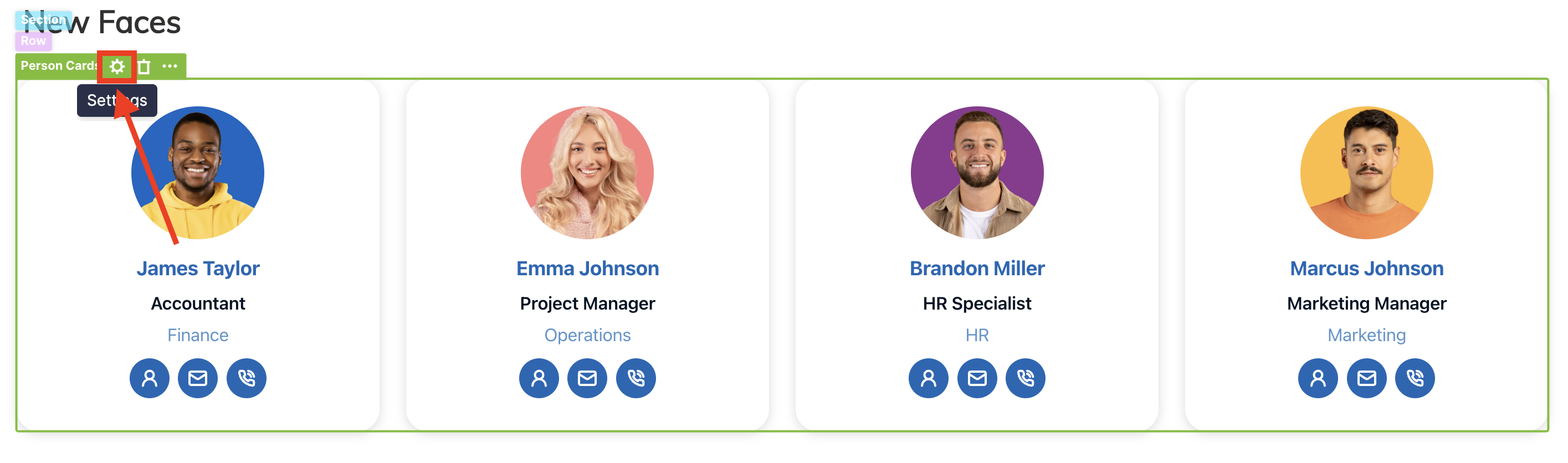
- Click the cogwheel icon to open its settings:
Step 3: Choose People Search
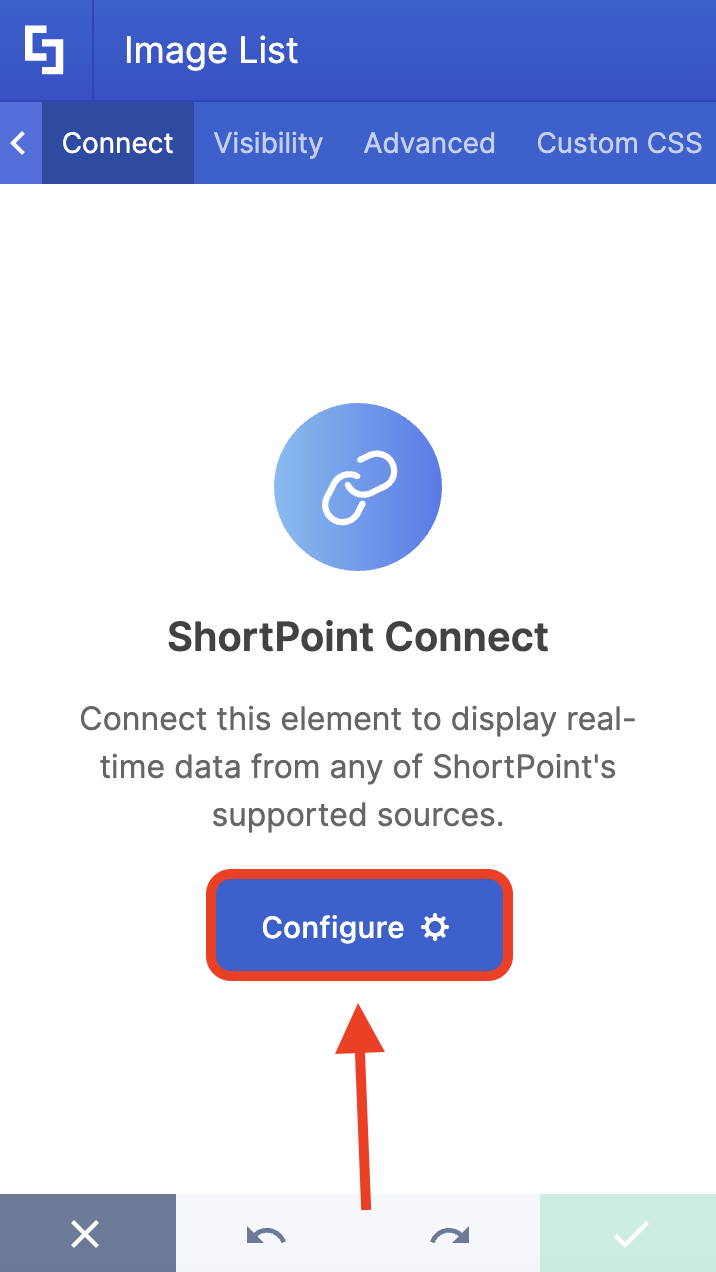
- Go to the Connect tab.
- Click Configure:
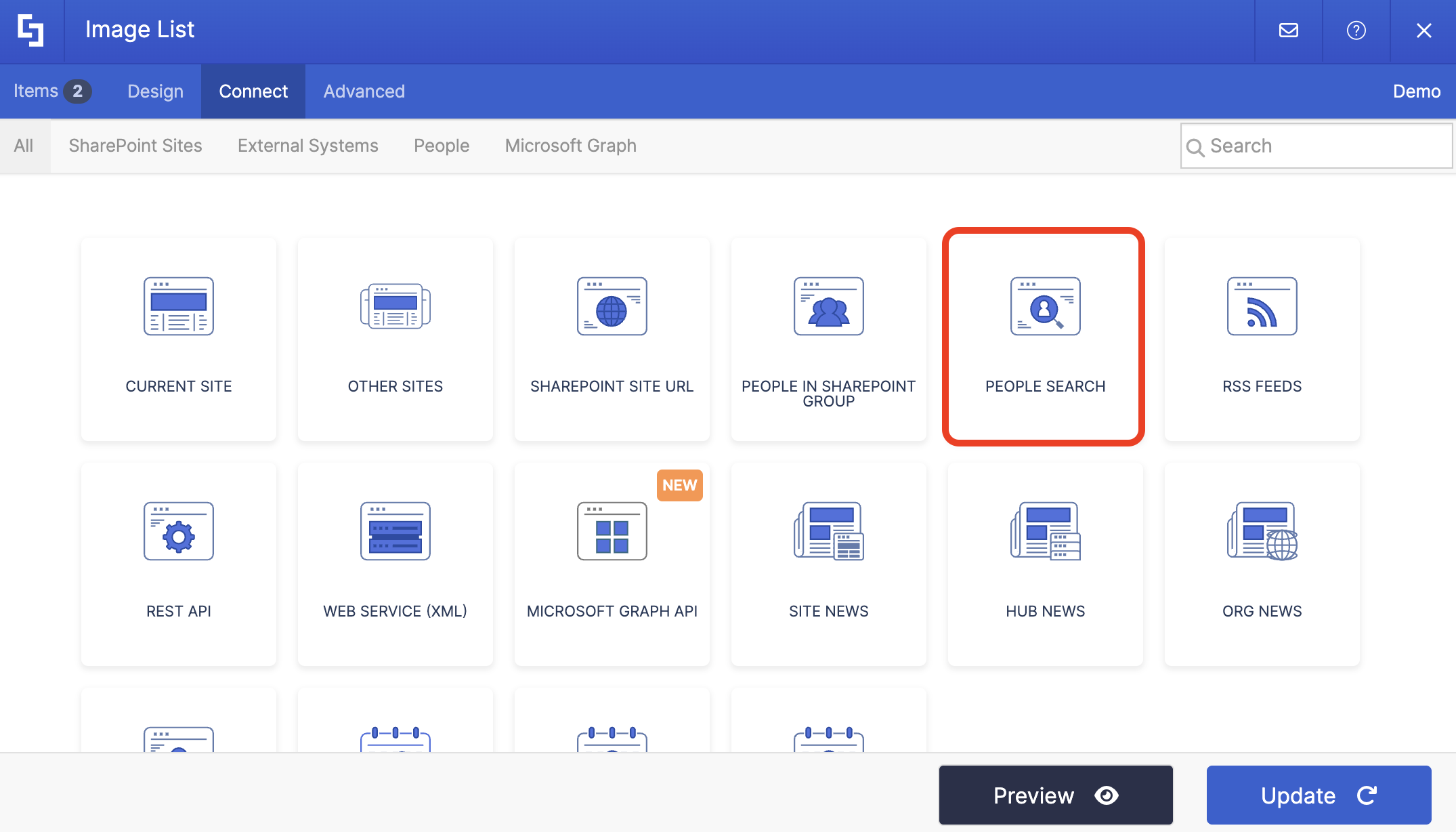
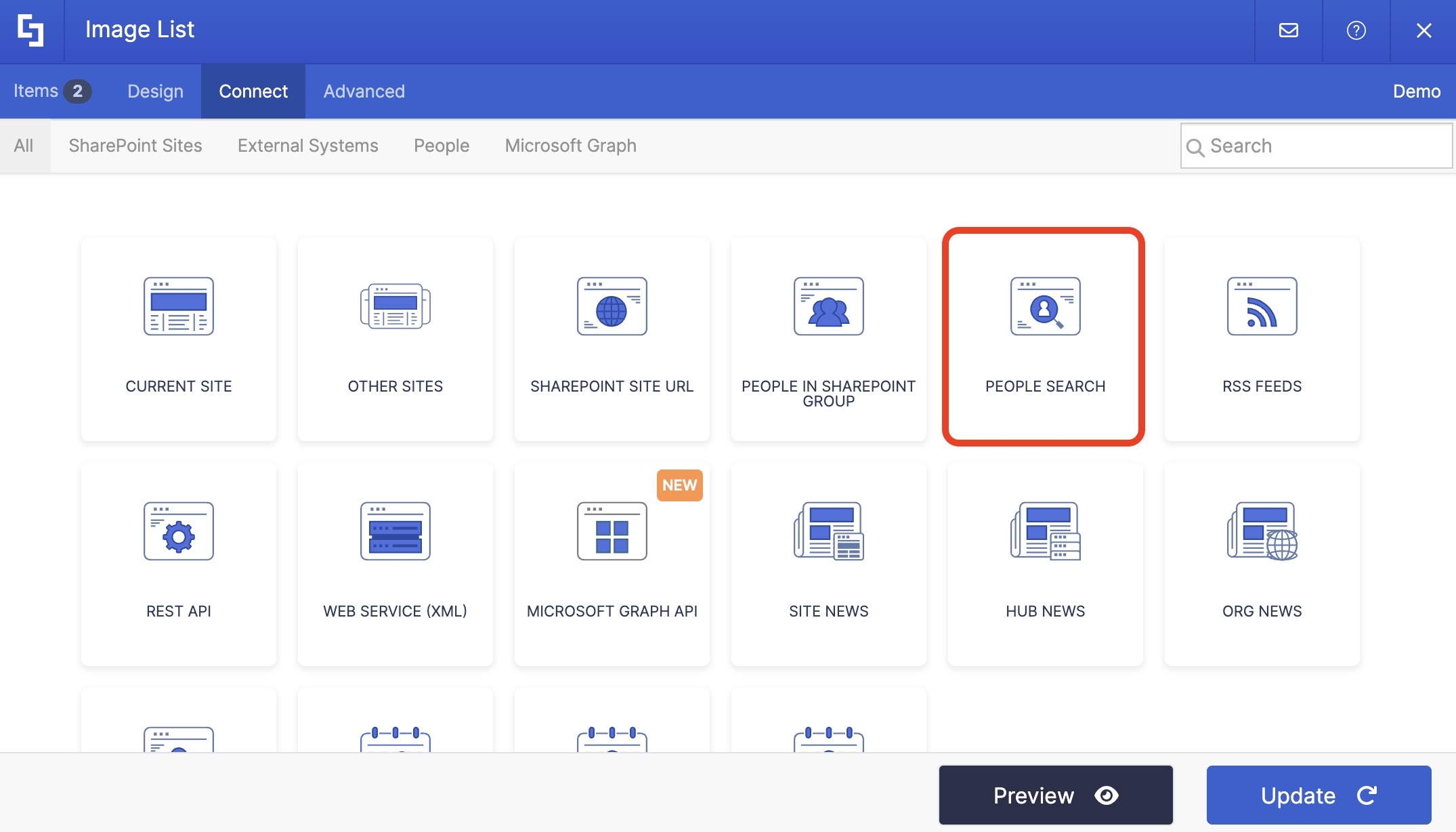
- Select People Search:
Step 4: Connect
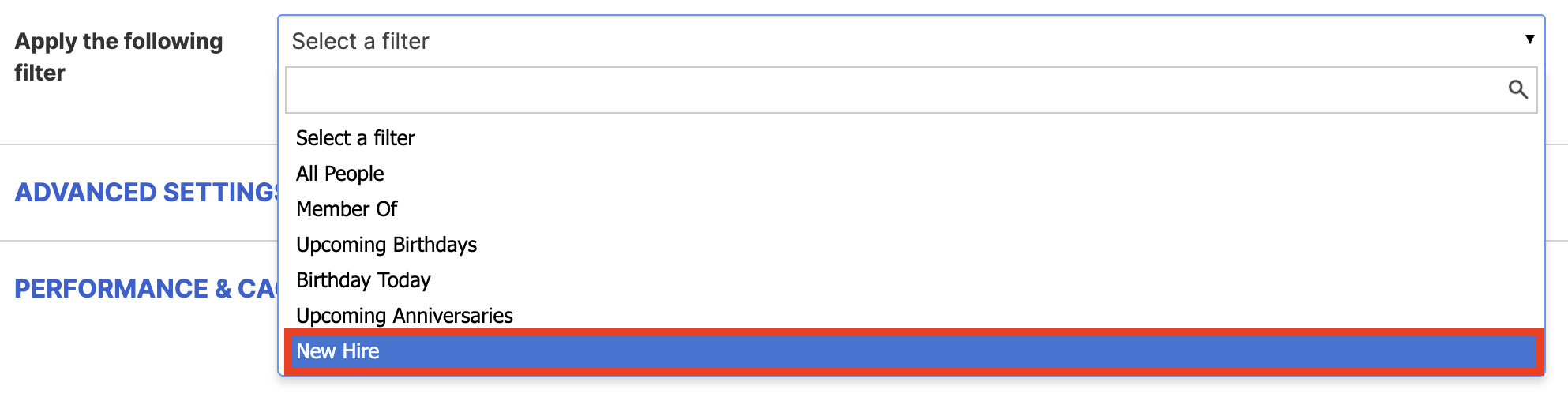
- Choose the New Hire filter from the drop-down:
- Make sure that the mapped property for Hire Date is selected correctly. In our case, it's RefinableDate19:

- Next, modify the number of days you'd like to showcase. This will display all employees hired within the timeframe you set.

- Once done, click Connect.
Step 5: Map Items
- Go to the Items tab.
- Delete all default content.
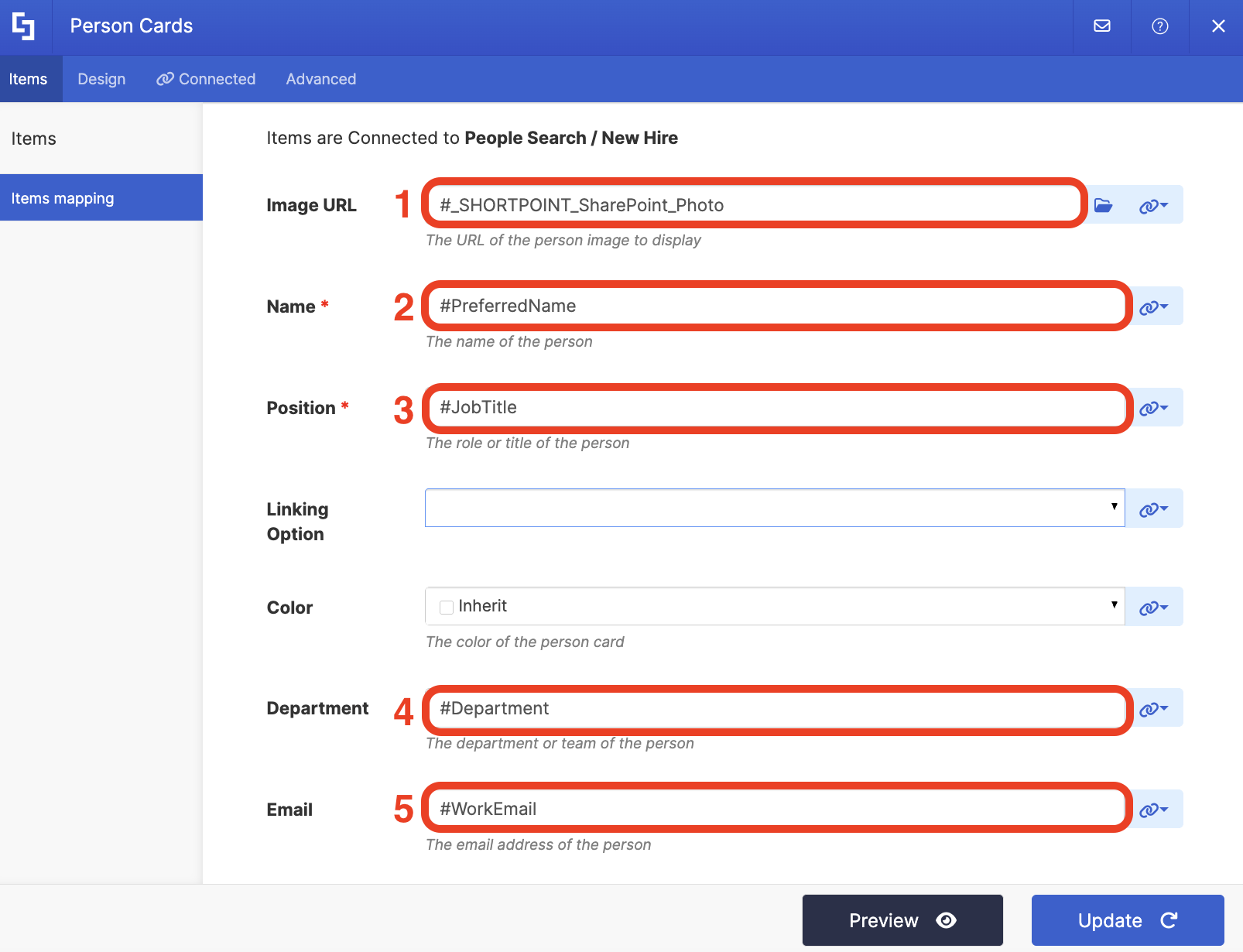
- Use the link icon to map the properties you want shown.
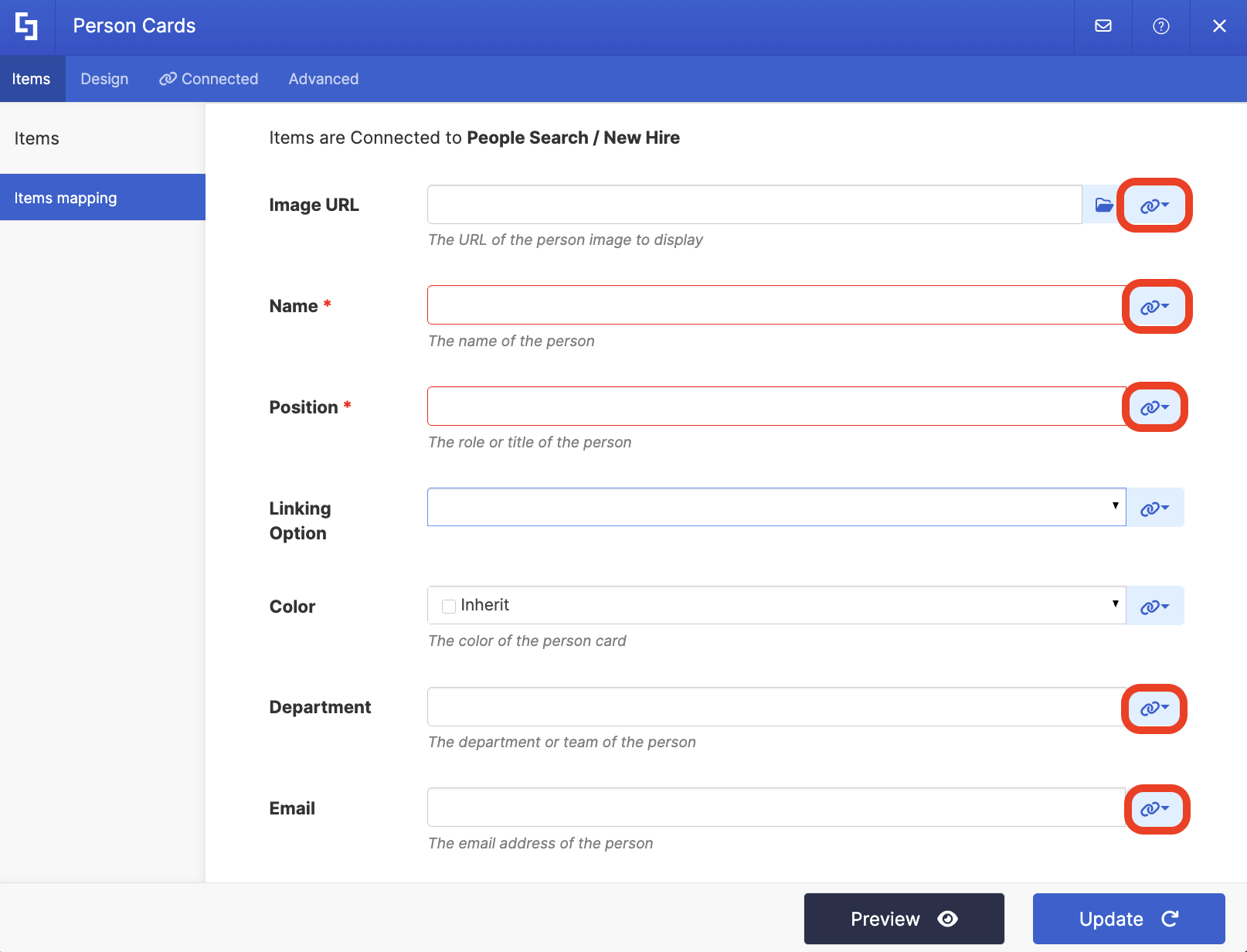
- For reference, below are the properties we mapped:
- #_SHORTPOINT_SharePoint_Photo - shows a photo of the employee.
- #PreferredName - shows the name of the employee.
- #JobTitle - shows the work title of the employee.
- #Department - shows the department of the employee.
- #WorkEmail - show the email of the employee.
Step 6: Save and Publish
- Once satisfied, click Update.
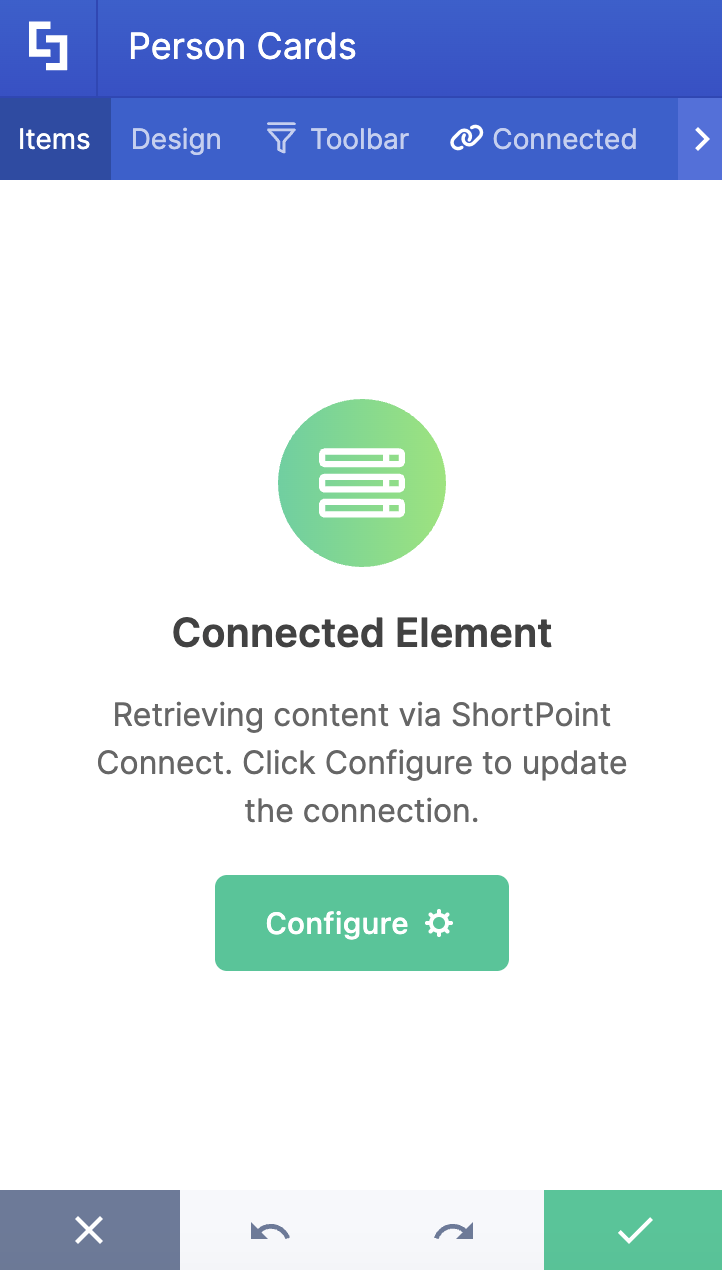
- Select the greencheck mark.
- Save your changes:

- And Publish your page:

Congratulations! You can now display new hires on your SharePoint page. Your new team members are bound to feel right at home from the start.
Practical Use Cases
While new hire displays are amazing, the People Search connection can do so much more. Here are a few ways you can put it to work:
Anniversary Celebration
There’s nothing like a congratulatory message from your team. By setting the filter to show anyone who is celebrating upcoming anniversaries, you can create an automatic "Anniversary" section on your homepage. It keeps the whole company in the loop and ensures team members get the recognition they deserve.
Tenure-Based Milestones
Let’s be honest: hitting your one-year mark is great, but a 10-year "work-versary" is a massive achievement. You can use the connection to filter for specific milestones (like 5, 10, or 20 years of service) and give those veterans a more prominent spotlight.
This is a lifesaver for organizations with formal service awards. Instead of relying on a manager’s memory or a dusty spreadsheet, your intranet handles the "shout-outs" automatically, reinforcing your culture of loyalty.
An HR "At-a-Glance" Dashboard
This tool isn't just for public celebrations; it's also a huge win for your People Ops team. You can build a private-facing dashboard that surfaces upcoming anniversaries and recent hire timelines.
Having this data visible in one place allows HR to proactively prep recognition gifts or anniversary cards, schedule stay interviews, or check-in meetings, and avoid that "last-minute scramble" when a major milestone pops up.
Start Displaying New Hires
Showcasing new hires on your SharePoint site shouldn’t feel like a heavy lift. Once you have your hire date data mapped and ready to go, you’ve essentially built a self-sustaining engine for employee engagement and recognition within your workplace culture.
It’s a total win-win: your hiring managers and HR team save hours of admin time on required paperwork, and your new hire feels consistently valued and supported throughout their employee onboarding process. If you haven’t set this up yet, it’s one of those quick wins that delivers a massive boost to your company culture and employee retention with very little effort.
If you're already a ShortPoint Designer, you can jump right in. Just make sure you’ve updated to the latest SPFx version, then follow the interactive tutorial at the top of this page to get moving.
New to ShortPoint? We’d love to show you around. You can start a free 15-day trial to explore it yourself, or schedule a one-on-one demo with our team to see exactly how these connections can transform your intranet.
Frequently Asked Questions
Do I need to create the SPS-HireDate property from scratch?
No, the Hire Date property exists by default in SharePoint. You only need to ensure it is filled in for your users and properly mapped in the search schema to display work anniversaries and the new hire checklist on your SharePoint page.
Why isn't the SPS-HireDate crawled property showing up in the Search Schema?
If none of your user profiles have an entry in the SPS-HireDate field, the property won't appear in the search schema. Populate at least one user profile with a hire date and wait for a crawl to complete. Then the property will show up and can be mapped.
Which managed property should I map SPS-HireDate to?
You can choose any RefinableDate property. RefinableDate19 is the default used by the People Search connection in ShortPoint when configuring upcoming anniversaries or new hire displays.
What settings need to be enabled on the managed property?
Ensure the managed property has Queryable, Retrievable, Refinable, and Sortable options enabled. Without these, the property will not function correctly in search-driven displays.
Does every user need their hire date filled in for this to work?
Users without a hire date will not appear in anniversary or new hire displays, but the feature will still work for those who have it filled in. You can update hire dates in the SharePoint Admin Center under User Profiles → Manage User Profiles to support a smooth onboarding process.
Will this work on both SharePoint Online and SharePoint 2019?
Yes, the configuration steps apply to both SharePoint 2019 and Office 365 (SharePoint Online) environments.
Related articles:
