 Try ShortPoint now
Looking to add an organizational chart in SharePoint? This step-by-step guide covers everything you need to know about using the Organization Chart Design Element for professional-looking employee directories. With it, you can effectively visualize your hierarchical structure.
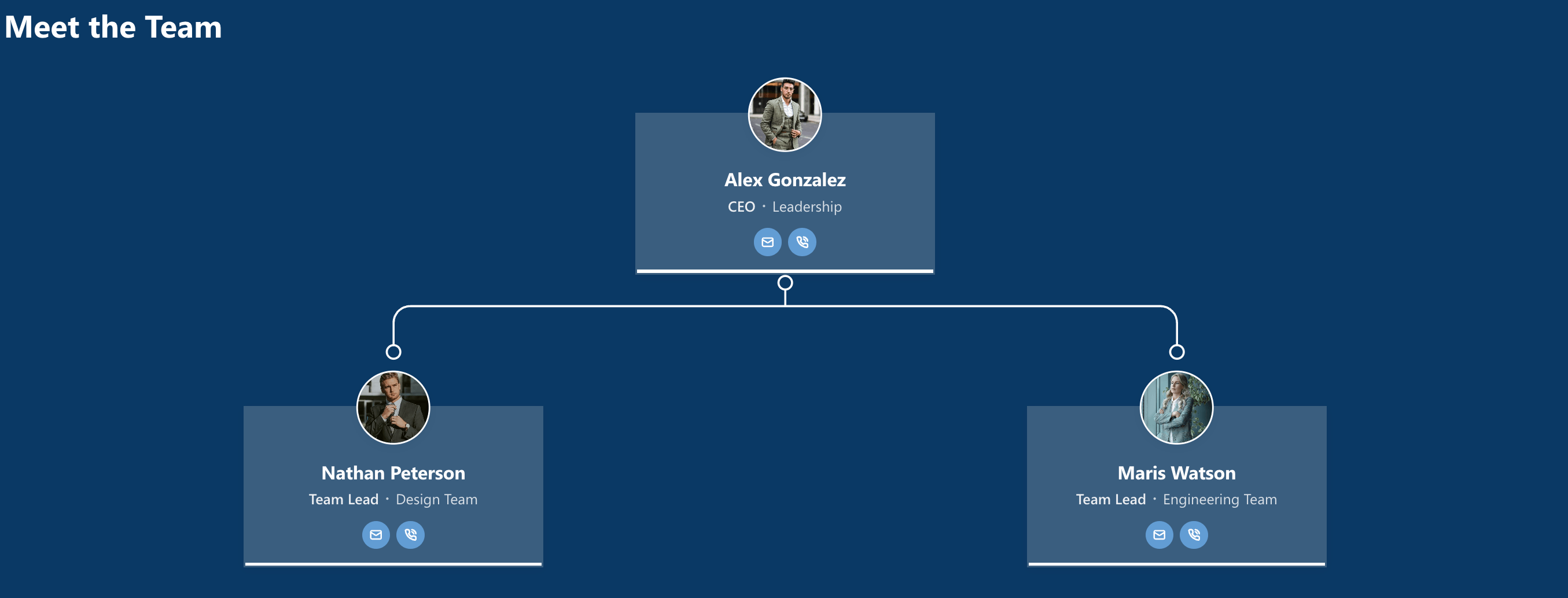
TABLE OF CONTENTS
- Prerequisites
- What Is the Organization Chart Design Element?
- Interactive Tutorial
- Step-by-step Tutorial
- Organization Chart Features
- Organization Chart Styles
- Practical Use Cases for the Organizational Chart Design Element
- Start Designing with the Organization Chart Design Element
- Frequently Asked Questions
- How do I create an organization chart in SharePoint?
- Can I customize the organizational chart layout and design?
- What data sources can I use for the organizational chart?
- How do I add or edit employee information in the chart?
- Is the organizational chart mobile-friendly and accessible?
- Does the organizational chart integrate with Microsoft Teams?
- How do I save and publish changes to the organizational chart?
- Is there a tool to create organizational charts in SharePoint?
Prerequisites
- You must have the ShortPoint SPFx version 9.2.0.0 or later installed in your SharePoint environment.
- You must be a ShortPoint Designer with an active license.
What Is the Organization Chart Design Element?
The Organization Chart Design Element is available in ShortPoint SPFx version 9.2.0.0 and later.
This powerful organization chart lets you create beautiful and engaging employee directories on your SharePoint page.
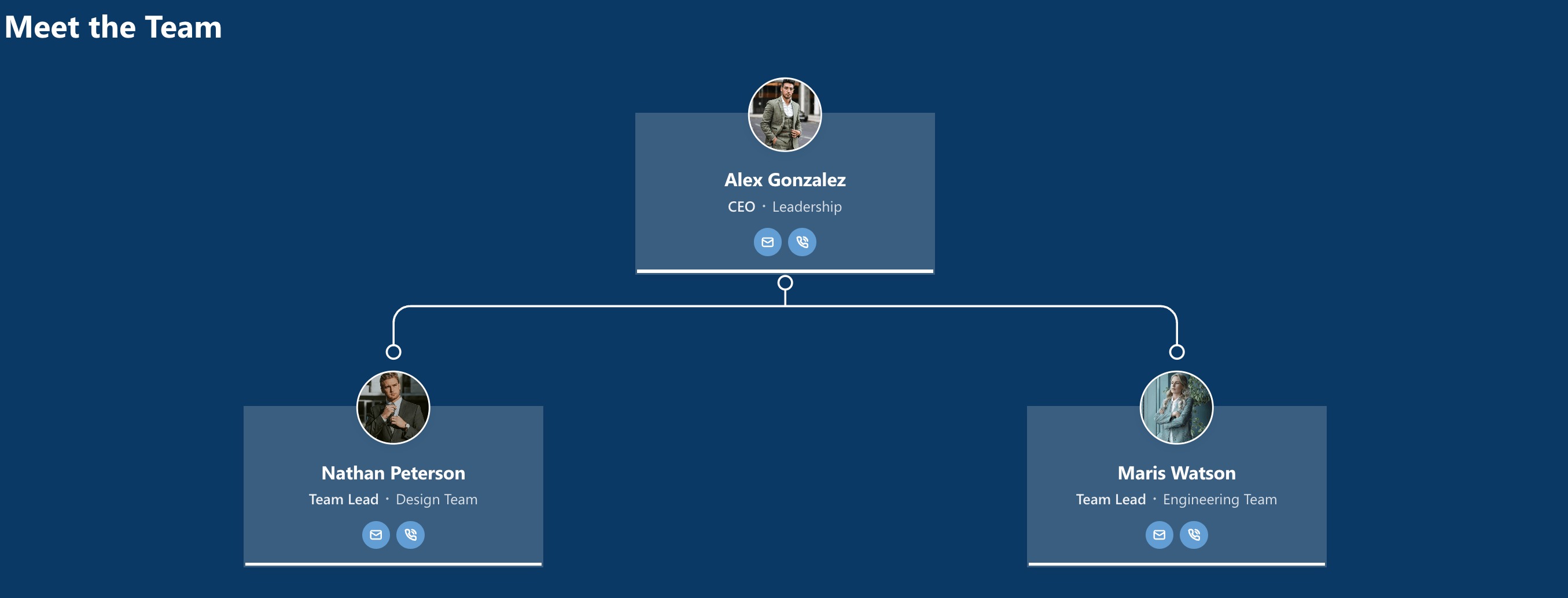
You'll have complete control over the content, plus the ability to customize every design aspect, from font size and style to colors, helping you achieve the perfect layout for your SharePoint intranet site.
Interactive Tutorial
Click Get Started to easily add organizational charts to your SharePoint page and visualize your company's hierarchical structure:
NOTETo learn more about the features you can customize for Organization Chart,
check out Organization Chart Features.
Step-by-step Tutorial
Learn how to create organizational charts in SharePoint using the Organization Chart Design Element to easily visualize your company's reporting relationships.
Step 1: Edit the ShortPoint Web Part
- Go to the SharePoint page you want to use and click Edit:

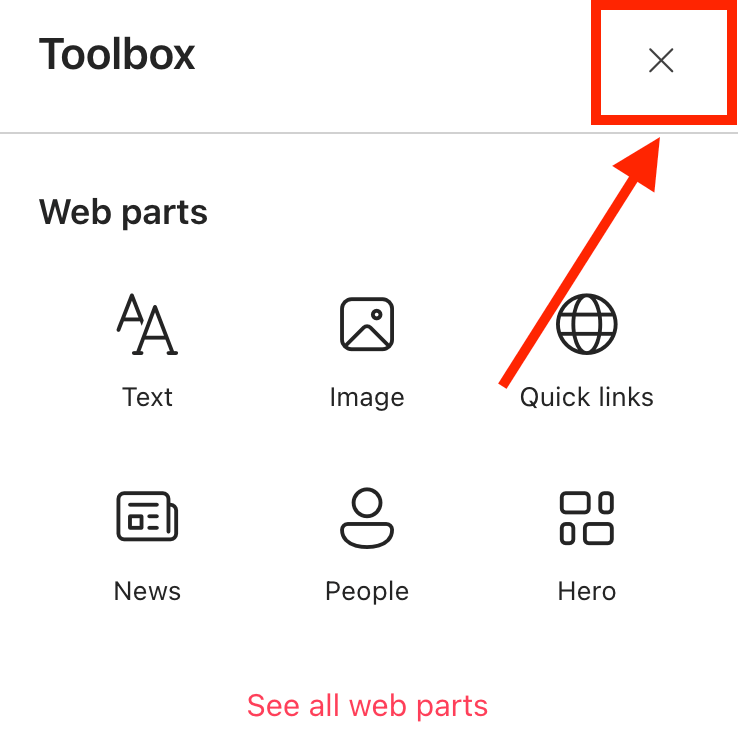
- Close the Toolbox:
- Click the Edit properties icon:

Step 2: Insert the Organization Chart Design Element
- Choose where you want to add the Organization Chart and click the plus icon:

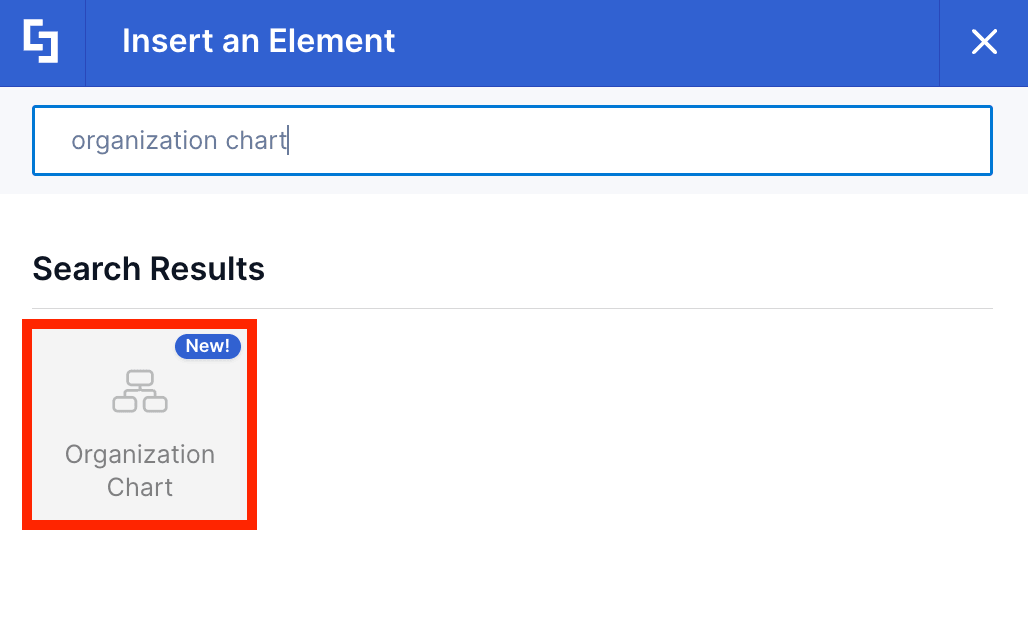
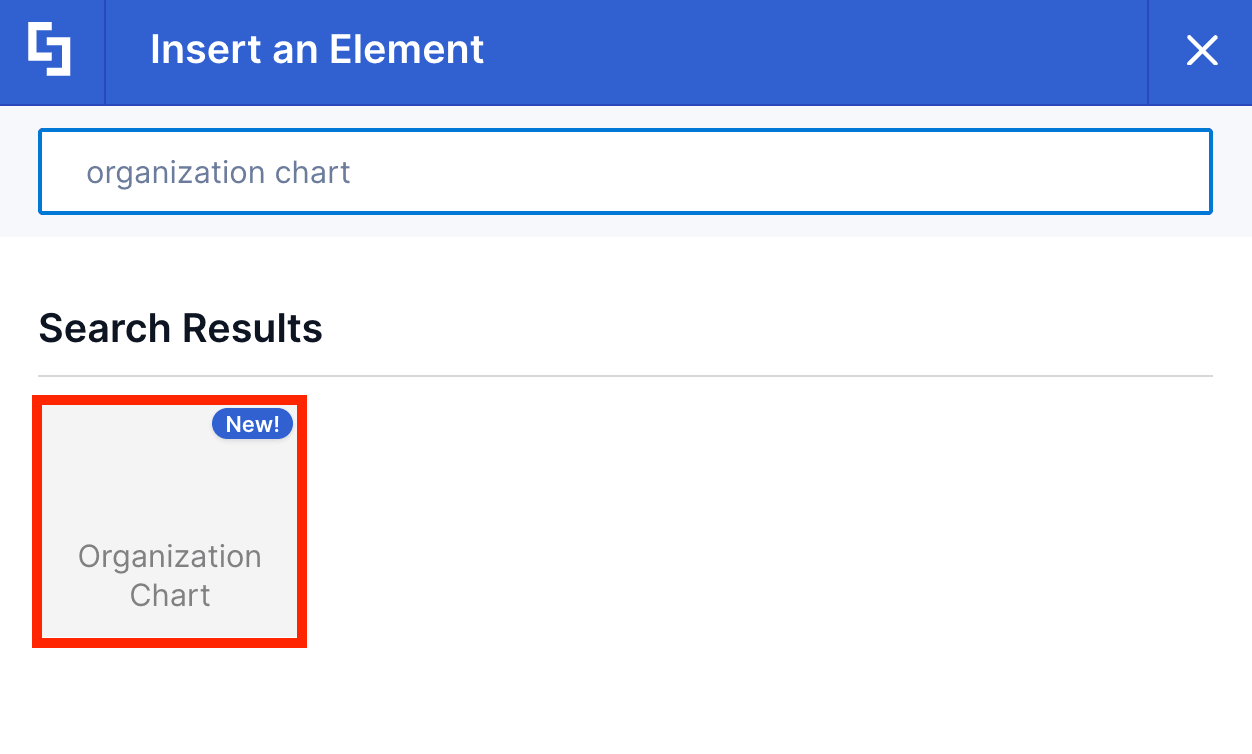
- Use the search box to look for Organization Chart and click it:
Step 3: Customize the Content
- Go to the Content tab.
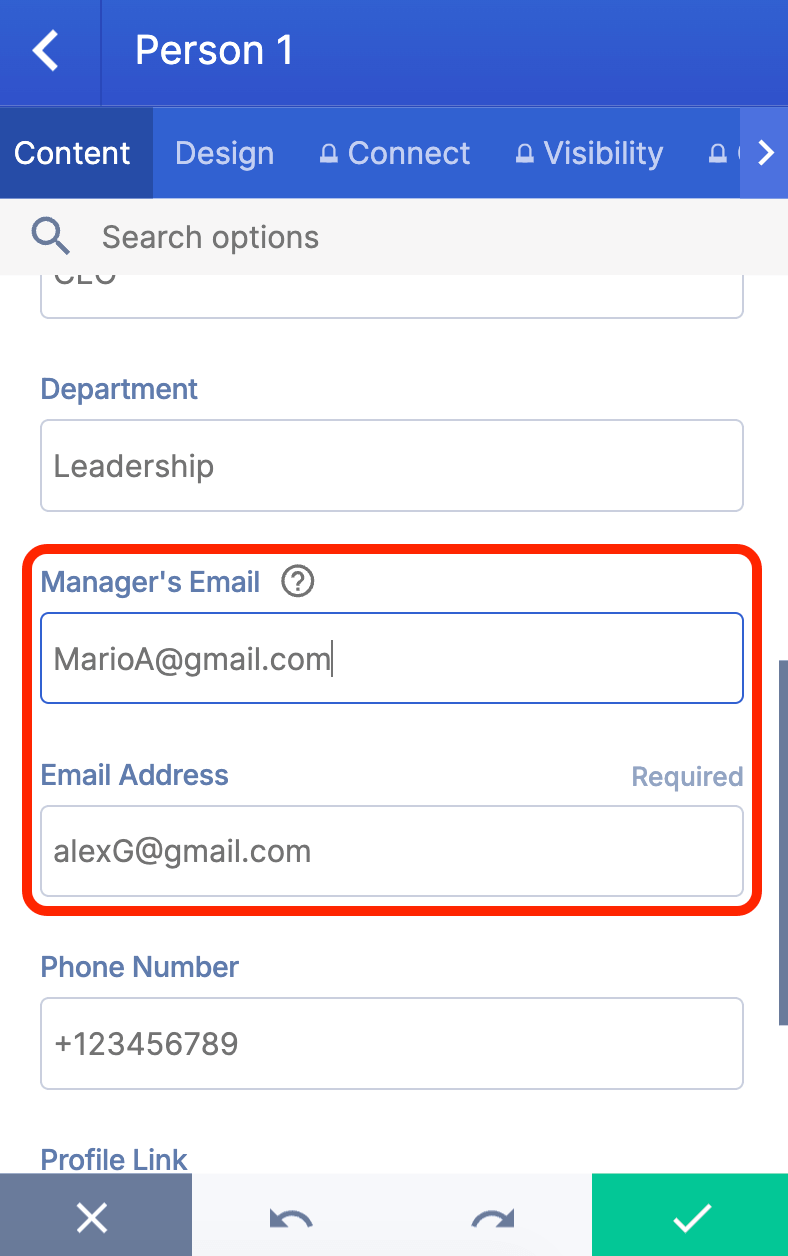
- Click the cogwheel icon of the first item:

- Edit the content to your liking.
- Click the back icon:

- Repeat the steps.
NOTEMake sure to enter the correct email address and manager’s email address. Your organization chart depends on these fields to map the right branches.
TIPYou can also create dynamic Organization Charts. Check out How to Create a Dynamic Organization Chart in SharePoint to learn more.
Step 4: Customize the Design
- Go to the Design tab.
- Customize the look of the Organization Chart according to your preferences.
- Go to the Advanced tab.
- Modify the design even further.
- Once satisfied, click the green check mark.
NOTETo learn more about the features you can customize for Organization Chart,
check out Organization Chart Features.
Step 5: Save
- Click the eye icon to see your page in real-time:

- Save your changes:

Congratulations! You've successfully added organization charts to your SharePoint page. With this handy design element, you can now easily draw attention to key organizational data and keep your visitors engaged.
Organization Chart Features
Looking to customize your organization chart in SharePoint? The Organization Chart Settings window offers a wide range of useful options to help you display your content exactly as you've imagined.
A. Items Tab
The Items tab is where you can edit the content inside the Organizational Chart Design Element. Here are the options you can tweak:
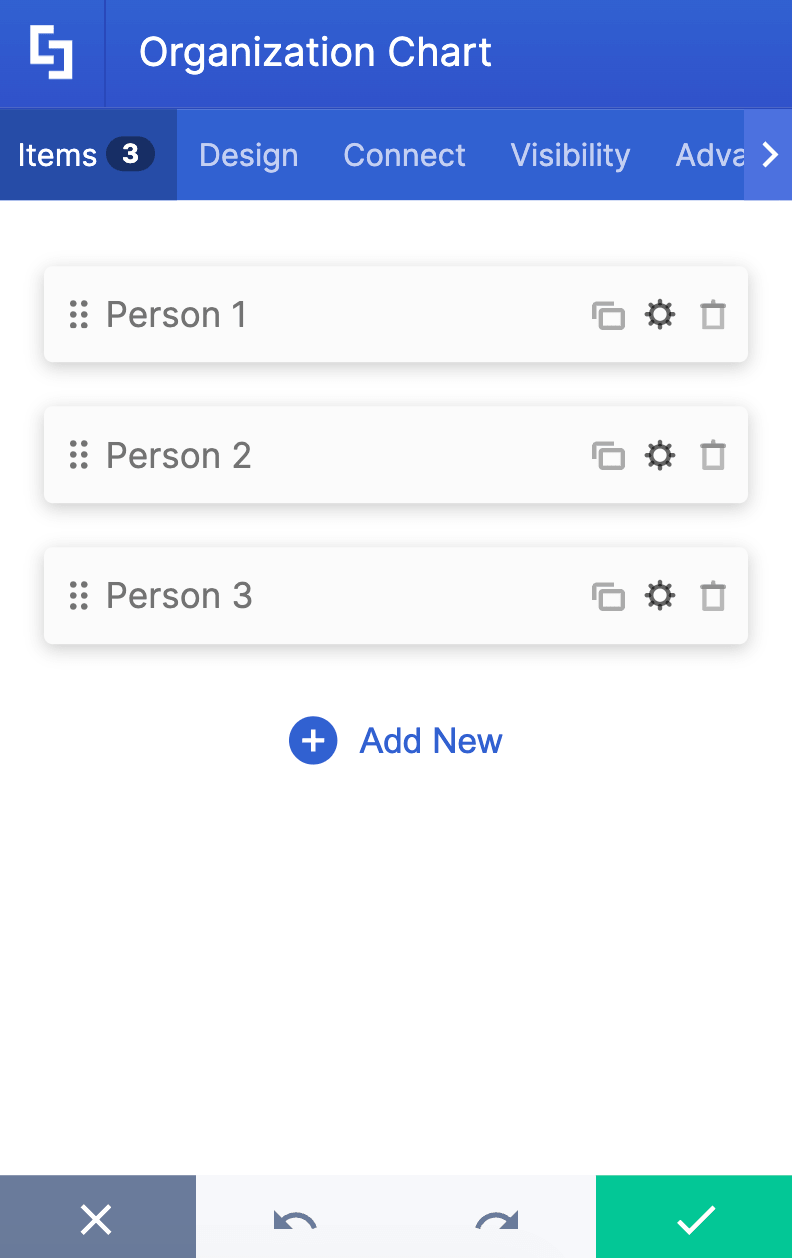
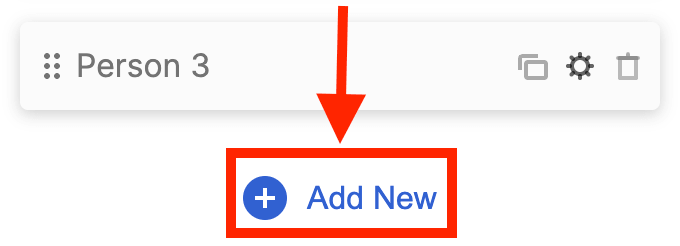 | Add New | allows you to add a new item. |
 | Drag icon | will enable you to rearrange the items. |
 | Duplicate icon | allows you to copy an item. |
 | Cogwheel icon | allows you to edit the content of an item. See the table below to see the options you can find inside. |
 | Trash icon | allows you to remove an item. |
COGWHEEL ICON (Content tab)
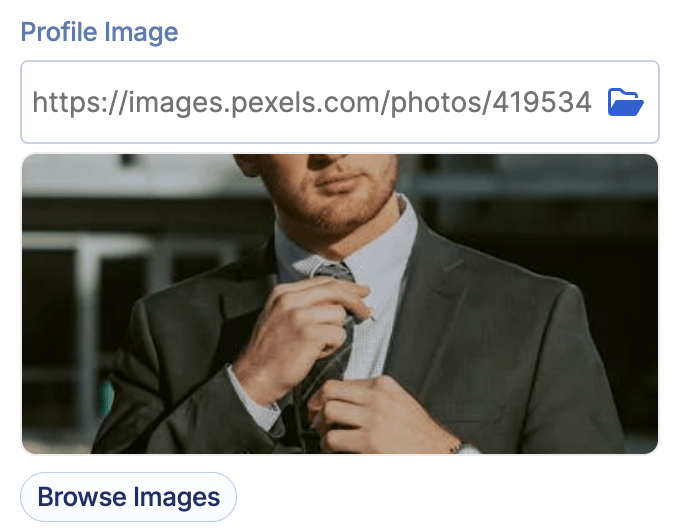 | Profile Image | allows you to choose the image to use. |
 | Name | allows you to add the employee’s name. |
 | Role | allows you to specify the role of the employee. |
 | Department | allows you to modify the department of the employee. |
 | Manager’s Email | allows you to specify the email of the manager. Make sure to enter the correct email address. Your organization chart depends on this field to map the right branches. |
 | Email Address | allows you to enter an email address. Make sure to enter the correct email address. Your organization chart depends on this field to map the right branches. |
 | Phone number | allows you to enter the contact details of the employee. |
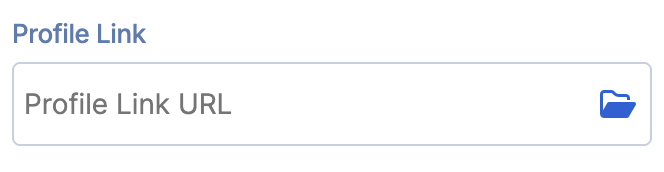 | Profile Link | allows you to add the profile link of the employee. |
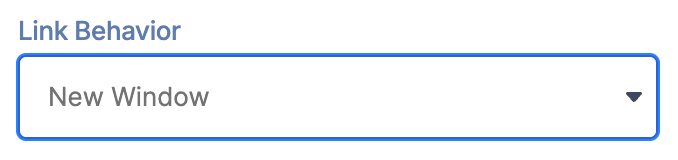 | Link behavior | allows you to choose how the link will be opened, either in a new window or the existing one. |
COGWHEEL ICON (Design tab)
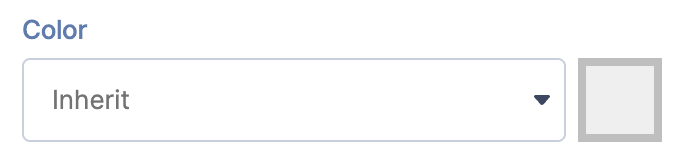 | Color | allows you to customize the color of the specified item. |
B. Design Tab
The Design tab is where you get to have fun customizing the look and feel of your organizational chart. Here are the options you can modify:
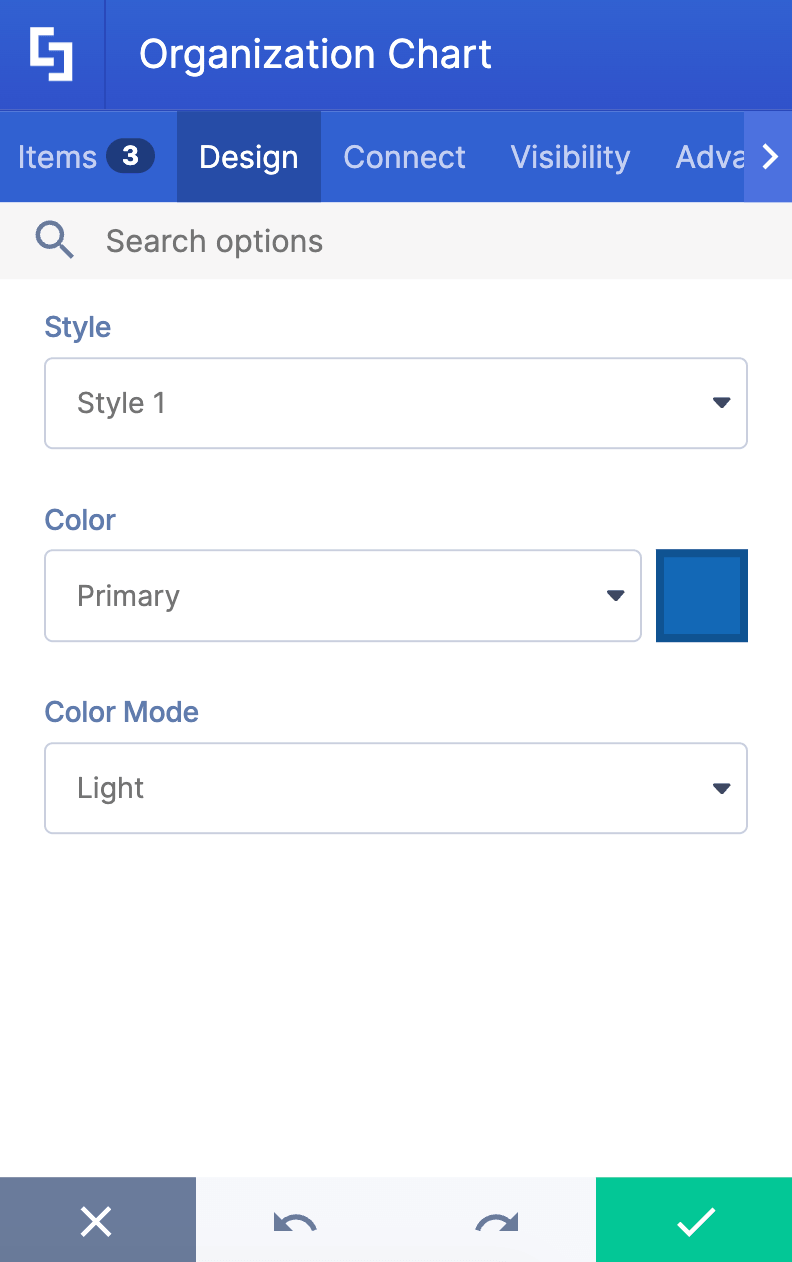
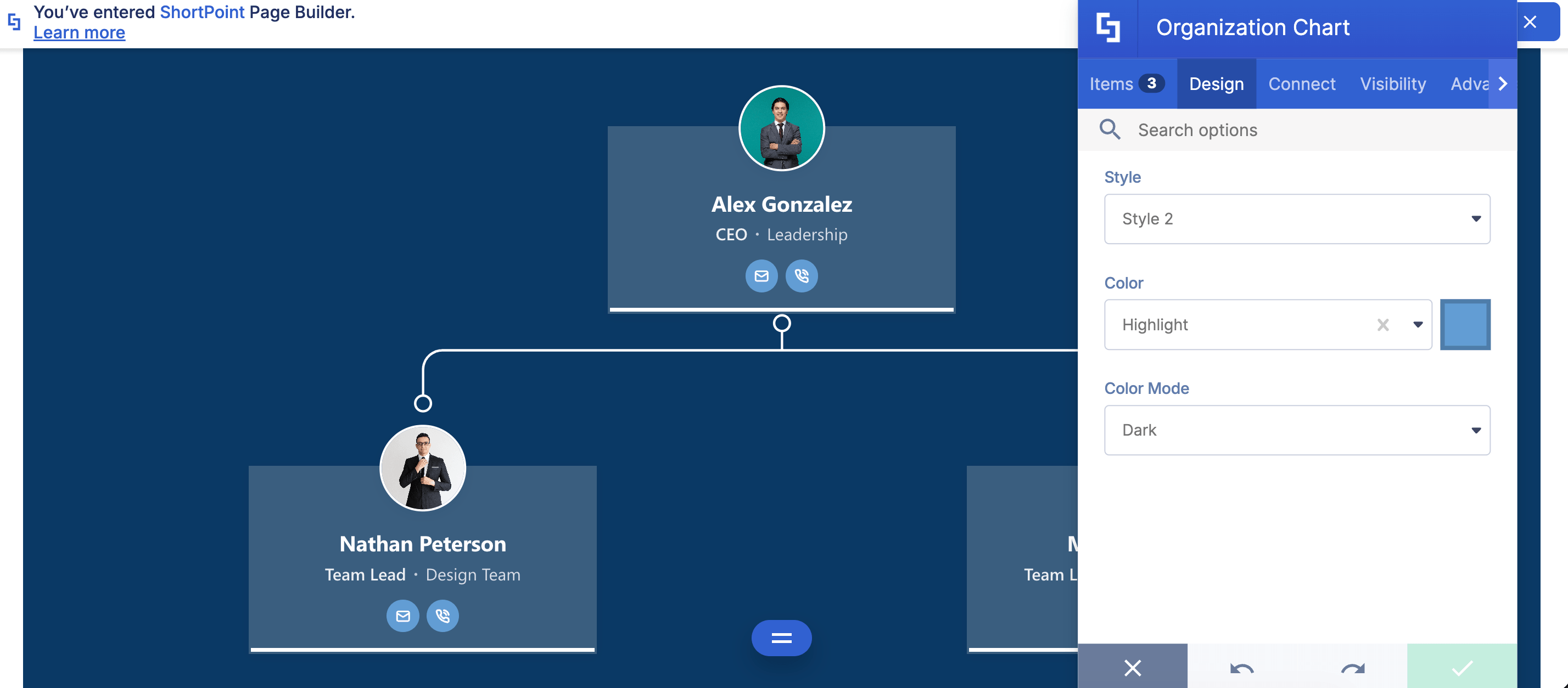
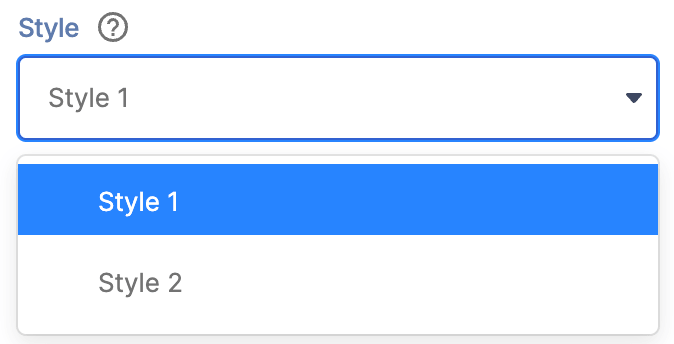 | Style | allows you to choose the style you prefer. You can choose from 2 styles. Check out Organization Chart Styles to see how they look. |
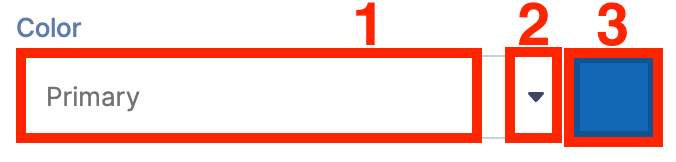 | Color | allows you to change the primary color of the organizational chart. You can change the color by [1] typing the HEX code, [2] using the drop-down, or [3] using the color picker. |
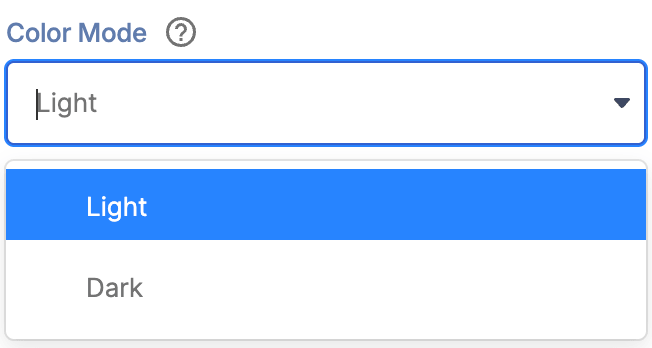 | Color Mode | allows you to choose from Light or Dark mode. |
C. Connect Tab
The Connect tab allows you to link the Design Element to SharePoint sources (List, Document Library, News, etc.) and other internal sources (Microsoft Graph API, Teams, Outlook, etc.). For more details about ShortPoint Connect, check out Basic Tutorial: How to Establish Seamless SharePoint Connection with ShortPoint Connect.
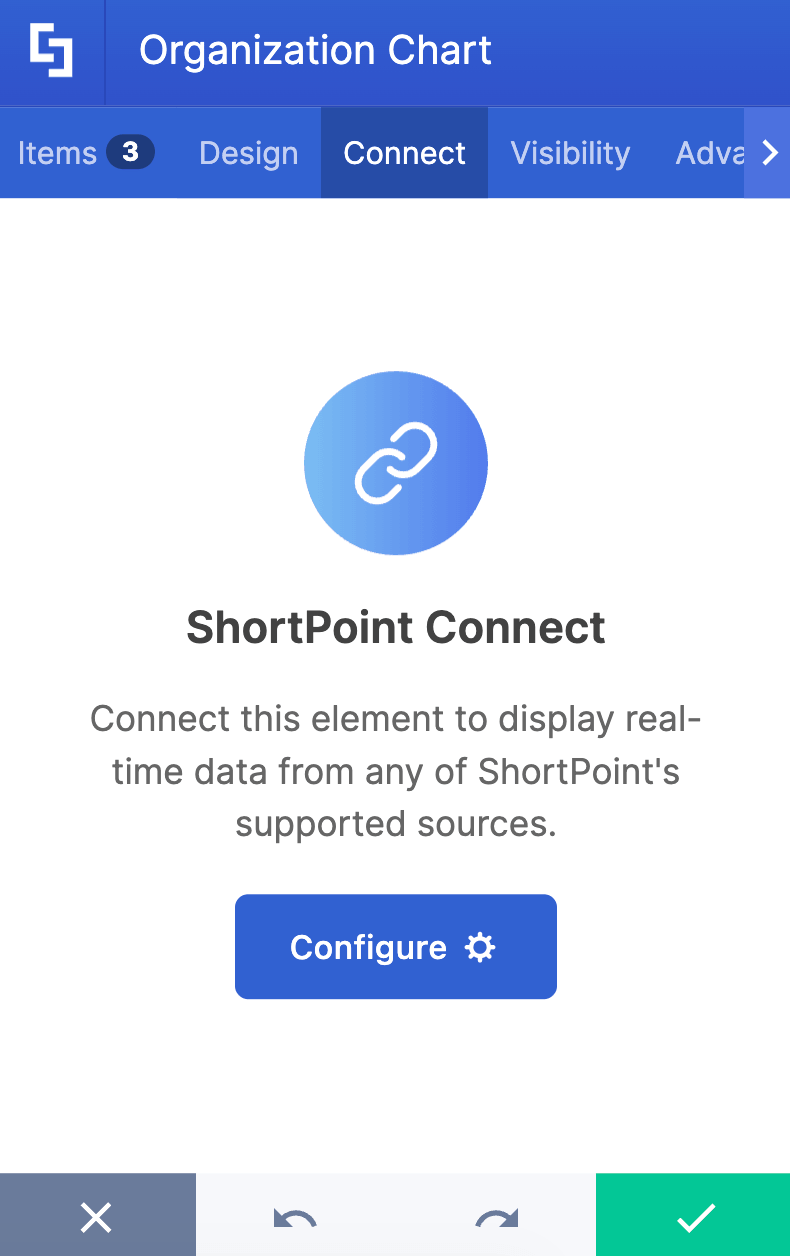
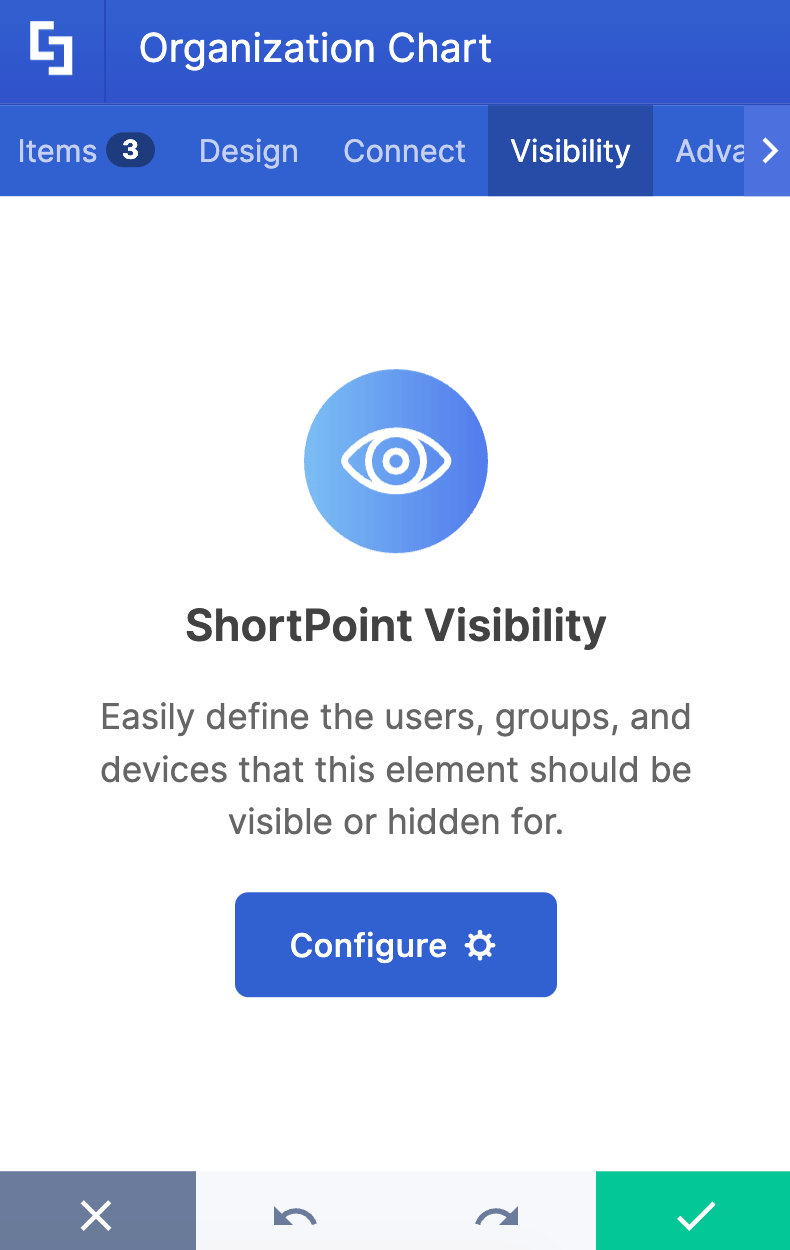
D. Visibility Tab
The Visibility tab allows you to specify who can see the Design Element and what type of devices it can be shown on. For more details, check out How to Use the ShortPoint Visibility Feature for Effective SharePoint Access Management.
E. Advanced Tab
The Advanced tab allows you to modify even further the look of the Organization Chart. Here are the options you can customize:
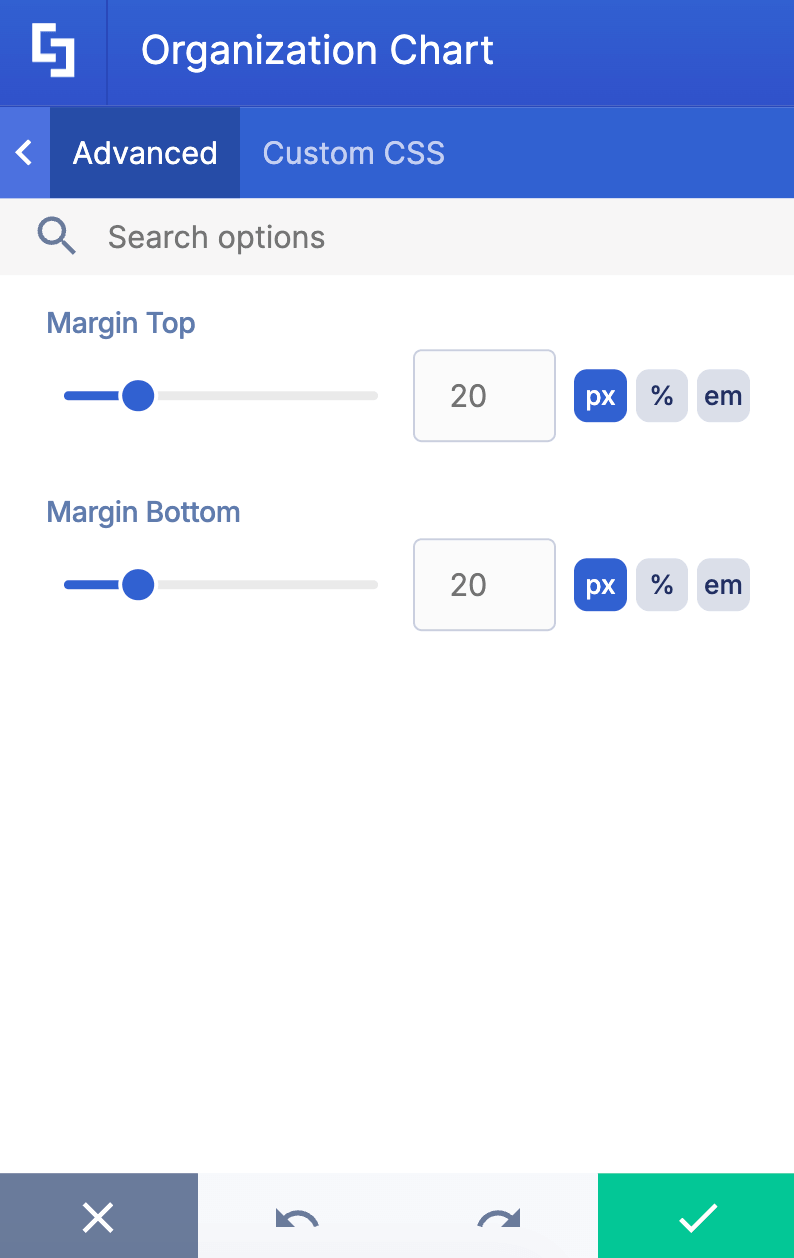
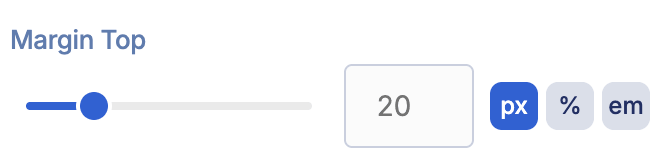 | Margin Top | allows you to adjust the top margin value. |
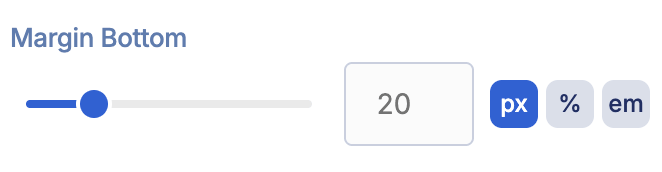 | Margin Bottom | allows you to adjust the bottom margin value. |
F. Custom CSS Tab
This tab lets you add your own custom touch to the Organizational Chart Design Element using custom CSS, HTML, and JavaScript. This gives site owners and designers greater control over how the design element will look.
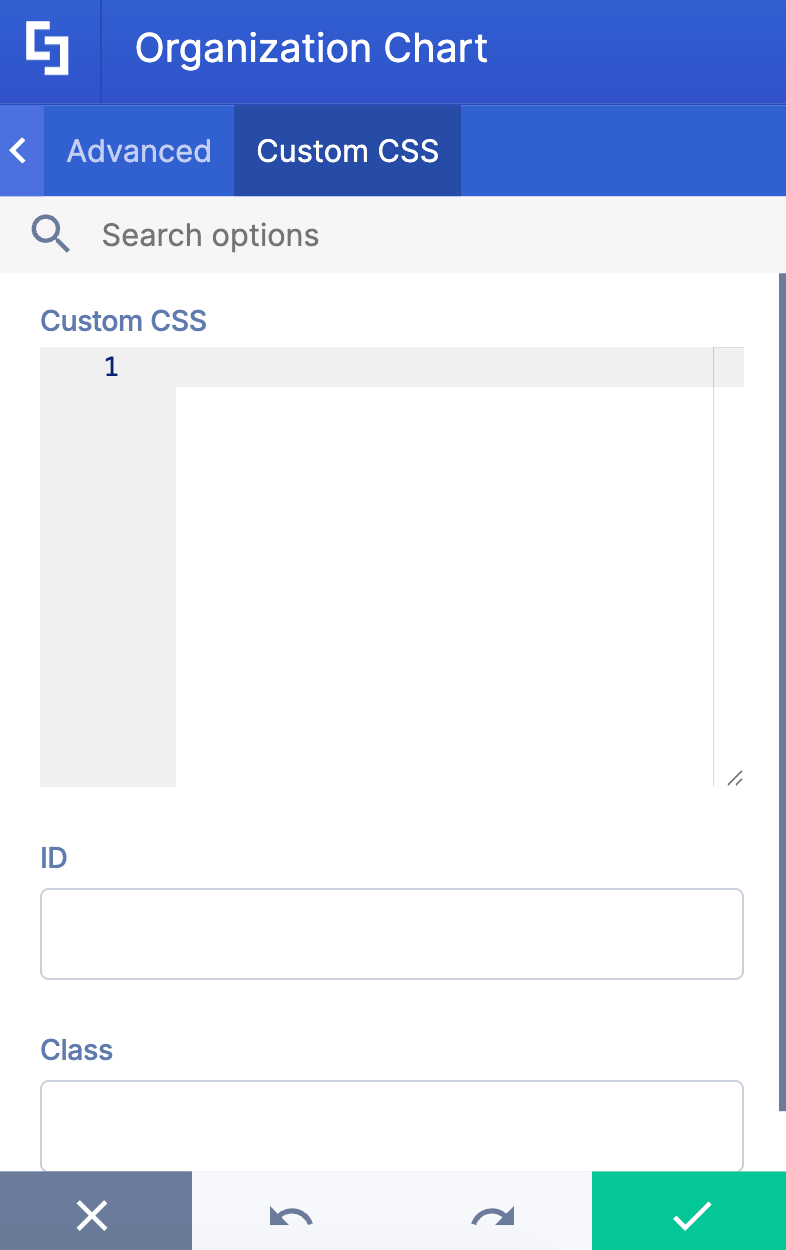
NOTECheck out our support article on How to Insert Custom CSS into a Page Builder Element? (Basic Tutorial) to know more about Custom CSS.
Organization Chart Styles
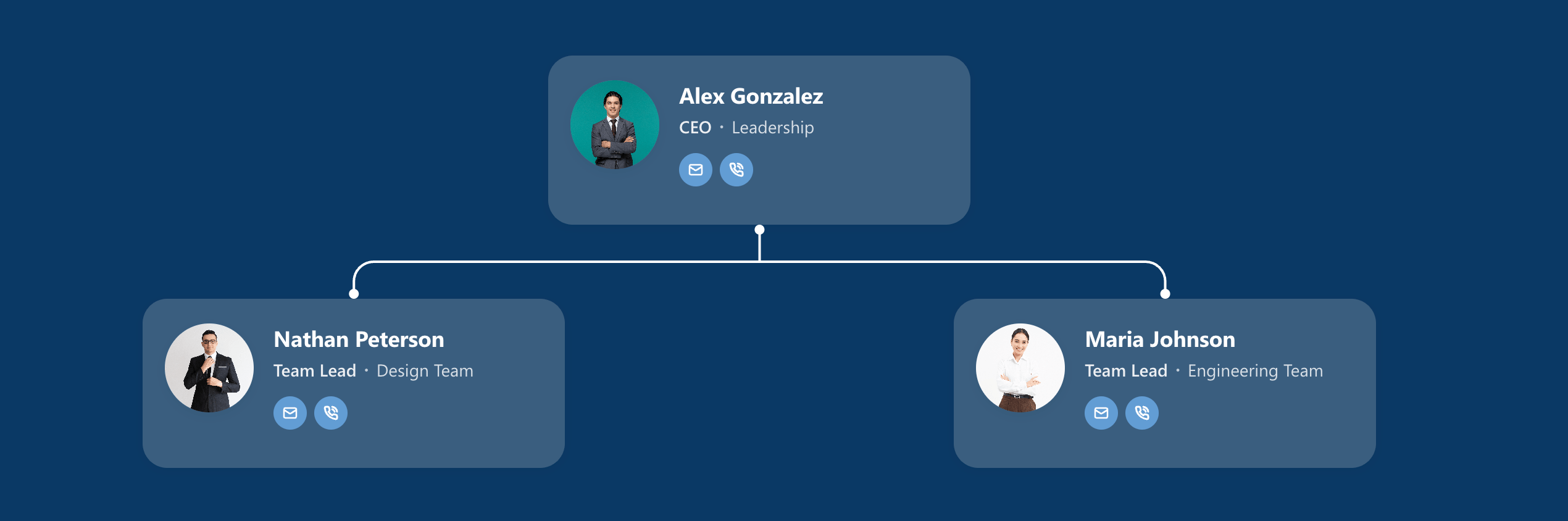
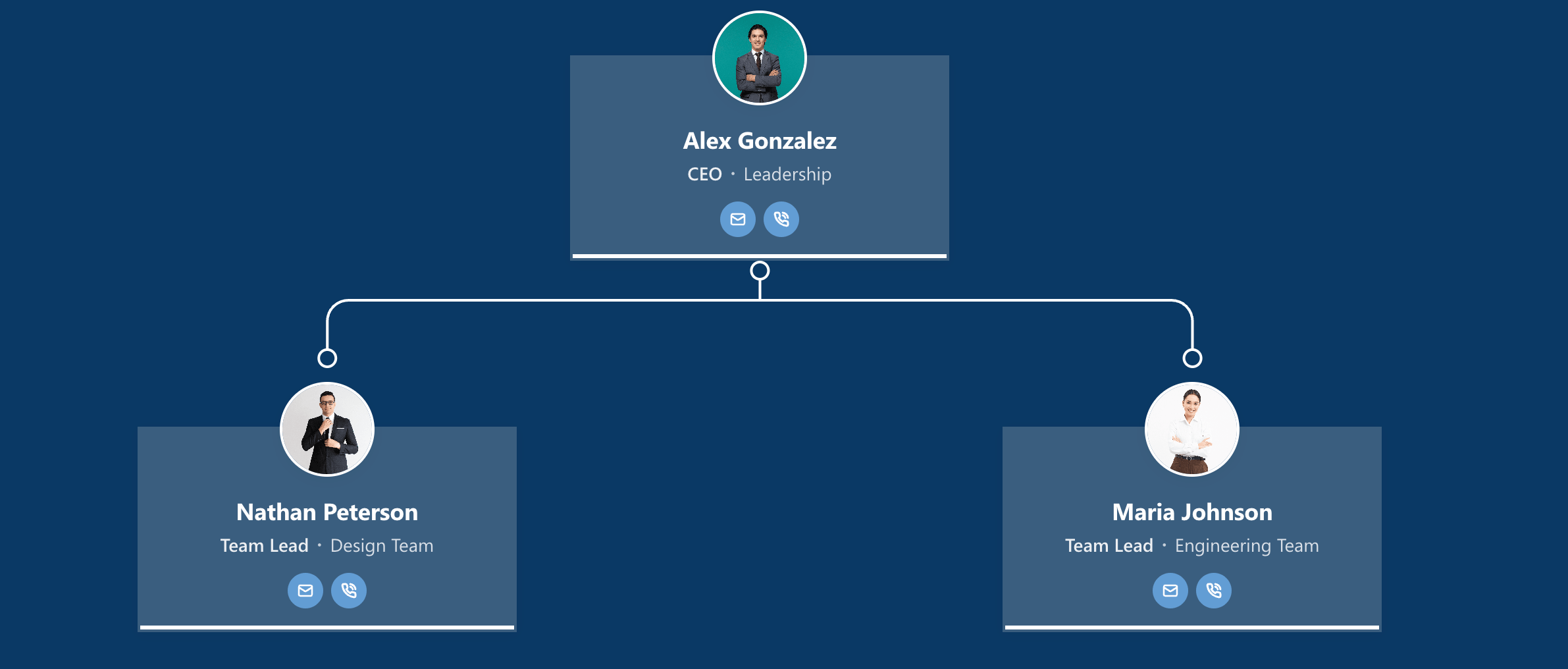
Ready to elevate the design of your Organization Chart? You have two amazing styles to choose from. Let’s take a look at each one:
Style 1 presents a traditional horizontal layout where the leadership card sits at the top center with team member cards arranged side by side below. This style works beautifully when you want a classic, straightforward org chart that's easy to scan from left to right.
Style 2 takes a more vertical, portrait-oriented approach that creates a striking visual hierarchy. This style is perfect when you want a more formal, executive presentation that emphasizes the leadership position and creates a stronger sense of top-down authority.
Practical Use Cases for the Organizational Chart Design Element
The Organizational Chart tool in ShortPoint is incredibly useful for improving how your company communicates and operates internally. Here's how different teams can put it to work:
- Employee Onboarding
New team members can quickly get their bearings by exploring the interactive org chart. They'll see exactly how the company structure is organized and easily identify their manager, position, teammates, and other key contacts.
- Team Management
Managers get a clear visual of their teams and reporting lines within the hierarchy, making it much simpler to understand who does what and delegate work accordingly.
- Departmental Overviews
HR teams and leadership can pull up a comprehensive view of any department, complete with job titles, roles, and contact information.
- Cross-Department Collaboration
Finding the right person for a project or question becomes straightforward, no matter which department they're in.
- Keeping Information Current
Because the chart can pull data from live sources, it updates automatically whenever someone joins, gets promoted, or changes roles—no manual editing required.
- Accessible Anywhere
Employees can view the org chart from their laptop, tablet, or phone, which is perfect for teams that work remotely or on the go. You can also adjust visibility settings to control who sees what.
- Career Development
For companies that are focused on employee development, employees can easily find mentors in specific areas of the company where they see themselves in the future. It’s especially useful for targeting their career progressions.
Start Designing with the Organization Chart Design Element
The Organization Chart Design Element isn’t just a static diagram. It is a living tool that helps everyone stay connected and informed about your company's organizational structure.
Want to unlock the potential of this design element? If you’re already a ShortPoint Designer, just hop into our interactive tutorial and update your ShortPoint SPFx version to 9.2.0.0 and up.
First time exploring ShortPoint? We've made it easy for you to start with a FREE 15-day trial—full access, no strings attached. Alternatively, book some time with our ShortPoint experts for a one-on-one demo. They'll demonstrate exactly what the Organization Chart can do and introduce you to the rest of our powerful features.
Frequently Asked Questions
How do I create an organization chart in SharePoint?
You can create an organization chart in SharePoint using ShortPoint's Organizational Chart Design Element. Simply enter ShortPoint Page Builder mode on your SharePoint page, add the organizational chart, and customize it to fit your needs.
Can I customize the organizational chart layout and design?
Yes, the organizational chart offers various layout and design customization options, including font styles, colors, and styles, allowing you to tailor the org chart to your business branding and preferences.
What data sources can I use for the organizational chart?
The organizational chart can connect to multiple data sources using ShortPoint Connect. You can connect to SharePoint user profiles and Microsoft Graph API, ensuring your chart stays automatically updated with accurate employee information.
How do I add or edit employee information in the chart?
In edit mode, use the Items tab to add new employees, edit existing entries, or rearrange items. You can fill in fields such as name, job title, department, manager email address, and contact details.
Is the organizational chart mobile-friendly and accessible?
The chart supports visibility settings to control who can see it and on which devices, ensuring accessibility across desktops and mobile devices.
Does the organizational chart integrate with Microsoft Teams?
Yes, through integration with Microsoft 365 and Microsoft Graph API, the organizational chart can be linked with Microsoft Teams and other tools to provide seamless access to employee information.
How do I save and publish changes to the organizational chart?
After customizing your chart in edit mode, simply save your changes and publish the SharePoint page to make the updated organizational structure visible to your users.
Is there a tool to create organizational charts in SharePoint?
ShortPoint offers a powerful Organization Chart Design Element as part of its intranet design tools. While it requires a license, it provides extensive features beyond basic free tools, including customization and integration capabilities.
Related articles:
- How to Add an Online World Clock to SharePoint Sites Using the World Clock Design Element
- How to Embed Canva into SharePoint Using the Canva Design Element
- How to Create a FlipBox in SharePoint Using the FlipBoxes Design Element
- How to Create a Breadcrumb Navigation in SharePoint Online Using the Breadcrumb Design Element
- How to Add Customer Testimonials to SharePoint Using the Testimonials Design Element
- How to Create SharePoint Calendar Using the Calendar Design Element
- How to Create SharePoint Announcements Using the Announcement Design Element
