 Try ShortPoint now
Keep your team informed with timely SharePoint announcements. This tutorial walks you through using the Announcement Design Element to add notifications to your SharePoint Online intranet, so important updates never get missed, and your site gets a boost in employee engagement.
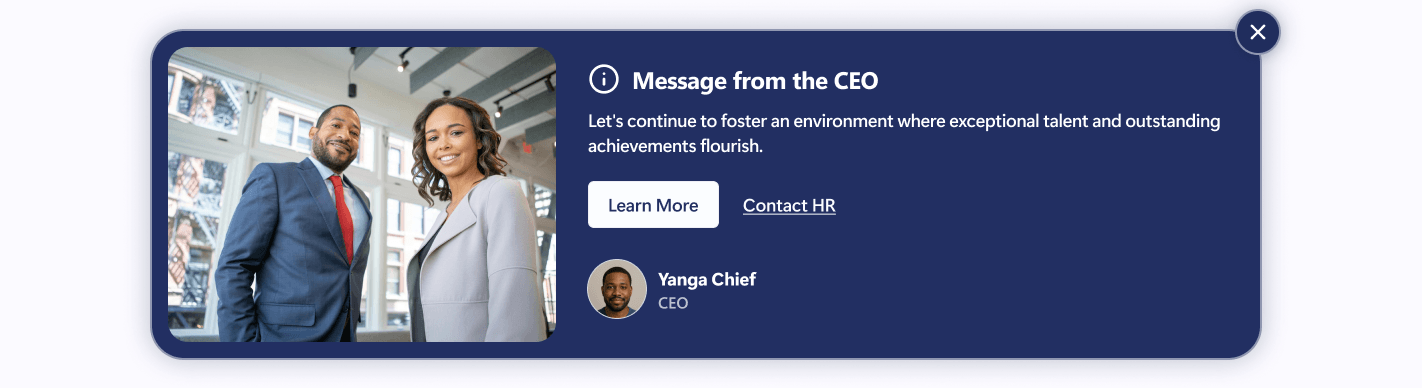
TABLE OF CONTENTS
- Prerequisites
- What Is the Announcement Design Element?
- Interactive Tutorial
- Step-by-step Tutorial
- Announcement Features
- Announcement Styles
- Practical Use Cases for the Announcement Design Element
- Start Designing with the Announcement Design Element
- Frequently Asked Questions
- What prerequisites do I need to use the Announcement Design Element?
- How can I customize the content and design of my SharePoint announcements?
- Can I link SharePoint announcements to external data sources or other Microsoft 365 services?
- How do SharePoint announcements support employee engagement?
- Can I control who sees the SharePoint announcements and on which devices?
- Is it possible to schedule when a SharePoint announcement appears or expires?
- How does the Announcement Design Element help with leadership communication?
Prerequisites
- You must have the ShortPoint SPFx version 8.8.4.0 or later installed in your SharePoint environment.
- You must be a ShortPoint Designer with an active license.
What Is the Announcement Design Element?
Available in ShortPoint SPFx version 8.8.4.0 and all subsequent versions, the Announcement Design Element helps you create beautiful SharePoint notifications for your SharePoint Online page.
You'll have complete creative control, from customizing the content to selecting the perfect font size, style, and color combination for your site's design. This allows you to craft effective messages that boost employee engagement and align with your company's goals, making your communication site more dynamic and user-friendly.
Interactive Tutorial
Click Get Started to easily add a SharePoint announcement to your SharePoint Online site and keep your team members informed with timely alerts that enhance employee engagement and support your company's goals.
NOTETo learn more about the features you can customize for Announcement, check out Announcement Features.
Step-by-step Tutorial
Learn how to add the Announcement Design Element to create impactful SharePoint notifications.
Step 1: Edit the ShortPoint Web Part
- Go to the SharePoint page you want to use and click Edit.

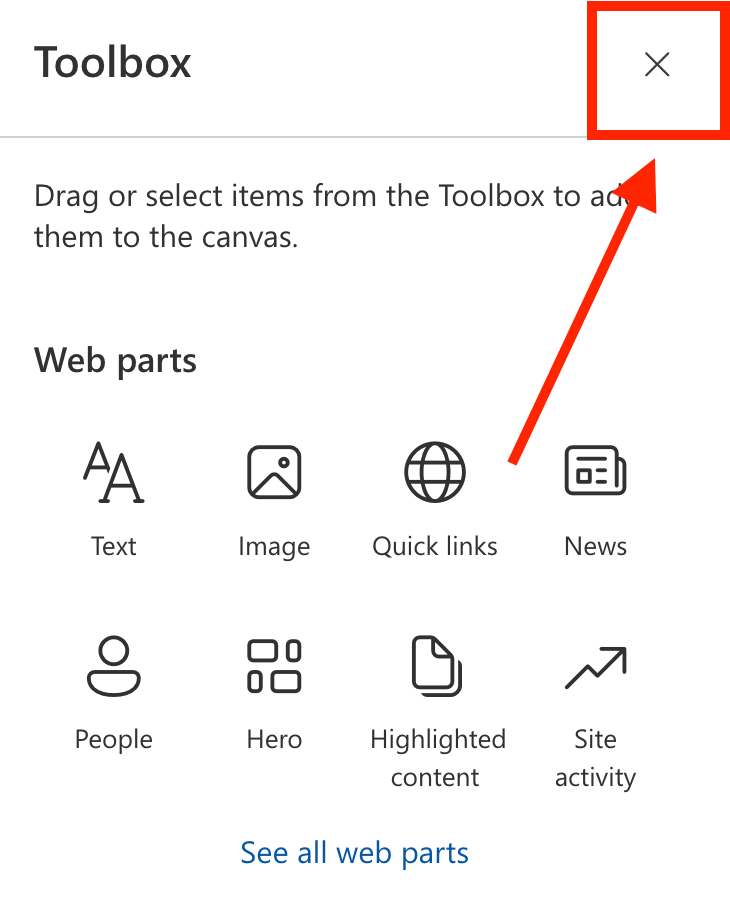
- Close the Toolbox:
- Click the Edit properties icon:

Step 2: Insert the Announcement Design Element
- Choose where you want to add the Announcement and click the plus icon:

- Use the search box to look for Announcement and click it:
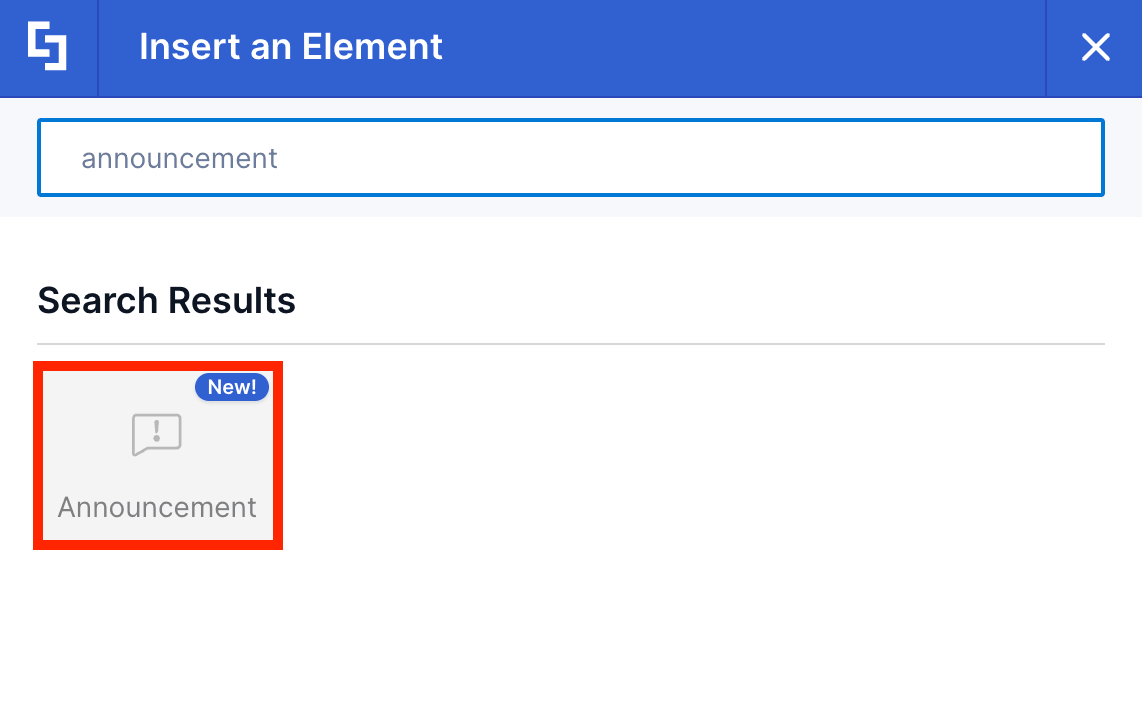
Step 3: Customize the Content
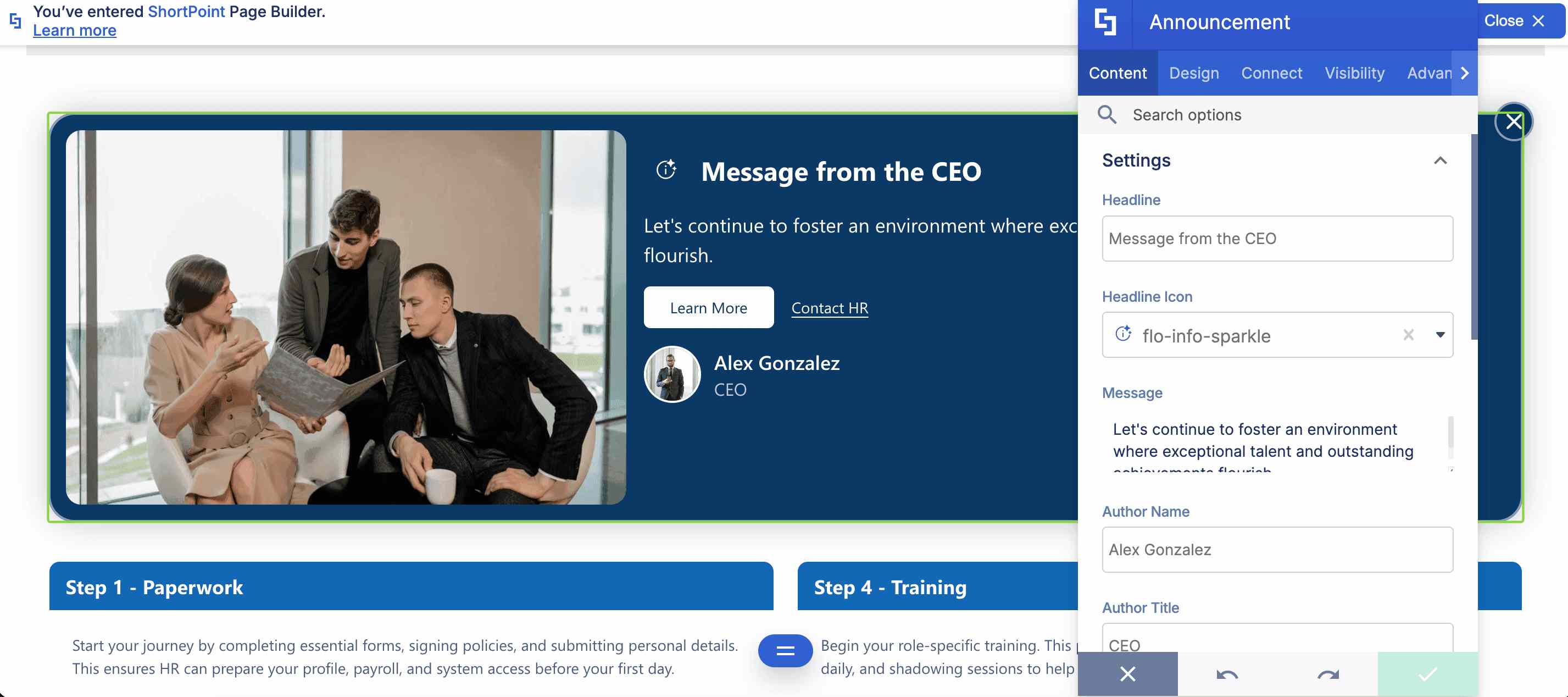
- Go to the Content tab.
- Customize the content of the Announcement according to your preferences.
NOTETo learn more about the features you can customize for Announcement, check out Announcement Features.
Step 4: Customize the Design
- Go to the Design tab.
- Customize the look of the Announcement according to your preferences.
- Go to the Advanced tab.
- Choose when you want the Announcement to be shown.
- Once satisfied, click the green check mark.
NOTETo learn more about the features you can customize for Announcement, check out Announcement Features.
Step 5: Save
- Click the eye icon to see your page in real-time:

- Save your changes:

Congratulations on creating an informative SharePoint announcement! This user-friendly Design Element empowers you to easily showcase critical company information and create more compelling pages for your audience.
Announcement Features
Ready to customize your Announcement to match your vision? The Announcement Settings window features a variety of handy tools and key elements that make it easy to showcase your content exactly how you want it, helping you create an authentic message that resonates with your workforce and supports your company's goals.
A. Content Tab
The Content tab is where you can edit the content inside the Announcement Design Element. Here are the options you can tweak:
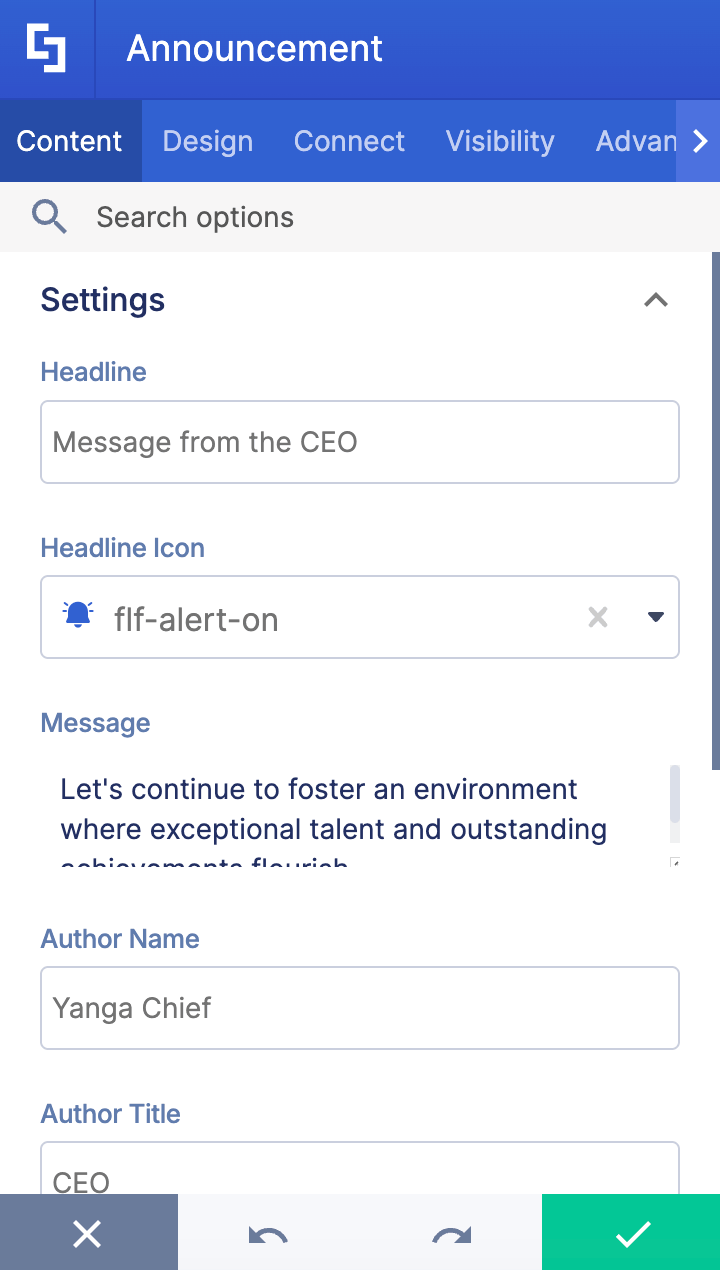
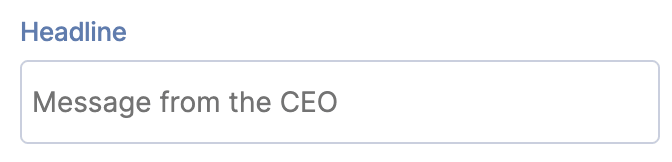 | Headline | allows you to add a title to the Announcement. |
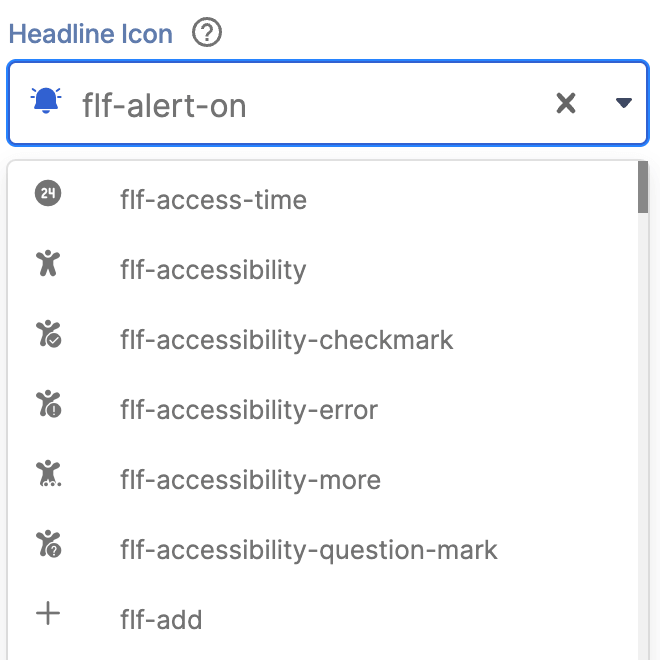 | Headline Icon | allows you to choose an icon alongside the headline. |
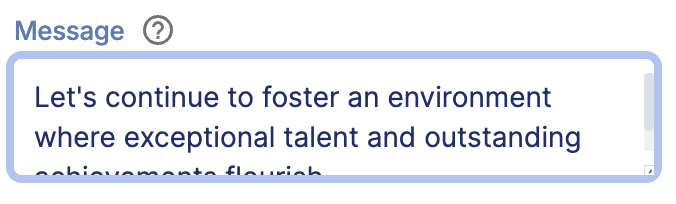 | Message | allows you to craft the text/description inside the Announcement. |
 | Author Name | allows you to add the name of the message author. |
 | Author Title | allows you to add the work title of the author. |
 | Author Image | allows you to add a photo of the author. |
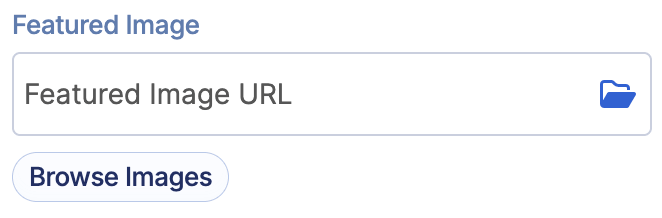 | Featured Image | allows you to add an image. |
PRIMARY BUTTON
 | Text | allows you to modify the text inside the button. |
 | Link | allows you to add a clickable link to the button. |
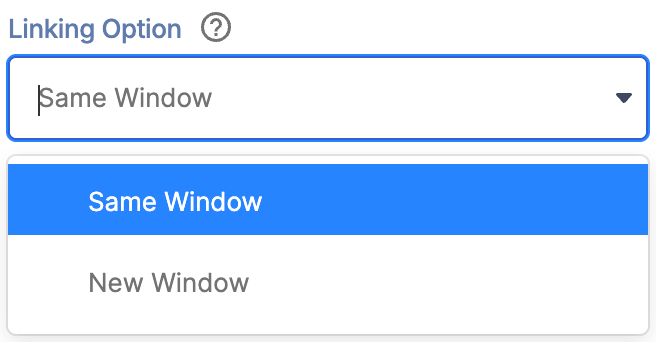 | Linking Option | allows you to choose how the clickable link will be opened. |
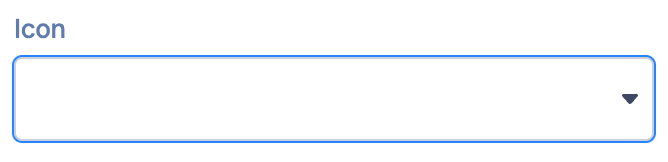 | Icon | allows you to add an icon inside the button. |
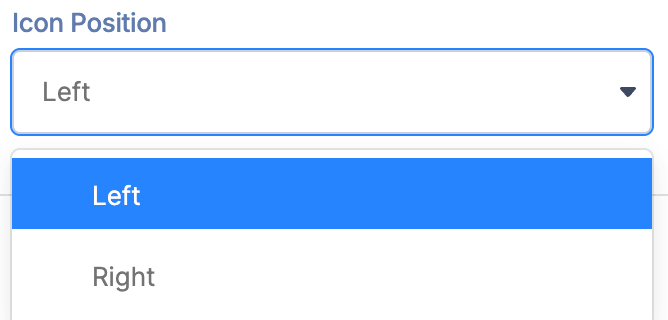 | Icon Position | allows you to choose the position of the button icon. |
SECONDARY BUTTON
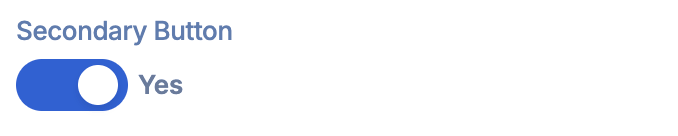 | Secondary Button | when enabled, a 2nd button will be added. |
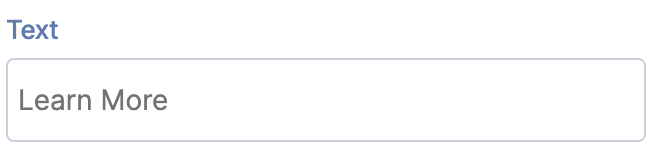 | Text | allows you to modify the text inside the button. |
 | Link | allows you to add a clickable link to the button. |
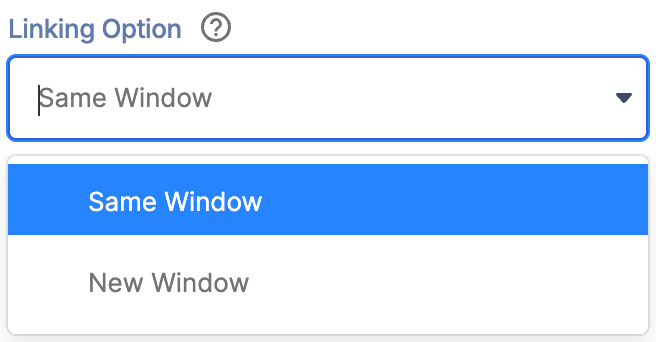 | Linking Option | allows you to choose how the clickable link will be opened. |
 | Icon | allows you to add an icon inside the button. |
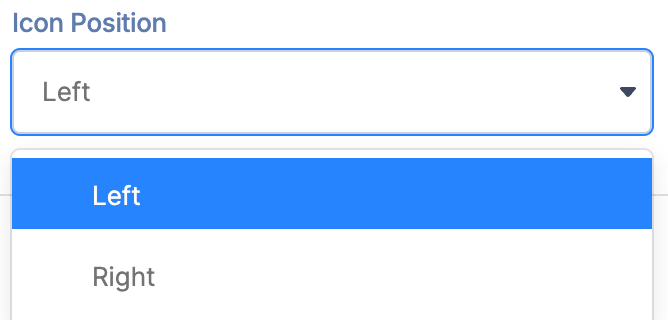 | Icon Position | allows you to choose the position of the button icon. |
B. Design Tab
The Design tab is where you get to have fun customizing the look and feel of your Announcement. Here are the options you can modify:
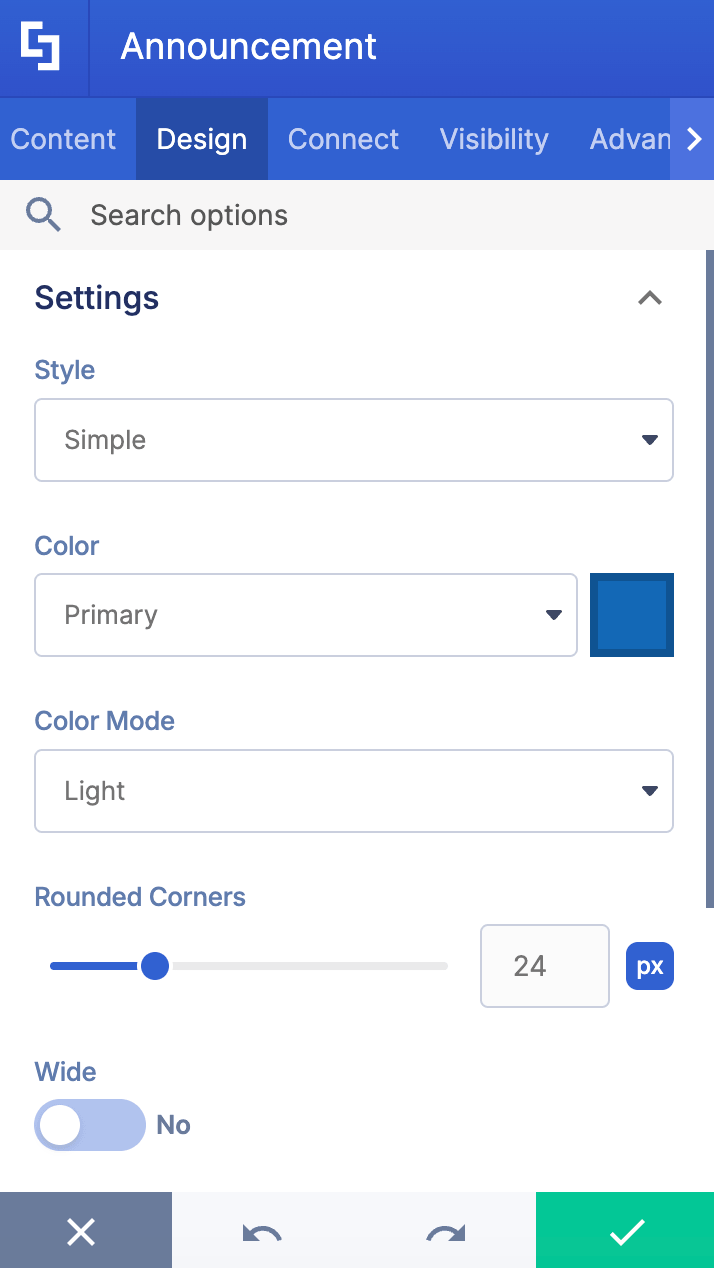
SETTINGS
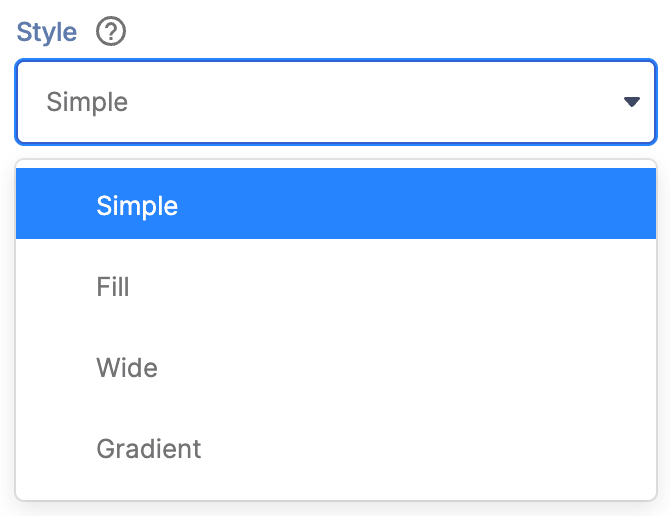 | Style | allows you to choose an Announcement style. You have 4 styles to choose from. Check out Announcement Styles to learn more. |
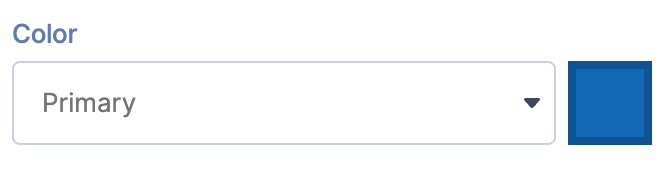 | Color | allows you to customize the primary color of the Announcement. |
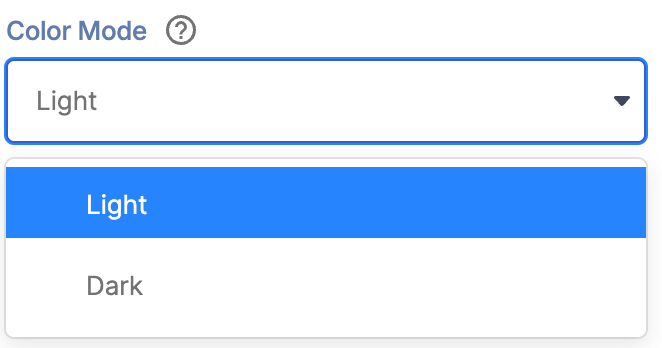 | Color Mode | allows you to choose from Light or Dark Mode. |
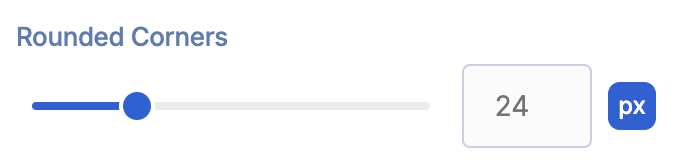 | Rounded Corners | allows you to adjust the roundness value of the Announcement corners. |
 | Wide | when enabled, the announcement will fill the full width of the container. |
 | Pop Up | when enabled, the announcement will be displayed as a pop up. |
 | Close button | when enabled, a close icon will be shown. |
 | Remember dismissed | when enabled, the Announcement will not appear again for those who dismissed it. |
SHADOW
 | Shadow | when enabled, additional shadow settings will appear. |
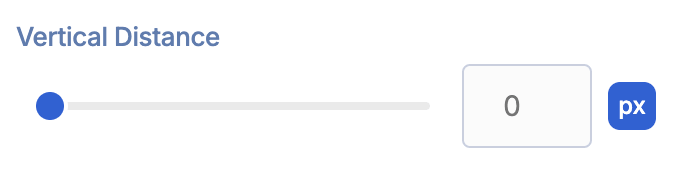 | Vertical Distance | allows you to adjust the vertical distance of the shadow. |
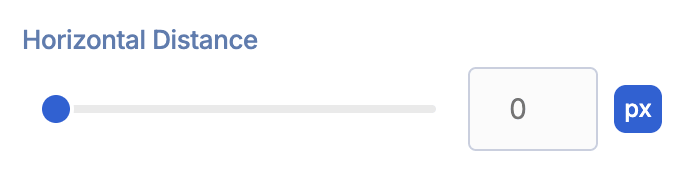 | Horizontal Distance | allows you to adjust the horizontal distance of the shadow. |
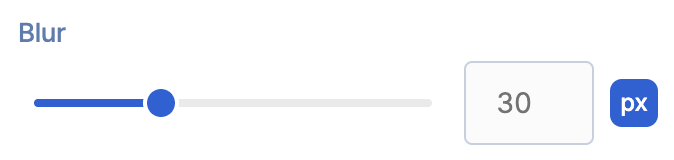 | Blur | allows you to adjust the blur effect of the shadow. |
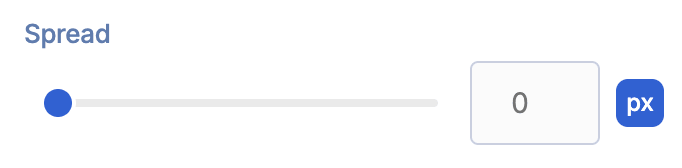 | Spread | allows you to adjust the spread value of the shadow. |
 | Inset | when enabled, the shadow will be inset. |
 | Color | allows you to choose the color of the shadow. |
C. Connect Tab
The Connect tab allows you to link the Design Element to SharePoint sources (List, Document Library, News, etc.) and other external sources (Microsoft Graph API, Teams, Outlook, etc.). For more details about ShortPoint Connect, check out Basic Tutorial: How to Establish Seamless SharePoint Connection with ShortPoint Connect.
D. Visibility Tab
The Visibility tab allows you to specify who can see the Design Element and what type of devices it can be shown on. For more details, check out How to Use the ShortPoint Visibility Feature for Effective SharePoint Access Management.
E. Advanced Tab
The Advanced tab allows you to customize further when the announcement will be shown. These are the options you can change:
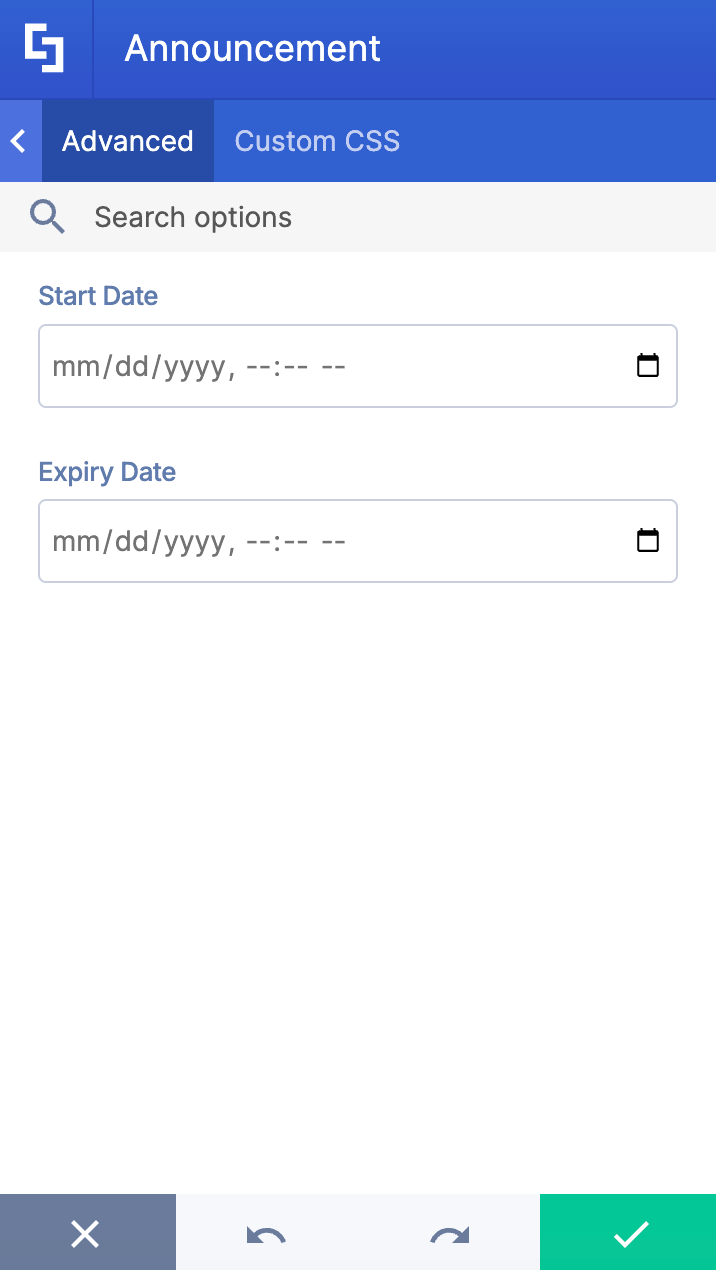
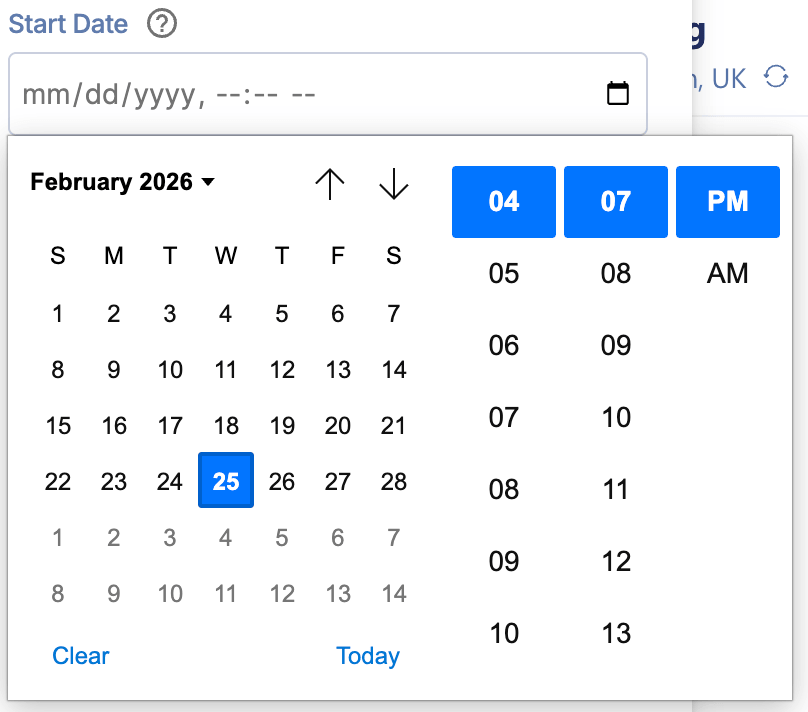 | Start Date | allows you to choose when the Announcement will start appearing on your page. |
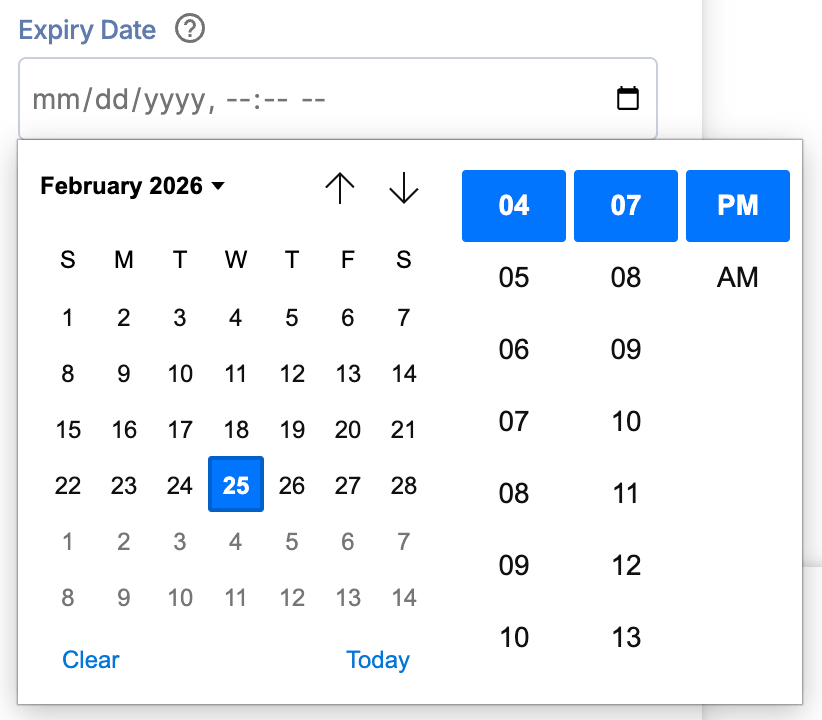 | Expiry Date | allows you to choose when the Announcement will stop appearing on your page. |
F. Custom CSS Tab
This tab lets you add your own custom touch to the Announcement Design Element using custom CSS, HTML, and JavaScript. This gives site owners and designers greater control over how the highlighted text will look.
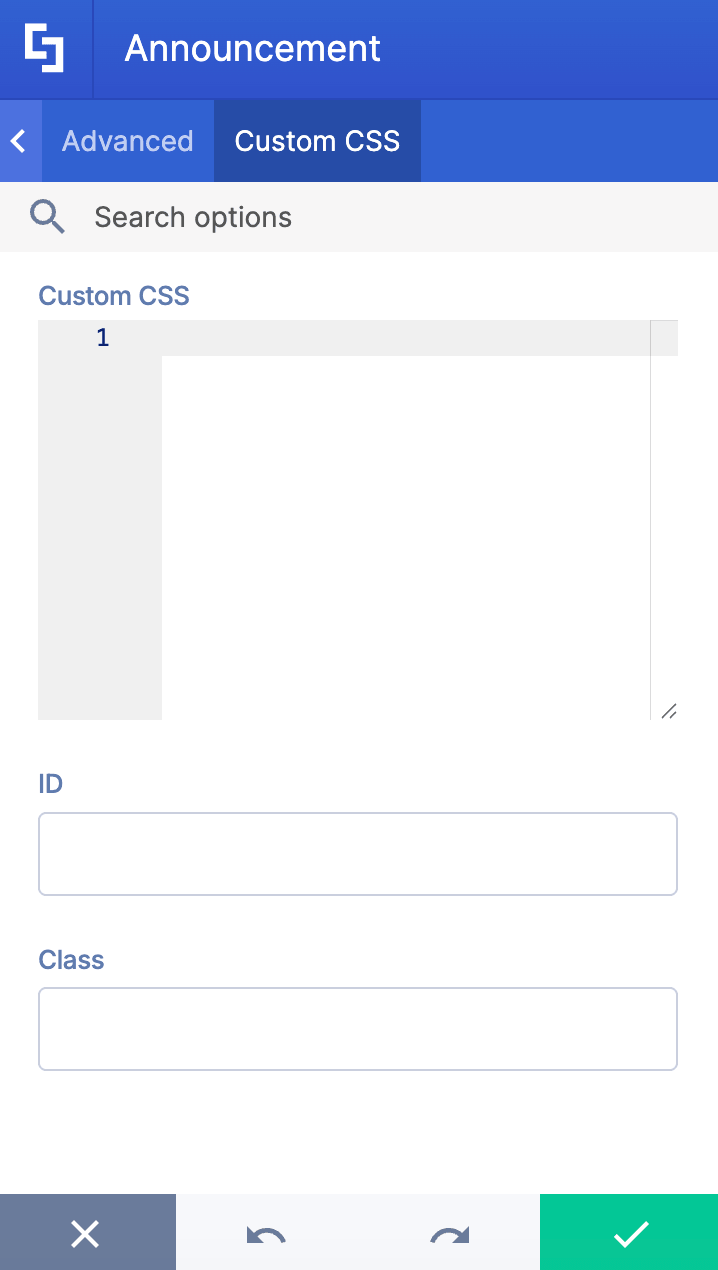
NOTECheck out our support article on How to Insert Custom CSS into a Page Builder Element? (Basic Tutorial) to know more about Custom CSS.
Announcement Styles
The Announcement Design Element gives you 4 beautiful styles. Let’s go through each one below:
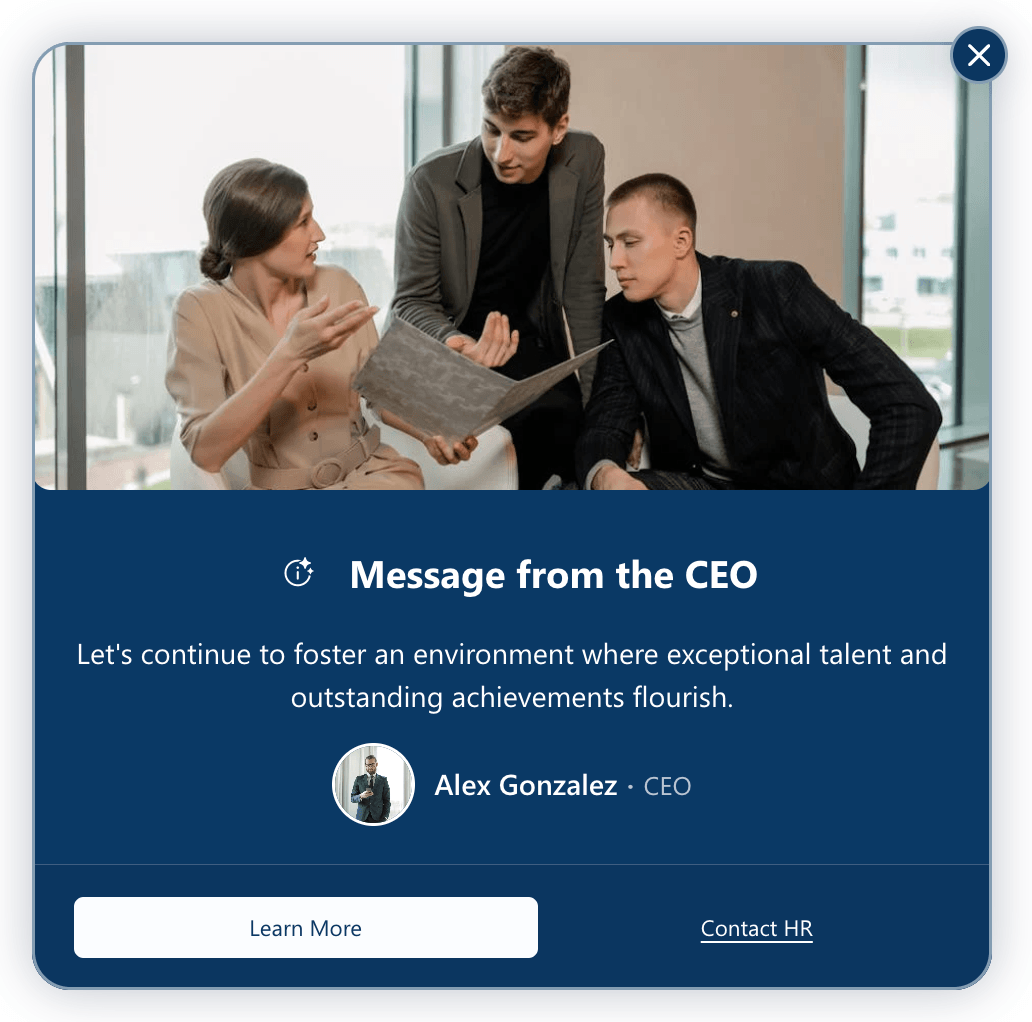
- Simple offers a classic, vertical card layout. This traditional format works beautifully when you want a straightforward, easy-to-scan announcement that feels familiar and accessible.
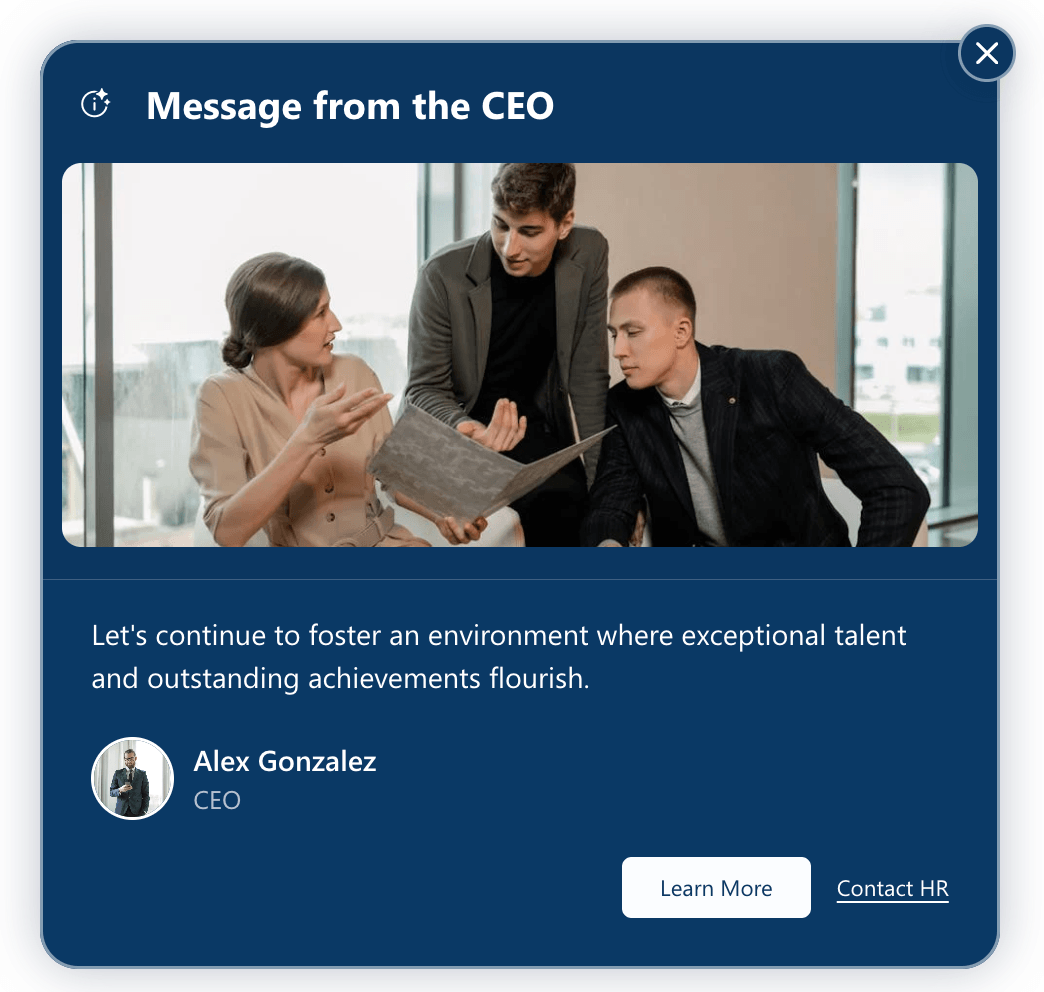
- Fill flips the arrangement and maintains a clear visual hierarchy while making the most of the available space.
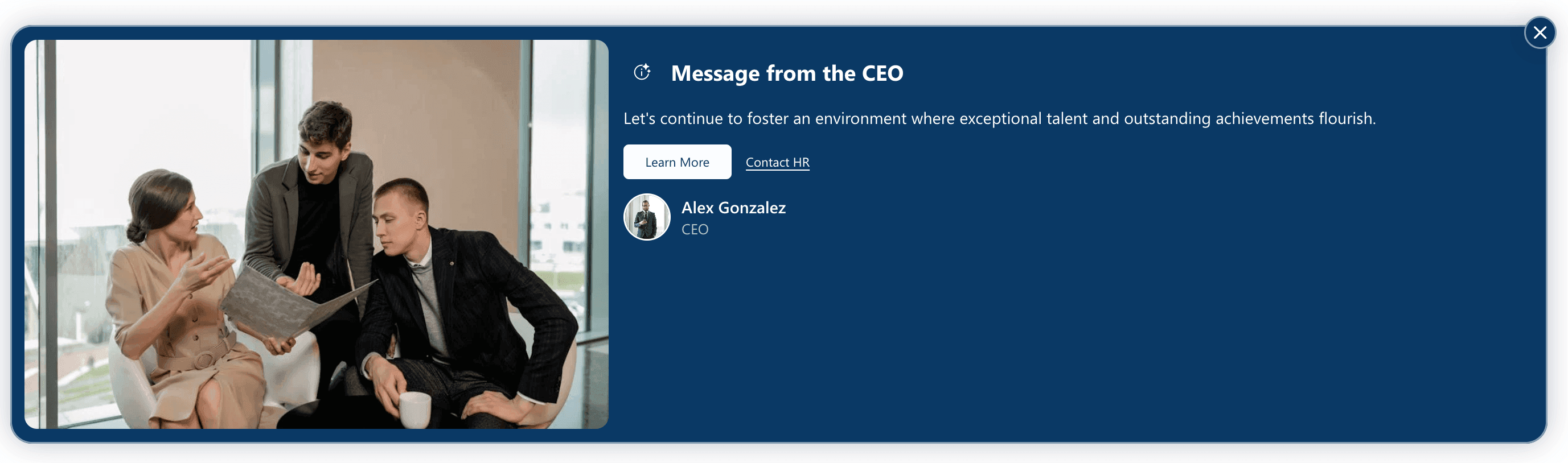
- Wide takes a horizontal, banner-style approach. This format is perfect when you want your announcement to span across the page and make a bold, sweeping statement without taking up too much vertical real estate.
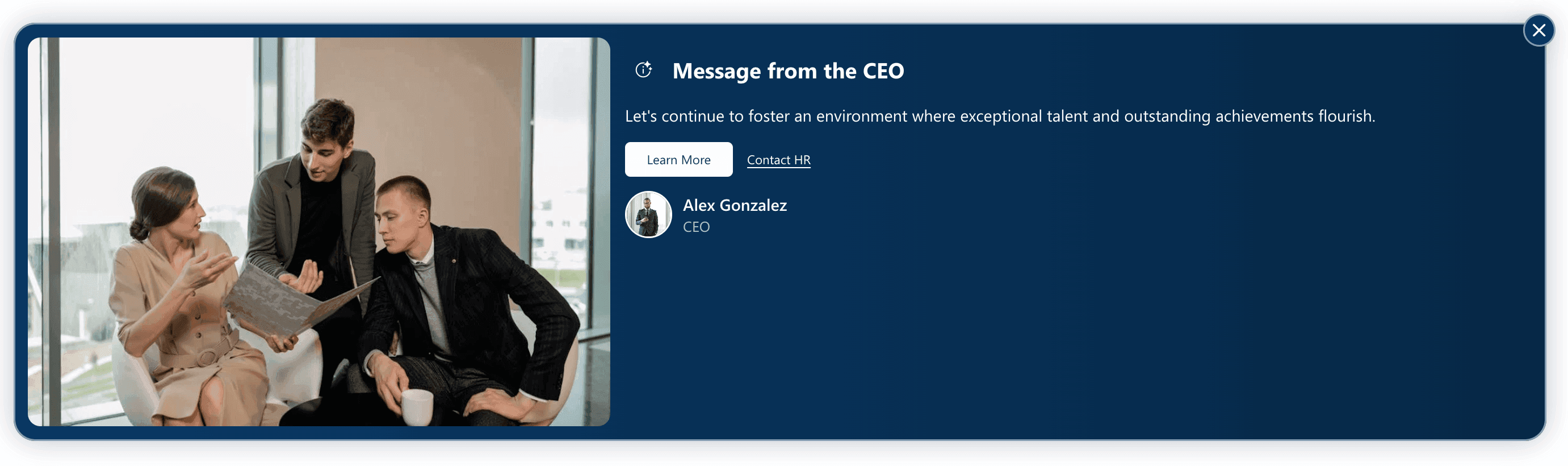
- Gradient is nearly identical to the Wide style in its horizontal layout, with one subtle but impactful difference—it incorporates gradient effects that add depth and visual sophistication to the design.
Practical Use Cases for the Announcement Design Element
The Announcement Design Element is a versatile tool that can be used to display various SharePoint notifications to keep your team members engaged and informed. Here are some practical use cases where this effective message tool shines:
- Company Announcements
Share important updates such as policy changes, upcoming events, or organizational news directly on your SharePoint Online intranet. This ensures the timely delivery of important information that reaches every employee.
- Leadership Communication
Craft an authentic message from your leadership team to motivate and inspire employees. Use this element to share personal stories from the CEO or other executives, fostering a stronger connection and enhancing employee engagement.
- Project Updates
Keep teams aligned by posting regular updates on project milestones, deadlines, and successes. This helps maintain a sense of direction and encourages collaboration across departments.
- Recognition and Gratitude
Publicly acknowledge the hard work and dedication of individuals or teams. Highlighting contributions boosts morale and reinforces a culture of appreciation within the company.
- Call to Action
Use the customizable CTA button to direct employees to important resources, surveys, or training materials, encouraging feedback and active participation.
Start Designing with the Announcement Design Element
With the Announcement Design Element, organizations can deliver impactful messages that support their mission, strengthen leadership communication, and drive real results in employee engagement and productivity.
Let's get you set up! With just a few clicks, your first Announcement will be live and ready to keep your team informed and aligned on all the important information your organization relies on. Simply update to the latest ShortPoint SPFx version (8.8.4.0) and follow our interactive tutorial.
First time with ShortPoint? No problem at all — dive in with a FREE 15-day trial and explore everything we have to offer, with zero commitment. You're also welcome to book a one-on-one demo so our team can show you how the Announcement Design Element works and the full power of ShortPoint.
Frequently Asked Questions
What prerequisites do I need to use the Announcement Design Element?
To use the Announcement Design Element, you must have the ShortPoint SPFx version 8.8.4.0 or later installed in your SharePoint environment and hold an active license as a ShortPoint Designer. This ensures you have access to all customization features for creating impactful SharePoint notifications.
How can I customize the content and design of my SharePoint announcements?
The Announcement Design Element offers several tabs for customization:
- The Content tab lets you edit the message, add author details, images, and call-to-action buttons.
- The Design tab allows you to adjust styles, colors, roundness, and other visual elements.
- Additional tabs like Connect, Visibility, and Advanced provide options to link external data, control audience targeting, and set display schedules.
Can I link SharePoint announcements to external data sources or other Microsoft 365 services?
Yes, the Connect tab in the Announcement Design Element enables you to integrate your notifications with SharePoint lists, document libraries, Microsoft Graph API, Microsoft Teams, Outlook, and other external sources to display dynamic and relevant content.
How do SharePoint announcements support employee engagement?
By delivering timely and authentic messages that align with your company's goals, the Announcement Design Element helps foster a stronger connection between leadership and employees. Sharing personal stories, recognizing contributions, and providing clear calls to action all contribute to higher employee engagement.
Can I control who sees the SharePoint announcements and on which devices?
Yes, the Visibility tab allows you to specify the audience for your notifications and choose on which devices (desktop, tablet, mobile) the alerts appear, ensuring your message reaches the right team members effectively.
Is it possible to schedule when a SharePoint announcement appears or expires?
Absolutely. The Advanced tab lets you set start and expiry dates for your Announcement, so you can control the timing of your SharePoint notifications to align with announcements, campaigns, or events.
How does the Announcement Design Element help with leadership communication?
This tool enables leadership to craft an authentic message that resonates with employees by sharing personal stories, expressing gratitude, and outlining the company’s vision. These impactful messages strengthen trust and drive real results in internal communication.
Related articles:
- How to Add an Online World Clock to SharePoint Sites Using the World Clock Design Element
- How to Embed Canva into SharePoint Using the Canva Design Element
- How to Create a FlipBox in SharePoint Using the FlipBoxes Design Element
- How to Create a Breadcrumb Navigation in SharePoint Online Using the Breadcrumb Design Element
- How to Add Customer Testimonials to SharePoint Using the Testimonials Design Element
- How to Create SharePoint Calendar Using the Calendar Design Element
