 Try ShortPoint now
Curious about how to add a flip box to SharePoint? We'll show you how to leverage the FlipBoxes Design Element to add professional and creative content boxes to your SharePoint website and enhance the visual experience for your clients and users.
TABLE OF CONTENTS
- Prerequisites
- What Is the FlipBoxes Design Element?
- Interactive Tutorial
- Step-by-step Tutorial
- FlipBoxes Features
- FlipBoxes Styles
- Practical Use Cases for the FlipBoxes Design Element
- Start Designing with the FlipBoxes Design Element
- Frequently Asked Questions
- What is the FlipBoxes Design Element in SharePoint?
- How do I add a FlipBox to my SharePoint site?
- What customization options are available for FlipBoxes?
- Can FlipBoxes be connected to SharePoint data sources?
- Are FlipBoxes responsive and mobile-friendly?
- What are some practical uses for FlipBoxes on a SharePoint site?
- Can I add custom CSS or scripts to FlipBoxes?
- Is coding knowledge required to use FlipBoxes?
- How does the FlipBox improve user engagement on my SharePoint site?
Prerequisites
- You must have the ShortPoint SPFx version 8.8.4.0 or later installed in your SharePoint environment.
- You must be a ShortPoint Designer with an active license.
What Is the FlipBoxes Design Element?
Get started with the FlipBoxes Design Element in ShortPoint SPFx version 8.8.4.0 or newer.
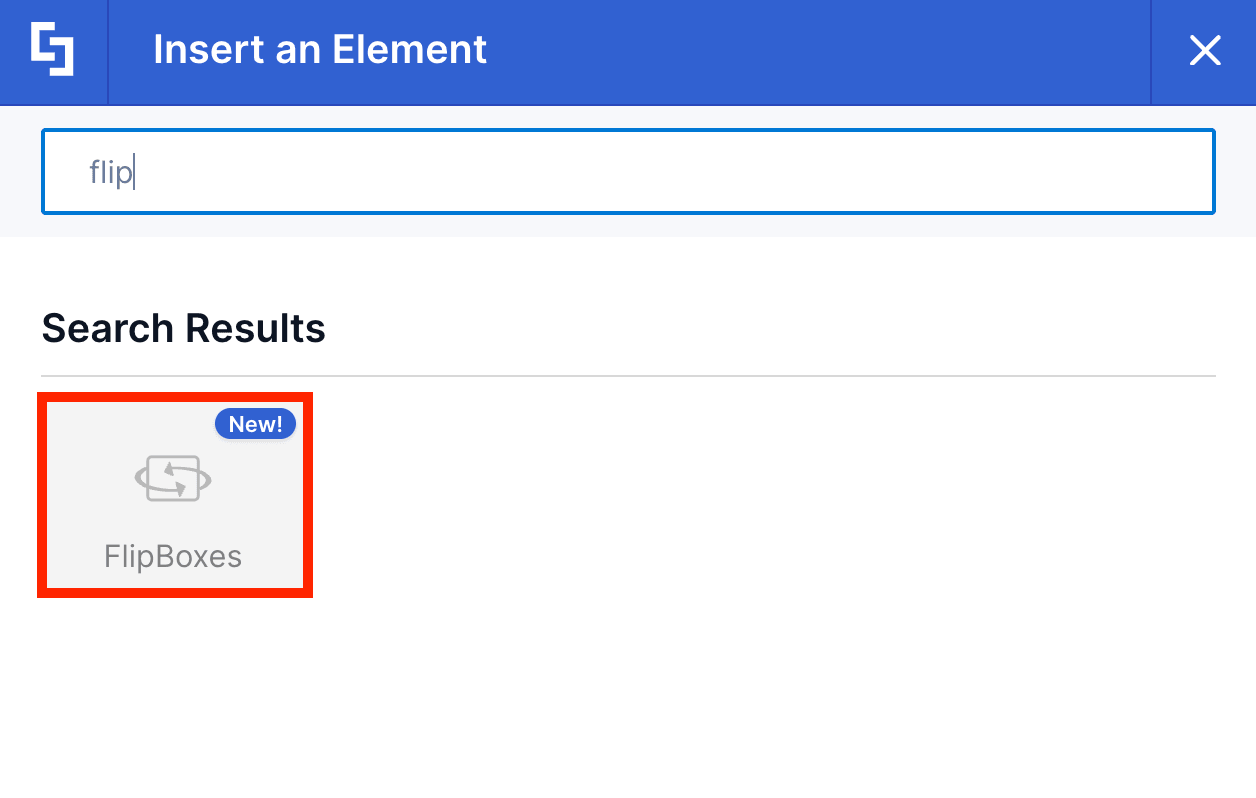
This versatile design element enables you to display beautiful, attention-grabbing flipboxes on your SharePoint site.
With full control over content and design, you can create a look that's perfectly tailored to your site and optimized for any device, including mobile devices.
Interactive Tutorial
Click Get Started to easily add a FlipBoxes to your SharePoint site and enhance your site's visual design:
NOTETo learn more about the features you can customize for FlipBoxes, check out FlipBoxes Features.
Step-by-step Tutorial
Learn how to add a series of FlipBoxes in SharePoint using the FlipBoxes Design Element to create interactive, visually appealing content boxes on your SharePoint site.
Step 1: Edit the ShortPoint Web Part
- Go to the SharePoint page you want to use and click Edit:

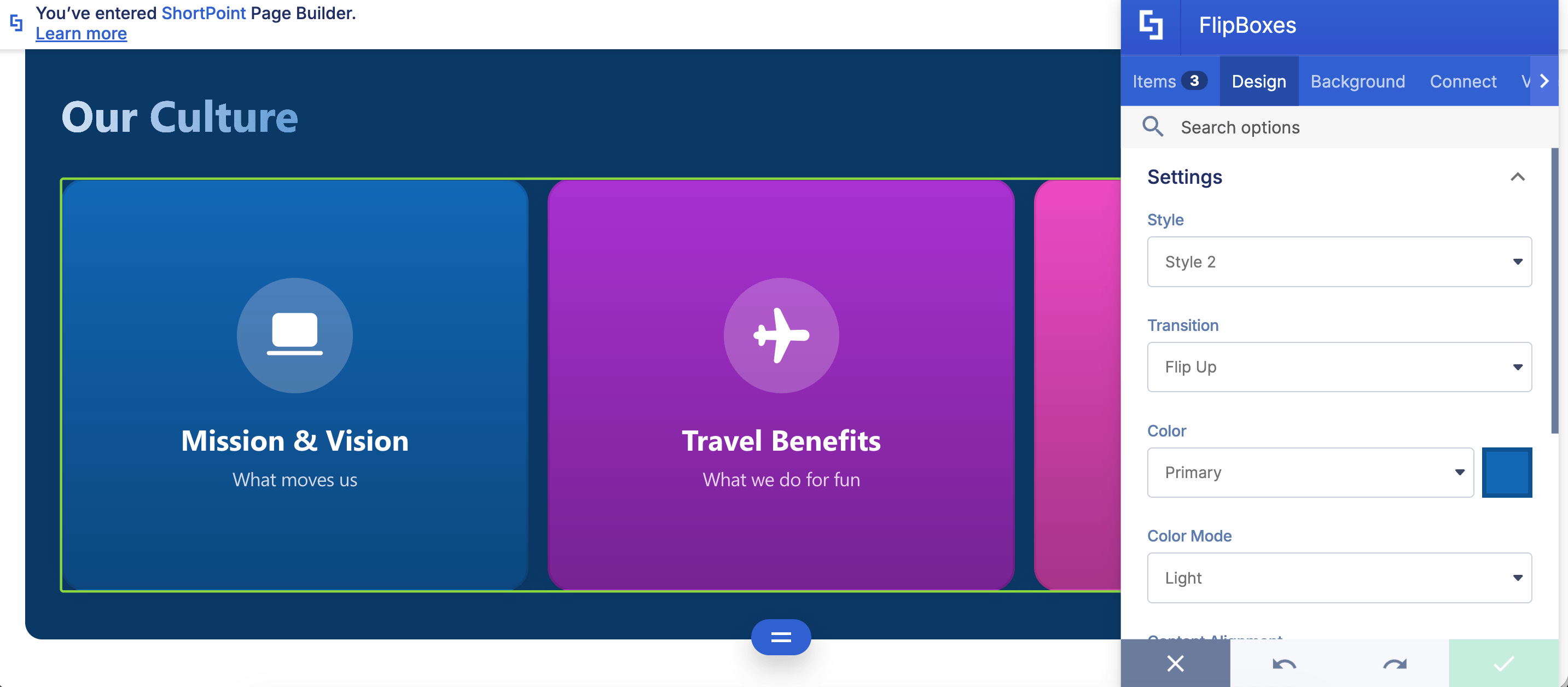
- Close the Toolbox:
- Click the Edit properties icon:

Step 2: Insert the FlipBoxes Design Element
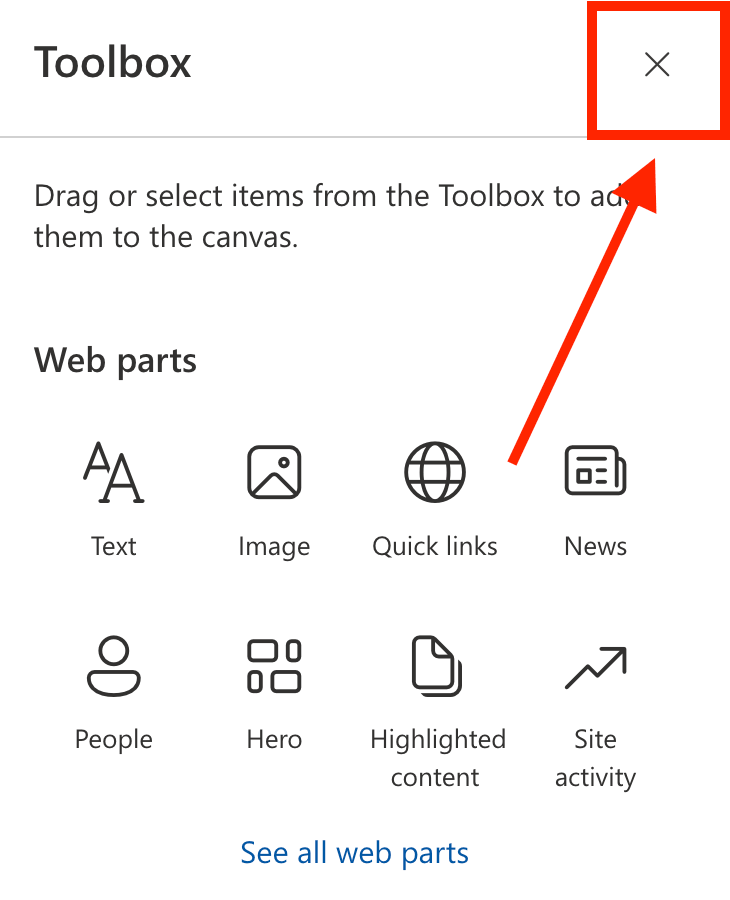
- Choose where you want to add the FlipBox and click the plus icon:
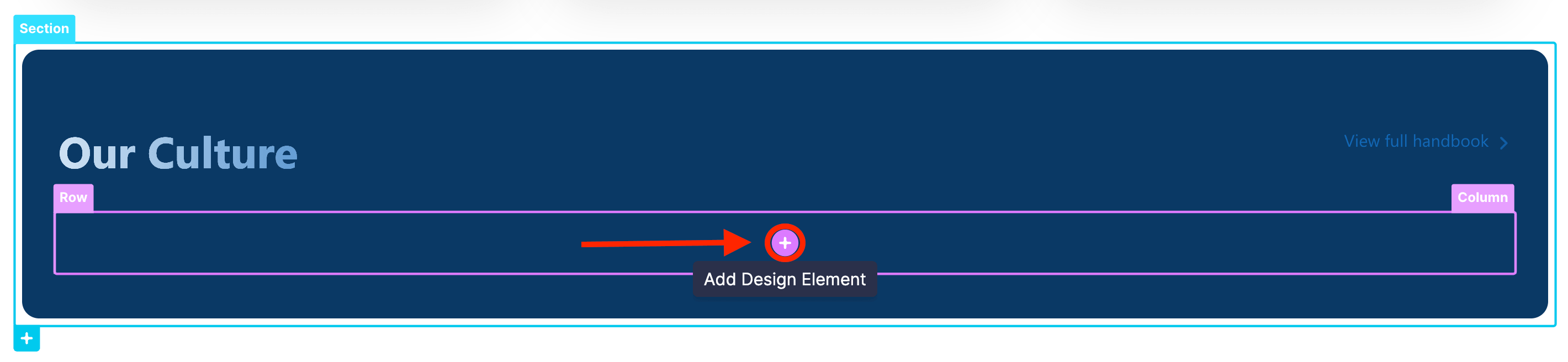
- Use the search box to look for FlipBoxes and click it:
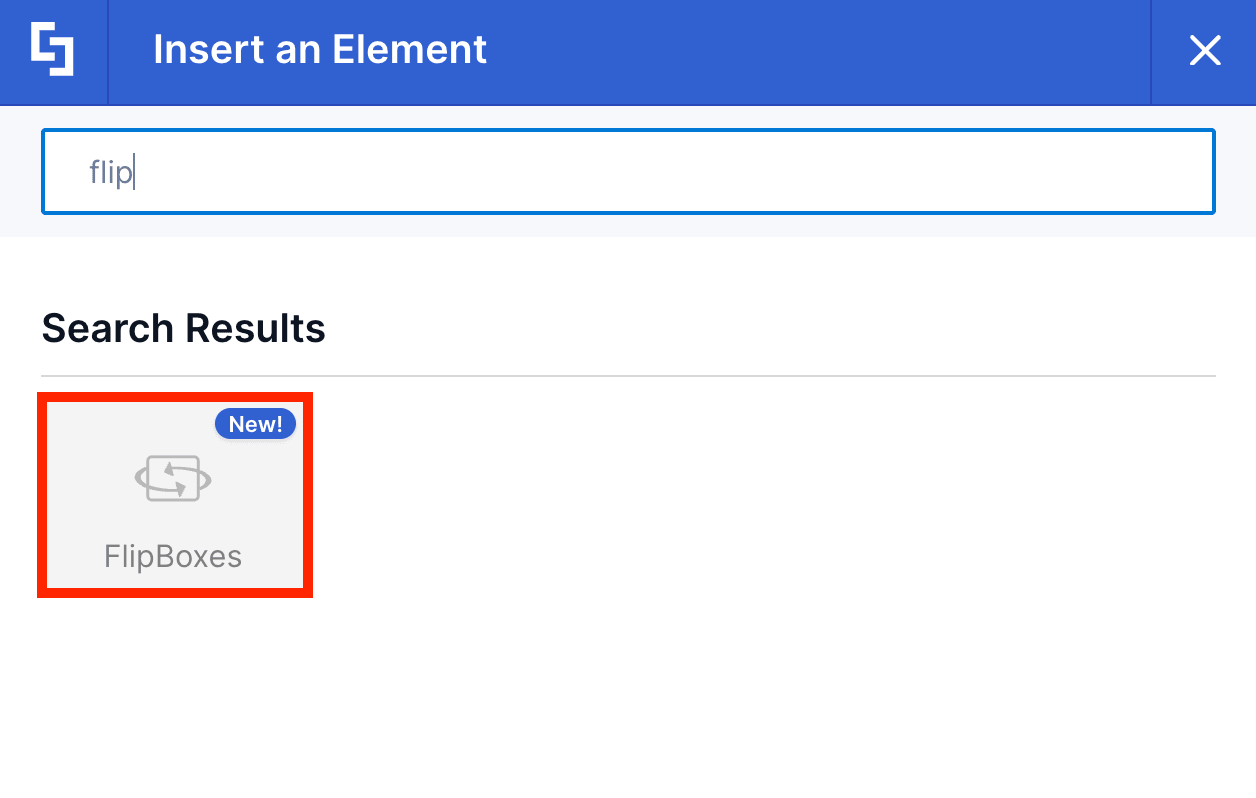
Step 3: Customize the Content
- Go to the Content tab.
- Click the cogwheel icon of the first item:

- Customize the content of the FlipBoxes according to your preferences.
NOTETo learn more about the features you can customize for FlipBoxes, check out FlipBoxes Features.
- Click the back icon:
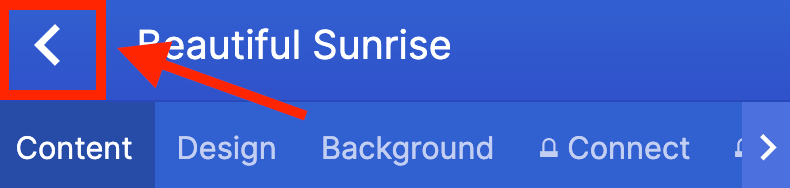
- Repeat the steps for the other items.
Step 4: Customize the Design
- Go to the Design tab.
- Customize the look of the FlipBoxes according to your preferences.
- Once satisfied, click the green check mark.
NOTETo learn more about the features you can customize for FlipBoxes, check out FlipBoxes Features.
Step 5: Save
- Click the eye icon to see your page in real-time:

- Save your changes:

Fantastic! You've successfully set up FlipBoxes on your SharePoint page. Use this Design Element whenever you need to emphasize important information and grab your audience's attention effectively, enhancing your site's visual quality and user experience across all devices.
FlipBoxes Features
Looking to make your FlipBox uniquely yours? The FlipBox Settings window provides plenty of helpful options to display your selected content exactly the way you picture it.
A. Items Tab
The Items tab is where you can edit the content inside the FlipBoxes Design Element. Here are the options you can tweak:
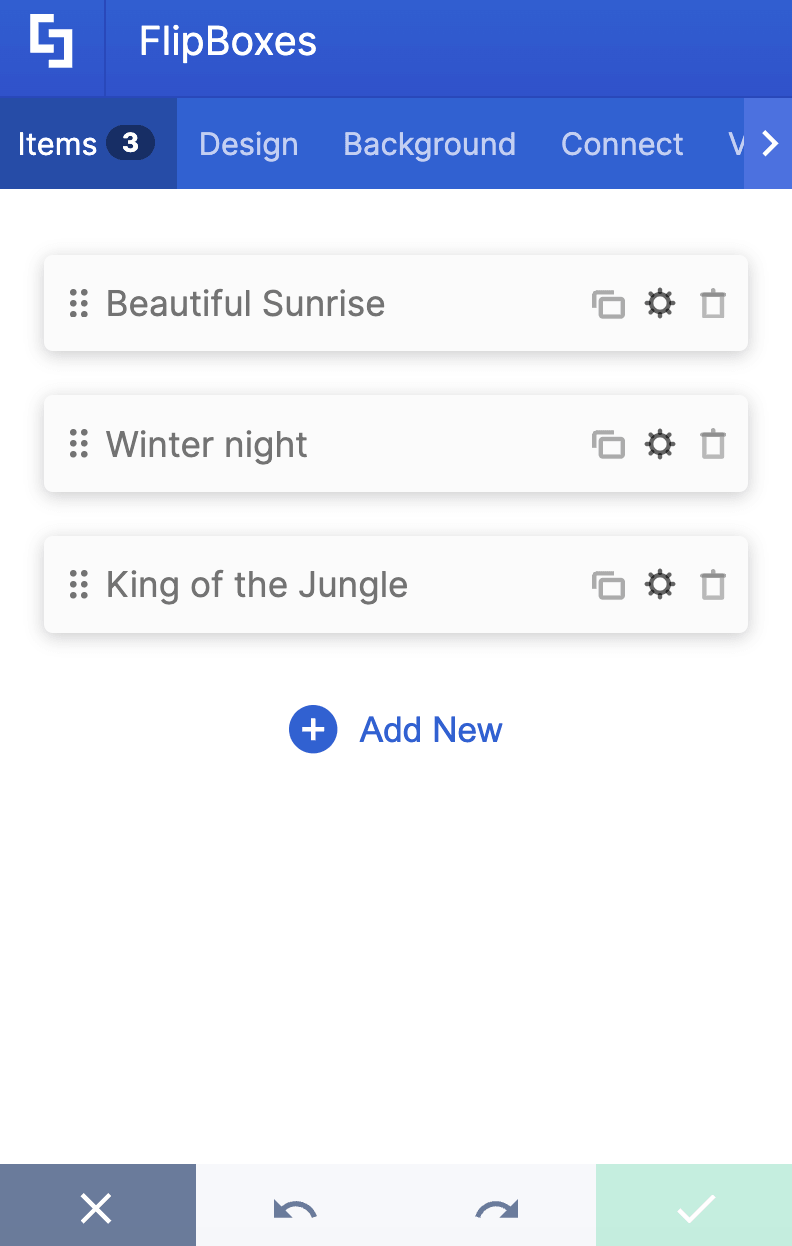
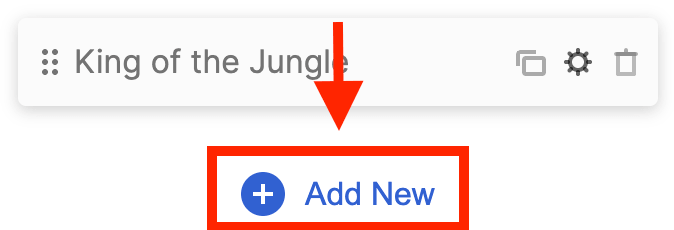 | Add New | allows you to add a new item. |
 | Drag icon | will enable you to rearrange the items. |
 | Duplicate icon | allows you to copy an item. |
 | Cogwheel icon | allows you to edit the content of an item. See the table below to see the options you can find inside. |
 | Trash icon | allows you to remove an item. |
COGWHEEL ICON (Content tab) - FRONT
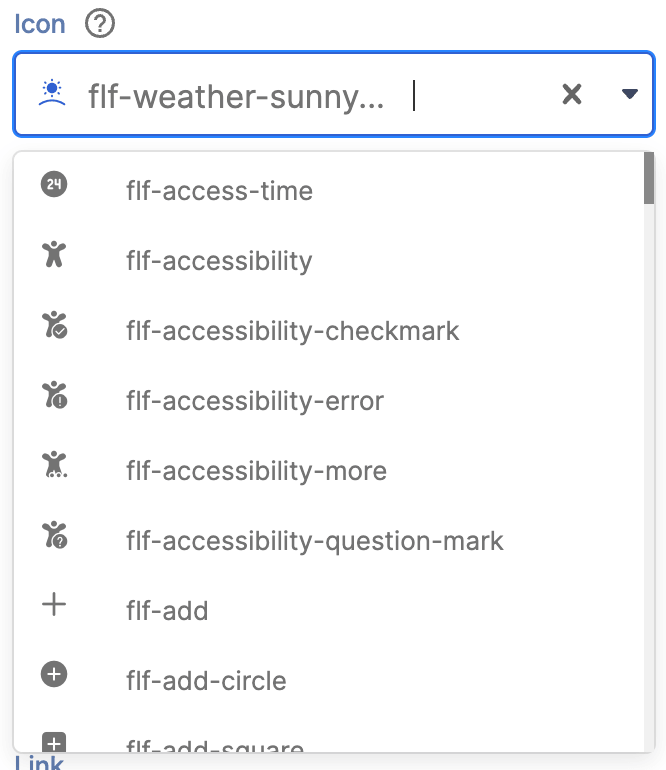 | Icon | allows you to add the icon (front) of the selected item. |
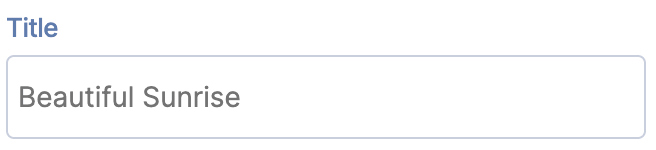 | Title | allows you to add the title (front) of the selected item. |
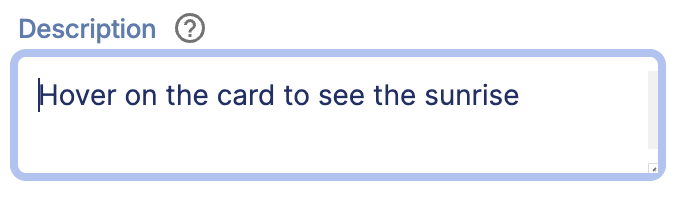 | Description | allows you to add the description (front) of the selected item. |
COGWHEEL ICON (Content tab) - BACK
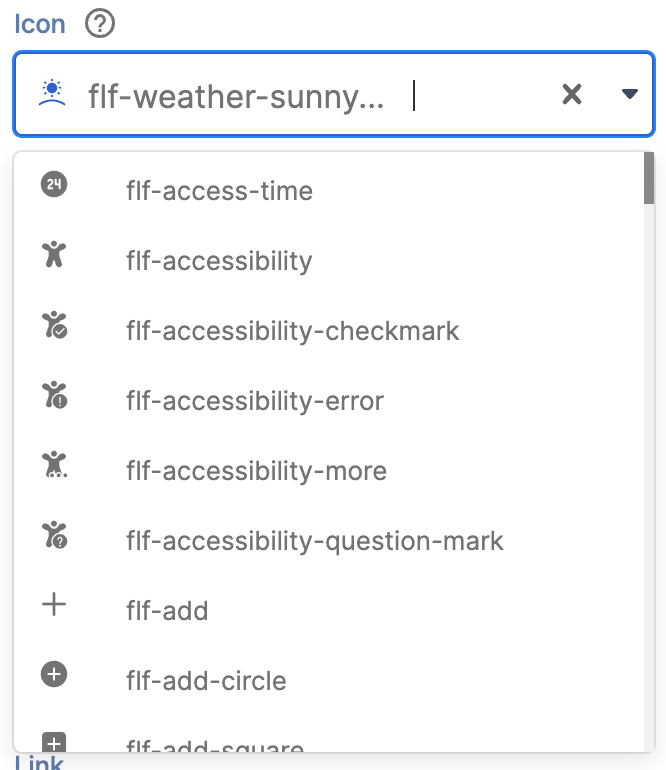 | Icon | allows you to add the icon (back) of the selected item. |
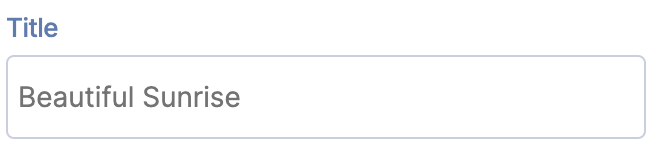 | Title | allows you to add the title (back) of the selected item. |
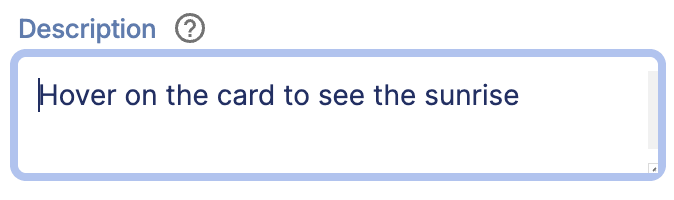 | Description | allows you to add the description (back) of the selected item. |
 | Button | allows you to modify the button text (back) of the selected item. |
 | Link | allows you to add the clickable link (back) of the selected item. |
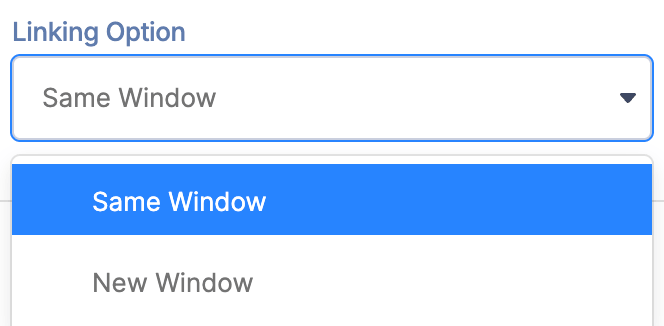 | Linking Option | allows you to choose how the clickable link will be opened. |
COGWHEEL ICON (Design tab)
 | Color | allows you to change the color of the selected item. |
COGWHEEL ICON (Background tab) - FRONT
 | Image | allows you to add the background image (front) of the selected item. |
 | Video | allows you to add the background video (front) of the selected item. |
COGWHEEL ICON (Background tab) - BACK
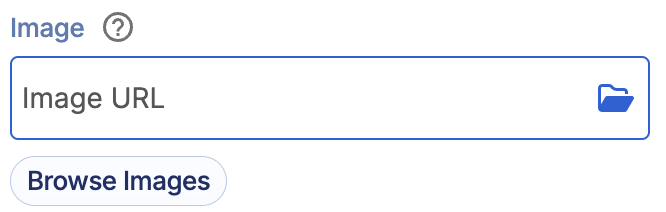 | Image | allows you to add the background image (back) of the selected item. |
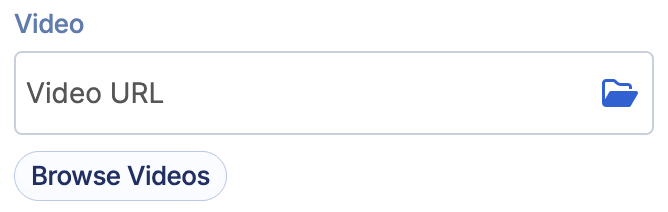 | Video | allows you to add the background video (back) of the selected item. |
B. Design Tab
The Design tab is where you get to have fun customizing the look and feel of your FlipBox. Here are the options you can modify:
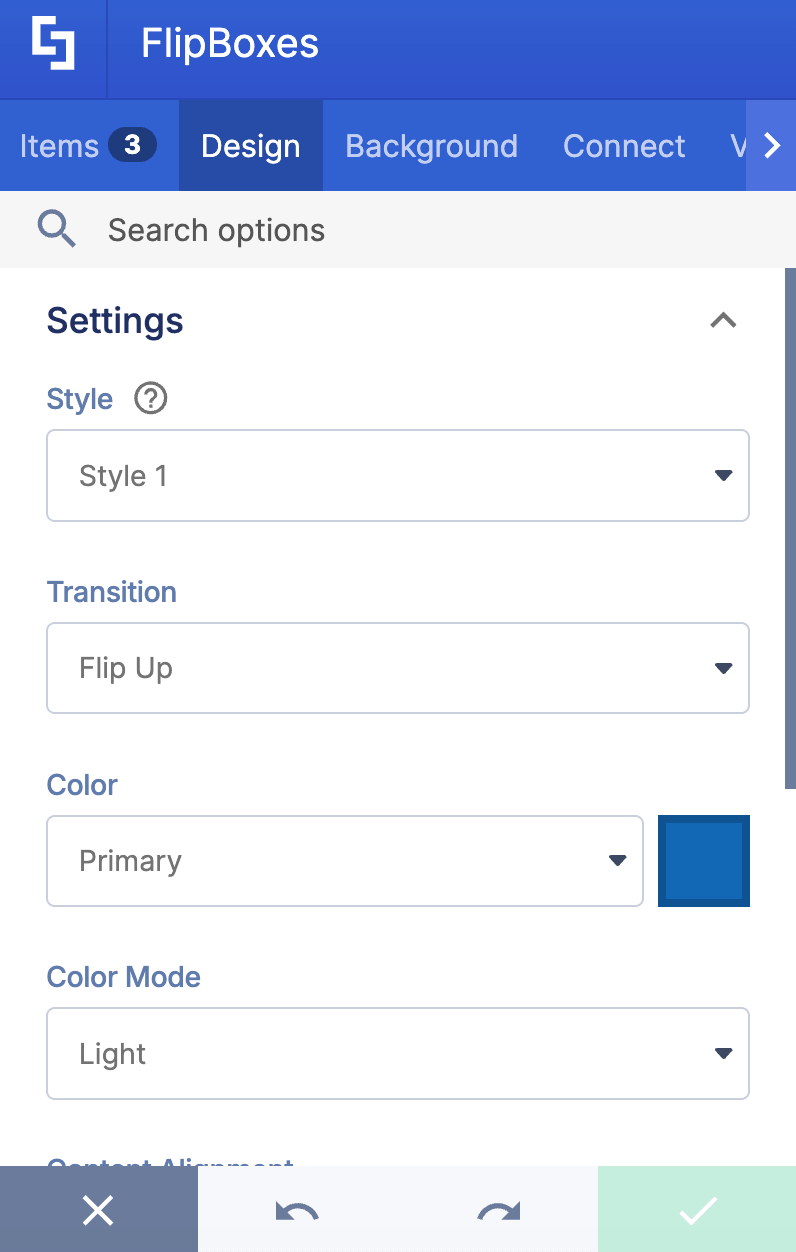
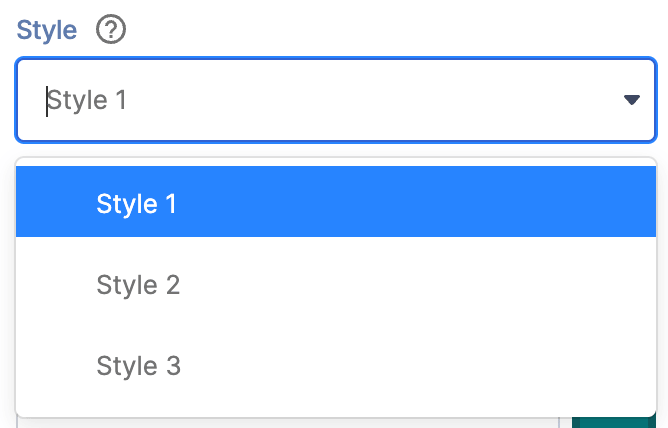 | Style | allows you to choose a Flipbox style. You have 3 styles to choose from. Check out FlipBoxes Styles to learn more. |
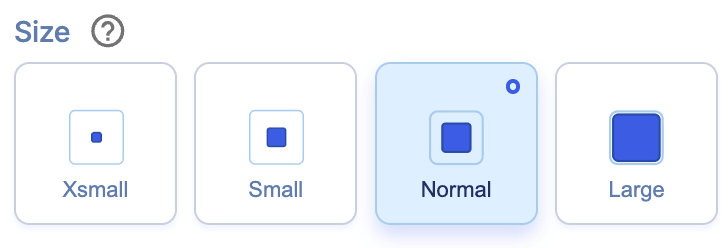 | Size | allows you to adjust the size of the FlipBoxes. |
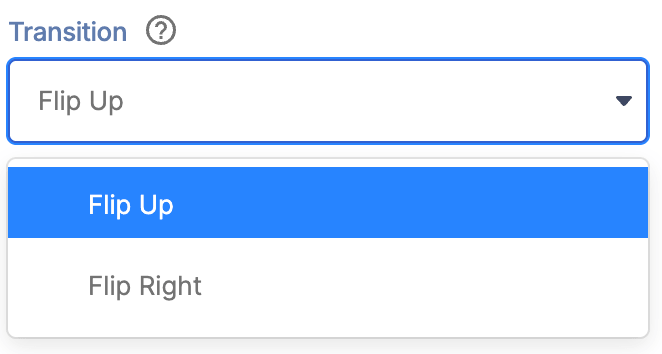 | Transition | allows you to choose the animation style. You have 2 styles to choose from. |
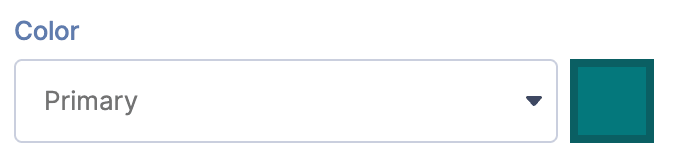 | Color | allows you to customize the primary color of the flip box. Y |
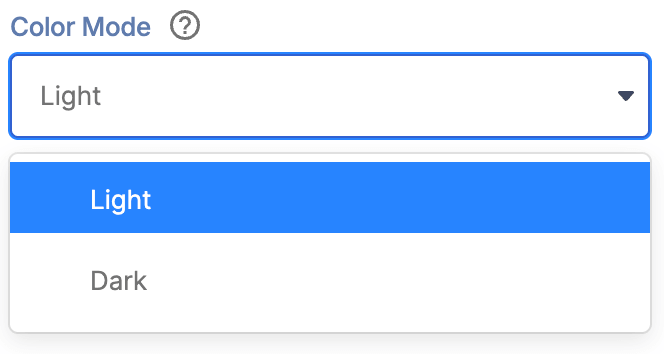 | Color Mode | allows you to choose from Light or Dark Mode. |
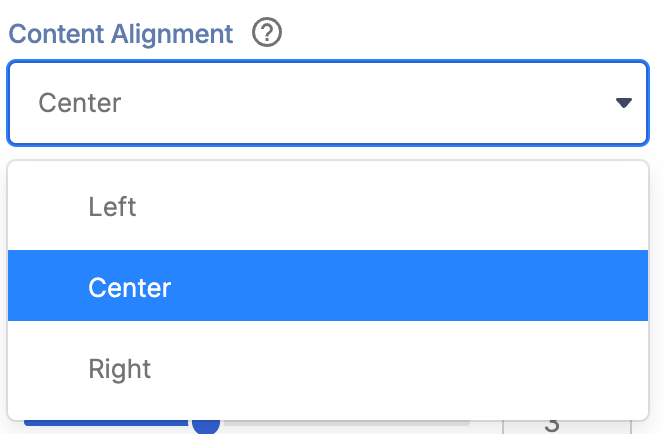 | Content Alignment | allows you to choose the alignment of the text. |
 | Apply Random Colors | when enabled, random colors will be applied to each item. |
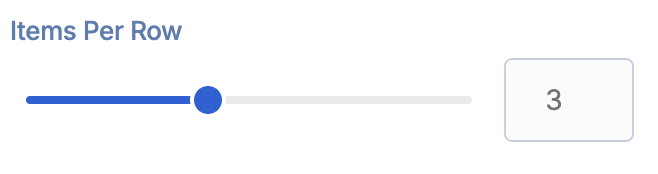 | Items Per Row | allows you to choose the maximum number of items to be shown per row. |
SHADOWS
 | Enabled | when enabled, additional shadow settings will appear. |
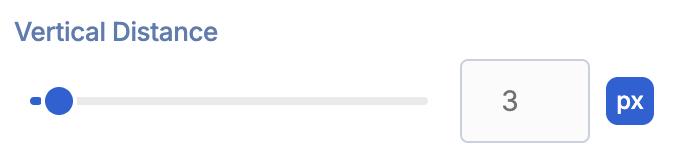 | Vertical Distance | allows you to adjust the vertical distance of the shadow. |
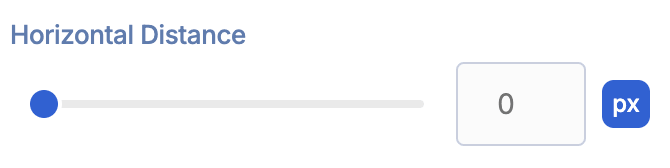 | Horizontal Distance | allows you to adjust the horizontal distance of the shadow. |
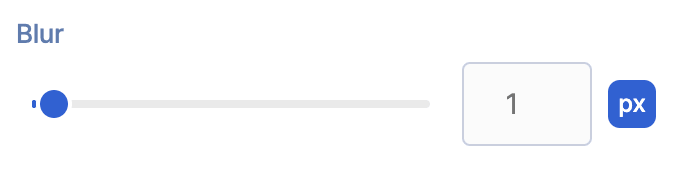 | Blur | allows you to adjust the blur effect of the shadow. |
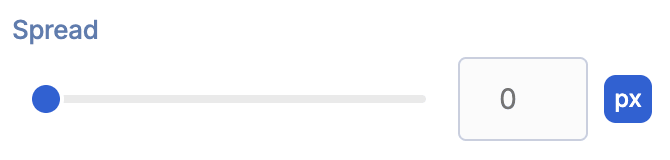 | Spread | allows you to adjust the spread value of the shadow. |
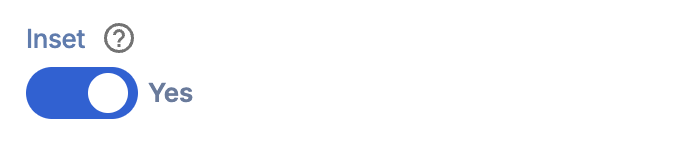 | Inset | when enabled, the shadow will become inset. |
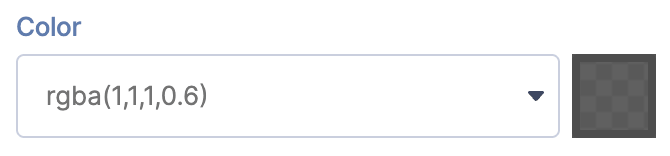 | Color | allows you to choose the color of the shadow. |
C. Background Tab
The Background tab allows you to add a default background to the flipbox. Just take note that the background image or video added here will be overridden by the background image or video added to individual FlipBoxes. These are the options you can change:
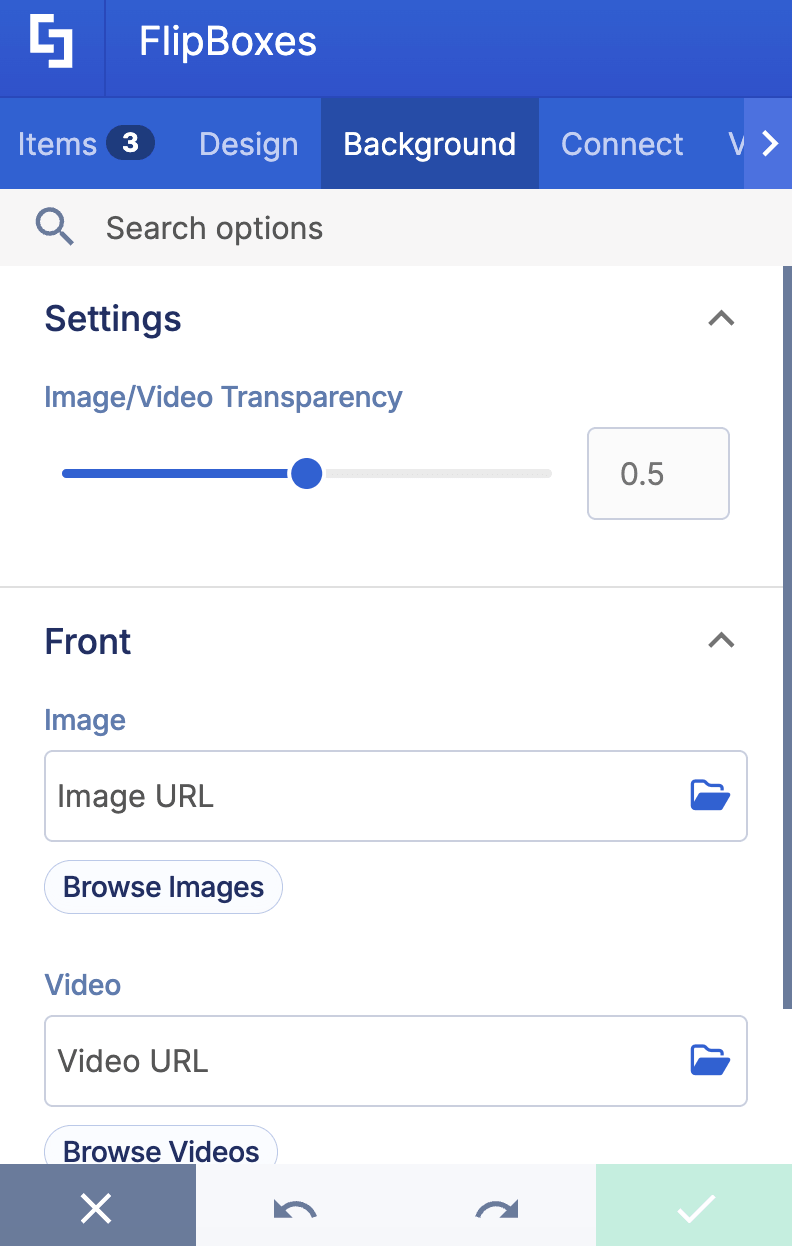
SETTINGS
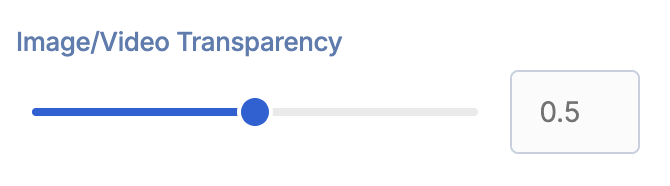 | Image/Video Transparency | allows you to adjust the transparency value of the image or video. |
FRONT
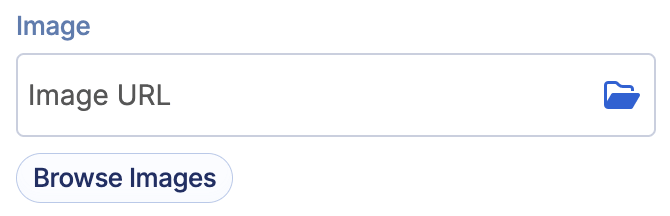 | Image | allows you to add a default background image (front). |
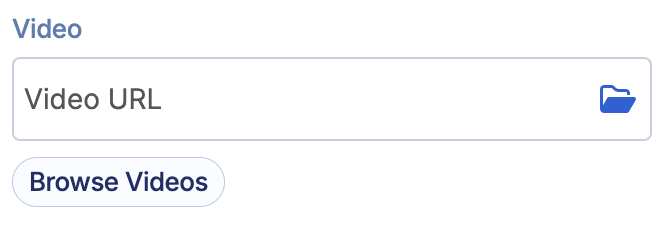 | Video | allows you to add a default background video (front). |
BACK
 | Image | allows you to add a default background image (back). |
 | Video | allows you to add a default background video (back). |
D. Connect Tab
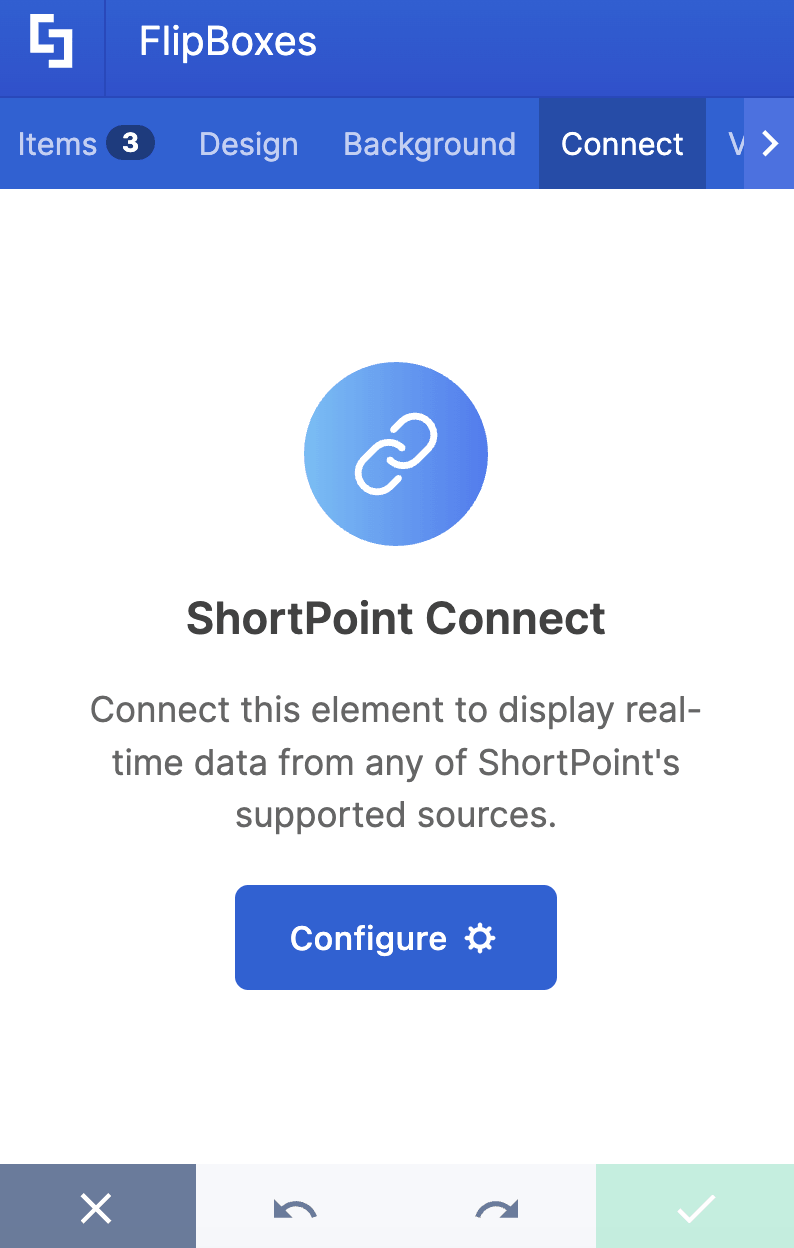
The Connect tab allows you to link the Design Element to SharePoint sources (List, Document Library, News, etc.) and other external sources (Microsoft Graph API, Teams, Outlook, etc.). For more details about ShortPoint Connect, check out Basic Tutorial: How to Establish Seamless SharePoint Connection with ShortPoint Connect.
E. Visibility Tab
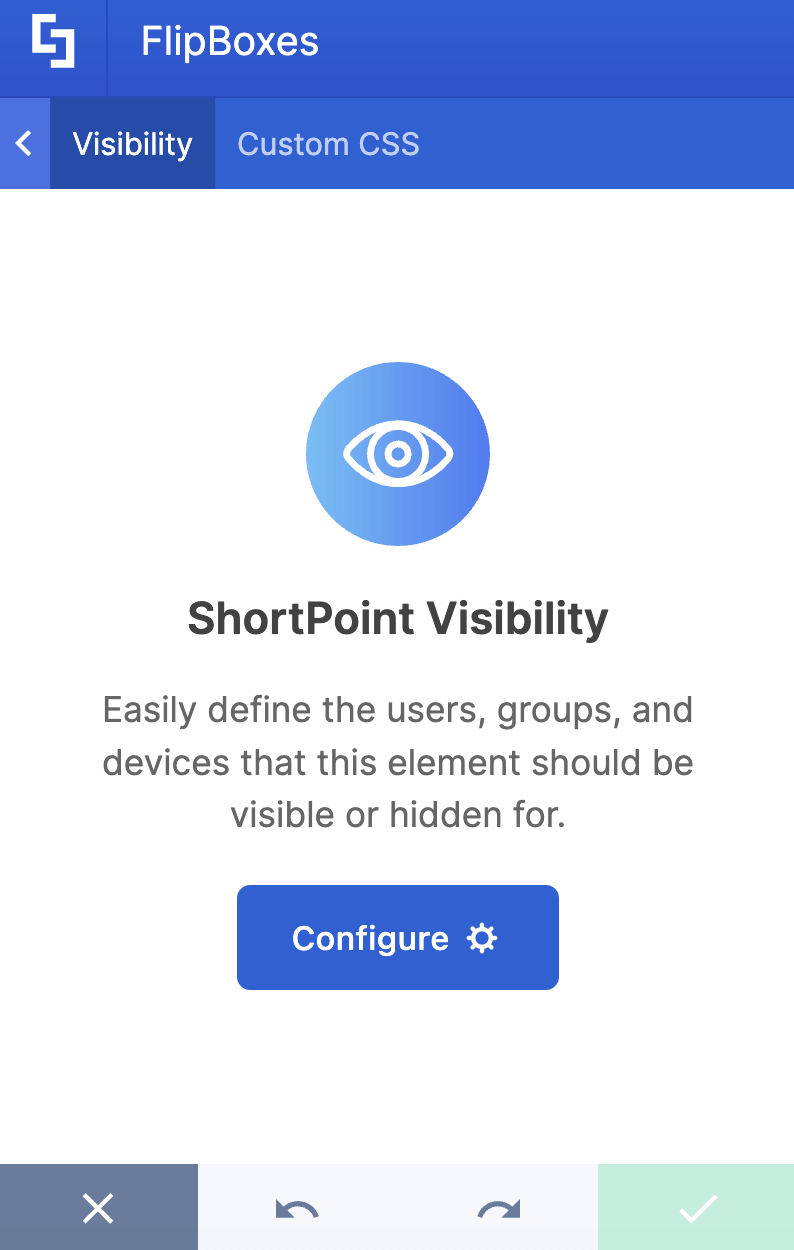
The Visibility tab allows you to specify who can see the Design Element and what type of devices it can be shown on. For more details, check out How to Use the ShortPoint Visibility Feature for Effective SharePoint Access Management.
F. Custom CSS Tab
This tab lets you add your own custom touch to the FlipBox Design Element using custom CSS, HTML, and JavaScript. This gives site owners and designers greater control over how the highlighted text will look.
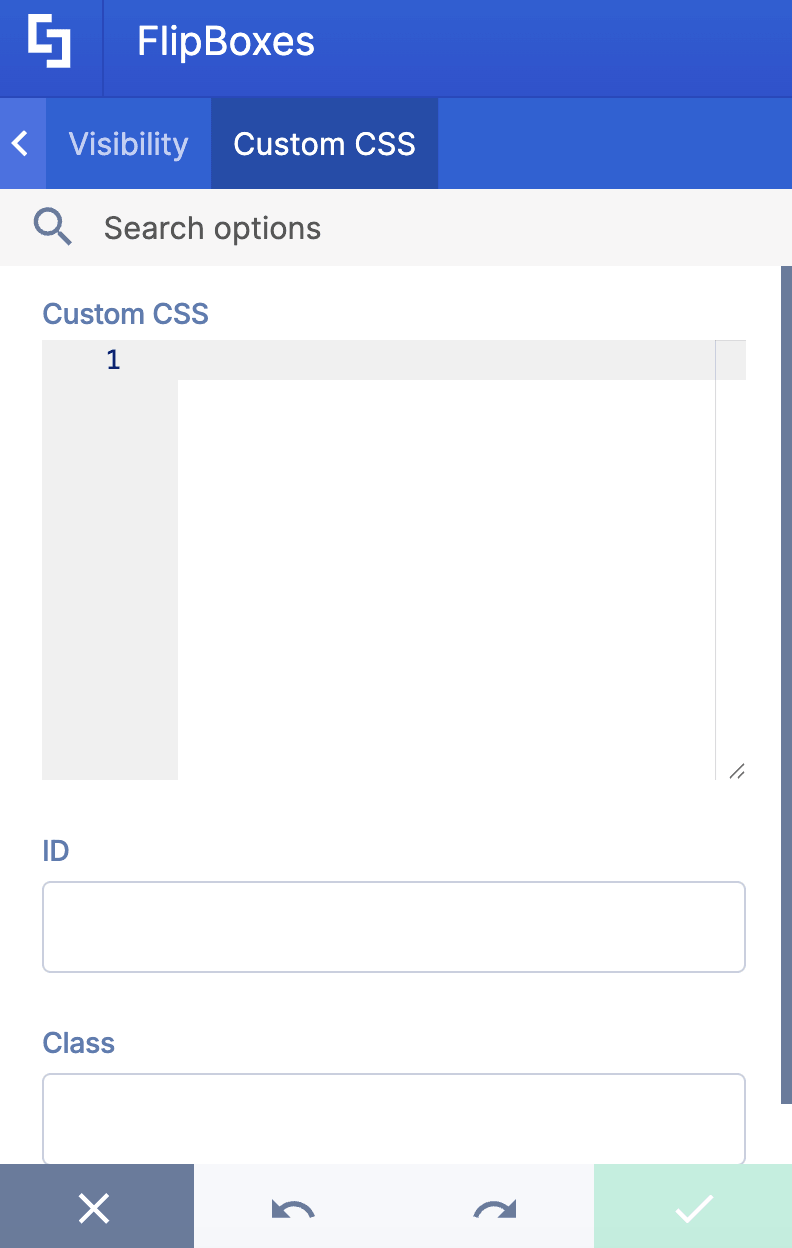
NOTECheck out our support article on How to Insert Custom CSS into a Page Builder Element? (Basic Tutorial) to know more about Custom CSS.
FlipBoxes Styles
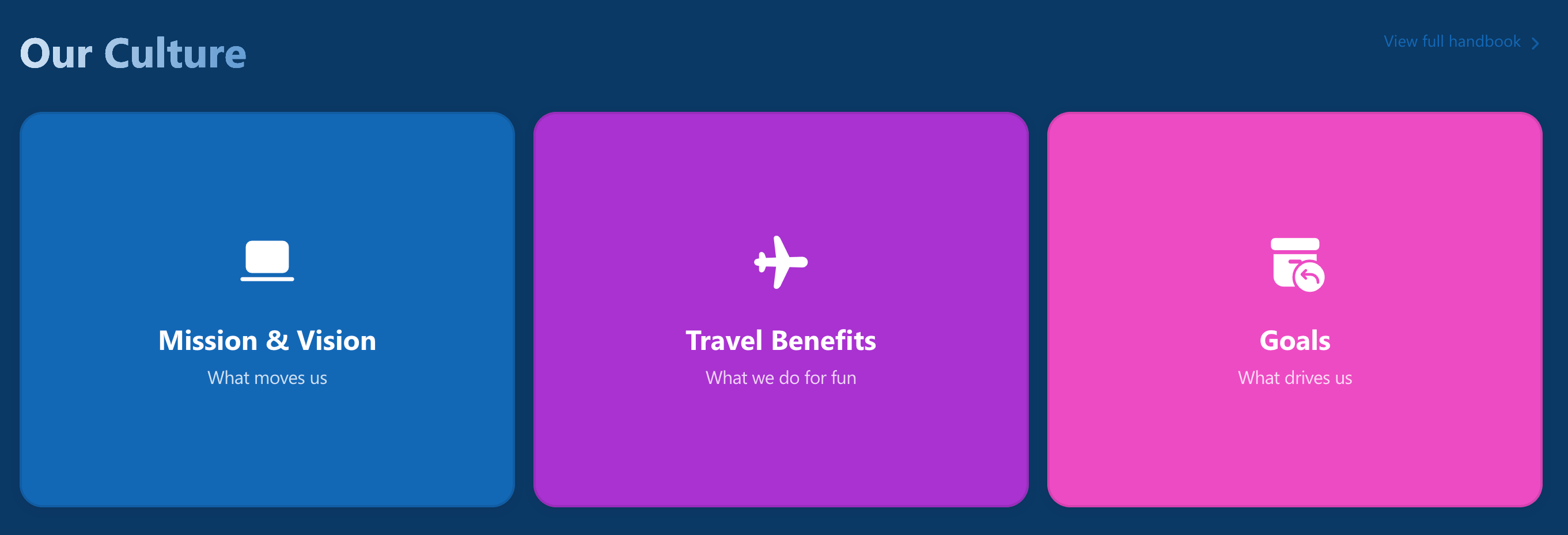
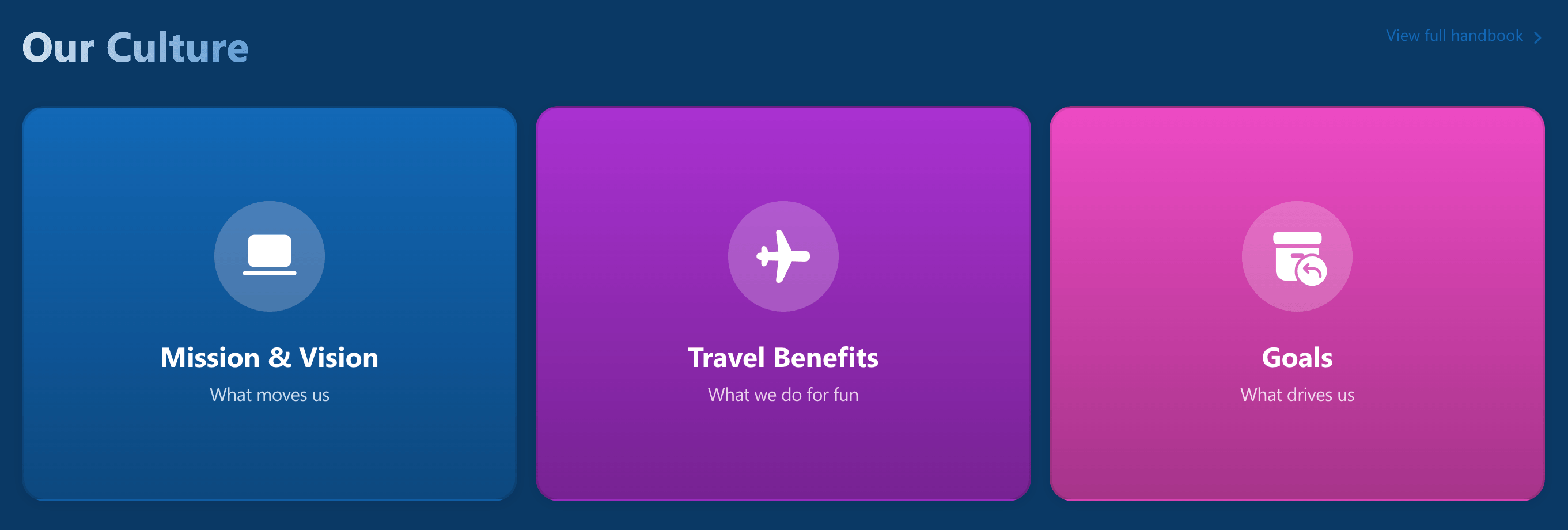
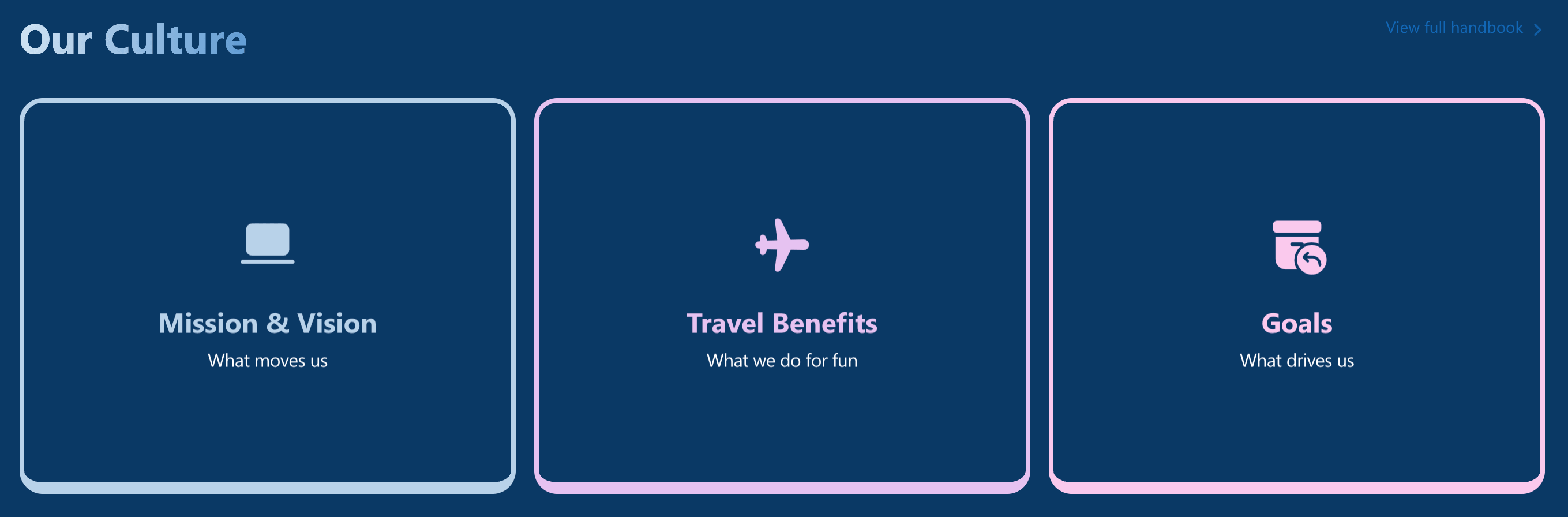
The FlipBoxes Design Element has three distinct styles that you can use to create a vibrant section on your SharePoint sites:
- Style 1 features vibrant, solid-colored backgrounds that create bold visual impact.
- Style 2 introduces a more layered approach by placing the icons within subtle circular backgrounds.
- Style 3 takes a completely different direction with an elegant outline-based design.
Practical Use Cases for the FlipBoxes Design Element
The FlipBoxes Design Element in ShortPoint offers versatile applications that can significantly enhance your SharePoint site and overall user experience. Here are some practical use cases where this interactive series of flipboxes can be especially effective:
- Highlight Key Services
Use flipboxes to showcase your organization's core services. The front side can display an engaging icon and a short title, while the back side reveals detailed information, links, or calls to action, making it easier for users to explore your offerings without cluttering the page.
- Feature Team Member Profiles
Create visually appealing and interactive team bios. Present a team member's photo or icon on the front, then flip to display their role, contact details, or a brief bio, improving engagement and internal communication within your intranet.
- Display Important Announcements or Updates
Use the flipboxes to draw attention to critical updates or news. The animated flip effect grabs user attention on both desktop and mobile devices, ensuring your messages are seen.
- Promote Events or Training Sessions
Showcase upcoming events with dates and titles on the front, and flip to reveal registration links, detailed descriptions, or multimedia content such as videos, enhancing participation and awareness.
- Present Pricing or Product Information
For organizations that share product or pricing details internally, flipboxes allow you to display concise summaries on the front and more comprehensive data or links on the back, optimizing space and maintaining a clean layout.
- Integrate with SharePoint Lists and Libraries
By connecting flipboxes to SharePoint sources via ShortPoint Connect, you can dynamically display content such as posts, documents, or news items, automatically updating and keeping your intranet fresh without manual edits.
Start Designing with the FlipBoxes Design Element
FlipBoxes can be an easy yet powerful tool to build interactive and visually engaging content that supports your organization's communication goals and enhances the digital workplace experience.
Getting started is easier than you think! In just a few clicks, you can set up your first FlipBoxes and keep your team engaged. Simply update to the latest ShortPoint SPFx version (8.8.4.0) and follow our interactive tutorial to hit the ground running.
New to ShortPoint? We'd love for you to explore everything we offer with a FREE 15-day trial — no strings attached. Or book a one-on-one demo with our team to see the FlipBoxes in action alongside all the other great things ShortPoint can do.
Frequently Asked Questions
What is the FlipBoxes Design Element in SharePoint?
A FlipBox is an interactive content box design element available in ShortPoint that allows you to create visually engaging, flipping boxes on your SharePoint website. It enhances the visual experience for users by displaying different content on the front and back sides of the box, optimized for all devices, including mobile devices.
How do I add a FlipBox to my SharePoint site?
To add a FlipBox, you need to have the ShortPoint SPFx version 8.8.4.0 or later installed. Then, edit your SharePoint page, insert the FlipBoxes Design Element, and customize the content and design via the Content and Design tabs. Finally, save your changes to see the FlipBox live on your site.
What customization options are available for FlipBoxes?
FlipBoxes offer extensive customization, including adding icons, titles, descriptions, buttons, and clickable links on both front and back sides. You can control colors, styles, content alignment, background images, or videos, and apply different styles and animation transitions to create a unique and interactive experience.
Can FlipBoxes be connected to SharePoint data sources?
Yes! Using the Connect tab, FlipBoxes can be linked to SharePoint Lists, Document Libraries, News, and external sources like Microsoft Graph API, Teams, and Outlook. This allows your FlipBoxes to display dynamic and automatically updated content without manual edits.
Are FlipBoxes responsive and mobile-friendly?
Absolutely. FlipBoxes created with ShortPoint are fully responsive and optimized for viewing on all devices, including mobile devices, ensuring a seamless user experience regardless of screen size.
What are some practical uses for FlipBoxes on a SharePoint site?
FlipBoxes are perfect for highlighting key services, showcasing team member profiles, displaying important announcements, promoting events or training sessions, presenting pricing or product information, and integrating dynamic content from SharePoint sources to keep your intranet fresh and engaging.
Can I add custom CSS or scripts to FlipBoxes?
Yes, the Custom CSS tab allows site owners and designers to add custom CSS, HTML, and JavaScript to further tailor the FlipBox’s appearance and behavior, giving you greater control over your SharePoint site's design.
Is coding knowledge required to use FlipBoxes?
No coding expertise is needed. ShortPoint’s FlipBoxes Design Element is a no-code tool designed for easy use by ShortPoint designers, enabling you to build interactive and professional content boxes quickly and efficiently.
How does the FlipBox improve user engagement on my SharePoint site?
By adding interactive flip animations and visually appealing design, FlipBoxes grab user attention and make exploring content more enjoyable, which can increase user interaction and improve the overall user experience on your SharePoint site.
Related articles:
- How to Add an Online World Clock to SharePoint Sites Using the World Clock Design Element
- How to Embed Canva into SharePoint Using the Canva Design Element
- How to Create a Breadcrumb Navigation in SharePoint Online Using the Breadcrumb Design Element
- How to Add Customer Testimonials to SharePoint Using the Testimonials Design Element
- How to Create SharePoint Calendar Using the Calendar Design Element
- How to Create SharePoint Announcements Using the Announcement Design Element
