 Try ShortPoint now
Recently built corporate content, such as presentations or infographics, using Canva? Discover how the Canva Design Element can help you embed Canva designs to your SharePoint page. With it, you can showcase your eye-catching designs effortlessly and improve your page's visual appeal.
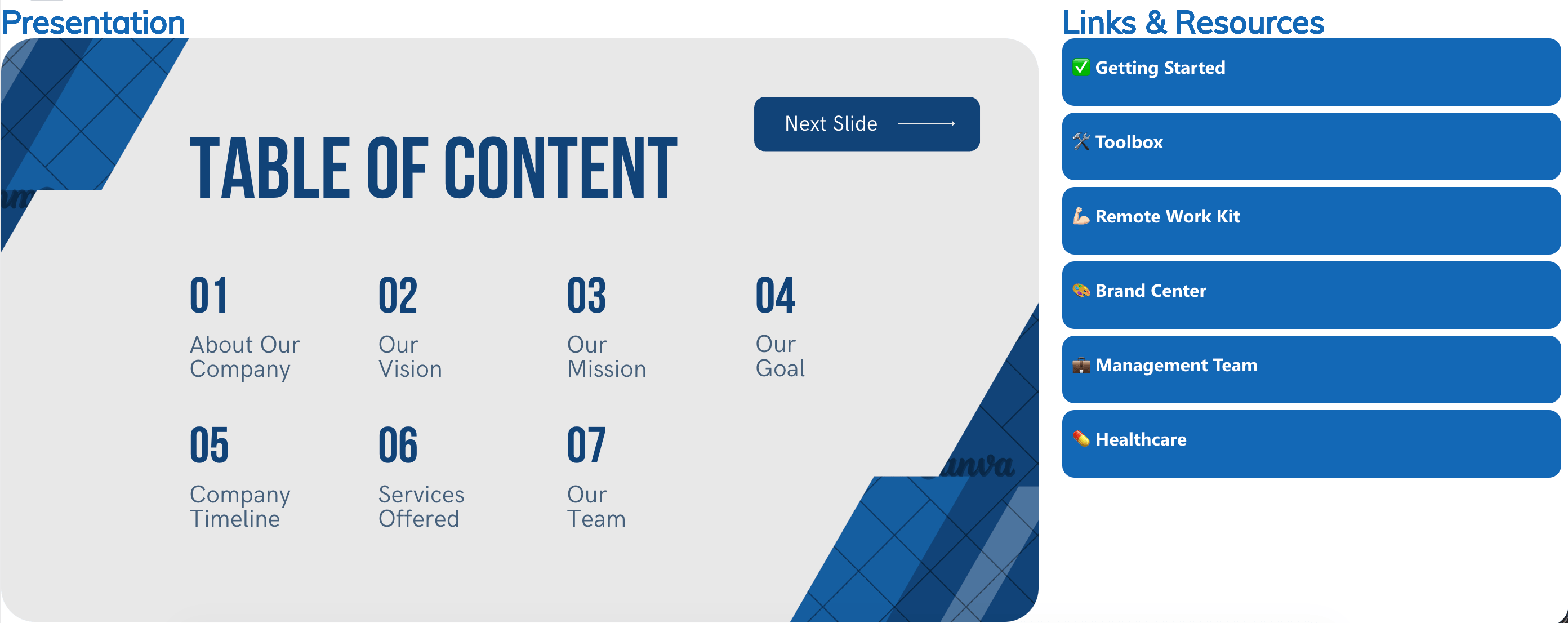
TABLE OF CONTENTS
- Prerequisites
- What Is the Canva Design Element?
- Interactive Tutorial
- Step-by-step Tutorial
- Canva Features
- Practical Ways to Use the Canva Design Element in SharePoint
- Start Designing with the Canva Design Element
- Frequently Asked Questions
- What is the Canva Design Element in SharePoint?
- How do I embed a Canva design into SharePoint?
- Can I customize how my embedded Canva design appears?
- Will my embedded Canva design update automatically?
- Who can see my embedded Canva designs?
- What should I do if I want to remove an embedded Canva design?
- Are there any prerequisites for using the Canva Design Element in SharePoint?
- Can I add custom CSS or scripts to my embedded Canva design?
Prerequisites
- You must have the ShortPoint SPFx version 8.8.4.0 or later installed in your SharePoint environment.
- You must be a ShortPoint Designer with an active license.
What Is the Canva Design Element?
The Canva Design Element is available for ShortPoint SPFx version 8.8.4.0 and up.
It's designed to help you embed Canva and showcase your stunning Canva designs on your SharePoint pages, bringing them to life.
You'll enjoy complete customization freedom, with the ability to adjust settings and control how it will appear on your page, creating your ideal design.
Interactive Tutorial
Click Get Started to easily add Canva to your SharePoint page:
NOTETo learn more about how to get the Canva Smart Embed Link, check out How to get Your Canva Design’s Smart Embed Link.
Step-by-step Tutorial
Learn how to embed Canva in SharePoint using the Canva Design Element to easily share and showcase your stunning Canva designs on your page.
Step 1: Edit the ShortPoint Web Part
- Go to the SharePoint page you want to use and click Edit.

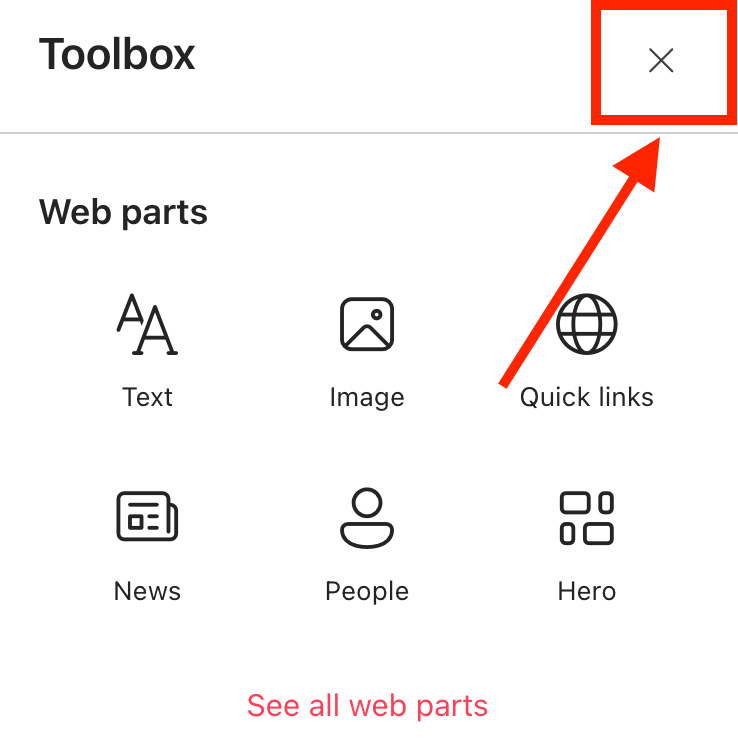
- Close the Toolbox:
- Click the Edit properties icon:

Step 2: Insert the Canva Design Element
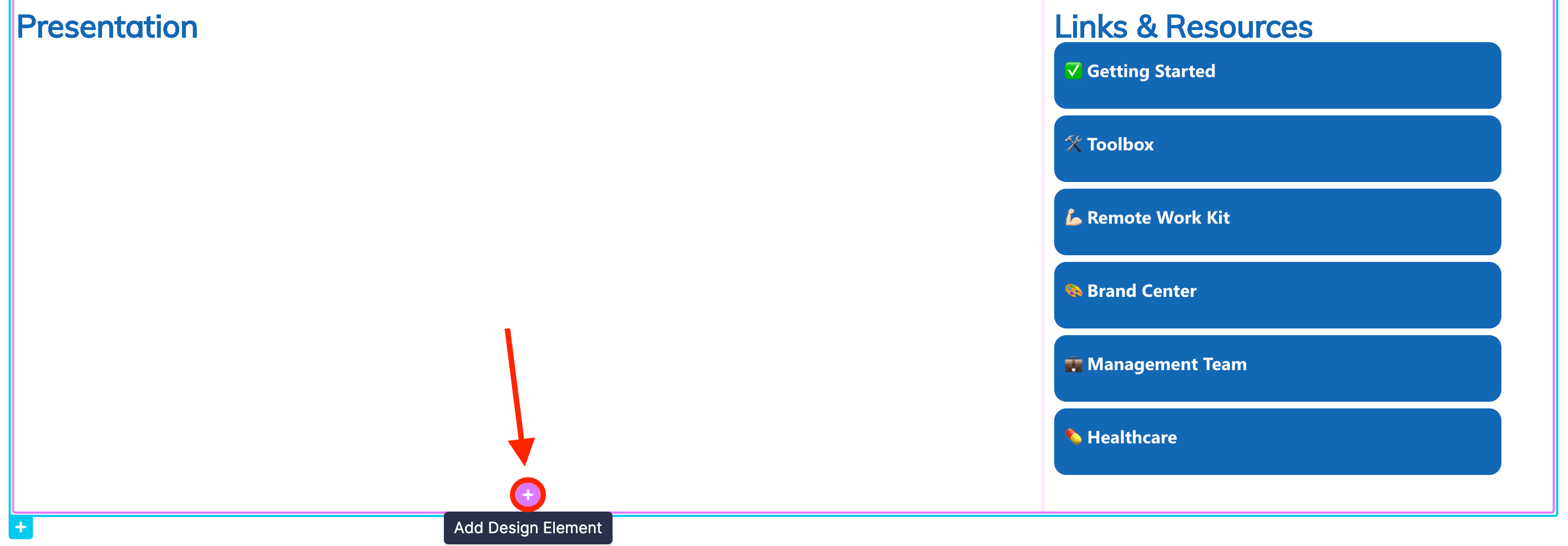
- Choose where you want to add the Canva and click the plus icon:
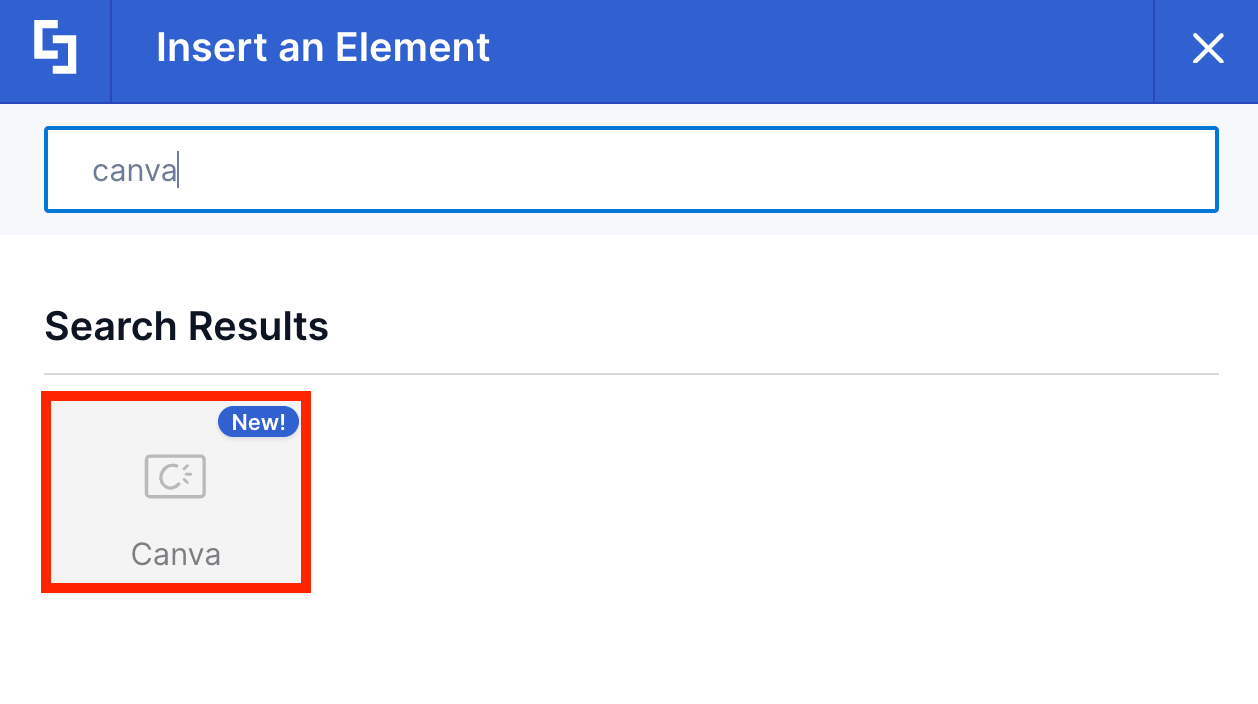
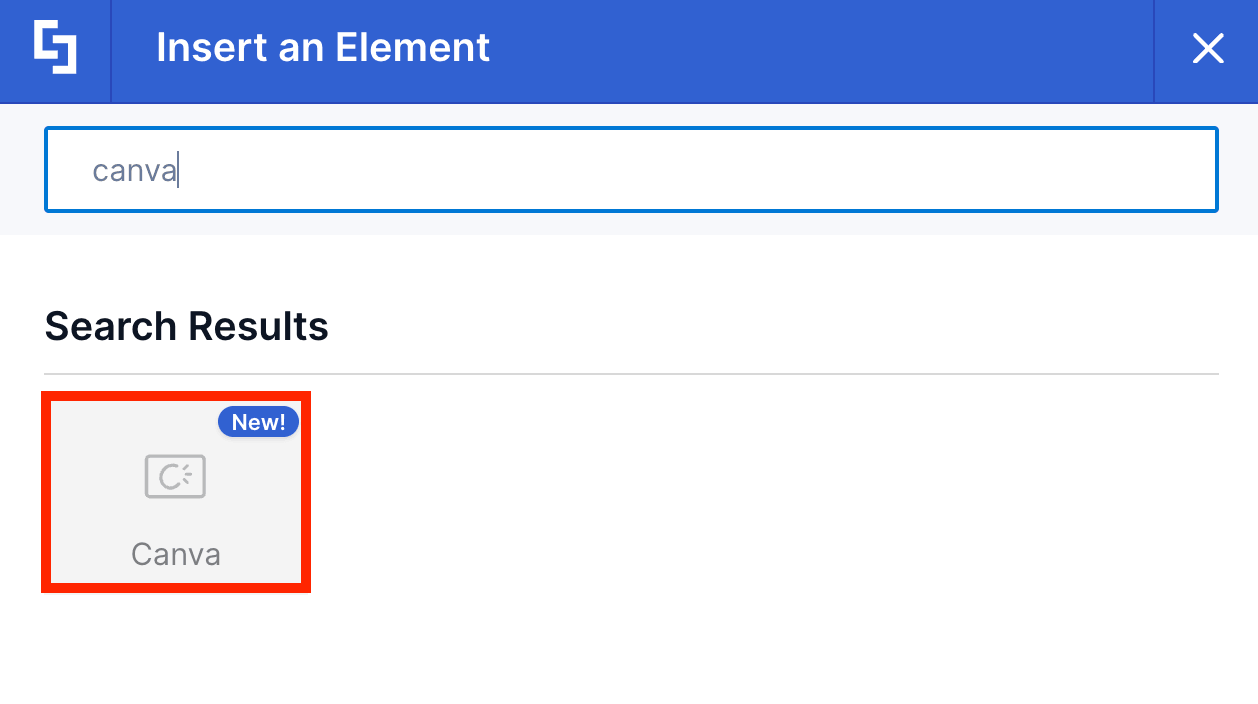
- Use the search box to look for Canva and click it:
Step 3: Customize the Content
- Go to the Content tab.
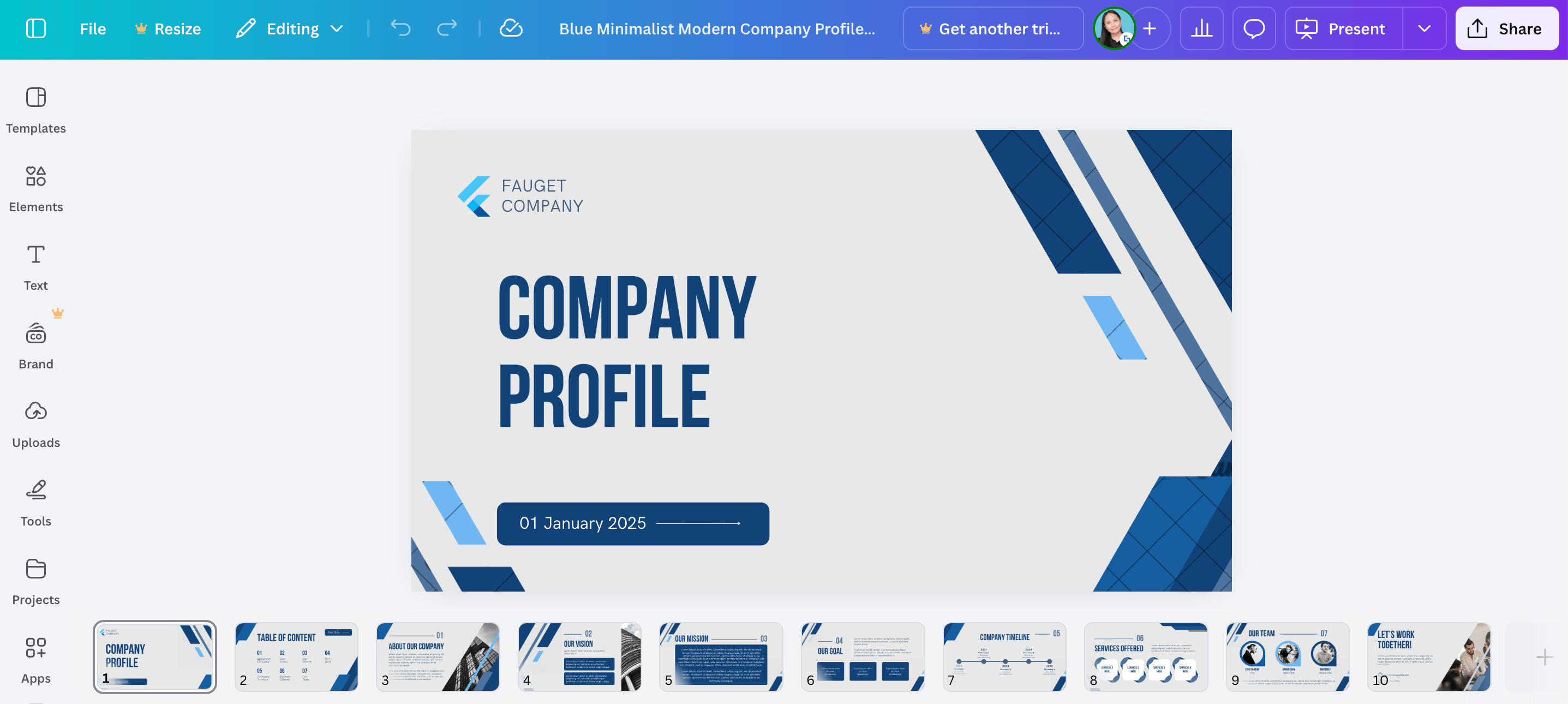
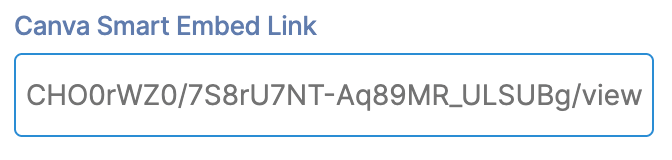
- Paste your Canva Design’s Smart Embed Link:
NOTETo learn more about how to get the Canva Smart Embed Link, check out How to get Your Canva Design’s Smart Embed Link.- Customize the content of the Canva Design Element according to your preferences.
Step 4: Customize the Design
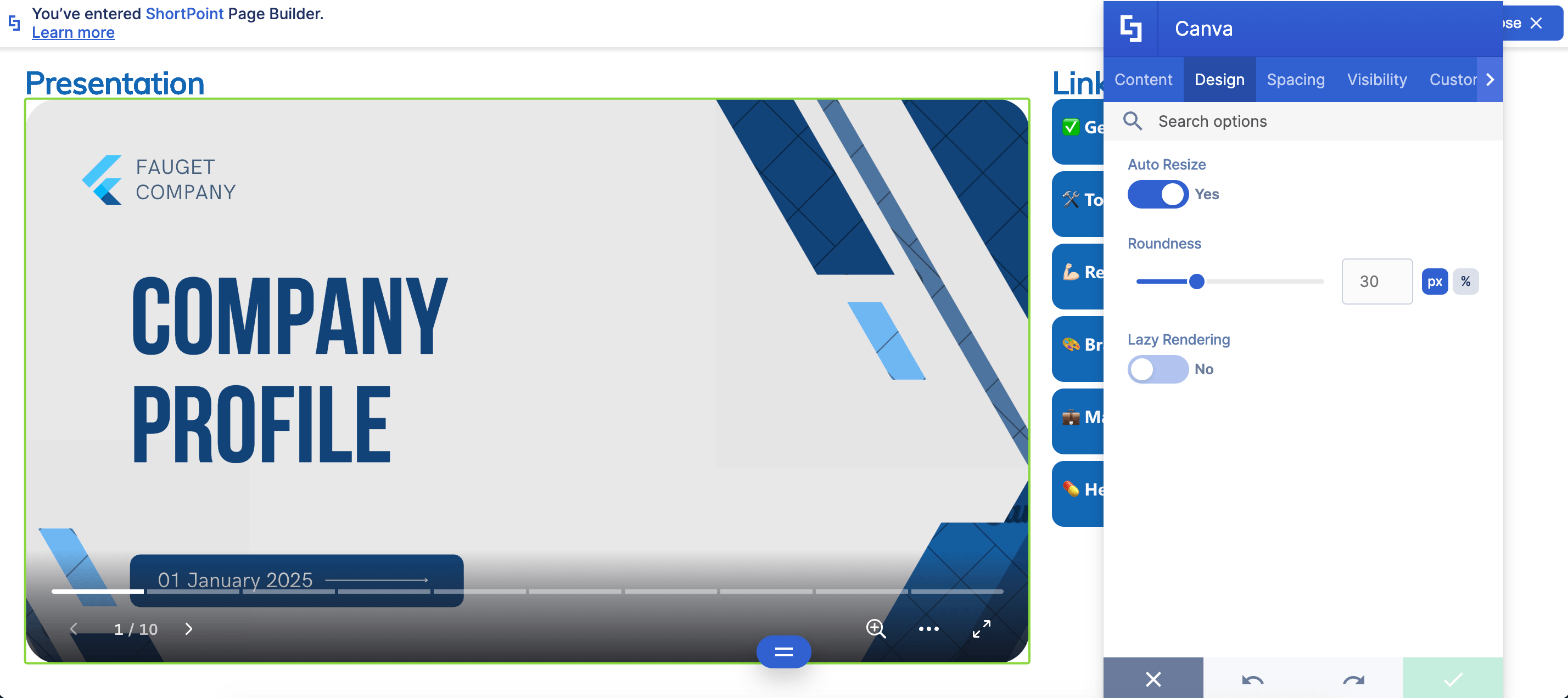
- Go to the Design tab.
- Customize the look of the Canva Design to your liking.
- Once satisfied, click the green check mark.
NOTETo learn more about the features you can customize for Canva, check out Canva Features.
Step 5: Save
- Click the eye icon to see your page in real-time:

- Save your changes:

Success! You've created and showcased your beautiful Canva designs in SharePoint. This Design Element gives you an easy way to draw focus to your amazing designs and keep your page visitors interested, allowing them to view your content seamlessly.
Canva Features
Need to adjust your Canva embed? There are numerous useful settings available in the Canva Settings window, making it easy to present your designs exactly as you envision. You can navigate through different tabs to customize the content, design, visibility, and spacing of your embed. This flexibility ensures your Canva designs integrate seamlessly with your SharePoint page and provide a great user experience for the people who visit your site.
A. Content Tab
The Content tab is where you can edit the content inside the Canva Design Element. Here are the options you can tweak:
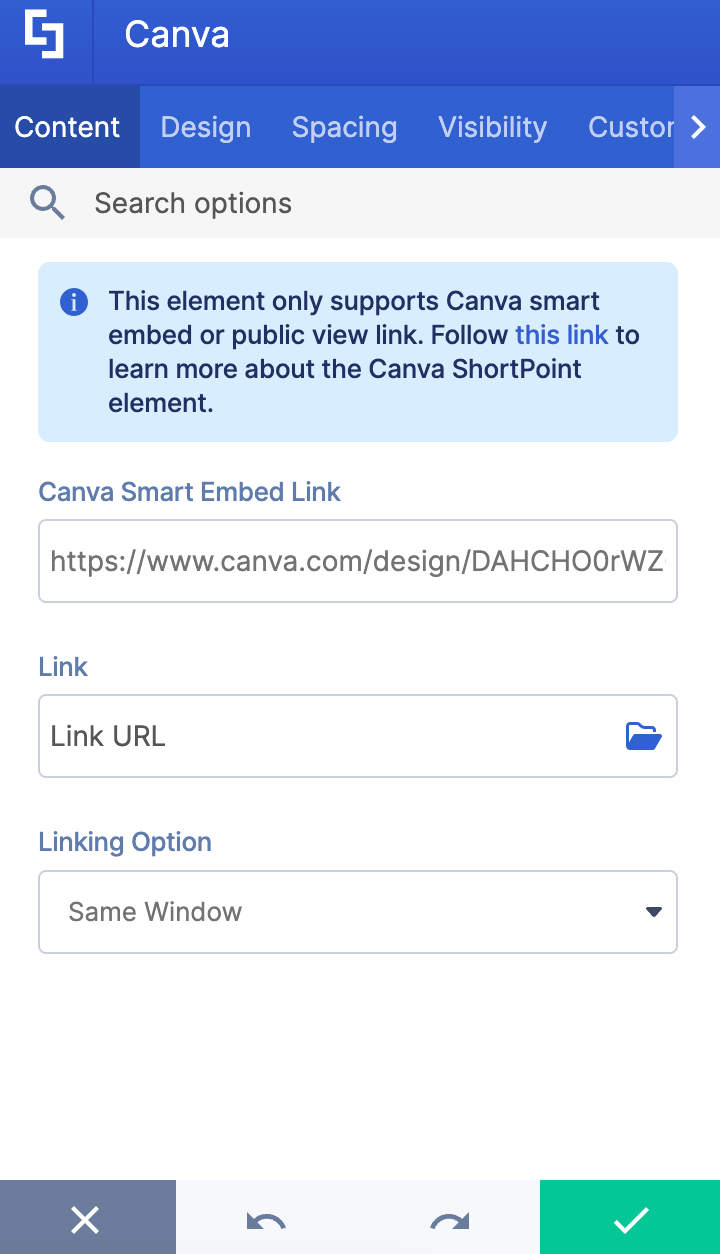
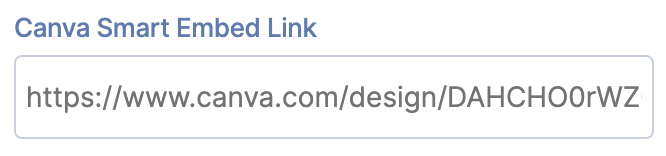 | Canva Smart Embed Link | allows you to add the embed URL of your Canva design. For more information, check out How to get Your Canva Design’s Smart Embed Link. |
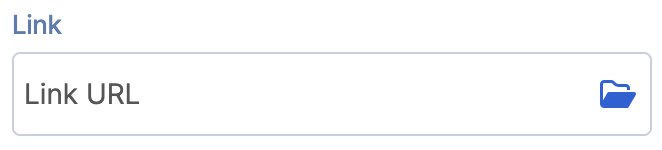 | Link | allows you to add a clickable link. |
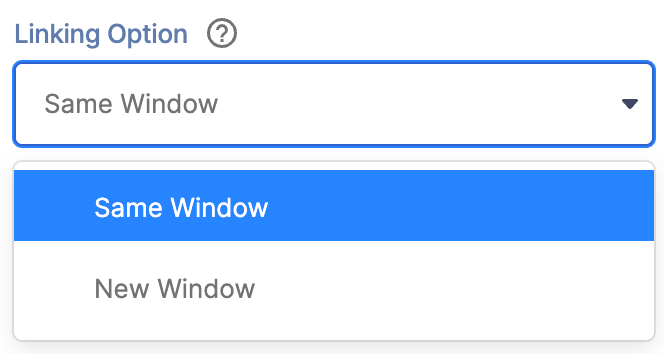 | Linking Options | allows you to choose how the clickable link will be opened. |
B. Design Tab
The Design tab is where you get to customize the look and feel of your Canva embed. Here are the options you can modify:
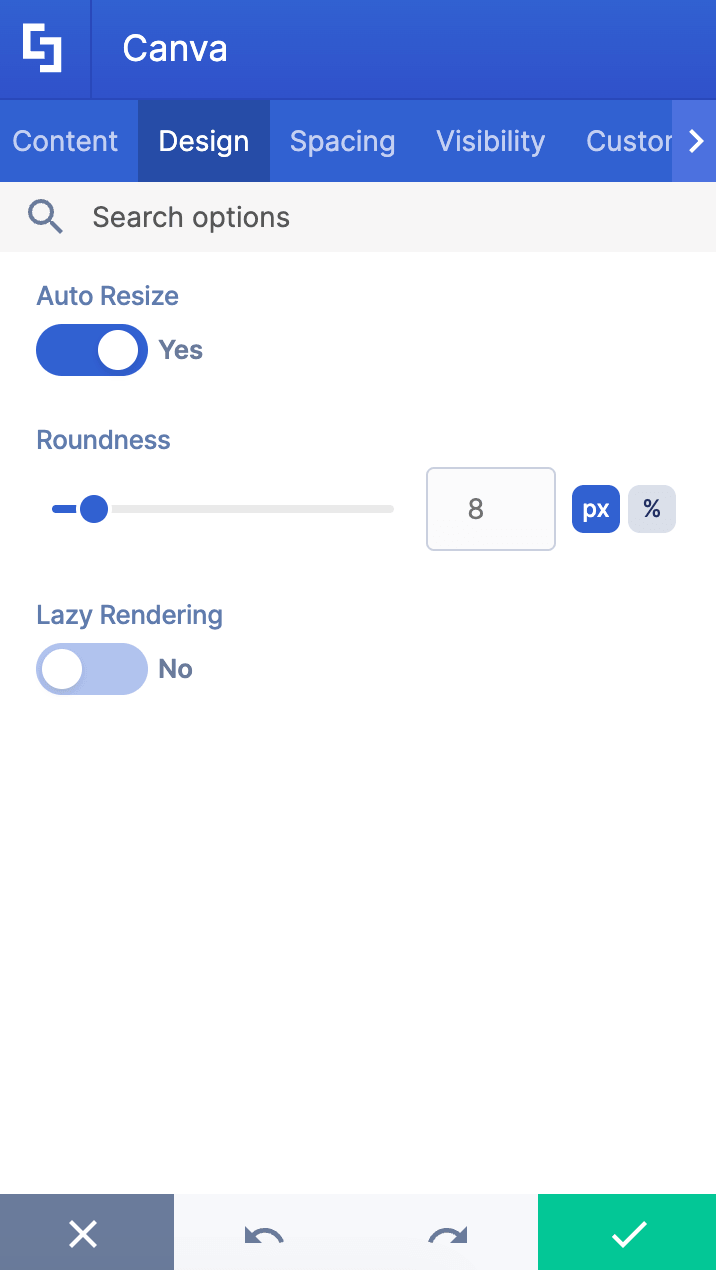
 | Auto Resize | when enabled, the embed will be automatically resized according to the width and height of its container. |
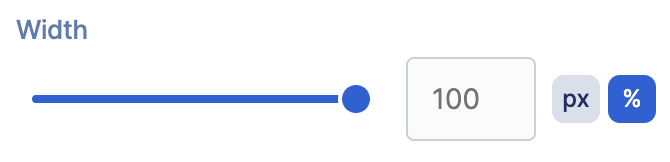 | Width | allows you to adjust the width value. |
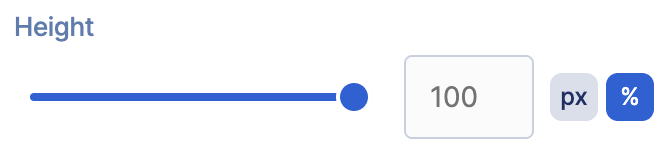 | Height | allows you to adjust the height value. |
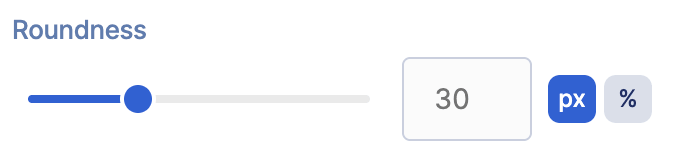 | Roundness | allows you to change the roundness value of the corners of the Canva embed. |
 | Lazy Rendering | when enabled, lazy rendering will be applied. For more information, check out Enable Lazy Render / Lazy Loading Options on ShortPoint Elements. |
C. Spacing Tab
The Spacing tab allows you to adjust the space around the Canva embed. These are the options you can change:
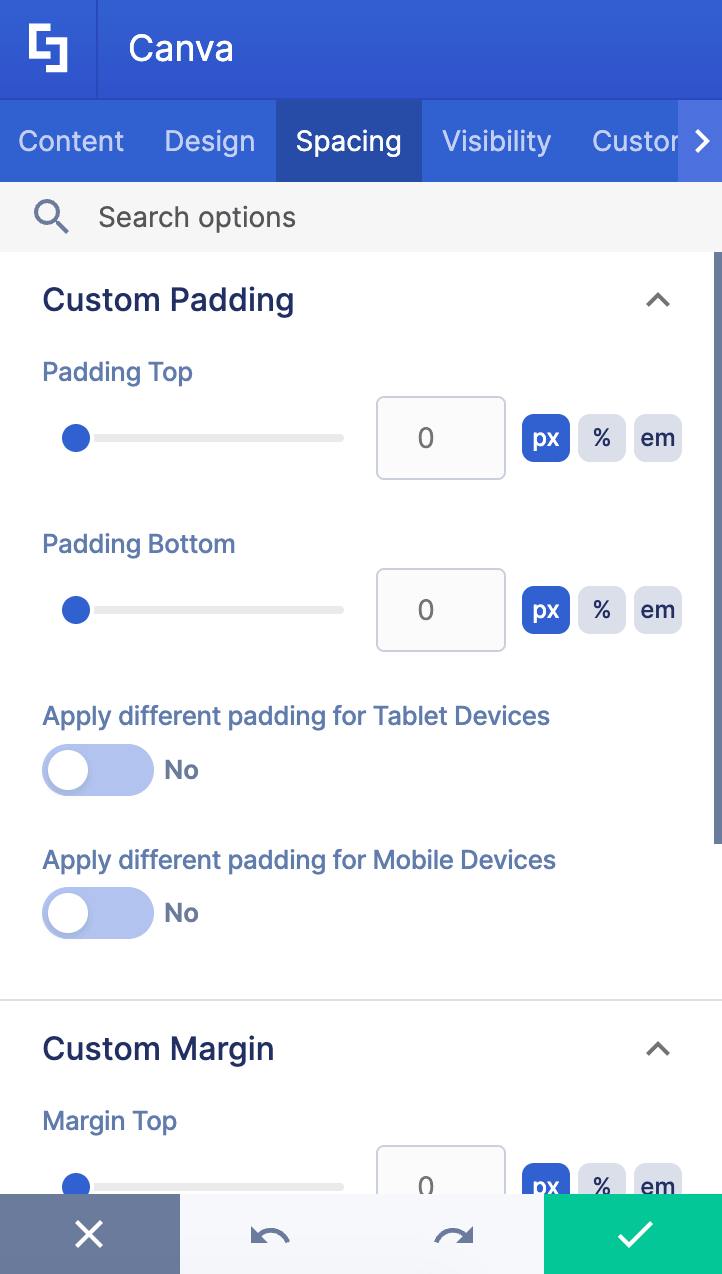
CUSTOM PADDING
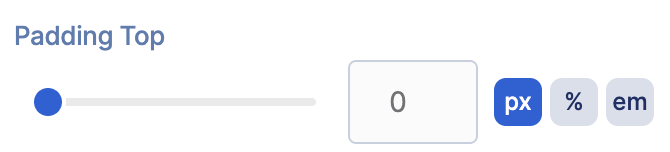 | Padding Top | allows you to change the padding top value. |
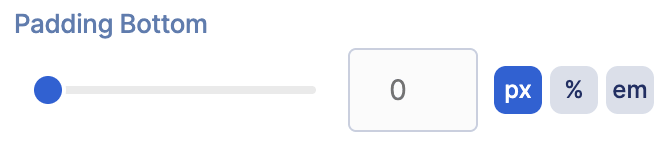 | Padding Bottom | allows you to change the padding bottom value. |
 | Apply different padding for Tablet Devices | when enabled, you’ll be able to change the padding values for tablet devices. |
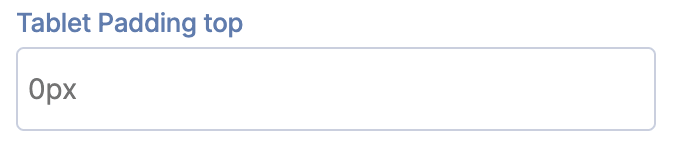 | Tablet Padding Top | allows you to change the padding top value for tablet devices. |
 | Tablet Padding Right | allows you to change the padding right value for tablet devices. |
 | Tablet Padding Bottom | allows you to change the padding-bottom value for tablet devices. |
 | Tablet Padding Left | allows you to change the padding left value for tablet devices. |
 | Apply different padding for Mobile Devices | when enabled, you’ll be able to change the padding values for mobile devices. |
 | Mobile Padding Top | allows you to change the padding top value for mobile devices. |
 | Mobile Padding Right | allows you to change the padding right value for mobile devices. |
 | Mobile Padding Bottom | allows you to change the padding bottom value for mobile devices. |
 | Mobile Padding Left | allows you to change the padding left value for mobile devices. |
CUSTOM MARGIN
 | Margin Top | allows you to change the margin top value. |
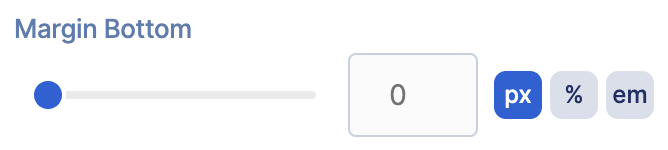 | Margin Bottom | allows you to change the margin bottom value. |
 | Apply different margin for Tablet Devices | when enabled, you’ll be able to change the margin values for tablet devices. |
 | Tablet Margin Top | allows you to change the margin top value for tablet devices. |
 | Tablet Margin Right | allows you to change the margin right value for tablet devices. |
 | Tablet Margin Bottom | allows you to change the margin bottom value for tablet devices. |
 | Tablet Margin Left | allows you to change the margin left value for tablet devices. |
 | Apply different margin for Mobile Devices | when enabled, you’ll be able to change the margin values for mobile devices. |
 | Mobile Margin Top | allows you to change the margin top value for mobile devices. |
 | Mobile Margin Right | allows you to change the margin right value for mobile devices. |
 | Mobile Margin Bottom | allows you to change the margin bottom value for mobile devices. |
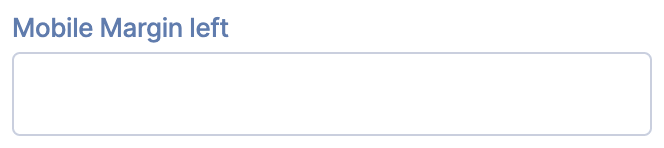 | Mobile Margin Left | allows you to change the margin left value for mobile devices. |
D. Visibility Tab
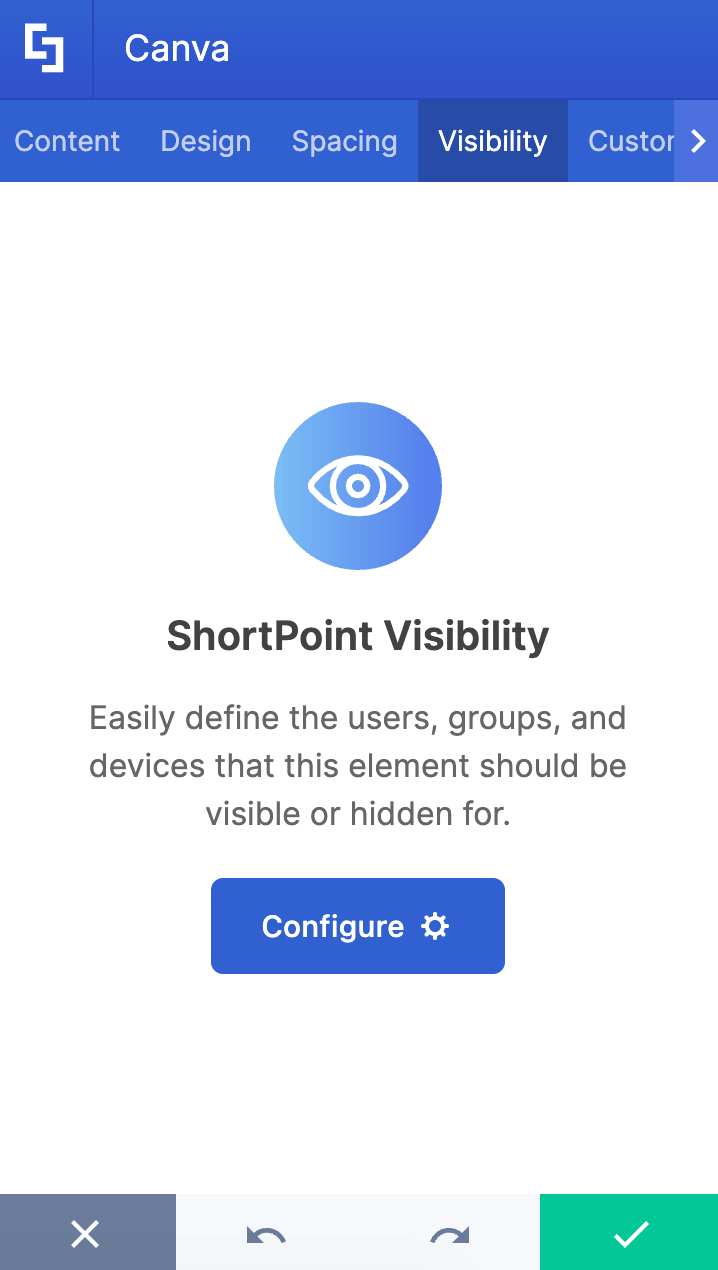
The Visibility tab allows you to specify who can see the Design Element and what type of devices it can be shown on. For more details, check out How to Use the ShortPoint Visibility Feature for Effective SharePoint Access Management.
E. Custom CSS Tab
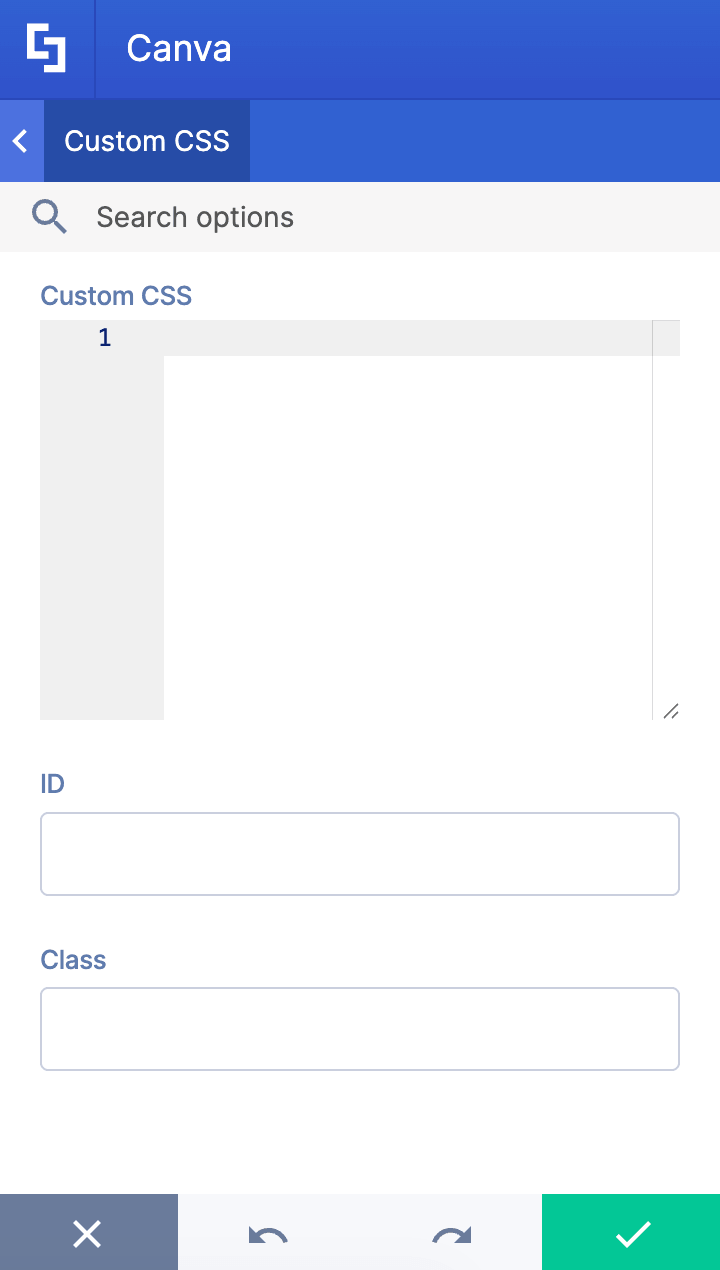
This tab lets you add your own custom touch to the Canva Design Element using custom CSS, HTML, and JavaScript. This gives site owners and designers greater control over how the highlighted text will look.
NOTECheck out our support article on How to Insert Custom CSS into a Page Builder Element? (Basic Tutorial) to know more about Custom CSS.
Practical Ways to Use the Canva Design Element in SharePoint
The Canva Design Element makes it easy to embed Canva designs directly into your SharePoint site, enhancing your intranet or team site experience with interactive and visually engaging content. Here are some practical ways this feature can improve your team's collaboration and communication:
- Onboarding and Training
Embed interactive presentations or training materials created in Canva right into your SharePoint site. This gives new hires and team members easy access to up-to-date onboarding content without having to navigate away from the platform, ensuring everyone is logged in and ready to work.
- Marketing and Communications
Share eye-catching content like infographics, flyers, or social media graphics to keep your team informed and engaged. With embedded Canva designs, your marketing materials stay current and visually appealing.
- Project Updates and Reports
Create visually rich project dashboards or status reports in Canva and embed them into SharePoint pages. This centralized approach helps your team easily read and interact with important data and information in one location.
- Event Promotion
Promote company events by embedding custom-designed invitations, schedules, or banners. Since embeds update automatically with any changes made in Canva, your audience will always see the latest details without needing to refresh or receive a separate message.
Start Designing with the Canva Design Element
By using the Canva Design Element, you can enhance team communication, streamline workflows, and create a more engaging digital workplace experience that accepts changes and updates seamlessly.
Your first Date List is just a few clicks away! Once it's up and running, your team will always stay informed and on track with the dates that matter most to your organization. Simply update to the latest ShortPoint SPFx version (8.8.4.0) and follow our interactive tutorial. It will guide you every step of the way.
Haven't tried ShortPoint yet? Start with a FREE 15-day trial and explore all the features at your own pace — no commitment needed. You can also schedule a one-on-one demo with our team to see the Canva Design Element and everything ShortPoint has to offer.
Frequently Asked Questions
What is the Canva Design Element in SharePoint?
The Canva Design Element is a feature available in ShortPoint that allows you to embed Canva designs directly into your SharePoint pages. It enables you to showcase your stunning Canva designs with full customization options for content, design, visibility, and spacing.
How do I embed a Canva design into SharePoint?
To embed Canva designs, you can copy the embed URL from Canva's Share menu at the top right-hand corner and paste it into the Canva Design Element on your SharePoint page.
Can I customize how my embedded Canva design appears?
Yes! The Canva Design Element provides multiple settings tabs including Content, Design, Visibility, and Spacing. You can adjust dimensions, corner roundness, resize padding, and specify who can see your embedded design.
Will my embedded Canva design update automatically?
Yes, any edits made to your original Canva design will automatically update in the embedded version on your SharePoint page, ensuring your content is always current.
Who can see my embedded Canva designs?
You can control visibility through the Visibility tab in the Canva Design Element. This allows you to specify which users or devices can access your embedded content, helping you manage team access and visitor experience.
What should I do if I want to remove an embedded Canva design?
To remove an embedded Canva design, simply delete the smart embed link from your SharePoint page or delete the Canva Design Element. This will unpublish the embedded content and prevent it from showing on your site.
Are there any prerequisites for using the Canva Design Element in SharePoint?
Yes, you must have the ShortPoint SPFx version 8.8.4.0 or later installed in your SharePoint environment, and you need an active license as a ShortPoint Designer.
Can I add custom CSS or scripts to my embedded Canva design?
Yes, the Canva Design Element includes a Custom CSS tab where you can add your own CSS, HTML, or JavaScript to further tailor the appearance and behavior of your embedded Canva content.
Related articles:
- How to Add an Online World Clock to SharePoint Sites Using the World Clock Design Element
- How to Create a FlipBox in SharePoint Using the FlipBoxes Design Element
- How to Create a Breadcrumb Navigation in SharePoint Online Using the Breadcrumb Design Element
- How to Add Customer Testimonials to SharePoint Using the Testimonials Design Element
- How to Create SharePoint Calendar Using the Calendar Design Element
- How to Create SharePoint Announcements Using the Announcement Design Element
