 Try ShortPoint now
Looking for an easy way to showcase online world clocks in SharePoint? Follow this guide to master the World Clock Design Element and create beautiful, customized world clocks for your SharePoint sites, enabling you to display multiple time zones effortlessly and keep your users informed with the current time across different locations.
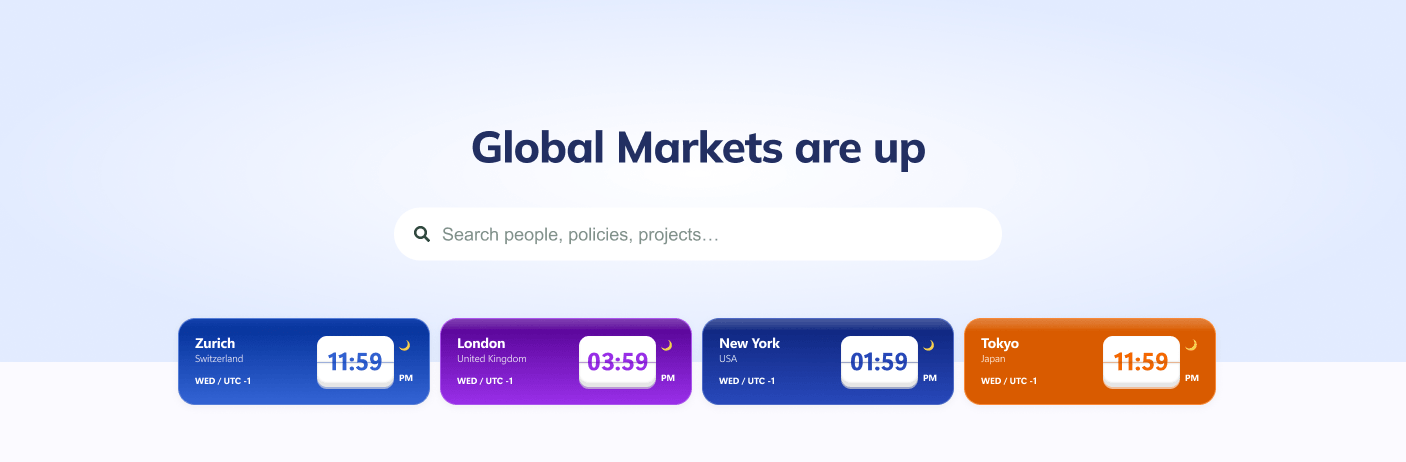
TABLE OF CONTENTS
- Prerequisites
- What Is the World Clock Design Element?
- Interactive Tutorial
- Step-by-step Tutorial
- World Clocks Features
- World Clocks Style
- Practical Ways to Use the World Clock Design Element
- Start Designing with the World Clock Design Element
- Frequently Asked Questions
- What is an online world clock in SharePoint?
- How can I add an online world clock to my SharePoint site?
- What customization options are available for the World Clock Design Element?
- Does the online world clock support automatic adjustments for Daylight Saving Time (DST)?
- Can I display multiple time zones simultaneously?
- Is it possible to link the World Clock to external data sources?
- Who can benefit from adding an online world clock to SharePoint?
- What are the prerequisites for using the World Clock Design Element?
Prerequisites
- You must have the ShortPoint SPFx version 8.8.4.0 or later installed in your SharePoint environment.
- You must be a ShortPoint Designer with an active license.
What Is the World Clock Design Element?
Starting with ShortPoint SPFx version 8.8.4.0, you can use the World Clock Design Element to add beautiful and dynamic online clocks to your SharePoint page.
This feature gives you full content control and lets you customize every visual element—including style, color schemes, and time format—to perfectly complement your website's branding and enhance the user experience.
The best part? It provides accurate current time across multiple time zones in different regions worldwide, ensuring your users stay informed no matter their location.
Interactive Tutorial
Click Get Started to easily add online world clocks to your SharePoint page and display the current time across multiple time zones for your users.
NOTETo learn more about the features you can customize for World Clocks,
check out World Clocks Features.
Step-by-step Tutorial
Learn how to insert online world clocks into SharePoint using the World Clock Design Element, a powerful tool to display the current time across multiple time zones on your SharePoint sites.
Step 1: Edit the ShortPoint Web Part
- Go to the SharePoint page you want to use and click Edit.

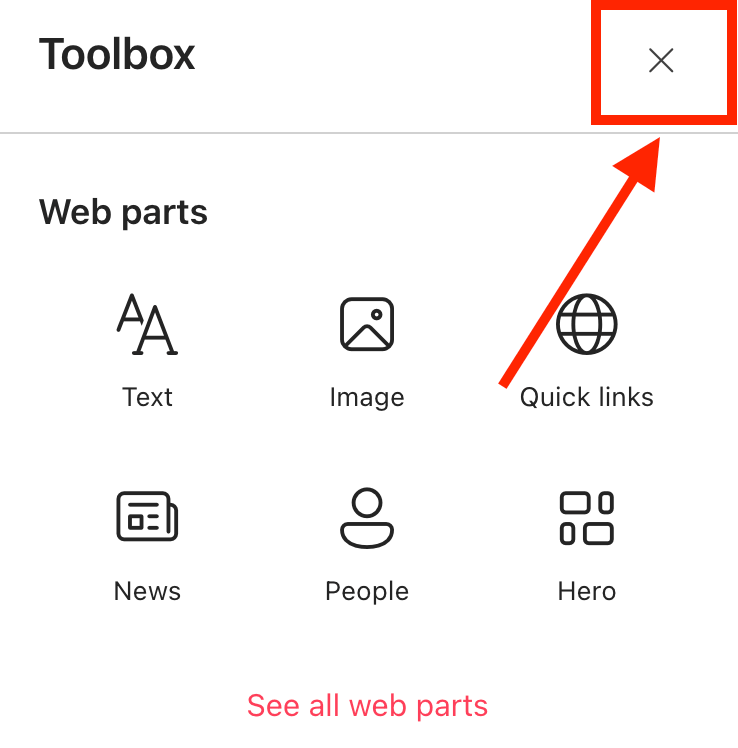
- Close the Toolbox:
- Click the Edit properties icon:

Step 2: Insert the World Clock Design Element
- Choose where you want to add the World Clock and click the plus icon:

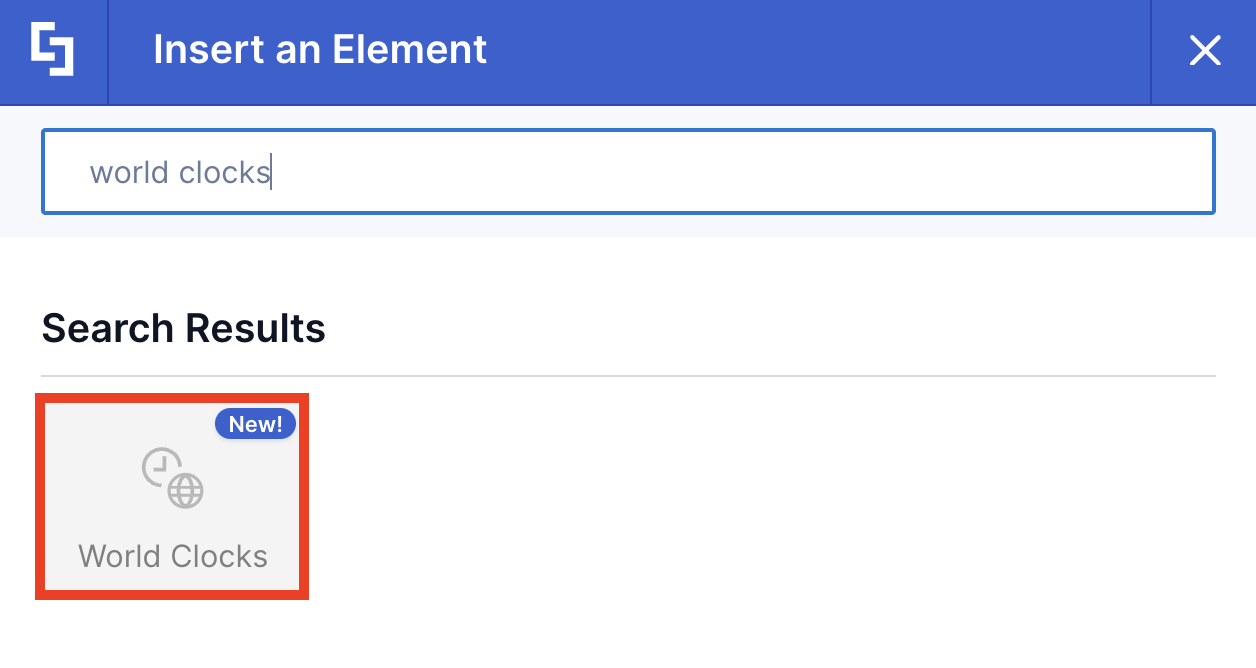
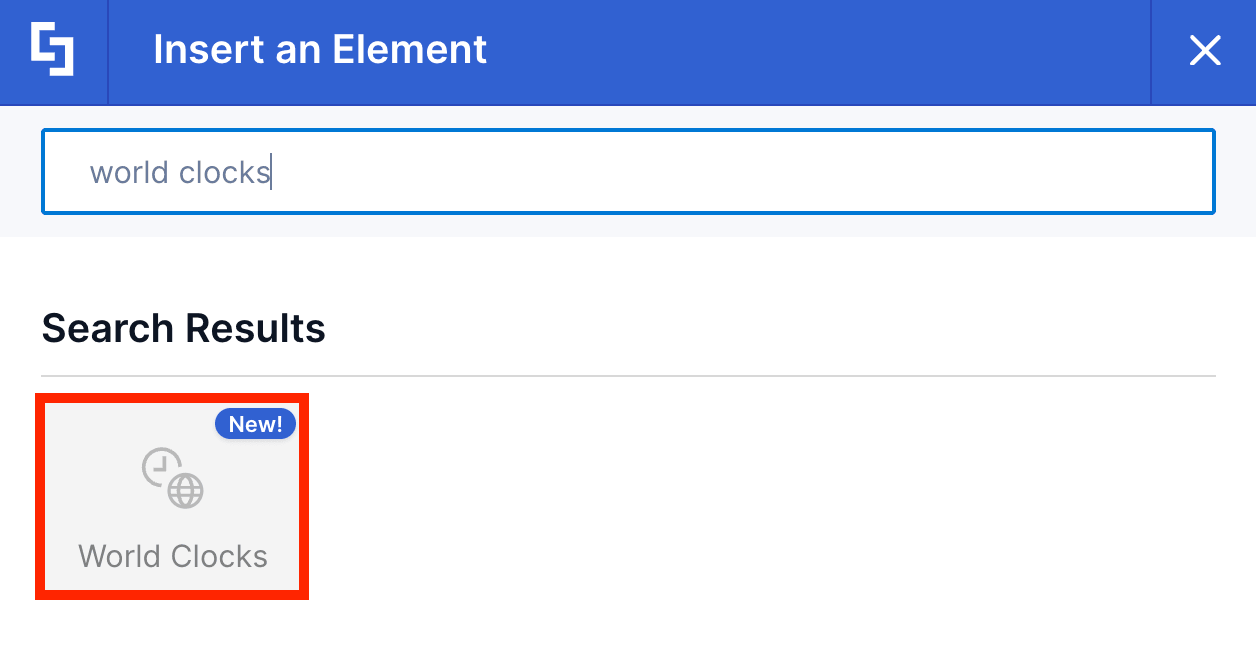
- Use the search box to look for World Clocks and click it:
Step 3: Customize the Content
- Go to the Content tab.
- Click the cogwheel icon of the first world clock:

- Edit its content to your liking.
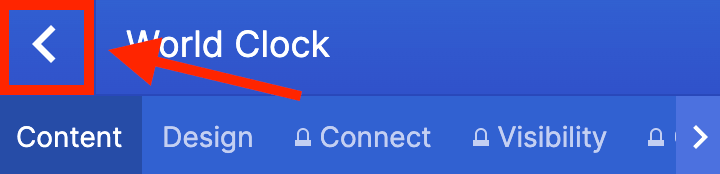
- Click the back icon:
- Repeat the steps for the other world clocks.
NOTETo learn more about the features you can customize for World Clocks,
check out World Clocks Features.
Step 4: Customize the Design
- Go to the Design tab.
- Customize the look of the World Clocks according to your preferences.
- Go to the Advanced tab.
- Modify the design even further.
- Once satisfied, click the green check mark.
NOTETo learn more about the features you can customize for World Clocks,
check out World Clocks Features.
Step 5: Save
- Click the eye icon to see your page in real-time:

- Save your changes:

Fantastic! You've successfully set up online world clocks on your SharePoint page. Use this World Clock Design Element whenever you need to showcase different time zones on your sites. Now, your page viewers will surely stay informed with the current time across various locations.
World Clocks Features
Interested in customizing your online world clocks? You'll find an array of practical settings in the World Clock Settings window designed to help you showcase your content just right.
A. Items Tab
The Items tab is where you can edit the content inside the World Clock Design Element. Here are the options you can tweak:
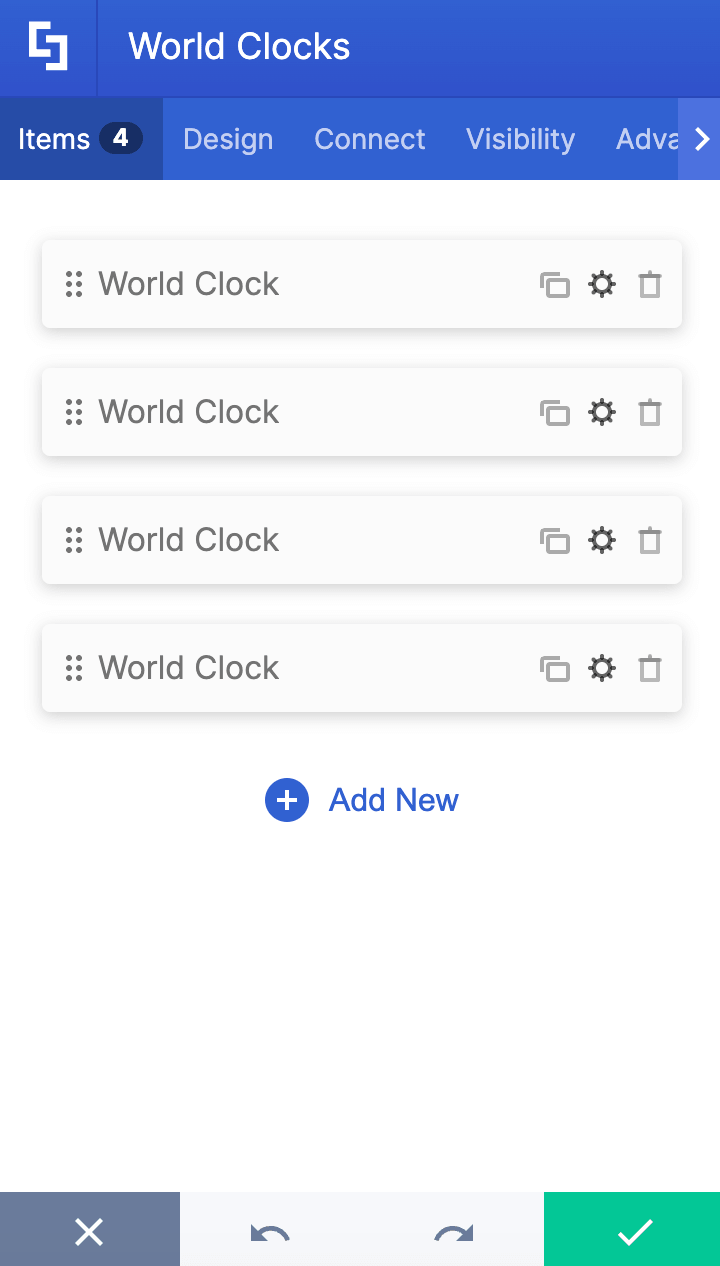
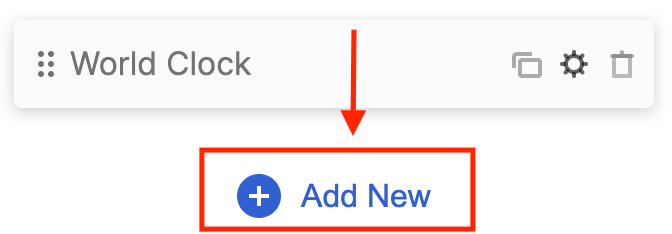 | Add New | allows you to add a new item. |
 | Drag icon | will enable you to rearrange the items. |
 | Duplicate icon | allows you to copy an item. |
 | Cogwheel icon | allows you to edit the content of an item. See the table below to view the options you can find inside. |
 | Trash icon | allows you to remove an item. |
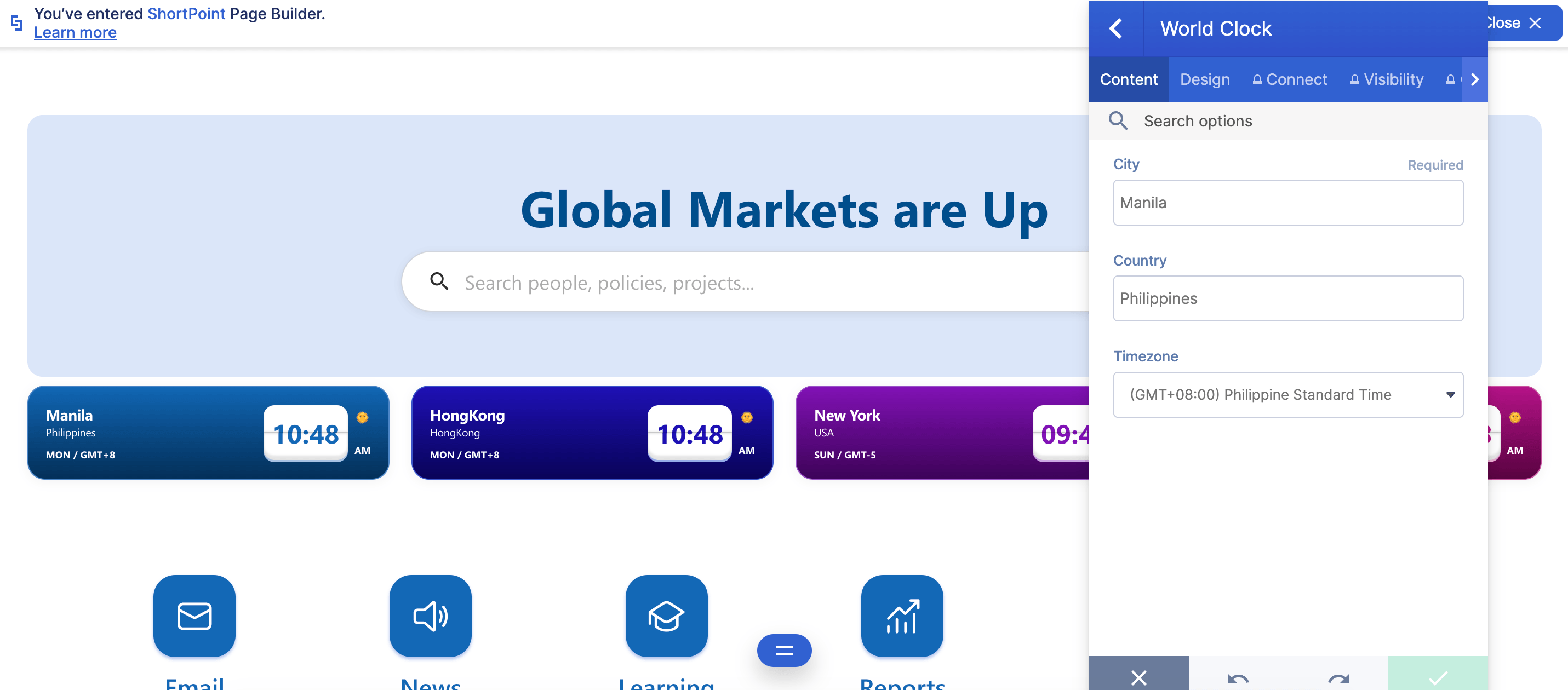
COGWHEEL ICON(Content tab)
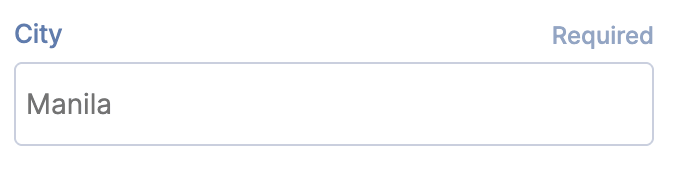 | City | allows you to choose the city whose time you want to showcase. |
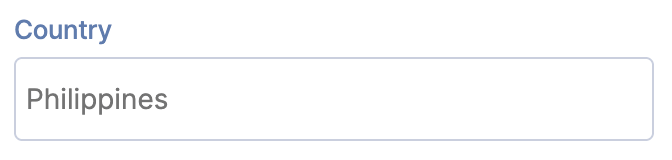 | Country | allows you to choose the country whose time you want to showcase. |
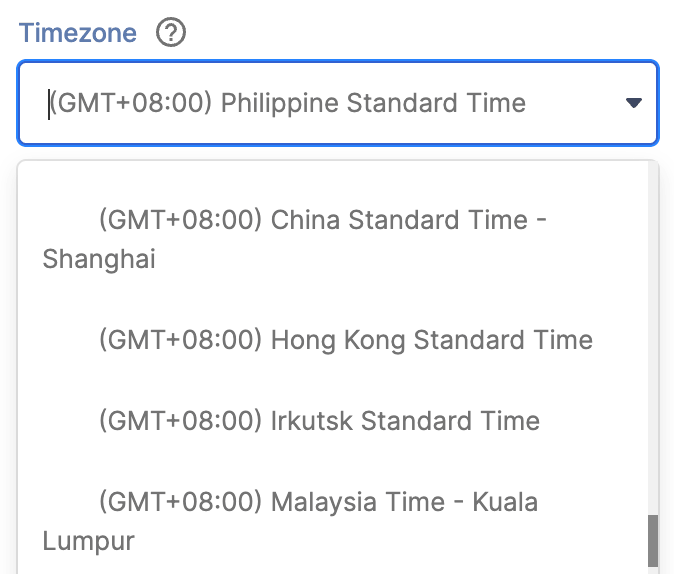 | Timezone | allows you to choose the timezone. |
COGWHEEL ICON (Design tab)
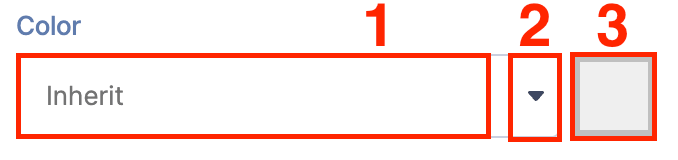 | Color | allows you to specify the color theme of the item selected. You can change the color by [1] typing the HEX code, [2] using the drop-down, or [3] using the color picker. |
B. Design Tab
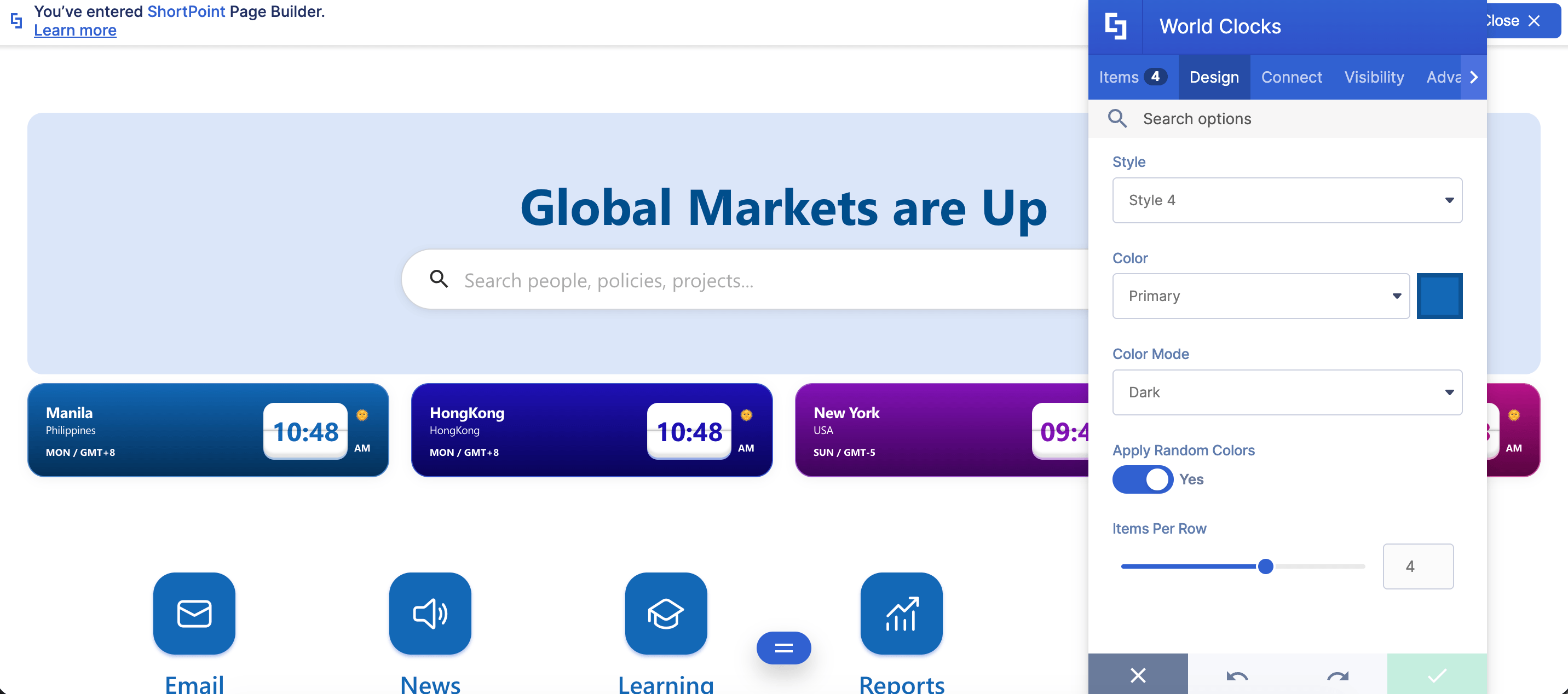
The Design tab is where you get to have fun customizing the look and feel of your world clock. Here are the options you can modify:
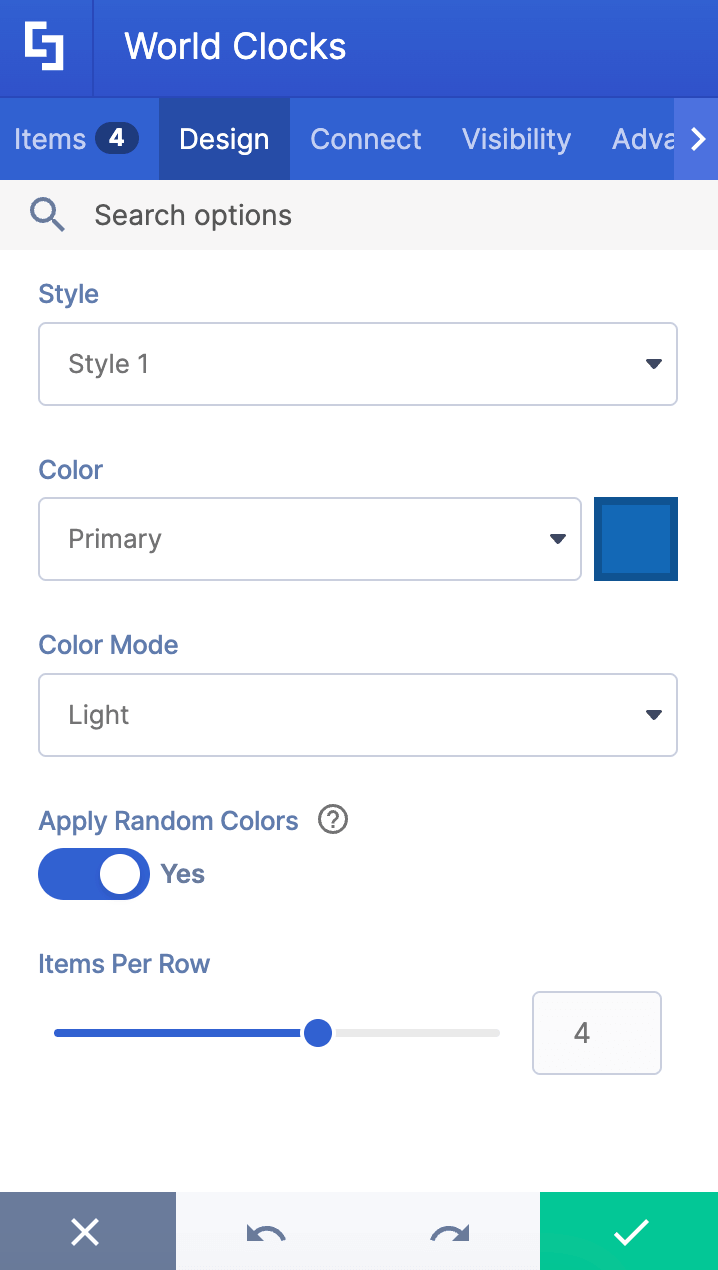
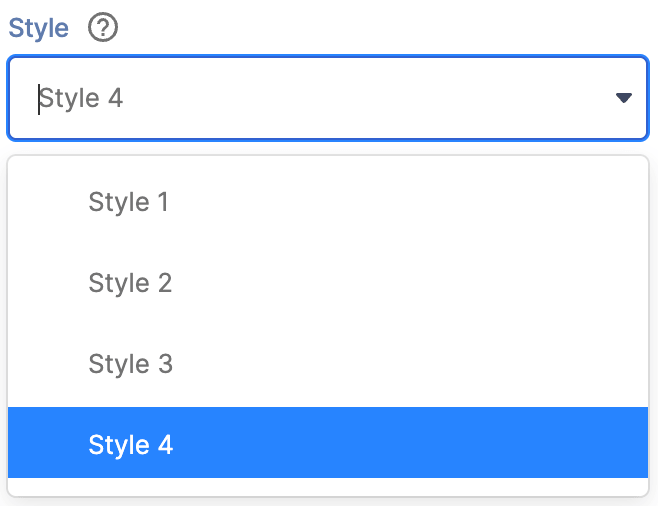 | Style | allows you to choose the world clock style. You can choose from 4 styles. Check out how they look in World Clock Styles. |
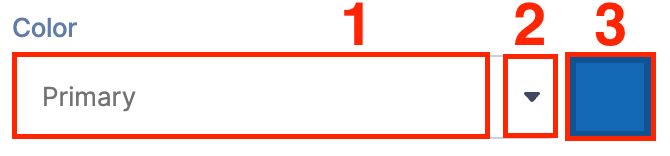 | Color | allows you to specify the main color theme of the world clock. You can change the color by [1] typing the HEX code, [2] using the drop-down, or [3] using the color picker. |
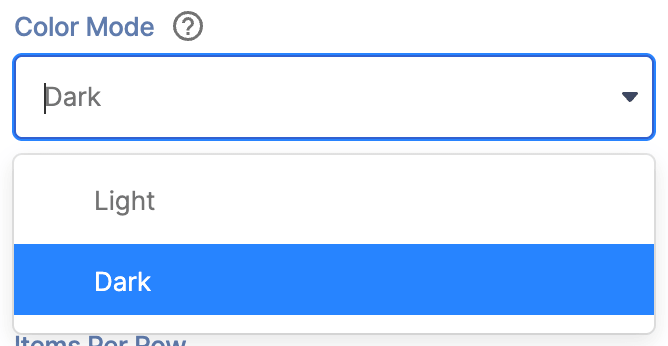 | Color Mode | allows you to choose from light or dark mode. |
 | Apply random colors | when enabled, different colors will be applied to each item. |
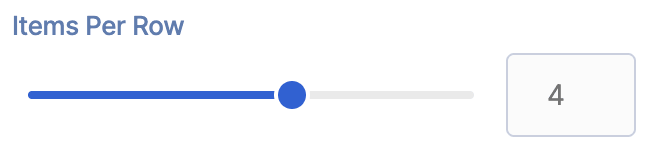 | Items per row | allows you to specify the maximum number of items to be shown per row. |
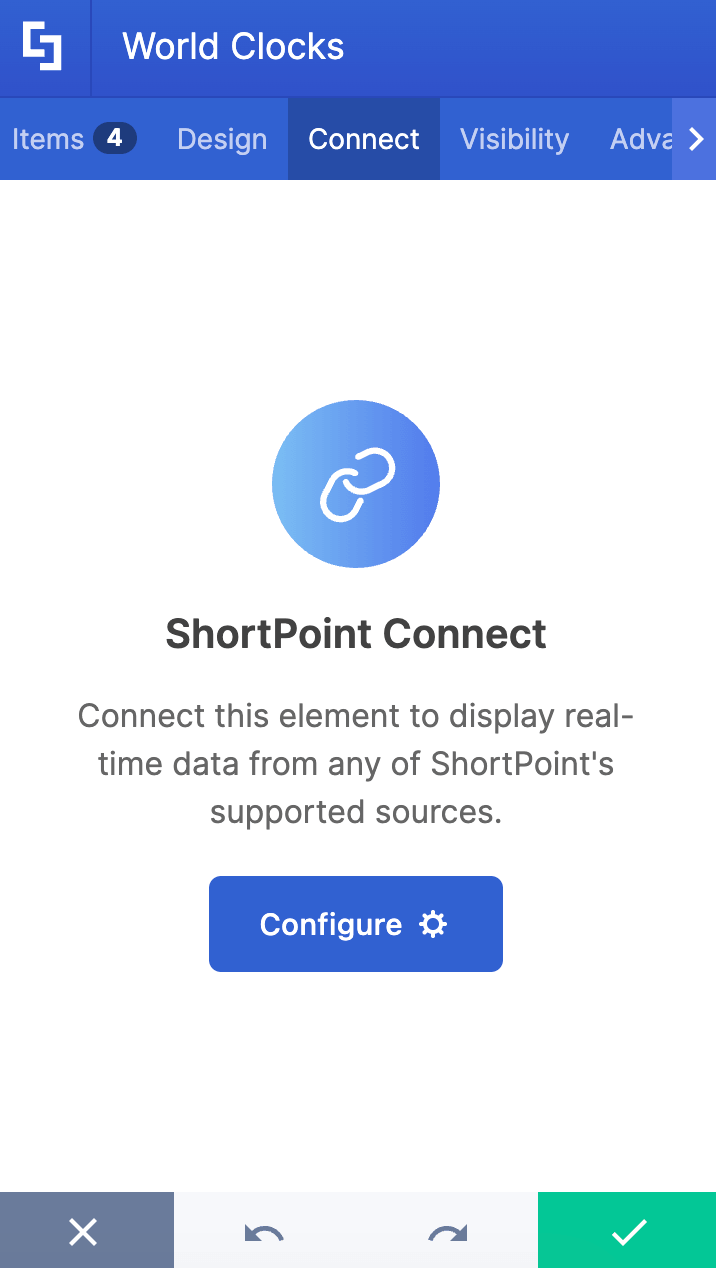
C. Connect Tab
The Connect tab allows you to link the Design Element to SharePoint sources (List, Document Library, News, etc.) and other external sources (Microsoft Graph API, Teams, Outlook, etc.). For more details about ShortPoint Connect, check out Basic Tutorial: How to Establish Seamless SharePoint Connection with ShortPoint Connect.
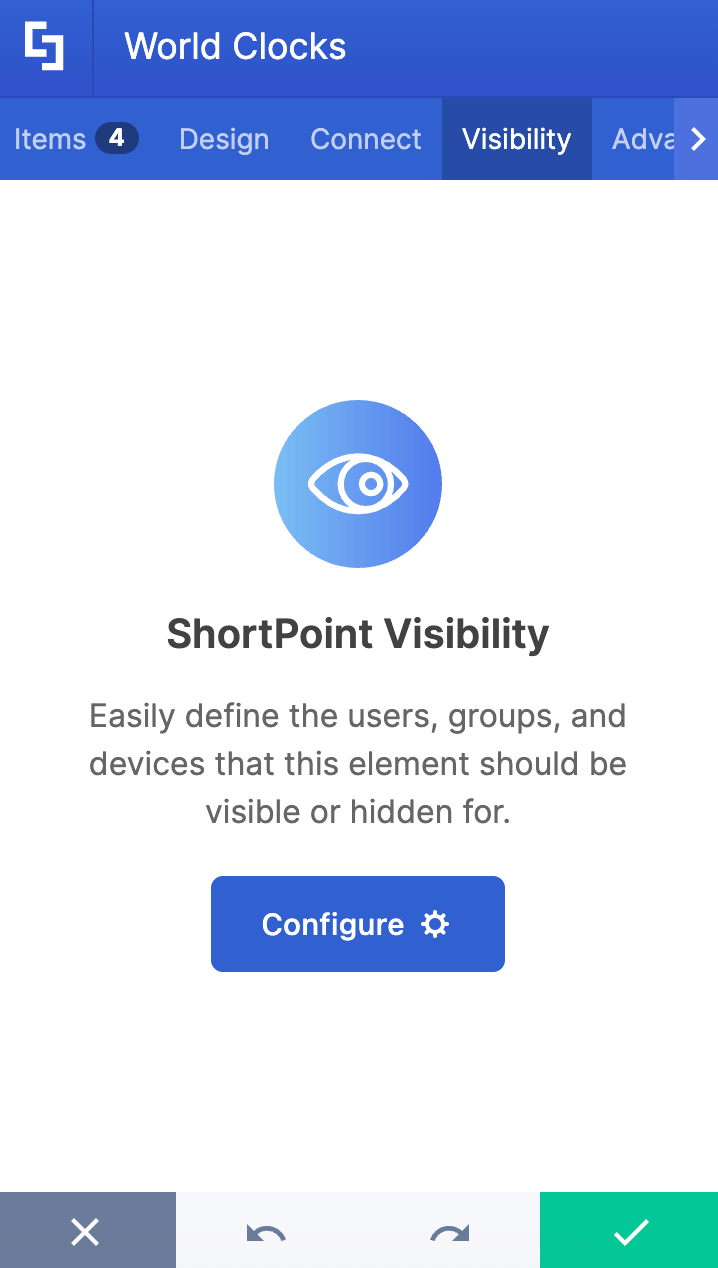
D. Visibility Tab
The Visibility tab allows you to specify who can see the Design Element and what type of devices it can be shown on. For more details, check out How to Use the ShortPoint Visibility Feature for Effective SharePoint Access Management.
E. Advanced Tab
The Advanced tab allows you to customize the look of the world clock even further. These are the options you can change:
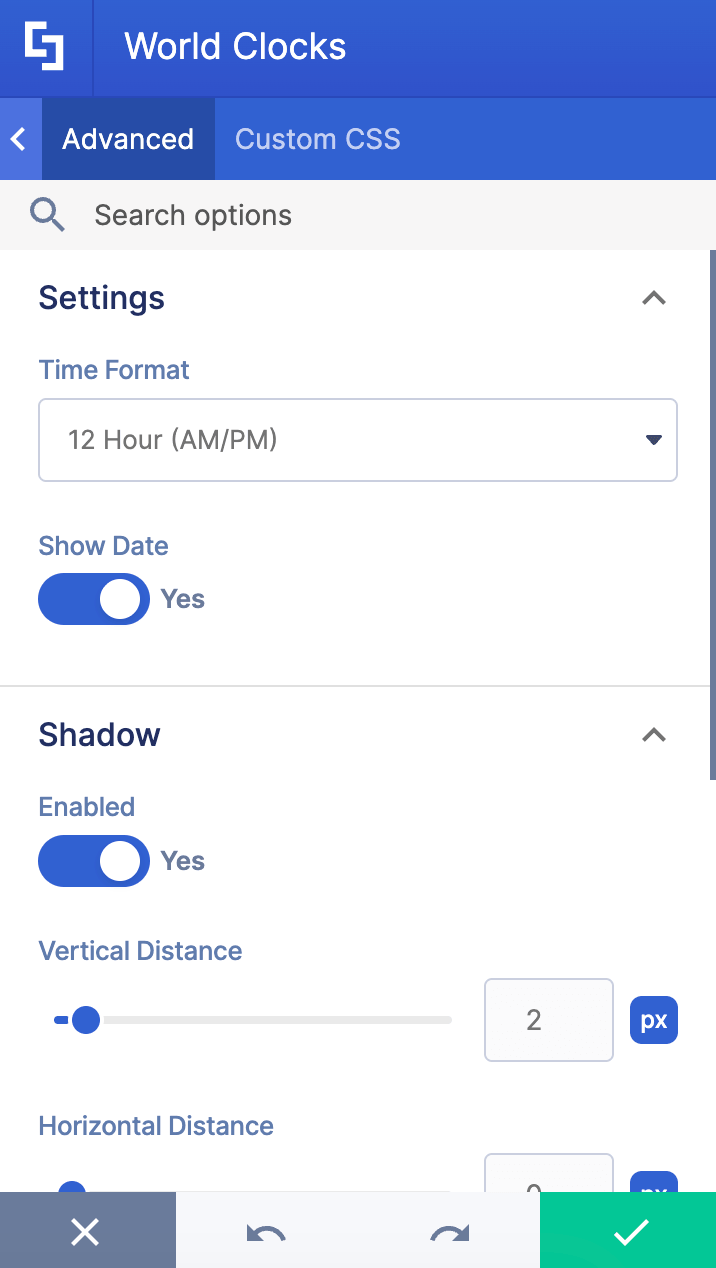
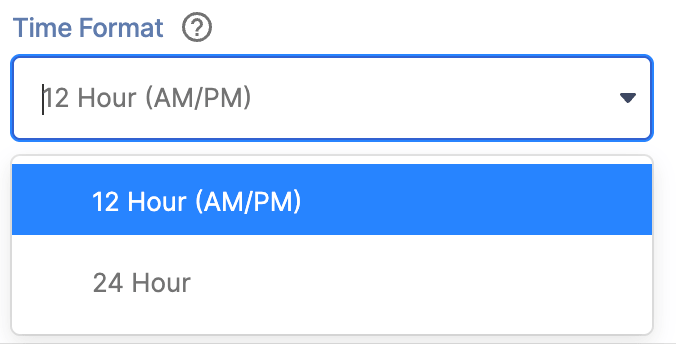 | Time Format | allows you to choose from a 12-hour or 24-hour time format. |
 | Show Date | when enabled, the date will be shown. |
SHADOWS
 | Enabled | when enabled, additional shadow settings will appear. |
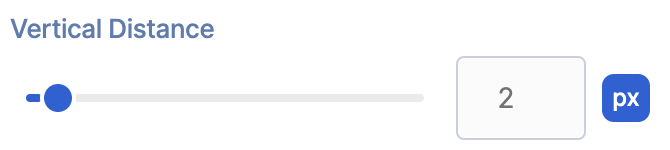 | Vertical Distance | allows you to adjust the vertical distance of the shadow. |
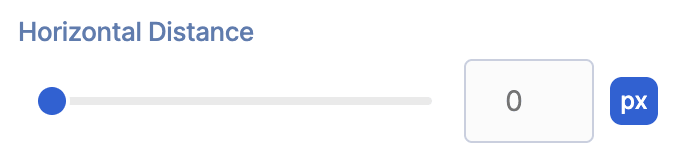 | Horizontal Distance | allows you to adjust the horizontal distance of the shadow. |
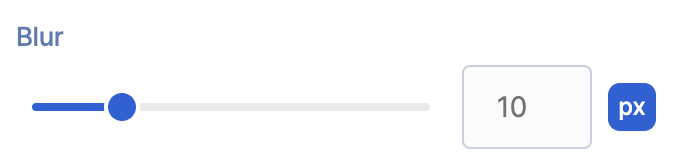 | Blur | allows you to adjust the blurriness of the shadow. |
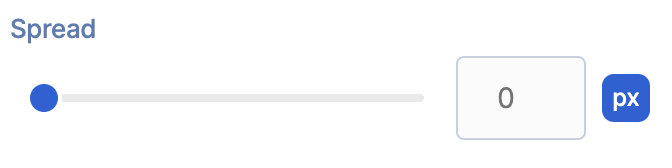 | Spread | allows you to adjust the spread value of the shadow. |
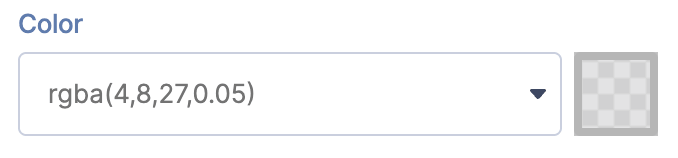 | Color | allows you to choose the shadow color. |
SPACING
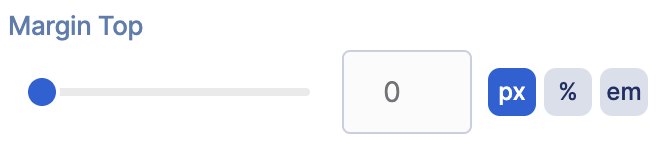 | Margin Top | allows you to adjust the top margin of the world clock. |
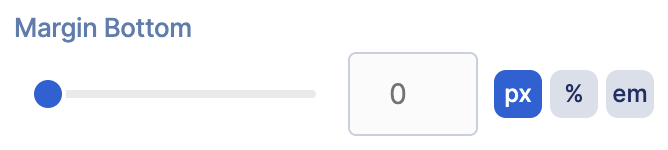 | Margin Bottom | allows you to adjust the bottom margin of the world clock. |
F. Custom CSS Tab
This tab lets you add your own custom touch to the World Clock Design Element using custom CSS, HTML, and JavaScript. This gives site owners and designers greater control over how the highlighted text will look.
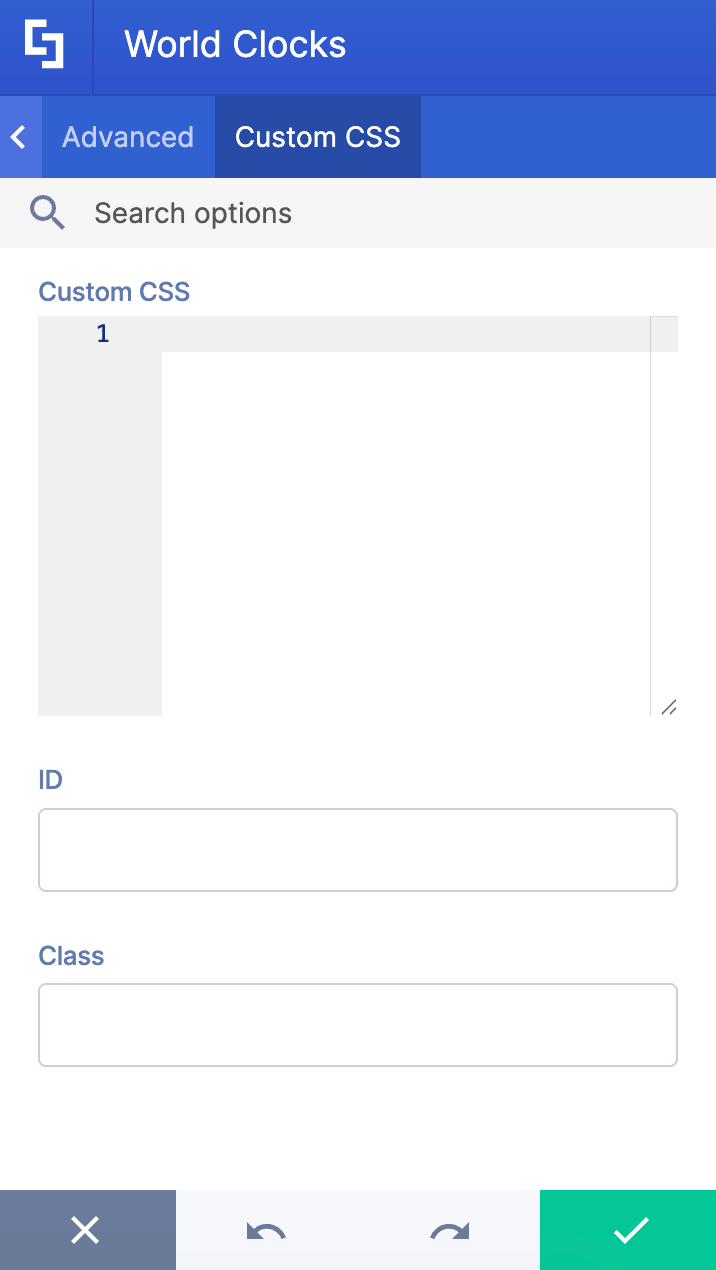
NOTECheck out our support article on How to Insert Custom CSS into a Page Builder Element? (Basic Tutorial) to know more about Custom CSS.
World Clocks Style
The World Clocks Design Element gives you 4 creative styles to choose from. Let’s go over each one.
- Style 1 presents a compact, card-based design with a subtle left border accent.

- Style 2 takes a more spacious approach with rounded card backgrounds that have a gentle gradient effect.

- Style 3 offers the most minimalist design with a horizontal, streamlined layout.

- Style 4 combines elements of the previous styles with rounded card backgrounds and a unique time display where the numbers are enclosed in a rounded container.

Practical Ways to Use the World Clock Design Element
The online world clock Design Element is a versatile tool that can benefit organizations working across multiple time zones. Here are some practical ways this feature can improve productivity and communication on your SharePoint sites:
- Global Team Coordination
If your organization has teams in different locations, displaying the current time across regions helps everyone schedule meetings and collaborate smoothly—no more confusion about time differences.
- Customer Support Management
Support teams serving multiple regions can easily track working hours across countries, helping ensure timely responses and consistent service coverage throughout the day and night.
- Event Planning and Scheduling
Planning webinars, online conferences, or training sessions? The online clock makes it simple for organizers and participants to align their schedules by displaying multiple time zones in one convenient location, with automatic adjustments for DST and GMT.
- Remote Work Support
Remote employees can quickly check the time for colleagues around the world, making communication and collaboration more seamless, whether it’s Monday, Sunday, or any other day of the week.
- Project Management
Teams working across continents can stay aligned on deadlines and milestones in their respective time zones, helping reduce scheduling errors and keep projects on track.
- Enhanced Intranet Experience
Customizing the world clock to match your site's branding not only improves visual appeal but also provides valuable time zone information that benefits all users and helps them convert time effortlessly.
Start Designing with the World Clock Design Element
By adding the online world clock Design Element to your SharePoint sites, you'll streamline time management and strengthen connections across your global organization, fulfilling your company's mission to connect people worldwide.
Ready to start adding World Clocks? If you’re a ShortPoint Designer, simply update to ShortPoint SPFx version 8.8.4.0 and follow our interactive tutorial at the start of this article.
New to ShortPoint? You can give World Clocks a whirl with a FREE 15-day trial! You can also book a one-on-one demo with our experts. They’ll show you how to make the most out of the World Clock Design Element and so much more.
Frequently Asked Questions
What is an online world clock in SharePoint?
An online world clock is a dynamic ShortPoint Design Element that allows you to display the current time across multiple time zones directly on your SharePoint sites. It helps keep users informed about the time in different locations worldwide.
How can I add an online world clock to my SharePoint site?
You can add an online world clock by using the World Clock Design Element available in ShortPoint. Simply edit your SharePoint page, insert the World Clock Design Element, and customize it to show times for your desired cities, countries, or time zones.
What customization options are available for the World Clock Design Element?
The Design Element offers extensive customization through the Content, Design, Connect, Visibility, and Advanced tabs. You can modify styles, colors, time format, alignment, and even add custom CSS to perfectly match your website branding.
Does the online world clock support automatic adjustments for Daylight Saving Time (DST)?
Yes, the online world clock accurately reflects the current time across regions, including automatic adjustments for DST, ensuring your displayed times are always correct.
Can I display multiple time zones simultaneously?
Absolutely! The World Clock Design Element supports displaying multiple time zones on your SharePoint sites, making it easy to connect and coordinate across global teams.
Is it possible to link the World Clock to external data sources?
Yes, using the Connect tab, you can link the Design Element to SharePoint sources like Lists, Document Libraries, or external APIs such as Microsoft Graph API, for dynamic time-related content.
Who can benefit from adding an online world clock to SharePoint?
Organizations with global teams, remote workers, and anyone needing to coordinate across different time zones will find this feature invaluable for improving communication and productivity.
What are the prerequisites for using the World Clock Design Element?
You need to have ShortPoint SPFx version 8.8.4.0 or later installed and an active ShortPoint Designer license to access and use the online world clock on your SharePoint sites.
Related articles:
- How to Embed Canva into SharePoint Using the Canva Design Element
- How to Create a FlipBox in SharePoint Using the FlipBoxes Design Element
- How to Create a Breadcrumb Navigation in SharePoint Online Using the Breadcrumb Design Element
- How to Add Customer Testimonials to SharePoint Using the Testimonials Design Element
- How to Create SharePoint Calendar Using the Calendar Design Element
- How to Create SharePoint Announcements Using the Announcement Design Element
