 Try ShortPoint now
A Canva Smart Embed Link is a Canva feature that lets you share a Canva design as an interactive, live-preview embed rather than a static image or file. This article will show you how to get the smart embed link of your Canva design.
TIPTo make the most out of this Canva feature, it’s best to pair it with ShortPoint’s Canva Design Element. With it, you can take your beautiful Canva designs and showcase them right in your SharePoint sites. Amazing, right?! For more information, go to How to Embed Canva into SharePoint Using the Canva Design Element.
TABLE OF CONTENTS
Interactive Tutorial
Start the interactive tutorial to see how to get the smart embed link:
Step-by-step Tutorial
Follow the guide below to learn how to get your Canva design’s smart embed link.
Step 1: Allow Embed
- Go to the Canva design you want to use and click Share:

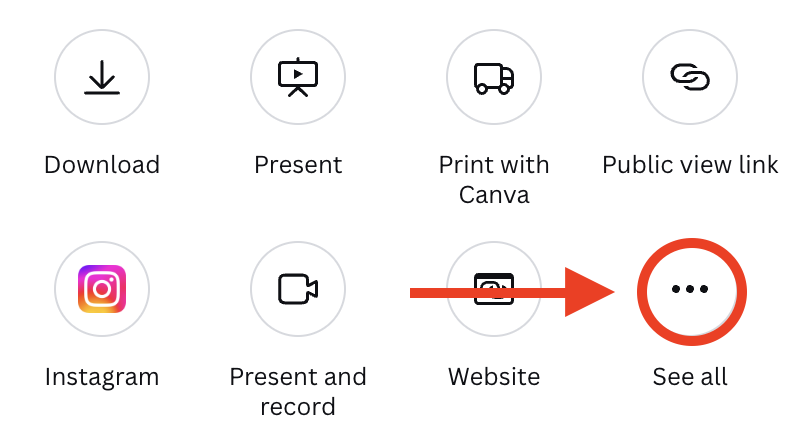
- Select the See All icon:
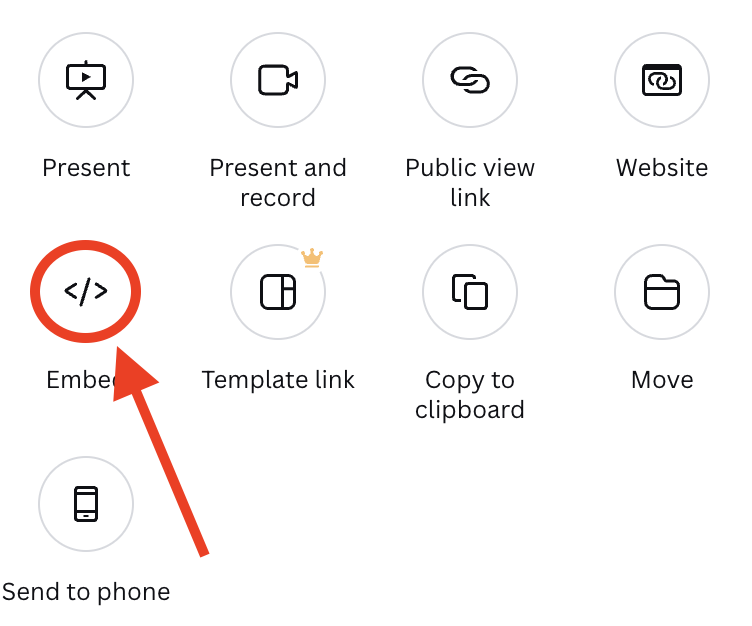
- Click the Embed icon:
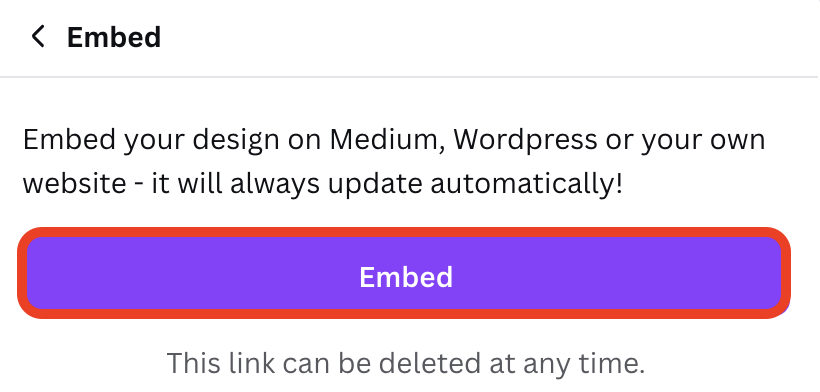
- Select Embed to allow embedding of your Canva design:
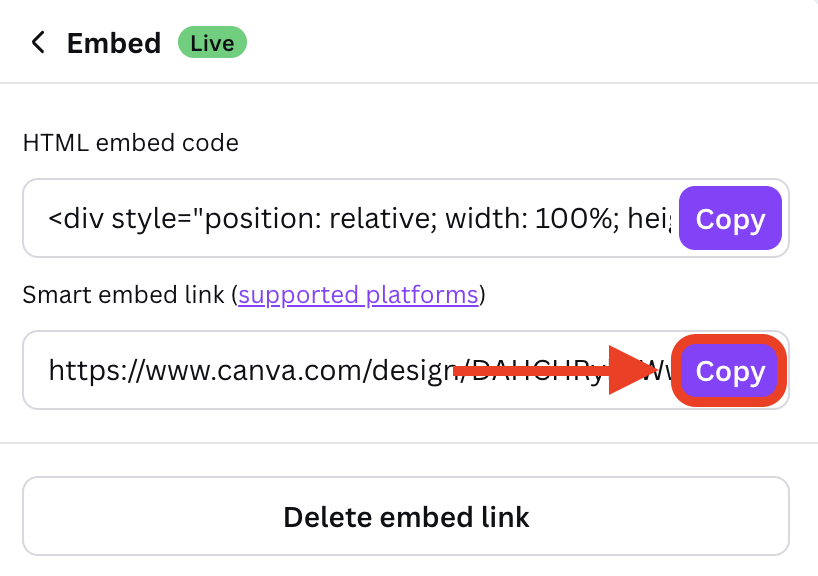
Step 2: Copy Smart Embed Link
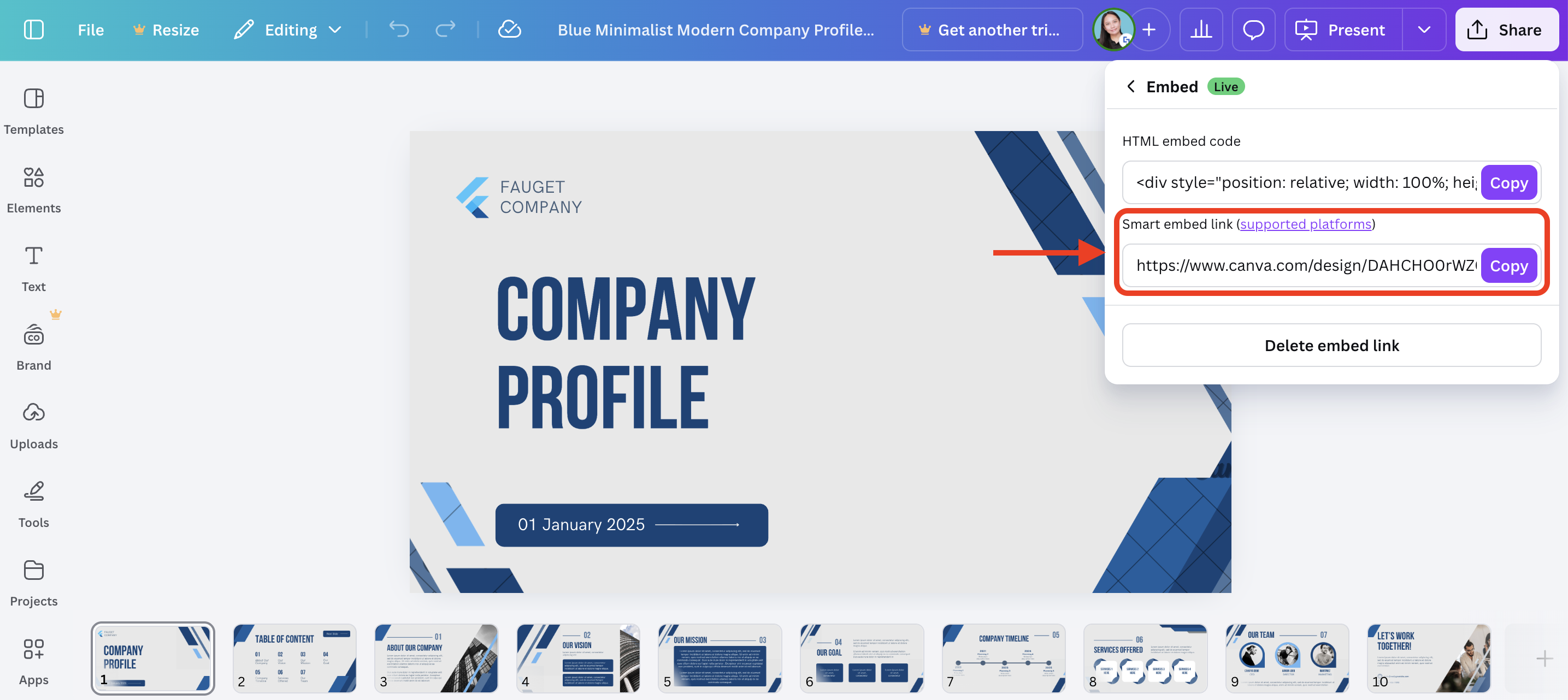
- You will now see your design’s Smart Embed Link. Click Copy:
Well done! You can now use the Canva Smart Embed Link to showcase your Canva designs in your SharePoint sites. For more information, check out How to Embed Canva into SharePoint Using the Canva Design Element.
Related articles:
