 Try ShortPoint now
By default, ShortPoint Sections don’t have the option to add a border:
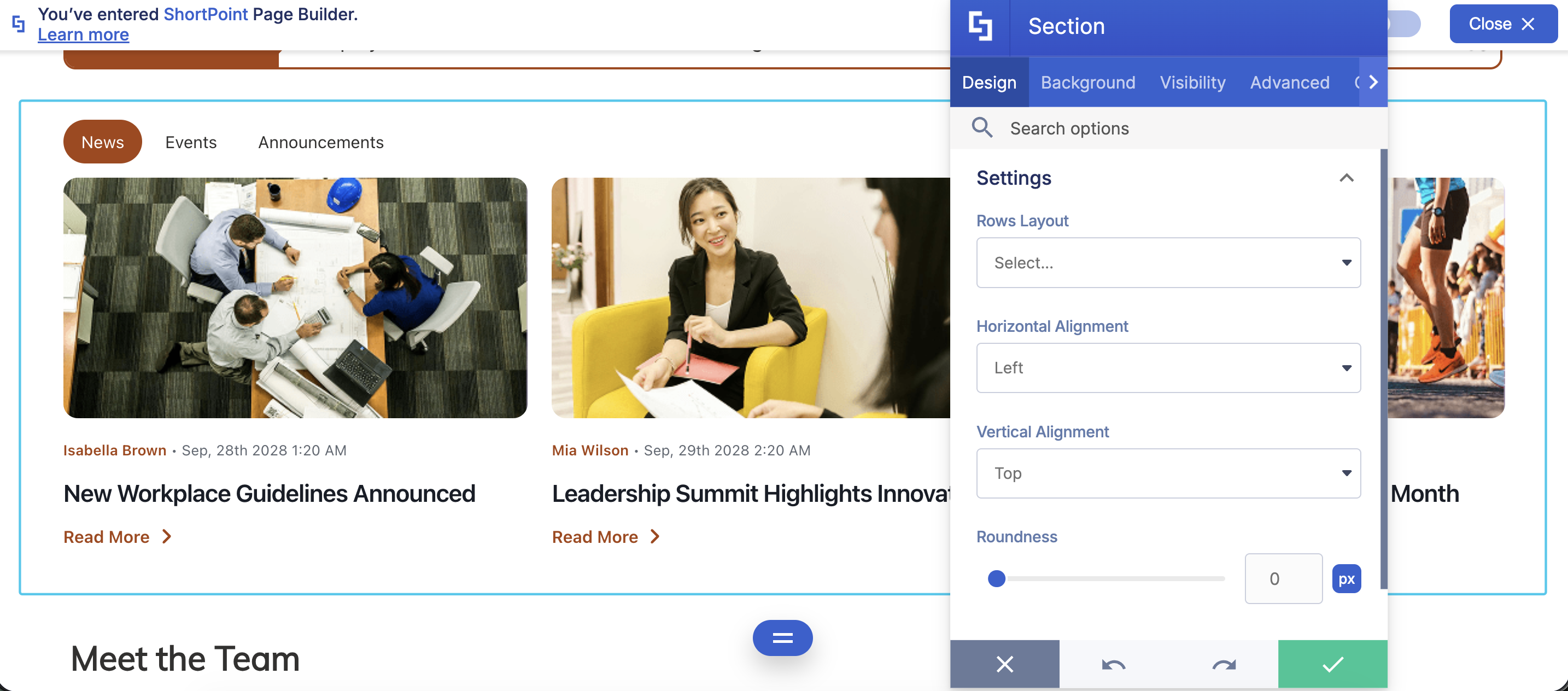
With ShortPoint Theme Builder, you can add borders to ShortPoint Sections using Custom CSS. This article will show you how.
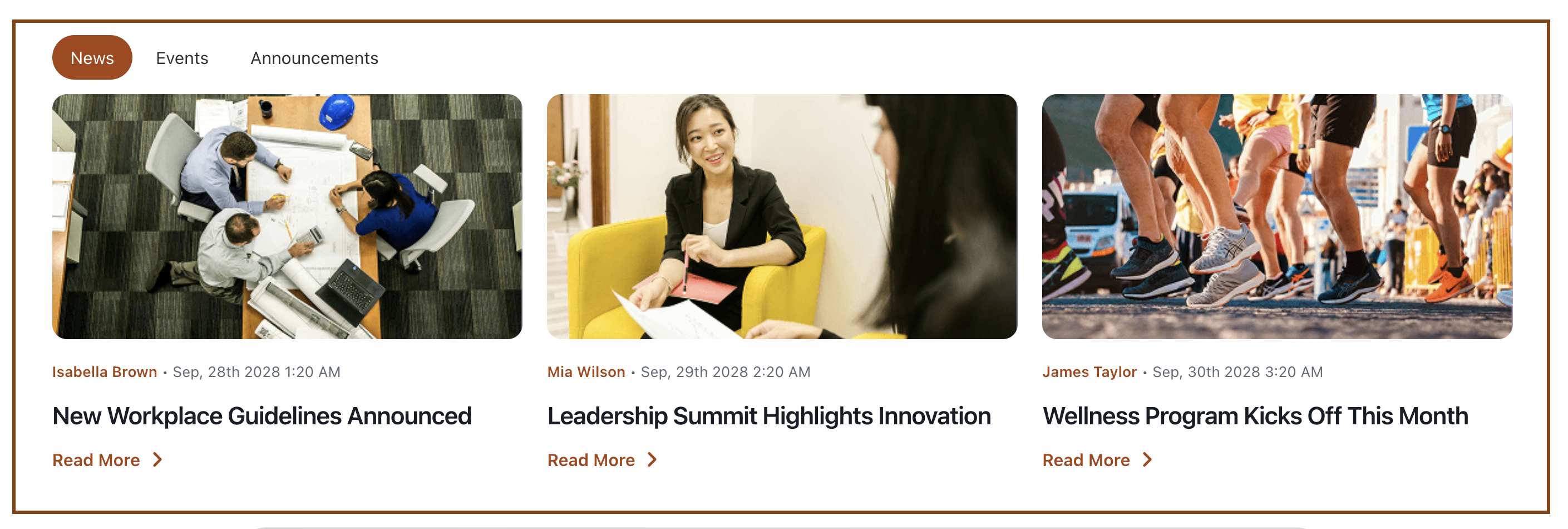
TABLE OF CONTENTS
Prerequisites
- You must have the latest version of ShortPoint SPFx installed in your SharePoint environment.
- To add Custom CSS in Theme Builder, you must be a ShortPoint Designer with either a Pro or Enterprise License. For more details, check out Licensing Options.
Interactive Tutorial
Start the interactive tutorial to learn how to add borders to ShortPoint Sections:
Below is the Custom CSS code used in the tutorial:
.bordered-section {
    border-width: 2px;
    border-color: #000d2c;
    border-style: solid;
}
Step-by-step Tutorial
The steps have been divided into two parts for clarity. Follow the steps below for a detailed guide:
Part 1: Add Class Names
This part will demonstrate how to add Class Names to ShortPoint Sections that you want to have borders.
Step 1: Edit the ShortPoint Web Part
- Go to the SharePoint site you want to use and click Edit:

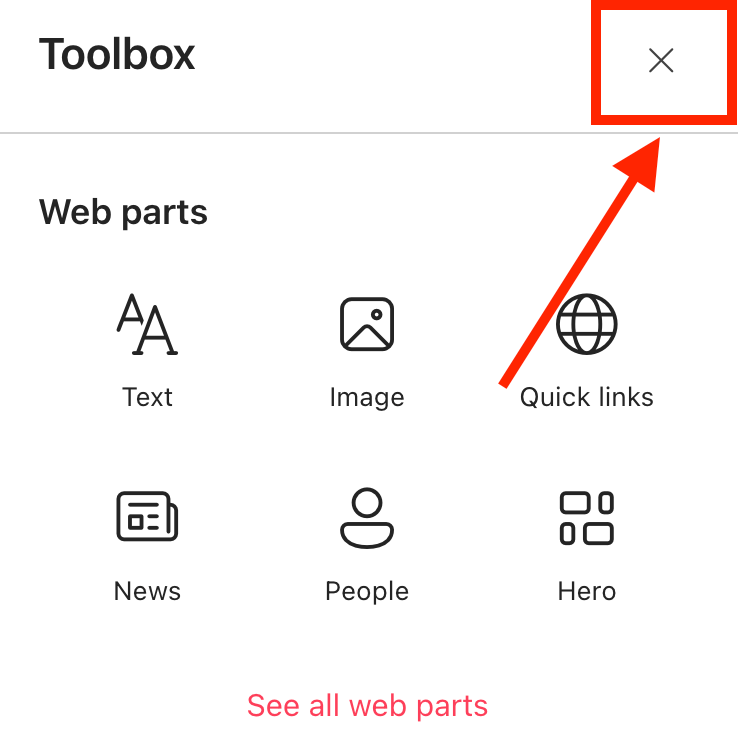
- Close the Toolbox:
- Click the Edit properties icon:

Step 2: Edit a Section
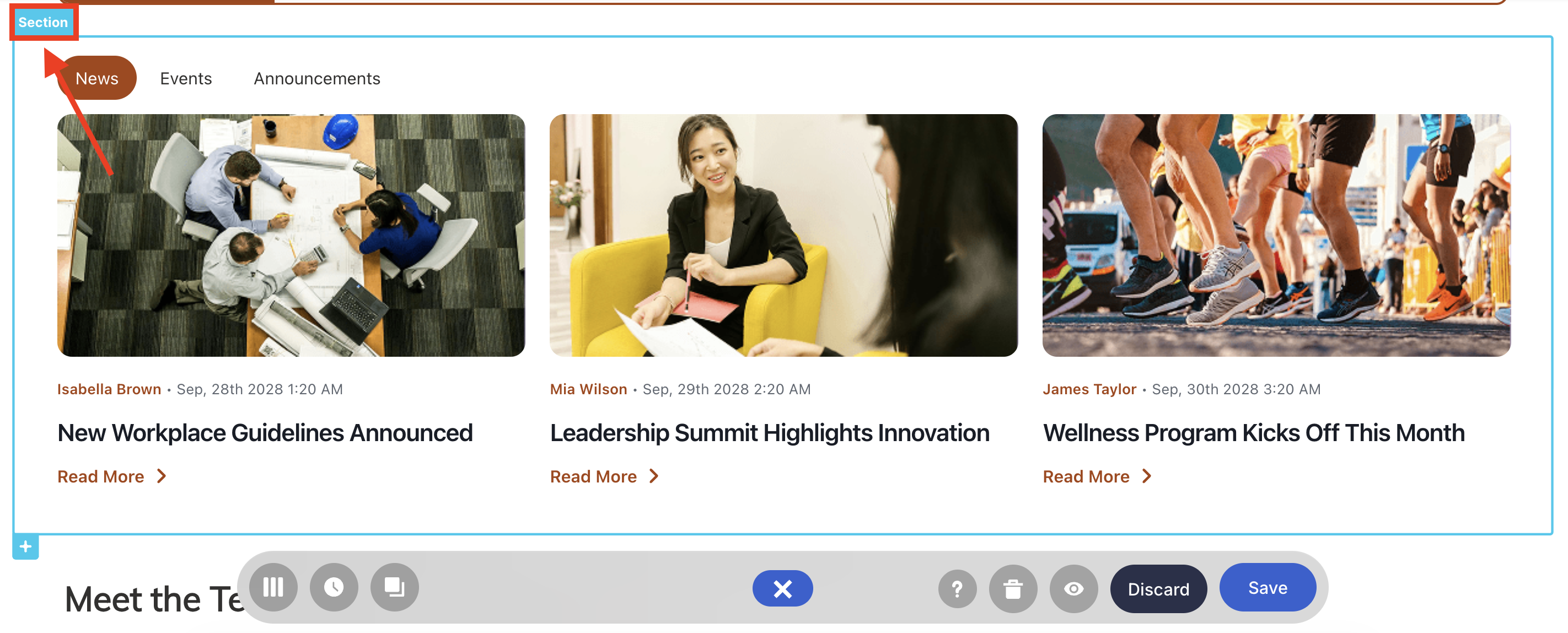
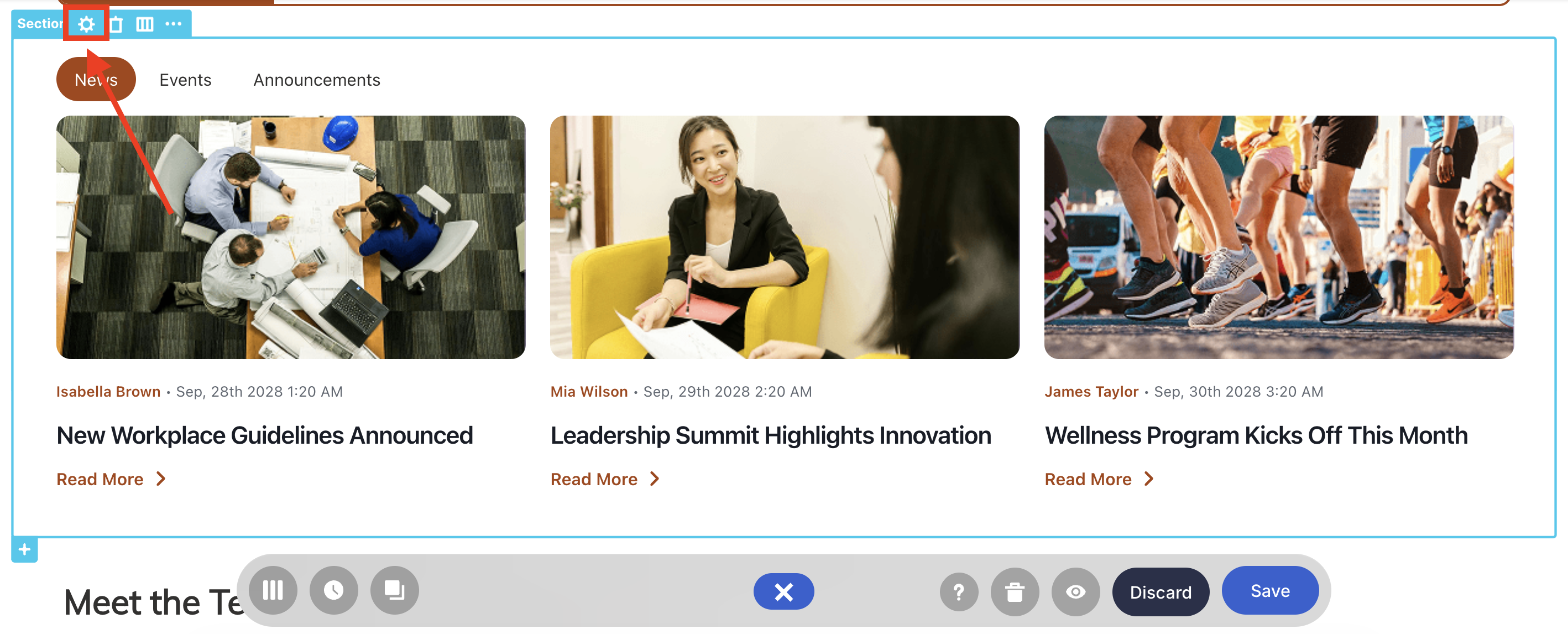
- Look for the Section that you want to have a border and select its tag:
- Select the cogwheel icon:
Step 3: Add a Class Name
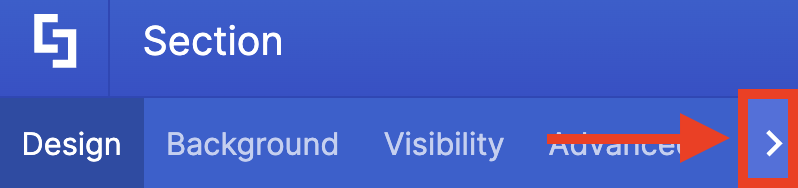
- Click the next icon:
- Go to the Custom CSS tab.
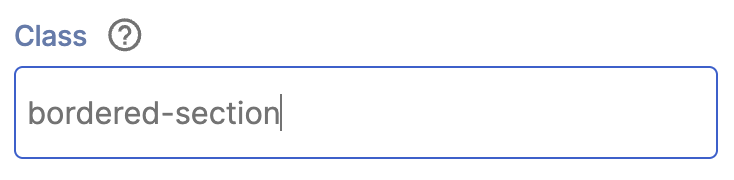
- Add ‘bordered-section’ as the Class name:
- Click the green checkmark once done.
- Repeat steps 2 & 3 for other Sections that you want to have a border.
Step 4: Save
- Save your changes:

- Publish your page:

Great work! You can now proceed to Part 2.
Part 2: Add Custom CSS
This part will showcase how to add the Custom CSS code in the ShortPoint Theme Builder.
Step 1: Open the ShortPoint Theme Builder
- Click the ShortPoint logo:

- Select Theme Builder:

Step 2: Copy Code
- Copy the Custom CSS code below:
.bordered-section {
    border-width: 2px;
    border-color: #000d2c;
    border-style: solid;
}
Step 3: Paste Code
- Look for Utilities and select it:
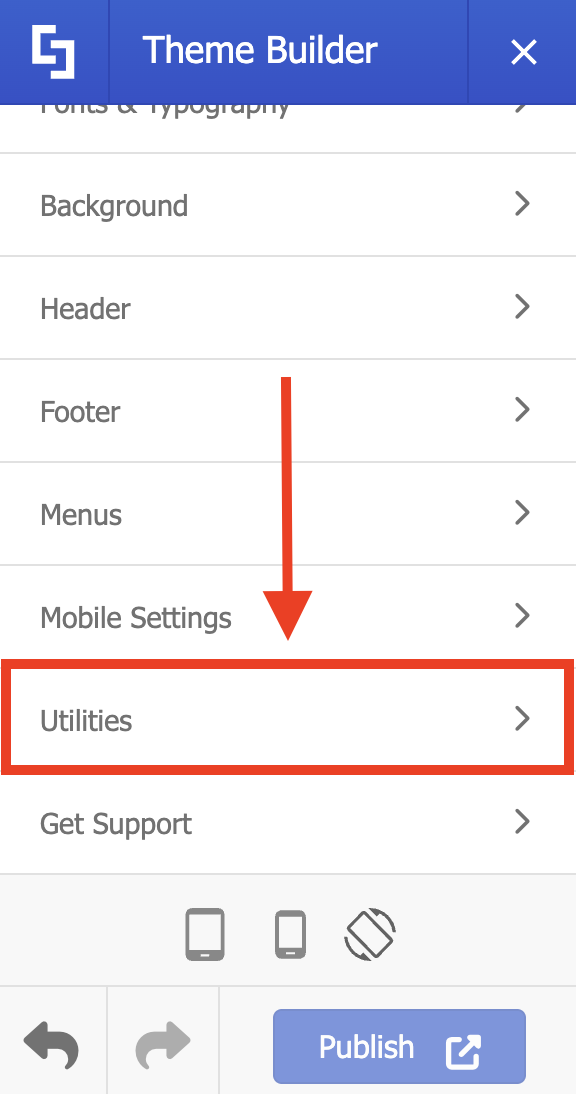
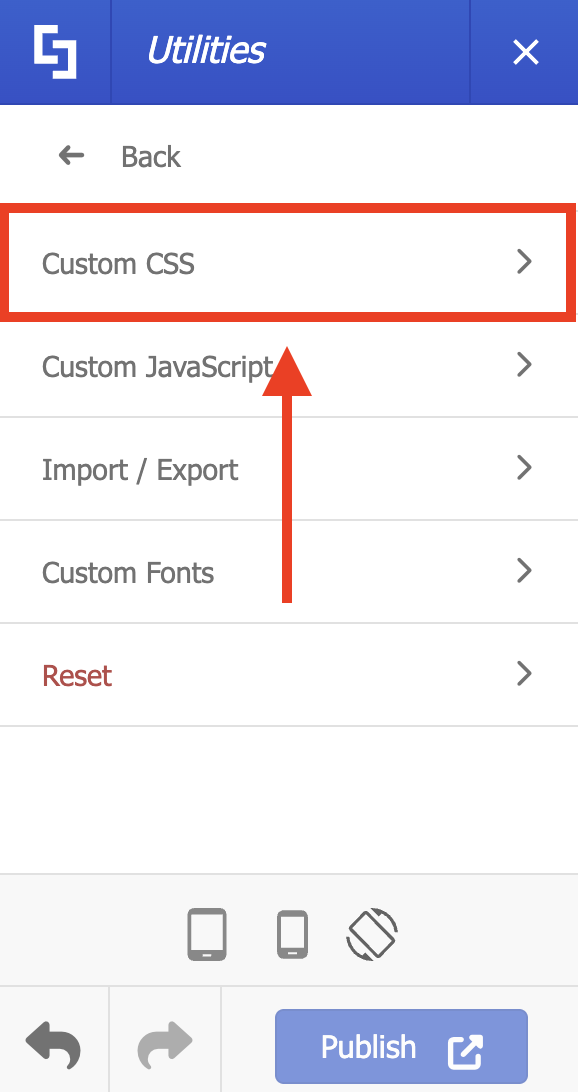
- Choose Custom CSS:
- Paste the code in the field provided.
- Customize the border-width and border-color values to your liking.
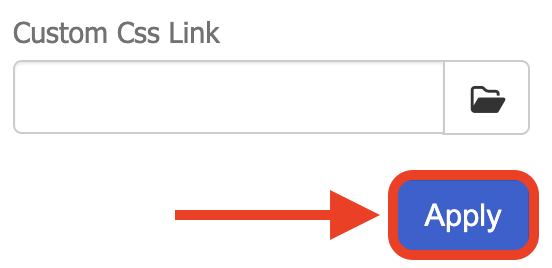
- Click Apply:
- Publish your changes.
Congratulations! You’ve successfully added borders to ShortPoint Sections.
Related articles:
