 Try ShortPoint now
By default, the Quick Links Design Element maintains its default primary color when users hover over it:

This article will show you how to change the hover color using Custom CSS:

TABLE OF CONTENTS
Prerequisites
- You must have the latest version of ShortPoint SPFx installed on your SharePoint environment.
- You must be a ShortPoint Designer with an active license.
- You must already have the Quick Links Design Element on your SharePoint page. If you don’t have one yet, check out How to Add Quick Links in SharePoint Using the Quick Links Design Element.
Interactive Tutorial
Before starting the tutorial, copy the Custom CSS below:
.spx-de-quick-link__link:hover {
background-color:#59C1E1 !important; /* set your hover color here */
border-color:#59C1E1 !important; /* optional, remove if not needed */
}

.spx-de-quick-link__icon {
transition: background-color 0.25s ease, border-color 0.25s ease;
}
Step-by-step Tutorial
Follow the detailed guide below to learn how to change the hover color of Quick Links:
Step 1: Edit the ShortPoint Web Part
- Go to the SharePoint page you want to use and click Edit:

- Close the Toolbox:
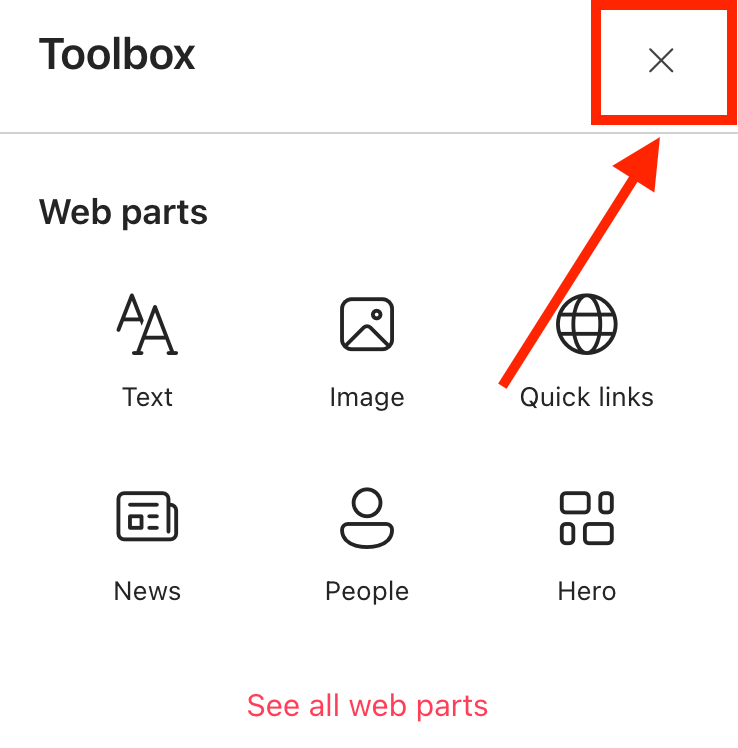
- Edit the ShortPoint web part:

Step 2: Edit the Quick Links Design Element
NOTEYou must already have the Quick Links Design Element on your SharePoint page. If you don’t have one yet, check out How to Add Quick Links in SharePoint Using the Quick Links Design Element.
- Click the Quick Links tag:
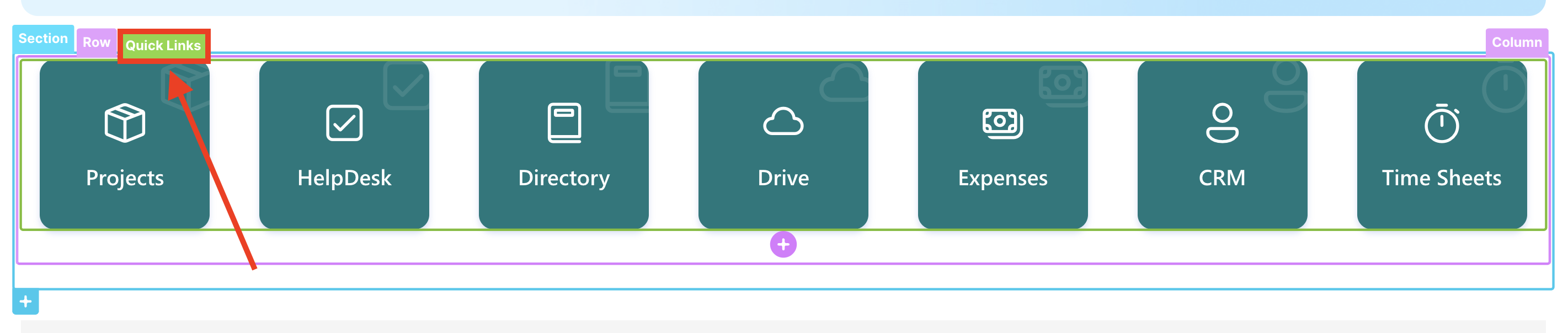
- Select the cogwheel icon:

Step 3: Copy the Code
- Copy the Custom CSS code below:
.spx-de-quick-link__link:hover {
background-color:#59C1E1 !important; /* set your hover color here */
border-color:#59C1E1 !important; /* optional, remove if not needed */
}

.spx-de-quick-link__icon {
transition: background-color 0.25s ease, border-color 0.25s ease;
}
Step 4: Paste Code
- Click the next icon:
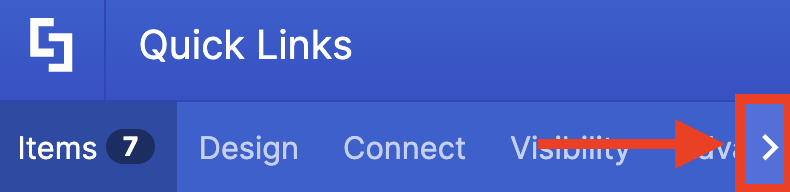
- Go to the Custom CSS tab.
- Paste the code in the Custom CSS field.
- Replace the background-color and border-color values with the color you prefer for the hover effect:
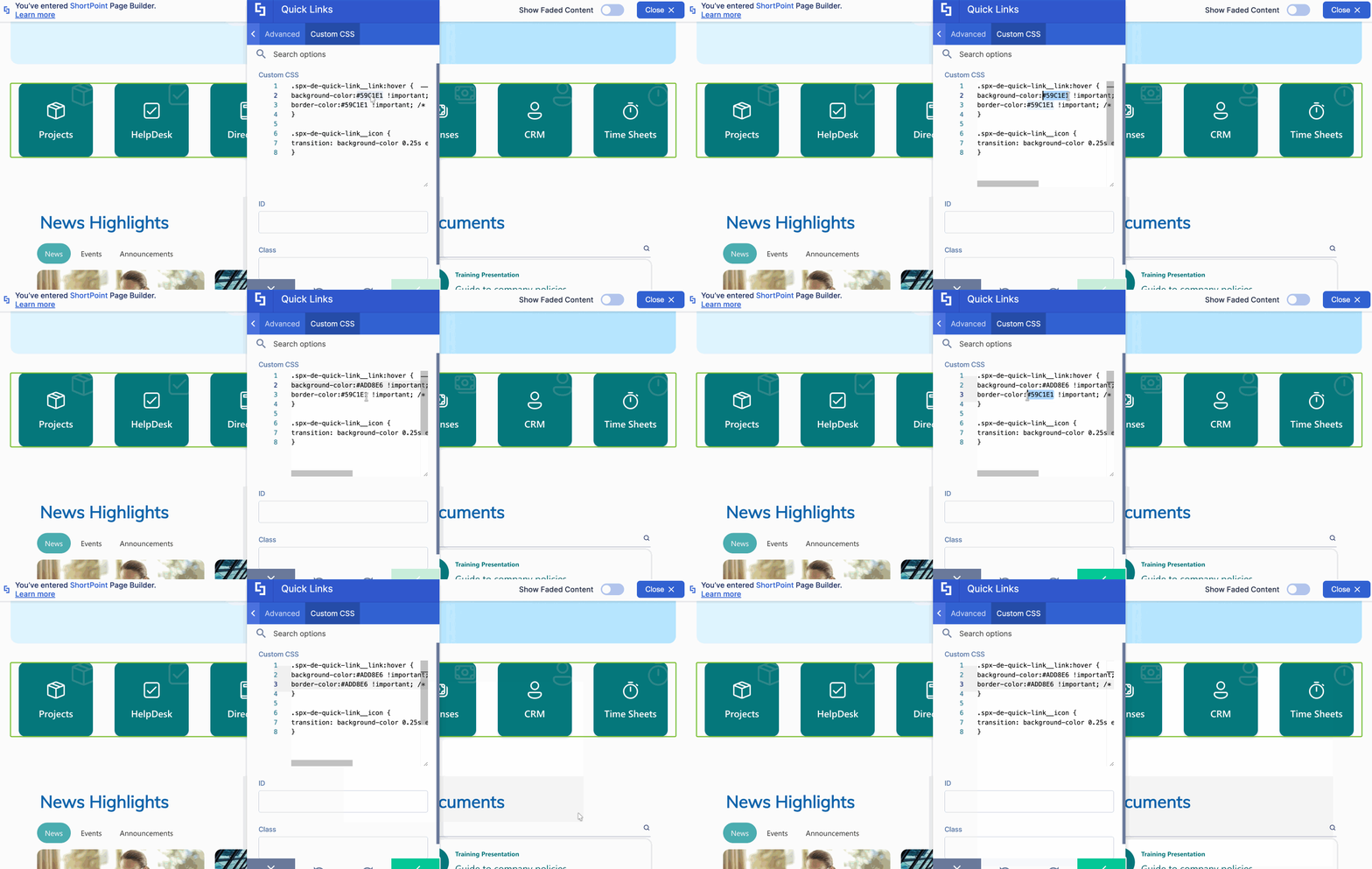
- Click the green checkmark.
Step 5: Save
- Click the eye icon to see your page in real-time:

- Save your edits:

Great work! You’ve successfully changed the hover color of Quick Links.
Related articles:
