 Try ShortPoint now
When you connect a Design Element to an RSS Feed, the default date format is in ISO:
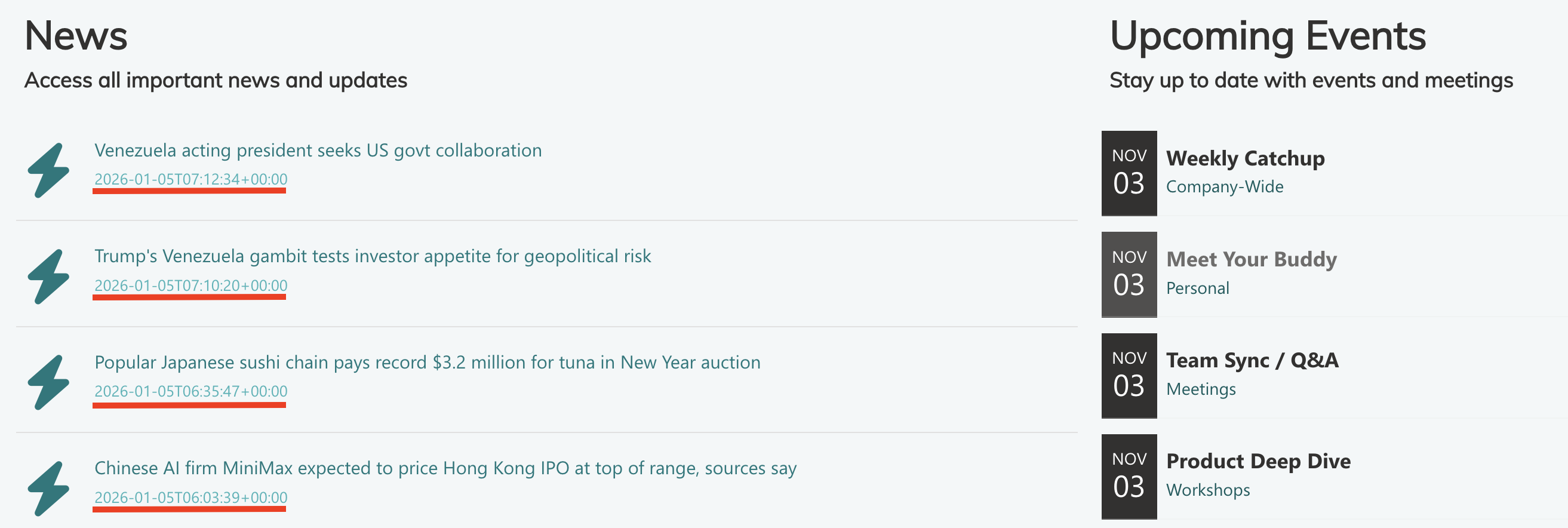
This article will demonstrate how to change the default date format to the European format using JavaScript code:

TABLE OF CONTENTS
Prerequisites
- You must have the latest version of ShortPoint installed on your SharePoint environment.
- You must be a ShortPoint Designer with an active license.
- You must already have a Design Element connected to an RSS Feed on your SharePoint site. If you don’t have one yet, check out How to Display Your RSS Feed in SharePoint Using the RSS Feeds Connection.
Interactive Tutorial
Before starting the interactive tutorial, copy the code below:
return formatDatesToEuropean(data);

// Function to convert ISO date to European format (DD/MM/YYYY)
function toEuropeanFormat(dateString) {
  const date = new Date(dateString);
  const day = String(date.getDate()).padStart(2, '0');
  const month = String(date.getMonth() + 1).padStart(2, '0');
  const year = date.getFullYear();
  return `${day}/${month}/${year}`;
}

// Transform the data using map
function formatDatesToEuropean(data) {
  return data.map(item => ({
    ...item,
    Date: toEuropeanFormat(item.Date),
    PublishDate: toEuropeanFormat(item.PublishDate),
    LastUpdatedDate: toEuropeanFormat(item.LastUpdatedDate)
  }));
}
Step-by-step Tutorial
Follow the detailed guide below to transform the date format of a connected Design Element:
Step 1: Edit the ShortPoint Web Part
- Go to the SharePoint page you want to use and click Edit:

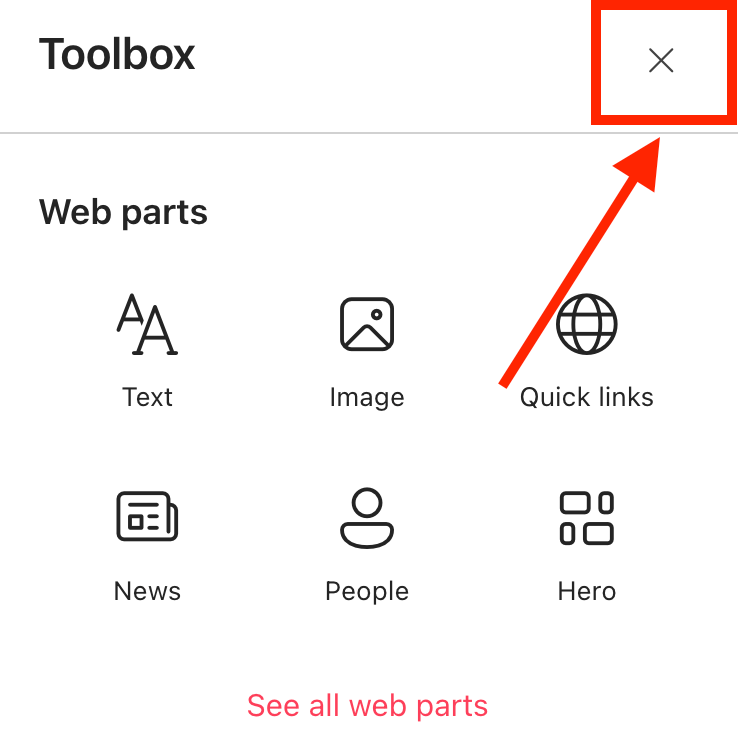
- Close the Toolbox:
- Edit the ShortPoint web part:

Step 2: Edit the Connected Design Element
NOTEYou must already have a Design Element connected to an RSS Feed on your SharePoint site. For this guide, we’ll use Icon List. If you don’t have one yet, check out How to Display Your RSS Feed in SharePoint Using the RSS Feeds Connection.
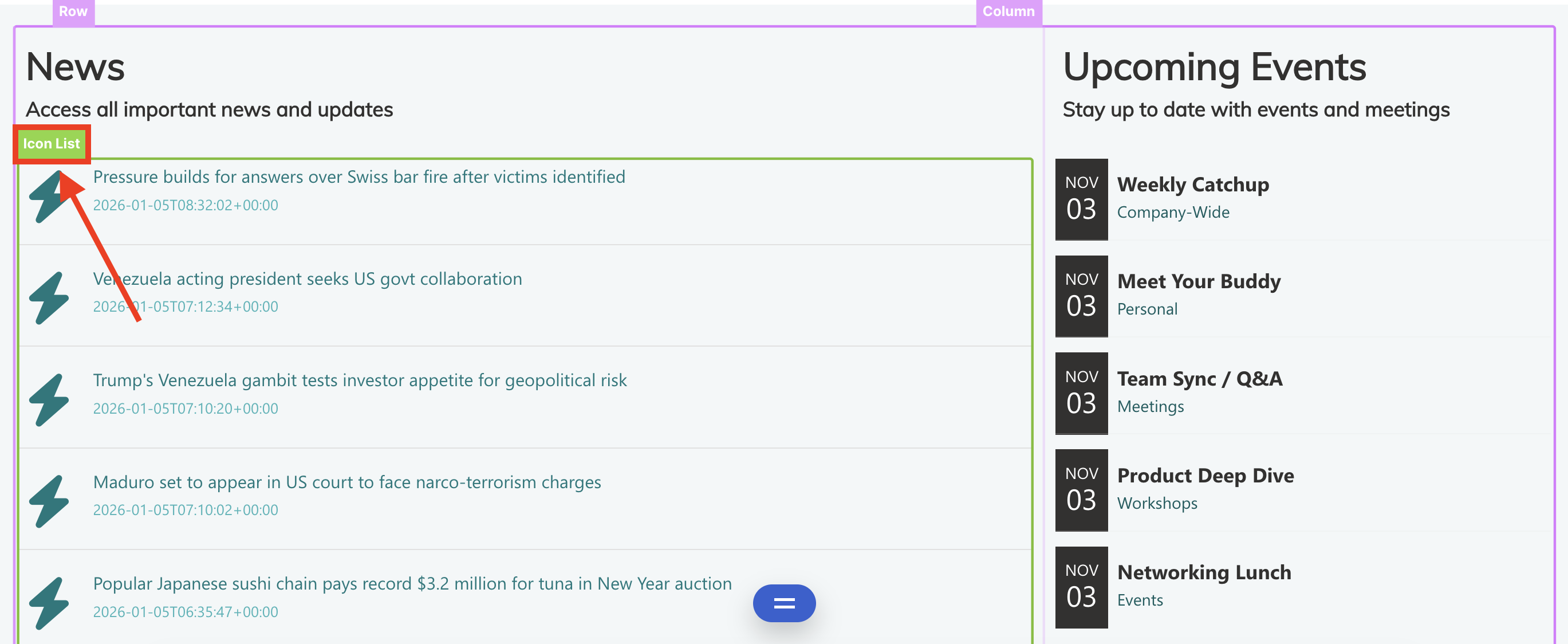
- Click the EasyPass tag of the connected Design Element:
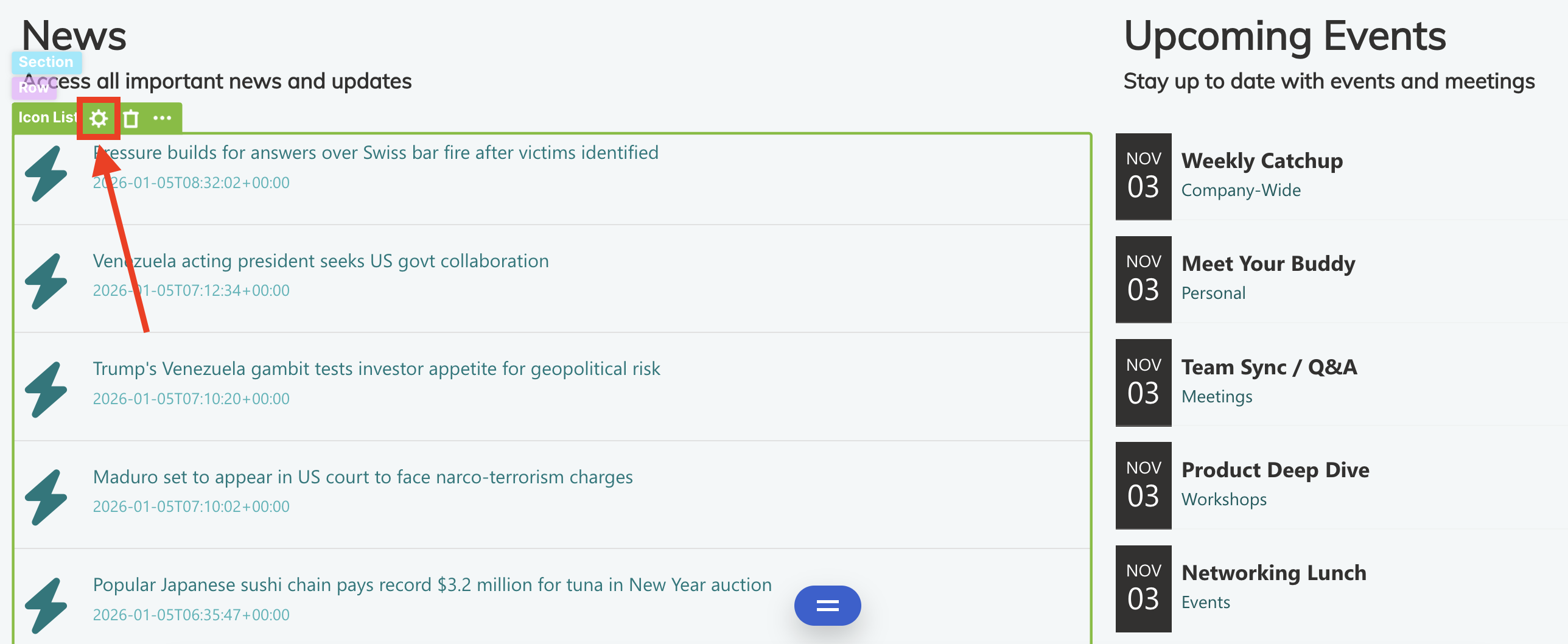
- Select the cogwheel icon:
Step 3: Copy the Code
- Copy the JavaScript below:
return formatDatesToEuropean(data);

// Function to convert ISO date to European format (DD/MM/YYYY)
function toEuropeanFormat(dateString) {
  const date = new Date(dateString);
  const day = String(date.getDate()).padStart(2, '0');
  const month = String(date.getMonth() + 1).padStart(2, '0');
  const year = date.getFullYear();
  return `${day}/${month}/${year}`;
}

// Transform the data using map
function formatDatesToEuropean(data) {
  return data.map(item => ({
    ...item,
    Date: toEuropeanFormat(item.Date),
    PublishDate: toEuropeanFormat(item.PublishDate),
    LastUpdatedDate: toEuropeanFormat(item.LastUpdatedDate)
  }));
}
Step 4: Open the Connection Window
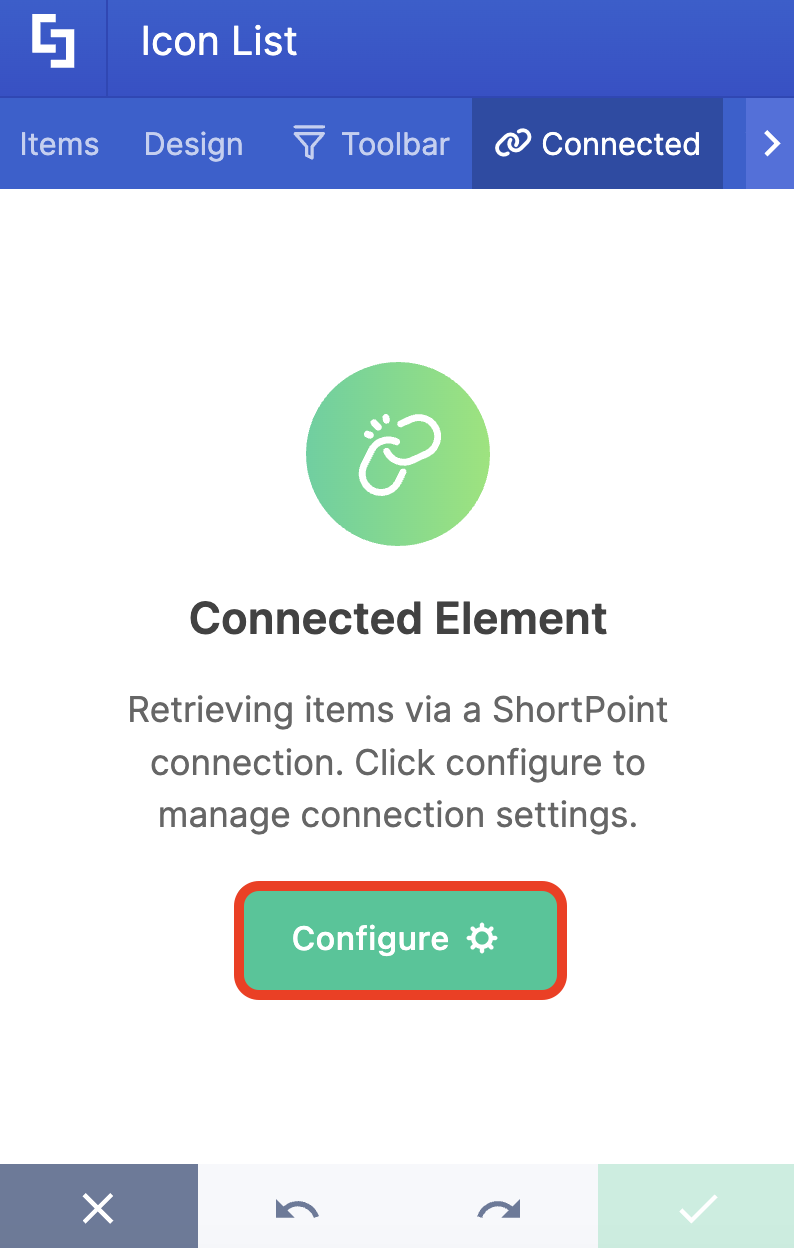
- Go to the Connected tab.
- Click Configure to open the connection window:
Step 5: Paste Code
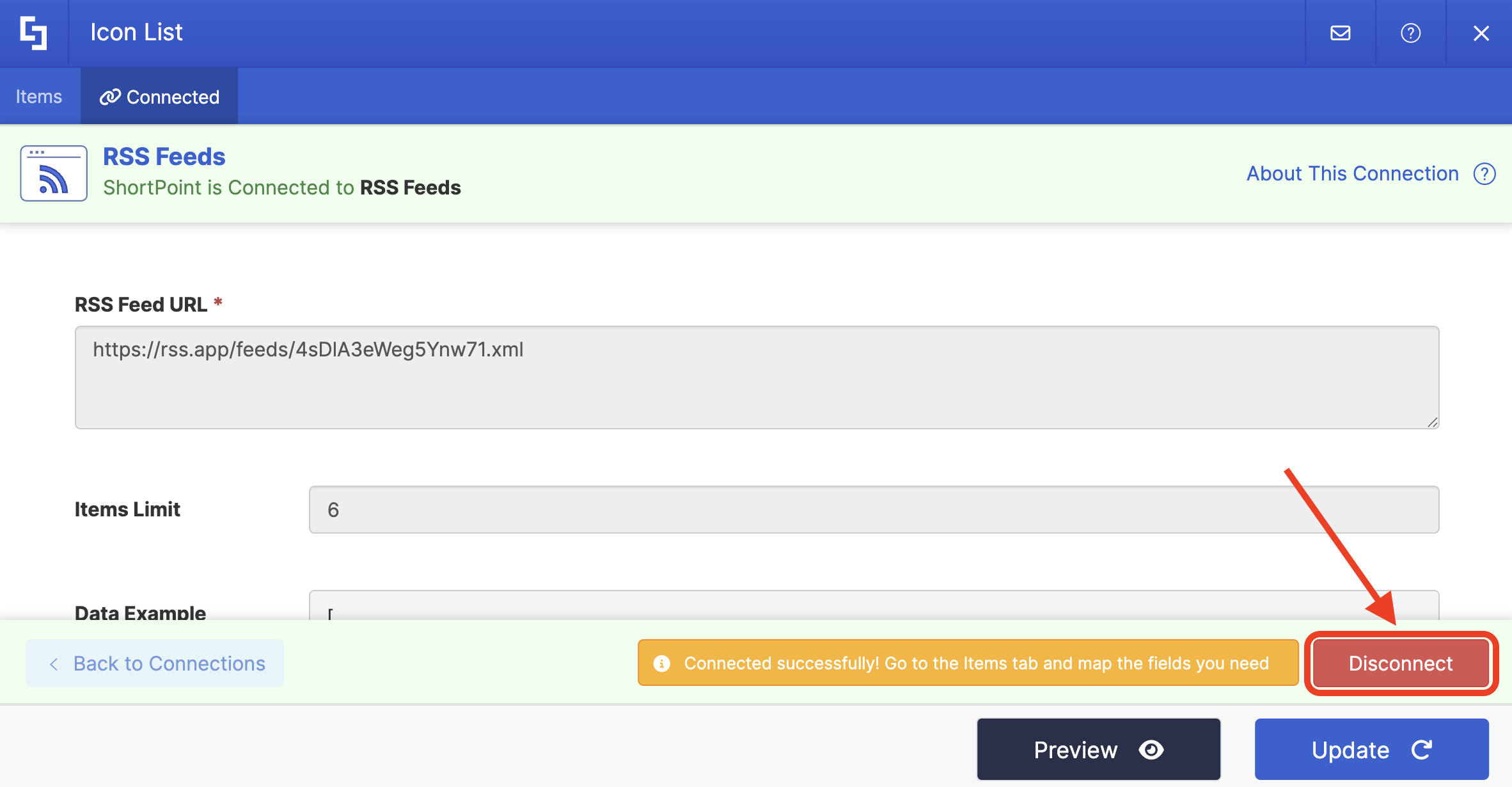
- Select Disconnect:
- Scroll down and expand Advanced Settings:
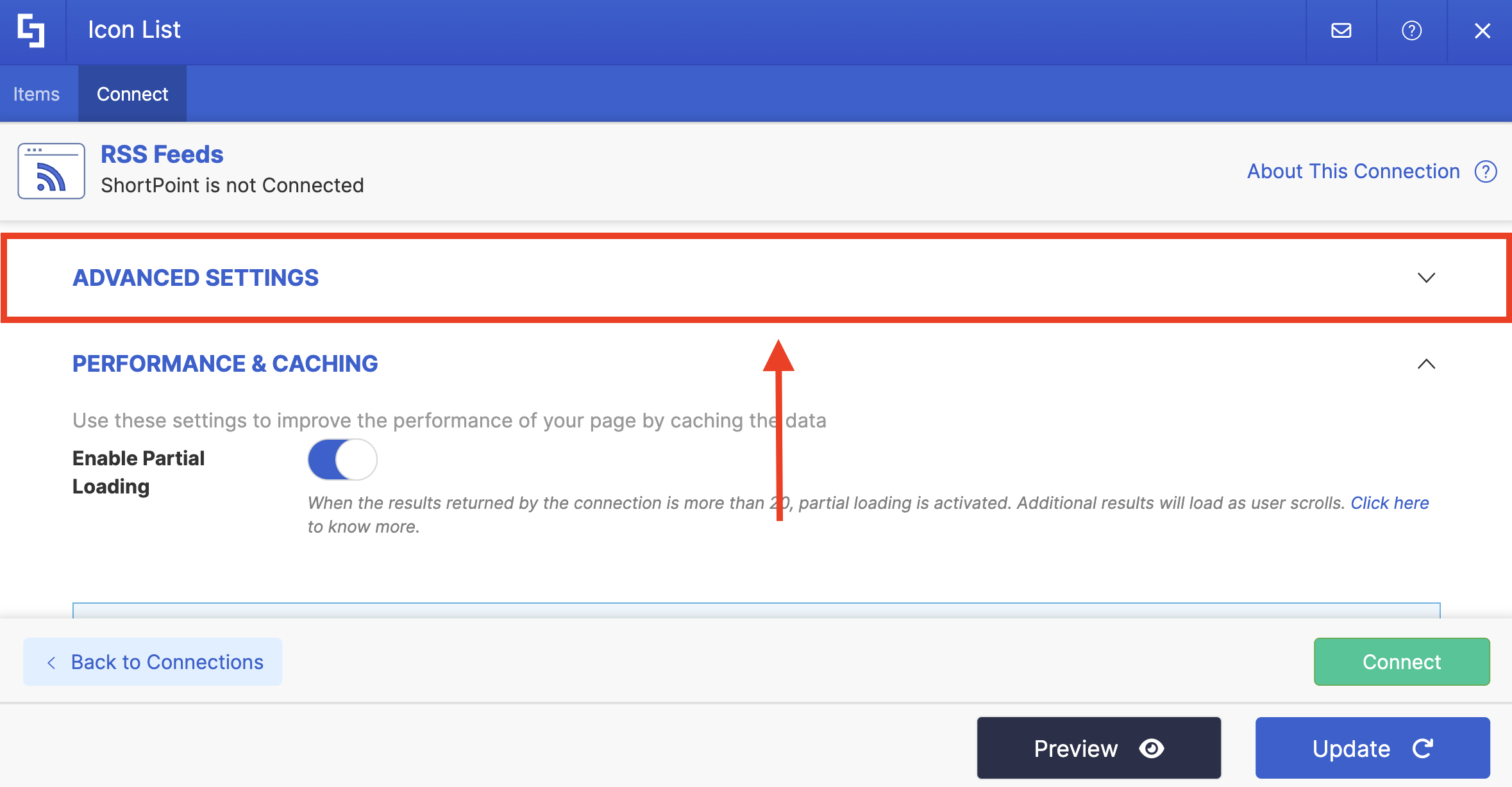
- Toggle on Enable Advanced Settings.
- Look for Map Results and paste the code in the field provided:
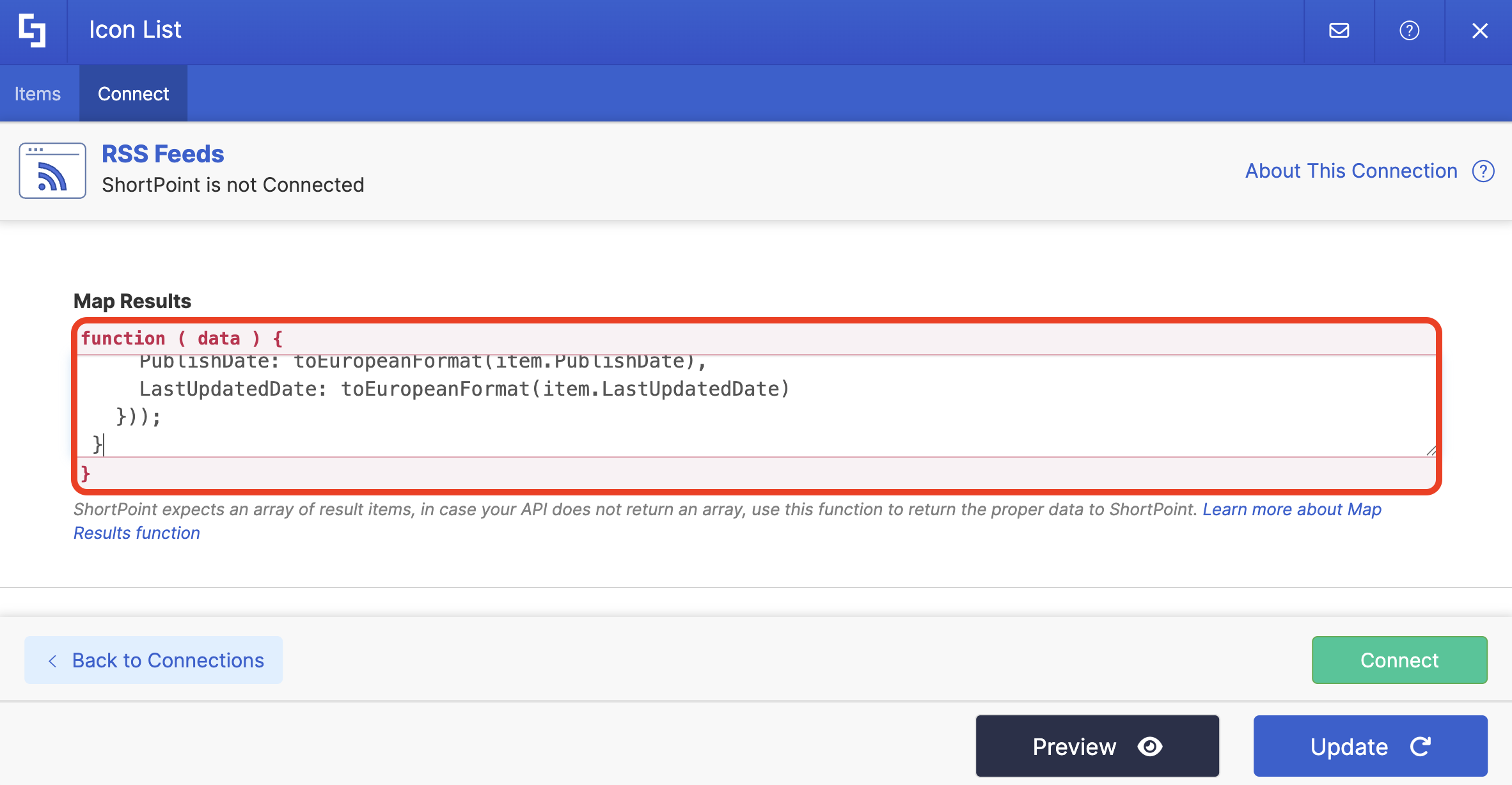
- Click Connect.
Step 6: Save
- Click Preview to see how the Design Element looks.
- Update your changes.
- Click the green checkmark.
- Click the eye icon to see your page in real-time:

- Save your edits:

Congratulations! You’ve successfully changed the date format to the European date format.
Related articles:
