 Try ShortPoint now
In this article, we'll walk you through how to create a SharePoint calendar using the Calendar Design Element. When you add these sleek calendars to your SharePoint intranet or SharePoint page, everyone on your team can quickly spot important team events, project deadlines, and upcoming events at a glance, allowing enhanced collaboration across your organization.
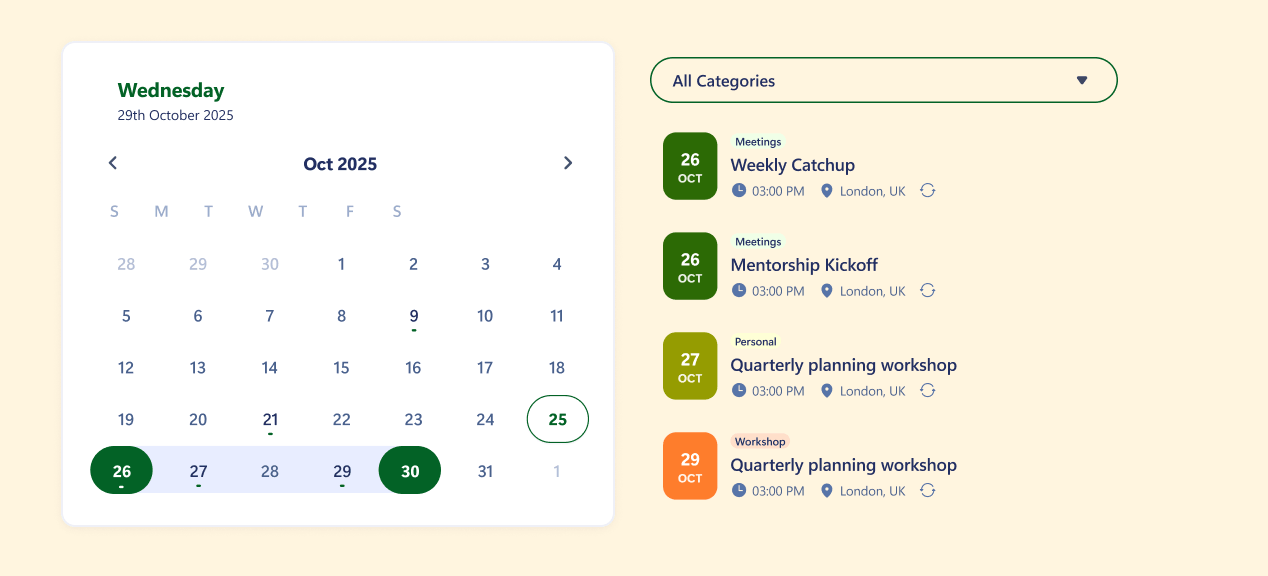
TABLE OF CONTENTS
- Prerequisites
- What Is the Calendar Design Element?
- Interactive Tutorial
- Step-by-step Tutorial
- Calendar Features
- Calendar Styles
- Practical Use Cases for the Calendar Design Element
- Start Designing with the Calendar Design Element
- Frequently Asked Questions
- What are ShortPoint Design Elements?
- What are the key features of the Calendar Design Element?
- Can I customize the appearance of my SharePoint calendar?
- How do I add new events to the SharePoint calendar?
- Is it possible to control who sees specific calendar events?
- Can I integrate the SharePoint calendar with other Microsoft 365 apps?
- What permissions do I need to create or edit a SharePoint calendar using the Calendar Design Element?
Prerequisites
- You must have the ShortPoint SPFx version 8.8.4.0 or later installed in your SharePoint environment.
- You must be a ShortPoint Designer with an active license.
What Is the Calendar Design Element?
The Calendar Design Element is available in ShortPoint's library from SPFx version 8.8.4.0 onwards.
This new feature makes it easy to create a calendar in SharePoint and display your team events and important dates directly on your SharePoint Online site. The best part? It's shown in a beautiful calendar view.
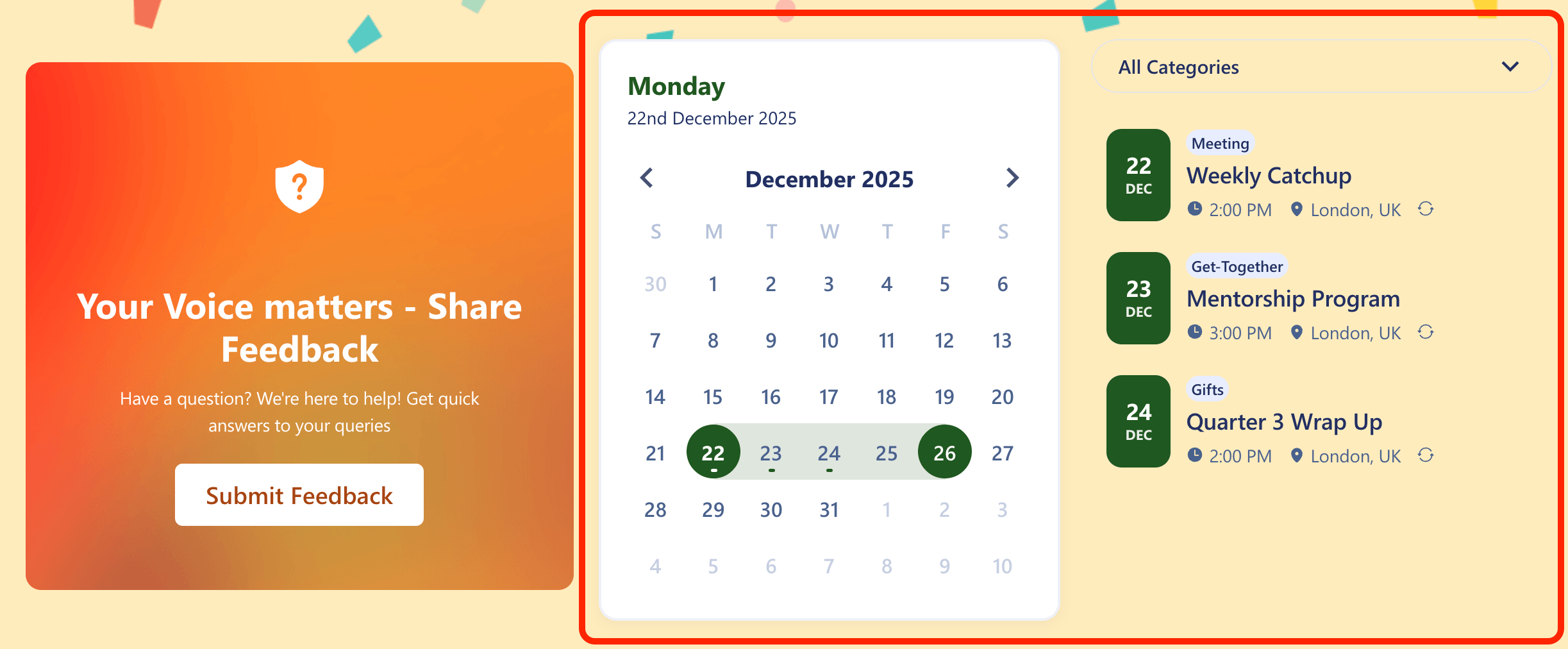
You'll have full control over the calendar interface. This includes adjusting the style, colors, calendar format, positioning, and more to perfectly match your site's aesthetic.
Interactive Tutorial
Click Get Started to easily add Lottie animations in SharePoint and enhance your users' experience on your web pages.
NOTETo learn more about the features you can customize for Calendar, check out Calendar Features.
Step-by-step Tutorial
Let's get you started with adding a new calendar to your SharePoint site. This guide breaks down the process into simple steps to help you manage events and improve team collaboration with an intuitive calendar view.
Step 1: Edit the ShortPoint Web Part
- Go to the SharePoint page you want to use and click Edit:

- Close the Toolbox:
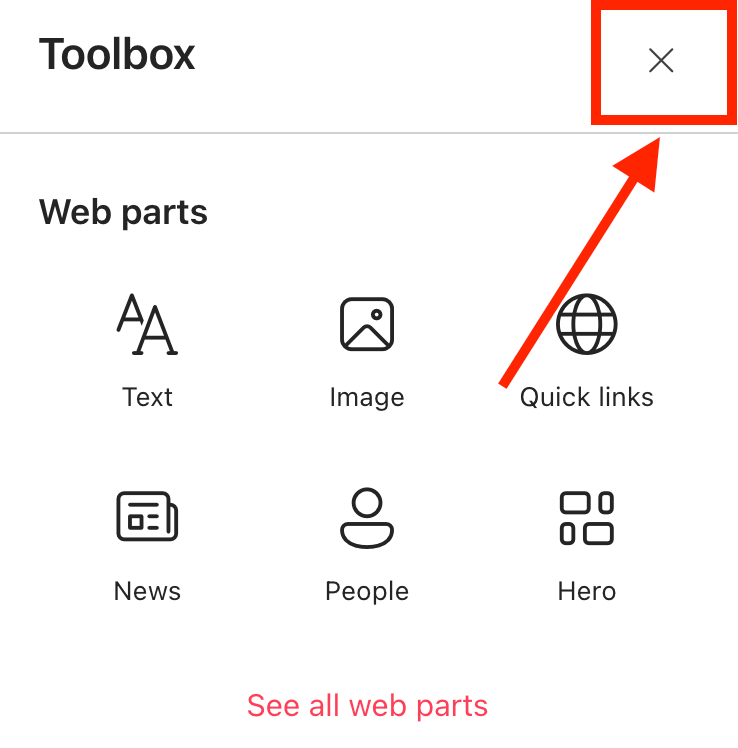
- Click the Edit properties icon:

Step 2: Insert the Calendars Design Element
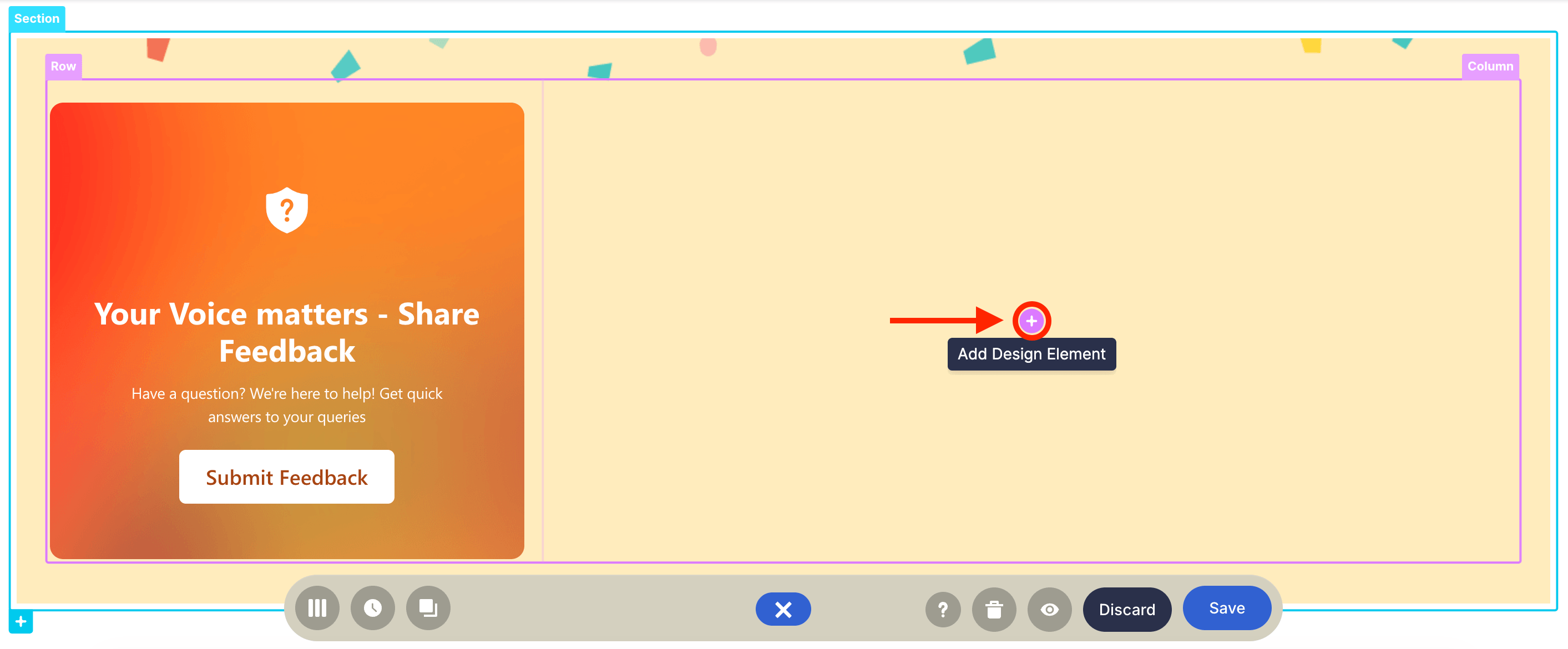
- Choose where you want to add Calendars and click the plus icon:
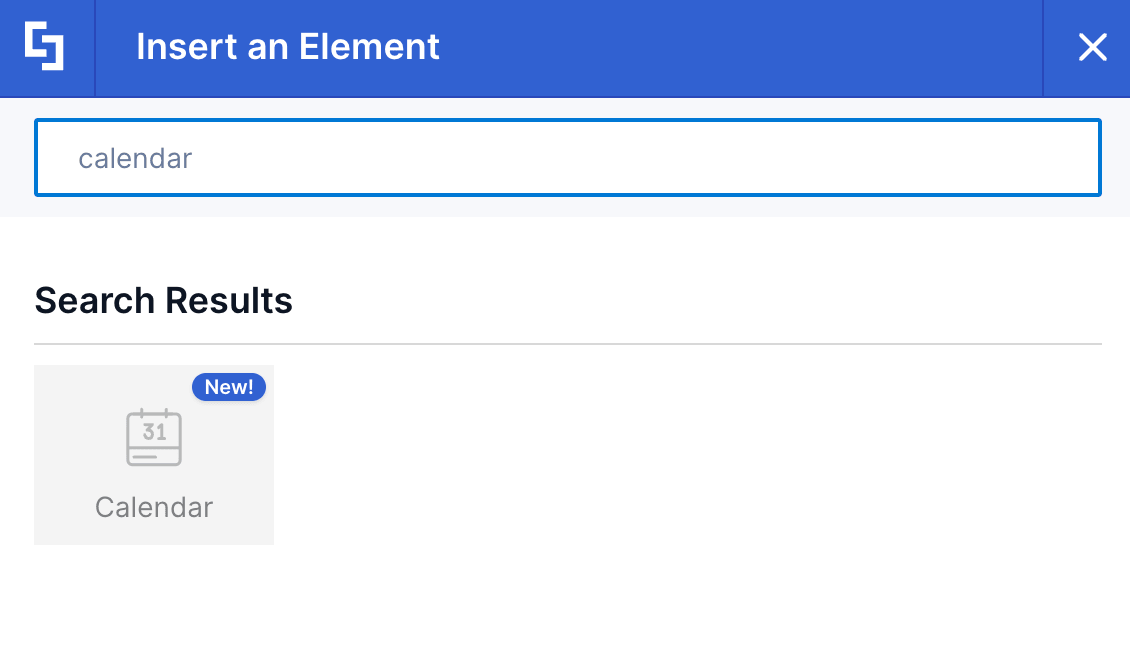
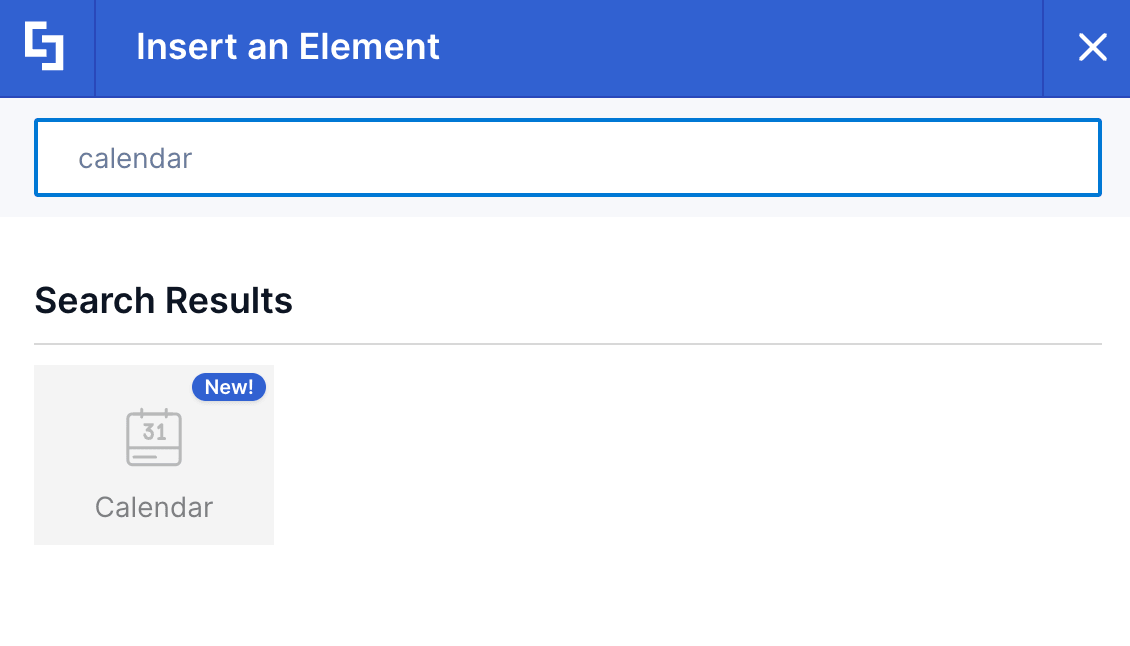
- Use the search box to look for Calendar and click it:
Step 3: Customize the Content
- Go to the Content tab.
- Click the cogwheel icon of the first event:

- Customize the content of the first event according to your preferences.
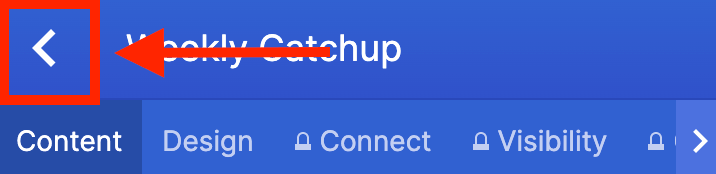
- Click the back icon:
- Repeat the steps for the other events.
NOTETo learn more about the features you can customize for Calendar, check out Calendar Features.
Step 4: Customize the Design
- Go to the Design tab.
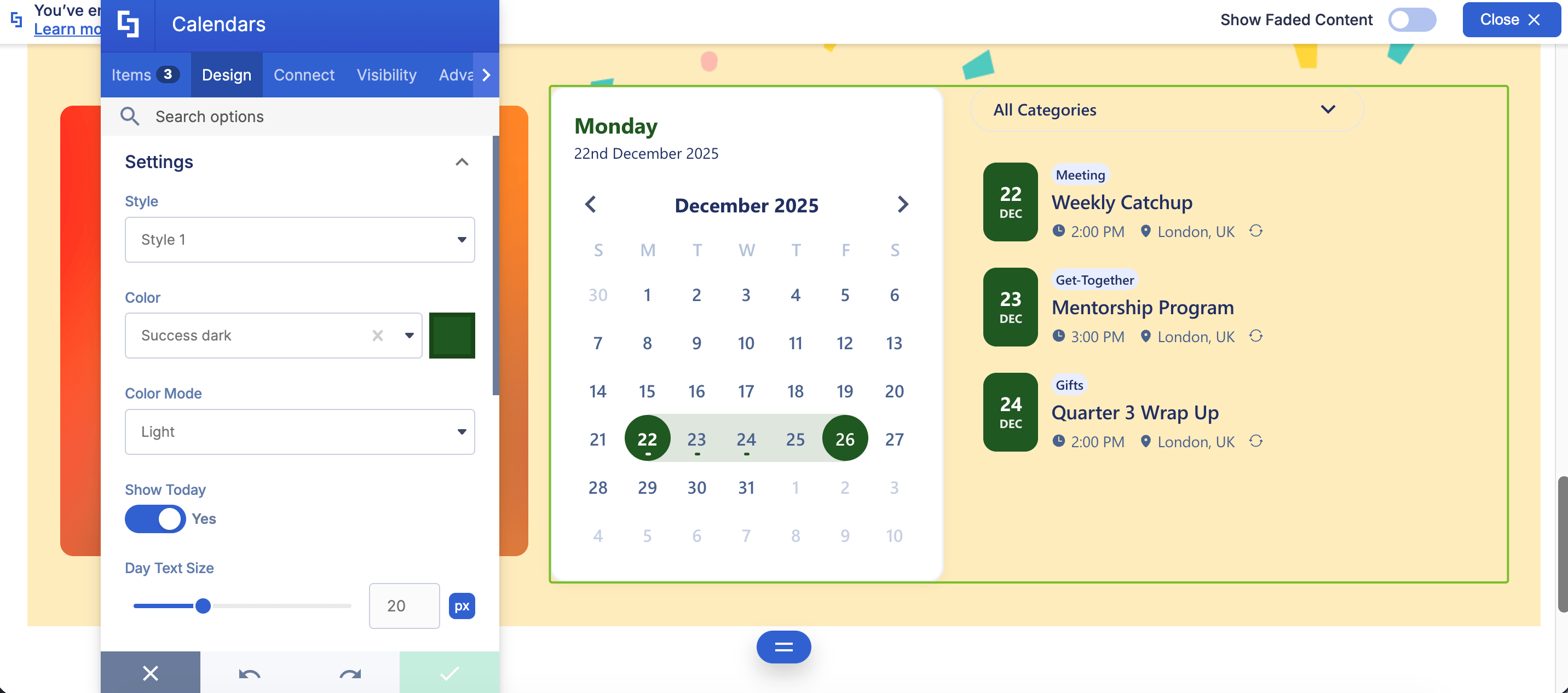
- Customize the look of the Calendar according to your preferences.
- Go to the Advanced tab.
- Modify the design even further.
- Once satisfied, click the green check mark.
NOTETo learn more about the features you can customize for Calendar, check out Calendar Features.
Step 5: Save
- Click the eye icon to see your page in real-time:

- Save your changes:

You've successfully added calendars to SharePoint! Your page viewers can now easily access their important team events, new team calendar entries, and upcoming events.
Calendar Features
You'll find several helpful options in the calendar settings window that let you customize and tailor your SharePoint calendar to suit your needs. Let's go through each one below:
A. Content Tab
The Content tab is where you can edit the content inside the SharePoint calendar. Here are the options you can tweak to efficiently manage events:
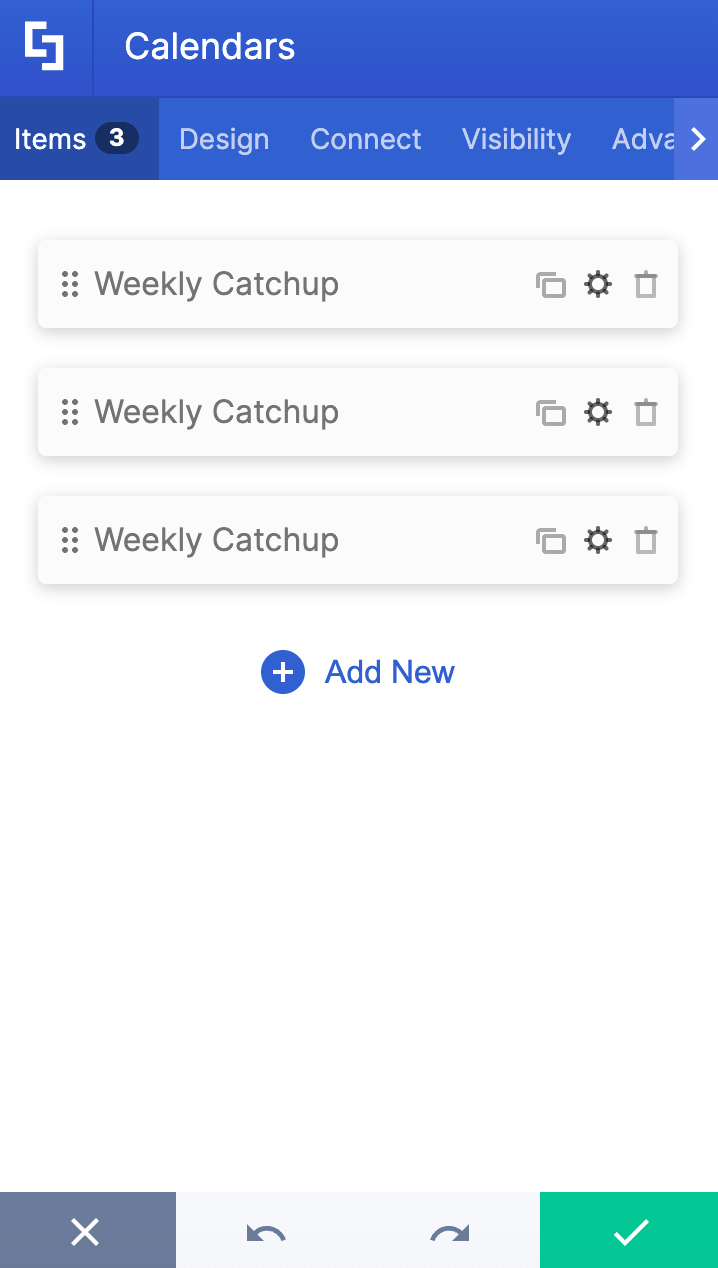
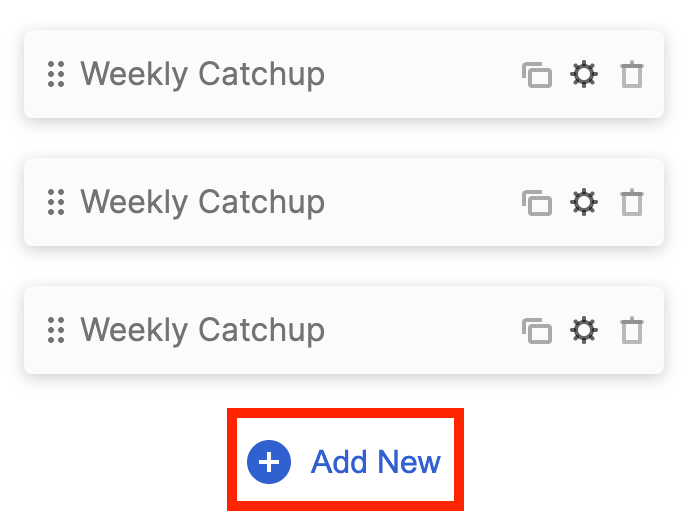 | Add New | allows you to add a new item. |
 | Drag icon | will enable you to rearrange the items. |
 | Duplicate icon | allows you to copy an item. |
 | Cogwheel icon | allows you to edit the content of an item. See the table below to see the options you can find inside. |
 | Trash icon | allows you to remove an item. |
COGWHEEL ICON OPTIONS (Content tab)
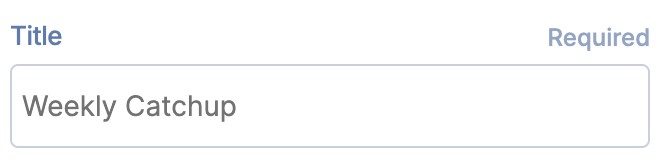 | Title | allows you to modify the title of the calendar event. |
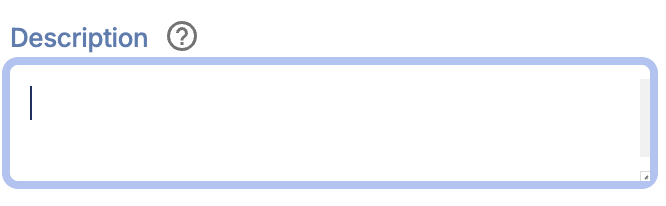 | Description | allows you to add a detailed description. |
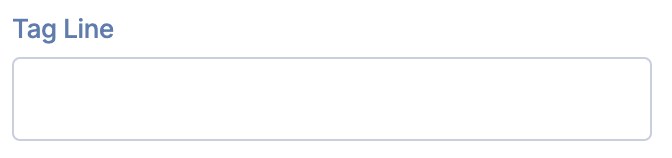 | Tag line | allows you to add a subtitle to the event. |
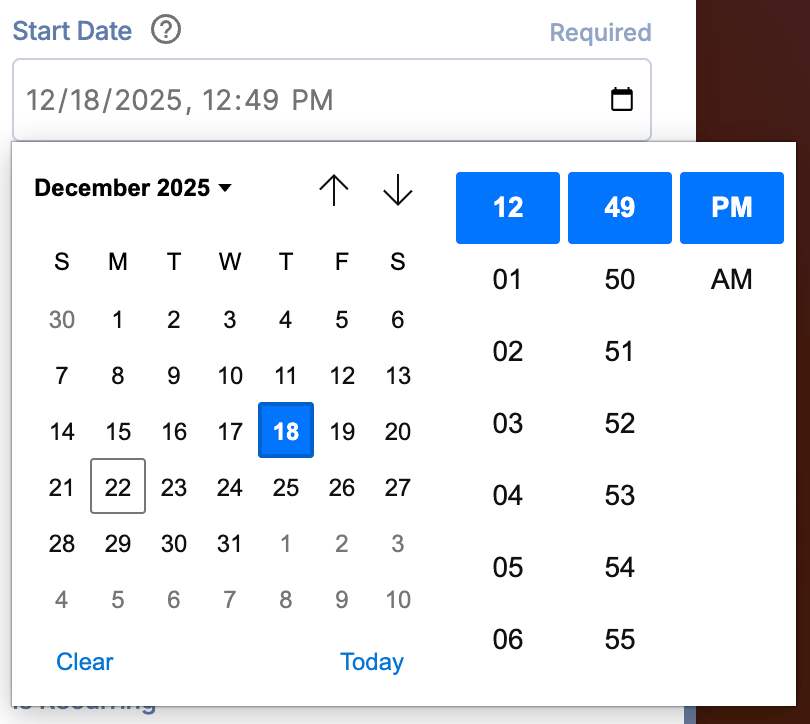 | Start Date | allows you to specify the date and time the event will start. |
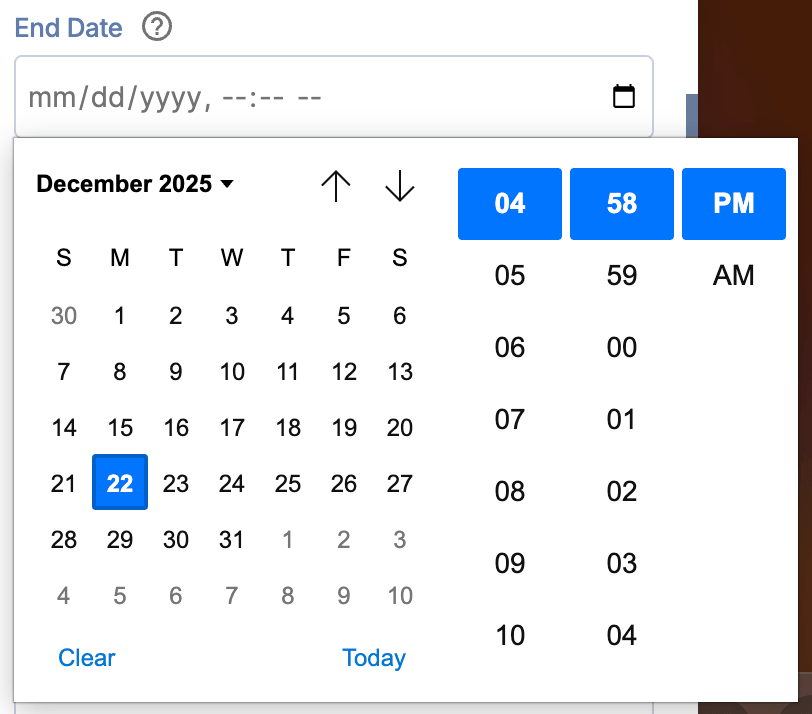 | End Date | allows you to specify the date and time the event will end. |
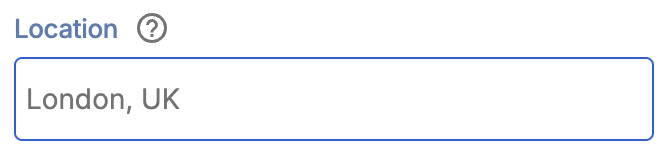 | Location | allows you to add an event location. |
 | All Day | when enabled, the event will be considered as an all-day event. |
 | Is Recurring | when enabled, the event will be considered as a recurring event. |
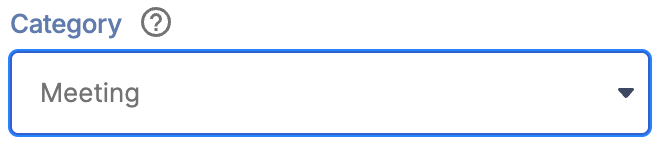 | Category | allows you to specify the event's category. |
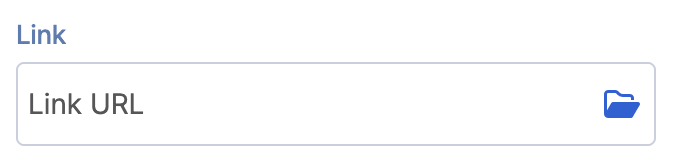 | Link | allows you to add a link to the event. Page viewers will be redirected to this link when they click on it. |
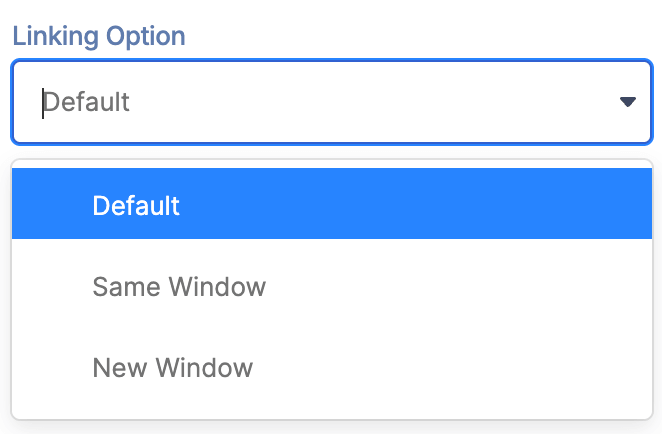 | Linking Options | allows you to choose how the link that is linked to the event will be opened. |
COGWHEEL ICON OPTIONS (Design tab)
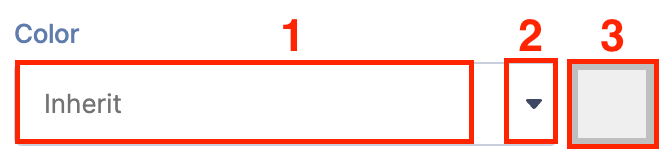 | Color | allows you to specify the color category the event belongs to. |
B. Design Tab
The Design tab is where you get to have fun customizing the look and feel of your SharePoint calendar. Here are the options you can modify to perfectly match your calendar interface with your SharePoint site design.
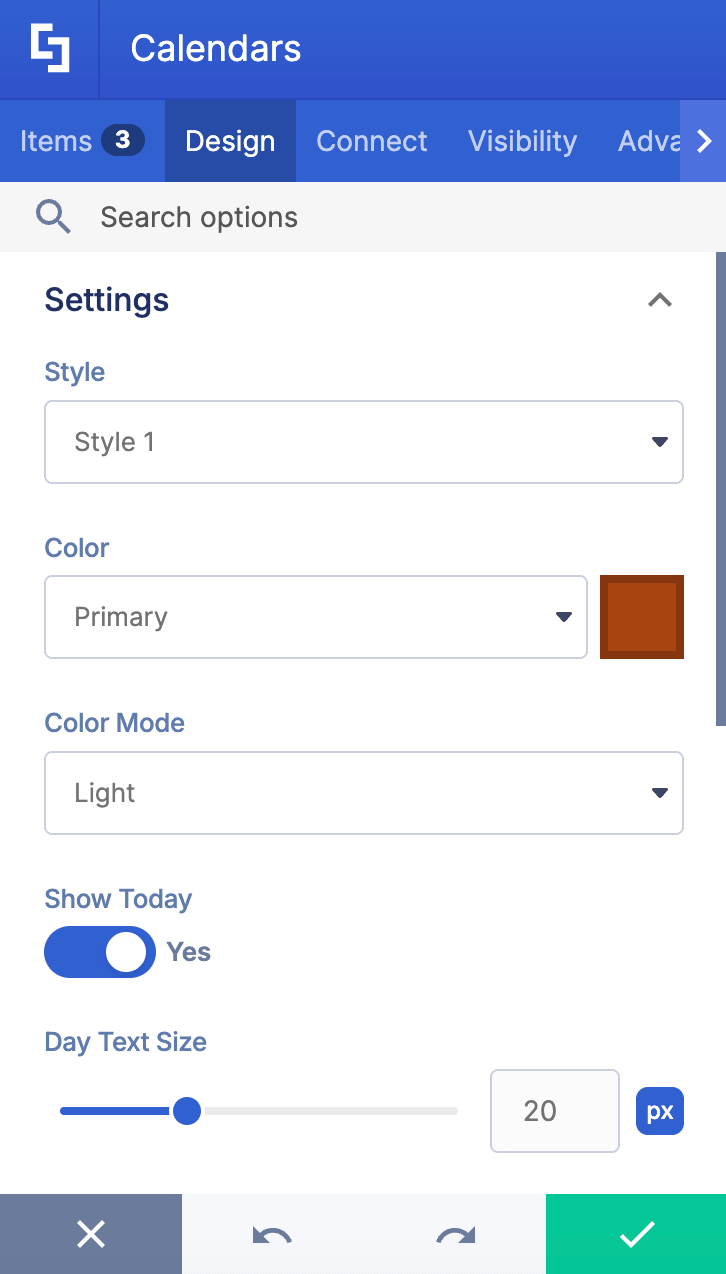
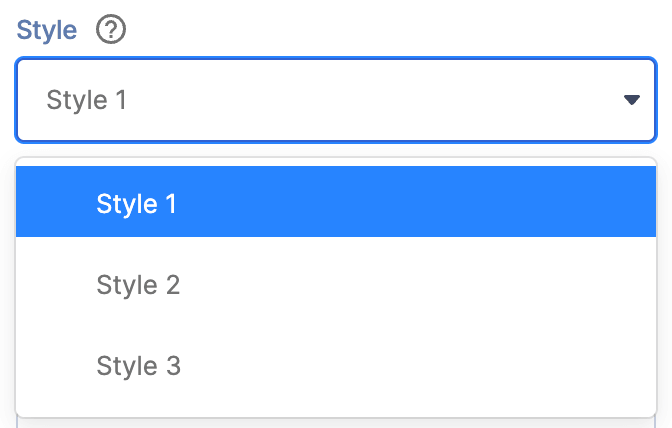 | Style | allows you to choose the calendar style you prefer. You can choose from 3 styles. Check out Calendar Styles to learn more. |
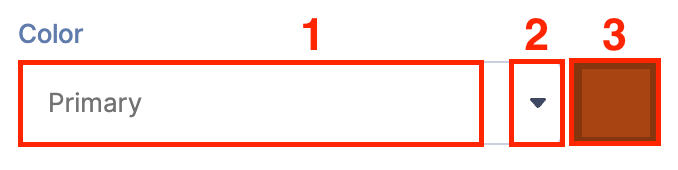 | Color | allows you to specify the primary color of the Calendar. You can change the color by [1] typing the HEX code, [2] using the drop-down, or [3] using the color picker. |
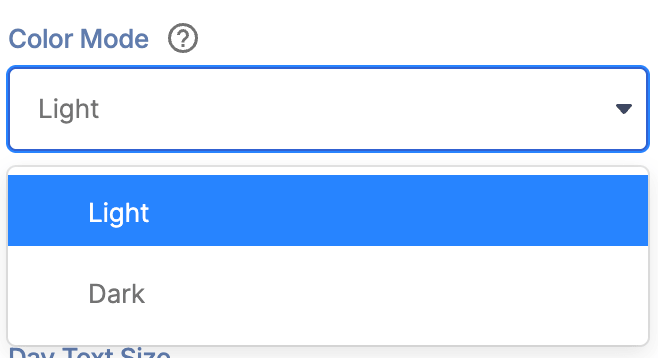 | Color Mode | allows you to choose from light or dark color mode. |
 | Show Today | when enabled, the date today will be shown. Additional settings will also appear. |
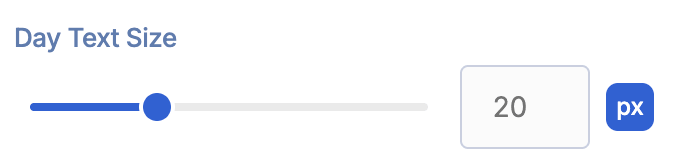 | Day text size | allows you to modify the text size value of the day. This option is only available when you have Show Today enabled. |
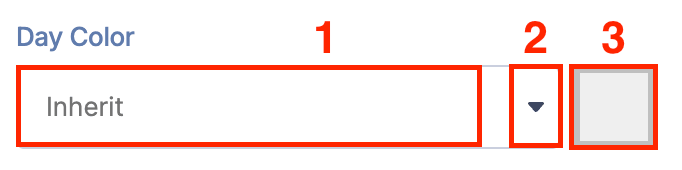 | Day Color | allows you to specify the color of the day. You can change the color by [1] typing the HEX code, [2] using the drop-down, or [3] using the color picker. This option is only available when you have Show Today enabled. |
 | Bold Day | when enabled, the day will be in bold. This option is only available when you have Show Today enabled. |
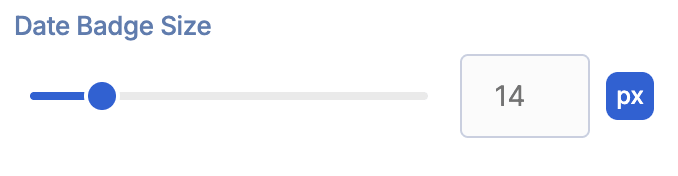 | Date Badge size | allows you to modify the text size value of the date. This option is only available when you have Show Today enabled. |
 | Bold Date | when enabled, the date will be in bold. This option is only available when you have Show Today enabled. |
EVENT SETTINGS
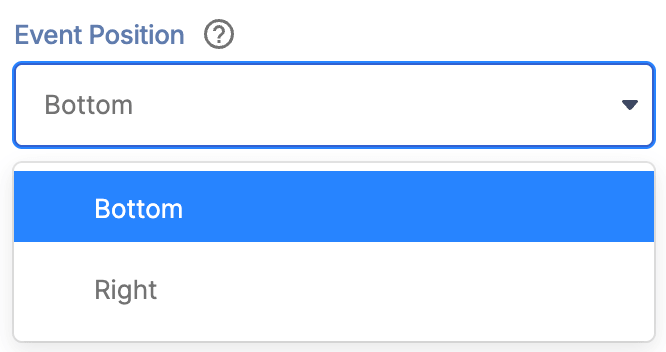 | Event Position | allows you to choose the position of the events. You can choose from bottom or right. |
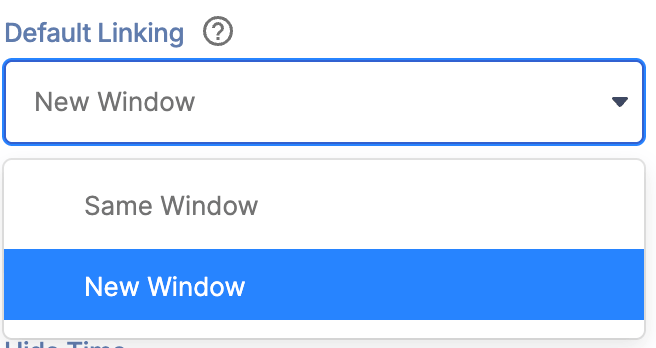 | Default Linking | allows you to specify how the link will be opened. |
 | Group by day | when enabled, the events will be categorized by day. |
 | Hide Time | when enabled, the time will be hidden. |
 | Show icon | when enabled, the icon will be shown. |
 | Fix Date Format Issues | when enabled, issues related to dates will be fixed. |
C. Connect Tab
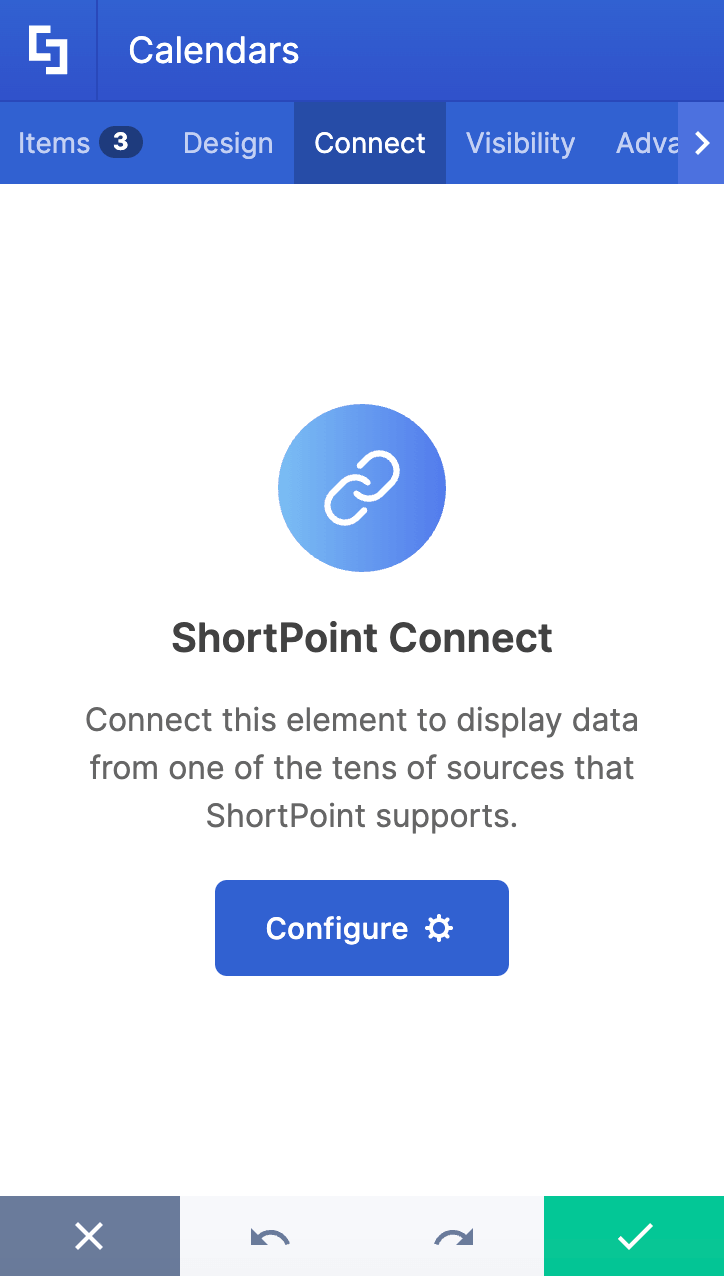
The Connect tab allows you to link the Design Element to SharePoint sources (List, Document Library, News, etc.) and other external sources (Microsoft Graph API, Teams, Outlook, etc.). For more details about ShortPoint Connect, check out Basic Tutorial: How to Establish Seamless SharePoint Connection with ShortPoint Connect.
D. Visibility Tab
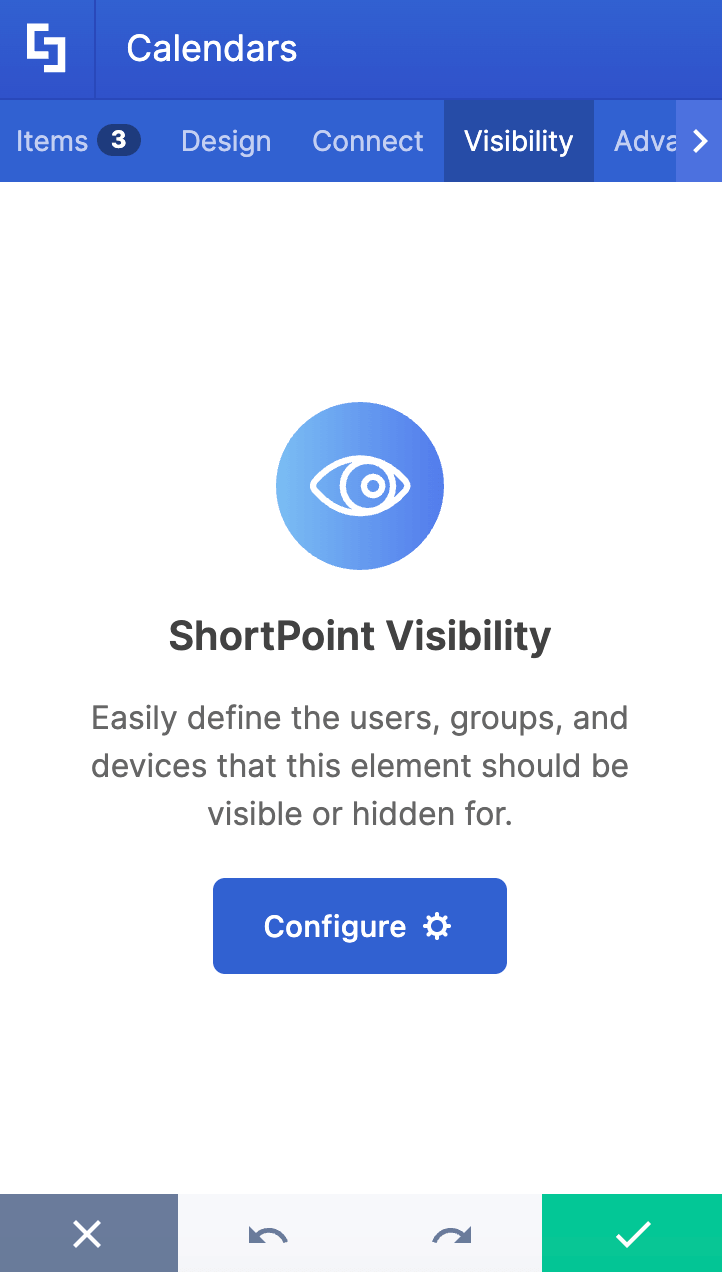
The Visibility tab allows you to specify who can see the Design Element and what type of devices it can be shown on. For more details, check out How to Use the ShortPoint Visibility Feature for Effective SharePoint Access Management.
E. Advanced Tab
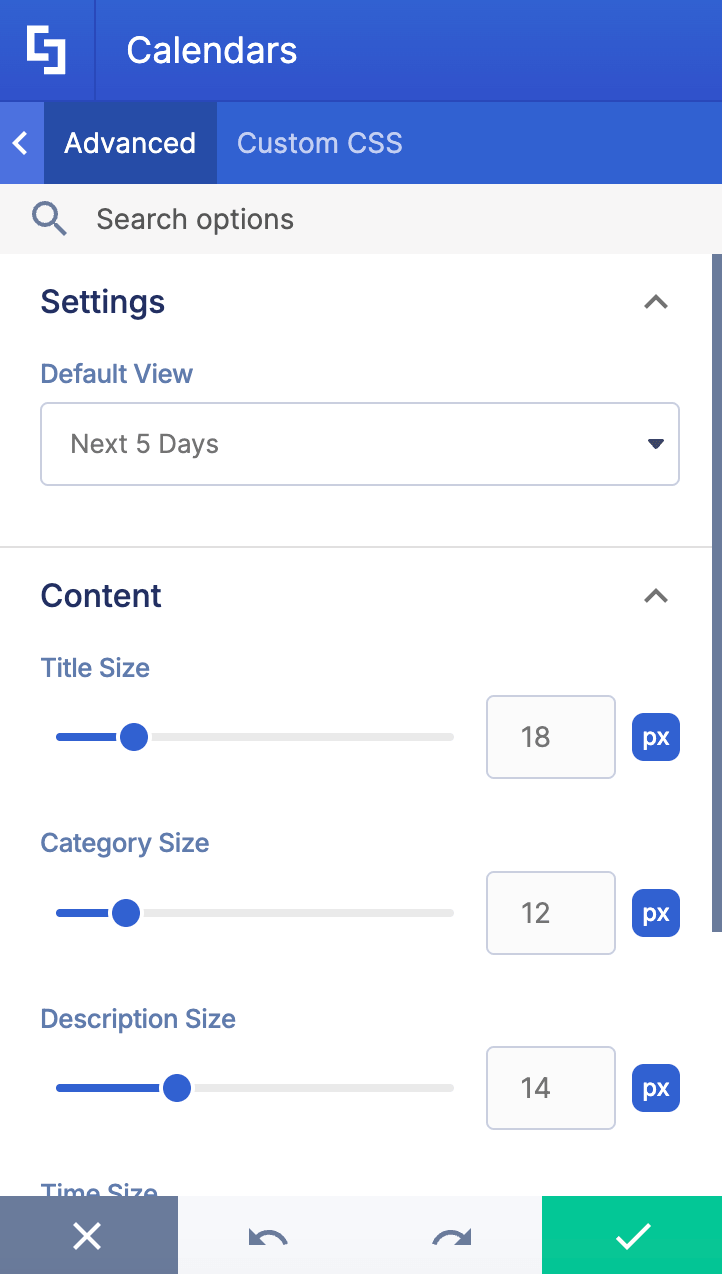
The Advanced tab allows further customization of the calendar interface and calendar view settings. These are the options you can change:
SETTINGS
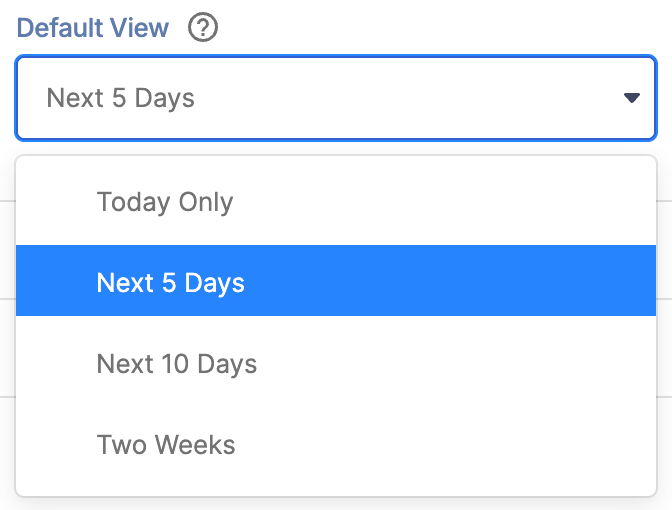 | Default View | allows you to customize calendar views. You can choose from Today only, Next 5 days, Next 10 days, or Two weeks. |
CONTENT
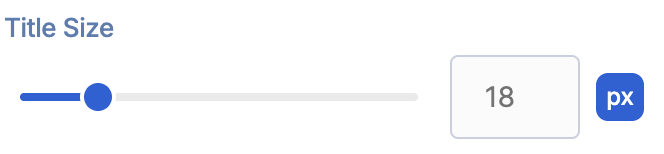 | Title Size | allows you to tweak the text size value of the title. |
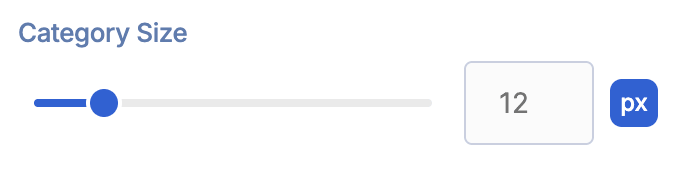 | Category Size | allows you to tweak the text size value of the category. |
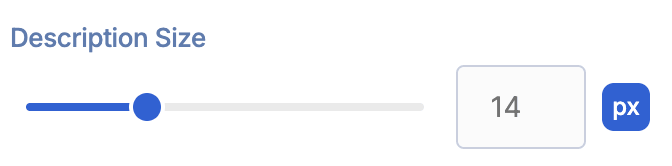 | Description Size | allows you to tweak the text size value of the description. |
 | Event Details Size | allows you to tweak the text size value of the event details. |
CATEGORY COLORS
 | Categories Colors | when enabled, you can modify the colors for each category. Additional options will also appear. |
SPACING
 | Margin Top | allows you to adjust the top margin value. |
 | Margin Bottom | allows you to adjust the bottom margin value. |
F. Custom CSS Tab
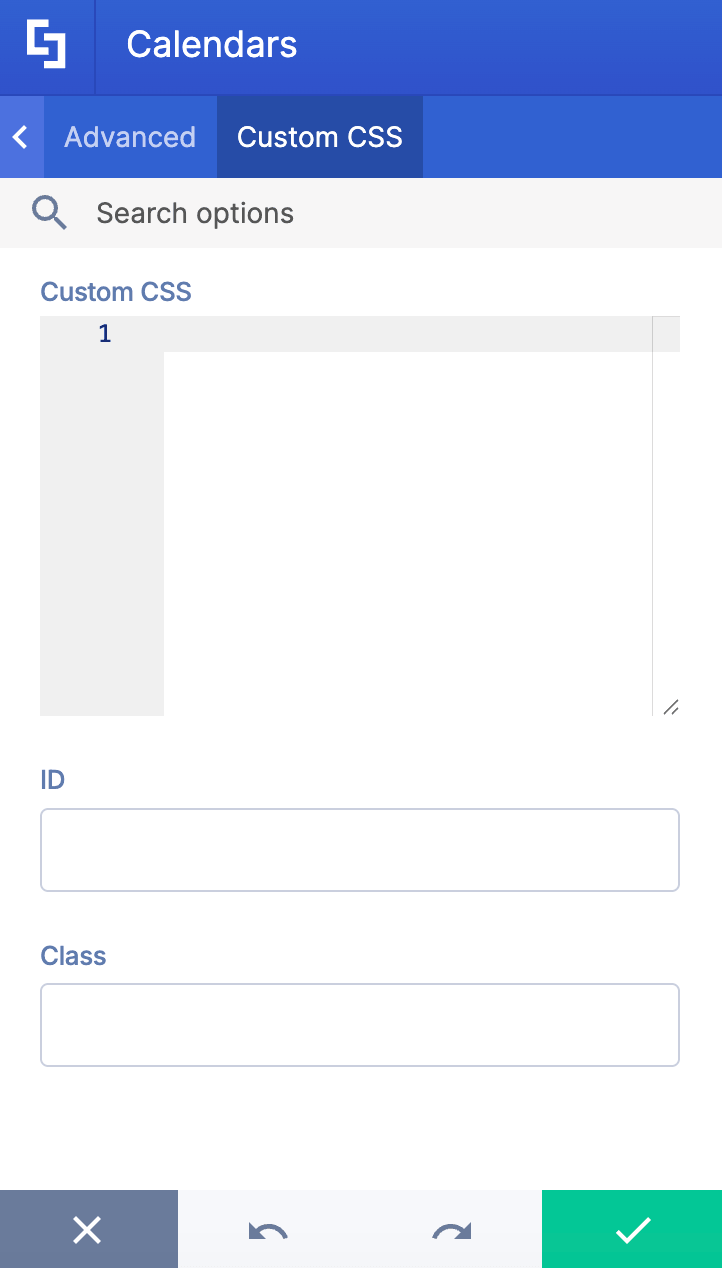
This tab lets you add your own custom touch to the Calendar Design Element using custom CSS, HTML, and JavaScript for advanced SharePoint calendar management.
NOTECheck out our support article on How to Insert Custom CSS into a Page Builder Element? (Basic Tutorial) to know more about Custom CSS.
Calendar Styles
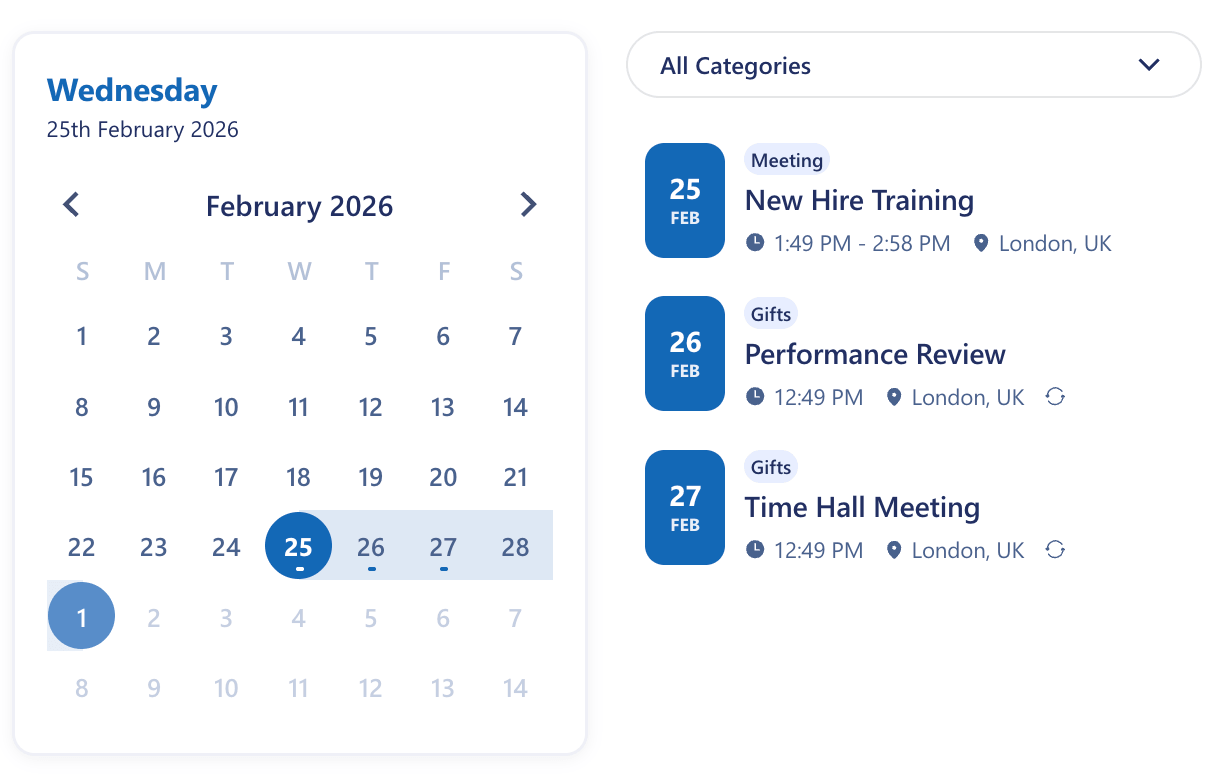
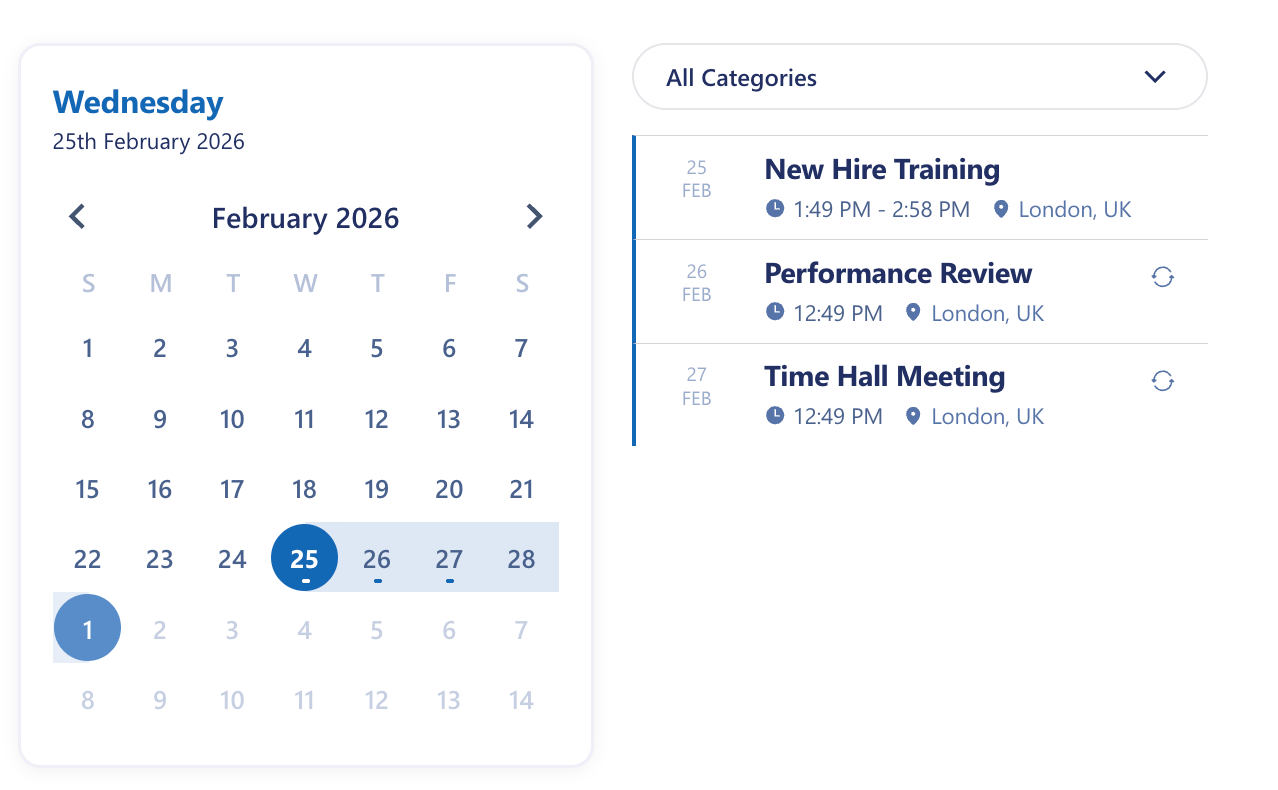
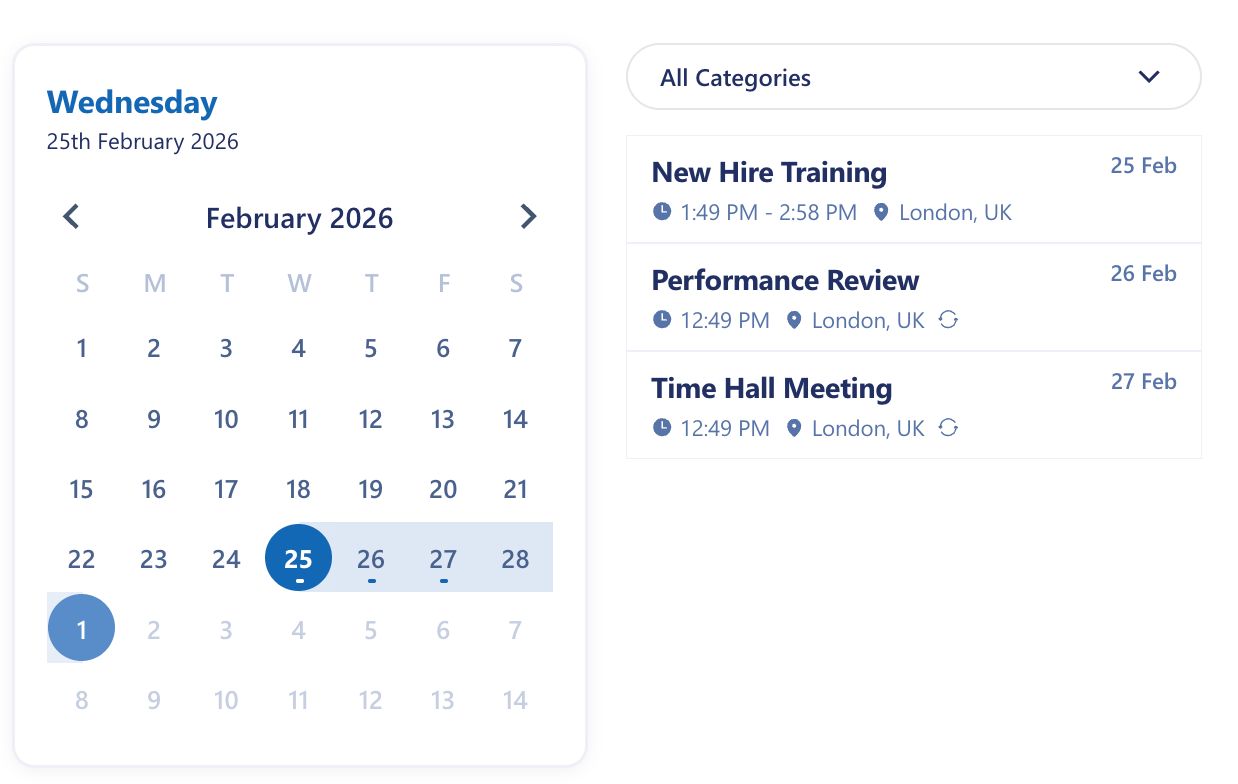
The Calendar Design Element gives you three very beautiful styles to choose from. Here's how they look:
- Style 1 features a vibrant, bold approach with eye-catching date blocks on the right side.
- Style 2 takes a more streamlined, minimalist direction by removing the colored date blocks entirely. Instead, it features a clean vertical line running down the list to connect everything together.
- Style 3 offers a balanced middle ground with the date positioned on the right side in a simple text format—no blocks, no backgrounds, just clean typography.
Practical Use Cases for the Calendar Design Element
The Calendar Design Element in SharePoint offers versatile applications that enhance organizational efficiency and team collaboration. Here are some practical use cases where this feature can make a significant impact:
Project Deadlines and Milestones: Easily display key project deadlines and important milestones in a clear calendar view, helping teams stay on track and meet targets without missing critical dates.
Team Events and Meetings: Use the calendar to schedule and showcase team events, meetings, and training sessions. The ability to customize calendar views and categorize events by color improves visibility and planning.
Company-wide Announcements and Holidays: Share upcoming company holidays, office closures, or special events across the entire organization. This promotes transparency and helps with resource planning.
Recurring Events Management: Manage recurring events such as weekly stand-ups or monthly reviews by enabling the Recurring option, ensuring consistent communication and scheduling.
Enhanced Collaboration via Microsoft Teams: Integrate the calendar within a Teams channel for easy access and real-time updates, fostering seamless collaboration among team members.
Tracking Product Release Dates: Highlight important product release dates and related launch activities, allowing cross-functional teams to coordinate efforts effectively.
Start Designing with the Calendar Design Element
The Calendar Design Element provide users with an intuitive, centralized tool for managing multiple events with an interactive calendar layout. With it, you can keep everyone informed and up-to-date with latest company goings.
Take the first step today! In a few clicks, you can launch your first Calendar Design Element. Just update to the latest ShortPoint SPFx version (8.8.4.0) and our interactive tutorial will be right there to guide you.
Just getting to know ShortPoint? Start exploring with a FREE 15-day trial — no commitment, no pressure. Or let us show you around with a one-on-one demo covering the Calandar Design Element and all the features ShortPoint has to offer.
Frequently Asked Questions
What are ShortPoint Design Elements?
ShortPoint Design Elements are pre-built, customizable content that ShortPoint Designers can insert into SharePoint pages using the ShortPoint Page Builder. This allows advanced design, layout, and functionality without writing any code. There are over 60 Design Elements to choose from, including News Cards, Accordions, Quick Links, Buttons, and so much more.
What are the key features of the Calendar Design Element?
The Calendar Design Element offers options to customize calendar views, including styles, colors, and calendar format. You can add events with details like event title, start date, end date, location, and categories. You can even control how events are displayed to enhance SharePoint calendar management.
Can I customize the appearance of my SharePoint calendar?
Yes, you can customize your calendar’s look and feel via the Design tab. Here, you can adjust styles, colors, text sizes, and enable features like color by category to visually organize your calendar for enhanced collaboration.
How do I add new events to the SharePoint calendar?
Use the Add New option in the Content tab of the calendar settings to input necessary information such as event title, description, dates, and category. This helps keep your team updated with all relevant team events and deadlines.
Is it possible to control who sees specific calendar events?
Yes, the Visibility tab allows you to set permissions so that only specific people or groups (including AD/O365 groups) can view certain calendar events, ensuring personalized and secure access.
Can I integrate the SharePoint calendar with other Microsoft 365 apps?
While this article focuses on creating and customizing calendars within SharePoint, integrating with apps like Outlook Calendar and Microsoft Teams is possible through ShortPoint Connect. This can enhance accessibility and collaboration by syncing your personal Outlook calendar and team schedules.
What permissions do I need to create or edit a SharePoint calendar using the Calendar Design Element?
You must be a ShortPoint Designer with an active license. You must also have the latest version of ShortPoint SPFx installed.
Related articles:
- How to Add an Online World Clock to SharePoint Sites Using the World Clock Design Element
- How to Embed Canva into SharePoint Using the Canva Design Element
- How to Create a FlipBox in SharePoint Using the FlipBoxes Design Element
- How to Create a Breadcrumb Navigation in SharePoint Online Using the Breadcrumb Design Element
- How to Add Customer Testimonials to SharePoint Using the Testimonials Design Element
- How to Create SharePoint Announcements Using the Announcement Design Element
