 Try ShortPoint now
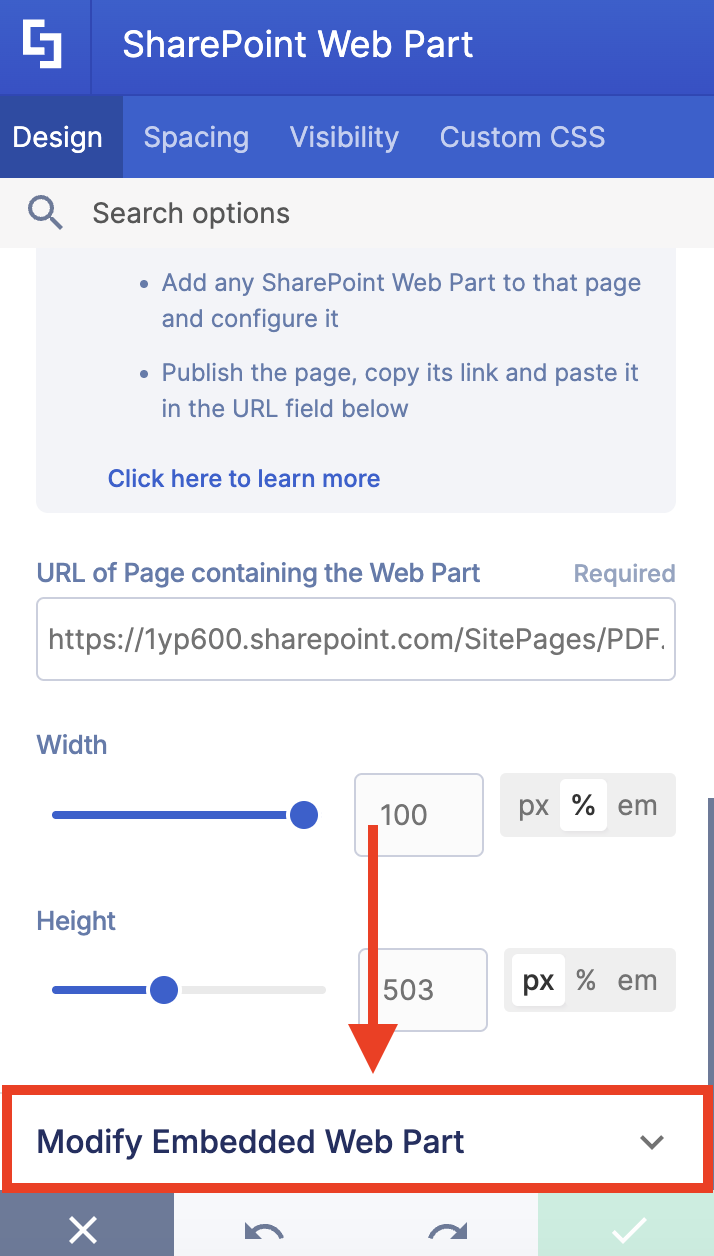
Starting ShortPoint SPFx version 8.7.3.0 and up, you can now further modify the SharePoint web part Design Element using custom CSS code and JavaScript code. You’ll be able to find this new enhancement in the Design tab under the Modify Embedded Web Part section:
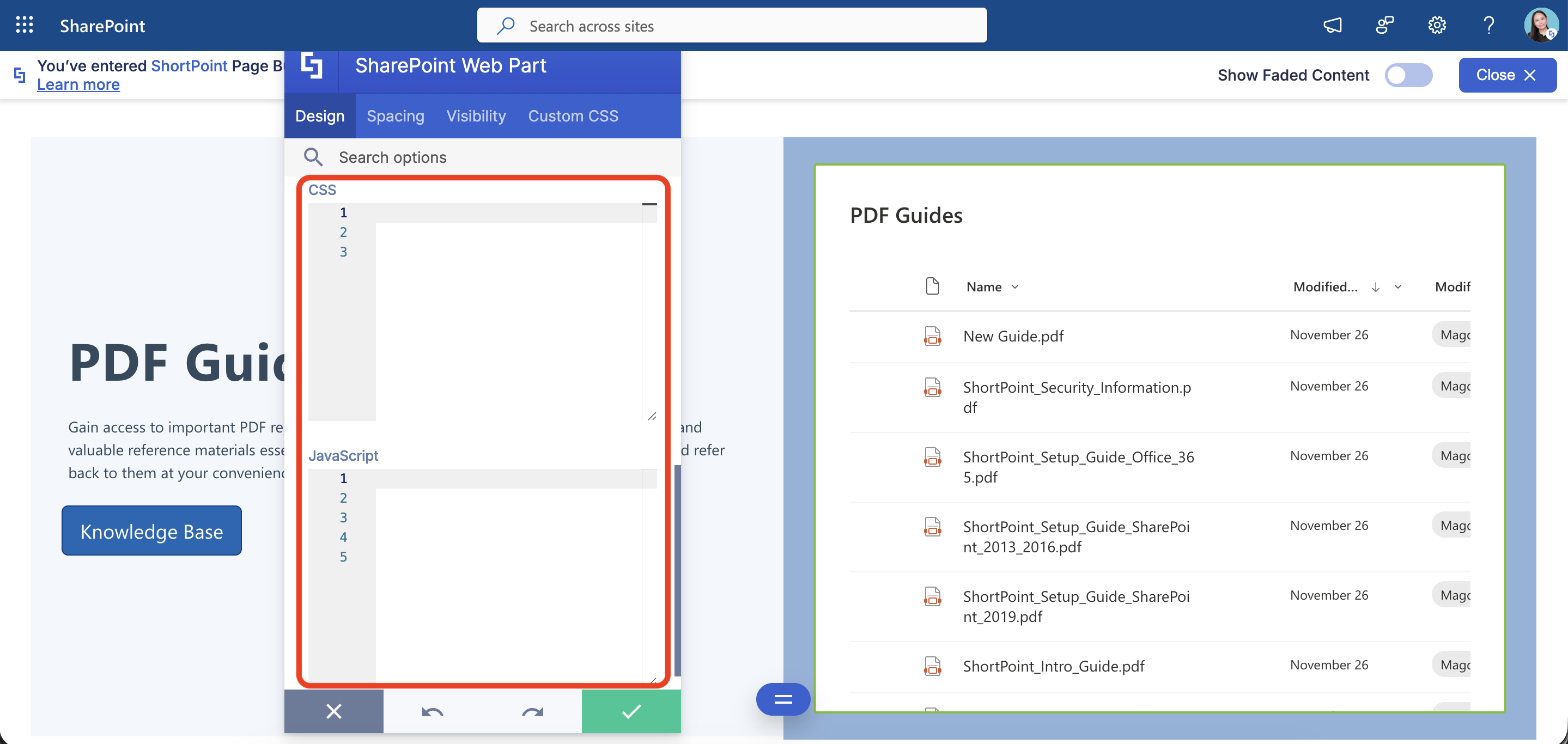
This article will demonstrate how to use these new fields.
TABLE OF CONTENTS
Prerequisite
- You must have ShortPoint SPFx version 8.7.3.0 and up installed on your SharePoint environment.
- You must be a ShortPoint Designer with an active license.
- You must already have the SharePoint Web Part Design Element on your page. If you don’t have it yet, check out How to Embed a SharePoint Web Part into ShortPoint.
Interactive Tutorial
Start the interactive tutorial to learn how to modify the SharePoint web part Design Element using custom CSS code or JavaScript code:
Step-by-step Tutorial
Follow the steps below for a detailed guide:
Step 1: Edit the ShortPoint web part
- Go to the SharePoint page you want to use and click Edit:

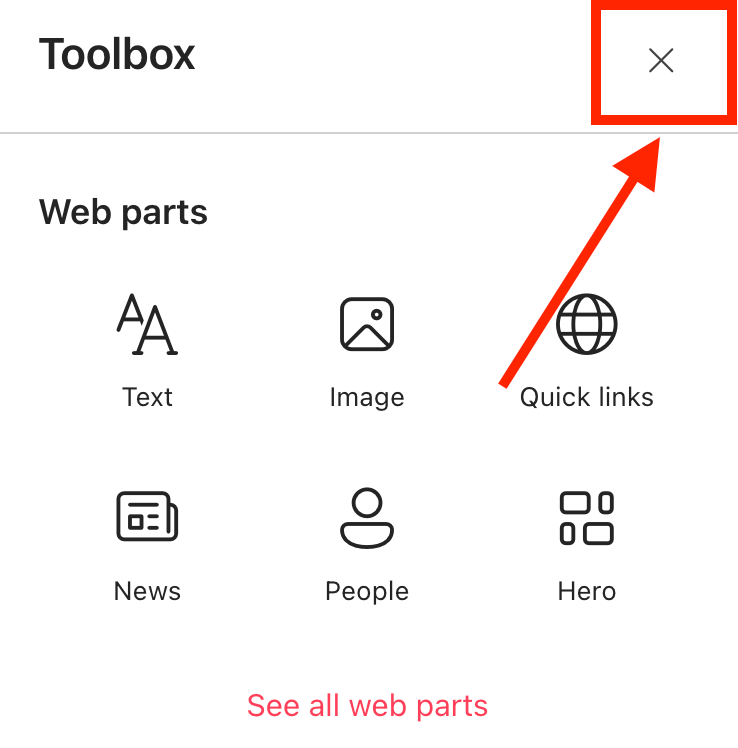
- Close the Toolbox:
- Edit the ShortPoint web part:

Step 2: Edit the SharePoint Web Part Design Element
NOTEBefore proceeding, you must already have the SharePoint Web Part Design Element on your page. If you don’t have it yet, check out How to Embed a SharePoint Web Part into ShortPoint.
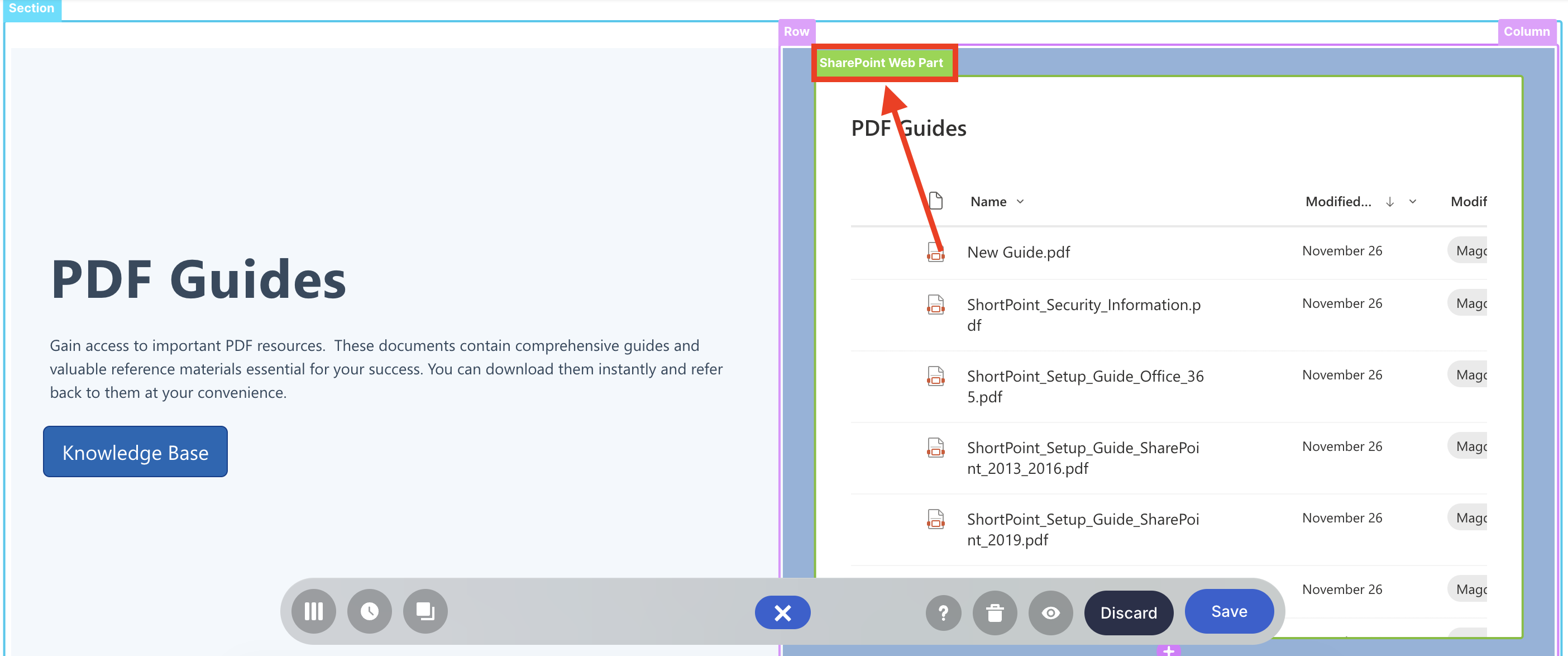
- Click the SharePoint Web Part tag:
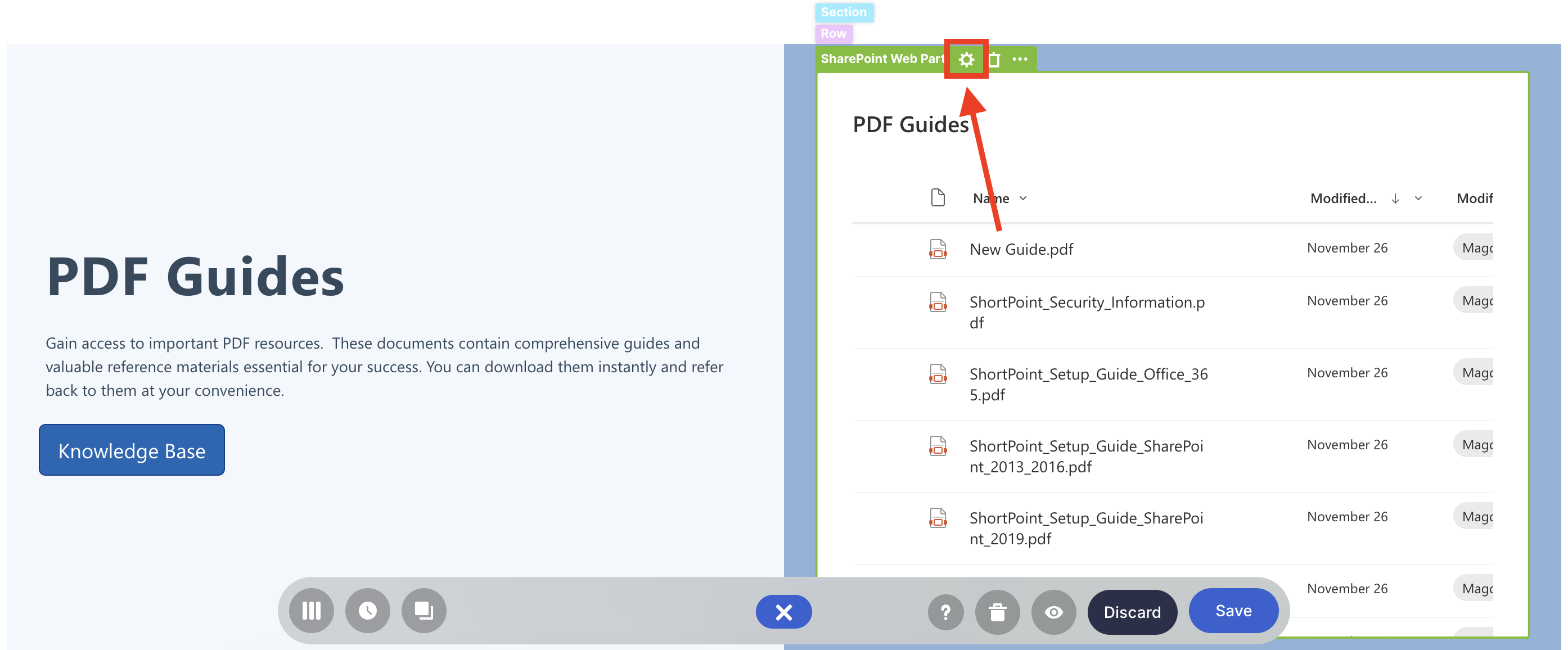
- Select the cogwheel icon:
Step 3: Prepare your Code
- You can create your own custom CSS or JavaScript code. But for this guide, we want to hide the title of our embedded SharePoint web part.
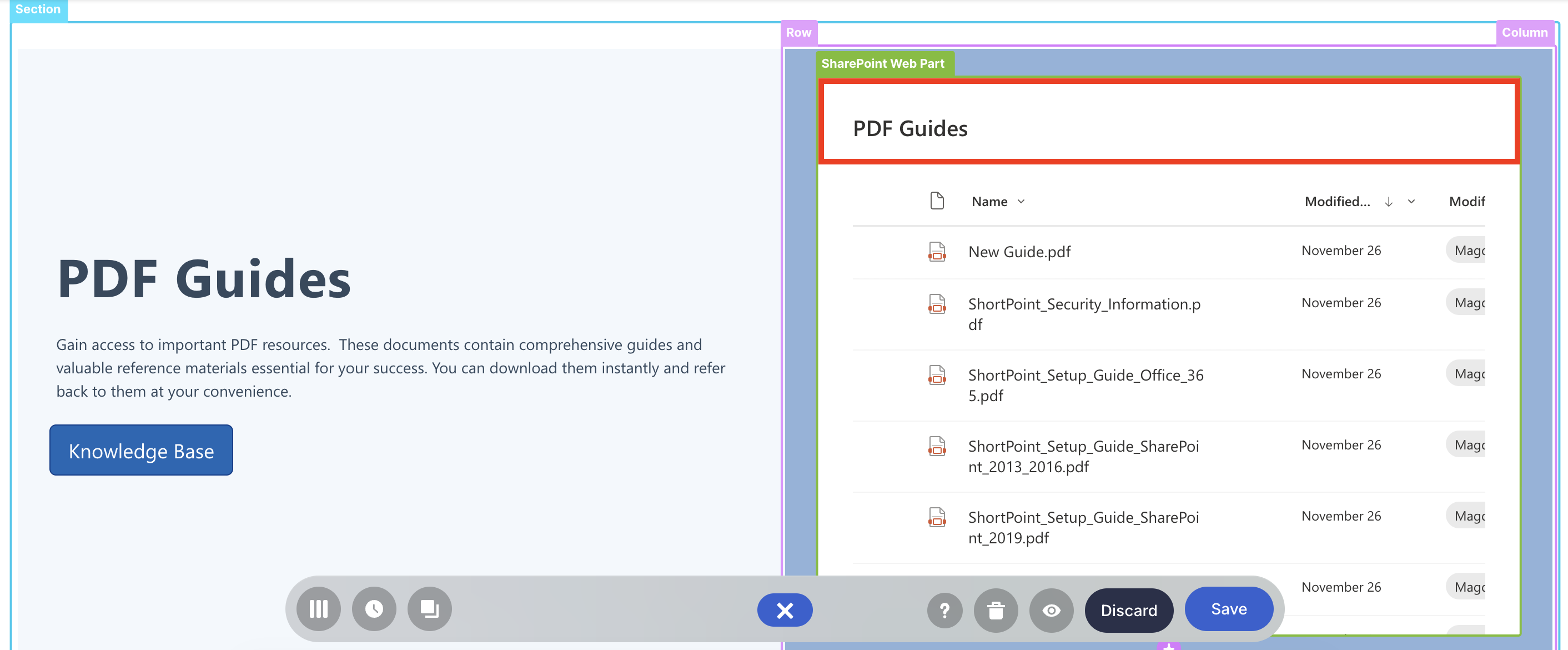
- To do this, we used this custom CSS code:
div[data-automation-id="webPartHeader"] {
    height: 0 !important;
    min-height: 0 !important;
    padding: 0 !important;
    margin: 0 !important;
    overflow: hidden !important;
Step 4: Paste the code
- Scroll down and select the Modify Embedded Web Part section:
- Paste your prepared code into either the CSS or JavaScript field. Since we have a custom CSS code, we’ll paste it in the CSS field:
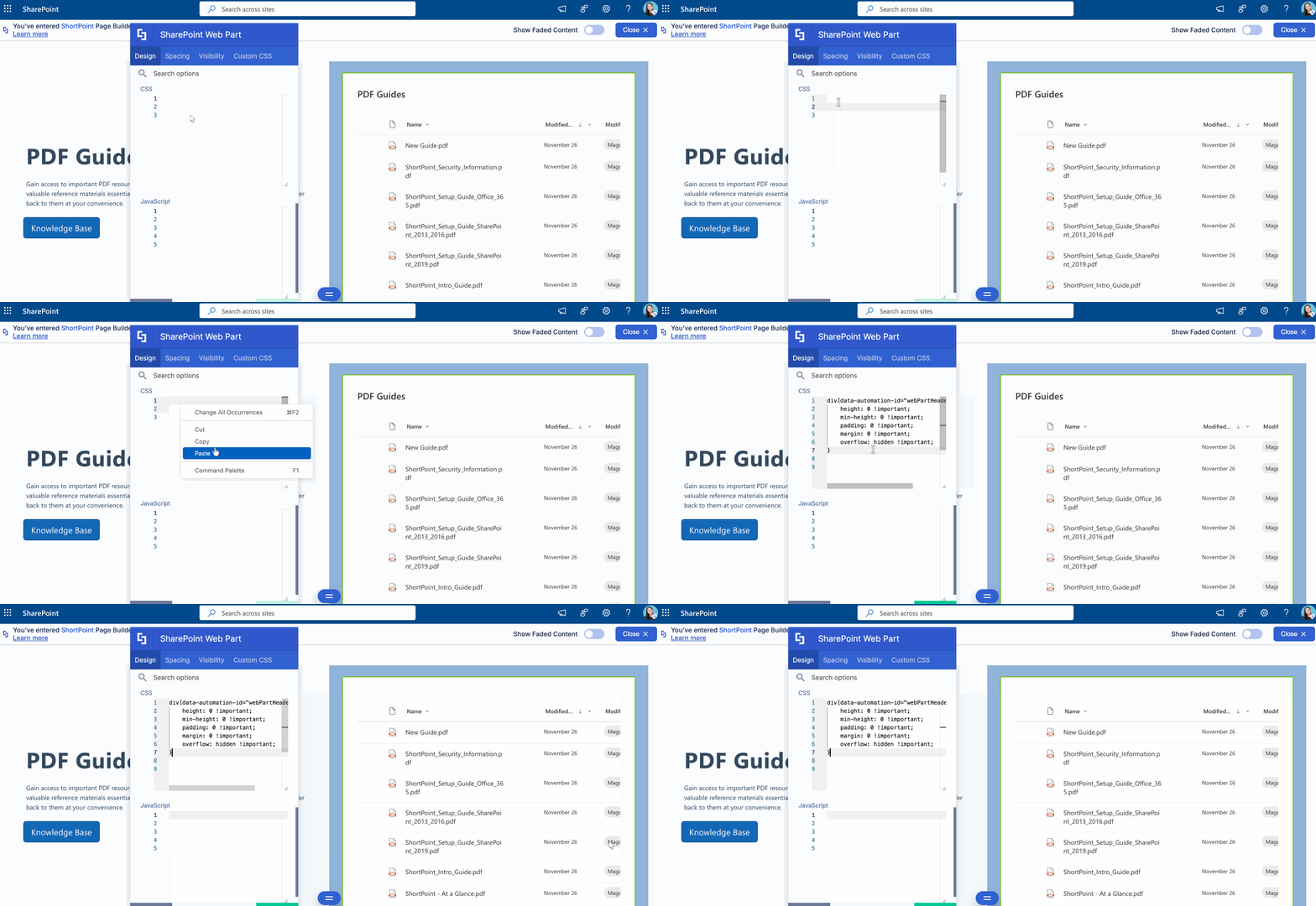
- Once satisfied, click the green checkmark.
Step 5: Save
- Then, click the eye icon to see how your page will look in real-time:

- Save your changes:

Great work! You can now use custom CSS code or JavaScript to further customize your embedded SharePoint web part.
Related articles:
