 Try ShortPoint now
Stop wasting time searching for assets in a separate browser tab, downloading them to your desktop, and re-uploading them to SharePoint. With ShortPoint Gallery, you have instant access to thousands of professional SharePoint pictures and stock videos (powered by repositories like Pexels) without ever leaving the Page Builder.
This guide will show you how to browse, select, and insert high-quality stock photos and videos directly into your intranet pages using the ShortPoint Gallery integration.
Note: In the current release, ShortPoint Gallery provides access to the Pexels repository. We are actively working to expand this, with plans to integrate additional repositories and introduce new media capabilities in future updates.
TABLE OF CONTENTS
Prerequisites
- You must have ShortPoint SPFx version 8.7.2.0 or later installed on your SharePoint environment.
- You must be a ShortPoint Designer with an active license.
- You have added a Design Element that supports images and/or videos (e.g., Image, Image Carousel, Background, or Slideshow).
What is the ShortPoint Gallery?
The ShortPoint Gallery is a centralized media interface built directly into the Page Builder. It seamlessly connects your intranet to premium stock image and video repositories (such as Pexels), allowing you to search, preview, and insert quality media without ever leaving the editing window.
Think of it as your built-in search engine for professional SharePoint pictures. It eliminates the traditional, time-consuming workflow of searching for images on external websites, downloading them to your desktop, and then re-uploading them to your site. It also supports stock videos, allowing you to add dynamic, engaging motion backgrounds or video elements to your design just as easily.
Check out how to access and use the ShortPoint Gallery.
Interactive Tutorial
Experience a live demonstration by launching the interactive tutorial below, which will guide you through these steps.
Step-by-Step Guide
Here are detailed steps on how to access and use the ShortPoint Gallery:
Step 1: Edit the ShortPoint web part
- Enter the SharePoint edit mode by clicking the Edit button.
- Select the ShortPoint web part.
- Open the Page Builder by clicking the Edit properties icon.
Step 2: Open the Design Element settings window
- Navigate the Design Element you will be using to display your content.
- Press the element tag.
- Click the cogwheel icon to open the settings window.
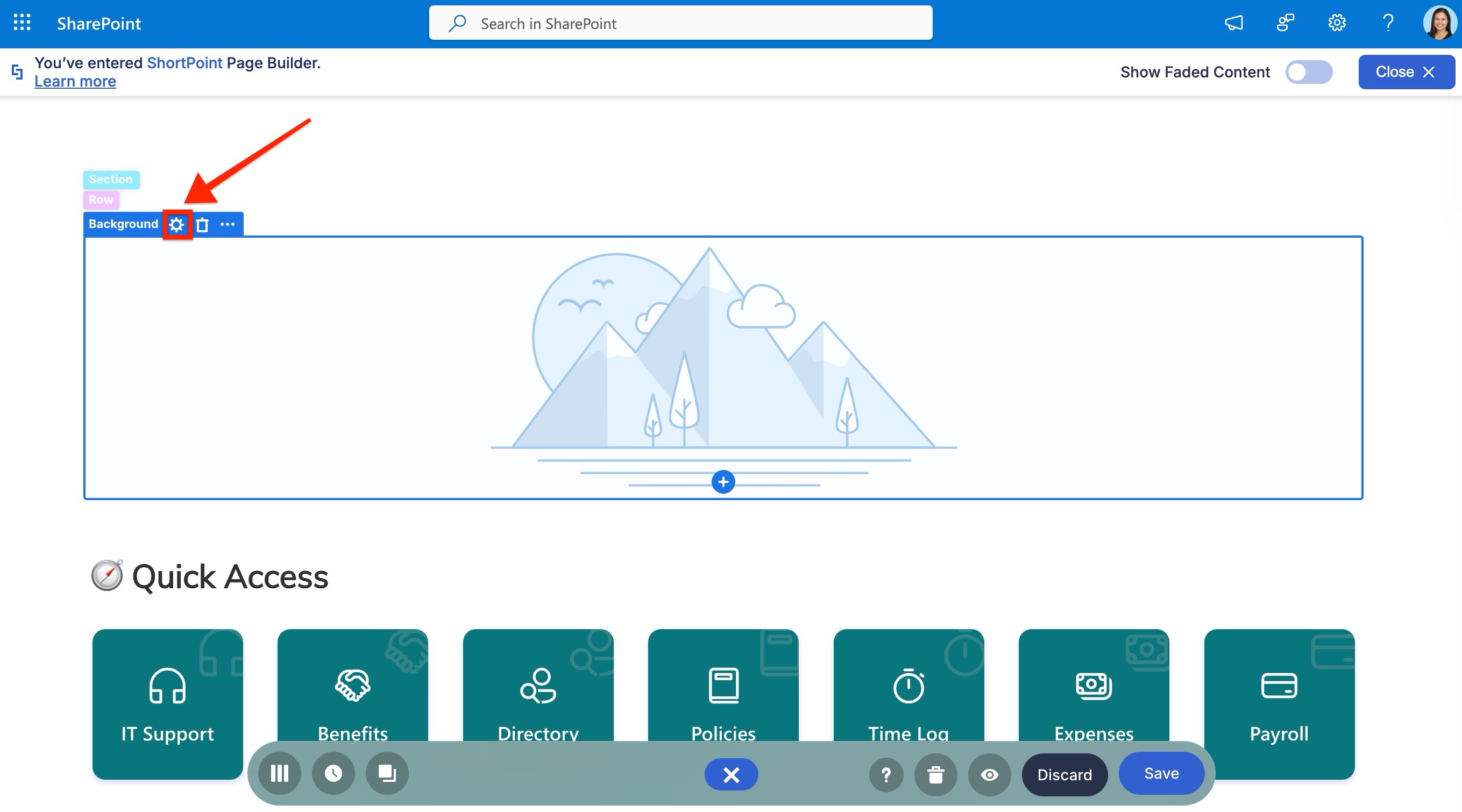
Step 3: Launch the ShortPoint Gallery
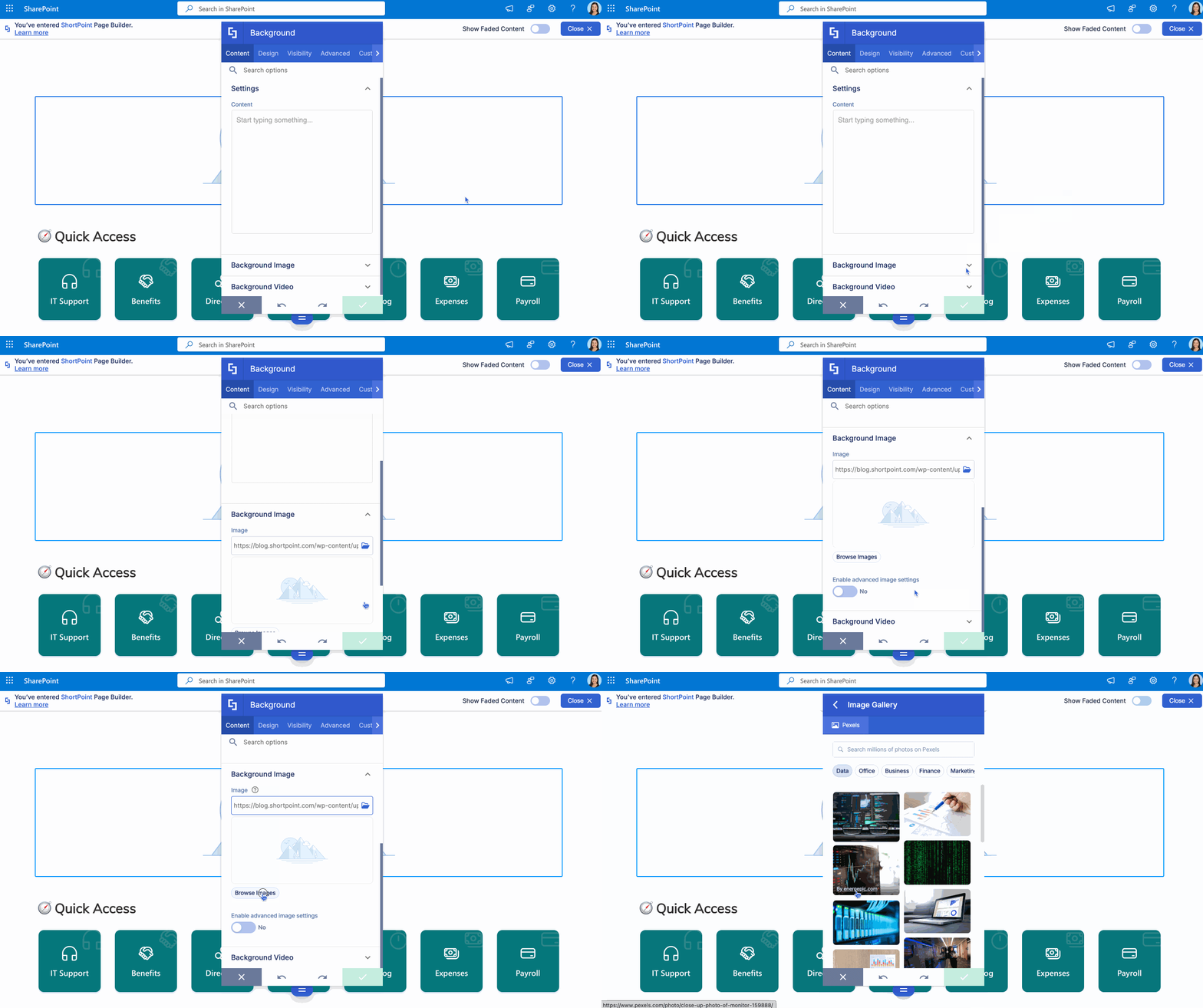
- Locate the Image or Video field.
- Instead of pasting a URL or clicking the folder icon, look for the Browse images or Browse videos button under the field.
You will now see a gallery of trending, high-quality photos or videos ready for use.
Step 4: Search and select your media
- Use the Search Bar at the top of the window to find the perfect visual for your context.
- Type your keyword and hit Enter.
- Browse the results.
- Click on the image or video you want to use.
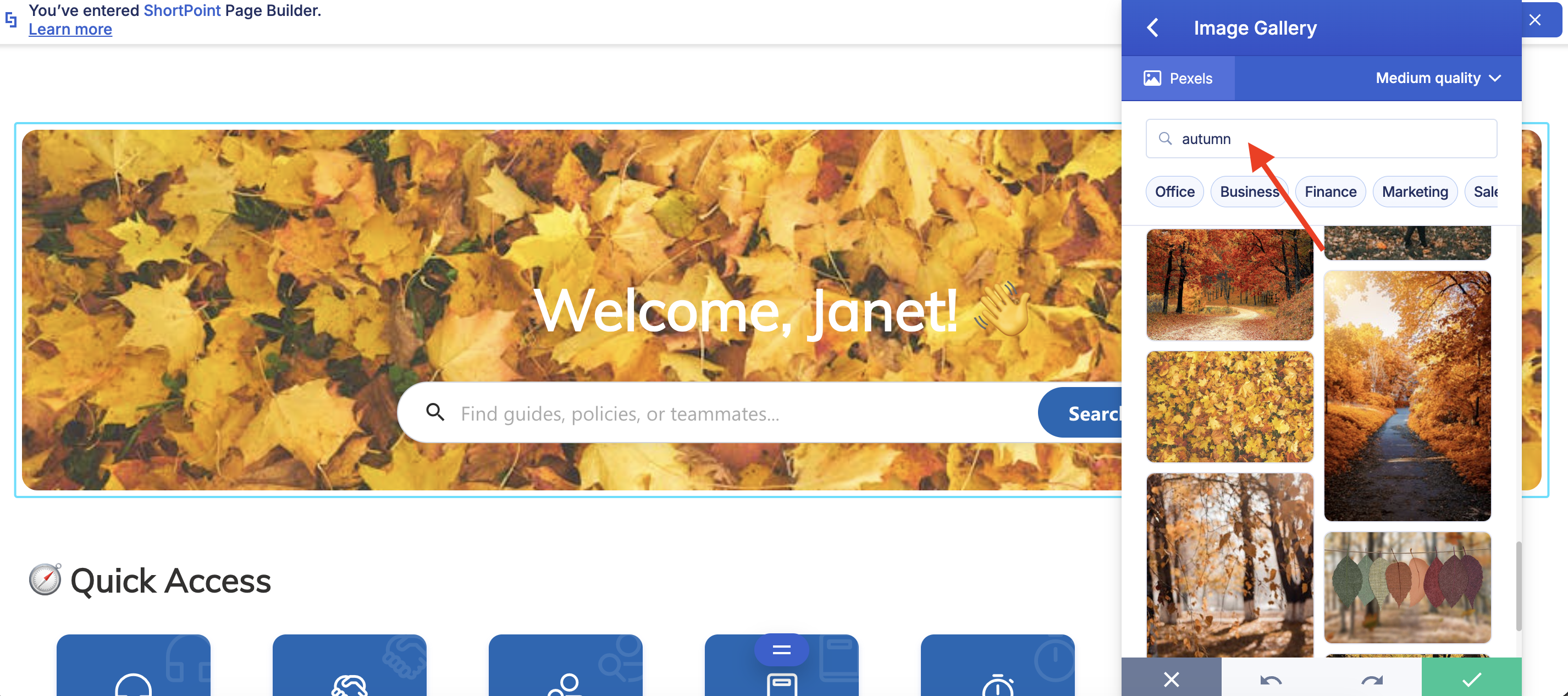
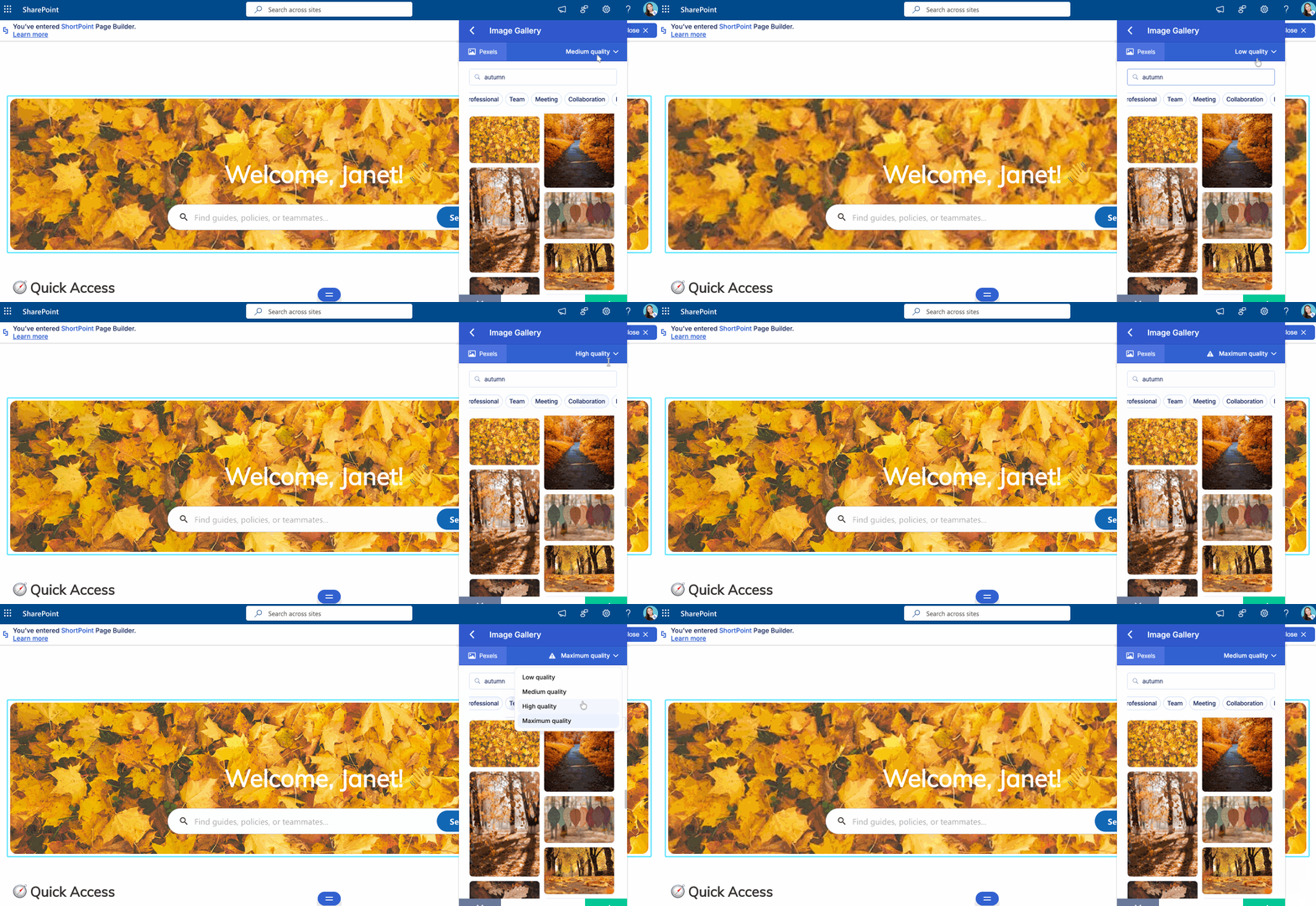
- To manage your page performance better, you can change the quality of your image/video. Simply select the drop-down at the right-hand corner of the settings window.
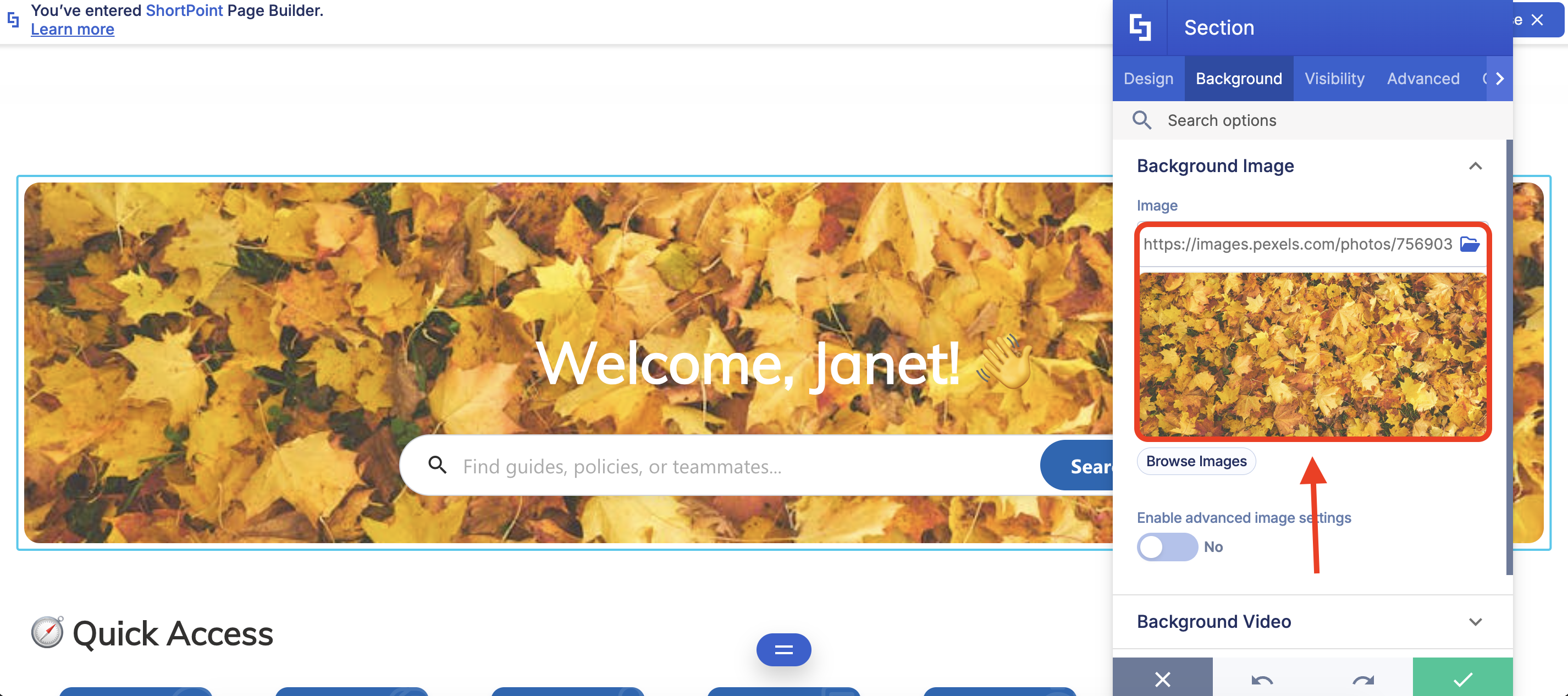
- The image or video URL is now automatically populated in your Design Element settings. You will see the preview update instantly.
Step 5: Continue to customize your design
- Continue adding content and modifying the design element settings as needed to meet your requirements.
Step 6: Save and Publish
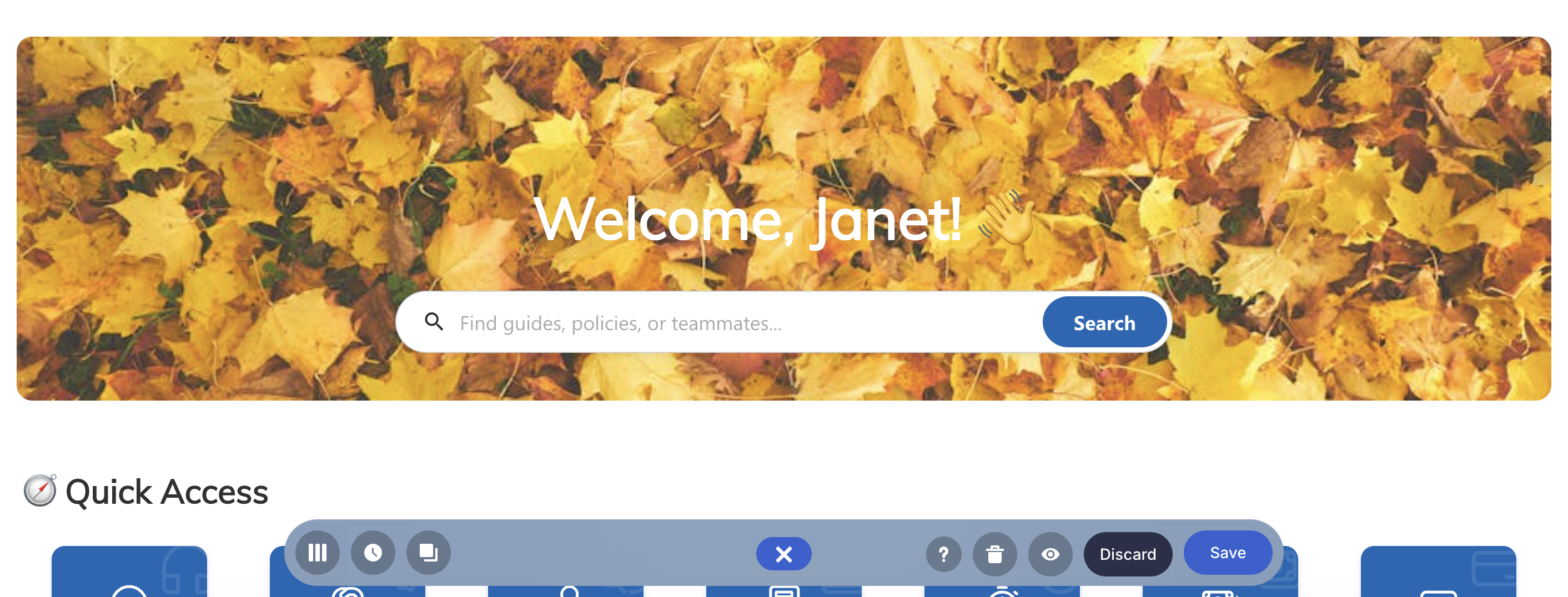
- Once satisfied with the result, click Update to close the design element settings.
- Save your page and publish.
The Result
You have successfully added professional stock media to your page in seconds. Whether you chose crisp SharePoint pictures or an engaging video loop, your content is now perfectly integrated into your design.
