 Try ShortPoint now
With the ShortPoint Search Box Design Element, you can choose the specific search scope you want the Search Box Design Element to cover:
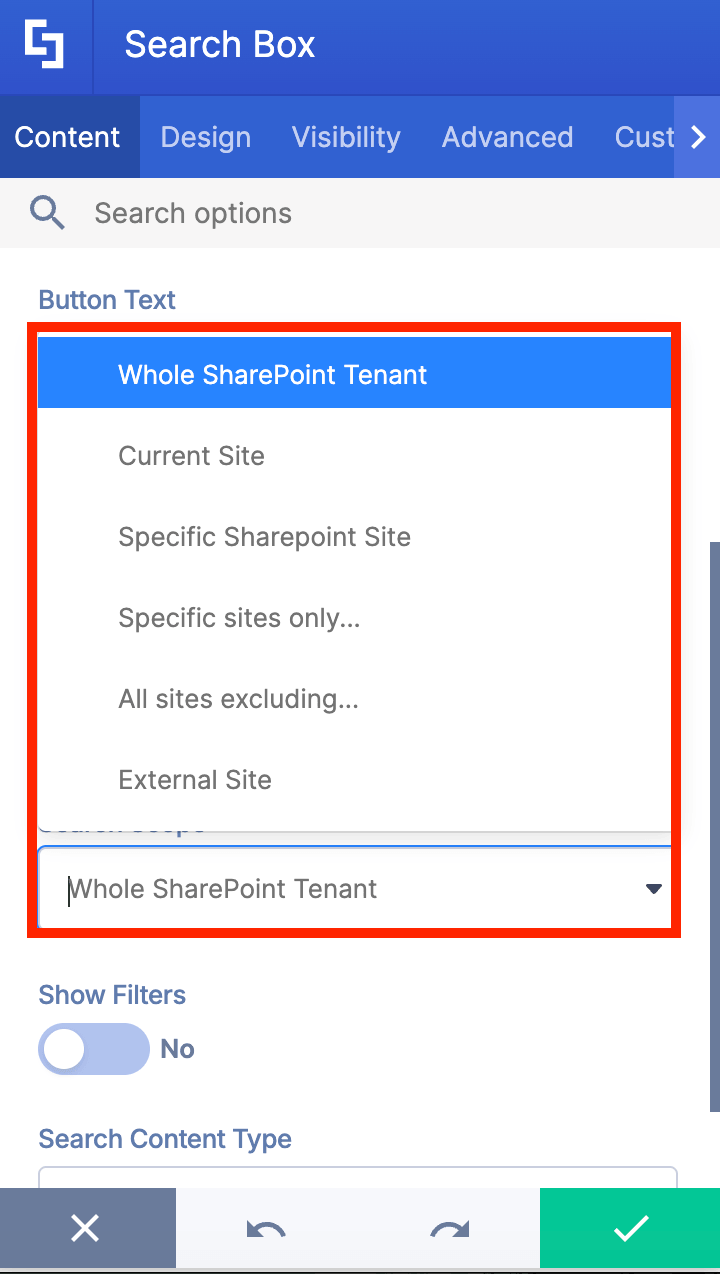
This article will walk you through each Search Scope option and its customizable settings:
TABLE OF CONTENTS
- Prerequisites
- Search Scope Options
- Interactive Tutorial
- Step-by-step tutorial
Prerequisites
- You must have ShortPoint SPFx 8.7.1.0 installed on your SharePoint environment.
- You must be a ShortPoint Designer with an active license.
- You must already have the Search Box Design Element on your SharePoint site. If you don’t have it yet, check out How to Add Search Functionality in SharePoint using the Search Box Design Element.
Search Scope Options
The Search Scope feature is a powerful tool that gives you control over where your searches look for information. Think of it as setting boundaries for your search. It determines which areas will be included when you enter a query into the search box.
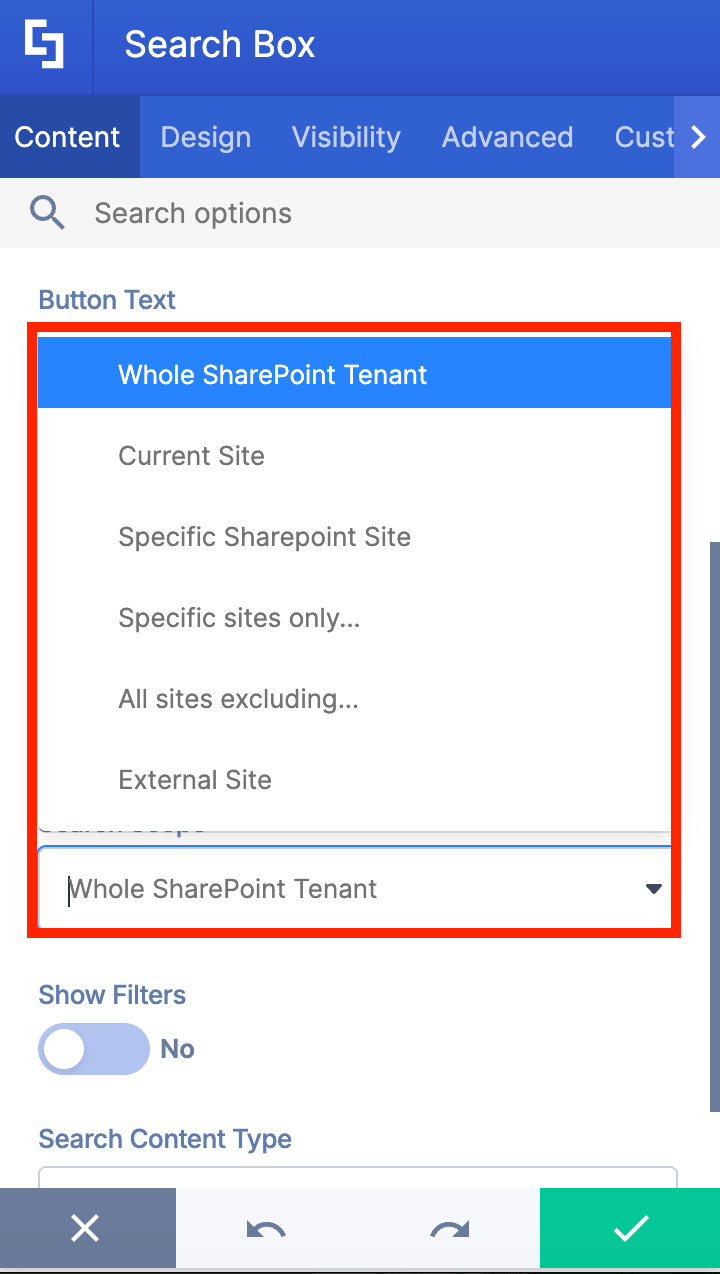
This feature is designed to make your searches more targeted and efficient. Instead of searching through everything every time, you can narrow down the scope to focus on exactly what you need. This not only saves time but also helps you find more relevant results faster.
The Search Scope feature provides you with four distinct options to choose from, each offering a different level of coverage:
A. Whole SharePoint Tenant
This is the broadest search option available, giving you access to your entire SharePoint environment. When you select this scope and enter a search query, the system will scan across all sites, libraries, lists, and content within your organization's SharePoint tenancy. This option is ideal when you're not sure exactly where a document or piece of information is located, or when you need to conduct a comprehensive search that leaves no stone unturned. It's particularly useful for finding resources that might be shared across multiple departments or team sites.
B. Current Site
This option provides a more focused search experience by limiting results to the SharePoint site you're actively working in. When you enter a query with this scope selected, the search will only look through the content, documents, and information within your current site's boundaries. This is perfect for situations where you know your desired content is somewhere within the site you're using, helping you avoid sifting through unrelated results from other areas of your tenant. It makes your searches faster and more relevant to your immediate context.
C. Specific SharePoint Site
This option gives you pinpoint accuracy by allowing you to designate a particular SharePoint site as your search target. Once you've configured this scope with a specific site address, all your search queries will exclusively look for results within that designated site. This is especially valuable when you frequently need to search a specific team site, project site, or departmental site that you may not currently be viewing.
D. Specific Sites Only
This option restricts the search results to only the specific SharePoint site (or sites) you designate. It’s perfect when you want to add the Search Design Element on a dedicated team site, an active project site, or a departmental hub (like HR or IT).
E. All Sites Excluding
This option lets you perform a broad, comprehensive search across your environment while intentionally locking out specific areas. The search will scan your tenant normally, but it will completely ignore any SharePoint sites you add to the exclusion list. This is perfect when you want to provide a wide-reaching search experience but need to hide background, archived, or sensitive locations.
F. External Site
This option extends your search capabilities beyond your SharePoint environment to include external websites or resources. By configuring this scope with an external site URL, you can search content that lives outside your organization's SharePoint tenant directly from your search box. This is particularly useful for organizations that need to regularly reference external knowledge bases, partner portals, vendor documentation, or other web-based resources. It creates a unified search experience that bridges internal and external content sources.
By understanding and utilizing these search scope options effectively, you'll be able to navigate your searches with greater precision and get to the information you need more quickly.
Interactive Tutorial
Click Get Started to learn how to modify search scopes:
Step-by-step tutorial
Follow the steps below to start modifying search scopes for the Search Box Design Element:
Step 1: Edit the ShortPoint web part
Go to the SharePoint page you want to use and click Edit:

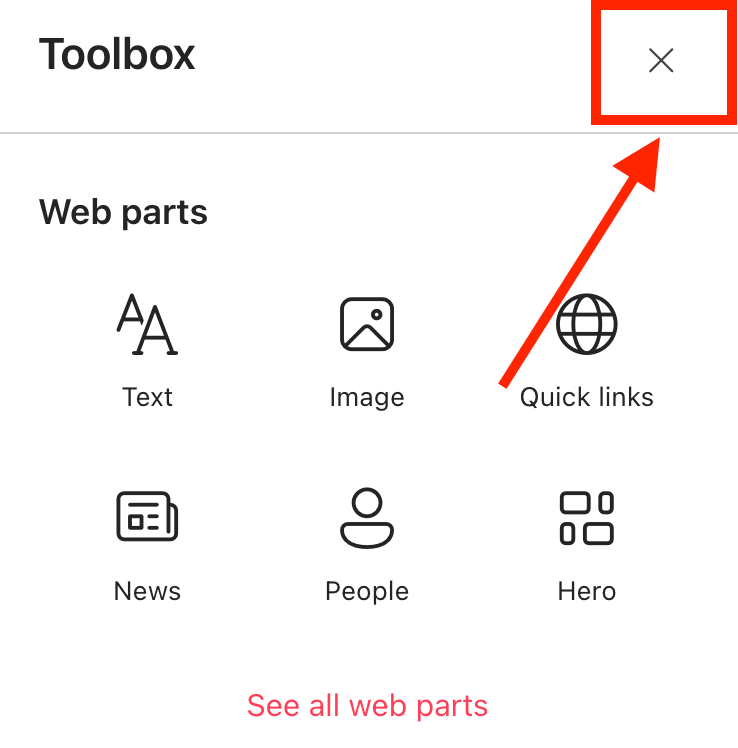
Close the Toolbox:
Edit the ShortPoint web part:

Step 2: Edit the Search Box Design Element
NOTEBefore proceeding, make sure you already have the Search Box Design Element on your page. If you don’t have it yet, check out How to Add Search Functionality in SharePoint using the Search Box Design Element.
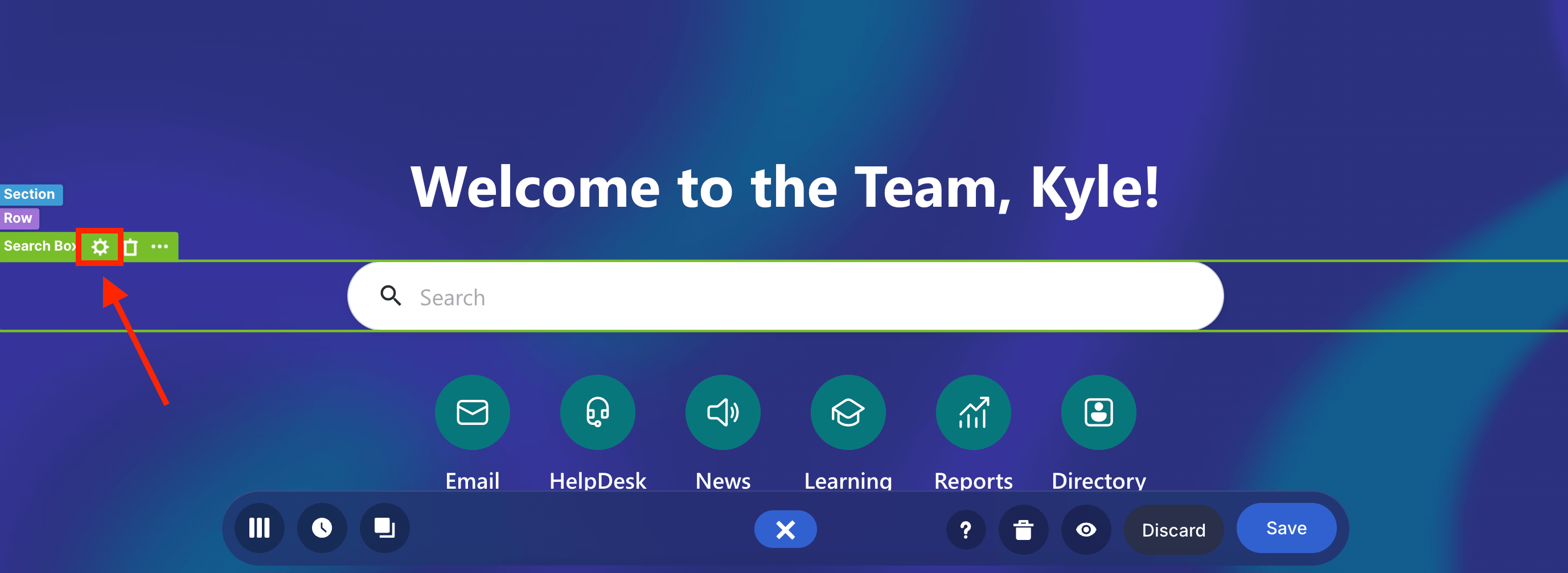
Click the Search Box tag:
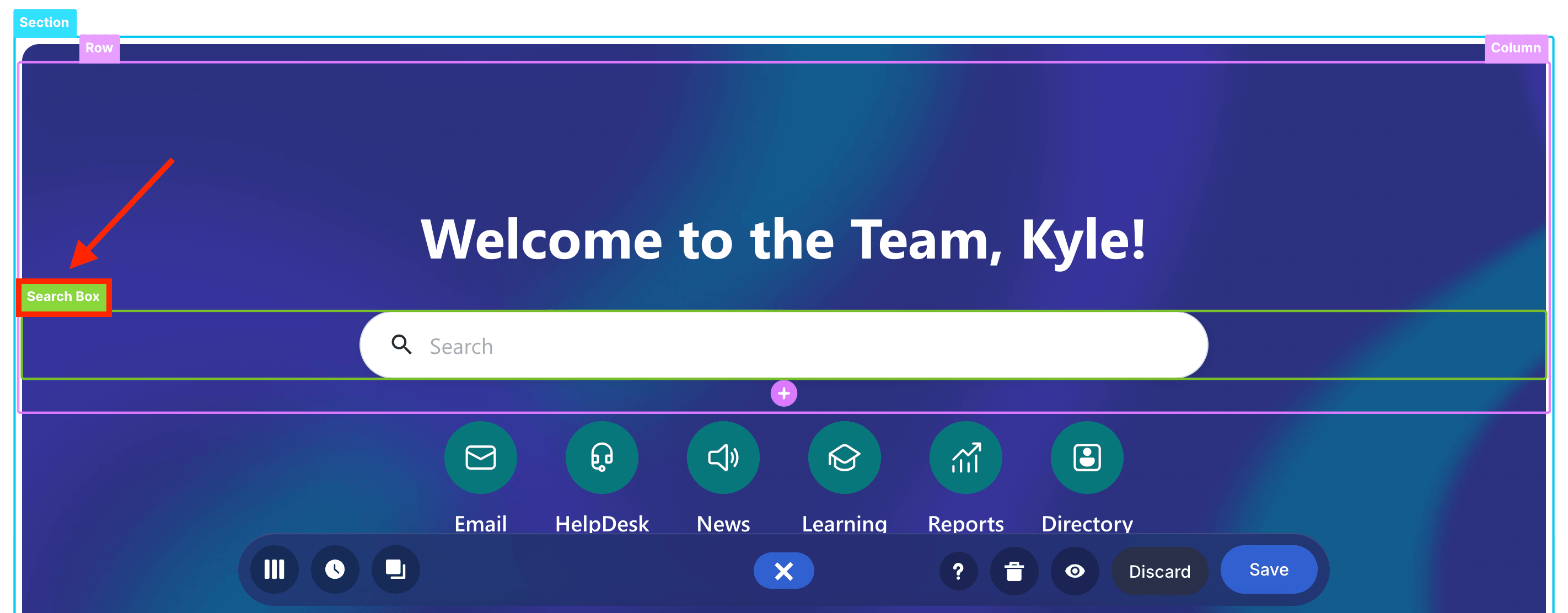
Select the cogwheel icon:
Step 3: Choose a Search Scope
There are 4 Search Scope types. Choose the option that best suits your needs:
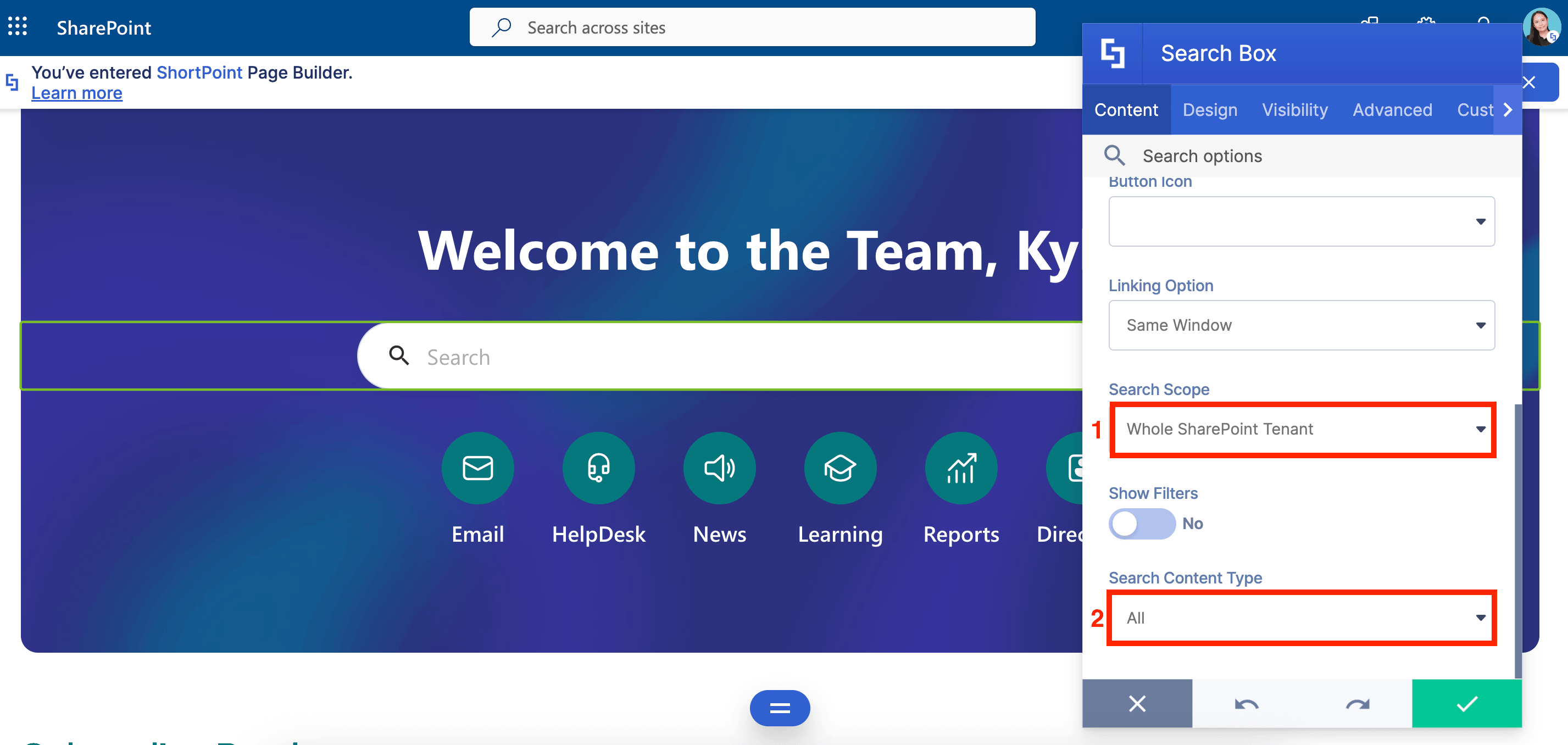
Option 1: Search the Whole Tenant
- Under the Search Scope drop-down, select Whole SharePoint Tenant.
- Then, select the Search Content Type you want to use. You can choose All, People, News, Sites, Files, Images, Videos, and Messages.
Option 2: Search the Current Site
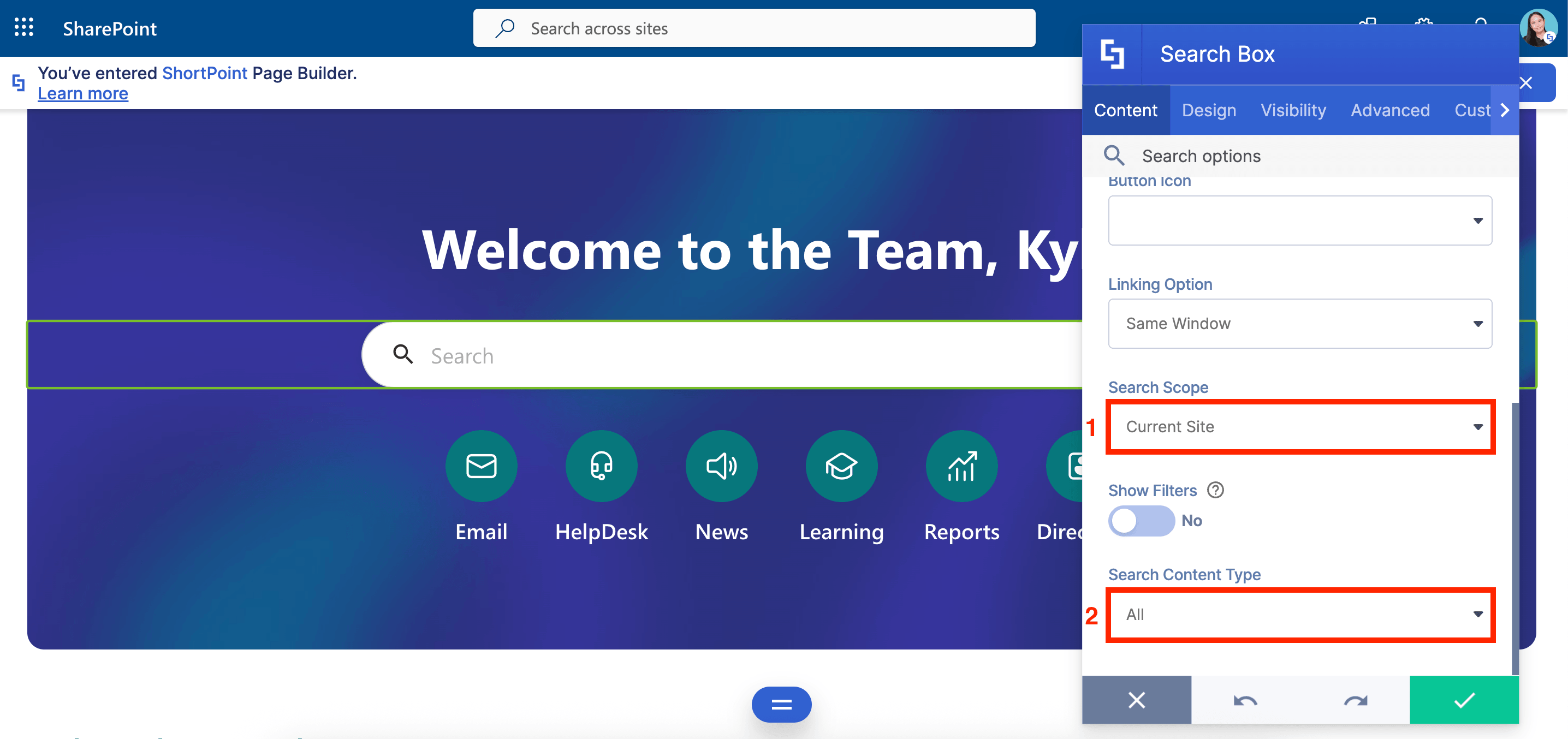
- Under the Search Scope drop-down, select Current Site.
- Then, select the Search Content Type you want to use. You can choose All, People, News, Sites, Files, Images, Videos, and Messages.
Option 3: Search a Specific Site
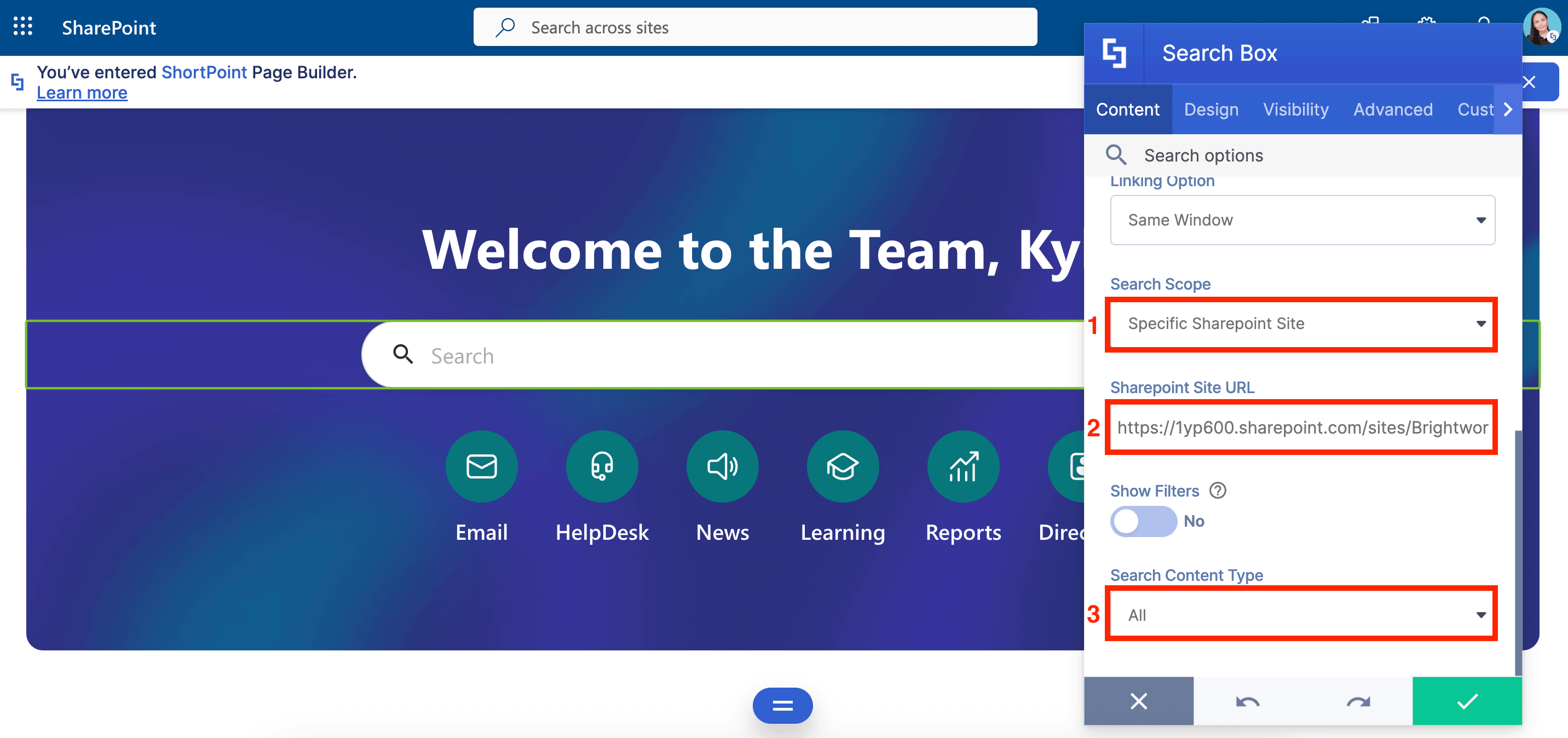
- Under the Search Scope drop-down, select Specific SharePoint site.
- Paste the URL of the SharePoint site you want to use in the SharePoint Site URL field.
- Then, select the Search Content Type you want to use. You can choose All, People, News, Sites, Files, Images, Videos, and Messages.
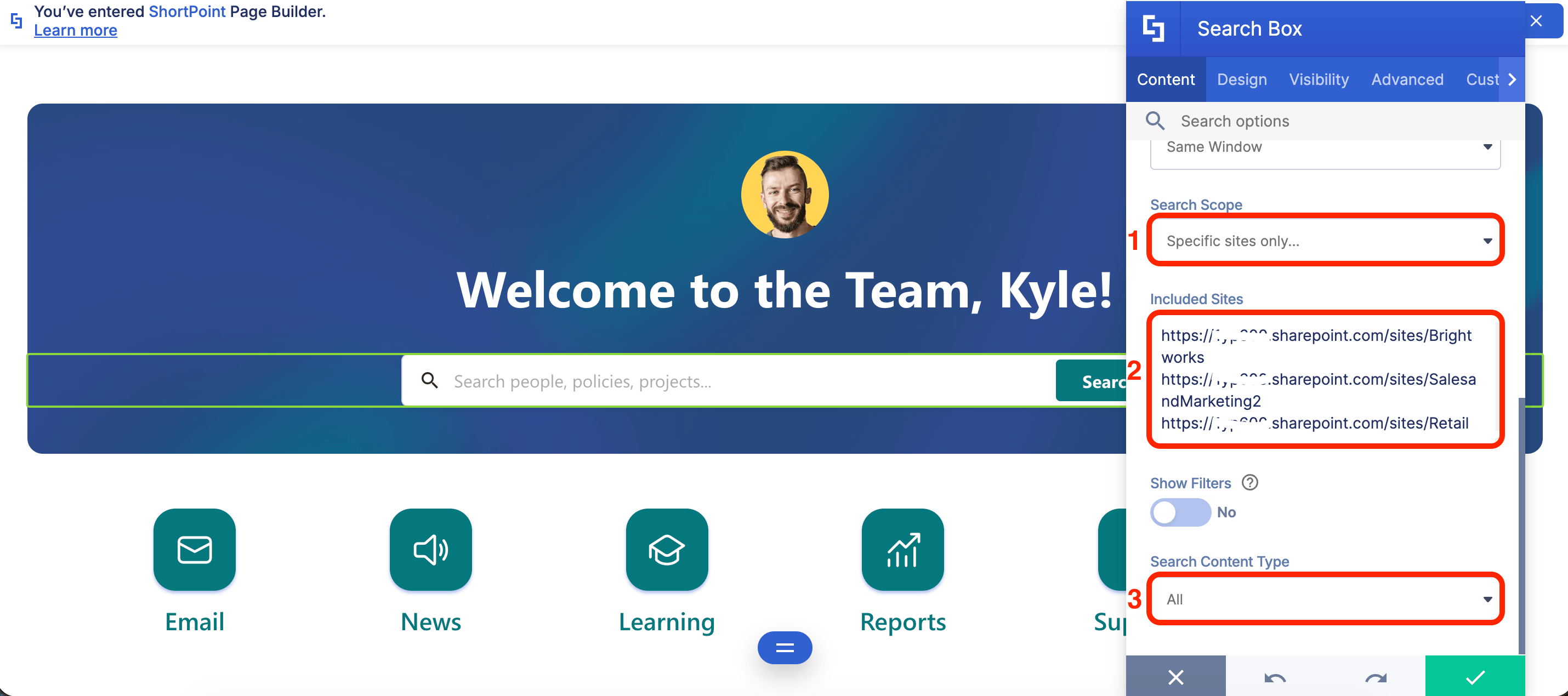
Option 4: Specific SharePoint Sites Only
- Under the Search Scope drop-down, select Specific SharePoint Sites Only.
- Paste the URLs of the SharePoint sites you want to include in the search scope.
- Then, select the Search Content Type you want to use. You can choose All, People, News, Sites, Files, Images, Videos, and Messages.
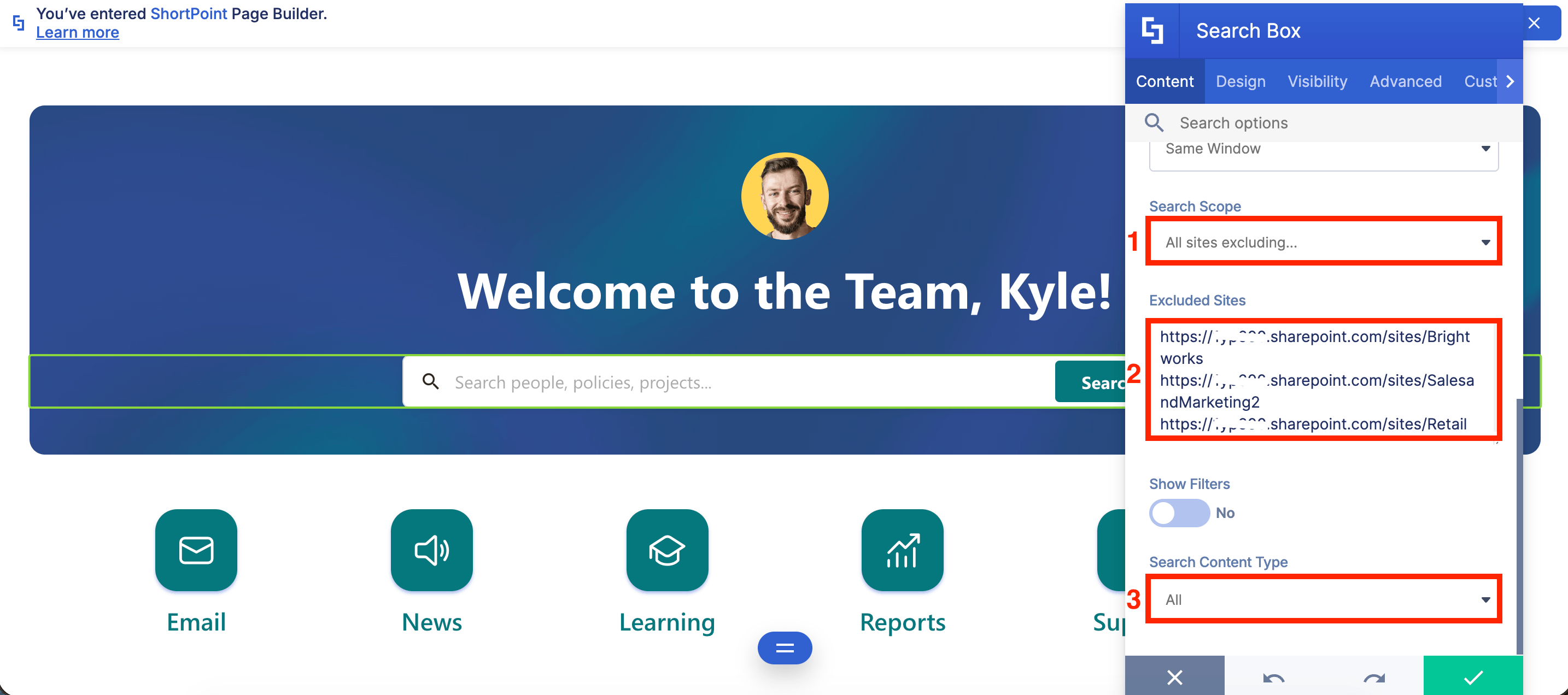
Option 5: All Sites Excluding
- Under the Search Scope drop-down, select All Sites Excluding.
- Paste the URLs of the SharePoint sites you don’t want to include in the search scope.
- Then, select the Search Content Type you want to use. You can choose All, People, News, Sites, Files, Images, Videos, and Messages.
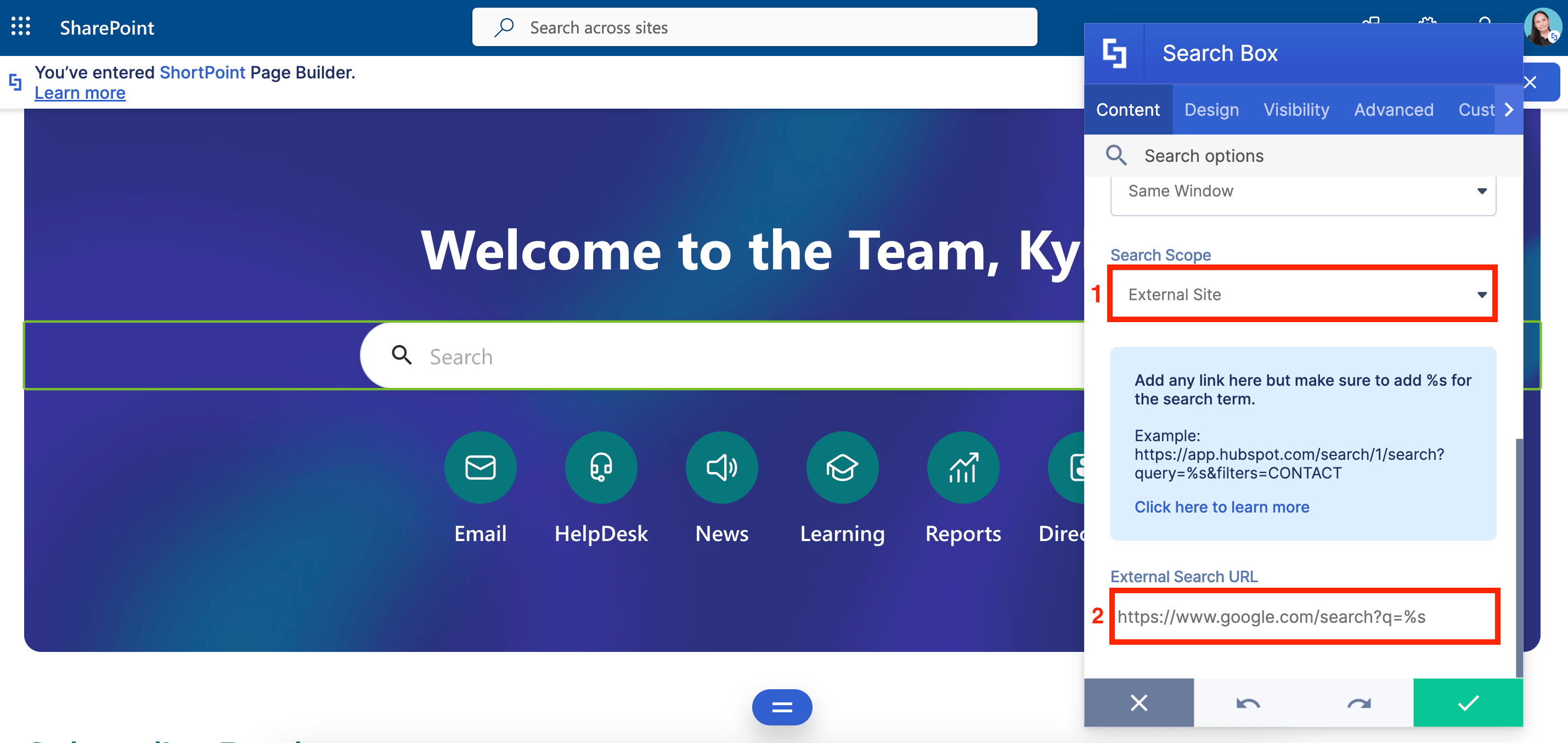
Option 6: Search an External Site
- Under the Search Scope drop-down, select External Site.
- Paste the URL of the external site you want to use in the External Search URL field.
NOTEMake sure to add "%s" for the search term. Otherwise, the search will not work as intended. For example, we want to link the search box to the Google search query. We used this search URL: https://www.google.com/search?q=. Then, we added “%s” at the end. Now, our URL looks like this: https://www.google.com/search?q=%s
Step 4: Save and Publish
Click the green check mark.
Save your changes:

Publish your page:

Congratulations! You’ve successfully changed the search scope of the Search Box Design Element.
Related articles:
