 Try ShortPoint now
Ever had a broken file link? We've all been there! Renaming or moving files in OneDrive can cause the dreaded "404: File Not Found" error.
This is where the OneDrive File ID comes to the rescue. It's a permanent, unique identifier for every single file you upload to Microsoft’s cloud. With it, you can say goodbye to broken file links.
While it usually works silently behind the scenes, understanding how it functions can unlock a whole new level of efficiency for your digital workflow, helping you retrieve files easily.
TABLE OF CONTENTS
- What is a OneDrive File ID?
- Why is it Useful?
- Retrieving File ID
- Practical Use Cases
- Frequently Asked Questions
- What is a OneDrive File ID?
- How can I find the File ID of a file in OneDrive?
- Why should I use File IDs instead of file names or paths?
- Can I use OneDrive File IDs in Power Automate workflows?
- Does the File ID change if I download and re-upload a file?
- What happens to the File ID if I delete a file?
- Can two files have the same File ID?
- How are File IDs used in SharePoint and other Microsoft 365 services?
What is a OneDrive File ID?
A OneDrive File ID is a unique string of alphanumeric characters assigned by Microsoft to a specific file or folder the moment it is created or uploaded to OneDrive.
Unlike a traditional file path (e.g., Documents > Projects > 2026 > Q1_Report.docx), which relies entirely on where the file lives and what it is named, the File ID is tied to the file itself as a stable identifier.
Typically, a File ID looks like this:
01BJY2FSXVS4KDFPUDXRDY3J6BT4TPAR6U
Because Microsoft tracks the File ID rather than just the file name, OneDrive always knows exactly the location and status of your document, providing a reliable solution for file management and search.
Why is it Useful?
If OneDrive manages File IDs automatically, why should you care? Because leveraging them offers several massive advantages for collaboration, file management, and business workflows:
- Unbreakable Links: You can move a file from your desktop sync folder into a shared team archive, and any links you sent out weeks ago will still work perfectly, ensuring seamless content sharing among community members.
- Immunity to Renaming: If a colleague changes Draft_V1 to FINAL_APPROVED_v2, the File ID remains identical. Your shortcuts won't break, helping you avoid common issues related to file renaming.
Retrieving File ID
Choose the option that best suits your needs:
Option 1: Using the Microsoft Graph API connection
NOTEYou must be a ShortPoint Designer with an active license to use this option.
Step 1: Edit a Design Element
Select the EasyPass tag of any Design Element on your page. For this guide, we'll use Quick Links:
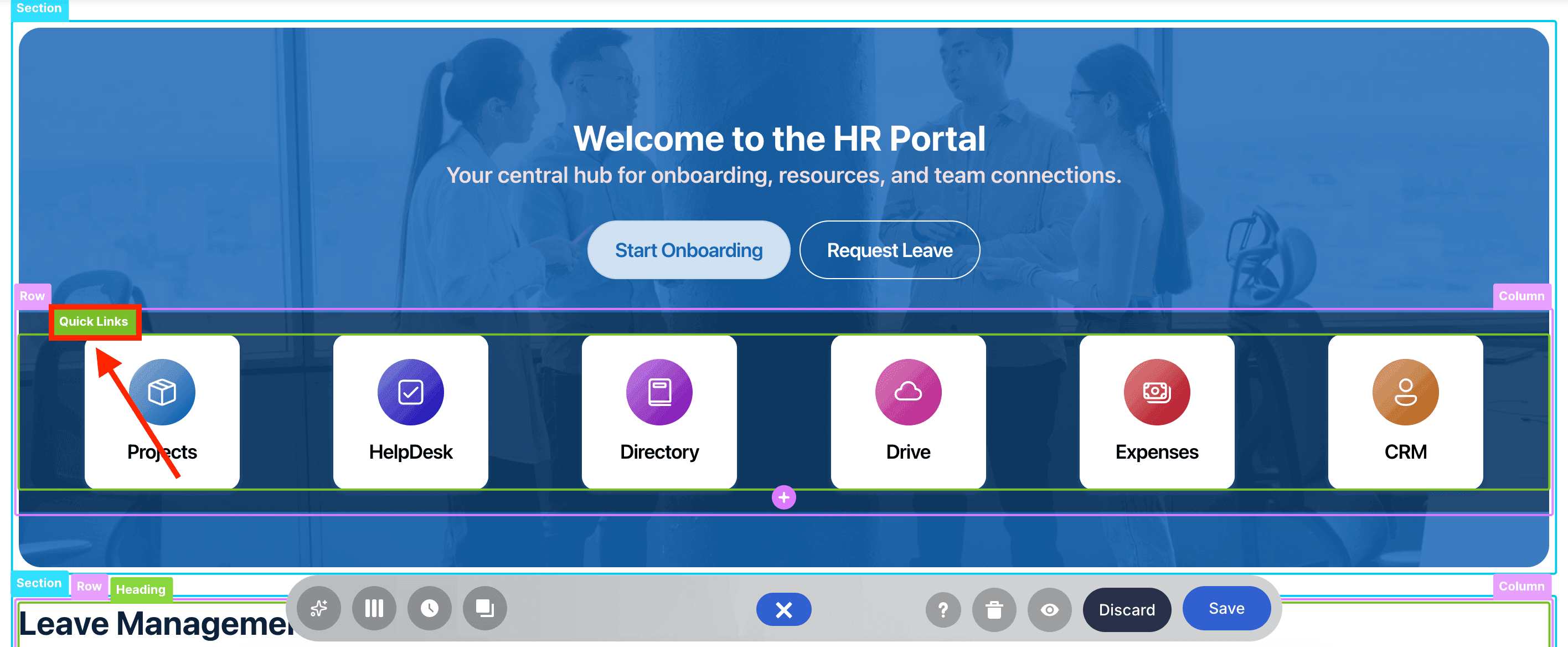
Click the cogwheel icon:

Step 2: Run All Items in My Root Drive Use Case
Go to the Connect tab:
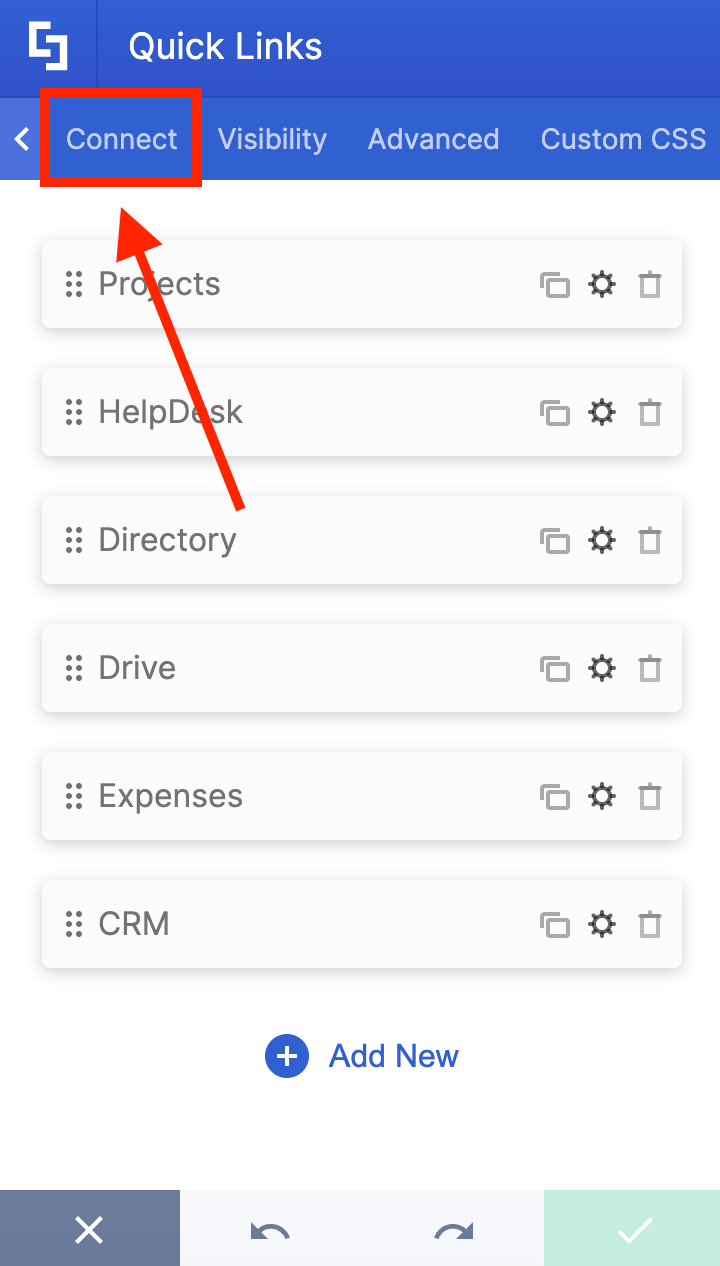
Click Configure:
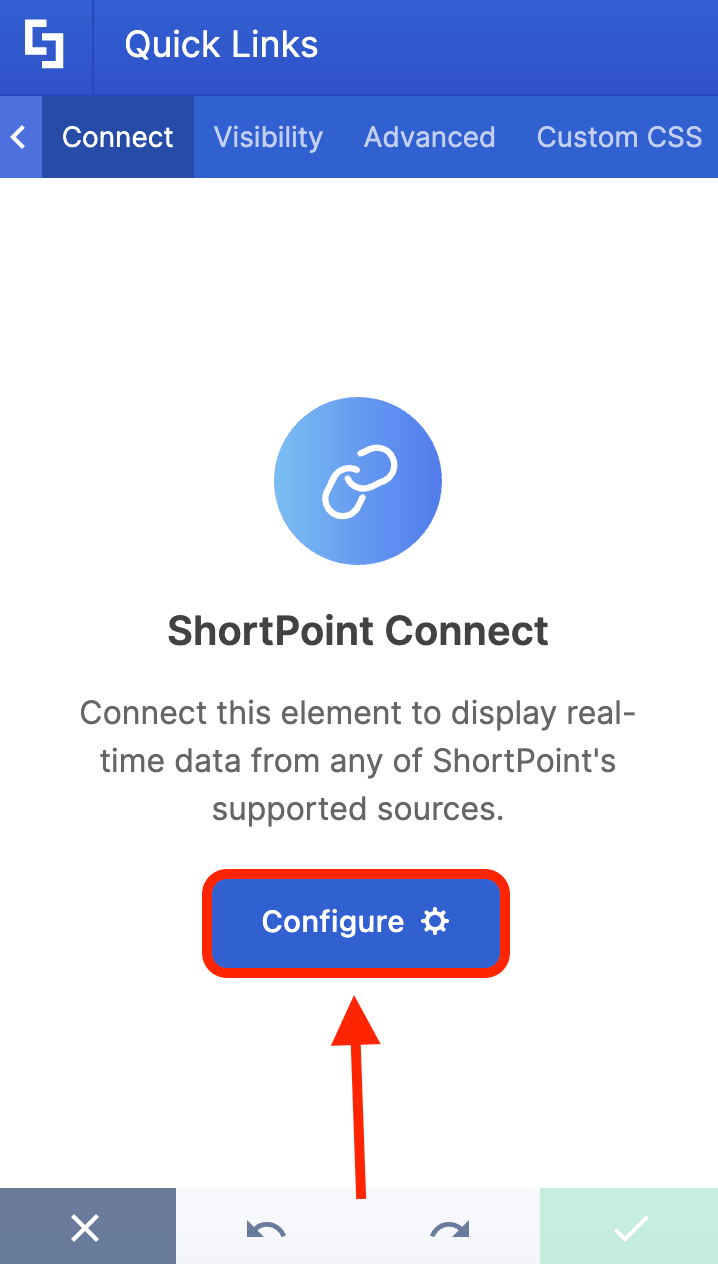
Select Microsoft Graph API:
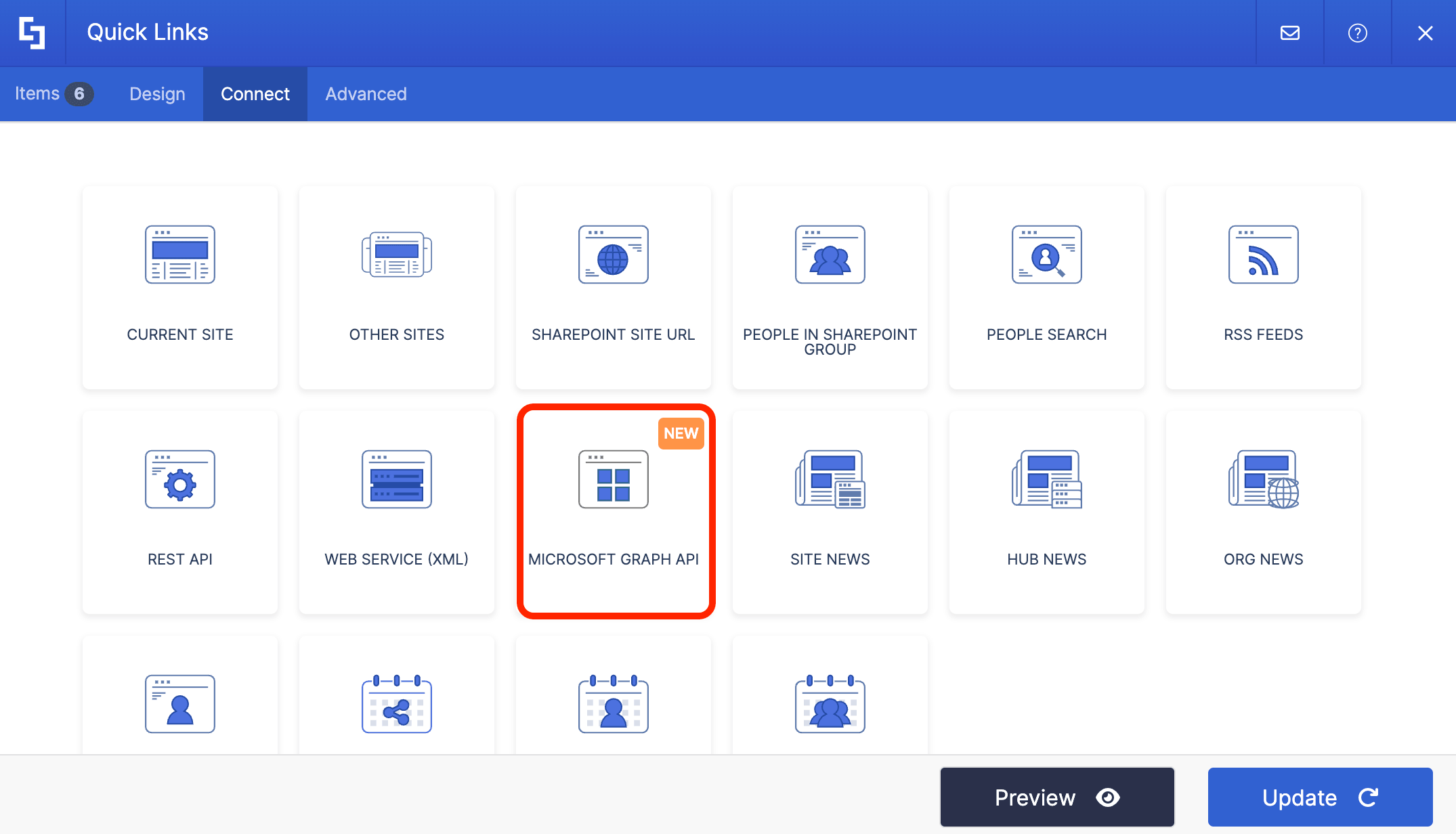
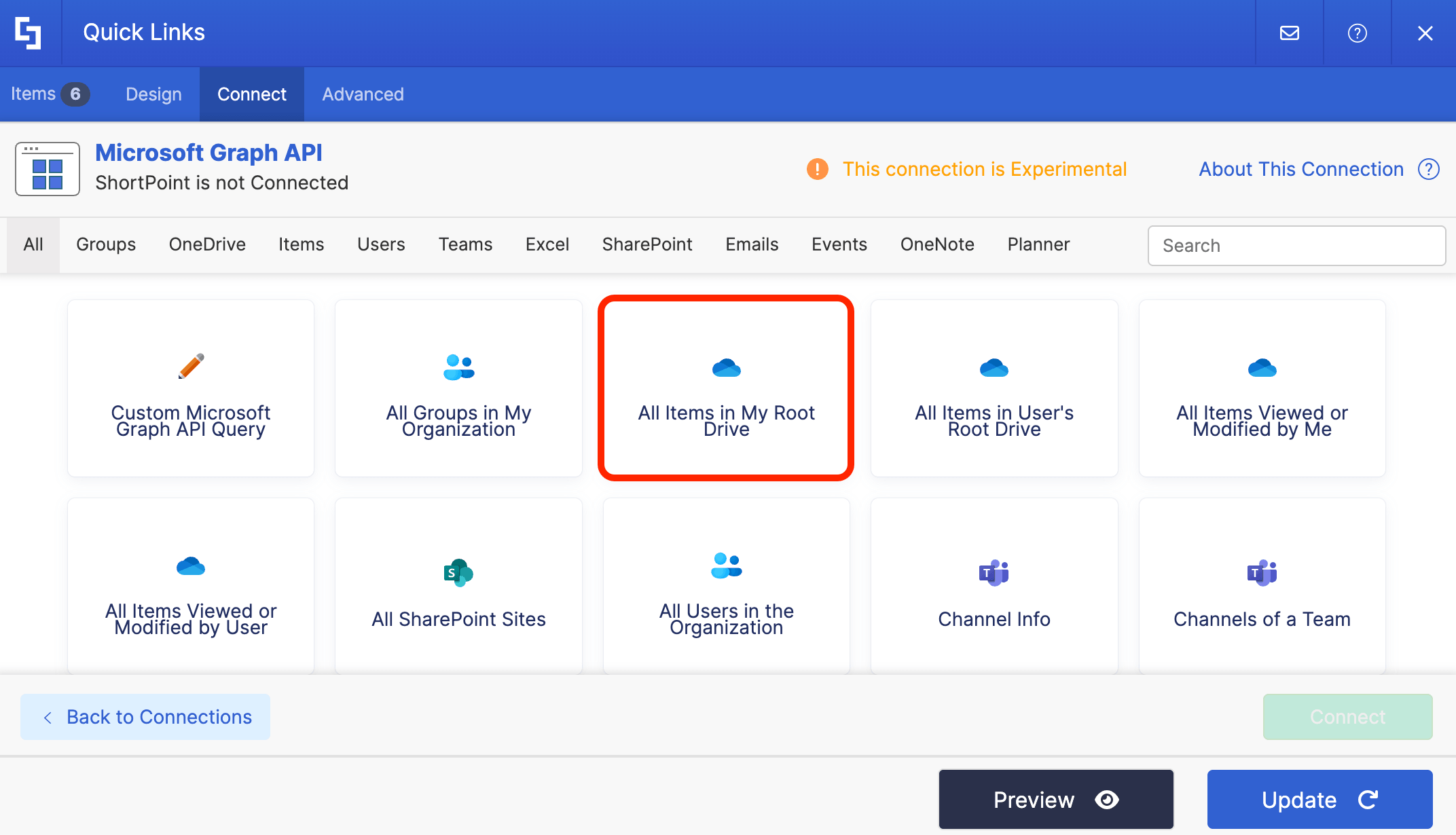
Under the Use Cases section, look for All Items in My Root Drive and select it:
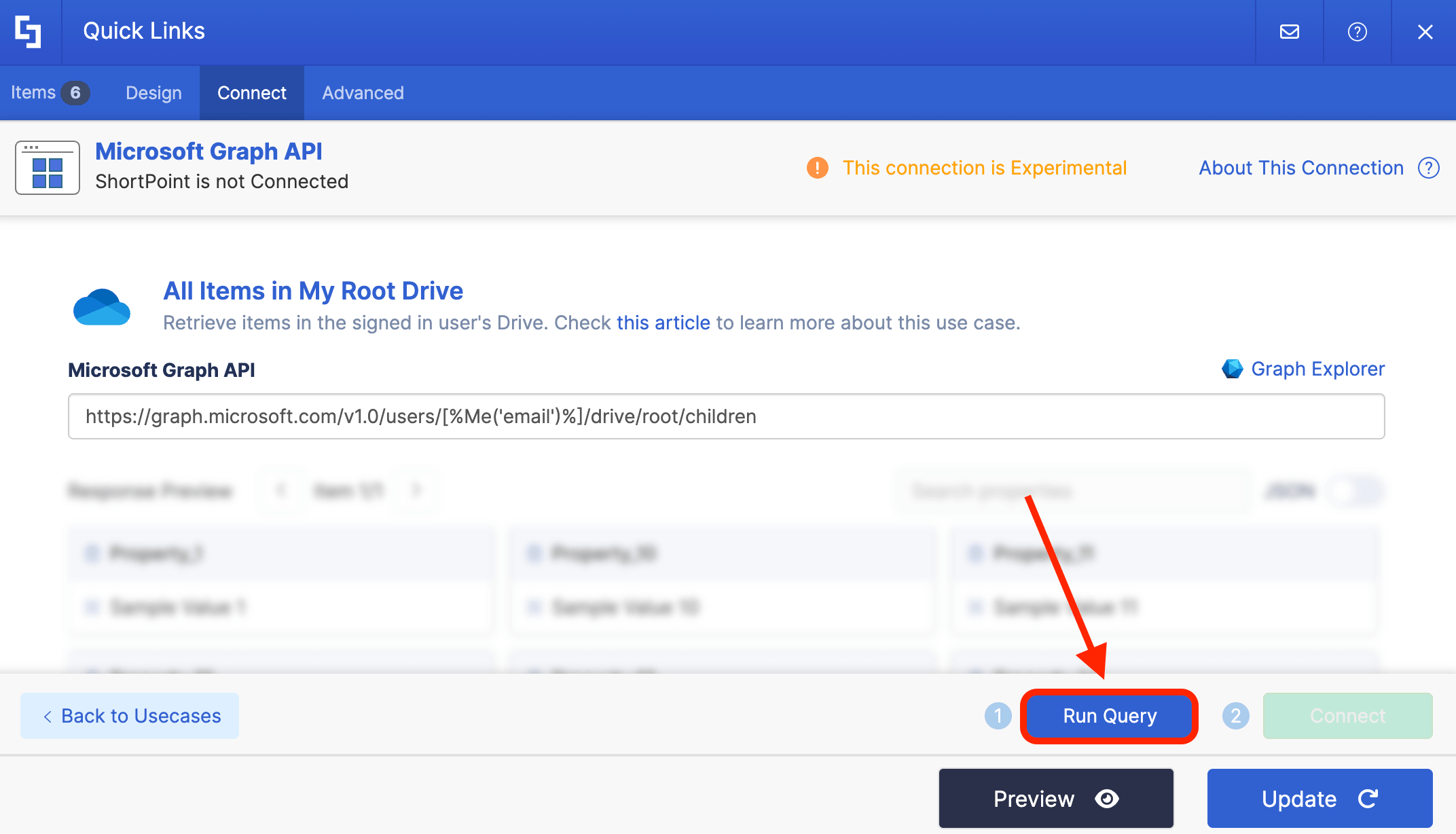
Click Run Query:
Step 3: Copy File ID
Under the Response View, look for the name of your file and copy its ID. In our case, we will be using the Employees.xlsx file:
Awesome! You now have your OneDrive File ID. This File ID acts as a stable address for your file, enabling seamless file management and collaboration.
Option 2: Using Graph Explorer
Step 1: Open Graph Explorer
Go to Graph Explorer and log in:
NOTEBefore proceeding, make sure you are logged in to Graph Dev Center. You can only access the Graph Explorer if you have the necessary permissions.
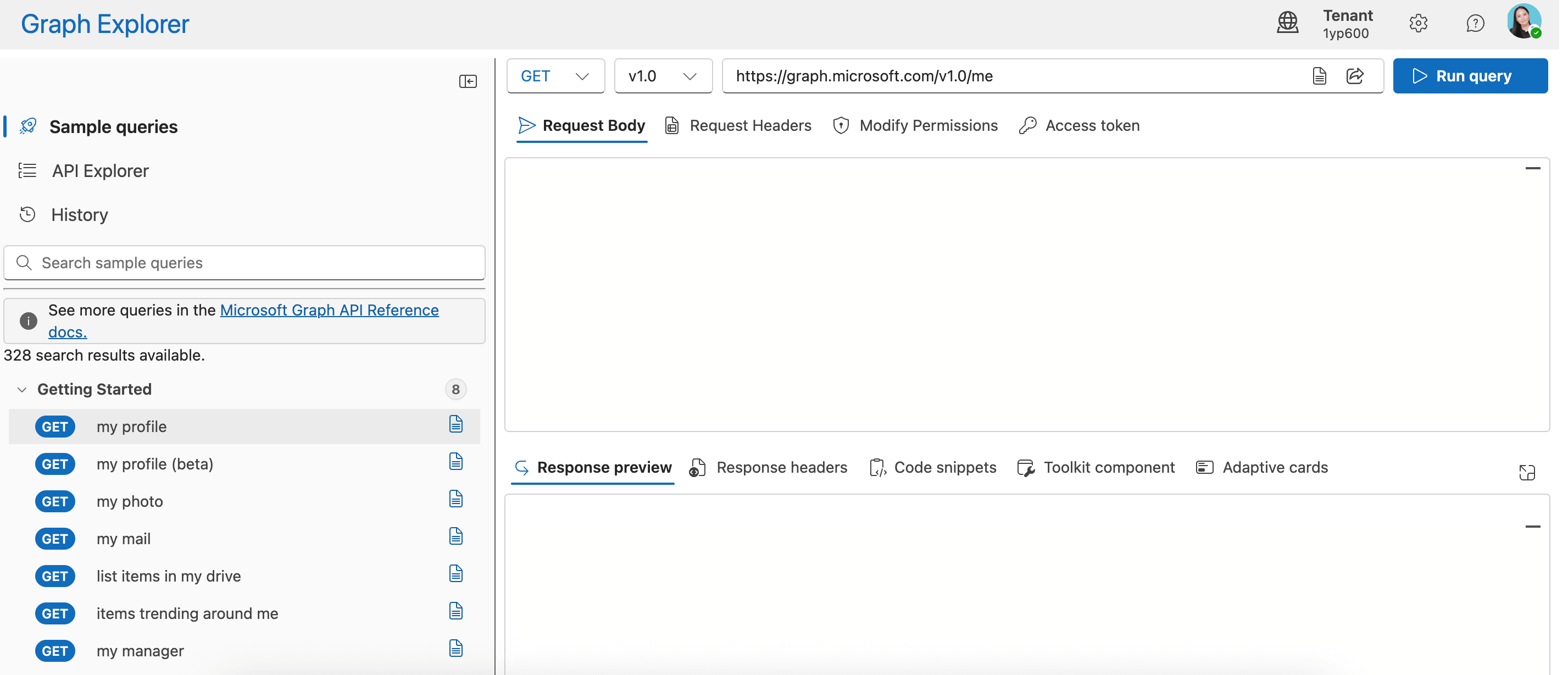
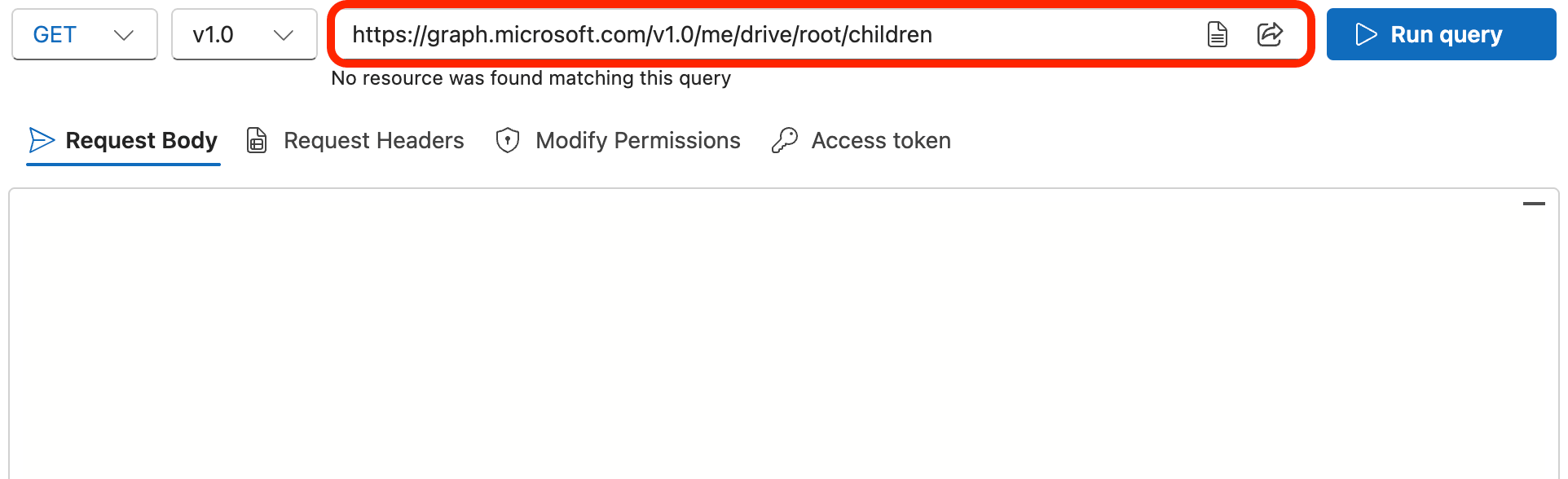
Step 2: Copy the GET Query
Copy the GET query below:
https://graph.microsoft.com/v1.0/me/drive/root/children
Step 3: Paste GET Query
Make sure that it is set to GET:
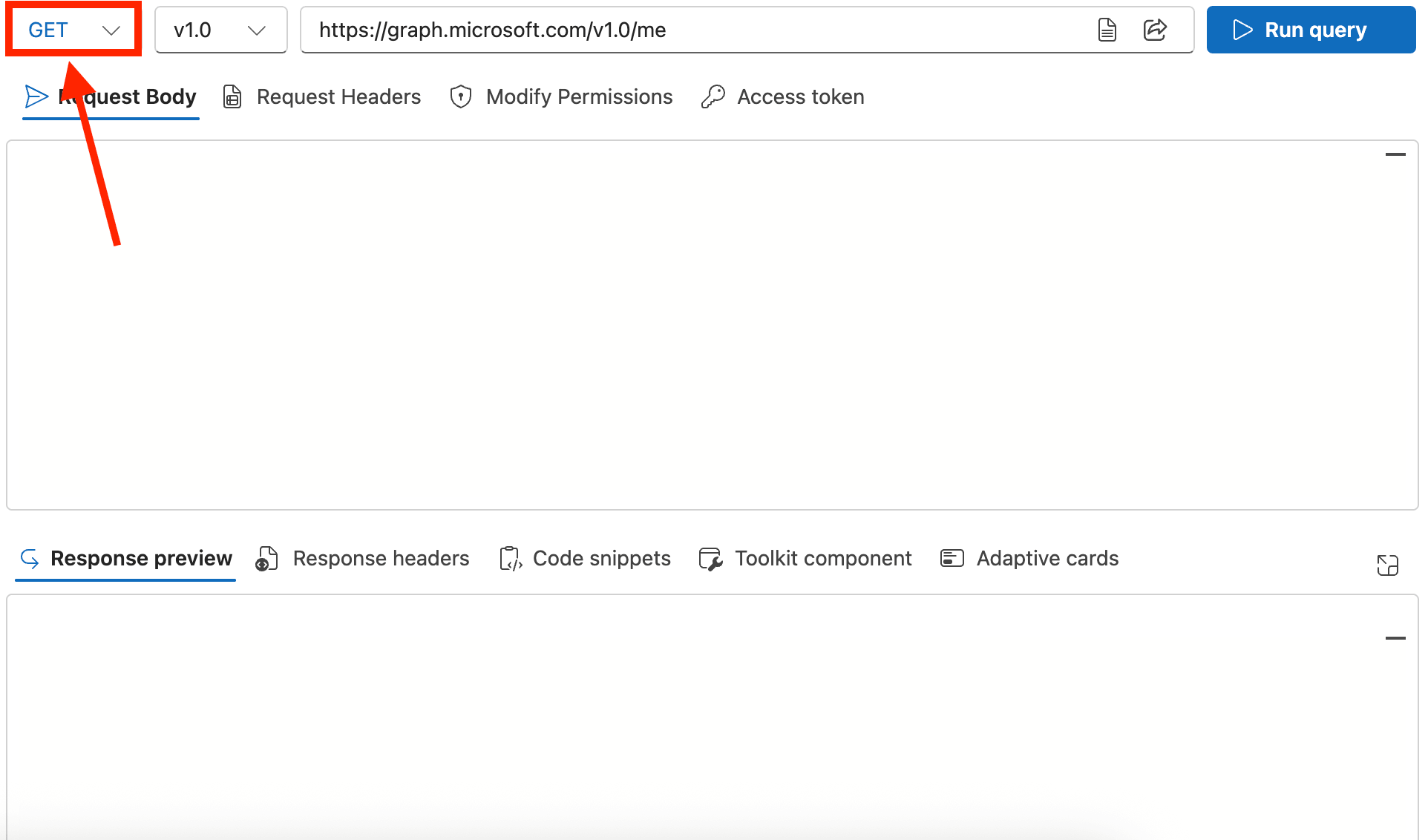
Paste the modified GET query in the field provided:
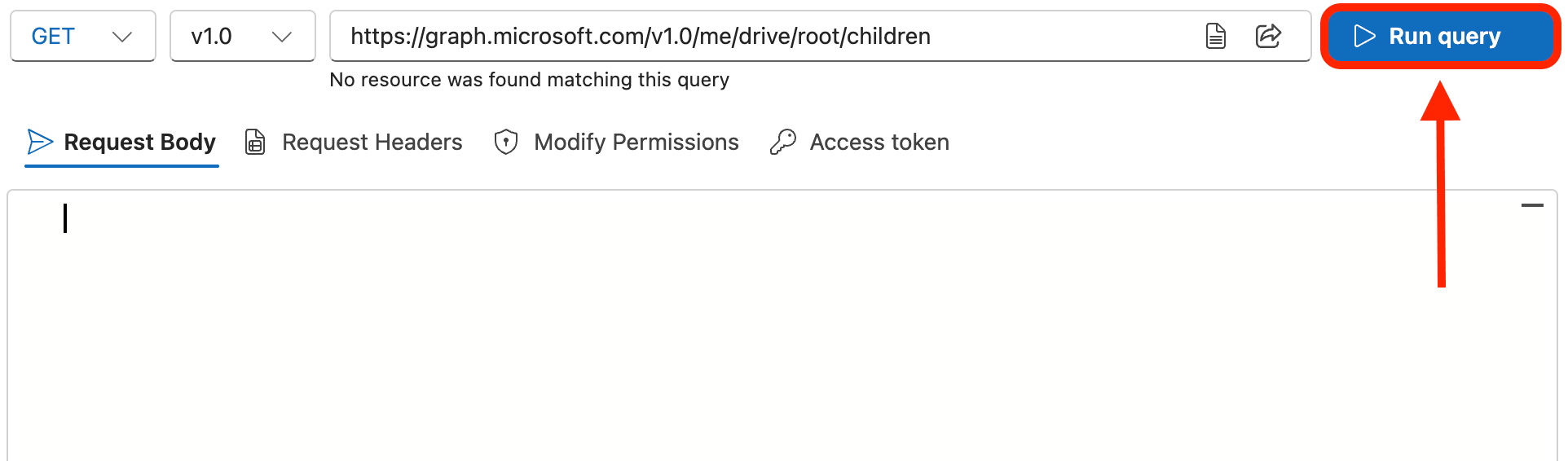
Click Run Query:
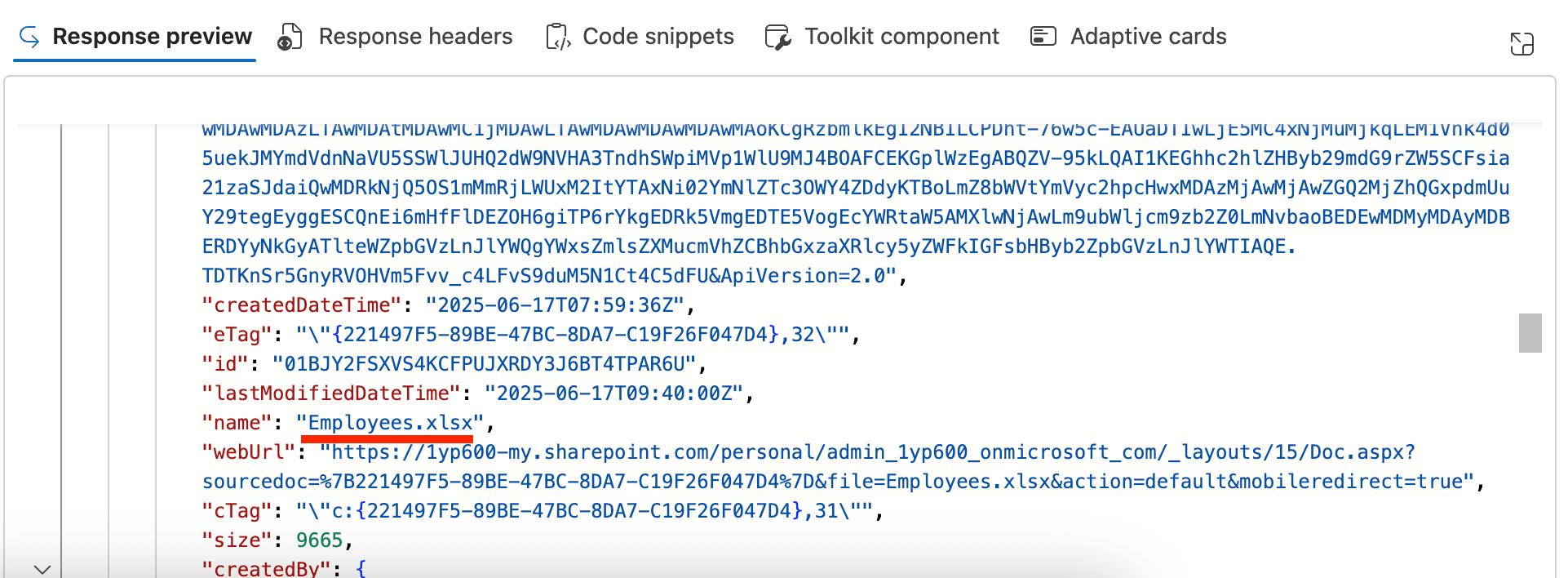
Step 4: Copy File ID
In the Response preview section, look for the name of your file:
Copy the ID:
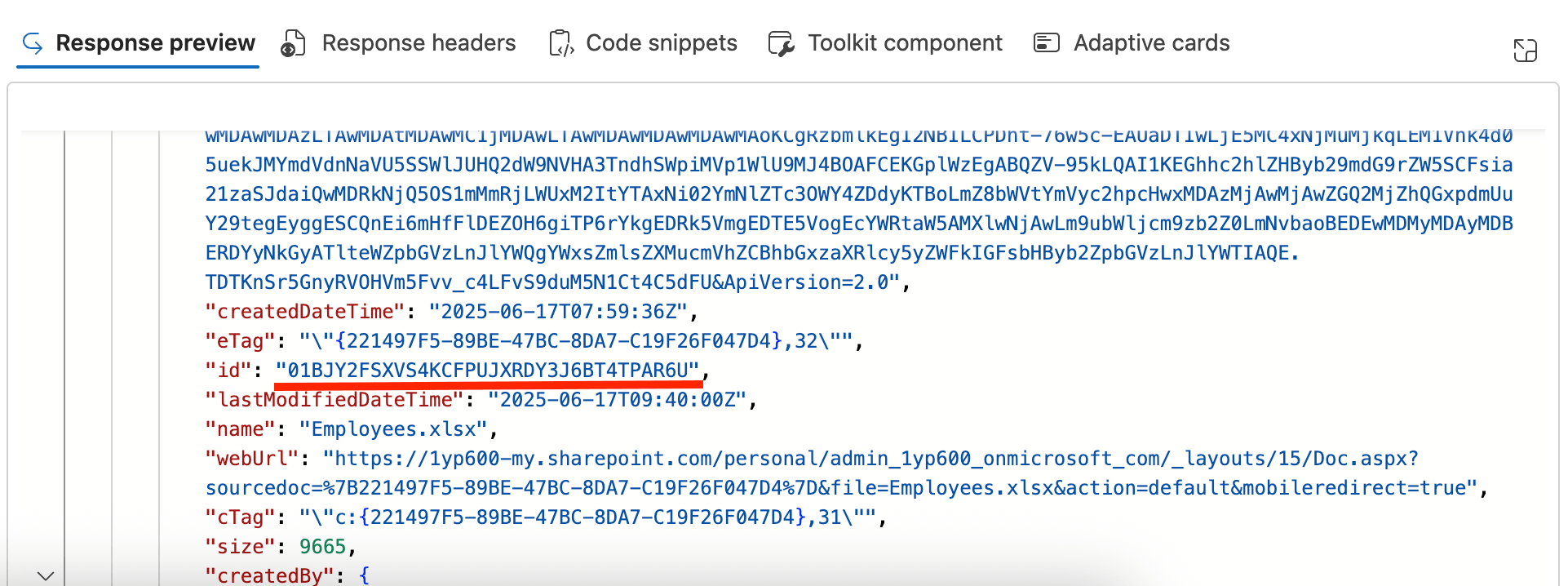
Congratulations! You have successfully retrieved your OneDrive File ID, a crucial unique identifier that helps you manage and access your files reliably across Microsoft 365 services.
Practical Use Cases
How does this translate to real-world benefits? Here are a few ways professionals and power users put the OneDrive File ID to work in their digital workplace environments:
Power Automate Workflows
For the tech-savvy, creating automated workflows is a lifesaver. You can easily make use of File IDs to automate a workflow in Power Automate. Say you have a workflow that automatically converts any new document in a specific folder into a PDF. If you build that automation using the file's name, a typo could ruin it. Using the File ID ensures the automation targets the exact file every single time, reducing errors and improving workflow efficiency.
Microsoft Graph API
You can bring your files to your SharePoint pages using their File ID. It’s super easy thanks to Microsoft Graph API and ShortPoint Connect!
Think of the Graph API as the ultimate bridge connecting your SharePoint data to other Microsoft 365 services like Outlook and Teams. When you pair it with ShortPoint Connect, you can pull that data in and showcase it beautifully on your pages.
The best part? You have total control over what your team sees, keeping everyone focused on the stuff that actually matters.
Here is what you can display on your SharePoint page once you're hooked up:
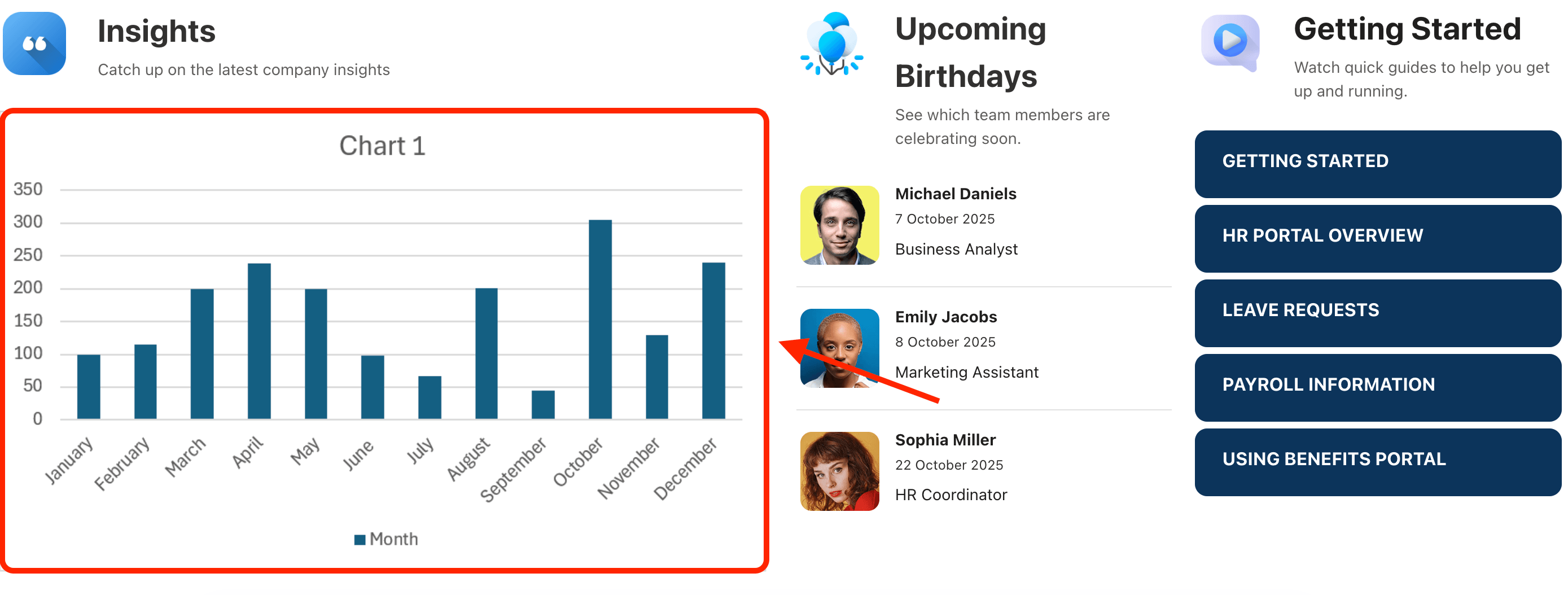
- Chart Image in a Worksheet: Share charts from your Excel sheets in your SharePoint sites.
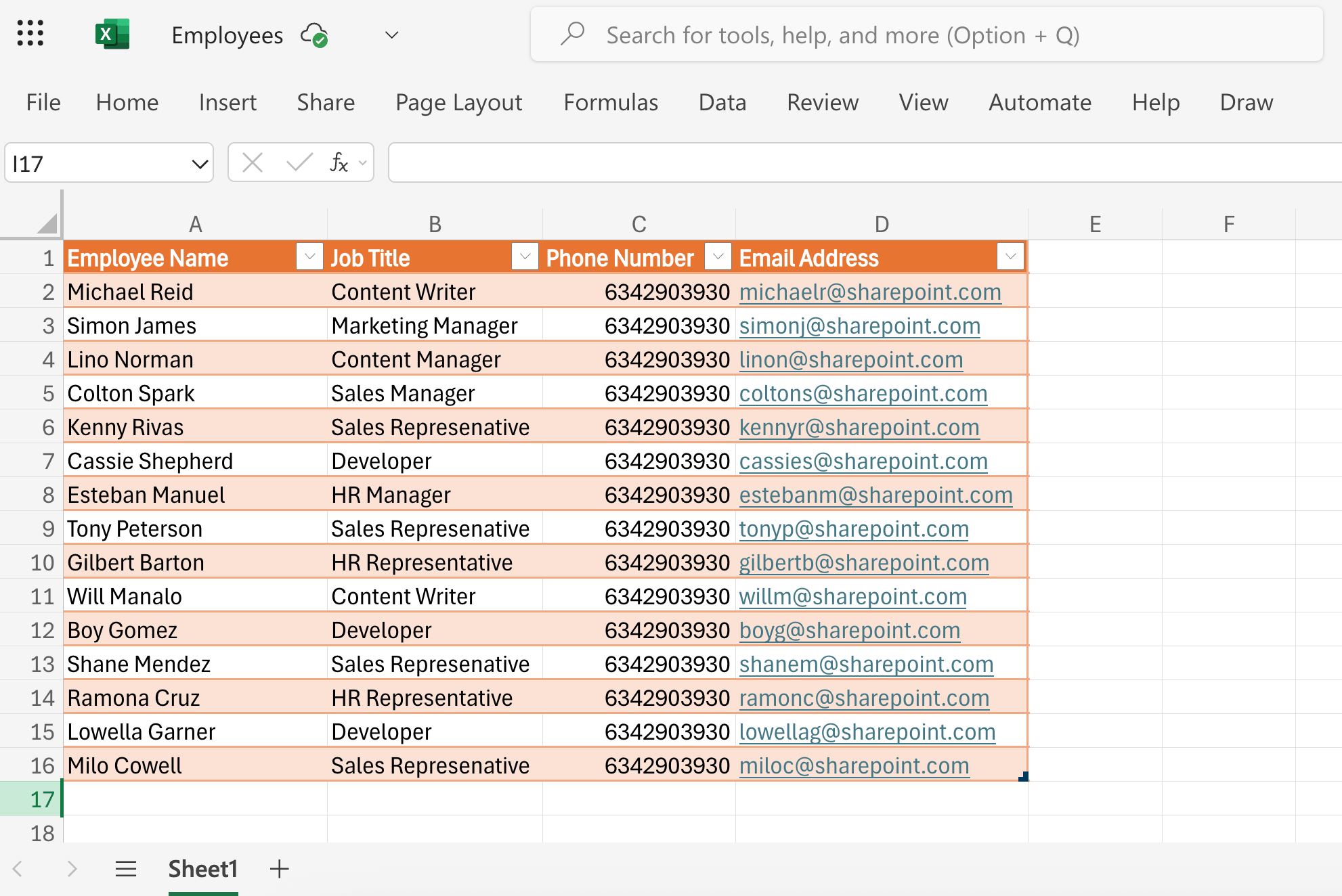
- Rows in a Workbook Table: Keep everyone in the loop by displaying live data from workbook tables.

More good news? We’ve made setting this up incredibly simple! If you’re already a ShortPoint Designer, just make sure you’ve upgraded to version 8.6.0.0 or later. Then, head over to our step-by-step guide on How to Enable Microsoft Graph Integration to activate your connection.
New to ShortPoint? Welcome aboard! We’d love to help you get things rolling. Feel free to reach out to our expert team for a helping hand, and don't forget to sign up for our free 15-day trial to see the magic for yourself.
Frequently Asked Questions
What is a OneDrive File ID?
A OneDrive File ID is a unique alphanumeric string assigned to each file or folder in Microsoft OneDrive. It acts as a permanent identifier that remains stable even if the file is renamed or moved, ensuring reliable file management and access.
How can I find the File ID of a file in OneDrive?
You can retrieve the File ID by using the ShortPoint Microsoft Graph API connection or tools like Graph Explorer. For example, running a GET query to list files in your root drive will return file details, including their unique File IDs. This ID is essential for automating workflows and integrating files with other Microsoft 365 services.
Why should I use File IDs instead of file names or paths?
File names and paths can change, breaking links or automation workflows. File IDs are stable and unique, allowing unbreakable links, immunity to renaming, and faster database indexing. This helps avoid common problems such as broken links or duplication conflicts.
Can I use OneDrive File IDs in Power Automate workflows?
Yes! Using File IDs in Power Automate ensures your workflows target the exact files regardless of name changes or moves. This improves workflow efficiency and reduces errors when automating tasks like file conversions or data processing.
Does the File ID change if I download and re-upload a file?
Yes. Downloading and uploading a file creates a new object with a new File ID. To maintain the same File ID, always move or rename files within the OneDrive environment using the web interface or synced folders.
What happens to the File ID if I delete a file?
If you move a file to the Recycle Bin, its File ID remains valid. Restoring the file will preserve all previous links. However, permanently deleting the file from the Recycle Bin removes the File ID permanently.
Can two files have the same File ID?
No. OneDrive assigns a globally unique File ID to every file and folder, preventing any duplication or conflicts in file identification.
How are File IDs used in SharePoint and other Microsoft 365 services?
File IDs are integral for integrating files across Microsoft 365, including SharePoint and Teams. They enable seamless data retrieval, display, and automation via Microsoft Graph API, enhancing collaboration and digital workplace productivity.
Related articles:
