 Try ShortPoint now
Ever thought of integrating your Microsoft Teams with your SharePoint page? The secret key that unlocks this seamless connection is the Microsoft Team ID.
While it looks like a random string of numbers and letters, this unique identifier can bring you closer to a much more collaborative digital workspace. Let’s break down exactly what a Team ID is, why it matters, how to find it, and how you can use it like a pro.
TABLE OF CONTENTS
- What is a Team ID?
- Why is it Useful?
- Finding the Teams ID
- Using the Teams ID
- The Power of Microsoft Teams ID
- Frequently Asked Questions
What is a Team ID?
A Microsoft Team ID is a unique digital fingerprint assigned to every single team created within the Microsoft Teams ecosystem.
If you've ever used the Teams app on your web or mobile device, you know that when you first create a team, you add a name to it (like "Marketing Team"). This name is visible to all users. But, behind the scenes, Microsoft also assigns a permanent, unchangeable ID to the team you create to ensure data always goes to the right place. Think of it like a DNA that's uniquely assigned to your team.
A typical Team ID is a long Guid (Globally Unique Identifier) that looks something like this:
123e4567-e89b-12d3-a456-426614174000
TIPEvery channel within a team also has its own unique Channel ID, but they all roll up under the overarching Team ID. To learn more about Channel ID, check out How to Get the Teams Channel ID.
Why is it Useful?
For the average user who just jumps into Microsoft Teams to send a quick chat or join a Microsoft Teams meeting, the Team ID stays quietly behind the scenes. But if you are a manager, an IT admin, or someone who loves productivity hacks, the Team ID is incredibly useful for a few core reasons:
- Precision: It ensures that third-party apps and internal tools connect to the exact team you intend, eliminating any risk of mistaken identity.
- Stability: If your team gets rebranded or renamed (e.g., changing "Q1 Planning" to "2026 Strategy"), the Team ID remains exactly the same. Any links, scripts, or automations built around that ID will never break.
- Deep Linking: It allows you to create hyper-specific links that take users directly to a specific team or channel, bypassing the clutter of their main Teams sidebar.
Finding the Teams ID
Now that you know what a Team ID is and why it's useful, how exactly do you find it? It's super easy! Simply follow the steps outlined below to grab your Microsoft Teams ID effortlessly:
Option 1: Using the ShortPoint Microsoft Graph API connection
NOTEYou must be a ShortPoint Designer with a PRO or Enterprise license to use this option.
Step 1: Edit a Design Element
While in edit mode, click the EasyPass tag of any Design Element on your page. For this guide, we’ll use Quick Links:

Then, click the cogwheel icon:

Step 2: Run the My Teams Use Case
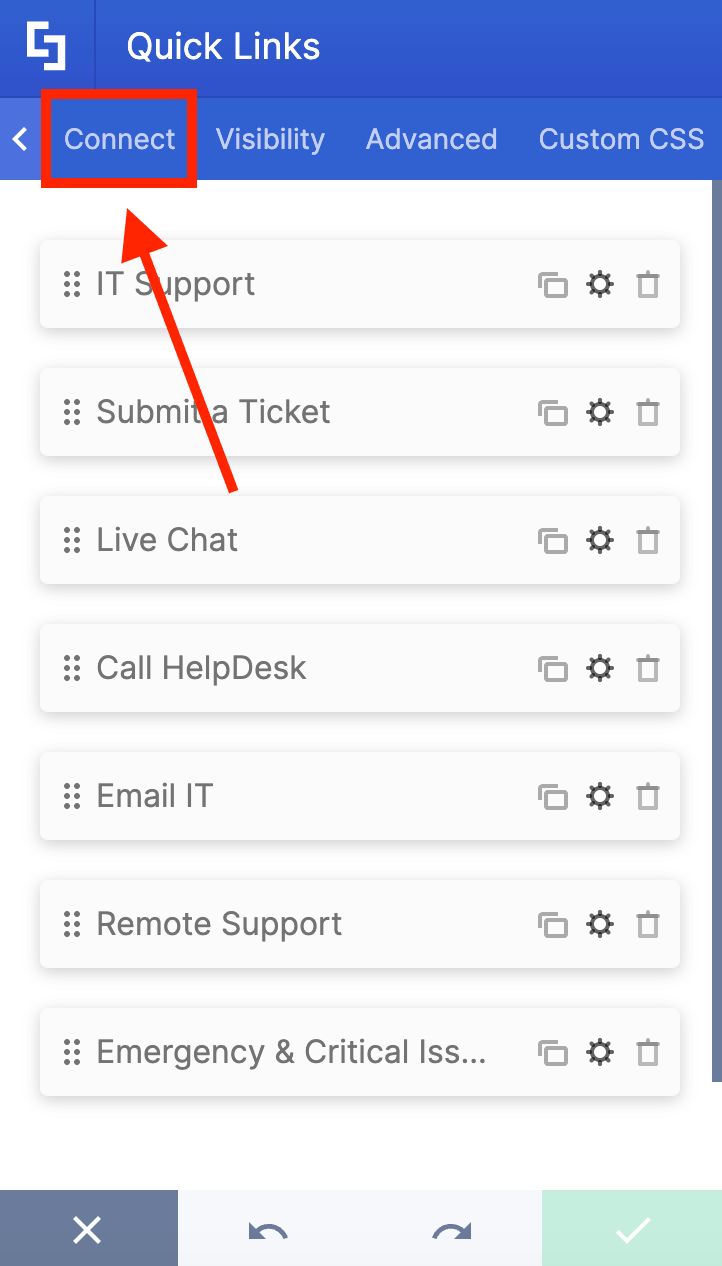
Go to the Connect tab:
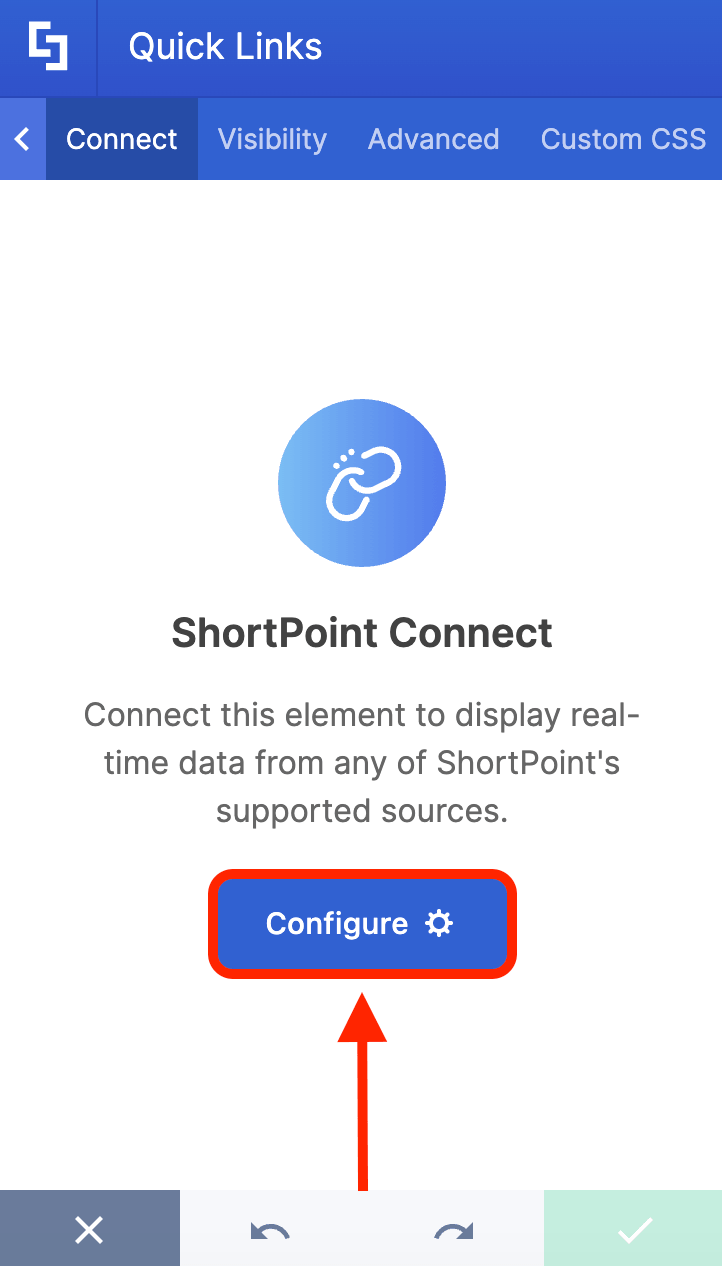
Click Configure:
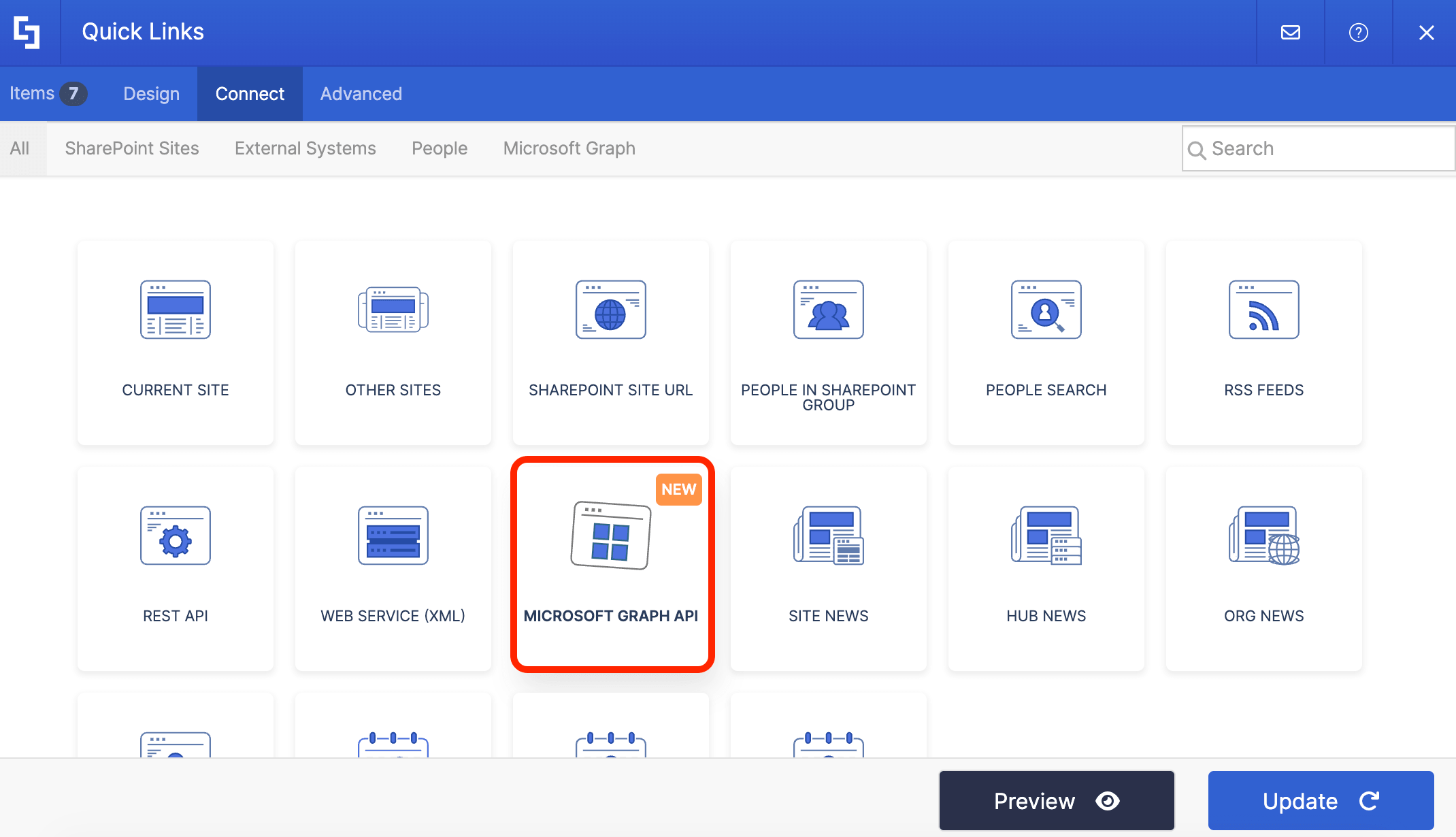
Select Microsoft Graph API:
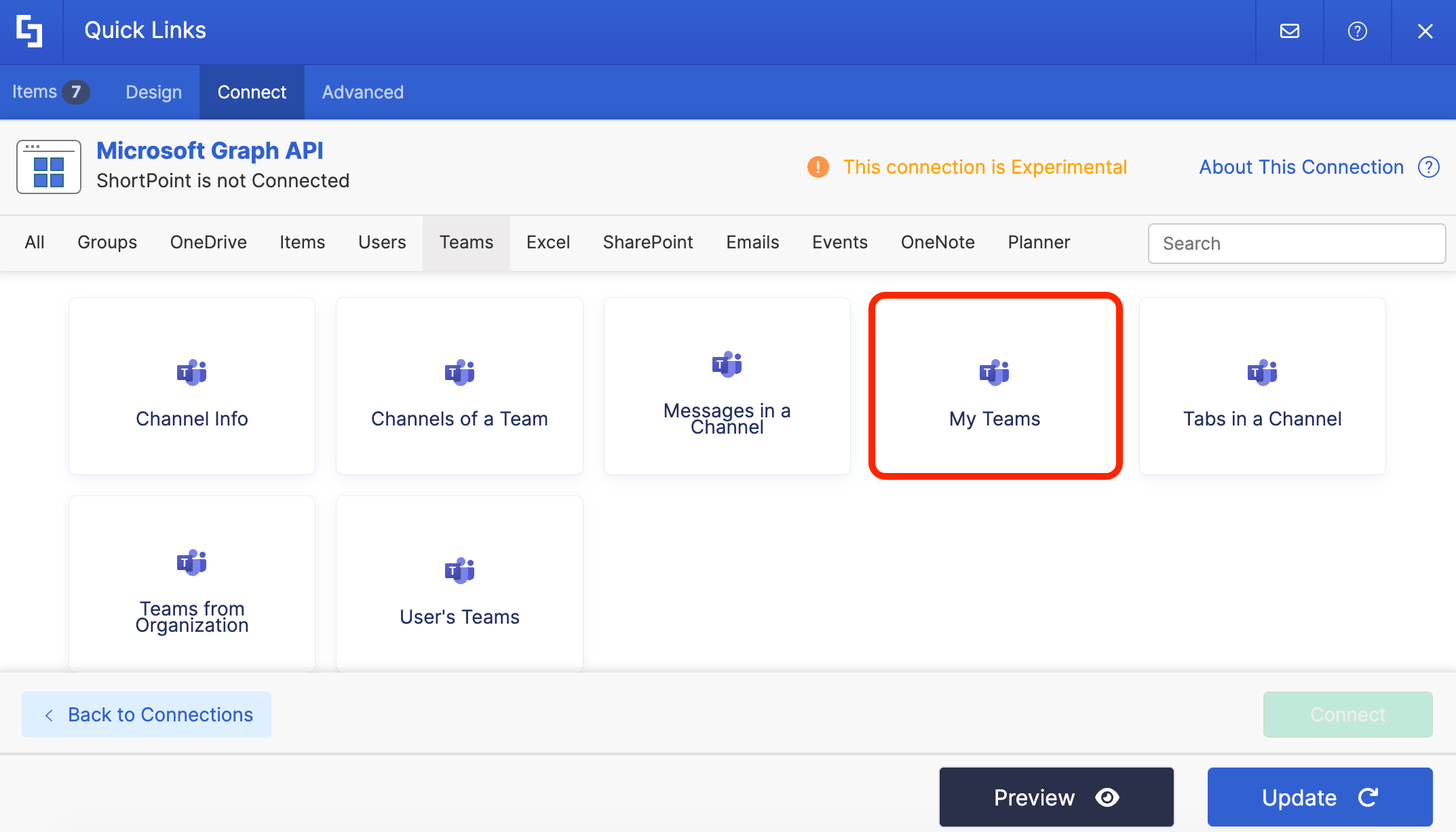
Under the Use Cases section, look for My Teams and select it:
Click Run Query:
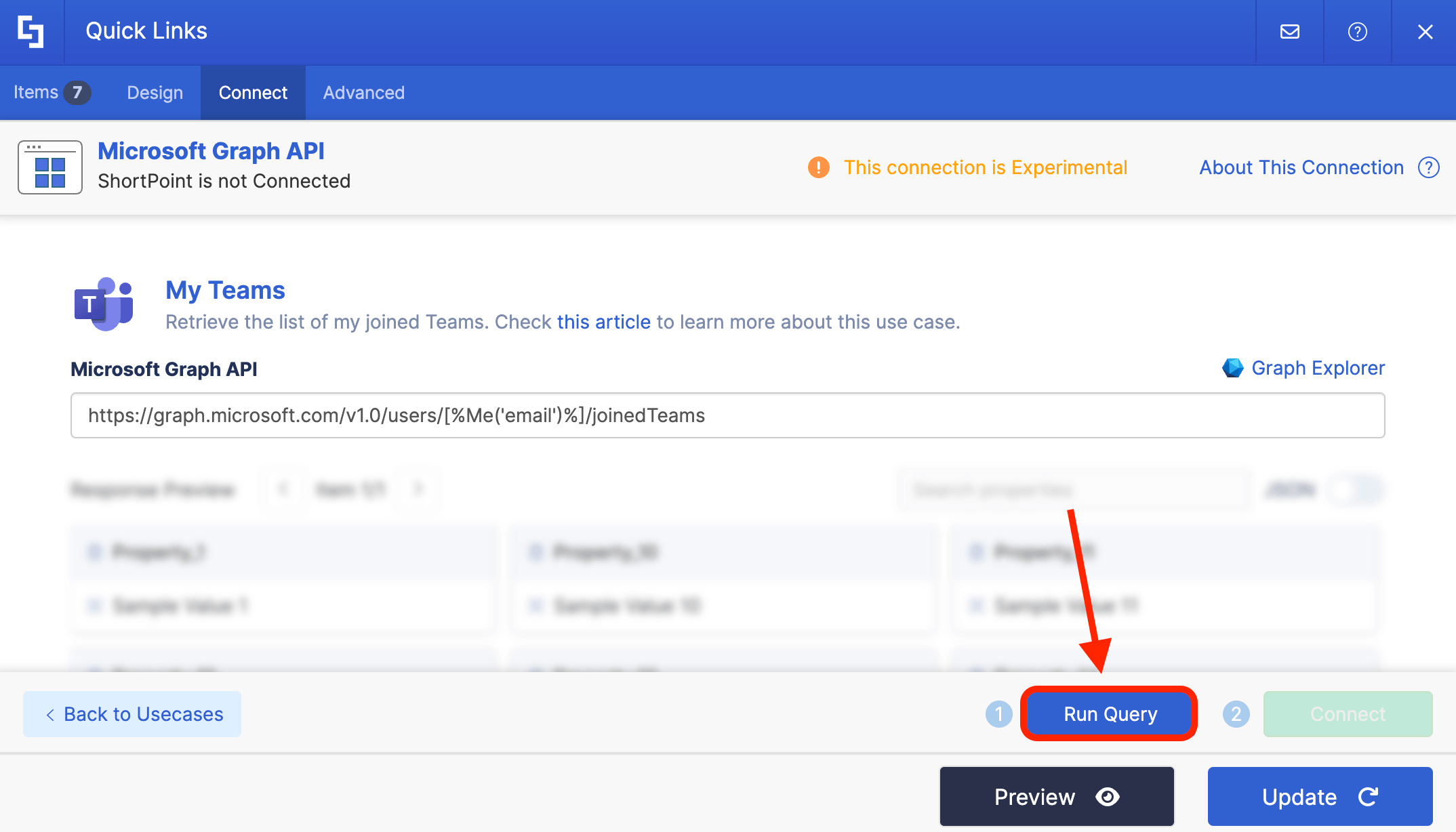
Step 3: Copy Team ID
Under the Response Preview, look for the display name of your team and copy the ID. In our case, our Team name is Retail:
Awesome! You now have the Team ID.
Option 2: Using Microsoft Teams
Step 1: Open Microsoft Teams
Go to Microsoft Teams:
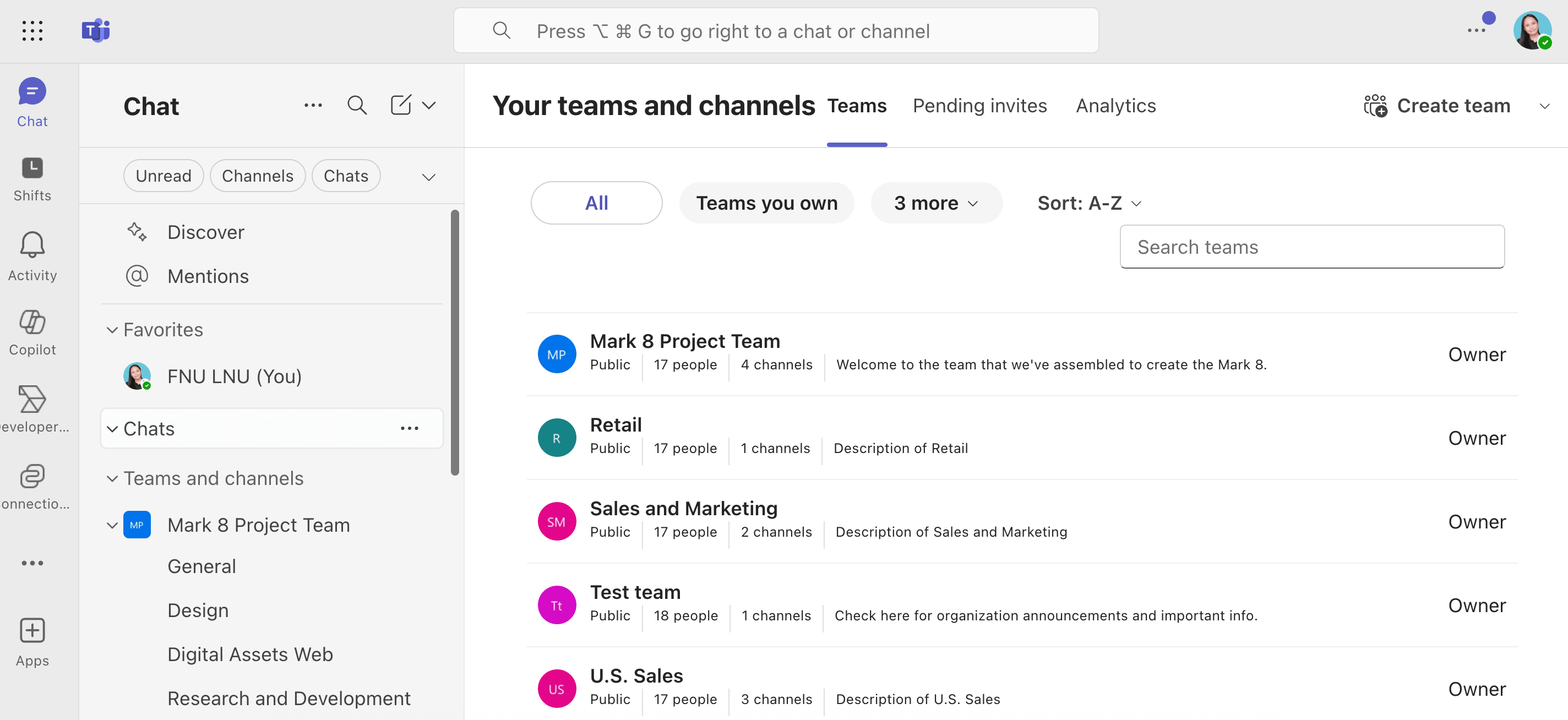
Step 2: Copy Team ID
Look for the group you want to get the Team ID for and click the ellipsis icon:
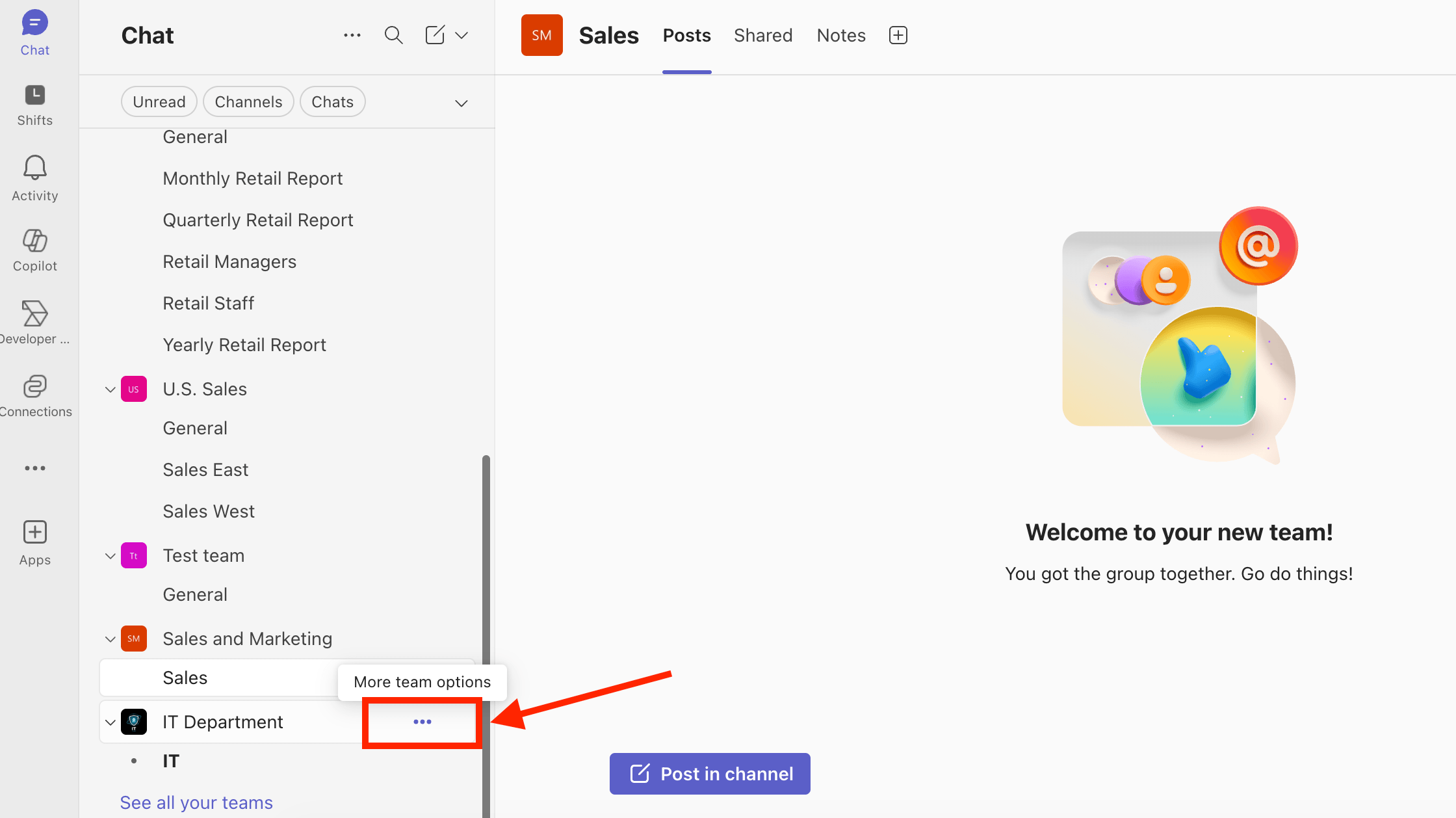
Click Copy Link:
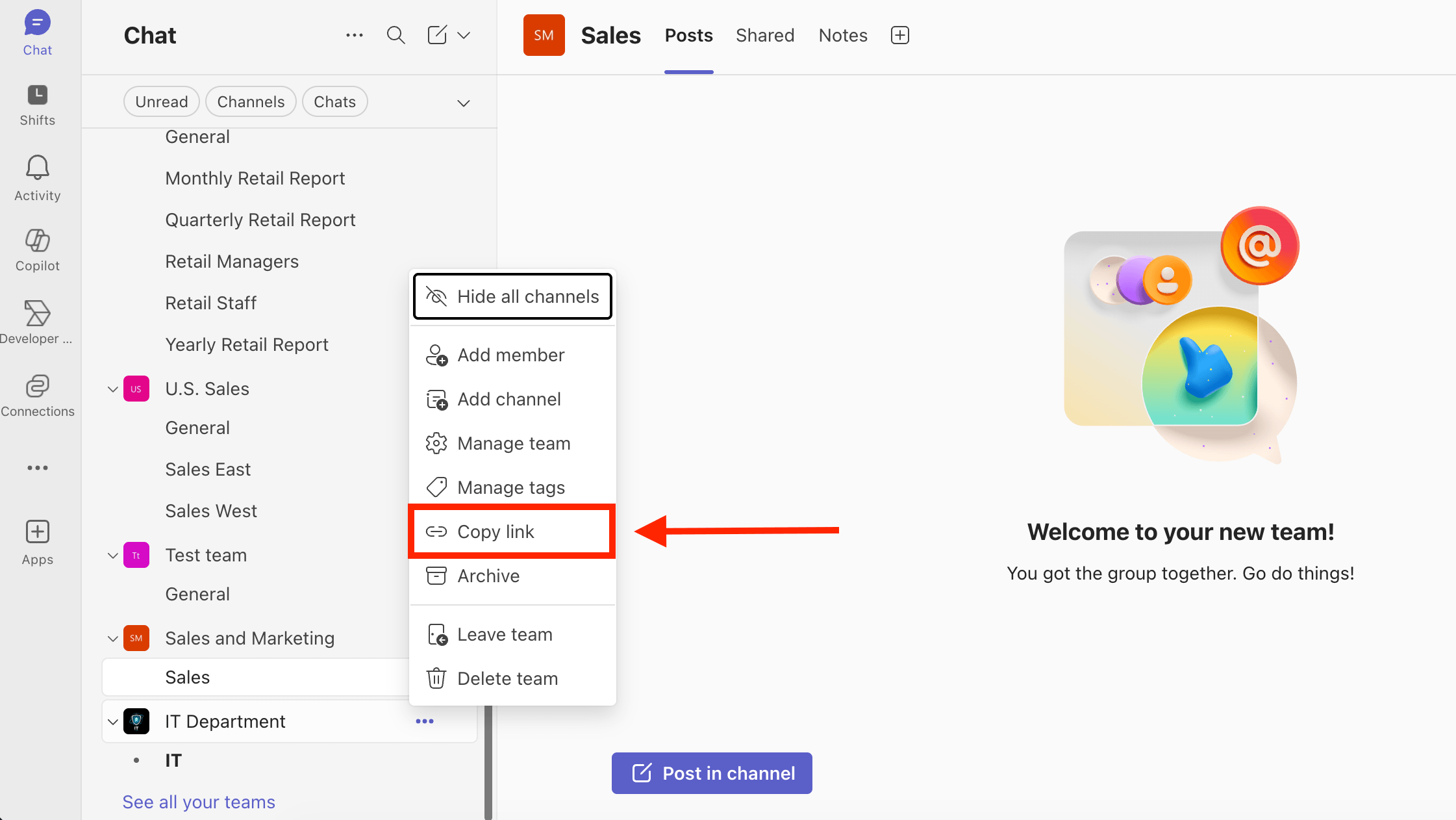
Paste the link in the address bar and copy the string of letters and numbers after groupID= and before &tenantId. That is your Team ID:

That’s it! You now have your Team ID.
Option 3: Using Graph Explorer
Step 1: Open Graph Explorer
Go to Graph Explorer:
NOTEBefore proceeding, make sure you are logged in to Graph Dev Center. You must also have the necessary permissions to access Graph Explorer.
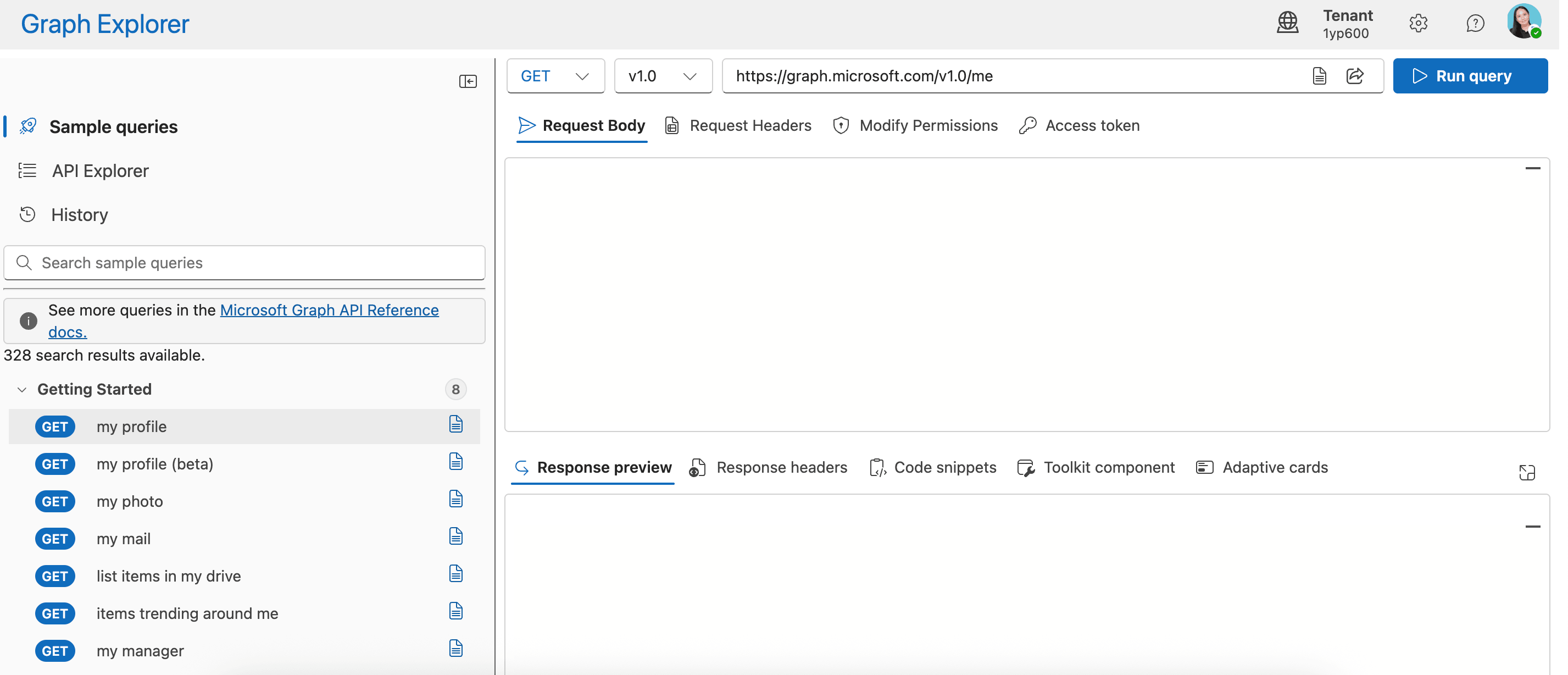
Step 2: Copy and modify the GET Query
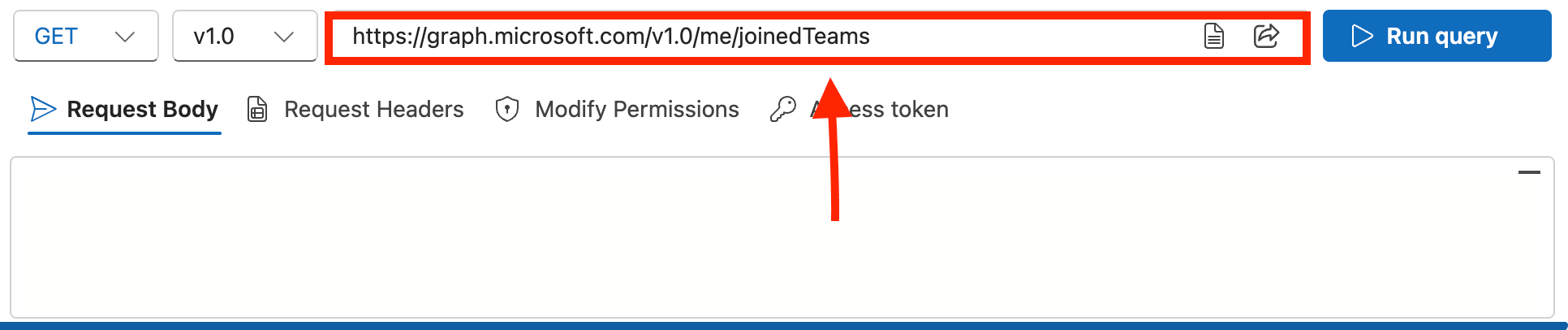
Copy the GET query below:
https://graph.microsoft.com/v1.0/me/joinedTeams
Step 3: Paste GET Query
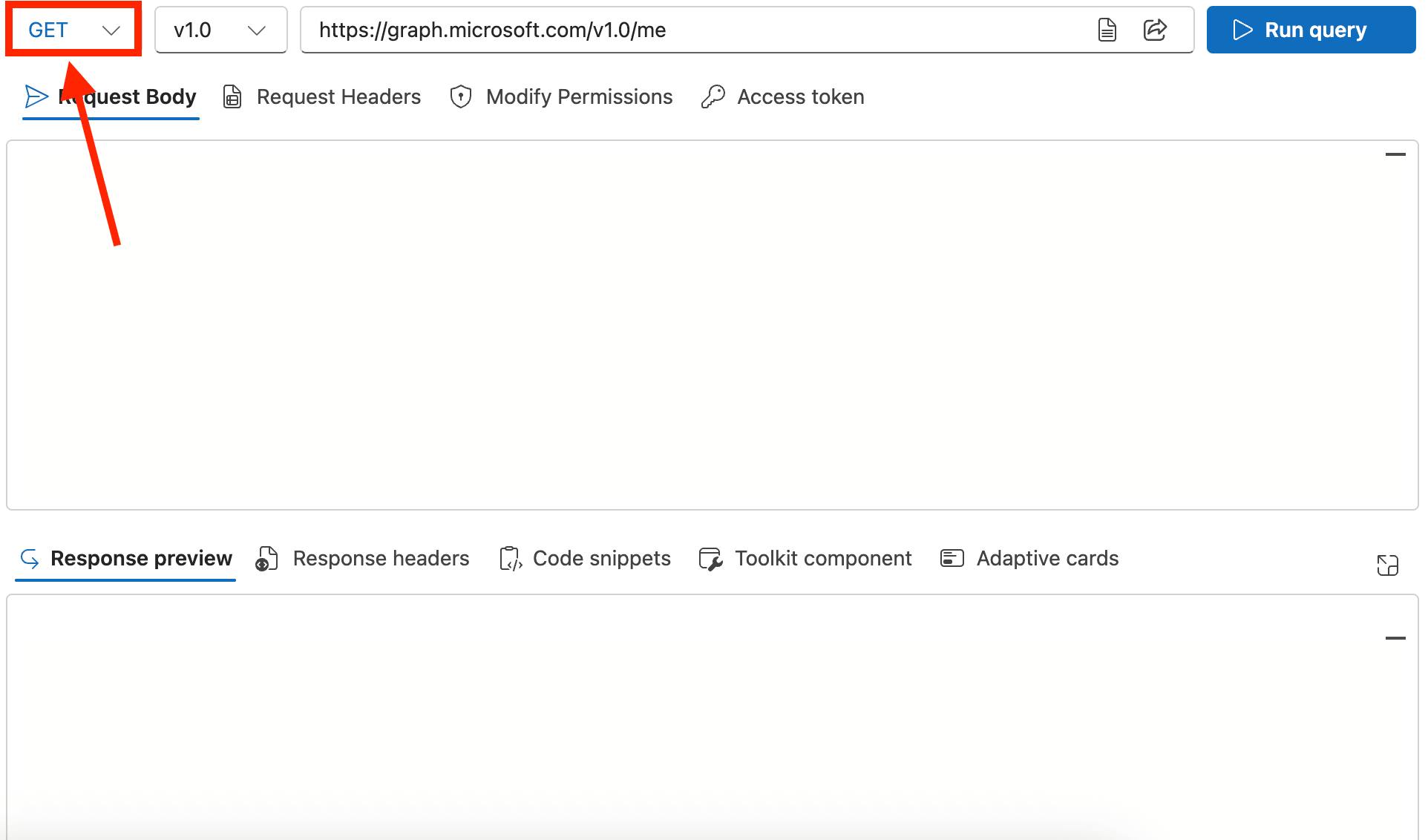
Make sure that it is set to GET:
Paste the GET query in the field provided:
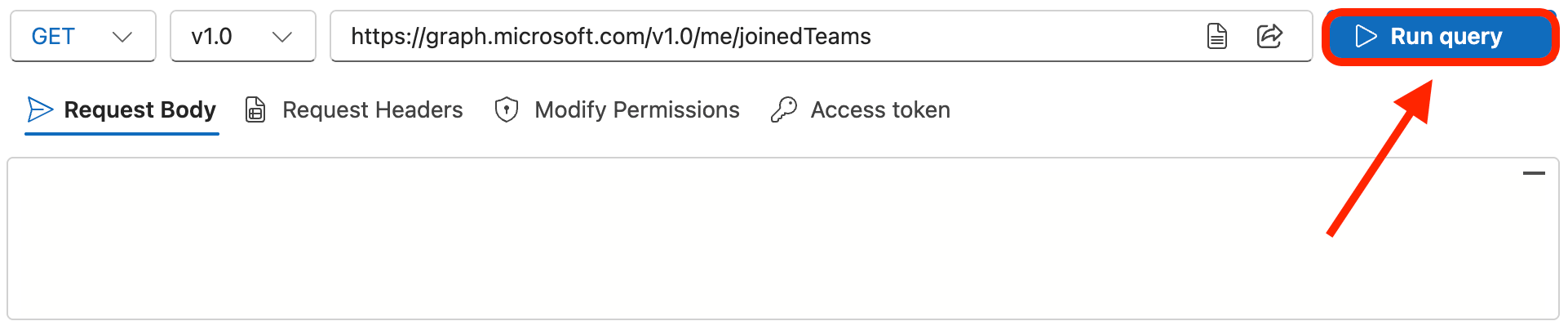
Click Run Query:
Step 4: Copy Team ID
In the Response preview section, look for the name of your Team:
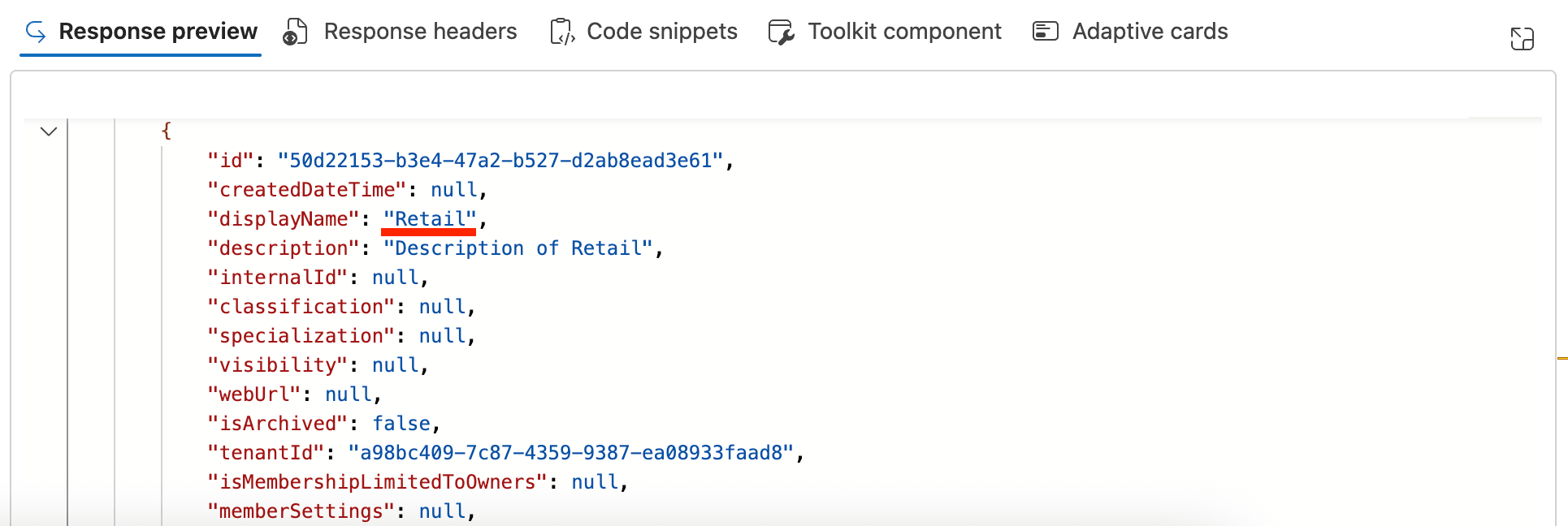
Copy the ID:
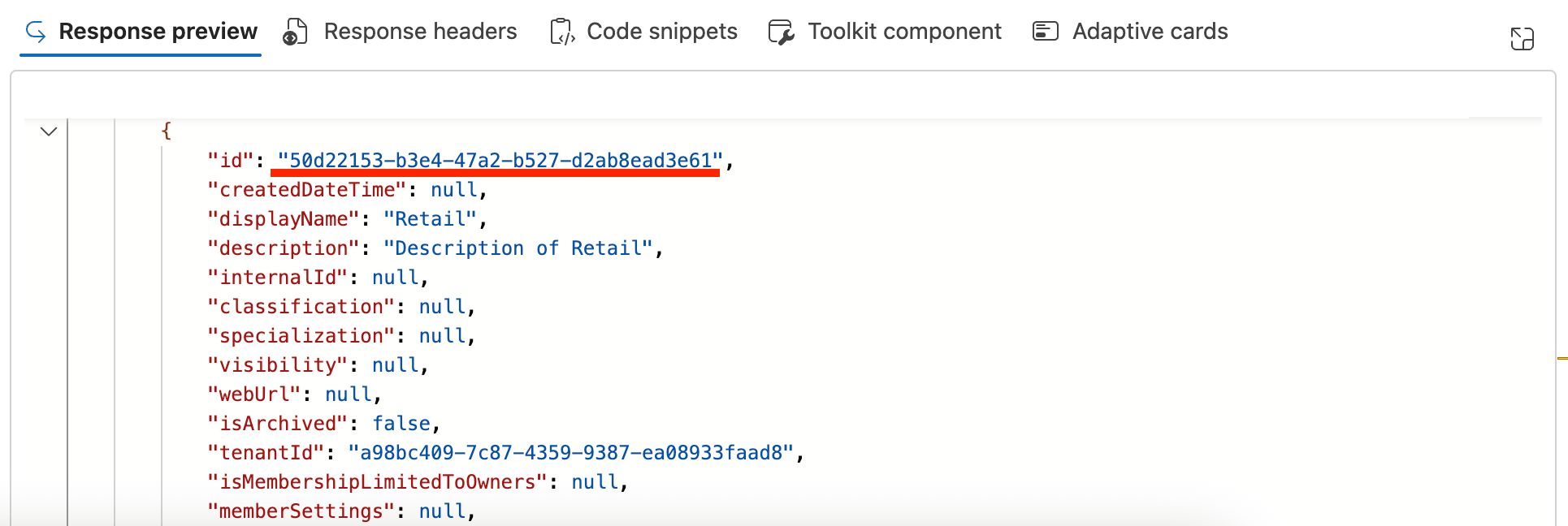
Congratulations! You have successfully retrieved your Team ID.
Using the Teams ID
How does this look in the real world? Here are a few practical ways professionals leverage the Microsoft Team ID:
Power Automate
You can use Team ID to automate some tasks using Power Automate. For example, you can automatically post email summaries from clients into a Teams channel. To set up this workflow, the system will ask you to select or paste the Team ID to ensure the automated message lands exactly where it’s supposed to.
Microsoft Graph API
So, how do you bring Microsoft Teams to your SharePoint sites? This is where Microsoft Graph API shines! It makes it easy to connect SharePoint data with other Microsoft 365 services by giving developers one single endpoint to work with (whether that's the SharePoint, Outlook, or Teams API).
Not a developer? No problem! ShortPoint's Microsoft Graph API connection is here to help. Designed with non-technical users in mind, it takes the guesswork out of retrieving data through the Graph API and lets you showcase that data beautifully on your SharePoint pages.
Best of all, you stay in control of what your audience sees, so your page visitors always get the information that matters most to your team, improving collaboration and productivity.
Here are some ways you can bring the Team ID to use in the ShortPoint Microsoft Graph API connection:
- Channel Info - shows details of a specific Teams Channel and links users to the actual channel.
- Channels of a Team - shows all the channels of a specific team.
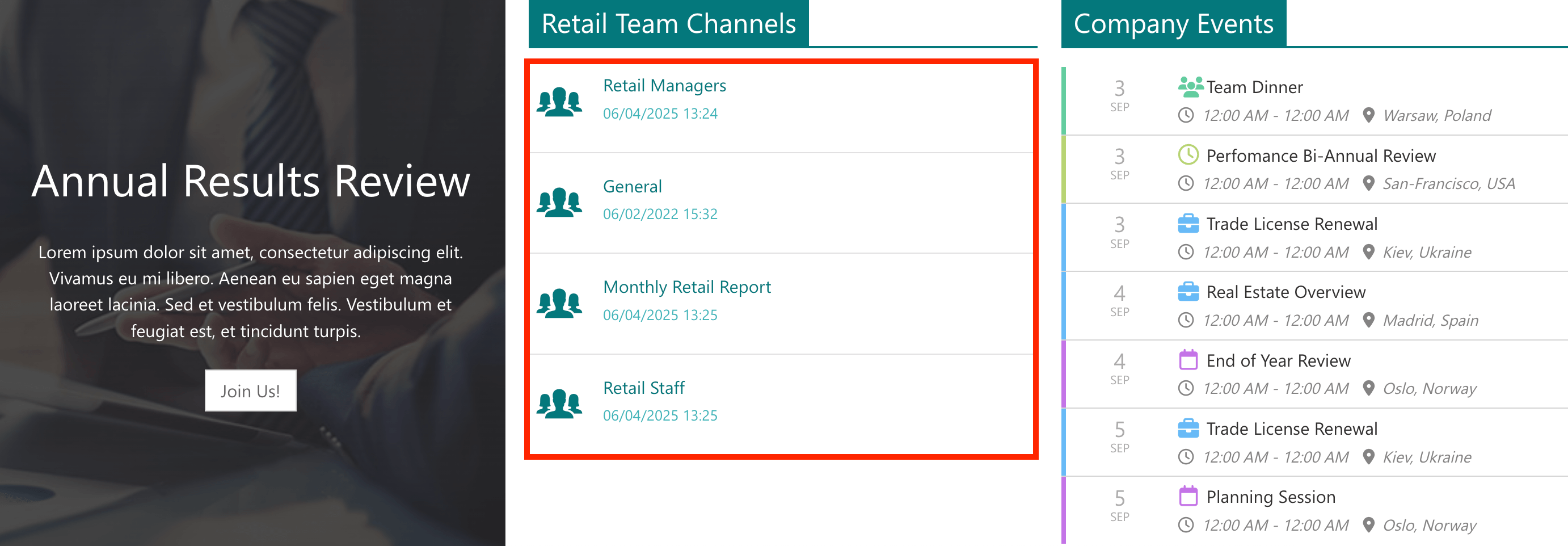
- Messages in a Channel - shows the messages of a specific Teams channel.
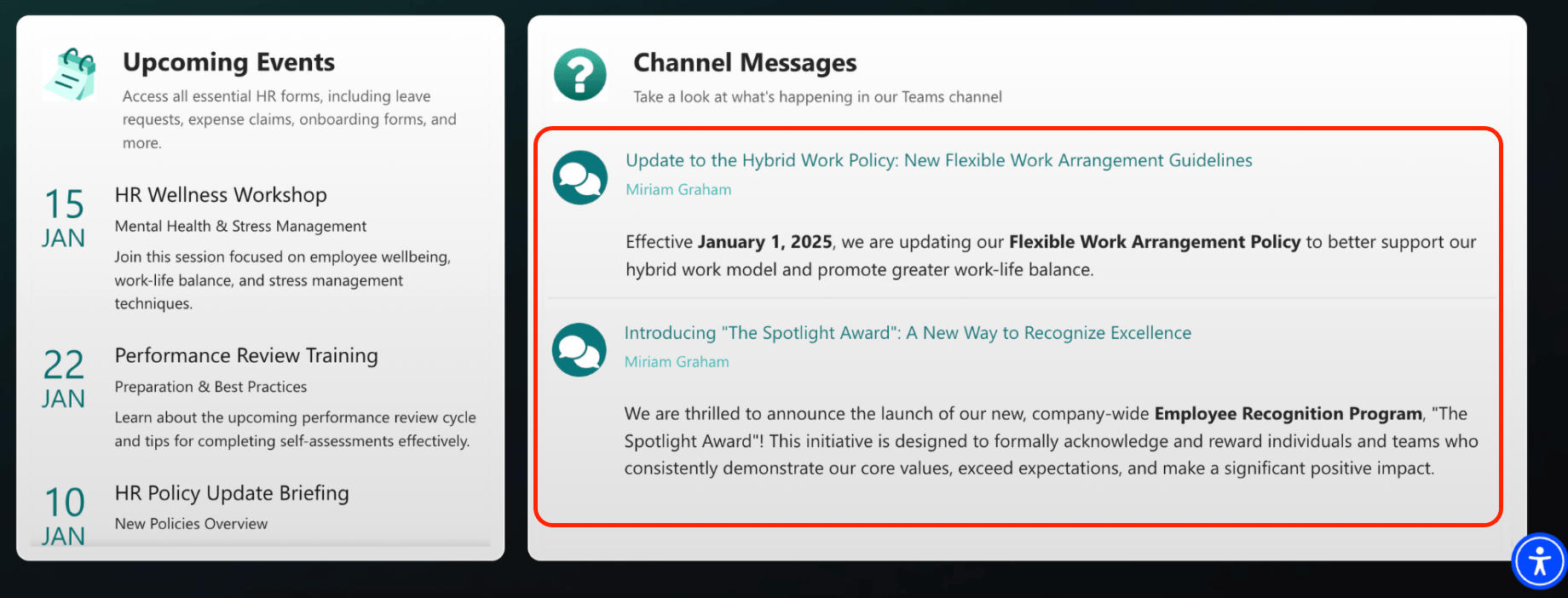
- Tabs in a Channel - shows all the tabs of a Teams channel.
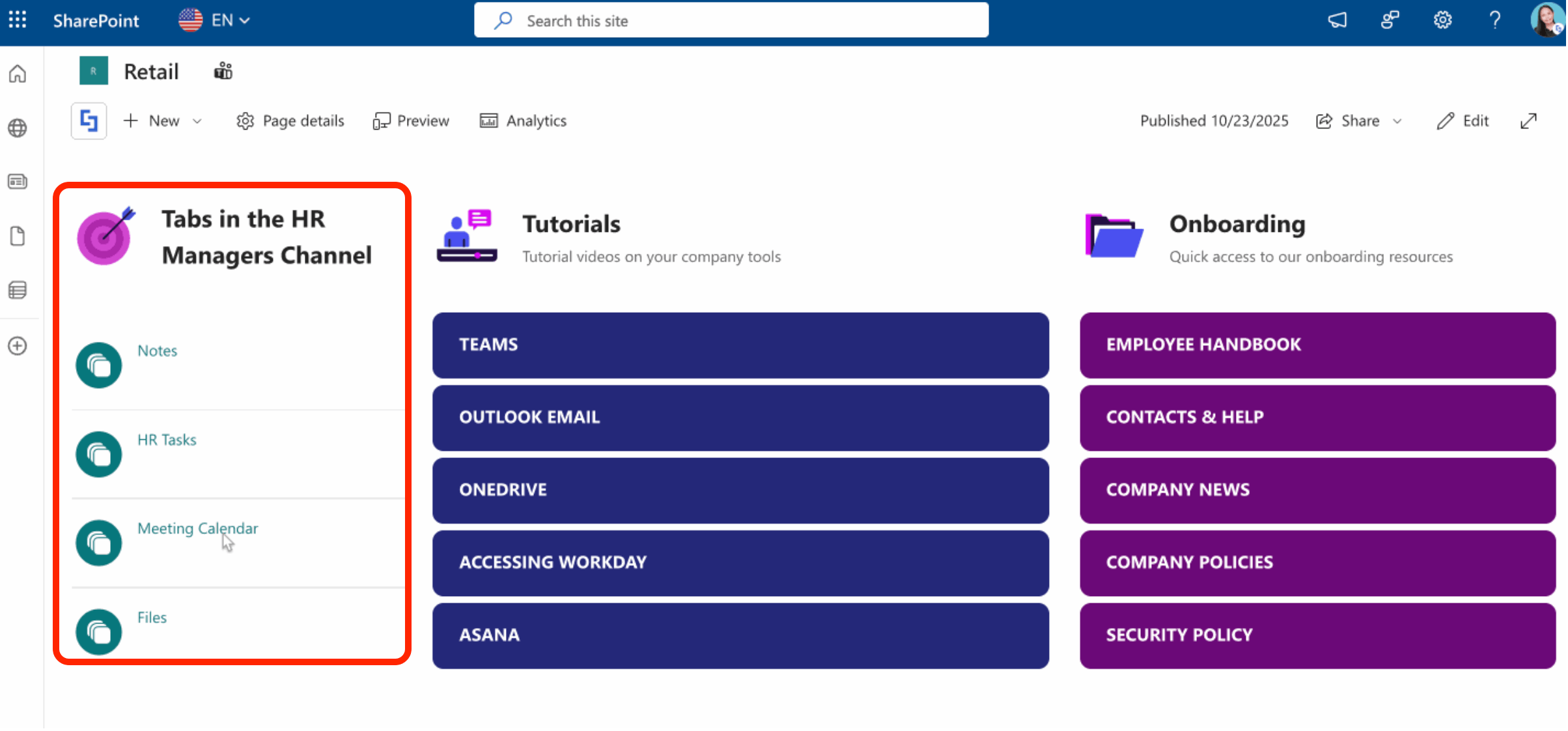
Ready to start using the Microsoft Graph API connection on your SharePoint sites? Getting started is easier than you might think! If you're already a ShortPoint Designer on a Pro or Enterprise license, simply upgrade to ShortPoint version 8.6.0.0 or later and follow the steps outlined in How to Enable Microsoft Graph Integration for MS Graph API Connections.
New to ShortPoint? We'd love to help! Feel free to reach out to our experts to guide you through the process, and don't forget to take advantage of our FREE 15-day trial to explore everything ShortPoint has to offer.
The Power of Microsoft Teams ID
The Microsoft Team ID might look like a boring piece of back-end code, but it’s truly the connective tissue that allows Teams to play nice with automation tools and Microsoft Graph API integrations. By understanding what it is and how to find it, you're well on your way to building a smarter, more efficient digital workspace that enhances collaboration and productivity.
Frequently Asked Questions
Can I change a Team ID?
No. A Team ID is generated automatically by Microsoft when the team is created and is tied to your Microsoft Teams account. It cannot be edited, customized, or changed, even by an IT administrator. If you delete the team, that specific ID is gone forever.
Is a Team ID the same as a Channel ID?
Not quite, though they work together. A Team ID identifies the entire group, while a Channel ID identifies a specific conversation space within that team. For more information on Channel ID, check out How to Get Teams Channel ID.
Does sharing a Team ID pose a security risk?
Generally, no. A Team ID is just an identifier, not a password or an access token. Someone cannot gain access to your team's private files, meeting recordings, or chats just by knowing the ID. They must still be an authorized member of your organization's Microsoft 365 tenant.
Can I find the Teams ID using the Microsoft Graph API?
Yes, you can use the ShortPoint Microsoft Graph API connection to retrieve your Team ID.
How is the Microsoft Teams Team ID useful in automation and integrations?
The Team ID is essential for tasks like automating workflows with Power Automate and integrating with Microsoft Graph API to connect Teams data with SharePoint or other Microsoft 365 services.
What tools can I use to retrieve Microsoft Teams IDs?
You can use Microsoft Teams interface, ShortPoint’s Microsoft Graph API connection, or Microsoft's Graph Explorer to find Team IDs efficiently.
Related articles:
