 Try ShortPoint now
Want to showcase your content the smart way? The ShortPoint Column Design Element is your best bet! With it, you can present information with precise structure, clean margins, and eye-catching alignment.
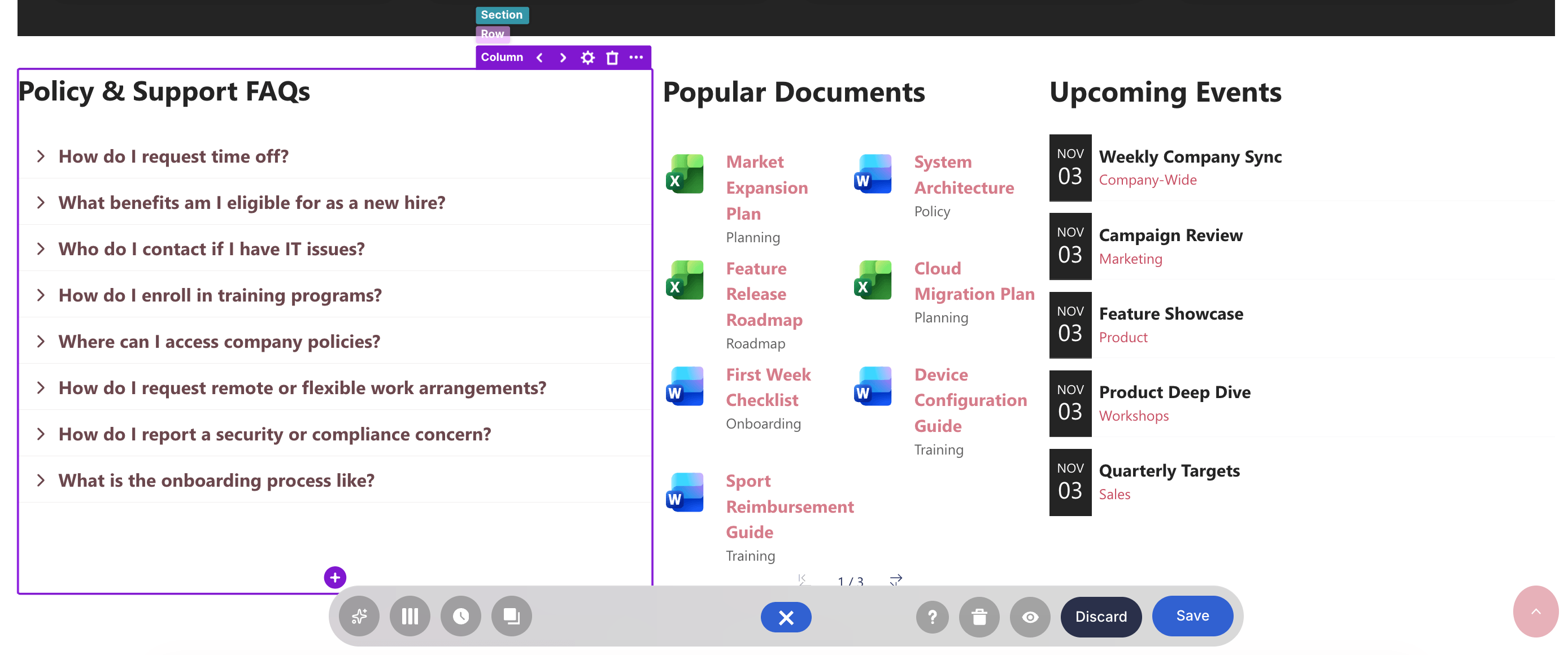
TABLE OF CONTENTS
- Prerequisites
- What is the ShortPoint Column Design Element?
- The Anatomy of a Column
- Adding a New Column
- Adjusting Paddings and Margins
- Column Features
- Practical Use Cases
- Start Designing with the Column Design Element
- Frequently Asked Questions
- What is a Column in ShortPoint?
- How do I add a new Column to my SharePoint page?
- Can I add multiple Design Elements inside a single Column?
- How can I adjust the spacing inside a Column?
- What customization options are available in the Column Settings window?
- Can I add a background image or color to a Column?
- Is it possible to control Column visibility?
- How do Columns relate to Rows in ShortPoint page design?
Prerequisites
- You must have the latest version of ShortPoint SPFx installed.
- You must be a ShortPoint Designer with an active license.
What is the ShortPoint Column Design Element?
In ShortPoint, page structure follows a logical hierarchy: Sections containing Rows, which contain Columns, which hold individual Design Elements.
Columns essentially hold the Design Elements you add to a SharePoint page. While a Row defines a horizontal block across your page, Columns divide that horizontal block into vertical channels. Inside a single column, you can nest virtually any ShortPoint design element, including text, images, buttons, panels, accordions, and many more.
You can easily split rows into equal fractions (e.g., 1/2 + 1/2, 1/3 + 1/3 + 1/3) or custom asymmetric splits (e.g., 2/3 main content + 1/3 sidebar).
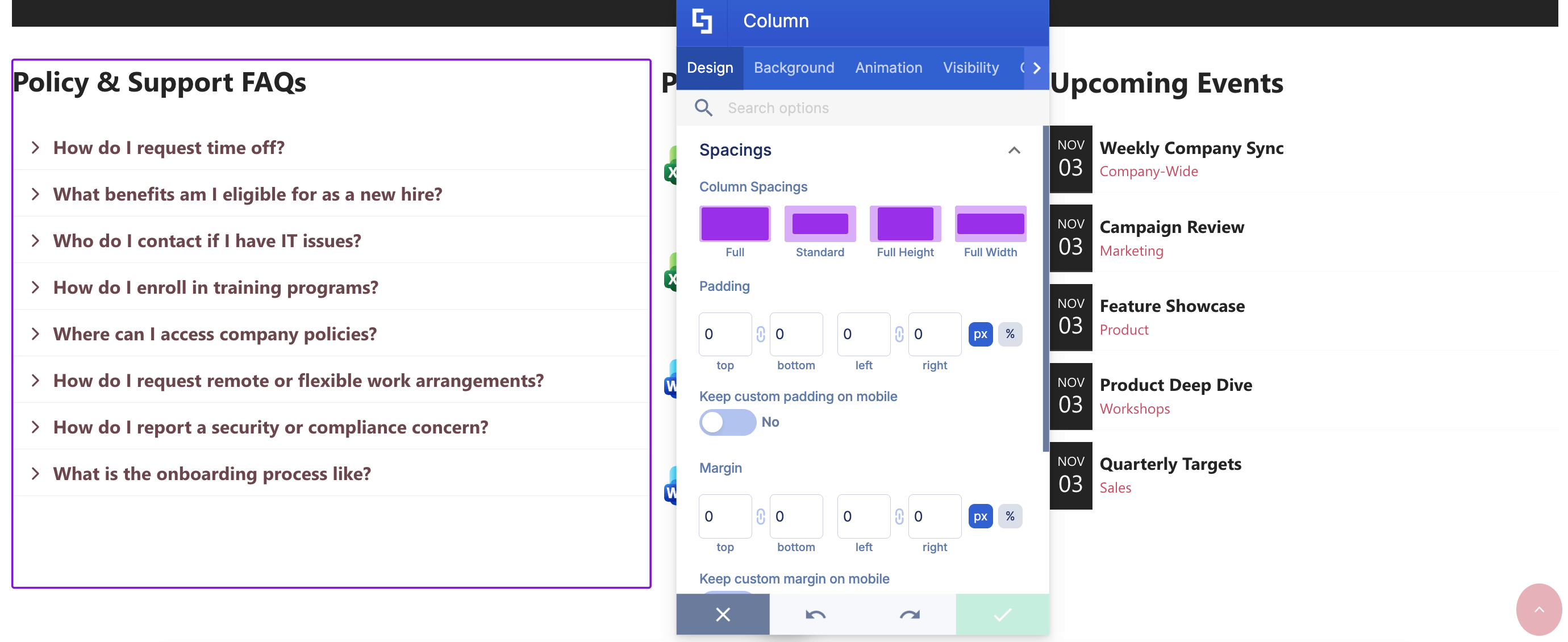
You can also adjust spacings for visual appeal:
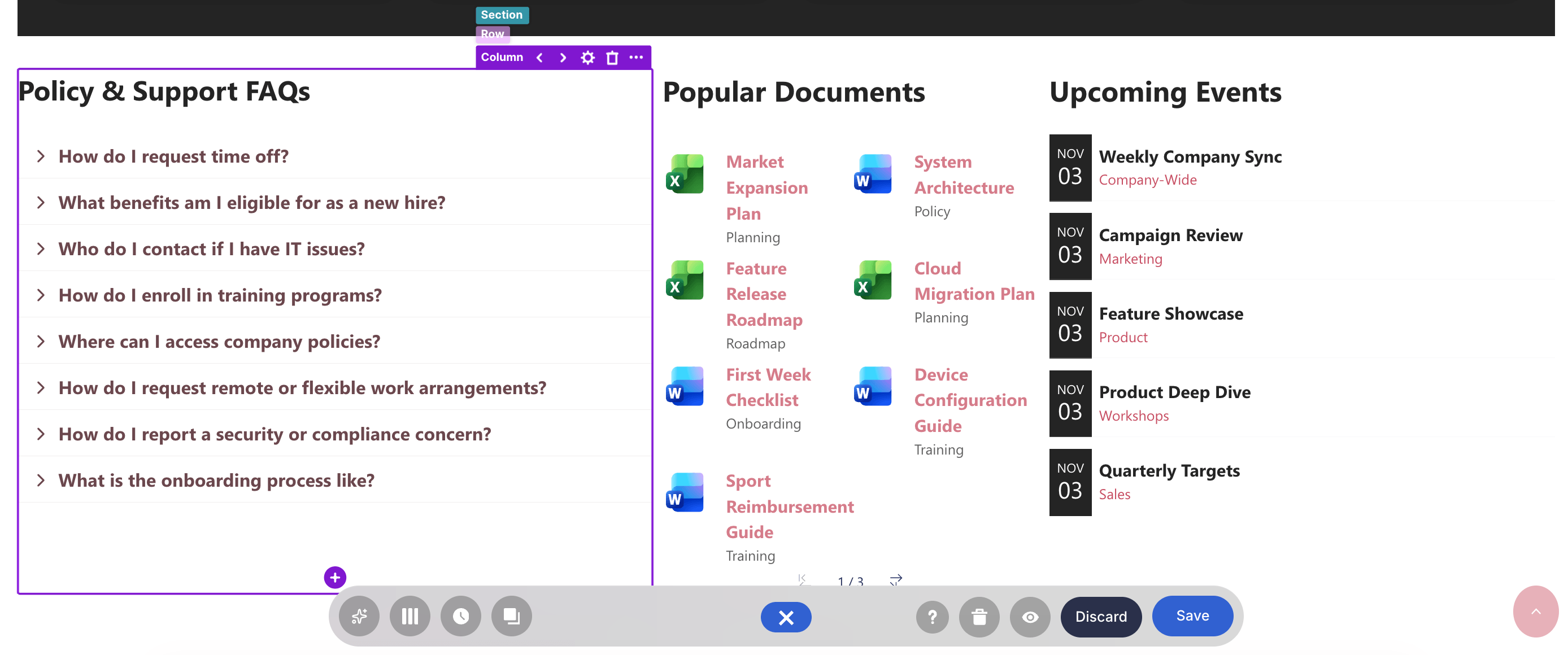
And the most important part: You can add multiple Design Elements inside a Column. They are automatically stacked vertically on top of one another. As an example, take a look at the Highlighted Text Design Element and FAQs Design Element below:
The Anatomy of a Column
Columns are contained within Rows. After selecting the EasyPass tag, you'll see a deep purple container with the following components:
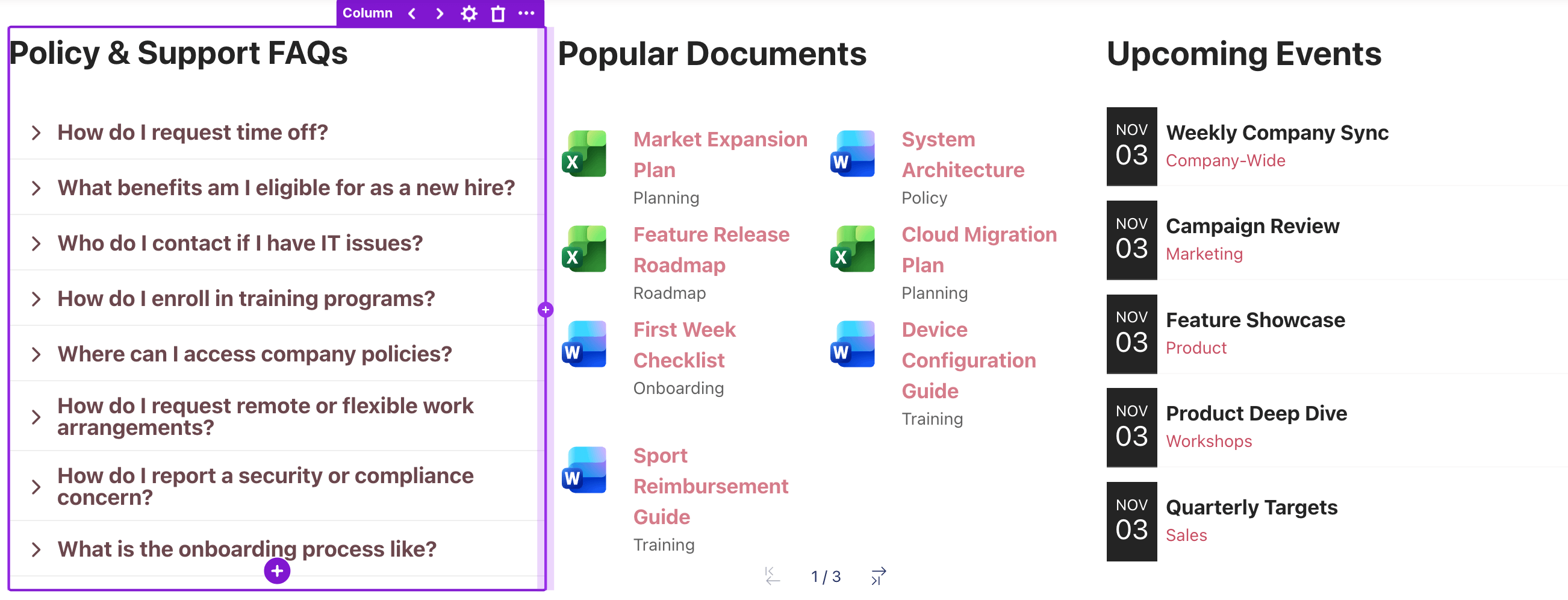
NOTEThe number of Columns inside a Row varies. When you first set up a Row Design Element, you determine how many columns it will have.
 | Left and Right arrow | allows you to adjust the width of the selected Column. |
 | Cogwheel icon | opens the Settings window of the Column Design Element. This window has options that allow you to further edit and customize the Column’s design. You can learn more about the features inside the Settings window in Column Features. |
 | Trash icon | deletes the selected Column. |
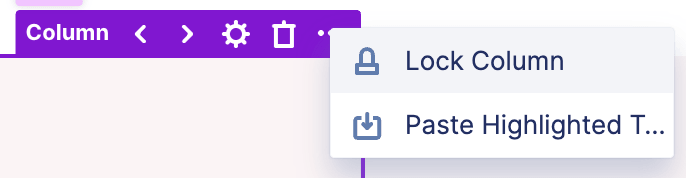 | Ellipsis icon | offers additional options, including:
|
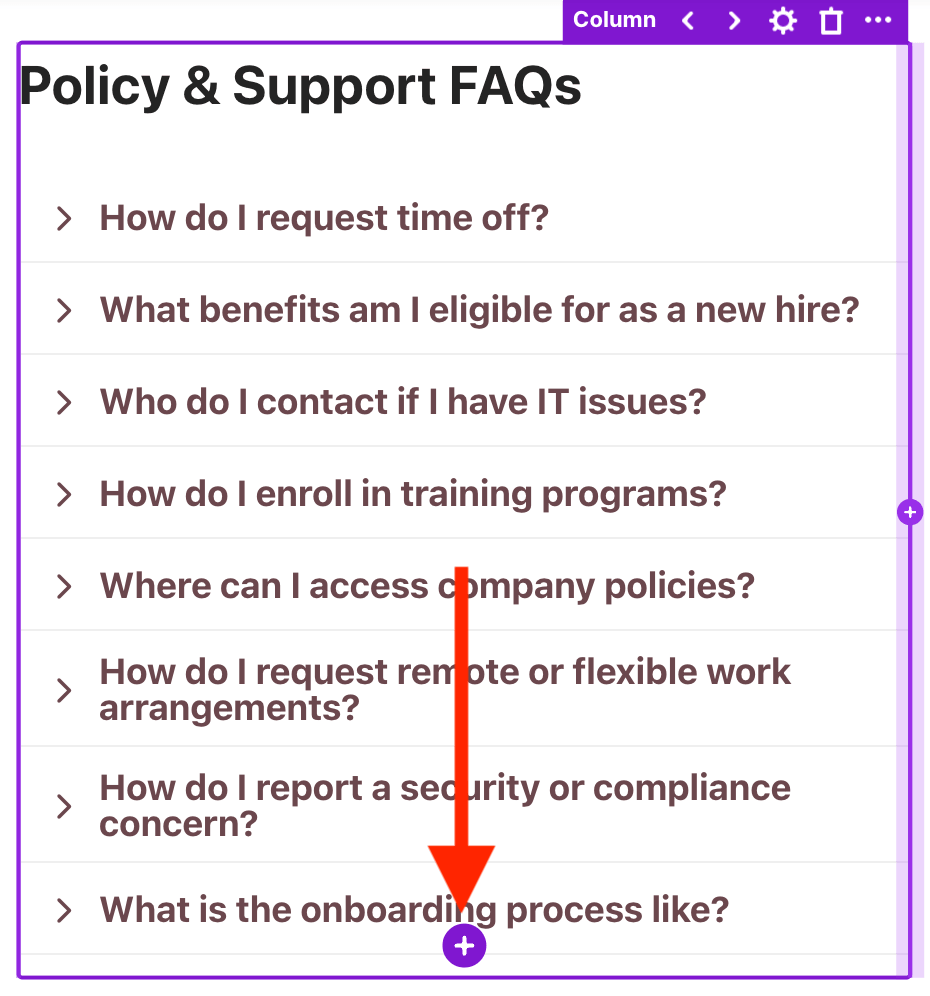 | Add Design Element icon | allows you to insert a Design Element from the library of Design Elements. |
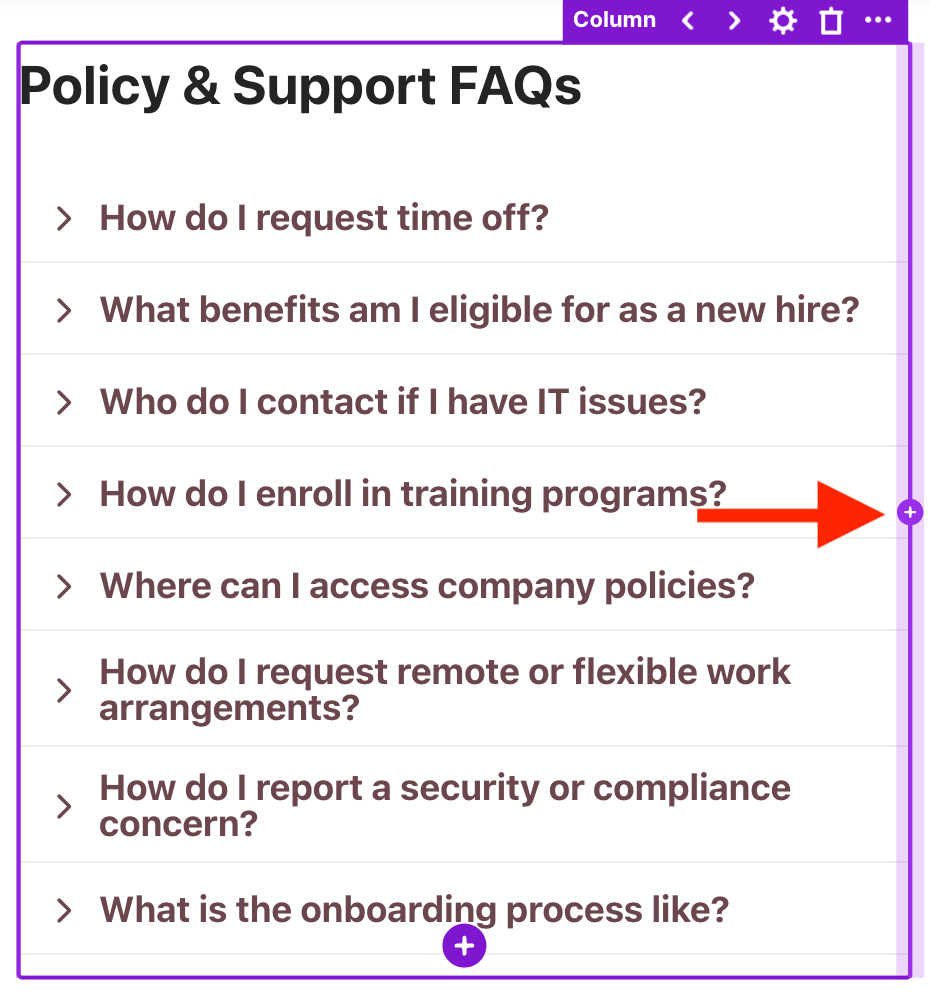 | Add Column icon | allows you to add a new Column after the selected Column. Learn more about this in Adding a New Column. |
Adding a New Column
Click Get Started to learn how to add new Columns:
NOTELearn more about the options you can customize in Column Features.
Step 1: Edit the ShortPoint Web Part
- Go to the SharePoint page you want to use and click Edit.
- Close the Toolbox.
- Click the Edit properties icon.
Step 2: Add a Column
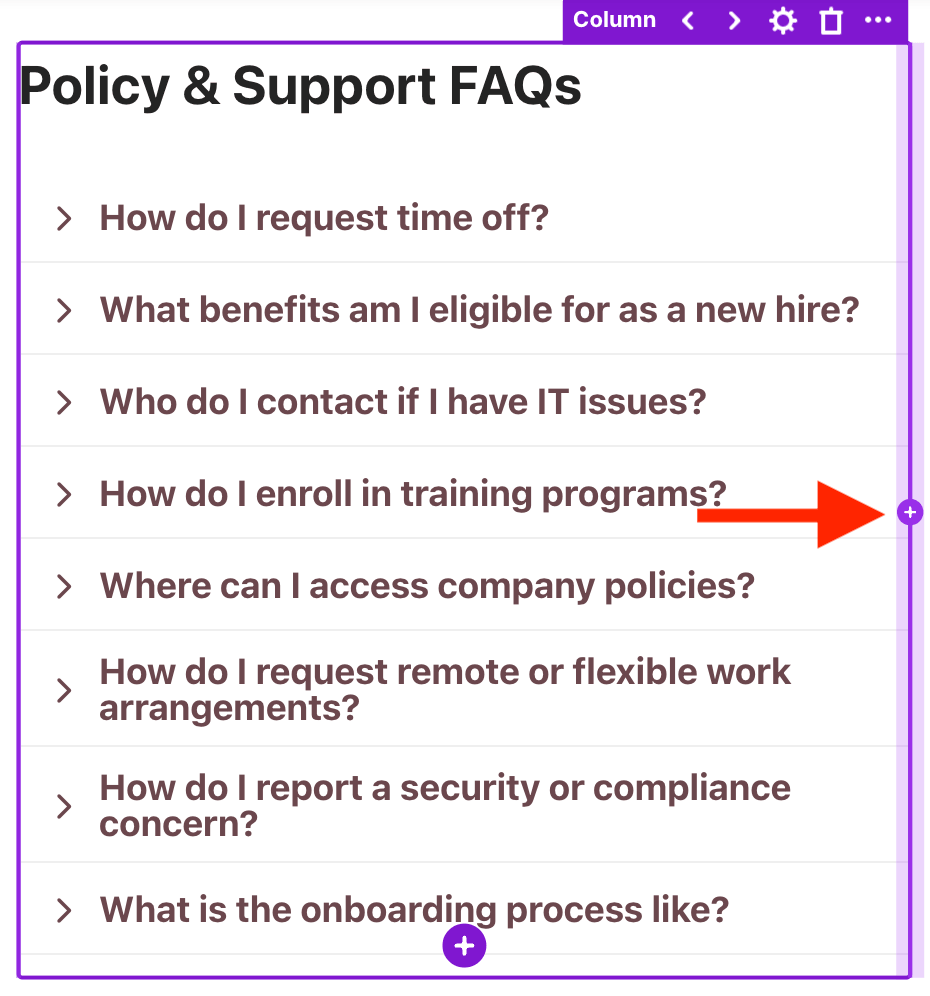
- Look for the Row where you want to add a new Column and hover over a Column.
- Then, click the purple plus icon. The new Column will be added beside the Column you hovered over:
Step 3: Add Content
- Add content to your Column.
Congratulations! You've successfully added a new Column.
Adjusting Paddings and Margins
There are four ways to adjust paddings and margins for the Column Design Element. Choose the option that suits your needs:
Option 1: Using the Spacing Icon
- Hover over the Column.
- Then, click the spacing icon.
- Choose from the available presets. You can choose from Full, Standard, Full Height, or Full Width.
Option 2: Using Hot Actions
- Hover over the Column until you see a purple highlight.
- Drag the purple highlight to your desired spacing value.
- (Optional) Click the link icon to duplicate the spacing value for both sides of the Column.
Option 3: Manually Adding a Value
- Hover over the Column until you see a numerical value and double-click it.
- Write the spacing value and hit Enter.
- (Optional) Click the link icon to duplicate the spacing value for both sides of the Column.
Option 4: Using the Settings Window
- Click the EasyPass tag of the Column.
- Then, select the cogwheel icon to open its Settings window.
- In the Design tab, modify the spacing value. You can choose from a preset or manually write the values.
- Once satisfied, click the green check mark.
Column Features
Listed below are the tabs available inside the Settings window and all the options you can customize:
A. Design Tab
The Design tab allows you to customize the look of the Column Design Element. It has the following options:
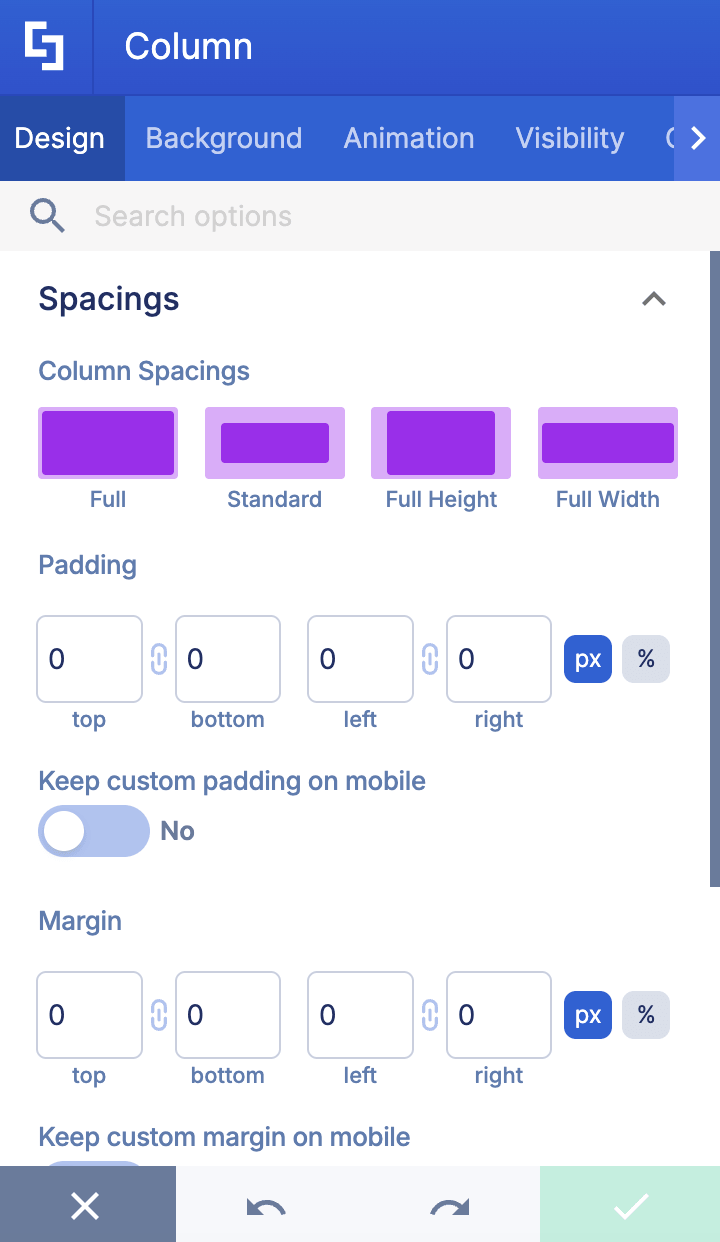
SPACINGS
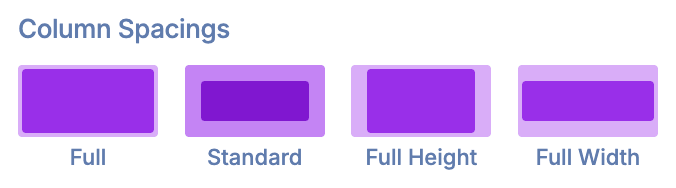 | Column Spacings | allows you to specify the spacing style of the Column. You can choose from Full, Standard, Full Height, or Full Width. |
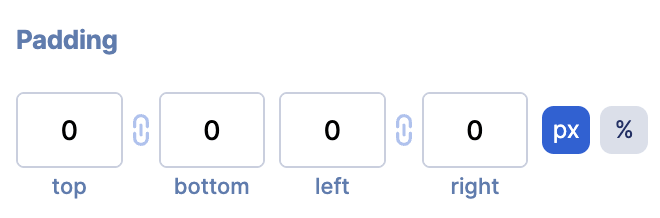 | Padding | allows you to manually set the padding value in px or %. |
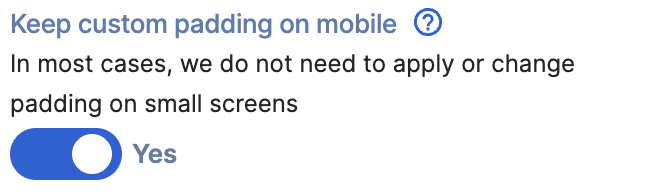 | Keep custom padding on mobile | when enabled, the custom padding value will be kept on mobile. |
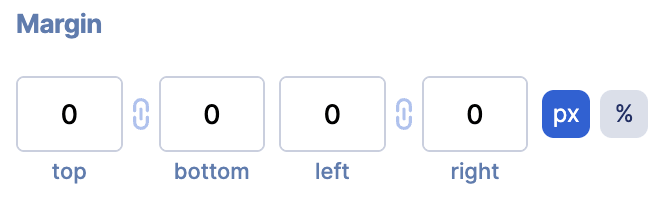 | Margin | allows you to manually set the margin value in px or %. |
 | Keep custom margin on mobile | when enabled, the custom margin value will be kept on mobile. |
ALIGNMENT
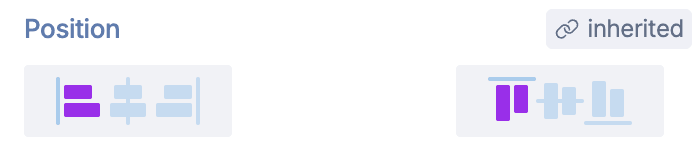 | Position | allows you to choose the vertical and horizontal alignment of the content inside the Column. |
SIZE
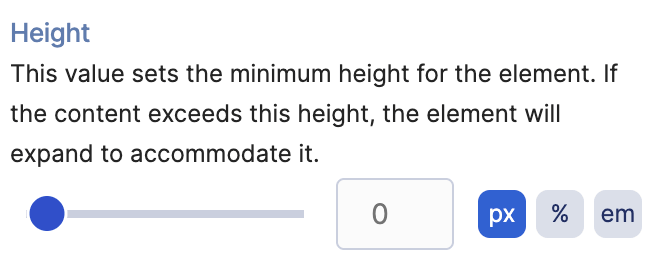 | Height | allows you to adjust the height of the Column Design Element in px, %, or em. |
SETTINGS
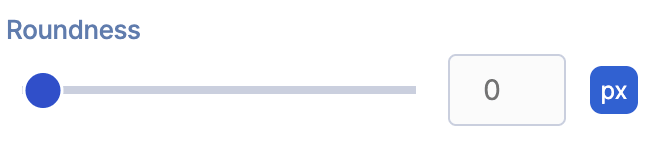 | Roundness | allows you to round the corners of the Column Design Element. Learn more about it in Introducing the Roundness Feature: What It Is and How To Use It. |
B. Background Tab
The Background tab allows you to add a background image, video, or color. See the options available below:
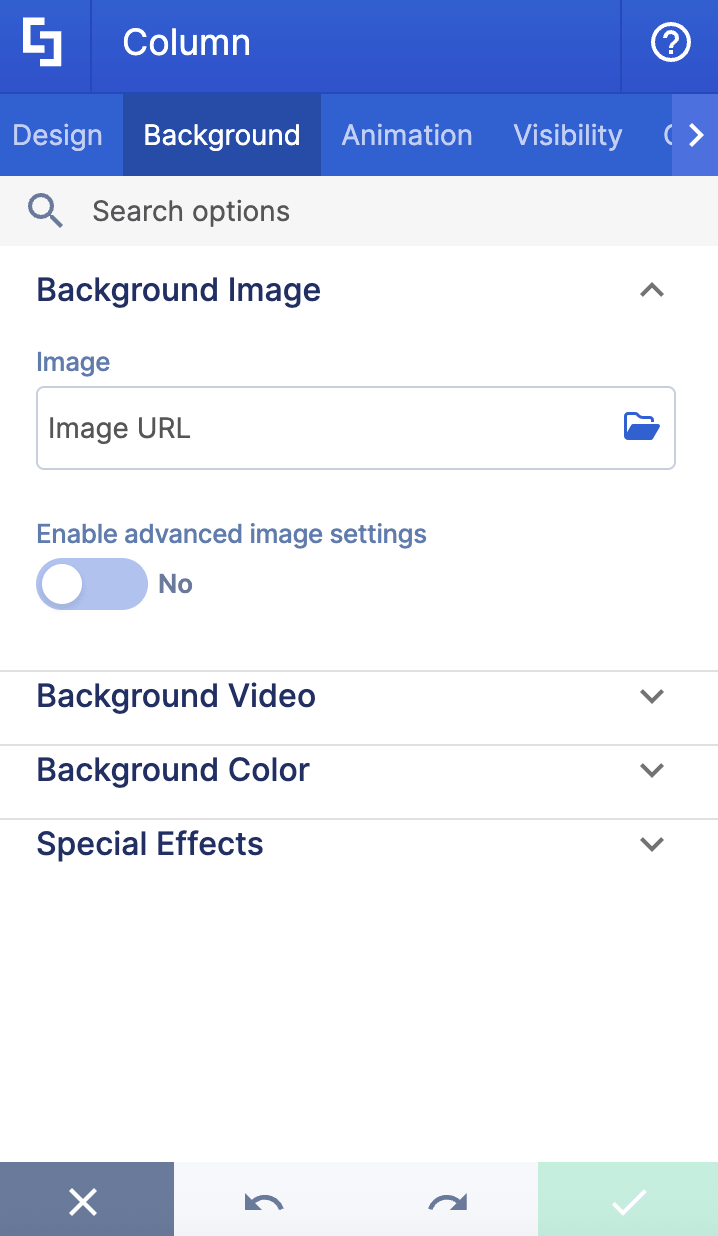
BACKGROUND IMAGE
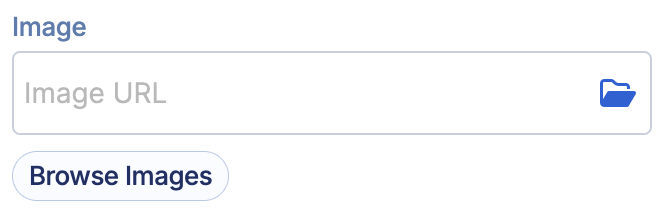 | Image | allows you to add a background image to the Column. You can paste the URL or use the folder icon to select the image you want to use. You can also select Browse Images to gain access to the ShortPoint Gallery. For more information, go to How to Add Professional Images using the ShortPoint Gallery. |
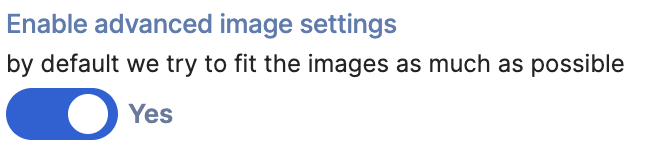 | Enable advanced image settings | when enabled, additional settings will appear. |
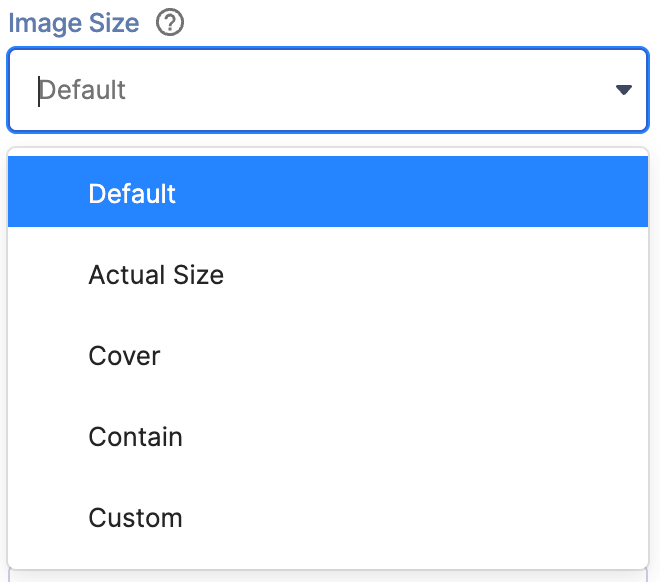 | Image Size | allows you to choose the size of the image. You can choose from the following:
|
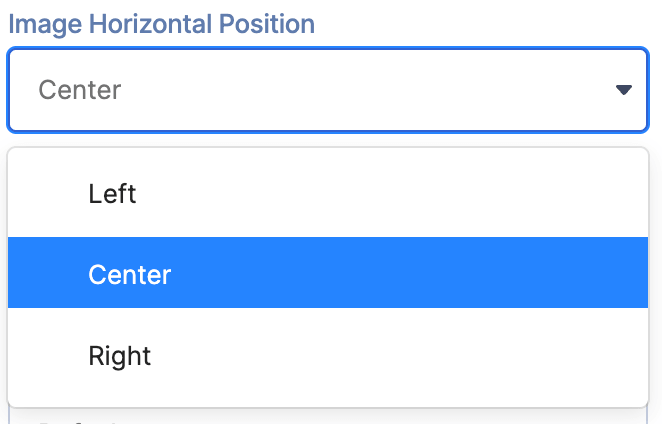 | Image Horizontal Position | allows you to choose the horizontal alignment of the image. |
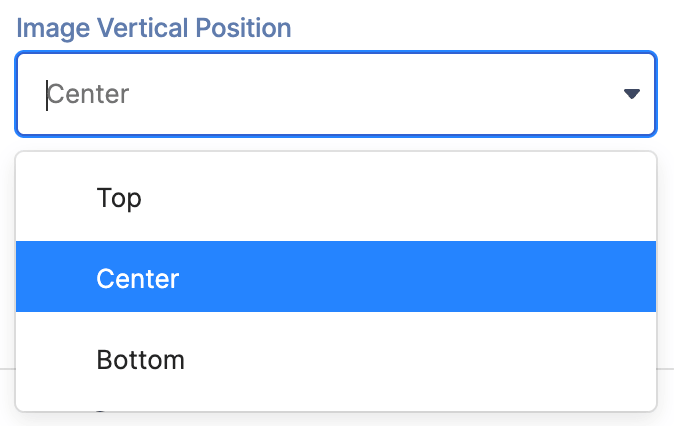 | Image Vertical Position | allows you to choose the vertical alignment of the image. |
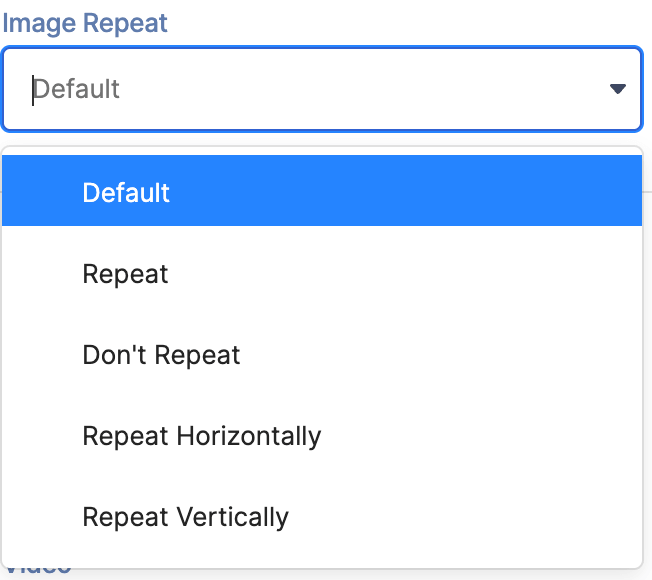 | Image Repeat | allows you to choose whether to repeat the image or not. |
BACKGROUND VIDEO
 | Video | allows you to add a background video to the Column. You can paste the URL or use the folder icon to select the video you want to use. You can also select Browse Videos to gain access to the ShortPoint Gallery. For more information, go to How to Add Professional Images using the ShortPoint Gallery. |
BACKGROUND COLOR
 | Color | allows you to add a background color to the Column. You can paste the HEX CODE, use the drop-down, or use the color picker to specify the color you want to use. |
 | Color Transparency | allows you to adjust the transparency of the selected color. |
SPECIAL EFFECTS
 | Blur Effect | allows you to add a blur effect to the background. You can choose from Light, Medium, or Strong. |
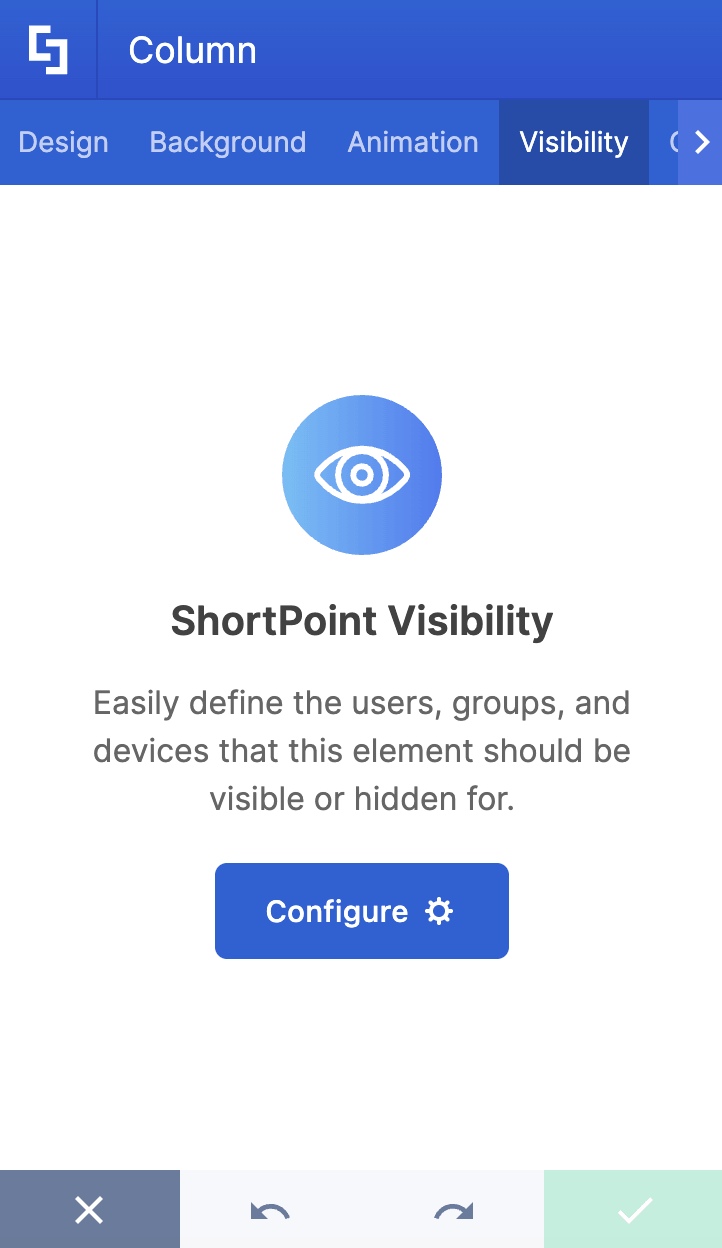
C. Visibility Tab
The Visibility tab allows you to control who can see the Design Element and where it can be seen. For more details, check out How to Use the ShortPoint Visibility Feature for Effective SharePoint Access Management.
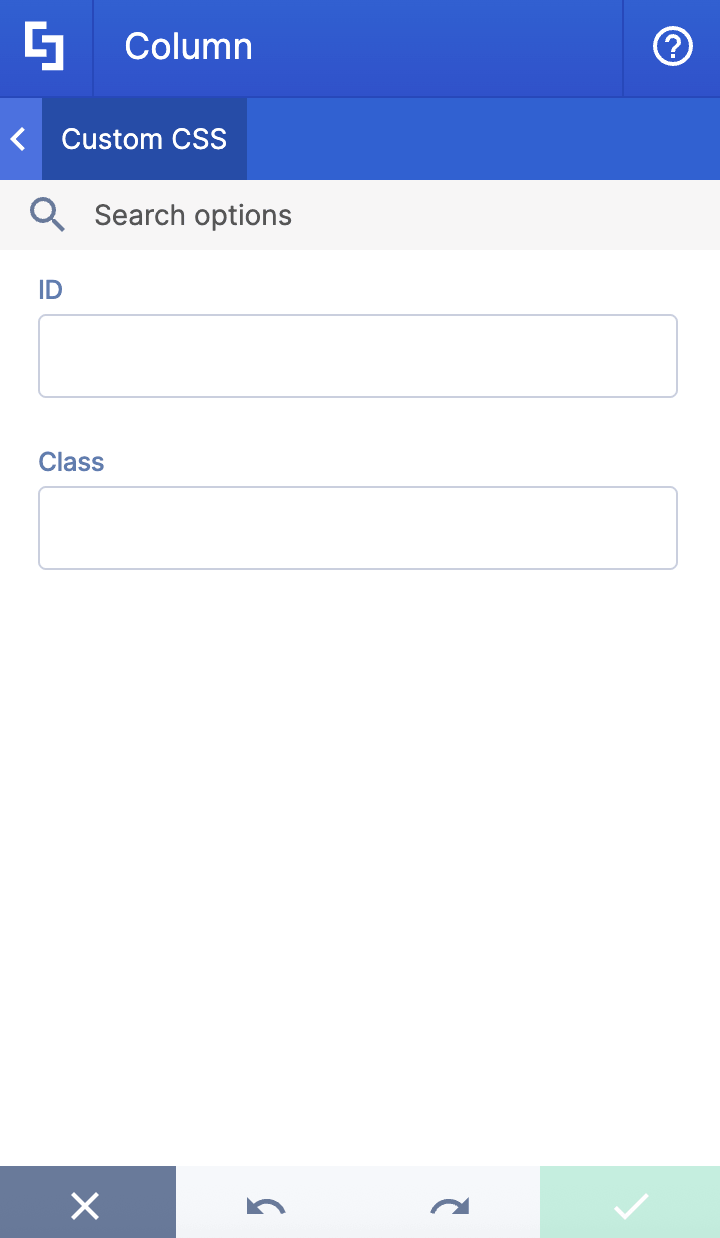
D. Custom CSS Tab
The Custom CSS tab allows you to use your own CSS, HTML, and JavaScript code to customize the Column Design Element.
NOTECheckout our support article on How to Insert Custom CSS(Basic Tutorial) to learn more about it.
NOTEThe Animation tab is currently not available in Live Mode.
Practical Use Cases
Columns are the workhorses of SharePoint page design. Here are a few practical ways you can leverage the Column element to improve your intranet's user experience:
- Multi-Card Dashboards & Quick Links
Create a three-column or four-column row to display information "cards." Each column can hold a panel, icon, title, and short paragraph highlighting key workplace portals (e.g., HR Policies, IT Service Desk, Benefits, Expense Reports).
- Side-by-Side Feature Comparisons & Metrics
When showcasing quarterly results, project milestones, or competing initiatives, place two equal columns side-by-side. Use counters in each column for easy visual comparison.
Start Designing with the Column Design Element
Ready to Elevate Your SharePoint Design? The Row Design Element makes it simple to build beautiful, modern layouts for your SharePoint pages.
If you’re an existing ShortPoint Designer, just update to the latest SPFx version and follow the interactive tutorials.
New here? Welcome! Start your free 15-day trial or schedule a quick demo with one of our experts to explore what's possible.
Frequently Asked Questions
What is a Column in ShortPoint?
In ShortPoint, a Column is a vertical container within a Row that holds individual Design Elements such as text, images, buttons, and panels. Columns help organize page content with precise structure and alignment.
How do I add a new Column to my SharePoint page?
To add a new Column, edit your SharePoint page, hover over an existing Column in the desired Row, and click the purple plus icon. The new Column will be added beside the existing one, ready for content.
Can I add multiple Design Elements inside a single Column?
Yes! You can add multiple Design Elements inside a single Column, and they will be stacked vertically in the order you add them.
How can I adjust the spacing inside a Column?
There are four ways to adjust paddings and margins: using the spacing icon presets, dragging the purple highlight (Hot Actions), manually entering numerical values, or using the Settings window accessed via the EasyPass tag.
What customization options are available in the Column Settings window?
The Settings window includes tabs for Design (spacing, alignment, size, roundness), Background (image, video, color, special effects), Visibility (control who can see the Column), and Custom CSS (add your own code for further customization).
Can I add a background image or color to a Column?
Yes, the Background tab in the Settings window lets you add a background image, video, or color with adjustable transparency and special effects like blur.
Is it possible to control Column visibility?
Yes, the Visibility tab allows you to specify who can see the Column and where it appears on your SharePoint site.
How do Columns relate to Rows in ShortPoint page design?
Rows define horizontal sections of the page, and Columns divide those Rows vertically. Multiple Columns within a Row help create structured layouts.
Related articles:
