 Try ShortPoint now
Building an intranet page in Microsoft 365 SharePoint that looks modern, organized, and inviting can be overwhelming, especially when you’re trying to make your layout look “just right”.
Good thing there’s the ShortPoint Row Design Element! Like Section, it’s one of the most basic building blocks for your Design Elements. It gives you the power to structure data naturally without the additional headscratcher of confusing custom codes.
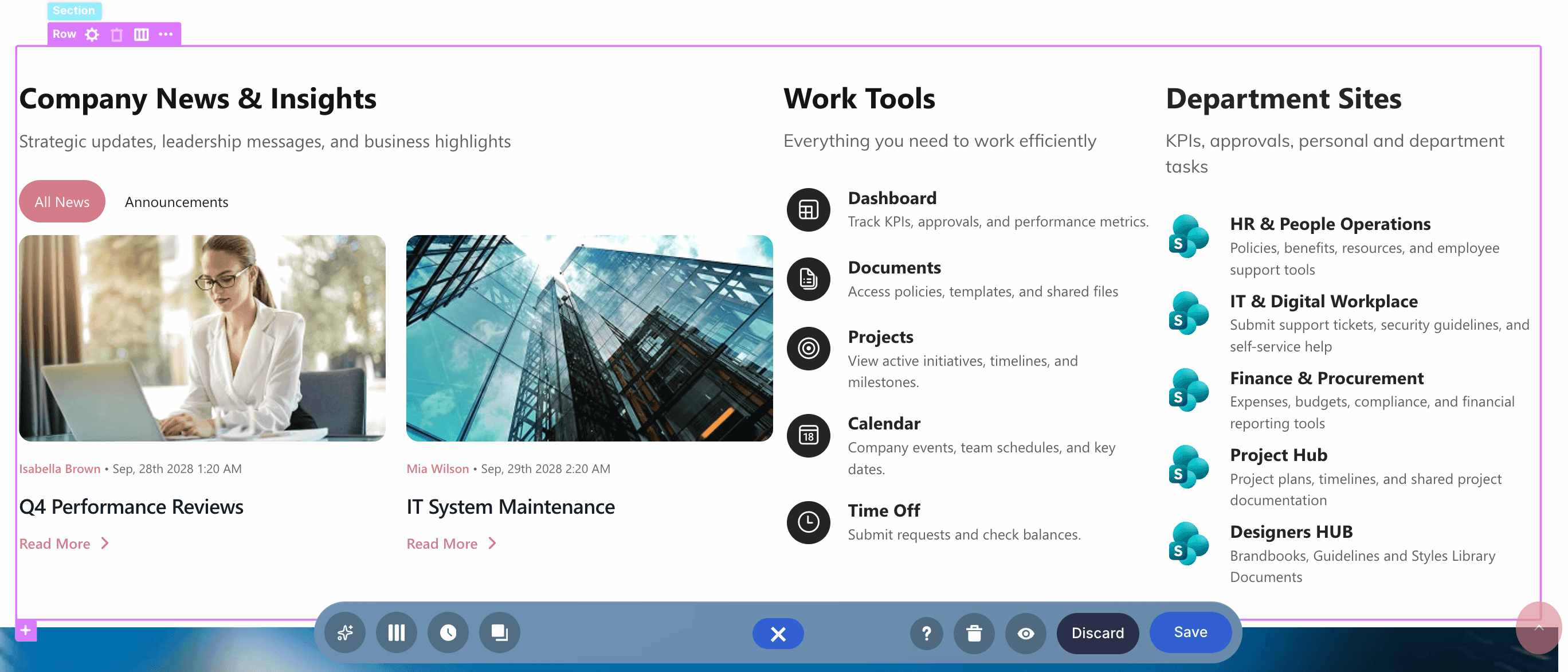
TABLE OF CONTENTS
- Prerequisites
- What is the ShortPoint Row Design Element?
- The Anatomy of a Row
- Adding a New Row
- Adjusting Paddings and Margins
- Row Features
- Practical Use Cases
- Start Designing with the Row Design Element
- Frequently Asked Questions
- What is a Row Design Element in SharePoint?
- Do I need coding skills to add or customize Rows in SharePoint?
- How can I add a new Row to my SharePoint page?
- Can I adjust the spacing and margins of Rows in SharePoint?
- What content can I add inside a Row?
- Is there a way to control who sees a Row in SharePoint?
- Can I reuse or copy a Row design to save time?
Prerequisites
- You must have the latest version of ShortPoint SPFx installed.
- You must be a ShortPoint Designer with an active license.
What is the ShortPoint Row Design Element?
The Row Design Element is a horizontal structural container found within the Section Design Element. When building a page using ShortPoint, you start by dropping in a Row, which you can then divide into columns to hold text, buttons, images, cards, or interactive widgets.
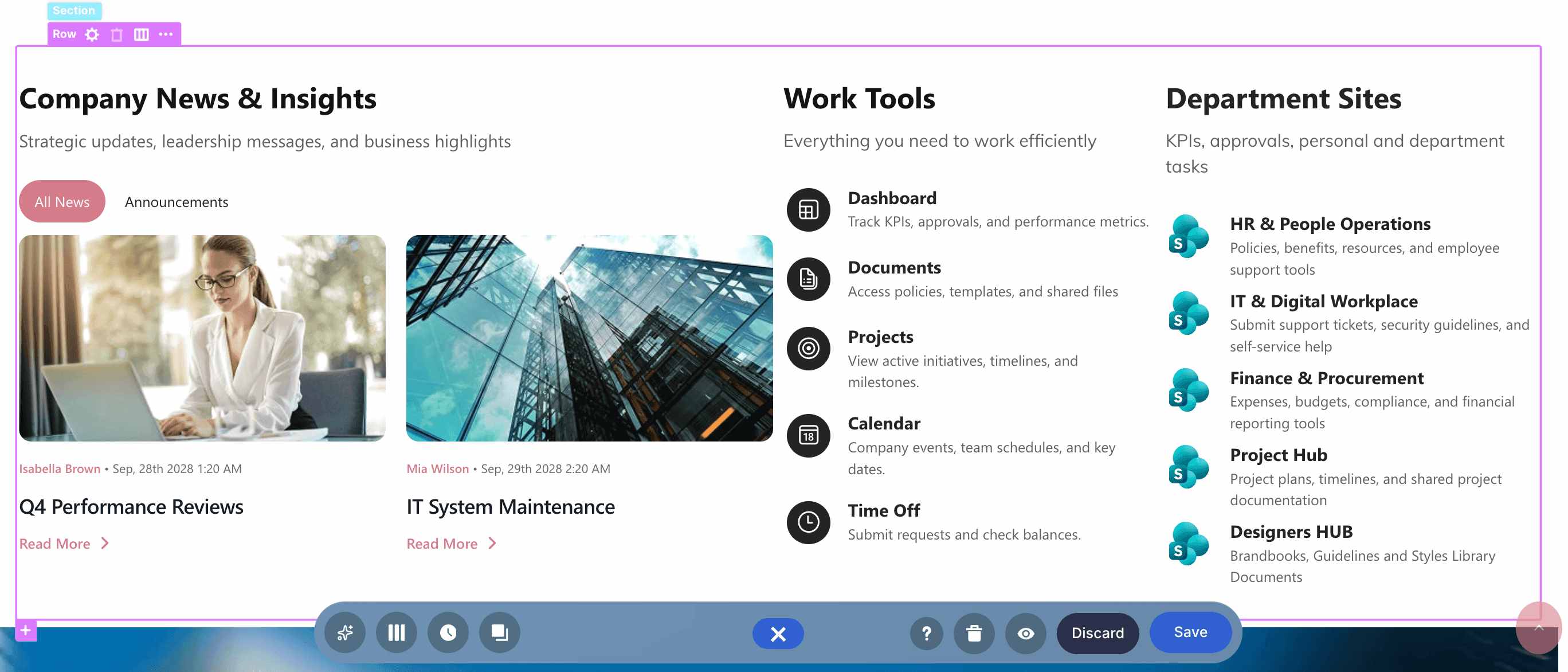
However, it isn’t just a simple container. It provides flexible column splitting. You can divide a single row into custom column layouts (like 50/50 split, 33/33/33, or asymmetrical proportions like 70/30) to control how content flows across the screen.
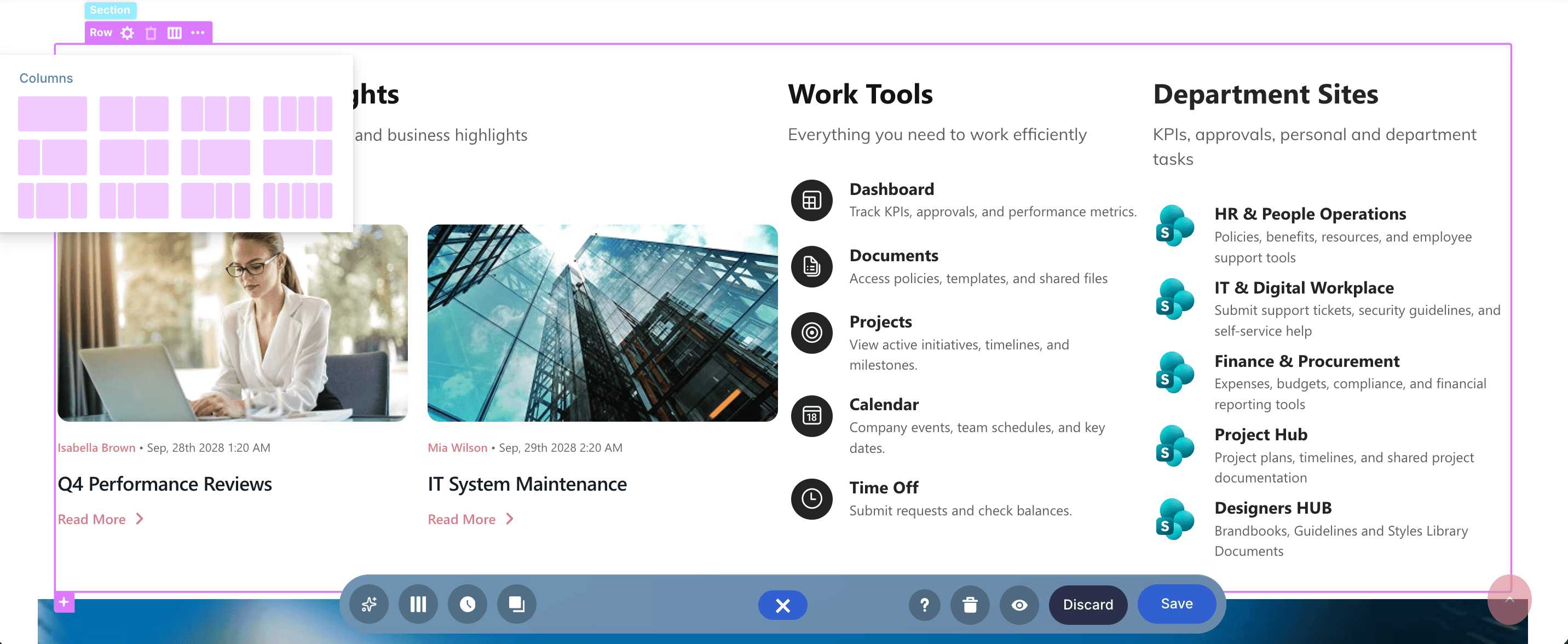
You can also adjust spacings and content alignment to enhance the visual appeal and usability:
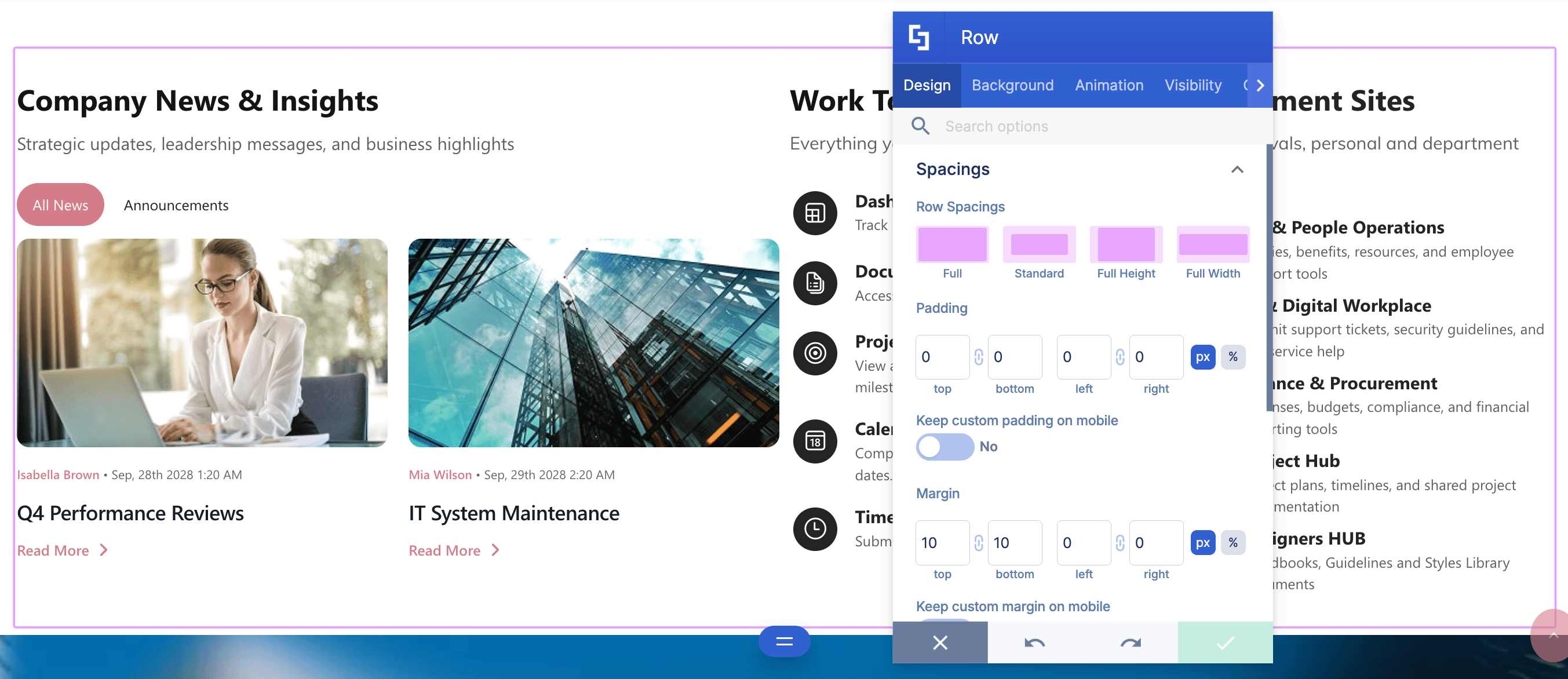
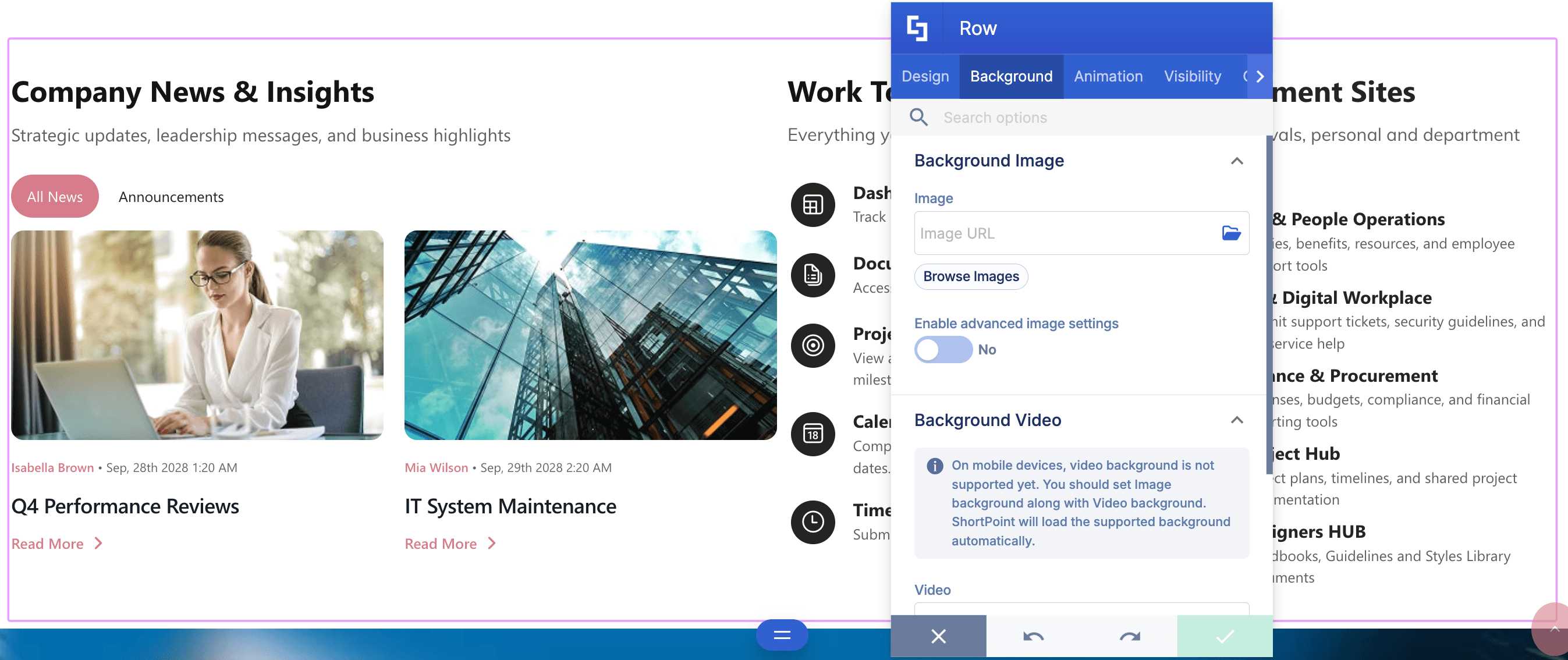
To top it off, adding background videos, images, or colors is really simple too:
The Anatomy of a Row
When in edit mode, you can easily identify the Row Design Element with its pink border. Once you select its EasyPass tag, you’ll see the following components:
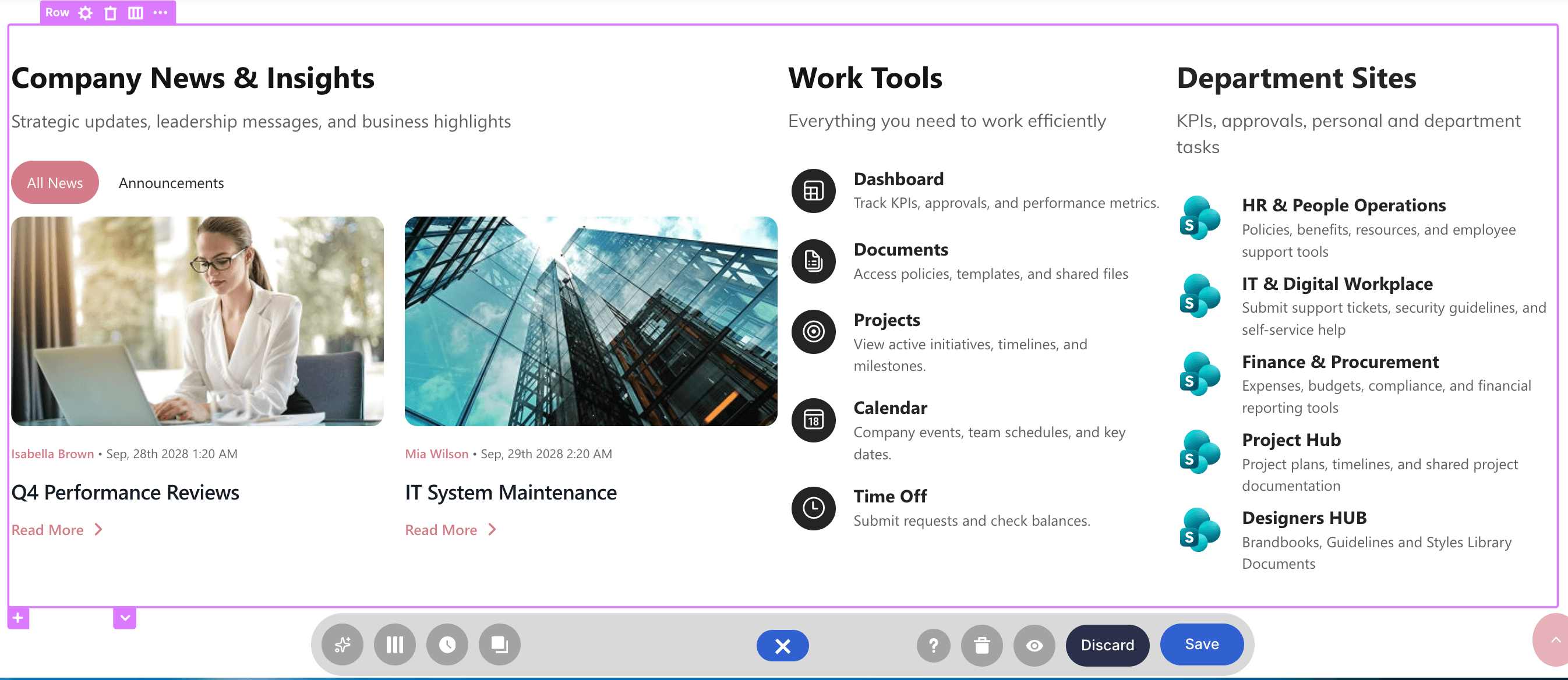
 | Row Cogwheel icon | opens the Settings window of the Row Design Element. This window has options that allow you to further edit and customize the Row’s design. You can learn more about the features inside the Settings window in Row Features. |
 | Row Trash icon | deletes the selected Row. |
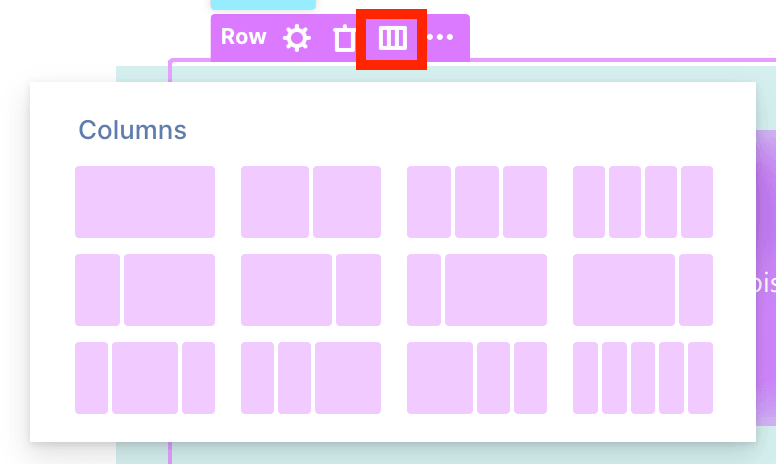 | Row Show Layout icon | allows you to specify the layout of the Row. |
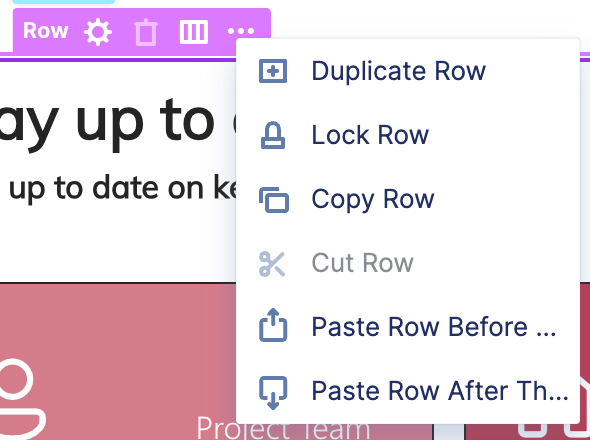 | Row Ellipsis icon | offers additional options, including:
|
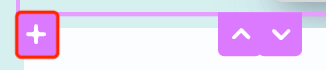 | Add New Row icon | allows you to add a new Row. Learn more about it in Adding a New Row. |
Adding a New Row
Click Get Started to learn how to add a new Row:
NOTELearn more about the options you can customize in Row Features.
Step 1: Edit the ShortPoint Web Part
- Go to the SharePoint page you want to use and click Edit.
- Close the Toolbox.
- Click the Edit properties icon.
Step 2: Add a Row
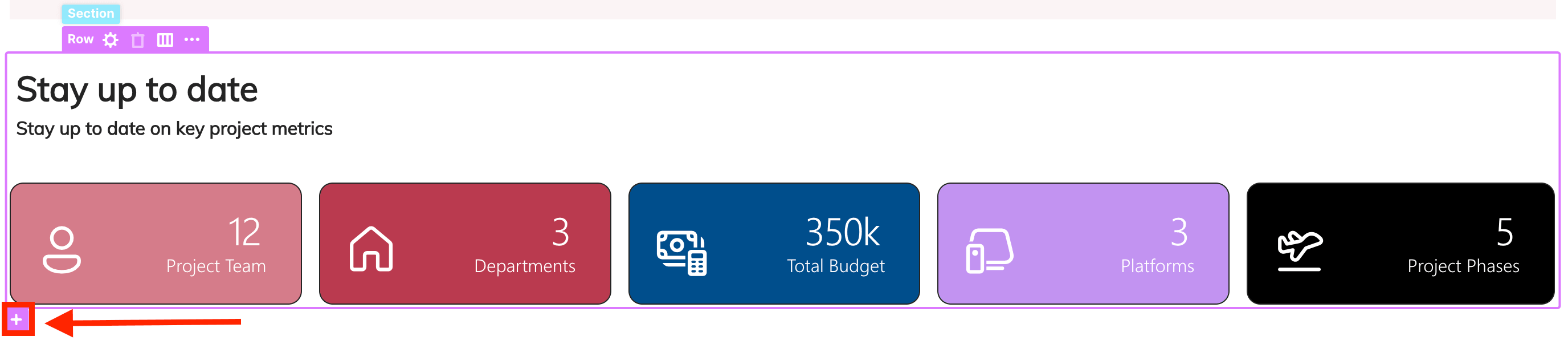
- Look for the Section where you want to add the new Row and select the EasyPass tag of a Row inside it:
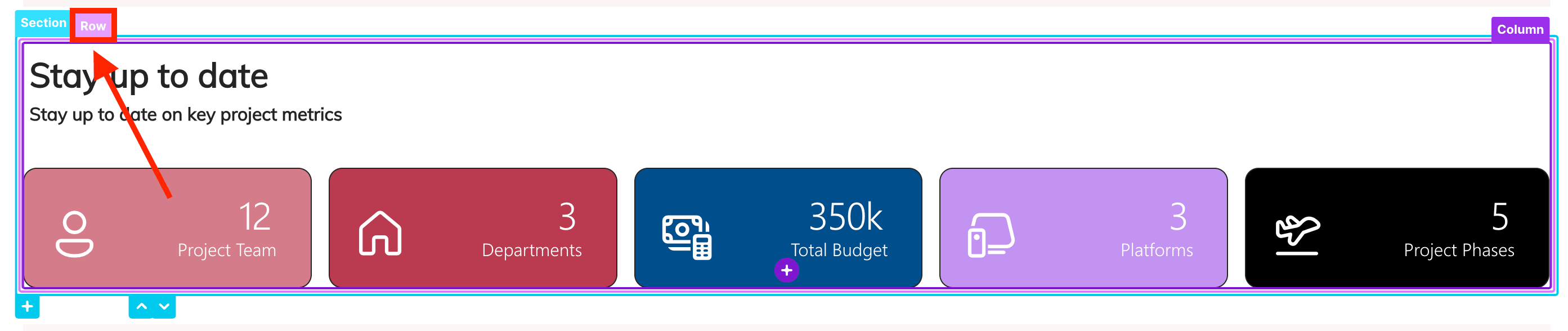
- Then, click the pink plus icon:
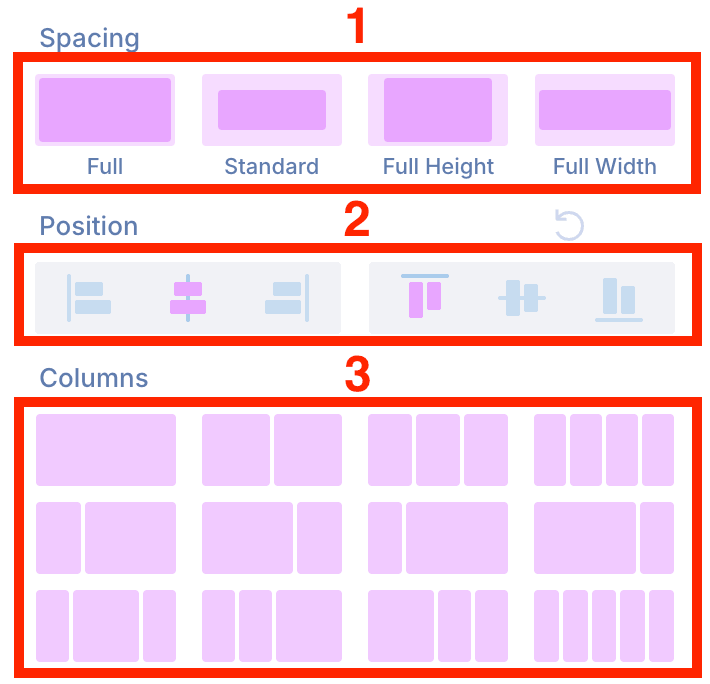
- Pick the style you want to apply:
- Spacing
- Content Alignment
- Column Style
Step 3: Add Content
- You can now add content to your Row as you like.
Congratulations! You've successfully added a Row.
Adjusting Paddings and Margins
There are four ways to adjust paddings and margins for the Row Design Element. Choose the option that suits your needs:
Option 1: Using the Spacing Icon
- Click the EasyPass tag of the Row you want to edit.
- Hover over the Row until you see a pink highlight.
- Then, click the spacing icon.
- Choose from the available presets. You can choose from Full, Standard, Full Height, or Full Width.
Option 2: Using Hot Actions
- Click the EasyPass tag of the Row you want to edit.
- Hover over it until you see a pink highlight.
- Drag the pink highlight to your desired spacing value.
- (Optional) Click the link icon to duplicate the spacing value for both sides of the Row.
Option 3: Manually Adding a Value
- Click the EasyPass tag of the Row you want to edit.
- Hover over the Row until you see a numerical value and double-click it.
- Write the spacing value and hit Enter.
- (Optional) Click the link icon to duplicate the spacing value for both sides of the Row.
Option 4: Using the Settings Window
- Click the EasyPass tag of the Row.
- Then, select the cogwheel icon to open its Settings window.
- In the Design tab, modify the spacing value. You can choose from a preset or manually write the values.
- Once satisfied, click the green check mark.
Row Features
Listed below are the tabs available inside the Settings window and all the options you can customize:
A. Design Tab
The Design tab allows you to customize the look of the Row Design Element. It has the following options:
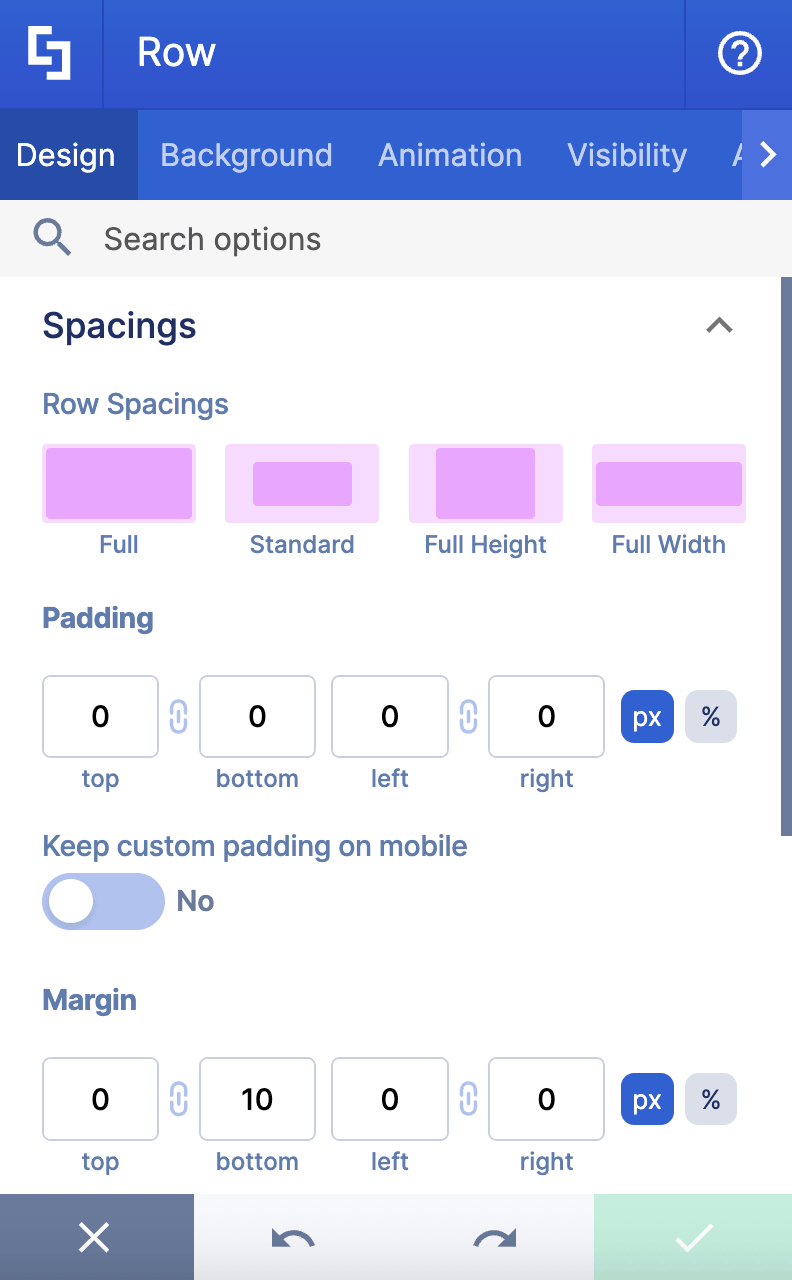
SPACINGS
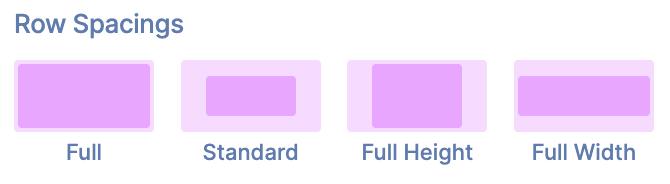 | Row Spacings | allows you to specify the spacing style of the Row. You can choose from Full, Standard, Full Height, or Full Width. |
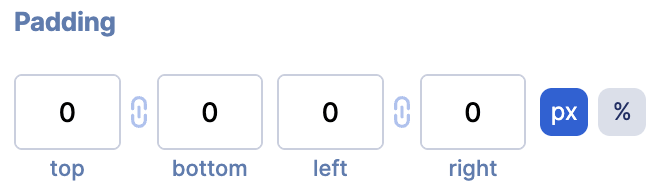 | Padding | allows you to manually set the padding value in px or %. |
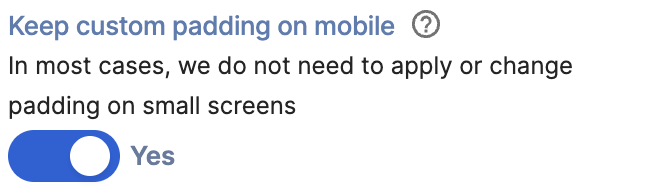 | Keep custom padding on mobile | when enabled, the custom padding value will be kept on mobile. |
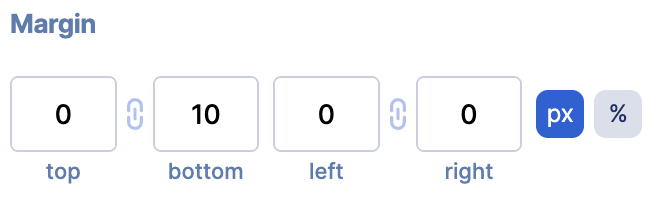 | Margin | allows you to manually set the margin value in px or %. |
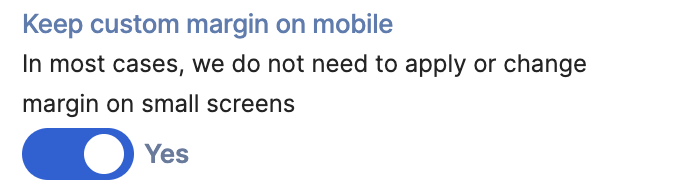 | Keep custom margin on mobile | when enabled, the custom margin value will be kept on mobile. |
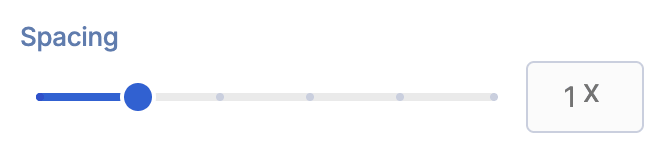 | Spacing | allows you to choose the amount of space between columns. |
ALIGNMENT
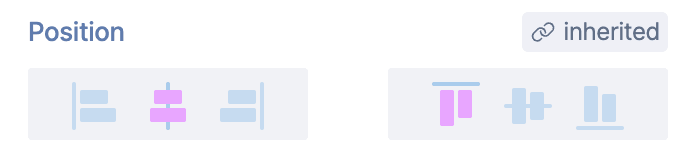 | Position | allows you to choose the vertical and horizontal alignment of the content inside the Row. |
SIZE
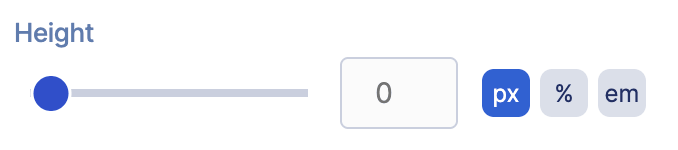 | Height | allows you to adjust the height of the Row Design Element in px, %, or em. |
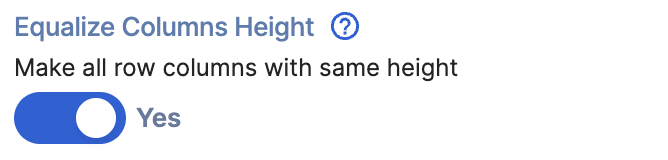 | Equalize Column Height | when enabled, all the Columns inside the Row will have the same height. |
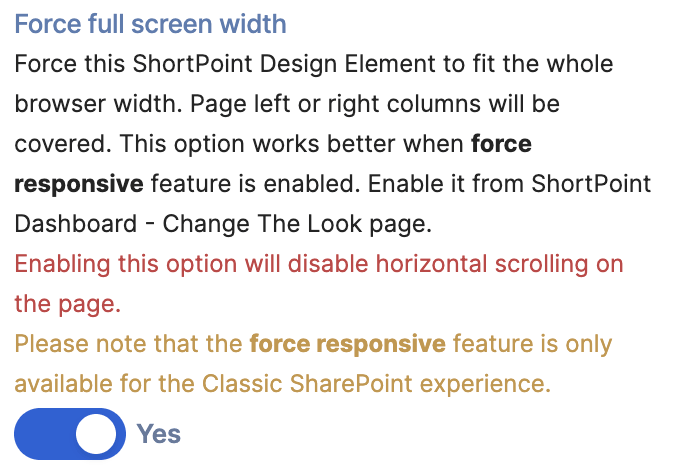 | Force full screen width | when enabled, the Row will fit the whole browser. This will disable horizontal scrolling on the page. |
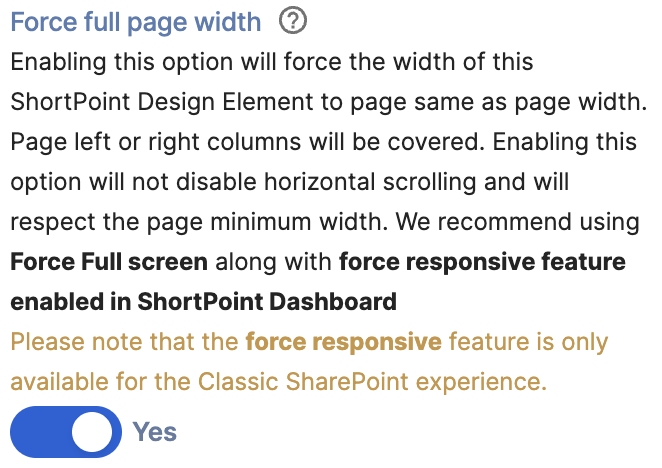 | Force full page width | when enabled, this option will force the width of the Row to be the same as the page width. This will not disable horizontal scrolling and will respect the page's minimum width. |
SETTINGS
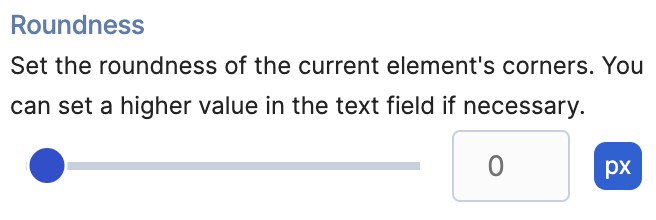 | Roundness | allows you to round the corners of the Row Design Element. Learn more about it in Introducing the Roundness Feature: What It Is and How To Use It. |
B. Background Tab
The Background tab allows you to add a background image, video, or color. See the options available below:
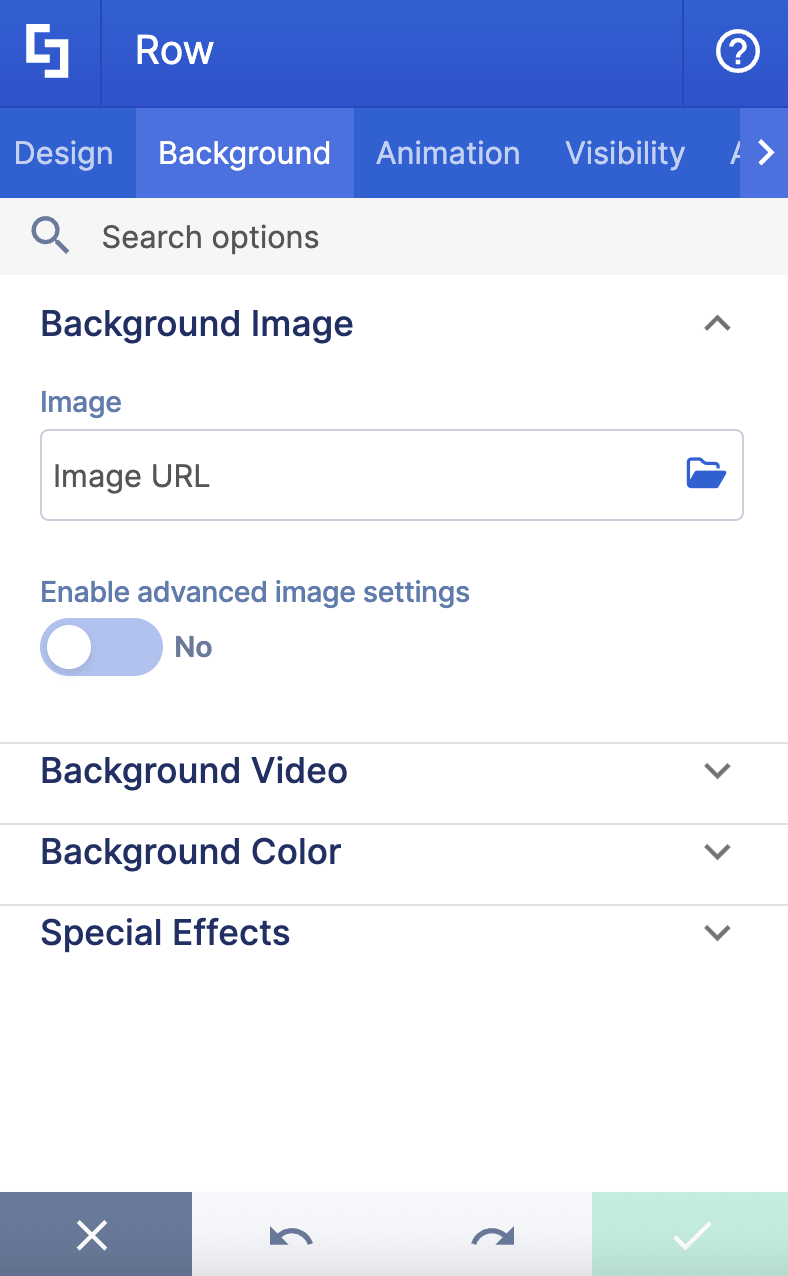
BACKGROUND IMAGE
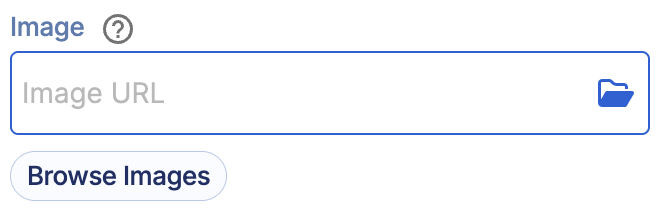 | Image | allows you to add a background image to the Row. You can paste the URL or use the folder icon to select the image you want to use. You can also select Browse Images to gain access to the ShortPoint Gallery. For more information, go to How to Add Professional Images using the ShortPoint Gallery. |
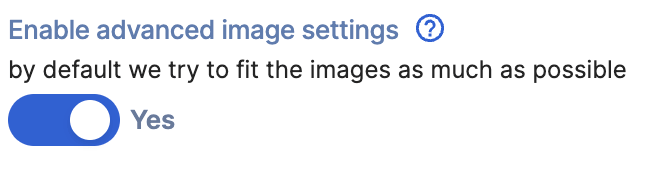 | Enable advanced image settings | when enabled, additional settings will appear. |
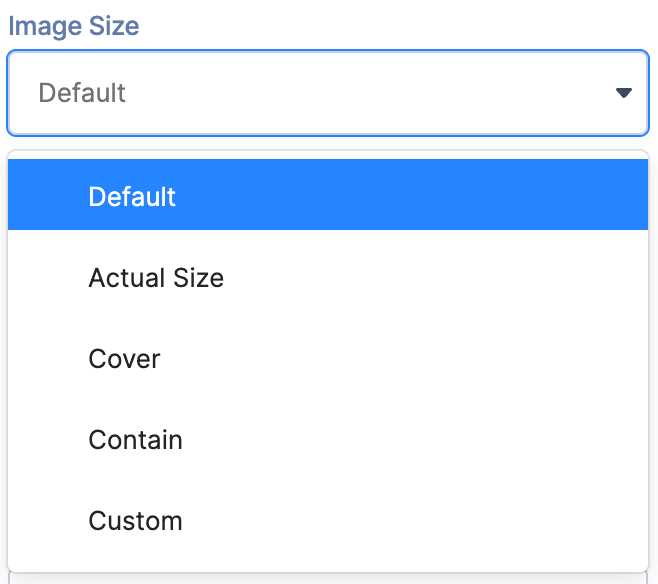 | Image Size | allows you to choose the size of the image. You can choose from the following:
|
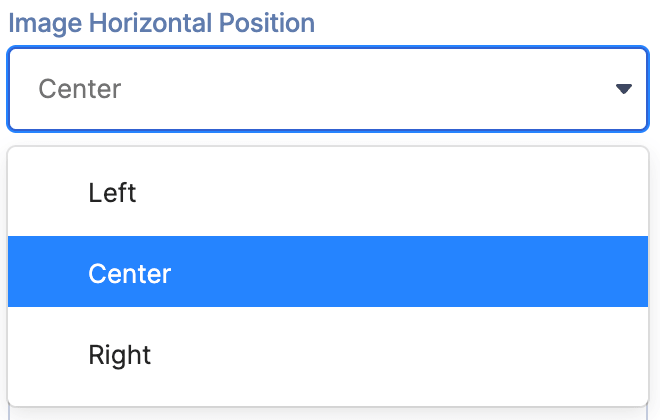 | Image Horizontal Position | allows you to choose the horizontal alignment of the image. |
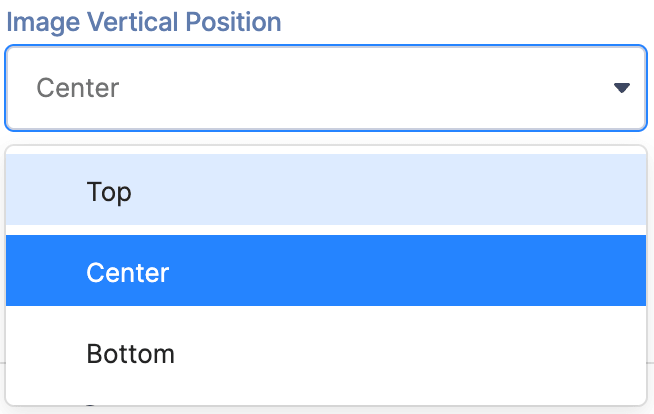 | Image Vertical Position | allows you to choose the vertical alignment of the image. |
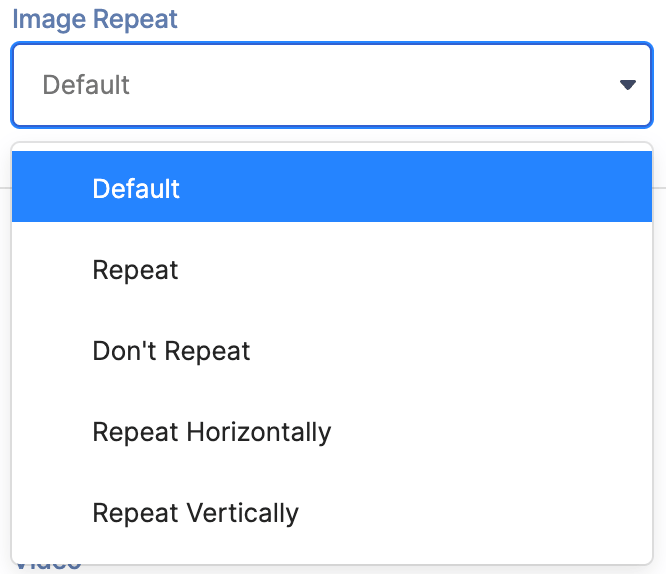 | Image Repeat | allows you to choose whether to repeat the image or not. |
BACKGROUND VIDEO
 | Video | allows you to add a background video to the Row. You can paste the URL or use the folder icon to select the video you want to use. You can also select Browse Videos to gain access to the ShortPoint Gallery. For more information go to How to Add Professional Images using the ShortPoint Gallery. |
BACKGROUND COLOR
 | Color | allows you to add a background color to the Row. You can paste the HEX CODE, use the drop-down, or use the color picker to specify the color you want to use. |
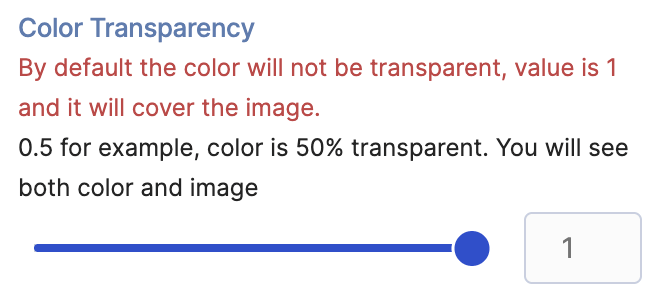 | Color Transparency | allows you to adjust the transparency of the selected color. |
SPECIAL EFFECTS
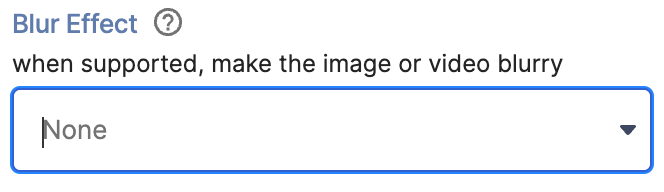 | Blur Effect | allows you to add a blur effect to the background. You can choose from Light, Medium, or Strong. |
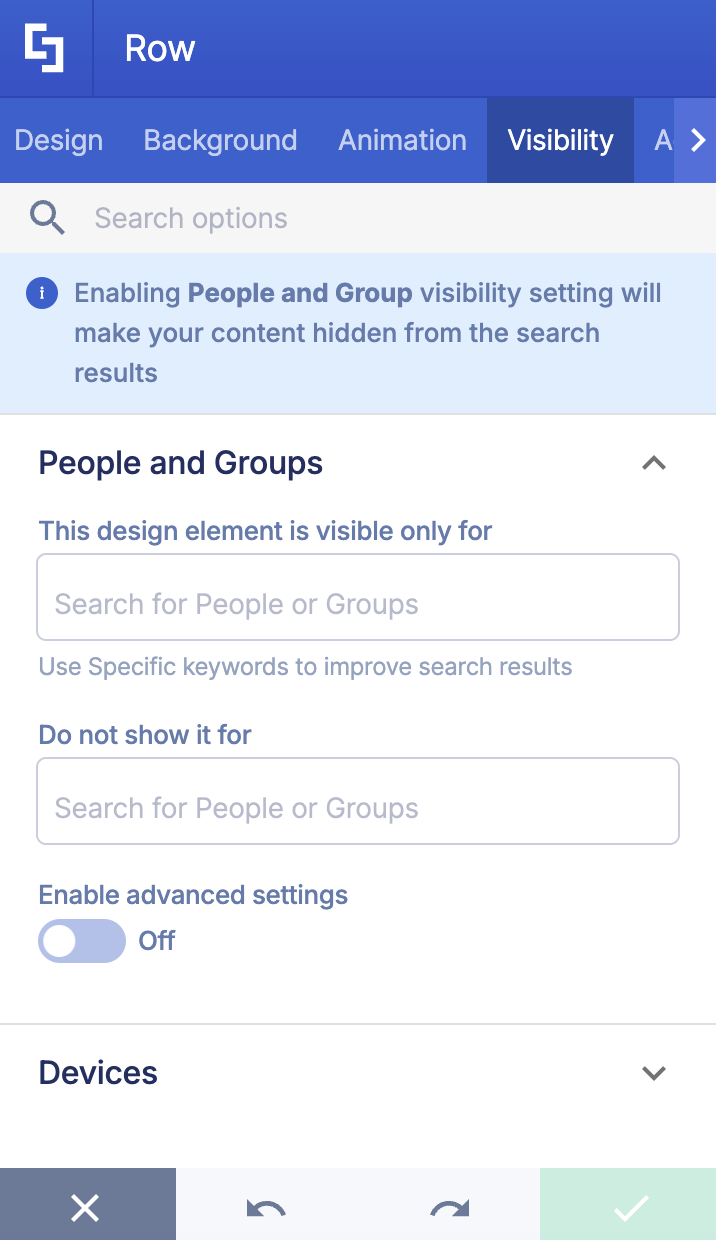
C. Visibility Tab
The Visibility tab allows you to control who can see the Design Element and where it can be seen. For more details, check out How to Use the ShortPoint Visibility Feature for Effective SharePoint Access Management.
D. Custom CSS Tab
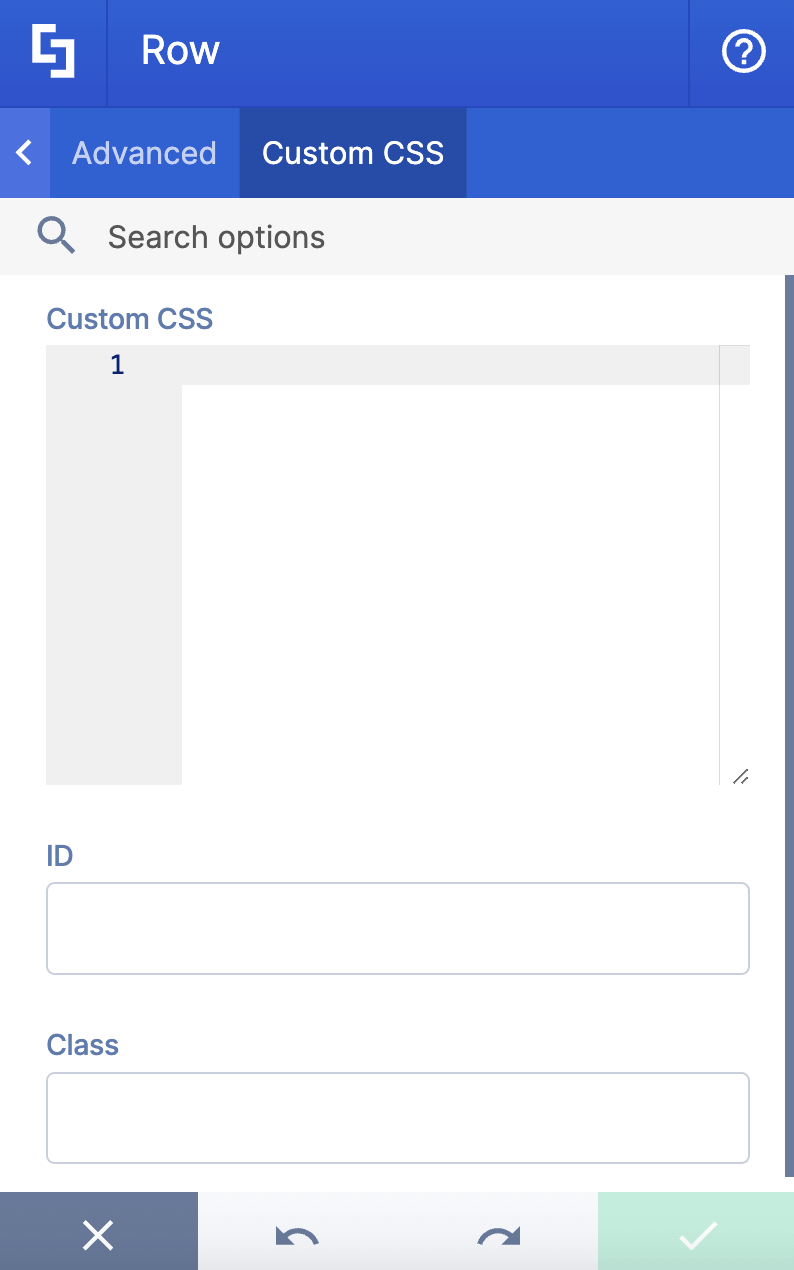
The Custom CSS tab allows you to use your own CSS, HTML, and JavaScript code to customize the Row Design Element.
NOTECheckout our support article on How to Insert Custom CSS(Basic Tutorial) to learn more about it.
NOTEThe Animation tab is currently not available in Live Mode.
Practical Use Cases
Because Rows are so versatile, you can apply them to almost any design challenge on your intranet. Here are three real-world scenarios where leveraging the Row Design Element makes an immediate difference:
Multi-Column Executive News Hubs
Instead of stacking news announcements in a long, endless vertical list, split a Row into a 70/30 layout. Use the larger left column to feature major company updates with rich imagery, and use the smaller right column to display a quick-links list, upcoming events calendar, or executive memos. It transforms a dense page into an organized, magazine-style layout.
Department Feature Strips
When creating pages for HR, IT, or Operations, breaking content up into readable horizontal strips helps users scan information faster. By stacking multiple Rows on top of each other and alternating background shades (e.g., white, light gray, brand color accent), you build clear visual boundaries between distinct topics. Inside each row, you can flip column alignments (image left/text right, then text left/image right) to keep visitors visually engaged as they scroll.
Start Designing with the Row Design Element
Creating stunning layouts on SharePoint is easier than ever with the Row Design Element!
Already using ShortPoint? Simply update to the latest ShortPoint SPFx version to start exploring these new design features right away.
New to ShortPoint? We’d love to welcome you onboard! You can start a free 15-day trial to test out everything we offer with zero risk. No strings attached.
Want a personalized walkthrough? Book a 1-on-1 demo with our team to see how ShortPoint can transform your sites.
Frequently Asked Questions
What is a Row Design Element in SharePoint?
A Row Design Element is a horizontal structural container within a Section Design Element used in SharePoint pages. It allows you to organize content by dividing a single row into flexible columns with custom layouts, such as 50/50 or 70/30 splits, helping you achieve a modern and organized intranet design.
Do I need coding skills to add or customize Rows in SharePoint?
No, you don’t need to know CSS or HTML to use the Row Design Element. ShortPoint provides a no-code drag-and-drop interface with visual menus and sliders to adjust spacing, alignment, and styling. For advanced users, there is an optional Custom CSS tab to add custom code.
How can I add a new Row to my SharePoint page?
To add a new Row, edit your SharePoint page, select the EasyPass tag of a Row inside the desired Section, then click the pink plus icon. You can then pick the Row style, adjust spacing, content alignment, and add your content directly.
Can I adjust the spacing and margins of Rows in SharePoint?
Yes, there are four ways to adjust paddings and margins: using the Spacing icon, dragging hot action handles, manually entering values, or through the Settings window’s Design tab. This flexibility helps you control the visual flow and layout of your SharePoint list or page.
What content can I add inside a Row?
Rows can hold various content types like text, buttons, images, cards, or interactive widgets. You can also add background colors, images, or videos to enhance the design and user experience.
Is there a way to control who sees a Row in SharePoint?
Yes, the Visibility tab in the Row’s Settings window allows you to manage access, so you can specify which groups or users can view the Row, helping you handle permissions directly within the page design.
Can I reuse or copy a Row design to save time?
Yes, rows have a copy button that you can use. Simply click the EasyPass tag of a Row, click the Ellipsis icon, and select Copy. You can then paste the copied Row anywhere in your page. In addition, when a Row is copied, all Design Elements within it will be copied too.
Related articles:
