 Try ShortPoint now
Need to highlight critical information on your SharePoint site? The ShortPoint Note Design Element is your best bet! It lets you write notes, share ideas, and organize important content without cluttering your page.
Let’s dive into what makes this tool essential for SharePoint designers.

TABLE OF CONTENTS
- Prerequisite
- What is the ShortPoint Note Design Element?
- Interactive Tutorial
- Step-by-step Tutorial
- Note Features
- Start Designing with the Note Design Element
- Frequently Asked Questions
Prerequisite
- You have the latest version of ShortPoint SPFx installed on your SharePoint environment.
- You are a ShortPoint Designer with an active license.
What is the ShortPoint Note Design Element?
The Note Design Element is a styled content container used to emphasize important information on a SharePoint page.
Unlike standard text blocks, the Note element is highly customizable. You can change its background color, add a title, and use a Rich Text Editor to format the message inside. But the real magic lies in its flexibility: it is a content-holder element. This means you aren’t restricted to just text; you can nest other ShortPoint Design Elements (like buttons, icons, or images) directly inside the note to create a rich, interactive experience.
Interactive Tutorial
Click Get Started to learn how to customize the Note Design Element and enhance your user experience on SharePoint:
NOTECheck out Note Features to learn more about the OOTB options you can customize.
Step-by-step Tutorial
Follow the steps below for a detailed guide on how to customize the SharePoint notes to highlight important content in your organization:
Step 1: Edit the ShortPoint Web Part
- Go to the SharePoint page you want to use and click Edit.

- Click the ShortPoint tag.
- Select the pencil icon.
Step 2:Insert the Note Design Element
- Click the plus icon.
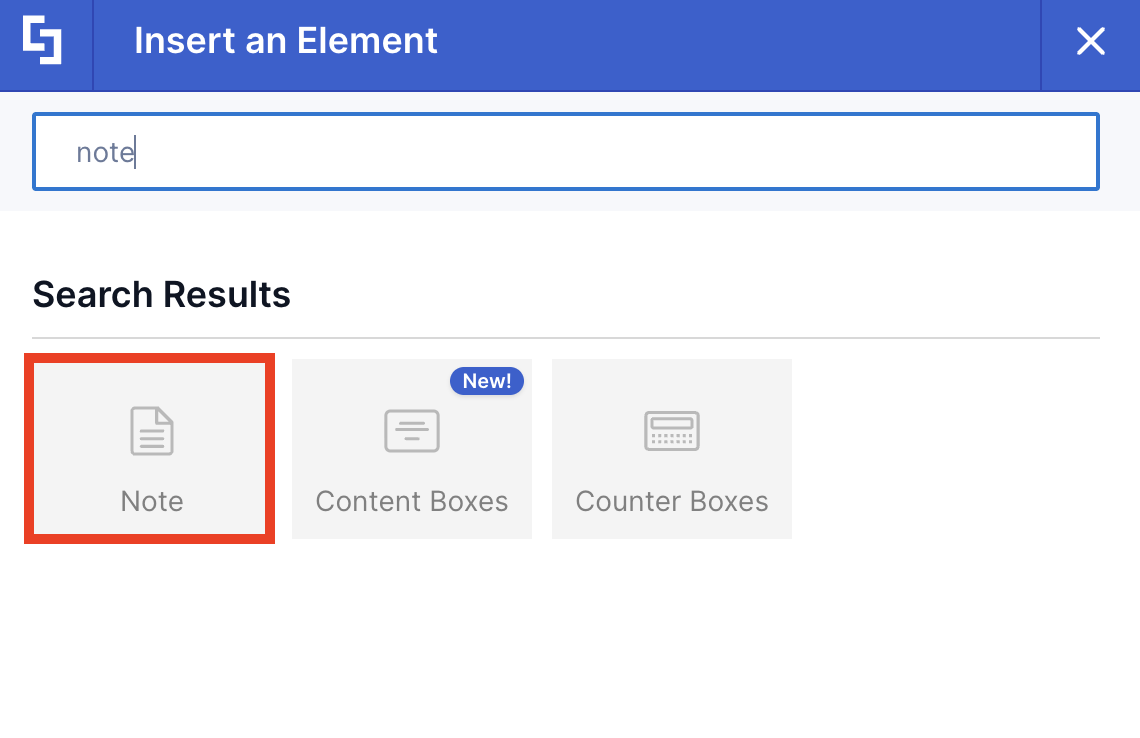
- Use the search box to look for Note and click it.
Step 3: Customize the content
- (Optional) Add a Title.
- Add Content.
Step 4: Customize the Note’s design
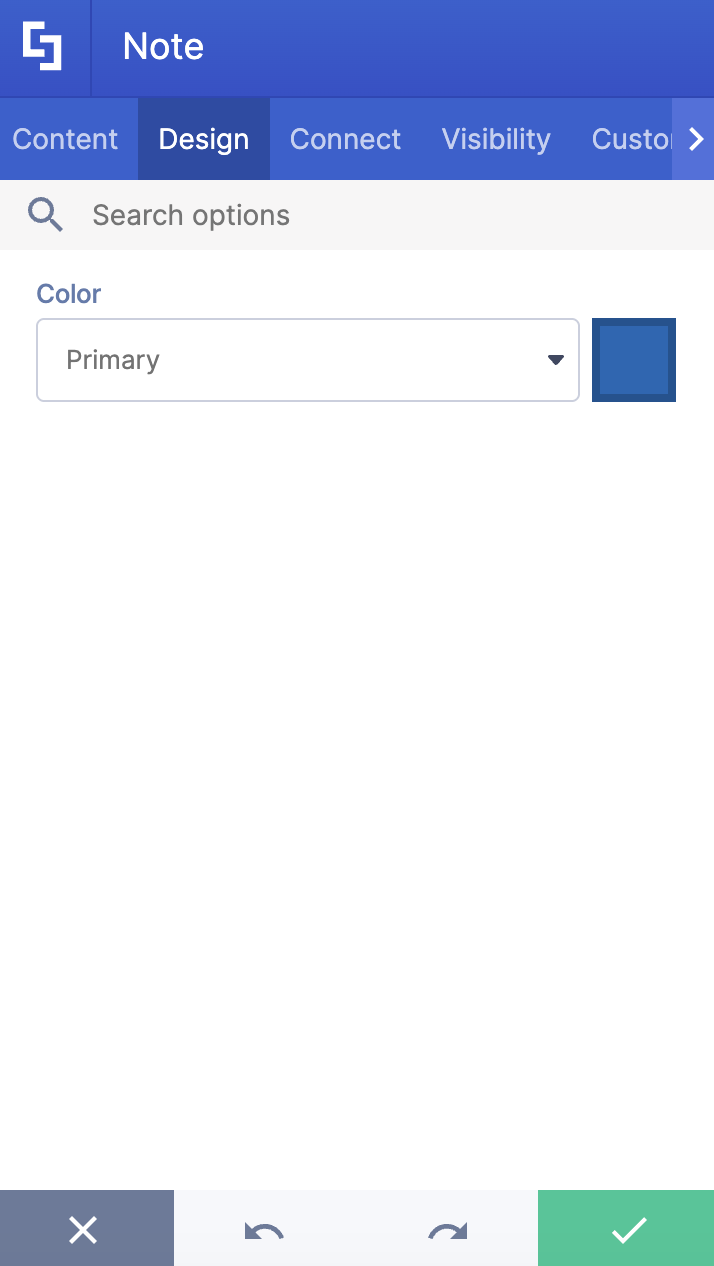
- Navigate to the Design tab.
- Select the Color of the Note.
- Once satisfied, click the green check mark.
NOTECheck out Note Features to learn more about the OOTB options you can customize.
Step 5 (Optional): Add a Design Element inside the Note
NOTENote is a content-holder Design Element. This means that you can add any other Design Element inside it.
- Hover over the Note tag and click it.

- Click the blue plus icon.

- Select the Design Element you want to display inside the Note.
- Customize the selected Design Element according to your preference.
- Click the green check mark once satisfied.
Step 6: Save
- Then, click the eye icon to see your page in real-time.

- Click Save to apply all your changes.

Congratulations! You can now create a SharePoint note in your Microsoft 365 environment.
Note Features
Below are the options you can find in the Note Settings window:
A. Content tab
The Content tab allows you to customize the content of the Note. It has the following options:

 | Title | allows you to add a Title to the Note. |
 | Content | allows you to add content inside the Note. The content field also has a Rich Text Editor. Check out the table below to see its editing features. |
The Rich Text Editor allows you to customize how your text will appear on your page. It has the following options:

| 1 | Bold | makes the format of the text Bold |
| 2 | Italic | makes the format of the text Italic |
| 3 | Underline | makes the format of the text Underline |
| 4 | Text Color | allows you to change the color of your text |
| 5 | Font Family | allows you to change the font of your text. If you have any custom fonts, previously added to the Theme Builder, check these articles on how to add custom fonts from Google Fonts, Fonts.com, Adobe Typekit, or manually. They will be displayed in the list of fonts. |
| 6 | Font Size | allows you to change the size of your text |
| 7 | Paragraph Format | allows you to specify the heading of the text |
| 8 | Undo | allows you to undo your last action |
| 9 | Redo | allows you to redo your last action |
| 10 | More Rich | opens more options in the Rich Text Editor |
| 11 | Background Color | allows you to add a background color to the text |
| 12 | Strikethrough | allows you to add a strikethrough to your text |
| 13 | Clear Formatting | clears the formatting of the text selected |
| 14 | Ordered List | allows you to create an ordered list using numbers |
| 15 | Unordered List | allows you to create an unordered list using bullet points |
| 16 | Align | allows you to change the alignment of the text |
| 17 | All Caps | capitalizes the selected text |
| 18 | Small Caps | turns the selected text into small letters |
| 19 | Code View | allows you to edit the text in code view |
| 20 | Insert Link | allows you to insert a link |
| 21 | Insert Table | allows you to insert a table |
| 22 | Insert Video | allows you to insert a video |
| 23 | Insert Image | allows you to insert an image |
The Rich Text Editor also has ShortPoint Inline Design Elements. You can see them by clicking the ShortPoint icon:

It has the following options:

| 1 | Button | allows you to insert a button |
| 2 | Link | allows you to insert a link |
| 3 | Tooltip | allows you to insert a tooltip |
| 4 | Popover | allows you to insert a popover |
| 5 | Abbreviation | allows you to add an abbreviation |
| 6 | Dropcap | allows you to show drop-cap |
| 7 | Label | allows you to add a label |
| 8 | Emphasis | allows adding emphasis |
| 9 | Icon | allows you to add an icon |
| 10 | Emoticon | allows you to add an emoticon |
NOTECheck out Introducing Inline Design Elements Feature for ShortPoint Page Builder Live Mode and ShortPoint Page Builder Grid to learn more about Inline Design Elements.
B. Design tab
The Design tab allows you to choose the color of the Note. You can do so by [1] writing the HEX code, [2] using the drop-down, or [3] using the color picker.

C. Connect Tab
The Connect tab allows you to link the Design Element to SharePoint sources (List, Document Library, News, etc.) and other external sources (Microsoft Graph API, Teams, Outlook, etc.). For more details about ShortPoint Connect, check out Basic Tutorial: How to Establish Seamless SharePoint Connection with ShortPoint Connect.
D. Visibility Tab
The Visibility tab allows you to specify who can see the Design Element and what type of devices it can be shown on. For more details, check out How to Use the ShortPoint Visibility Feature for Effective SharePoint Access Management.
E. Custom CSS Tab
This tab allows you to use your own CSS, HTML, and JavaScript code to customize the Note Design Element.
NOTECheck out our support article on How to Insert Custom CSS into a ShortPoint Design Element (Basic Tutorial) to know more about Custom CSS.

Start Designing with the Note Design Element
The ShortPoint Note Design Element is a simple yet powerful way to keep your users up-to-date with the latest information.
Want to give it a try? Simply follow the steps in this article if you're already a ShortPoint Designer. If not, you can start a FREE 15-day trial with us or schedule a walkthrough with one of our experts.
Frequently Asked Questions
What are SharePoint notes?
SharePoint notes are customizable content containers used to highlight important information on your SharePoint site.
Is it possible to customize the look of a SharePoint note to match my company’s branding?
Absolutely! Using the Design tab, you can change the note’s background color by entering a HEX code, picking from a palette, or using the color picker. This ensures your notes fit seamlessly within your Microsoft Office environment.
Can I add other elements inside a SharePoint note?
Yes, the note is a content-holder element, so you can nest other design elements like buttons, icons, or lists inside it. This allows you to create interactive notes with call-to-action buttons.
Are SharePoint notes mobile-friendly?
Yes, SharePoint notes are fully responsive and accessible on devices such as smartphones, iPhones, and Macs. You can also manage visibility settings to control whether notes appear on desktop or mobile devices.
Can I automate pulling data into SharePoint notes?
Yes, with ShortPoint Connect, you can dynamically pull content from SharePoint Lists, Document Libraries, or external sources like Microsoft Teams and Outlook directly into your notes, streamlining information management.
Related articles:
