 Try ShortPoint now
When building an engaging intranet, it's tempting to give our teams all the context and information they need. But here's what we fail to realize: flooding a page with endless paragraphs often means users read less, not more.
Here's where the ShortPoint Popover Design Element comes in handy! This clever, interactive tool allows you to deliver rich context without sacrificing clean visuals or a readable format. Let’s dive into what this element is, how to use it in ShortPoint Page Builder, and explore practical use cases that help you create well-formatted text and improve online text formatting on your intranet web pages.
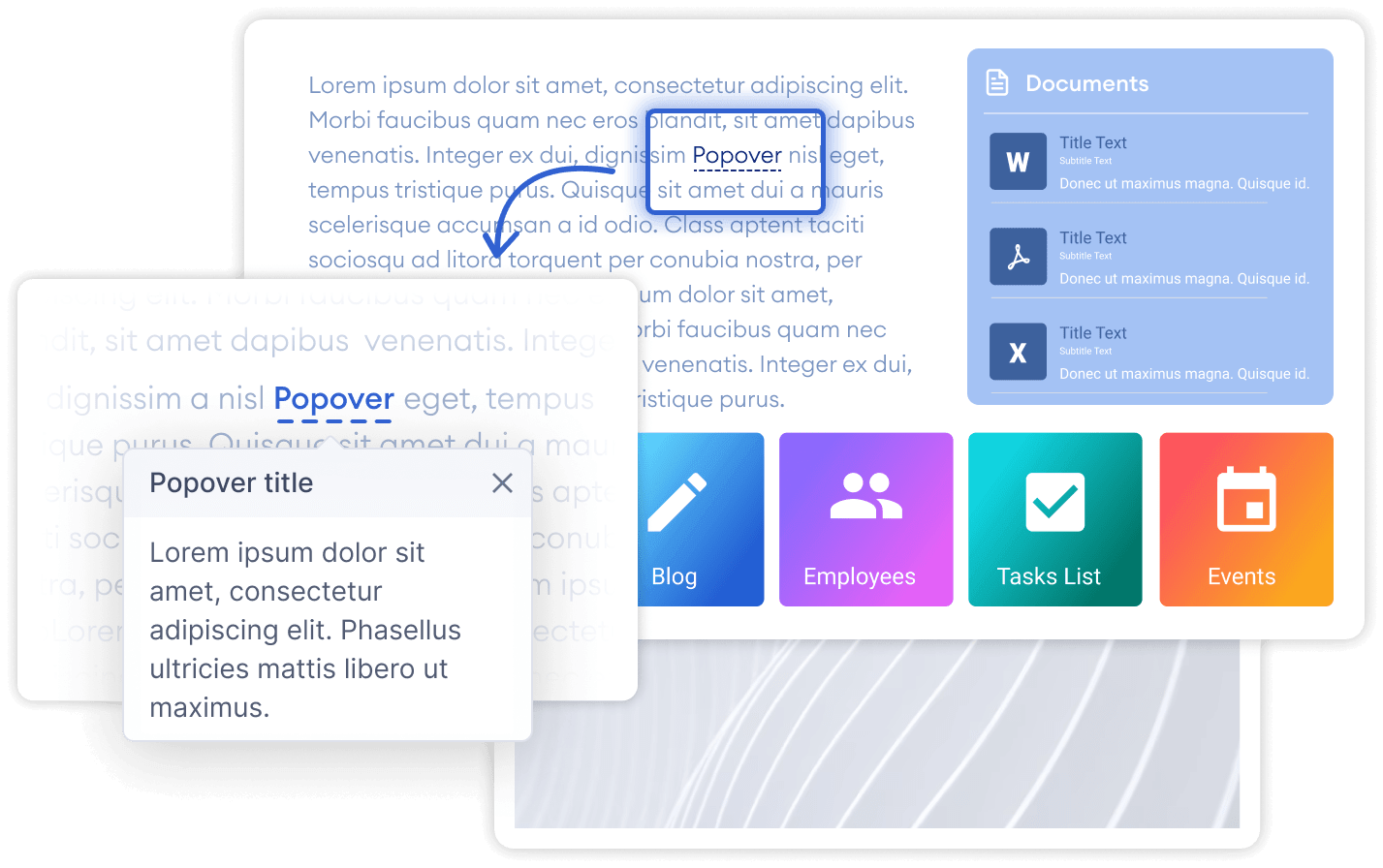
TABLE OF CONTENTS
- Prerequisite
- What is the ShortPoint Popover Design Element?
- Interactive Tutorial
- Step-by-step Tutorial
- Popover Features
- Practical Use Cases for Your SharePoint Site
- Start Designing with the Popover Design Element
- Frequently Asked Questions
Prerequisite
- You have the latest version of ShortPoint SPFx installed on your SharePoint environment.
- You are a ShortPoint Designer with an active license.
What is the ShortPoint Popover Design Element?
The Popover is an interactive Design Element that displays a small, informative overlay when a user hovers over a specific piece of plain text. Instead of forcing users to navigate to a new page or scroll down to a glossary, the Popover brings the definition or data right to them.
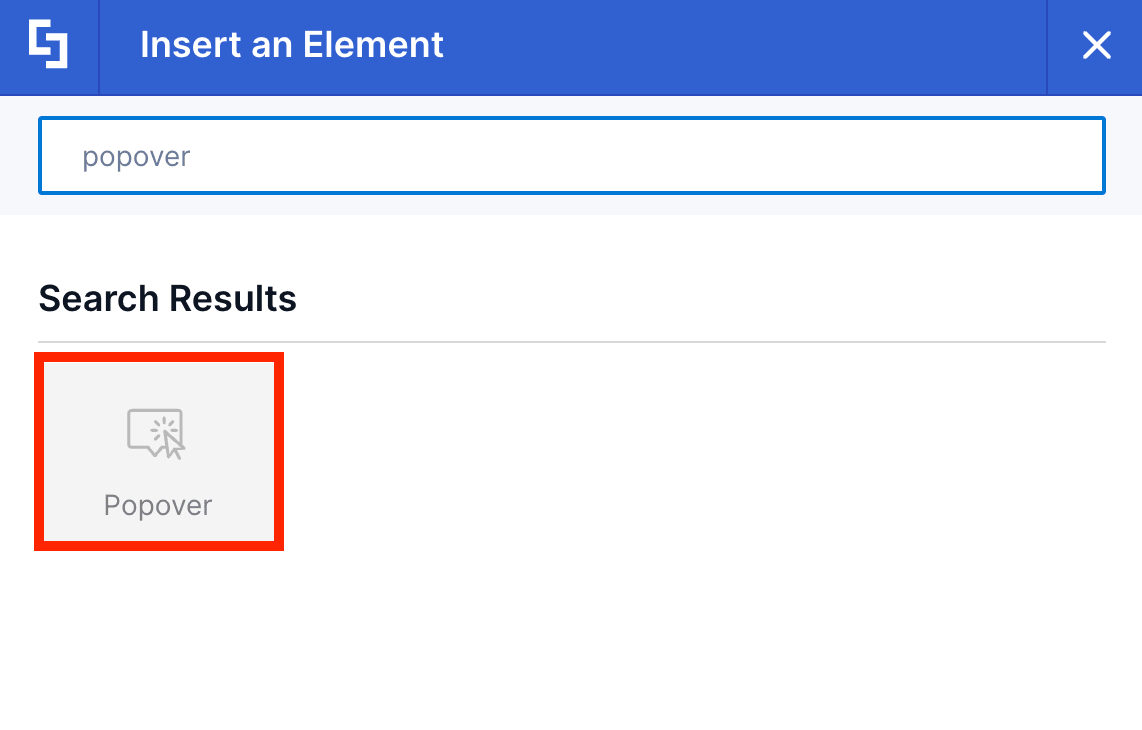
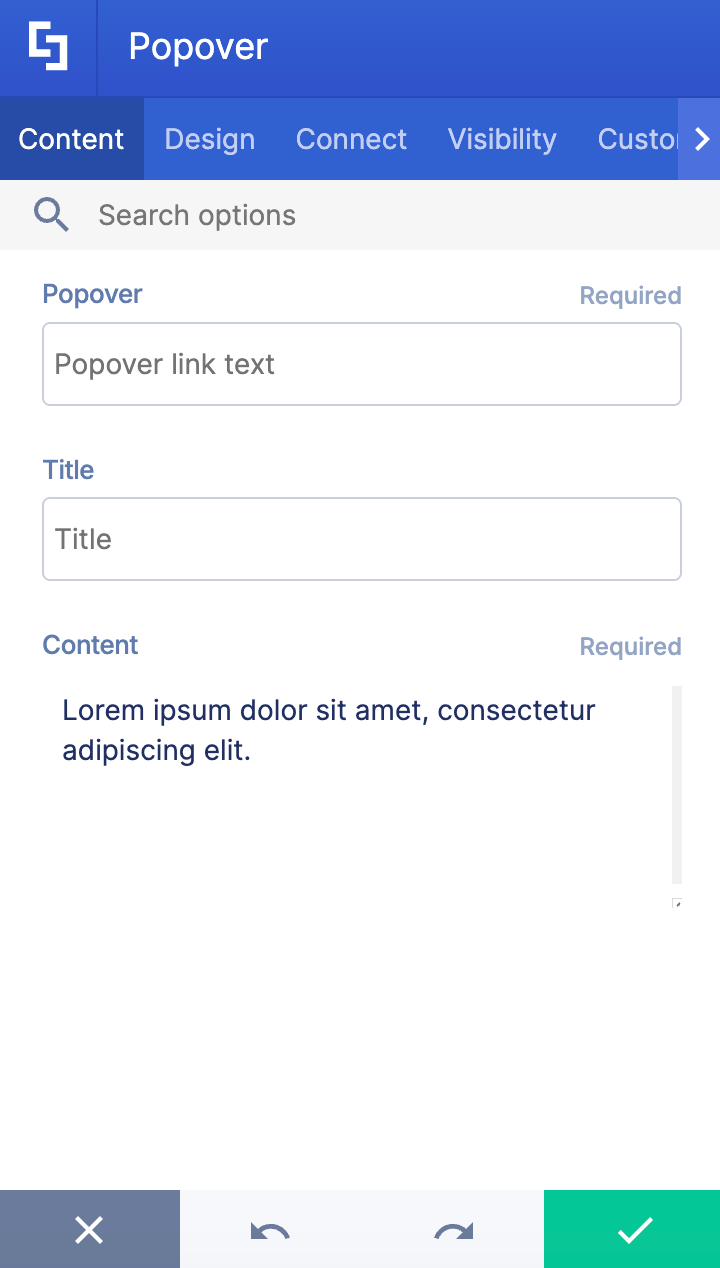
ShortPoint makes it incredibly flexible to build and format Popovers in SharePoint. You can configure them via the Design Element Library or via the Rich Text Editor, making it super easy for ShortPoint Designers to add the popover content they need.
Interactive Tutorial
Start the interactive tutorial to see the two ways you can add online text formatting using the Popover Design Element:
NOTECheck out Popover Features to learn more about the OOTB options you can customize.
Step-by-step Tutorial
Follow the steps below to start formatting text using the Popover Design Element:
Option 1: Using the Library of Design Elements
ShortPoint has a library of Design Elements that ShortPoint Designers can add to their page. Follow along to learn how to insert the Popover Design Element using this option:
Step 1: Edit the ShortPoint Web Part
- Go to the SharePoint page you want to use and click Edit.

- Click the ShortPoint tag.
- Select the pencil icon.
Step 2: Insert the Popover Design Element
- Click the plus icon.
- Use the search box to look for Popover and click it.
Step 3: Add content
- Customize the content of the Popover according to your liking.
Step 4: Customize the Popover’s Design
- Navigate to the Design tab.
- Select the Placement of the Popover.
- Once satisfied, click the green check mark.
NOTECheck out Popover Features to learn more about the OOTB options you can customize.
Step 5: Save
- Then, click the eye icon to see your page in real-time.

- Click Save to apply all your changes.

That's it! You can use the Popover Design Element to apply online text formatting.
Option 2: Using the Rich Text Editor
Popover is an Inline Design Element. This means that you can also insert it into your SharePoint page using the Rich Text Editor. Follow the steps to learn how to access it:
Step 1: Edit the ShortPoint Web Part
- Go to the SharePoint page you want to use and click Edit.

- Click the ShortPoint tag.
- Select the pencil icon.
Step 2: Open Rich Text Editor
NOTEThe Rich Text Editor can be seen in Design Elements which allows text editing. An example of a Design Element with text editing capabilities is the Text Design Element.
- Hover over the Text, double-click, and highlight the text you want to turn into a Popover.
- Click the ShortPoint icon.

- Select the Show popover icon.

Step 3: Customize the Popover
- Customize the look and the design of the Popover according to your preferences.
- Click Apply.
NOTECheck out Popover Features to learn more about the OOTB options you can customize.
Step 4: Save
- Then, click the eye icon to see your page in real-time.

- Click Save to apply all your changes.

That's it! You now have a creative online text formatting with the help of the Popover Design Element.
Popover Features
Below are the options you can find in the Popover Settings window and the Rich Text Editor:
Popover Settings Window
These are the options you will find if you used Option 1 to add the Popover Design Element:
A. Content tab
The Content tab allows you to edit the content inside the Popover. It has the following options:
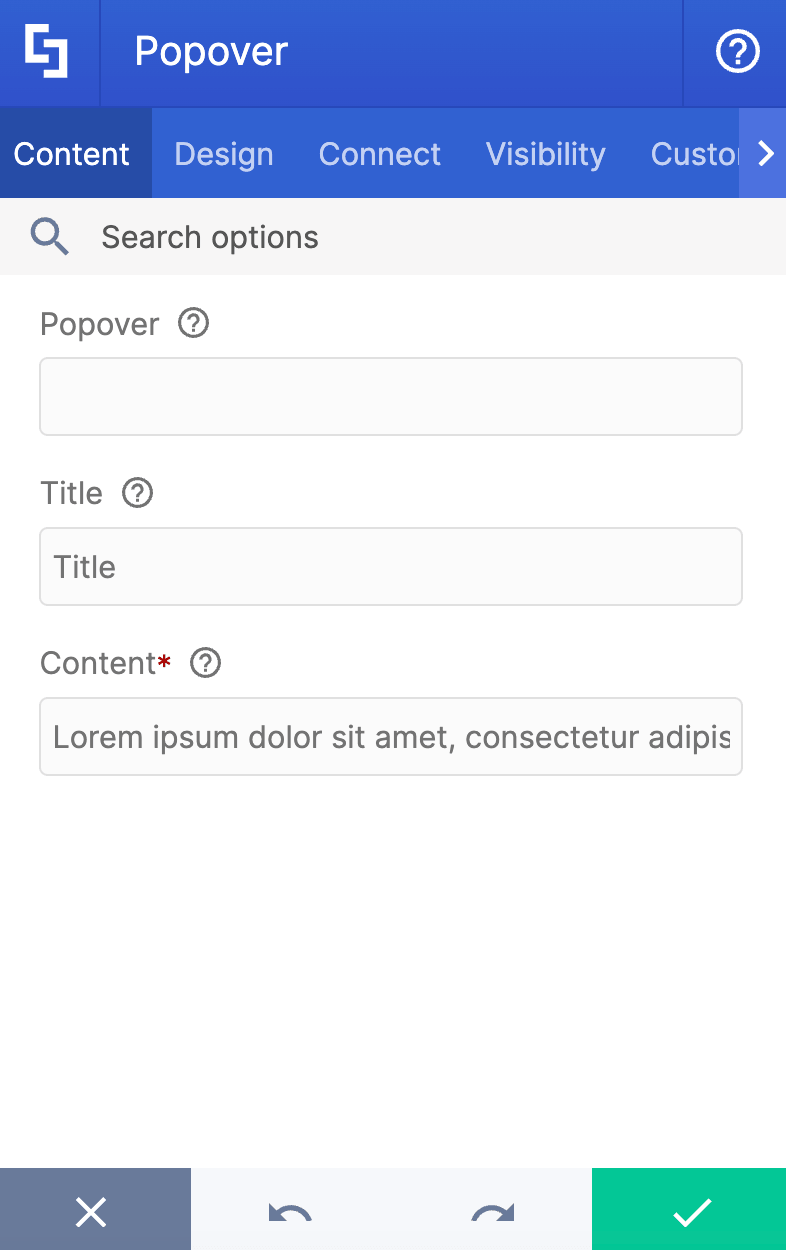
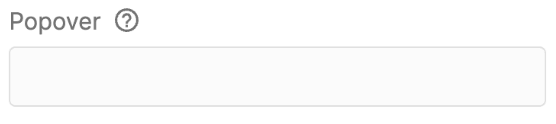 | Popover | allows you to edit the main text. |
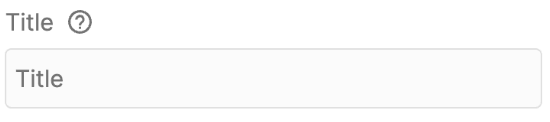 | Title | allows you to edit the Title of the Popover. |
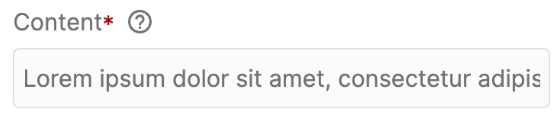 | Content | allows you to add descriptive text inside the Popover. |
B. Design tab
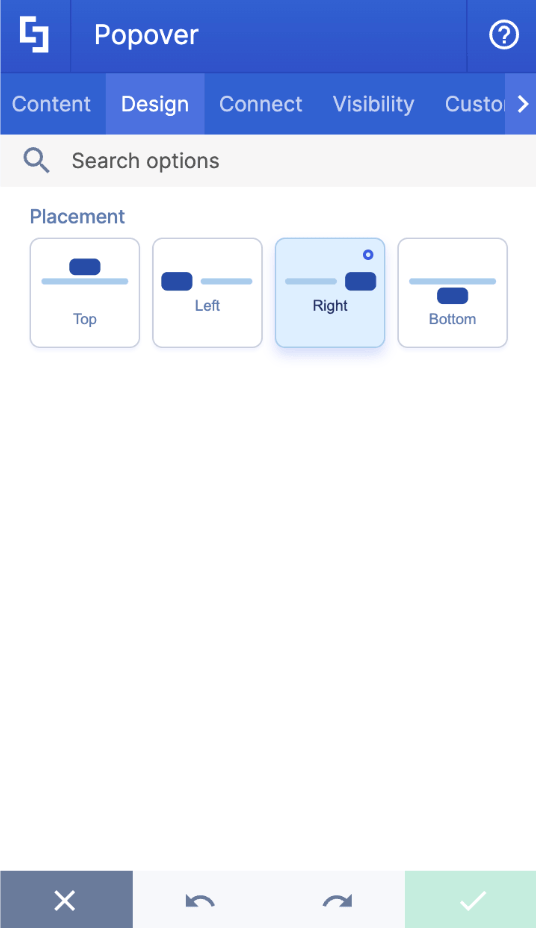
The Design tab allows you to customize the placement (Top, Left, Right, or Bottom) of the Popover Design Element.
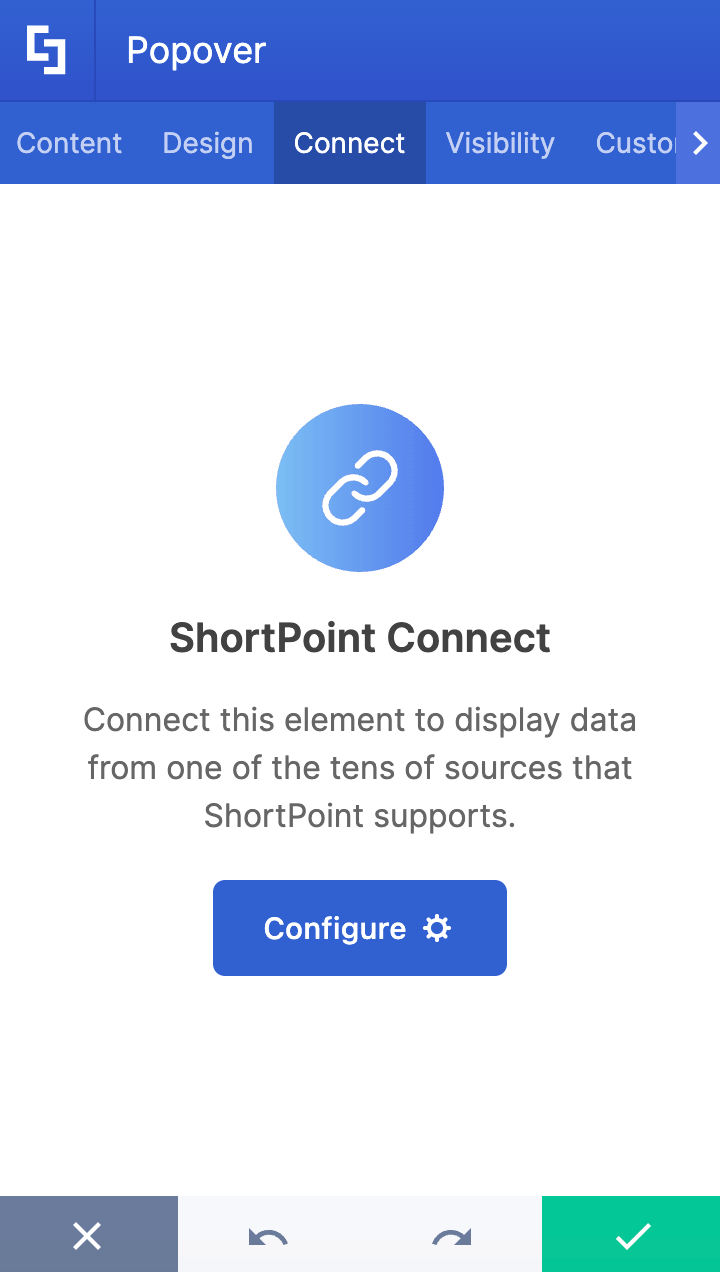
C. Connect Tab
The Connect tab allows you to link the Design Element to SharePoint sources (List, Document Library, News, etc.) and other external sources (Microsoft Graph API, Teams, Outlook, etc.). For more details about ShortPoint Connect, check out Basic Tutorial: How to Establish Seamless SharePoint Connection with ShortPoint Connect.
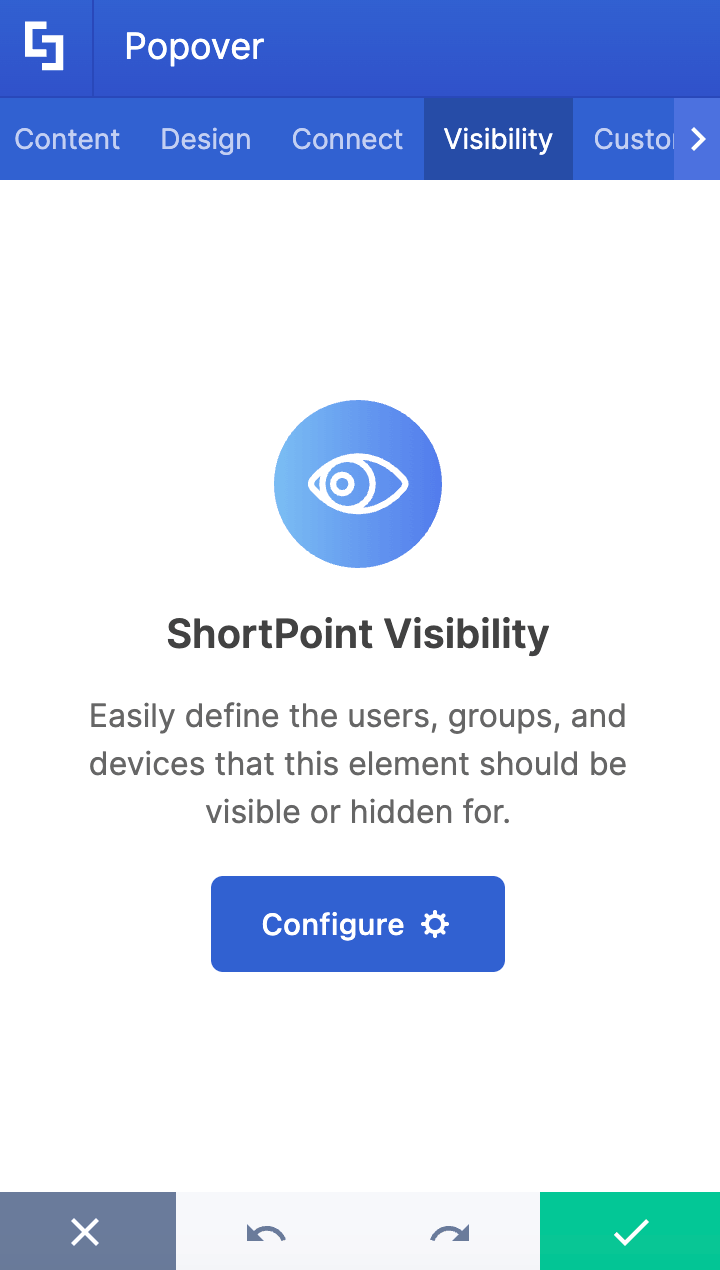
D. Visibility Tab
The Visibility tab allows you to specify who can see the Design Element and what type of devices it can be shown on. For more details, check out How to Use the ShortPoint Visibility Feature for Effective SharePoint Access Management.
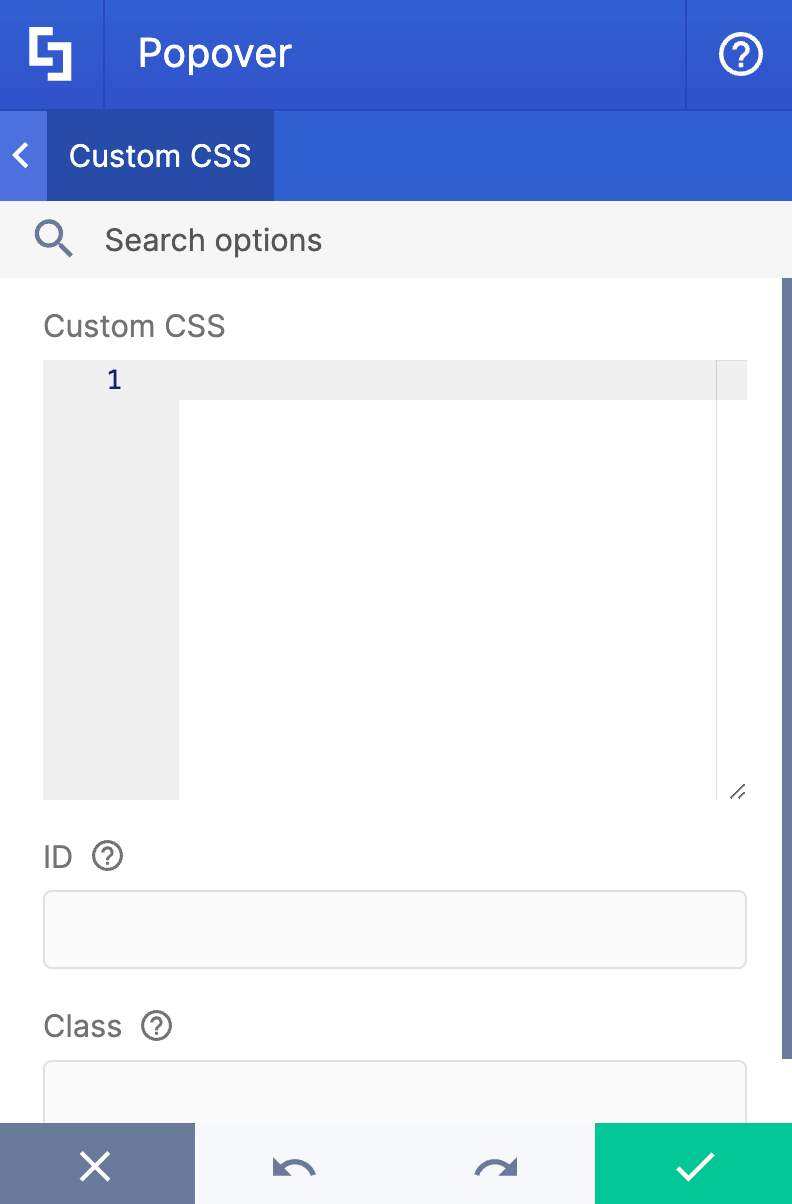
E. Custom CSS Tab
This tab allows you to use your own CSS, HTML, and JavaScript code to customize the Popover Design Element.
NOTECheck out our support article on How to Insert Custom CSS into a Page Builder Element? (Basic Tutorial) to know more about Custom CSS.
Popover Rich Text Editor Options
These are the options you will find if you used Option 2 to add the Popover Design Element:
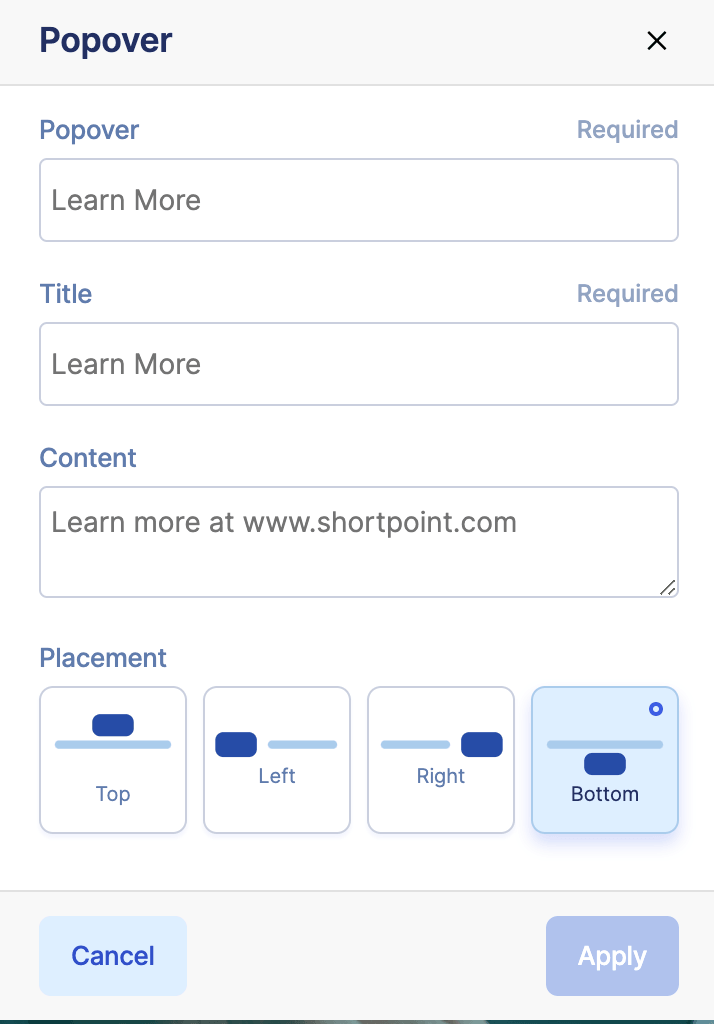
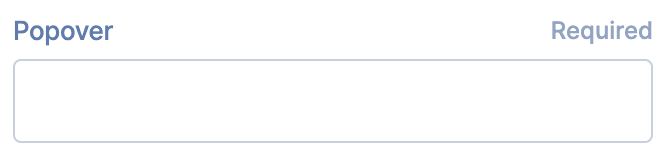 | Popover | allows you to edit the main text. |
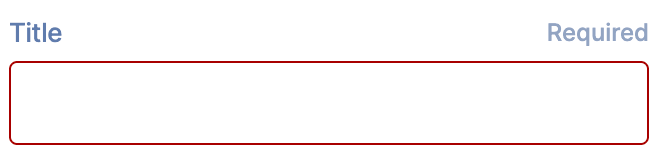 | Title | allows you to edit the Title of the Popover. |
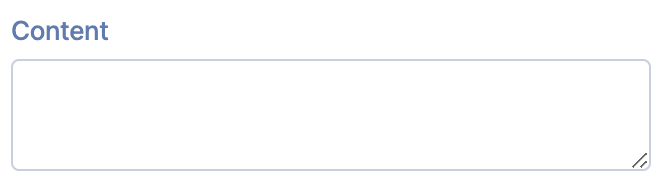 | Content | allows you to add descriptive text inside the Popover. |
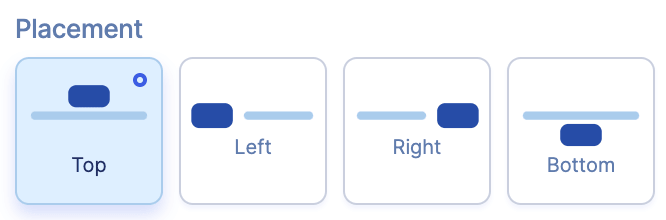 | Placement | allows you to choose the placement of the Popover. You can choose from Top, Left, Right, or Bottom. |
Practical Use Cases for Your SharePoint Site
How can you actually put Popovers to work for your team? Here are real-world scenarios where Popovers make standard SharePoint pages significantly more intuitive:
- Deciphering Company Jargon and Acronyms
Every industry and organization is swimming in acronyms. For a new hire (or even a seasoned employee changing departments), reading an announcement full of abbreviations can feel like translating a foreign language. By using Popovers on specific acronyms, users can simply hover or click to view the full name and a brief definition, flattening the onboarding learning curve instantly.
- Providing Context for Financial Figures and KPIs
When presenting complex quarterly results or company performance dashboards, data can sometimes raise more questions than answers. You can use Popovers on specific metrics (like "EBITDA" or "Churn Rate") to briefly explain how the metric is calculated or what the baseline target was. It gives the executive team data-driven clarity without overwhelming the layout.
- Highlighting Policy Details in HR Portals
When looking at an HR benefits outline, an employee might see a sentence like: "All full-time employees qualify for standard wellness reimbursements." By making "wellness reimbursements" a Popover, you can cleanly list the exact covered items (e.g., gym memberships, fitness trackers, mental health apps) in a neat little pop-up window, keeping the main page brief and direct.
Start Designing with the Popover Design Element
By reducing visual noise and making deep contextual details accessible at a click, the Popover element changes how your team consumes internal data. Try integrating it into your next SharePoint page update and watch your employee engagement grow!
Getting started is easy. With just a few clicks, you can deploy your first Popover in no time. Just follow our step-by-step interactive tutorial to begin.
Are you new to ShortPoint? We invite you to experience our full feature suite with a FREE 15-day trial, entirely risk-free. You can also schedule a live, one-on-one demo with our team to see how the Popover and the rest of ShortPoint can work for you.
Frequently Asked Questions
Where can I choose to place the Popover window?
You have complete control over where the pop-up box appears relative to your text. In the Design tab (or right inside the Rich Text Editor setup), you can choose to place it on the Top, Left, Right, or Bottom.
Can I customize who sees certain Popovers?
Yes! When you add a Popover via the Design Element library, you can use the Visibility Tab. This allows you to restrict the element based on the user's target audience or even the device they are using, whether on mobile or browser.
Do I need coding knowledge to use this feature?
Not at all. ShortPoint brings you an intuitive, no-code/low-code software experience. However, if you are a developer looking to match highly specific brand guidelines, a Custom CSS Tab is fully available to inject your own html tags and styles.
What are the prerequisites to start using Popovers?
You will just need to have the latest version of ShortPoint SPFx installed on your SharePoint environment and have an active ShortPoint Designer license.
Related articles:
