 Try ShortPoint now
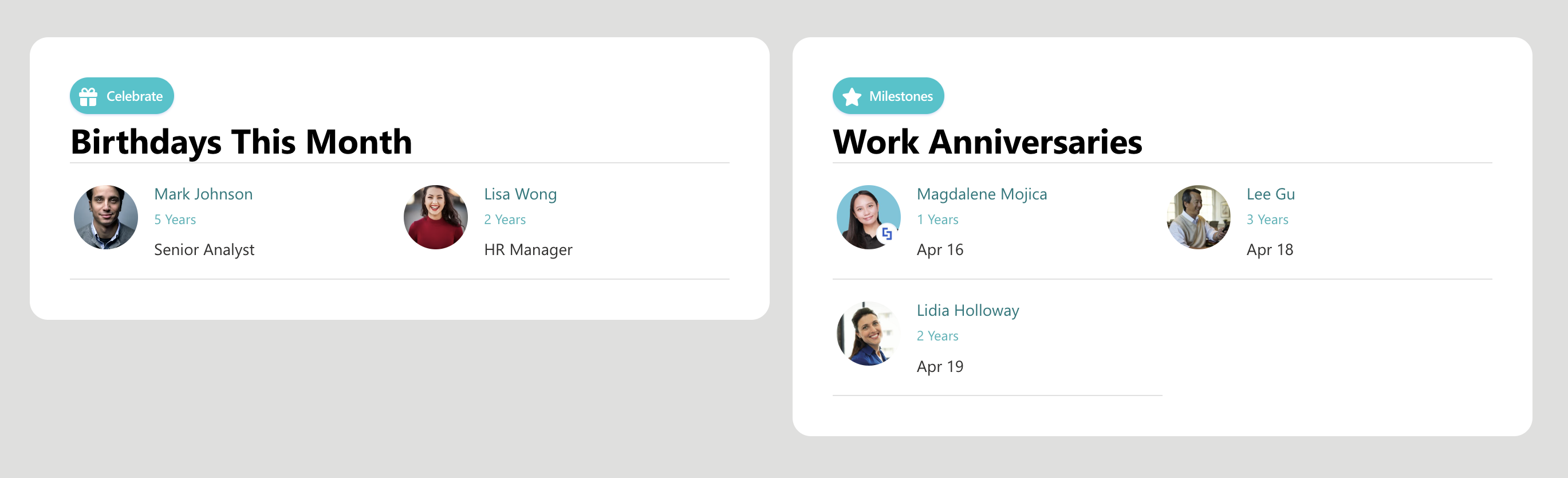
Recognizing work anniversaries is one of those small gestures that goes a long way. When employees feel seen and celebrated, it builds a stronger sense of belonging and employee engagement, and your SharePoint intranet landing page is the perfect place to make that happen automatically.
In this article, we'll walk you through everything you need to know about displaying work anniversaries in SharePoint, including what ShortPoint connection type you'll use, how to set it up with ShortPoint, four practical use cases, and answers to the most common questions about featuring work anniversary celebrations.
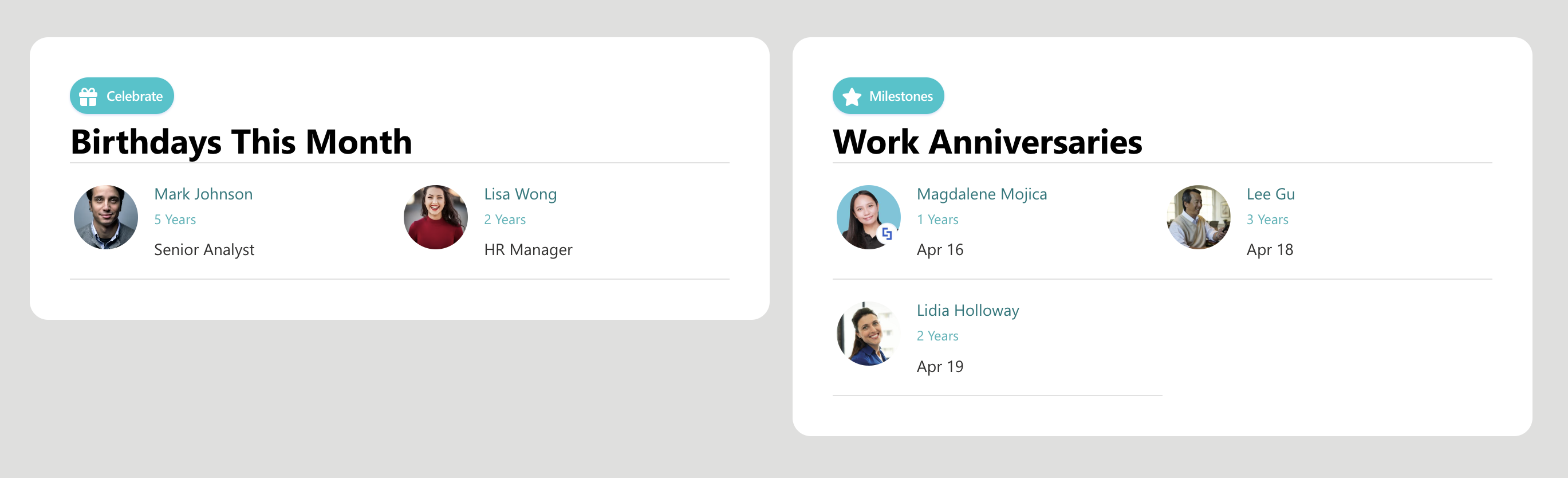
TABLE OF CONTENTS
- Prerequisites
- What Is the ShortPoint People Search Connection?
- How to Showcase Work Anniversaries in SharePoint
- Practical Use Cases
- Start Displaying Work Anniversaries
- Frequently Asked Questions
- Do I need to create the SPS-HireDate property from scratch?
- Why isn't the SPS-HireDate crawled property showing up in the Search Schema?
- Which managed property should I map SPS-HireDate to?
- What settings need to be enabled on the managed property?
- Does every user need their hire date filled in for this to work?
- Do I need ShortPoint to display anniversaries in SharePoint?
- Will this work on both SharePoint Online and SharePoint 2019?
Prerequisites
- You must have the latest ShortPoint SPFx version installed.
- You must be a ShortPoint Designer with an active license.
- You must already have the Design Element you’ll use for the connection on your page.
What Is the ShortPoint People Search Connection?
Before jumping into configuration, it helps to understand the connection type that makes all of this visual magic possible.
The People Search connection is a ShortPoint connection type that taps into SharePoint's People Search index, which is the same search engine that powers people directories and profile lookups. The connection surfaces user profile data in a visual, configurable way. Instead of a plain list of names, you can display employee names, photos, job titles, departments, hire dates, and more, all styled to match your intranet's look and feel.
What makes it especially useful for the work anniversary use case is its built-in filtering capability. Rather than showing everyone in the directory, you can scope the display to only show people whose hire date falls within a specific window. For example, you can show upcoming birthdays and anniversaries in the next 7 days or employees who joined within the past month. This feature is a great idea for organizations looking to recognize employees and celebrate important moments on a SharePoint page.
How to Showcase Work Anniversaries in SharePoint
Ready to bring milestone events to your SharePoint sites? We've prepared a detailed step-by-step guide for you. Make sure to follow each part to ensure a successful connection.
Part 1: Add Employee Hire Dates
This section will show you how to add hire dates to your user profiles in SharePoint. Accomplishing these steps is essential. If none of your user profiles have an entry in the SPS-HireDate field, the crawled property won't appear in the search schema at all, which you will need in the next part. So, before you proceed, make sure to accomplish Part 1 first.
Step 1: Open User Profiles
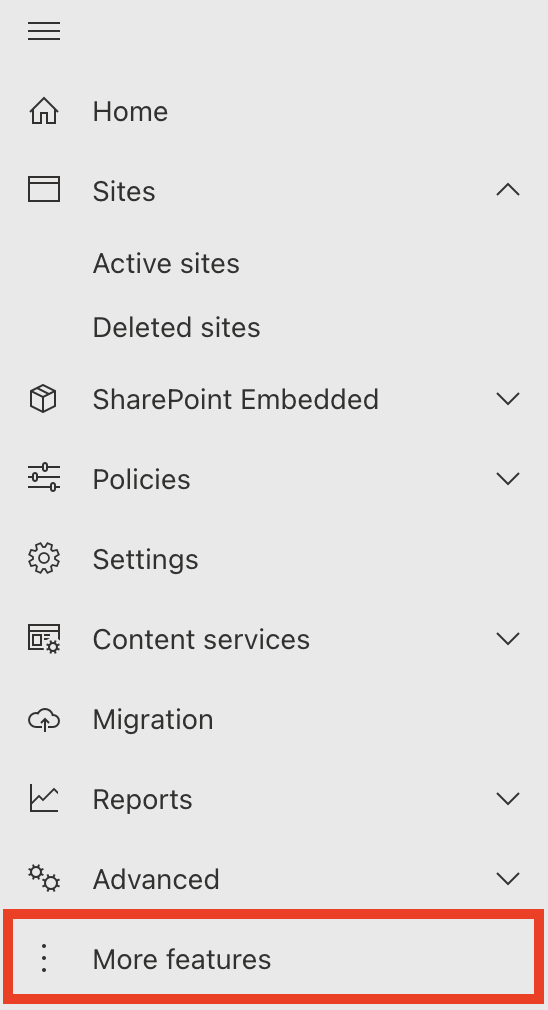
- Go to the SharePoint Admin Center and select More Features:
- Look for User Profiles and select Open.
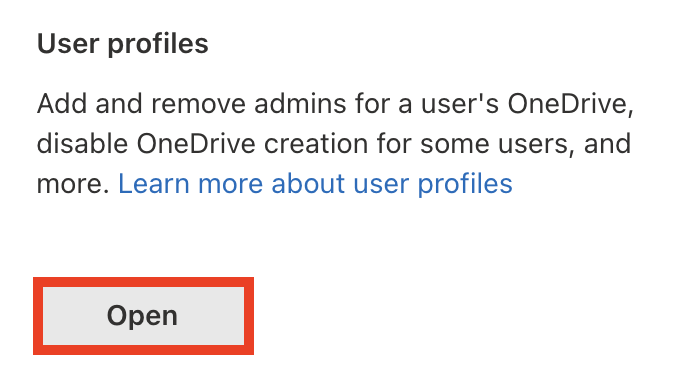
- Click Manage User Profiles

Step 2: Add Hire Dates
- Find the user whose hire date you want to configure.

- Then, select Edit My Profile.
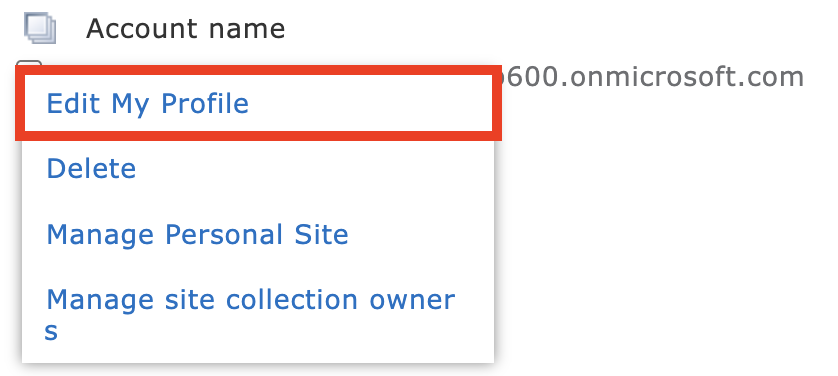
- Scroll down until you see the Hire Date field. Write down the selected employee's hire date. It should follow the mm/dd/yyyy format, and it should be shown to Everyone.

- Click Save and close.

- Repeat the same steps for every employee whose hire date you want to set.
Great work! You've successfully added hire dates to SharePoint user profiles. You may now proceed to Part 2.
Part 2: Map Hire Date Property
This section shows you how to query managed properties in SharePoint's search schema. Follow the steps below to get started:
Step 1: Open Crawled Properties
- Go back to the SharePoint Admin Center and click the Open button under Search.
- Select Manage Search Schema:
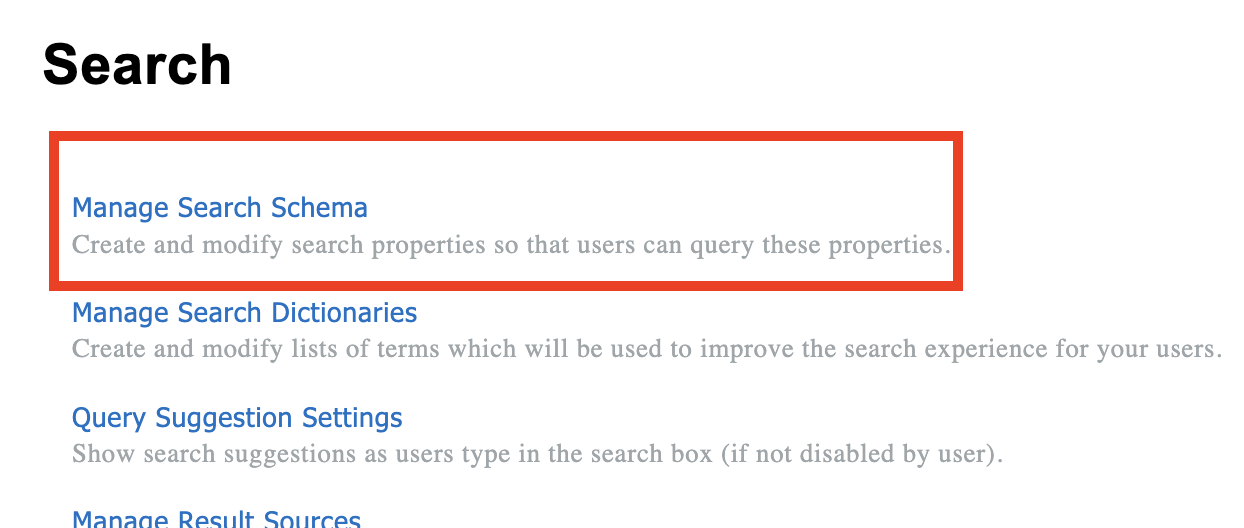
- Go to the Crawled Properties tab:

Step 2: Configure the SPS-HireDate Property
- In the list of properties, locate the People:SPS-HireDate and click it to open the menu:

- Click Add a Mapping:
- Search for [1] RefinableDate19 property. Select it and click [2] OK:
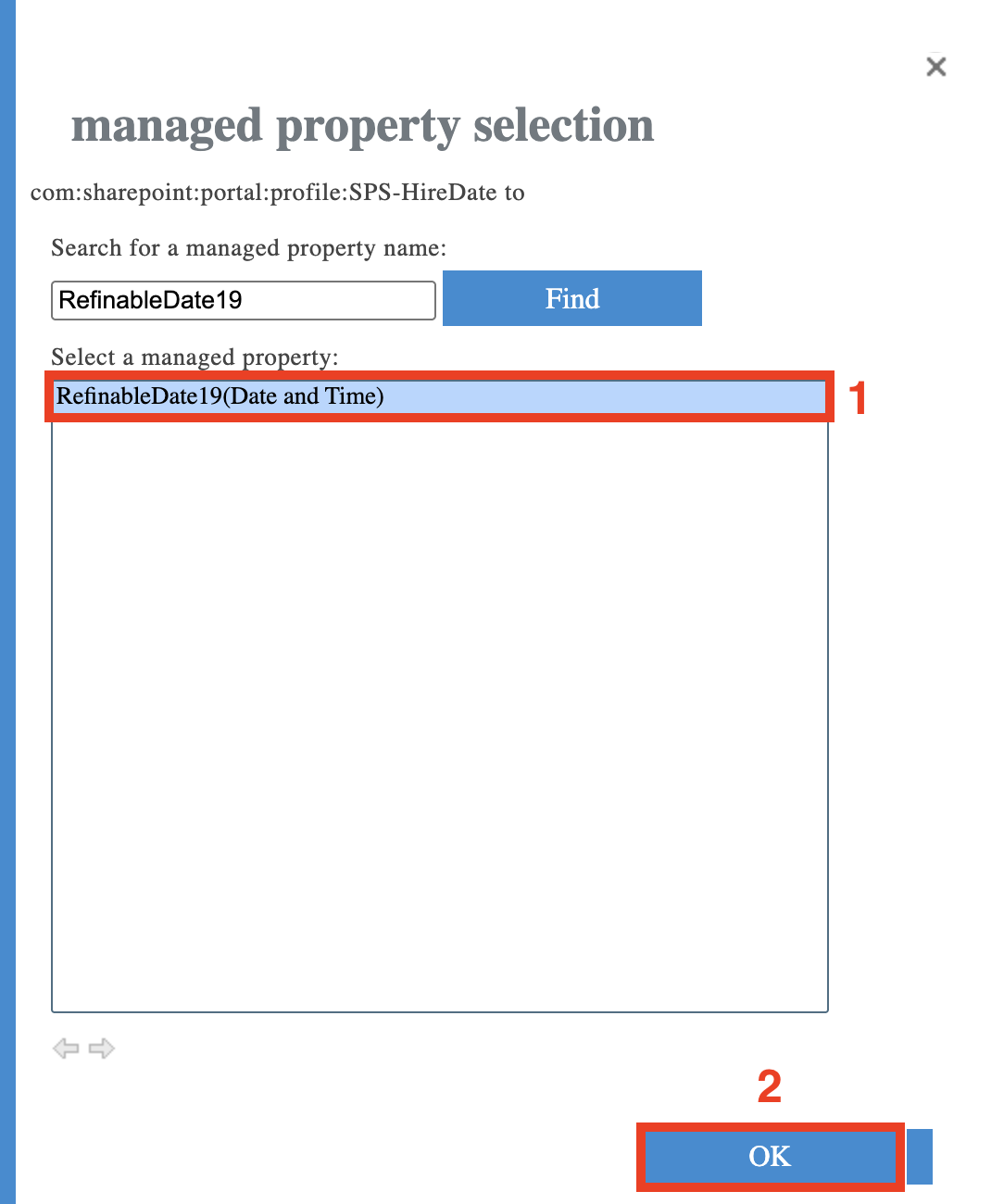
NOTEYou can choose any RefinableDate property. In this article, we are using RefinableDate19 because this is the default selection when you configure the Upcoming Anniversaries filter in People Search.
- Scroll to the bottom of the page and click OK to save the settings.

Step 3. Check the RefinableDate property settings
- Switch to the Managed Properties tab:

- Find the RefinableDate property that you have mapped earlier.
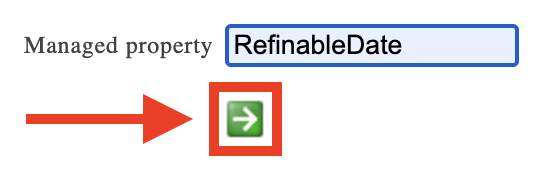
- Click the property name to open the settings:

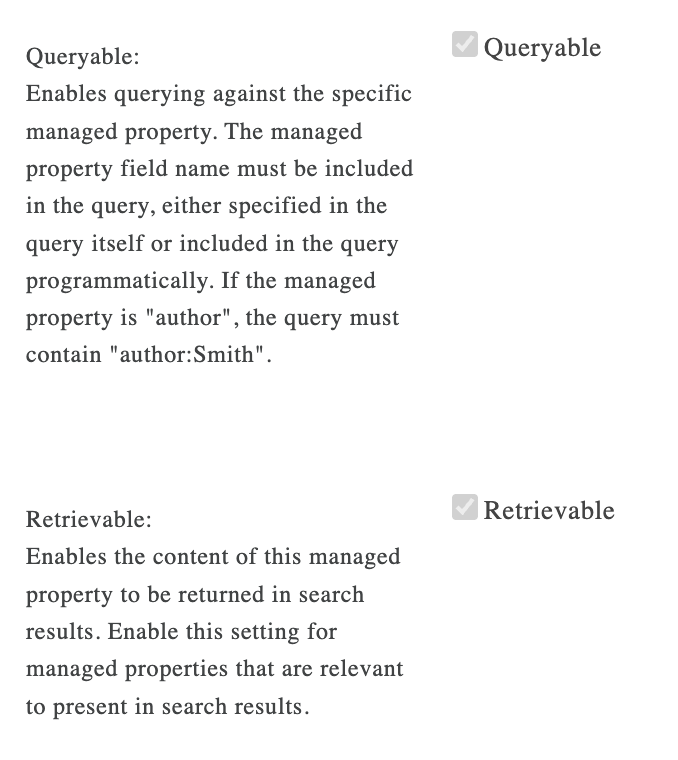
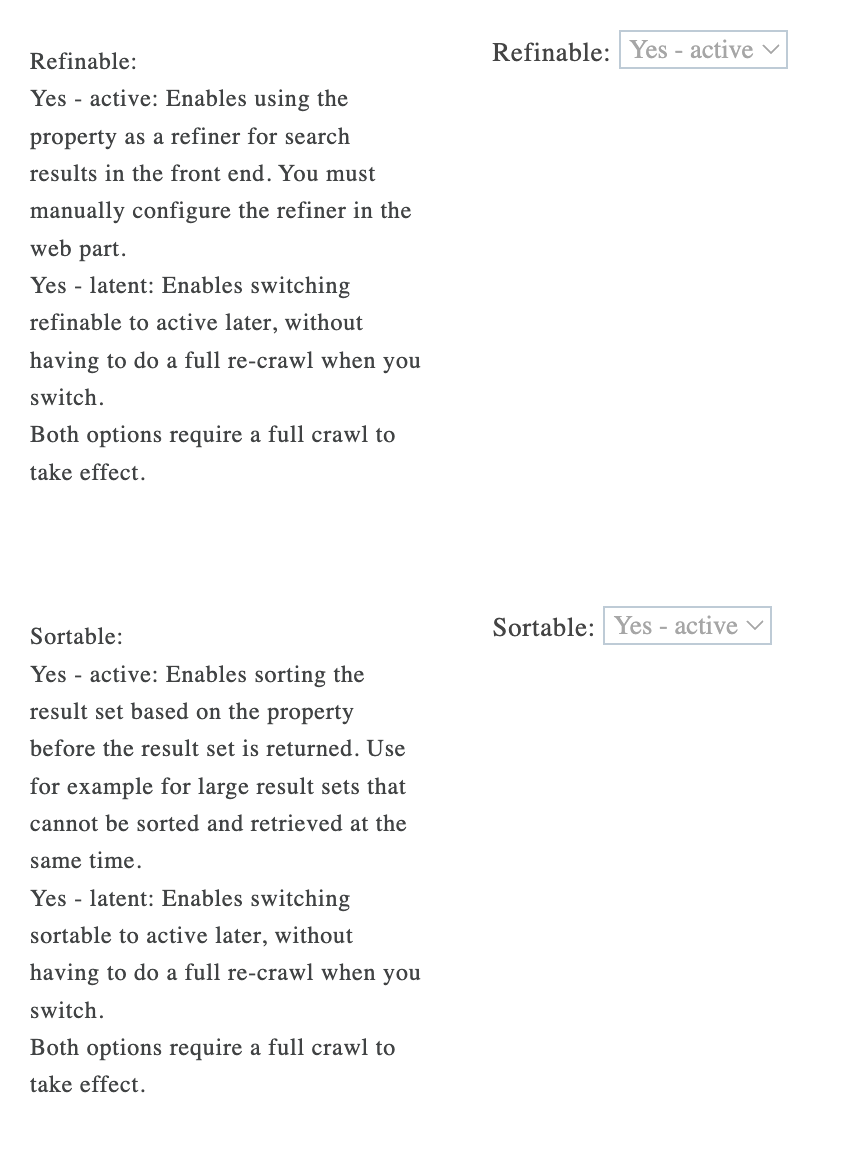
- In the opened settings, make sure the following options are checked or active:
- queryable;
- retrievable;
- refinable;
- sortable.
 |  |
- Click OK to save the changes if you made any.

Amazing! You've successfully configured the SPS-HireDate property. You can now start connecting.
Part 3: Connect
This section tackles the actual connection using the ShortPoint People Search connection type.
Step 1: Open the ShortPoint Web Part
- Go to the SharePoint page you want to use and click Edit.
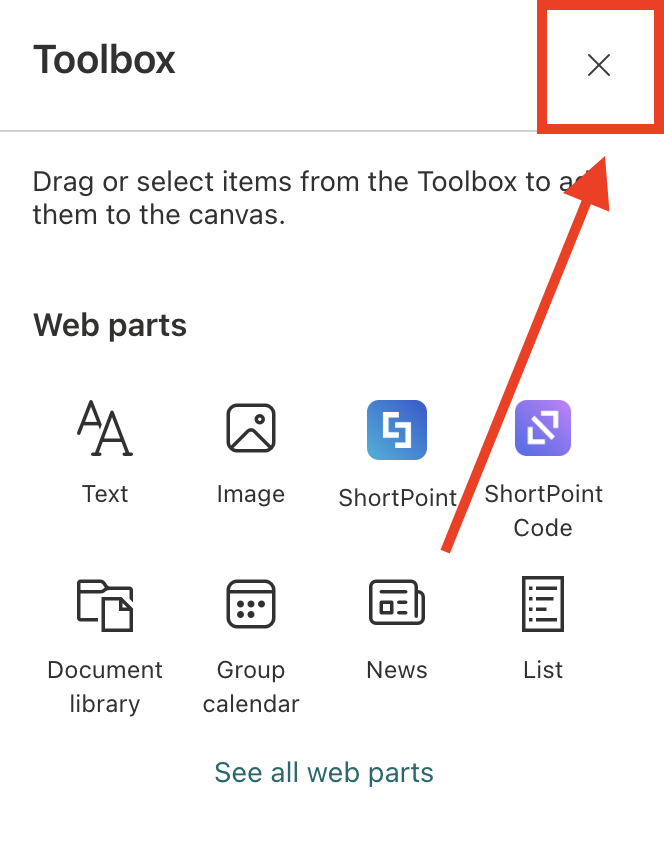
- Close the Toolbox:
- Edit the ShortPoint Web Part:

Step 2: Edit the Design Element
NOTEBefore proceeding, make sure you already have the Design Element you want to use to connect on your SharePoint page. For this guide, we'll use Image List.
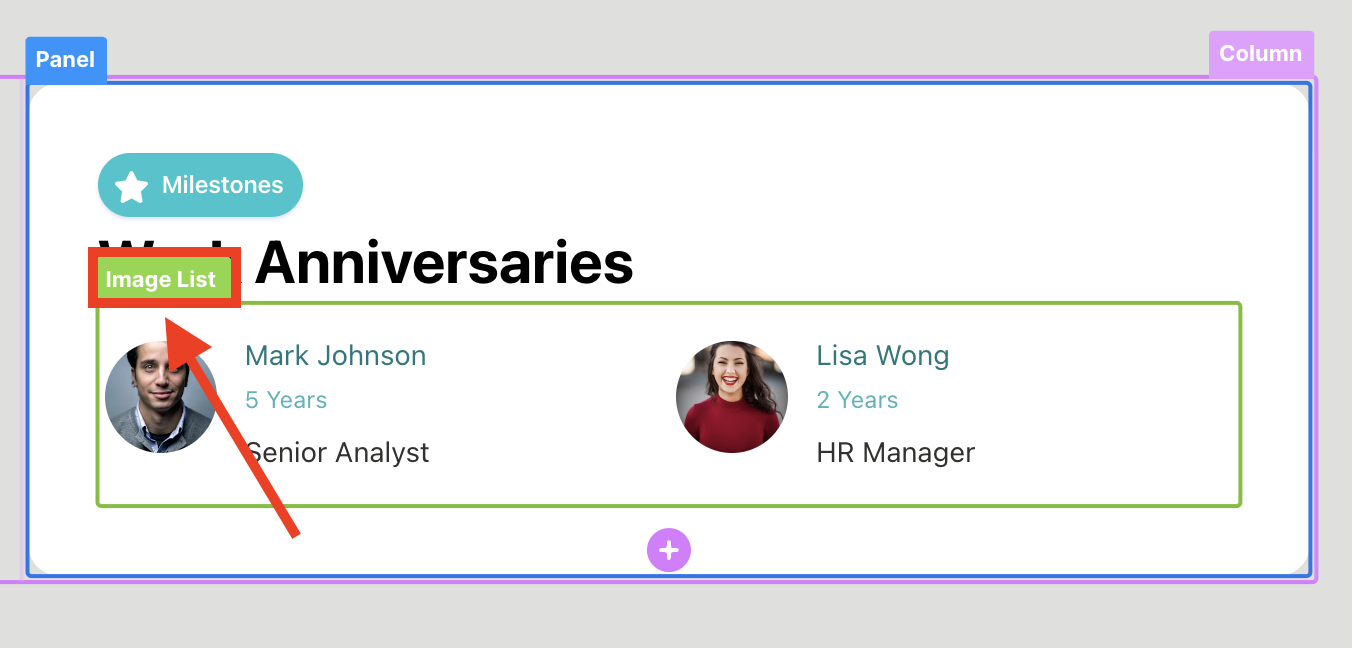
- Select the EasyPass tag of the Design Element:
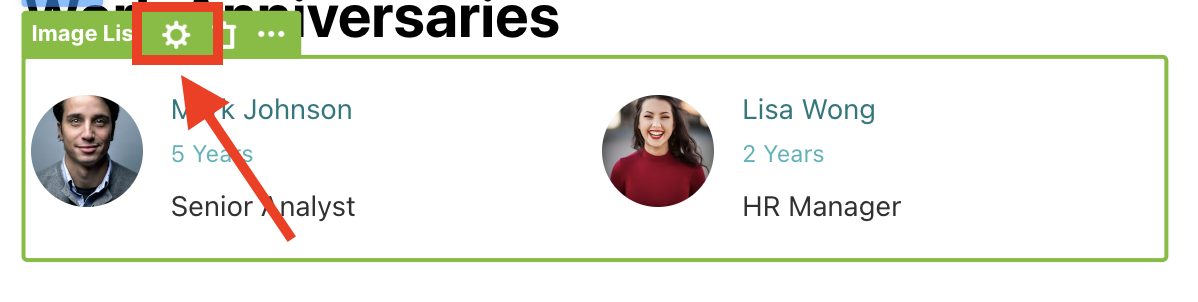
- Click the cogwheel icon to open its settings:
Step 3: Choose People Search
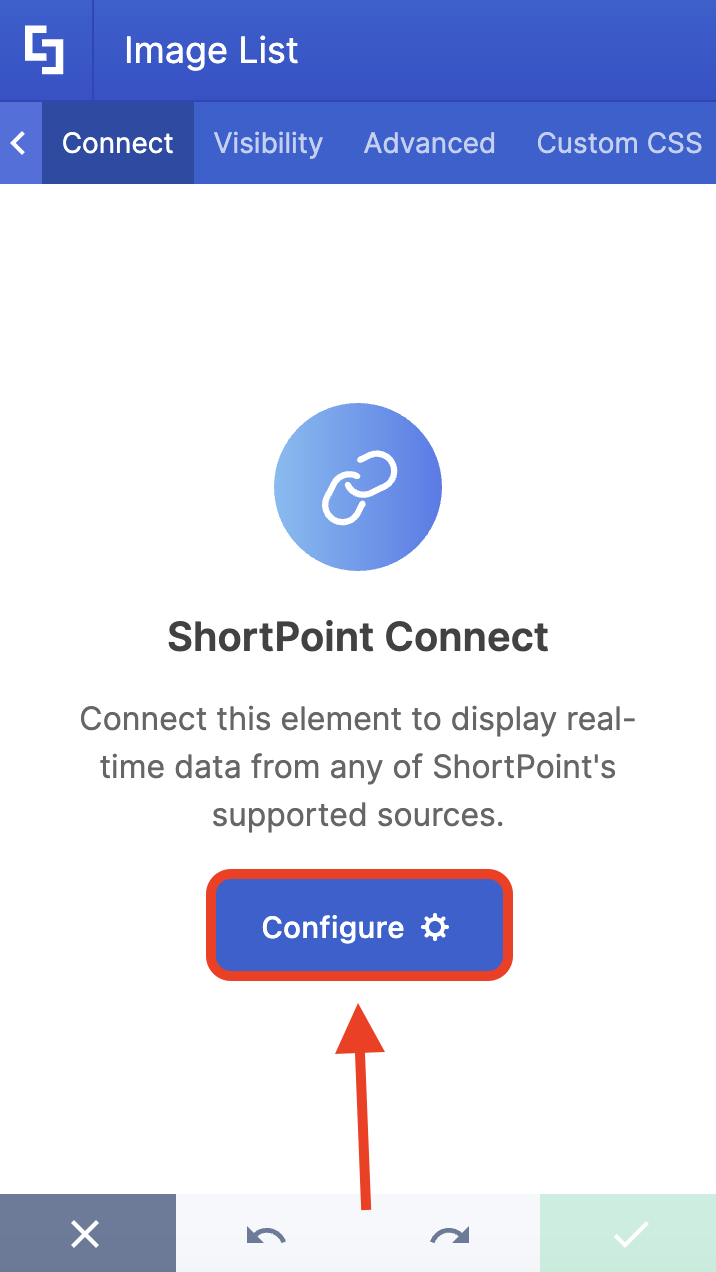
- Go to the Connect tab.
- Click Configure:
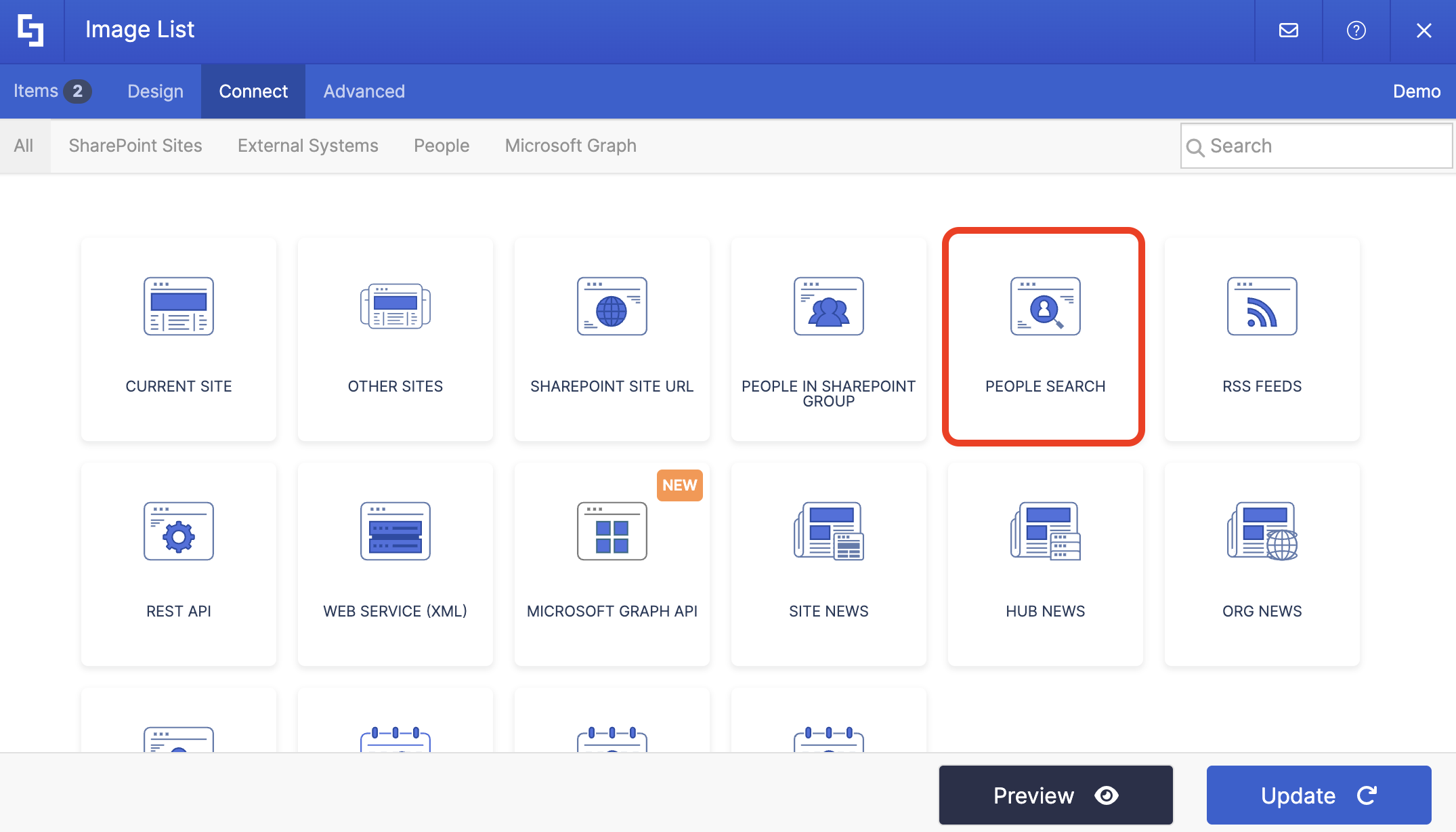
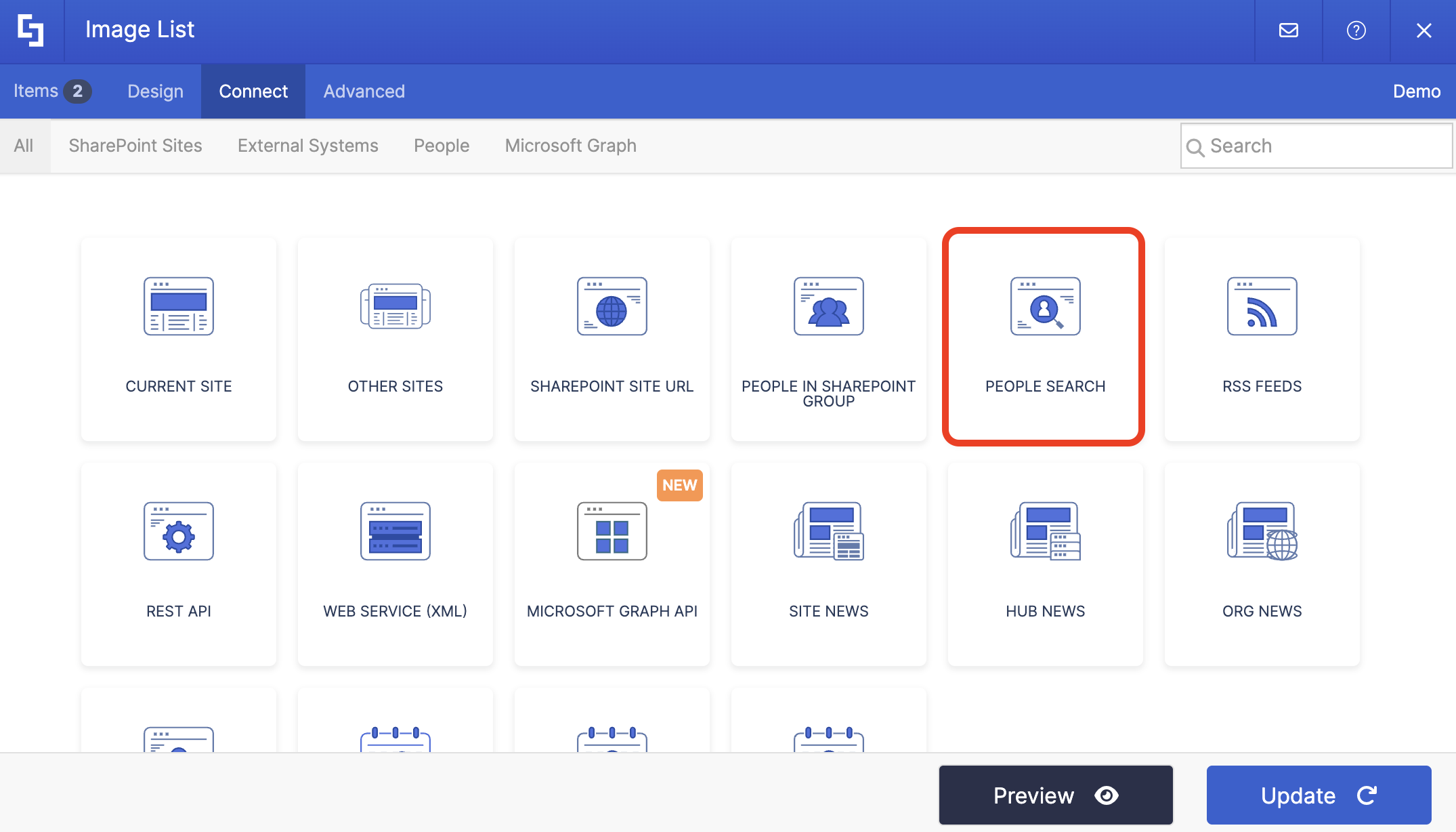
- Select People Search:
Step 4: Connect
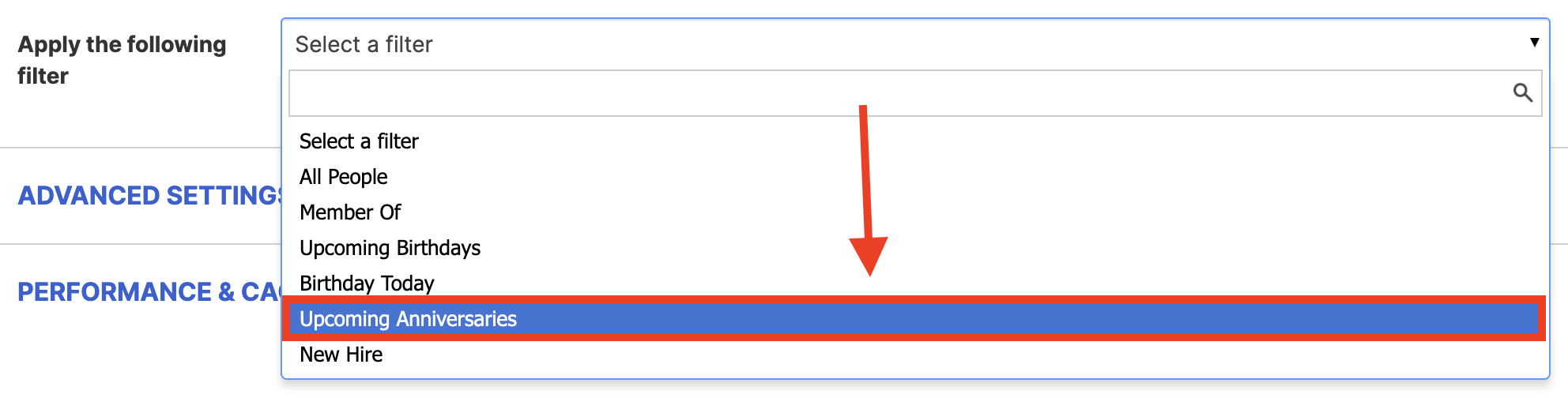
- Choose the Upcoming Anniversaries filter from the drop-down:
- Make sure that the mapped property for Hire Date is selected correctly. In our case, it's RefinableDate19:

- Next, choose how many days ahead to display upcoming anniversaries. Entering 30, for example, will show all users with anniversaries in the next 30 days.

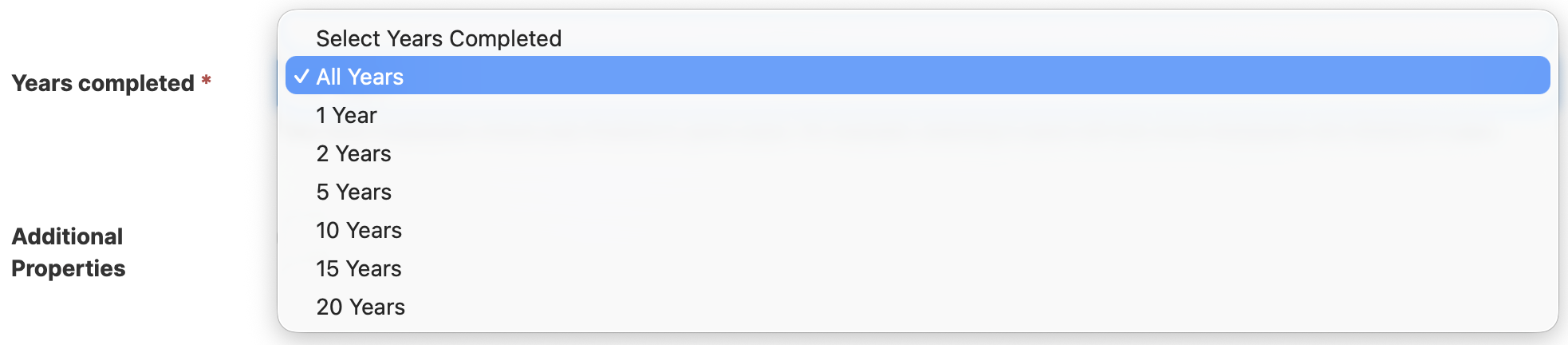
- You can also tailor this connection to display only employees who’ve reached a specific years-of-service milestone.
- Once done, click Connect.
Step 5: Map Items
- Go to the Items tab.
- Delete all default content.
- Use the link icon to map the properties you want shown.
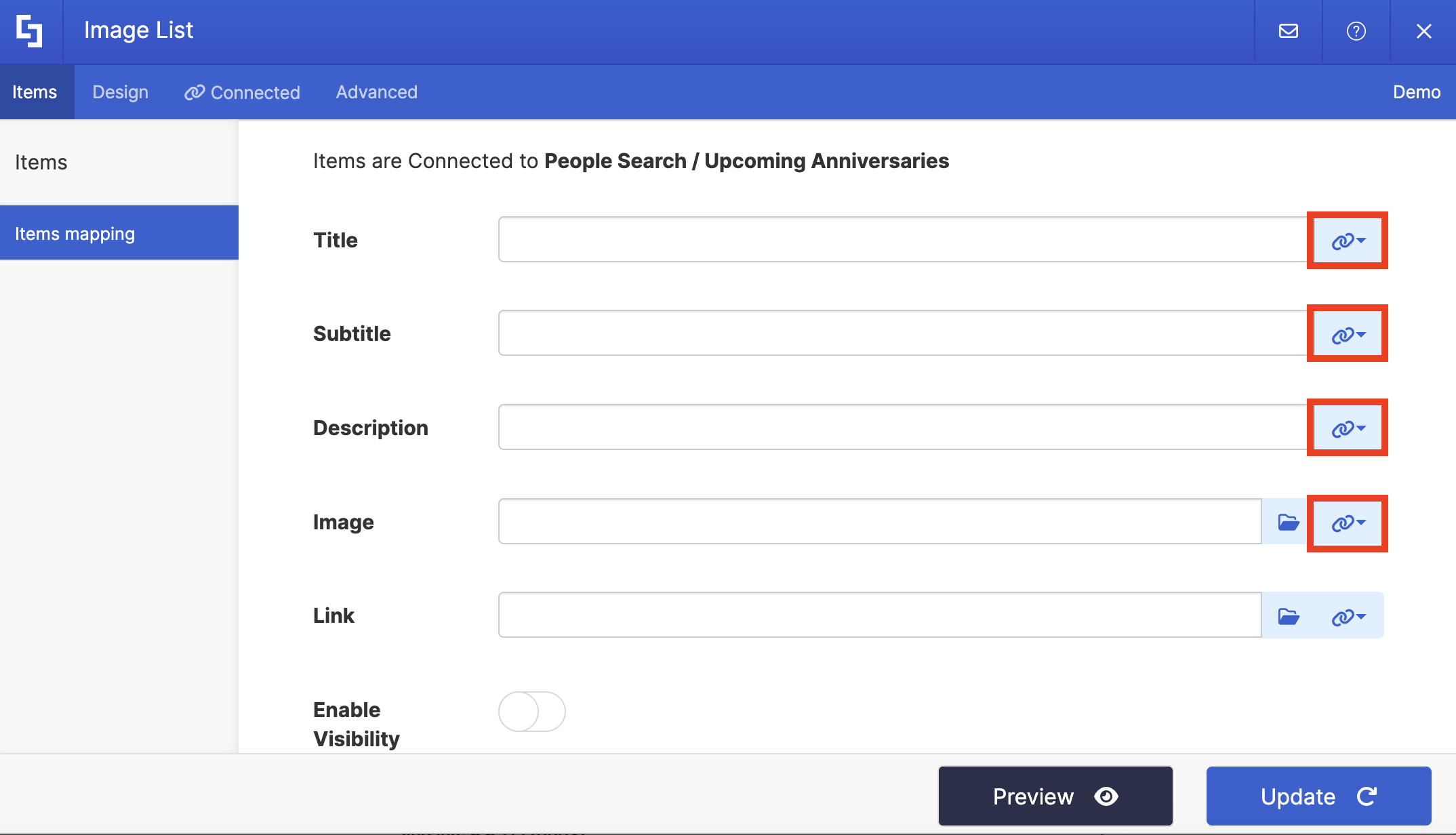
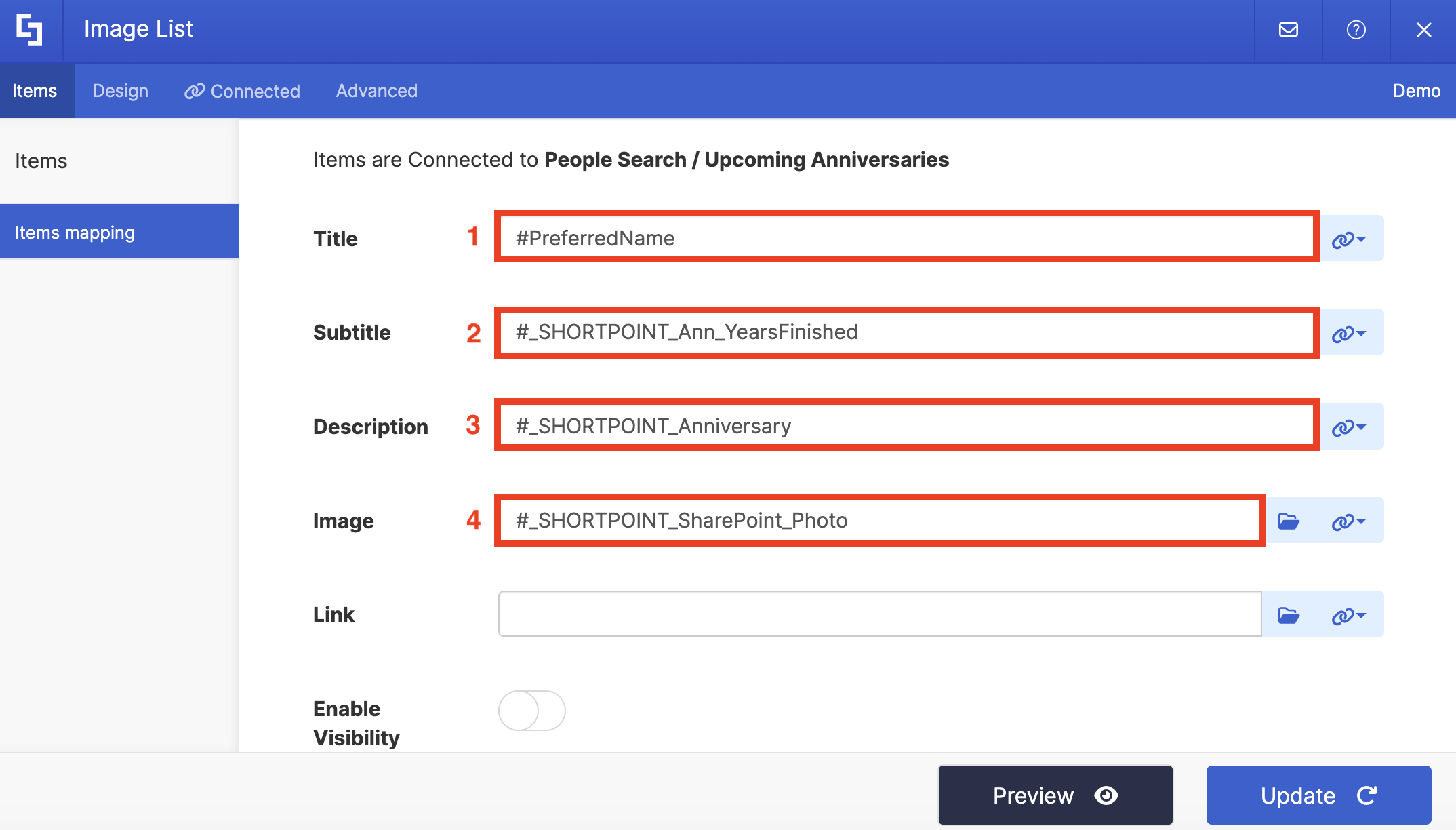
- For reference, below are the properties we mapped:
- #PreferredName - shows the name of the employee as the title.
- #_SHORTPOINT_Ann_YearsFinished - shows the number of years the employee worked for the company as the subtitle.
- #_SHORTPOINT_Anniversary - shows the date the employee was hired as the description.
- #_SHORTPOINT_SharePoint_Photo - shows a photo of the employee.
Step 6: Save and Publish
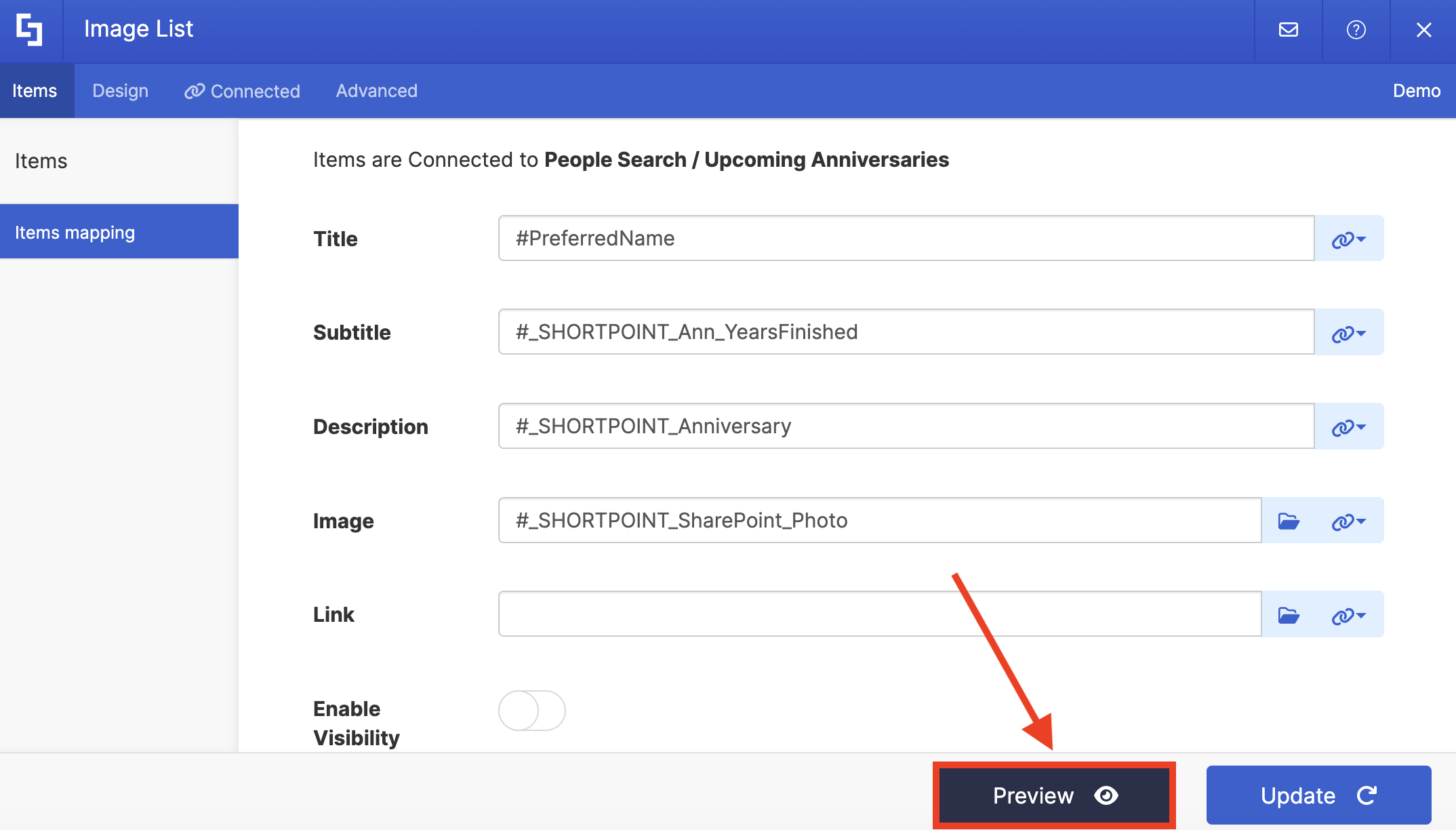
- Click Preview to see how the Design Element looks:
- Once satisfied, click Update.
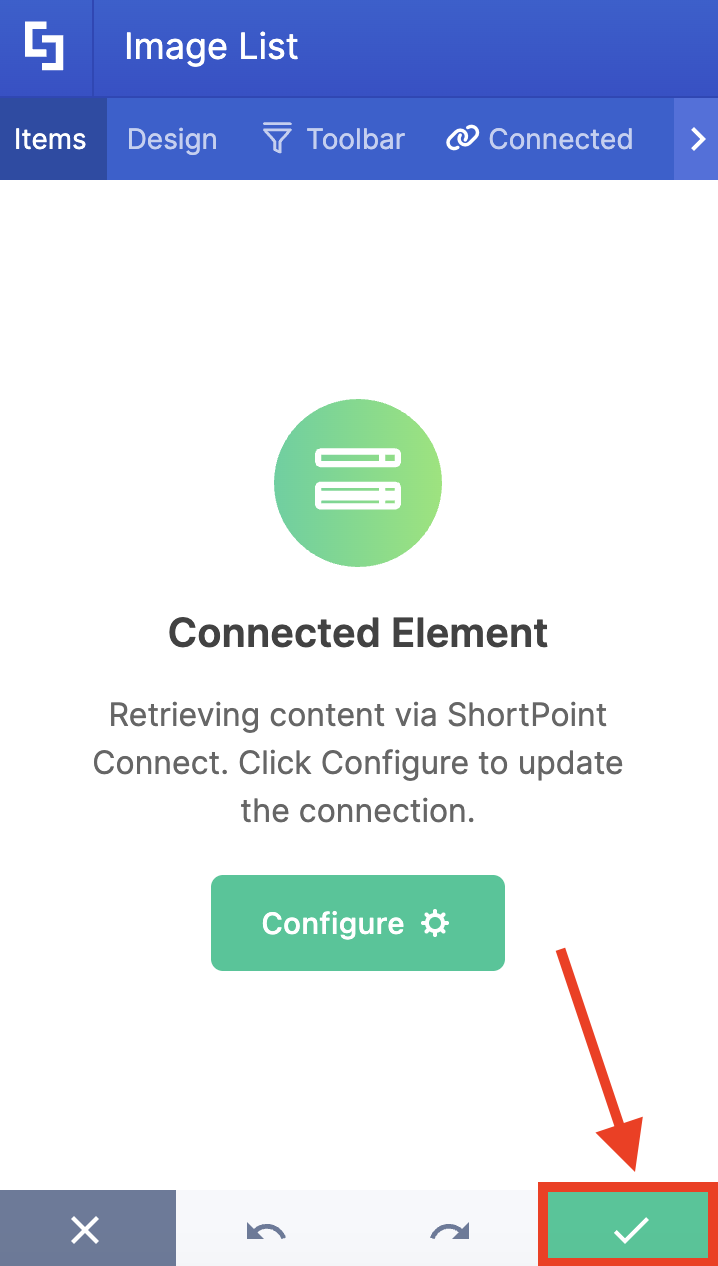
- Select the green check mark.
- Save your changes:

- And Publish your page:

Congratulations! You can now display anniversary dates on your SharePoint page. Your team members will surely love seeing their important milestones on your intranet.
Practical Use Cases
What else can you do with the People Search connection? We listed some practical use cases for you:
New Hire Spotlight
The New Hire filter in ShortPoint People Search lets you display employees whose hire date falls within the past X number of days.
A "Welcome to the Team" section on your intranet homepage is a simple but powerful way to make new hires feel welcomed from day one, while also keeping the rest of the organization in the loop about who's joining. This approach helps celebrate work anniversaries alongside new hires, creating a special occasion section in your intranet that fosters employee loyalty and engagement.
Tenure-Based Recognition Milestones
Not every anniversary deserves the same treatment. A 1-year anniversary is great; a 10-year anniversary deserves a banner. You can use the People Search connection to power milestone-specific recognition displays, filtering for employees hitting specific year marks (5, 10, 15, 20 years) and featuring them in a more prominent spotlight section.
This works especially well for organizations with formal service awards and employee loyalty programs, giving the intranet a role in reinforcing those programs automatically rather than relying on managers to remember dates.
HR Dashboard for People Operations
Beyond the public-facing intranet, People Search is valuable for HR teams internally. By surfacing hire date data, your HR team gets a quick view of upcoming anniversaries, tenure distribution, and new hire timelines without digging through spreadsheets or HR systems.
This helps HR proactively prepare work anniversary messages, recognition gifts, check-in meetings, or anniversary communications, rather than scrambling after the fact.
Start Displaying Work Anniversaries
Displaying work anniversaries on your SharePoint site doesn't have to be a complex project. Once SPS-HireDate is properly configured and mapped, you've got a reliable, automatic data source to build genuinely meaningful employee recognition experiences, all with no manual tracking required. This setup creates a win-win situation for both HR and employees. If you haven't set this up yet, it's one of those modern experiences that's small in effort but big in impact.
Eager to bring Work Anniversary milestones to your SharePoint intranet? ShortPoint Designers can jump right in. Simply update to the latest ShortPoint SPFx version and follow the interactive tutorial at the top of this article. Haven't tried ShortPoint yet? Start your FREE 15-day trial today, or schedule a one-on-one demo with our team and see what ShortPoint connections can do for you.
Frequently Asked Questions
Do I need to create the SPS-HireDate property from scratch?
No, the Hire Date property exists by default in SharePoint, so you do not need to create a new property. You just need to make sure it's filled in for your users and properly mapped in the search schema to display work anniversaries effectively on your main page.
Why isn't the SPS-HireDate crawled property showing up in the Search Schema?
This is a common stumbling block. If none of your user profiles have an entry in the SPS-HireDate field, the property simply won't appear. The fix is to populate at least one user profile with a hire date, then wait for a crawl to complete. After that, the property will show up and can be mapped, enabling the display of employee birthdays and anniversaries.
Which managed property should I map SPS-HireDate to?
You can choose any RefinableDate property you prefer. RefinableDate19 is the People Search connection's default when configuring Upcoming Anniversaries or New Hire connections in ShortPoint.
What settings need to be enabled on the managed property?
Make sure the following options are active: Queryable, Retrievable, Refinable, and Sortable. Without these, the property won't behave correctly in search-driven displays.
Does every user need their hire date filled in for this to work?
Not necessarily for the feature to work at all, but users without a hire date won't appear in anniversary or new hire displays. You can verify and update hire dates through the SharePoint Admin Center under User Profiles → Manage User Profiles. Make sure the Hire Date field is also set to be visible to Everyone so the whole team can see anniversaries.
Do I need ShortPoint to display anniversaries in SharePoint?
ShortPoint makes it significantly easier with its built-in People Search connection and design elements. Without it, you'd need to build a custom solution using SharePoint search queries, custom web parts, or Power Platform, which is doable but considerably more technical and less integrated with your group calendar web or news widget.
Will this work on both SharePoint Online and SharePoint 2019?
Yes, the configuration is applicable for both SharePoint 2019 and Office 365 (SharePoint Online) environments.
Related articles:
