 Try ShortPoint now
If you're looking to showcase important news and updates across your SharePoint sites in a dynamic, visually appealing way, the ShortPoint Site News connection type is exactly what you need. This powerful feature bridges the gap between your SharePoint news articles and ShortPoint's flexible design elements, giving you complete control over how information flows to your team.
NOTEIf you want to present news articles from site pages associated with a hub site, check out the article on Hub News connection type. Or if you want to present news posts and links across all Site Collections within a Microsoft SharePoint tenancy, view the article on Org News connection type.
TABLE OF CONTENTS
- Prerequisites
- What Is the Site News Connection Type?
- Interactive Tutorial
- Step-by-step Tutorial
- Site News Connection Features
- Practical Use Cases
- Start Showcasing Site News on Your Page
- Frequently Asked Questions
- What permissions do I need to use Site News?
- How often does the news content update?
- Can I use multiple Site News connections on the same page?
- What design elements work best with Site News?
- What if a news post doesn't have an image?
- Can I filter news by category?
- Is there a limit to how many news items I can display?
- What happens if I don't have access to a connected site?
Prerequisites
- You have the latest version of ShortPoint SPFx installed (version 8.7.2.0 and up) on your SharePoint environment.
- You are a ShortPoint Designer with an active license.
- You must have the ShortPoint Design Element you want to use to connect on your page.
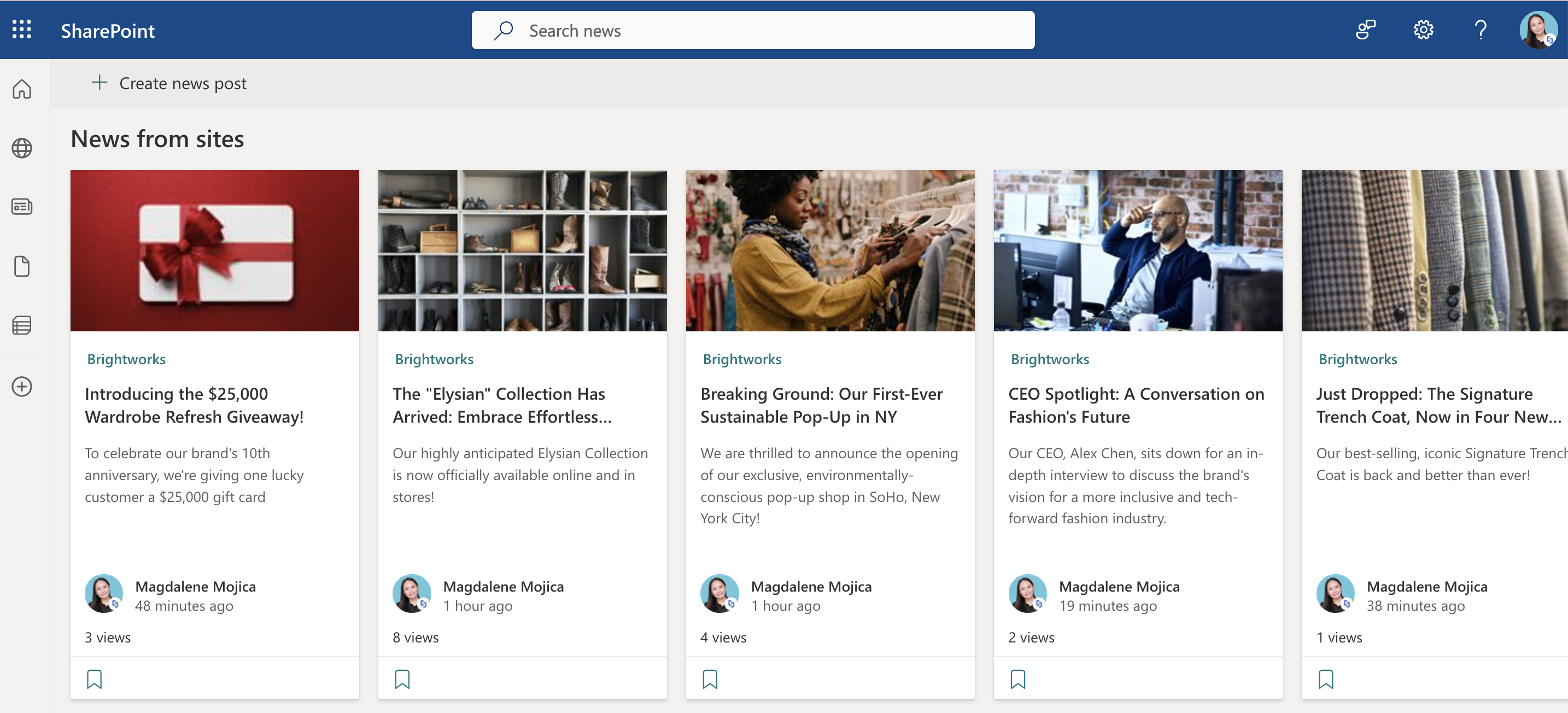
- You must have existing SharePoint news on the site collection you’ll use to connect.
- You must have at least Read permissions to connect to your organization’s Site Collections. For more information, check our FAQ article: What permissions are required to be able to view news posts and links that are dynamically inserted using any of the ShortPoint News connection types?
What Is the Site News Connection Type?
The Site News connection type is a feature within ShortPoint that allows you to dynamically connect your design elements to news posts from SharePoint sites within your current site collection or a specific site collection within your organization’s tenant.
What makes this connection type special is its flexibility. You can pull news from your current site collection, connect to sites from another site collection, or even paste in a direct URL to a specific site collection. This means your carefully crafted news content doesn't have to stay locked in one place. It can flow wherever you need it.
The Site News connection type is your go-to when you want targeted, site-specific news. It gives you precision without sacrificing flexibility.
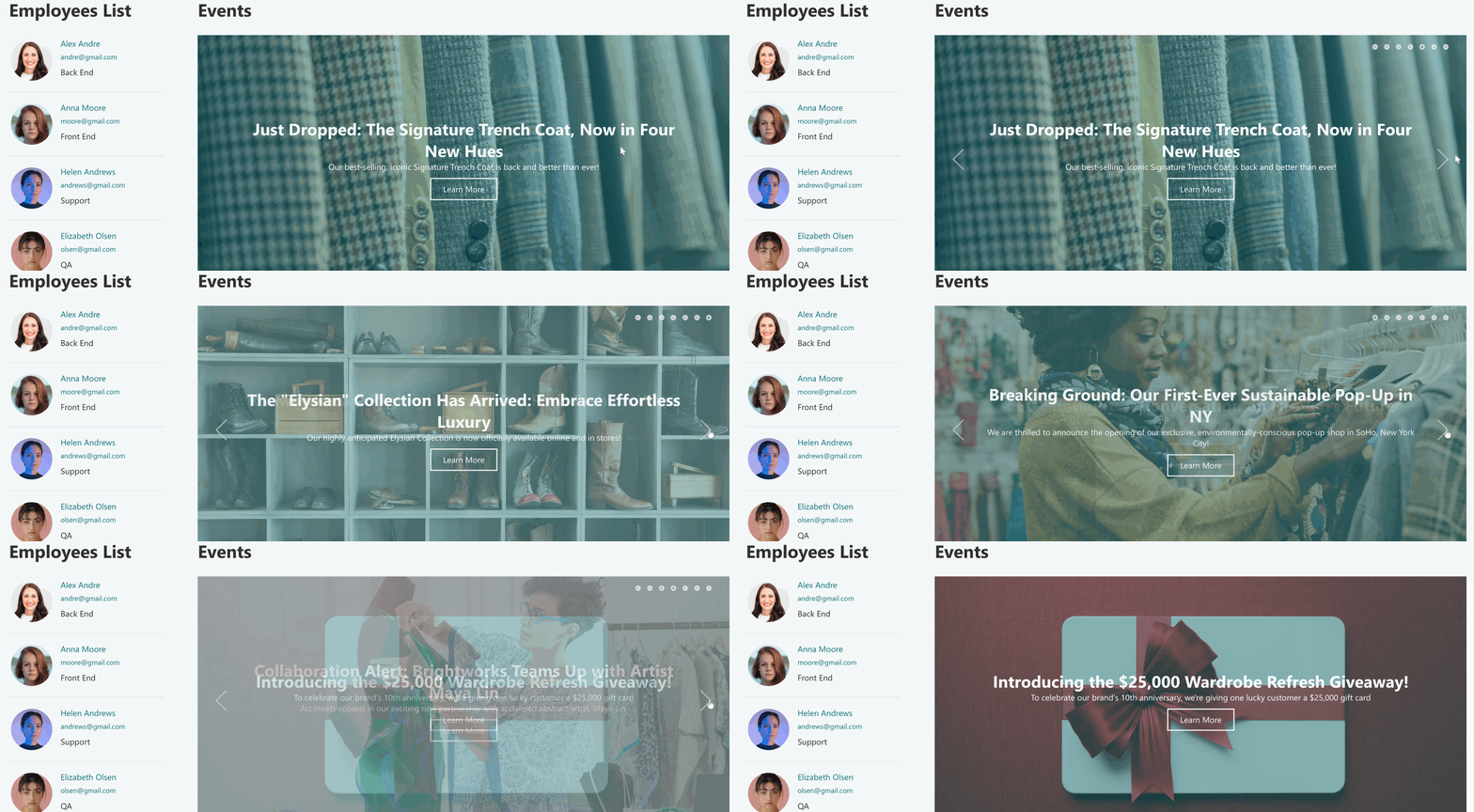
Interactive Tutorial
Click Get Started to learn how to use the Site News connection type to connect news in SharePoint from your current site collection or other site collections.
NOTETo learn more about the sources and the options you can modify for each one, go to Site News Connection Features.
Step-by-step Tutorial
Learn how to use the Site News connection type to connect to news in SharePoint:
Step 1: Edit the ShortPoint web part
- Go to the SharePoint page you want to use and click Edit:

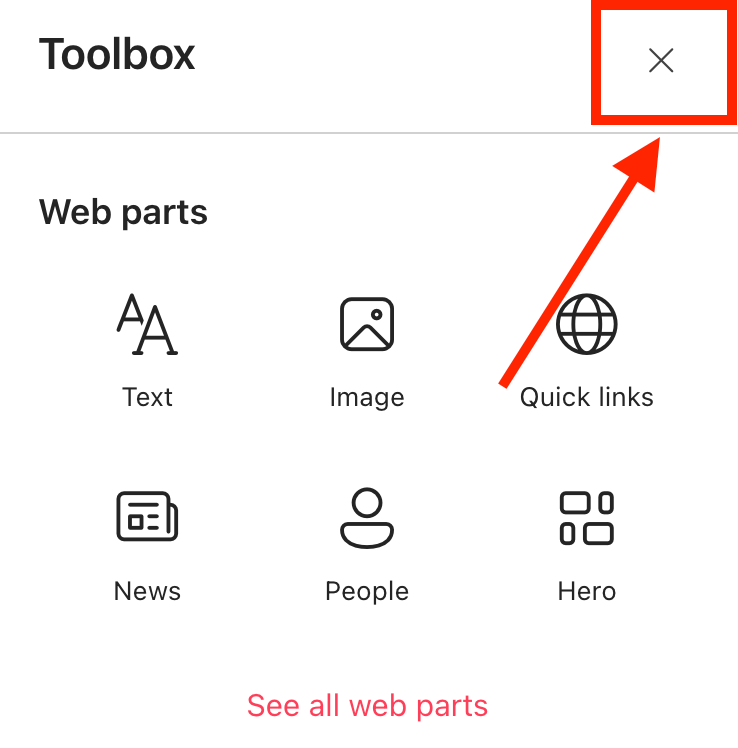
- Close the Toolbox:
- Edit the ShortPoint web part:

Step 2: Edit the Design Element
NOTEBefore proceeding, you must already have the Design Element you want to use to connect on your SharePoint page. You can use any Design Element you prefer, but we recommend using Design Elements that allow listing of multiple items, including Simple List, Image List, Icon List, and so much more. For this guide, we'll use Slideshow.
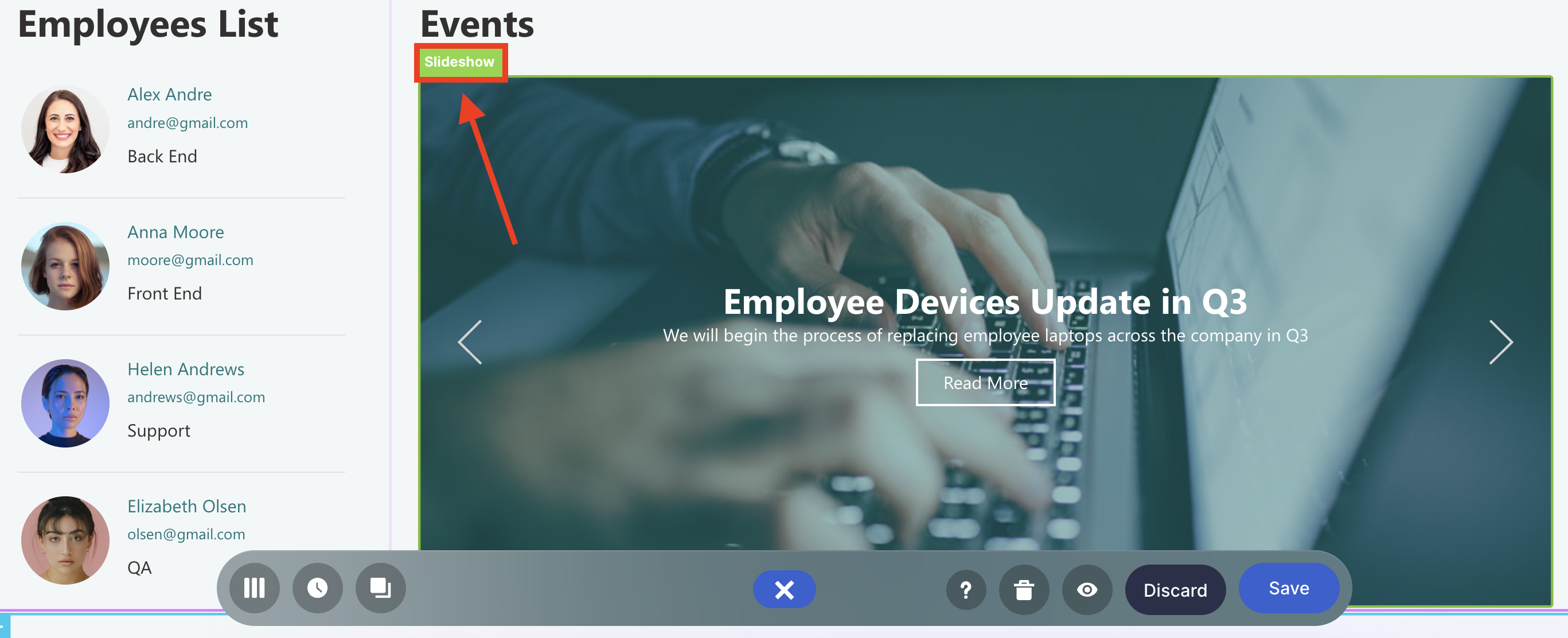
- Click the EasyPass tag of the Design Element you want to use to connect:
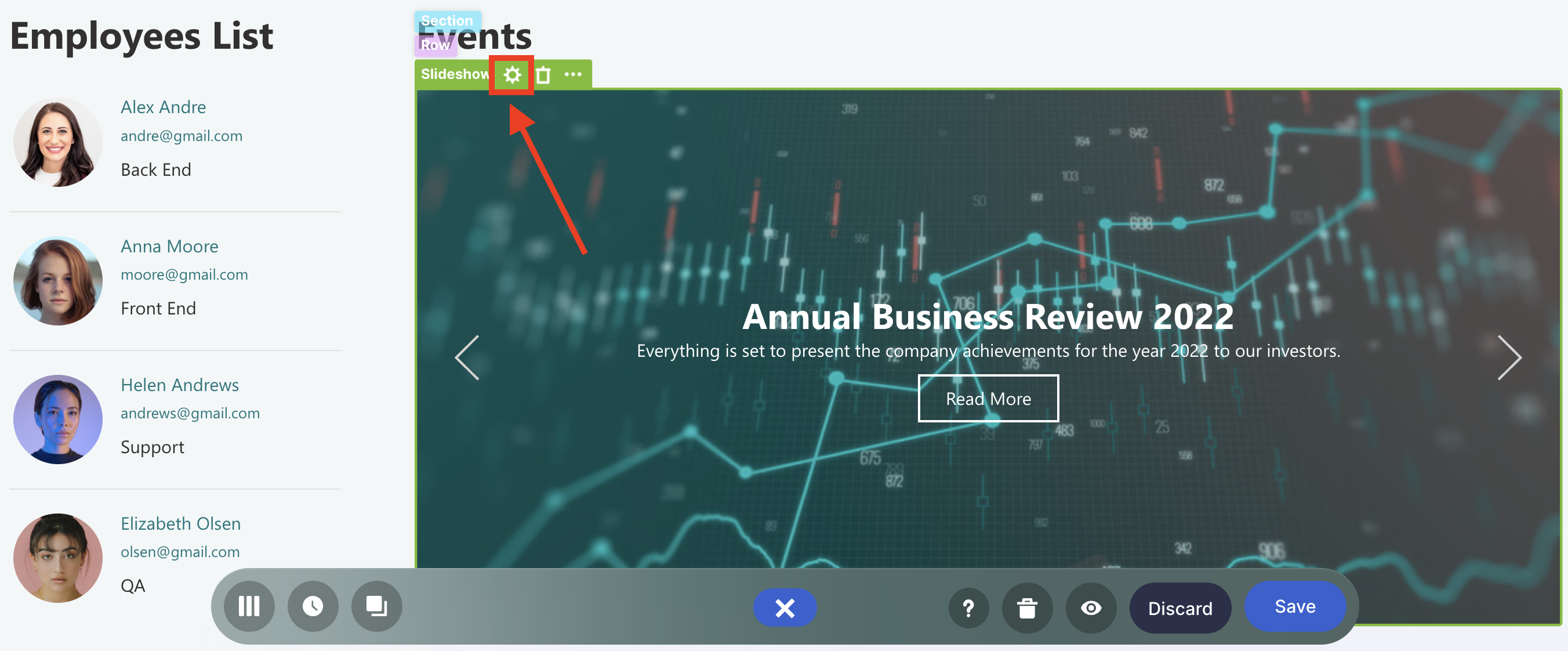
- Select the cogwheel icon:
Step 3: Connect using the Site News connection type
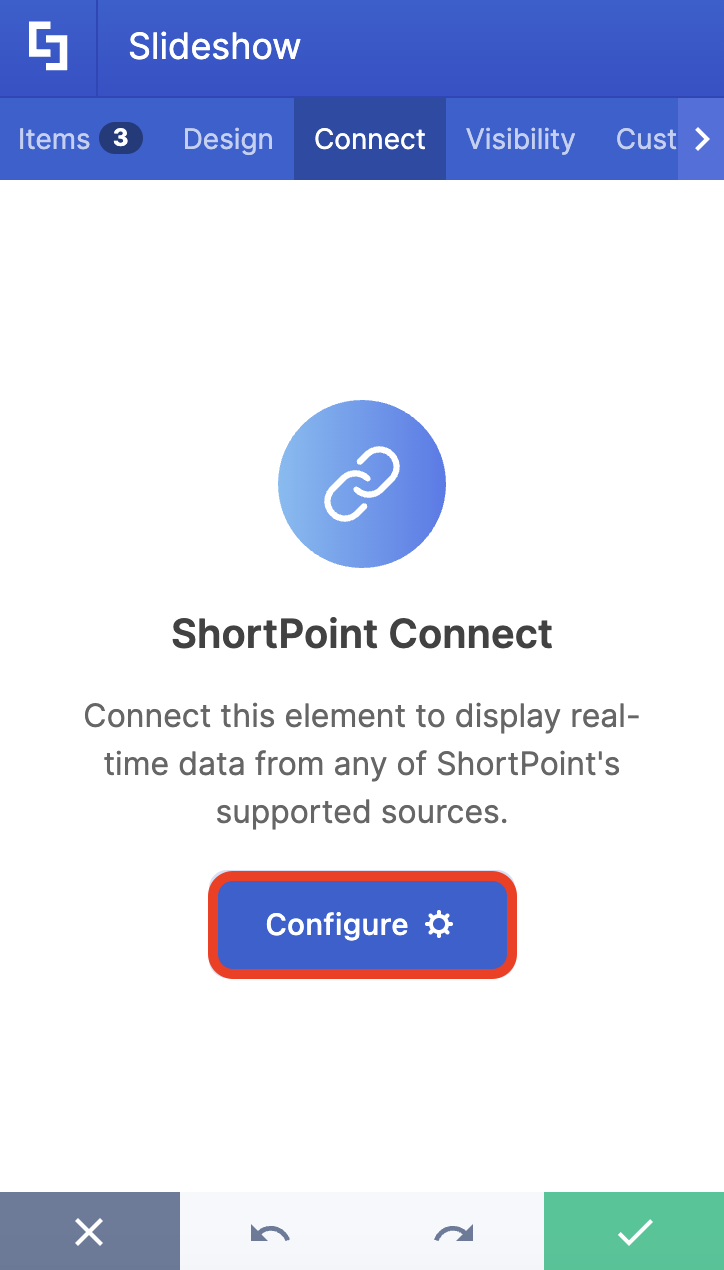
- Go to the Connect tab.
- Click Configure:
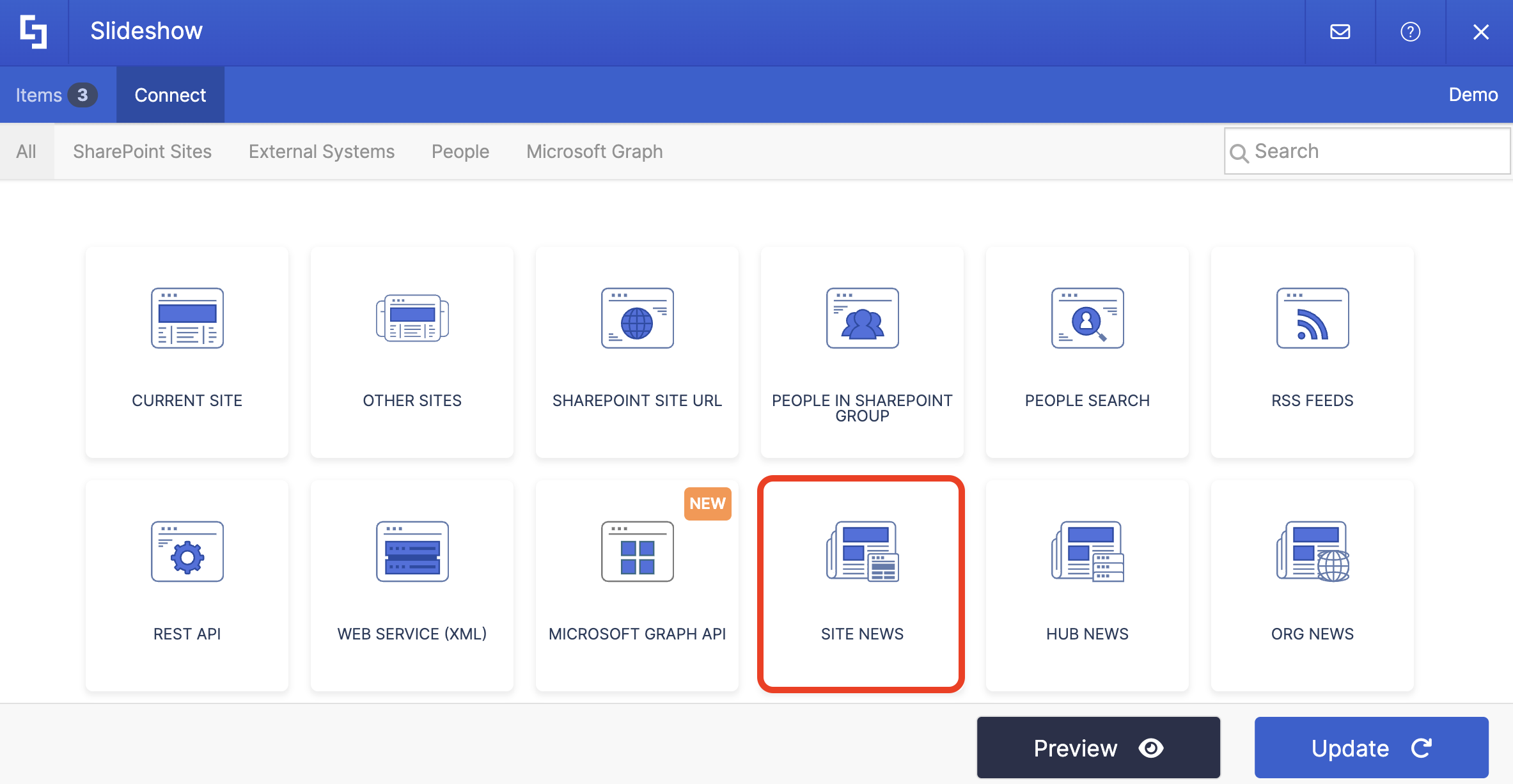
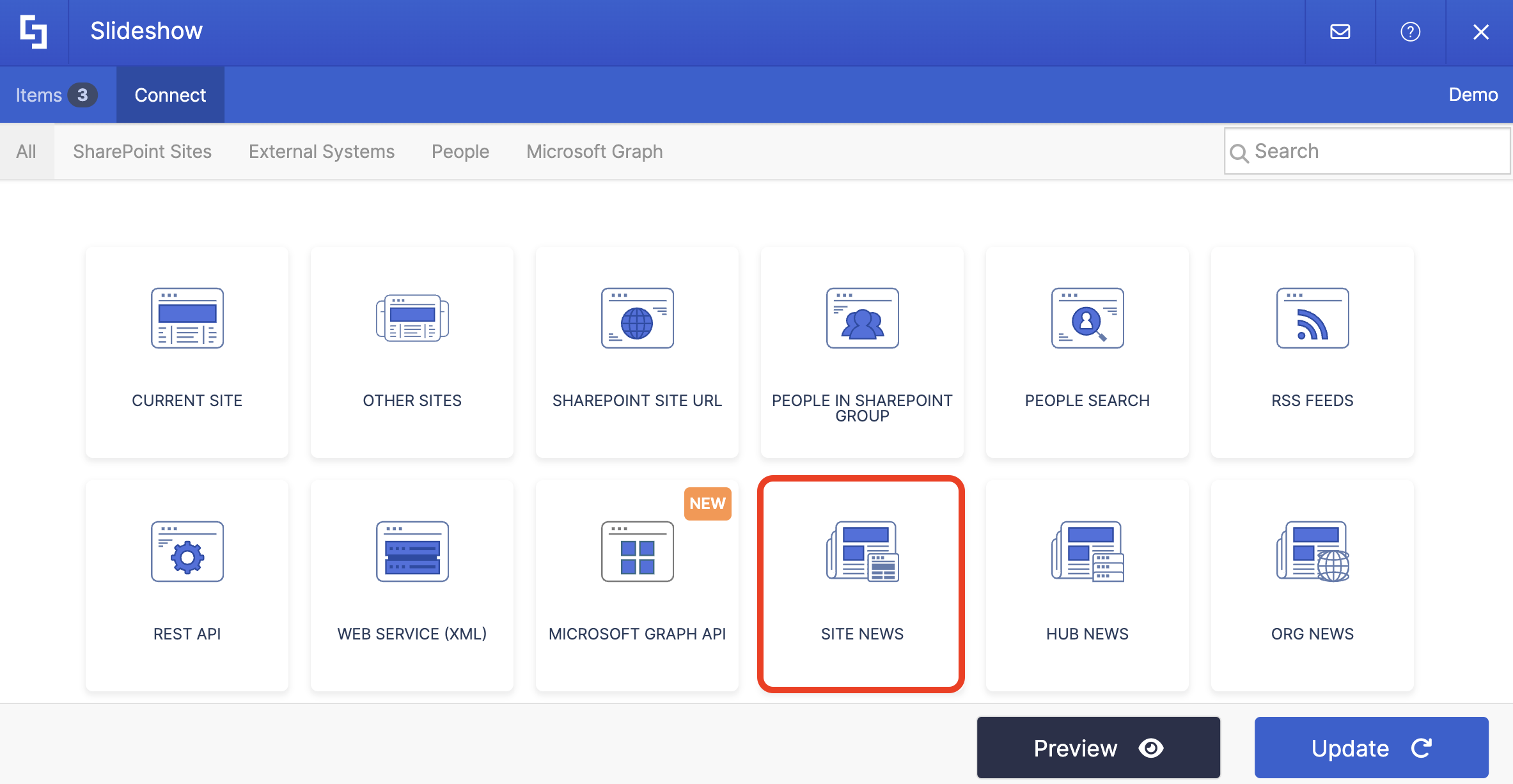
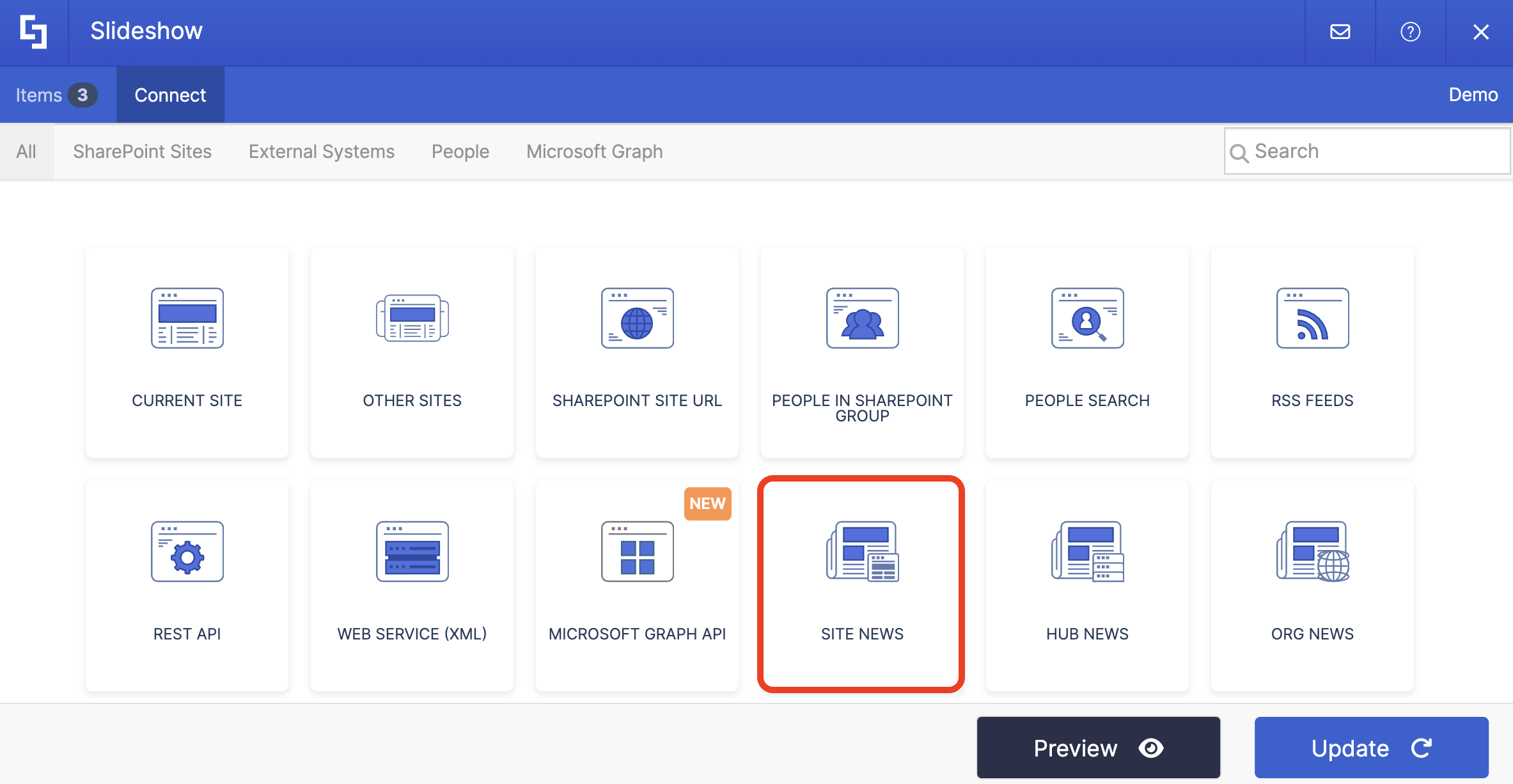
- Select Site News:
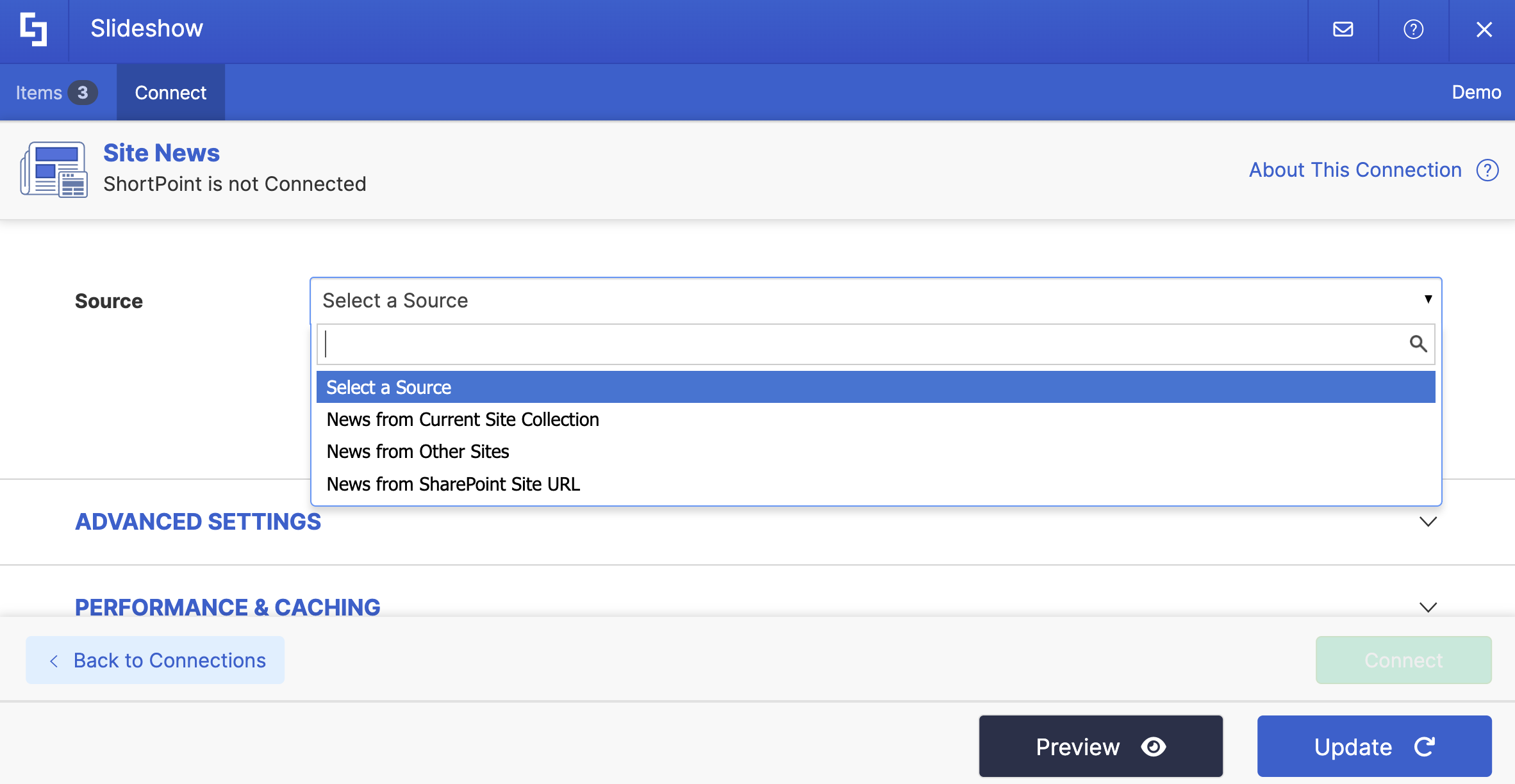
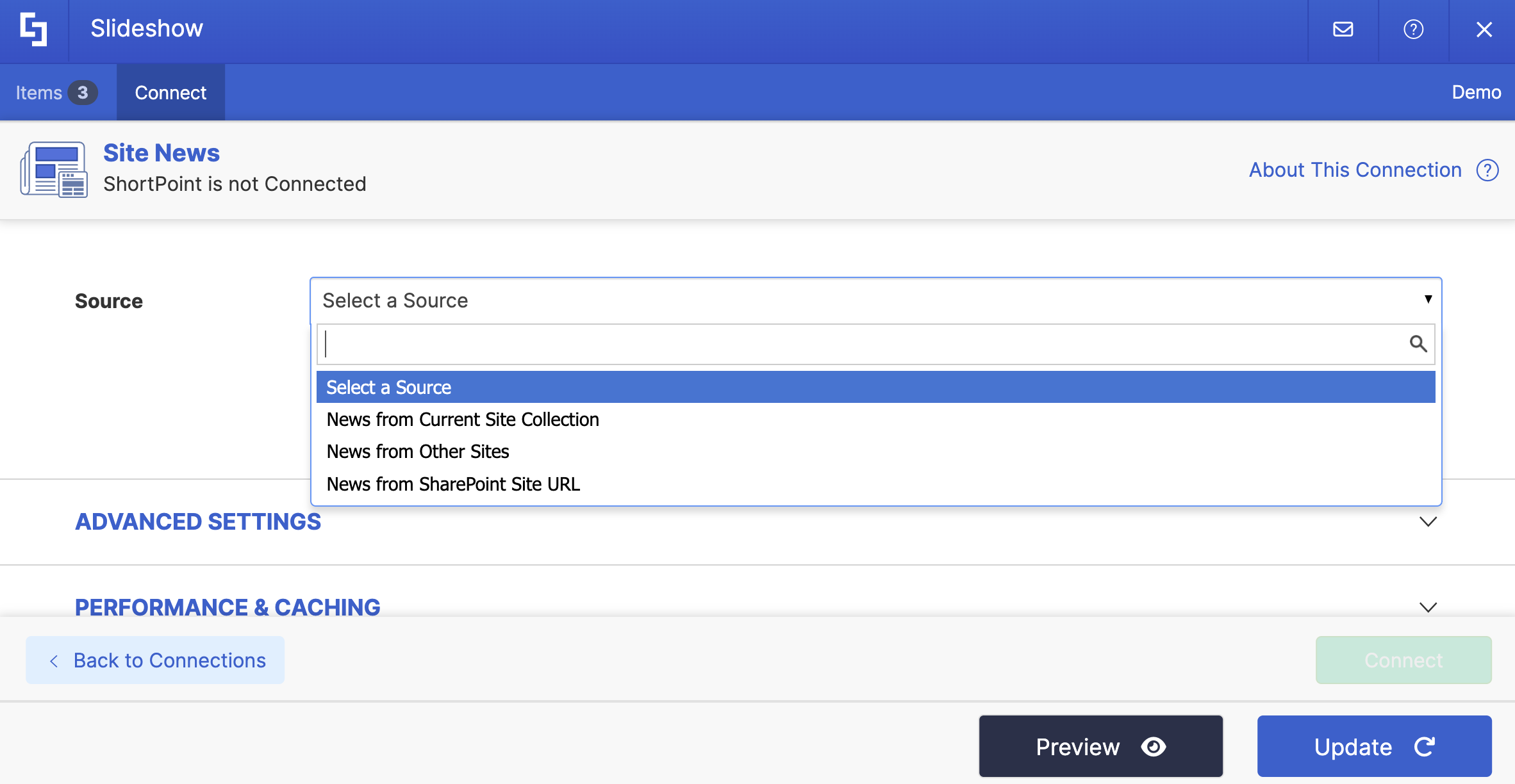
- Select the Source of the news you want to use.
- Depending on the source you choose, different options may appear. Fill in the details required. Below is an example.
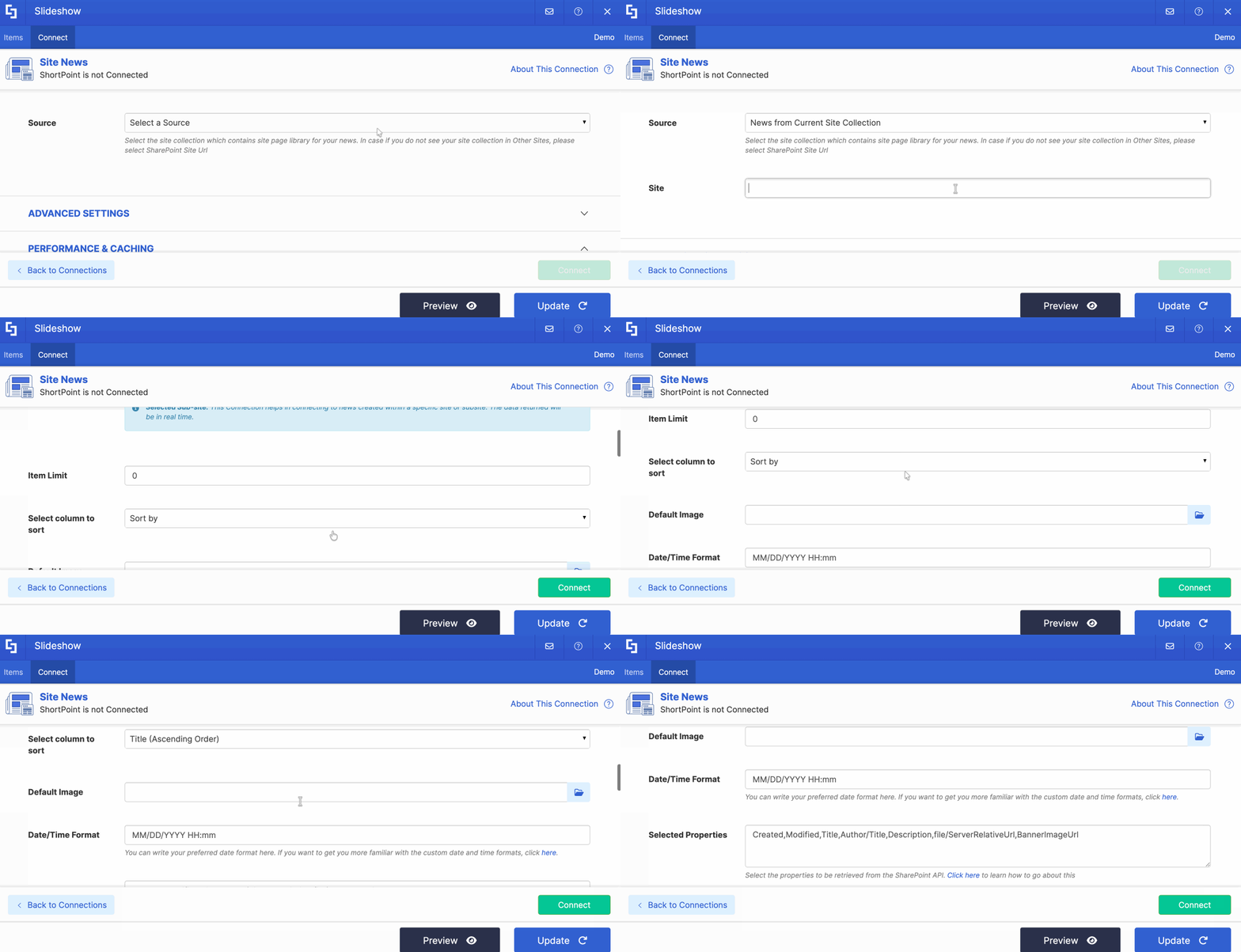
NOTETo learn more about the sources and the options you can modify for each one, go to Site News Connection Features.
- Then, click Connect to establish the connection.
Step 4: Map Items to display
- Go to the Items tab.
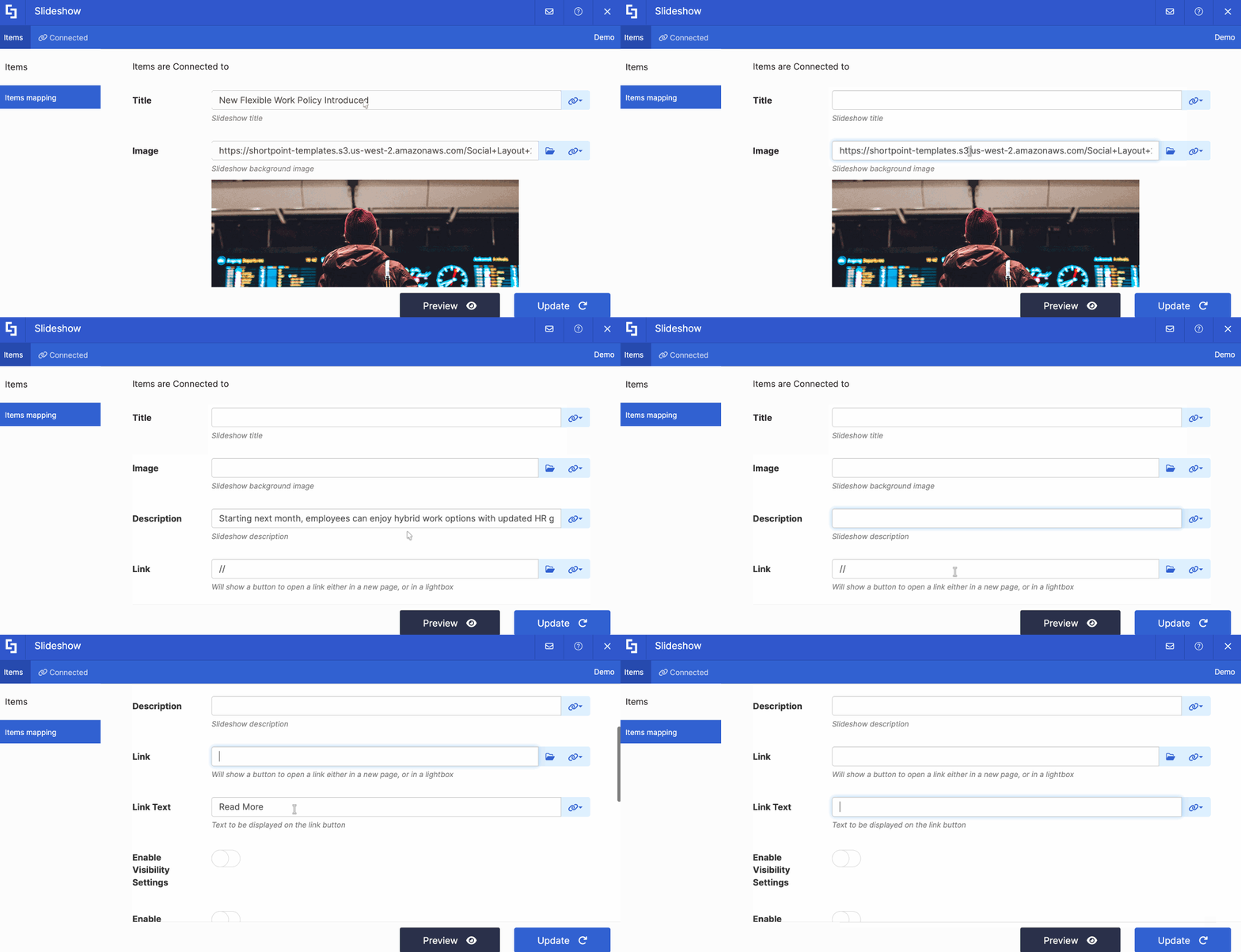
- Delete all default content:
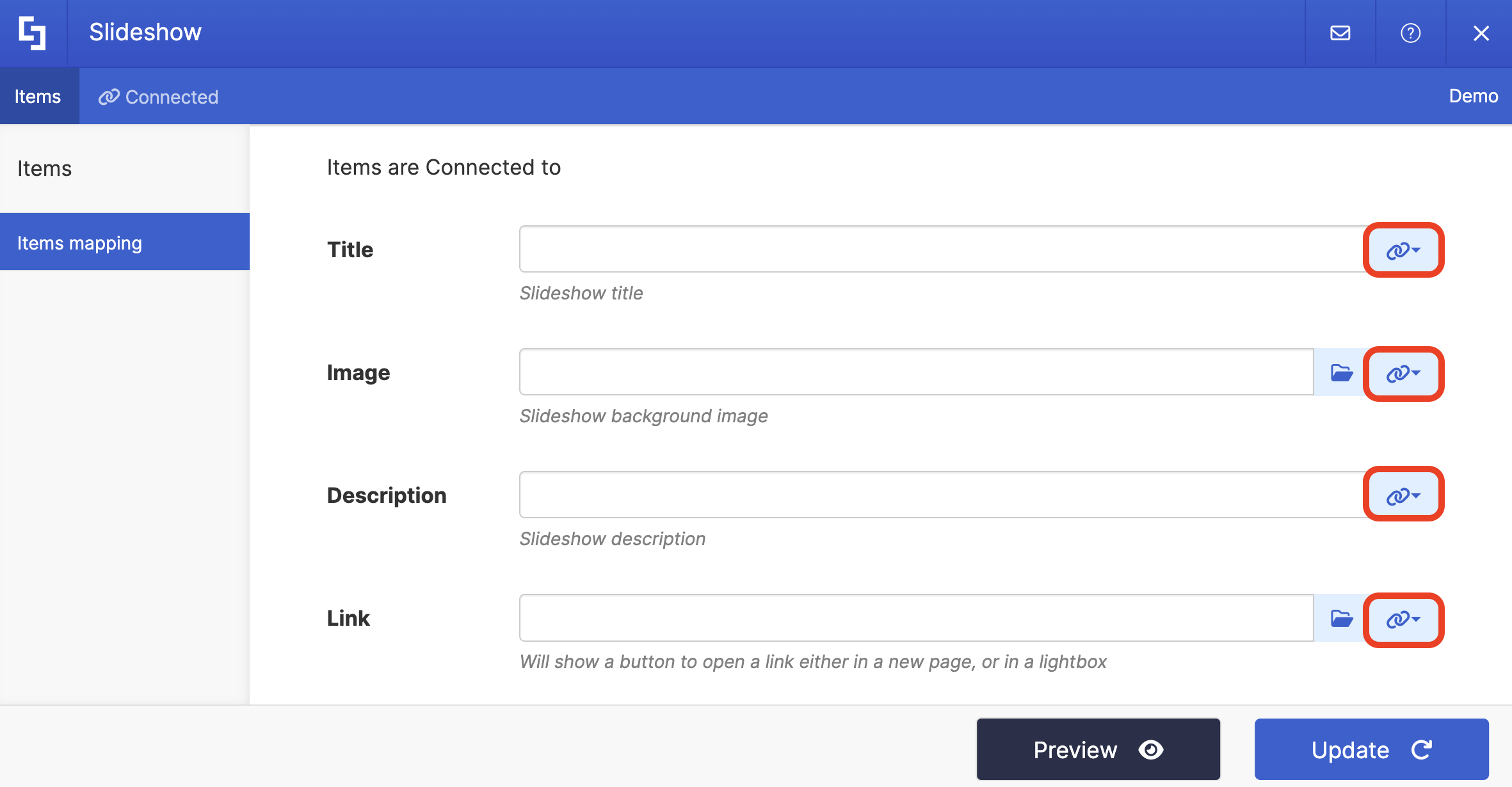
- Click the link icon to choose the properties you want to display. You can map any property you prefer. Just take note that the properties you can map depend on the information you have on your news.
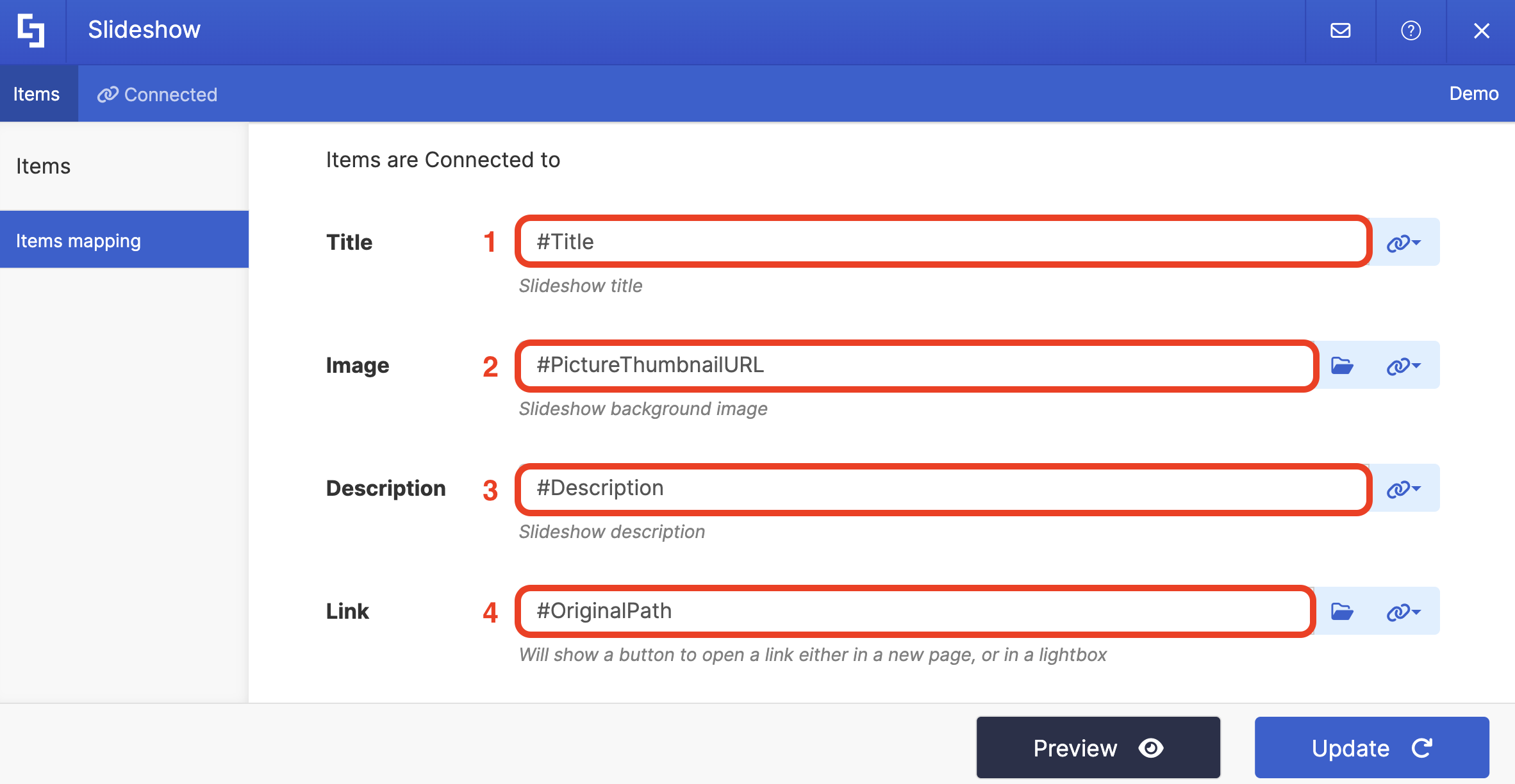
- Here’s an example of our mapped properties:
- #Title - shows the title of each news.
- #PictureThumbnailURL - shows the thumbnail used for each news.
- #Description - shows the description used for each news.
- #OriginalPath - links to the actual news source.
NOTETo learn more about the Connect Feature and Items Mapping, check out Basic Tutorial: How to Establish Seamless SharePoint Connection with ShortPoint Connect.
Step 5: Update and Save
- Click Preview to see how the Design Element will look on your page.
- Once satisfied, click Update.
- Select the green checkmark.
- Then, click the eye icon to see how your page will look in real-time:

- Save your changes:

Congratulations! You can now showcase informative news in SharePoint using the Site News connection.
Site News Connection Features
Let’s tackle all the features you can modify using the Site News connection:
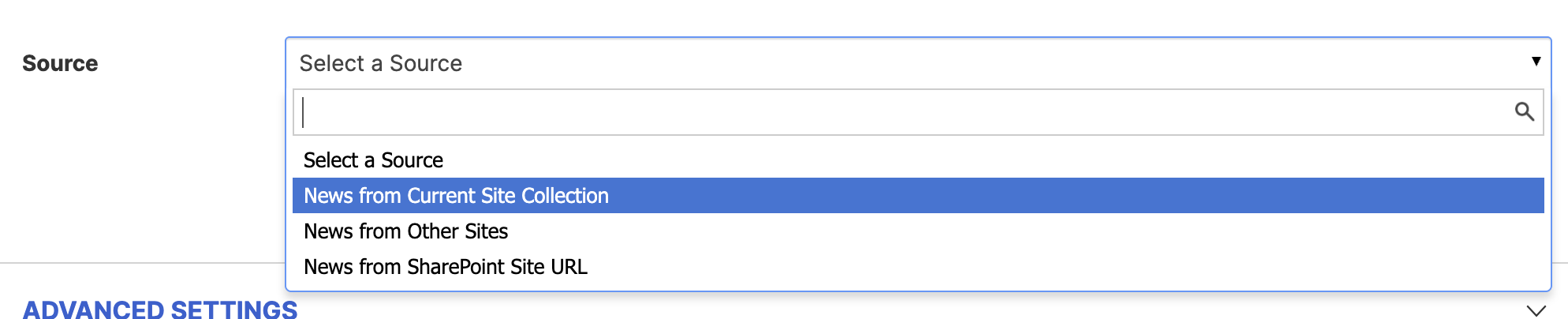 | Source | allows you to select where you want to retrieve the news to be displayed. You have three options to choose from. Check out the table below for more details. |
 | Item Limit | allows you to set the maximum number of news items to display. If this is left blank or is set to 0, all news will be shown. |
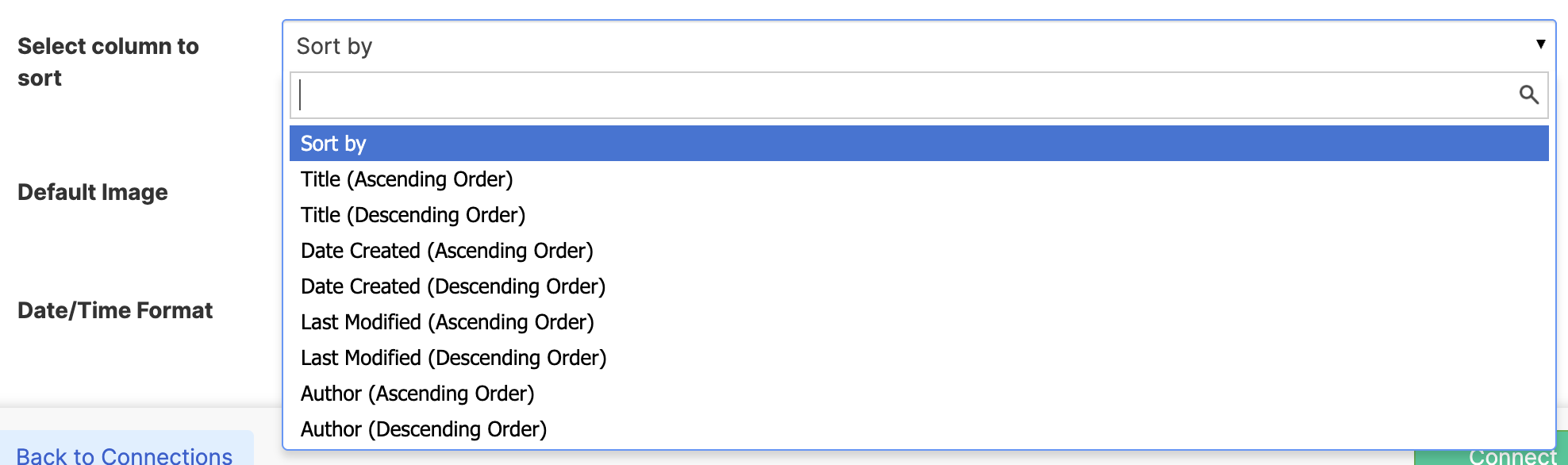 | Select column to sort | allows you to quickly sort news by Title, Date Created, Last Modified, or Author in ascending or descending order. |
 | Default Image | allows you to assign a default image. This will be shown when the news post does not have an associated image. To select an image, use the folder icon or enter a URL. |
 | Date / Time format | allows you to customize the date and time format of the news. Check out How to Use Custom Date and Time Formats with ShortPoint Design Elements for more information. |
 | Selected Properties | allows you to modify the properties to be retrieved from the SharePoint API. Click How to Map Custom Properties in News Connections to learn how to go about this. |
 | Use Cases | allows you to set up a Use Case, which is an automatic filter functionality that produces the most common outputs required by ShortPoint users. Check out Getting Started with Use Cases to learn more. |
SOURCE OPTIONS
 | News from Current Site Collection | allows you to pull news from the current site collection. When you select this option, an additional field will appear:
|
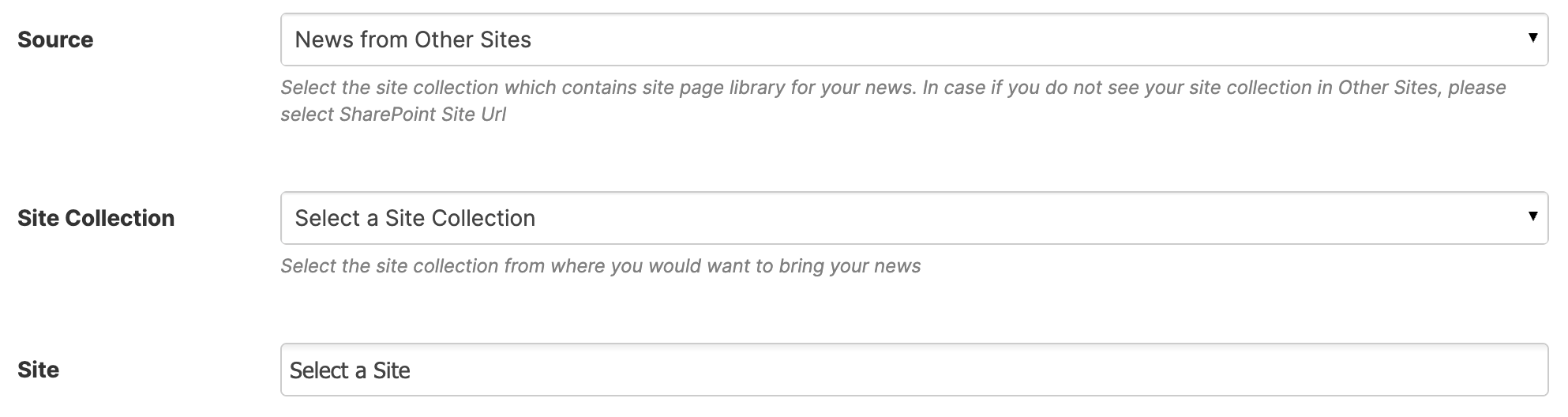 | News from Other Sites | allows you to retrieve news from a different site collection within your SharePoint tenancy. When you select this option, additional fields will appear:
|
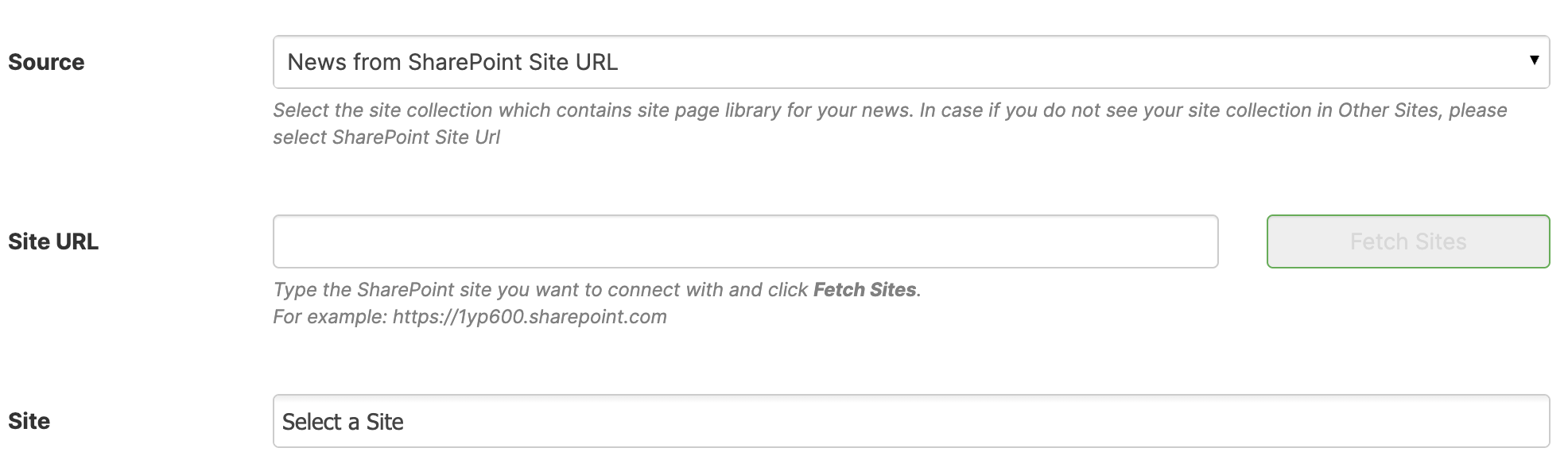 | News from SharePoint Site URL | allows you to directly insert the URL of the site collection you wish to get the news from. When you select this option, additional fields will appear:
|
ADVANCED SETTINGS
 | Enable Advanced Settings | when enabled, advanced settings will be displayed. |
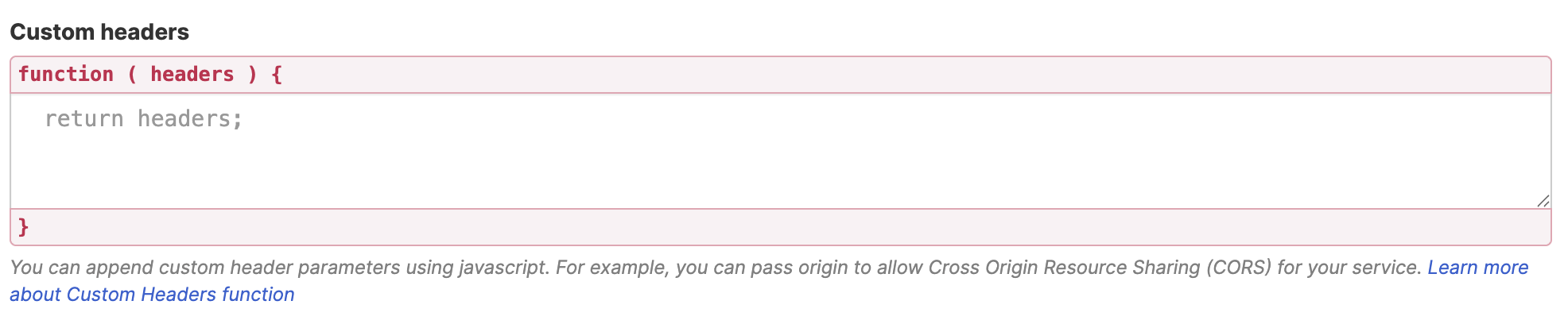 | Custom headers | allows you to append custom header parameters using JavaScript. Learn more about the Custom Headers function. |
 | Change Parameters | allows you to pass parameters to the URL with JavaScript. Learn more about the Change Parameters function. |
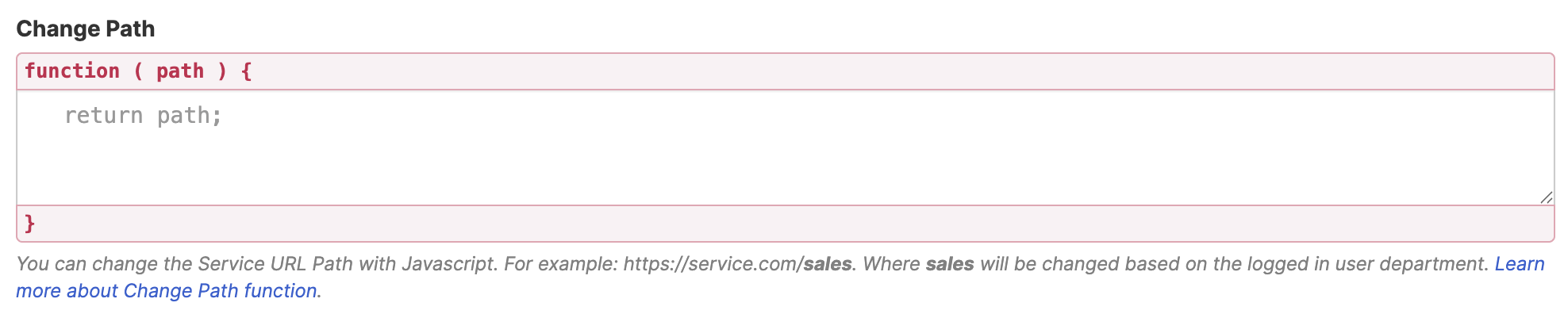 | Change Path | allows you to modify the Service URL Path using JavaScript. Learn more about the Change Path function. |
 | Map Results | If your API doesn't return an array of result items (which ShortPoint expects), you can use this function to transform the data into the proper format for ShortPoint. Learn more about the Map Results function. |
PERFORMANCE AND CACHING
 | Enable Partial Loading | This feature comes enabled by default. It allows partial loading to activate automatically when the connection returns more than 20 results. Additional results will load as the user scrolls. Learn more about the Partial Loading function. |
 | Cache Options | allows you to choose from 3 caching options. Learn more about these caching options and how to improve ShortPoint performance on your SharePoint sites.
|
Practical Use Cases
Need some real-world uses for the Site News connection? We got you covered! We listed below some useful examples you can apply to your own SharePoint sites to enhance your SharePoint intranet experience.
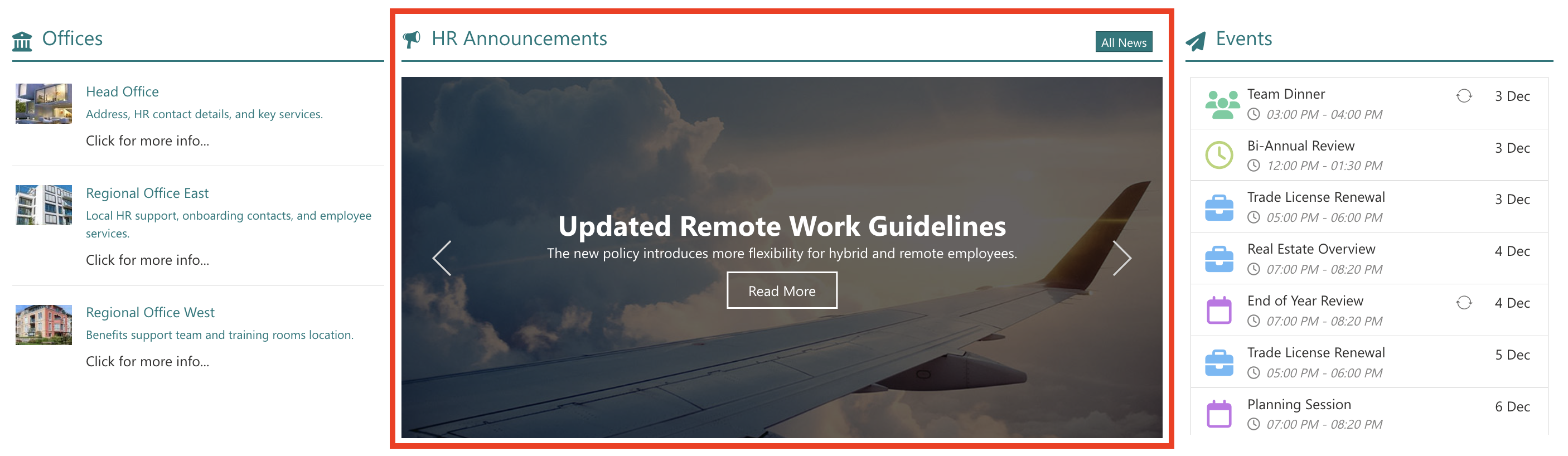
Department-Specific News Feeds
Imagine this: you're managing an HR department site. Using the Site News connection, you can create news feeds that display only HR-related news and announcements. Employees visiting the HR site see relevant information without the noise of company-wide updates flooding their view, ensuring the most important news is visible and easily accessible.
Intranet Home Page Curation
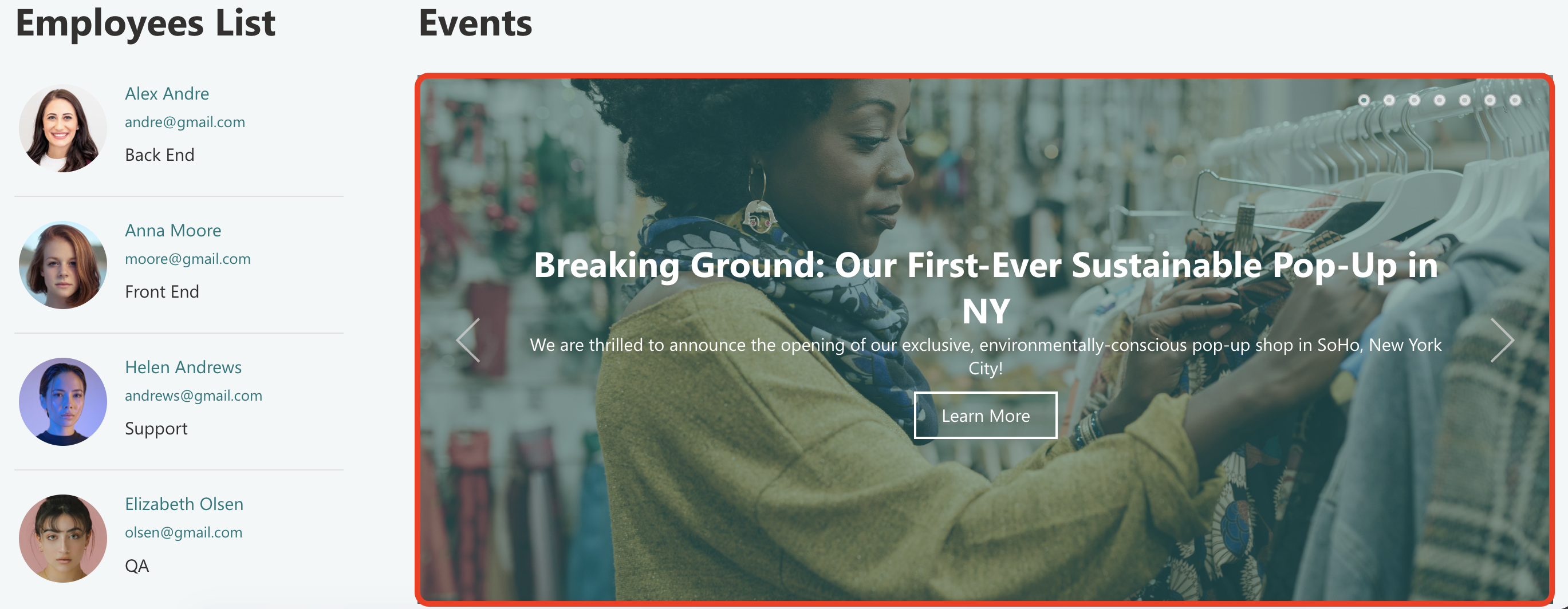
Your intranet home page needs to feel current and engaging. By connecting using Site News, you can automatically populate your homepage with the latest announcements styled in eye-catching layouts such as slideshows or image lists. The content updates automatically whenever new news posts are published, keeping your homepage fresh without constant maintenance.
Team Collaboration Spaces
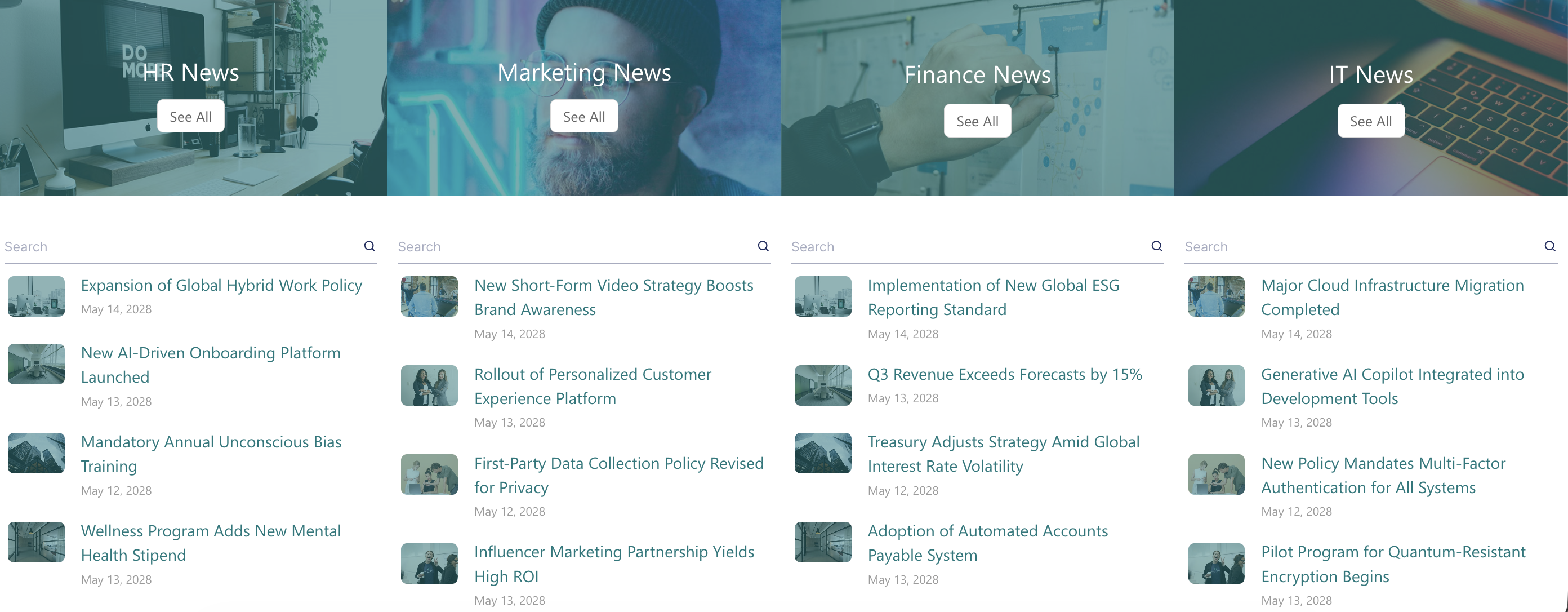
Department heads often need to keep their teams informed about relevant news in SharePoint without overwhelming them. Use the Site News connection to create focused news sections on team sites that pull from both the team's own news posts and selected related sites, giving context while maintaining focus.
Start Showcasing Site News on Your Page
The Site News connection type transforms how you display news on your SharePoint intranet. Whether you're building a department homepage or designing a comprehensive collaboration hub, this feature gives you the flexibility and control to make your news posts shine.
The beauty of Site News lies in its simplicity—once configured, it works automatically in the background, pulling fresh content and keeping your pages current without any manual intervention. Your job is simply to design how you want the news to look, and ShortPoint handles the rest
Ready to bring your SharePoint news to life? Existing ShortPoint Designers can dive right in using our step-by-step interactive tutorial. If you're just discovering ShortPoint, take advantage of our FREE 15-day trial to explore everything we offer. You're also welcome to schedule a personalized demo where our experts can showcase the Site News connection and much more.
Frequently Asked Questions
What permissions do I need to use Site News?
At minimum, you need Read permissions for any site collection you want to connect to. Your ability to view dynamically inserted news posts depends on your SharePoint permissions.
How often does the news content update?
When you select "News from Current Site Collection," ShortPoint uses Microsoft SharePoint Search to retrieve news pages. The update frequency depends on SharePoint's search crawl schedule, so there may be a slight delay before newly published news posts appear. For news from other sites or direct URLs, content typically refreshes more quickly, avoiding common known issues related to delayed updates.
Can I use multiple Site News connections on the same page?
Absolutely! You can have as many Site News connections as you need on a single page. This is particularly useful when you want to display news from different site collections in different sections of your page.
What design elements work best with Site News?
Site News works with any ShortPoint design element, but it pairs especially well with News Cards, Image Lists, Content Boxes, Slideshows, and many more. The choice depends on your design preferences and the amount of information you want to display. News Cards are great for rich, visual presentations, while lists work well for more compact displays.
What if a news post doesn't have an image?
That's where the default image feature comes in handy. You can assign a fallback image that will display whenever a news post lacks an associated image. This ensures visual consistency on your SharePoint site and prevents broken or empty image placeholders, maintaining a polished look across your news section.
Can I filter news by category?
Yes, through the Use Cases feature, you can set up automatic filtering based on common scenarios. For more advanced filtering based on specific categories, you'll want to explore ShortPoint's filtering capabilities and potentially use placeholders in your connection setup.
Is there a limit to how many news items I can display?
The Site News connection includes an "Item Limit" setting that lets you control the maximum number of news posts shown. While there's no hard technical limit, it's best practice to limit results to a reasonable number (10-20 items) for optimal page performance. ShortPoint also has caching options you can use to maintain your page's performance.
What happens if I don't have access to a connected site?
If you lose access to a site collection you've connected to, the news from that site simply won't display for you. The connection itself won't break, but you'll only see content from sites where you maintain the necessary permissions. This is a security feature that ensures users only see news posts they're authorized to view, preventing any wrong or unauthorized access to news in SharePoint.
Related articles:
- Connection Type: Hub News
- Connection Type: Organization News
- Getting Started with Use Cases
- How To Use Placeholders In ShortPoint Connections
- ShortPoint Connect: Basic Tutorial
- What permissions are required to be able to view news posts and links that are dynamically inserted using any of the ShortPoint News connection types?
