 Try ShortPoint now
When it comes to building effective SharePoint access management for your SharePoint site, one size rarely fits all. Your page viewers may need access to different information, and showing them irrelevant content can lead to confusion and poor user experience. This is where ShortPoint's Visibility feature becomes your secret weapon for creating personalized, role-specific intranet experiences.
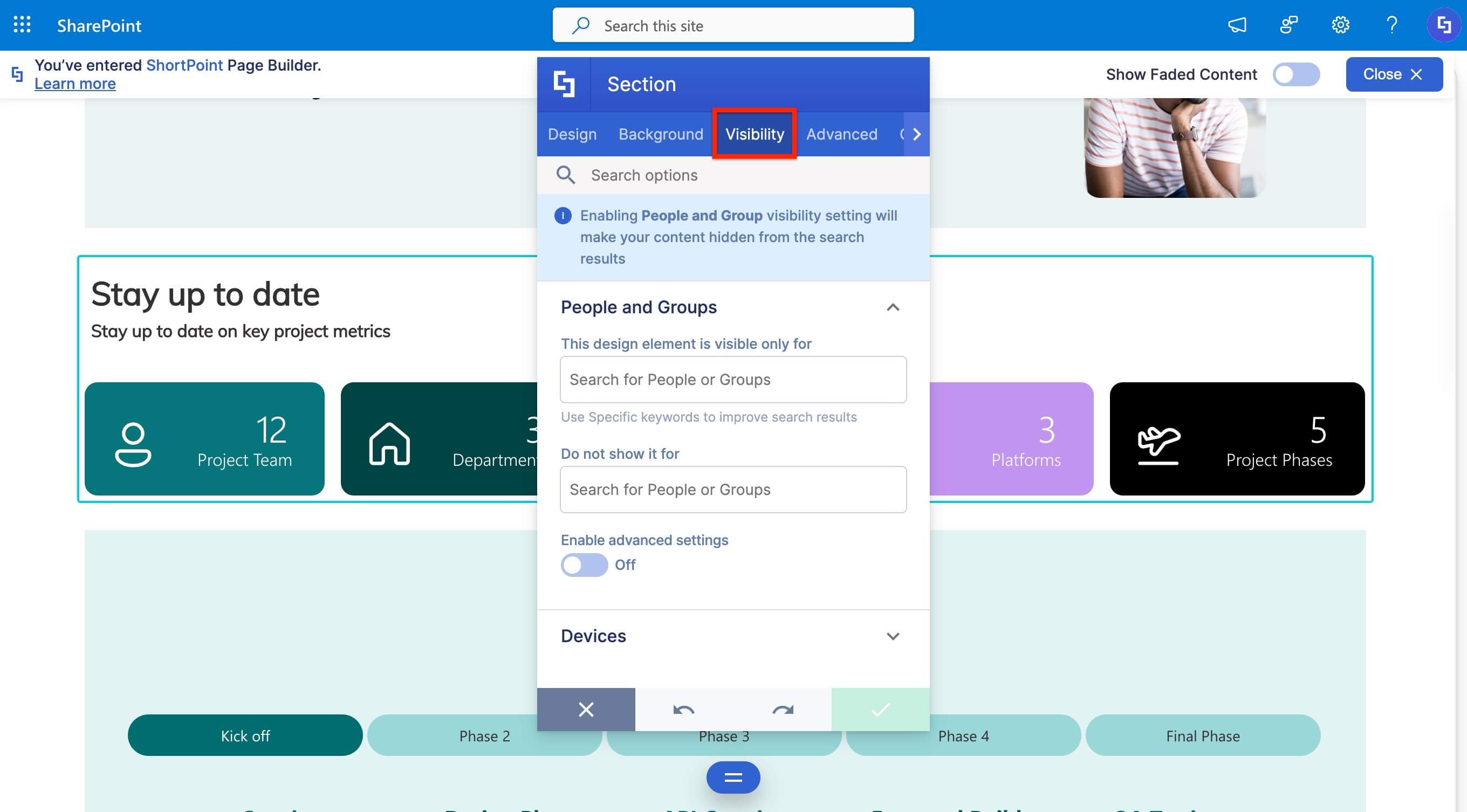
Curious to know more about ShortPoint Visibility? Let's dive in and walk you through what it is, how to use it, and what features are available for you to use.
TABLE OF CONTENTS
- Prerequisites
- What is ShortPoint Visibility?
- How to Use ShortPoint Visibility
- Applying Visibility
- Previewing Visibility Settings
- Editing Visibility
- Visibility Features
- Key Benefits of Using ShortPoint Visibility
- Best Practices for Implementing ShortPoint Visibility
- Start Effective Access Management
- Frequently Asked Questions
- Can I set visibility for individual design elements, or only for entire sections?
- Does ShortPoint Visibility work with Active Directory security groups?
- How can I preview how my page looks to different user groups?
- Can I hide elements only on mobile devices while keeping them visible on desktop?
- What happens when I apply visibility settings to a Section that contains multiple design elements?
- Will visibility settings affect page performance?
- What's the difference between "This ShortPoint is visible only for" and "Do not show it for"?
- Do I need special permissions to configure visibility settings?
Prerequisites
- You must have the latest version of ShortPoint SPFx version 9.3.1.0 and up installed on your SharePoint environment.
- You must be a ShortPoint Designer with an active license.
- You must already have the ShortPoint Design Element(s) you want to modify the visibility settings of on your SharePoint pages.
- This article features the updated version of the Visibility Feature UX. This means you will see differences in the user interface if you are using ShortPoint Farm Solution or ShortPoint SPFx versions older than ShortPoint SPFx version 9.3.1.0.
What is ShortPoint Visibility?
Imagine this scenario: Your HR team can see employee resources, your sales team can access customer data, and your executive leadership can view strategic dashboards. The twist? All of these are in the same SharePoint site, but not all groups can see all this information. Why? Because each group gets a personalized experience. They only see content that is relevant to them.
That is the superpower of ShortPoint Visibility. It is an access management feature that allows you to determine who can see specific Design Elements on your SharePoint site pages. Think of it as a smart filter that shows or hides content based on user permissions, device types, and other customizable criteria.
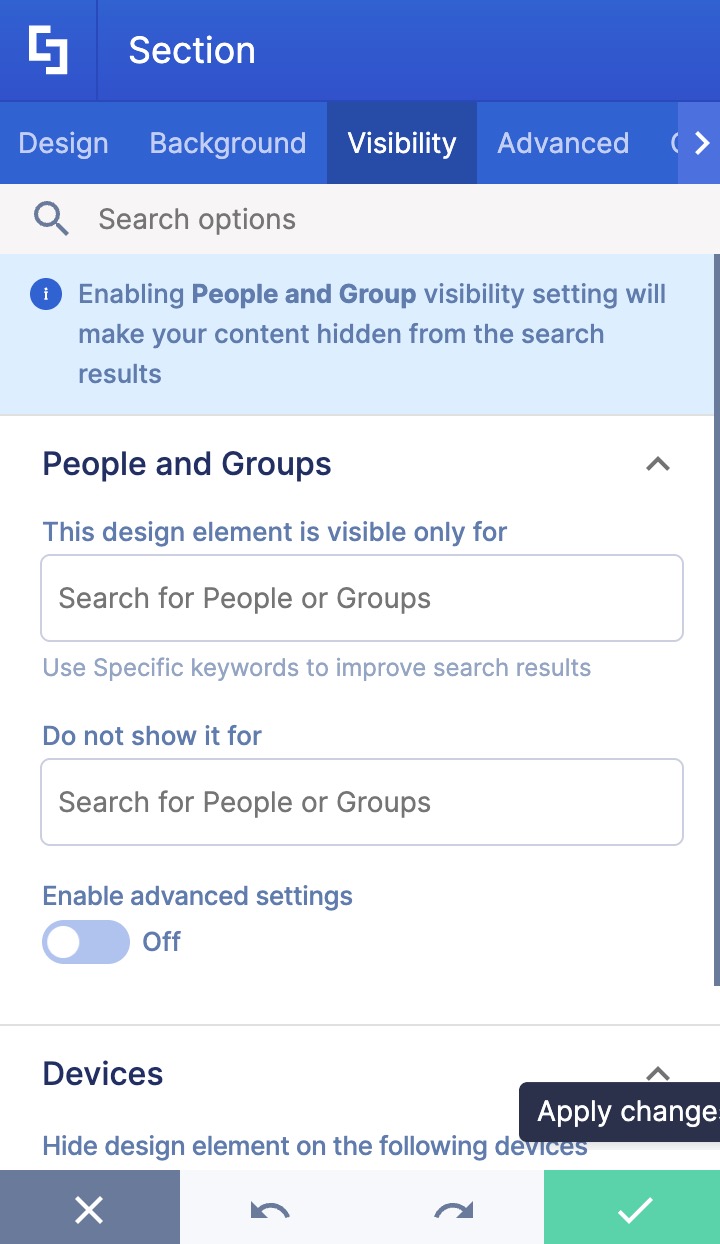
At its core, the Visibility feature gives you control over every element on your page. Whether you're working with entire sections, individual rows, columns, or specific design elements, you can configure exactly who sees what content.
The beauty of ShortPoint Visibility lies in its flexibility. You're not limited to just showing or hiding content for specific people. You can control visibility based on SharePoint groups, Active Directory security groups, and even device types.
Let's see it in action. We'll hide this entire section with Counter Boxes in it from user, Yvette.
See how when the changes were applied, the entire section disappeared from the view (the current user).
How to Use ShortPoint Visibility
ShortPoint's Visibility feature operates through a dedicated Visibility tab for every design element. When you're editing your SharePoint site page with ShortPoint, you can access this tab by clicking the cogwheel icon of the element you want to configure. Let's show you how to apply and edit it:
NOTE To learn more about the settings you can modify, check out Visibility Features.
Applying Visibility
Follow the steps to learn how to control the visibility of Design Elements within your SharePoint site:
Step 1: Edit the ShortPoint Web Part
- Go to the SharePoint you want to use and click Edit:

- Close the Toolbar:
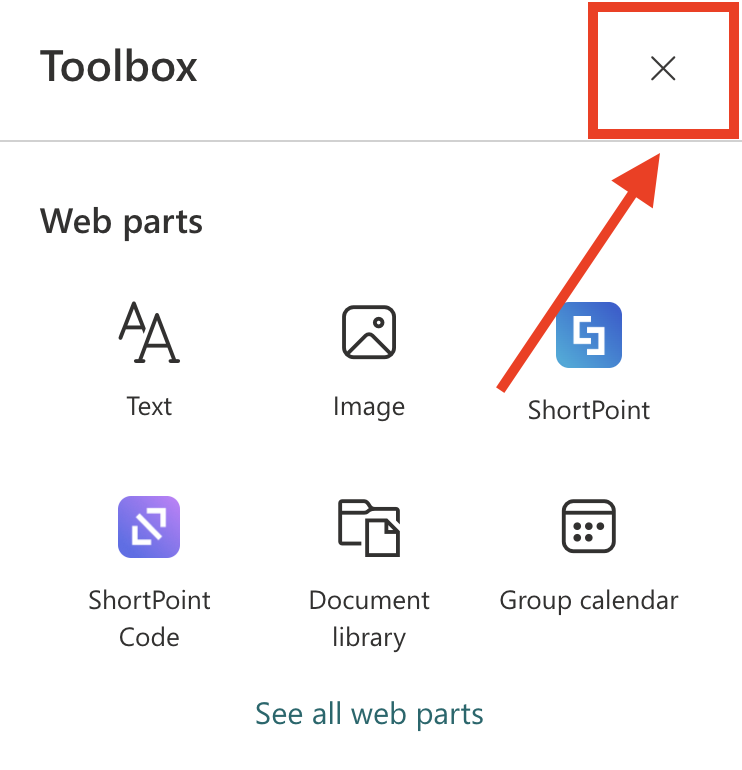
- Edit the ShortPoint Web Part:
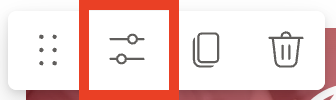
Step 2: Edit a Design Element
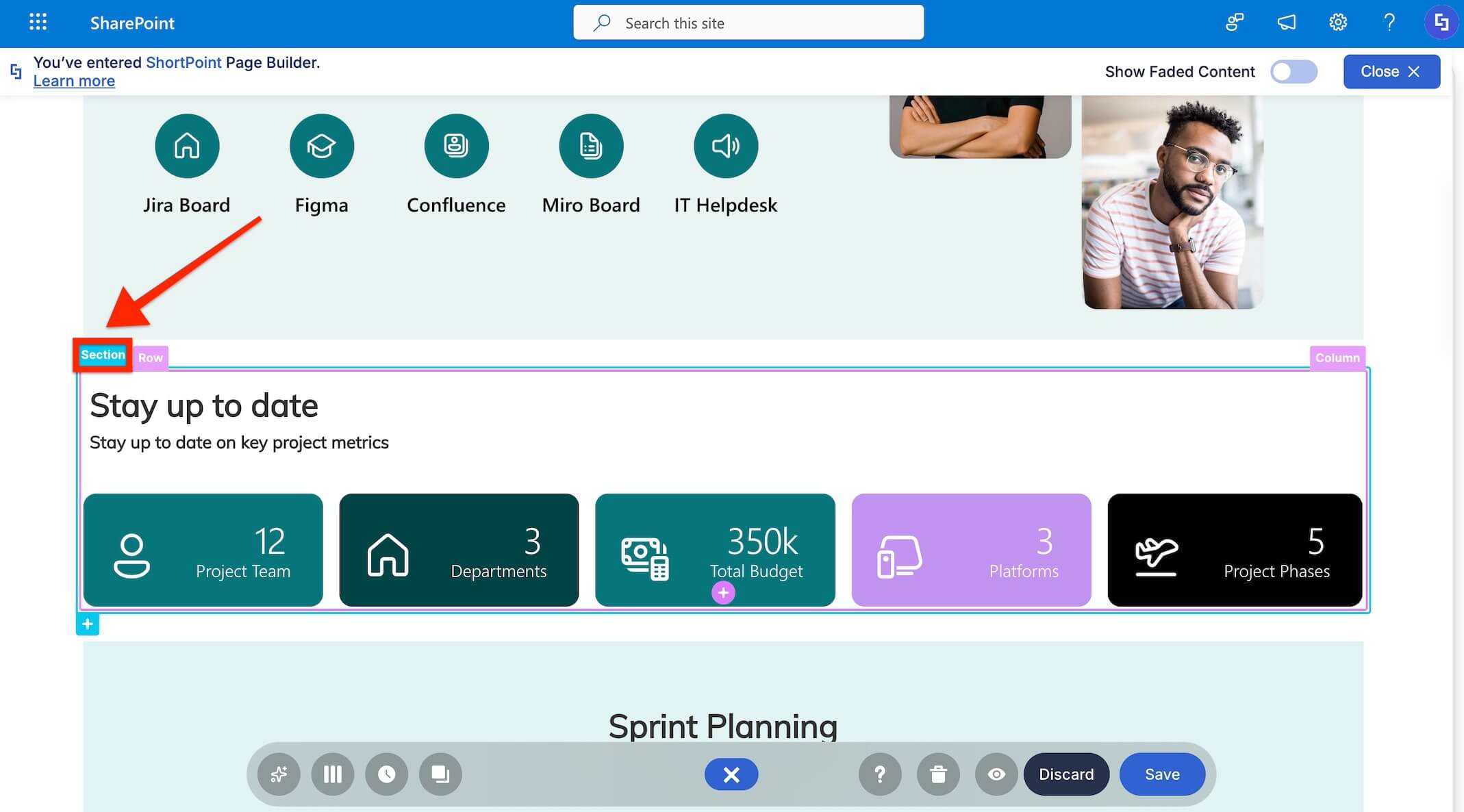
- Click the Easypass tag of the Design Element that you want to manage the visibility of:
- Select the cogwheel icon to open the settings window:
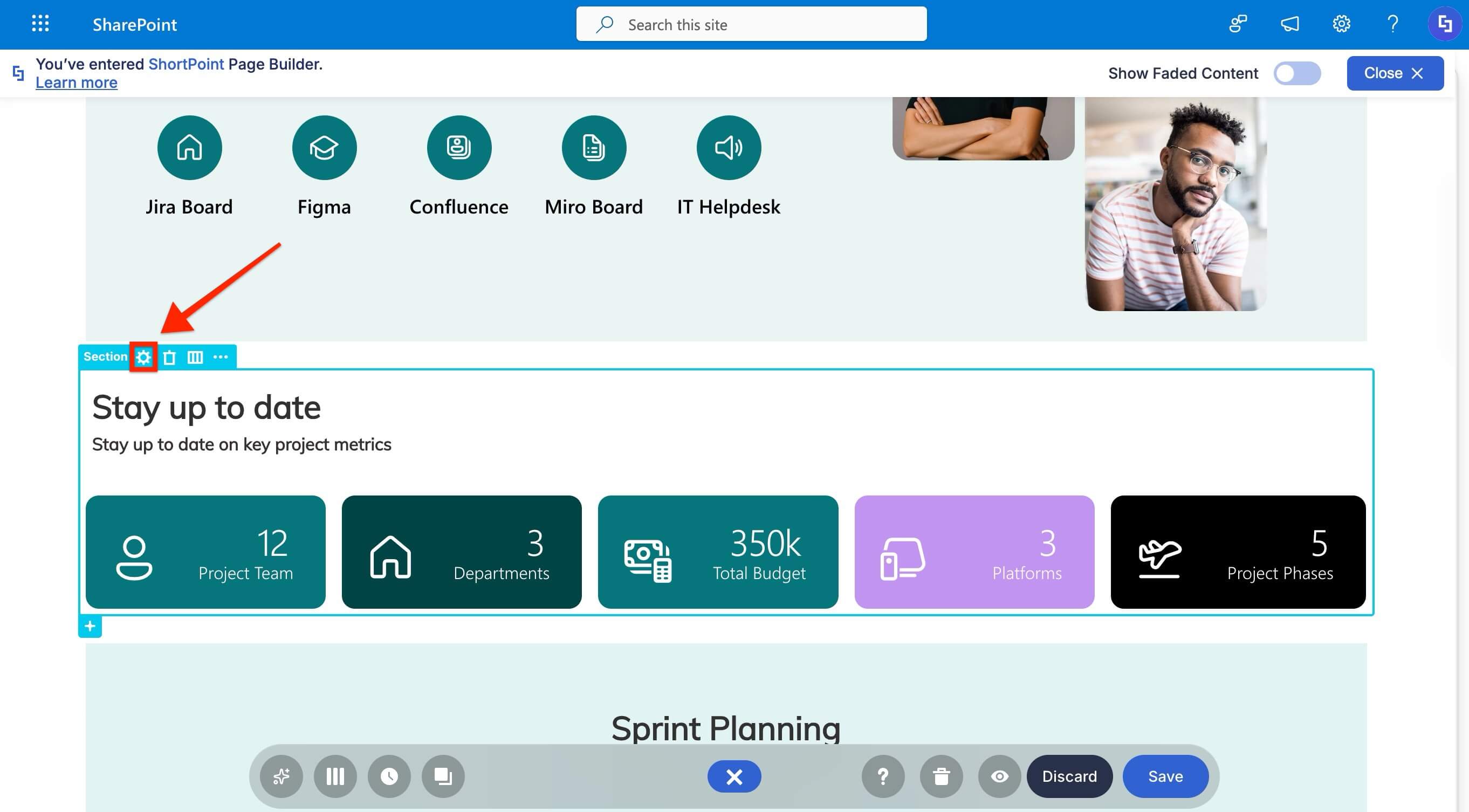
NOTEWhen you apply visibility settings to a Section, Row, Column, or content-holder Design Elements, it will also be applied to all Design Elements inside.
Step 3: Modify its Visibility
- Go to the Visibility tab.
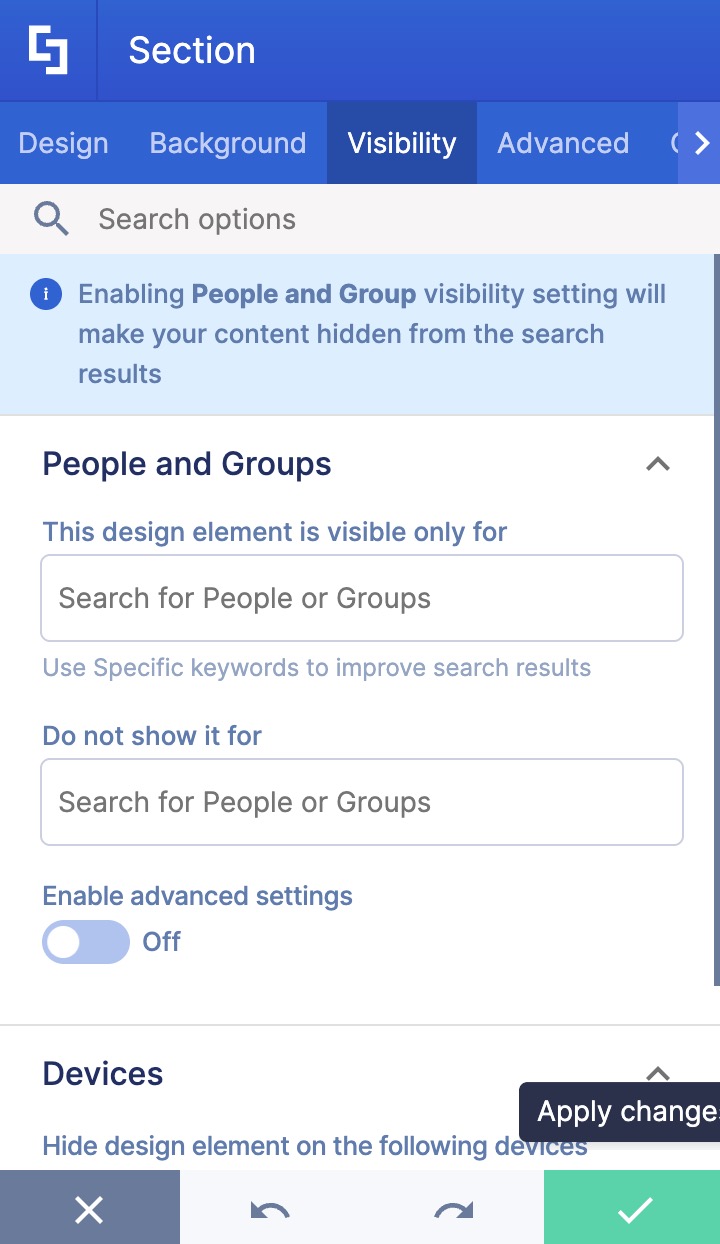
- Customize the visibility settings according to your preferences.
- Once satisfied, click the green checkmark.
NOTE To learn more about the settings you can modify, check out Visibility Features.
Step 4: Save
- Select the eye icon to see your page in real-time:

- Save your changes:

Congratulations! You now know how to control the visibility of Design Elements effectively within your SharePoint site to enhance your overall SharePoint access management strategy.
Previewing Visibility Settings
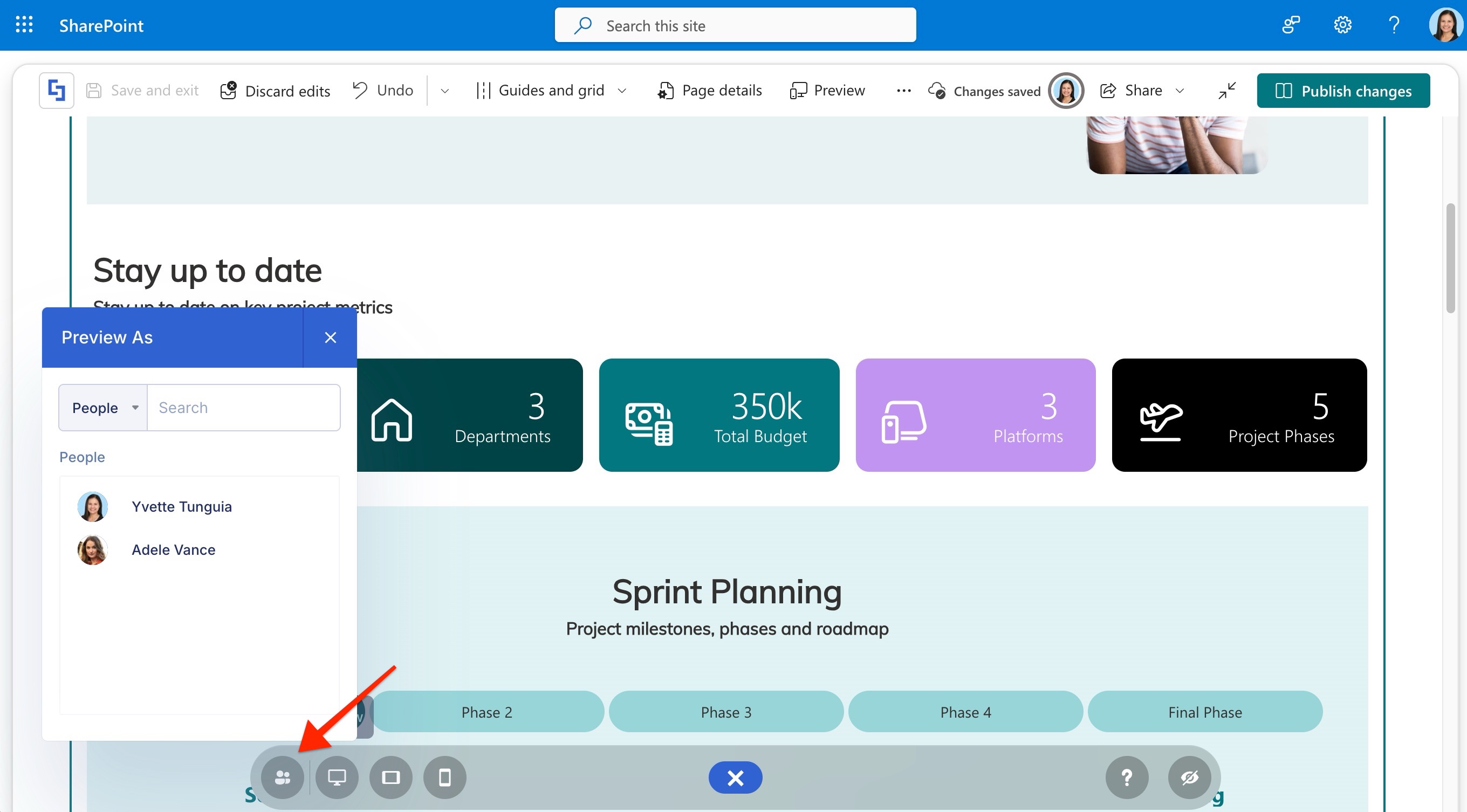
You can see how your page will look with your visibility settings applied using the Preview as buttons on the Action Toolbar.
- Select the person or group you configured visibility for in the Preview as People and Groups icon.
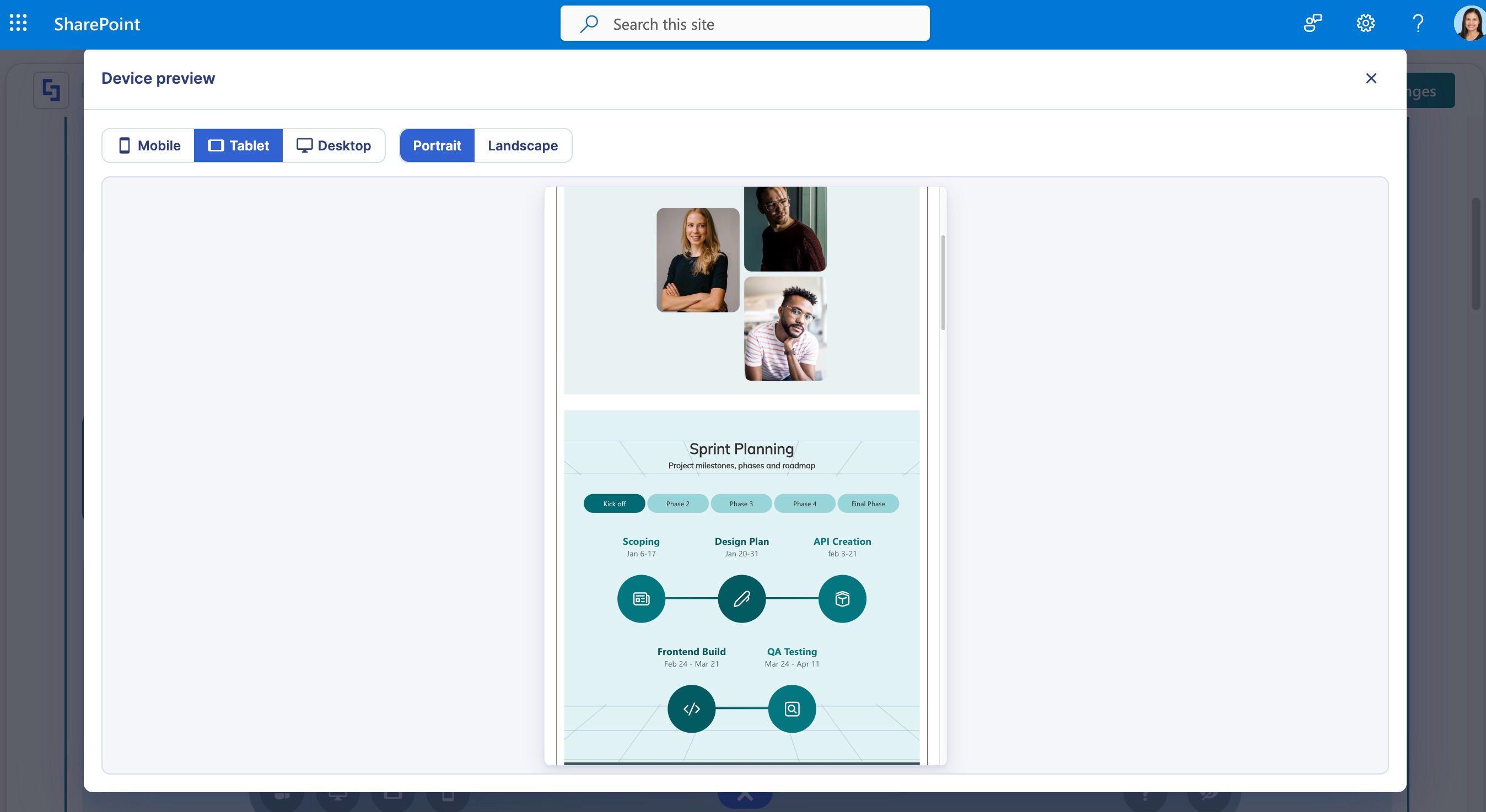
- Click any of the device icons to open the Device preview window. Here, you can select the device you want to preview the page on and its orientation.
Editing Visibility
Follow the step-by-step guide to learn how to edit the visibility settings you've previously applied:
Step 1: Edit a Design Element
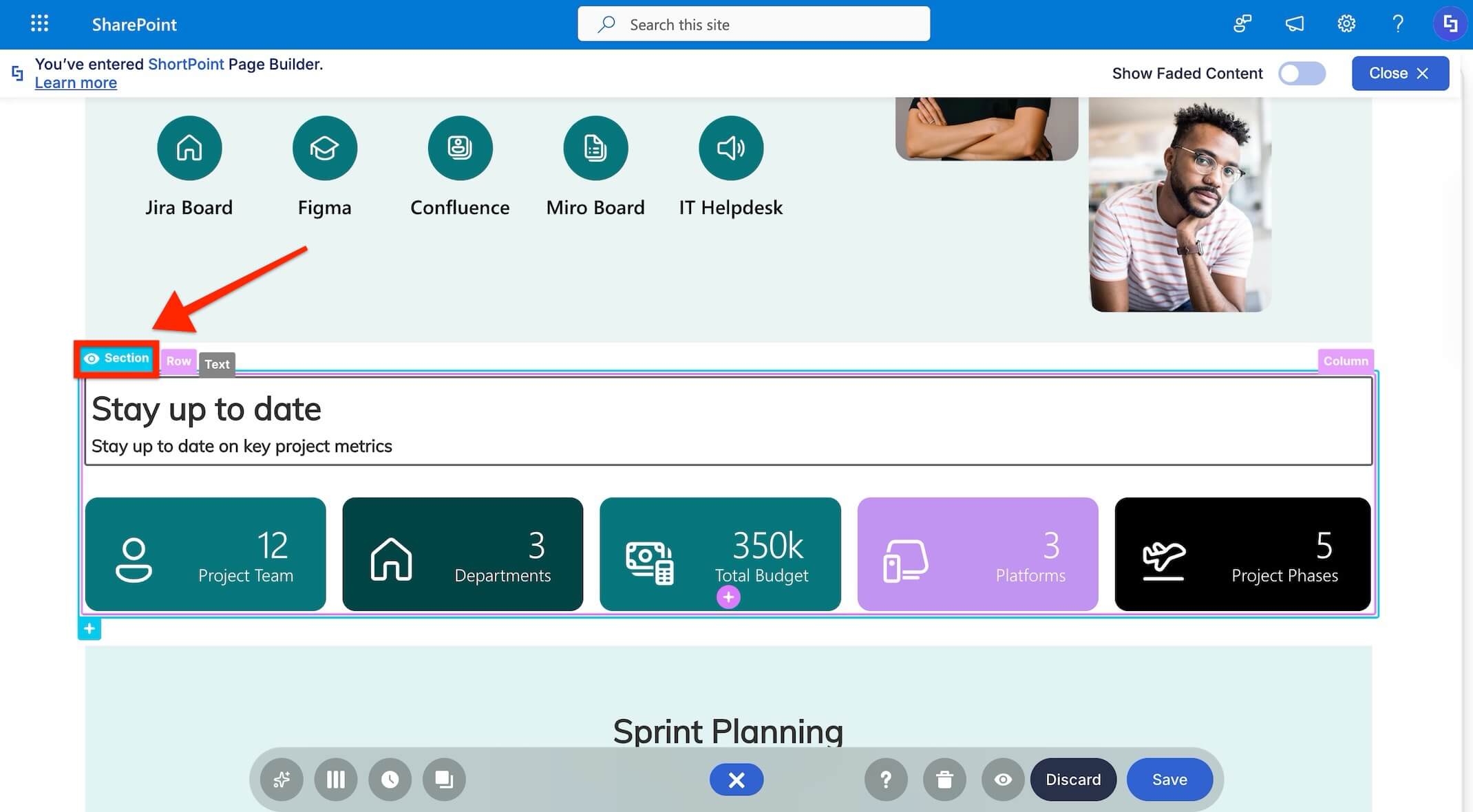
- Click the Easypass tag of the Design Element that you've previously managed the visibility of. Notice that an eye icon appears on the label. This is an indicator that visibility settings were added to the design element previously.
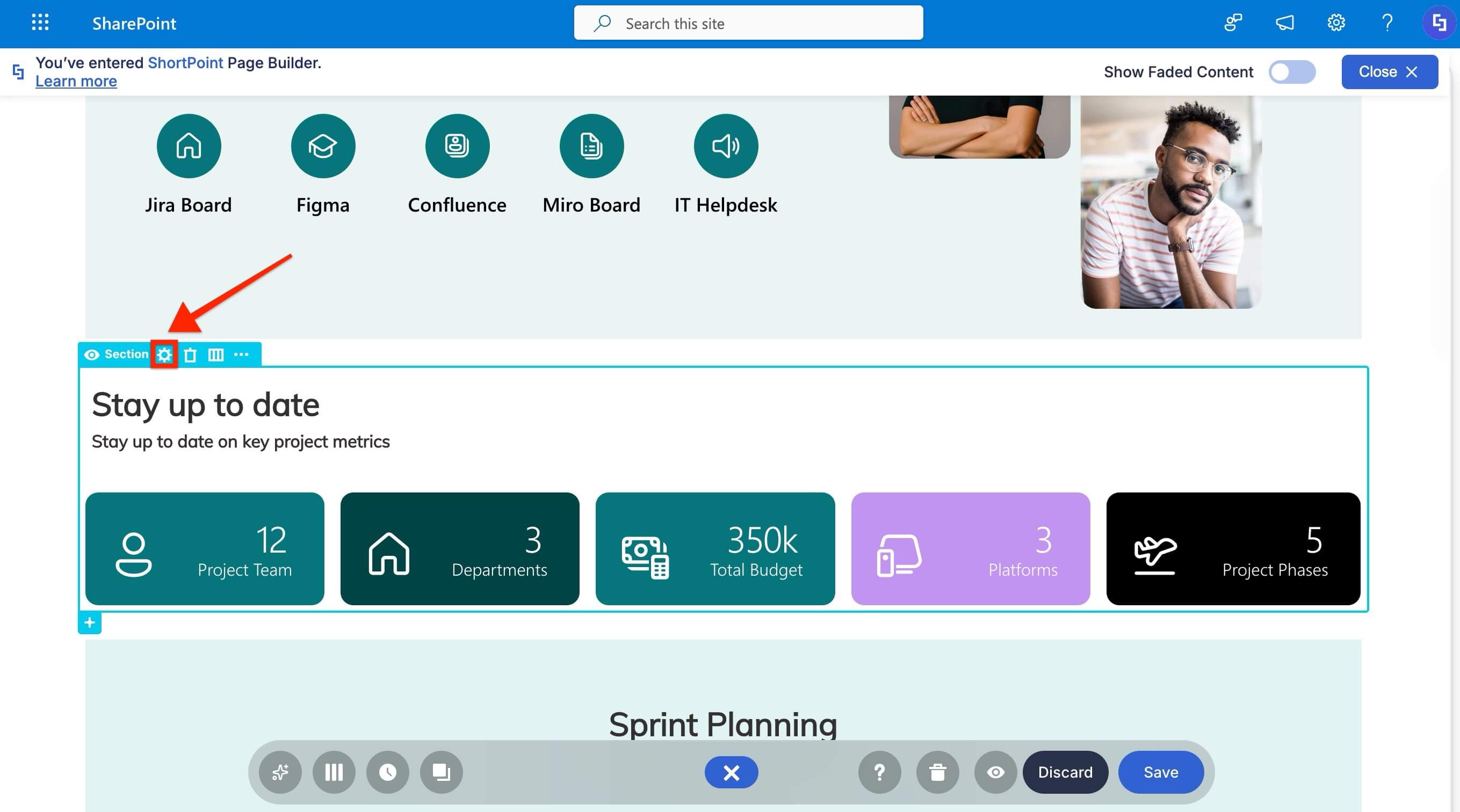
- Select the cogwheel icon to open the settings window:
Step 2: Edit Visibility
- Go to the Visibility tab.
- Modify the visibility according to your preferences.
- Click the green checkmark to apply your changes.
Step 3: Save
- Select the eye icon to see your page in real-time:
- Save your changes:
Great work! You now know how to edit the visibility settings.
Visibility Features
Below are the options you can modify inside the Visibility tab to effectively control visibilty on your SharePoint site:
PEOPLE AND GROUPS
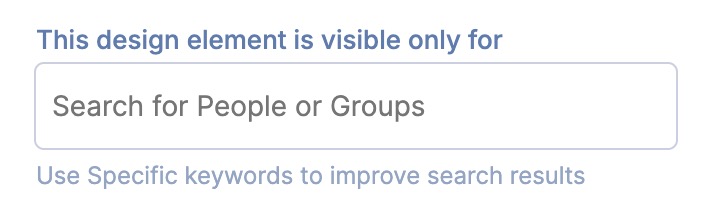 | This ShortPoint is visible only for | allows you to specify which people and groups the Design Element is visible to. |
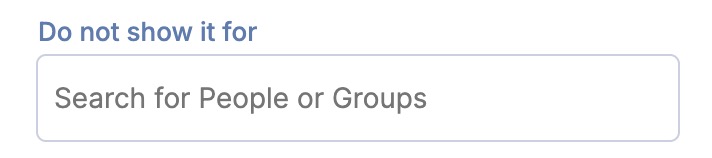 | Do not show it for | allows you to specify which people and groups the Design Element is not visible to. |
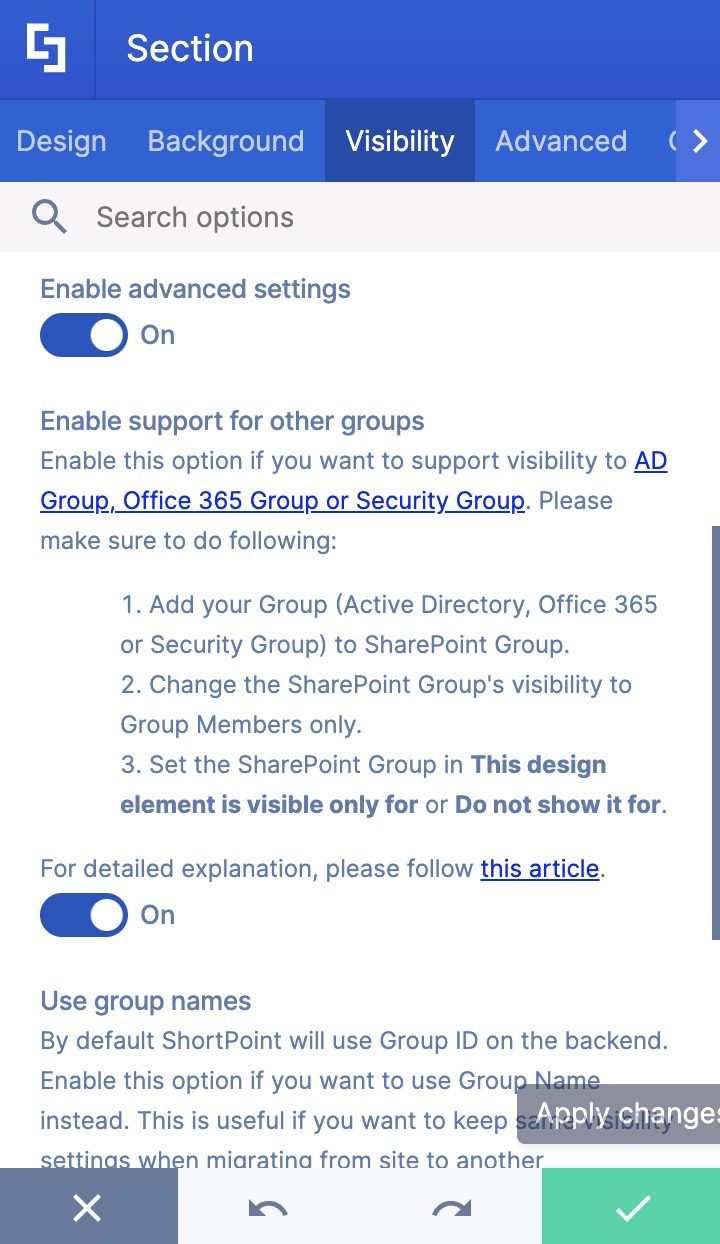
 | Enable Advanced Settings | when enabled, additional settings will appear. |
 | Enable support for other groups | when enabled, visibility to AD Group, Office 365 Group, or Security Group will be supported. To learn more, check out How to Set ShortPoint Element Visibility to Active Directory Security Group. |
 | Use group names | By default, ShortPoint will use Group ID on the backend. Enabling this will use the Group Name instead. This is useful if you want to keep the same visibility settings when migrating from one site to another. |
DEVICES
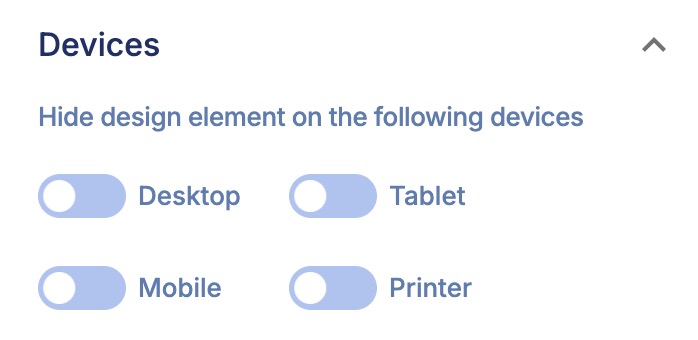 | Do not show ShortPoint on the following devices | allows you to choose the device on which you don’t want the Design Element to be shown. The devices available are desktop, tablet, mobile, and print. ShortPoint uses the following screen widths as breakpoints for the devices:
|
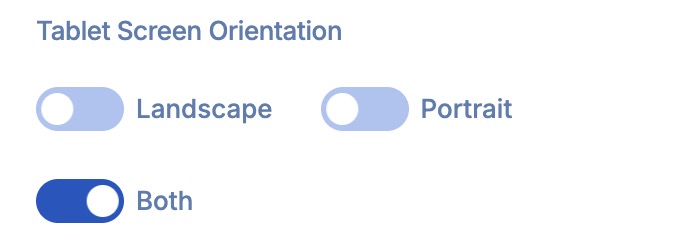 | Do not show on a specific orientation | allows you to choose whether elements hidden on mobile and tablet devices are hidden in portrait, landscape, or both orientations. |
NOTES: [1] Enabling Print will hide the Design Element in browser print view mode. [2] If you wish to hide ShortPoint Design Elements using other width breakpoints, check out Customize Visibility for Devices with Different Dimensions.
Key Benefits of Using ShortPoint Visibility
ShortPoint Visibility is an extremely useful feature for ShortPoint Designers who want to give their page viewers a personalized experience. Here are some more benefits you can gain from using this feature:
Enhanced Security and Compliance
Keep sensitive information away from unauthorized eyes by restricting access to specific security groups. This is particularly valuable for organizations handling confidential data, HR information, or financial reports that should only be accessible to designated personnel with the appropriate permissions.
Improved User Experience
By showing users only the content relevant to them, you reduce clutter and information overload. Employees can quickly find what they need without scrolling through irrelevant sections, leading to higher satisfaction and productivity.
Mobile Optimization
Create responsive designs that adapt intelligently to different screen sizes. Hide complex charts or wide tables on mobile devices while keeping them visible on larger screens, ensuring every user gets an optimized experience regardless of how they access your SharePoint site.
Simplified Content Management
Instead of maintaining multiple separate pages for different departments or roles, you can create a single dynamic page. This reduces duplication, simplifies updates, and ensures consistency across your intranet.
Flexible Permissions Management
Work seamlessly with your existing permission inheritance, SharePoint groups, and Active Directory security groups. ShortPoint Visibility integrates with your current permissions settings, making it easy to implement without disrupting your established workflows.
Best Practices for Implementing ShortPoint Visibility
Getting the most out of ShortPoint Visibility requires thoughtful planning and strategic implementation. Here are some proven approaches to optimize SharePoint access management:
Start with a clear strategy
Before configuring visibility settings, map out which user groups need site access to which content. Create a simple spreadsheet documenting your visibility requirements for each page section. This upfront planning prevents confusion and ensures consistent implementation across your intranet.
Use hierarchical visibility
Take advantage of the cascading visibility feature by applying settings to Sections or Rows rather than individual elements when possible. This approach simplifies permission management and ensures consistency within content blocks.
Test thoroughly
Always use the eye icon preview feature to verify how your page appears to different user groups. ShortPoint provides real-time previews, allowing you to catch and correct visibility issues before publishing.
Leverage Active Directory groups
When working with large organizations, configure visibility based on Active Directory security groups rather than individual SharePoint groups. This approach provides better scalability and aligns with enterprise security practices. Remember to toggle on the support for other groups option when working with AD security groups.
Design for mobile first
When creating device-specific visibility rules, consider the mobile experience as your starting point. Ensure critical content is visible on all devices, and only hide supplementary information on smaller screens.
Document your visibility rules
As your intranet grows, maintaining documentation of which elements are visible to which groups becomes invaluable. This documentation helps future site owners and editors gain a better understanding of your visibility logic and maintain consistency.
Minimize complexity
While ShortPoint Visibility is powerful, avoid overcomplicating your setup. Too many different visibility rules can become difficult to manage. Stick to clear, role-based visibility when possible.
Start Effective Access Management
ShortPoint Visibility transforms your SharePoint intranet from a one-size-fits-all platform into a dynamic, personalized experience that adapts to each user's role, device, and permissions in SharePoint. By strategically implementing visibility settings, you can improve security, enhance user satisfaction, and streamline content management across your organization.
Whether you're just getting started with basic group-based visibility or implementing advanced device-specific configurations, the feature provides the flexibility and power you need to create truly intelligent intranet experiences. With proper planning, thoughtful implementation, and regular testing, ShortPoint Visibility becomes an indispensable tool for delivering the right content to the right people at the right time.
Ready to take your SharePoint access management to the next level? If you’re already a ShortPoint Designer, upgrade to ShortPoint SPFx version 9.3.1.0 and up to start exploring ShortPoint Visibility today. If you aren't, discover how targeted content delivery can transform your organization's digital workplace. Start a FREE 15-day trial with us or reach out to our team of experts. We'll be happy to show you the magic of ShortPoint visibility.
Frequently Asked Questions
Can I set visibility for individual design elements, or only for entire sections?
You can set visibility for individual design elements, rows, columns, and entire sections. However, when you apply visibility settings to container elements like Sections or Rows, those settings will automatically apply to all elements within them. This gives you flexibility to manage permissions in SharePoint at whatever level makes sense for your SharePoint site content structure.
Does ShortPoint Visibility work with Active Directory security groups?
Yes, ShortPoint Visibility fully supports Active Directory security groups. To use AD groups, you'll need to add them to a SharePoint group first, then toggle on "Enable support for other groups". This allows you to leverage your existing enterprise security structure effectively.
How can I preview how my page looks to different user groups?
ShortPoint provides a built-in preview feature accessible through the eye icon in the design interface. This allows you to see your page in real-time as it would appear to different users and on different devices before publishing your changes, helping you ensure the right user access and permission levels are correctly assigned.
Can I hide elements only on mobile devices while keeping them visible on desktop?
Absolutely. ShortPoint Visibility includes device-based targeting that lets you show or hide elements based on screen size. You can configure different visibility rules for desktop, tablet, and mobile devices. For more granular control over specific screen dimensions, you can use custom CSS classes.
What happens when I apply visibility settings to a Section that contains multiple design elements?
When you apply visibility settings to a Section, Row, or Column, those settings cascade to all design elements contained within. For example, if you set a Section to be visible only to the HR team, all design elements inside that Section will automatically be visible only to the HR team, even if they don't have individual visibility settings. This simplifies and reduces complexity in site owners group and site members group management.
Will visibility settings affect page performance?
Visibility settings are processed efficiently and should not significantly impact page performance. However, for optimal performance, it's best to apply visibility at the Section or Row level rather than configuring dozens of individual elements separately.
What's the difference between "This ShortPoint is visible only for" and "Do not show it for"?
These are two opposite approaches to the same goal. "Visible only for" means you're specifying who CAN see the content (everyone else is excluded). "Do not show it for" means you're specifying who CANNOT see the content (everyone else can see it). Choose the approach that's simpler for your use case.
Do I need special permissions to configure visibility settings?
You need to be a ShortPoint Designer with an active license to access and configure visibility settings. Additionally, you must have ShortPoint SPFx version 9.3.1.0 and up to see the current interface. Otherwise, you will need to edit Visibility in Grid Mode.
Related articles:
