 Try ShortPoint now
White space is your intranet's best friend! Those breathing spaces between images, text, and other Design Elements help everything feel organized and easy to navigate.
This is exactly why ShortPoint provides its ShortPoint Designers a comprehensive and intuitive way to adjust spacings, or technically called Paddings and Margins.
In this article, we’ll show you how to adjust the Paddings and Margins of Design Elements. But first, let’s define what Paddings and Margins are.
NOTEBy default, margins and paddings are set automatically. However, you may change them to your own preference, or set different spacing for different devices.
TABLE OF CONTENTS
- Prerequisites
- What are Paddings and Margins?
- Adjusting Paddings and Margins for Sections, Rows, and Columns
- Adjusting Paddings and Margins for the Other ShortPoint Design Elements
- Adjusting Paddings and Margins on Mobile Devices
- Frequently Asked Questions
- What are paddings and margins in ShortPoint Design Elements?
- How can I adjust paddings and margins for Sections, Rows, and Columns?
- Can I adjust paddings and margins for other Design Elements besides Sections, Rows, and Columns?
- Is it possible to set different paddings and margins for mobile devices?
- What should I do if a Design Element does not have padding or margin options?
Prerequisites
- You must have the latest version of ShortPoint SPFx installed.
- You must be a ShortPoint Designer with an active license.
What are Paddings and Margins?
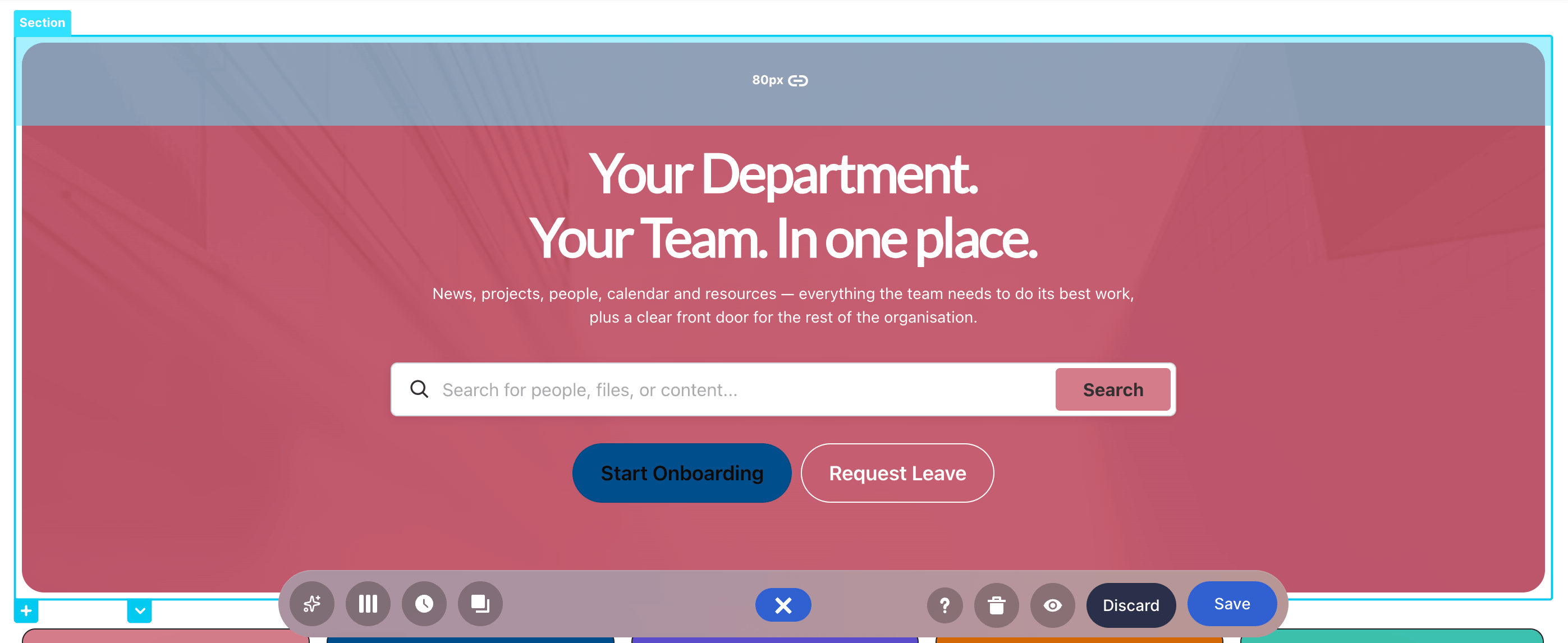
Padding is the inner space within a Design Element's border. You can identify it by hovering over the Design Element—the highlighted area inside the border shows the padding.
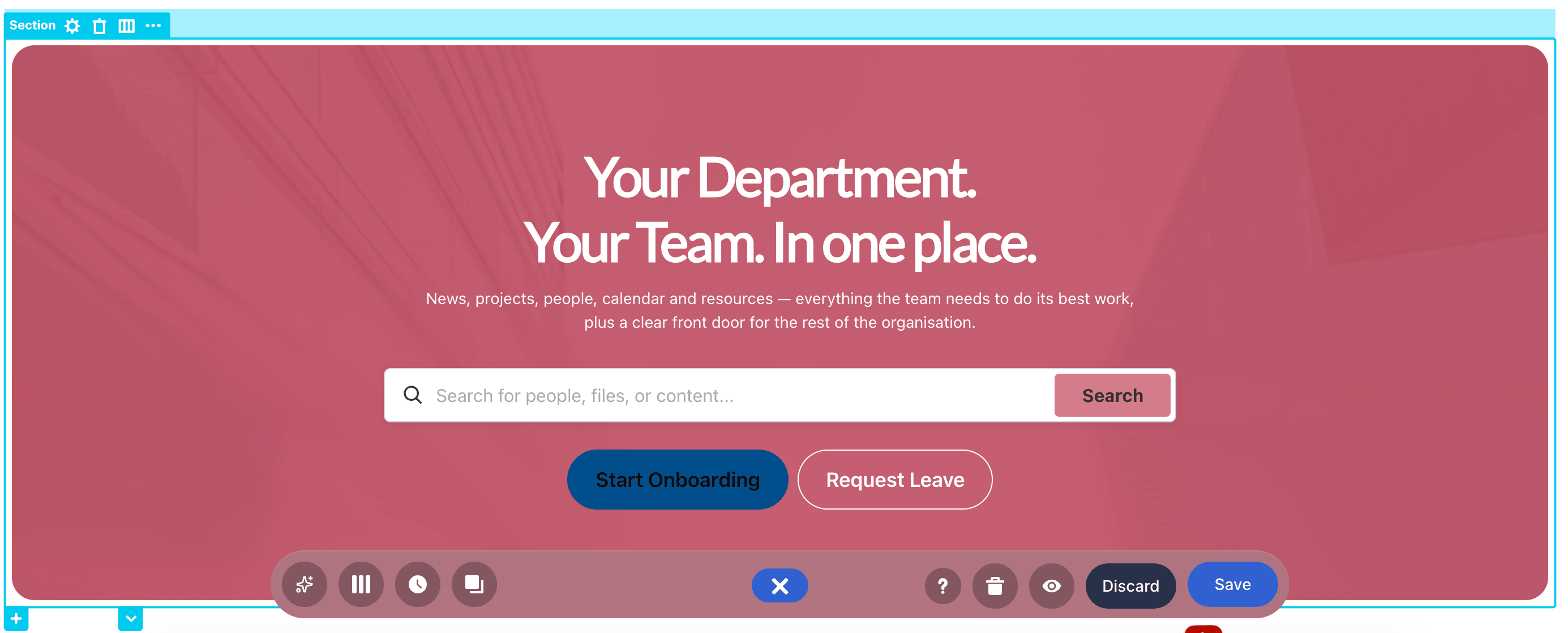
Margin is the outer space around your Design Element's border. To see it, hover over the Design Element—the highlighted area outside the border indicates the margin.
Adjusting Paddings and Margins for Sections, Rows, and Columns
There are four ways to adjust the paddings and margins for Section, Row, and Column. Choose the option that best suits your needs:
Option 1: Using the Spacings icon
- Hover over the Section, Row, or Column you want to adjust.
- Click the spacings icon.
- Choose the style you prefer.
Option 2: Using Hot Actions
- Hover over the Section, Row, or Column you want to adjust until you see a color highlight.
- Drag your mouse up or down until you reach the desired value.
- (Optional) Click the link icon to have equal padding values.
To learn more about Hot Actions, check out ShortPoint Page Builder Live Mode Feature: Hot Actions.
Option 3: Manually Typing Values
- Hover over the Section, Row, or Column you want to adjust until you see a color highlight with a number.
- Click the number.
- Write the value you prefer.
Option 4: Using the Settings window
- Click the EasyPass tag of the Section, Row, or Column you want to adjust.
- Select the cogwheel icon to open the Settings window.
- Choose the spacing style you prefer or type your preferred values.
- Apply your changes.
NOTETo learn more about the options you can modify under the Spacings section, check out the following articles:
>How to Customize the Section Design Element
>How to Customize the Row Design Element
>How to Customize the Column Design Element
Adjusting Paddings and Margins for the Other ShortPoint Design Elements
There are three ways to adjust the paddings and margins for other Design Elements. Choose the option that best suits your needs:
NOTESome Design Elements do not have the option to adjust their paddings and margins. To address this, you can use the Spacer Design Element. Check out How to Customize the Spacer Design Element for a detailed guide on how to use it.
Option 1: Using Hot Actions
- Click the EasyPass tag of the Design Element you want to adjust
- Hover over it until you see a color highlight.
- Drag your mouse up or down until you reach the desired value.
- (Optional) Click the link icon to have equal padding values.
Option 2: Manually Typing Values
- Click the EasyPass tag of the Design Element you want to adjust
- Hover over it until you see a color highlight and a number.
- Double-click the number and write the value you prefer.
- (Optional) Click the link icon to have equal padding values.
Option 3: Using the Settings Window
NoteThe location of the paddings and margins settings will vary depending on your Design Element. You'll typically find these options under the Advanced or Spacings tab.
- Click the EasyPass tag of the Design Element you want to adjust
- Select the cogwheel icon.
- Navigate to the tab where the paddings and margins settings are.
- Make your changes and apply.
Adjusting Paddings and Margins on Mobile Devices
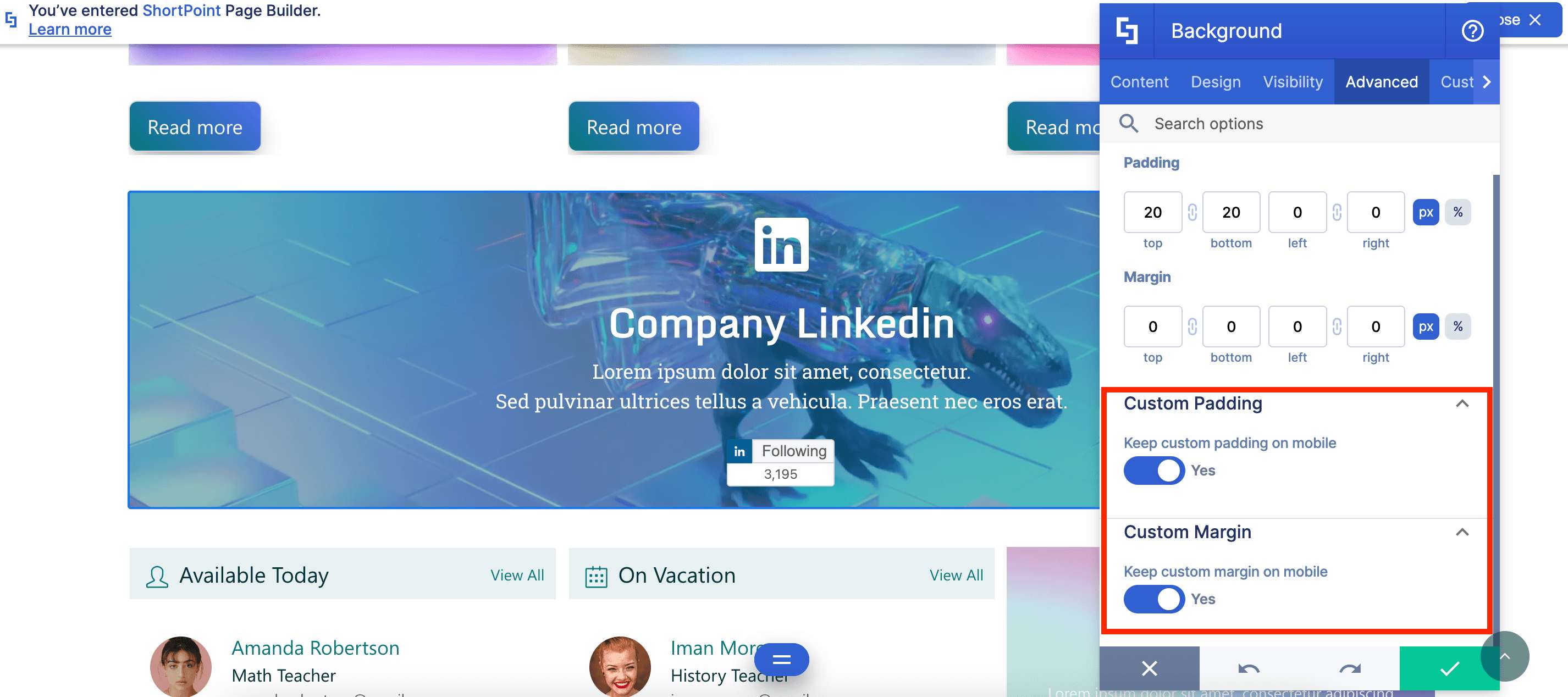
If you’ve set custom paddings and margins, you have the option to keep them for your mobile devices:
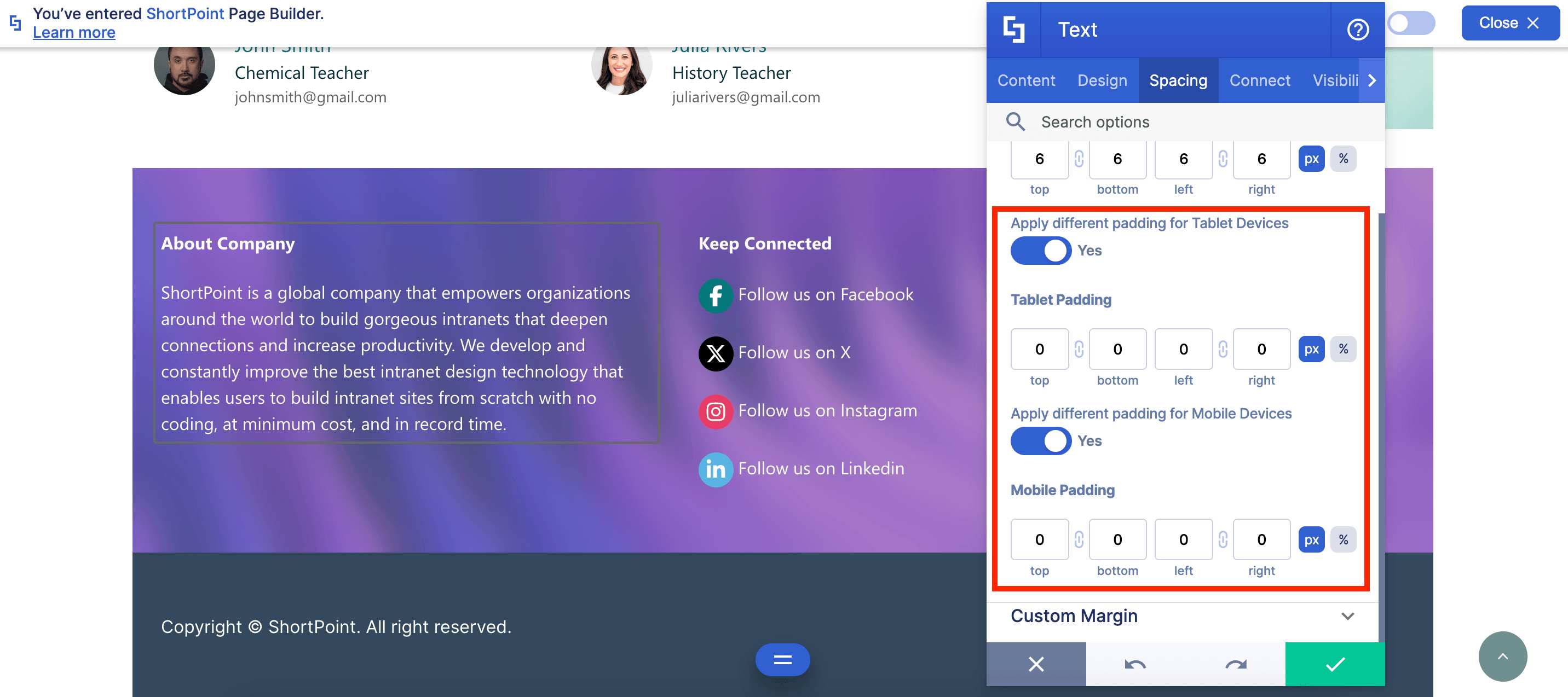
Some Design Elements also provide the option to apply custom margins and paddings for specific devices:
NoteThe paddings and margins settings for mobile devices will vary depending on your Design Element. You'll typically find these options under the Advanced or Spacings tab.
That’s it! You now know how to manage the paddings and margins of Design Elements on your SharePoint page.
Frequently Asked Questions
What are paddings and margins in ShortPoint Design Elements?
Padding is the inner space within a Design Element's border, while margin is the outer space around the border. These spaces help organize content and improve readability.
How can I adjust paddings and margins for Sections, Rows, and Columns?
You can adjust paddings and margins using four methods: the spacings icon, Hot Actions (dragging to adjust), manually typing values, or using the Settings window accessible via the EasyPass tag.
Can I adjust paddings and margins for other Design Elements besides Sections, Rows, and Columns?
Yes, you can adjust paddings and margins for other Design Elements using Hot Actions, manually typing values, or the Settings window. Note that some Design Elements may not support these adjustments, and you can use the Spacer Design Element as a workaround.
Is it possible to set different paddings and margins for mobile devices?
Yes, you can keep custom paddings and margins for mobile devices and, for some Design Elements, apply different values specifically for mobile through options found under Advanced or Spacings tabs.
What should I do if a Design Element does not have padding or margin options?
Use the Spacer Design Element to create the desired spacing when padding and margin options are not available for a particular Design Element.
Related articles:
