 Try ShortPoint now
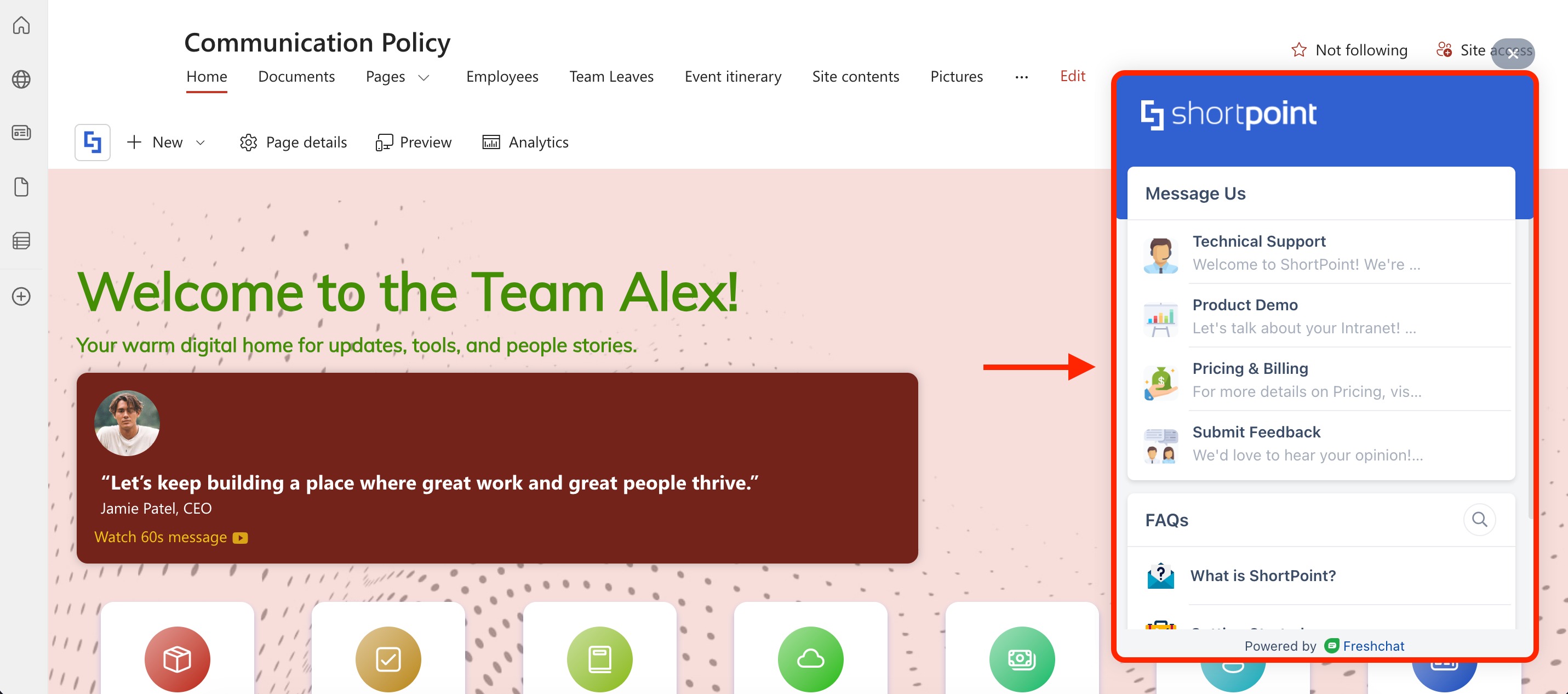
Communicating with your SharePoint site users has become easier through chat widgets. ShortPoint has made it possible to incorporate these functionalities in your SharePoint Modern site through Theme Builder. Adding a chat widget through Theme Builder will show it across your entire SharePoint site collection.
This article will provide a step-by-step guide on how to do this.
NOTEYou can use any chat widget you want. However, for this guide, we will be using Freshworks as an example.
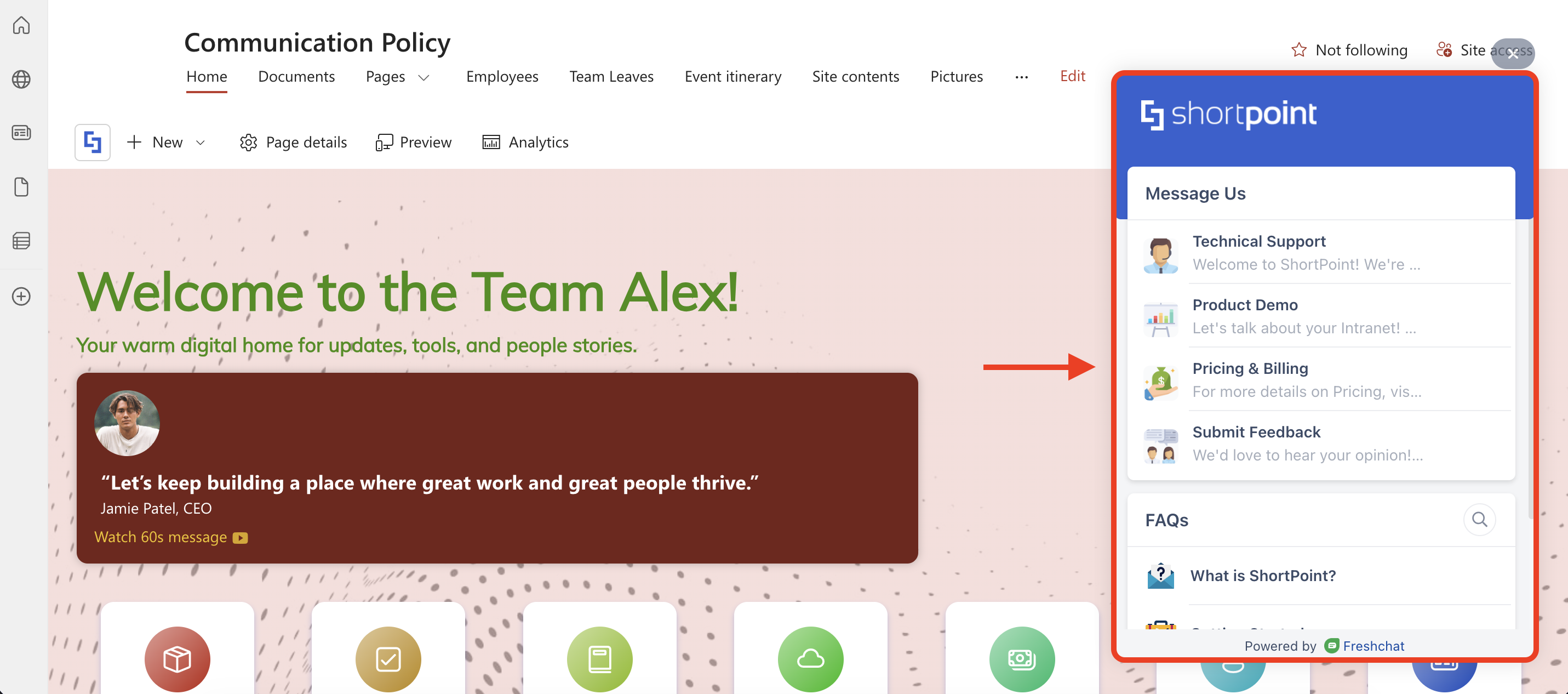
TABLE OF CONTENTS
Prerequisites
- You must have the latest version of ShortPoint SPFx installed in your SharePoint environment.
- You must be a ShortPoint Designer with either a Pro or Enterprise license. For more information, check out Licensing Options.
- You must have the necessary permissions to obtain the embed code of your chosen chat widget. For Freshworks specifically, you need Admin access.
- You must add the source domain of your chat widget to your Trusted Script Sources list in the SharePoint Admin Center. For more information, check out Managing Trusted Script Sources for JavaScript Customizations in ShortPoint.
Interactive Tutorial
Before proceeding, you must already have the embed code of your chat widget. In the case of Freshworks, we will be using the code below. Just replace WEB_CHAT_TOKEN with your own. To get it, check out Freshchat web messenger.
function initFreshChat() {

    window.fcWidget.init({

        token: "WEB_CHAT_TOKEN",

        host: "https://wchat.freshchat.com"

    });

}

function initialize(i, t) {
    var e;
    i.getElementById(t) ? initFreshChat() : ((e = i.createElement("script")).id = t, e.async = !0, e.src = "https://wchat.freshchat.com/js/widget.js", e.onload = initFreshChat, i.head.appendChild(e))
}

function initiateCall() {
    initialize(document, "freshchat-js-sdk")
}
window.addEventListener ? window.addEventListener("load", initiateCall, !1) : window.attachEvent("load", initiateCall, !1);NOTEAdding a chat widget through Theme Builder will show it across your entire SharePoint site collection. If you want to add the chat widget on a single SharePoint page, check out How to Embed a Chat Widget Using the ShortPoint Code Design Element.
Step-by-step Tutorial
Follow the detailed guide below:
Step 1: Open Theme Builder
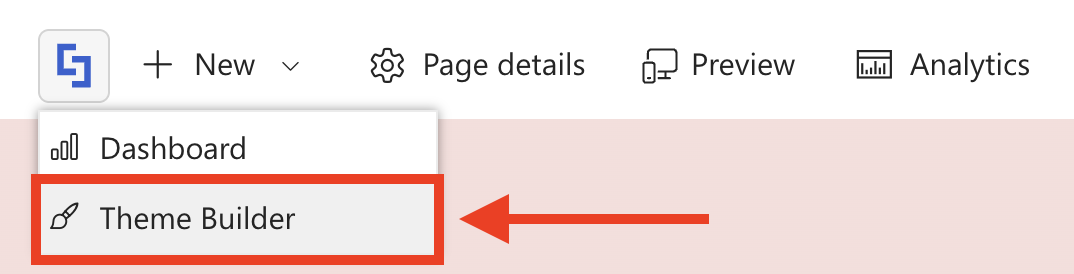
- Go to the SharePoint site you want to use and click the ShortPoint icon:

- Select Theme Builder:
Step 2: Copy the Code
- Copy the embed code of your chat widget. In the case of Freshworks, we will be using the code below. Just replace WEB_CHAT_TOKEN with your own. To get it, check out Freshchat web messenger.
function initFreshChat() {

    window.fcWidget.init({

        token: "WEB_CHAT_TOKEN",

        host: "https://wchat.freshchat.com"

    });

}

function initialize(i, t) {
    var e;
    i.getElementById(t) ? initFreshChat() : ((e = i.createElement("script")).id = t, e.async = !0, e.src = "https://wchat.freshchat.com/js/widget.js", e.onload = initFreshChat, i.head.appendChild(e))
}

function initiateCall() {
    initialize(document, "freshchat-js-sdk")
}
window.addEventListener ? window.addEventListener("load", initiateCall, !1) : window.attachEvent("load", initiateCall, !1);
Step 3: Paste Code
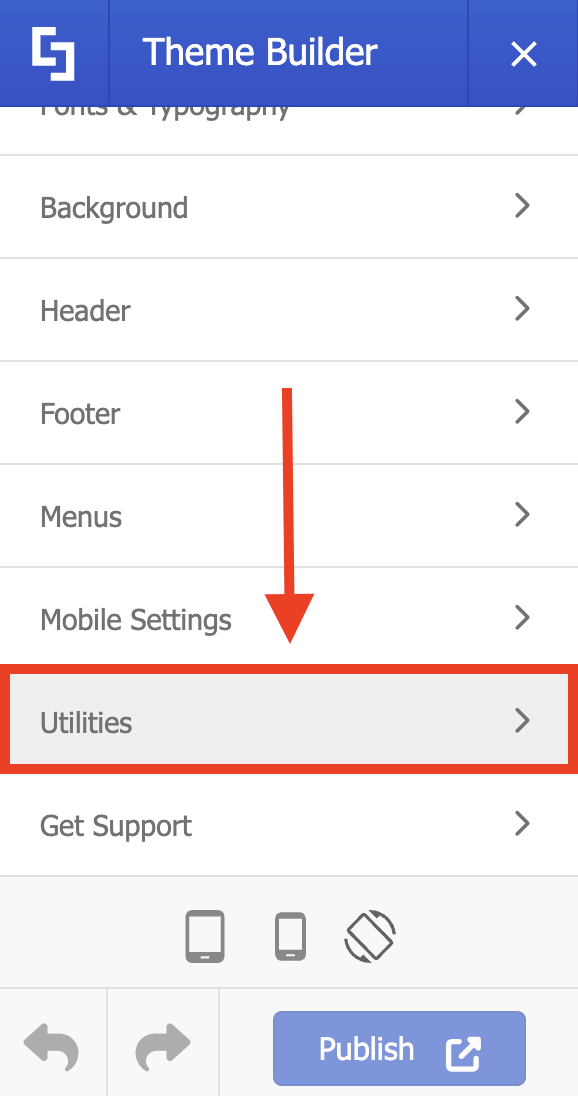
- Go to Utilities:
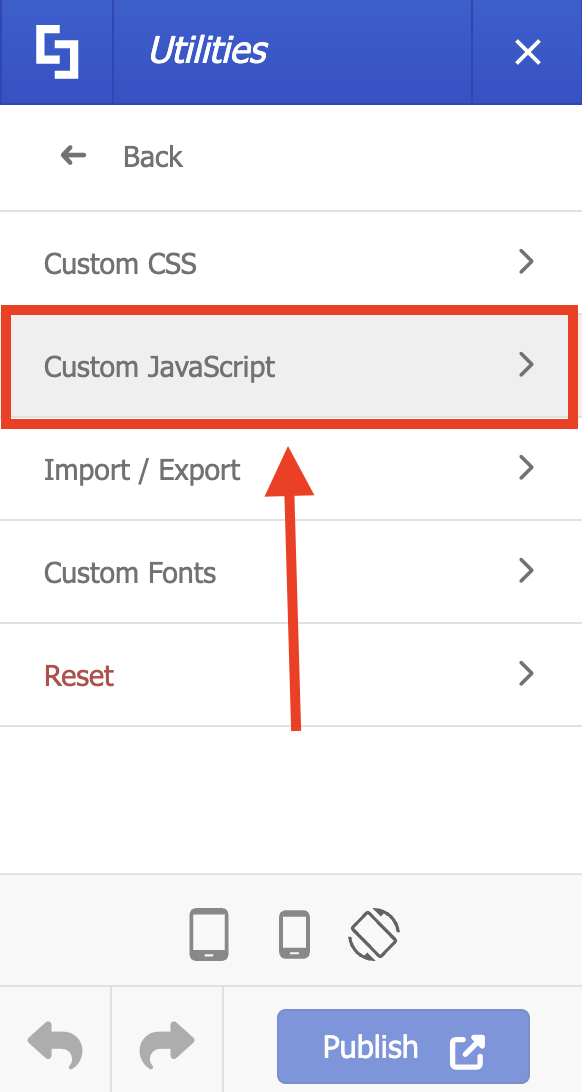
- Select Custom JavaScript:
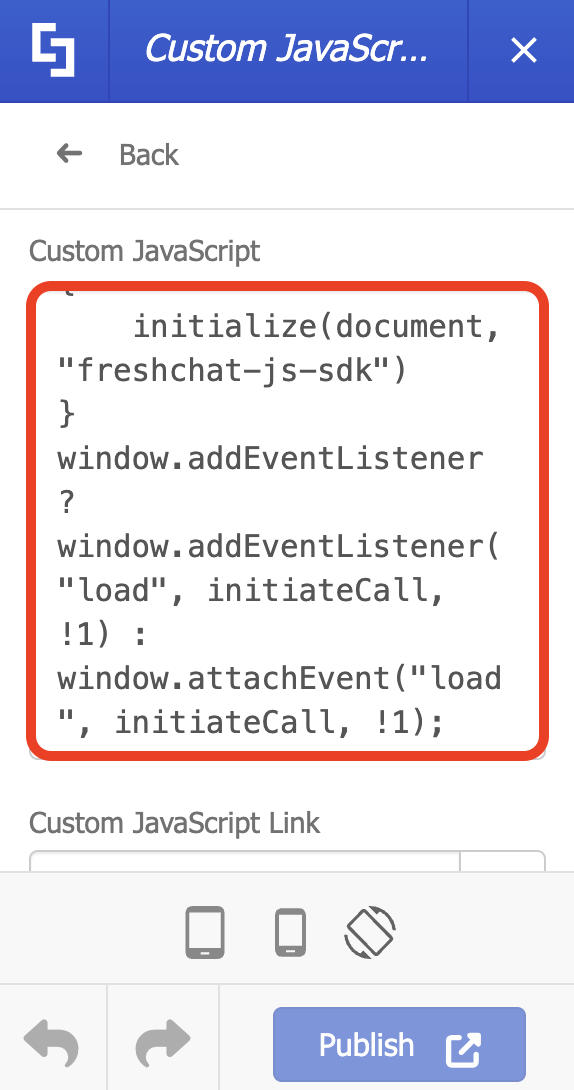
- Paste the code in the field provided:
- Click Apply:

- Publish your changes.
Congratulations! You now know how to add a chat widget using ShortPoint Theme Builder.
Authorizing External Scripts
Since you will be loading JavaScript from external sources, you must add the source domain (in our case, https://wchat.freshchat.com/js/widget.js) to the Trusted Script Sources list in your SharePoint Admin Center. This step is required to ensure the script runs correctly under SharePoint's Content Security Policy (CSP).
For detailed instructions, please follow the "How to Add Trusted Source URLs" section in our Managing Trusted Script Sources for JavaScript Customizations in ShortPoint article.
Related articles:
