 Try ShortPoint now
If you’ve ever found yourself setting up a brand-new SharePoint page from scratch within your SharePoint site, you know the routine: customizing layouts, picking color schemes, and adding the exact same elements to your page. It’s a lot of manual work, and it can be repetitive.
Good news! You don't have to go through all of that again and again with SharePoint's Save as Template feature.
With it, you can reuse a custom template, saving you hours of tedious setup in a few simple clicks. This article will discuss what Save as Template is and show you how to use it effectively to streamline the creation of your site pages library.
TABLE OF CONTENTS
- Prerequisites
- What is Save as Template
- Saving a Page Template
- Using a Page Template
- FAQ: Save a SharePoint Page as a Template
- What is the Save as Template feature in SharePoint?
- Can I use a saved template on a new site or existing site?
- What permissions do I need to save a SharePoint page as a template?
- How do I save a SharePoint page as a template?
- Can I customize pages created from a template?
- Does saving a page as a template affect the home page?
- How does using templates affect collaboration and consistency?
- Where are templates stored in SharePoint?
- How do I navigate to use a saved template when creating a new page?
Prerequisites
- You must have an existing Modern SharePoint page you want to use as a template.
- You must have at least Edit or Design permissions on the SharePoint page.
What is Save as Template
Save as Template is a SharePoint feature that allows you to save any existing page as a page template and reuse it whenever you create a new page. The saved templates are stored in the templates folder within the site collection, making it easy to access and manage.
The best part? It also works seamlessly for SharePoint pages designed with ShortPoint. All the ShortPoint Design Elements on your page transfer over effortlessly, preserving your content and structure.
Why Is It Useful?
Here is what saving your work as a template gives you:
- Massive Time Savings: Build a page once, polish it, click save, and redeploy it in seconds.
- Visual & Structural Consistency: Keep branding and layout uniform across all your SharePoint pages.
- Fewer Operational Errors: No more forgetting to add critical document libraries, essential web parts, or design elements. Everything is baked right into the custom template option.
This ability to reuse templates streamlines your business solutions and improves collaboration among your team and peers.
Saving a Page Template
Click Get Started to learn how to save a page template:
Step 1: Edit a Modern SharePoint Page
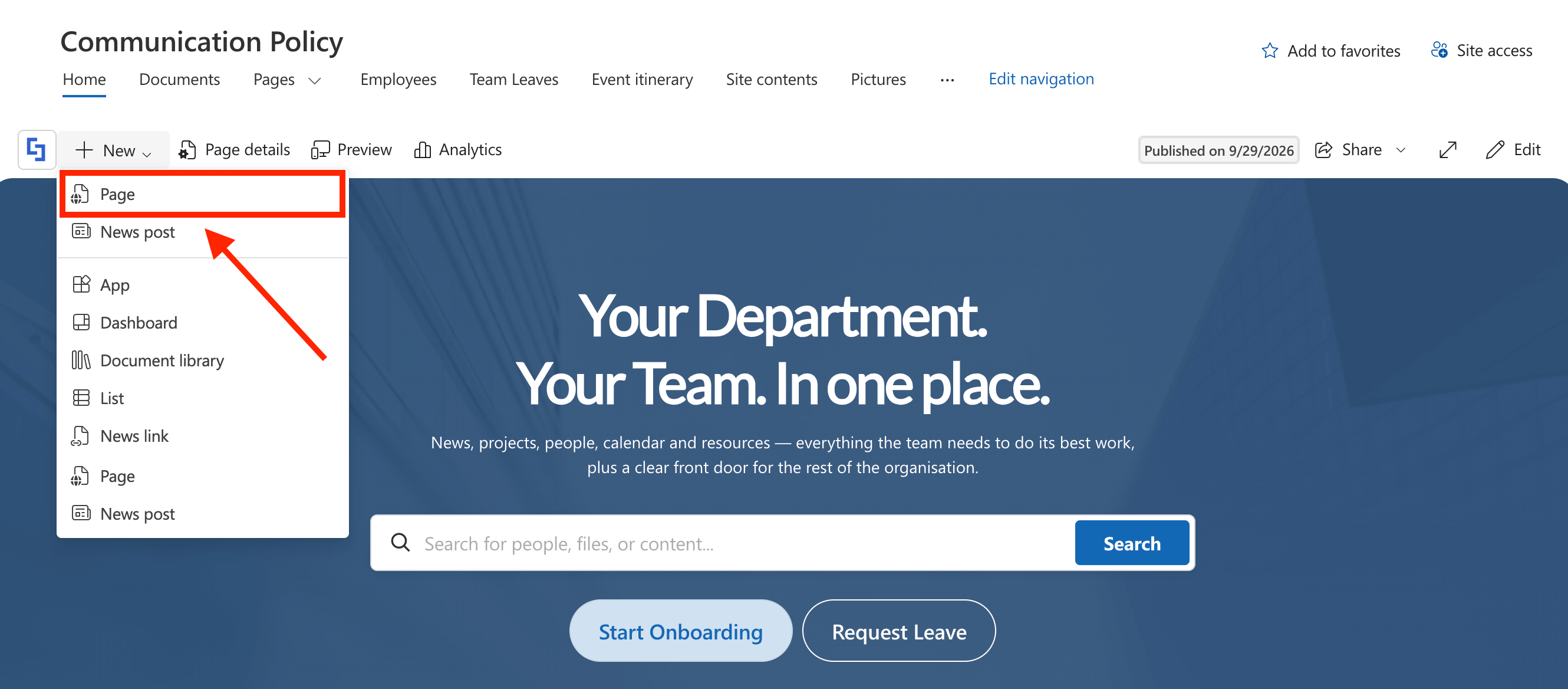
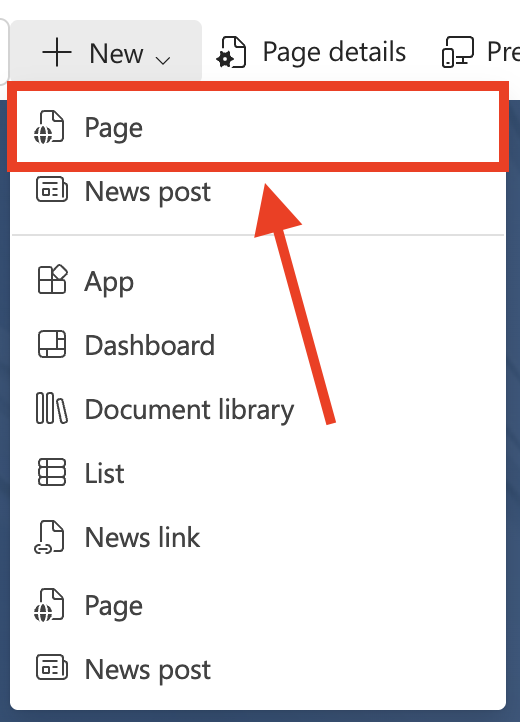
NOTEBefore proceeding, you must already have an existing modern SharePoint page that you want to use as a template. If you don't have one yet, simply click New > Page.
- Go to the SharePoint page you want to use as a template and click Edit:

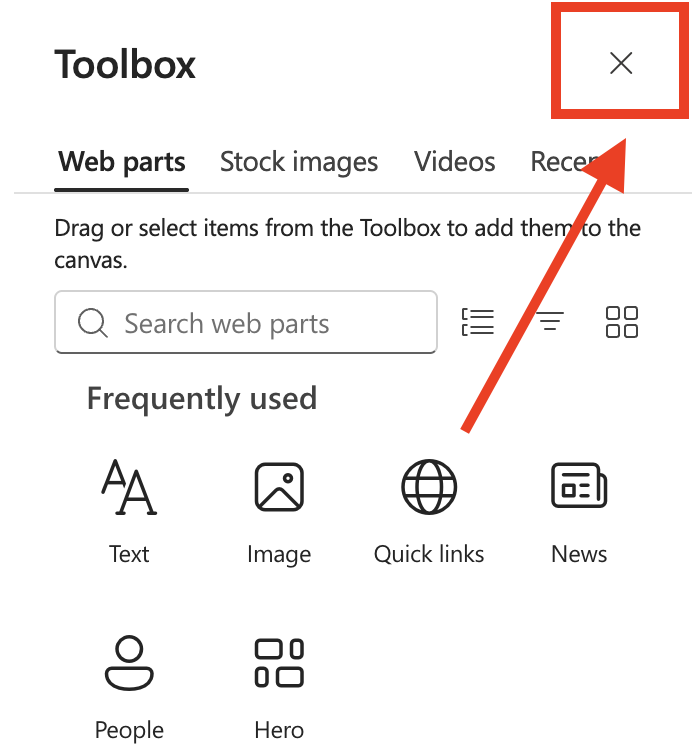
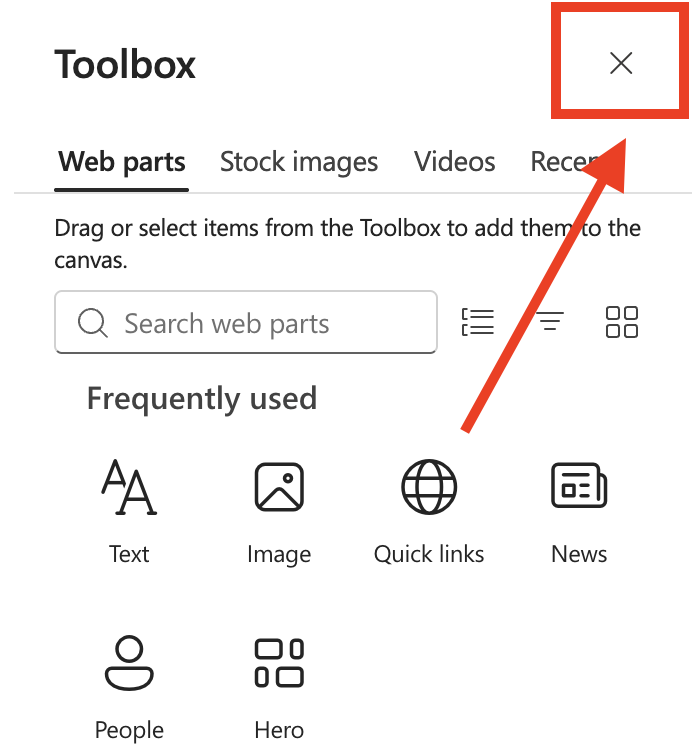
- Close the Toolbox:
Step 2: Save as Template
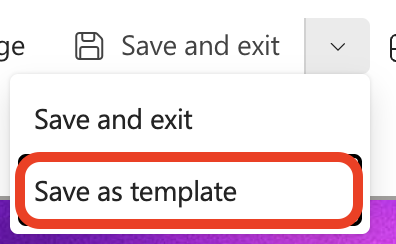
- Click the dropdown icon:

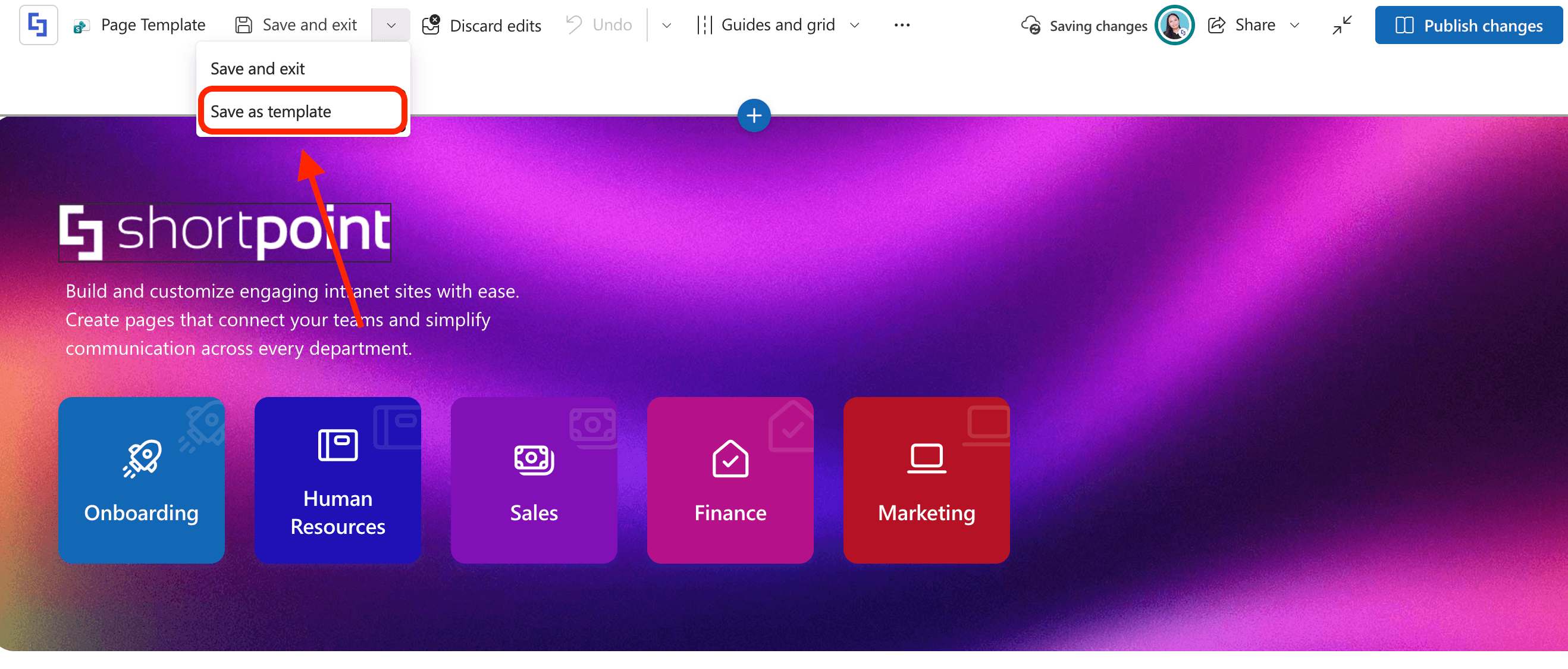
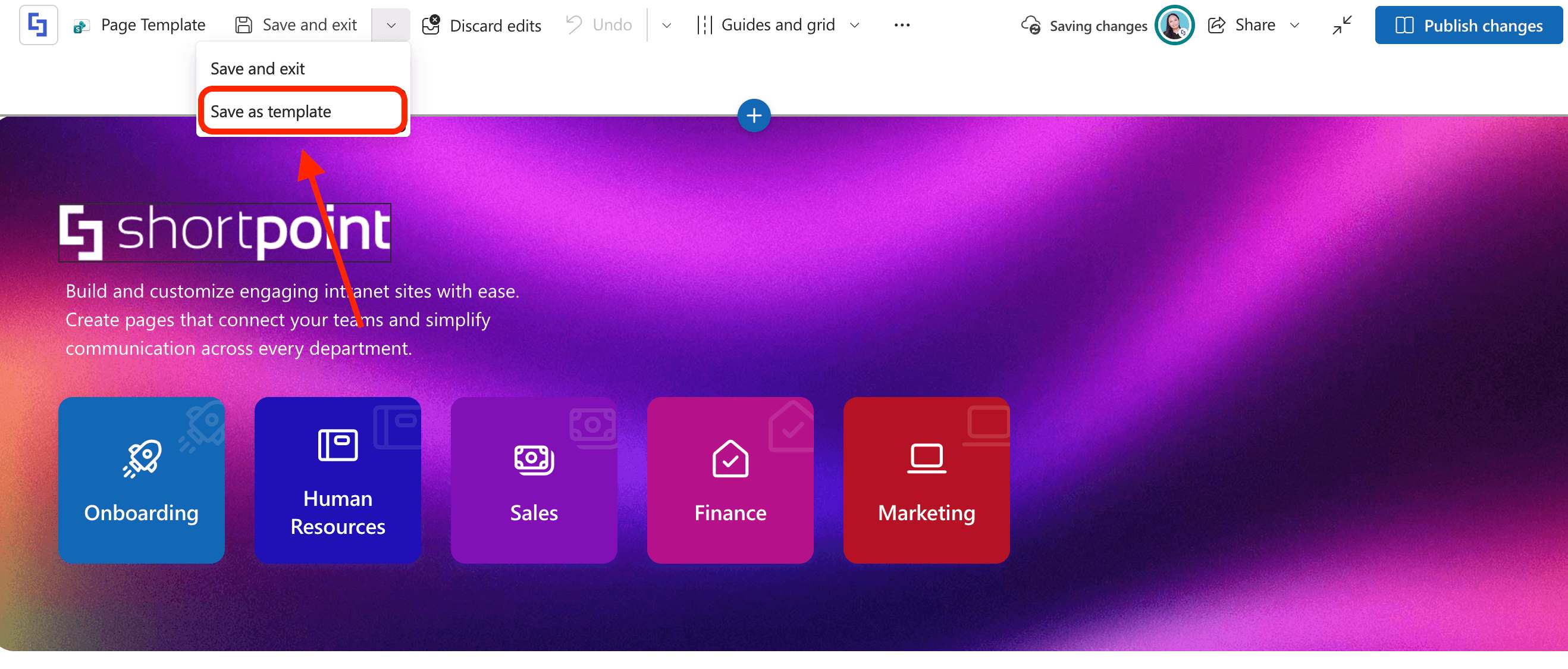
- Select Save as Template:
Step 3: Name the Template
- You'll be taken to a page where you can save the template. Close the Toolbox:
- Click Page Template:

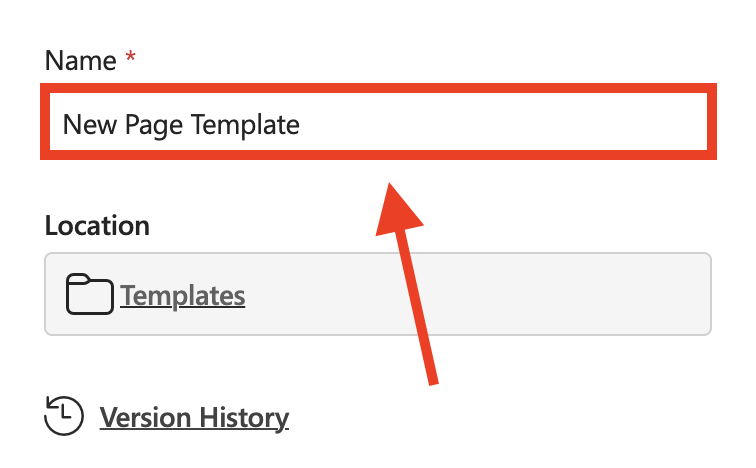
- Name your template:
- Select Save page template:

Awesome! You've successfully saved a template. You can now use it on your new SharePoint pages.
Using a Page Template
Start the interactive tutorial to learn how to use page templates:
Step 1: Create a New Modern Page
- Click New:

- Select Page:
Step 2: Select a Template
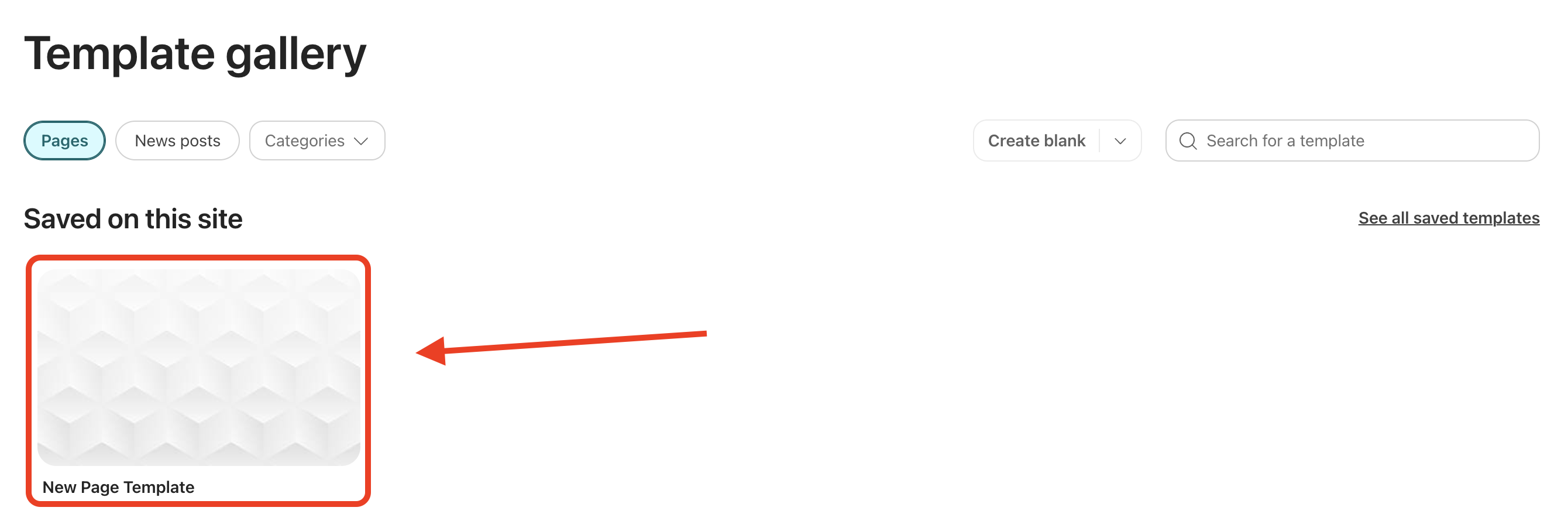
- Under Saved on this site, you'll find all your saved custom templates. Select the one you want to use:
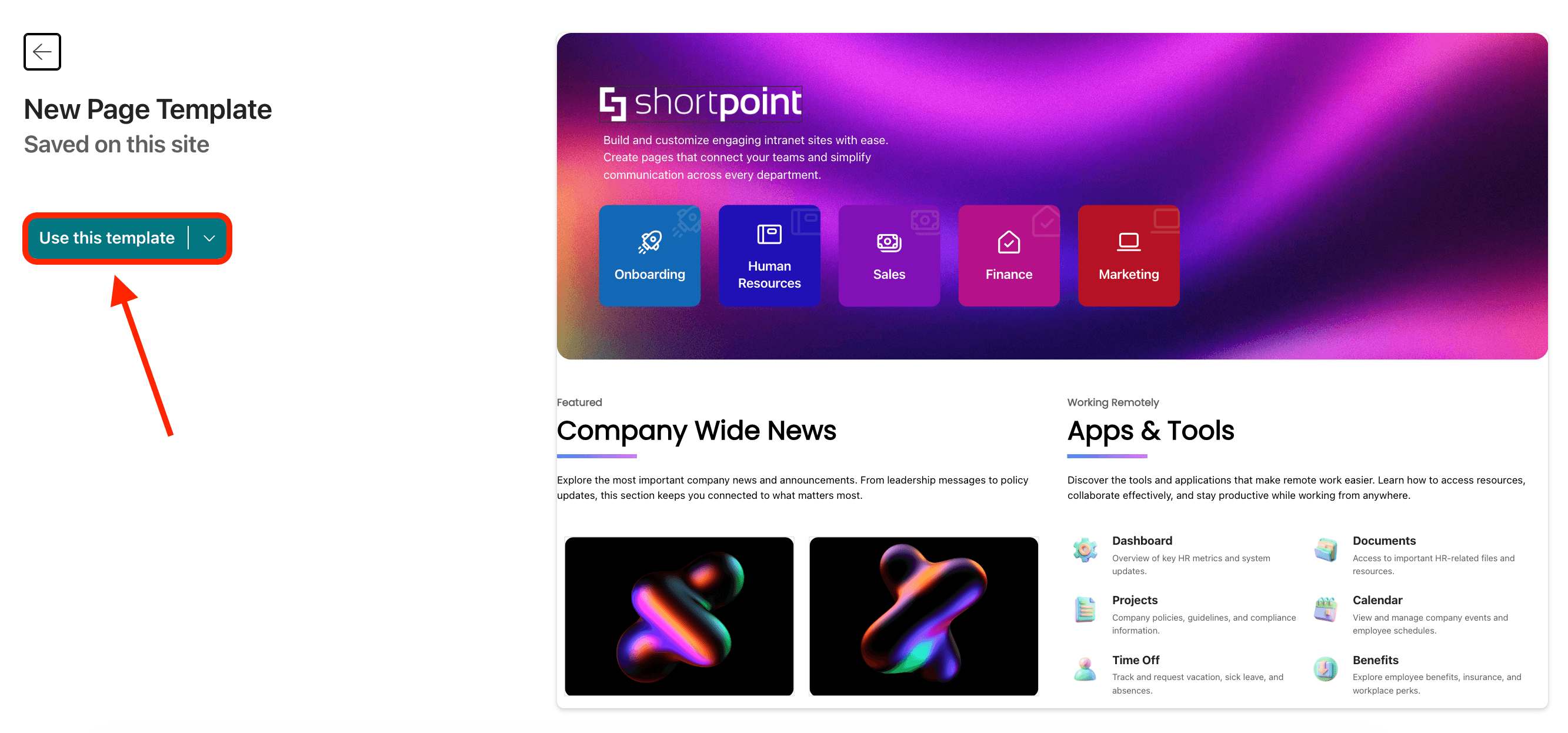
- You'll see a preview of the template. Click Use this template:
Step 3: Modify Template
- Modify the template according to the needs of your new page.
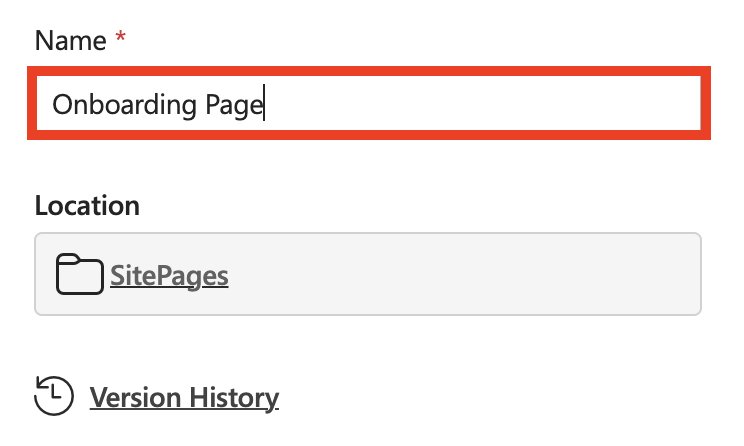
- Click Page:

- Name your new page:
Step 4: Publish Page
- Once satisfied, click Publish Page:

Great work! You can now use your saved page templates.
FAQ: Save a SharePoint Page as a Template
What is the Save as Template feature in SharePoint?
Save as Template is a SharePoint Online feature that allows you to save any existing page as a page template. These templates are stored in the templates folder within the site collection and can be reused to create new pages, saving time and ensuring consistency.
Can I use a saved template on a new site or existing site?
Templates saved in SharePoint are accessible within the same site collection. You can use them when creating new pages on the site collection where it is saved, but it is not directly transferable across different site collections.
What permissions do I need to save a SharePoint page as a template?
You must have at least Edit or Design permissions on the SharePoint page to save it as a template.
How do I save a SharePoint page as a template?
To save a page as a template, navigate to the page, click the drop-down menu next to Save and exit, and select Save as Template. Then name your template and save it. The template will appear in the templates folder in your site pages library.
Can I customize pages created from a template?
Yes, pages created from a saved template can be modified individually without affecting the original template. This allows you to maintain a consistent structure while customizing content as needed.
Does saving a page as a template affect the home page?
You cannot save the site home page as a template. Templates are for pages other than the home page.
How does using templates affect collaboration and consistency?
Using templates ensures visual and structural consistency across SharePoint pages, reduces operational errors, and streamlines collaboration among your team by providing a reusable starting point.
Where are templates stored in SharePoint?
Templates are stored in the templates folder within the site pages library, making them easy to find and manage.
How do I navigate to use a saved template when creating a new page?
When creating a new page, select New > Page, then under Saved on this site, choose your saved template from the list, and click Use this template.
Related articles:
