 Try ShortPoint now
If you're looking to showcase your team's Outlook group calendar events directly on your SharePoint pages, the ShortPoint Group Events (Outlook) connection type is exactly what you need. This powerful feature transforms static SharePoint pages into dynamic event hubs that automatically sync with your Outlook group calendar, keeping your group members informed and engaged without the hassle of manual updates.
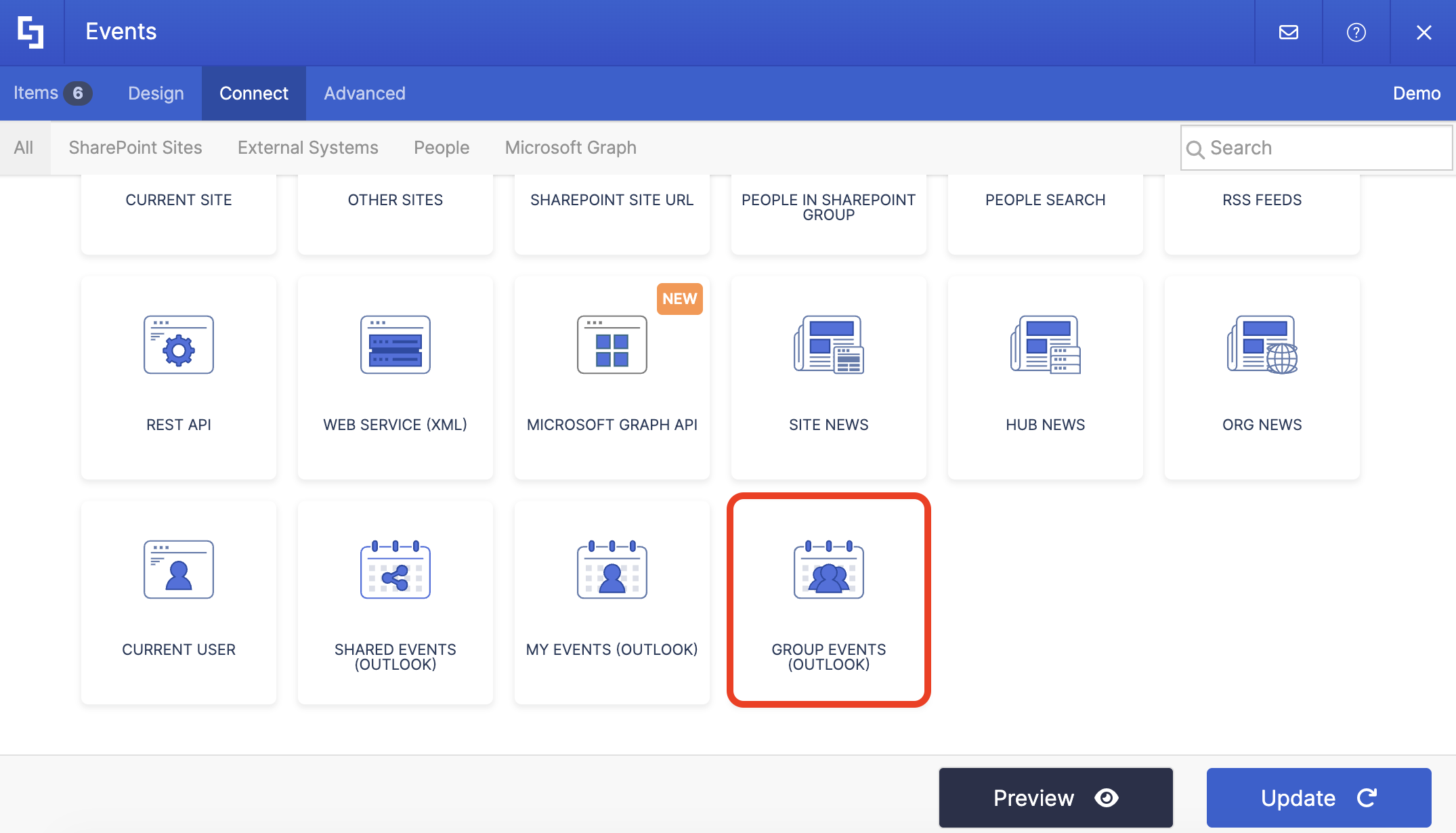
TABLE OF CONTENTS
- Prerequisites
- What is the Group Events (Outlook) Connection Type?
- Interactive Tutorial
- Group Events (Outlook) Features
- Practical Use Cases
- Create Dynamic Events with the Group Events (Outlook) Connection
- Frequently Asked Questions
- What are the prerequisites for using this connection type?
- Do I need special permissions to set this up?
- Can I use any ShortPoint Design Element with this connection?
- How often does the calendar sync with my SharePoint page?
- What happens with recurring events?
- Can I filter which events are displayed?
- What if I want to display events from multiple groups?
- Can I customize how dates and times are displayed?
- What information can I display from each event?
- Is this feature available in all ShortPoint versions?
- What if I see a warning about permissions when setting up the connection?
Prerequisites
- You must have the latest version of ShortPoint SPFx installed on your SharePoint environment.
- You must be a ShortPoint Designer with either a Pro or Enterprise license. For more information on licensing, check out Licensing Options.
- You must have an existing Design Element you want to use to connect.
- You must have a shared group Outlook calendar with scheduled events.
- You must grant ShortPoint permission to read Outlook Events details. For more information on how to grant permissions, go to Setting up Microsoft Graph Integration for SharePoint Online.
What is the Group Events (Outlook) Connection Type?
The Group Events (Outlook) connection type is a dynamic integration feature within ShortPoint Connect that allows you to pull calendar events from any Outlook group directly into your SharePoint pages.
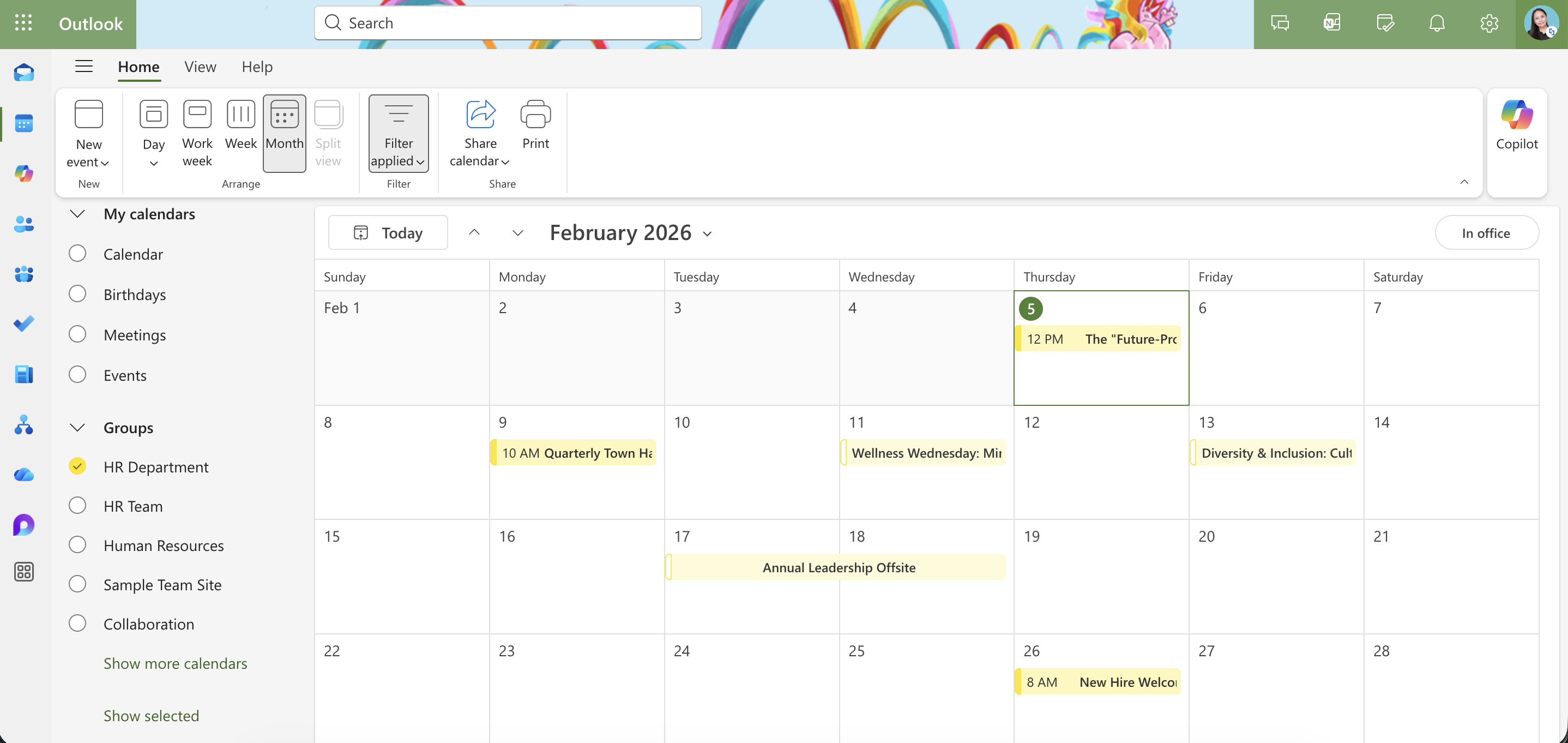
The connection leverages Microsoft Graph API to securely access your Outlook group calendar data. You simply select which Outlook group you want to connect to and customize how you want the events displayed.
Once you've set up the connection, your SharePoint page automatically displays the latest group events from your selected group's calendar—no manual updates required. This feature ensures your SharePoint site stays current with your team's schedule.
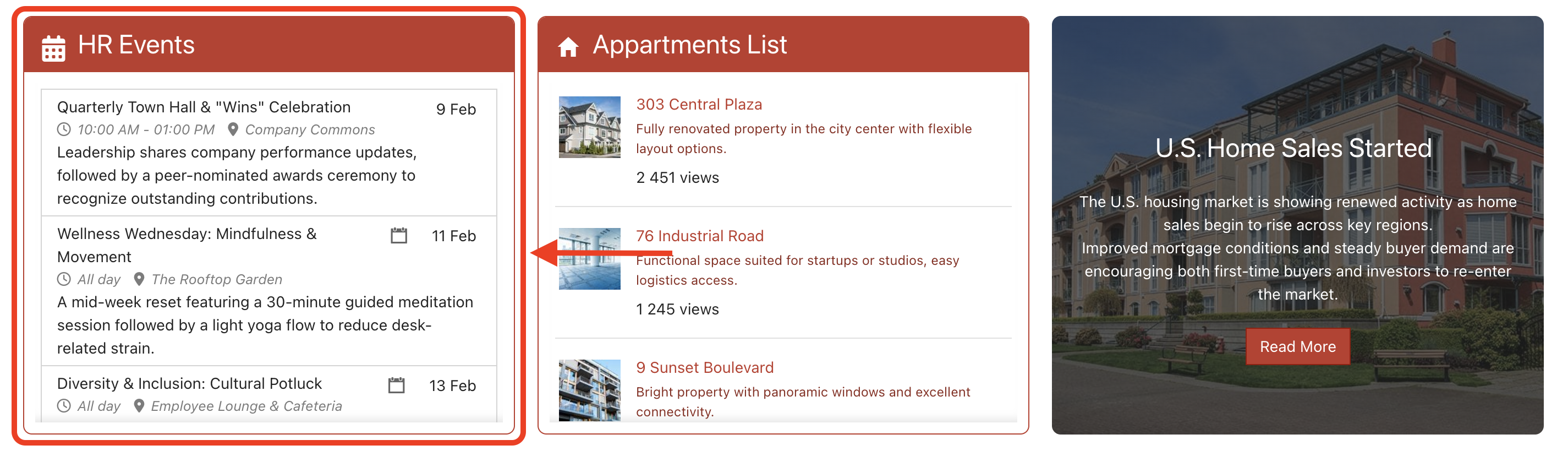
The best part? You can use any ShortPoint Design Element to display your events. The Group Events connection adapts to your design vision. With over 60 design elements at your disposal, you can create an event showcase that actually looks good and matches your organization's branding.
Interactive Tutorial
Ready to connect your Outlook group calendar events? Here's what you need to do:
NOTETo learn more about the settings you can modify, check out Group Events (Outlook) Features.
Step 1: Edit the ShortPoint Web Part
NOTEMake sure you already have events in your Outlook group calendar.
- Go to the SharePoint page you want to use and click Edit:

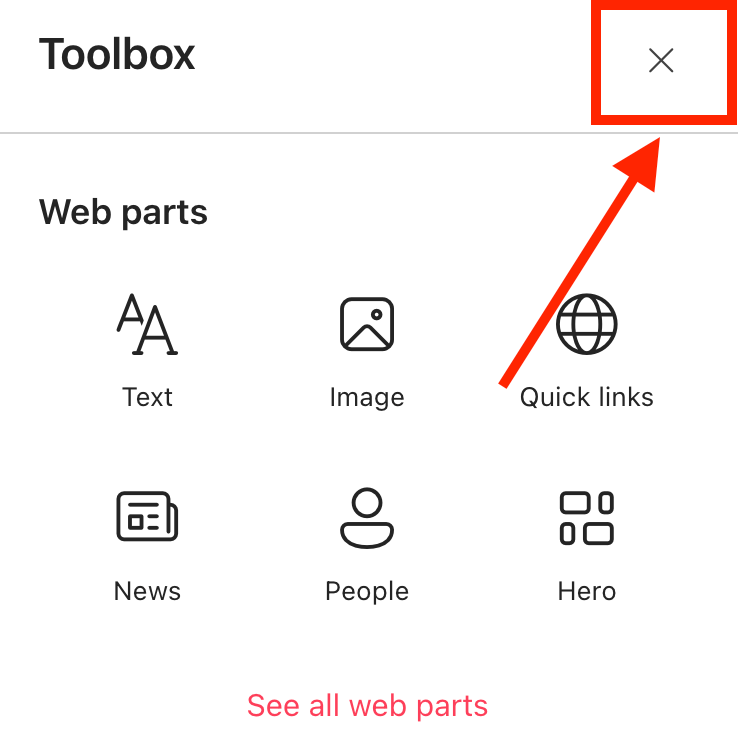
- Close the Toolbox:
- Click the Edit Properties icon:

Step 2: Edit the Design Element
NOTEMake sure you already have an existing Design Element you want to use to connect. For this guide, we'll use Date List.
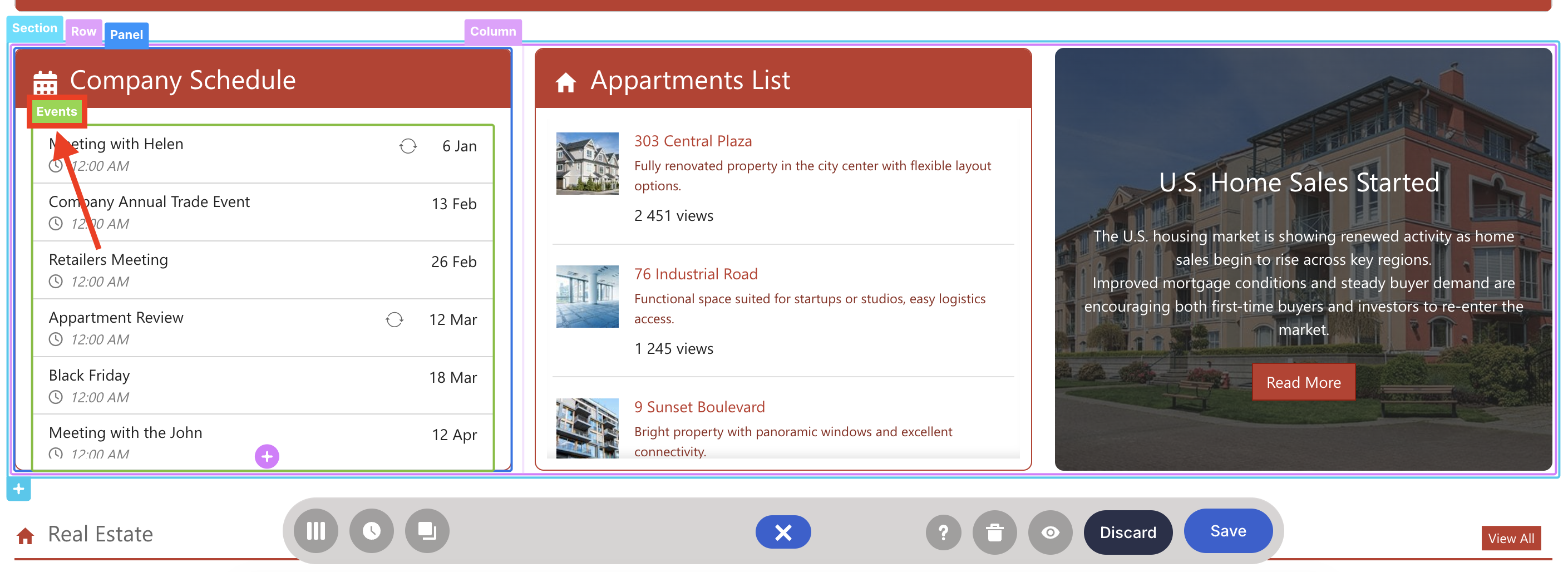
- Click the EasyPass tag of the Design Element:
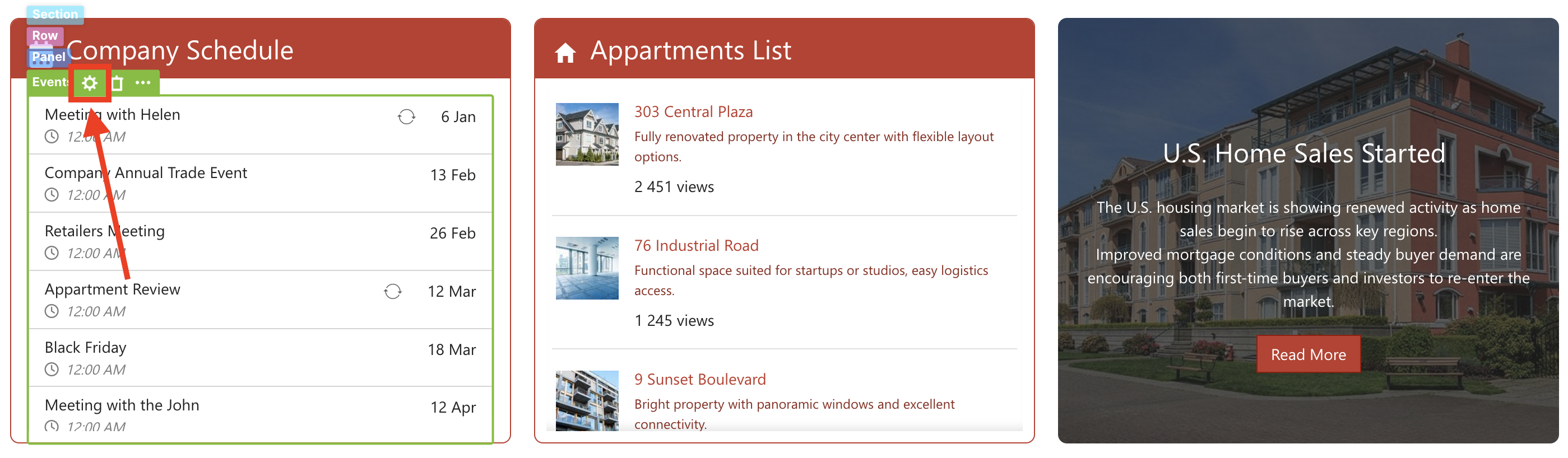
- Select the cogwheel icon:
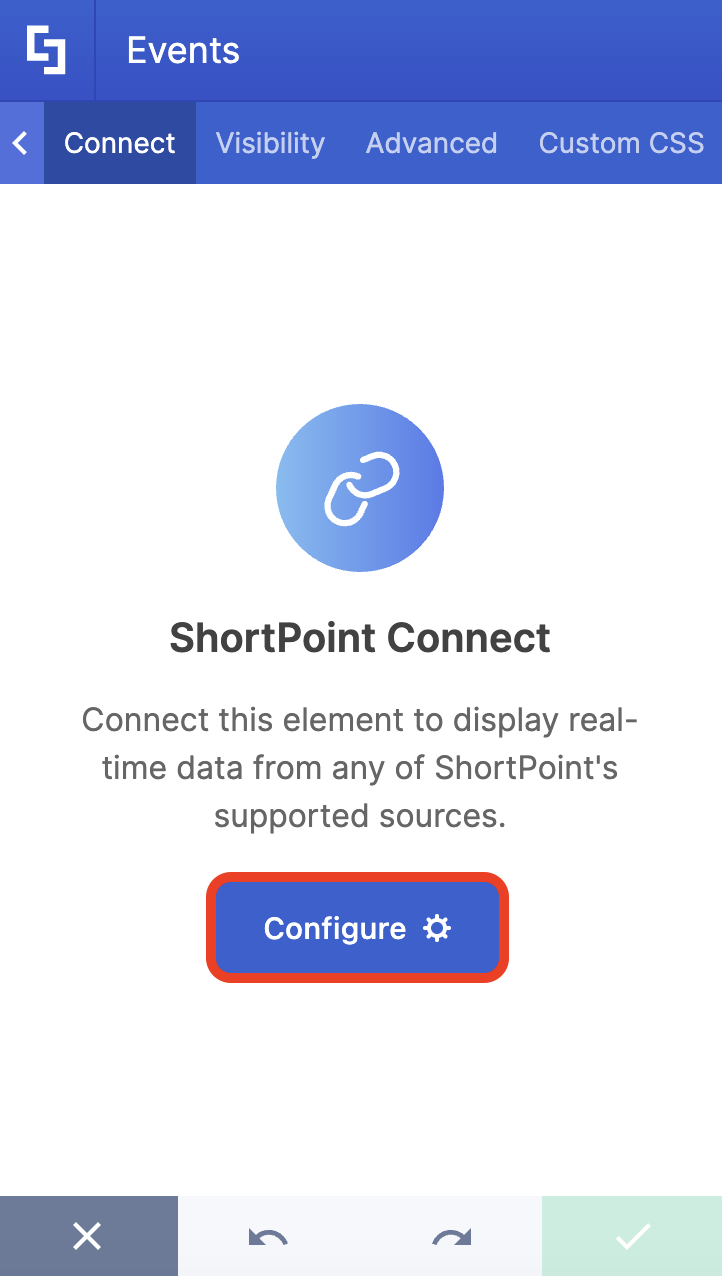
- Go to the Connect tab.
- Click Configure:
Step 3: Establish Connection
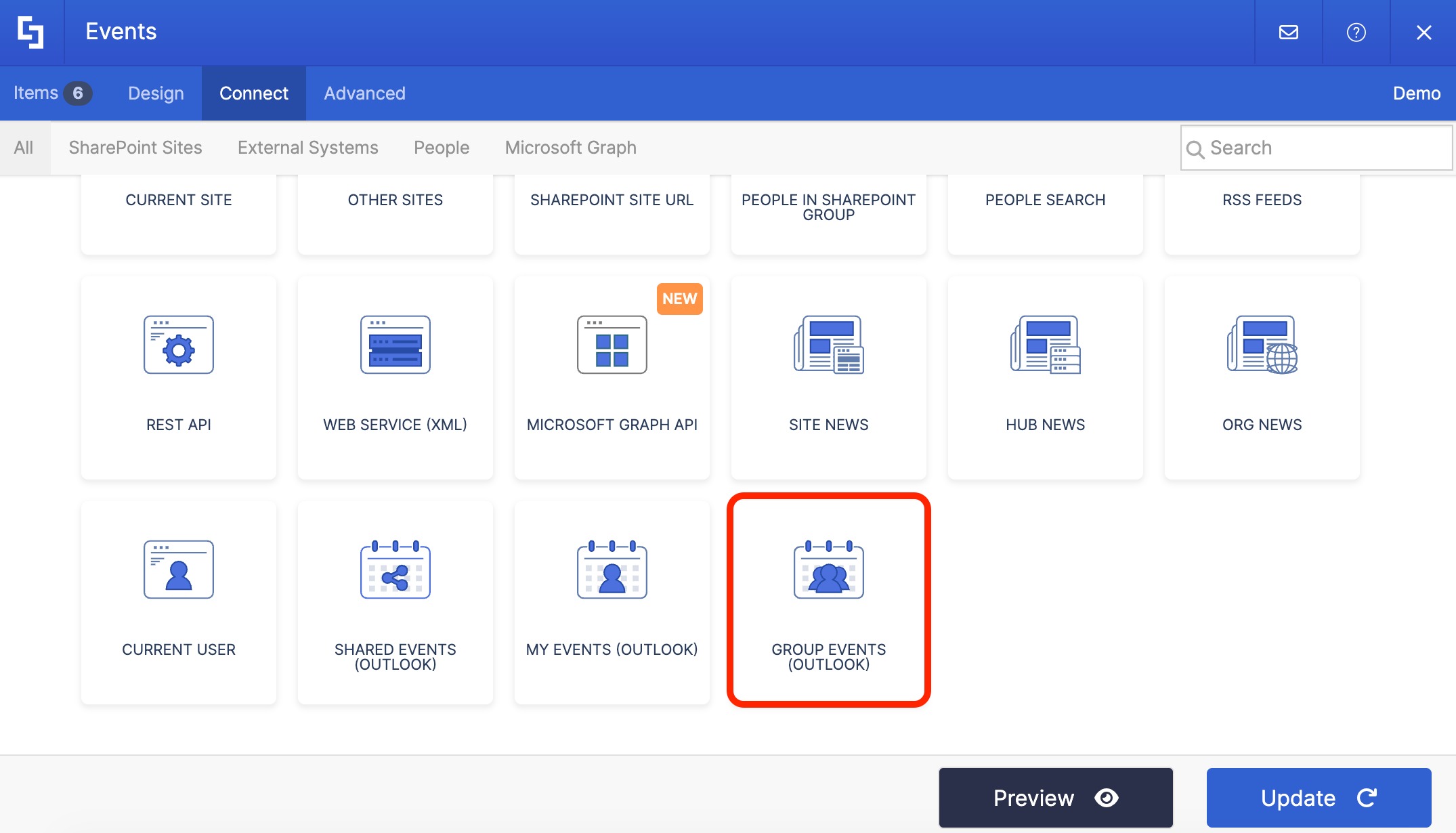
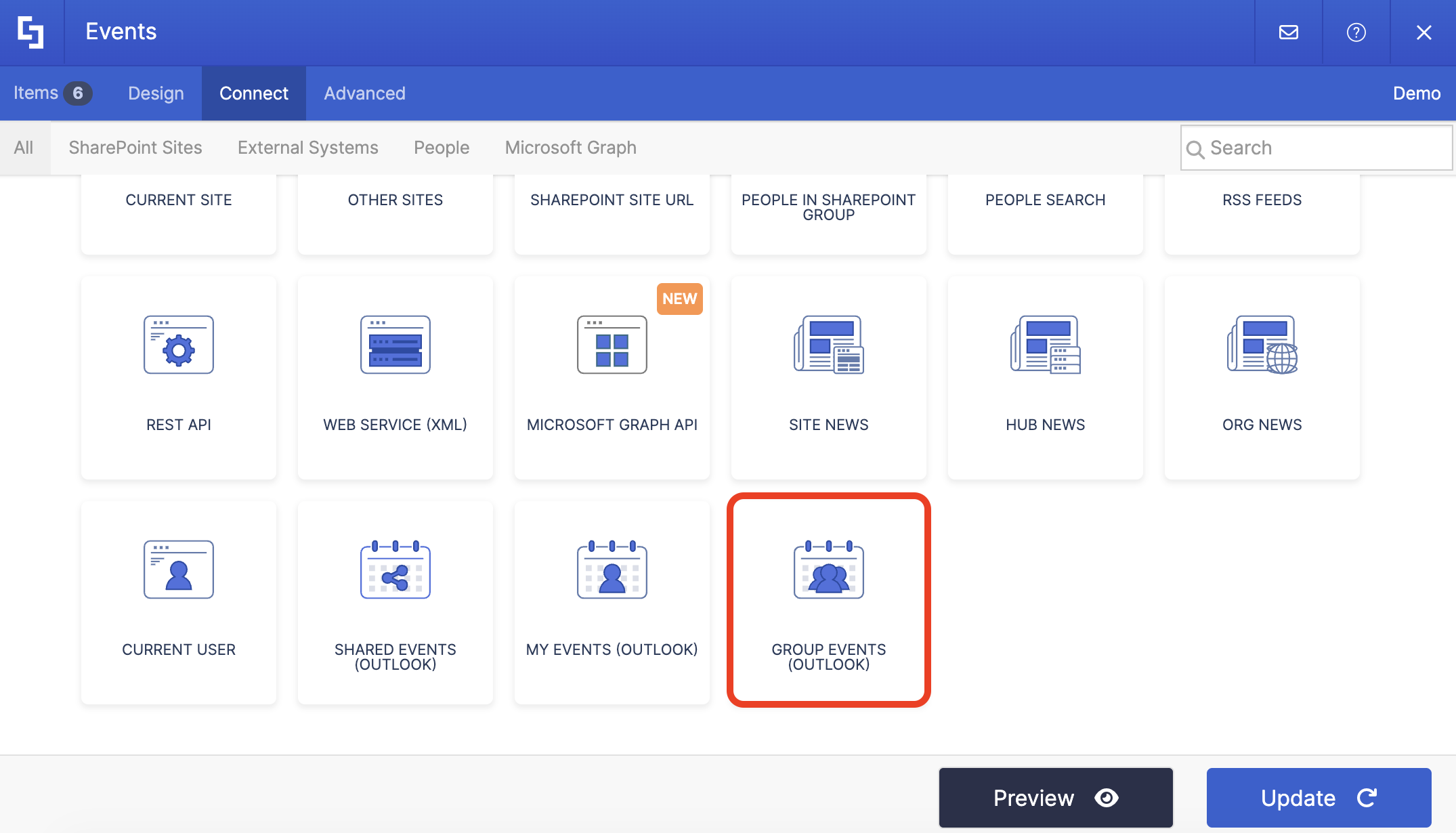
- Select Group Events (Outlook):
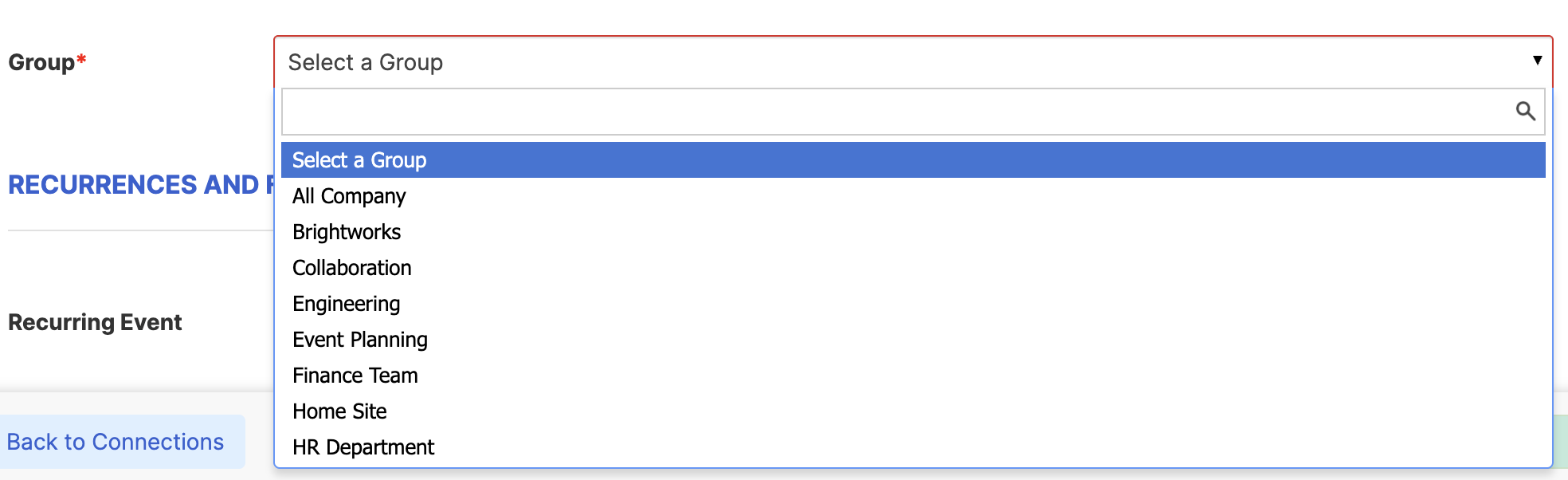
- Choose the Group you'll use:
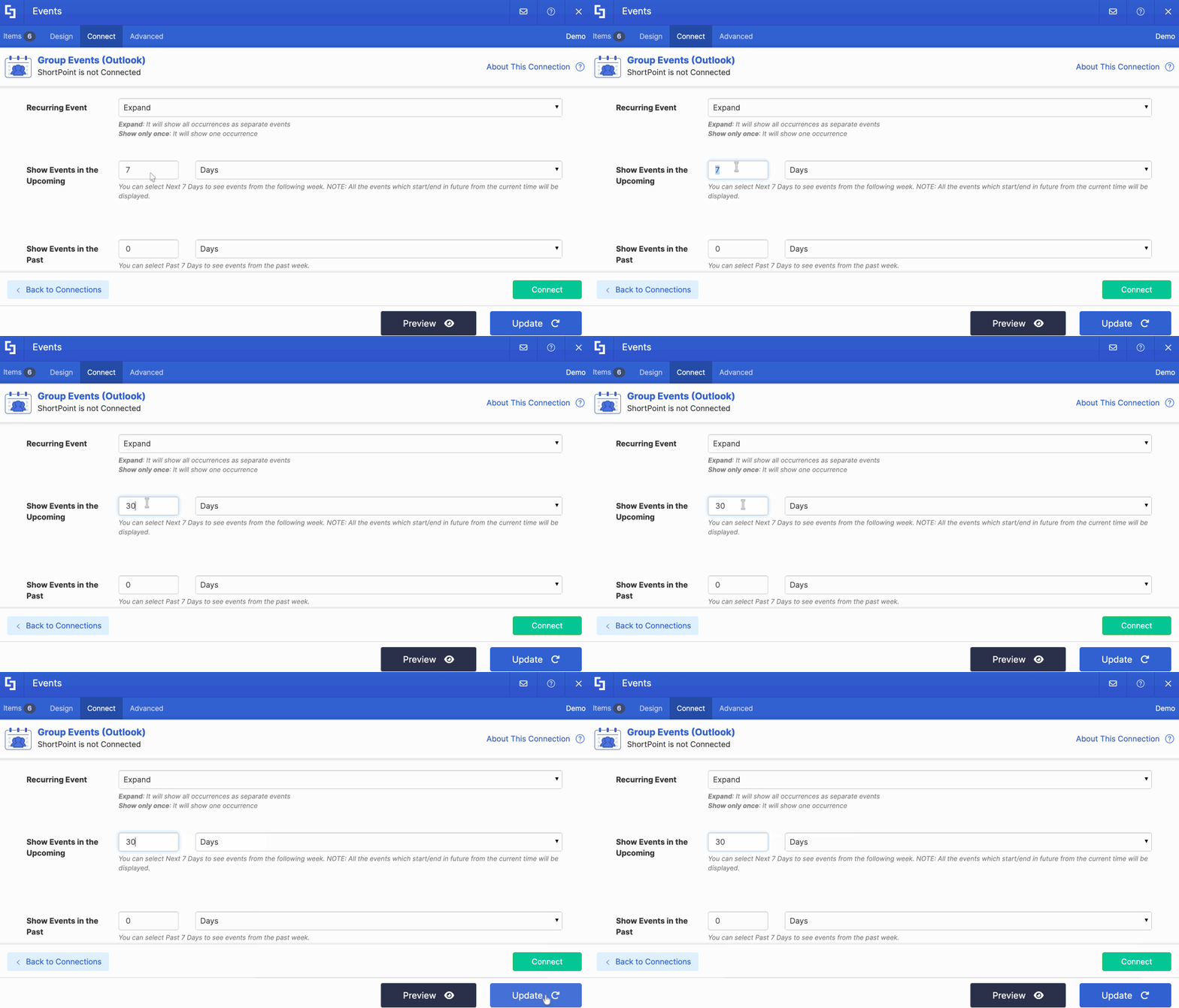
- Then, configure the settings to your liking:
NOTETo learn more about the settings you can modify, check out Group Events (Outlook) Features.
- Click Connect.
Step 4: Map Items
- Go to the Items tab.
- Delete default content:
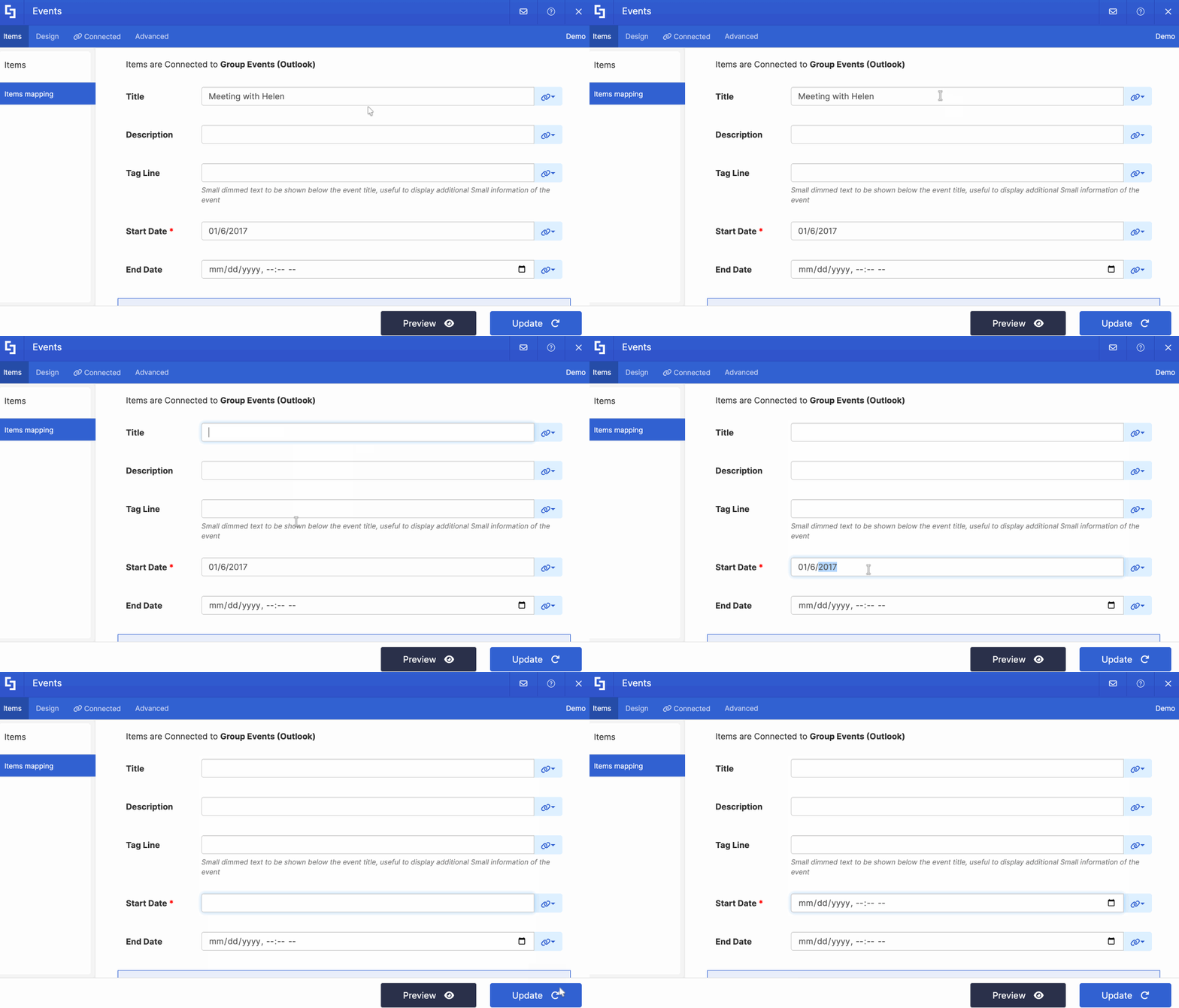
- Use the link icon to map the properties you want to display:
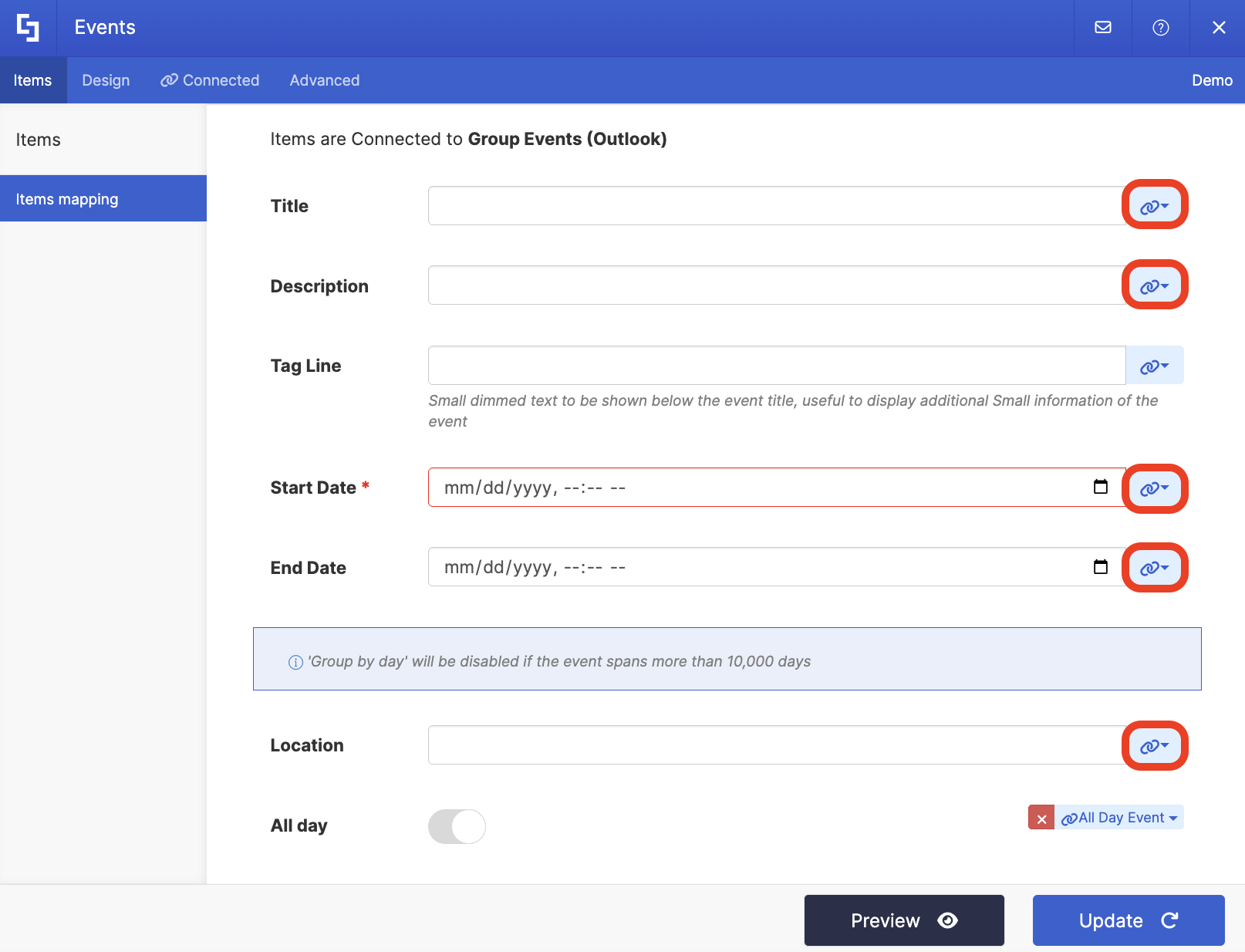
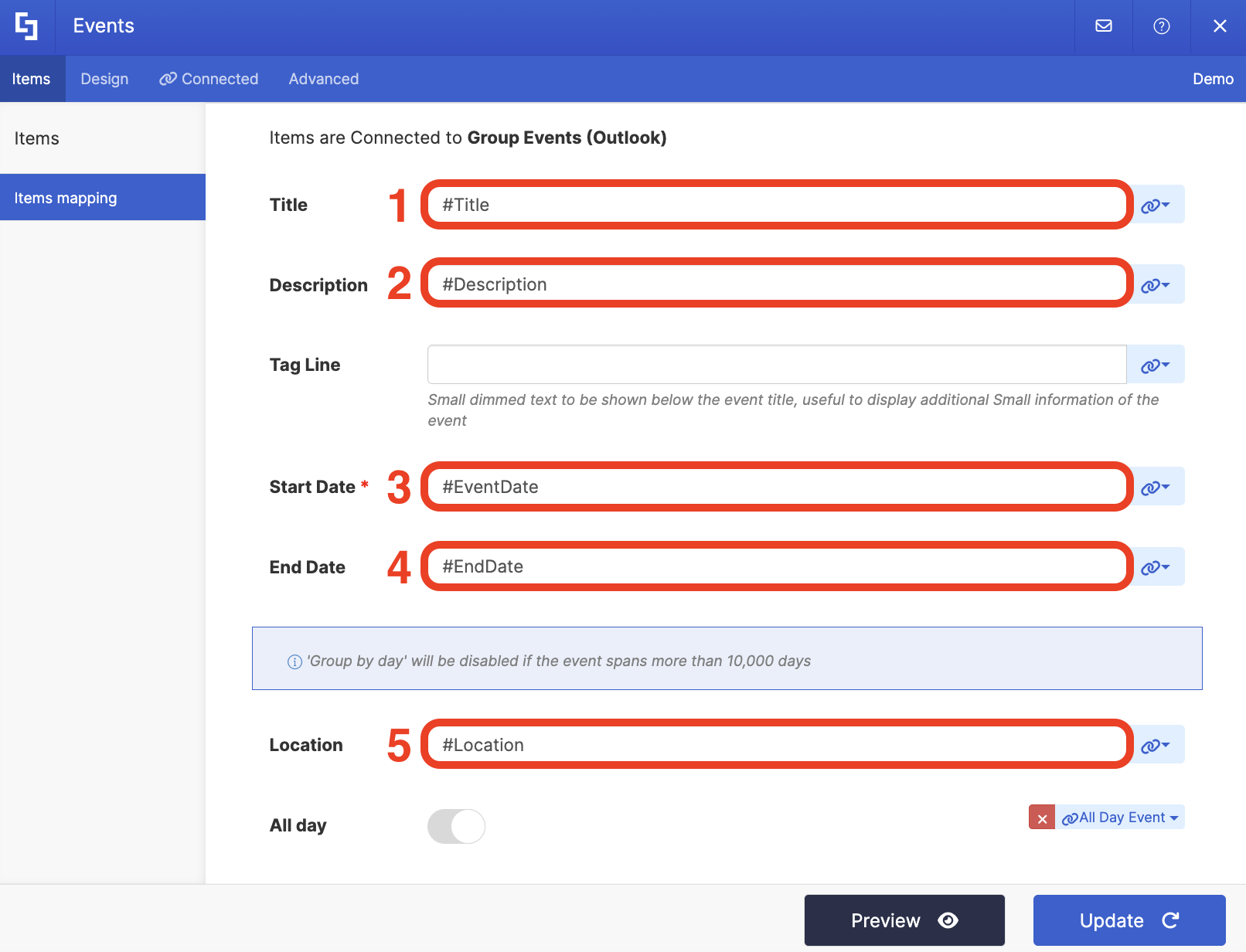
- Below are the properties we mapped. You can choose to map the same items or choose your own.
- #Title - shows the title of the event
- #Description - shows the description of the event
- #EventDate - shows when the event will start (date and time)
- #EndDate - shows when the event will end (date and time)
- #Location - shows where the event will take place.
Step 5: Save
- To see how the Design Element looks, click Preview.
- Once satisfied, click Update.
- Click the green check mark:
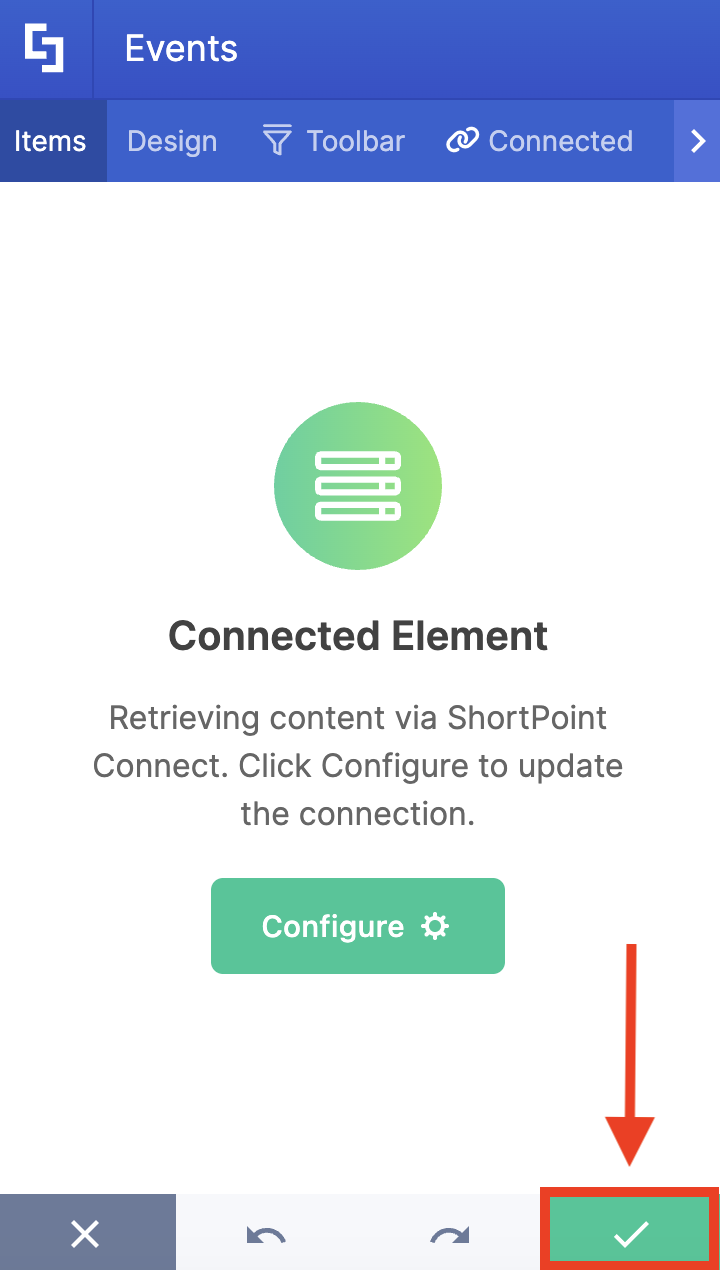
- Save your changes:

Awesome! You now have a dynamic list of group events on your SharePoint Online sites, seamlessly connected to your Outlook group calendar for real-time updates. With this setup, your team can efficiently check the start time and details and coordinate schedules.
Group Events (Outlook) Features
Here are the features you can modify inside the My Events (Outlook) connection, allowing you to customize how your group outlook events appear on your SharePoint pages.
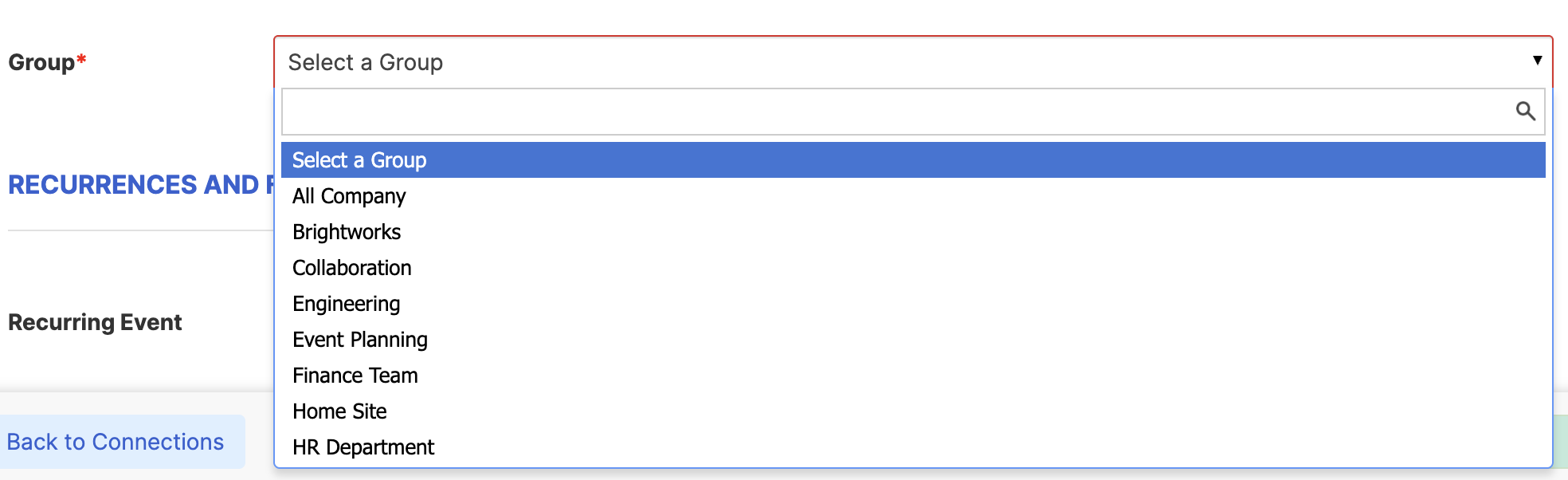 | Group | allows you to select the group whose events you want to display. |
RECURRENCES AND FILTERS
 | Recurring Event | allows you to modify how recurring events will appear on your page. You can choose to Expand (show all occurrences of an event) or Show only once (show only one occurrence of an event). |
 | Show Events in the Upcoming | allows you to customize the number of Days, Months, or Years you want to show for upcoming events |
 | Show Events in the Past | allows you to customize the number of Days, Months, or Years you want to show for past events |
 | Items Limit | allows you to modify the maximum number of events shown |
 | Convert HTML to plain text | when enabled, this option will convert all HTML data to plain text |
DATE FORMAT
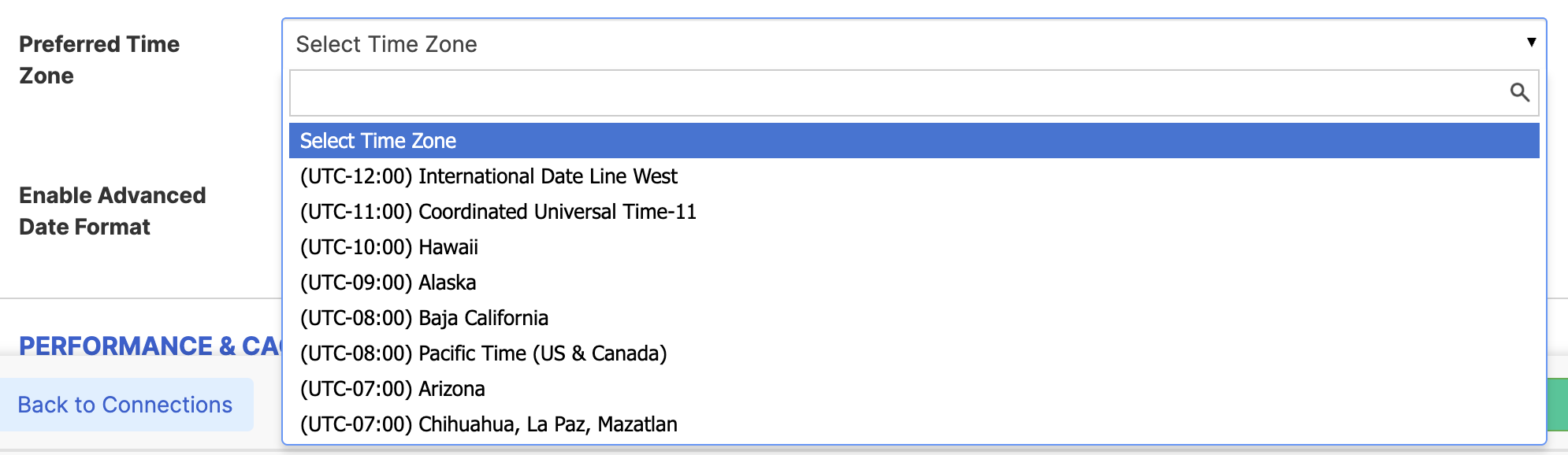 | Preferred Time Zone | allows you to select the Time zone of your events |
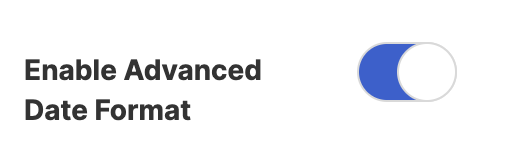 | Enable Advanced Date Format | when enabled, an additional date setting will be shown |
 | Date/Time Format | allows you to specify your preferred date format |
PERFORMANCE AND CACHING
 | Enable Partial Loading | This feature comes enabled by default. It allows partial loading to activate automatically when the connection returns more than 20 results. Additional results will load as the user scrolls. Learn more about the Partial Loading function. |
 | Cache Options | allows you to choose from 3 caching options. Learn more about these caching optionsand how to improve ShortPoint performanceon your SharePoint sites.
|
Practical Use Cases
The Group Events (Outlook) connection type shines in a variety of real-world scenarios. Here are some ways organizations are using it.
Department Event Calendars
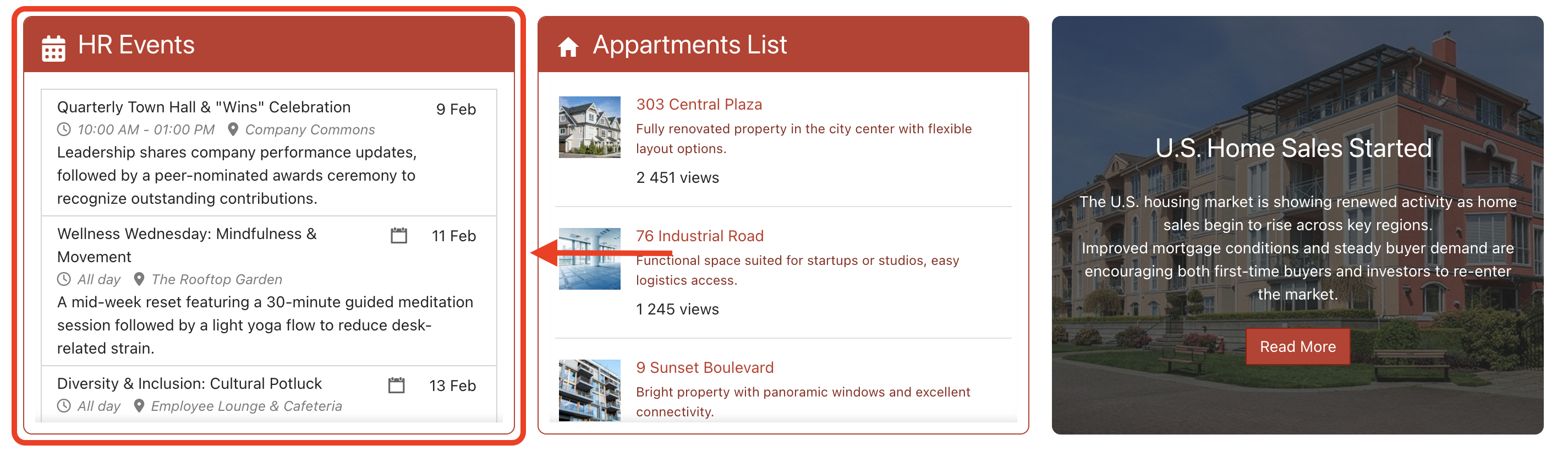
Imagine you're managing an HR department site. Using the Group Events connection, you can create an events feed that automatically displays upcoming training sessions, onboarding dates, and team-building activities. Your team members get a centralized view of all HR events without having to navigate to multiple calendars or dig through emails.
Cross-Functional Project Coordination
For teams that work across departments, you can display events from a shared project calendar. This gives everyone visibility into relevant meetings and activities happening across different teams, improving collaboration and reducing scheduling conflicts.
Company-Wide Event Showcases
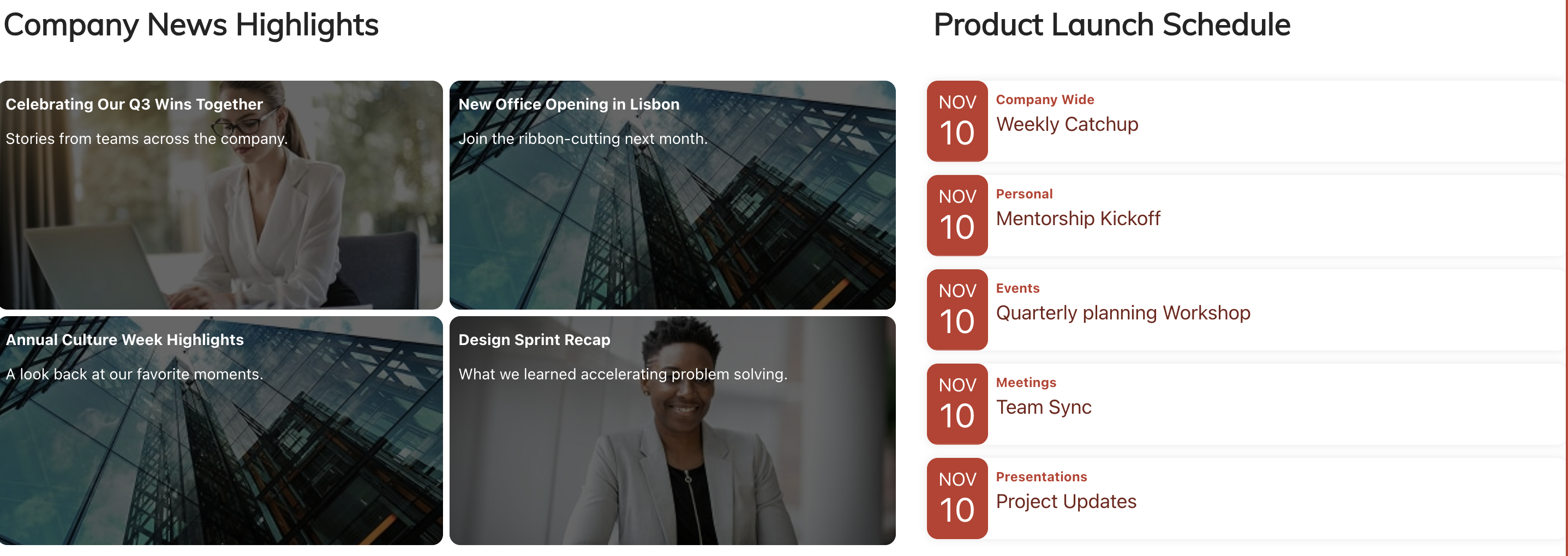
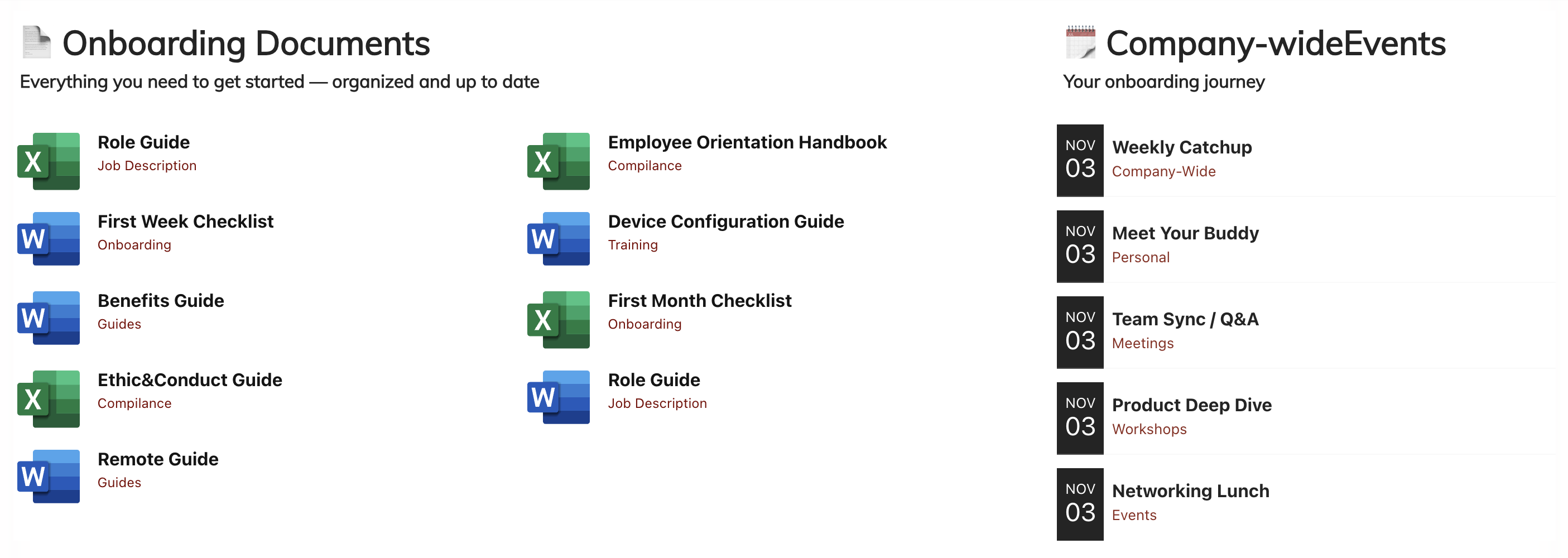
Use the connection on your intranet homepage to highlight upcoming company events, holidays, social gatherings, and important dates. This keeps the entire organization aligned and ensures no one misses out on important company activities.
Create Dynamic Events with the Group Events (Outlook) Connection
The Group Events (Outlook) connection type transforms how you display calendar information on SharePoint. It's flexible, automated, and designed to keep your pages current without manual intervention.
Your SharePoint pages deserve to be as dynamic as your organization. Let Group Events (Outlook) help you get there. Existing ShortPoint Designers can dive right in and start connecting their Outlook group events today. If you're new to ShortPoint, take advantage of the FREE 15-day trial to explore this feature and discover everything ShortPoint has to offer. You can also schedule a personalized demo with the ShortPoint team to see the Group Events connection in action.
Frequently Asked Questions
What are the prerequisites for using this connection type?
To use the Group Events (Outlook) connection, you'll need:
- The latest version of ShortPoint SPFx installed on your SharePoint environment (version 8.7.2.0 or later)
- An active Pro or Enterprise ShortPoint Designer license
- An existing ShortPoint Design Element on your page
- An Outlook group calendar with scheduled events
- Permission granted to the ShortPoint app to read Outlook Events details through Microsoft Graph Integration
Do I need special permissions to set this up?
Yes, you'll need to permit the ShortPoint app to access your Outlook Events data through Microsoft Graph Integration. This is a one-time setup process that ensures secure access to your calendar information. For more information on how to grant permissions, go to Setting up Microsoft Graph Integration for SharePoint Online.
Can I use any ShortPoint Design Element with this connection?
Absolutely! That's one of the great features of this connection type. You can connect Group Events to any ShortPoint Design Element, giving you complete creative freedom in how you display your calendar events. Popular choices include Simple List, Icon List, Date List, Events, and Tiles, but you're free to experiment with any design that fits your vision.
How often does the calendar sync with my SharePoint page?
The connection pulls data from Outlook's group calendar in near real-time. When someone adds, modifies, or deletes an event in your Outlook group calendar, those changes will reflect on your SharePoint page shortly after. This ensures your page always displays current information without requiring manual updates.
What happens with recurring events?
You have full control over how recurring events appear. You can choose to "Expand" recurring events to show every occurrence, or select "Show only once" to display just a single instance of the event. This flexibility avoids overwhelming viewers with too many entries.
Can I filter which events are displayed?
Yes! You can customize the time range for both past and upcoming events. For example, you might choose to show events from the past 7 days and upcoming events for the next 30 days. You can also set an items limit to cap the total number of events shown, ensuring your page stays clean and focused.
What if I want to display events from multiple groups?
While a single Group Events connection links to one specific Outlook group, you can add multiple ShortPoint Design Elements to your page, each connected to a different group. This allows you to showcase events from various teams or departments on the same SharePoint page.
Can I customize how dates and times are displayed?
Definitely! The connection includes an "Enable Advanced Date Format" option that lets you customize how dates and times appear on your page. You can also select your preferred time zone to ensure events display correctly for your audience's location.
What information can I display from each event?
Through the Items Mapping feature, you can choose which event properties to display. Common options include event title, start and end times, location, and description. You map these properties to different fields in your Design Element, giving you complete control over what information appears.
Is this feature available in all ShortPoint versions?
The Group Events (Outlook) connection type is available in ShortPoint SPFx version 8.7.2.0 and later. Make sure you're running an up-to-date version of ShortPoint to access this feature and all its capabilities.
What if I see a warning about permissions when setting up the connection?
If you see a warning about permissions, it means you haven't yet granted the ShortPoint app access to read your Outlook Events data through Microsoft Graph Integration. This is a security feature to protect your calendar information. Follow the steps in Setting up Microsoft Graph Integration for SharePoint Online to grant access.
Related articles:
