Try ShortPoint now
TL;DR: To add Microsoft Teams to SharePoint, use the ShortPoint Teams Design Element. First, connect ShortPoint to Microsoft Graph: open the ShortPoint Dashboard, go to Integrations, click Connect under Microsoft Graph, and sign in with a Microsoft 365 Tenant Administrator account. Then edit your ShortPoint web part, insert the Teams element from the Design Element library, and choose My Teams or All Teams of organisation. Style it in the Advanced tab, then save and publish. Users can then browse teams, channels, files, members, and tasks without leaving SharePoint.
If you have ever found yourself constantly toggling between a SharePoint site and Microsoft Teams, you are not alone. Switching between apps slows down your momentum and scatters important information.
Enter the ShortPoint Teams Design Element, a feature built to bridge the gap between Microsoft Teams and SharePoint intranet sites. Let's look at what this element does, how to add it to your SharePoint pages, how organizations use it, and answer a few common questions to get you started.
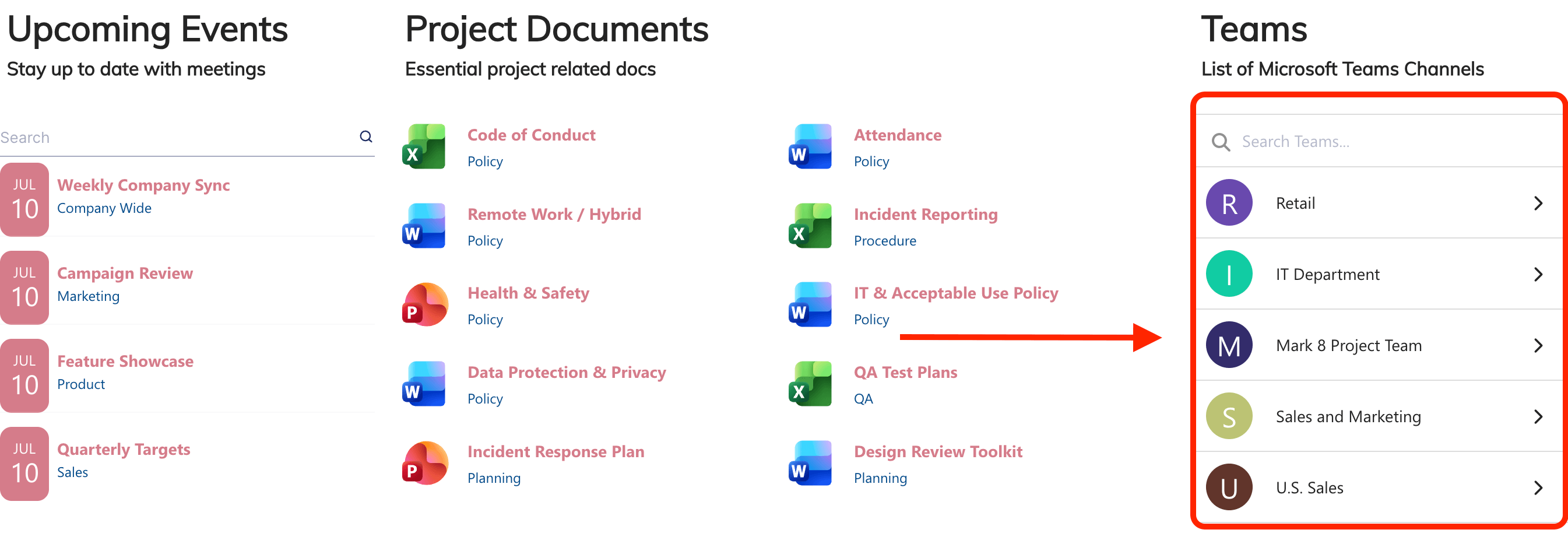
TABLE OF CONTENTS
- Prerequisites
- What is the ShortPoint Teams Design Element?
- Adding Teams for SharePoint Sites
- Teams Features
- Practical Use Cases
- Frequently Asked Questions
- What are the prerequisites for using the Teams Design Element?
- Why is Microsoft Graph integration required?
- Can I restrict which teams a user sees?
- Can users open conversations directly in the Microsoft Teams app?
- Can I customize how the element looks to match our brand?
- How does the Teams Design Element improve collaboration in SharePoint?
Prerequisites
- You must have the latest version of ShortPoint SPFx installed.
- You must be a ShortPoint Designer with either a Pro or Enterprise License. For more information, check out Licensing Options.
What is the ShortPoint Teams Design Element?
The Teams Design Element, powered by Microsoft Graph, is a ShortPoint Design Element that lets you embed your Microsoft Teams workspace directly on your SharePoint pages.
Instead of inserting standard, static links, the Teams Design Element renders a clean, interactive interface. Users can view their joined teams or explore organization-wide groups directly from SharePoint. Users can also browse Teams & Channels, access files & document libraries, view member lists & open individual Delve profiles, manage tasks, and launch conversations. This makes it easier for everyone in your organization to collaborate effectively.
Because it leverages ShortPoint’s design options, you can also customize hover colors, search bar labels, headers, and so much more.
Adding Teams for SharePoint Sites
Start the interactive tutorial to start adding Microsoft Teams capability to your SharePoint sites.
Part 1: Integrate ShortPoint with Microsoft Graph
The Teams Design Element uses Microsoft Graph to get Teams data from your organization. Before adding the Teams Design Element to your SharePoint pages, you must connect ShortPoint to Microsoft Graph. Follow the steps below to learn how to successfully establish this connection.
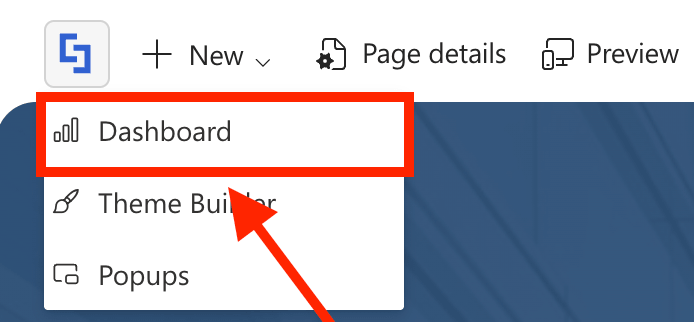
Step 1: Open the ShortPoint Dashboard
- Click the ShortPoint shortcut:

- Select Dashboard from the drop-down.
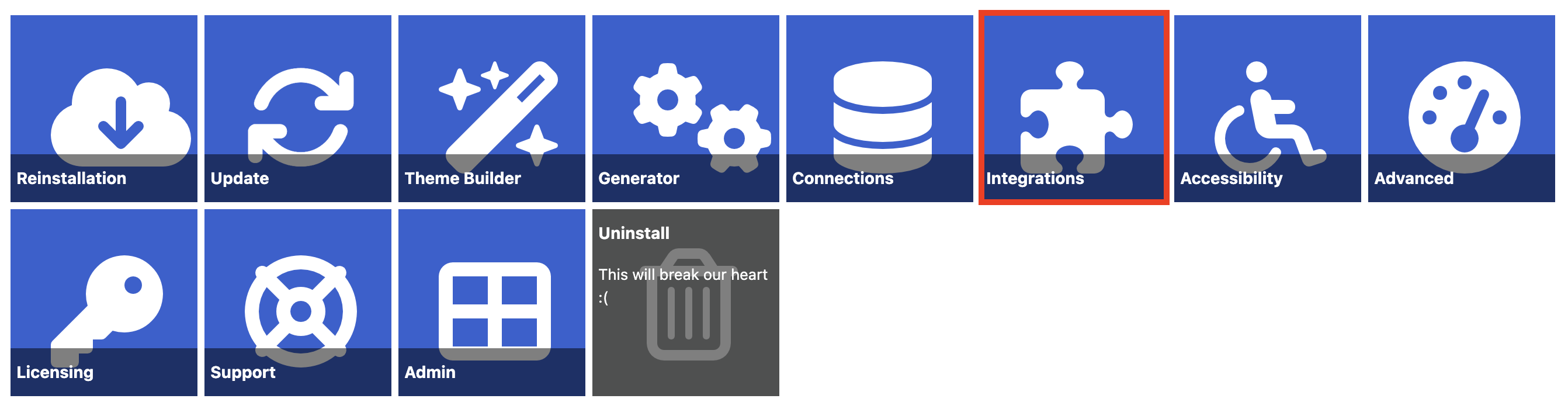
Step 2: Open the Integrations page
- Click Integrations.
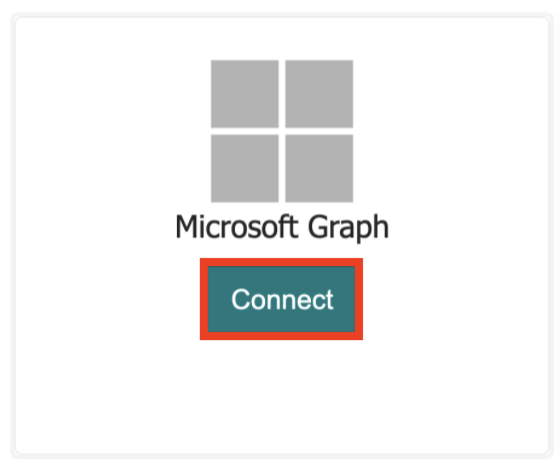
Step 3: Connect Microsoft Graph with ShortPoint
- Under Microsoft Graph, click Connect.
- Then, log in with your Microsoft 365 Tenant Administrator account.
- If the login was successful, grant ShortPoint the list of permissions that appear. Click Accept.
NOTEIf you have already connected ShortPoint with Microsoft Graph, click Reconnect to integrate Teams Design Element into your SharePoint pages. You can check out Setting up Microsoft Graph Integration for SharePoint Online to learn more.
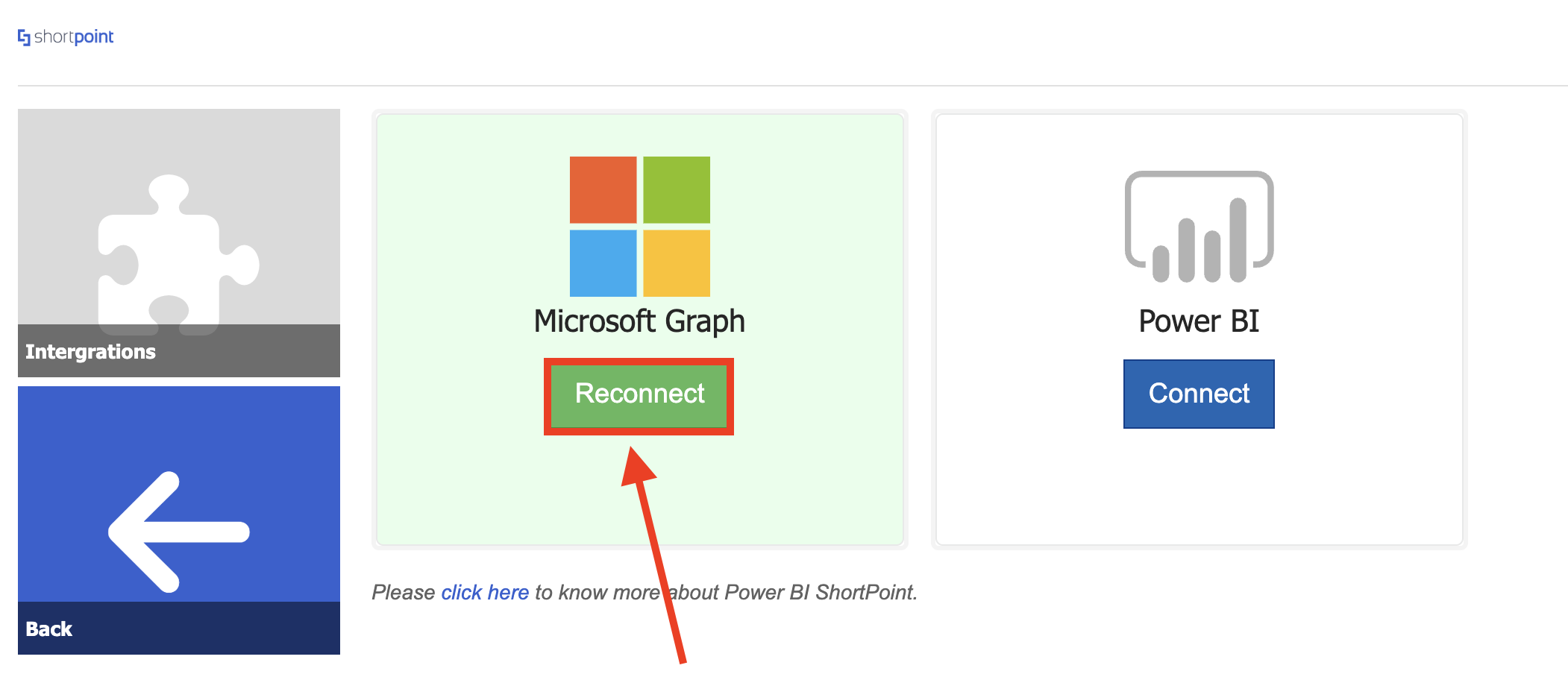
You may now proceed to Part 2 of this tutorial.
Part 2: Insert the Teams Design Element
This section shows you how to add the Teams Design Element on your SharePoint page.
Step 1: Edit the ShortPoint Web Part
- Click Edit:

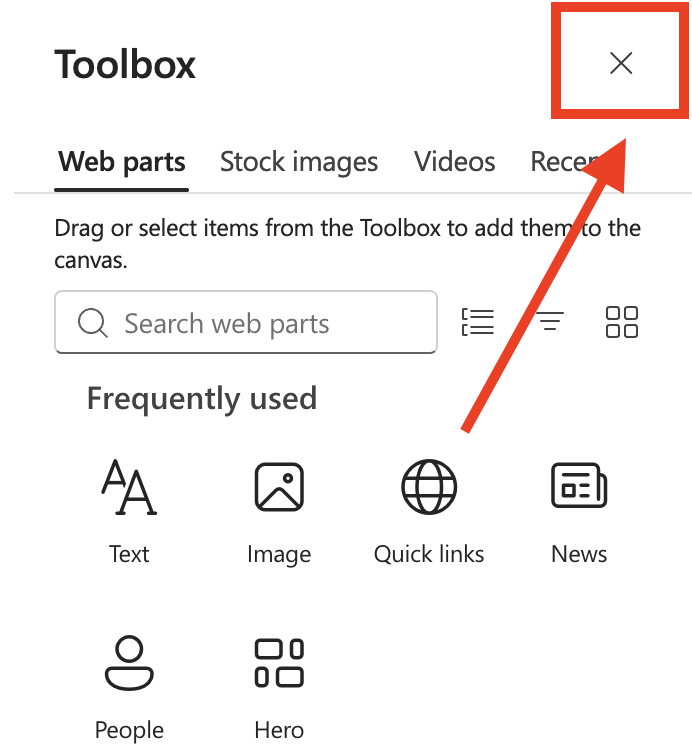
- Close the Toolbox.
- Click the Edit properties icon.

Step 2: Insert the Teams Design Element
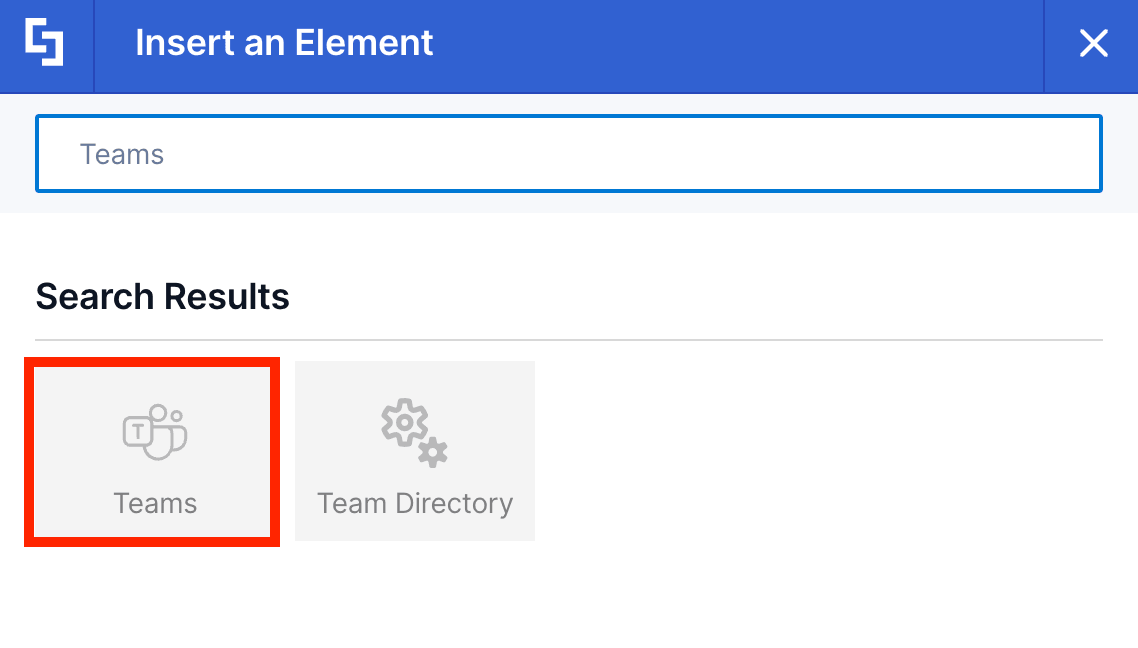
- Click the plus icon to see the Library of Design Elements.
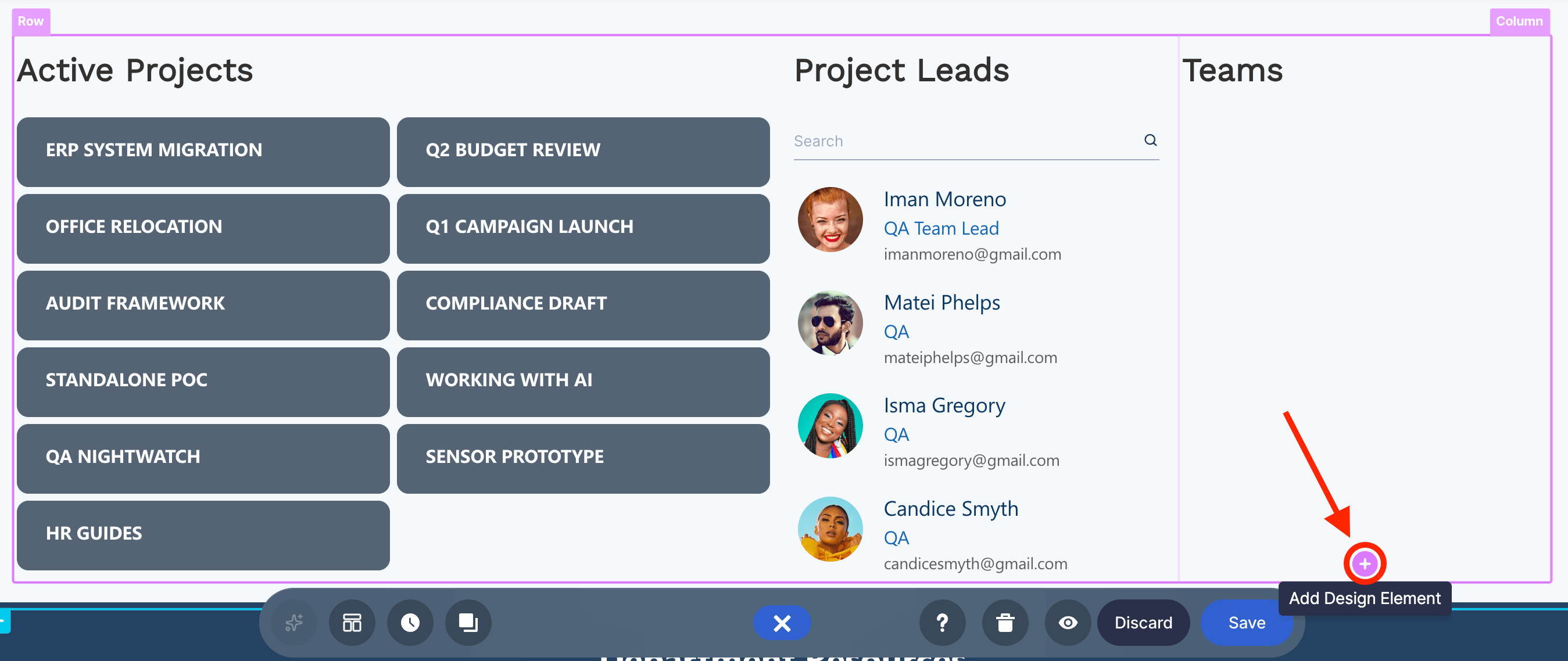
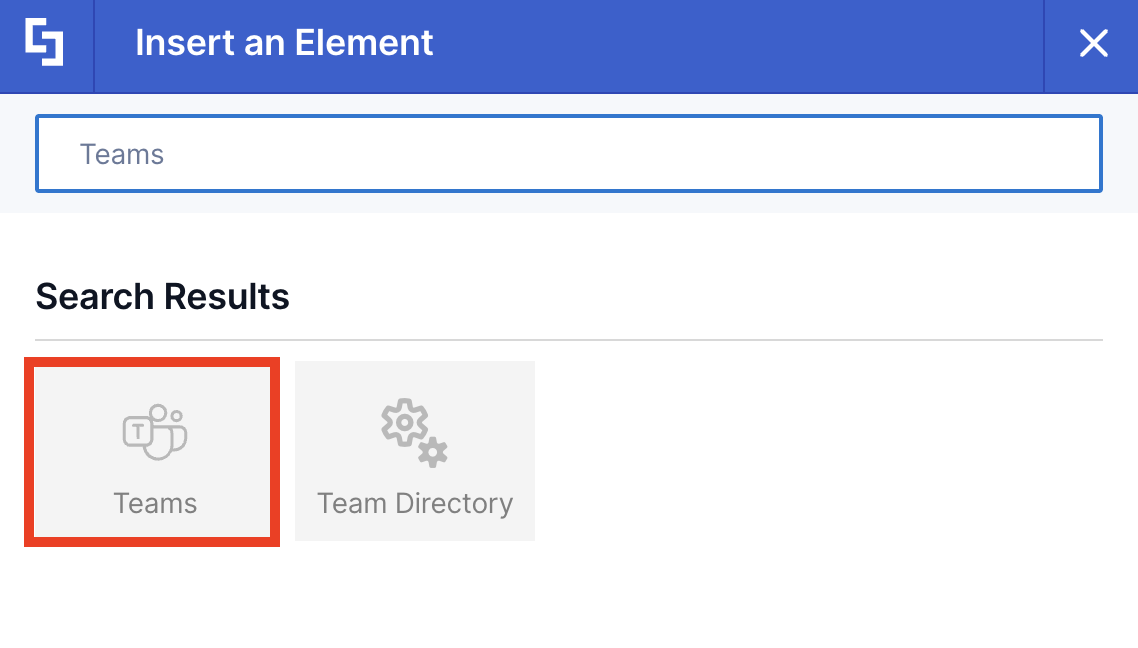
- Use the search bar to look for Teams and select it.
Step 3: Customize the content of the Teams
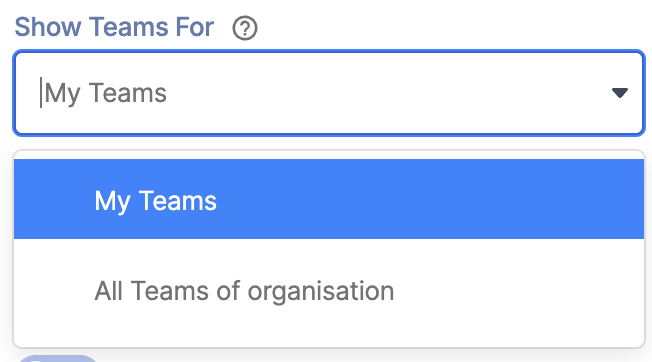
- Click the Show Teams For drop-downand choose any of the following:
- My Teams - allows you to display Teams that the signed-in user is a part of;
- All Teams of organisation - allows you to display all the Teams in your organization.
NOTECheck out Teams Features to learn more about the customizable features you can modify.
Step 4: Customize the look of the Teams Design Element
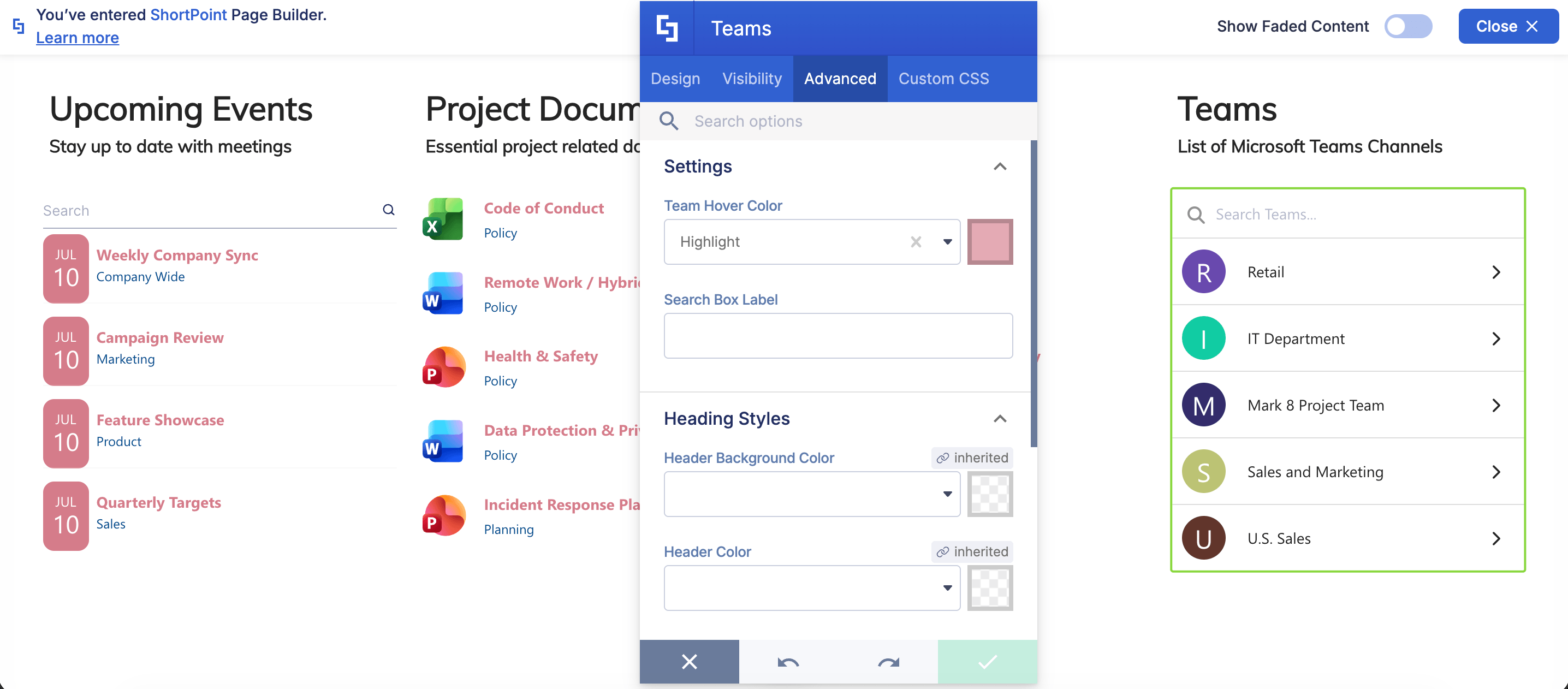
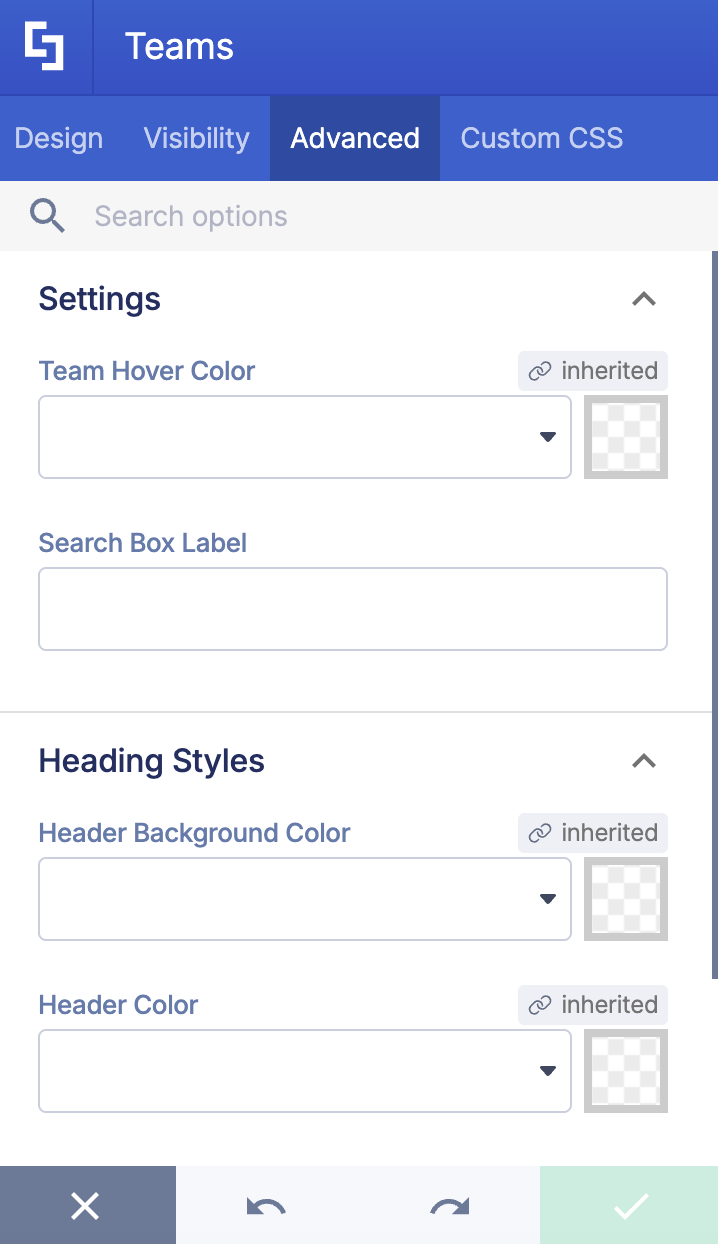
- Navigate to the Advanced tab.
- Customize the design of the Teams Design Element according to your preferences.
NOTECheck out Teams Features to learn more about the customizable features you can modify.
Step 5: Save
- Click the green checkmark.
- Click Save to apply all your changes.

- Publish your page.

Teams Features
Below are the tabs you can find in the Teams Settings window:
A. Design Tab
The Design tab allows you to configure the content of the Teams Design Element. It has the following options:
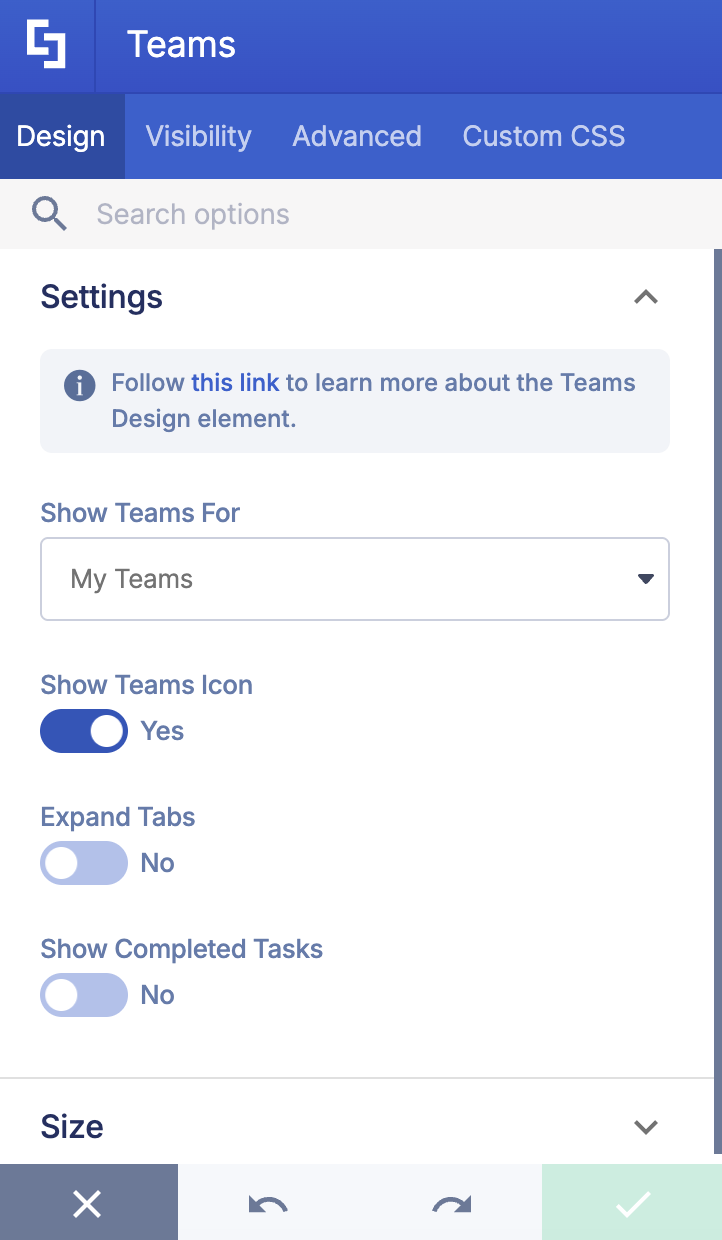
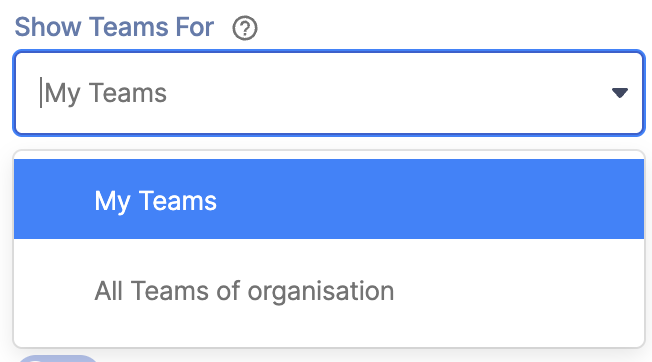 | Show Teams For | allows you to filter the teams to display. You can choose from the following:
|
 | Show Teams Icon | allows you to display the teams icons. If no icon is assigned, ShortPoint will use the first letter of the teams as icons. |
 | Expand Tabs | when enabled, this will allow you to expand and see the tabs from each team channel. |
 | Show Completed Tasks | by enabling this option, you will be able to see all your tasks, including the completed ones. |
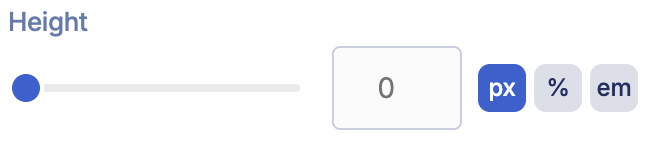 | Height | allows you to set the height of the Teams Design Element. |
B. Visibility Tab
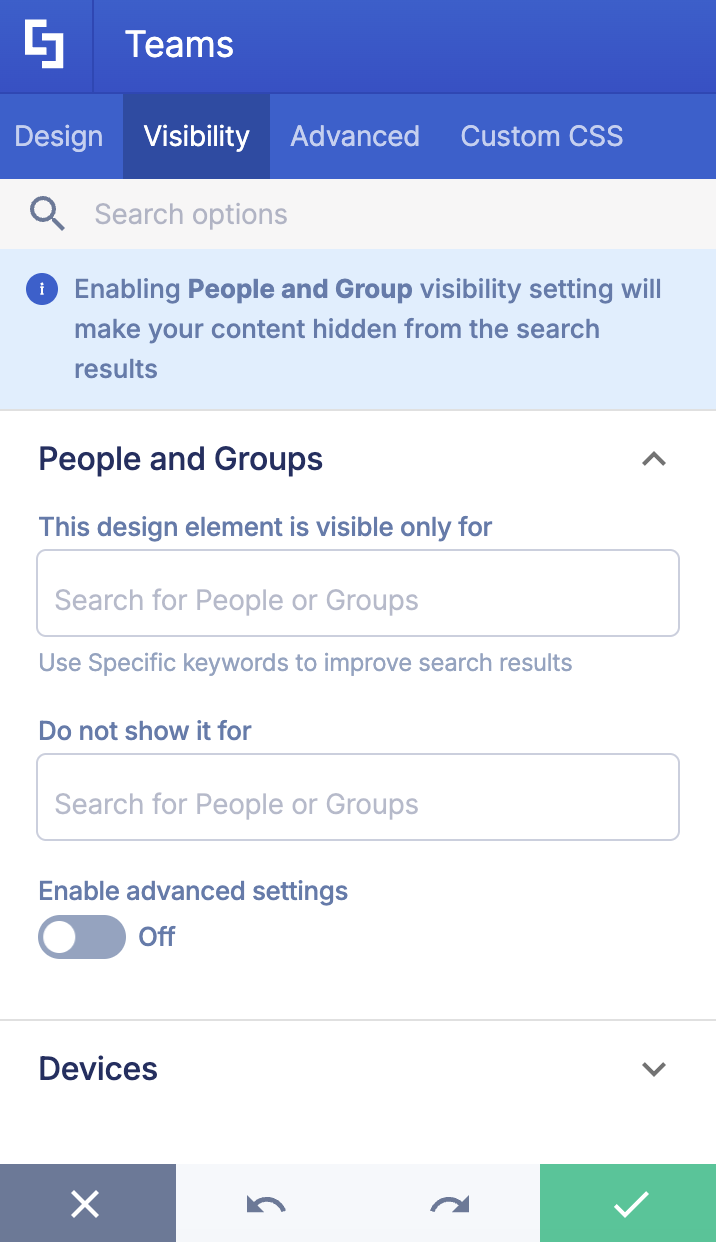
The Visibility tab allows you to control who can see the Teams Design Element and the devices that can access it.
NOTECheck out Managing Visibility of ShortPoint Design Elements to learn more about it.
C. Advanced Tab
The Advanced tab allows you to further customize the look of the Teams Design Element. It has the following options:
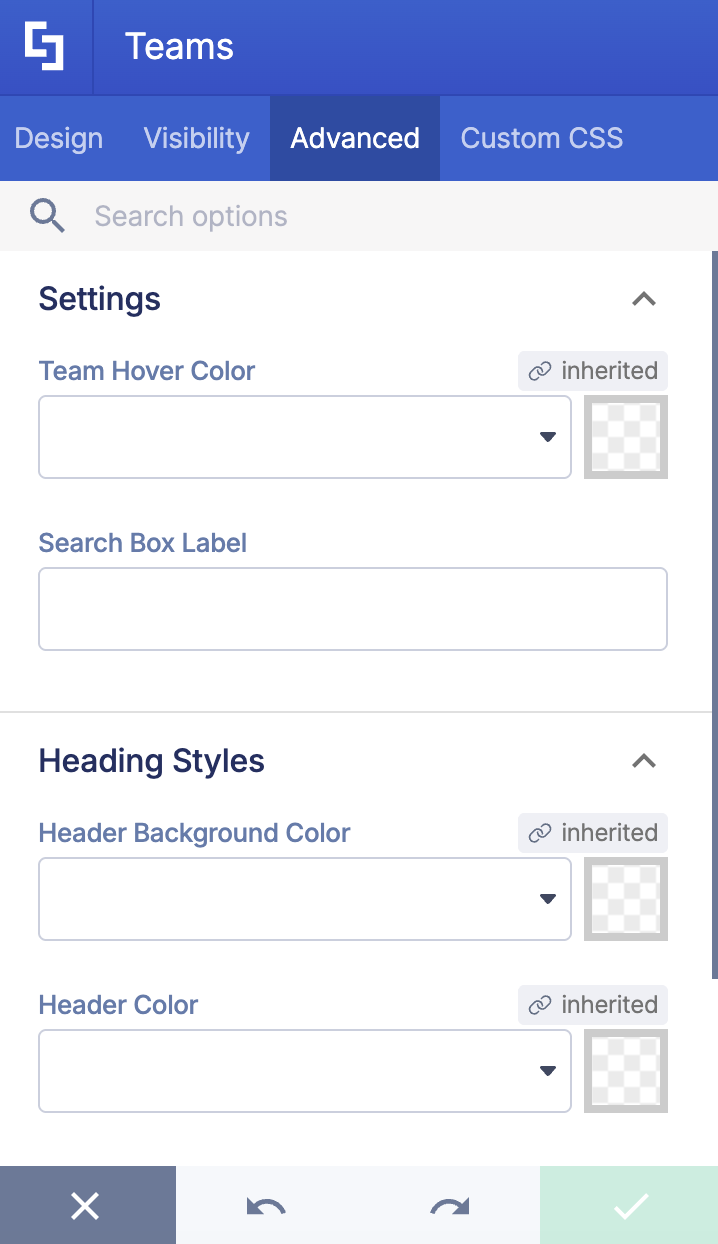
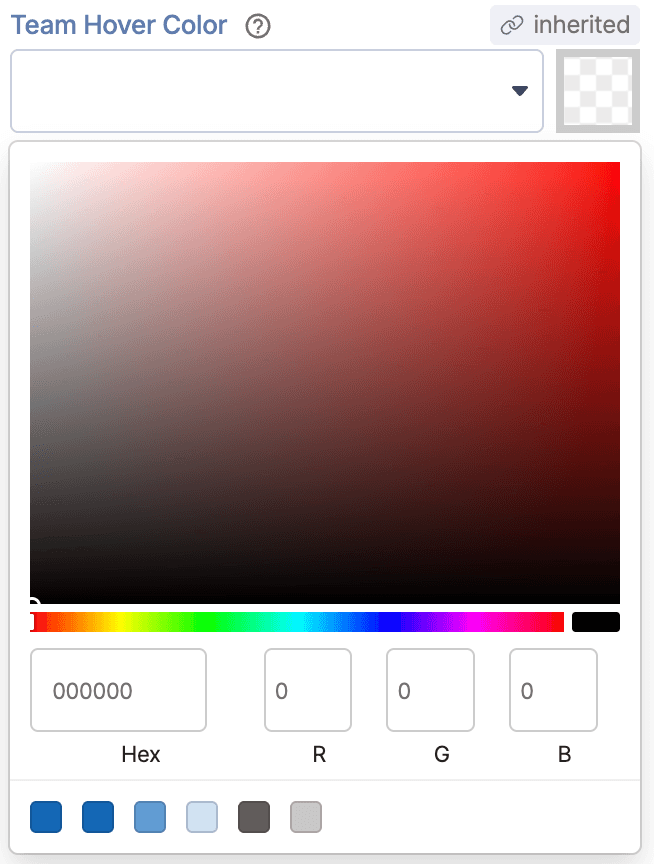 | Team Hover Color | allows you to choose the team item background color when the mouse hovers over it. |
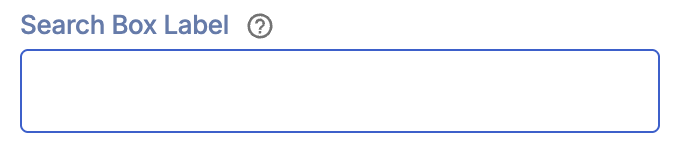 | Search Box Label | allows you to set a custom label for your Teams Search Box. By default, the search box label is "Search Teams...". |
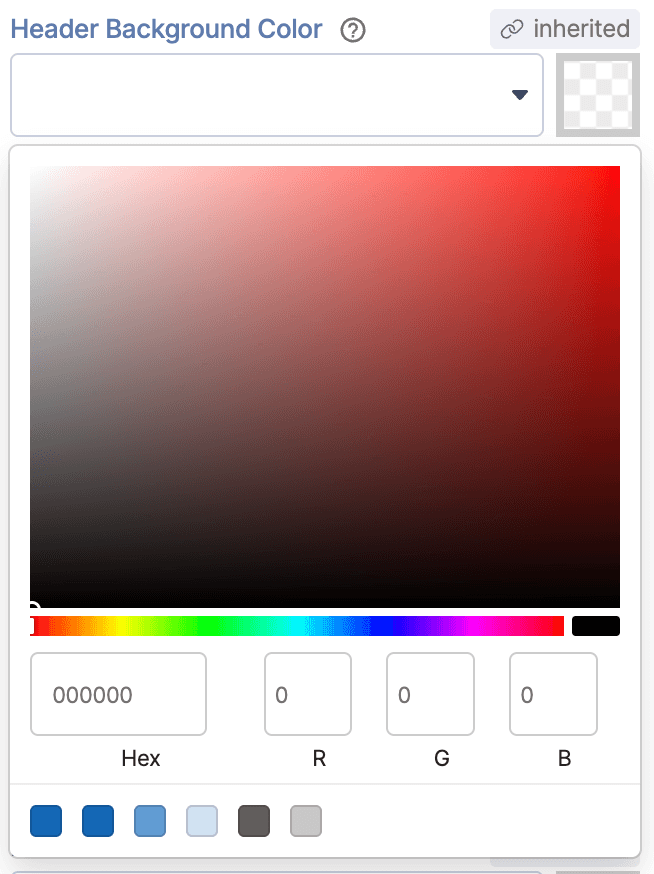 | Header Background Color | allows you to choose the background color of the header container in the team detailed view. |
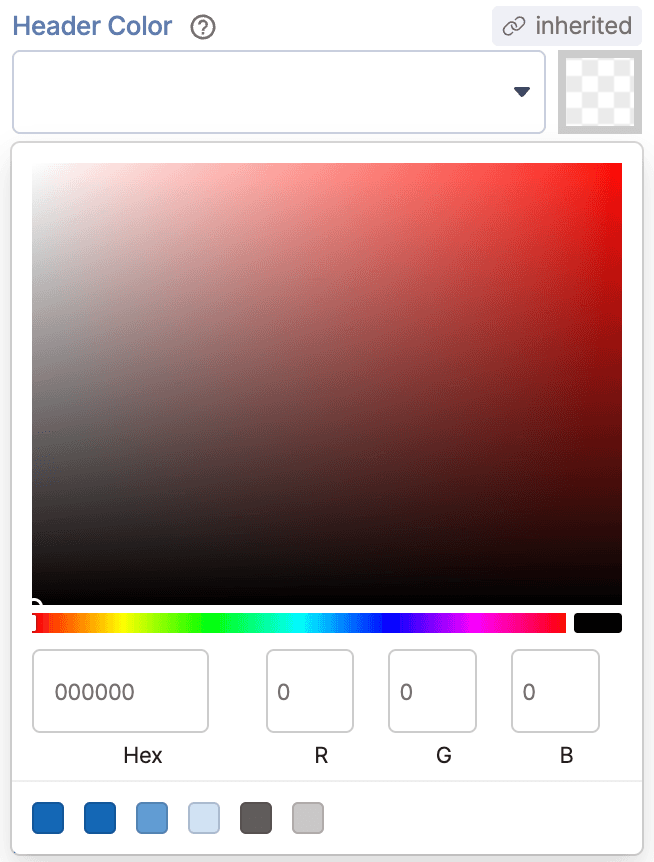 | Header color | allows you to choose the text color of the header for the team's detailed view. |
 | Bold header | when enabled, it will turn the header style into bold. |
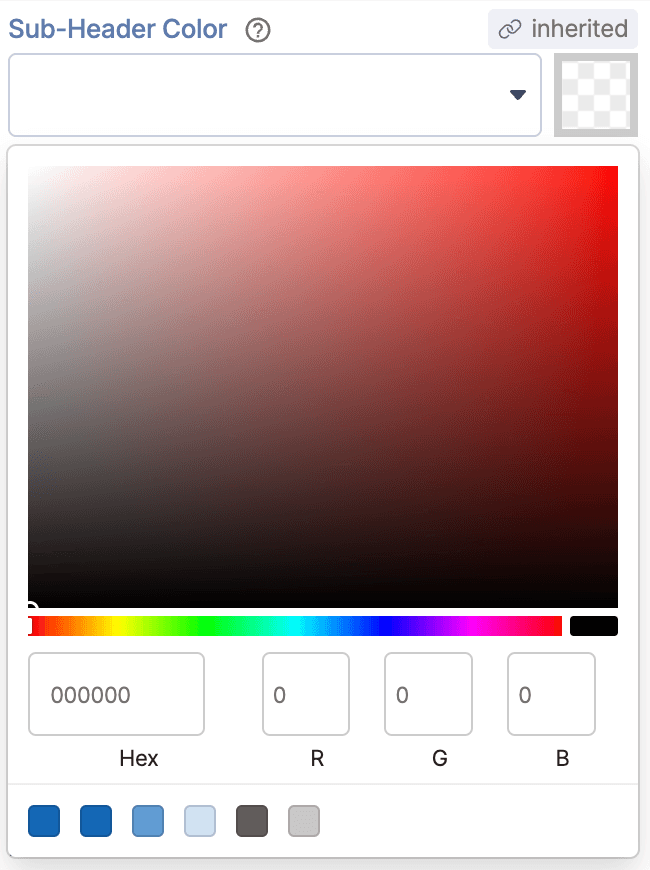 | Sub-Header Color | allows you to choose the text color of the sub-header for the team's detailed view. |
 | Bold Sub-Header | when enabled, it will turn the sub-header style into bold. |
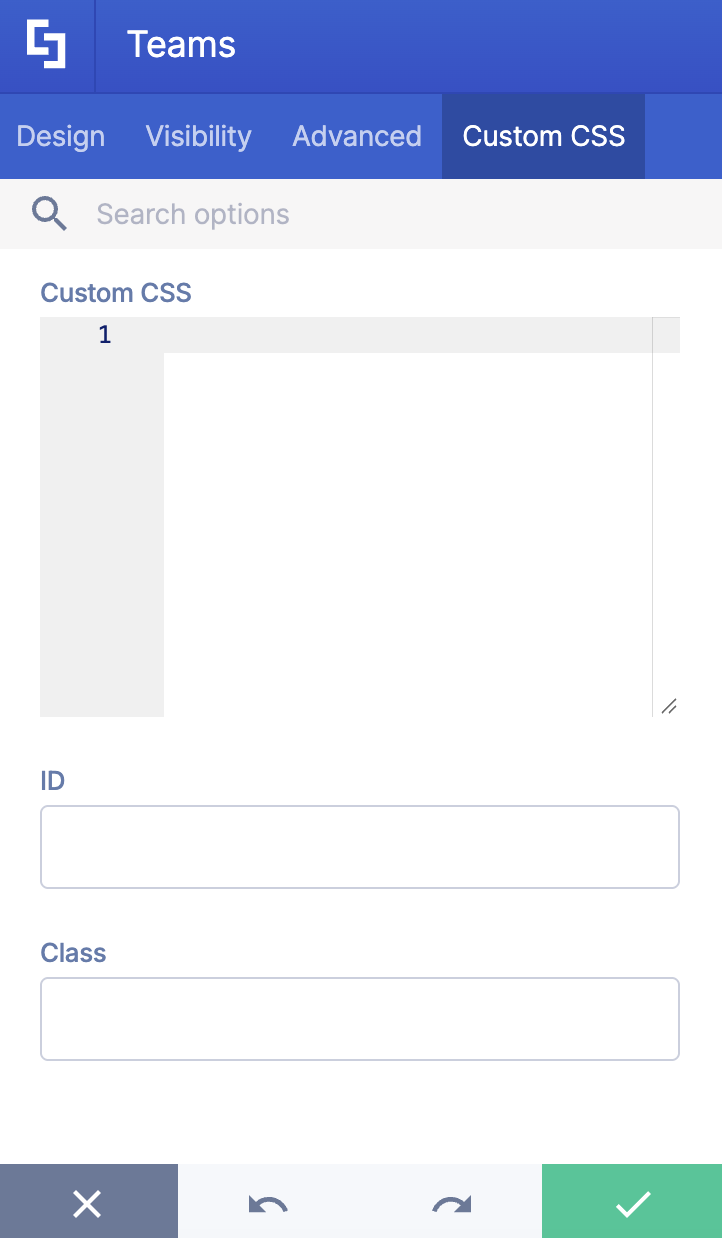
D. Custom CSS Tab
This tab allows you to use your own CSS to customize the Teams Design Element.
NOTECheck out our support article on How to Insert Custom CSS into a Page Builder Element? (Basic Tutorial) to know more about Custom CSS.
Practical Use Cases
Here's where the Teams Design Element shines in real-world scenarios:
Centralized Employee Onboarding Hub
HR teams can embed the Teams Design Element directly onto a central onboarding portal set to display all organization-wide teams. This gives new hires an immediate, searchable directory where they can discover essential department channels, regional social groups, and affinity networks without feeling lost. Instead of sending long lists of links, you provide a single interactive space where new employees can preview team members, browse associated document libraries, and jump directly into open channels with a single click.
Departmental Communication & Resource Center
Department portals like Marketing or IT often suffer when team members have to jump back and forth between SharePoint documentation and active Teams chats. By placing the Teams Design Element on a departmental home page, you give staff an immediate snapshot of active channels, tabs, and associated document libraries.
Executive & Managerial Personal Workspaces
Executives and managers typically belong to dozens of different teams and channels, making it difficult to locate primary document hubs and member directories quickly. Adding the Teams Design Element to a personalized employee landing page (configured to "My Teams") provides leaders with an organized, high-level launcher. From one screen, they can check team member lists, open Delve profiles, view pending tasks, and launch specific team file repositories in seconds.
Frequently Asked Questions
What are the prerequisites for using the Teams Design Element?
To use the Teams Design Element, you need the latest version of ShortPoint SPFx installed on your SharePoint team site, a ShortPoint Designer with either a Pro or Enterprise license, and Microsoft Graph integration connected via your ShortPoint Dashboard using a Microsoft 365 Tenant Administrator account.
Why is Microsoft Graph integration required?
Microsoft Graph acts as the secure pipeline that pulls real-time Microsoft Teams data, such as new team channel names, membership, Planner tasks, and default document library paths, into your SharePoint layout.
Can I restrict which teams a user sees?
Yes. In the element’s Design Tab, you can set "Show Teams For" to either My Teams, which shows only the teams where the logged-in user is a member, or All Teams of Organization, which displays public and discoverable teams across your tenant, placing the user's joined teams at the top of the list.
Additionally, ShortPoint's Visibility Tab allows you to configure visibility rules based on user roles, target audiences, or device types.
Can users open conversations directly in the Microsoft Teams app?
Yes. Clicking on channel or tab links within the element gives users the choice to launch the target channel in the Microsoft Teams Desktop App or in Microsoft Teams Web.
Can I customize how the element looks to match our brand?
Under the Advanced tab, you can customize header text colors, sub-header styling, background container shades, team hover colors, and search field labels. In addition, you can use the Custom CSS tab to further edit the design.
How does the Teams Design Element improve collaboration in SharePoint?
The Teams Design Element embeds Microsoft Teams directly into SharePoint pages, allowing users to browse teams, channels, files, and lists and document libraries in real time.
Related articles:
- Setting up Microsoft Teams Integration for ShortPoint Online
- Setting Up Microsoft Graph Integration For Teams
- Microsoft Teams Integration FAQ