 Try ShortPoint now
Branding your SharePoint site doesn't have to be complicated or time-consuming. With ShortPoint's ThemeBuilder color options, you can transform your SharePoint environment to perfectly match your organization's brand identity. The best part? You don't even have to write a single line of code!
Let's explore how this powerful feature can help you create a cohesive, professional look across your entire SharePoint site.
TABLE OF CONTENTS
- Prerequisites
- What Are ShortPoint's Color Options in Theme Builder?
- How to Use Theme Builder to Change SharePoint Site Colors
- Choosing a Color
- Theme Builder Color Options
- Color Assignment
- Changing Design Element Colors
- Bring Your Branding To Life
- Frequently Asked Questions
- Do I need coding skills to use ShortPoint's color options?
- Can I use my company's exact brand colors?
- What happens if I don't like the changes I've made?
- Will my color changes affect all pages on my SharePoint site?
- Can I create multiple color themes?
- How do the "Advanced Colors" differ from the other color options?
- Will my custom colors work on mobile devices?
- Can I apply different colors to different parts of my page?
- What if I accidentally delete a theme I created?
- Do the color changes affect SharePoint's default elements?
- How long does it take for color changes to appear after publishing?
Prerequisites
- You must have the latest version of ShortPoint SPFx installed in your SharePoint environment.
- You must be a ShortPoint Designer with an active license. Just take note that some sections inside Theme Builder are only available if you have a Pro or Enterprise License, including Header, Background, Menus, etc. For a detailed list of available features for your license, check out Licensing Options.
What Are ShortPoint's Color Options in Theme Builder?
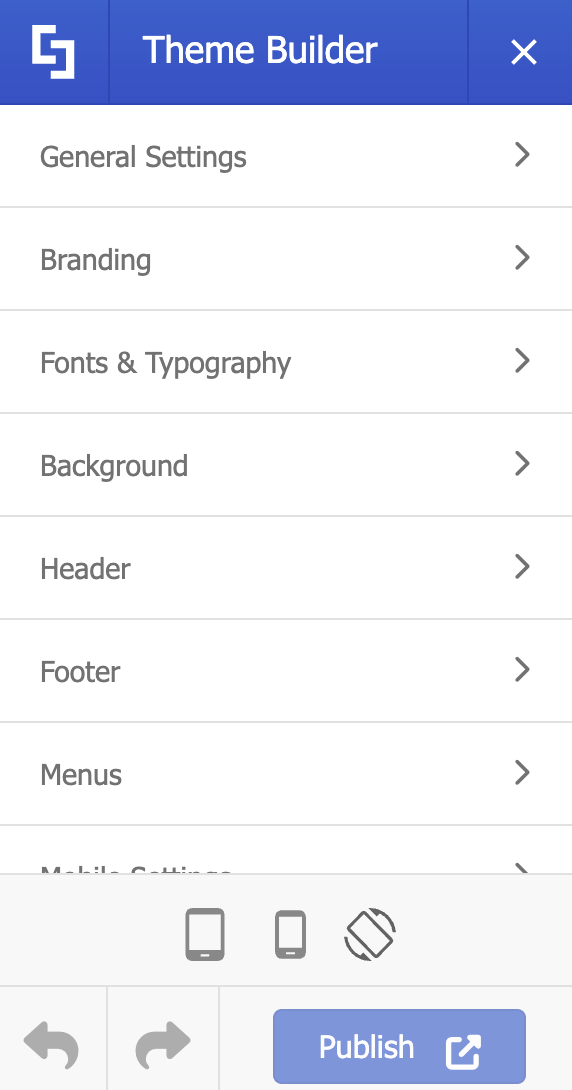
ShortPoint's color customization settings are built into the Theme Builder, a comprehensive tool that integrates seamlessly with SharePoint's modern theming capabilities.
The color options allow you to customize virtually every visual element of your site, from button colors and text shades to background hues and divider lines. What makes this particularly powerful is that ShortPoint works with SharePoint's Theming REST API, meaning your customizations are applied consistently across your modern SharePoint experience, ensuring your branding is cohesive and professional.
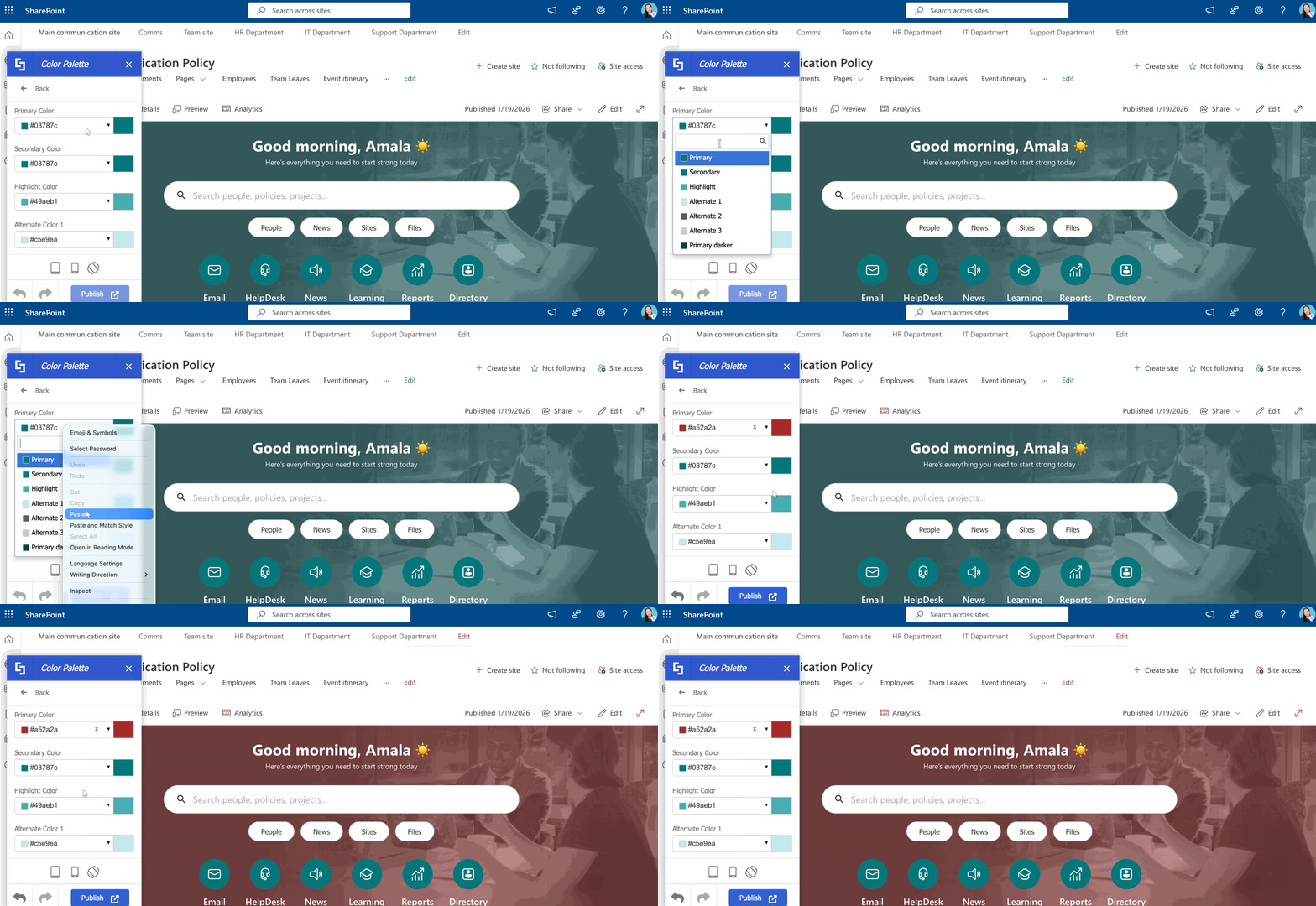
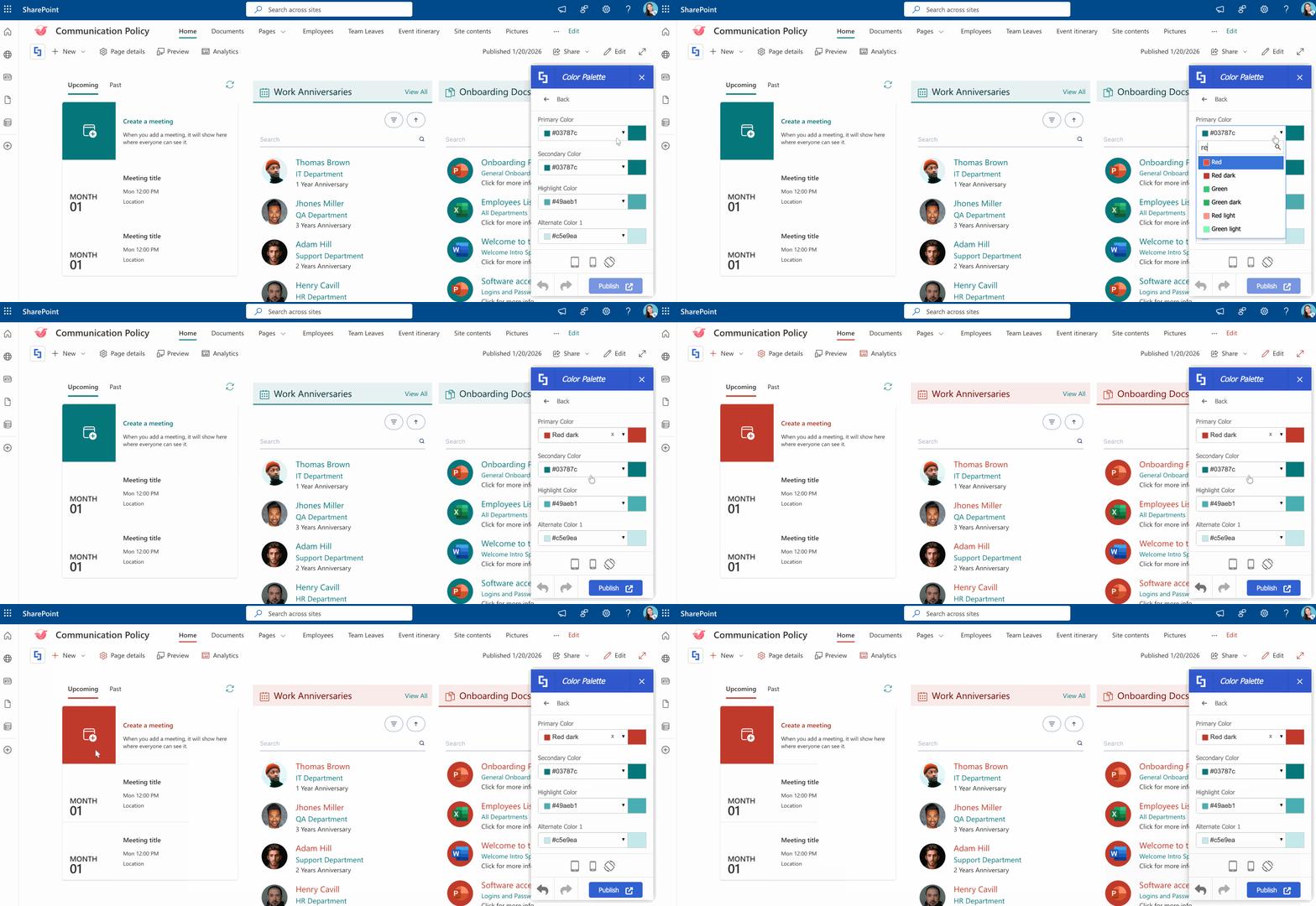
One of the most helpful aspects of ShortPoint's color system is the Live Preview. This feature lets you see your color changes in real-time before you commit to them, giving you full control over your custom theme design. You can experiment with different color palettes, test what works best with your SharePoint site content, and make confident decisions about your branding color scheme—all without affecting your live site or needing to navigate complex site settings.
Color changes are also applied to the SharePoint web parts you have on your SharePoint sites. Just take a look at this Events web part we added to our page:
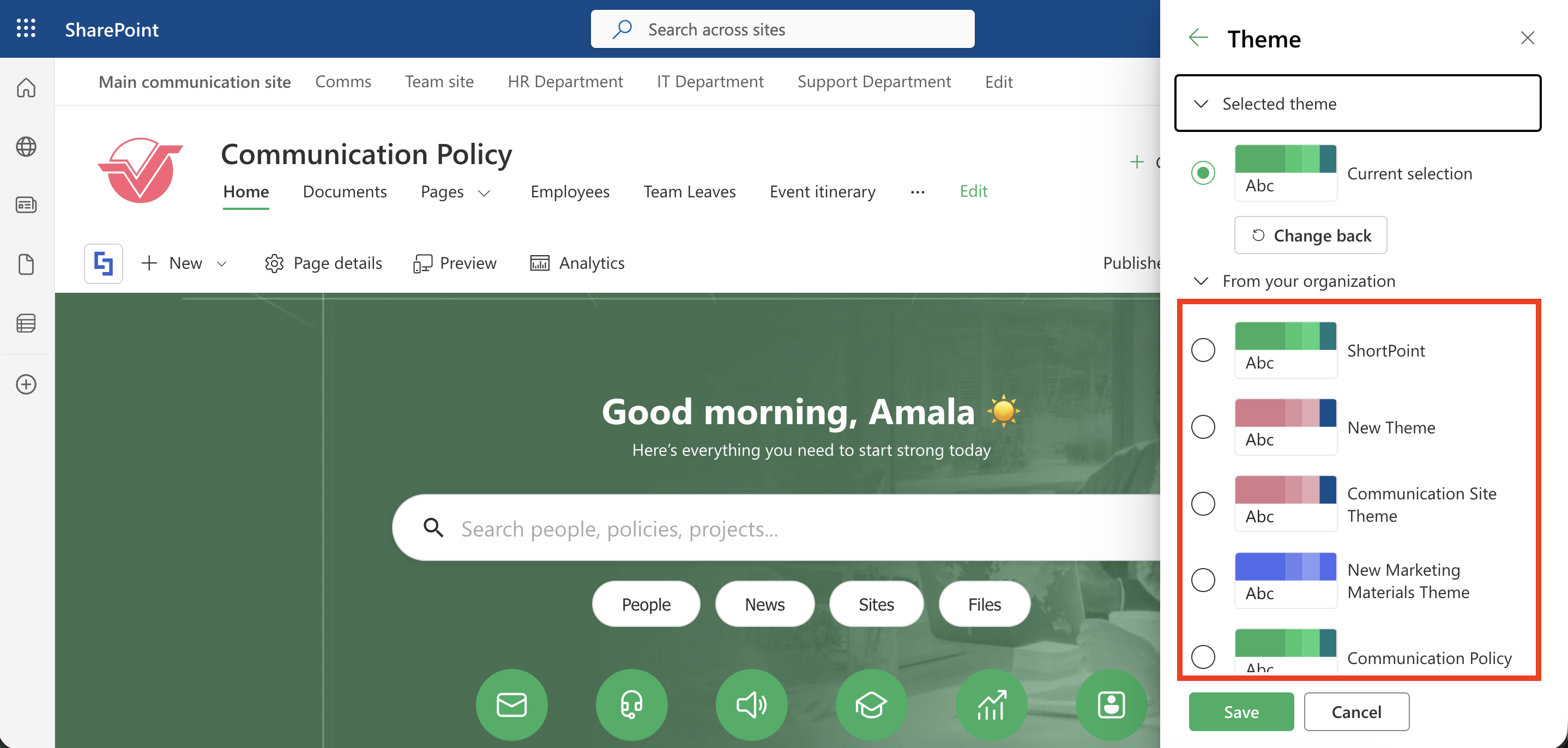
To make things even better, when you publish your color customizations, ShortPoint doesn't just apply them to your site. The theme you created is also automatically saved as “ShortPoint” in SharePoint's native "Change the look" option. This means your hard work is saved and can be easily reapplied or managed through SharePoint's standard interface, including the theme gallery. For more information on creating and updating a custom theme, check out the SharePoint Color Palette and Themes Tool.
How to Use Theme Builder to Change SharePoint Site Colors
Start the interactive tutorial to start customizing SharePoint site colors:
NOTEYou can also change the color of other elements on your SharePoint page. Check out Theme Builder Color Options to see what other color-related settings you can modify.
Step 1: Open the Theme Builder
- Click the ShortPoint logo:

- Select Theme Builder:

Step 2: Customize Site Colors
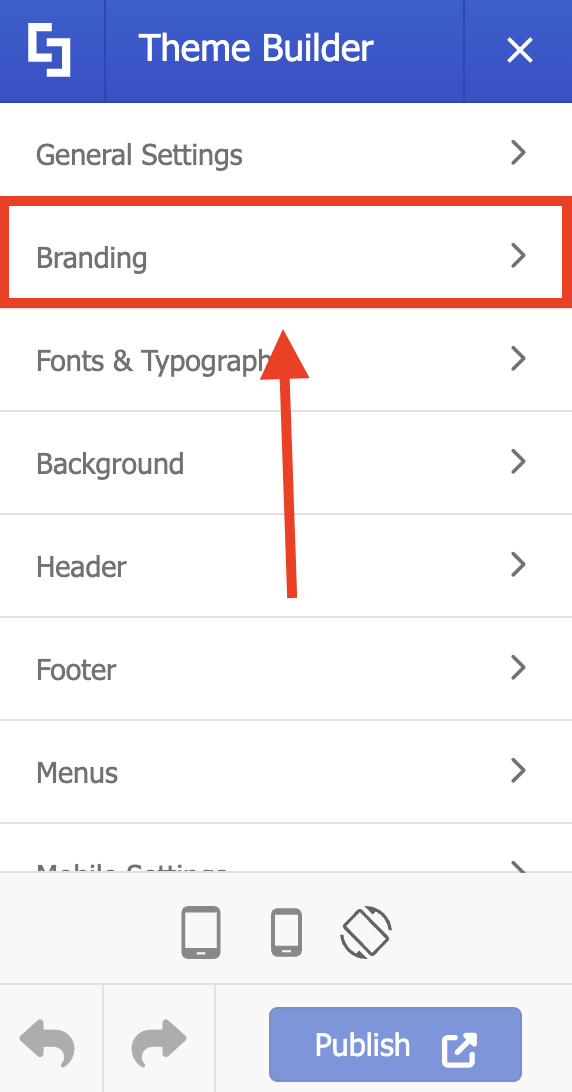
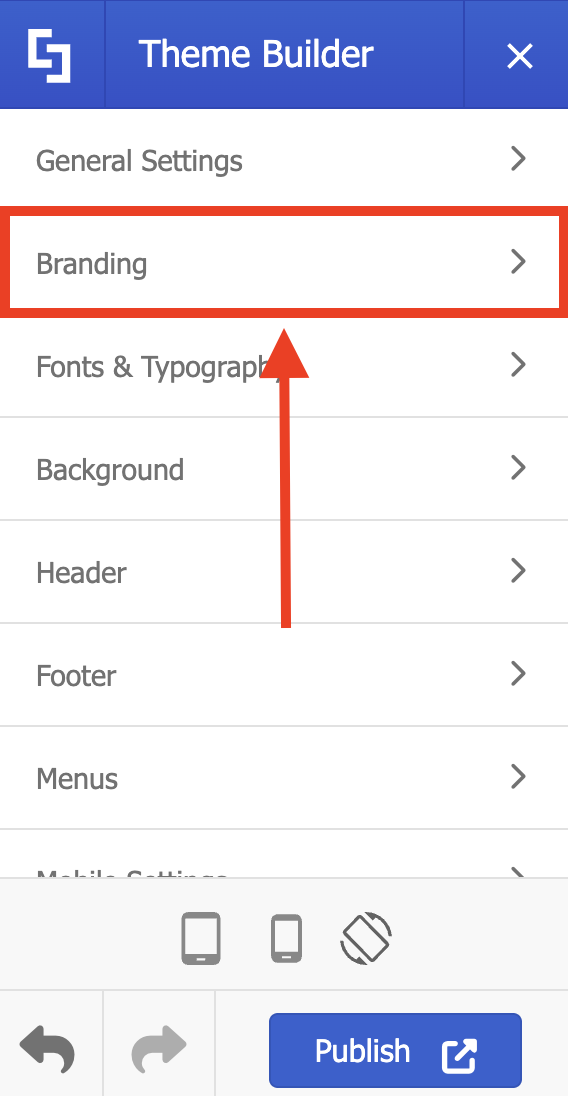
- Go to Branding:
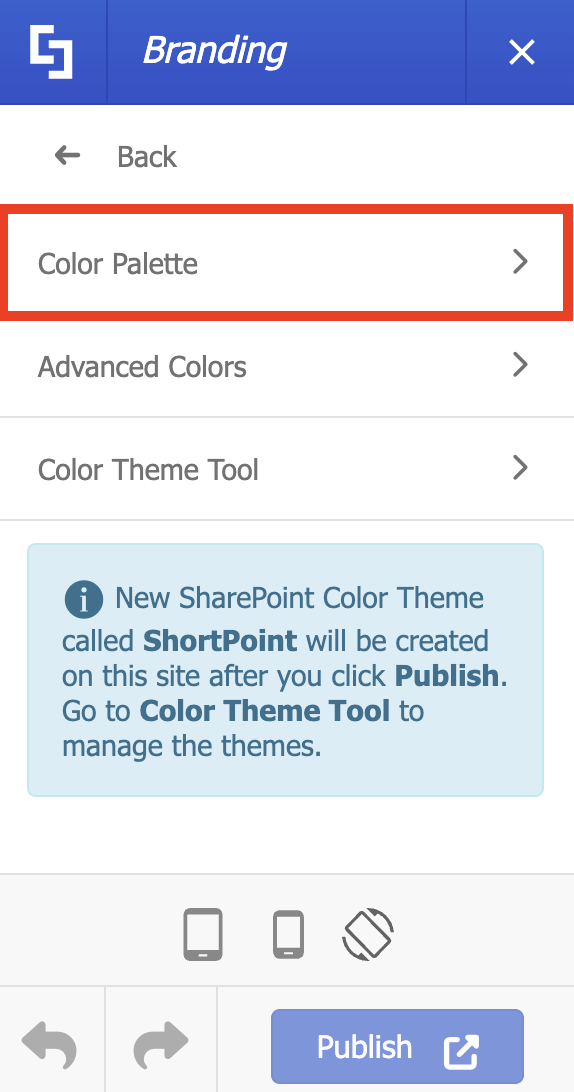
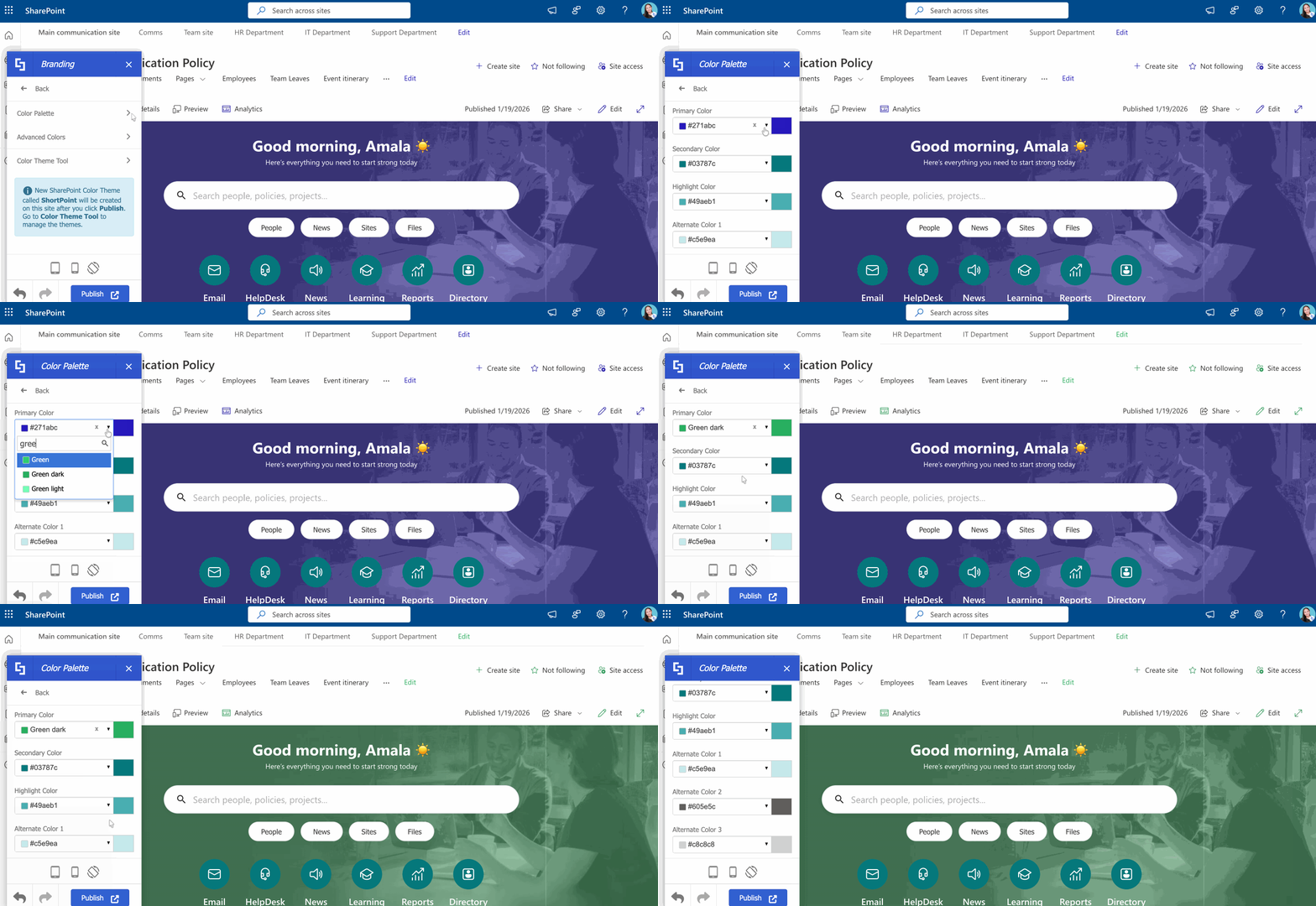
- Select Color Palette:
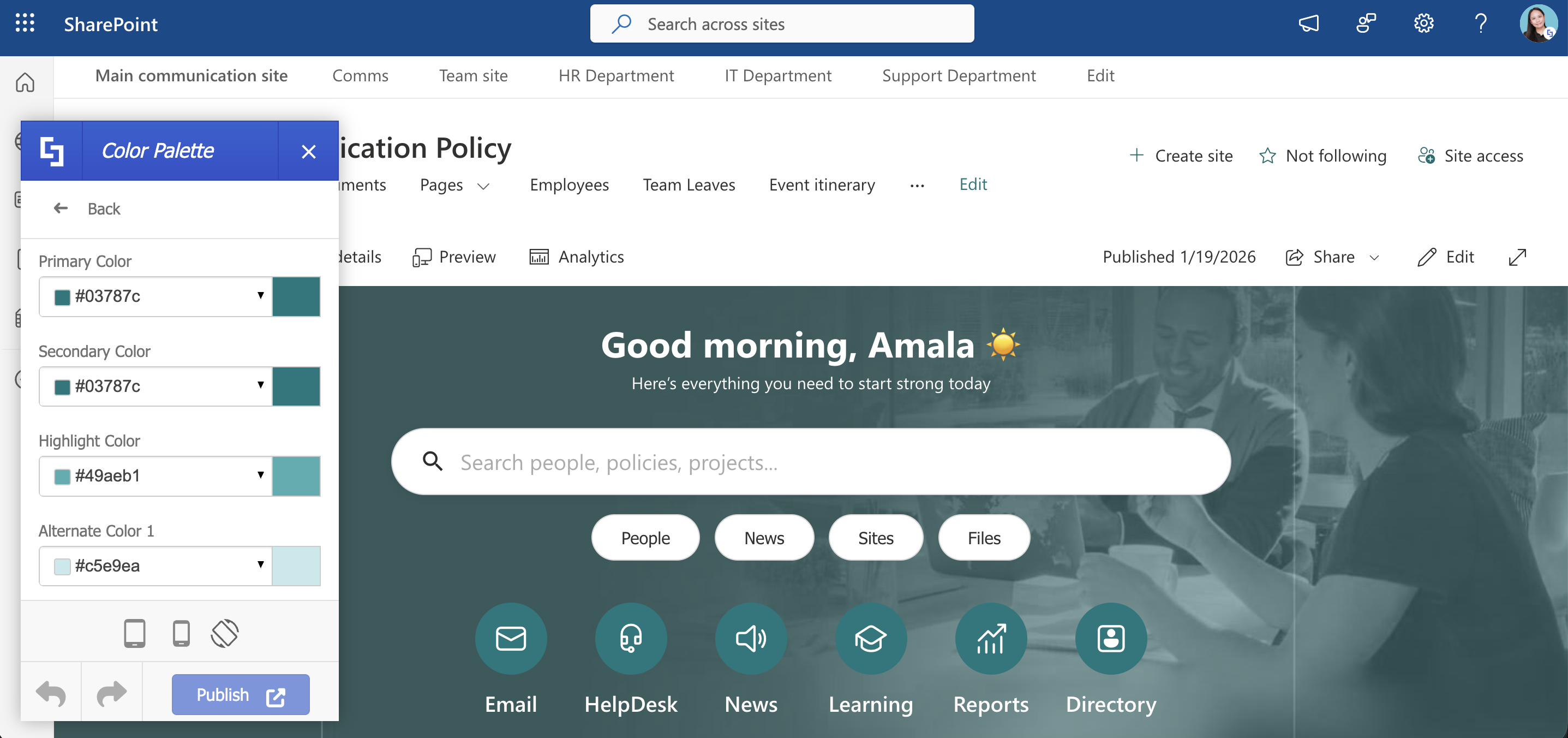
- Customize the colors to your liking:
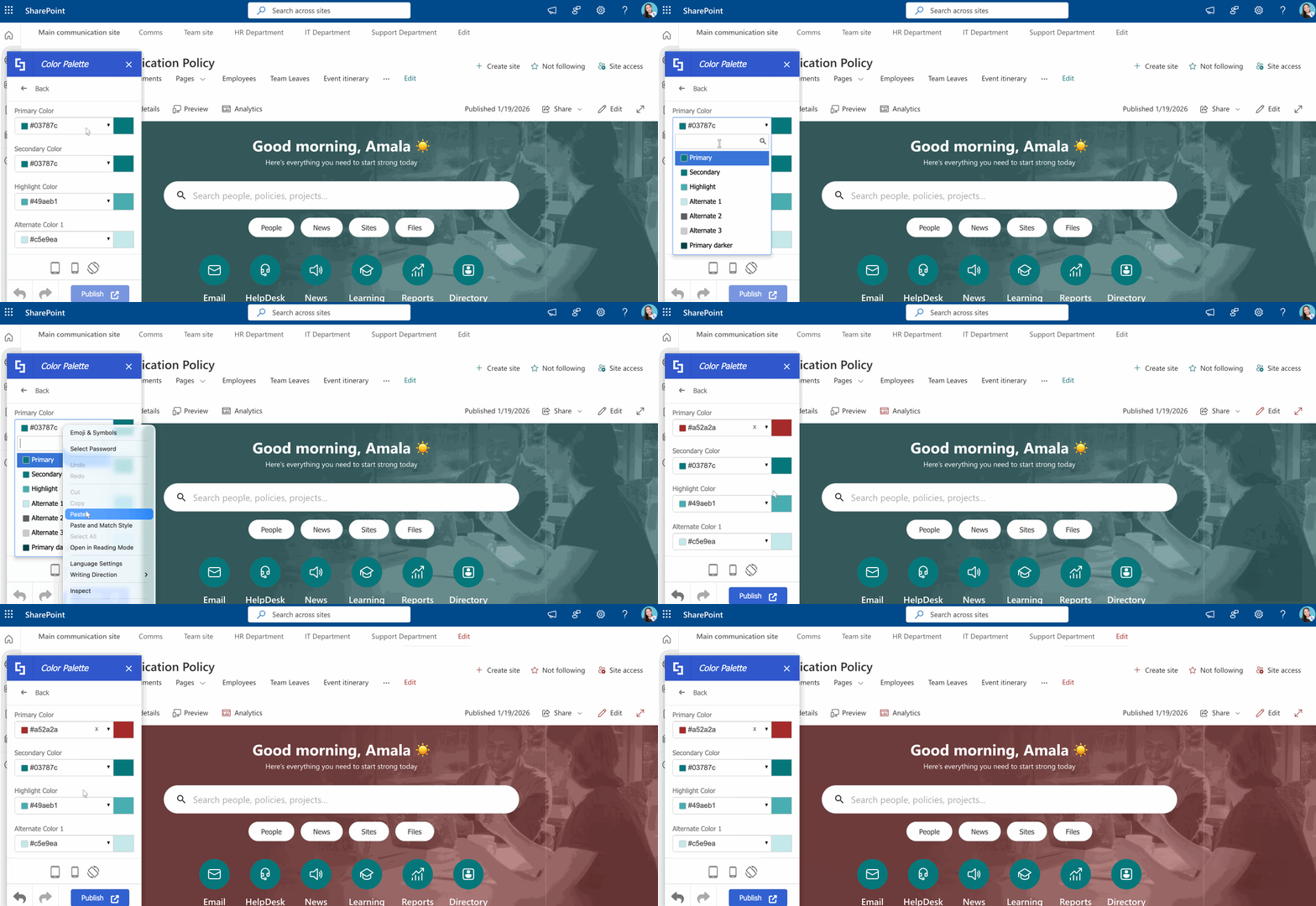
NOTEYou can also change the color of other elements on your SharePoint page. Check out Theme Builder Color Options to see what other color-related settings you can modify.
Step 3: Publish
- Once satisfied, Publish your changes.
Choosing a Color
Every color option in Theme Builder offers the same intuitive color-picking experience. Here are three convenient ways to select your desired color:
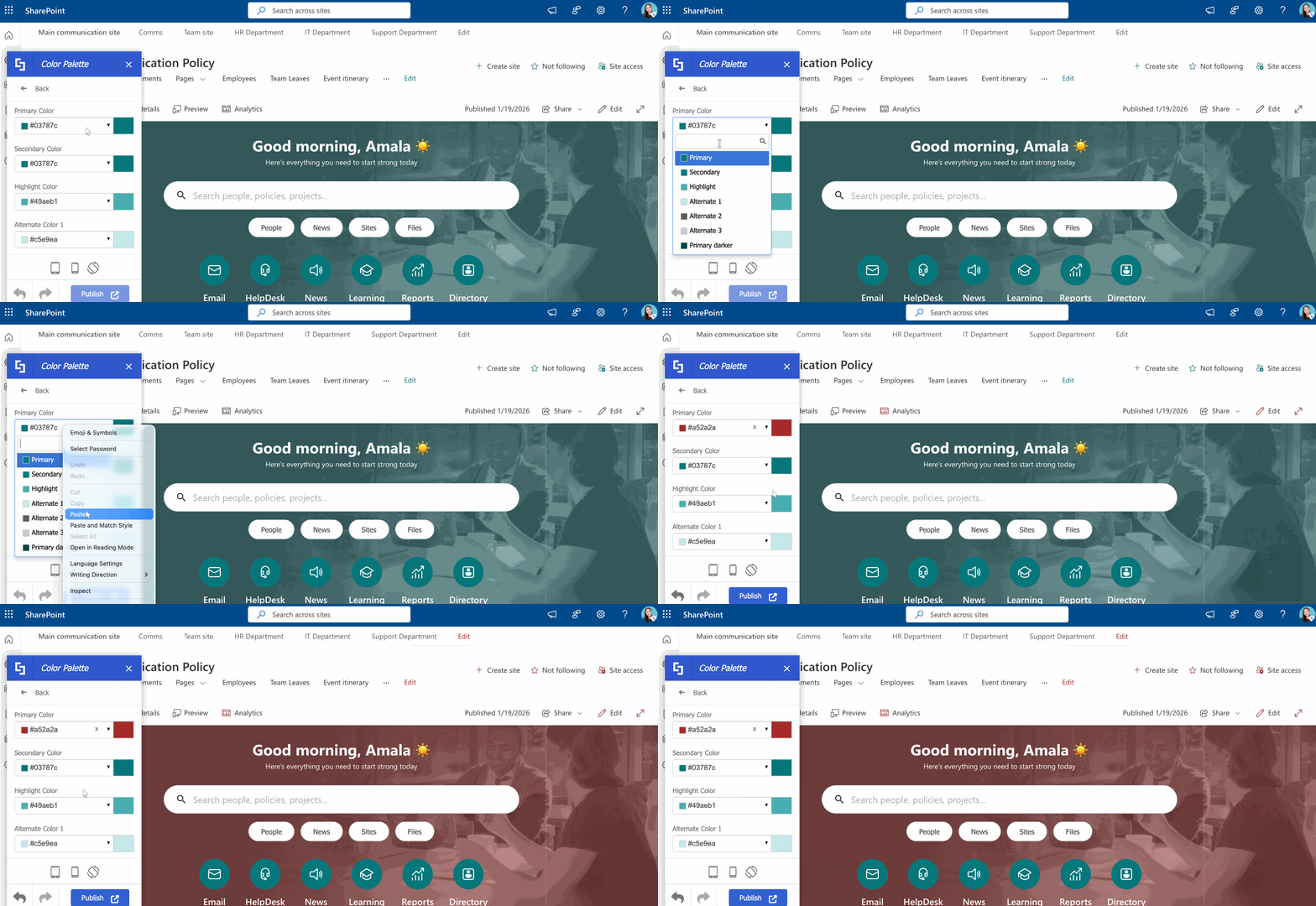
Enter a HEX Code
Simply paste your desired color's HEX code, and ShortPoint will instantly display it for you.
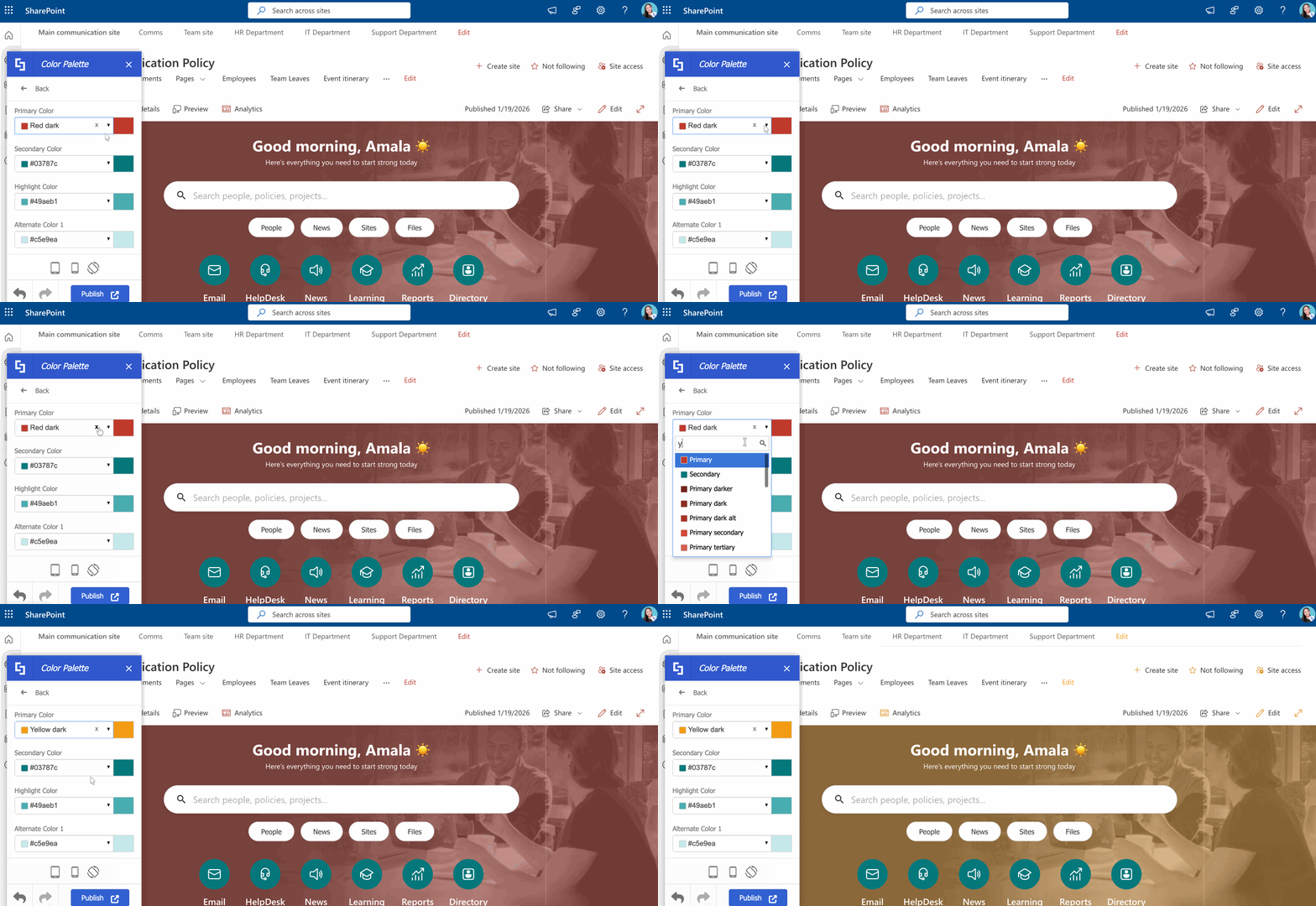
Browse the Drop-Down Menu
Click the drop-down icon to view a curated list of preset colors. You can easily search through the options to find the perfect match.
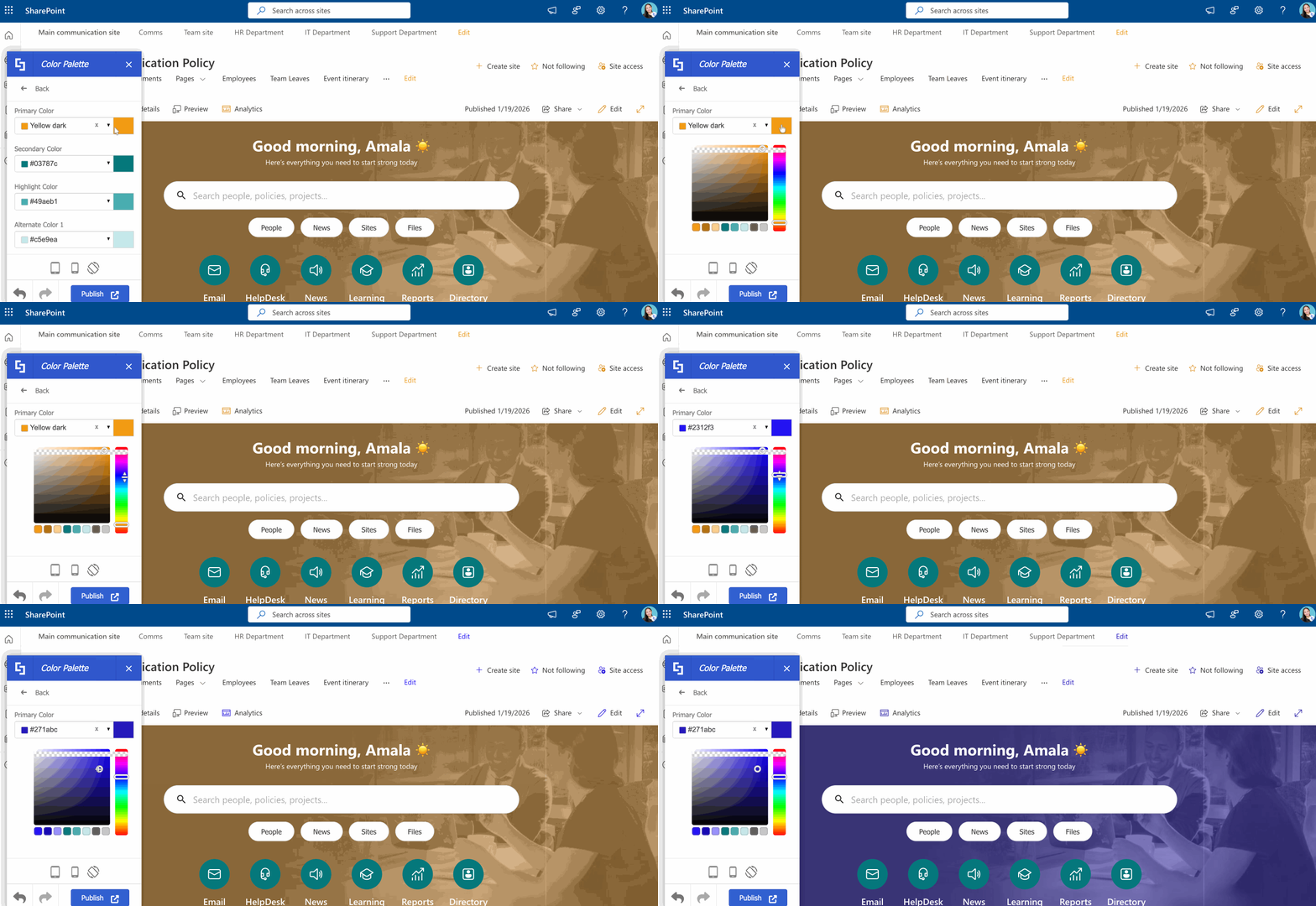
Use the Color Picker
Click the color picker tool and select your preferred color directly from the palette.
Theme Builder Color Options
ShortPoint Theme Builder makes it super easy to customize your site's colors with organized, user-friendly sections:
NOTESome sections inside Theme Builder are only available if you have a Pro or Enterprise License, including Header, Background, Menus, etc. For a detailed list of available features for your license, check out Licensing Options.
A. Branding
The Branding options let you personalize and save your SharePoint site's color theme. This section includes three key areas:
- Color Palette - Set your main color theme by choosing your primary color, secondary color, highlight color, and three alternate colors.
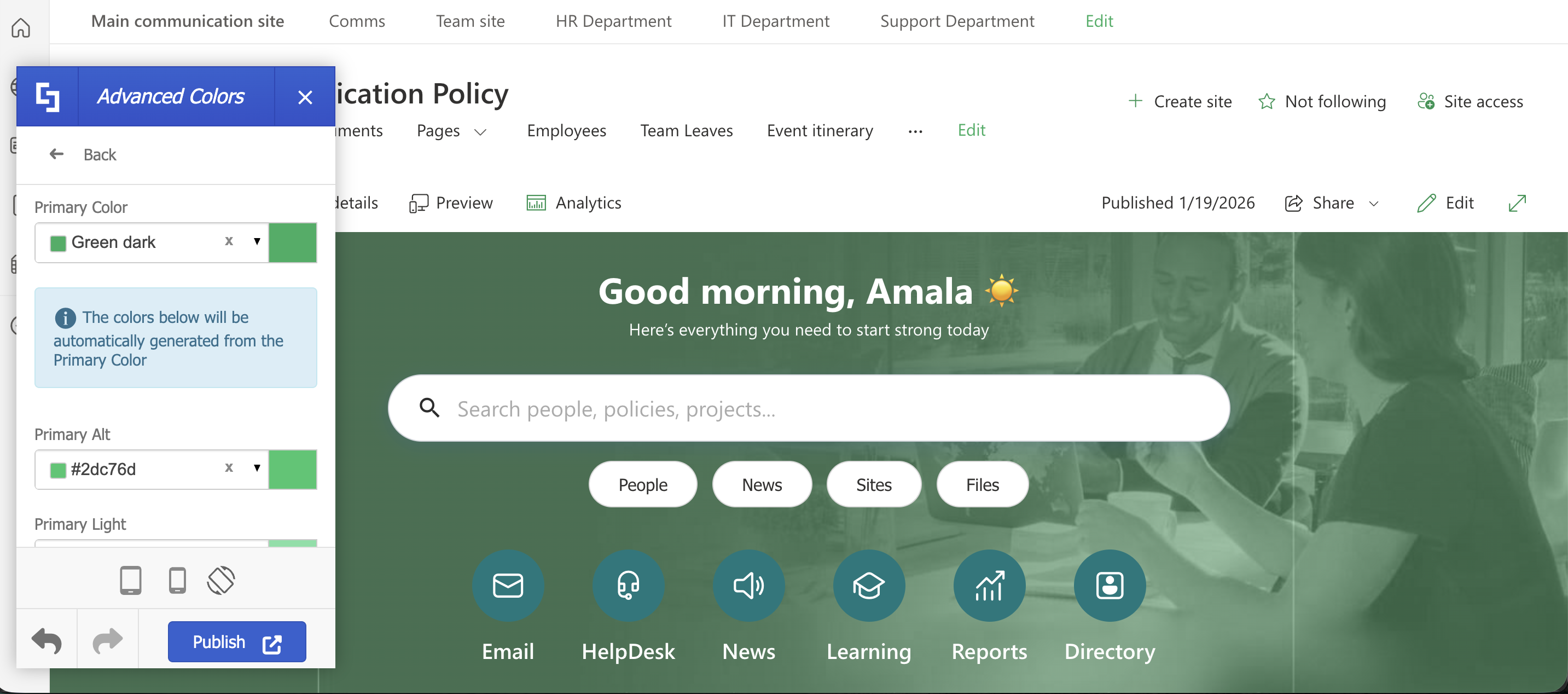
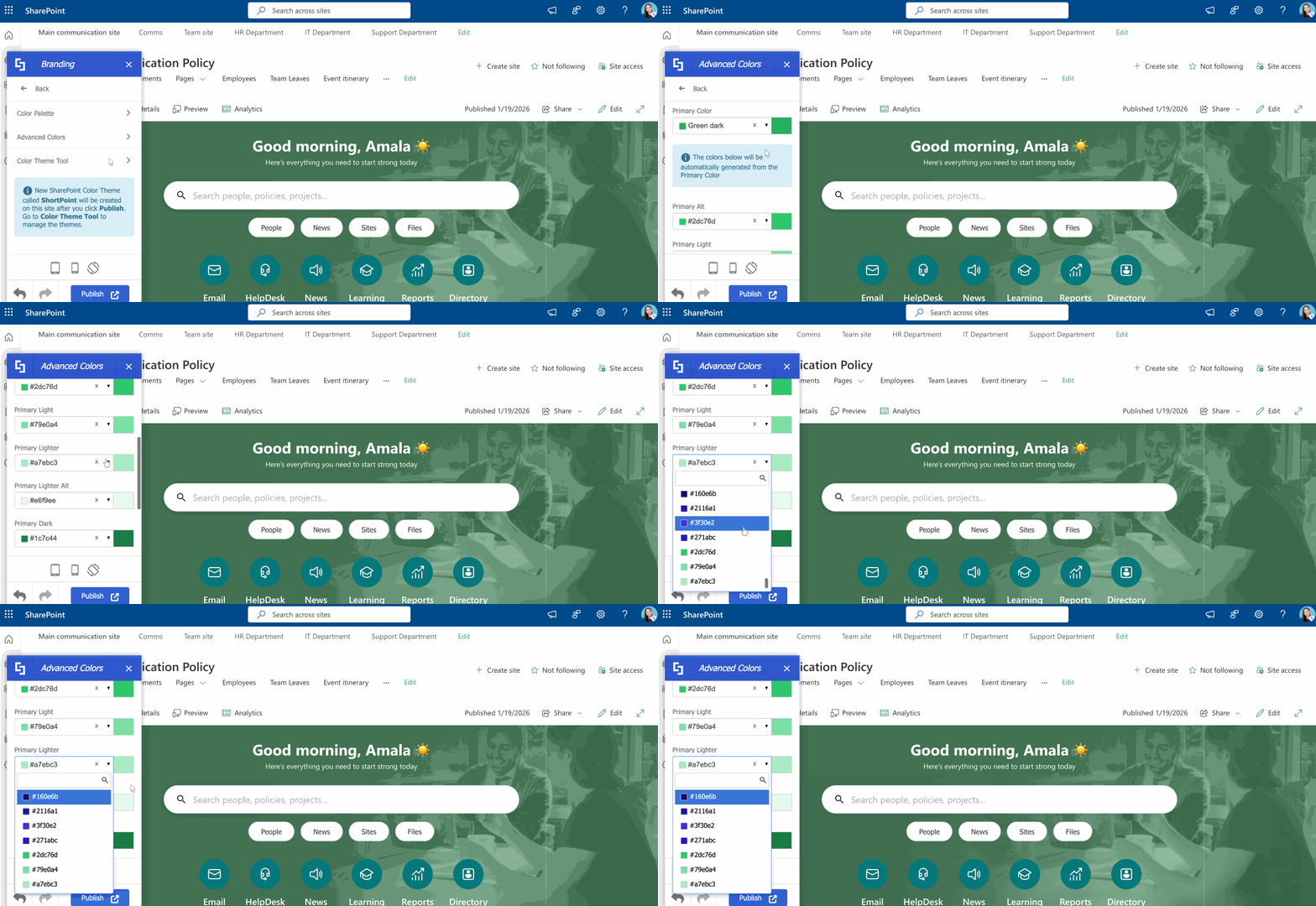
- Advanced Colors - Fine-tune different aspects of your primary color. While ShortPoint automatically generates these colors based on your Primary Color, you're welcome to customize them to your preferences.
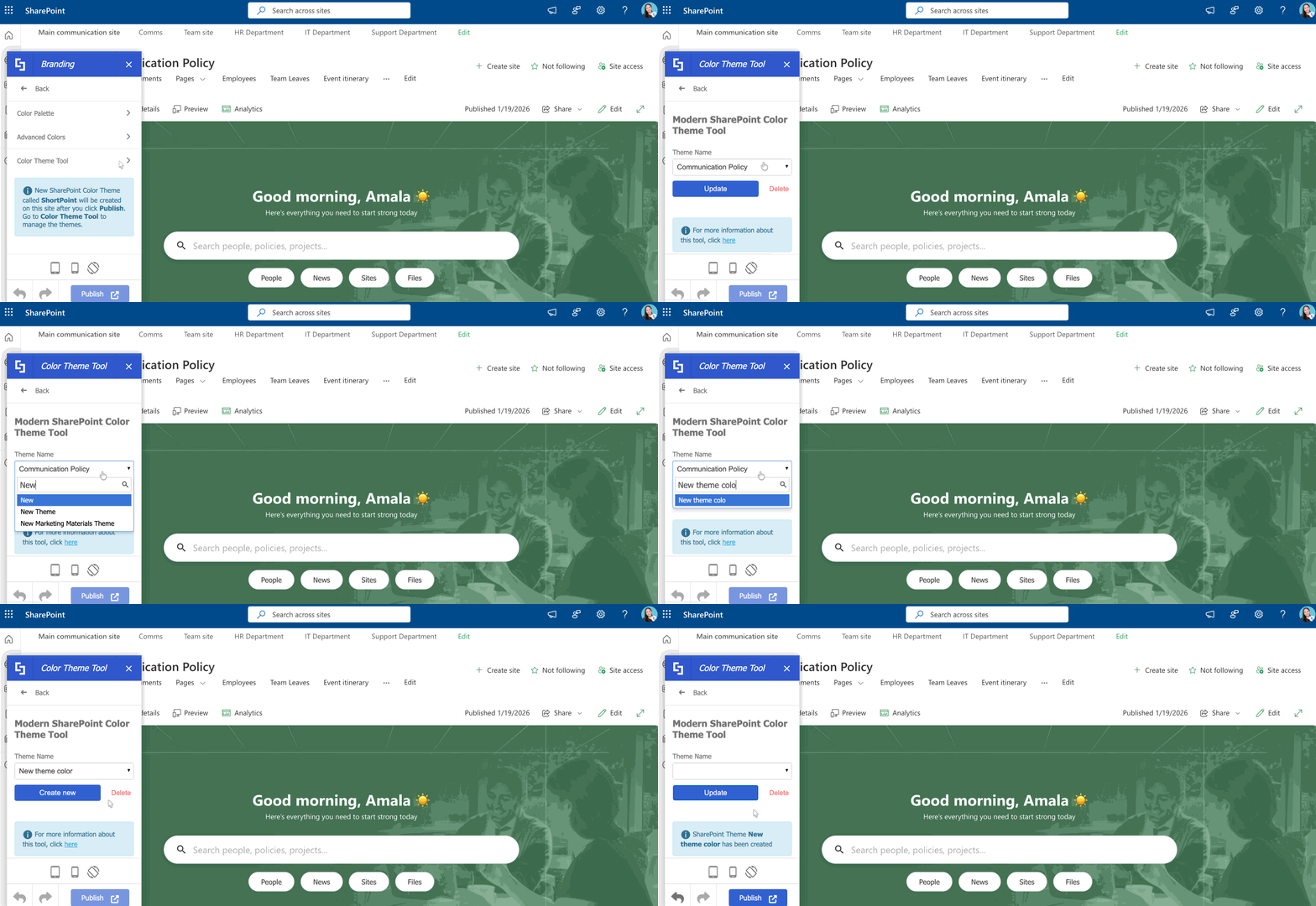
- Color Theme Tool - Save or update your custom color theme for future use. For more information on creating and updating a custom theme, check out the SharePoint Color Palette and Themes Tool.
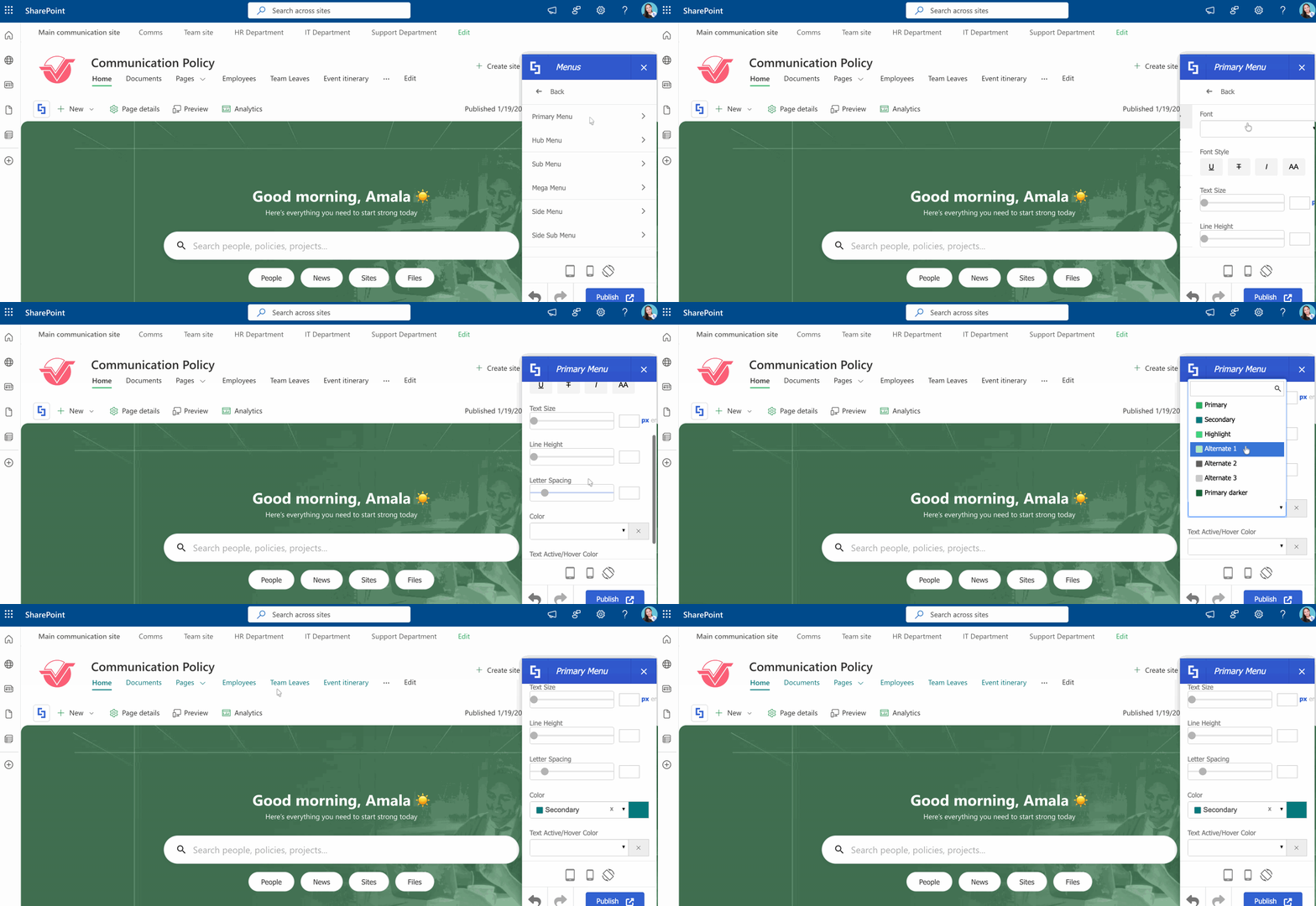
B. Fonts & Typography
Adjust the font colors for various page elements, including menus, headings, titles, and more.
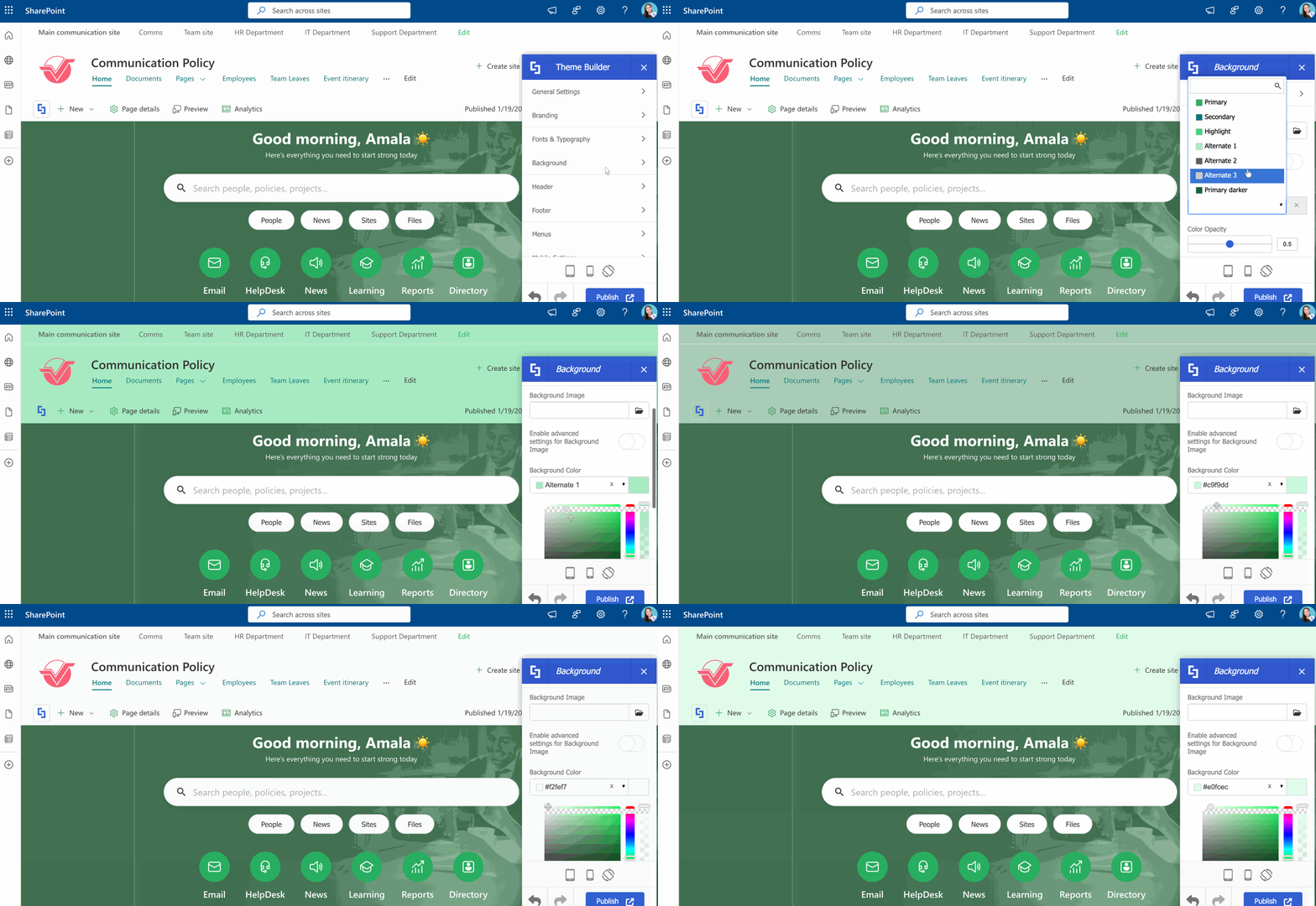
C. Background
Customize your SharePoint site's background color, with the option to configure advanced background color settings for more detailed control.
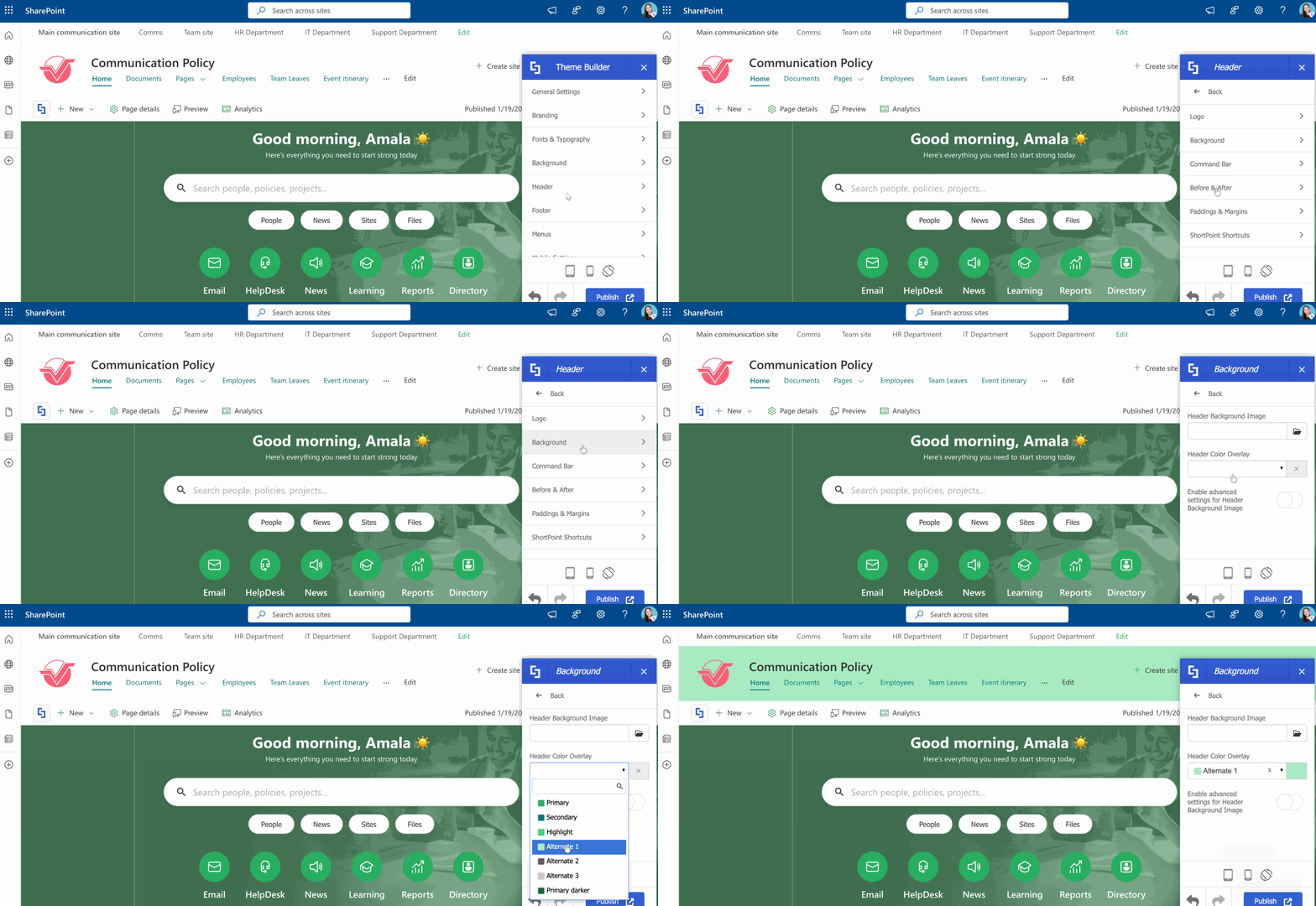
D. Header
Modify the color settings for different elements within your site's Header area.
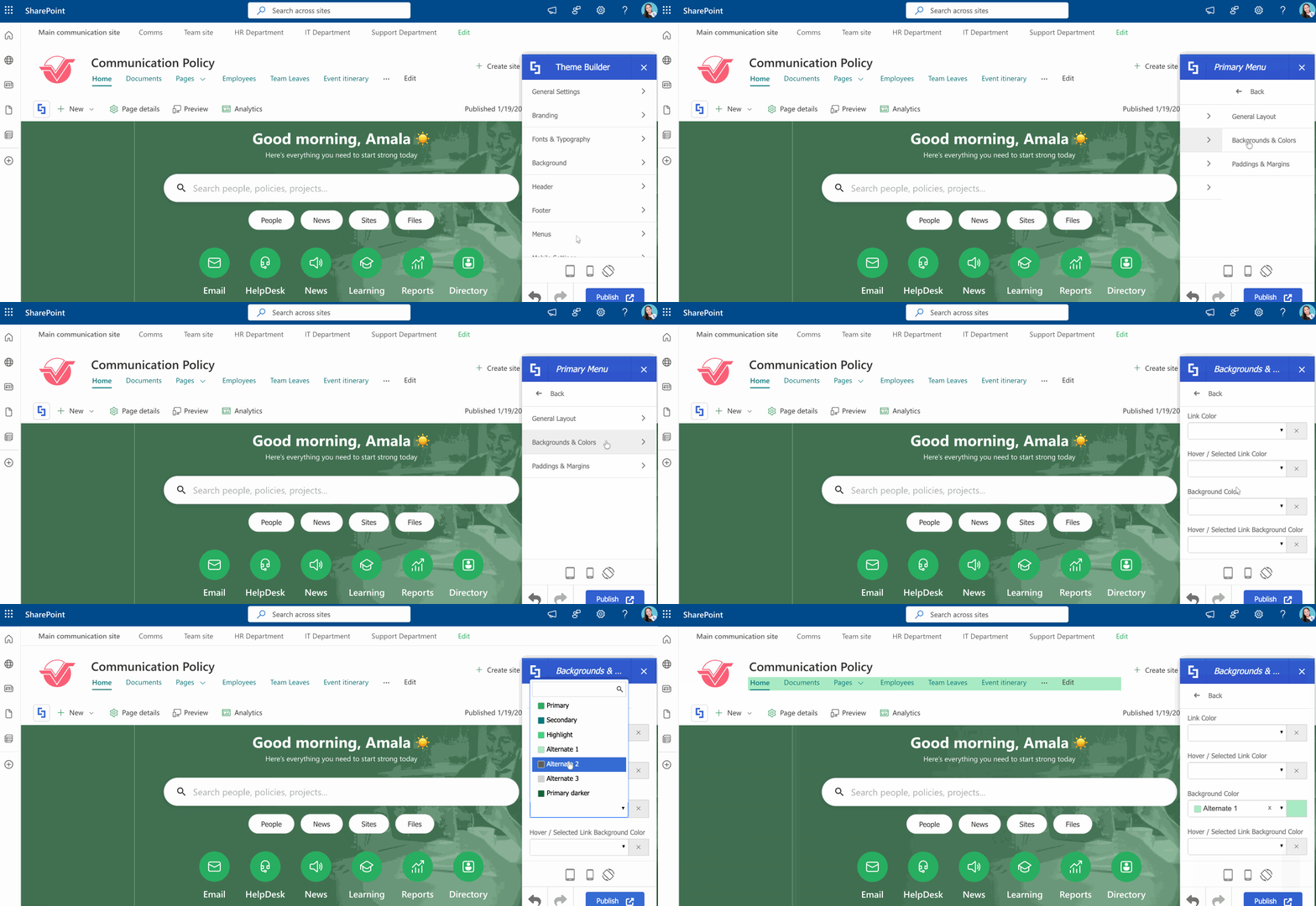
E. Menus
Control the appearance of your SharePoint menus by adjusting background colors, hover effects, and link colors.
Color Assignment
ShortPoint Theme Builder applies the same color assignment structure as SharePoint. Here’s how it works:
NOTEFor more information about SharePoint’s color assignment structure, check out Theme Occurences.
- Primary colors - applied to Buttons, Links, Site Footer background, Active Tab markers, etc.
- Secondary colors - applied to Button hovers, Suite bar text (in some views), secondary web part backgrounds.
- Highlight / Tertiary colors - used for subtle accents like "Add web part" icons in specific section backgrounds.
- Alternate colors - applied to site headers text, body text, dividers, and borders.
Changing Design Element Colors
Aside from the color options inside Theme Builder, you can also customize the colors of individual Design Elements in Page Builder. Just take note that the changes you make in Page Builder will override the color settings you applied in Theme Builder.
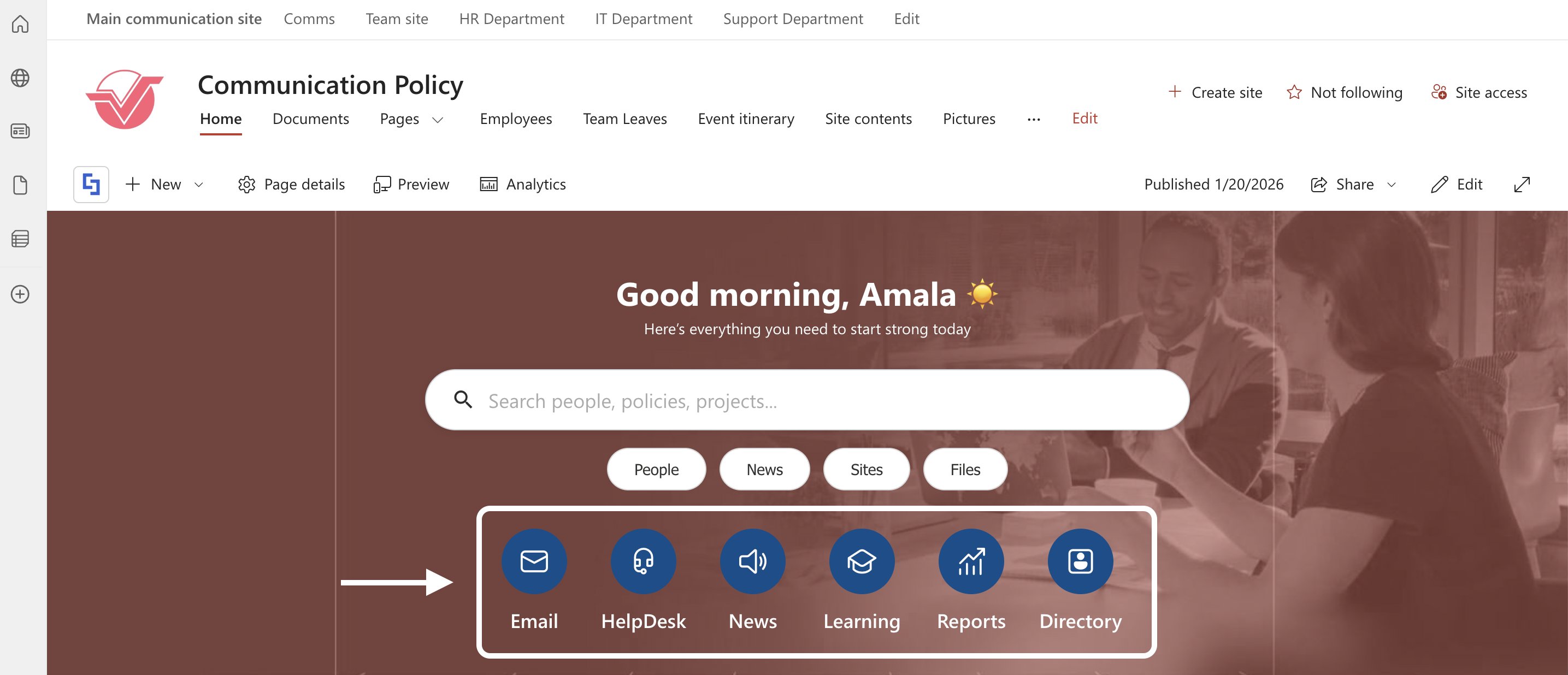
Click Get Started to see it in action:
Bring Your Branding To Life
ShortPoint's Theme Builder color options give you professional-grade design control with a user-friendly interface. Whether you're maintaining brand consistency, improving user experience, or simply making your SharePoint site more visually appealing, these tools put the power of customization right at your fingertips. With the ability to define exact color palettes and apply changes across your site, you can create a cohesive look that aligns perfectly with your organization's identity. This seamless integration with SharePoint ensures your branding stays consistent and easy to manage.
Ready to take branding to the next level? If you’re already a ShortPoint Designer, simply follow the steps above. If you aren’t yet, you can start a FREE 15-day trial with us or schedule a call with our experts. They’ll be happy to show you more ways ShortPoint Theme Builder can transform your SharePoint sites.
Frequently Asked Questions
Do I need coding skills to use ShortPoint's color options?
Not at all! That's one of the best things about ShortPoint Theme Builder. The entire interface is visual and intuitive. You simply select colors using a color picker or enter HEX color codes if you have specific brand colors. No coding, scripting, or technical knowledge required to customize your SharePoint site theme.
Can I use my company's exact brand colors?
Absolutely. ShortPoint lets you enter specific HEX color codes, so you can match your brand guidelines precisely. If you have your brand's color codes handy, just paste them in and you're good to go. This ensures your custom theme aligns perfectly with your organization's visual identity.
What happens if I don't like the changes I've made?
The Live Preview feature is your safety net. You can experiment with different colors and see exactly how they'll look before publishing anything. If you've already published changes and want to revert, you can either manually adjust the colors again or use a previously saved theme. This flexibility allows you to maintain control over your color palette.
Will my color changes affect all pages on my SharePoint site?
Yes, when you publish color customizations through Theme Builder, they apply site-wide, affecting all color slots across your site. This ensures consistency across your entire SharePoint environment. However, if you have subsites, you can choose whether they inherit the parent site's colors or have their own custom color scheme.
Can I create multiple color themes?
Yes! The Color Theme Tool within Theme Builder lets you create, save, and manage multiple SharePoint themes. This is perfect if you need different themes for different occasions or sections of your organization, allowing you to plan and organize your theme gallery efficiently.
How do the "Advanced Colors" differ from the other color options?
Advanced Colors use SharePoint's official naming conventions and offer more granular control. However, they can be less intuitive to work with. For most users, the General, Text, and Background color sections provide all the customization needed while being much easier to understand and use.
Will my custom colors work on mobile devices?
Yes, ShortPoint Theme Builder ensures your color customizations are responsive and work seamlessly across desktop and mobile devices. Your brand colors will look great no matter how your users access SharePoint.
Can I apply different colors to different parts of my page?
The ThemeBuilder sets your overall site theme, providing consistency across your SharePoint site. For more granular color control within individual page elements, you can use ShortPoint's Page Builder, which offers additional color options for specific design elements.
What if I accidentally delete a theme I created?
Before deleting any theme, make sure you've documented your color choices or created a backup theme with the same settings. Once deleted, themes cannot be recovered, so it's worth being cautious. Consider saving your HEX codes and color palette details in a separate document as a reference.
Do the color changes affect SharePoint's default elements?
Yes, many of SharePoint's native elements will update to reflect your color choices, including buttons, links, and interface elements. This creates a cohesive experience where ShortPoint customizations blend seamlessly with SharePoint's built-in features.
How long does it take for color changes to appear after publishing?
Changes typically appear immediately after publishing, though you might need to refresh your browser to see them. If you're viewing the site on multiple devices or browsers, you may need to clear your cache for the updates to show everywhere. This ensures your SharePoint designs stay up to date with your latest branding efforts.
Related articles:
