 Try ShortPoint now
Let's face it: nobody likes feeling like just another face in the crowd, especially when they're logging into their company intranet. That's where the ShortPoint Current User connection comes in! With it, you can transform your generic SharePoint Online pages into something genuinely welcoming.
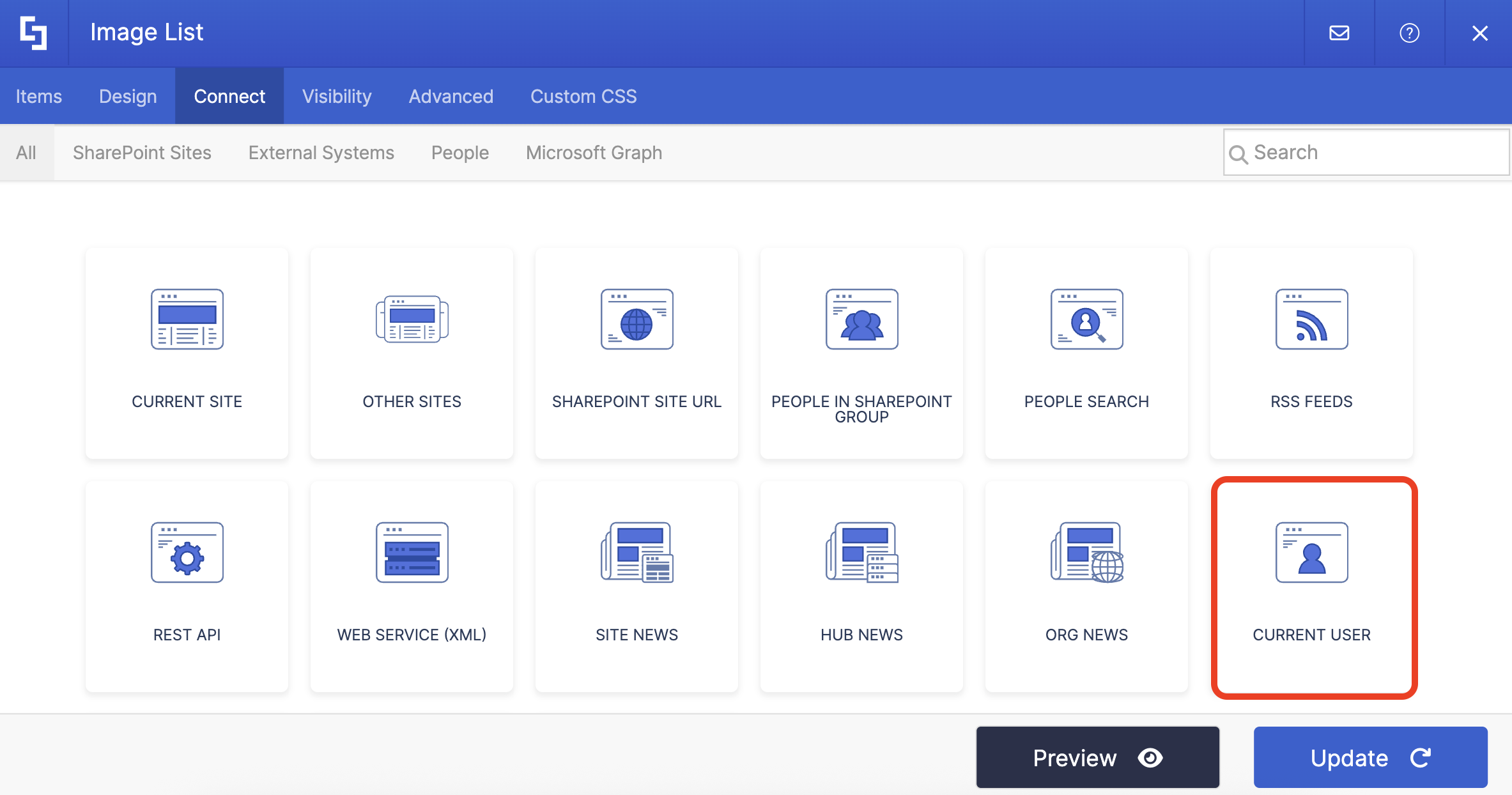
TABLE OF CONTENTS
- Prerequisites
- What Is the Current User Connection Type?
- Interactive Tutorial
- Step-by-step Tutorial
- Current User Connection Features
- Practical Use Cases
- Start Connecting with Current User
- Frequently Asked Questions
- Do I need to know how to code to use the Current User connection?
- Will this work with custom user profile properties?
- Can users edit the information displayed about them?
- How many design elements can I connect to Current User on a single page?
- Will this slow down my page loading times?
- What happens if a user's profile information is incomplete?
- Can I combine Current User with other connection types?
- Do I need to reconnect elements after updating user profile information?
- Can I use the Current User connection on multiple sites?
- Is there a way to test how the connection looks for different users?
Prerequisites
- You have the latest version of ShortPoint SPFx installed (version 8.7.2.0 and up) on your SharePoint environment.
- You are a ShortPoint Designer with an active license.
- You must have the ShortPoint Design Element you want to use to connect on your page.
- Your SharePoint user profiles must be up to date. The Current User connection will pull data from the information added to those user profiles.
What Is the Current User Connection Type?
The Current User connection type is a personalization feature within ShortPoint Connect that lets you display information specific to whoever is viewing your page at that moment. Think of it as your page's way of saying, "Hey, we know you're here, and we're glad to see you!"
When you set this up, ShortPoint pulls connection information from the logged-in user's profile. Instead of showing the same static content to everyone, your page dynamically adapts to greet each person individually.
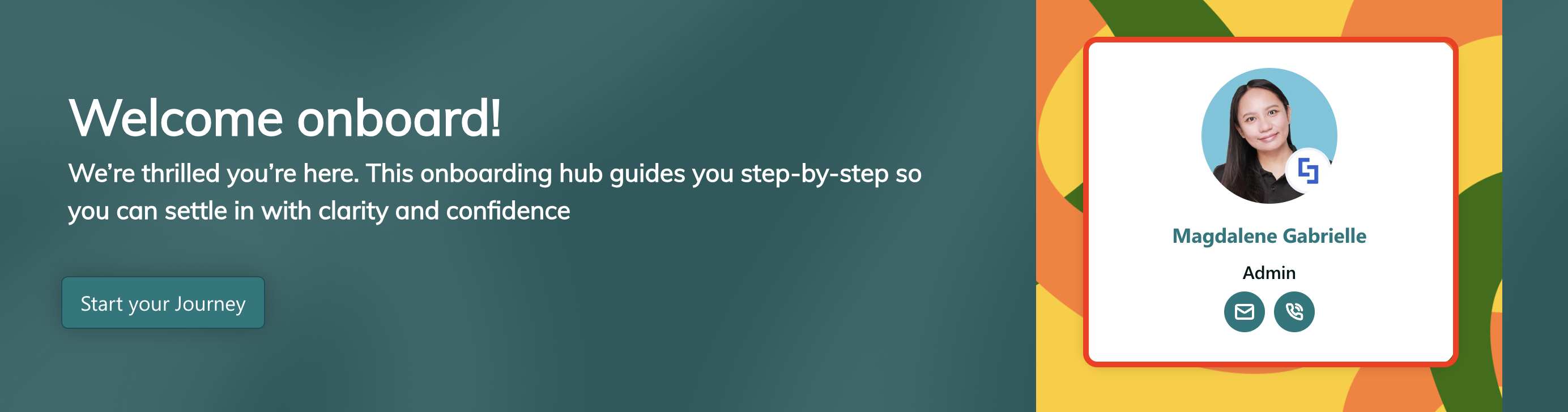
Here's what makes it special: the Current User connection works seamlessly with Microsoft SharePoint's existing user profile system. You're not creating additional databases or requiring extra setup. It simply taps into the information that's already there, making personalization surprisingly straightforward.
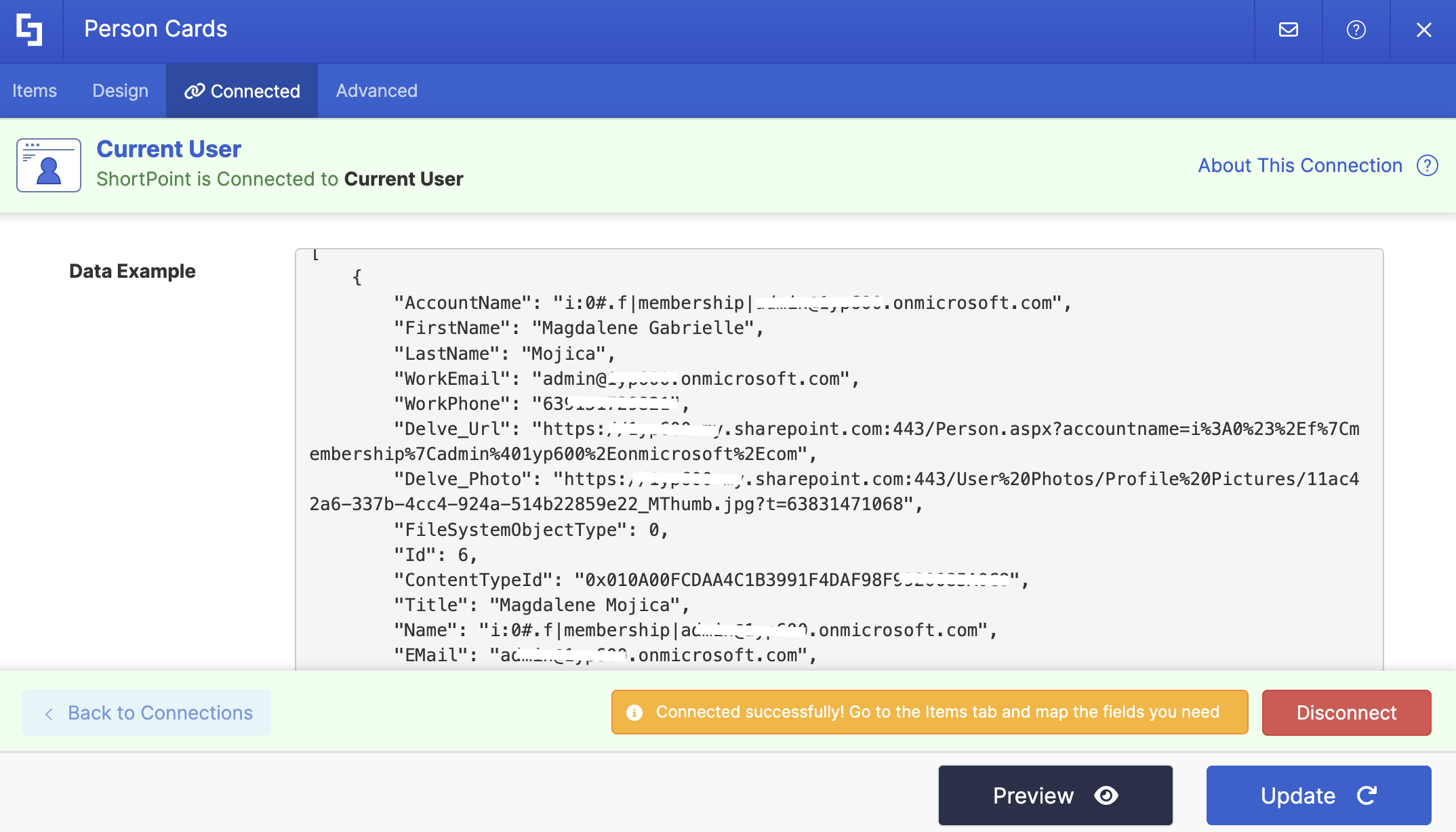
When you connect to Current User, you can access various user properties, including first name, last name, job title, department, email address, profile photo, phone number, and so much more. The specific properties available depend on what's populated in your organization's SharePoint user profiles, so it's worth checking what information is actually filled in before building your design around certain fields. Here's an example of the type of data it pulls:
Interactive Tutorial
Click Get Started to learn how to use the Current User connection type:
NOTETo learn more about the options you can modify, go to Current User Connection Features.
Step-by-step Tutorial
Learn how to use the Current User connection type in this step-by-step guide.
Step 1: Edit the ShortPoint Web Part
- Go to the SharePoint page you want to use and click Edit:

- Close the Toolbox:
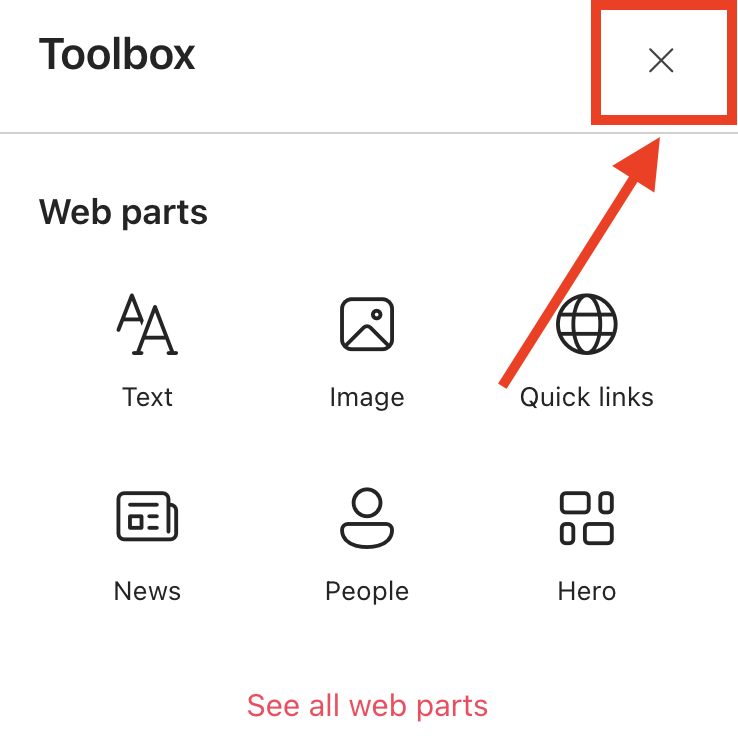
- Click the Edit Properties icon:

Step 2: Edit the Design Element
NOTEBefore proceeding, you must already have the Design Element you want to use to connect on your SharePoint page. You can use any Design Element you prefer, but we recommend using Design Elements that allow listing of multiple items, including Simple List, Image List, Icon List, and so much more. For this guide, we'll use Person Cards.
- Click the EasyPass tag of the Design Element you want to use to connect:
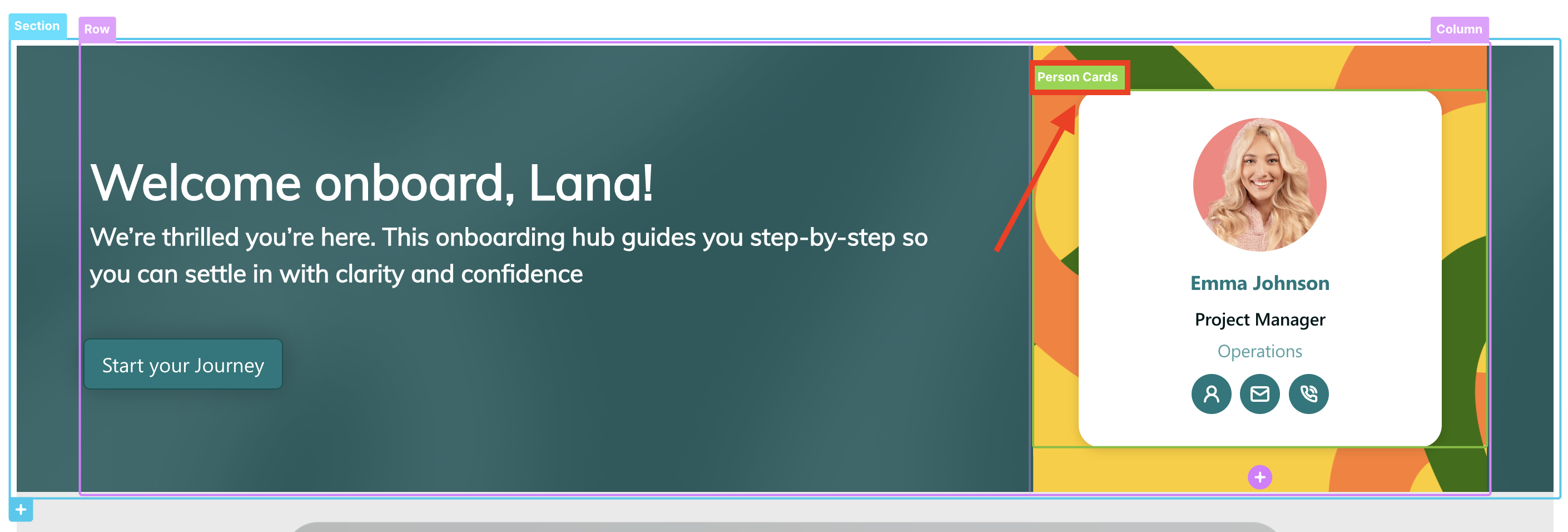
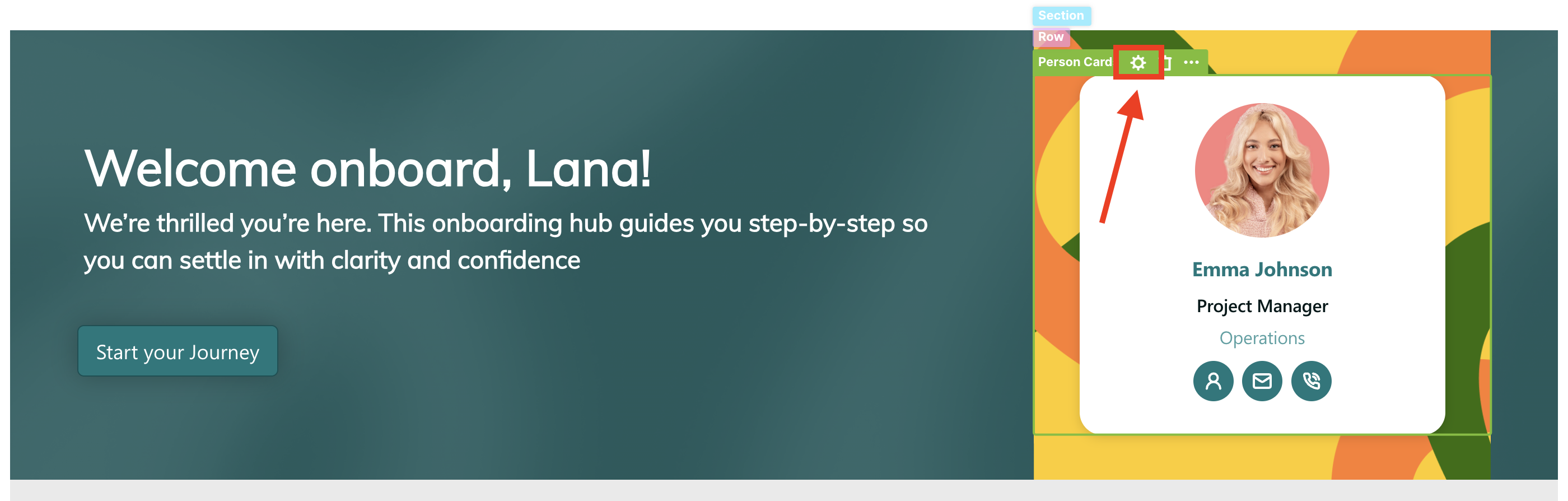
- Select the cogwheel icon:
Step 3: Connect using the Current User connection type
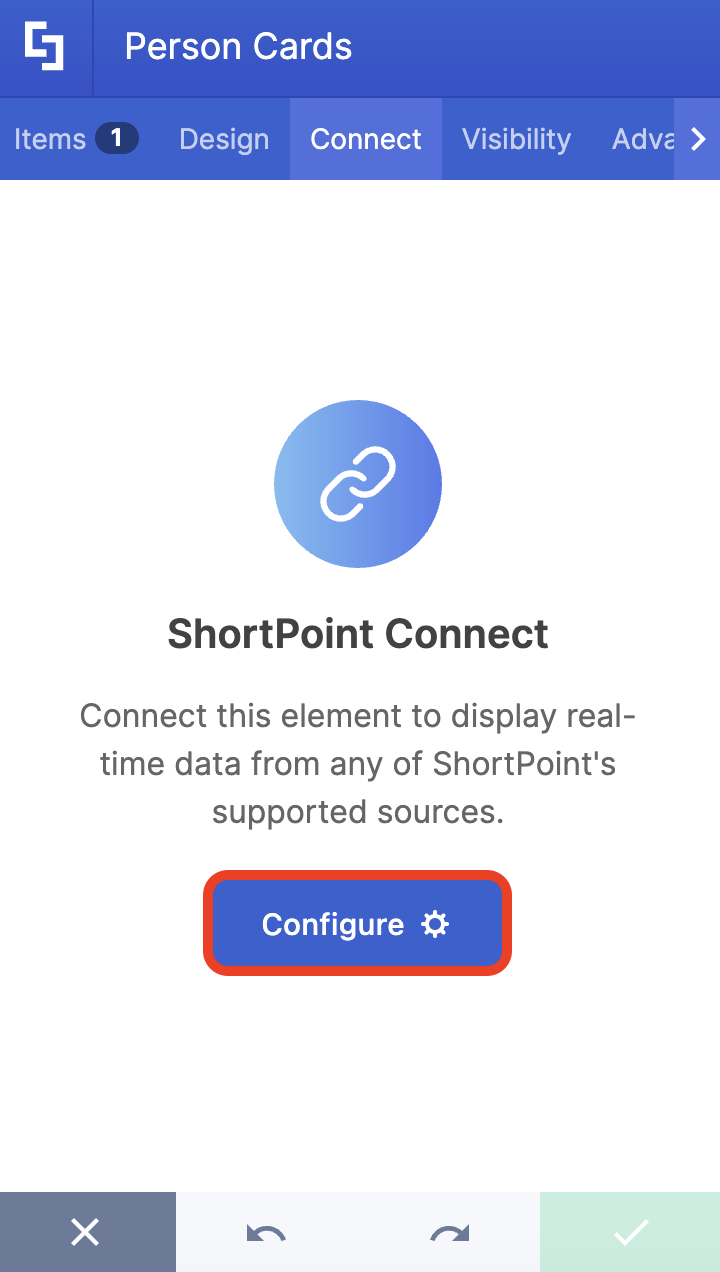
- Go to the Connect tab.
- Click Configure:
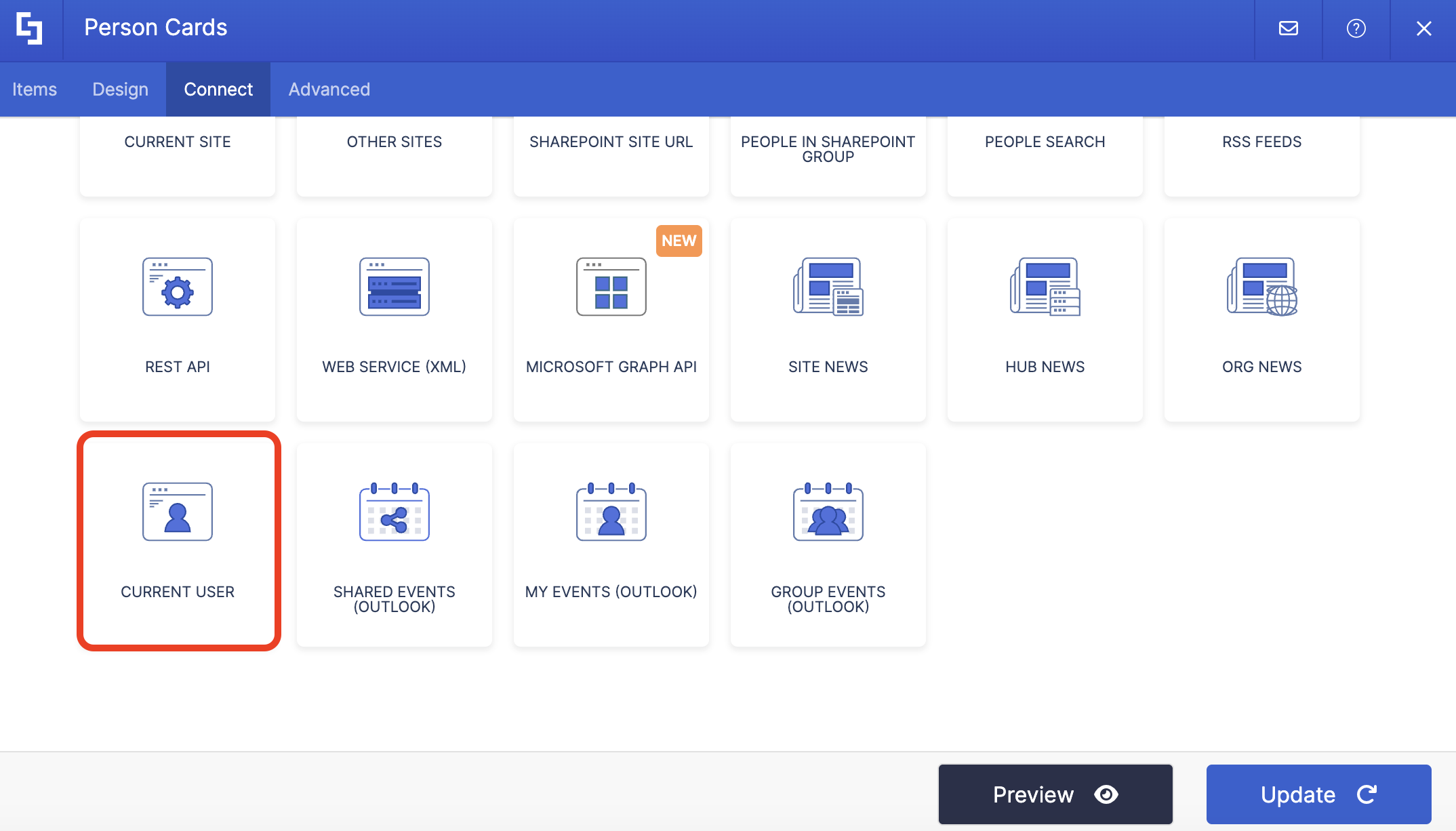
- Select Current User:
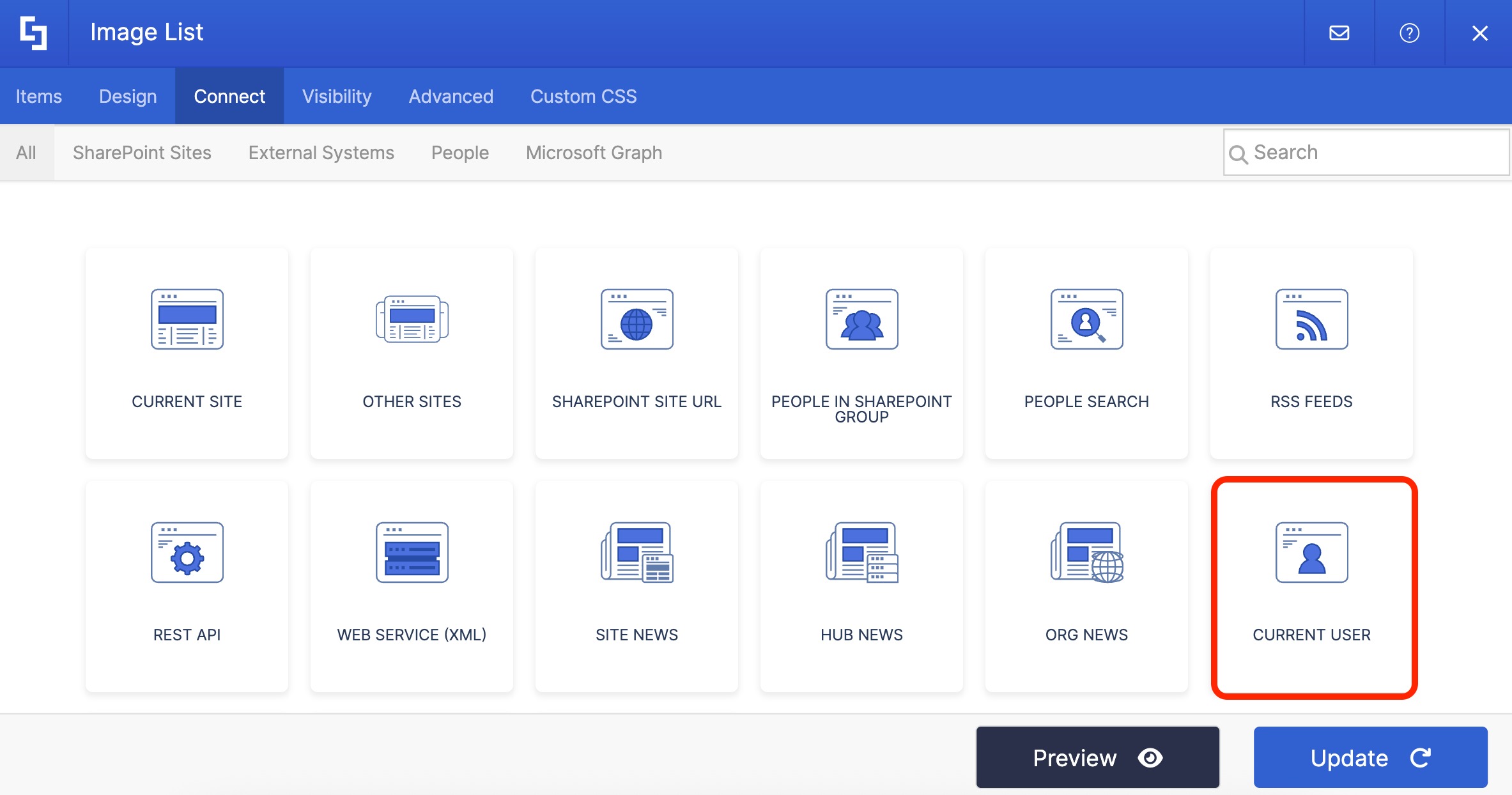
NOTETo learn more about the options you can modify, go to Current User Connection Features.
- Then, click Connect to establish the connection.
Step 4: Map Items to display
- Go to the Items tab.
- Delete all default content:
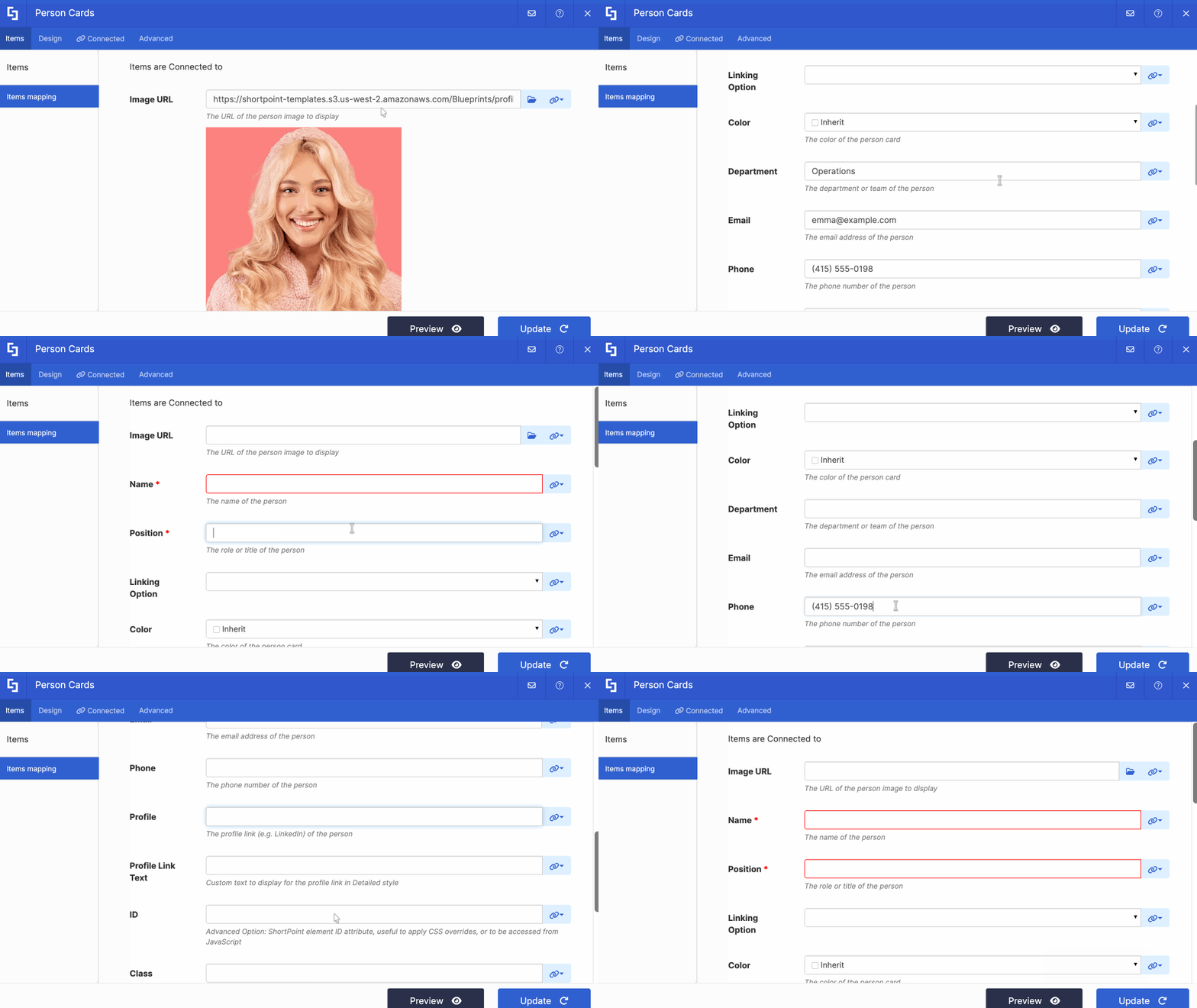
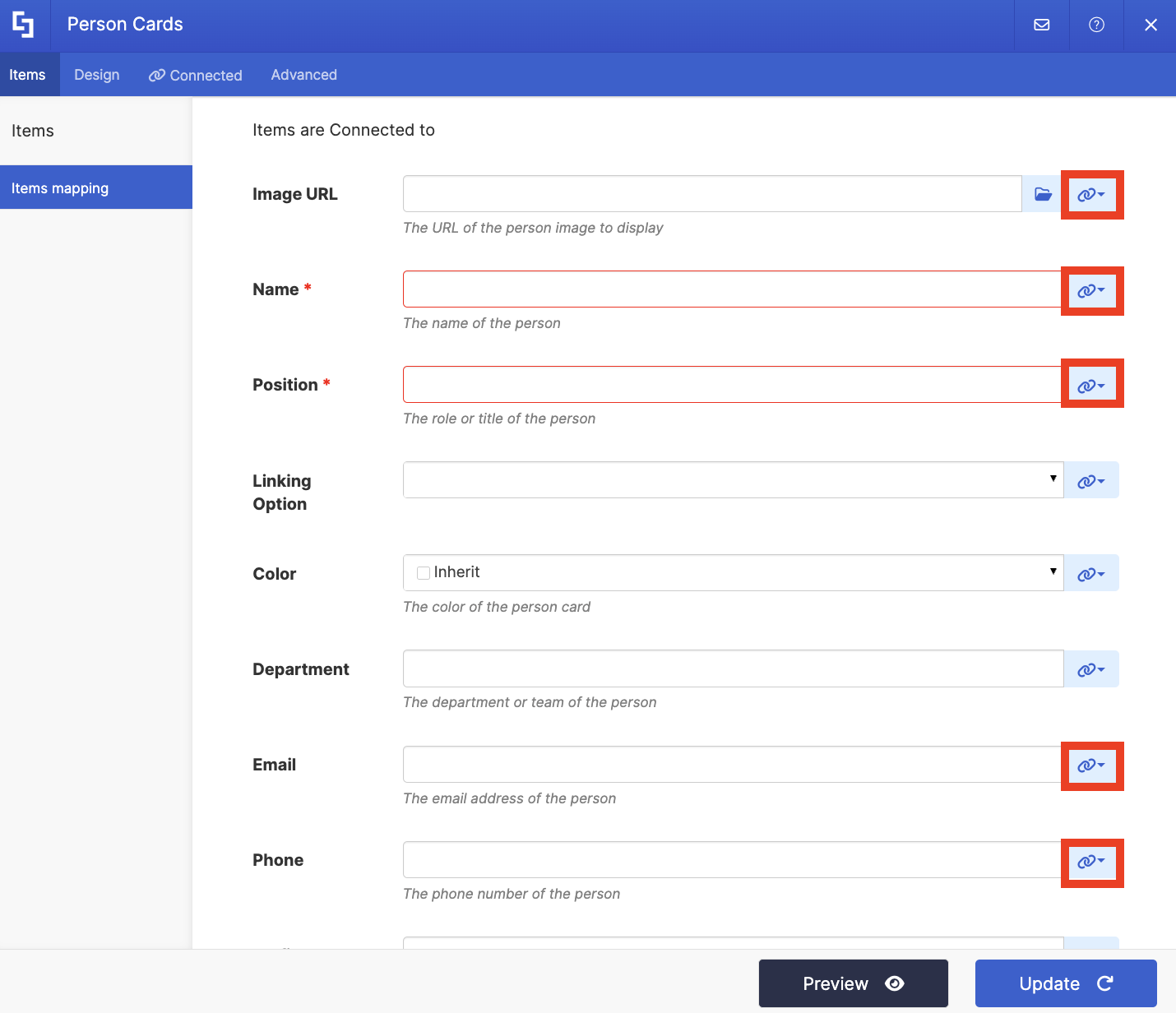
- Click the link icon to choose the properties you want to display. You can map any property you prefer. Just take note that the properties you can map depend on the information you have on your SharePoint user profiles.
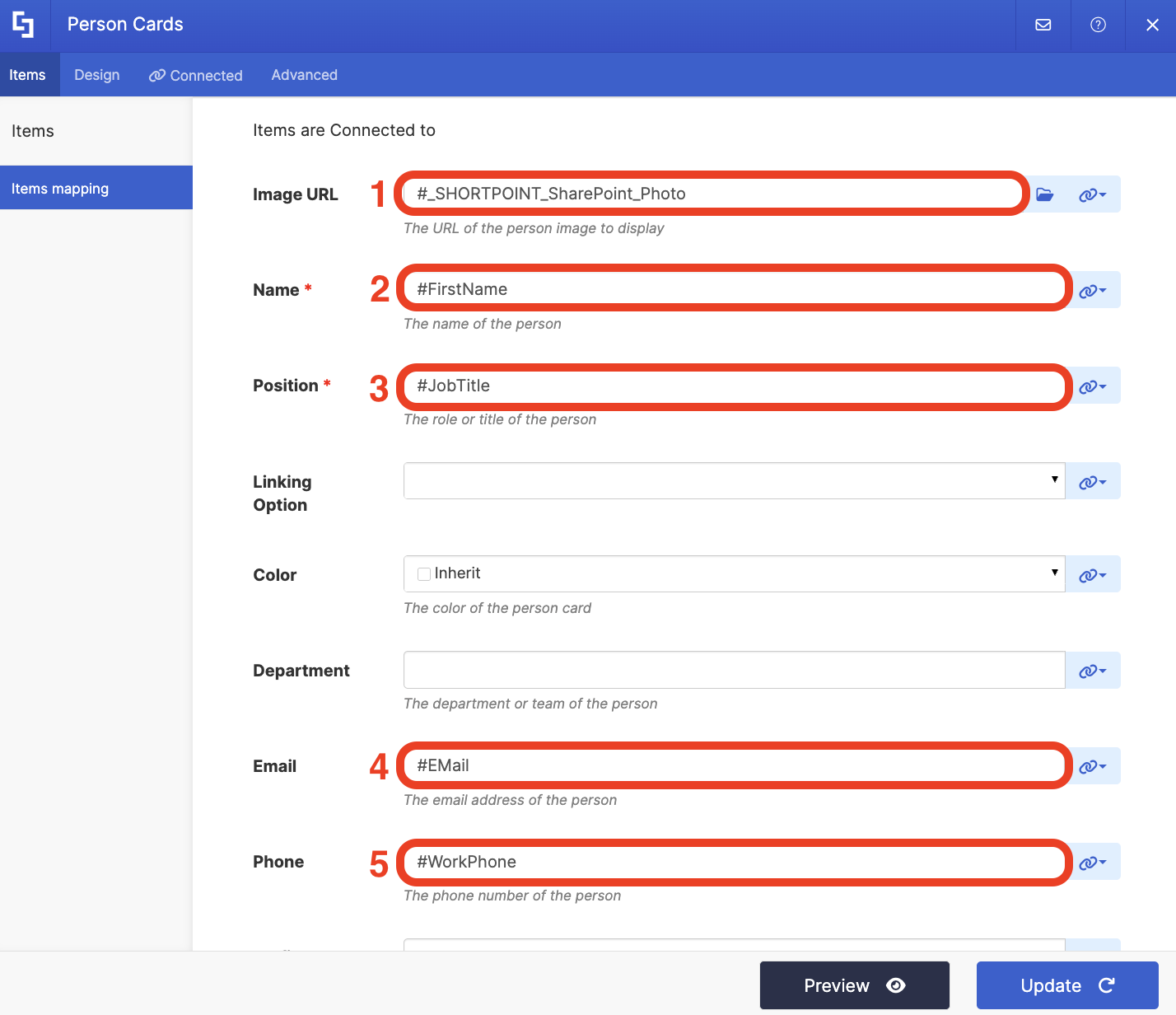
- Here’s an example of our mapped properties:
- #_SHORTPOINT_SharePoint_Photo - shows the profile photo of the current user.
- #FirstName - shows the first name of the current user.
- #JobTitle - shows the work title of the current user.
- #EMail - shows the email address of the current user.
- #WorkPhone - shows the phone number of the current user.
NOTETo learn more about the Connect Feature and Items Mapping, check out Basic Tutorial: How to Establish Seamless SharePoint Connection with ShortPoint Connect.
Step 5: Update and Save
- Click Preview to see how the Design Element will look on your page.
- Once satisfied, click Update.
- Select the green checkmark.
- Then, click the eye icon to see how your page will look in real-time:

- Save your changes:

Congratulations! You can now create personalized experiences for your SharePoint users.
Current User Connection Features
Let’s tackle all the features you can modify using the Current User connection in edit mode:
PERFORMANCE AND CACHING
 | Enable Partial Loading | This feature comes enabled by default. It allows partial loading to activate automatically when the connection returns more than 20 results. Additional results will load as the user scrolls. Learn more about the Partial Loading function. |
 | Cache Options | allows you to choose from 3 caching options. Learn more about these caching options and how to improve ShortPoint performance on your SharePoint sites.
|
Practical Use Cases
What makes the Current User connection so amazing is how it can transform your SharePoint sites. Here are some use cases you can apply to your own pages:
Personalized Welcome Messages
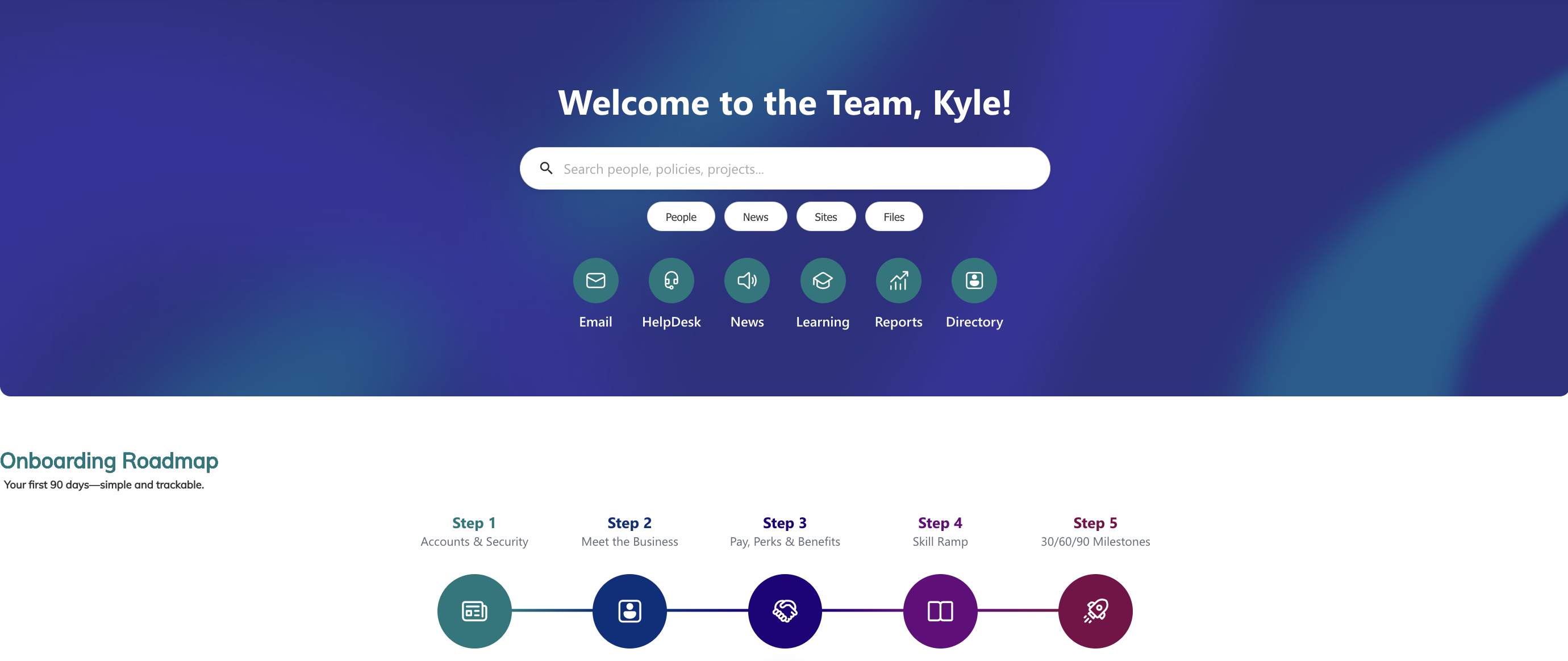
The most common use case is creating a warm, personalized greeting on your homepage or landing pages. Instead of a generic "Welcome to Our Intranet," visitors see "Good Morning, Amala!" It's a small touch that makes a big difference in how welcome people feel.

Profile Showcase Areas
Build dynamic profile sections that let employees see their own information at a glance. This works great on HR pages or internal directories where people might want to verify their listed details are current and accurate.
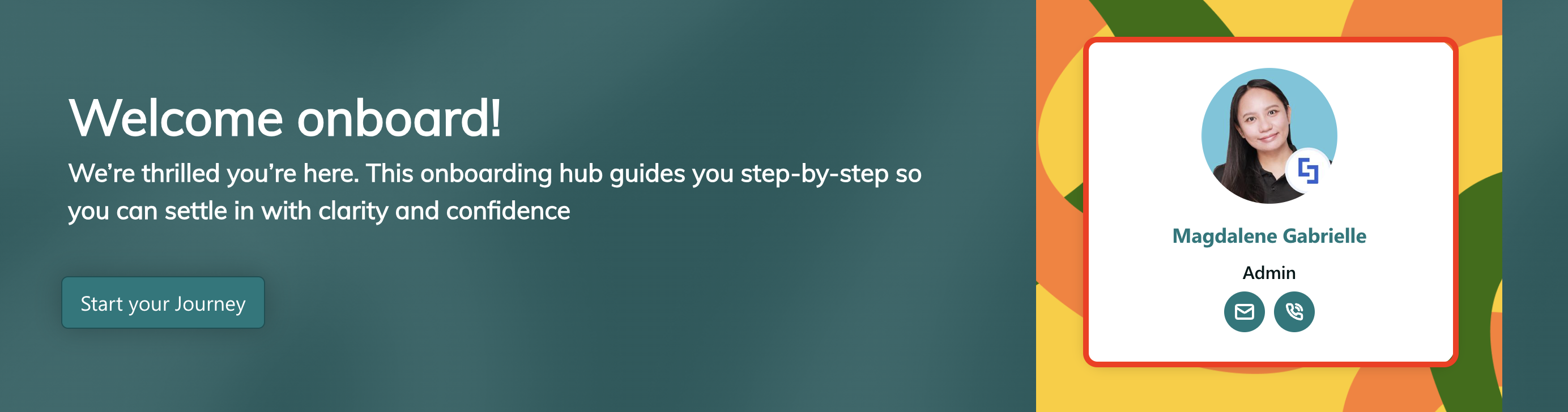
Training and Onboarding Pages
Create onboarding experiences that feel personal from day one. New employees can see pages that greet them by name and guide them through materials specific to their department or role, making the first days less intimidating.
Start Connecting with Current User
The Current User connection type is one of those features that seems simple on the surface but opens up countless possibilities for creating warmer, more engaging SharePoint experiences. Whether you're building a company intranet, department site, or team hub, adding that personal touch can transform how people interact with and feel about your digital workplace.
Ready to make your SharePoint Online pages feel more human? Give the Current User connection a try! Your users will appreciate the difference. ShortPoint Designers can immediately jump in and give it a try. Simply follow the steps in the interactive tutorial. And for those who are new to ShortPoint, we have great news for you! You can get a FREE 15-day trial with us or schedule a demo with our experts. In no time, you’ll get to experience the Current User connection for yourselves.
Frequently Asked Questions
Do I need to know how to code to use the Current User connection?
Not at all! The Current User connection is completely no-code and designed for ease of use. You set it up through ShortPoint's visual interface by clicking buttons and selecting options from dropdowns. If you can edit a SharePoint page, you can set up this connection with just a few steps.
Will this work with custom user profile properties?
Yes, though accessing custom properties requires a bit more configuration. You'll need to ensure your custom properties are set up as crawled and managed metadata properties in SharePoint search. Once that's done, you can map them just like standard properties.
Can users edit the information displayed about them?
The Current User connection displays information from SharePoint user profiles, so users would need to update their profile information through SharePoint or your organization's directory service (like Active Directory). The connection simply reflects whatever is currently stored in the profile.
How many design elements can I connect to Current User on a single page?
There's no technical limit. You can have multiple elements on the same page, all connected to the Current User connection, each displaying different user properties or styled differently.
Will this slow down my page loading times?
The Current User connection is quite efficient since it's pulling from information that's already cached in SharePoint. Most users won't notice any performance impact. However, if you have many connected elements, consider using ShortPoint's cache settings for optimal performance.
What happens if a user's profile information is incomplete?
The connection will display whatever information exists in the profile. If a field is empty (like if someone hasn't added a profile photo), that part of your design element will simply be blank. It's good practice to design elements that still look decent even with some missing information.
Can I combine Current User with other connection types?
Absolutely! You can create sophisticated experiences by combining Current User with other ShortPoint connections. For example, you might show someone's personal information alongside news from their department or tasks from their SharePoint lists.
Do I need to reconnect elements after updating user profile information?
No, the connection is dynamic. Once set up, it automatically pulls the latest information from user profiles. When someone updates their job title or photo, those changes appear automatically the next time they view the page.
Can I use the Current User connection on multiple sites?
Yes, you can implement this on as many SharePoint sites as you'd like within your tenant scope, as long as ShortPoint is properly licensed. The connection works the same way across all your sites.
Is there a way to test how the connection looks for different users?
The best way is to use ShortPoint's preview feature and have colleagues check the page, or temporarily sign in as a test user if your organization allows that. Since it's truly dynamic, the only way to see how it appears for different people is to view it as those users.
Related articles:
