 Try ShortPoint now
If you've ever wanted to showcase rss feed in SharePoint, the ShortPoint RSS Feed connection type is exactly what you need. It's a simple yet powerful way to bring news, blog posts, or updates from external websites directly on your SharePoint pages. This keeps your SharePoint site fresh and informative without constantly manually updating content.
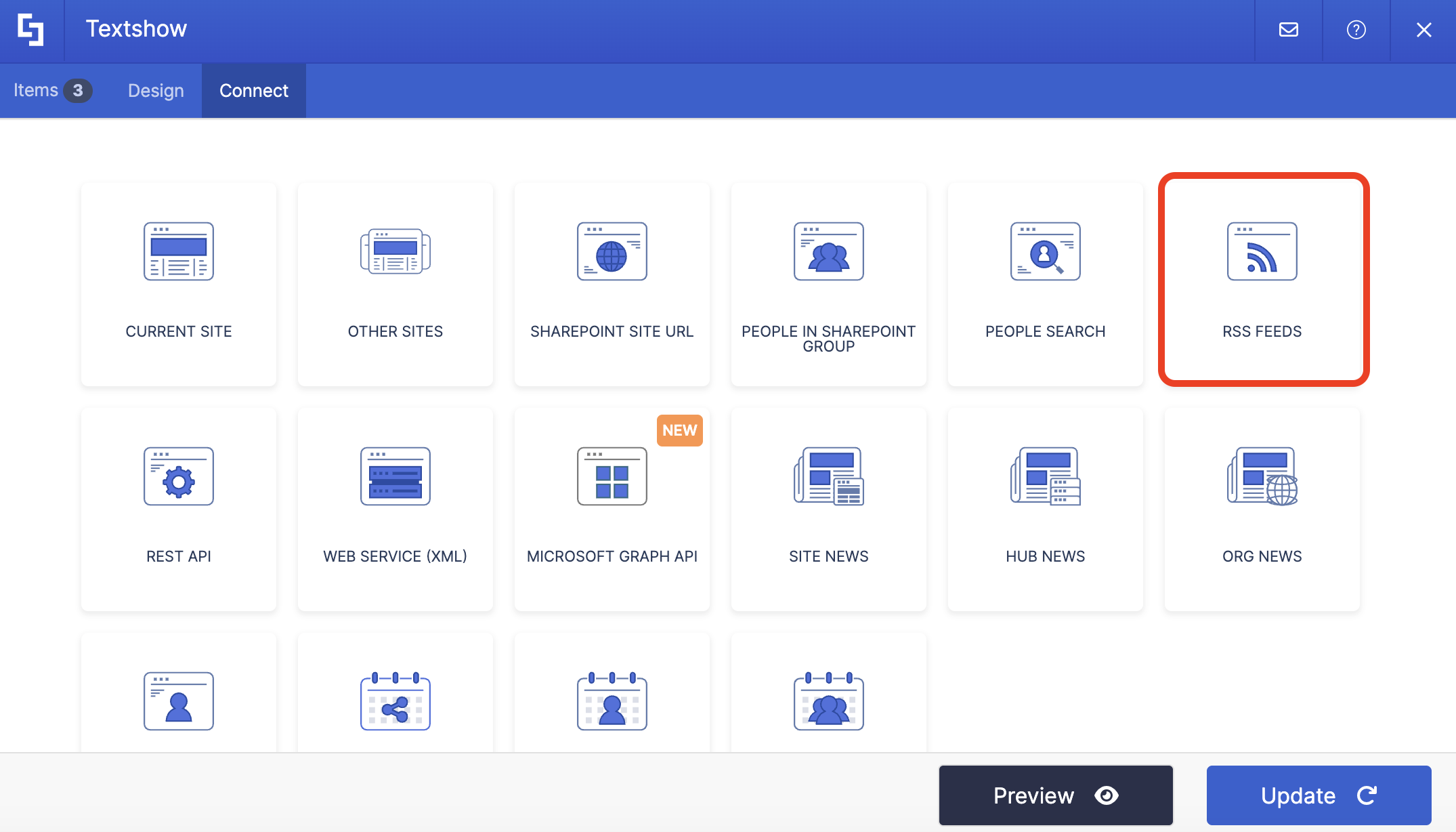
TABLE OF CONTENTS
- Prerequisites
- What is the ShortPoint RSS Feed Connection Type?
- Interactive Tutorial
- Step-by-step Tutorial
- RSS Feed Connection Features
- Practical Use Cases
- Start Connecting with RSS Feeds
- Frequently Asked Questions
- What types of websites can I connect to using RSS feeds?
- Can I connect multiple RSS feeds to a single page?
- How often does the content update?
- What if the RSS feed URL changes or stops working?
- Can I filter or limit the number of items displayed?
- Do users need special permissions to view RSS feed content?
- Can I style the RSS feed content to match my branding?
- What happens if a connected website doesn't have an RSS feed?
- Can I use RSS feeds with any ShortPoint Design Element?
- Is there a limit to how many RSS feeds I can connect?
Prerequisites
- You have the latest version of ShortPoint SPFx installed (version 8.7.2.0 and up) on your SharePoint environment.
- You are a ShortPoint Designer with an active license.
- You must have the ShortPoint Design Element you want to use to connect on your page.
- You must already have the RSS Feed URL you want to connect to.
What is the ShortPoint RSS Feed Connection Type?
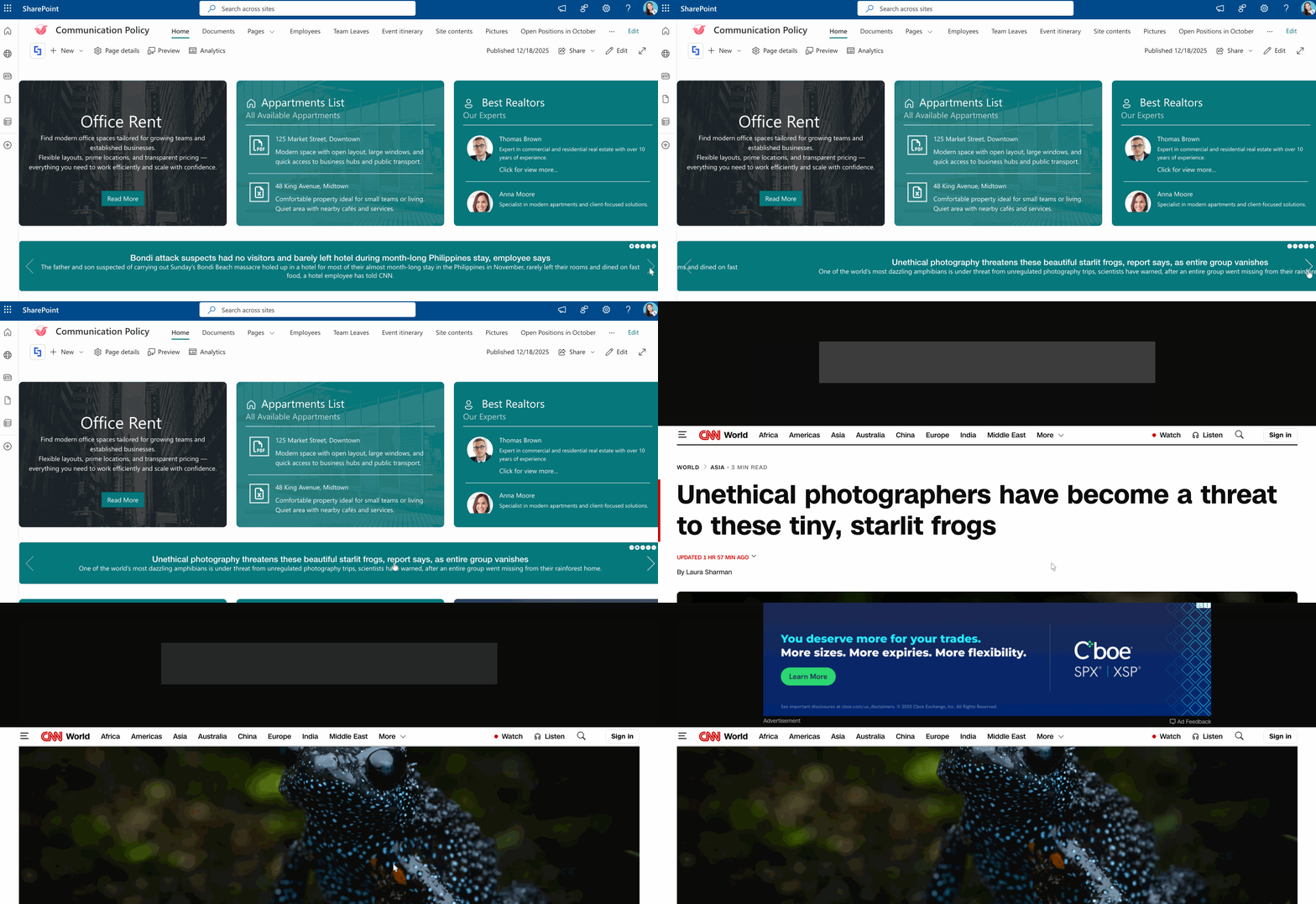
The RSS Feeds connection type allows you to pull content from any website that offers an RSS feed and display it beautifully on your Microsoft SharePoint pages. It brings external content into your SharePoint environment through ShortPoint's wide library of Design Elements.
RSS (Really Simple Syndication) feeds are data files that automatically update whenever a website publishes new content. When you connect a ShortPoint Design Element to an RSS feed, you're essentially telling your SharePoint page to watch that feed and display its latest updates automatically, without needing to manually edit multiple sources.
Here's what makes this connection type special: you don't need to be a developer to use it. ShortPoint handles all the technical complexity behind the scenes, so you can focus on curating the content that matters to your organization, saving time while enhancing your SharePoint Online site's functionality.
Interactive Tutorial
Click Get Started to learn how to use the RSS Feed connection type:
NOTETo learn more about the options you can modify, go to RSS Feed Connection Features.
Step-by-step Tutorial
Learn how to use the RSS Feeds connection type in this step-by-step guide.
Step 1: Edit the ShortPoint web part
- Go to the SharePoint page you want to use and click Edit:

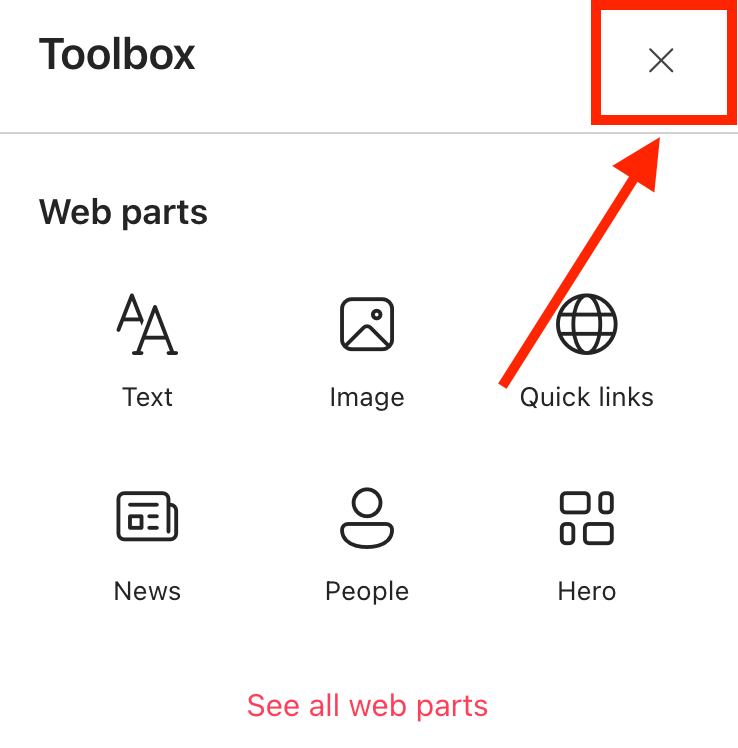
- Close the Toolbox:
- Edit the ShortPoint web part:

Step 2: Edit the Design Element
NOTEBefore proceeding, you must already have the Design Element you want to use to connect on your SharePoint page. You can use any Design Element you prefer, but we recommend using Design Elements that allow listing of multiple items, including Simple List, Image List, Icon List, and so much more. For this guide, we'll use Textshow.
- Click the EasyPass tag of the Design Element you want to use to connect:

- Select the cogwheel icon:

Step 3: Connect using the RSS Feed connection type
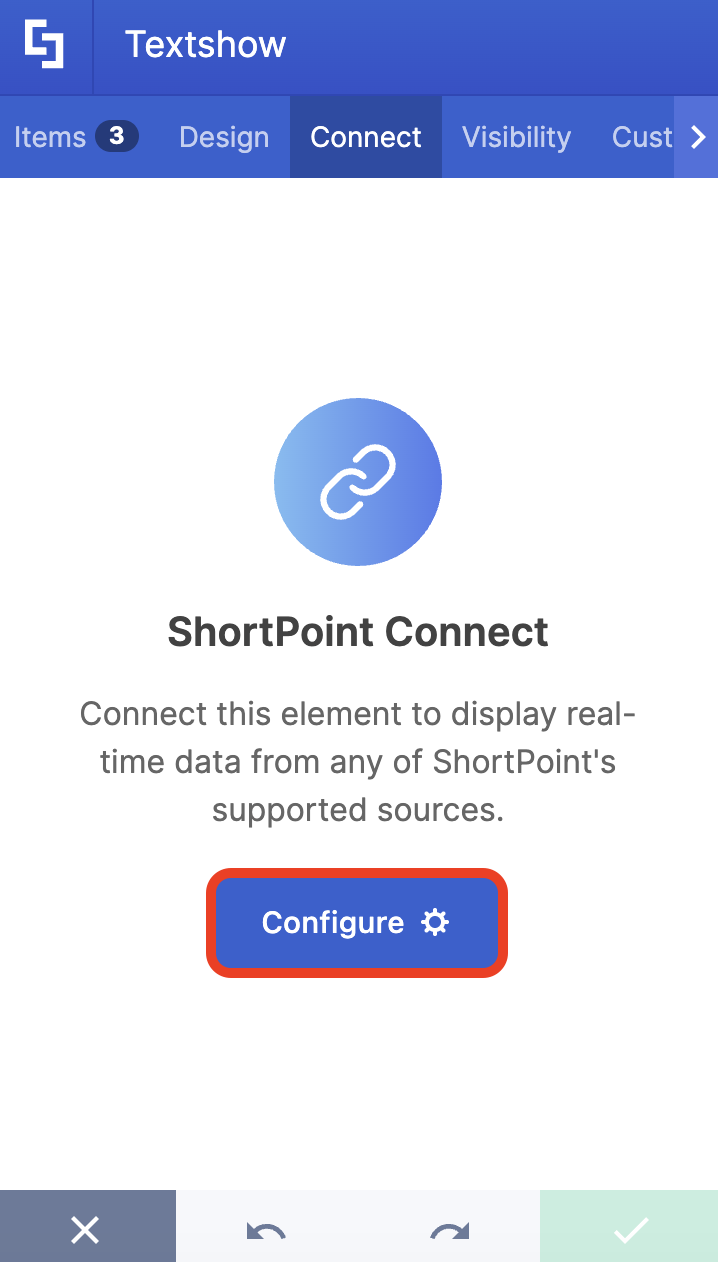
- Go to the Connect tab.
- Click Configure:
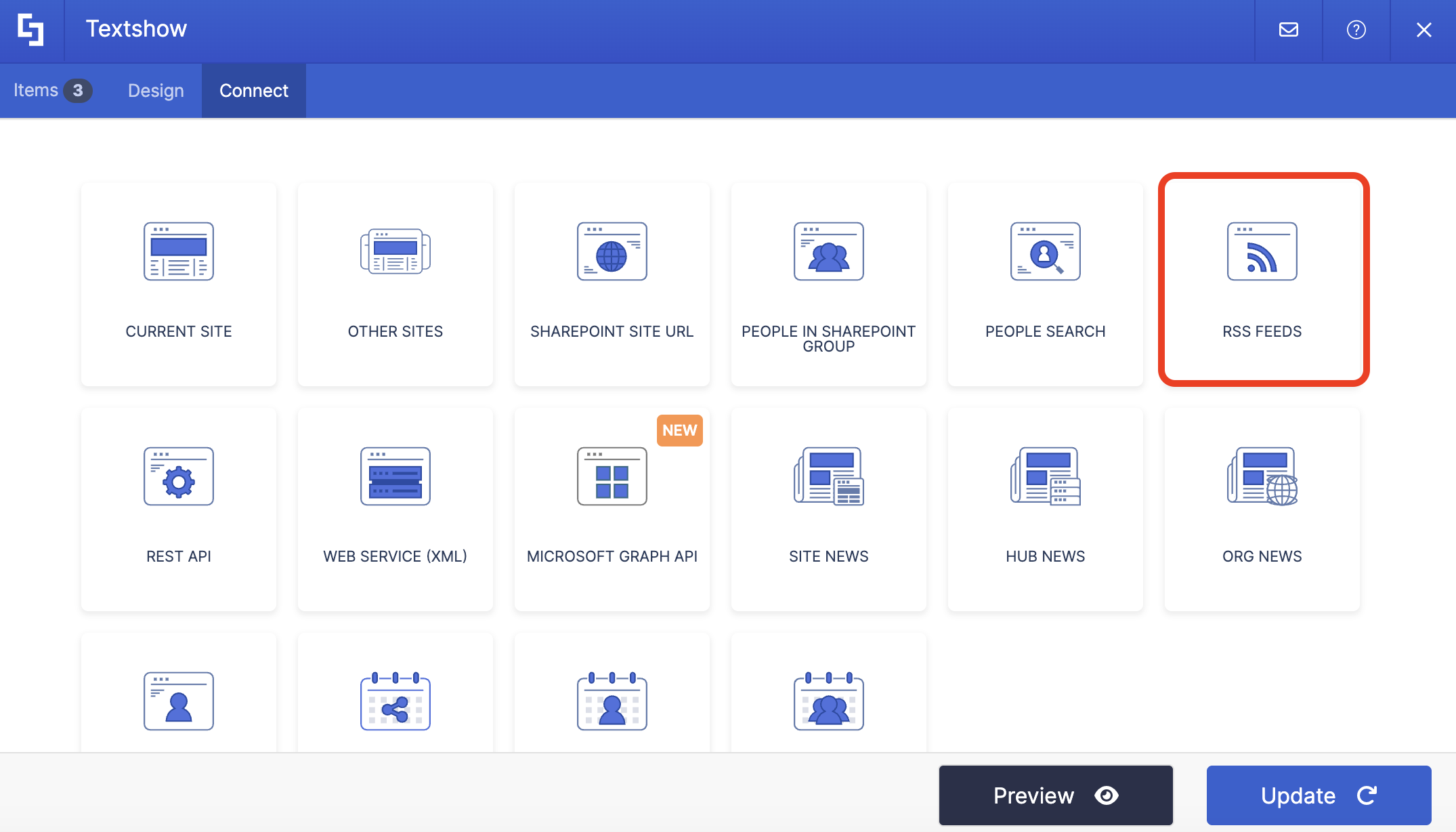
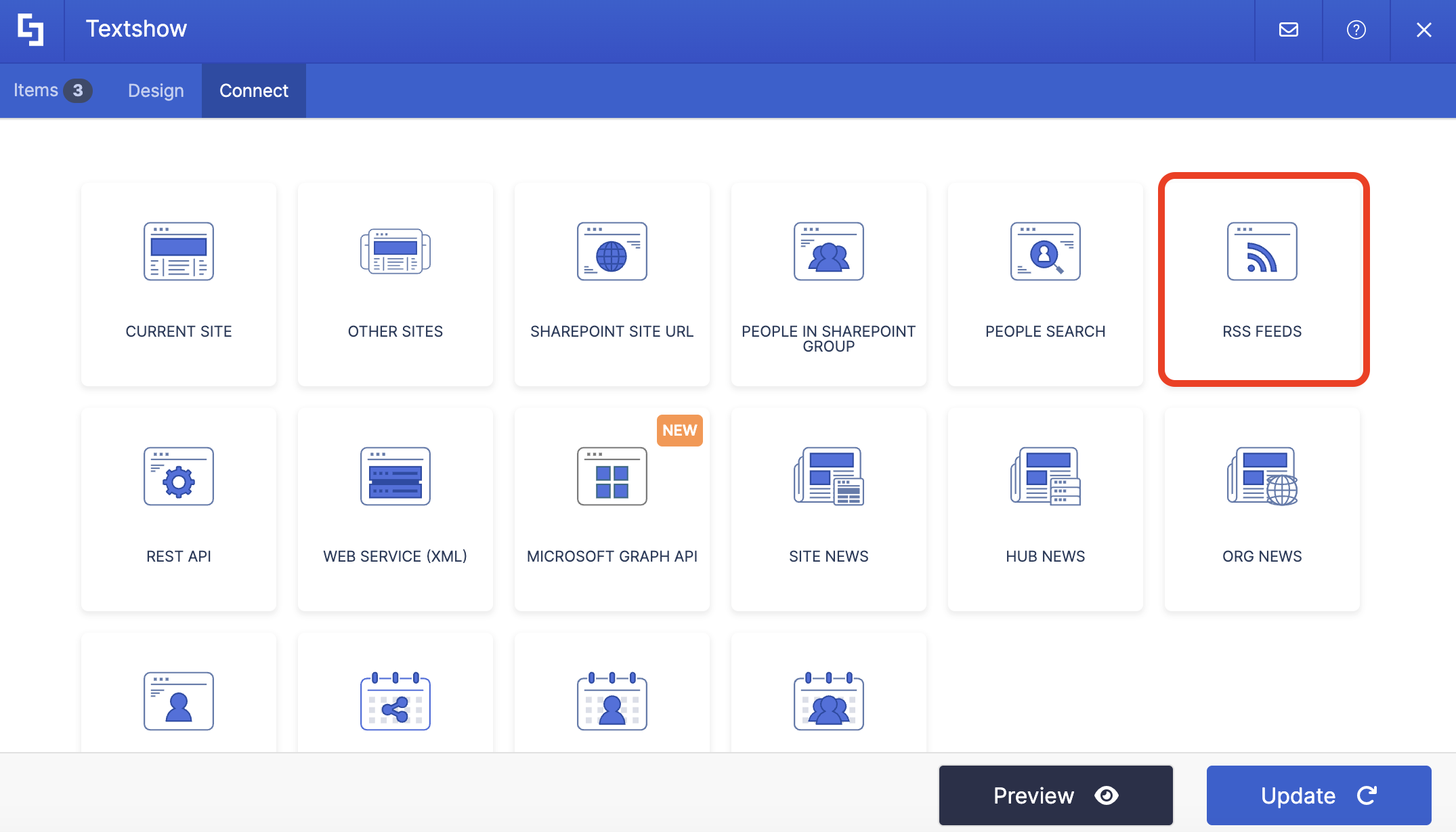
Select RSS Feed:
- Paste your RSS Feed URL. If you don’t have an RSS Feed URL yet, check out How to Generate an RSS Feed URL.
- (Optional) Set an Item Limit.
- Then, click Connect to establish the connection.
NOTETo learn more about the options you can modify, go to RSS Feed Connection Features.
Step 4: Map Items to display
- Go to the Items tab.
- Delete all default content:
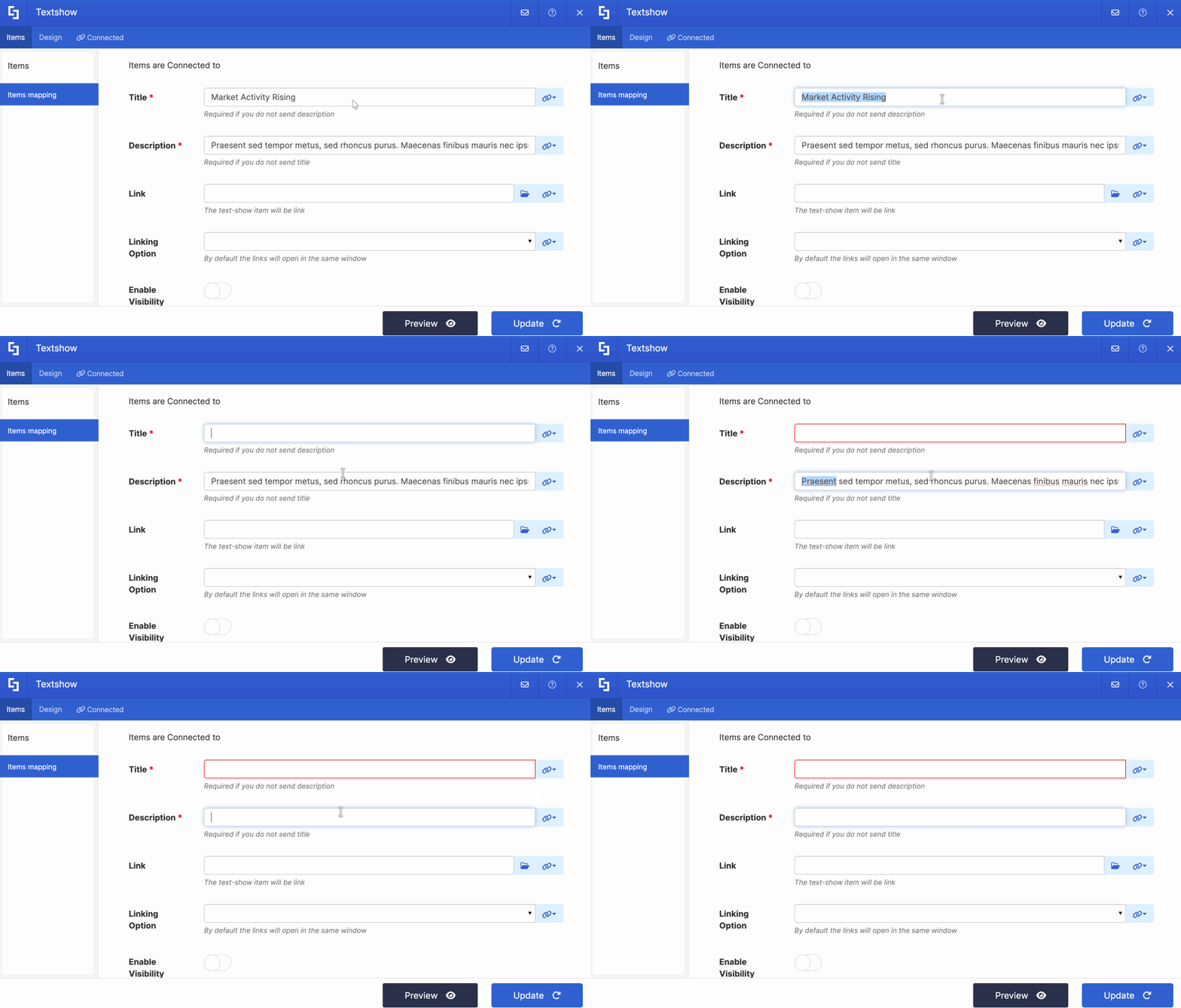
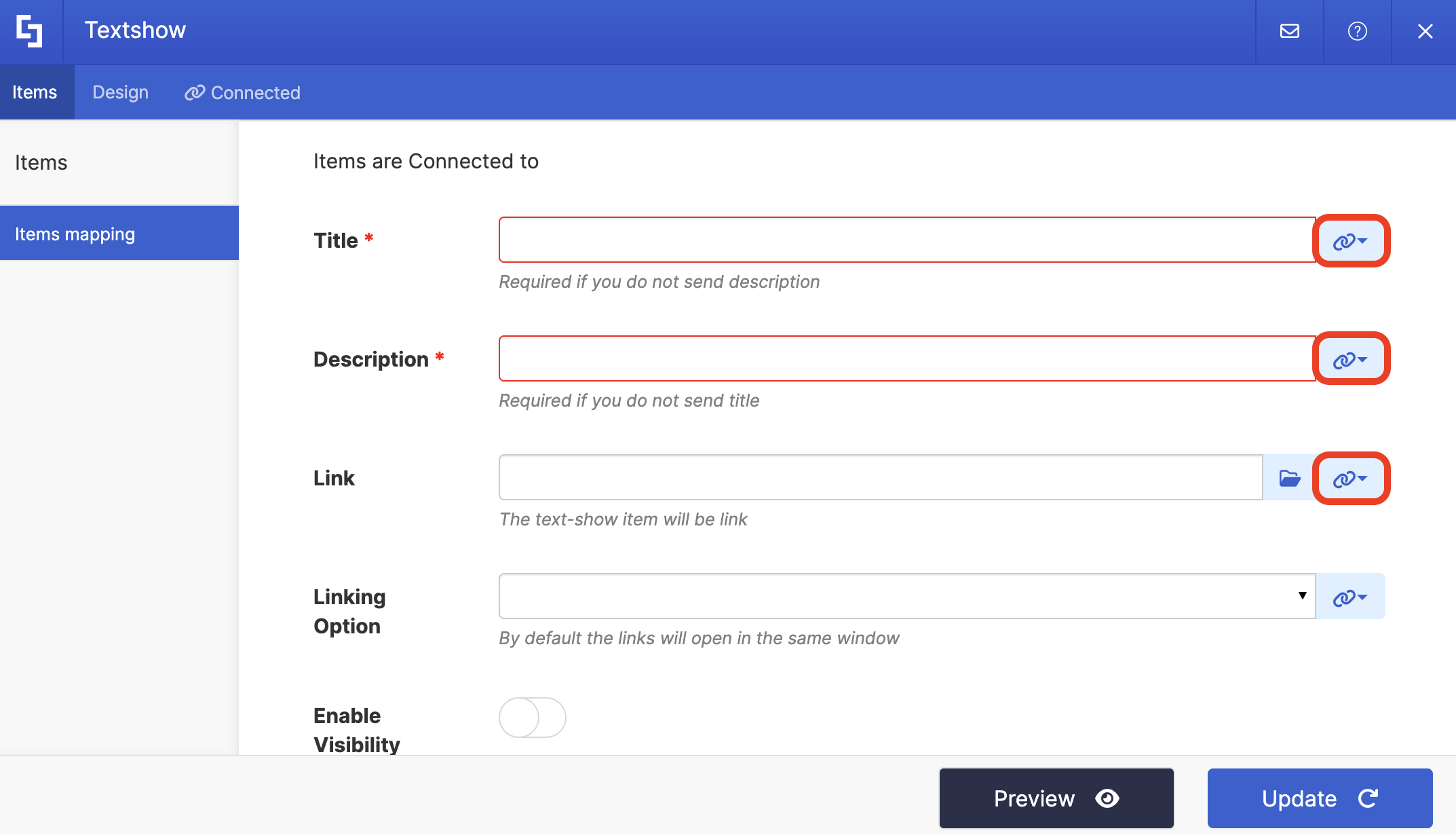
- Click the link icon to choose the properties you want to display. You can map any property you prefer. Just take note that the properties you can map depend on the information you have on your SharePoint user profiles.
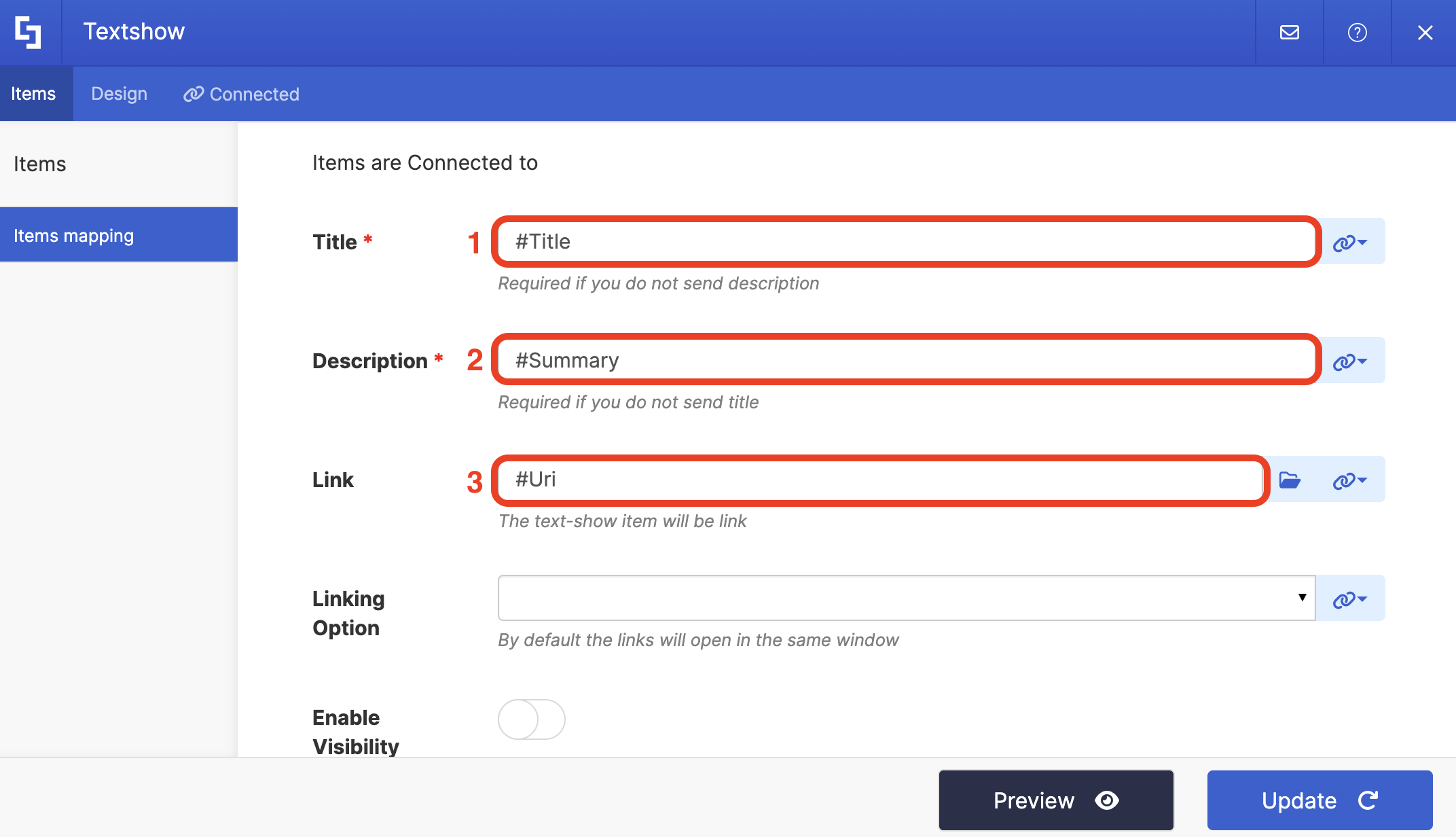
- Here’s an example of our mapped properties:
- #Title - shows the title of the article.
- #Summary - shows the description of the article.
- #Uri - links the article to its source.
NOTETo learn more about the Connect Feature and Items Mapping, check out Basic Tutorial: How to Establish Seamless SharePoint Connection with ShortPoint Connect.
Step 5: Update and Save
- Click Preview to see how the Design Element will look on your page.
- Once satisfied, click Update.
- Select the green checkmark.
- Then, click the eye icon to see how your page will look in real-time:

- Save your changes:

Congratulations! You can display your RSS feed in SharePoint sites using the ShortPoint RSS Feeds connection. This powerful integration allows you to seamlessly bring external content directly onto your SharePoint pages, enhancing your intranet's value and keeping your users informed with the latest updates automatically.
RSS Feed Connection Features
Let’s tackle all the features you can modify using the RSS feed connection in edit mode:
 | RSS Feed URL | allows you to add the RSS Feed URL of the site. |
 | Items Limit | allows you to set the maximum number of news items to display. If this is left blank or is set to 0, all news will be shown. |
ADVANCED SETTINGS
 | Enable Advanced Settings | when enabled, advanced settings will be displayed. |
 | Custom headers | allows you to append custom header parameters using JavaScript. Learn more about the Custom Headers function. |
 | Change Parameters | allows you to pass parameters to the URL with JavaScript. Learn more about the Change Parameters function. |
 | Change Path | allows you to modify the Service URL Path using JavaScript. Learn more about the Change Path function. |
 | Map Results | If your API doesn't return an array of result items (which ShortPoint expects), you can use this function to transform the data into the proper format for ShortPoint. Learn more about the Map Results function. |
PERFORMANCE AND CACHING
 | Enable Partial Loading | This feature comes enabled by default. It allows partial loading to activate automatically when the connection returns more than 20 results. Additional results will load as the user scrolls. Learn more about the Partial Loading function. |
 | Cache Options | allows you to choose from 3 caching options. Learn more about these caching options and how to improve ShortPoint performance on your SharePoint sites.
|
Practical Use Cases
The RSS Feed connection type opens up numerous possibilities for enriching your SharePoint Online intranet. Here are some real-world scenarios where this SharePoint connection feature shines:
Industry News Dashboard
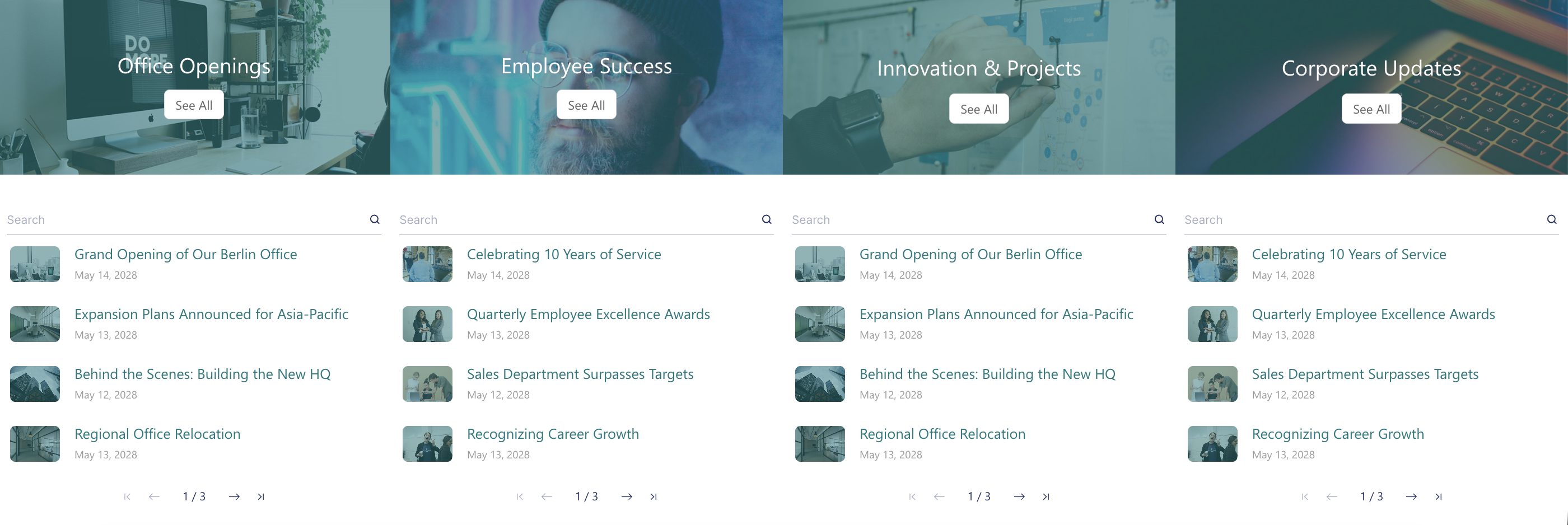
Create a news hub on your intranet that displays the latest articles from relevant industry publications. For example, a technology company could pull feeds from TechCrunch, Wired, and industry-specific blogs to keep employees informed about market trends and innovations.
Competitive Intelligence
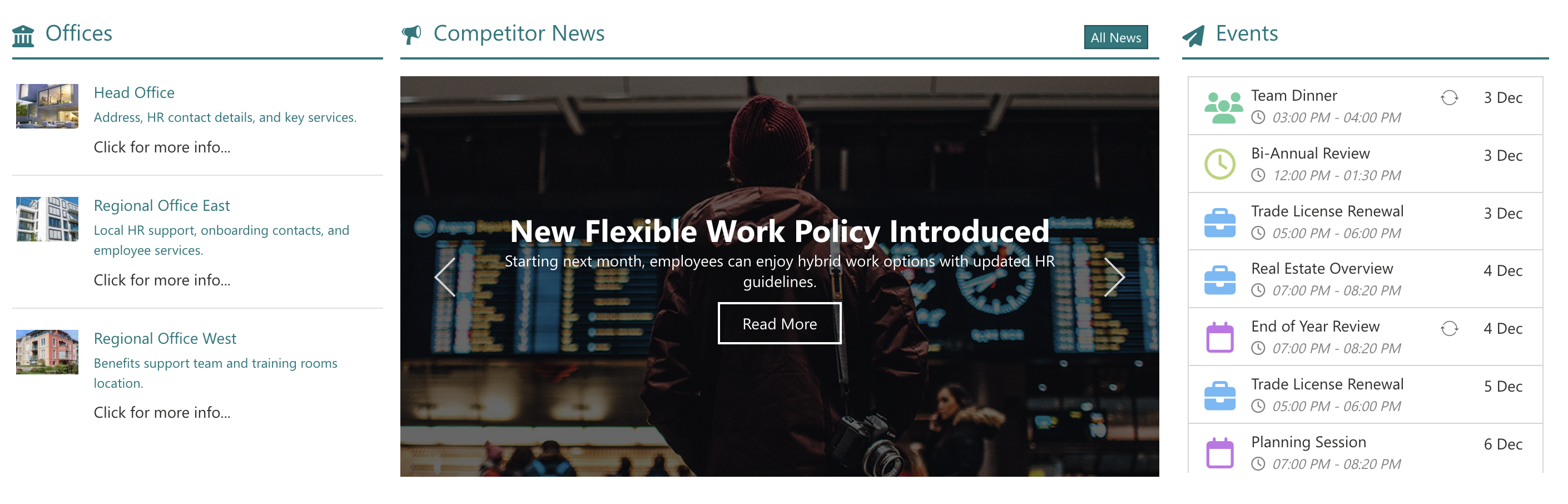
Monitor your competitors' blogs and news sections by connecting their RSS feeds to your internal pages. This gives your team easy access to competitor announcements, product launches, and market positioning without having to visit multiple websites daily.
Local News and Community Engagement
Companies with strong ties to their local communities can display regional news feeds, community event listings, or local government announcements to keep employees connected to their surroundings.

Start Connecting with RSS Feeds
The ShortPoint RSS Feed connection type transforms how you bring external content into your SharePoint environment. By keeping your intranet pages current, you free up valuable time while providing your team with the information they need to stay informed and productive. It offers a reliable, low-maintenance solution that just works.
Ready to get started? ShortPoint Designers can follow the interactive tutorial to start using the RSS Feeds connection. For those who are new to ShortPoint, you can get a FREE 15-day trial with us or schedule a demo with our experts. You'll be amazed at how quickly you can transform your SharePoint pages into dynamic, information-rich hubs that your users will actually want to visit.
Frequently Asked Questions
What types of websites can I connect to using RSS feeds?
Most blogs, news websites, podcasts, and content management systems offer RSS feeds. Look for an orange RSS icon or links labeled "RSS," "Feed," or "Subscribe." Popular platforms like WordPress, Medium, and most news outlets provide RSS feeds by default. You can also check out our article on How to Generate an RSS Feed for more details.
Can I connect multiple RSS feeds to a single page?
Absolutely! You can add multiple ShortPoint Design Elements to your SharePoint pages, each connected to a different RSS feed URL. This is perfect for creating comprehensive news dashboards or aggregating content from various sources.
How often does the content update?
ShortPoint automatically checks RSS feeds for updates regularly. The exact frequency depends on your SharePoint environment's caching settings, but generally, new content appears within minutes to hours of being published on the source website.
What if the RSS feed URL changes or stops working?
If an RSS feed becomes unavailable, the Design Element will display the last successfully retrieved content. You'll need to update the connection with a new, valid RSS feed URL. It's a good practice to periodically verify that your connected feeds are still active.
Can I filter or limit the number of items displayed?
Yes! Most ShortPoint Design Elements allow you to control how many items to display. You can typically set a maximum number of items, which means you'll only show the most recent posts rather than overwhelming users with everything from the feed.
Do users need special permissions to view RSS feed content?
No special permissions are required to view content from RSS feeds. If users can access the SharePoint page, they'll see the RSS feed content. The RSS feeds themselves are public data sources.
Can I style the RSS feed content to match my branding?
Definitely! ShortPoint provides extensive customization options for Design Elements. You can adjust colors, fonts, layouts, spacing, and more through the Design tab. For advanced customizations, you can even use the Custom CSS tab.
What happens if a connected website doesn't have an RSS feed?
You can check out our article on How to Generate RSS Feeds. Here, you'll learn how to get an RSS Feed URL by using only the target website's URL. You can also explore ShortPoint's REST API connection type as an alternative, or check if the website offers an alternative syndication method.
Can I use RSS feeds with any ShortPoint Design Element?
Most ShortPoint Design Elements that support connections can work with RSS feeds. Popular choices include Image List, Ticker, and Tabs. The key is choosing an element that fits the type of content you're displaying.
Is there a limit to how many RSS feeds I can connect?
There's no hard limit imposed by ShortPoint, but practical considerations like page load times and user experience should guide your decisions. It's generally best to be selective and focus on the most valuable content sources rather than connecting everything available.
Related articles:
- ShortPoint RSS Feed Connections stopped working
- ShortPoint Connect: Basic Tutorial
- Connection Types: Getting started with SharePoint Site URL
- Connection Types: SharePoint Site URL
- Connection Types: Current Site
- Connection Types: Other Sites
- Connection Types: People in SharePoint Group
- Connection Types: People Search
- Connection Types: REST API
- Connection Types: Current User
- Connection Types: Web Service (XML)
